


 Скачать презентацию Module 4 Setting Up and Administering Users and
d6b423e8510253c0b3f6f811ee074735.ppt
- Количество слайдов: 101
 Module 4: Setting Up and Administering Users and Groups
 Overview n Introduction to Users and Groups n User Logon Names n Creating Multiple User Accounts n Administering User Accounts n Using Groups in Active Directory n Strategies for Using Groups in a Domain n Troubleshooting Domain User Accounts and Groups n Best Practices
 n Active Directory® directory service is a directory service that stores and maintains data needed by network resources. A user account is an object stored in Active Directory that enables a single sign-onfor a user account. A single sign-on means that users need to enter their names and passwords only once during a workstation logon to gain authenticated access to network resources. A domain user account provides the ability to log on to the domain to gain access to network resources, or to log on to an individual computer to gain access to resources on that computer. n A group is usually a collection of user accounts. You can use groups to efficiently manage access to domain resources, which helps simplify network maintenance and administration. You can use groups separately or you can place one group within another to further simplify administration.
 At the end of this module, you will be able to: n Identify the purpose of using user accounts and groups in Microsoft® Windows® 2000. n Identify the different types of user logon names, and create a user principal name suffix. n Create multiple user accounts by importing user information into Active Directory. n Administer user accounts. n Use groups to manage access to domain resources. n Implement strategies for using security groups to manage access to domain resources. n Troubleshoot common problems with administering user accounts and groups. n Apply best practices for administering user accounts and groups.
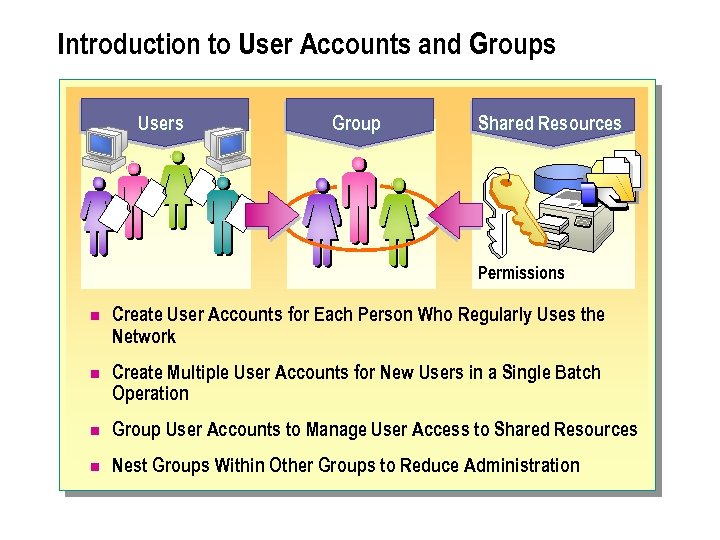 Introduction to User Accounts and Groups Users Group Shared Resources Permissions n Create User Accounts for Each Person Who Regularly Uses the Network n Create Multiple User Accounts for New Users in a Single Batch Operation n Group User Accounts to Manage User Access to Shared Resources n Nest Groups Within Other Groups to Reduce Administration
 An administrator must perform certain ongoing administrative tasks to ensure that the users can log on to the network and gain access to resources in a domain. Some of these administrative tasks are: n Creating a single sign-on for a user account. In Active Directory, a single sign-on enables users to enter their names and passwords once during a workstation logon and receive authentication to gain access to network resources in a domain. An administrator can create three types of user accounts, each having a specific function: l A local user account enables a user to log on to a specific computer to gain access to resources on that computer. l A domain user account enables a user to log on to the domain to gain access to network resources. l A built-in user account enables a user to perform administrative tasks or gain temporary access to network resources.
 n Creating multiple user accounts in Active Directory for new users in a single batch operation. For example, an administrator can create user accounts by bulk importing data into Active Directory from a file containing user data. n Grouping user accounts to efficiently manage access to domain resources, such as network shared folders, files, directories, and printers. By using groups, an administrator needs to assign permissions for shared resources only once rather than multiple times. You can also make computers and other groups members of a group. n Nesting groups within other groups to reduce administration when creating a model for a hierarchal structure.
 u User Logon Names n Introduction to User Logon Names n Creating a User Principal Name Suffix
 n In Active Directory, each user account has a user logon name, and a pre-Windows 2000 user logon name, which is the security account manager (SAM) account name. The user account information is used to authenticate and authorize users anywhere in the forest, which in turn enables single sign-on. When creating user accounts, you enter the user logon name prefix and select the user principal name suffix. n When creating the user account, you also need to ensure that the user accounts follow the uniqueness rules.
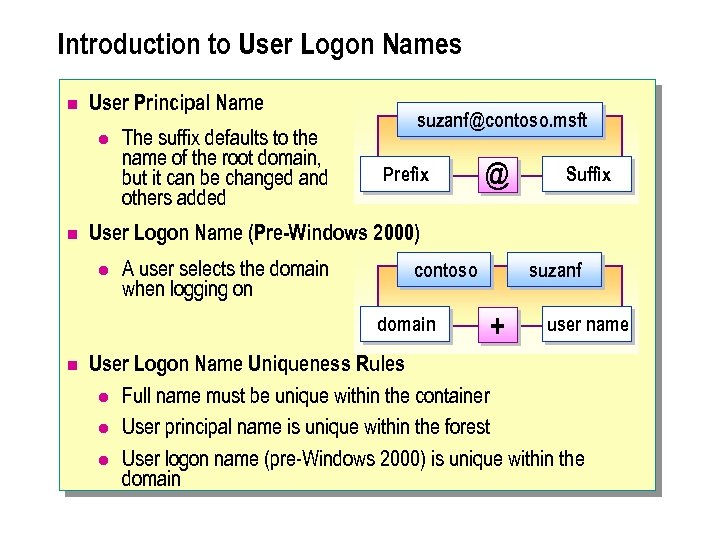 Introduction to User Logon Names n User Principal Name l n The suffix defaults to the name of the root domain, but it can be changed and others added suzanf@contoso. msft Prefix Suffix User Logon Name (Pre-Windows 2000) l A user selects the domain when logging on contoso domain n @ suzanf + user name User Logon Name Uniqueness Rules l Full name must be unique within the container l User principal name is unique within the forest l User logon name (pre-Windows 2000) is unique within the domain
 n In a Windows 2000 network, a user can log on with either a user principal name ora user logon name (pre-Windows 2000). Domain controllers can use either of these logon names to authenticate the logon request.
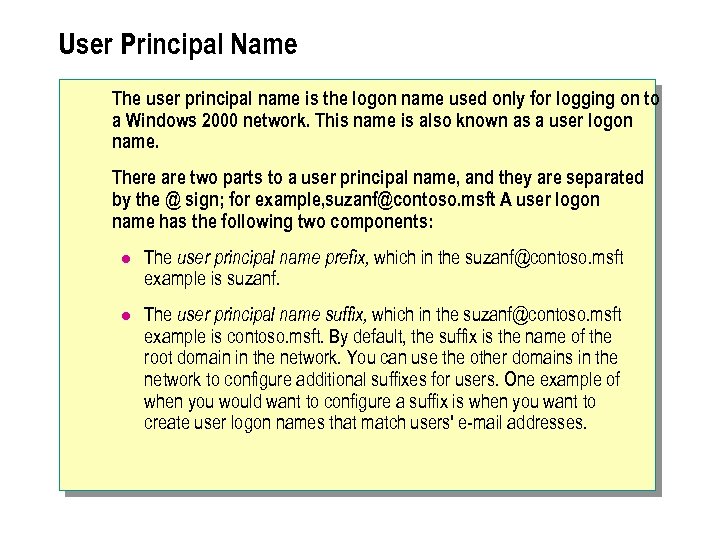 User Principal Name The user principal name is the logon name used only for logging on to a Windows 2000 network. This name is also known as a user logon name. There are two parts to a user principal name, and they are separated by the @ sign; for example, suzanf@contoso. msft A user logon. name has the following two components: l The user principal name prefix, which in the suzanf@contoso. msft example is suzanf. l The user principal name suffix, which in the suzanf@contoso. msft example is contoso. msft. By default, the suffix is the name of the root domain in the network. You can use the other domains in the network to configure additional suffixes for users. One example of when you would want to configure a suffix is when you want to create user logon names that match users' e-mail addresses.
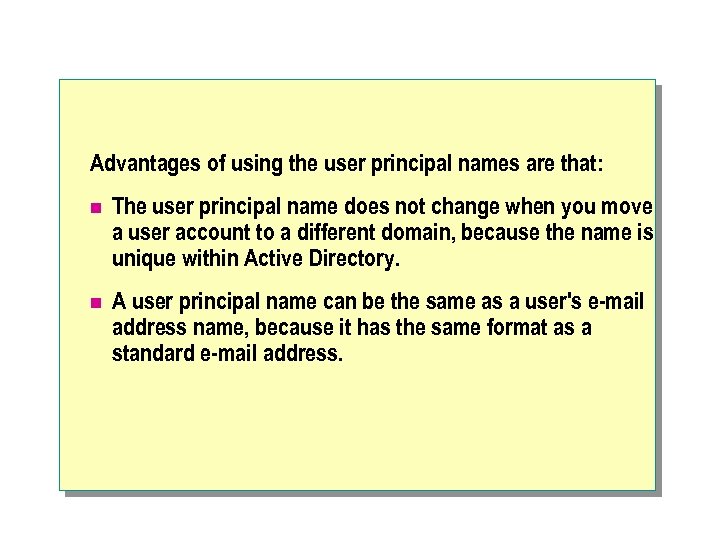 Advantages of using the user principal names are that: n The user principal name does not change when you move a user account to a different domain, because the name is unique within Active Directory. n A user principal name can be the same as a user's e-mail address name, because it has the same format as a standard e-mail address.
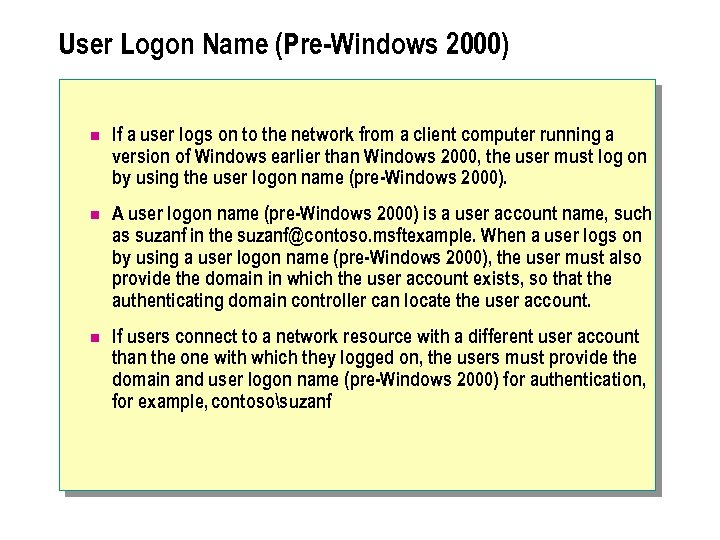 User Logon Name (Pre-Windows 2000) n If a user logs on to the network from a client computer running a version of Windows earlier than Windows 2000, the user must log on by using the user logon name (pre-Windows 2000). n A user logon name (pre-Windows 2000) is a user account name, such as suzanf in the suzanf@contoso. msftexample. When a user logs on by using a user logon name (pre-Windows 2000), the user must also provide the domain in which the user account exists, so that the authenticating domain controller can locate the user account. n If users connect to a network resource with a different user account than the one with which they logged on, the users must provide the domain and user logon name (pre-Windows 2000) for authentication, for example, contososuzanf.
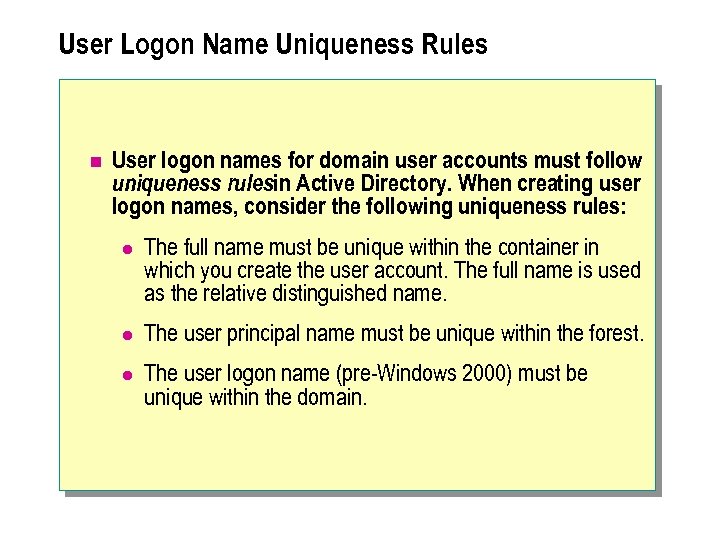 User Logon Name Uniqueness Rules n User logon names for domain user accounts must follow uniqueness rulesin Active Directory. When creating user logon names, consider the following uniqueness rules: l The full name must be unique within the container in which you create the user account. The full name is used as the relative distinguished name. l The user principal name must be unique within the forest. l The user logon name (pre-Windows 2000) must be unique within the domain.
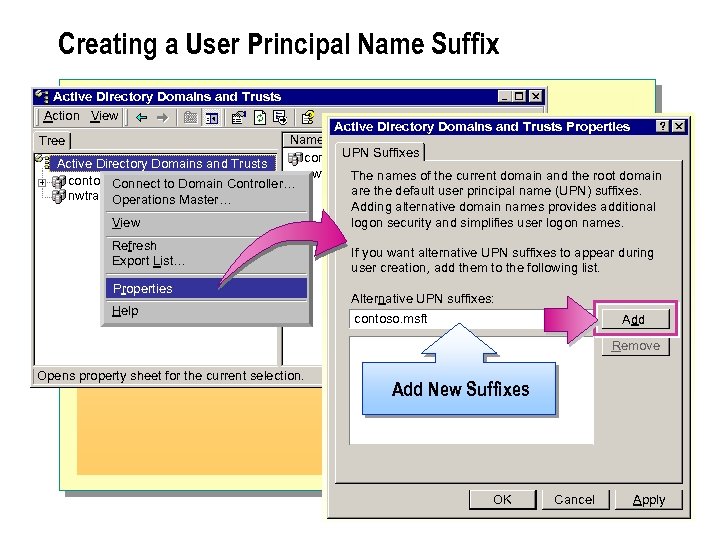 Creating a User Principal Name Suffix Active Directory Domains and Trusts Action View Active Directory Domains and Trusts Properties Name Type Tree UPN Suffixes domain. DNS contoso. msft Active Directory Domains and Trusts nwtraders. msft domain. DNS The names of the current domain and the root domain contoso. msft Connect to Domain Controller… are the default user principal name (UPN) suffixes. nwtraders. msft Operations Master… Adding alternative domain names provides additional logon security and simplifies user logon names. View Refresh Export List… Properties Help If you want alternative UPN suffixes to appear during user creation, add them to the following list. Alternative UPN suffixes: contoso. msft Add Remove Opens property sheet for the current selection. Add New Suffixes OK Cancel Apply
 n You select a user principal name suffix when creating a user account in Active Directory Users and Computers. If the suffix that you need does not exist in Active Directory User and Computers, you can add it. A user principal name suffix enables you to simplify administration and user logon processes by providing a single user principal name suffix for all users. n You must be a member of the Enterprise. Admins predefined group to add suffixes in Active Directory Domains and Trusts.
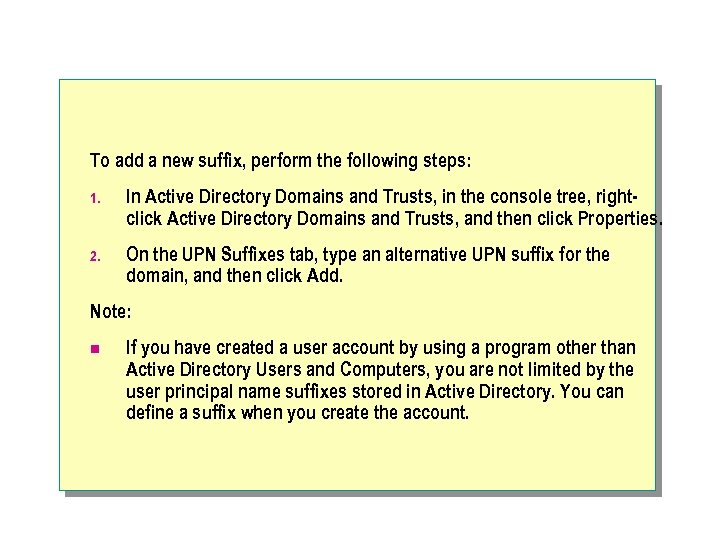 To add a new suffix, perform the following steps: 1. In Active Directory Domains and Trusts, in the console tree, rightclick Active Directory Domains and Trusts, and then click Properties. 2. On the UPN Suffixes tab, type an alternative UPN suffix for the domain, and then click Add. Note: n If you have created a user account by using a program other than Active Directory Users and Computers, you are not limited by the user principal name suffixes stored in Active Directory. You can define a suffix when you create the account.
 Creating Multiple User Accounts n The Bulk Import Process n Using CSVDE to Create Multiple User Accounts n Using LDIFDE to Create Multiple User Accounts
 n You can use Windows 2000 to create multiple user accounts in Active Directory by importing data from a text file to populate the attributes of user accounts. This process is known asbulk import. Bulk import is the importing of multiple database records into the Active Directory database. The advantage of bulk importing is that you do not need to create each user account individually. Instead, you can import an existing file that contains the user information required to create all of the user accounts.
 n To create user accounts in a batch operation, Windows 2000 provides administrative utilities, such as Comma Separated Value Directory Exchange (CSVDE) and Lightweight Directory Access Protocol Data Interchange Format Directory Exchange (LDIFDE). These utilities enable you to administer large numbers of user accounts, and other Active Directory objects, such as groups, computers, and printers, in one operation. These utilities are installed automatically on all computers that run Windows 2000 Server.
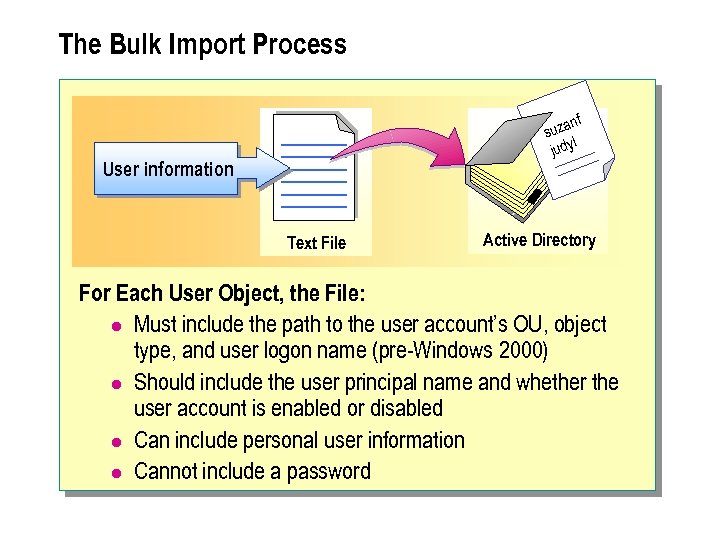 The Bulk Import Process nf suza l judy User information Text File Active Directory For Each User Object, the File: l Must include the path to the user account’s OU, object type, and user logon name (pre-Windows 2000) l Should include the user principal name and whether the user account is enabled or disabled l Can include personal user information l Cannot include a password
 n The bulk import process enables you to automatically create multiple user accounts in Active Directory. This process requires using a text file that contains information about the user accounts that you want to create. The text file can be a database application that already contains information about user accounts, or can also be from other applications, such as Microsoft Excel or Microsoft Word.
 n Depending on the format of the text file, you use the csvde or the ldifde command to import user account data from the file to simultaneously create multiple user accounts in Active Directory. You use thecsvde command to import the text file that uses acomma-delimited format, also known as a comma-separated value format (CSVDE format). You use the ldifde command to import the text file that uses a line-separated value format (LDIF format). Most database applications can create text files that can be imported in one of these formats.
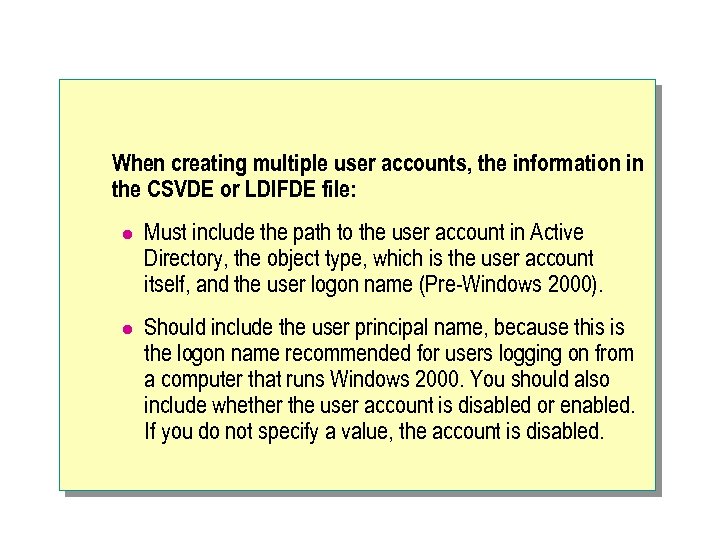 When creating multiple user accounts, the information in the CSVDE or LDIFDE file: l Must include the path to the user account in Active Directory, the object type, which is the user account itself, and the user logon name (Pre-Windows 2000). l Should include the user principal name, because this is the logon name recommended for users logging on from a computer that runs Windows 2000. You should also include whether the user account is disabled or enabled. If you do not specify a value, the account is disabled.
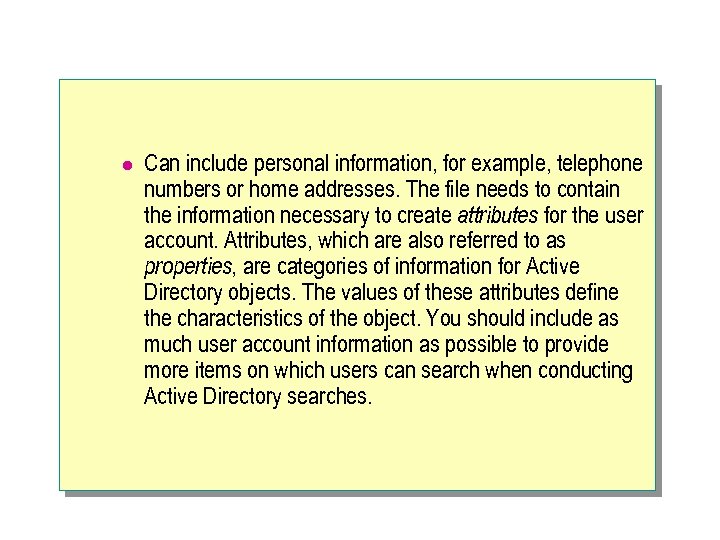 l Can include personal information, for example, telephone numbers or home addresses. The file needs to contain the information necessary to create attributes for the user account. Attributes, which are also referred to as properties, are categories of information for Active Directory objects. The values of these attributes define the characteristics of the object. You should include as much user account information as possible to provide more items on which users can search when conducting Active Directory searches.
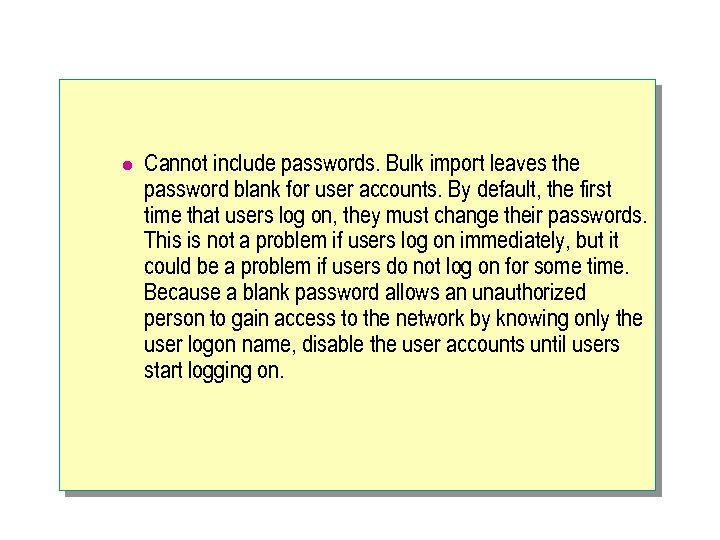 l Cannot include passwords. Bulk import leaves the password blank for user accounts. By default, the first time that users log on, they must change their passwords. This is not a problem if users log on immediately, but it could be a problem if users do not log on for some time. Because a blank password allows an unauthorized person to gain access to the network by knowing only the user logon name, disable the user accounts until users start logging on.
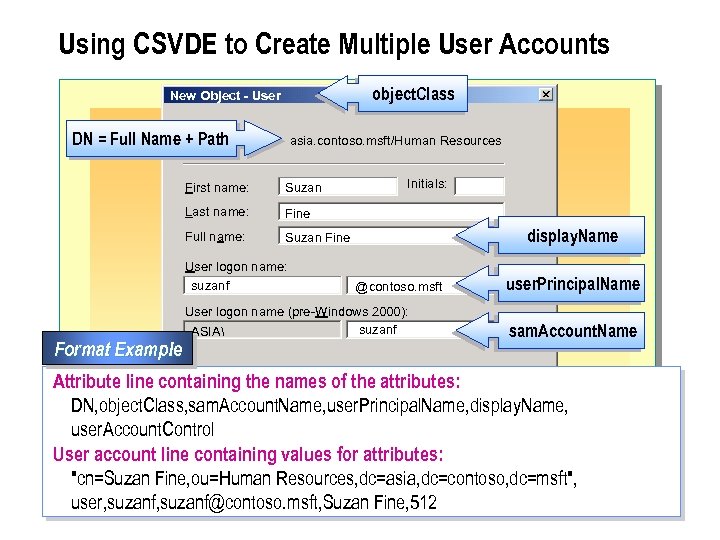 Using CSVDE to Create Multiple User Accounts object. Class New Object - User Create in: DN = Full Name + Path asia. contoso. msft/Human Resources First name: Suzan Last name: Fine Full name: Suzan Fine User logon name: suzanf Format Example Initials: display. Name @contoso. msft User logon name (pre-Windows 2000): suzanf ASIA user. Principal. Name sam. Account. Name Attribute line containing the names of the attributes: < Back Next > Cancel DN, object. Class, sam. Account. Name, user. Principal. Name, display. Name, user. Account. Control User account line containing values for attributes: "cn=Suzan Fine, ou=Human Resources, dc=asia, dc=contoso, dc=msft", user, suzanf@contoso. msft, Suzan Fine, 512
 n The CSVDE format can be used only to add user objects, and other types of objects, to Active Directory. You cannot use the CSVDE format for deleting or modifying objects in Active Directory. Before importing a CSVDE file, you must ensure that the file that you are importing is properly formatted, so that the import will be successful. Typically, to edit and format a text file, you use an application that has good editing capabilities, such as Excel or Word. Then, save the file as a comma-delimited text file. You can export data from Active Directory to an Excel spreadsheet or import data from a spreadsheet into Active Directory.
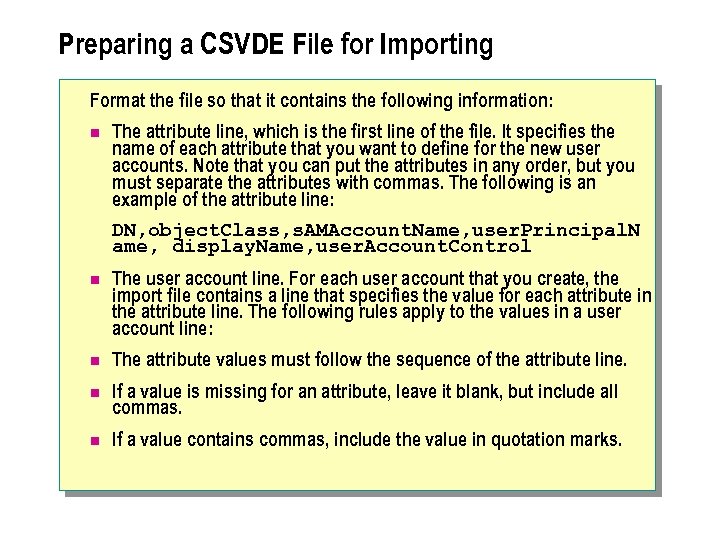 Preparing a CSVDE File for Importing Format the file so that it contains the following information: n The attribute line, which is the first line of the file. It specifies the name of each attribute that you want to define for the new user accounts. Note that you can put the attributes in any order, but you must separate the attributes with commas. The following is an example of the attribute line: DN, object. Class, s. AMAccount. Name, user. Principal. N ame, display. Name, user. Account. Control n The user account line. For each user account that you create, the import file contains a line that specifies the value for each attribute in the attribute line. The following rules apply to the values in a user account line: n The attribute values must follow the sequence of the attribute line. n If a value is missing for an attribute, leave it blank, but include all commas. n If a value contains commas, include the value in quotation marks.
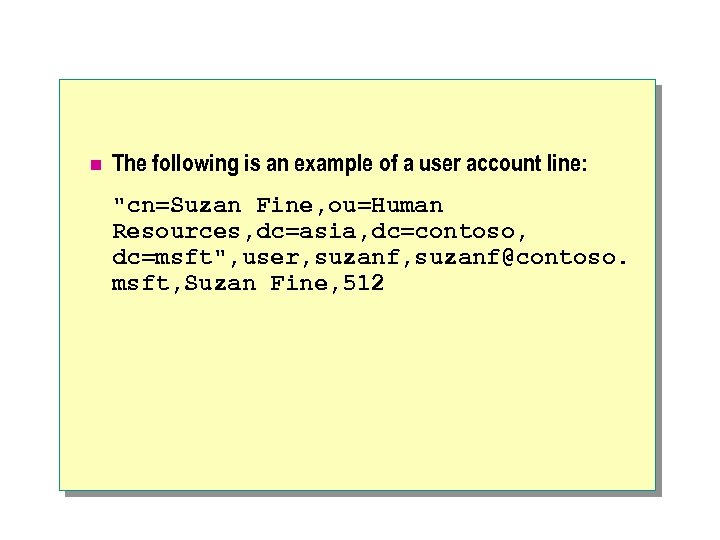 n The following is an example of a user account line: "cn=Suzan Fine, ou=Human Resources, dc=asia, dc=contoso, dc=msft", user, suzanf@contoso. msft, Suzan Fine, 512
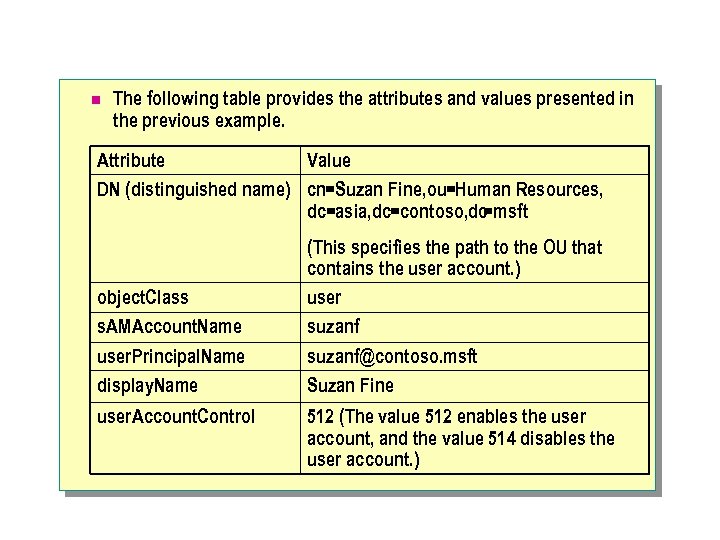 n The following table provides the attributes and values presented in the previous example. Attribute Value DN (distinguished name) cn=Suzan Fine, ou=Human Resources, dc=asia, dc=contoso, dc =msft object. Class s. AMAccount. Name user. Principal. Name display. Name user. Account. Control (This specifies the path to the OU that contains the user account. ) user suzanf@contoso. msft Suzan Fine 512 (The value 512 enables the user account, and the value 514 disables the user account. )
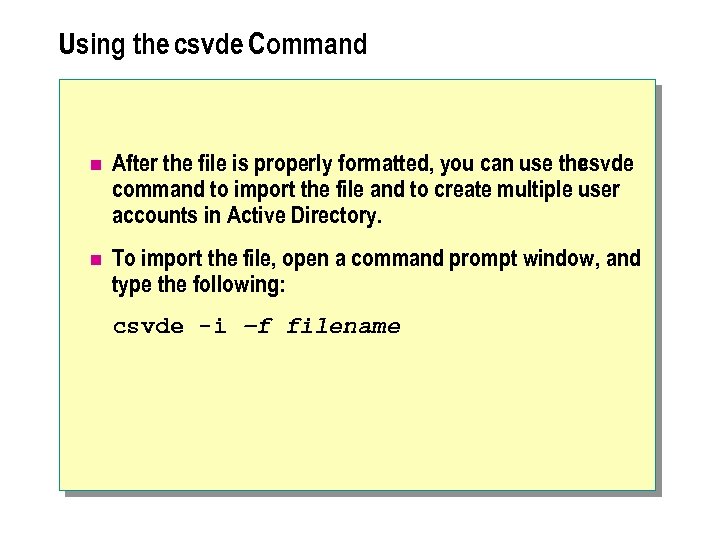 Using the csvde Command n After the file is properly formatted, you can use the csvde command to import the file and to create multiple user accounts in Active Directory. n To import the file, open a command prompt window, and type the following: csvde -i –f filename
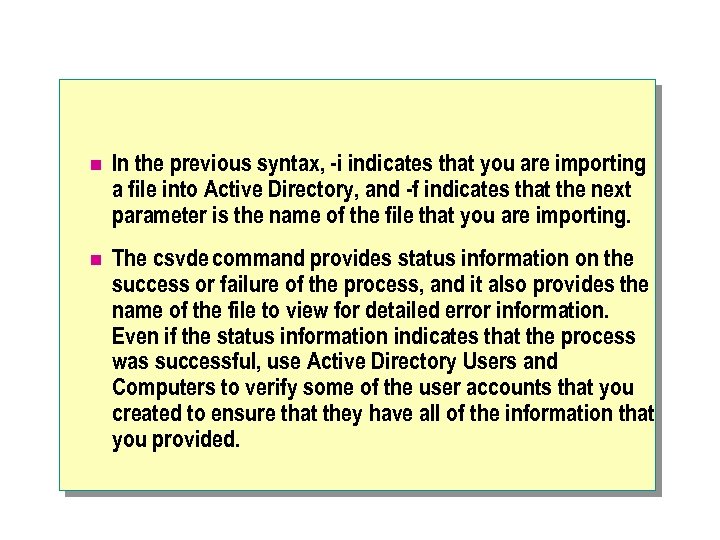 n In the previous syntax, -i indicates that you are importing a file into Active Directory, and -f indicates that the next parameter is the name of the file that you are importing. n The csvde command provides status information on the success or failure of the process, and it also provides the name of the file to view for detailed error information. Even if the status information indicates that the process was successful, use Active Directory Users and Computers to verify some of the user accounts that you created to ensure that they have all of the information that you provided.
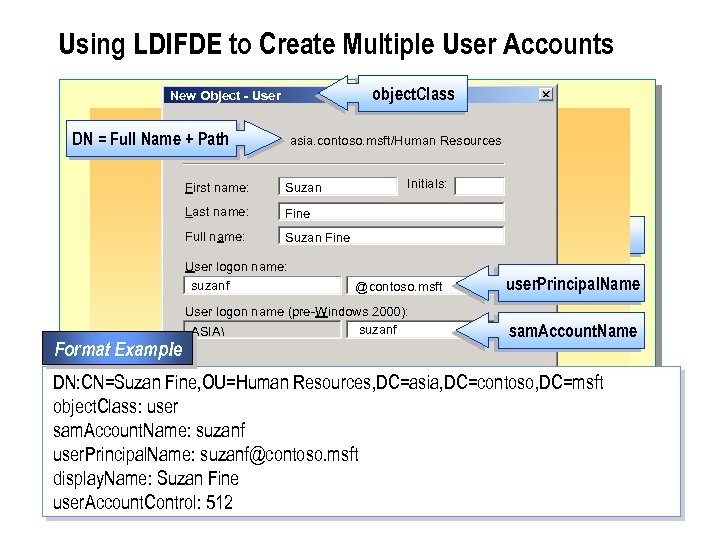 Using LDIFDE to Create Multiple User Accounts object. Class New Object - User Create in: DN = Full Name + Path asia. contoso. msft/Human Resources First name: Suzan Last name: Fine Full name: Suzan Fine User logon name: suzanf Format Example Initials: display. Name @contoso. msft User logon name (pre-Windows 2000): suzanf ASIA user. Principal. Name sam. Account. Name DN: CN=Suzan Fine, OU=Human Resources, DC=asia, DC=contoso, DC=msft < Back Next > Cancel object. Class: user sam. Account. Name: suzanf user. Principal. Name: suzanf@contoso. msft display. Name: Suzan Fine user. Account. Control: 512
 n Lightweight Directory Access Protocol Interchange Format (LDIF) is another file format that is used to perform bulk import for directories that conform to LDAP standards. The LDIF file format has a command-line utility called ldifde that allows you to create, modify, and delete objects in Active Directory. An LDIF file consists of a series of records that are separated by a blank line. Arecord describes either a single directory object or a set of modifications to the attributes of an existing object and consists of one or more lines in the file.
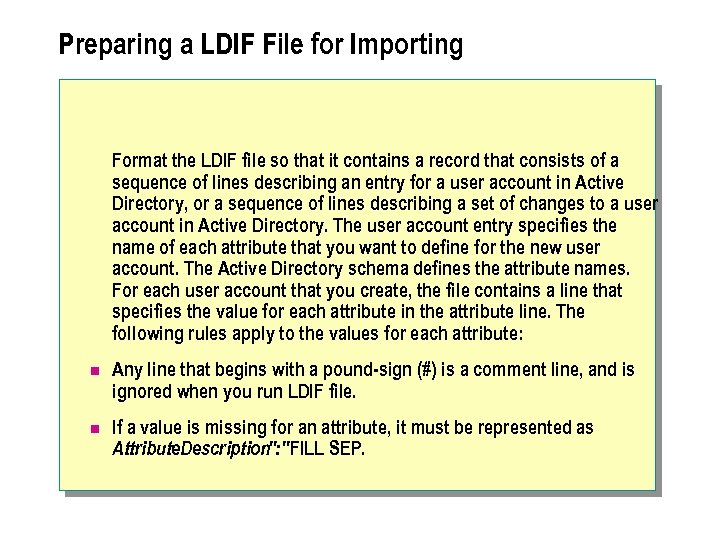 Preparing a LDIF File for Importing Format the LDIF file so that it contains a record that consists of a sequence of lines describing an entry for a user account in Active Directory, or a sequence of lines describing a set of changes to a user account in Active Directory. The user account entry specifies the name of each attribute that you want to define for the new user account. The Active Directory schema defines the attribute names. For each user account that you create, the file contains a line that specifies the value for each attribute in the attribute line. The following rules apply to the values for each attribute: n Any line that begins with a pound-sign (#) is a comment line, and is ignored when you run LDIF file. n If a value is missing for an attribute, it must be represented as Attribute. Description": " FILL SEP.
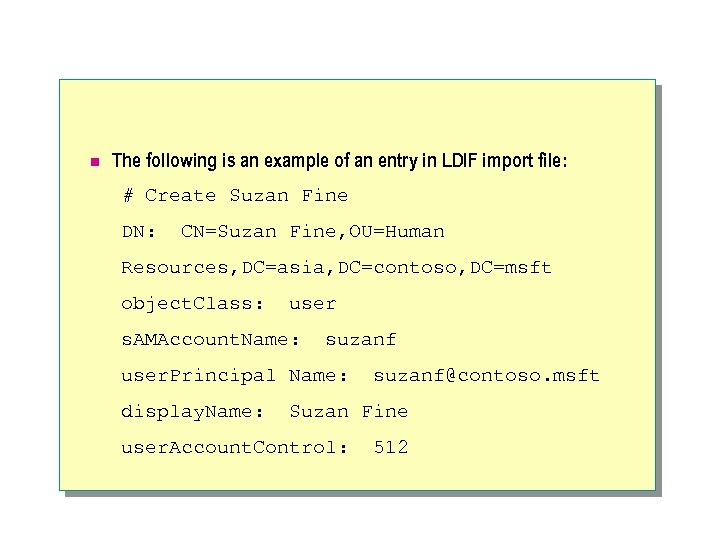 n The following is an example of an entry in LDIF import file: # Create Suzan Fine DN: CN=Suzan Fine, OU=Human Resources, DC=asia, DC=contoso, DC=msft object. Class: user s. AMAccount. Name: suzanf user. Principal Name: display. Name: suzanf@contoso. msft Suzan Fine user. Account. Control: 512
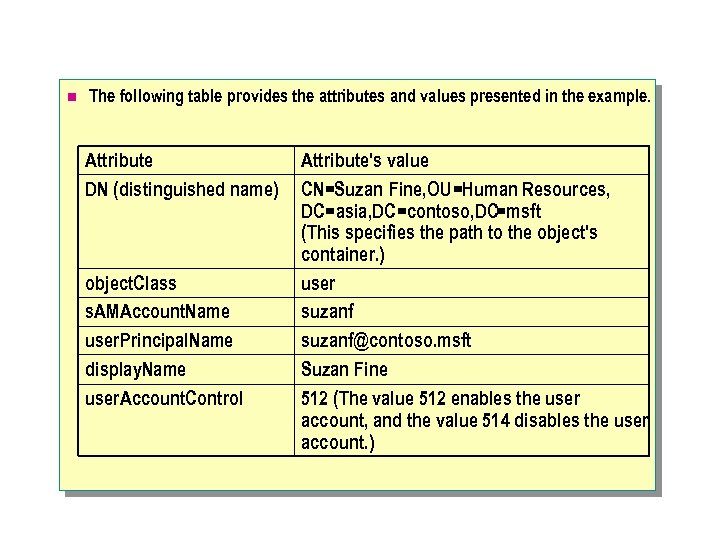 n The following table provides the attributes and values presented in the example. Attribute DN (distinguished name) object. Class s. AMAccount. Name user. Principal. Name display. Name user. Account. Contro. I Attribute's value CN=Suzan Fine, OU=Human Resources, DC=asia, DC=contoso, DC=msft (This specifies the path to the object's container. ) user suzanf@contoso. msft Suzan Fine 512 (The value 512 enables the user account, and the value 514 disables the user account. )
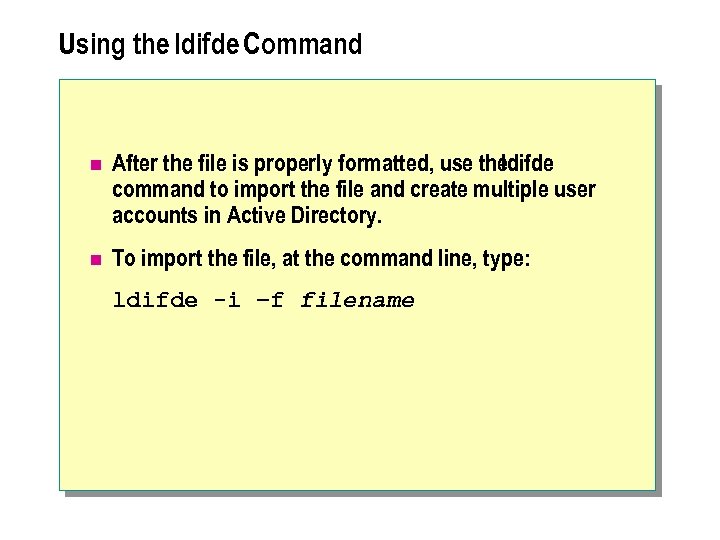 Using the ldifde Command n After the file is properly formatted, use the ldifde command to import the file and create multiple user accounts in Active Directory. n To import the file, at the command line, type: ldifde -i –f filename
 n In the previous syntax, -i indicates that you are importing a file into Active Directory. If this parameter is not specified, the default mode for LDIFDE is export. The -f parameter indicates the name of the file that you are importing. Note: n Programs use Active Directory Service Interfaces (ADSI) to gain access to Active Directory. ADSI in conjunction with the Windows Script Host enables scripting batch operations in Active Directory by using Microsoft Visual Basic®, Scripting Edition (VBScript) or Java.
 Administering User Accounts n Performing Common Administrative Tasks n Locating User Accounts
 n After you have set up user accounts in Active Directory, you must perform ongoing administrative tasks to ensure that all users have the resources that they need, and that network security remains intact. Because there could be a large number of user accounts, you can use the find utility to help locate a particular user account.
 Performing Common Administrative Tasks Active Directory Users and Computers Console Window Help Action View Tree Active Directory Users and Computers contoso. msft Accounting Builtin Computers Domain Controllers Users Accounting 4 objects Name Anne Paper Type User Copy… Add members to a group… Disable Account Reset Password… Move… Open home page Send mail All Tasks Delete Rename Refresh Creates a new user, copying information from the selected user. Properties Help Account is locked out
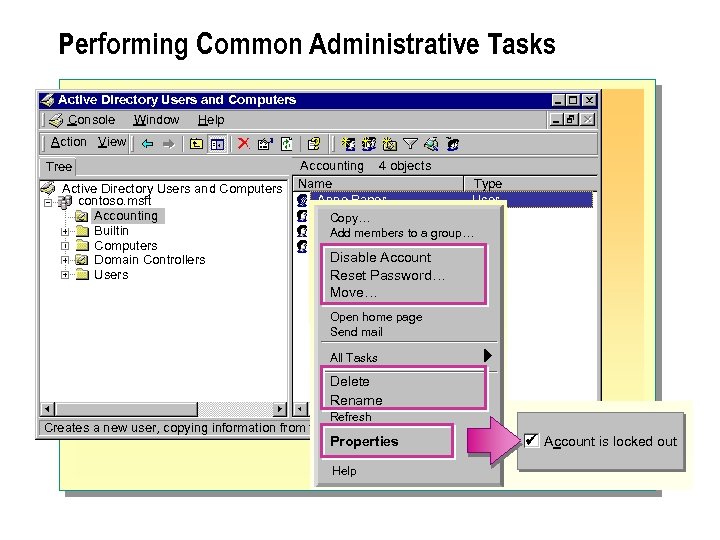
 n After creating user accounts, you must perform frequent administrative tasks to ensure that the network reflects the evolving needs of the organizations that it supports. These administrative tasks include disabling and enabling user accounts, resetting passwords, moving user accounts within a domain, deleting user accounts, renaming user accounts; and unlocking user accounts.
 Disabling and Enabling User Accounts n Disable user accounts when users will not need their accounts for an extended period, but will need to use them at a later time. You disable a user account as a security precaution against a potential misuse of the user account. For example, if the user takes a two-month leave of absence, disable the account when the user leaves and then enable the account when the user returns. n To disable or enable user accounts, perform the following step: l In Active Directory Users and Computers, right-click the appropriate user account, and then click Disable Account or Enable Account depending on the current status of the account.
 Resetting Passwords n You reset a password when the password expires before the user changes or if the user forgets it. You do not need to know a user's password before you can reset it. You should require the users to change their passwords the next time that they logon. n To reset user account passwords, perform the following step: l In Active Directory Users and Computers, right-click the appropriate user account, and then click Reset Password.
 Moving User Accounts Within a Domain n You can move user accounts between. OUs in the same domain when necessary. For example, when an employee moves from one department to another and another administrator will administer the employee's user account. The following conditions apply when you move user accounts between OUs: l Object permissions assigned directly to the user account move with the user account. l Permissions that were previously inherited from the parent object no longer apply. Instead, permissions are inherited from the new parent object. l You can move multiple user accounts at the same time.
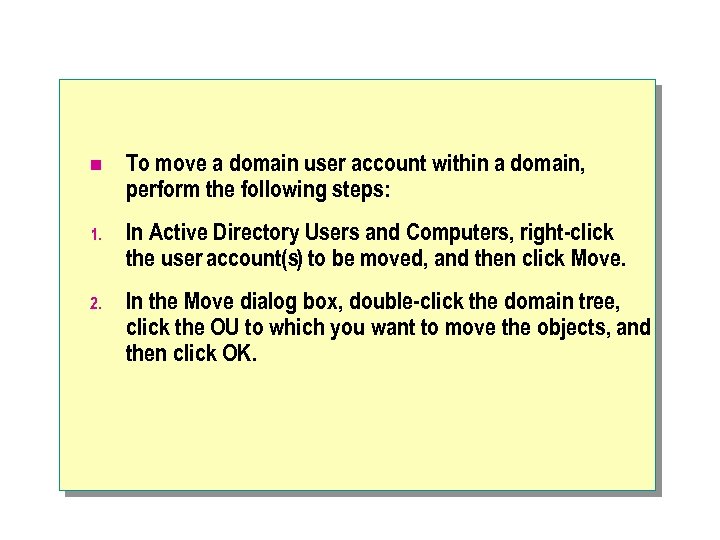 n To move a domain user account within a domain, perform the following steps: 1. In Active Directory Users and Computers, right-click the user account(s) to be moved, and then click Move. 2. In the Move dialog box, double-click the domain tree, click the OU to which you want to move the objects, and then click OK.
 Deleting User Accounts n Delete a user account when an employee leaves the organization and you are not going to reuse the account. By deleting these accounts, you will not have unused accounts in Active Directory, that may cause a security risk if an authorized user was able log on using an obsolete account. n To delete user accounts, perform the following step: l In Active Directory Users and Computers, right-click the appropriate user account, and then click Delete.
 Renaming User Accounts n Rename a user account if you want to retain all rights, permissions, and group memberships that are associated with that account, and then reassign it to a different user. For example, if there is a new company accountant, rename the account by changing the first name, last name, and the user logon names to those of the new accountant. Also, you may need to change other properties for a new user, such as resetting the password, and changing the telephone number and address. n To rename user accounts, perform the following step: l In Active Directory Users and Computers, right-click the appropriate user account, and then click Rename.
 Unlocking User Accounts n You may be required to unlock a user account if a Group Policy setting locks that account when the user violates the Group Policy defined by the setting. For example, users are locked out if they exceed the limit that a Group Policy setting allows for failed logon attempts. When a user account is locked out, Windows 2000 displays an error message when the user attempts to log on. n To unlock a user account, perform the following step: l In Active Directory Users and Computers, in the Properties dialog box for the user account, on the Account tab, clear the Account is locked out check box.
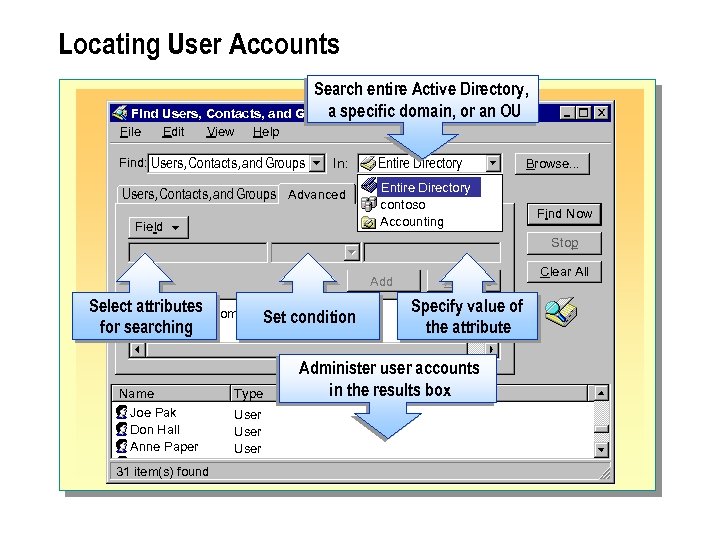 Locating User Accounts Search entire Active Directory, a Find Users, Contacts, and Groupsspecific domain, or an OU File Edit View Help Find: Users, Contacts, and Groups In: Users, Contacts, and Groups Advanced Field Entire Directory contoso Accounting Browse. . . Find Now Stop Add Select
 n Because all user accounts reside in Active Directory, administrators can search for the user account that they need to administer. Searching Active Directory for user accounts means that you do not need to browse through hundreds or thousands of user accounts in Active Directory Users and Computers. You can also search for other Active Directory objects, such as computers, printers, and shared folders. After locating these objects, you can administer these objects from the search results box.
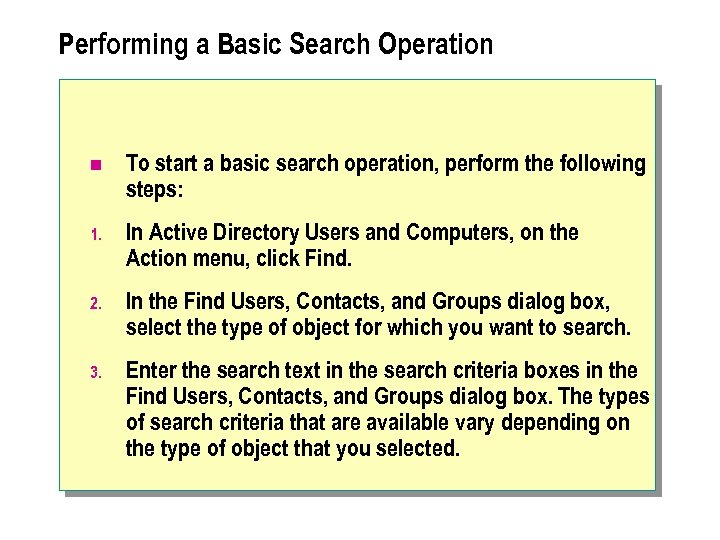 Performing a Basic Search Operation n To start a basic search operation, perform the following steps: 1. In Active Directory Users and Computers, on the Action menu, click Find. 2. In the Find Users, Contacts, and Groups dialog box, select the type of object for which you want to search. 3. Enter the search text in the search criteria boxes in the Find Users, Contacts, and Groups dialog box. The types of search criteria that are available vary depending on the type of object that you selected.
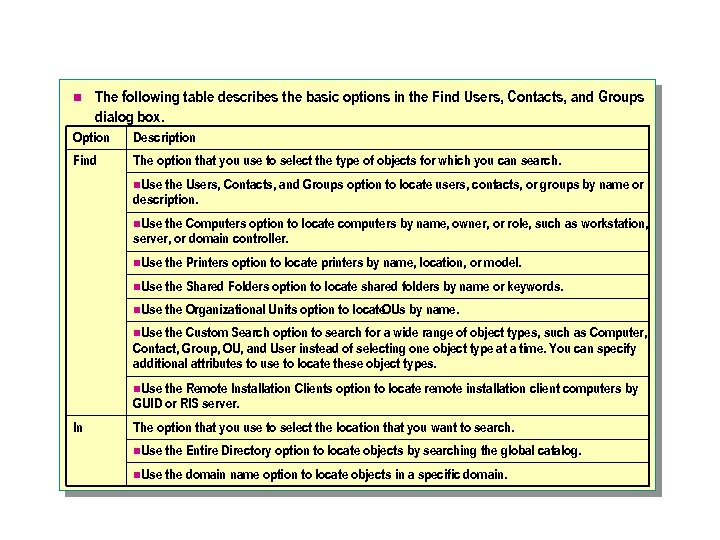 n The following table describes the basic options in the Find Users, Contacts, and Groups dialog box. Option Description Find The option that you use to select the type of objects for which you can search. n. Use the Users, Contacts, and Groups option to locate users, contacts, or groups by name or description. n. Use the Computers option to locate computers by name, owner, or role, such as workstation, server, or domain controller. n. Use the Printers option to locate printers by name, location, or model. n. Use the Shared Folders option to locate shared folders by name or keywords. n. Use the Organizational Units option to locate OUs by name. n. Use the Custom Search option to search for a wide range of object types, such as Computer, Contact, Group, OU, and User instead of selecting one object type at a time. You can specify additional attributes to use to locate these object types. n. Use the Remote Installation Clients option to locate remote installation client computers by GUID or RIS server. In The option that you use to select the location that you want to search. n. Use the Entire Directory option to locate objects by searching the global catalog. n. Use the domain name option to locate objects in a specific domain.
 Performing an Advanced Search Operation n Active Directory Users and Computers provides the Advanced option in the Find Users, Contacts, and Groups dialog box to allow administrators to customize searches and filter data retrieved from Active Directory. The Advanced option allows you to specify search criteria that define the resources for which you are searching. By using the Advanced option, you can search for resources by using any attribute that is valid for the object type. For example, you can search Active Directory for all printers in a specific location. You can then use the search results to edit the properties of each printer object.
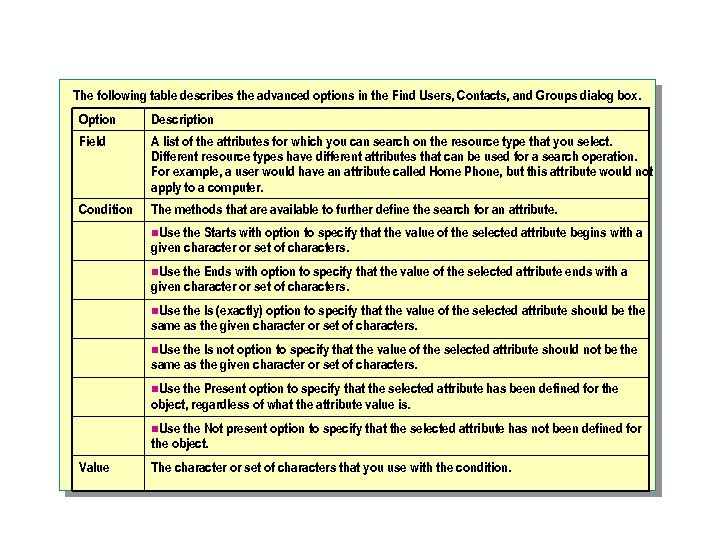 The following table describes the advanced options in the Find Users, Contacts, and Groups dialog box. Option Description Field A list of the attributes for which you can search on the resource type that you select. Different resource types have different attributes that can be used for a search operation. For example, a user would have an attribute called Home Phone, but this attribute would not apply to a computer. Condition The methods that are available to further define the search for an attribute. n. Use the Starts with option to specify that the value of the selected attribute begins with a given character or set of characters. n. Use the Ends with option to specify that the value of the selected attribute ends with a given character or set of characters. n. Use the Is (exactly) option to specify that the value of the selected attribute should be the same as the given character or set of characters. n. Use the Is not option to specify that the value of the selected attribute should not be the same as the given character or set of characters. n. Use the Present option to specify that the selected attribute has been defined for the object, regardless of what the attribute value is. n. Use the Not present option to specify that the selected attribute has not been defined for the object. Value The character or set of characters that you use with the condition.
 n Also, if users want to find objects in Active Directory, they can click Start, and then click Search. The Search options in Windows Explorer and My Network Places can also be used to locate objects in Active Directory.
 Administering User Accounts in the Results Box n After a search completes successfully, the search results are displayed. You can then perform administrative functions on the objects that are listed. The functions that are available depend on the type of object you located. For example, if you searched for user accounts, you can rename and delete the user account, disable the user account, reset the password, move the user account to another OU, or modify the user account's attributes. n To administer a user account from the search results, right-click the user account, and then click Properties. n When you right-click the object in the results box, the same property sheet that is invoked through Active Directory Users and Computers appears. Therefore, you can manage the objects by selecting an appropriate option related to the function that you want to perform on the object. The functions that are available depend on the type of object that you located.
 Lab A: Setting Up and Administering Domain User Accounts
 u Using Groups in Active Directory n Introduction to Groups in Active Directory n Using Global Groups n Using Domain Local Groups n Using Universal Groups
 n Groups simplify administration. Before you can effectively use groups, you need to understand the function of groups and the group types that you can create. Active Directory provides support for different types of groups, and also provides options to determine the group's scope, which is how the group can be used in multiple domains.
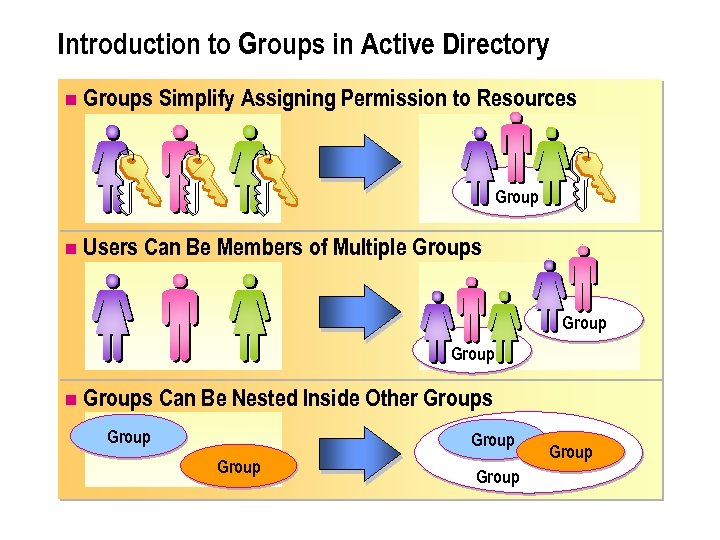 Introduction to Groups in Active Directory n Groups Simplify Assigning Permission to Resources Group n Users Can Be Members of Multiple Groups Group n Groups Can Be Nested Inside Other Groups Group Group
 n Groups in Active Directory allow you to manage domain user access to domain resources by assigning permissions once to a group rather than multiple times to individual users. There are two group types in Active Directory, security groups and distribution groups. Both of these groups support one of the three group scopes, which are domain local, global, or universal. The group type and group scope that you can choose depend on the domain mode. n Users can be members of multiple groups. You use security groups to assign permissions to groups of users and computers. Distribution groups cannot be used for security purposes. Security and distribution groups have a scope attribute. The scope of a group determines who can be a member of the group, and where you can use that group in the network.
 n One way to use groups effectively is through nesting. Nesting means that you can add a group to another group. The nested group inherits the permissions of the group of which it is a member, thus simplifying the assigning of permissions to several groups at one time and reducing the traffic caused by replication of group membership changes. In a mixed-domain mode, there can be no nesting within the same group. Notes: n Groups can have up to 5, 000 members. The user's primary group membership, such as Domain Users, is not stored in the group membership list. n For more information about groups, see Module 5, "Managing Access to Resources by Using Groups, " in Course 2152, Implementing Microsoft Windows 2000 Professional and Server.
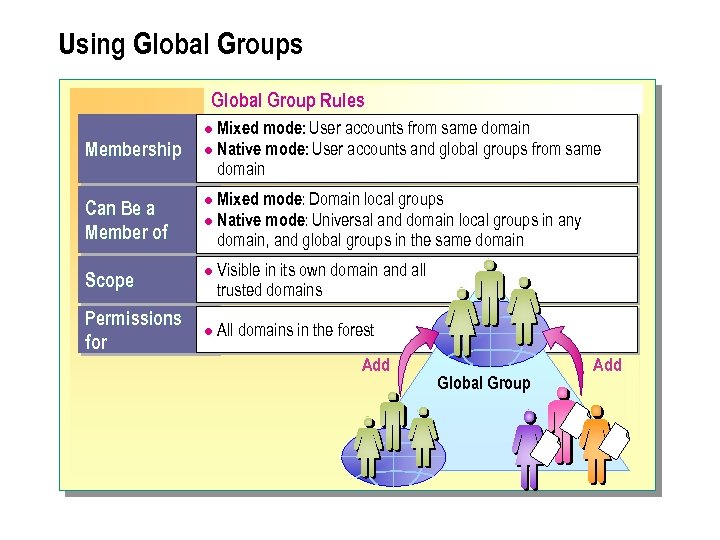 Using Global Groups Global Group Rules Mixed mode: User accounts from same domain l Native mode: User accounts and global groups from same domain l Membership Mixed mode: Domain local groups l Native mode: Universal and domain local groups in any domain, and global groups in the same domain Can Be a Member of l Scope l Permissions for l Visible in its own domain and all trusted domains All domains in the forest Add Global Group Add
 n Use a global group to organize users who share the same job tasks and need similar network access requirements.
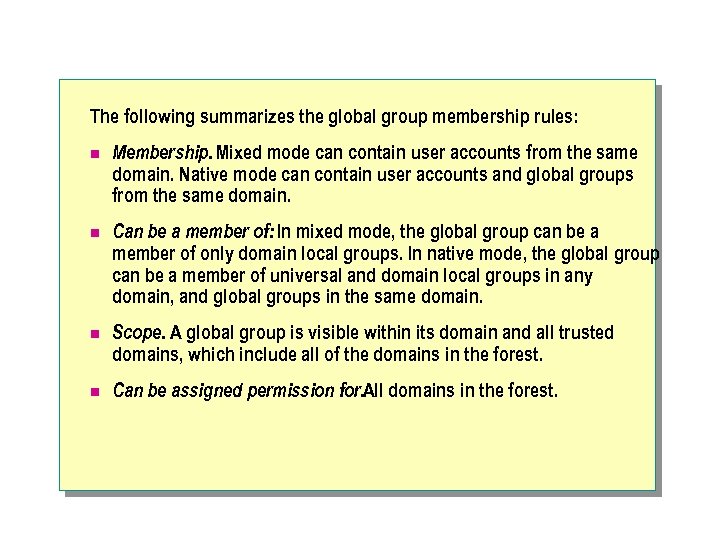 The following summarizes the global group membership rules: n Membership. Mixed mode can contain user accounts from the same domain. Native mode can contain user accounts and global groups from the same domain. n Can be a member of: In mixed mode, the global group can be a member of only domain local groups. In native mode, the global group can be a member of universal and domain local groups in any domain, and global groups in the same domain. n Scope. A global group is visible within its domain and all trusted domains, which include all of the domains in the forest. n Can be assigned permission for. All domains in the forest.
 n Because global groups have a forest-wide visibility, they should not be created specifically for domain-specific resource access. Global groups are a good choice to organize users or groups of users. A different group type is more appropriate to control the access to resources within a domain.
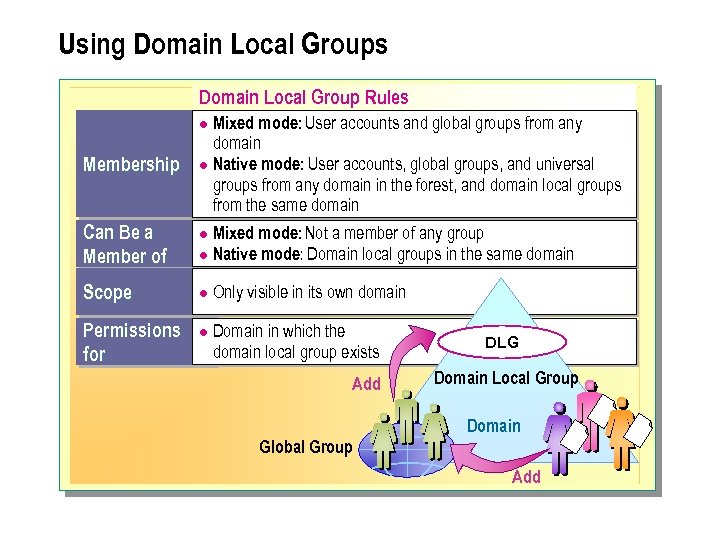 Using Domain Local Groups Domain Local Group Rules Mixed mode: User accounts and global groups from any domain l Native mode: User accounts, global groups, and universal groups from any domain in the forest, and domain local groups from the same domain l Membership Can Be a Member of Scope Permissions for Mixed mode: Not a member of any group l Native mode: Domain local groups in the same domain l l l Only visible in its own domain Domain in which the domain local group exists Add DLG Domain Local Group Domain Global Group Add
 n Use a domain local group to assign access permissions to resources that are located in the same domain in which you create the domain local group.
 The following summarizes the domain local group membership rules: n Membership. Mixed mode can contain user accounts and global groups from any domain. Native mode can contain user accounts, global groups, and universal groups from any domain in the forest, and domain local groups from the same domain. n Can be a member of. In mixed mode, the domain local group cannot be a member of any group. In native mode, the domain local group can be a member of domain local groups in the same domain. n Scope. The domain local group is visible only in its own domain. n Can be assigned permission for: The domain in which the domain local group exists.
 n You can add all global groups that need to share the same resources into the appropriate domain local group.
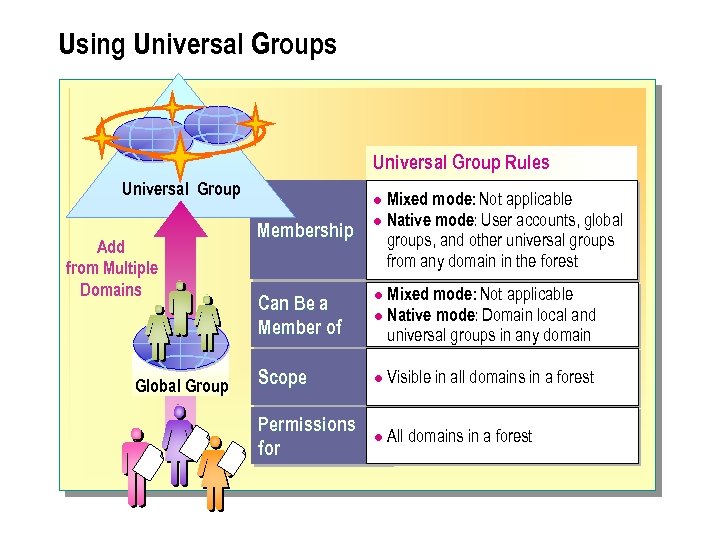 Using Universal Groups Universal Group Rules Universal Group Add from Multiple Domains Global Group Mixed mode: Not applicable l Native mode: User accounts, global groups, and other universal groups from any domain in the forest l Membership Can Be a Member of Mixed mode: Not applicable l Native mode: Domain local and universal groups in any domain l Scope l Visible in all domains in a forest Permissions for l All domains in a forest
 n Use universal groups to nest global groups so that you can assign permissions to related resources in multiple domains. A Windows 2000 domain must be in native mode to use universal groups.
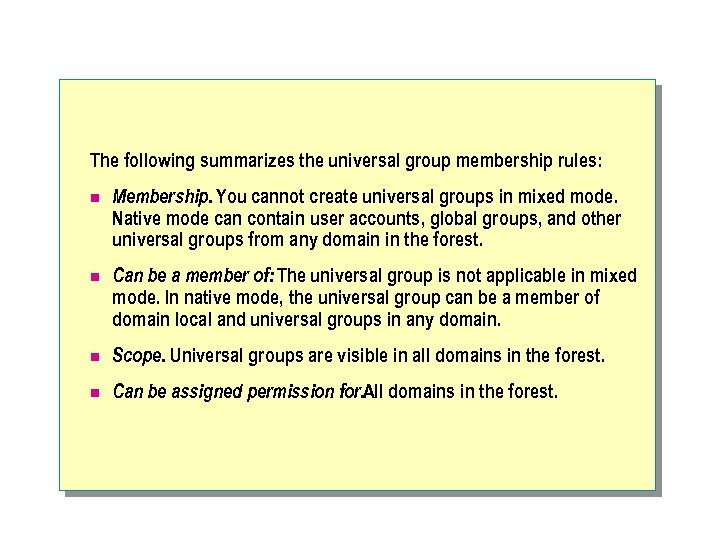 The following summarizes the universal group membership rules: n Membership. You cannot create universal groups in mixed mode. Native mode can contain user accounts, global groups, and other universal groups from any domain in the forest. n Can be a member of: The universal group is not applicable in mixed mode. In native mode, the universal group can be a member of domain local and universal groups in any domain. n Scope. Universal groups are visible in all domains in the forest. n Can be assigned permission for. All domains in the forest.
 u Strategies for Using Groups in a Domain n Using Global and Domain Local Groups n Class Discussion: Using Groups in a Single Domain
 n To use groups effectively, you need a strategy for employing different group scopes. The scope of a group identifies the extent to which the group is applied in the tree or forest. In Active Directory, there are three different types of group scopes: universal, global, and domain local. n This topic addresses the scope of groups in a single domain network. In a single domain, global groups and domain local groups are the two group scopes that are available. By using the best group strategies for global and domain local groups, users will more effectively gain access to resources in a single domain network. Note: n For more information about using groups in multiple domain networks, see Module 10, "Creating and Managing Trees and Forests, " in Course 2154, Implementing and Administering Microsoft Windows 2000 Directory Services.
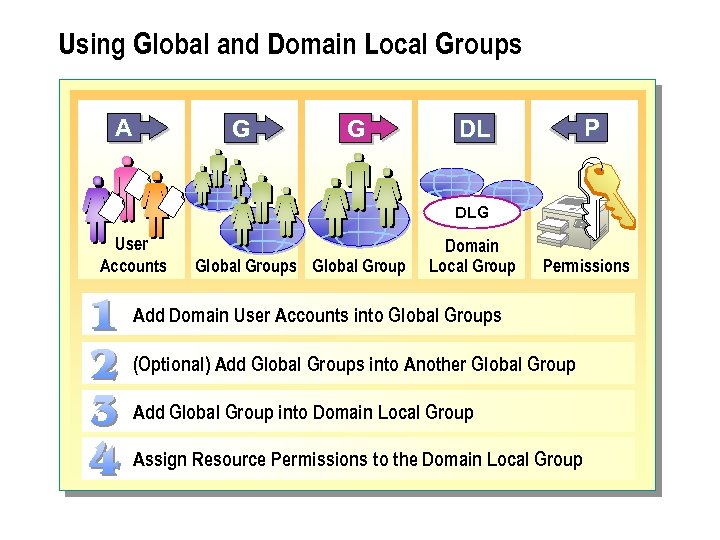 Using Global and Domain Local Groups A G G P DL DLG User Accounts Global Group Domain Local Group Permissions Add Domain User Accounts into Global Groups (Optional) Add Global Groups into Another Global Group Add Global Group into Domain Local Group Assign Resource Permissions to the Domain Local Group
 n The recommended strategy for using both global and domain local groups is to add domain user accounts (A) into global groups (G). add global groups into domain local groups (DL). and then assign resource permissions (P) to the domain local groups. This strategy, G DL P, A provides the most flexibility while reducing the complexity of assigning access permissions to the network.
 Using the A G DL P Strategy n As an example of using the A G DL P strategy, consider an organization that has users in the Accounts Payable OLI and Accounts Receivable OU who need to gain access to accounting data in the Accounting database. Within the Accounts Payable OSJ and the Accounts Receivable OU, you create a global group for users who share the responsibility of reviewing accounting data. This global group needs to gain access to the accounting data in the accounting database. After the group is created, you add this group into a domain local group, and then the appropriate permissions on the accounting data are assigned to the domain local group.
 n The following example illustrates how to implement the A G DL P strategy: 1. Organize users based on administrative needs, such as their locations and job tasks, and then create a global group and add the user accounts into it. Create a global group called Accounts Payable and add all user accounts into it. 2. Create a domain local group into which you can add all global groups that need the same access to a resource. Add the Accounts Payable global group into the Accounting domain local group. 3. Assign the required permissions to the domain local group. Assign the necessary permissions to use the accounting data in the Accounting domain local group. In this way, if you additional global groups to the Accounting domain local group, all users can gain access to the accounting data.
 Using the A G G DL P Strategy n Consider another situation in which users in multiple departments need the same type of access to multiple resources. In such a situation, nesting of global groups is a good choice. For example, if all users in the Accounts Payable and Accounts Receivable departments in the Accounting division need access to the accounting data, use the existing global groups in each department.
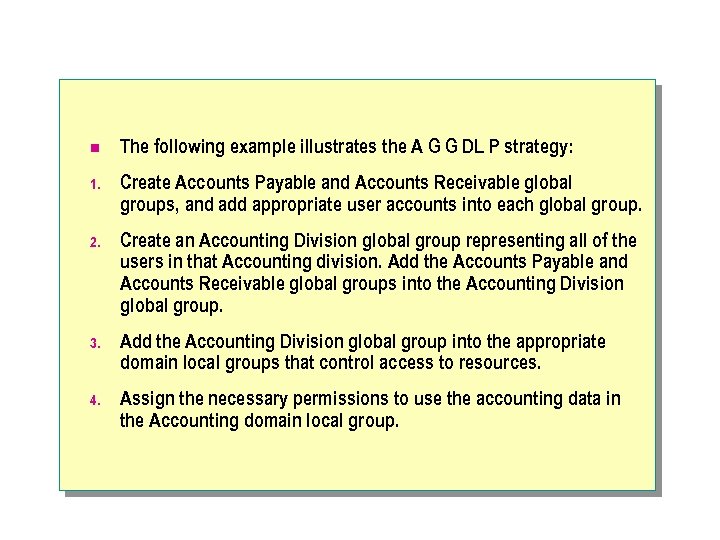 n The following example illustrates the A G G DL P strategy: 1. Create Accounts Payable and Accounts Receivable global groups, and add appropriate user accounts into each global group. 2. Create an Accounting Division global group representing all of the users in that Accounting division. Add the Accounts Payable and Accounts Receivable global groups into the Accounting Division global group. 3. Add the Accounting Division global group into the appropriate domain local groups that control access to resources. 4. Assign the necessary permissions to use the accounting data in the Accounting domain local group.
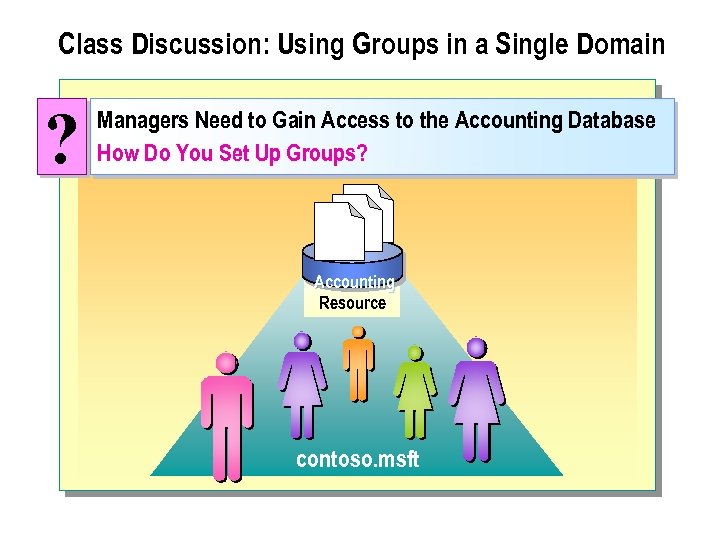 Class Discussion: Using Groups in a Single Domain ? Managers Need to Gain Access to the Accounting Database How Do You Set Up Groups? Accounting Resource contoso. msft
 n Contoso, Ltd. headquarters has a single domain that is located in Paris. Contoso, Ltd. has managers who need to gain access to the inventory database to perform their jobs. l What would you do to ensure that the managers have the required access to the inventory database? a. Place all of the managers into a global group. b. Create a domain local group for inventory database access. c. Add the global group into the domain local group and assign permissions to gain access to the inventory database in the domain local group.
 n Contoso, Ltd. wants to react more quickly to market demands. It has been determined that the accounting data needs to be available to the entire accounting staff. Contoso, Ltd. wants to create the group structure for the entire Accounting division that includes the Accounts Payable and Accounts Receivable departments.
 n What would you do to ensure that the managers have the required access and that there is a minimum of administration? a. Make sure that your network is running in native mode. If not, you will first need to convert it to a native mode network. b. Create three global groups. One group called Accounting Division will represent all department accountants. Name the other two groups Accounts Payable and Accounts Receivable to represent the organizational structure of the accounting department Add the Accounts Receivable and Accounts Payable groups into the Accounting Division global group in each domain. c. Place the Accounting Division global group into the domain local group so that users can gain access the accounting data. d. Create a domain local group called Accounting Data. Add this group to the accounting data resources file with the appropriate permissions.
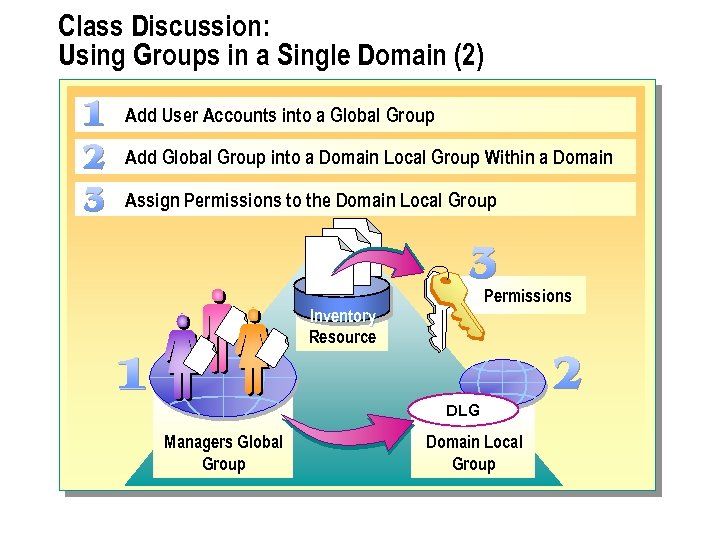 Class Discussion: Using Groups in a Single Domain (2) Add User Accounts into a Global Group Add Global Group into a Domain Local Group Within a Domain Assign Permissions to the Domain Local Group Permissions Inventory Resource DLG Managers Global Group Domain Local Group
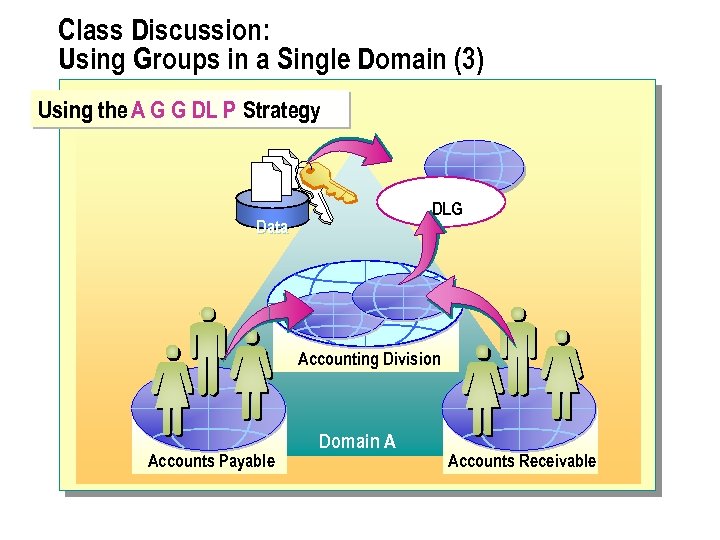 Class Discussion: Using Groups in a Single Domain (3) Using the A G G DL P Strategy DLG Data Accounting Division DLG Accounts Payable Domain A Accounts Receivable
 Lab B: Setting Up and Administering Groups in a Single Domain
 Troubleshooting Domain User Accounts and Groups Err or Cannot Create a User Account or a Group Err or Cannot Update Attributes of a. User Account Err or User Cannot Access Resources
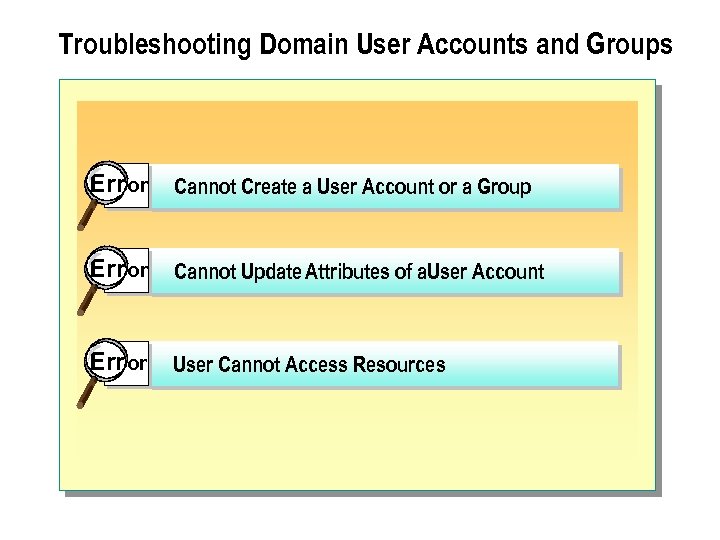
 n You may encounter problems when setting up and administering domain user accounts and groups. The following list describes some of these potential problems and strategies for resolving them: l Cannot create a user account or a group. The possible cause could be a violation of uniqueness rules. Recreate the user account or the group adhering to the uniqueness rules. l Cannot update attributes of a user account. You may not have permission to update user accounts. Check the permissions assigned to you. If you do not have the permissions, log on as an administrator and then assign the appropriate permissions. You can also ask the administrator of that OU to assign you appropriate permissions. l Users cannot access resources. The possible cause is that the user account is a member of a nested group that has been explicitly denied access to a resource.
 Best Practices Have Users Use Their User Principal Names to Log On Use the Forest Root Domain Name in a Multi-Domain Environment Disable Imported User Accounts Until Needed Create Global Groups Based on Job Functions
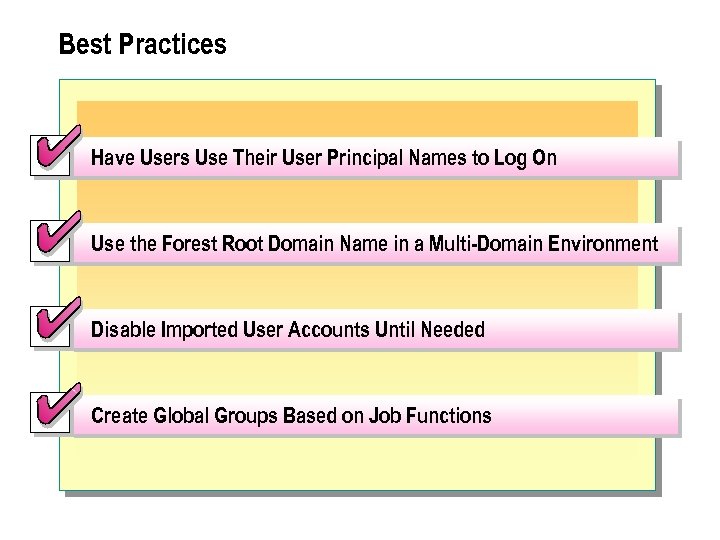
 n The following list provides best practices for administering user accounts and groups:
 n Have users use their user principal names, for example, suzanf@contoso. msft instead of downlevel logon names, , such as user names and domain names, when logging on from a computer running Windows 2000. By using their user principal name to log on, the user account can be moved from one domain to another without impacting the user.
 n Use the forest root domain name for the user principal name suffix for user accounts in a multi-domain environment so that the name can be shorter and simpler. Also consider using a user principal name suffix that matches the user's e-mail address, which may include creating an alternative user principal name suffix.
 n When creating multiple user accounts by using a bulk import method, disable the accounts if users are not going to use these accounts immediately. Because the password for an imported user account is initially blank, any unauthorized person with knowledge of the user account name could log on, set a new password, and then gain access to the network.
 n Create global groups that are based on job functions. When you create a global group that is based on job functions and place the global groups in domain local groups, you need only change the group membership to accommodate changes in user job functions. For example, Cornelia Kunze is a user account in the global group Accountants, which is a member of the domain local group Accountant Files. The domain local group Accountant Files has read permissions to the accountants' audit share and modify permission to the accountant's documents share. If a new user is taking over Cornelia Kunze's job function, you need only remove Cornelia Kunze from the Accountant global group and add the new user to the Accountant global group. You do not need to change any permissions, because permissions are assigned to domain local groups that contain the global groups that contain the user accounts.
 Review n Introduction to Users and Groups n User Logon Names n Creating Multiple User Accounts n Administering User Accounts n Using Groups in Active Directory n Strategies for Using Groups in a Domain n Troubleshooting Domain User Accounts and Groups n Best Practices