


 Скачать презентацию Module 14 Postprocessing Postprocessing Overview Training Manual
19ecc19367ad2ad665bb60da5aa1dffc.ppt
- Количество слайдов: 48
 Module 14 Postprocessing
 Postprocessing Overview Training Manual There are many ways to review results in the general postprocessor (POST 1), some of which have already been covered. • In this chapter, we will explore two additional methods — query picking and path operations — and also introduce you to the concepts of results transformation, error estimation, and load case combination. • We will also introduce two productivity enhancement tools: – – • Results Viewer Report Generator Topics covered: A. Query Picking E. Load Case Combinations B. Results Coordinate System F. Results Viewer C. Path Operations G. Report Generator D. Error Estimation H. Workshop INTRODUCTION TO ANSYS 5. 7 - Part 1 • January 30, 2001 Inventory #001441 14 -2
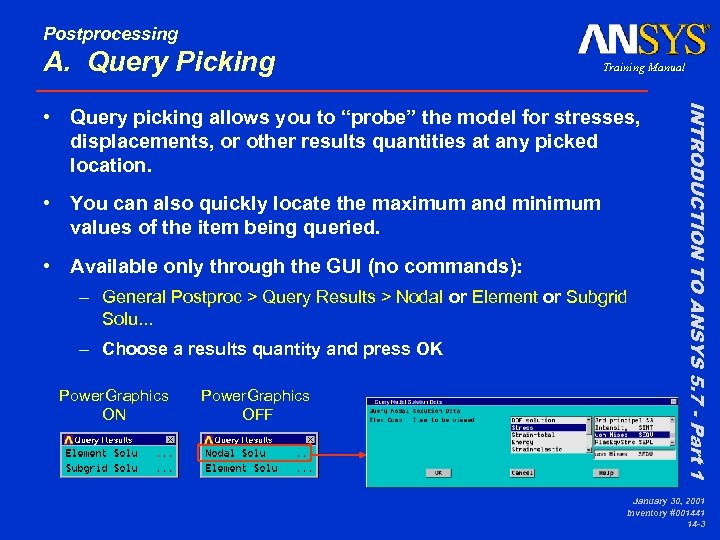 Postprocessing A. Query Picking Training Manual • You can also quickly locate the maximum and minimum values of the item being queried. • Available only through the GUI (no commands): – General Postproc > Query Results > Nodal or Element or Subgrid Solu. . . – Choose a results quantity and press OK Power. Graphics ON Power. Graphics OFF INTRODUCTION TO ANSYS 5. 7 - Part 1 • Query picking allows you to “probe” the model for stresses, displacements, or other results quantities at any picked location. January 30, 2001 Inventory #001441 14 -3
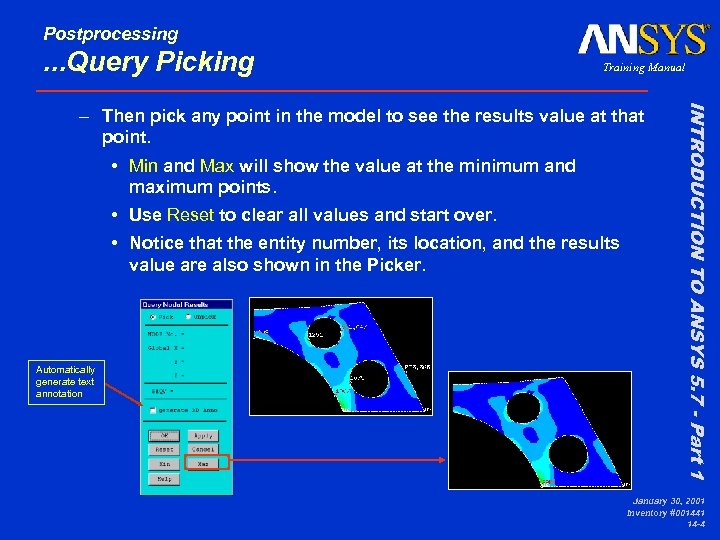 Postprocessing . . . Query Picking Training Manual • Min and Max will show the value at the minimum and maximum points. • Use Reset to clear all values and start over. • Notice that the entity number, its location, and the results value are also shown in the Picker. Automatically generate text annotation INTRODUCTION TO ANSYS 5. 7 - Part 1 – Then pick any point in the model to see the results value at that point. January 30, 2001 Inventory #001441 14 -4
 Postprocessing . . . Query Picking Training Manual – Continue from the last multi-load-step solution of rib. db – Plot SEQV for load step 1 – Query “Nodal Solu” SEQV at several locations, including MIN & MAX. (Switch to full graphics if needed. ) – Switch to Power. Graphics and query “Subgrid Solu. ” INTRODUCTION TO ANSYS 5. 7 - Part 1 • Demo: January 30, 2001 Inventory #001441 14 -5
 Postprocessing B. Results Coordinate System Training Manual • RSYS defaults to 0 (global Cartesian). That is, POST 1 transforms all results to global Cartesian by default, including results at “rotated” nodes. • But there are many situations — such as pressure vessels and spherical structures — where you need to check the results in a cylindrical, spherical, or other local coordinate system. INTRODUCTION TO ANSYS 5. 7 - Part 1 • All direction-dependent quantities that you view in POST 1, such as component stresses, displacements, and reaction forces, are reported in the results coordinate system (RSYS). January 30, 2001 Inventory #001441 14 -6
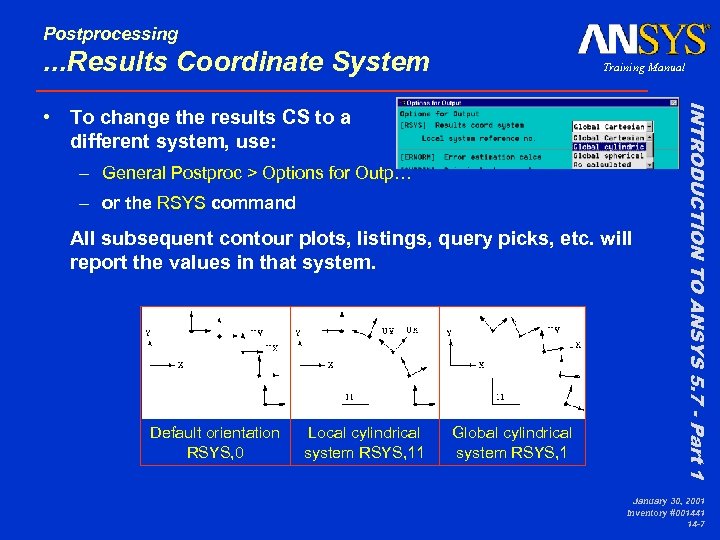 Postprocessing . . . Results Coordinate System Training Manual – General Postproc > Options for Outp… – or the RSYS command All subsequent contour plots, listings, query picks, etc. will report the values in that system. Default orientation RSYS, 0 Local cylindrical system RSYS, 11 Global cylindrical system RSYS, 1 INTRODUCTION TO ANSYS 5. 7 - Part 1 • To change the results CS to a different system, use: January 30, 2001 Inventory #001441 14 -7
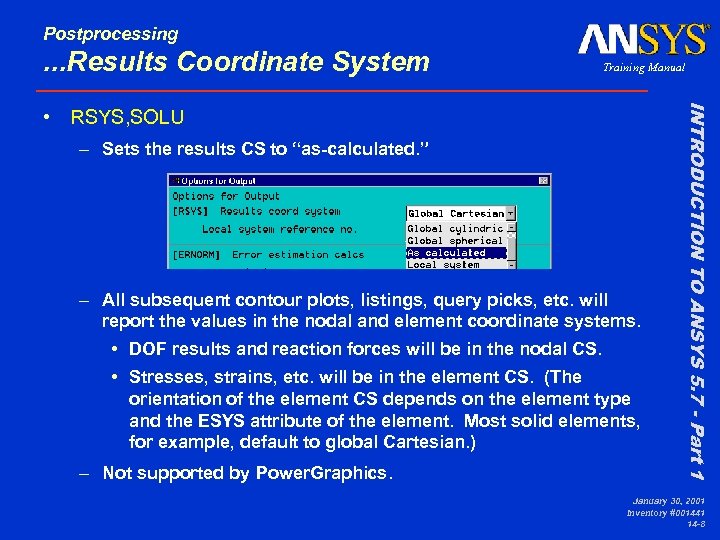 Postprocessing . . . Results Coordinate System Training Manual – Sets the results CS to “as-calculated. ” – All subsequent contour plots, listings, query picks, etc. will report the values in the nodal and element coordinate systems. • DOF results and reaction forces will be in the nodal CS. • Stresses, strains, etc. will be in the element CS. (The orientation of the element CS depends on the element type and the ESYS attribute of the element. Most solid elements, for example, default to global Cartesian. ) – Not supported by Power. Graphics. INTRODUCTION TO ANSYS 5. 7 - Part 1 • RSYS, SOLU January 30, 2001 Inventory #001441 14 -8
 Postprocessing C. Path Operations Training Manual – map results data onto an arbitrary “path” through the model – perform mathematical operations along the path, including integration and differentiation – display a “path plot” — see how a result item varies along the path • Available only for models containing 2 -D or 3 -D solid elements or shell elements. INTRODUCTION TO ANSYS 5. 7 - Part 1 • Another way to review results is via path operations, which allow you to: January 30, 2001 Inventory #001441 14 -9
 Postprocessing . . . Path Operations Training Manual – Define a path – Map data onto the path – Plot the data 1. Define a Path – Requires the following information: • Points defining the path (2 to 1000). You can use existing nodes or locations on the working plane. • Path curvature, determined by the active coordinate system (CSYS). • A name for the path. INTRODUCTION TO ANSYS 5. 7 - Part 1 • Three steps to produce a path plot: January 30, 2001 Inventory #001441 14 -10
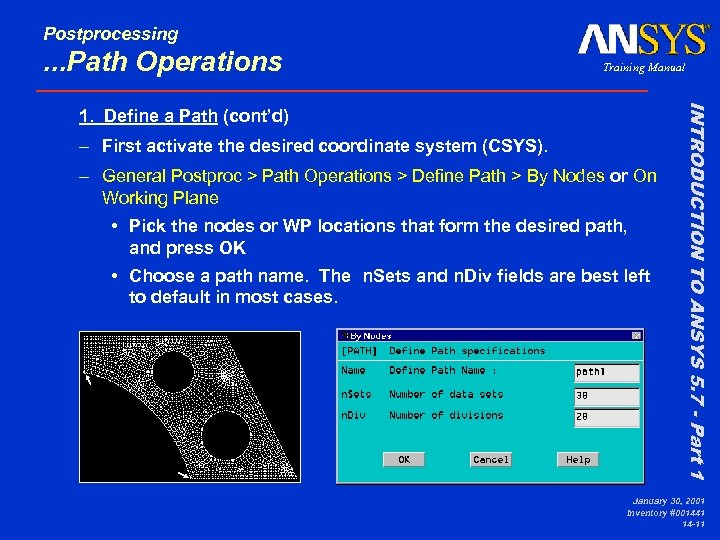 Postprocessing . . . Path Operations Training Manual – First activate the desired coordinate system (CSYS). – General Postproc > Path Operations > Define Path > By Nodes or On Working Plane • Pick the nodes or WP locations that form the desired path, and press OK • Choose a path name. The n. Sets and n. Div fields are best left to default in most cases. INTRODUCTION TO ANSYS 5. 7 - Part 1 1. Define a Path (cont’d) January 30, 2001 Inventory #001441 14 -11
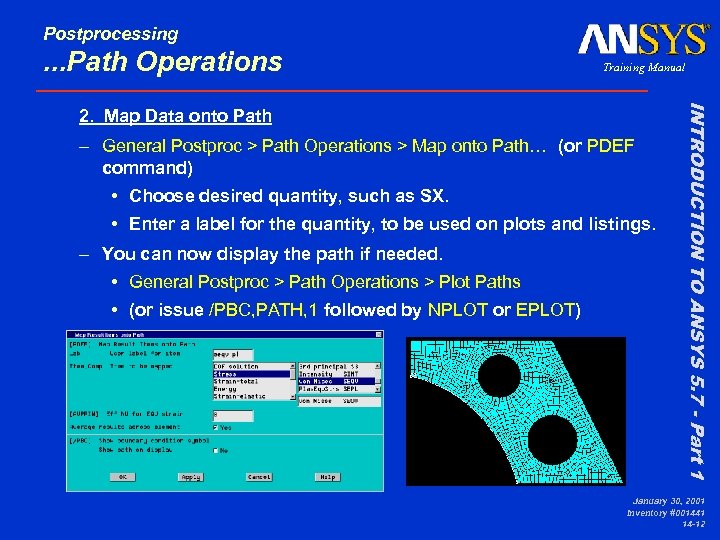 Postprocessing . . . Path Operations Training Manual – General Postproc > Path Operations > Map onto Path… (or PDEF command) • Choose desired quantity, such as SX. • Enter a label for the quantity, to be used on plots and listings. – You can now display the path if needed. • General Postproc > Path Operations > Plot Paths • (or issue /PBC, PATH, 1 followed by NPLOT or EPLOT) INTRODUCTION TO ANSYS 5. 7 - Part 1 2. Map Data onto Path January 30, 2001 Inventory #001441 14 -12
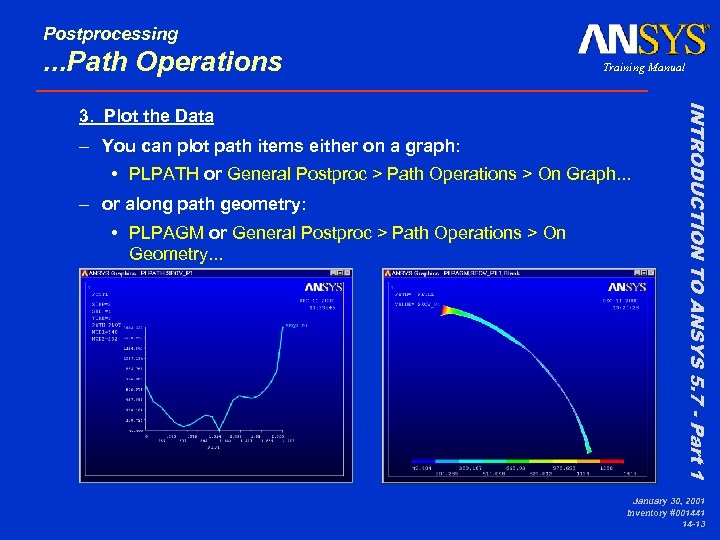 Postprocessing . . . Path Operations Training Manual – You can plot path items either on a graph: • PLPATH or General Postproc > Path Operations > On Graph. . . – or along path geometry: • PLPAGM or General Postproc > Path Operations > On Geometry. . . INTRODUCTION TO ANSYS 5. 7 - Part 1 3. Plot the Data January 30, 2001 Inventory #001441 14 -13
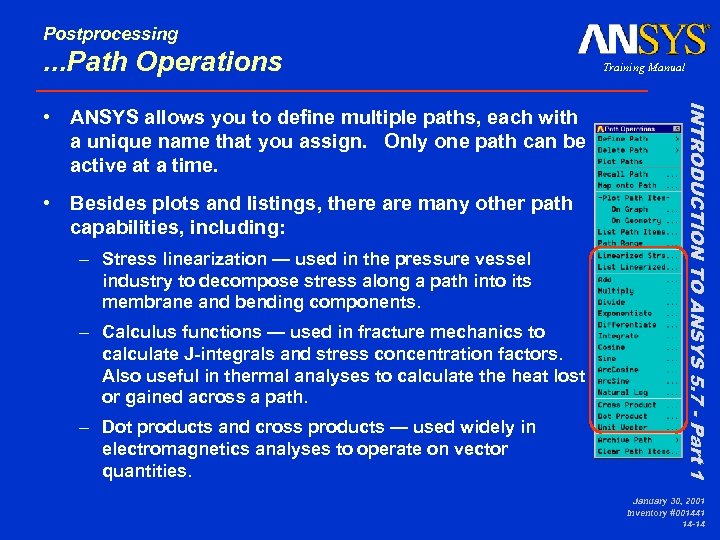 Postprocessing . . . Path Operations • Besides plots and listings, there are many other path capabilities, including: – Stress linearization — used in the pressure vessel industry to decompose stress along a path into its membrane and bending components. – Calculus functions — used in fracture mechanics to calculate J-integrals and stress concentration factors. Also useful in thermal analyses to calculate the heat lost or gained across a path. – Dot products and cross products — used widely in electromagnetics analyses to operate on vector quantities. INTRODUCTION TO ANSYS 5. 7 - Part 1 • ANSYS allows you to define multiple paths, each with a unique name that you assign. Only one path can be active at a time. Training Manual January 30, 2001 Inventory #001441 14 -14
 Postprocessing . . . Path Operations Training Manual – Continue with rib postprocessing… – Plot nodes, then switch to CSYS, 1 if desired – Define a path using nodes – Map SX or SEQV or other data onto path – Plot the path itself – Plot the path item on graph and on geometry – Define a second path elsewhere in the model and show to toggle between the two. INTRODUCTION TO ANSYS 5. 7 - Part 1 • Demo: January 30, 2001 Inventory #001441 14 -15
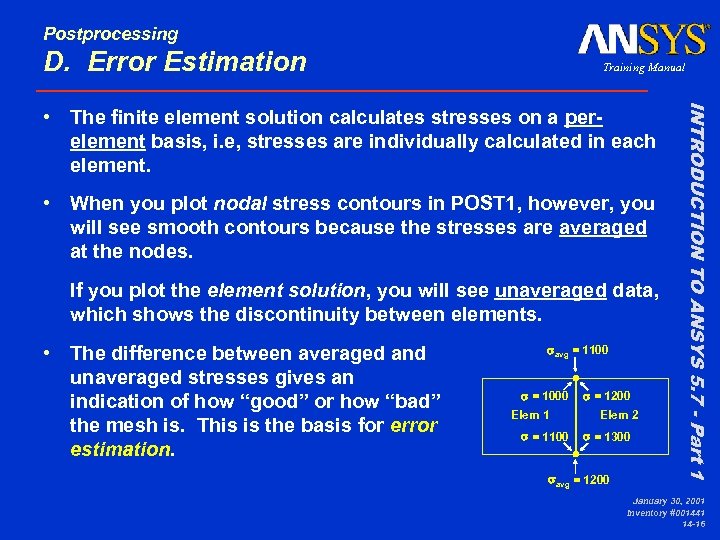 Postprocessing D. Error Estimation Training Manual • When you plot nodal stress contours in POST 1, however, you will see smooth contours because the stresses are averaged at the nodes. If you plot the element solution, you will see unaveraged data, which shows the discontinuity between elements. • The difference between averaged and unaveraged stresses gives an indication of how “good” or how “bad” the mesh is. This is the basis for error estimation. savg = 1100 s = 1000 Elem 1 s = 1100 s = 1200 Elem 2 s = 1300 savg = 1200 INTRODUCTION TO ANSYS 5. 7 - Part 1 • The finite element solution calculates stresses on a perelement basis, i. e, stresses are individually calculated in each element. January 30, 2001 Inventory #001441 14 -16
 Postprocessing . . . Error Estimation Training Manual – linear static structural and linear steady-state thermal analyses – solid elements (2 -D and 3 -D) and shell elements – Full Graphics (not Power. Graphics) If these conditions are not met, ANSYS automatically turns off error estimation calculations. • To manually activate or deactivate error estimation, use – ERNORM, ON/OFF – or General Postproc > Options for Outp. . . INTRODUCTION TO ANSYS 5. 7 - Part 1 • Error estimation is available only in POST 1 and is valid only for: January 30, 2001 Inventory #001441 14 -17
 Postprocessing . . . Error Estimation – Stress analysis: • percentage error in energy norm (SEPC) • element stress deviations (SDSG) • element energy error (SERR) • maximum and minimum stress bounds (SMXB, SMNB) – Thermal analysis: • percentage error in energy norm (TEPC) • element thermal gradient deviations (TDSG) • element energy error (TERR) INTRODUCTION TO ANSYS 5. 7 - Part 1 • POST 1 calculates the following error measures. Training Manual January 30, 2001 Inventory #001441 14 -18
 Postprocessing . . . Error Estimation Training Manual • SEPC is a rough estimate of the stress error (or displacement, temperature, or thermal flux) over the entire set of selected elements. • Can be used to compare similar models of similar structures subjected to similar loadings. • SEPC is shown in the legend column of deformed shape displays. You can list it manually using PRERR or General Postproc > List Results > Percent Error. INTRODUCTION TO ANSYS 5. 7 - Part 1 Percentage error in energy norm (SEPC) January 30, 2001 Inventory #001441 14 -19
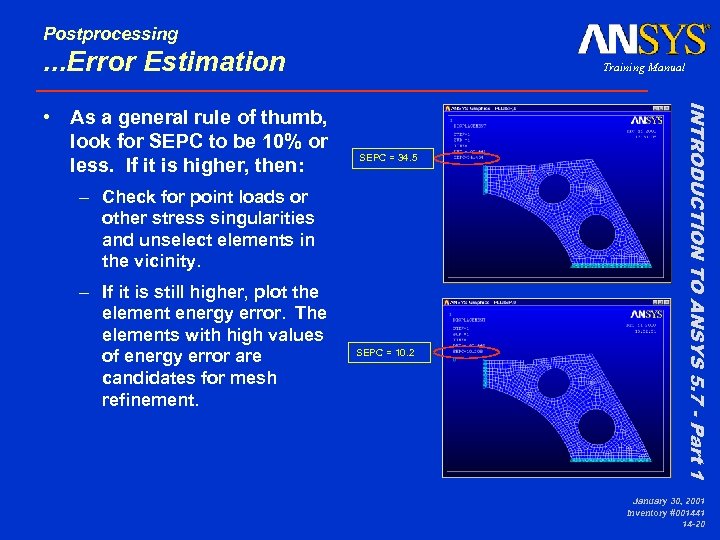 Postprocessing . . . Error Estimation SEPC = 34. 5 – Check for point loads or other stress singularities and unselect elements in the vicinity. – If it is still higher, plot the element energy error. The elements with high values of energy error are candidates for mesh refinement. SEPC = 10. 2 INTRODUCTION TO ANSYS 5. 7 - Part 1 • As a general rule of thumb, look for SEPC to be 10% or less. If it is higher, then: Training Manual January 30, 2001 Inventory #001441 14 -20
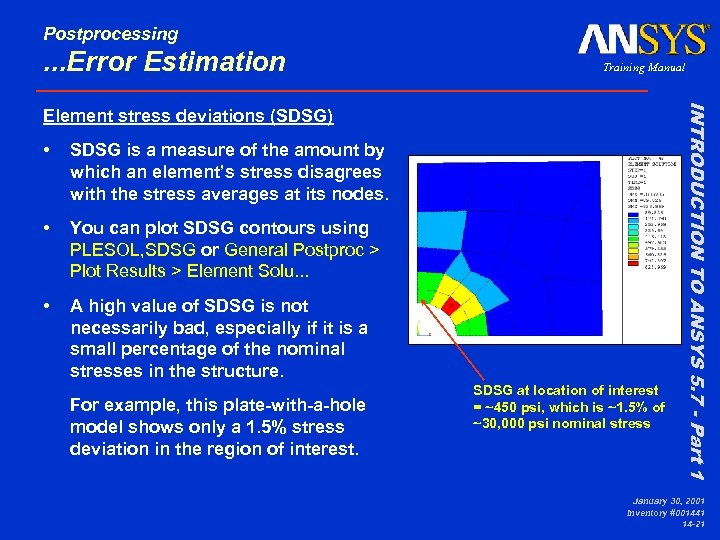 Postprocessing . . . Error Estimation Training Manual • SDSG is a measure of the amount by which an element’s stress disagrees with the stress averages at its nodes. • You can plot SDSG contours using PLESOL, SDSG or General Postproc > Plot Results > Element Solu. . . • A high value of SDSG is not necessarily bad, especially if it is a small percentage of the nominal stresses in the structure. For example, this plate-with-a-hole model shows only a 1. 5% stress deviation in the region of interest. SDSG at location of interest = ~450 psi, which is ~1. 5% of ~30, 000 psi nominal stress INTRODUCTION TO ANSYS 5. 7 - Part 1 Element stress deviations (SDSG) January 30, 2001 Inventory #001441 14 -21
 Postprocessing . . . Error Estimation Training Manual • SERR is the energy associated with the stress mismatches at the nodes of the element. This is the basic error measure from which the other error quantities are derived. SERR has units of energy. • To plot SERR contours, issue PLESOL, SERR or General Postproc > Plot Results > Element Solu. . . • Generally, the elements with the highest SERR are candidates for mesh refinement. However, since SERR will always be highest at stress singularities, be sure to unselect those elements first. INTRODUCTION TO ANSYS 5. 7 - Part 1 Element energy error (SERR) January 30, 2001 Inventory #001441 14 -22
 Postprocessing . . . Error Estimation Training Manual • The stress bounds can help you determine the potential effect of mesh discretization error on the maximum stress. • They are displayed on stress contour plots in the legend column as SMXB (upper bound) and SMNB (lower bound). • The bounds are not estimates of the actual maximum and minimum, but they do define a “confidence band. ” Without other supporting verification, you have no basis for believing that the true maximum stress is below SMXB. INTRODUCTION TO ANSYS 5. 7 - Part 1 Stress bounds (SMXB and SMNB) January 30, 2001 Inventory #001441 14 -23
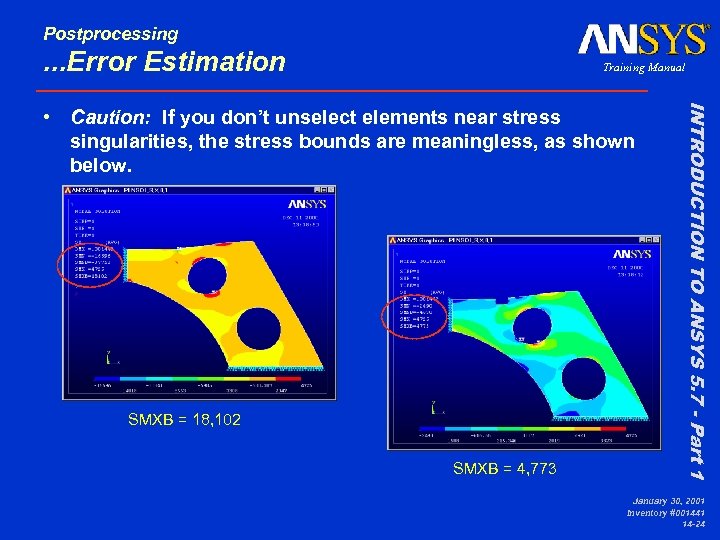 Postprocessing . . . Error Estimation Training Manual SMXB = 18, 102 SMXB = 4, 773 INTRODUCTION TO ANSYS 5. 7 - Part 1 • Caution: If you don’t unselect elements near stress singularities, the stress bounds are meaningless, as shown below. January 30, 2001 Inventory #001441 14 -24
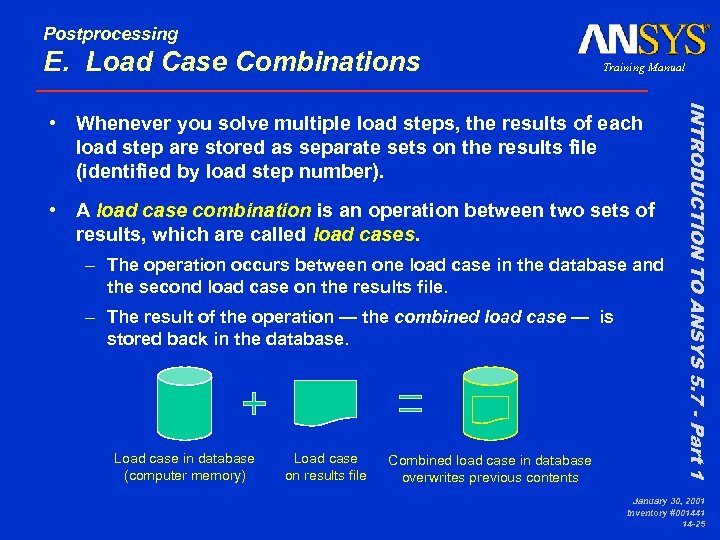 Postprocessing E. Load Case Combinations Training Manual • A load case combination is an operation between two sets of results, which are called load cases. – The operation occurs between one load case in the database and the second load case on the results file. – The result of the operation — the combined load case — is stored back in the database. Load case in database (computer memory) Load case on results file Combined load case in database overwrites previous contents INTRODUCTION TO ANSYS 5. 7 - Part 1 • Whenever you solve multiple load steps, the results of each load step are stored as separate sets on the results file (identified by load step number). January 30, 2001 Inventory #001441 14 -25
 Postprocessing . . . Load Case Combinations 1. Create the load cases 2. Read one load case into the database 3. Perform the desired operation INTRODUCTION TO ANSYS 5. 7 - Part 1 Typical procedure: Training Manual January 30, 2001 Inventory #001441 14 -26
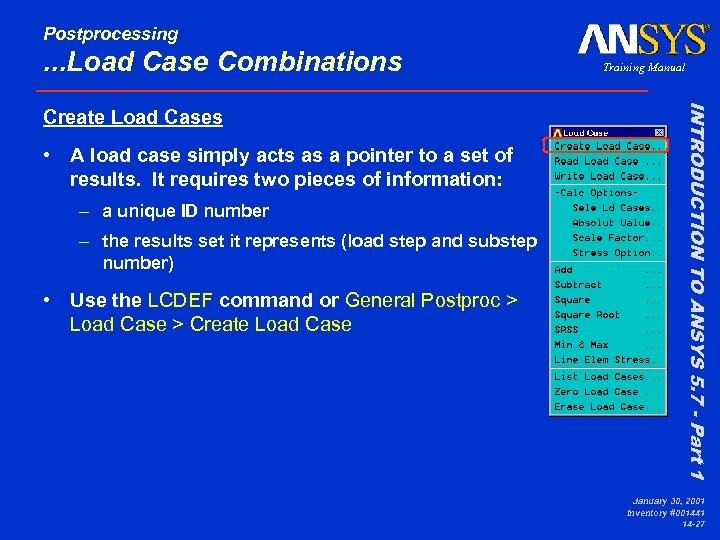 Postprocessing . . . Load Case Combinations • A load case simply acts as a pointer to a set of results. It requires two pieces of information: – a unique ID number – the results set it represents (load step and substep number) • Use the LCDEF command or General Postproc > Load Case > Create Load Case INTRODUCTION TO ANSYS 5. 7 - Part 1 Create Load Cases Training Manual January 30, 2001 Inventory #001441 14 -27
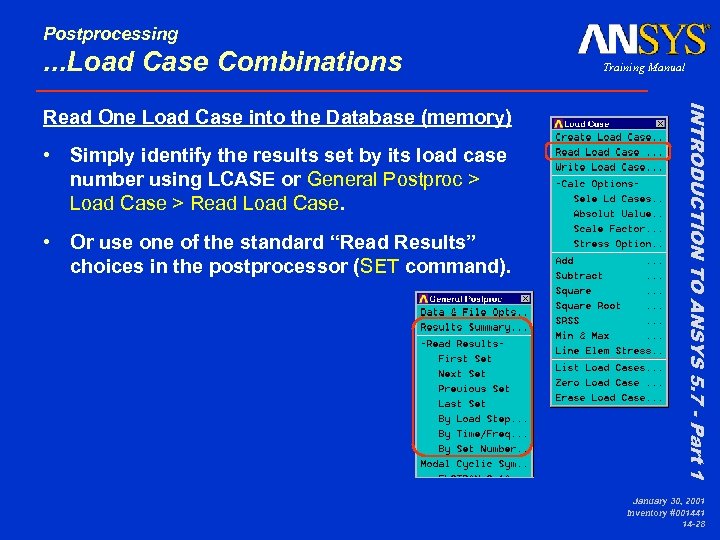 Postprocessing . . . Load Case Combinations • Simply identify the results set by its load case number using LCASE or General Postproc > Load Case > Read Load Case. • Or use one of the standard “Read Results” choices in the postprocessor (SET command). INTRODUCTION TO ANSYS 5. 7 - Part 1 Read One Load Case into the Database (memory) Training Manual January 30, 2001 Inventory #001441 14 -28
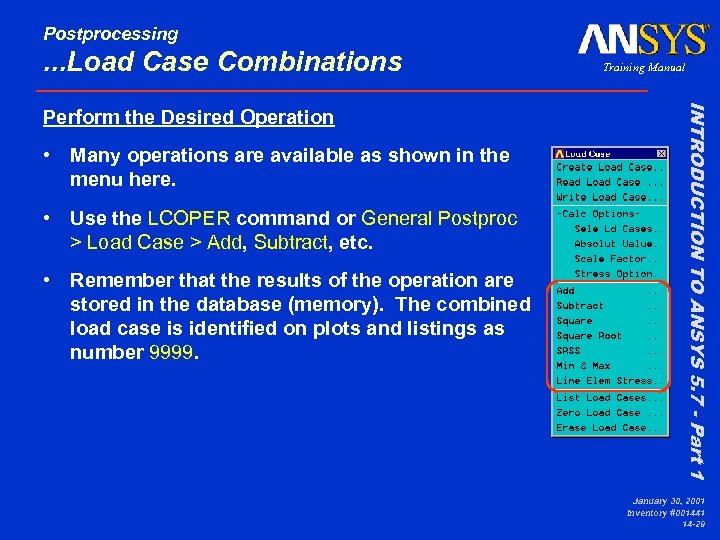 Postprocessing . . . Load Case Combinations • Many operations are available as shown in the menu here. • Use the LCOPER command or General Postproc > Load Case > Add, Subtract, etc. • Remember that the results of the operation are stored in the database (memory). The combined load case is identified on plots and listings as number 9999. INTRODUCTION TO ANSYS 5. 7 - Part 1 Perform the Desired Operation Training Manual January 30, 2001 Inventory #001441 14 -29
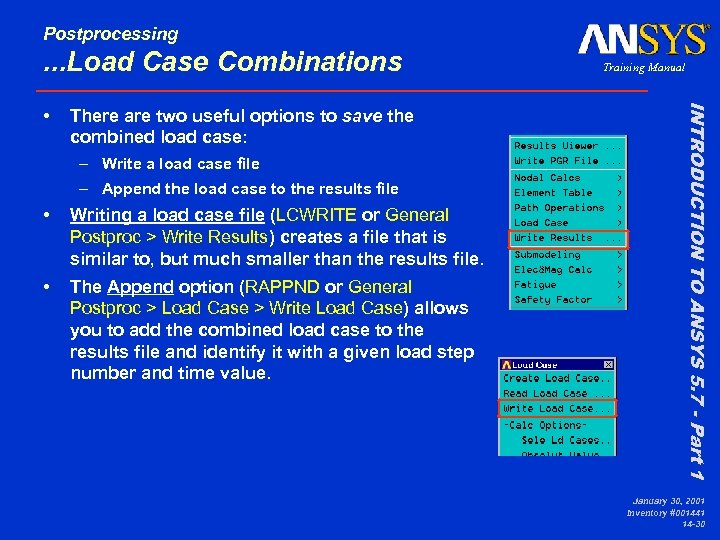 Postprocessing . . . Load Case Combinations There are two useful options to save the combined load case: – Write a load case file – Append the load case to the results file • Writing a load case file (LCWRITE or General Postproc > Write Results) creates a file that is similar to, but much smaller than the results file. • The Append option (RAPPND or General Postproc > Load Case > Write Load Case) allows you to add the combined load case to the results file and identify it with a given load step number and time value. INTRODUCTION TO ANSYS 5. 7 - Part 1 • Training Manual January 30, 2001 Inventory #001441 14 -30
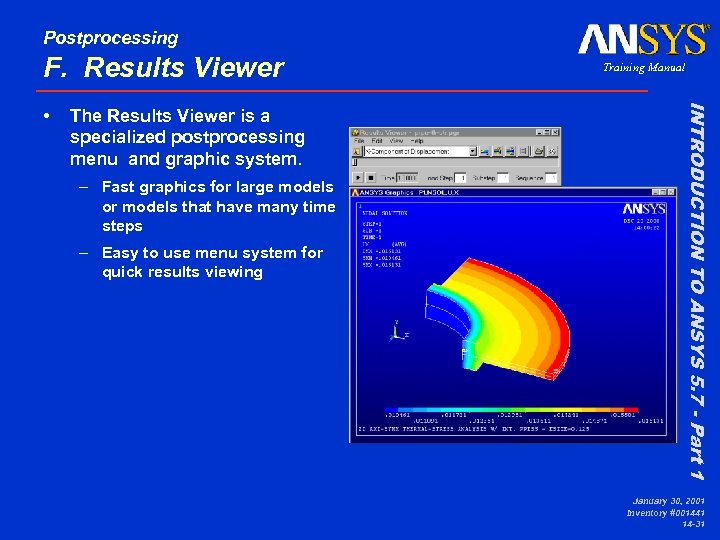 Postprocessing F. Results Viewer The Results Viewer is a specialized postprocessing menu and graphic system. – Fast graphics for large models or models that have many time steps – Easy to use menu system for quick results viewing INTRODUCTION TO ANSYS 5. 7 - Part 1 • Training Manual January 30, 2001 Inventory #001441 14 -31
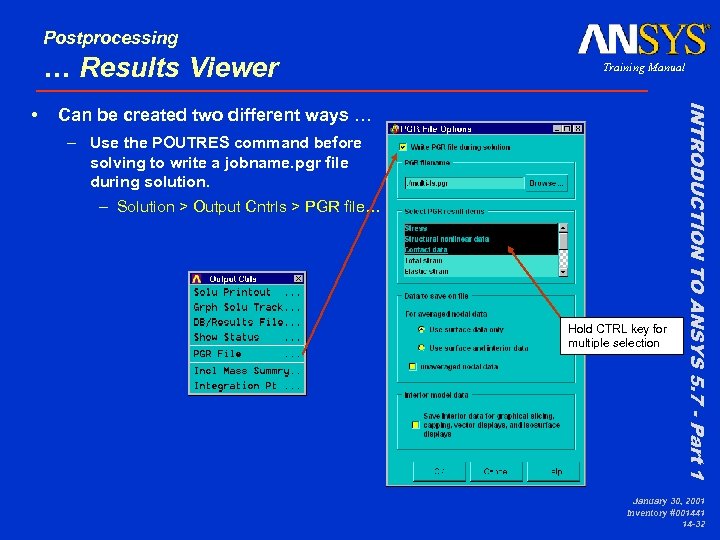 Postprocessing … Results Viewer Can be created two different ways … – Use the POUTRES command before solving to write a jobname. pgr file during solution. – Solution > Output Cntrls > PGR file… Hold CTRL key for multiple selection INTRODUCTION TO ANSYS 5. 7 - Part 1 • Training Manual January 30, 2001 Inventory #001441 14 -32
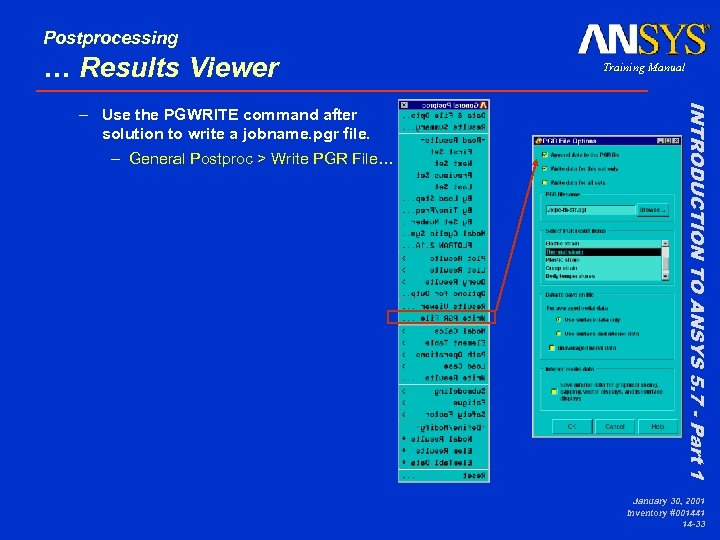 Postprocessing … Results Viewer – General Postproc > Write PGR File… INTRODUCTION TO ANSYS 5. 7 - Part 1 – Use the PGWRITE command after solution to write a jobname. pgr file. Training Manual January 30, 2001 Inventory #001441 14 -33
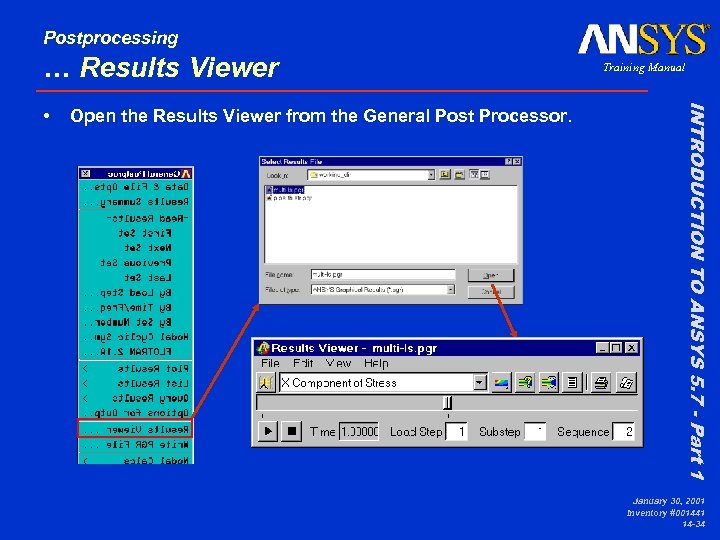 Postprocessing … Results Viewer Open the Results Viewer from the General Post Processor. INTRODUCTION TO ANSYS 5. 7 - Part 1 • Training Manual January 30, 2001 Inventory #001441 14 -34
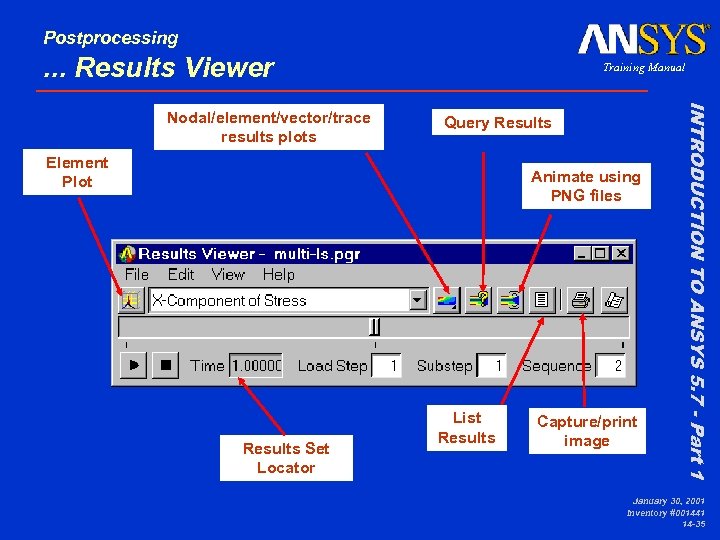 Postprocessing . . . Results Viewer Query Results Element Plot Animate using PNG files Results Set Locator List Results Capture/print image INTRODUCTION TO ANSYS 5. 7 - Part 1 Nodal/element/vector/trace results plots Training Manual January 30, 2001 Inventory #001441 14 -35
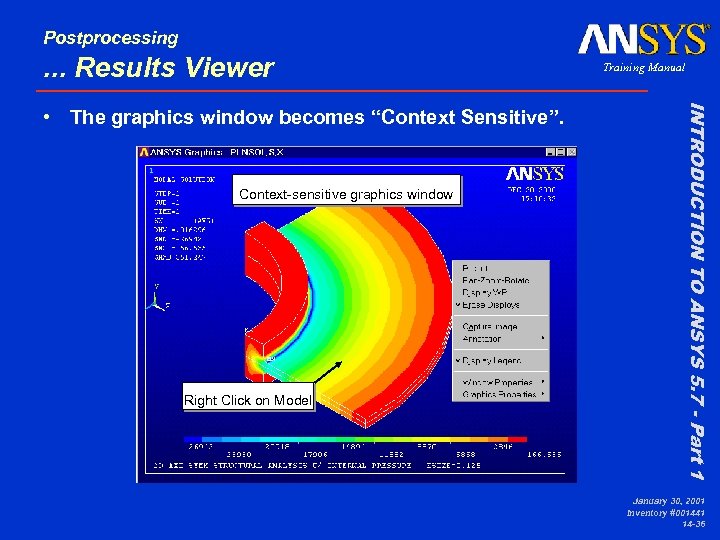 Postprocessing . . . Results Viewer Context-sensitive graphics window Right Click on Model INTRODUCTION TO ANSYS 5. 7 - Part 1 • The graphics window becomes “Context Sensitive”. Training Manual January 30, 2001 Inventory #001441 14 -36
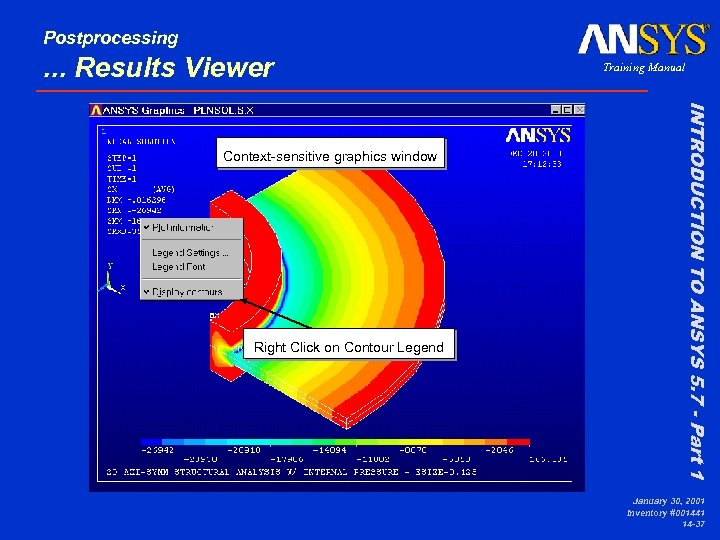 Postprocessing . . . Results Viewer Right Click on Contour Legend INTRODUCTION TO ANSYS 5. 7 - Part 1 Context-sensitive graphics window Training Manual January 30, 2001 Inventory #001441 14 -37
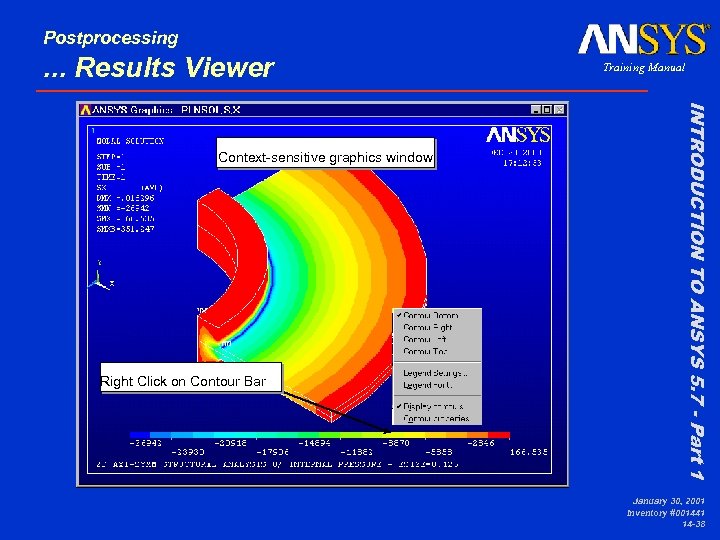 Postprocessing . . . Results Viewer Right Click on Contour Bar INTRODUCTION TO ANSYS 5. 7 - Part 1 Context-sensitive graphics window Training Manual January 30, 2001 Inventory #001441 14 -38
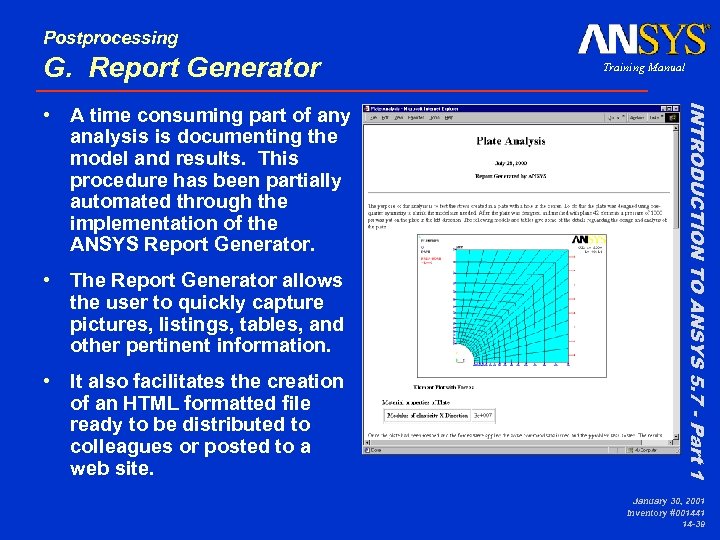 Postprocessing G. Report Generator • The Report Generator allows the user to quickly capture pictures, listings, tables, and other pertinent information. • It also facilitates the creation of an HTML formatted file ready to be distributed to colleagues or posted to a web site. INTRODUCTION TO ANSYS 5. 7 - Part 1 • A time consuming part of any analysis is documenting the model and results. This procedure has been partially automated through the implementation of the ANSYS Report Generator. Training Manual January 30, 2001 Inventory #001441 14 -39
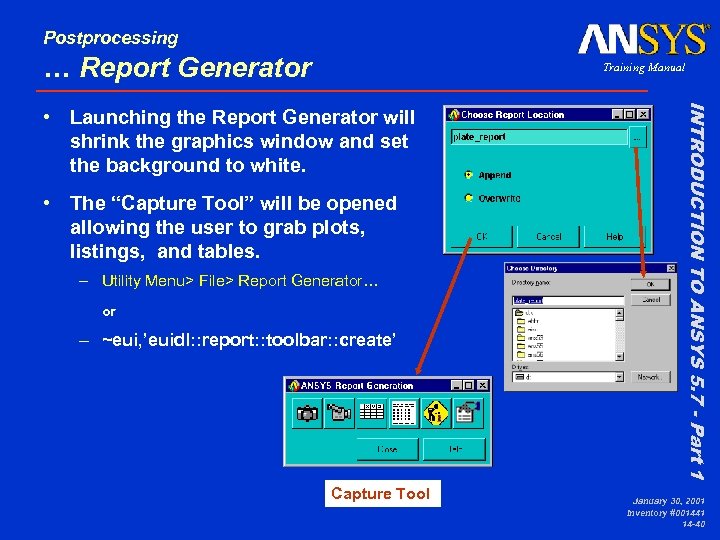 Postprocessing … Report Generator Training Manual • The “Capture Tool” will be opened allowing the user to grab plots, listings, and tables. – Utility Menu> File> Report Generator… or – ~eui, ’euidl: : report: : toolbar: : create’ Capture Tool INTRODUCTION TO ANSYS 5. 7 - Part 1 • Launching the Report Generator will shrink the graphics window and set the background to white. January 30, 2001 Inventory #001441 14 -40
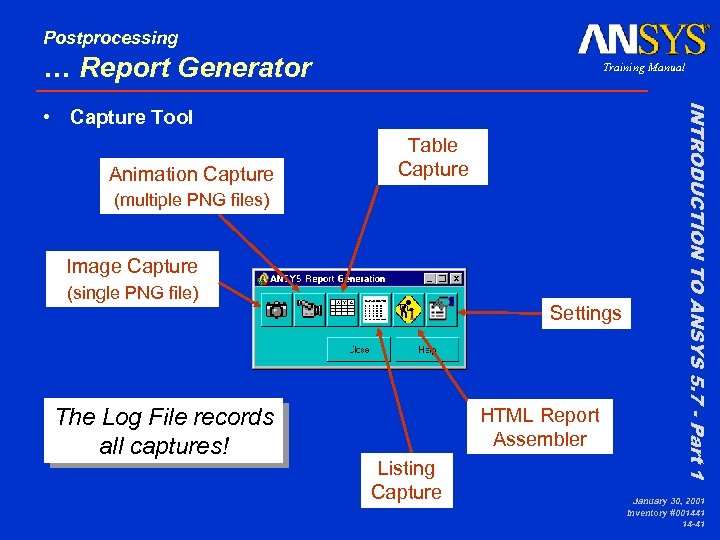 Postprocessing … Report Generator Training Manual Animation Capture Table Capture (multiple PNG files) Image Capture (single PNG file) The Log File records all captures! Settings HTML Report Assembler Listing Capture INTRODUCTION TO ANSYS 5. 7 - Part 1 • Capture Tool January 30, 2001 Inventory #001441 14 -41
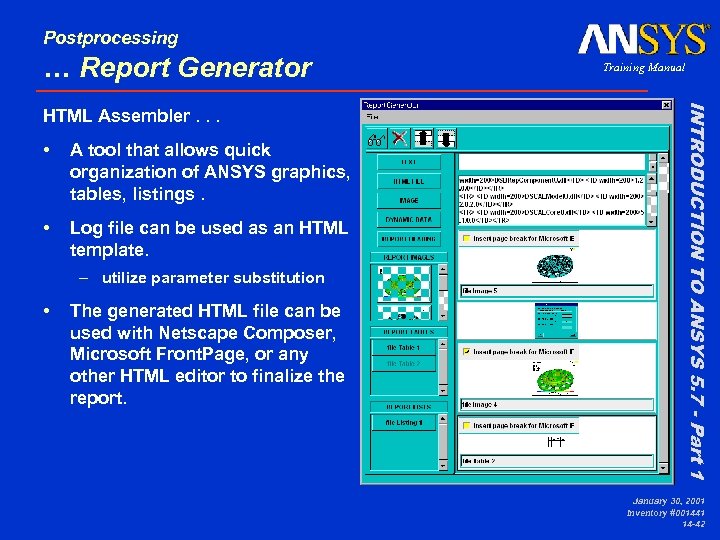 Postprocessing … Report Generator • A tool that allows quick organization of ANSYS graphics, tables, listings. • Log file can be used as an HTML template. – utilize parameter substitution • The generated HTML file can be used with Netscape Composer, Microsoft Front. Page, or any other HTML editor to finalize the report. INTRODUCTION TO ANSYS 5. 7 - Part 1 HTML Assembler. . . Training Manual January 30, 2001 Inventory #001441 14 -42
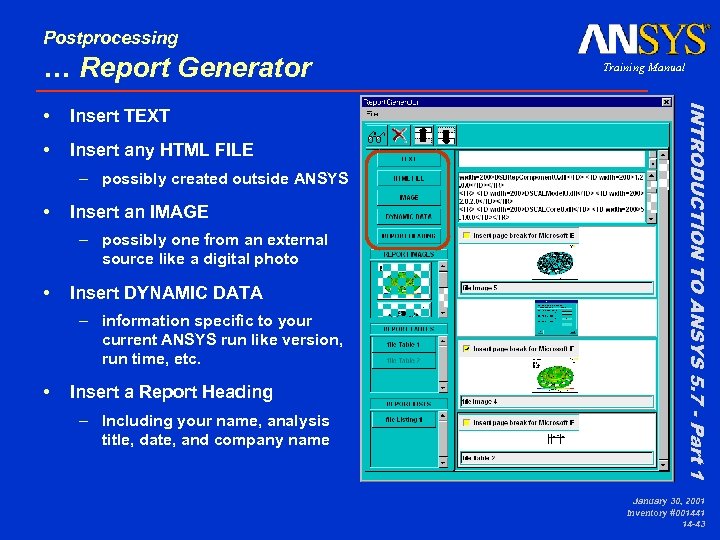 Postprocessing … Report Generator Insert TEXT • Insert any HTML FILE – possibly created outside ANSYS • Insert an IMAGE – possibly one from an external source like a digital photo • Insert DYNAMIC DATA – information specific to your current ANSYS run like version, run time, etc. • Insert a Report Heading – Including your name, analysis title, date, and company name INTRODUCTION TO ANSYS 5. 7 - Part 1 • Training Manual January 30, 2001 Inventory #001441 14 -43
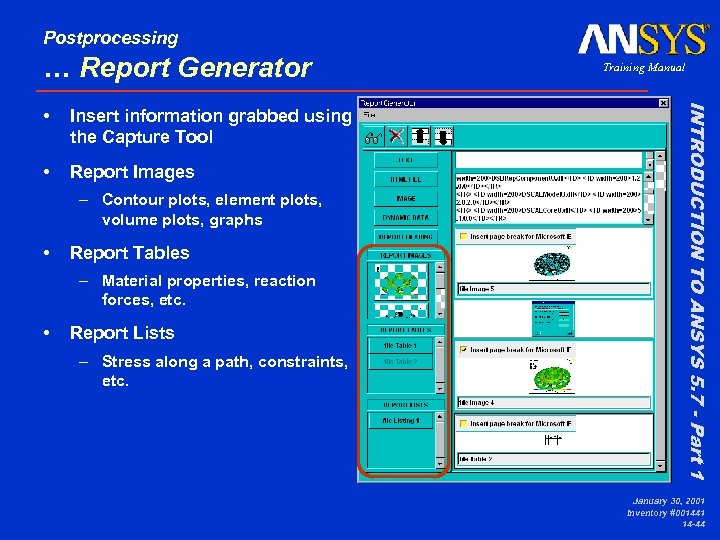 Postprocessing … Report Generator Insert information grabbed using the Capture Tool • Report Images – Contour plots, element plots, volume plots, graphs • Report Tables – Material properties, reaction forces, etc. • Report Lists – Stress along a path, constraints, etc. INTRODUCTION TO ANSYS 5. 7 - Part 1 • Training Manual January 30, 2001 Inventory #001441 14 -44
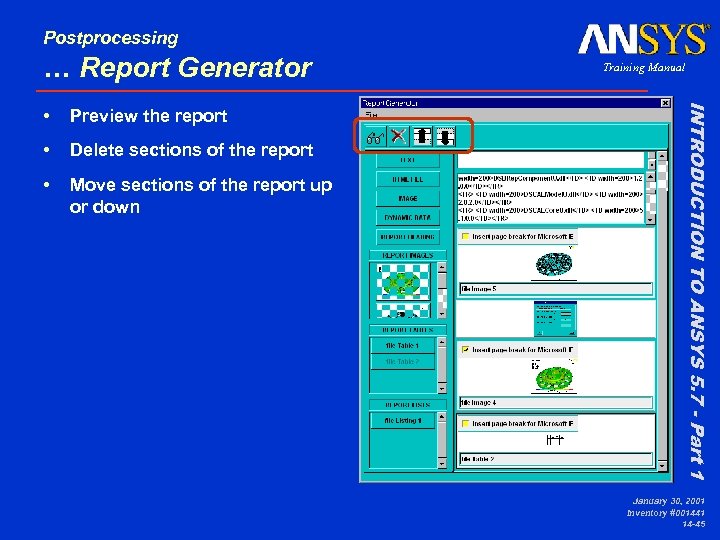 Postprocessing … Report Generator Preview the report • Delete sections of the report • Move sections of the report up or down INTRODUCTION TO ANSYS 5. 7 - Part 1 • Training Manual January 30, 2001 Inventory #001441 14 -45
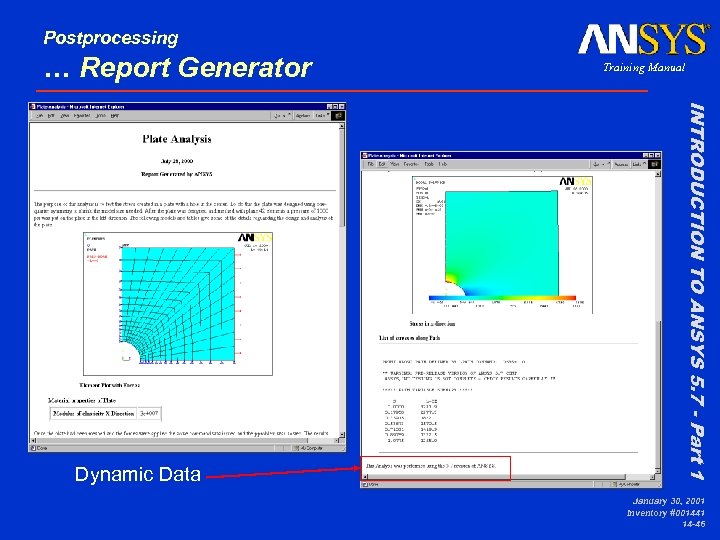 Postprocessing … Report Generator INTRODUCTION TO ANSYS 5. 7 - Part 1 Dynamic Data Training Manual January 30, 2001 Inventory #001441 14 -46
 Postprocessing H. Workshop W 12 A. Connecting Rod W 12 B. Spherical Shell W 12 C. Axisymmetric Fin with Multiple Load Steps W 12 D. Results Viewer W 12 E. Report Generator Refer to your Workshop Supplement for instructions. INTRODUCTION TO ANSYS 5. 7 - Part 1 • This workshop consists of five exercises: Training Manual January 30, 2001 Inventory #001441 14 -47
 January 30, 2001 Inventory #001441 14 -48