


 Скачать презентацию Module 1 Installing Upgrading and Migrating to Windows
24093dd782ecad7d02aeaa737f4df5b8.ppt
- Количество слайдов: 40
 Module 1 Installing, Upgrading, and Migrating to Windows 7
 Module Overview • Preparing to Install Windows 7 • Performing a Clean Installation of Windows 7 • Upgrading and Migrating to Windows 7 • Performing Image-based Installation of Windows 7 • Configuring Application Compatibility
 Lesson 1: Preparing to Install Windows 7 • Key Features of Windows 7 • Editions of Windows 7 • Hardware Requirements for Installing Windows 7 • Advantages of Using 64 -bit Editions of Windows 7 • Options for Installing Windows 7
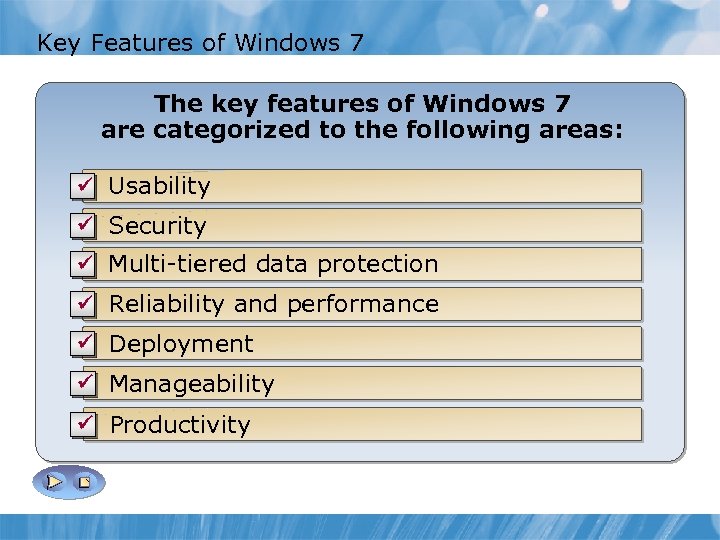 Key Features of Windows 7 • • Manageability Deployment The key featuresperformance 7 Reliability and of Windows Productivity Enhanced security Enhanced. Usability user productivity Greater Improved and reliability Usability are categorized. Security performance to the protection Multi-tiered data following areas: Multi-tiered data protection ü Windows Imaging (WIM) format and image. Automation Flexibility Reduce help ü Usability Data deployment document, at ü Applicationfundamentally error reporting ü basedon a user interface performance using Improved recovery and file, directory, Reliable waysconsistent secure Built protection to the userat accessibility Improvements desk calls search for, and ü Fundamentally secured platform organize, ü Security and toprotection interface ü Clearer computer and networkdocument, Improved data organize, search for, and ü Clearer ü featuresways • Windows levels tofeatures foundation Microsoft hardware • App. Locker. TM new directory and computer levels based on Windows Vista ü Modularization view information ü view information file, Accessibility features ü Detection and recovery from disk and Windows Troubleshooting ü New featuresdata protection (RMS) protect ü Rights Management Services hard. Improvements Multi-tiered and improvements • to error ü New features and improvements to ü Windows failures Improved application mobility, and Powershell 2. 0 Search ü Network ü memory deployment Services (RMS) protect TM, Direct. Access, New communication, recoveryand VPN using and auditing Rights worms, Packs mobility, Windows ü against Management by and malware in Branch. Cache viruses, and ü New communication, against worms, viruses, (EFS) malware reporting and Problem with Multicast with ü Deployment features Steps ü Encrypting File System Reliability TM performance Group Policy networking • , Direct. Access, and. Group policy ü networking features TM Reconnect Branch. Cache. Services stack for Encryption • VPN ü Auto-tuning Bit. Locker Drive. Dynamic driver ü Windows® network more hard Scripting Recorder user privilege level ü multiple stream work. TM from some efficient Administrators transfer Detection ü Administrators work at user privilege level ü Reconnect and Bit. Locker. Drive Encryption and Deployment recovery and ü bandwidth utilization at To Go. TM preferences Windows® Bit. Locker and Windows provisioning • Improvements to disk and memory failures To. Restore Go. TM ü Windows Bit. Locker. Account Control (UAC) Streamlined User Security (IPsec) ü Manageability System ü Internet Protocol ü Streamlined User Account Control (UAC) ü Defragmentation runs. Image Servicing and ü The new Deployment stack for more Auto-tuning network in the background Tool and ü Internet Protocol Security (IPsec) ü Management (DISM) and improvements in Productivity Reliability Monitor efficient bandwidth utilization User State Migration Tool (USMT) 4. 0
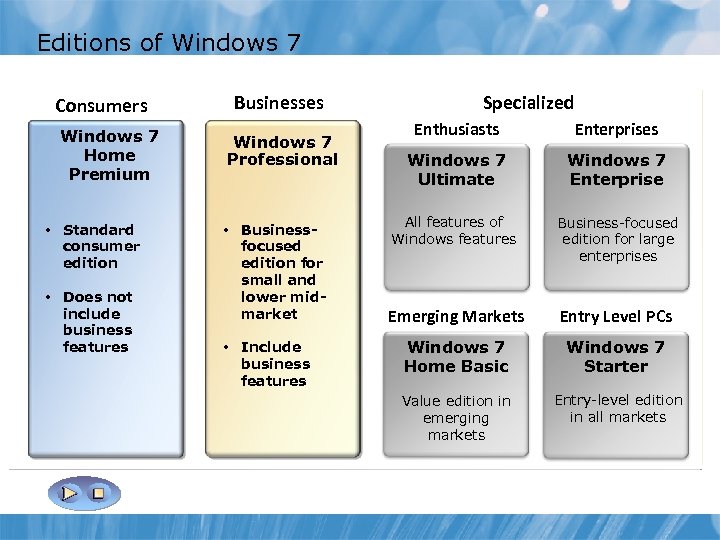 Editions of Windows 7 Consumers Windows 7 Ultimate Home Windows 7 Premium Enterprise Windows 7 • Professional Standard consumer edition Windows 7 Home • Does not Premium include business Windows 7 features Home Basic Windows 7 Starter Businesses Specialized Windows 7 Ultimate Windows 7 Enterprise Home Enthusiasts Enterprises Windows 7 Professional Starter Home Premium Basic Windows 7 • standardvalue PCs in emergingforwho PCsmeant • Business-focused edition, for small and managed all editioncustomer. factor want lower full The. Targeted for technical enthusiasts provides in 7 for targeted markets, mid • Targeted for edition Windows form It Windows all specifically for small 7 Professional market companies and without a Volume ways to environments, features, users who havebasic large enterprises networking, functionality 7 mainly Ultimaterunning Enterprise markets for Windows on the latest and accessing the internet hardware, easy License agreement backup, and applications productivity security needs environment PCs or • connect, all features available in Windows 7 Includes and a visually rich and multiple • Only 32 -bit servers • Includes edition available in • Professional features All features of Windows 7 Home 7 Business-focused • Includes all features available in Windows 7 Starter Includes all the same features as the Windows • Business • Features all features available in Windows 7 for large include: Windows features Enterprise • Includes edition Home edition focused • Basic edition it includes: Additionally, enterprises Premium for Windows Taskbar and Jump Lists Improved • • edition Bit. Locker To Go Not licensedincludes: • Additionally, and for VDI scenarios it includes: • small and Bit. Locker • Additionally, it • Windows it includes: • Additionally, Search advanced windows navigation and Aero • lower mid • Windows Aero Glass, of programs you can run App. Locker number No limit on background • marketbusiness a Home. Group as Domain Join and Ability to join features, such Core Emerging Markets Entry Level PCs • Direct. Access (Multi-touch and handwriting visual • Live Thumbnail. Device Stage, Fax and Scan Windows Touch previews and enhanced support) Group Policy • Action Center, experiences • • Includeto create a Home. Group, which ease sharing across all Windows 7 • Abilityprotection with advanced network backup and • Branch. Cache Data • business devices Enhanced media streaming, including Play To • PCsworldwide interface languages Home Basic Starter Encrypted File System • Advanced networking support (ad-hoc wireless All and featuresapplicationsand authoringcompatibility, with up networks and internet connection sharing) • Broad • DVD Video playback and device Ability to print to Scopes • Enterprise Searchthe right printer at home or work Entry-level edition Value edition in to 3 concurrent programs • Windows Media Aware Printing Tool, Sticky Notes, Windows with Location Center, Snipping in all markets emerging • Virtual and Windows Sideshow • Journal Desktop Infrastructure (VDI) enhancements Secured, reliable and supported operating system • Remote Desktop host markets and Offline folders and ability to boot from a VHD
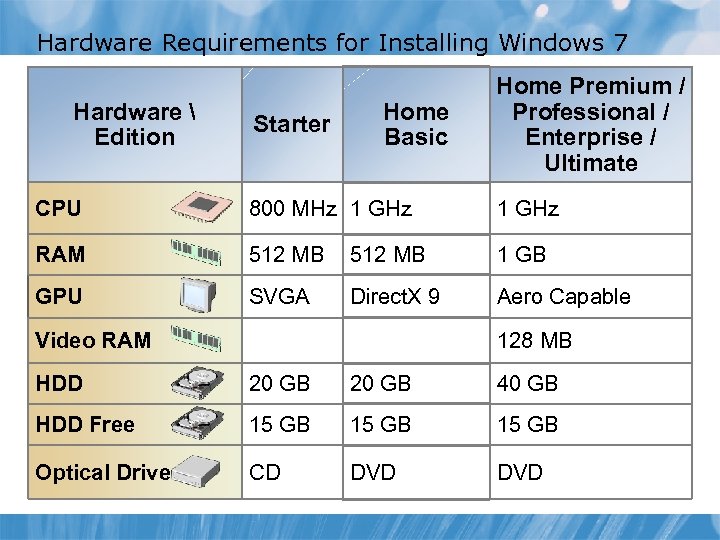 Hardware Requirements for Installing Windows 7 Hardware Edition Starter Home Basic Home Premium / Professional / Enterprise / Ultimate CPU 800 MHz 1 GHz RAM 512 MB 1 GB GPU SVGA Direct. X 9 Aero Capable Video RAM 128 MB HDD 20 GB 40 GB HDD Free 15 GB Optical Drive CD DVD
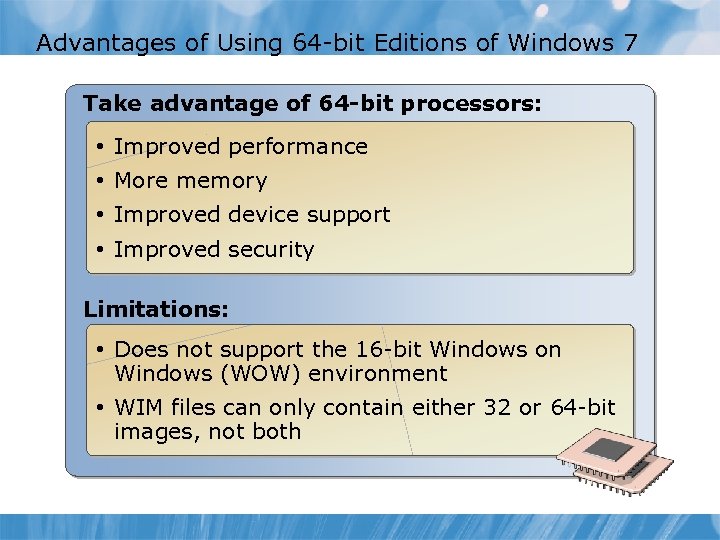 Advantages of Using 64 -bit Editions of Windows 7 Take advantage of 64 -bit processors: • Improved performance • More memory • Improved device support • Improved security Limitations: • Does not support the 16 -bit Windows on Windows (WOW) environment • WIM files can only contain either 32 or 64 -bit images, not both
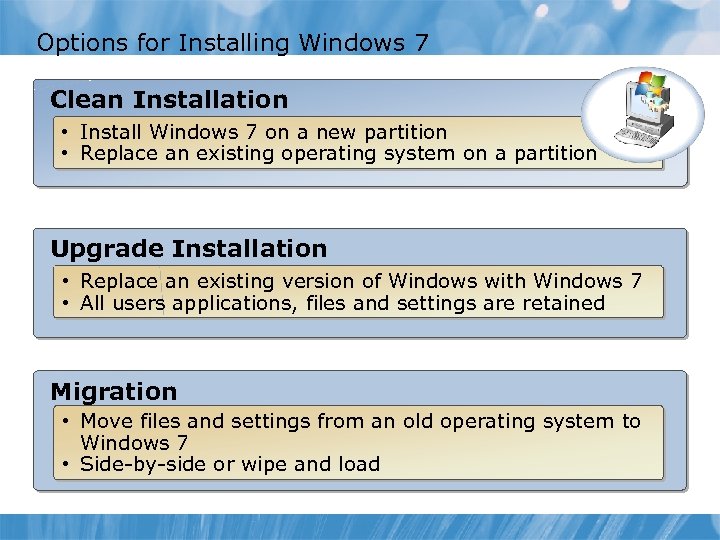 Options for Installing Windows 7 Clean Installation • Install Windows 7 on a new partition • Replace an existing operating system on a partition Upgrade Installation • Replace an existing version of Windows with Windows 7 • All users applications, files and settings are retained Migration • Move files and settings from an old operating system to Windows 7 • Side-by-side or wipe and load
 Lesson 2: Performing a Clean Installation of Windows 7 • Discussion: Considerations for a Clean Installation • Methods for Performing Clean Installation • Discussion: Common Installation Errors • Demonstration: Configuring the Computer Name and Domain/Word Group Settings
 Discussion: Considerations for a Clean Installation When would you typically perform a clean installation of Windows? 5 min
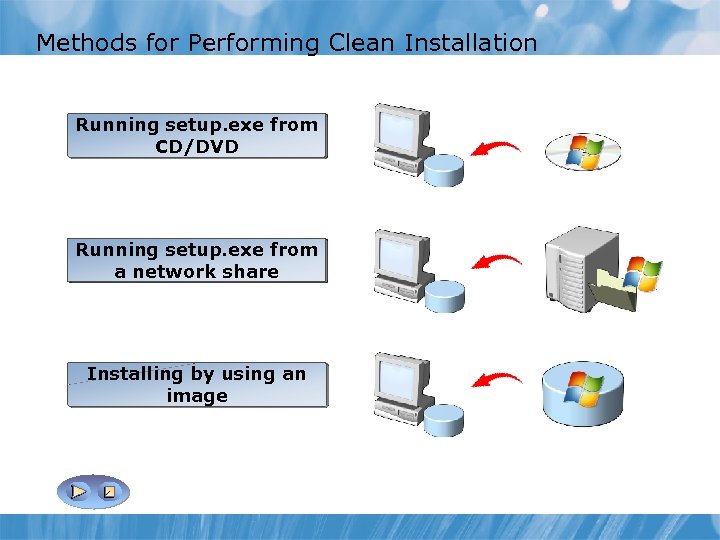 Methods for Performing Clean Installation Running setup. exe from Running setup. exe an Install by using from CD/DVD a network share CD/DVD image Insert the Start the Create a Start the Connect to product computer WIM file Running setup. exe fromnetwork computer a CD/DVD from a by using bya network share by using share the reference Windows containing product computer PE PE Windows 7 CD/DVD files Installing by using an image Complete Apply Run the wizard WIM file to setup. exe the target from the computer network share and complete the wizard Image. X, Windows Deployment Service, Microsoft Deployment Toolkit
 Discussion: Common Installation Errors What potential issues might you encounter when installing Windows? 5 min
 Demonstration: Configuring the Computer Name and Domain/Workgroup Settings Your instructor will demonstrate how to configure domain and workgroup settings. 5 min
 Lesson 3: Upgrading and Migrating to Windows 7 • Considerations for Upgrading and Migrating to Windows 7 • Identifying the Valid Upgrade Paths • Determining the Feasibility of an Upgrade Using Windows Upgrade Advisor • Process for Upgrading to Windows 7 • Tools for Migrating User Data and Settings • Process for Migrating to Windows 7 • Migrating User Settings and Data by Using WET
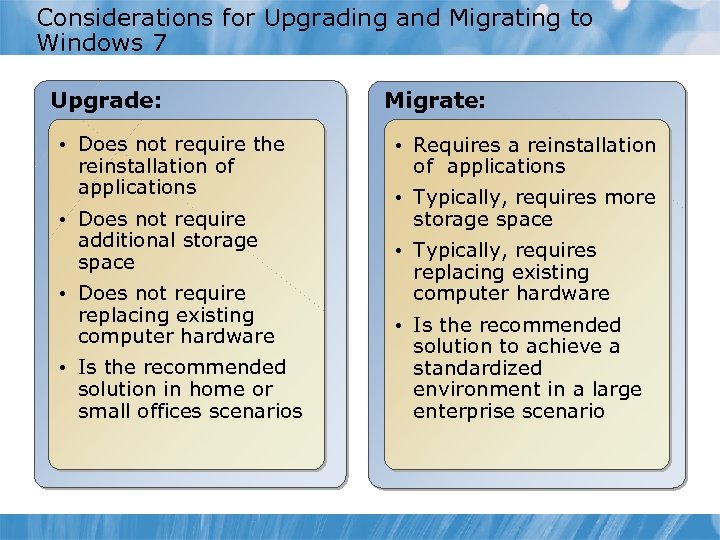 Considerations for Upgrading and Migrating to Windows 7 Upgrade: • Does not require the reinstallation of applications • Does not require additional storage space • Does not require replacing existing computer hardware • Is the recommended solution in home or small offices scenarios Migrate: • Requires a reinstallation of applications • Typically, requires more storage space • Typically, requires replacing existing computer hardware • Is the recommended solution to achieve a standardized environment in a large enterprise scenario
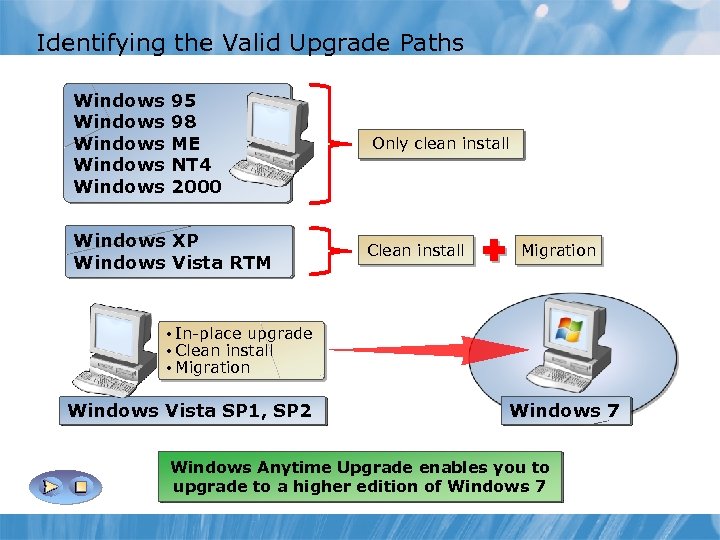 Identifying the Valid Upgrade Paths Windows Windows 95 98 ME NT 4 2000 Windows XP Windows Vista RTM Only clean install Clean install Migration • In-place upgrade • Clean install • Migration Windows Vista SP 1, SP 2 Windows 7 Windows Anytime Upgrade enables you to upgrade to a higher edition of Windows 7
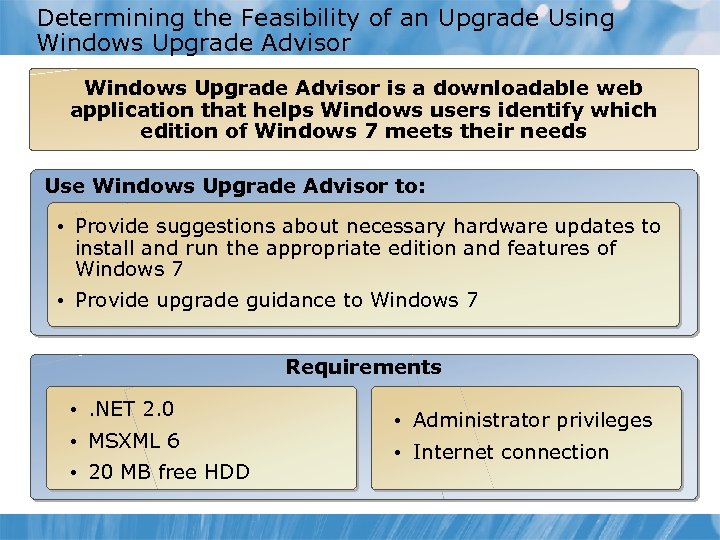 Determining the Feasibility of an Upgrade Using Windows Upgrade Advisor is a downloadable web application that helps Windows users identify which edition of Windows 7 meets their needs Use Windows Upgrade Advisor to: • Provide suggestions about necessary hardware updates to install and run the appropriate edition and features of Windows 7 • Provide upgrade guidance to Windows 7 Requirements • . NET 2. 0 • MSXML 6 • 20 MB free HDD • Administrator privileges • Internet connection
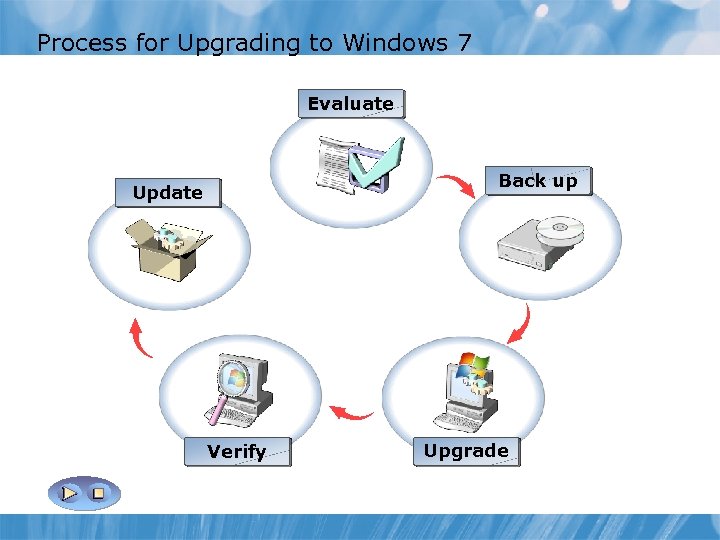 Process for Upgrading to Windows 7 Evaluate Update Verify Update Back up Evaluate Upgrade Evaluate whether your computer meets the necessary requirements to run Windows 7: Keep operating system Back up up to date to After the upgrade: Protect against data loss, backup data ü Hardware requirements protect against any security threats: To perform an upgrade to Windows 7, and settings by using appropriate 1 Application compatibility run. Log on to the computer updates ü Determine any relevant backup media: from: 1 setup. exe 2 CD/DVD disc ü Verify all relevant Apply all applications and hardware 2 Product CD/DVD updates to the devices function correctly Use the following tools: computer ü Network share ü Windows Upgrade Advisor 3 Follow Windows Upgrade Advisor Update otheralso be done during ü Any can backup media Toolkit recommendations if any ü Application Compatibility upgrade (Dynamic Update) ü Standard User Analyzer Tool ü Microsoft Assessment and Planning Toolkit Verify Upgrade
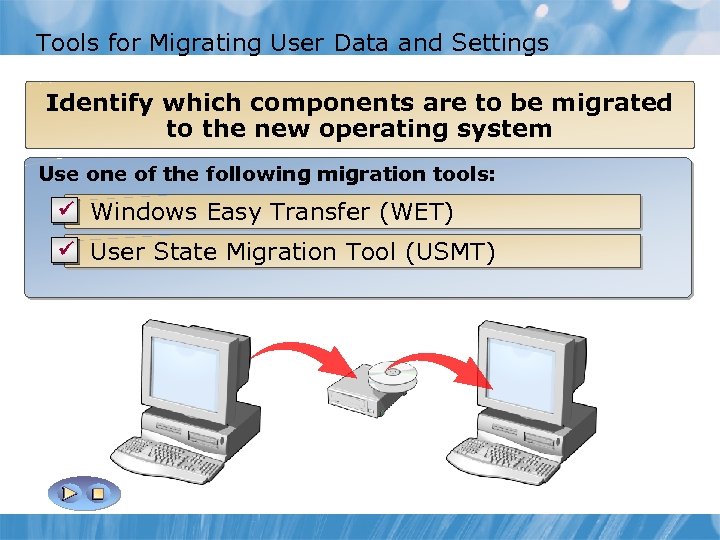 Tools for Migrating User Data and Settings What to migrate Identify which components are to be migrated User to the new operating system State Migration Tool Use one of the following migration tools: User Preferences Transfer (WET) ü Windows Easy ü User State Migration Tool (USMT) Windows 7 User Data Earlier Version of Windows Application Settings Windows Easy Transfer
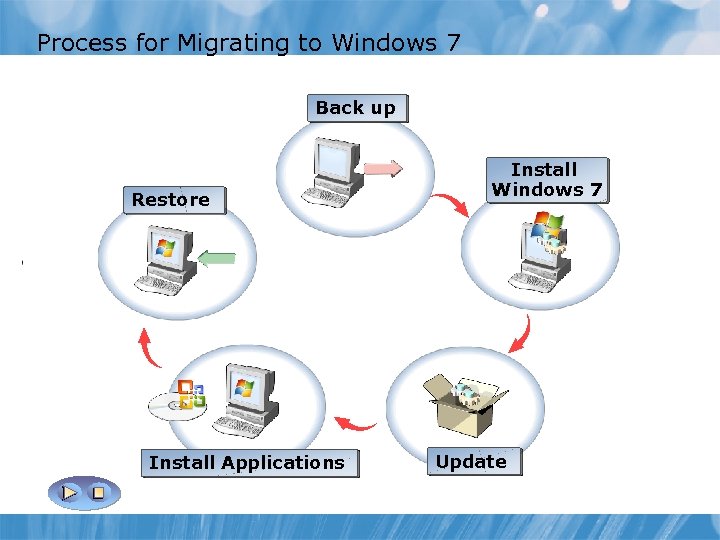 Process for Migrating to Windows 7 Back up user state, including: Install Restore Update Back up Applications Windows 7 ü User settings Keep your computer secure by Run the Windows 7 installationkeeping After installing Windows 7, reinstall up with currentapplications, restore updates: ü Application settings (setup. exe) from: user state by applications: using: Select check for updates during ü User data ü Product CD/DVD Install the ü Windows Easy Transfer installationcompatible version of the applications Use one. State Migration Tool ü Network the following migration User for updates after installation ü Checkof share ü tools: ü Windows Easy Transfer ü User State Migration Tool Install Applications Update
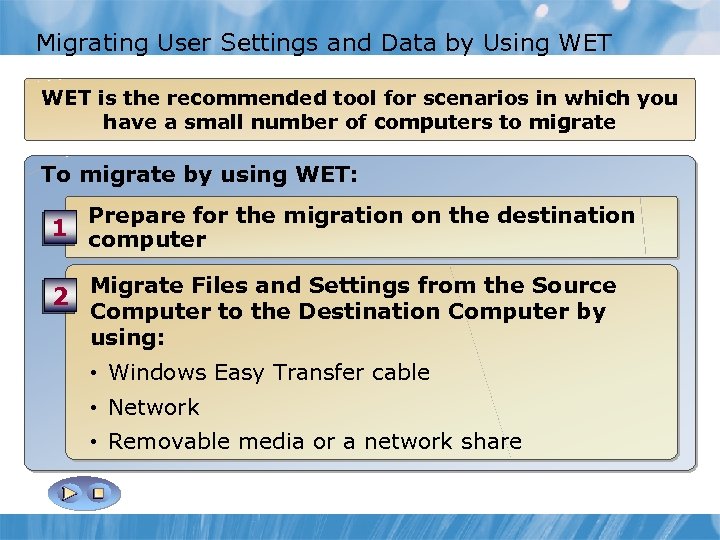 Migrating User Settings and Data by Using WET Prepare for the migration scenarios in which you WET is the recommended tool foron the destination Transfera small number of computers to migrate files and settings by using a network computer have On 1 destination computer: To migrate by using WET: Start WET on the source computer 1 Close all active programs 2 Prepare for the migration on the destination Click Next 12 computer Start Windows Easy Transfer 3 Click A Network Destination Source 3 Click Next Computer 4 Migrate Files and Settings from the Source Click This is my old computer 24 Select transfer Destination Computer by Computer to the method 5 WET creates WET key 5 using: This is my new computer Click 6 • On the destination computer, enter WET 6 Windows Easy Transfer cable Click I need click Next key and then to install now (if source • computer does not have WET) Network 7 Click Transfer and proceed with the Removable media and share 7 • Select destinationor a network save WET files Destination wizard Computer
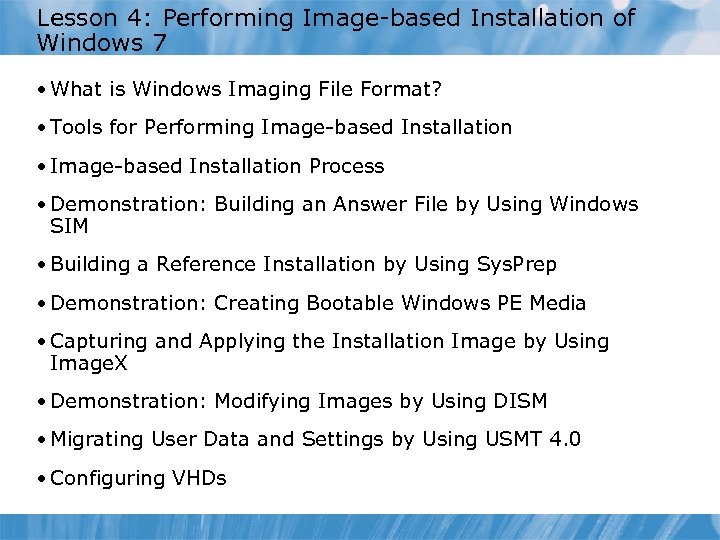 Lesson 4: Performing Image-based Installation of Windows 7 • What is Windows Imaging File Format? • Tools for Performing Image-based Installation • Image-based Installation Process • Demonstration: Building an Answer File by Using Windows SIM • Building a Reference Installation by Using Sys. Prep • Demonstration: Creating Bootable Windows PE Media • Capturing and Applying the Installation Image by Using Image. X • Demonstration: Modifying Images by Using DISM • Migrating User Data and Settings by Using USMT 4. 0 • Configuring VHDs
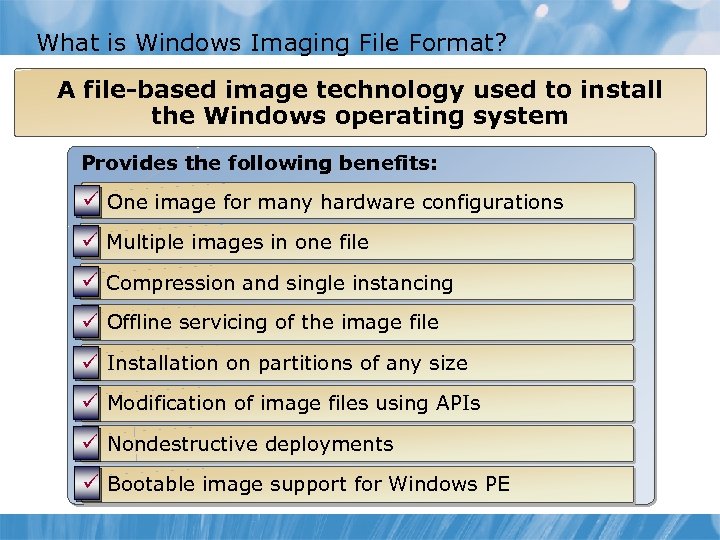 What is Windows Imaging File Format? A file-based image technology used to install the Windows operating system Provides the following benefits: ü One image for many hardware configurations ü Multiple images in one file ü Compression and single instancing ü Offline servicing of the image file ü Installation on partitions of any size ü Modification of image files using APIs ü Nondestructive deployments ü Bootable image support for Windows PE
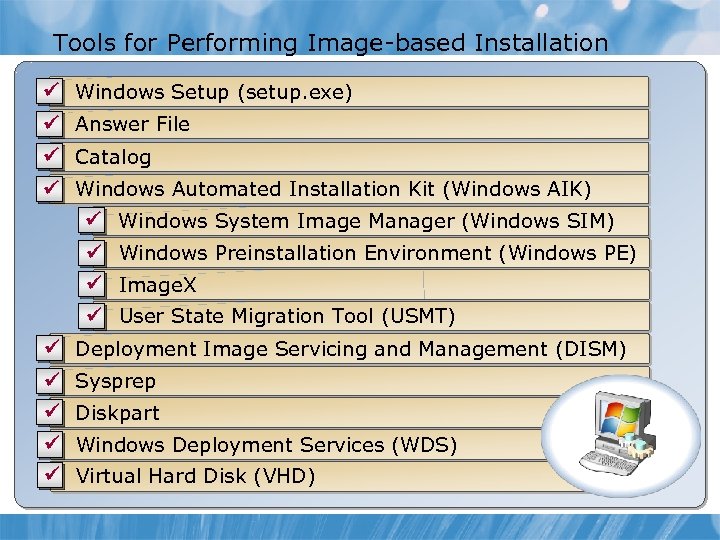 Tools for Performing Image-based Installation ü Windows Setup (setup. exe) ü Answer File ü Catalog ü Windows Automated Installation Kit (Windows AIK) ü Windows System Image Manager (Windows SIM) ü Windows Preinstallation Environment (Windows PE) ü Image. X ü User State Migration Tool (USMT) ü Deployment Image Servicing and Management (DISM) ü Sysprep ü Diskpart ü Windows Deployment Services (WDS) ü Virtual Hard Disk (VHD)
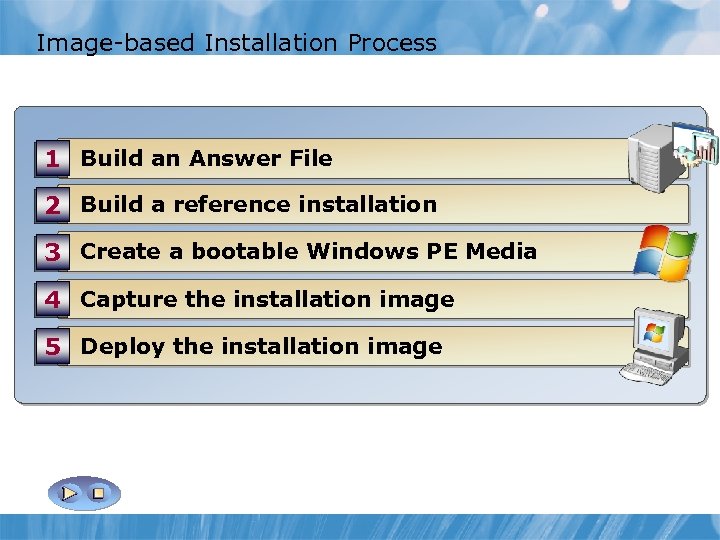 Image-based Installation Process 1 Build an Answer File 2 Build a reference installation 3 Create a bootable Windows PE Media 4 Capture the installation image 5 Deploy the installation image
 Demonstration: Building an Answer File by Using Windows SIM Your instructor will demonstrate how to create an answer file by using Windows SIM. 10 min
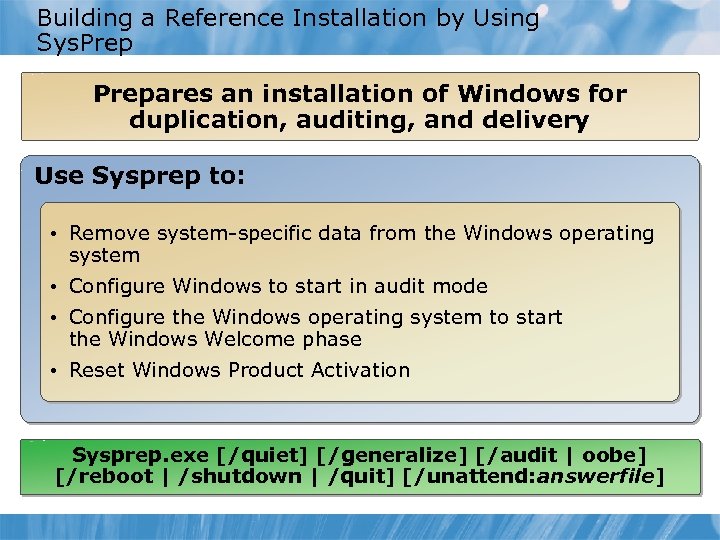 Building a Reference Installation by Using Sys. Prepares an installation of Windows for duplication, auditing, and delivery Use Sysprep to: • Remove system-specific data from the Windows operating system • Configure Windows to start in audit mode • Configure the Windows operating system to start the Windows Welcome phase • Reset Windows Product Activation Sysprep. exe [/quiet] [/generalize] [/audit | oobe] [/reboot | /shutdown | /quit] [/unattend: answerfile]
 Demonstration: Creating Bootable Windows PE Media Your instructor will demonstrate how to create bootable Windows PE media that can be used for imaging computers. 5 min
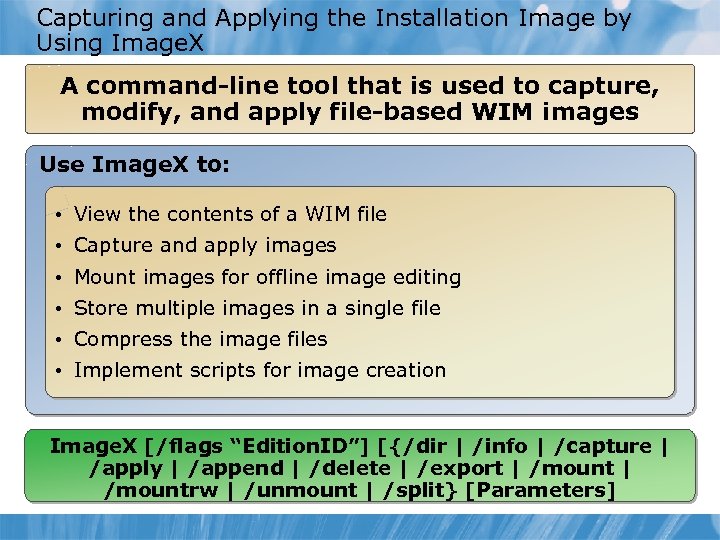 Capturing and Applying the Installation Image by Using Image. X A command-line tool that is used to capture, modify, and apply file-based WIM images Use Image. X to: • View the contents of a WIM file • Capture and apply images • Mount images for offline image editing • Store multiple images in a single file • Compress the image files • Implement scripts for image creation Image. X [/flags “Edition. ID”] [{/dir | /info | /capture | /apply | /append | /delete | /export | /mountrw | /unmount | /split} [Parameters]
 Demonstration: Modifying Images by Using DISM Your instructor will demonstrate how to modify an image by using DISM. 5 min
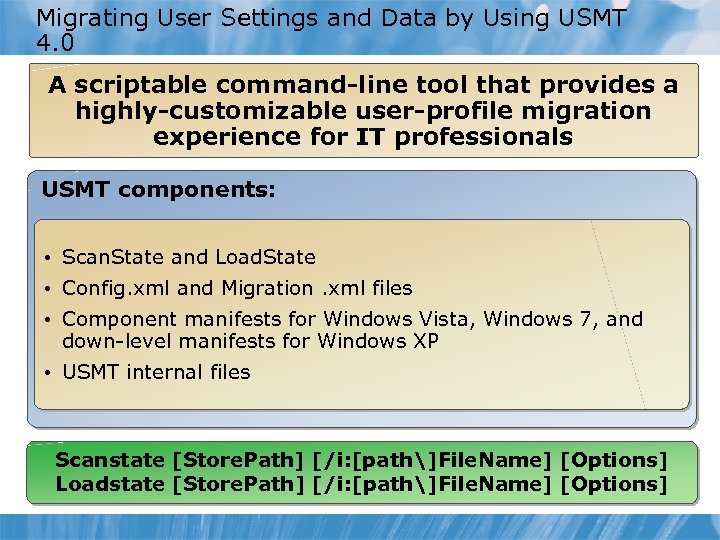 Migrating User Settings and Data by Using USMT 4. 0 A scriptable command-line tool that provides a highly-customizable user-profile migration experience for IT professionals USMT components: • Scan. State and Load. State • Config. xml and Migration. xml files • Component manifests for Windows Vista, Windows 7, and down-level manifests for Windows XP • USMT internal files Scanstate [Store. Path] [/i: [path]File. Name] [Options] Loadstate [Store. Path] [/i: [path]File. Name] [Options]
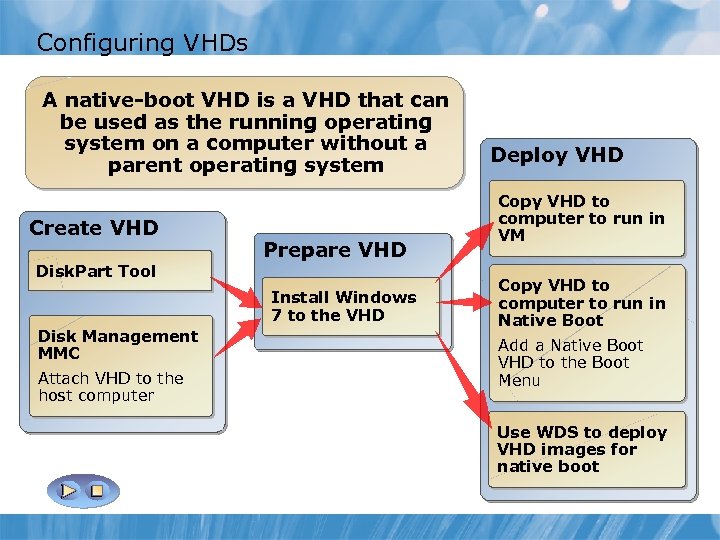 Configuring VHDs A native-boot VHD is a VHD that can be used as the running operating system on a computer without a parent operating system Create VHD Disk. Part Tool Prepare VHD Install Windows 7 to the VHD Disk Management MMC Attach VHD to the host computer Deploy VHD Copy VHD to computer to run in VM Copy VHD to computer to run in Native Boot Add a Native Boot VHD to the Boot Menu Use WDS to deploy VHD images for native boot
 Lesson 5: Configuring Application Compatibility • Common Application Compatibility Problems • Common Mitigation Methods • Updating Shims
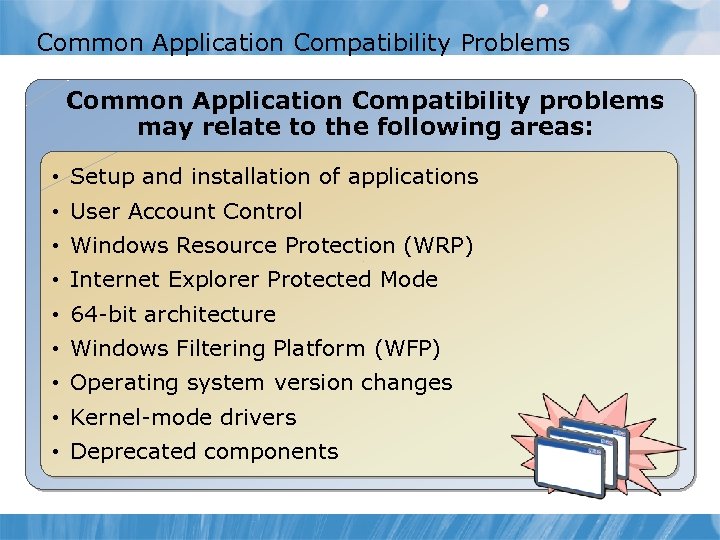 Common Application Compatibility Problems Common Application Compatibility problems may relate to the following areas: • Setup and installation of applications • User Account Control • Windows Resource Protection (WRP) • Internet Explorer Protected Mode • 64 -bit architecture • Windows Filtering Platform (WFP) • Operating system version changes • Kernel-mode drivers • Deprecated components
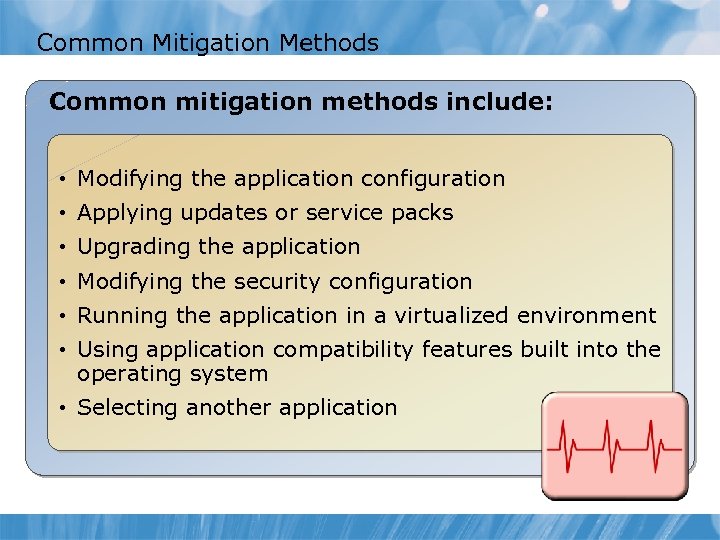 Common Mitigation Methods Common mitigation methods include: • Modifying the application configuration • Applying updates or service packs • Upgrading the application • Modifying the security configuration • Running the application in a virtualized environment • Using application compatibility features built into the operating system • Selecting another application
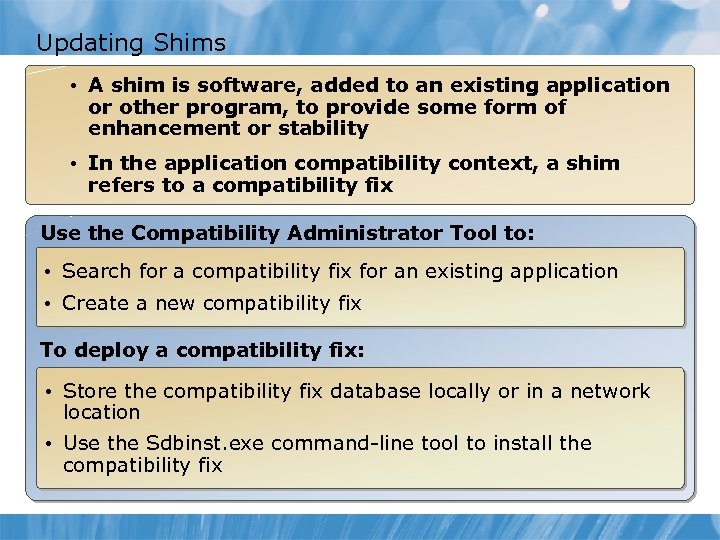 Updating Shims • A shim is software, added to an existing application or other program, to provide some form of enhancement or stability • In the application compatibility context, a shim refers to a compatibility fix Use the Compatibility Administrator Tool to: • Search for a compatibility fix for an existing application • Create a new compatibility fix To deploy a compatibility fix: • Store the compatibility fix database locally or in a network location • Use the Sdbinst. exe command-line tool to install the compatibility fix
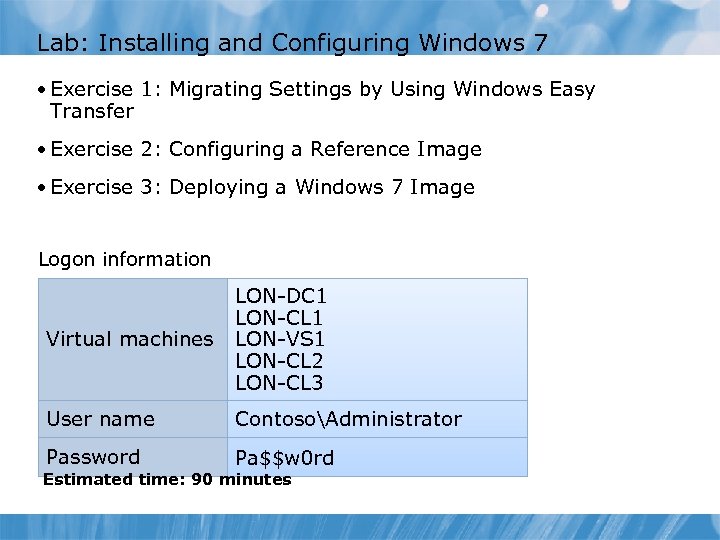 Lab: Installing and Configuring Windows 7 • Exercise 1: Migrating Settings by Using Windows Easy Transfer • Exercise 2: Configuring a Reference Image • Exercise 3: Deploying a Windows 7 Image Logon information Virtual machines LON-DC 1 LON-CL 1 LON-VS 1 LON-CL 2 LON-CL 3 User name ContosoAdministrator Password Pa$$w 0 rd Estimated time: 90 minutes
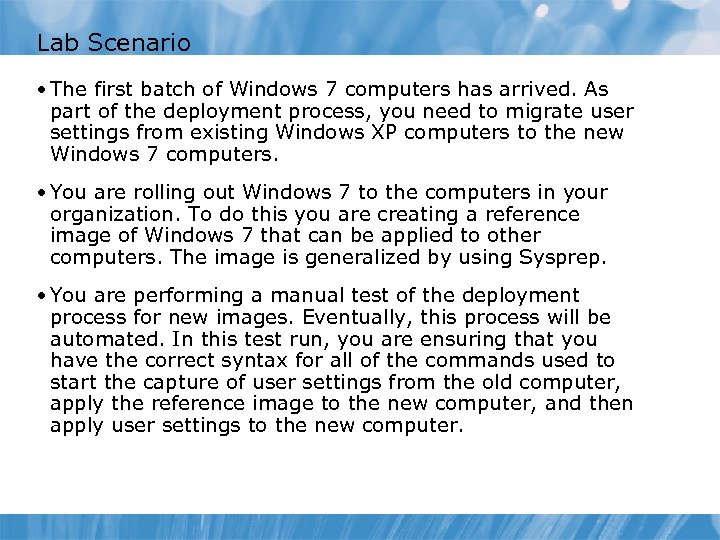 Lab Scenario • The first batch of Windows 7 computers has arrived. As part of the deployment process, you need to migrate user settings from existing Windows XP computers to the new Windows 7 computers. • You are rolling out Windows 7 to the computers in your organization. To do this you are creating a reference image of Windows 7 that can be applied to other computers. The image is generalized by using Sysprep. • You are performing a manual test of the deployment process for new images. Eventually, this process will be automated. In this test run, you are ensuring that you have the correct syntax for all of the commands used to start the capture of user settings from the old computer, apply the reference image to the new computer, and then apply user settings to the new computer.
 Lab Review • Why should you use Sysprep before capturing an image? • Why is Windows PE required as part of the imaging process?
 Module Review and Takeaways • Review Questions • Common Issues and Troubleshooting Tips • Best Practices • Tools