


 Скачать презентацию MKCL s ERA Online Examination Software Installation User Guide
3cf9b1ab0a0f9e422c9ba16e83314fdc.ppt
- Количество слайдов: 69
 MKCL’s (ERA)Online Examination Software Installation & User Guide For use by Yashwantrao Chavan Maharashtra Open University (YCMOU) Online Examination, Centre In-Charge
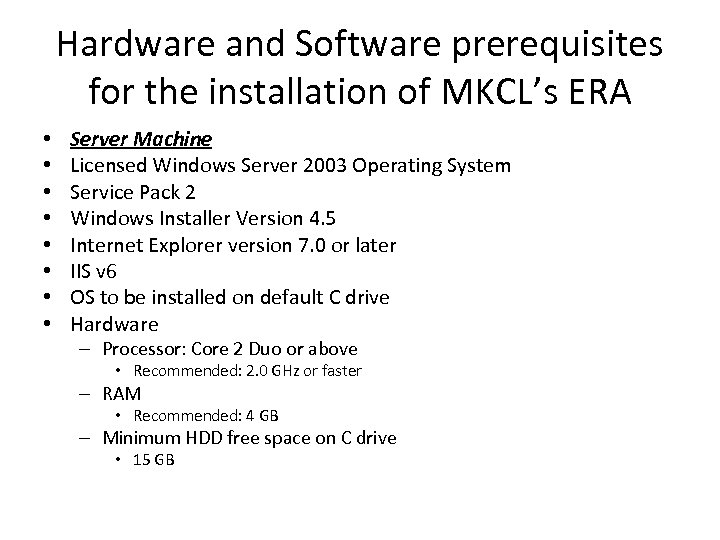 Hardware and Software prerequisites for the installation of MKCL’s ERA • • Server Machine Licensed Windows Server 2003 Operating System Service Pack 2 Windows Installer Version 4. 5 Internet Explorer version 7. 0 or later IIS v 6 OS to be installed on default C drive Hardware – Processor: Core 2 Duo or above • Recommended: 2. 0 GHz or faster – RAM • Recommended: 4 GB – Minimum HDD free space on C drive • 15 GB
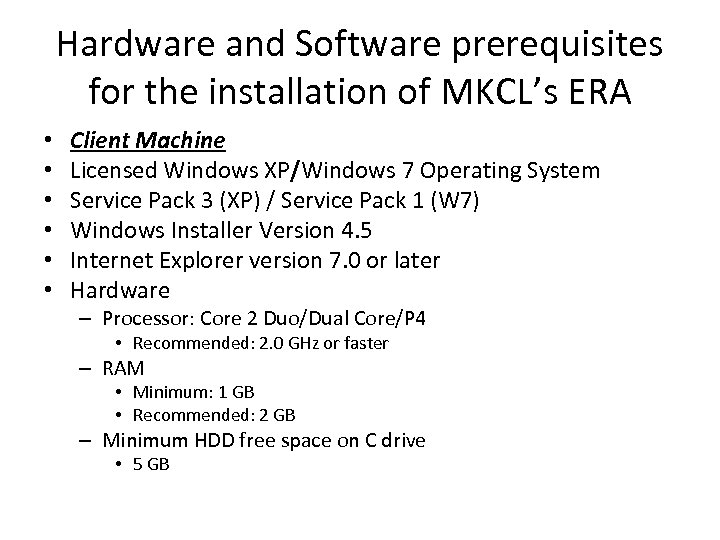 Hardware and Software prerequisites for the installation of MKCL’s ERA • • • Client Machine Licensed Windows XP/Windows 7 Operating System Service Pack 3 (XP) / Service Pack 1 (W 7) Windows Installer Version 4. 5 Internet Explorer version 7. 0 or later Hardware – Processor: Core 2 Duo/Dual Core/P 4 • Recommended: 2. 0 GHz or faster – RAM • Minimum: 1 GB • Recommended: 2 GB – Minimum HDD free space on C drive • 5 GB
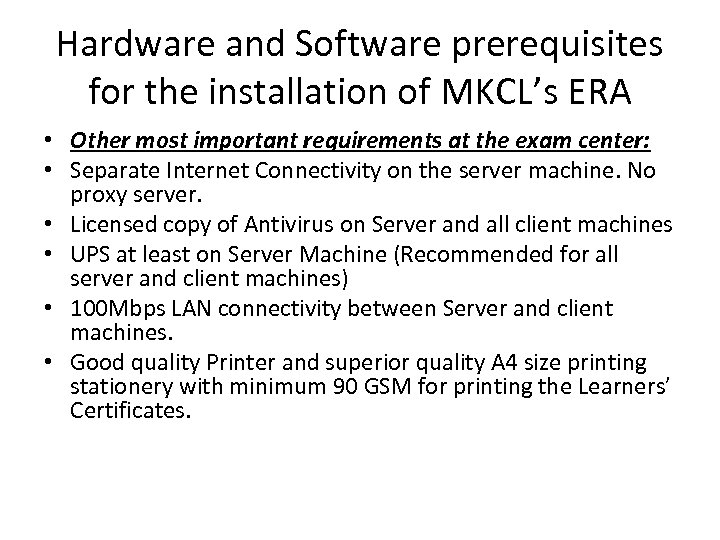 Hardware and Software prerequisites for the installation of MKCL’s ERA • Other most important requirements at the exam center: • Separate Internet Connectivity on the server machine. No proxy server. • Licensed copy of Antivirus on Server and all client machines • UPS at least on Server Machine (Recommended for all server and client machines) • 100 Mbps LAN connectivity between Server and client machines. • Good quality Printer and superior quality A 4 size printing stationery with minimum 90 GSM for printing the Learners’ Certificates.
 This Presentation consists of VII Phases
 Phase 1 begins : Download the Software * Please ensure that you have installed Winrar Software. It is freely available on the internet.
 Enter the URL : http: //fileserver. mkcl. org/erainstaller/ YCMOU_Exam_Final. rar in the internet explorer to download the YCMOU Exam Software (MKCL’s ERA)
 Phase II Begins Installation of downloaded software
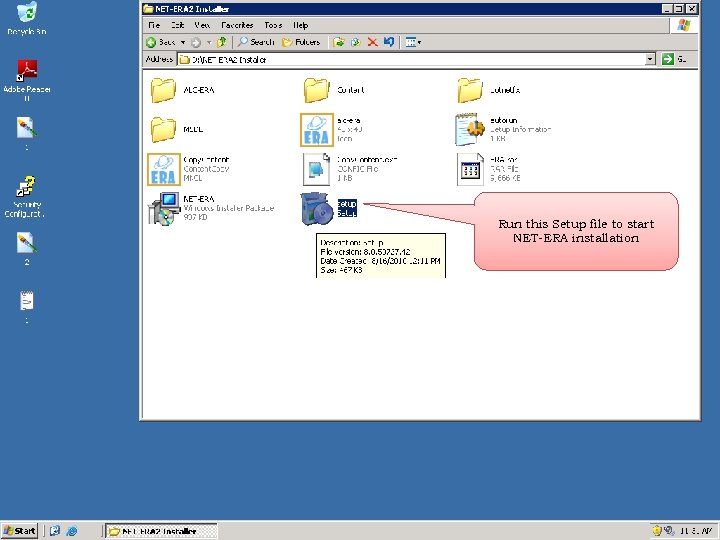 Run this Setup file to start NET-ERA installation
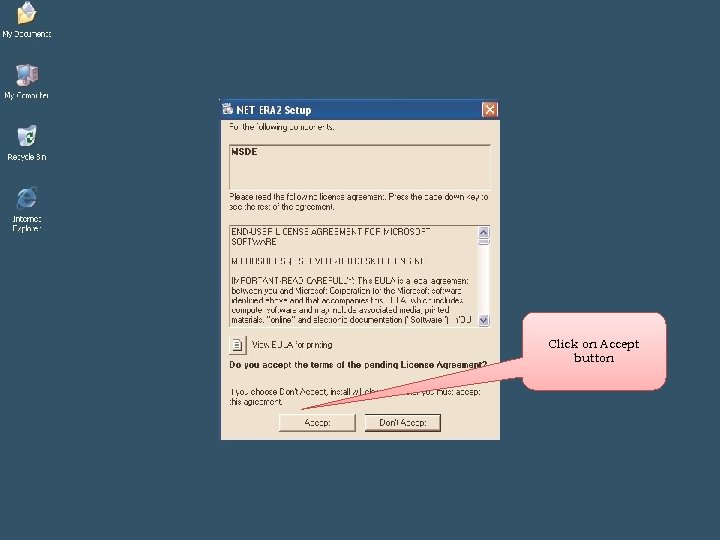 Click on Accept button
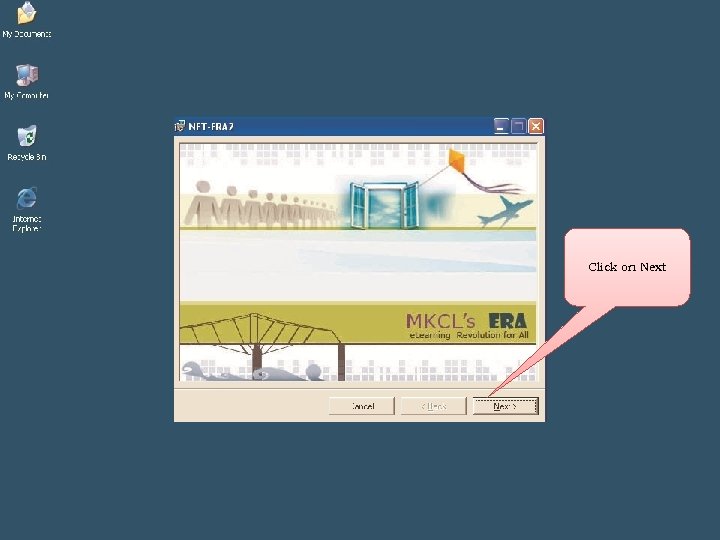 Click on Next
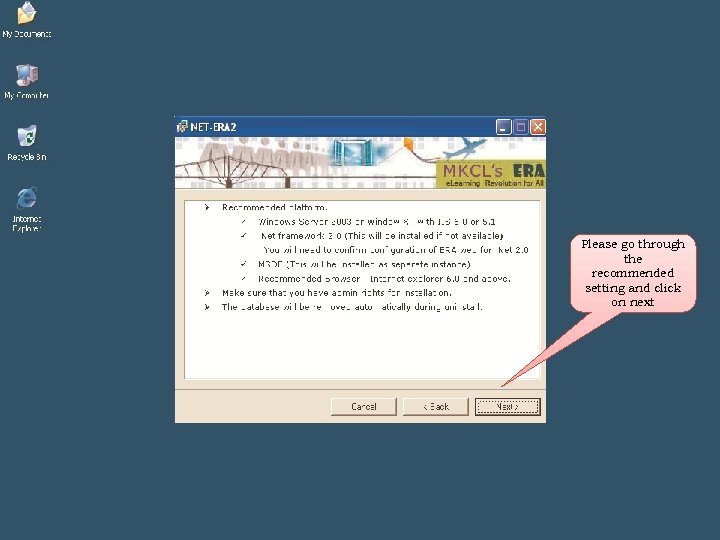 Please go through the recommended setting and click on next
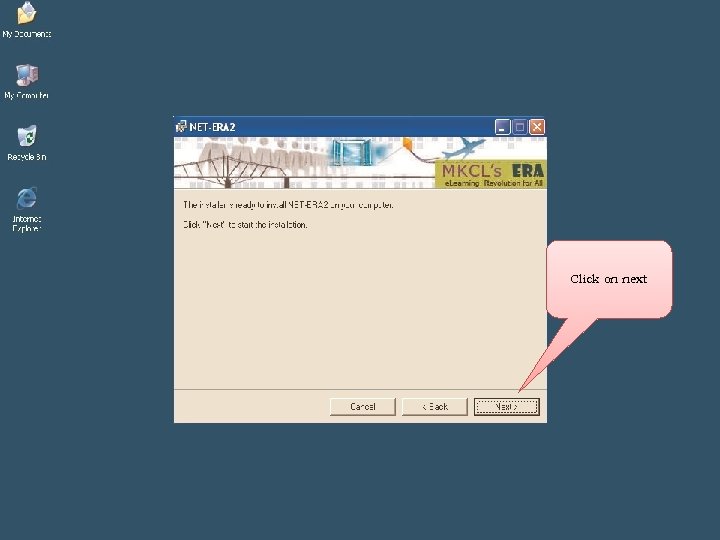 Click on next
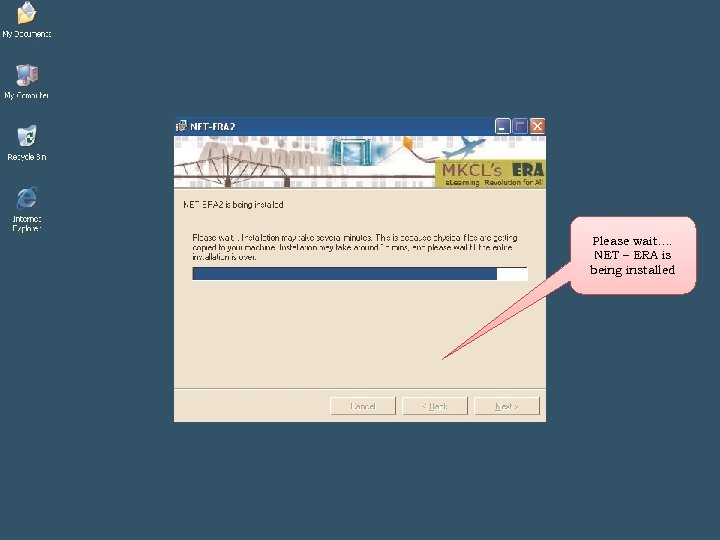 Please wait…. NET – ERA is being installed
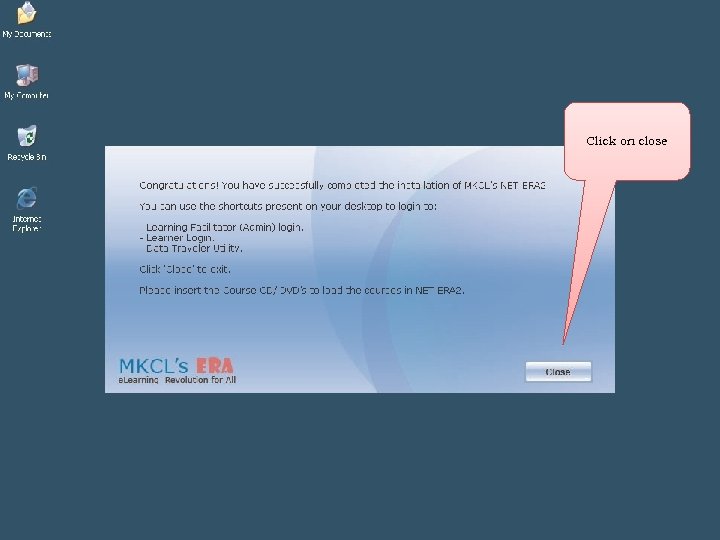 Click on close
 End of Phase II: Installation Beginning of Phase III : Activation
 Examination Software (ERA) Activation Please note that separate internet connectivity is required for this process (No Proxy Server)
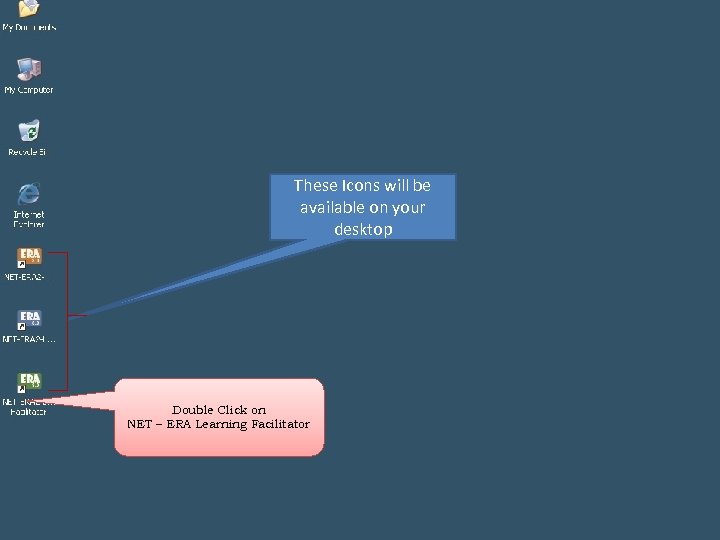 These Icons will be available on your desktop Double Click on NET – ERA Learning Facilitator
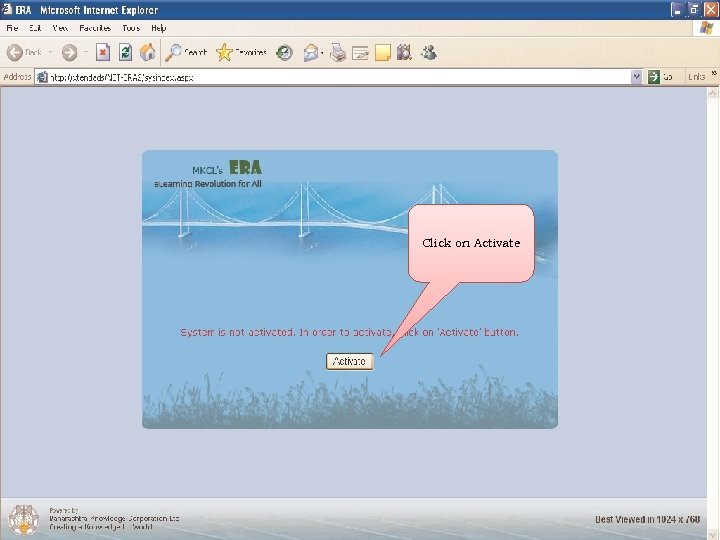 Click on Activate
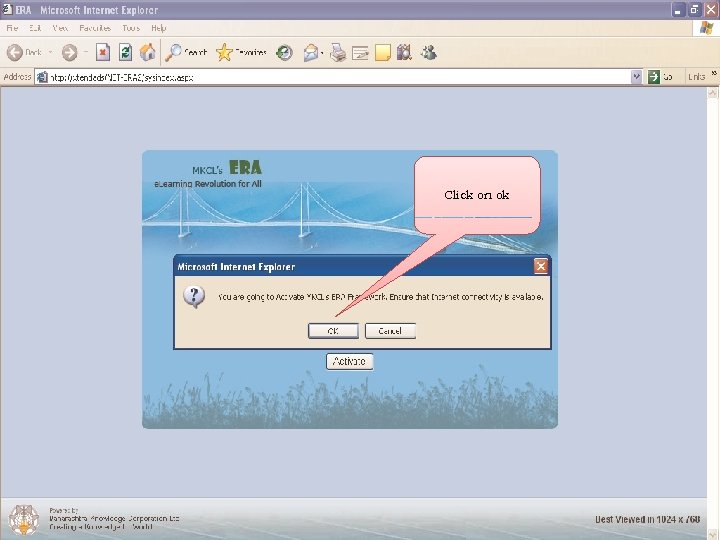 Click on ok
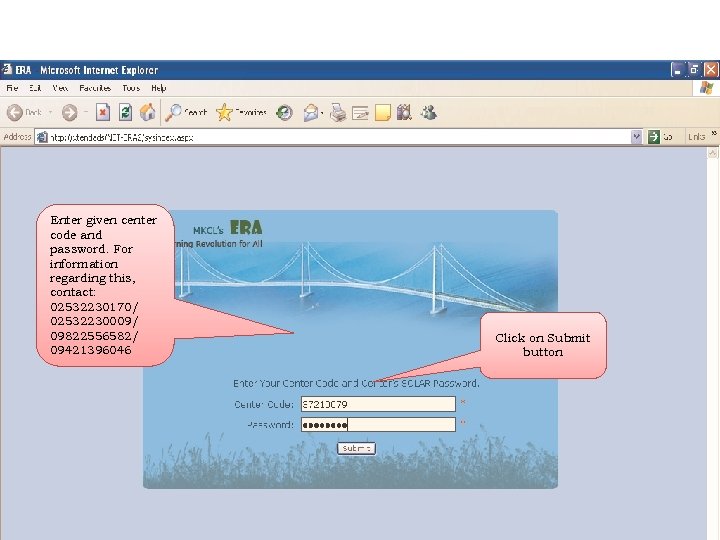 Enter given center code and password. For information regarding this, contact: 02532230170/ 02532230009/ 09822556582/ 09421396046 Click on Submit button
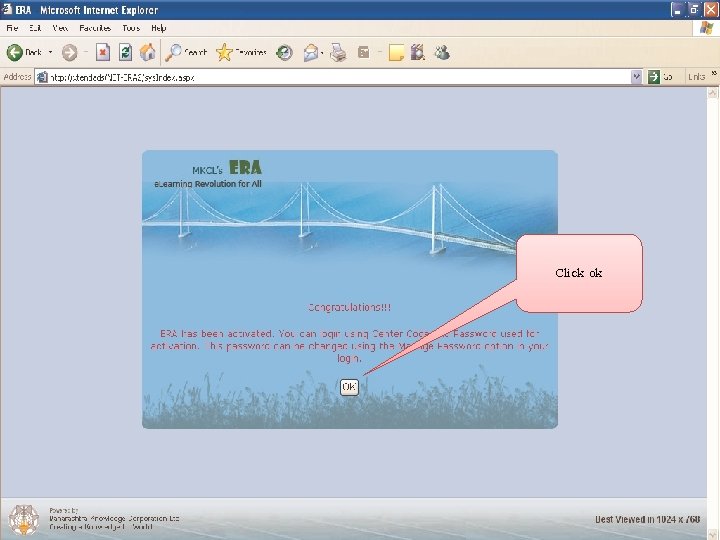 Click ok
 End of Phase III : Activation Beginning of Phase IV : Download Learners’ Records
 Download Learners (For use by Exam Centre Supervisor/Incharge) Please note that internet connectivity is required for this process
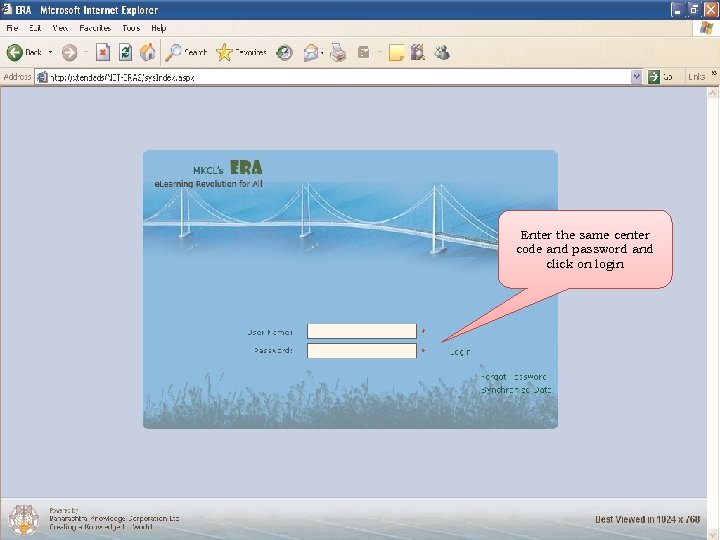 Enter the same center code and password and click on login
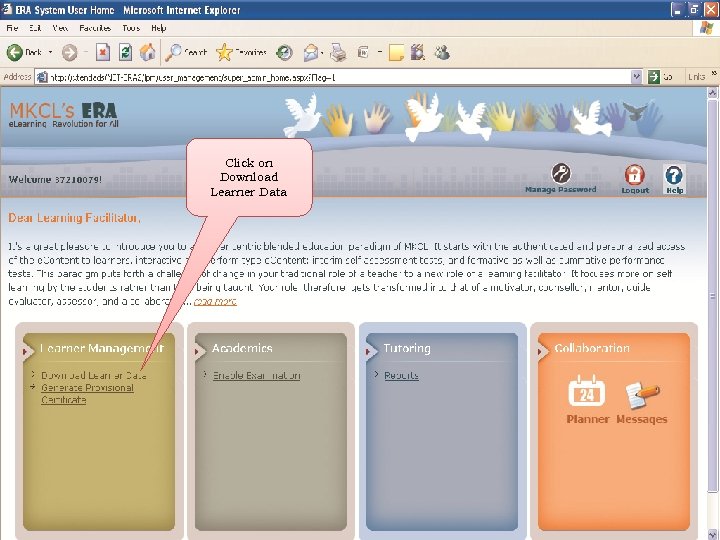 Click on Download Learner Data
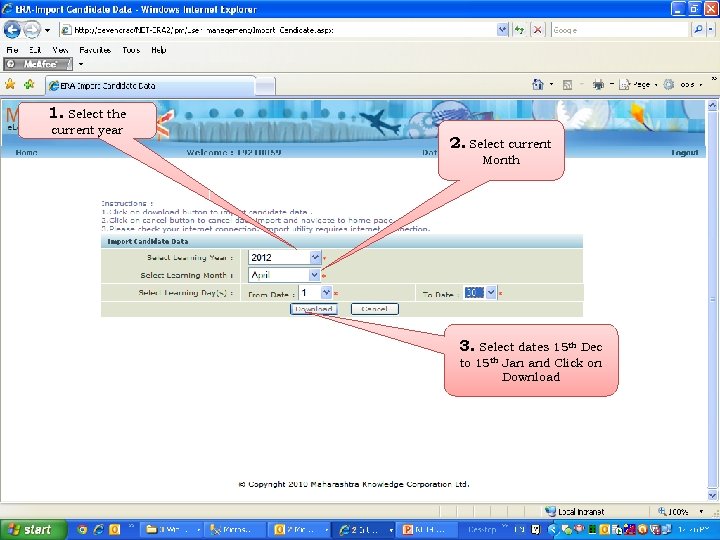 1. Select the current year 2. Select current Month 3. Select dates 15 th Dec to 15 th Jan and Click on Download
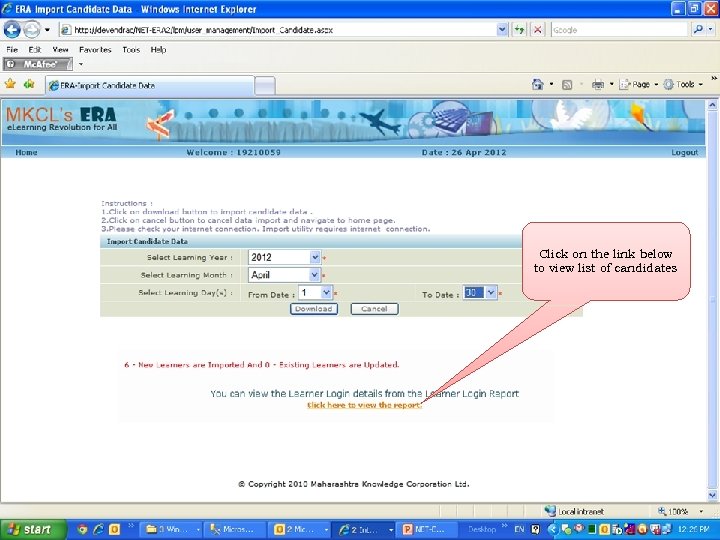 Click on the link below to view list of candidates
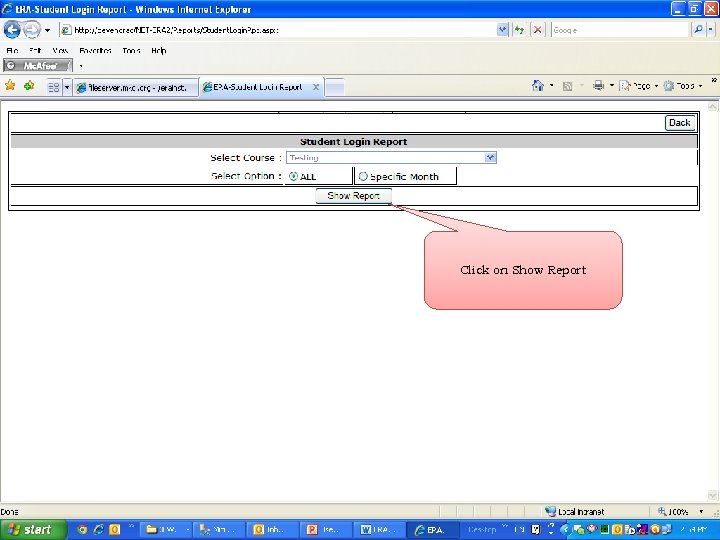 Click on Show Report
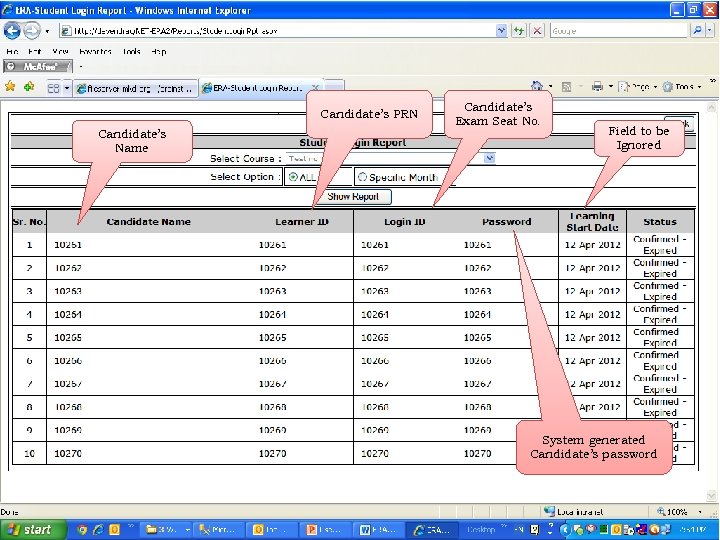 Candidate’s PRN Candidate’s Name Candidate’s Exam Seat No. Field to be Ignored System generated Candidate’s password
 End of Phase IV : Downloading Learners’ Records Beginning of Phase V : Learners’/Students’ Practice test
 Learner Exam (Practice test for use by Learners)
 v. Student should collect the user id and password from the Learning Facilitator/Exam Incharge/Supervisor.
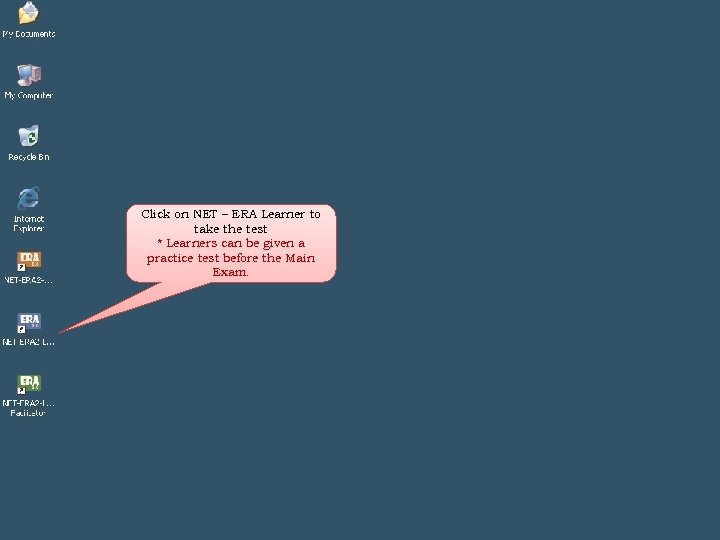 Click on NET – ERA Learner to take the test * Learners can be given a practice test before the Main Exam.
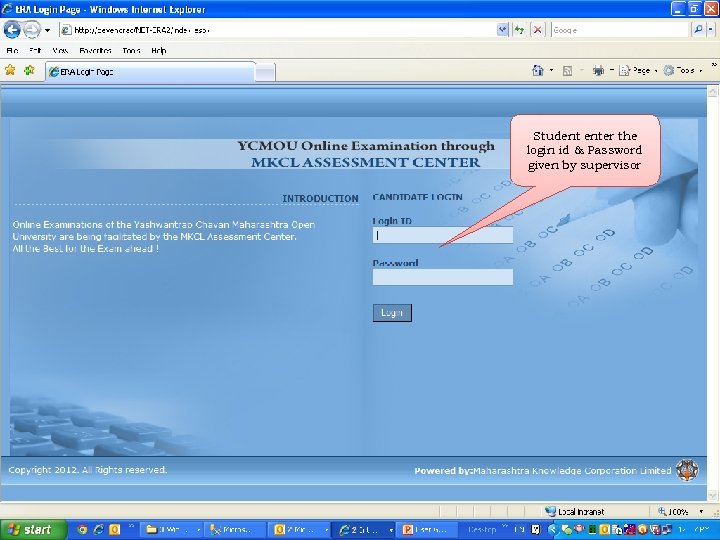 Student enter the login id & Password given by supervisor
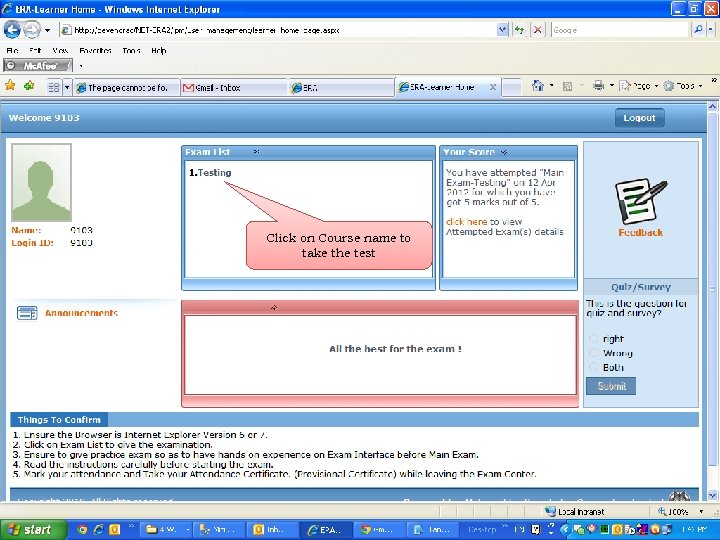 Click on Course name to take the test
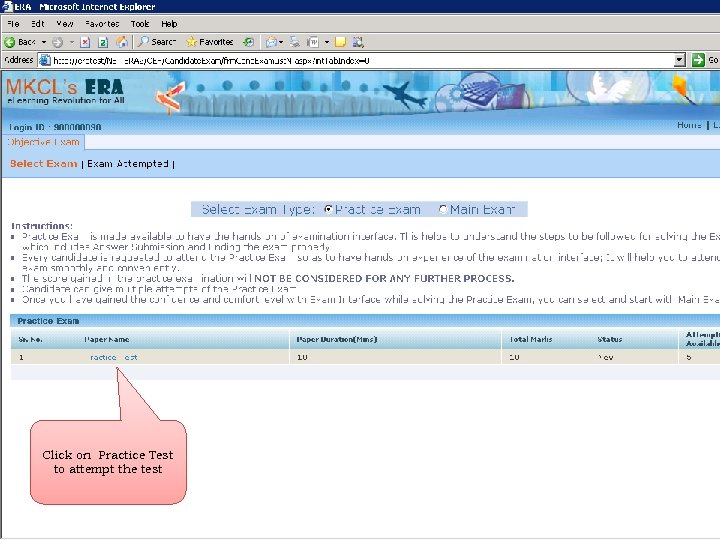 Click on Practice Test to attempt the test
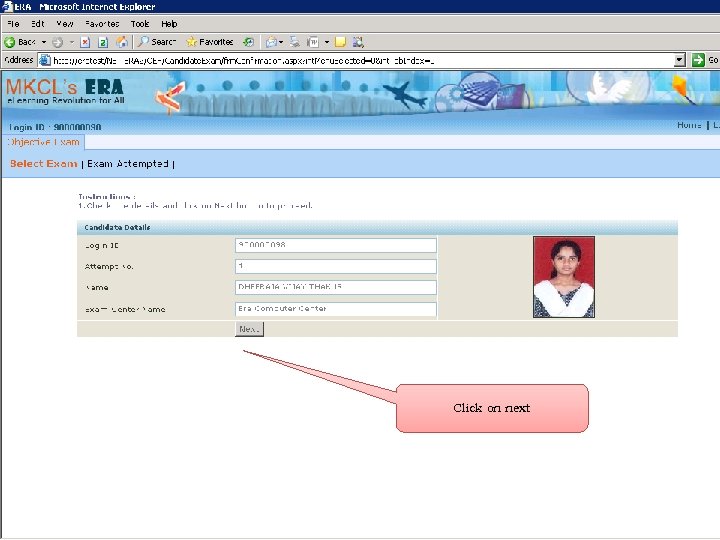 Click on next
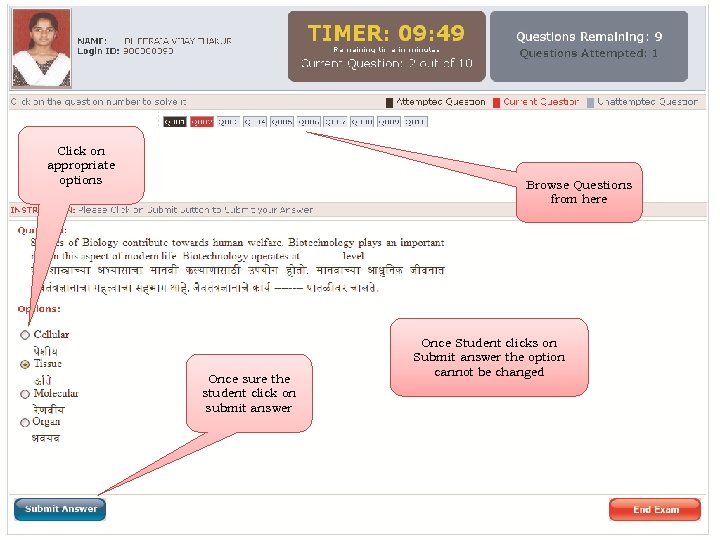 Click on appropriate options Browse Questions from here Once sure the student click on submit answer Once Student clicks on Submit answer the option cannot be changed
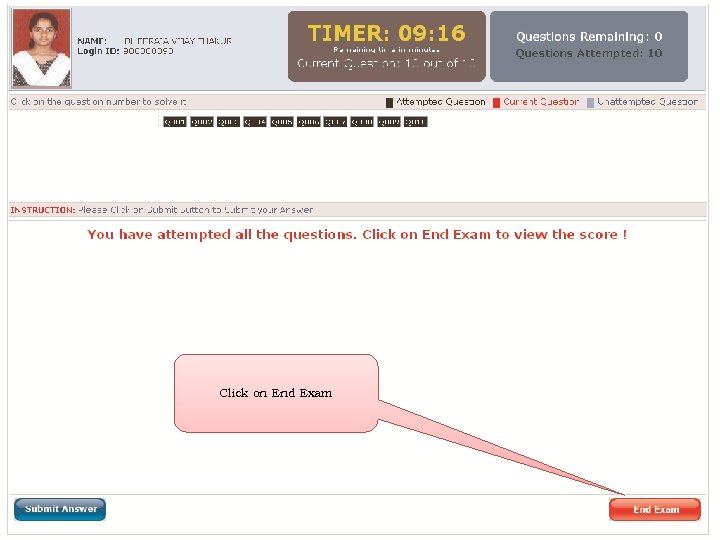 Click on End Exam
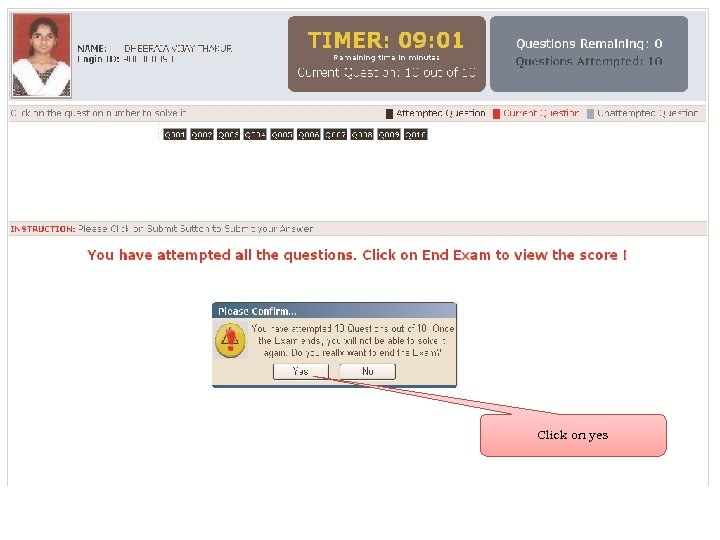 Click on yes
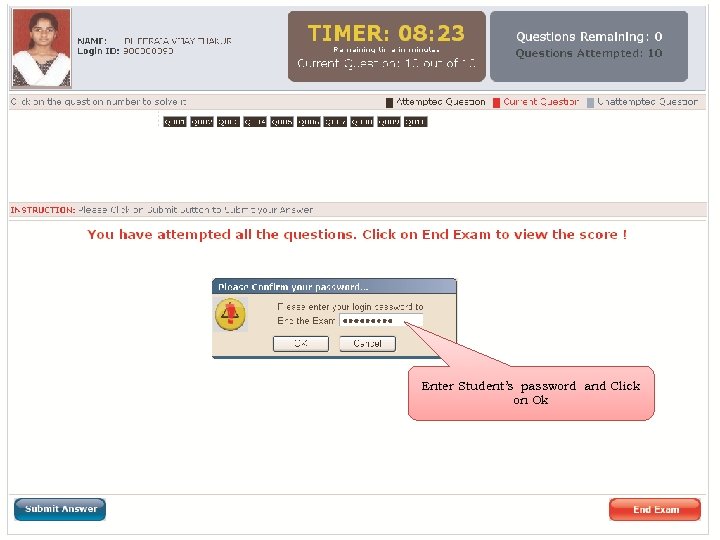 Enter Student’s password and Click on Ok
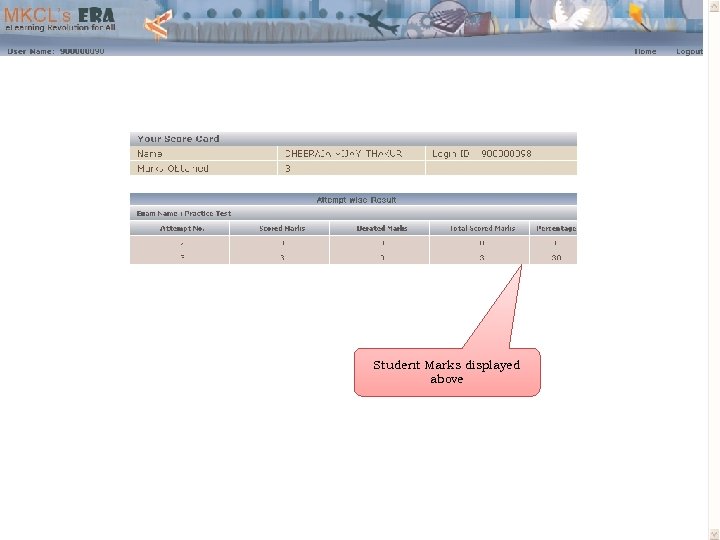 Student Marks displayed above
 End of Phase V : Learners’/Students’ Practice test Beginning of Phase VI : Main Exam
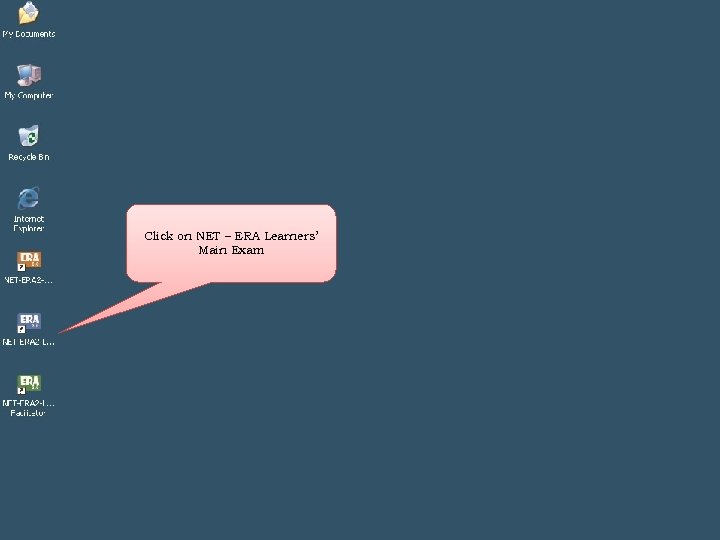 Click on NET – ERA Learners’ Main Exam
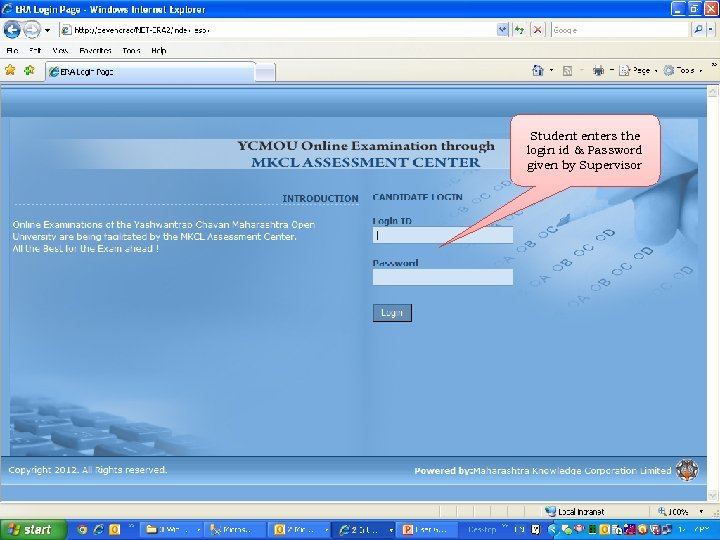 Student enters the login id & Password given by Supervisor
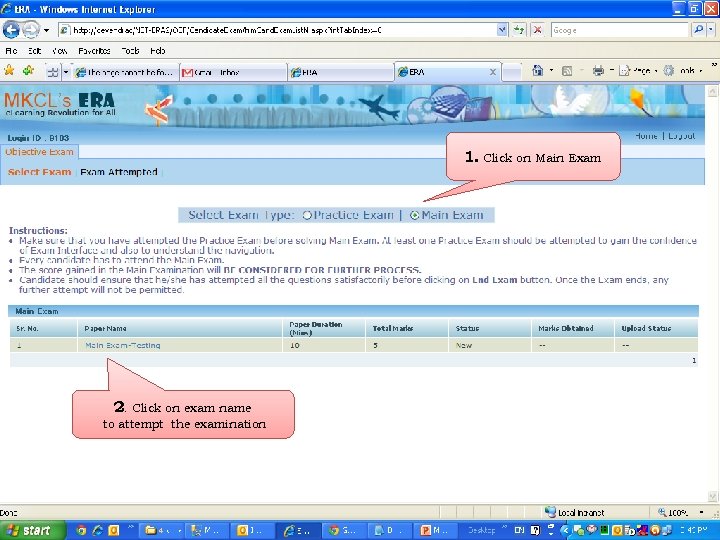 1. Click on Main Exam 2. Click on exam name to attempt the examination
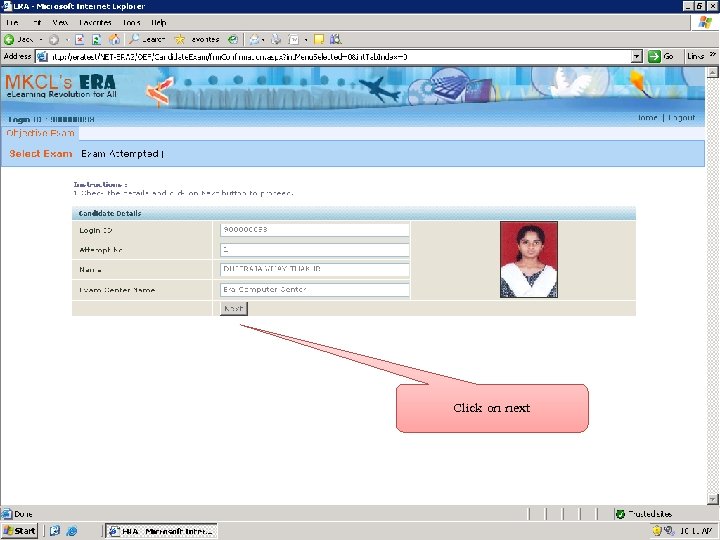 Click on next
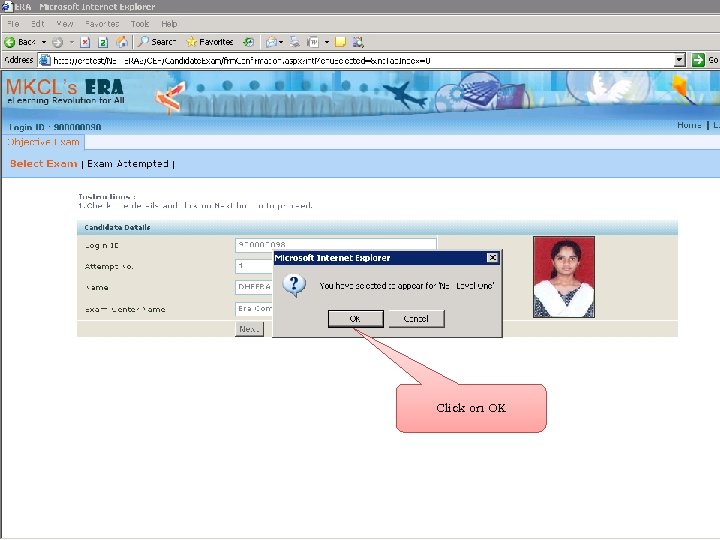 Click on OK
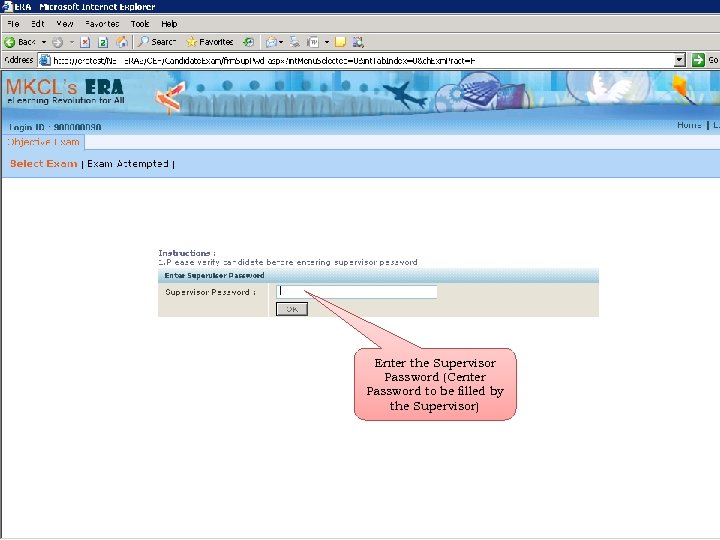 Enter the Supervisor Password (Center Password to be filled by the Supervisor)
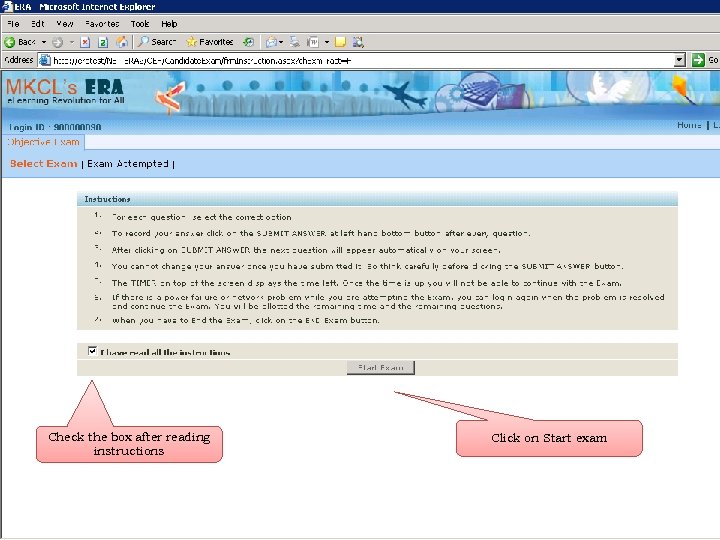 Check the box after reading instructions Click on Start exam
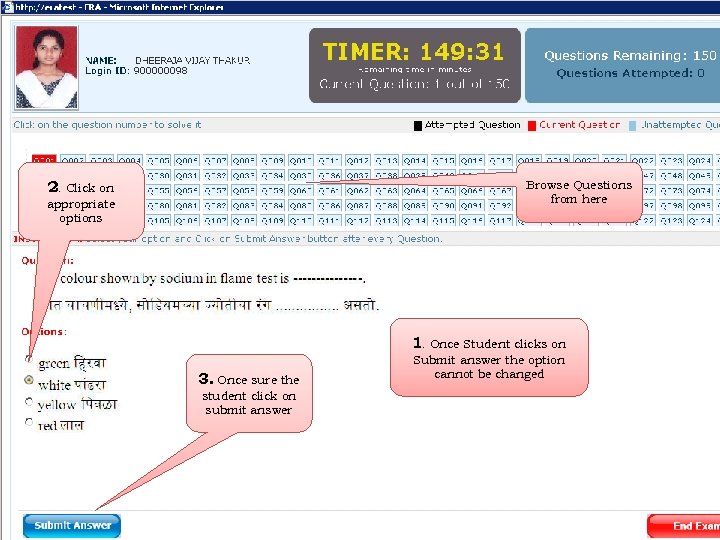 2. Click on Browse Questions from here appropriate options 1. Once Student clicks on 3. Once sure the student click on submit answer Submit answer the option cannot be changed
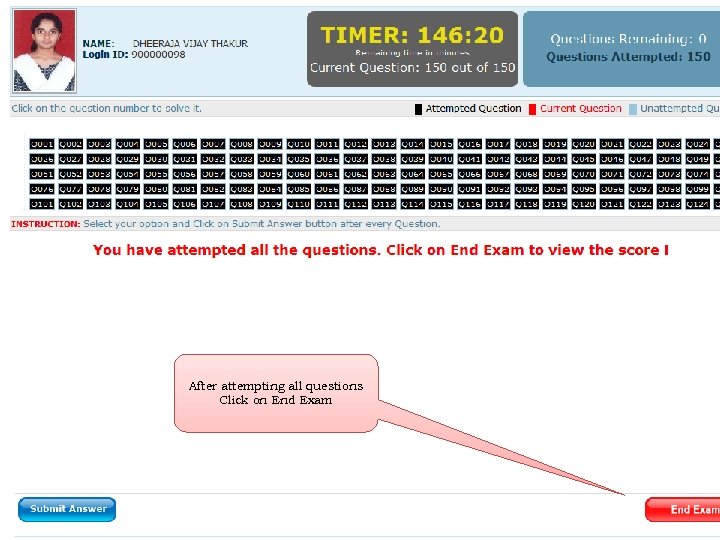 After attempting all questions Click on End Exam
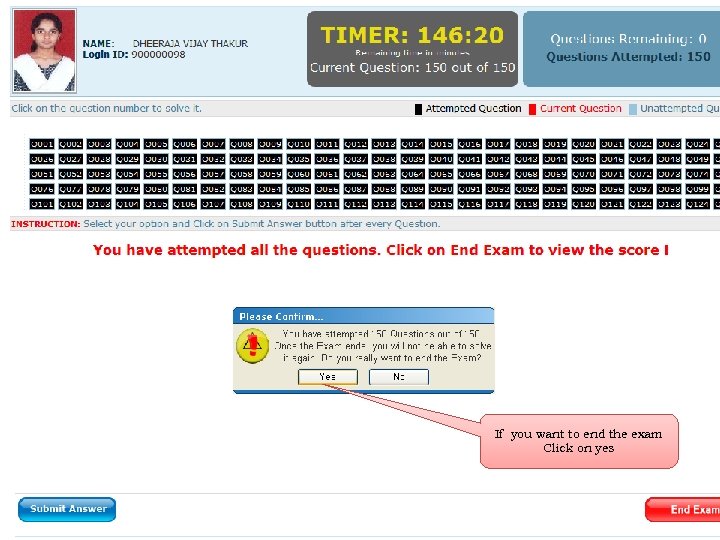 If you want to end the exam Click on yes
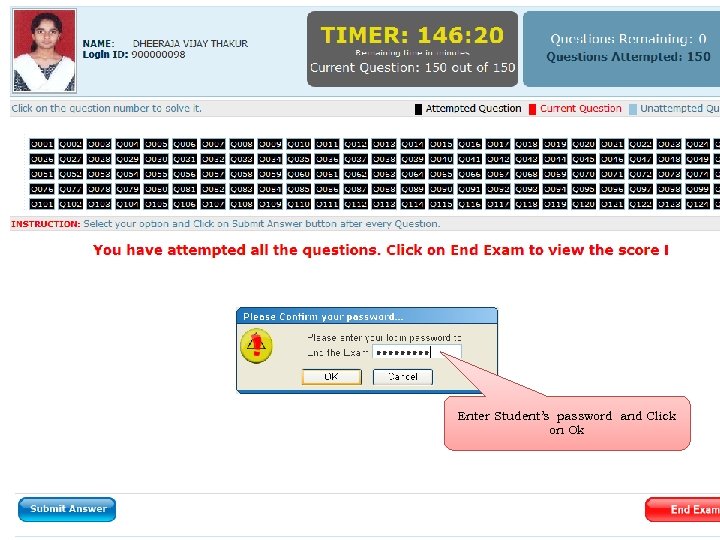 Enter Student’s password and Click on Ok
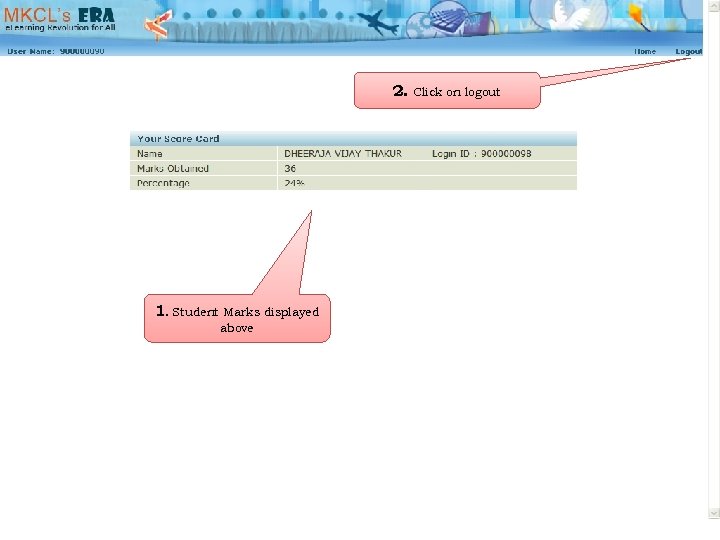 2. Click on logout 1. Student Marks displayed above
 Ending of Phase VI : Main Exam Beginning of Phase VII : Downloading the Provisional Certificate
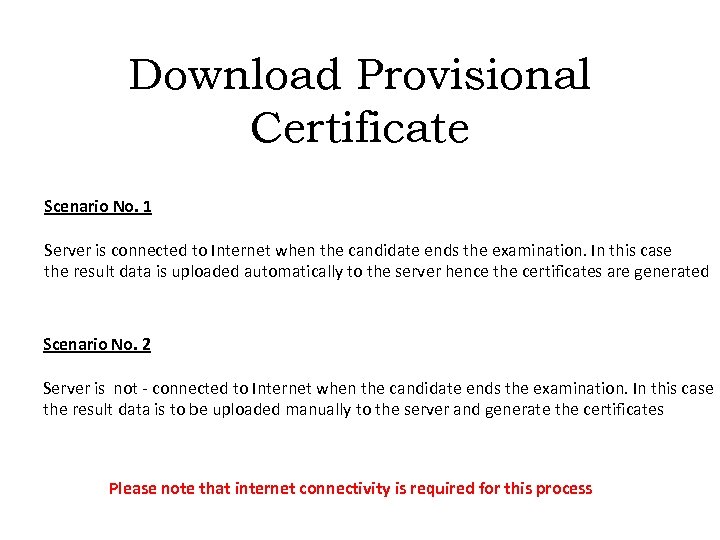 Download Provisional Certificate Scenario No. 1 Server is connected to Internet when the candidate ends the examination. In this case the result data is uploaded automatically to the server hence the certificates are generated Scenario No. 2 Server is not - connected to Internet when the candidate ends the examination. In this case the result data is to be uploaded manually to the server and generate the certificates Please note that internet connectivity is required for this process
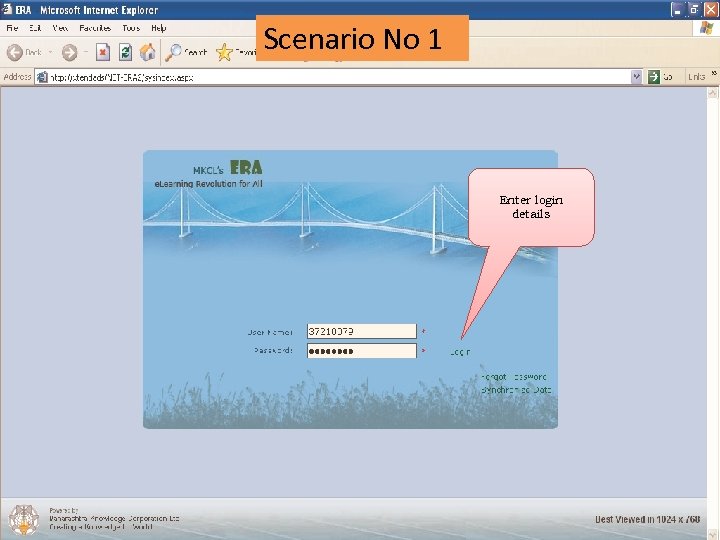 Scenario No 1 Enter login details
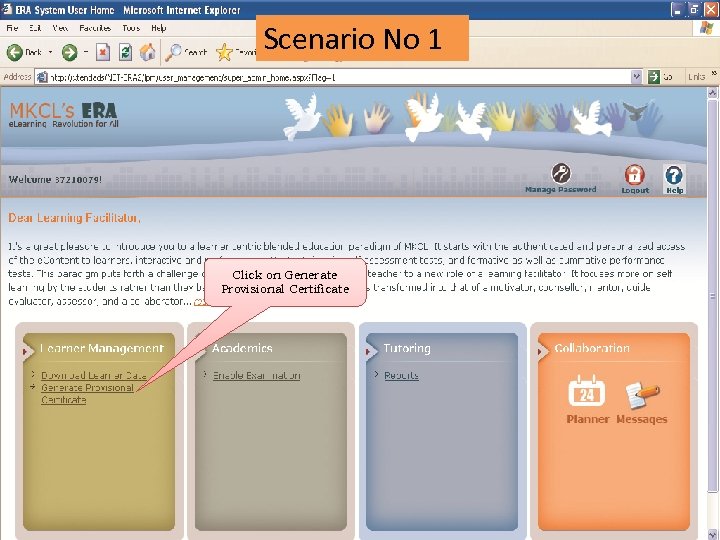 Scenario No 1 Click on Generate Provisional Certificate
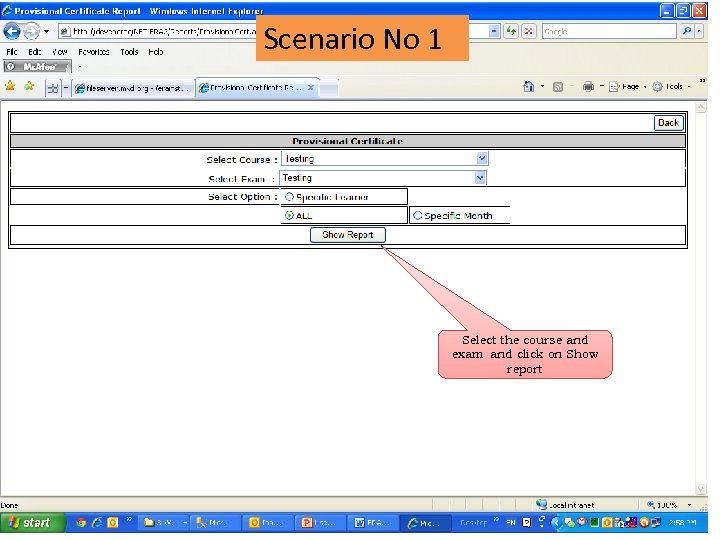 Scenario No 1 Select the course and exam and click on Show report
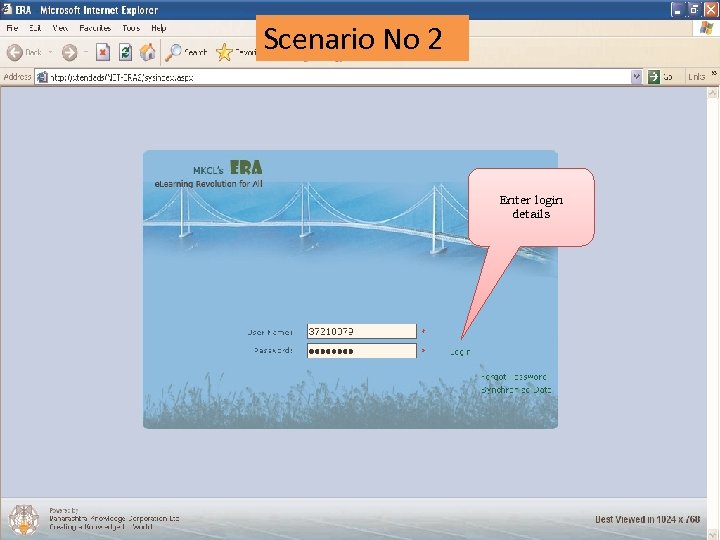 Scenario No 2 Enter login details
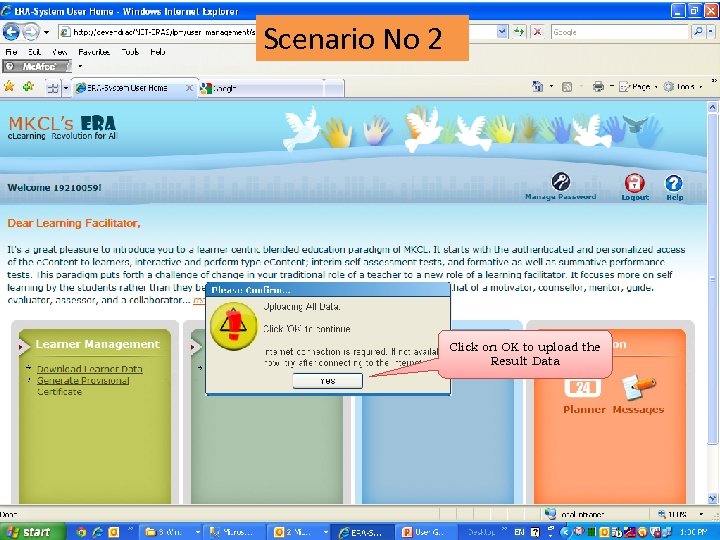 Scenario No 2 Click on OK to upload the Result Data
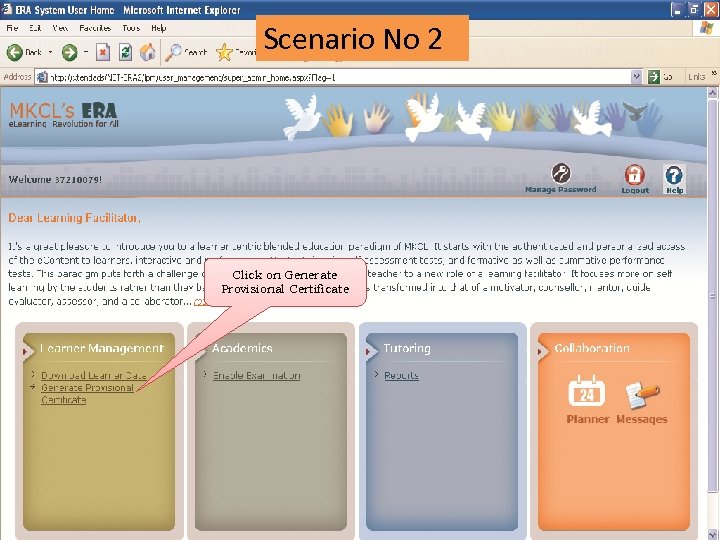 Scenario No 2 Click on Generate Provisional Certificate
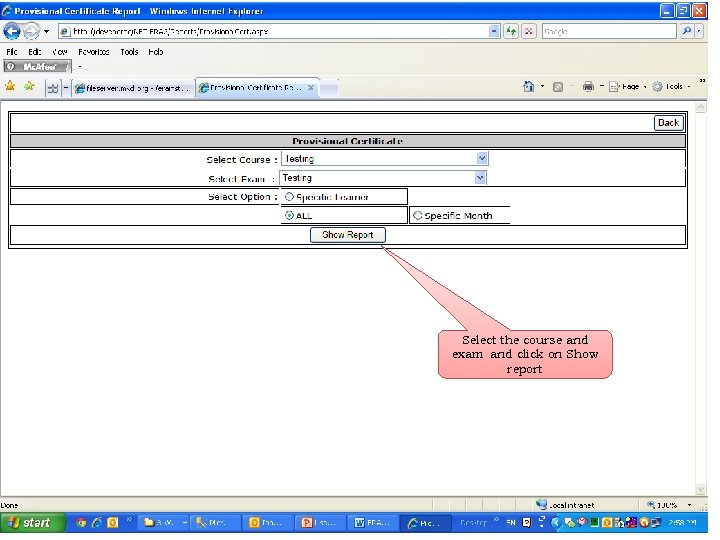 Select the course and exam and click on Show report
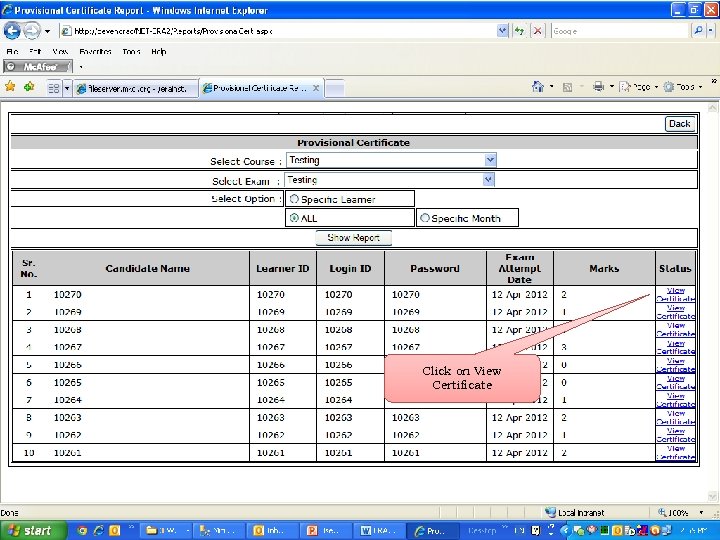 Click on View Certificate
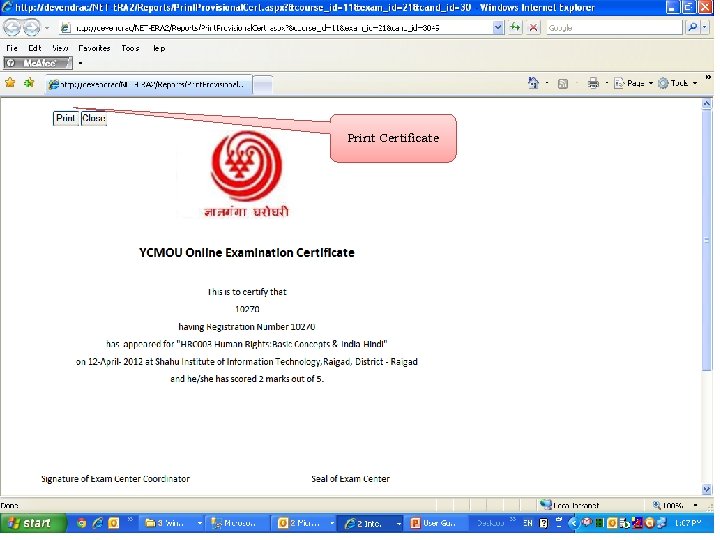 Print Certificate
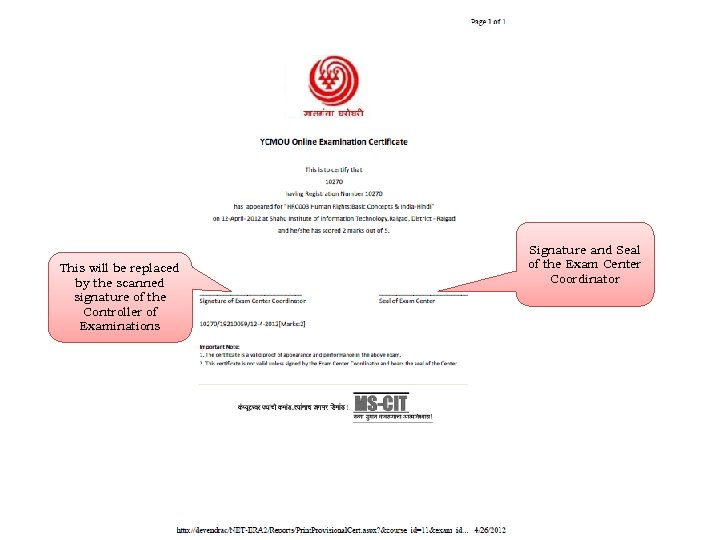 This will be replaced by the scanned signature of the Controller of Examinations Signature and Seal of the Exam Center Coordinator
 Thank You