


 Скачать презентацию Minnesota State University Mankato Purchasing Card Program Commercial
2155533e236a9627d3fe0c3391e357d0.ppt
- Количество слайдов: 41
 Minnesota State University, Mankato Purchasing Card Program Commercial Card Expense Reporting (CCER) with Wells Fargo- Mastercard An internet Software application Accessed via Wells Fargo’s secure Commercial Electronic Office® (CEO) portal MSU Campus P Card Administrator Helen Wenner (507) 389 -2269 Helen. wenner@mnsu. edu
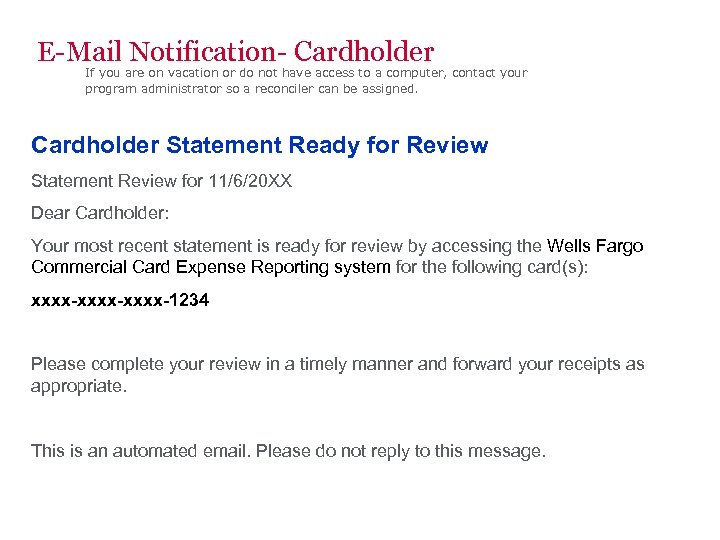 E-Mail Notification- Cardholder If you are on vacation or do not have access to a computer, contact your program administrator so a reconciler can be assigned. Cardholder Statement Ready for Review Statement Review for 11/6/20 XX Dear Cardholder: Your most recent statement is ready for review by accessing the Wells Fargo Commercial Card Expense Reporting system for the following card(s): xxxx-xxxx-1234 Please complete your review in a timely manner and forward your receipts as appropriate. This is an automated email. Please do not reply to this message.
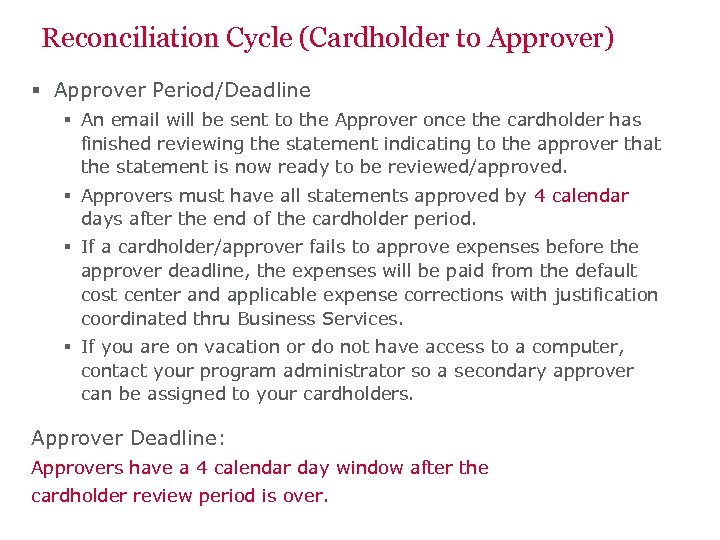 Reconciliation Cycle (Cardholder to Approver) § Approver Period/Deadline § An email will be sent to the Approver once the cardholder has finished reviewing the statement indicating to the approver that the statement is now ready to be reviewed/approved. § Approvers must have all statements approved by 4 calendar days after the end of the cardholder period. § If a cardholder/approver fails to approve expenses before the approver deadline, the expenses will be paid from the default cost center and applicable expense corrections with justification coordinated thru Business Services. § If you are on vacation or do not have access to a computer, contact your program administrator so a secondary approver can be assigned to your cardholders. Approver Deadline: Approvers have a 4 calendar day window after the cardholder review period is over.
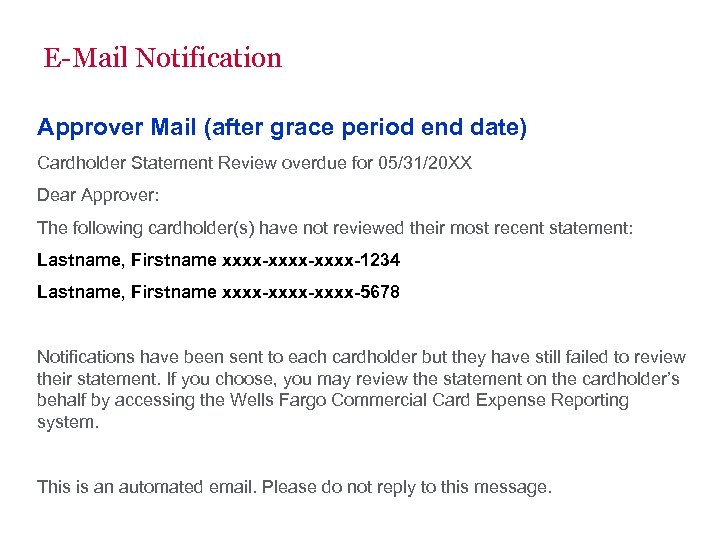 E-Mail Notification Approver Mail (after grace period end date) Cardholder Statement Review overdue for 05/31/20 XX Dear Approver: The following cardholder(s) have not reviewed their most recent statement: Lastname, Firstname xxxx-xxxx-1234 Lastname, Firstname xxxx-xxxx-5678 Notifications have been sent to each cardholder but they have still failed to review their statement. If you choose, you may review the statement on the cardholder’s behalf by accessing the Wells Fargo Commercial Card Expense Reporting system. This is an automated email. Please do not reply to this message.
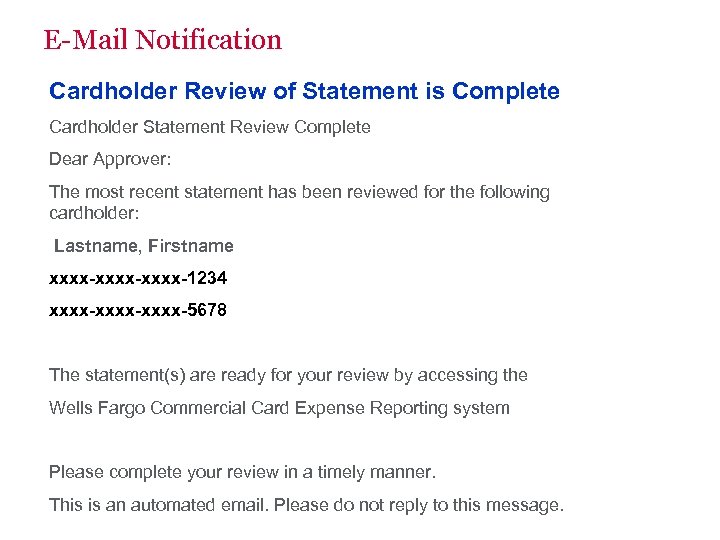 E-Mail Notification Cardholder Review of Statement is Complete Cardholder Statement Review Complete Dear Approver: The most recent statement has been reviewed for the following cardholder: Lastname, Firstname xxxx-xxxx-1234 xxxx-xxxx-5678 The statement(s) are ready for your review by accessing the Wells Fargo Commercial Card Expense Reporting system Please complete your review in a timely manner. This is an automated email. Please do not reply to this message.
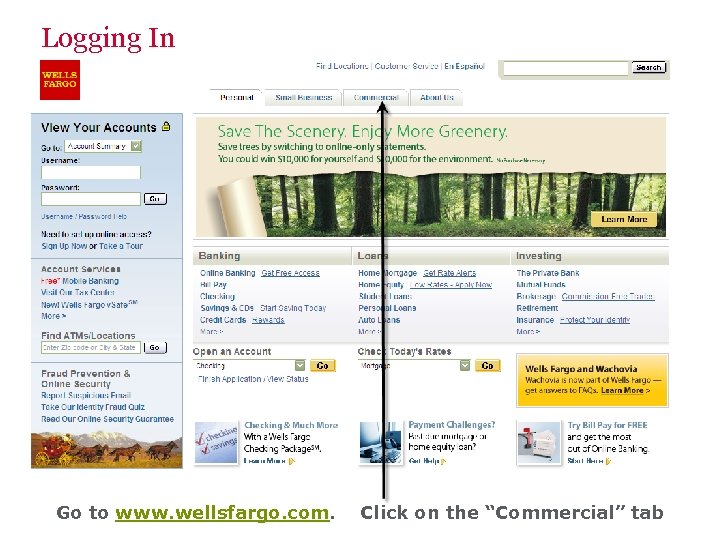 Logging In Go to www. wellsfargo. com. Click on the “Commercial” tab
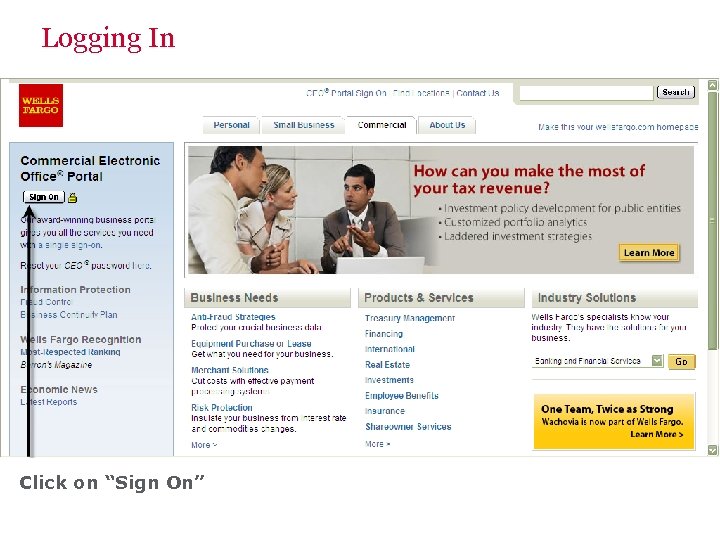 Logging In Click on “Sign On”
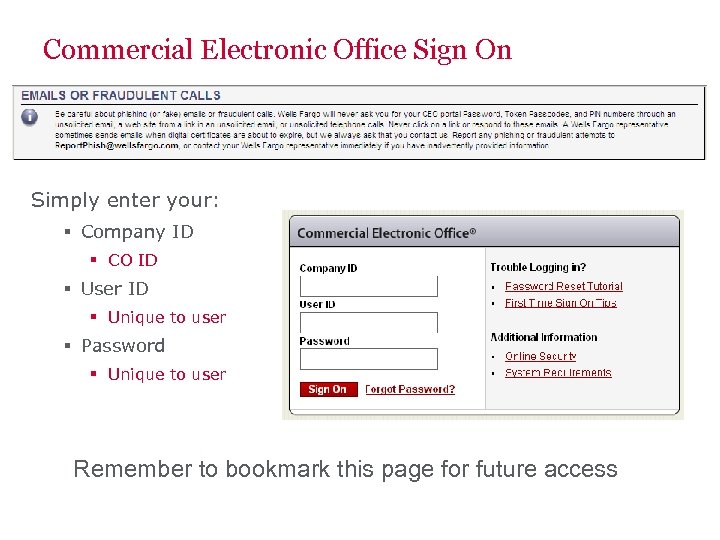 Commercial Electronic Office Sign On Simply enter your: § Company ID § CO ID § User ID § Unique to user § Password § Unique to user Remember to bookmark this page for future access
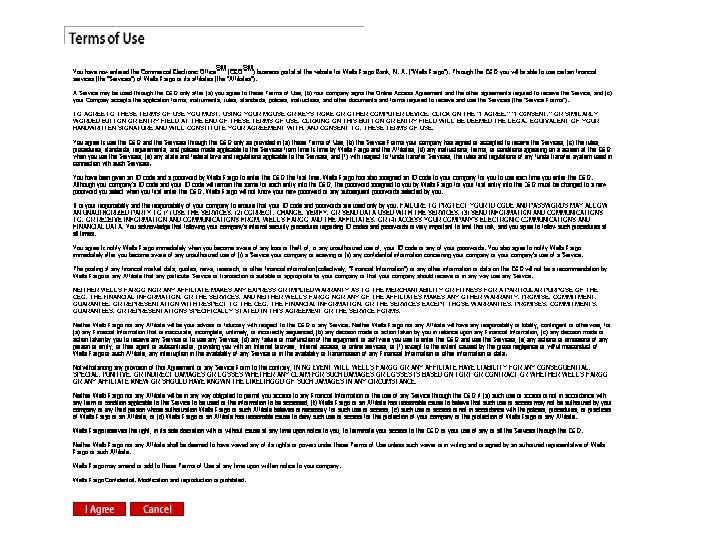
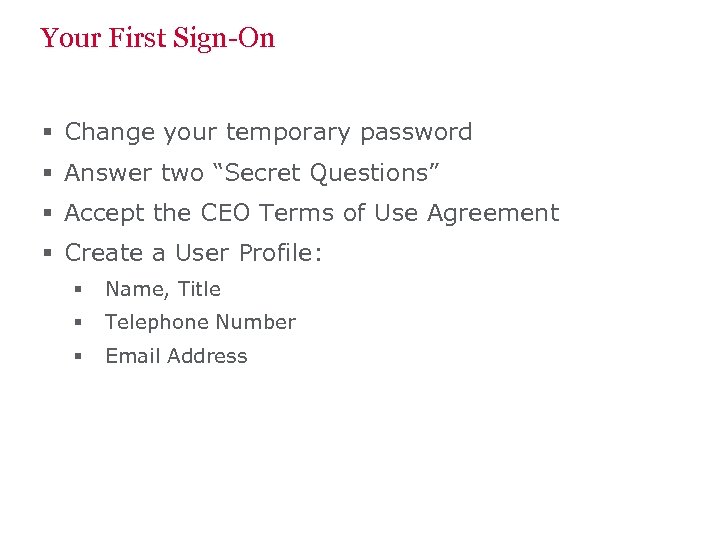 Your First Sign-On § Change your temporary password § Answer two “Secret Questions” § Accept the CEO Terms of Use Agreement § Create a User Profile: § Name, Title § Telephone Number § Email Address
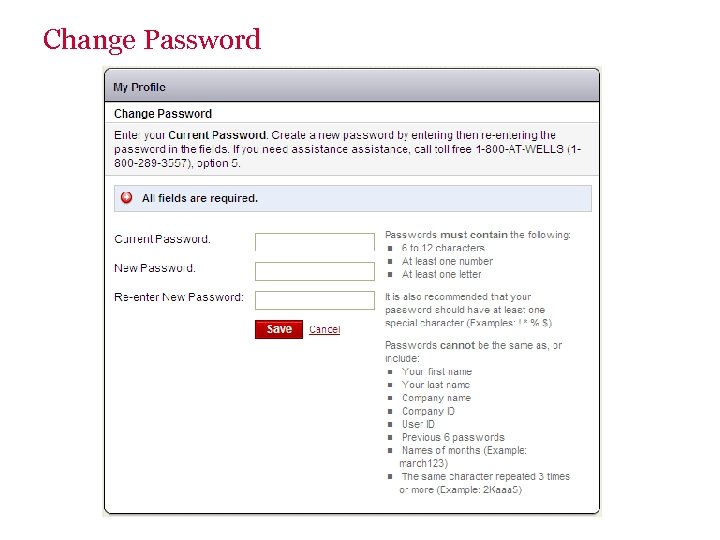 Change Password
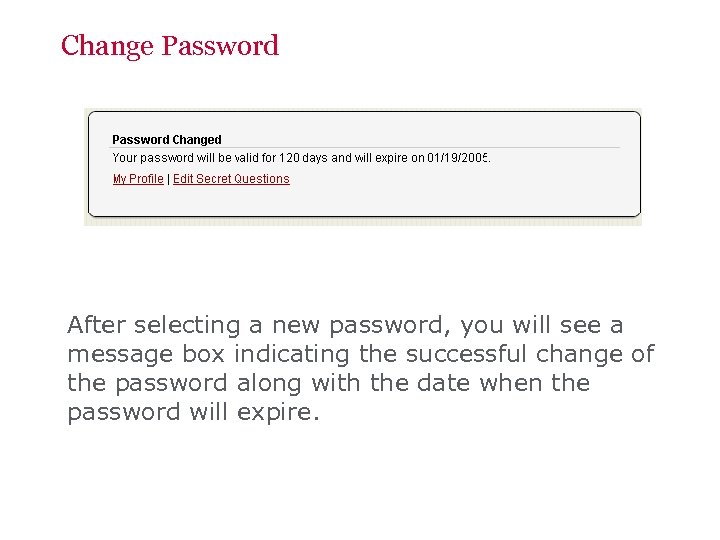 Change Password After selecting a new password, you will see a message box indicating the successful change of the password along with the date when the password will expire.
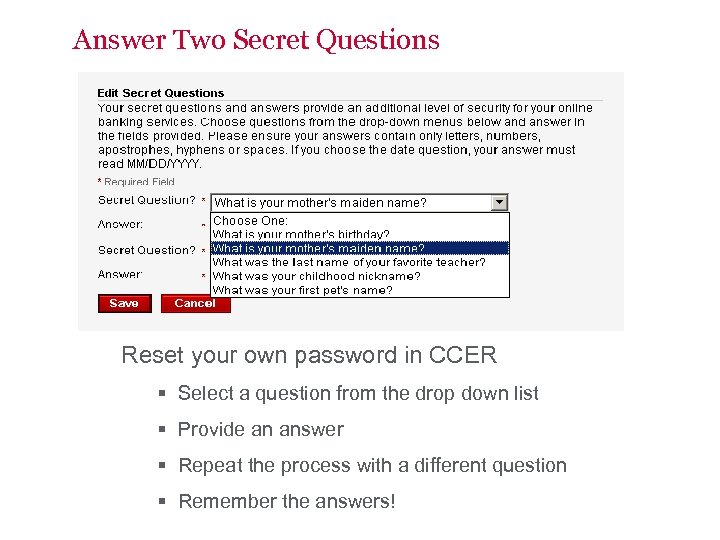 Answer Two Secret Questions Reset your own password in CCER § Select a question from the drop down list § Provide an answer § Repeat the process with a different question § Remember the answers!
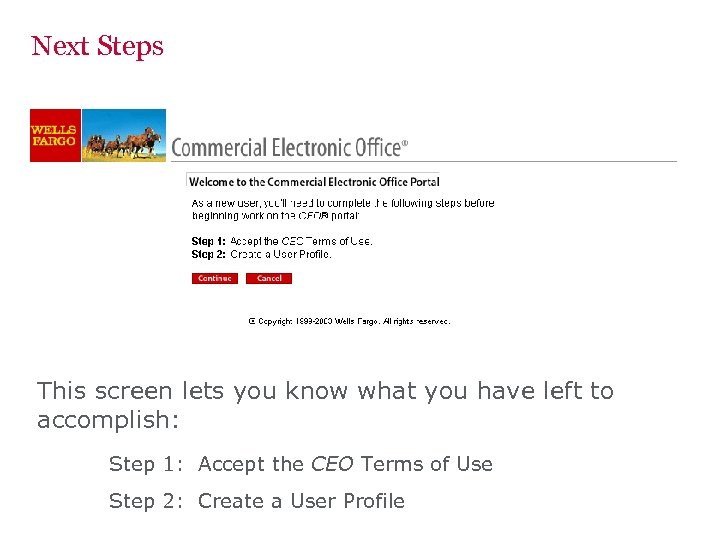 Next Steps This screen lets you know what you have left to accomplish: Step 1: Accept the CEO Terms of Use Step 2: Create a User Profile
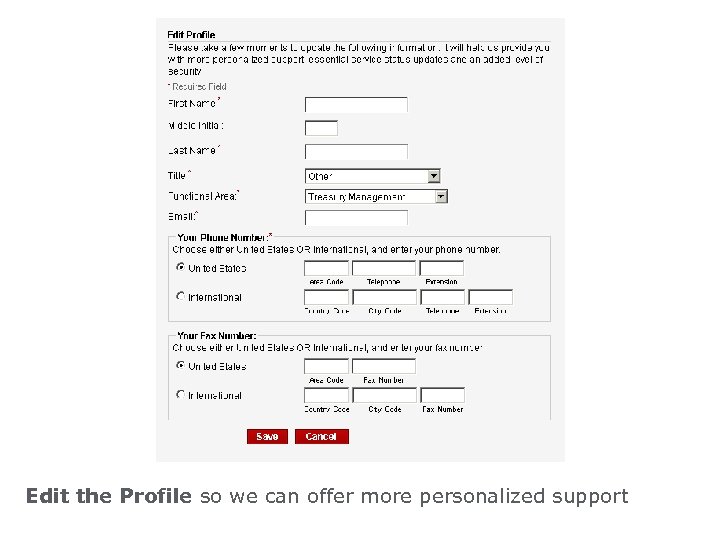 Edit the Profile so we can offer more personalized support
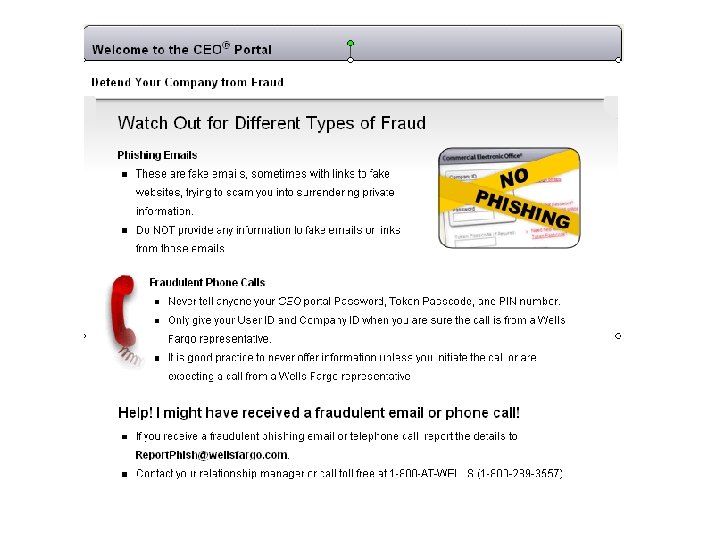
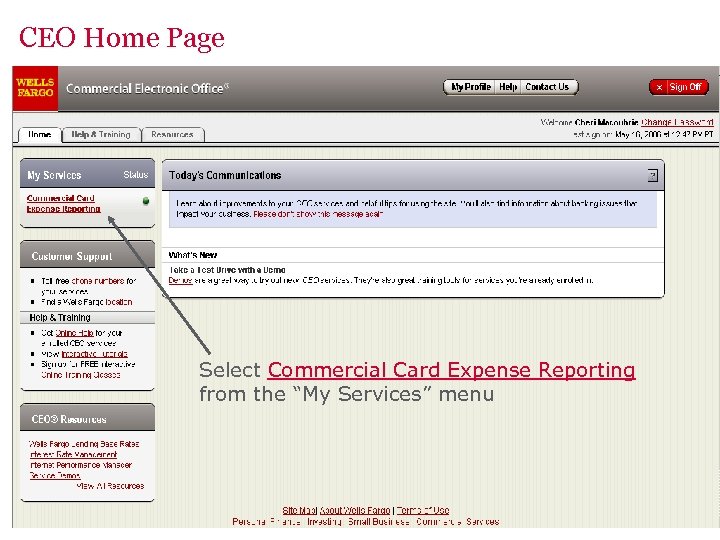 CEO Home Page Select Commercial Card Expense Reporting from the “My Services” menu
 Cardholder Experience © 2009 Wells Fargo Bank, N. A. All rights reserved. Confidential.
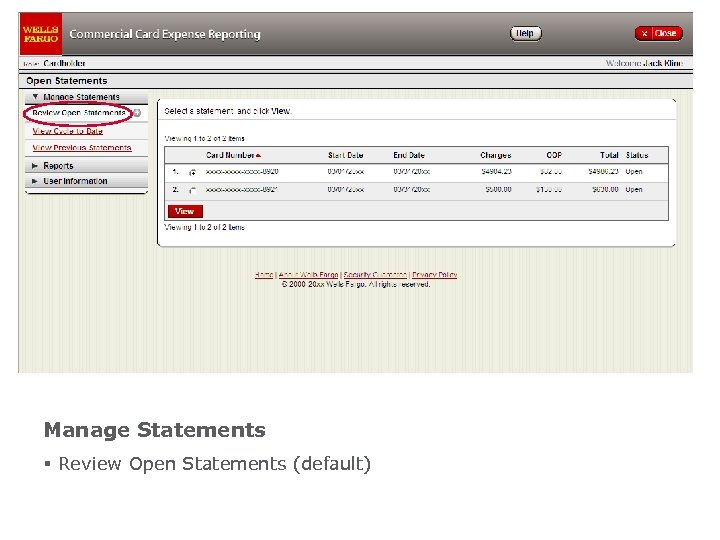 Manage Statements § Review Open Statements (default)
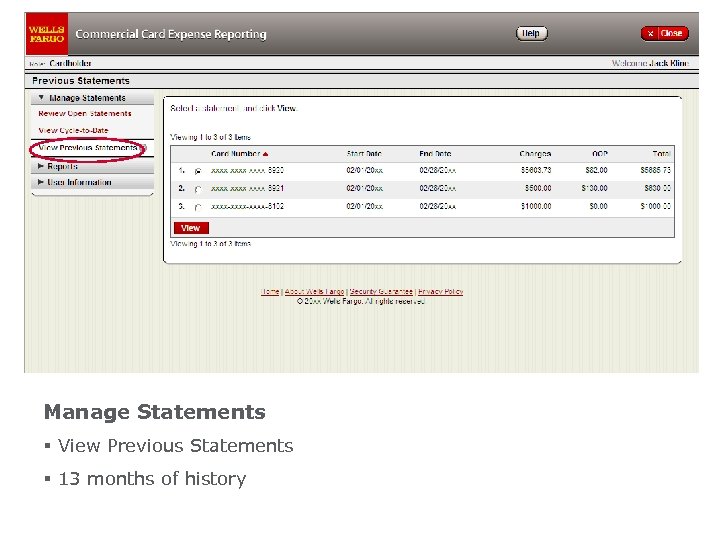 Manage Statements § View Previous Statements § 13 months of history
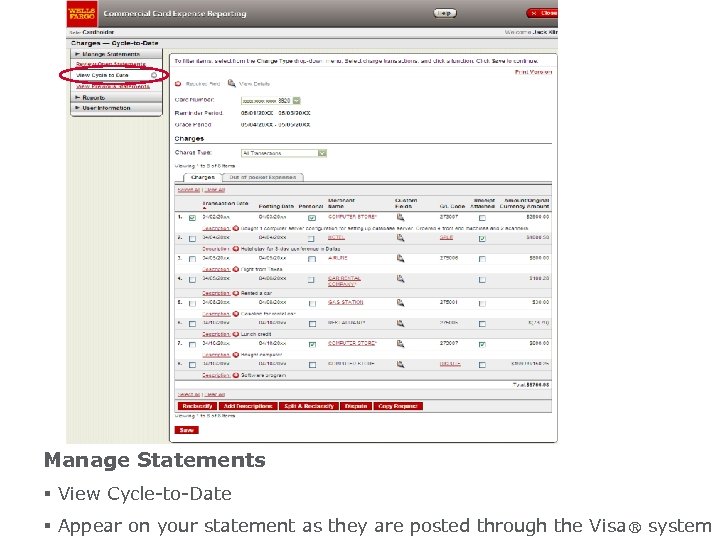 Manage Statements § View Cycle-to-Date § Appear on your statement as they are posted through the Visa ® system
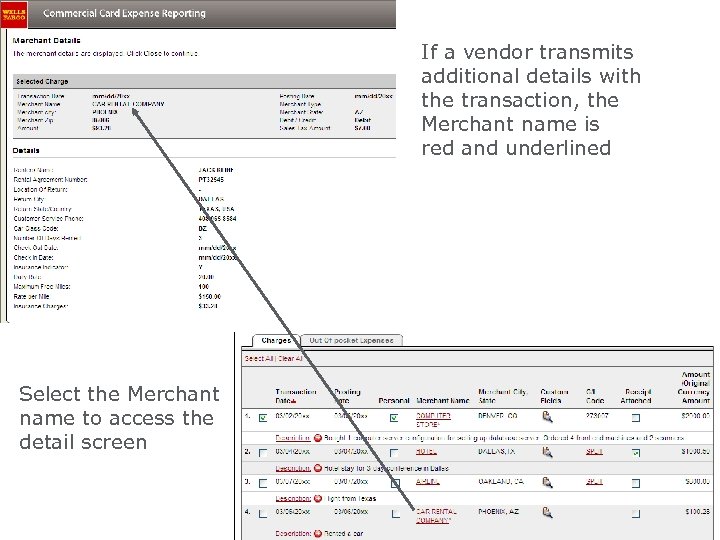 If a vendor transmits additional details with the transaction, the Merchant name is red and underlined Select the Merchant name to access the detail screen
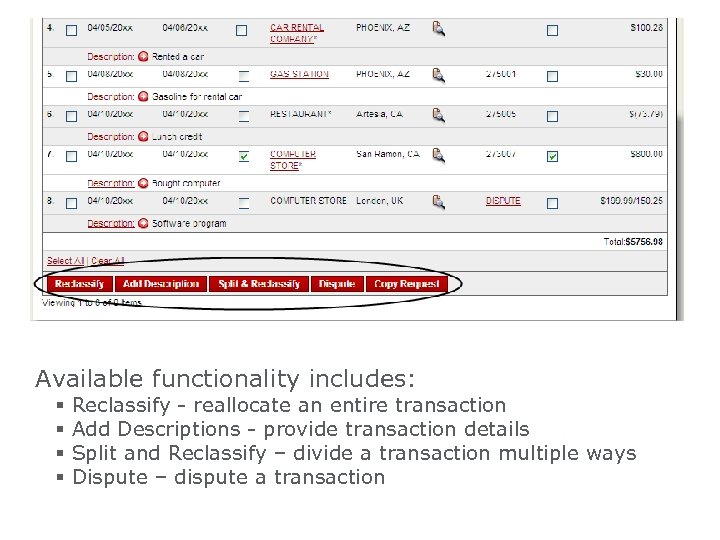 Available functionality includes: § § Reclassify - reallocate an entire transaction Add Descriptions - provide transaction details Split and Reclassify – divide a transaction multiple ways Dispute – dispute a transaction
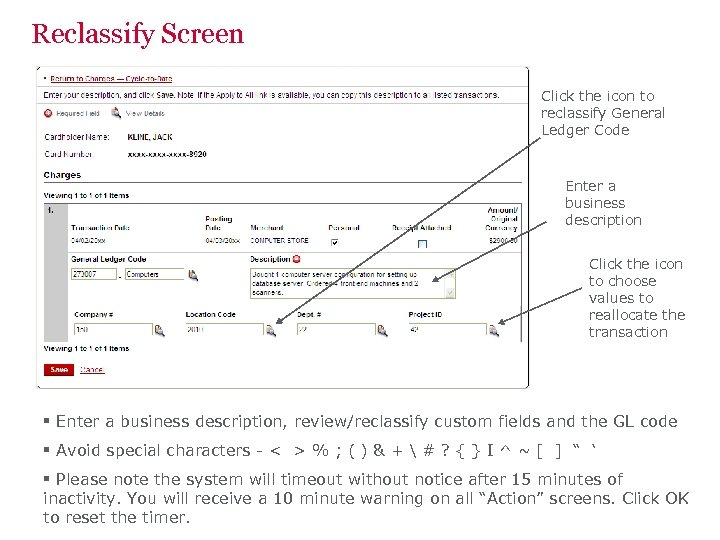 Reclassify Screen Click the icon to reclassify General Ledger Code Enter a business description Click the icon to choose values to reallocate the transaction § Enter a business description, review/reclassify custom fields and the GL code § Avoid special characters - < > % ; ( ) & + # ? { } I ^ ~ [ ] “ ‘ § Please note the system will timeout without notice after 15 minutes of inactivity. You will receive a 10 minute warning on all “Action” screens. Click OK to reset the timer.
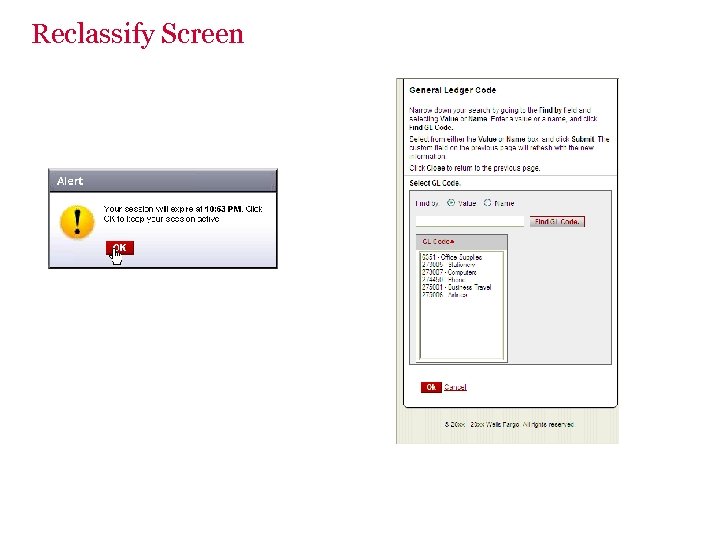 Reclassify Screen
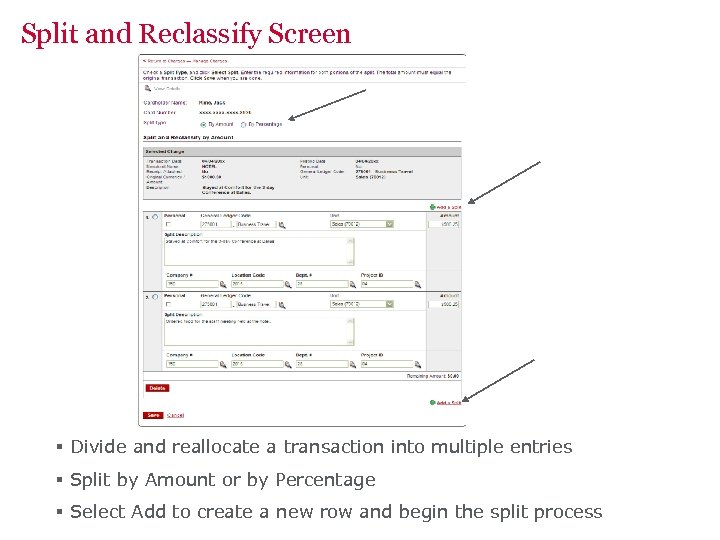 Split and Reclassify Screen § Divide and reallocate a transaction into multiple entries § Split by Amount or by Percentage § Select Add to create a new row and begin the split process
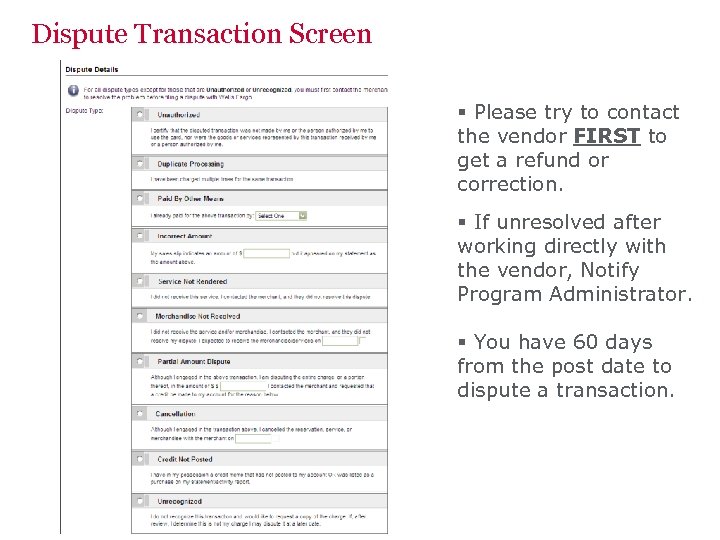 Dispute Transaction Screen § Please try to contact the vendor FIRST to get a refund or correction. § If unresolved after working directly with the vendor, Notify Program Administrator. § You have 60 days from the post date to dispute a transaction.
 OOP Reimbursement This is not an option on the MSU, Mankato Purchasing card program.
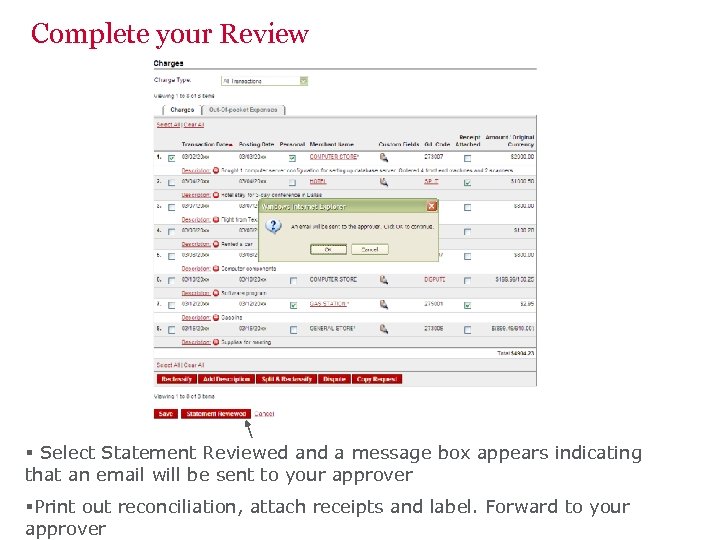 Complete your Review § Select Statement Reviewed and a message box appears indicating that an email will be sent to your approver §Print out reconciliation, attach receipts and label. Forward to your approver
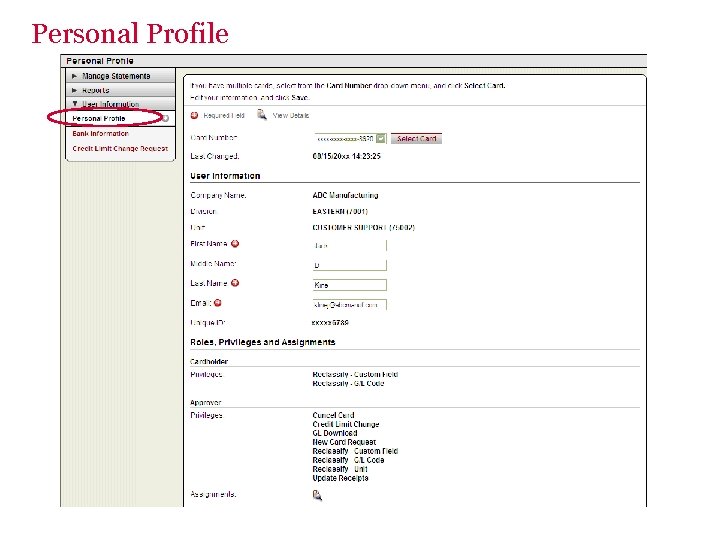 Personal Profile
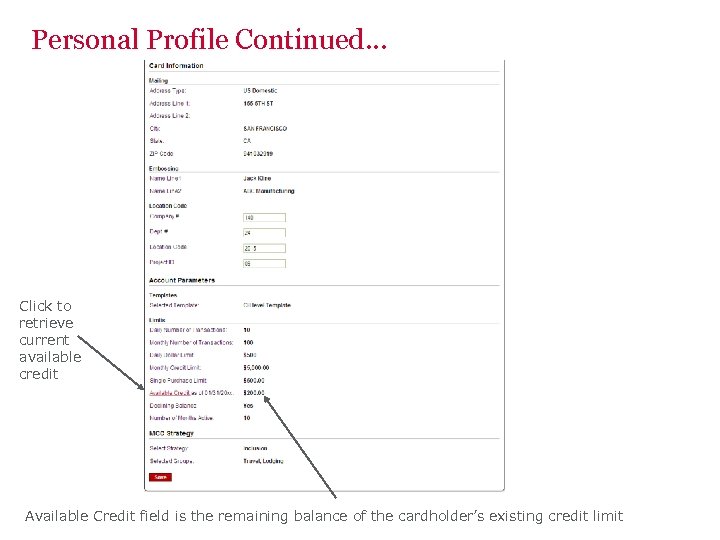 Personal Profile Continued… Click to retrieve current available credit Available Credit field is the remaining balance of the cardholder’s existing credit limit
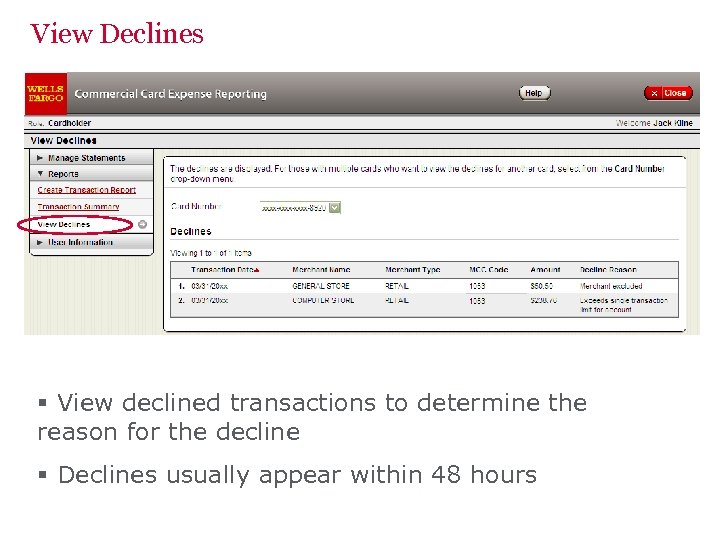 View Declines § View declined transactions to determine the reason for the decline § Declines usually appear within 48 hours
 Cardholder Responsibility § Collect receipts to verify purchases for auditing, reclassify expenses. § Watch for unauthorized transactions on your statement and report/dispute them immediately § Dispute any incorrect charges with the vendor directly and report to Program Administrator § Complete your reconciliation by the due date each billing period § Keep the card (and card number) confidential
 Contact Information § Wells Fargo - 1 -800 -932 -0036 § Call immediately if your card is lost, stolen or suspected missing, then contact the Program Adminstrator at MSU. § For immediate decline information § To access the automated Voice Response System for the following information: § Current balance § Available credit § Contact a Program Administrator if: § You have questions about your card § Need to increase your credit limit § Change jobs § Need to order cards for other employees § Need Assistance with dispute Program Administrator Helen Wenner Helen. wenner@mnsu. edu (507)-389 -2269 Business Services WA 236
 Approver Experience © 2009 Wells Fargo Bank, N. A. All rights reserved. Confidential.
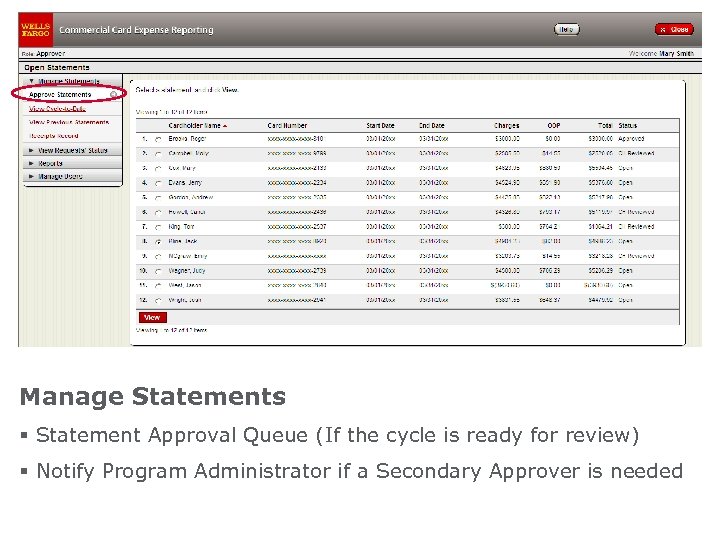 Manage Statements § Statement Approval Queue (If the cycle is ready for review) § Notify Program Administrator if a Secondary Approver is needed
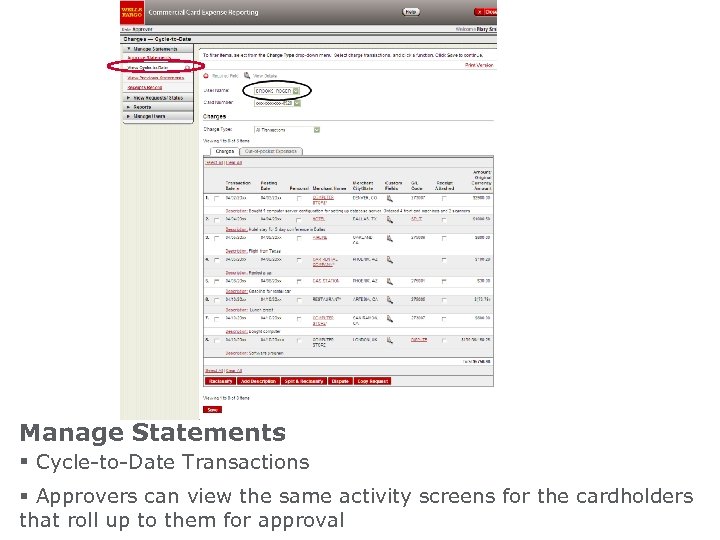 Manage Statements § Cycle-to-Date Transactions § Approvers can view the same activity screens for the cardholders that roll up to them for approval
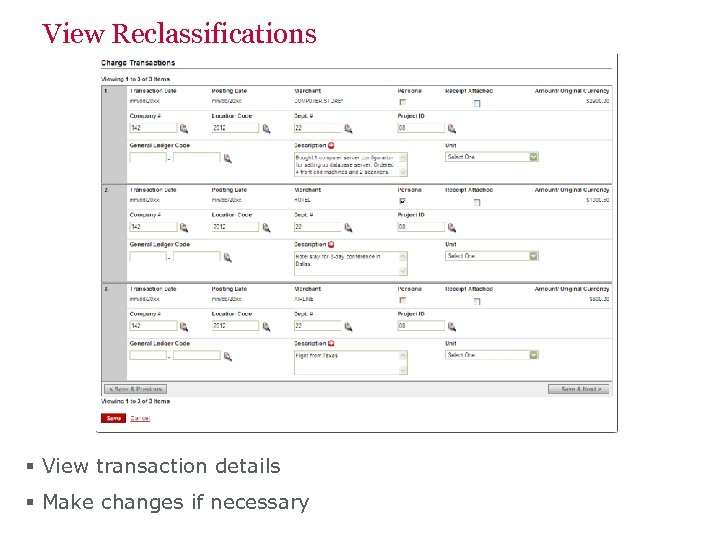 View Reclassifications § View transaction details § Make changes if necessary
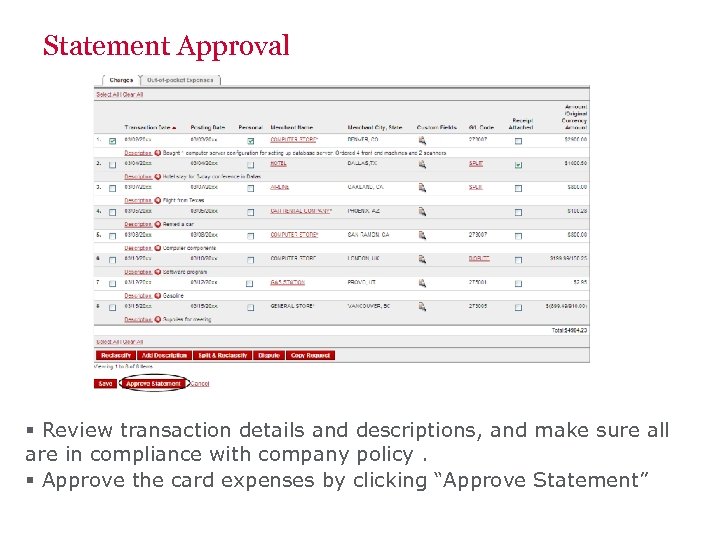 Statement Approval § Review transaction details and descriptions, and make sure all are in compliance with company policy. § Approve the card expenses by clicking “Approve Statement”
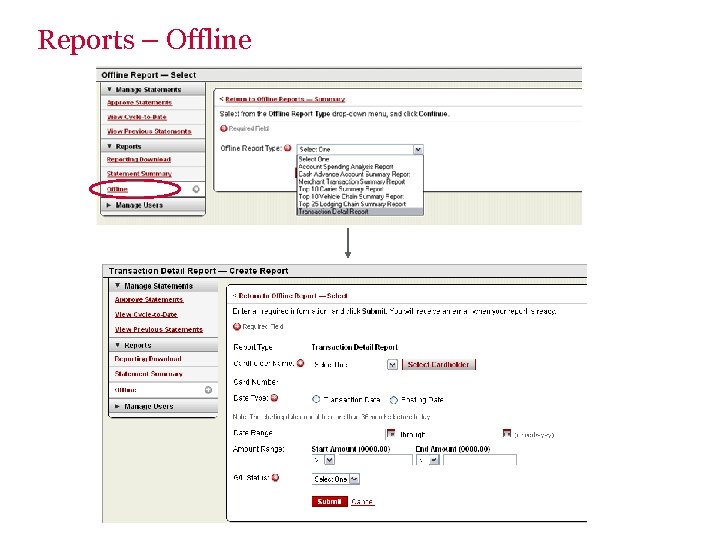 Reports – Offline
 Thank You! © 2009 Wells Fargo Bank, N. A. All rights reserved. For public use.