


 Скачать презентацию Microsoft Office 2003 Post-Advanced Concepts and Techniques Power
0deea6db5aeb92c6a6aa2bd5a00e8419.ppt
- Количество слайдов: 28
 Microsoft Office 2003 Post-Advanced Concepts and Techniques Power. Point Online Feature Importing Files from the Microsoft Office Online Web Site
 Objectives • Connect to the Microsoft Office Templates Web site • Locate and download a template from the Microsoft Office Templates Web site • Connect to the Microsoft Office Clip Art and Media Web site • Search for and copy Microsoft Office Clip Art and Media clips Power. Point Online Feature: Importing Files from the Microsoft Office Online Web Site 2
 Starting and Customizing a New Presentation • Click the Start button on the Windows taskbar, point to All Programs on the Start menu, point to Microsoft Office on the All Programs submenu, and then click Microsoft Office Power. Point 2003 on the Microsoft Office submenu • If the Power. Point window is not maximized, double-click its title bar to maximize it • If the Language bar appears, right-click it and then click Close the Language bar on the shortcut menu • If the Standard and Formatting toolbars are positioned on the same row, click the Toolbar Options button on the right side of either toolbar and then click Show Buttons on Two Rows on the Toolbar Options menu Power. Point Online Feature: Importing Files from the Microsoft Office Online Web Site 3
 Connecting to the Microsoft Office Template Web Site • Point to the Create a new presentation hyperlink in the Open area of the Getting Started task pane • Click the Create a new presentation hyperlink • When the New Presentation task pane is displayed, point to the Templates on Office Online hyperlink in the Templates area Power. Point Online Feature: Importing Files from the Microsoft Office Online Web Site 4
 Connecting to the Microsoft Office Template Web Site • Click Templates on Office Online • Connect to the World Wide Web as required by your browser software and ISP • Click the down arrow to scroll down and then point to the For Teachers hyperlink in the Education category Power. Point Online Feature: Importing Files from the Microsoft Office Online Web Site 5
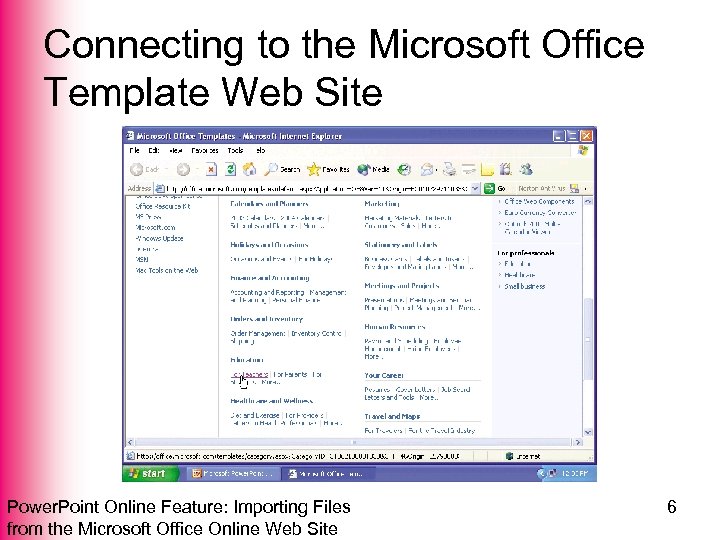 Connecting to the Microsoft Office Template Web Site Power. Point Online Feature: Importing Files from the Microsoft Office Online Web Site 6
 Locating and Downloading a Template • Click the For Teachers subcategory • When the For Teachers page is displayed, point to the Awards hyperlink • Click the Awards hyperlink • Point to Certificate of Completion for Course Power. Point Online Feature: Importing Files from the Microsoft Office Online Web Site 7
 Locating and Downloading a Template • Click Certificate of Completion for Course • If the Security Warning dialog box is displayed asking you to install and run the Microsoft Office Tools on the Web Control, click the Yes button • If the Terms of Use Agreement for Templates is displayed, read the agreement and then click the Accept button • Click the Download Now button Power. Point Online Feature: Importing Files from the Microsoft Office Online Web Site 8
 Locating and Downloading a Template • If the Security Warning dialog box is displayed, click the Yes button • If the Status box message states that the Microsoft Office Template and Media Control has been installed successfully, click the Continue button • If the Microsoft Office Online dialog box is displayed asking if you want to download and display links automatically to additional assistance and resources, click the No button • Click the Close button in the New Presentation task pane Power. Point Online Feature: Importing Files from the Microsoft Office Online Web Site 9
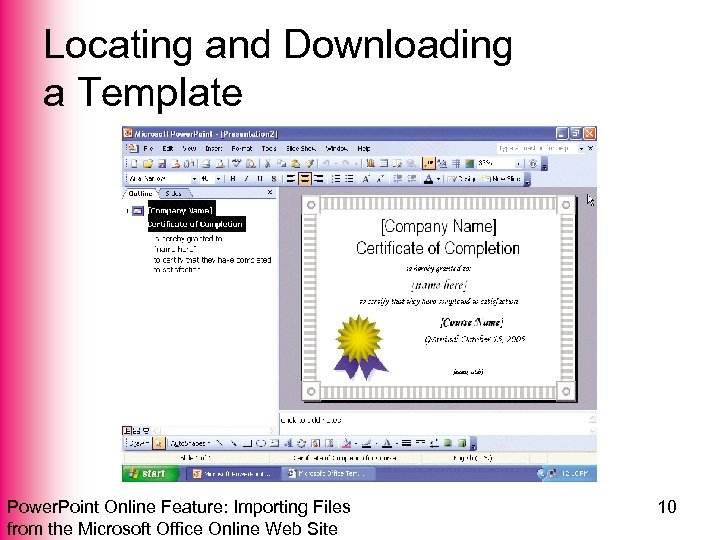 Locating and Downloading a Template Power. Point Online Feature: Importing Files from the Microsoft Office Online Web Site 10
 Saving a Presentation • Click the Save button on the Standard toolbar • Type Completion Certificate in the File name text box • Click the Save in box arrow. Click 3½ Floppy (A: ) in the Save in list • Click the Save button in the Save As dialog box Power. Point Online Feature: Importing Files from the Microsoft Office Online Web Site 11
 Connecting to the Microsoft Office Clip Art and Media Web Site • Click the Insert Clip Art button on the Drawing toolbar • Point to the Clip art on Office Online hyperlink in the Clip Art task pane • Click Clip art on Office Online • If necessary, click the OK button in the Connect to Web for More Clip Art, Photos, Sounds dialog box and connect to the Internet • If necessary, when the Microsoft Office Clip Art and Media Web site is displayed, read the Addendum to the Microsoft End-User License Agreement, and then click the Accept button Power. Point Online Feature: Importing Files from the Microsoft Office Online Web Site 12
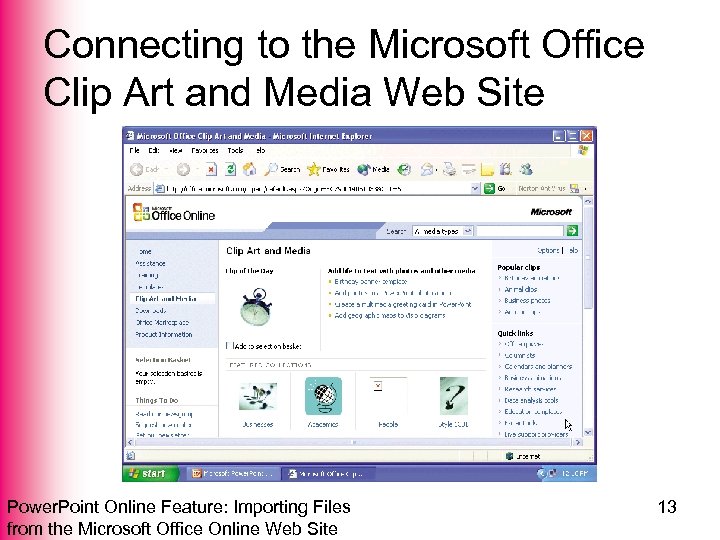 Connecting to the Microsoft Office Clip Art and Media Web Site Power. Point Online Feature: Importing Files from the Microsoft Office Online Web Site 13
 Searching for and Copying Clip Art and Media Web Site Clips • Click the Search box arrow in the Clip Art and Media Web site • Point to Animations in the list • Click Animations • Click the Search text box and then type computer in the box • Click the Click to search button Power. Point Online Feature: Importing Files from the Microsoft Office Online Web Site 14
 Searching for and Copying Clip Art and Media Web Site Clips • When the search results display, click the Dropdown arrow on the thumbnail of the computer mouse eating a piece of cheese • Point to the Copy command on the shortcut menu • Click Copy • Click the Microsoft Power. Point - [Completion Certificate] button on the taskbar • Right-click the Certificate of Completion and then click the Paste command Power. Point Online Feature: Importing Files from the Microsoft Office Online Web Site 15
 Searching for and Copying Clip Art and Media Web Site Clips • Click the Microsoft Office Clip Art and Media - Microsoft Internet Explorer button on the taskbar • Click the Search box arrow • Point to Sounds in the list • Click Sounds • Click the Click to search button Power. Point Online Feature: Importing Files from the Microsoft Office Online Web Site 16
 Searching for and Copying Clip Art and Media Web Site Clips • Click the Dropdown arrow of the clip with the file name, Computer Typing 1 • Click the Copy command on the shortcut menu • Click the Microsoft Power. Point [Completion Certificate] button on the taskbar • Right-click the certificate Power. Point Online Feature: Importing Files from the Microsoft Office Online Web Site 17
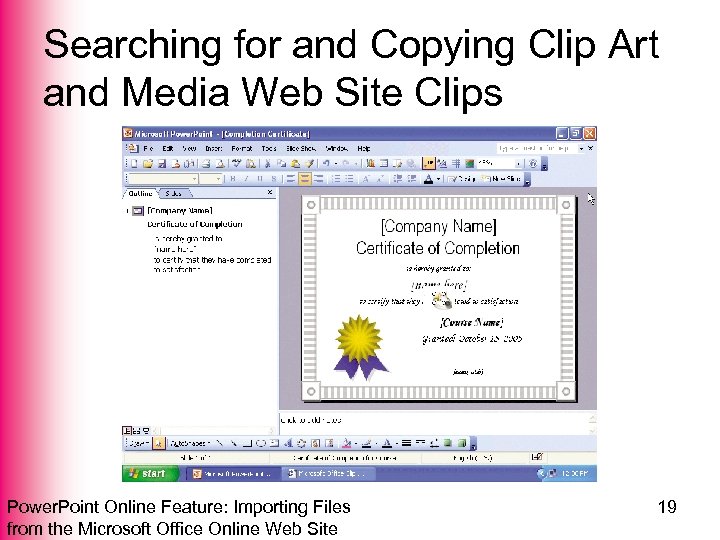
 Searching for and Copying Clip Art and Media Web Site Clips • Click Paste on the shortcut menu • When the Microsoft Office Power. Point dialog box is displayed, click the Automatically button • If the Picture toolbar is displayed, click its Close button • Click the Close button on the Clip Art task pane title bar Power. Point Online Feature: Importing Files from the Microsoft Office Online Web Site 18
 Searching for and Copying Clip Art and Media Web Site Clips Power. Point Online Feature: Importing Files from the Microsoft Office Online Web Site 19
 Quitting a Web Session • Right-click the Microsoft Office Clip Art and Media - Microsoft Internet Explorer button on the taskbar. If you are not using Microsoft Internet Explorer, right-click the button for your browser • Click Close on the shortcut menu • When the dialog box is displayed, click the Yes button to disconnect. If your ISP displays a different dialog box, terminate your connection to your ISP Power. Point Online Feature: Importing Files from the Microsoft Office Online Web Site 20
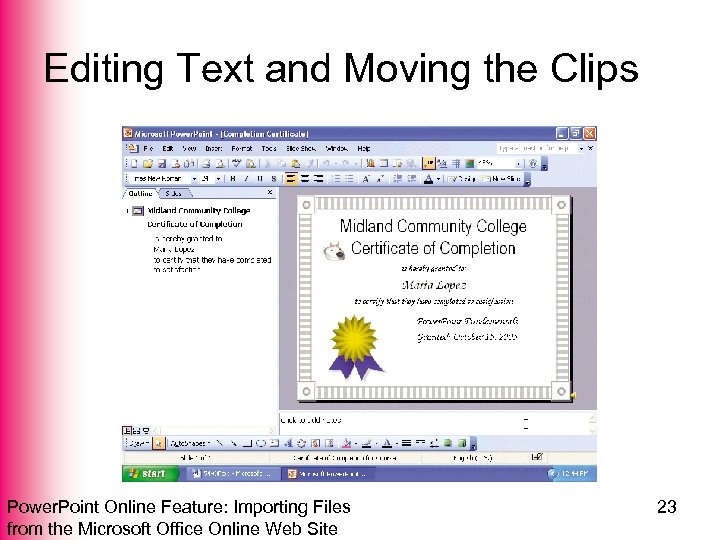
![Editing Text and Moving the Clips • Select the text, [Company Name], at the](https://present5.com/presentation/0deea6db5aeb92c6a6aa2bd5a00e8419/image-21.jpg "Editing Text and Moving the Clips • Select the text, [Company Name], at the") Editing Text and Moving the Clips • Select the text, [Company Name], at the top of the certificate • Type Midland Community College to replace the current text • Drag the speaker icon to the lower-right corner off the edge of Slide 1 • Scale the computer mouse clip to 110 % and then move it to the location shown on slide 23 Power. Point Online Feature: Importing Files from the Microsoft Office Online Web Site 21
Editing Text and Moving the Clips • Select the text, [Company Name], at the top of the certificate • Type Midland Community College to replace the current text • Drag the speaker icon to the lower-right corner off the edge of Slide 1 • Scale the computer mouse clip to 110 % and then move it to the location shown on slide 23 Power. Point Online Feature: Importing Files from the Microsoft Office Online Web Site 21
![Editing Text and Moving the Clips • Select the text, [name here], and replace](https://present5.com/presentation/0deea6db5aeb92c6a6aa2bd5a00e8419/image-22.jpg "Editing Text and Moving the Clips • Select the text, [name here], and replace") Editing Text and Moving the Clips • Select the text, [name here], and replace the text with your name • Select the text, [Course Name], and type Power. Point Fundamentals to replace the current text • Select the text, [name, title], and then click the Cut button Power. Point Online Feature: Importing Files from the Microsoft Office Online Web Site 22
Editing Text and Moving the Clips • Select the text, [name here], and replace the text with your name • Select the text, [Course Name], and type Power. Point Fundamentals to replace the current text • Select the text, [name, title], and then click the Cut button Power. Point Online Feature: Importing Files from the Microsoft Office Online Web Site 22
 Editing Text and Moving the Clips Power. Point Online Feature: Importing Files from the Microsoft Office Online Web Site 23
 Running a Slide Show • Click the Slide Show button in the lowerleft corner of the Power. Point window • When Slide 1 is displayed, view the information and then click the slide anywhere except on the Pop-up menu buttons • Click the black slide Power. Point Online Feature: Importing Files from the Microsoft Office Online Web Site 24
 Printing a Presentation Slide • Click the Print button on the Standard toolbar Power. Point Online Feature: Importing Files from the Microsoft Office Online Web Site 25
 Quitting Power. Point • Click the Close button on the Microsoft Power. Point title bar • If the Microsoft Office Power. Point dialog box is displayed, click the Yes button to save changes made since the last save Power. Point Online Feature: Importing Files from the Microsoft Office Online Web Site 26
 Summary • Connect to the Microsoft Office Templates Web site • Locate and download a template from the Microsoft Office Templates Web site • Connect to the Microsoft Office Clip Art and Media Web site • Search for and copy Microsoft Office Clip Art and Media clips Power. Point Online Feature: Importing Files from the Microsoft Office Online Web Site 27
 Microsoft Office 2003 Post-Advanced Concepts and Techniques Power. Point Online Feature Complete