


 Скачать презентацию Microsoft Office 2003 Introductory Concepts and Techniques Word
7be9405dee2ba294da158c722ad3ee7a.ppt
- Количество слайдов: 79
 Microsoft Office 2003 Introductory Concepts and Techniques Word Project 2 Creating a Research Paper
 Objectives • Describe the MLA documentation style for research papers • Change the margin settings and line spacing in a document • Use a header to number pages of a document • Apply formatting using shortcut keys • Modify paragraph indentation Word Project 2: Creating a Research Paper 2
 Objectives • • • Add a footnote to a document Count the words in a document Insert a manual page break Create a hyperlink Sort selected paragraphs Word Project 2: Creating a Research Paper 3
 Objectives • Proof and revise a document • Display the Web page associated with a hyperlink • E-mail a copy of a document • Use the Research task pane to locate information Word Project 2: Creating a Research Paper 4
 MLA Documentation Style • • Double-space text One-inch margins First-line indent for all paragraphs Author’s last name and page number in top-right corner • Cite your sources – Parenthetical citations – Works cited Word Project 2: Creating a Research Paper 5
 Starting and Customizing Word • Click the Start button on the Windows taskbar, point to All Programs on the Start menu, point to Microsoft Office on the All Programs submenu, and then click Microsoft Office Word 2003 on the Microsoft Office submenu • If the Word window is not maximized, doubleclick its title bar to maximize it • If the Language bar appears, right-click it and then click Close the Language bar on the shortcut menu • If the Getting Started task pane is displayed in the Word window, click its Close button Word Project 2: Creating a Research Paper 6
 Starting and Customizing Word • If the Standard and Formatting toolbar buttons are displayed on one row, click the Toolbar Options button and then click Show Buttons on Two Rows in the Toolbar Options list • If necessary, click View on the menu bar and then click Normal • If your zoom percent is not 100, click View on the menu bar, click Zoon on the View menu, click 100%, and then click the OK button Word Project 2: Creating a Research Paper 7
 Displaying Formatting Marks • If the Show/Hide ¶ button on the Standard toolbar is not selected already, click it Word Project 2: Creating a Research Paper 8
 Changing the Margins • Click File on the menu bar • Click Page Setup on the File menu. When Word displays the Page Setup dialog box, if necessary, click the Margins tab • With 1” selected in the Top text box, press the TAB key twice to select 1. 25” in the Left text box. – Type 1 and then press the TAB key. – Type 1 in the Right text box • Click the OK button in the Page Setup dialog box Word Project 2: Creating a Research Paper 9
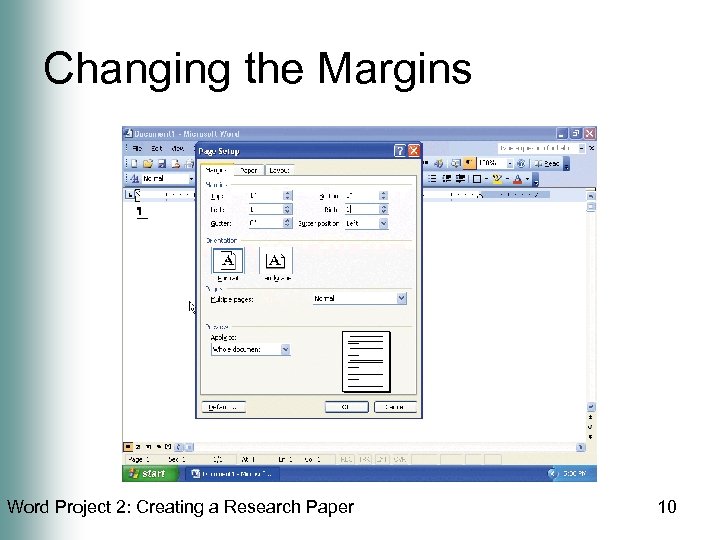 Changing the Margins Word Project 2: Creating a Research Paper 10
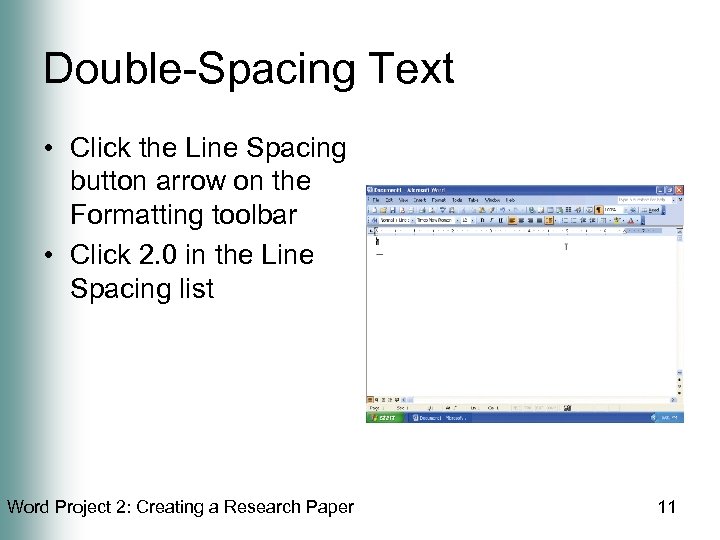 Double-Spacing Text • Click the Line Spacing button arrow on the Formatting toolbar • Click 2. 0 in the Line Spacing list Word Project 2: Creating a Research Paper 11
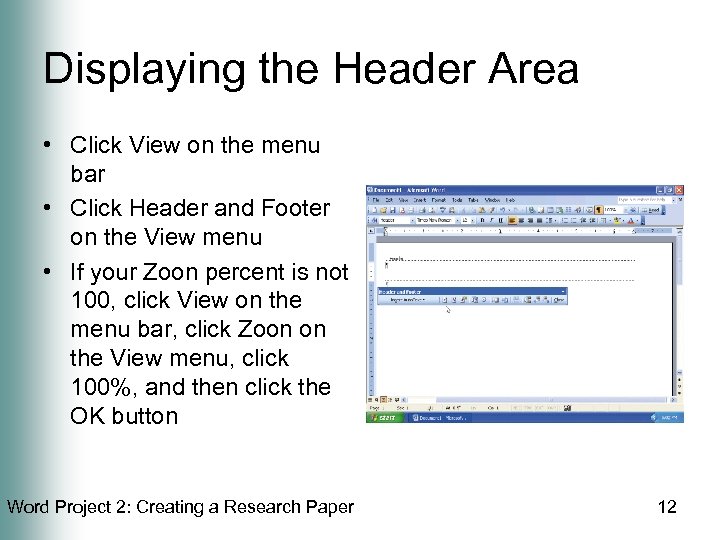 Displaying the Header Area • Click View on the menu bar • Click Header and Footer on the View menu • If your Zoon percent is not 100, click View on the menu bar, click Zoon on the View menu, click 100%, and then click the OK button Word Project 2: Creating a Research Paper 12
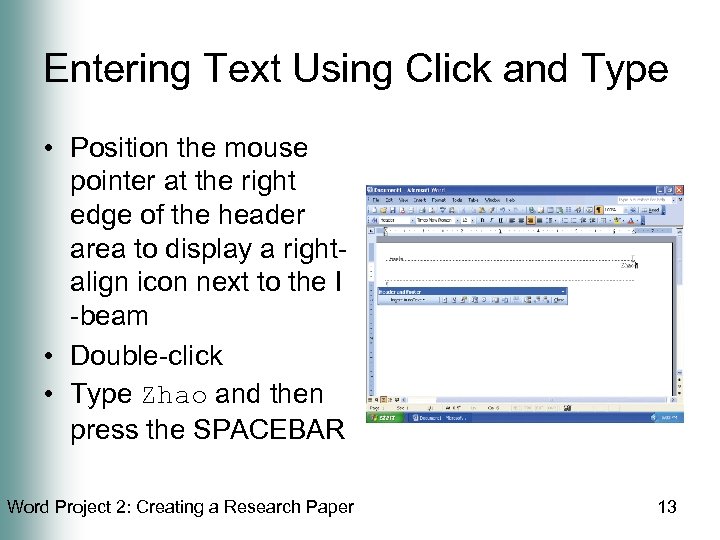 Entering Text Using Click and Type • Position the mouse pointer at the right edge of the header area to display a rightalign icon next to the I -beam • Double-click • Type Zhao and then press the SPACEBAR Word Project 2: Creating a Research Paper 13
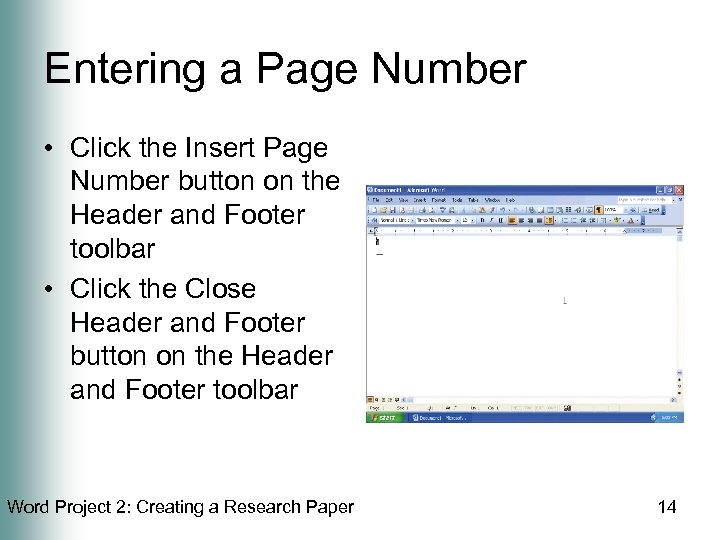 Entering a Page Number • Click the Insert Page Number button on the Header and Footer toolbar • Click the Close Header and Footer button on the Header and Footer toolbar Word Project 2: Creating a Research Paper 14
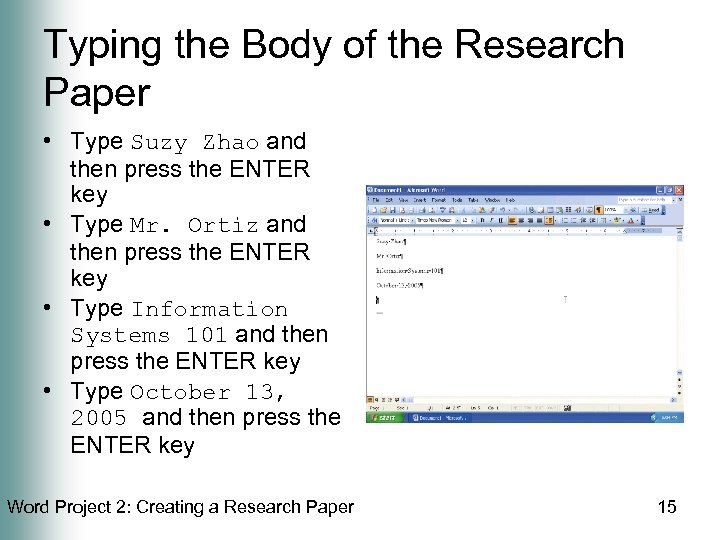 Typing the Body of the Research Paper • Type Suzy Zhao and then press the ENTER key • Type Mr. Ortiz and then press the ENTER key • Type Information Systems 101 and then press the ENTER key • Type October 13, 2005 and then press the ENTER key Word Project 2: Creating a Research Paper 15
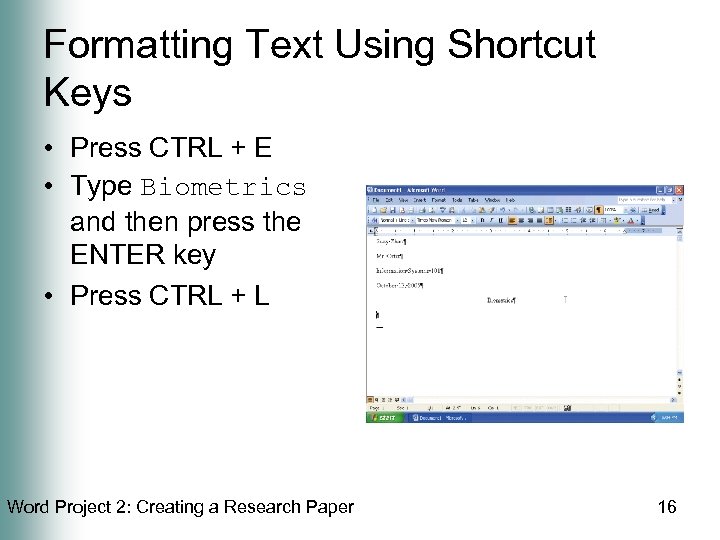 Formatting Text Using Shortcut Keys • Press CTRL + E • Type Biometrics and then press the ENTER key • Press CTRL + L Word Project 2: Creating a Research Paper 16
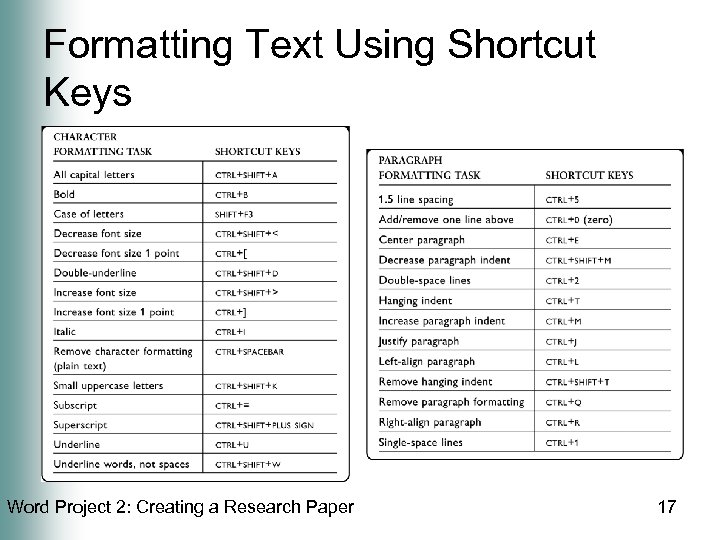 Formatting Text Using Shortcut Keys Word Project 2: Creating a Research Paper 17
 Saving a Document • Insert a USB flash drive into one of the computer’s USB ports • Click the Save button on the Standard toolbar • Type Biometrics Paper in the File name text box • Click the Save in box arrow and then click USB flash drive • Click the Save button in the Save As dialog box Word Project 2: Creating a Research Paper 18
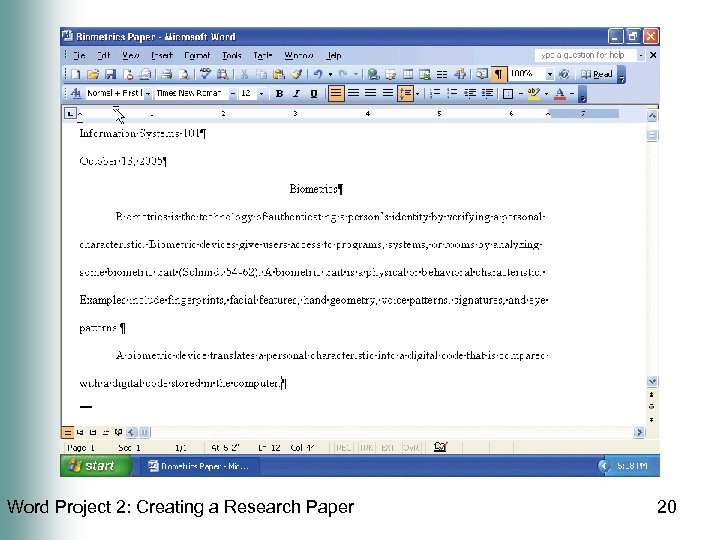
 Indenting Paragraphs • With the insertion point on the paragraph mark in line 6, point to the First Line Indent marker on the ruler • Drag the First Line Indent marker to the. 5” mark on the ruler • Release the mouse button • In your document, type the text as shown on the next slide, and then press the ENTER key Word Project 2: Creating a Research Paper 19
 Word Project 2: Creating a Research Paper 20
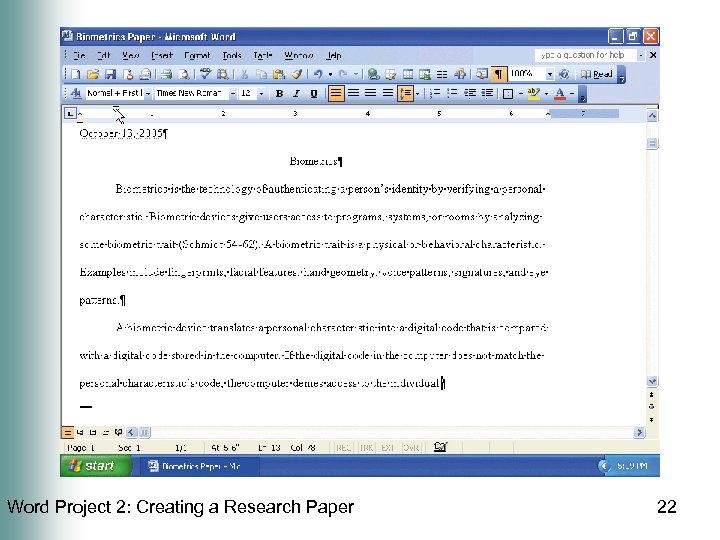
 Auto. Correcting as You Type • Press the SPACEBAR • Type the beginning of the next sentence, misspelling the word, the, as follows: If the digital code in the computer does not match teh • Press the SPACEBAR • Type the rest of the sentence: personal characteristic’s code, the computer denies access to the individual Word Project 2: Creating a Research Paper 21
 Word Project 2: Creating a Research Paper 22
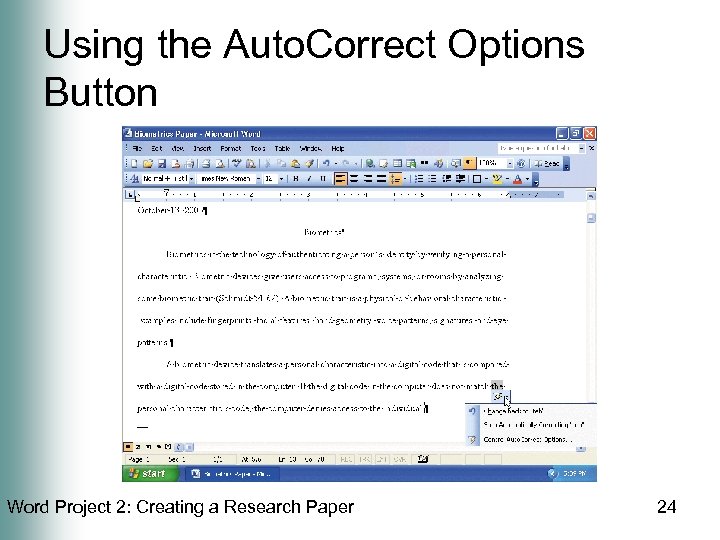
 Using the Auto. Correct Options Button • Position the mouse pointer at the beginning of the text automatically corrected by Word (in this case, the t in the) • Point to the small blue box to display the Auto. Correct Options button • Click the Auto. Correct Options button • Press the ESCAPE key to remove the Auto. Correct Options menu from the screen Word Project 2: Creating a Research Paper 23
 Using the Auto. Correct Options Button Word Project 2: Creating a Research Paper 24
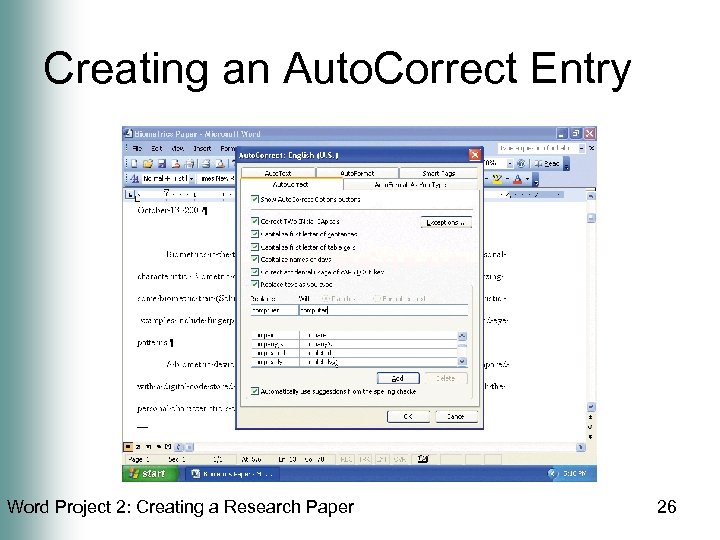
 Creating an Auto. Correct Entry • Click Tools on the menu bar • Click Auto. Correct Options on the Tools menu. • When Word displays the Auto. Correct dialog box, type comptuer in the Replace text box • Press the TAB key and then type computer in the With text box • Click the Add button in the Auto. Correct dialog box. (If your dialog box displays a Replace button instead, click it and then click the Yes button in the Microsoft Office Word dialog box). Click the OK button Word Project 2: Creating a Research Paper 25
 Creating an Auto. Correct Entry Word Project 2: Creating a Research Paper 26
 Entering More Text Word Project 2: Creating a Research Paper 27
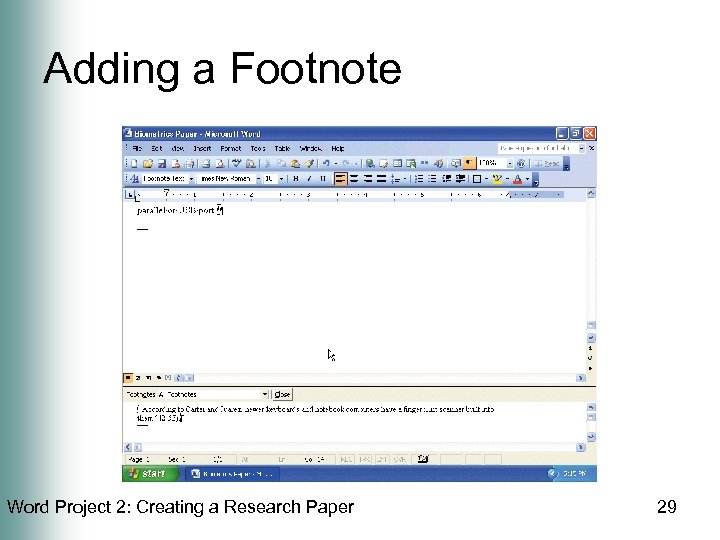
 Adding a Footnote • With the insertion point positioned at the end of the last sentence, click Insert on the menu bar and then point to Reference • Click Footnote on the Reference submenu • Click the Insert button in the Footnote and Endnote dialog box • Type According to Carter and Juarez, newer keyboards and notebook computers have a fingerprint scanner built into them (42 -53). Word Project 2: Creating a Research Paper 28
 Adding a Footnote Word Project 2: Creating a Research Paper 29
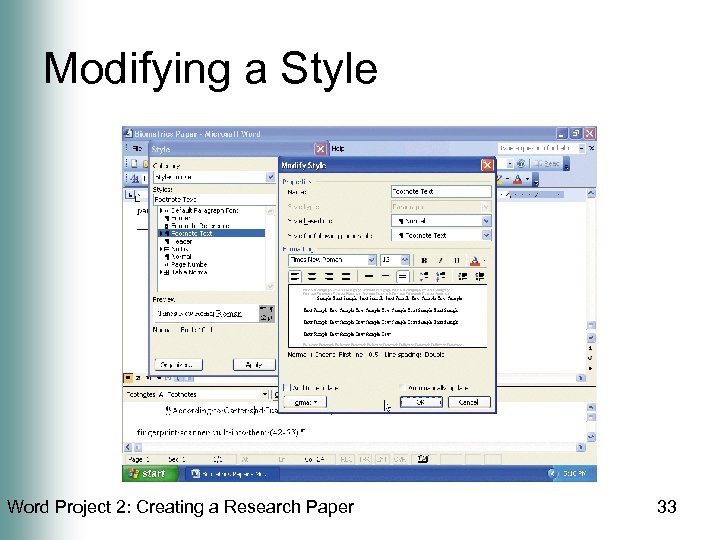
 Modifying a Style • Right-click the note text in the note pane • Click Style on the shortcut menu • When Word displays the Style dialog box, if necessary, click Footnote Text in the Styles list • Click the Modify button in the Style dialog box Word Project 2: Creating a Research Paper 30
 Modifying a Style • When Word displays the Modify Style dialog box, click the Font Size box arrow in the Formatting area and then click 12 in the Font Size list • Click the Double Space button in the Modify Style dialog box • Click the Format button in the Modify Style dialog box • Click Paragraph on the Format button menu Word Project 2: Creating a Research Paper 31
 Modifying a Style • When Word displays the Paragraph dialog box, click the Special box arrow and then click First line • Click the OK button in the Paragraph dialog box • Click the OK button in the Modify Style dialog box • When Word closes the Modify Style dialog box, click the Apply button in the Style dialog box Word Project 2: Creating a Research Paper 32
 Modifying a Style Word Project 2: Creating a Research Paper 33
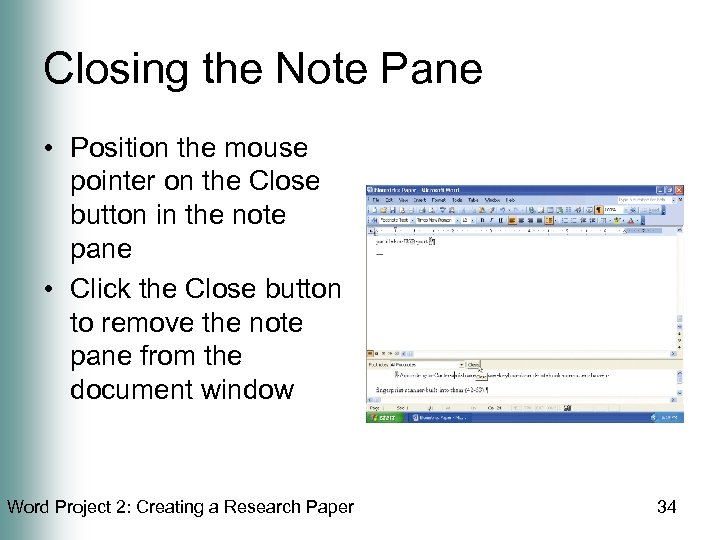 Closing the Note Pane • Position the mouse pointer on the Close button in the note pane • Click the Close button to remove the note pane from the document window Word Project 2: Creating a Research Paper 34
 Counting Words • Click Tools on the menu bar • Click Word Count on the Tools menu • When Word displays the Word Count dialog box, if necessary, click Include footnotes and endnotes to place a check mark in the check box • Click the Show Toolbar button in the Word Count dialog box • Click the Close button in the Word Count dialog box Word Project 2: Creating a Research Paper 35
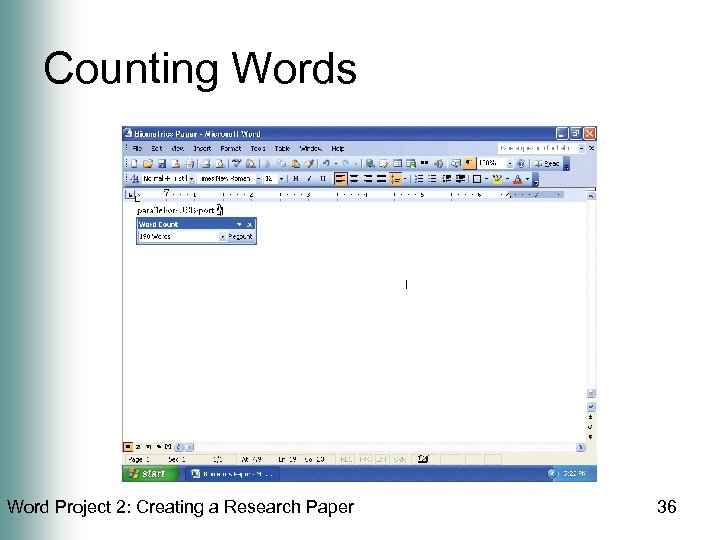 Counting Words Word Project 2: Creating a Research Paper 36
 Automatic Page Breaks • With the insertion point positioned at the end of the word port, press the SPACEBAR and then type the last two sentences of the third paragraph of the paper, as shown on the next slide • Press the ENTER key and then type the fourth paragraph. Italicize the text in the parenthetical citation • Drag the title bar of the Word Count toolbar to the location shown on the next slide Word Project 2: Creating a Research Paper 37
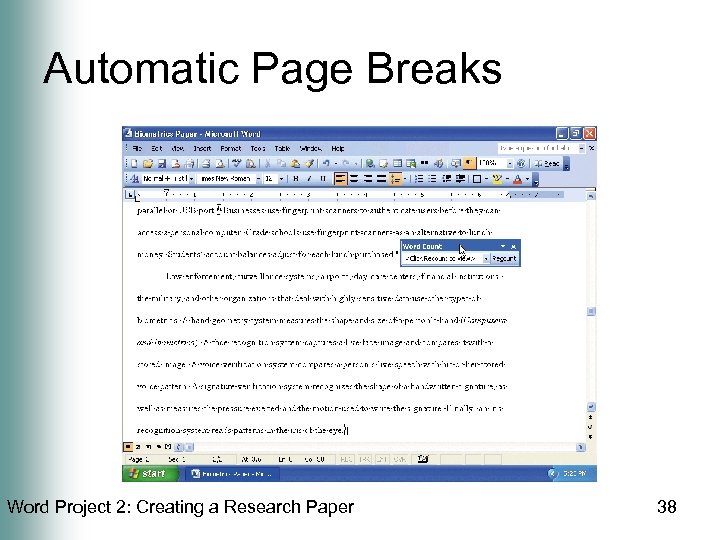 Automatic Page Breaks Word Project 2: Creating a Research Paper 38
 Recounting Words in a Document • Click the Recount button on the Word Count toolbar • Click the Close button on the Word Count toolbar Word Project 2: Creating a Research Paper 39
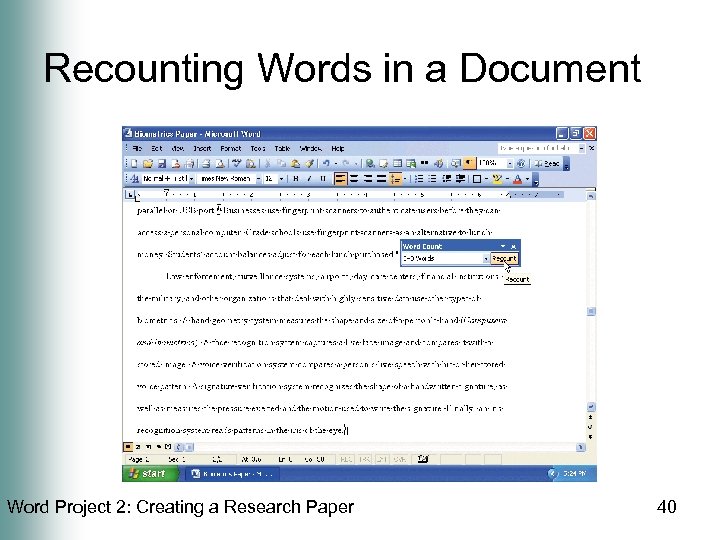 Recounting Words in a Document Word Project 2: Creating a Research Paper 40
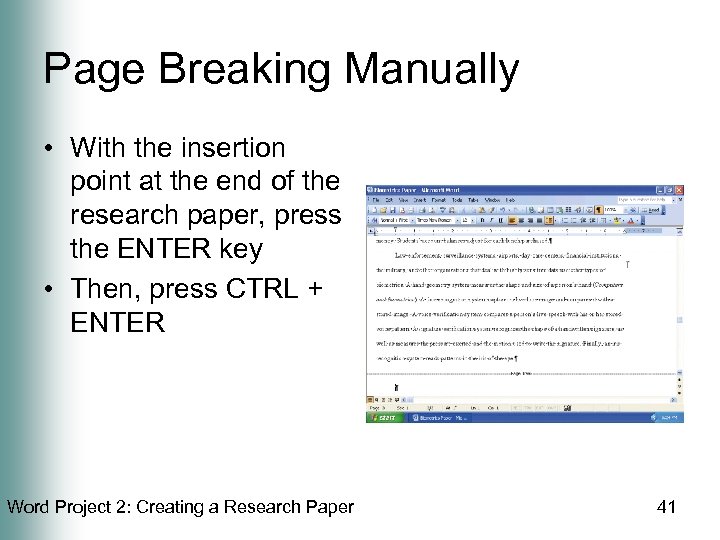 Page Breaking Manually • With the insertion point at the end of the research paper, press the ENTER key • Then, press CTRL + ENTER Word Project 2: Creating a Research Paper 41
 Centering the Title of the Works Cited Page • Drag the First Line Indent marker to the 0” mark on the ruler, which is at the left margin • Click the Center button on the Formatting toolbar • Type Works Cited as the title • Press the ENTER key • Because your fingers are already on the keyboard, press CTRL + L to left-align the paragraph mark Word Project 2: Creating a Research Paper 42
 Centering the Title of the Works Cited Page Word Project 2: Creating a Research Paper 43
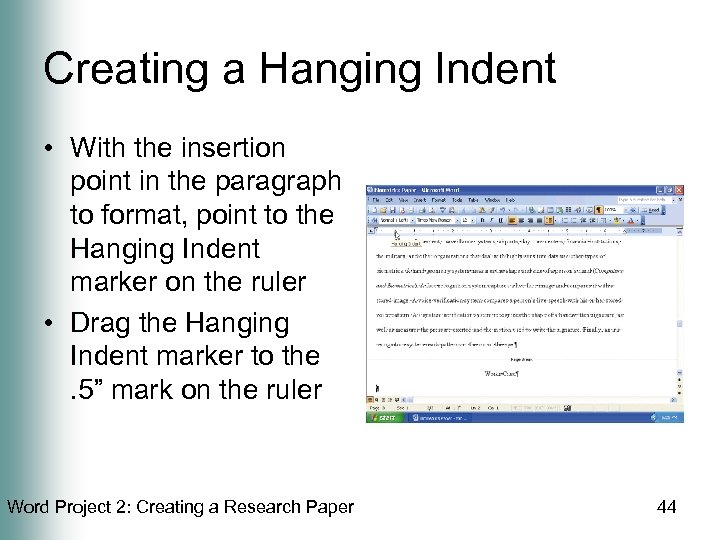 Creating a Hanging Indent • With the insertion point in the paragraph to format, point to the Hanging Indent marker on the ruler • Drag the Hanging Indent marker to the. 5” mark on the ruler Word Project 2: Creating a Research Paper 44
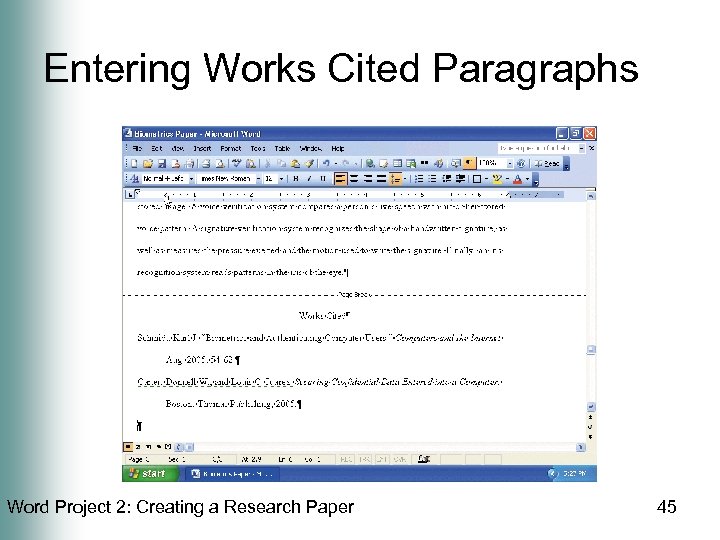 Entering Works Cited Paragraphs Word Project 2: Creating a Research Paper 45
 Inserting Symbols Automatically • With the insertion point positioned as shown on the previous slide, press CTRL + I to turn on the italic format • Type Computers and Biometrics. • Press CTRL + I to turn off the italic format • Press the SPACEBAR • Type Shelly Cashman Series(r Word Project 2: Creating a Research Paper 46
 Inserting Symbols Automatically • • Press the RIGHT PARENTHESIS key Press the PERIOD key Press the SPACEBAR Type Course Technology. 3 Oct. 2005. • Press the SPACEBAR Word Project 2: Creating a Research Paper 47
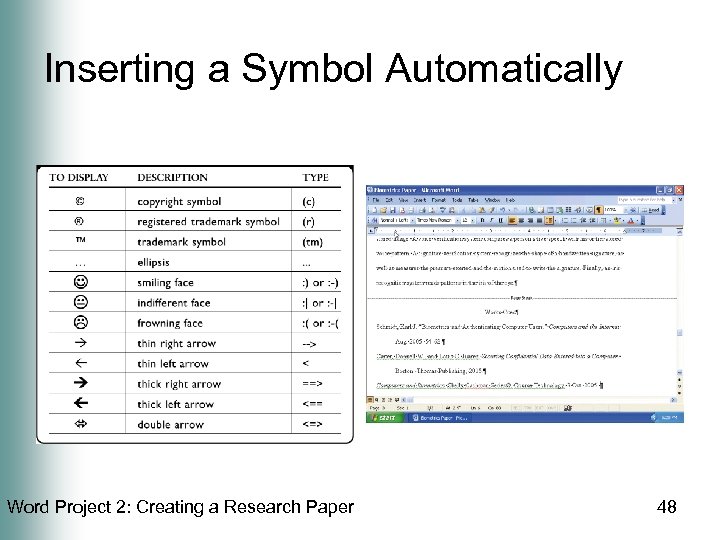 Inserting a Symbol Automatically Word Project 2: Creating a Research Paper 48
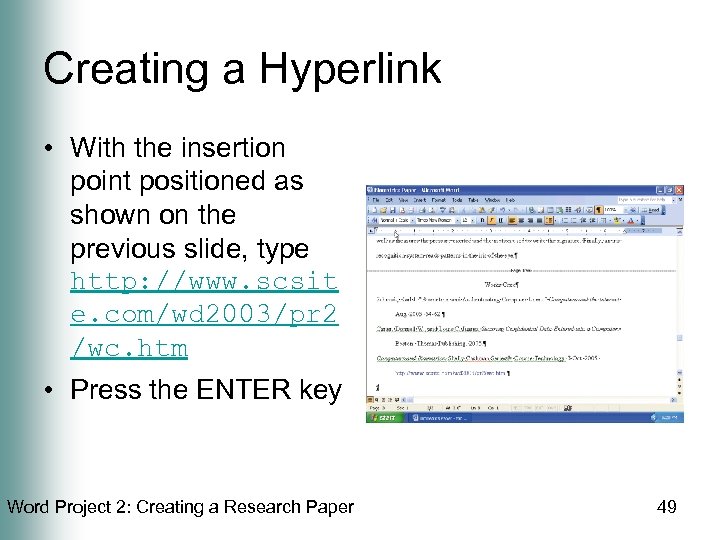 Creating a Hyperlink • With the insertion point positioned as shown on the previous slide, type http: //www. scsit e. com/wd 2003/pr 2 /wc. htm • Press the ENTER key Word Project 2: Creating a Research Paper 49
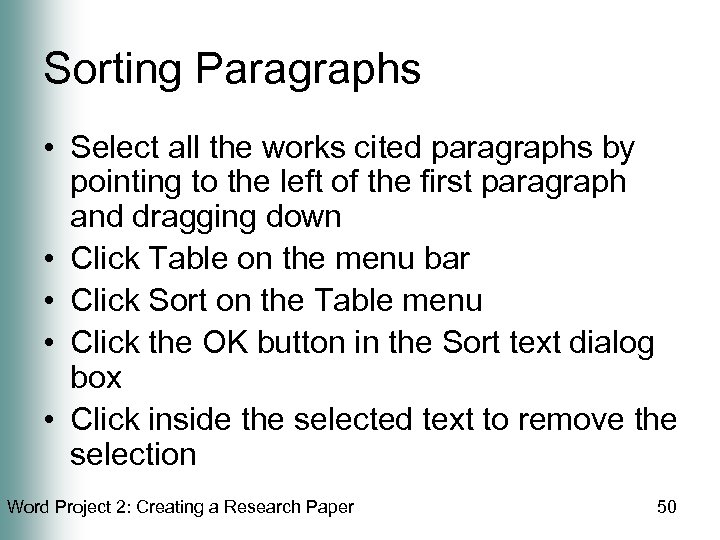 Sorting Paragraphs • Select all the works cited paragraphs by pointing to the left of the first paragraph and dragging down • Click Table on the menu bar • Click Sort on the Table menu • Click the OK button in the Sort text dialog box • Click inside the selected text to remove the selection Word Project 2: Creating a Research Paper 50
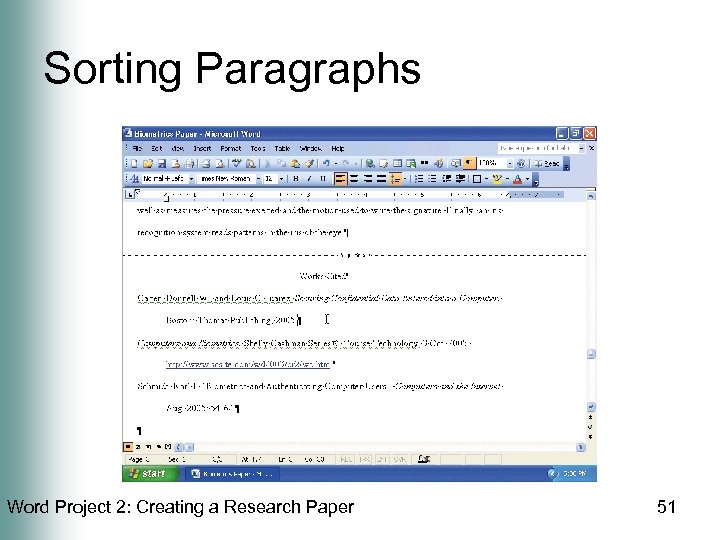 Sorting Paragraphs Word Project 2: Creating a Research Paper 51
 Browsing by Page • Click the Select Browse Object button on the vertical scroll bar • When Word displays the Select Browse Object menu, position the mouse pointer on the Browse by Page icon • Click the Browse by Page icon • Position the mouse pointer on the Previous Page button on the vertical scroll bar • Click the Previous page button Word Project 2: Creating a Research Paper 52
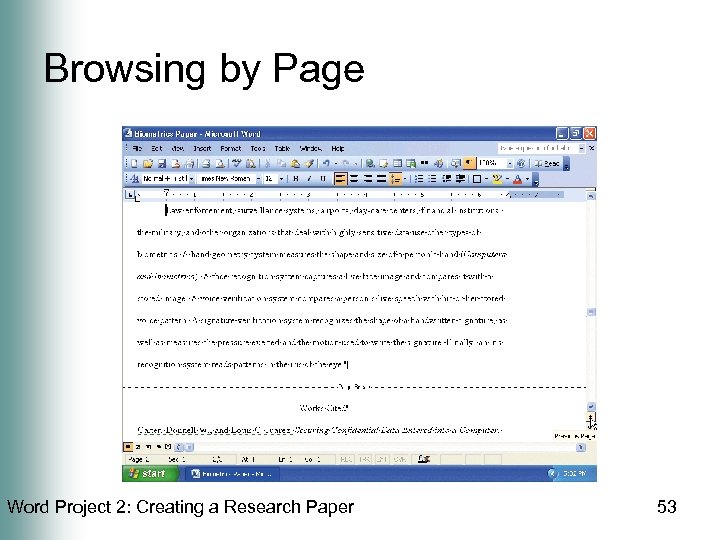 Browsing by Page Word Project 2: Creating a Research Paper 53
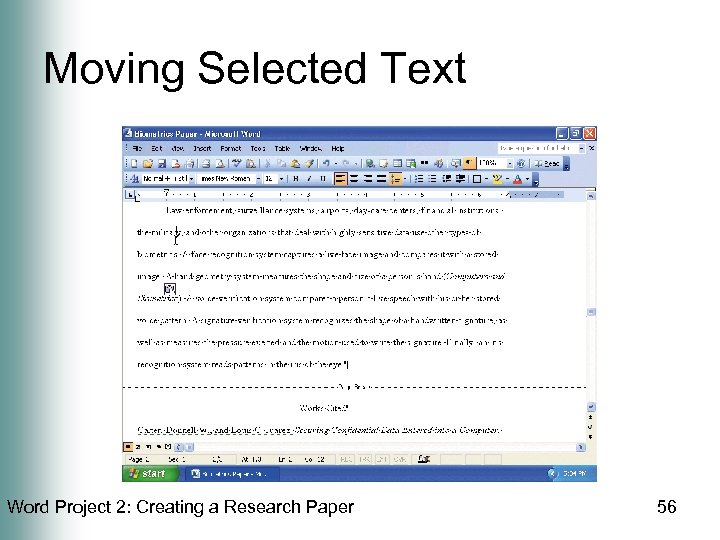
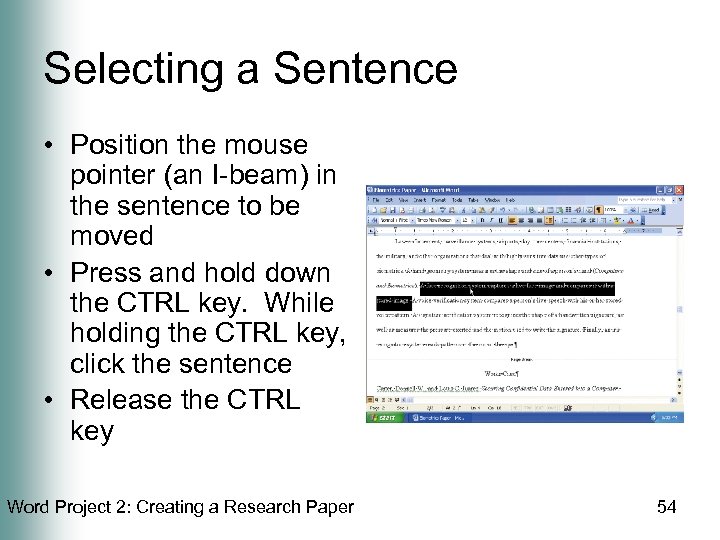 Selecting a Sentence • Position the mouse pointer (an I-beam) in the sentence to be moved • Press and hold down the CTRL key. While holding the CTRL key, click the sentence • Release the CTRL key Word Project 2: Creating a Research Paper 54
 Moving Selected Text • With the mouse pointer in the selected text, press and hold down the mouse button • Drag the dotted insertion point to the location where the selected text is to be moved • Release the mouse button. Click outside the selected text to remove the selection Word Project 2: Creating a Research Paper 55
 Moving Selected Text Word Project 2: Creating a Research Paper 56
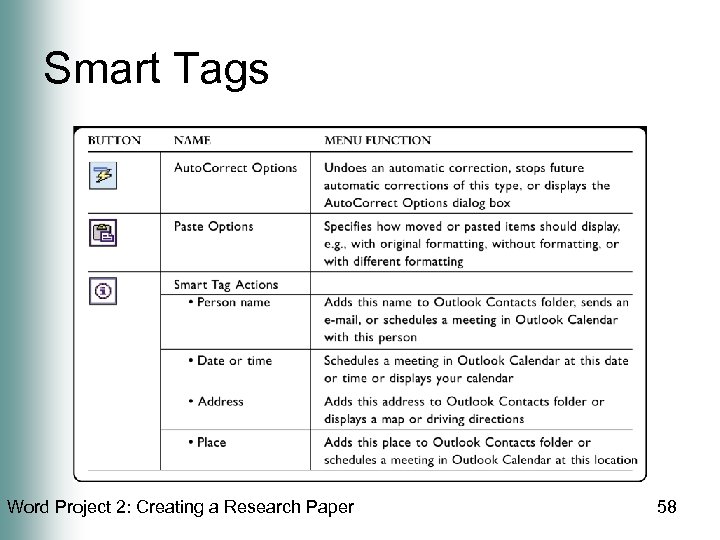
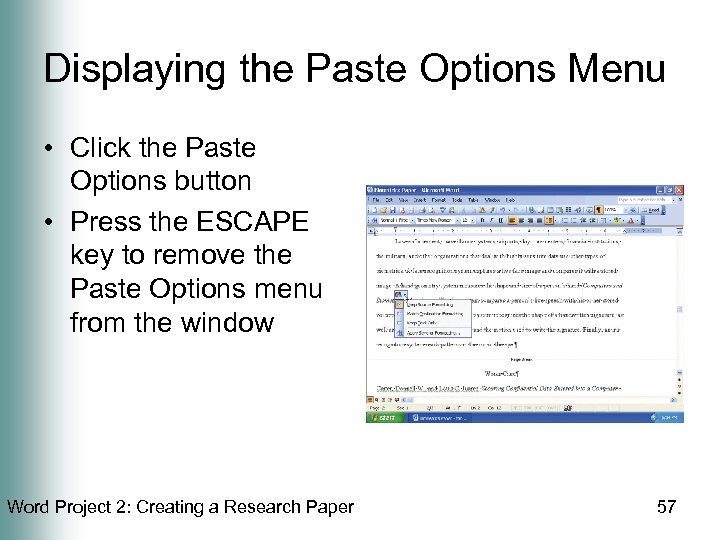 Displaying the Paste Options Menu • Click the Paste Options button • Press the ESCAPE key to remove the Paste Options menu from the window Word Project 2: Creating a Research Paper 57
 Smart Tags Word Project 2: Creating a Research Paper 58
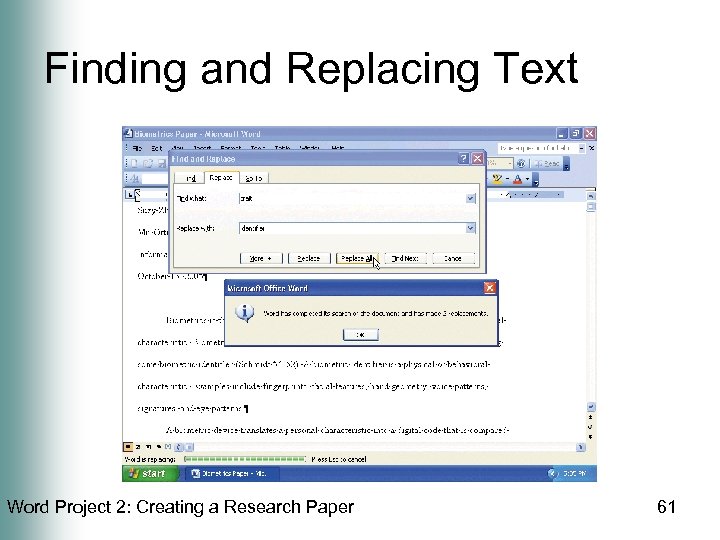
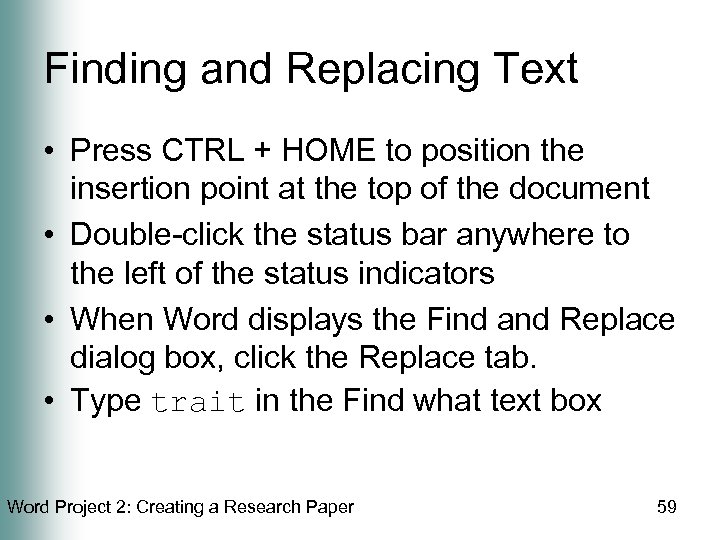 Finding and Replacing Text • Press CTRL + HOME to position the insertion point at the top of the document • Double-click the status bar anywhere to the left of the status indicators • When Word displays the Find and Replace dialog box, click the Replace tab. • Type trait in the Find what text box Word Project 2: Creating a Research Paper 59
 Finding and Replacing Text • Press the TAB key. Type identifier in the Replace with text box • Click the Replace All button in the Find and Replace dialog box • Click the OK button in the Microsoft Office Word dialog box • Click the Close button in the Find and Replace dialog box Word Project 2: Creating a Research Paper 60
 Finding and Replacing Text Word Project 2: Creating a Research Paper 61
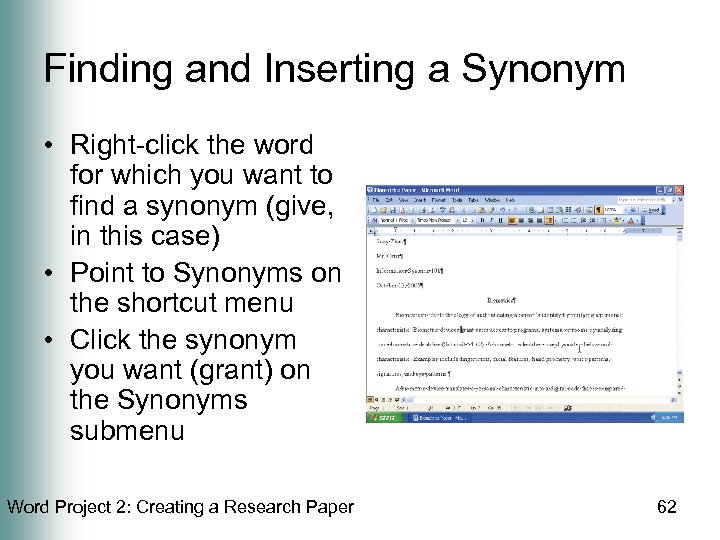 Finding and Inserting a Synonym • Right-click the word for which you want to find a synonym (give, in this case) • Point to Synonyms on the shortcut menu • Click the synonym you want (grant) on the Synonyms submenu Word Project 2: Creating a Research Paper 62
 Checking the Spelling and Grammar at Once • Press CTRL + HOME to move the insertion point to the beginning of the document • Click the Spelling and Grammar button on the Standard toolbar • Click the Change button in the Spelling and Grammar dialog box • Click the Ignore Once button Word Project 2: Creating a Research Paper 63
 Checking the Spelling and Grammar at Once • Click the Ignore Once button for the next grammar error that Word flags on the Works Cited page • Click the Ignore All button • Click the Ignore Once button for each remaining grammar error that Word flags on the Works Cited page • When the spelling and grammar check is done and Word displays a dialog box, click its OK button Word Project 2: Creating a Research Paper 64
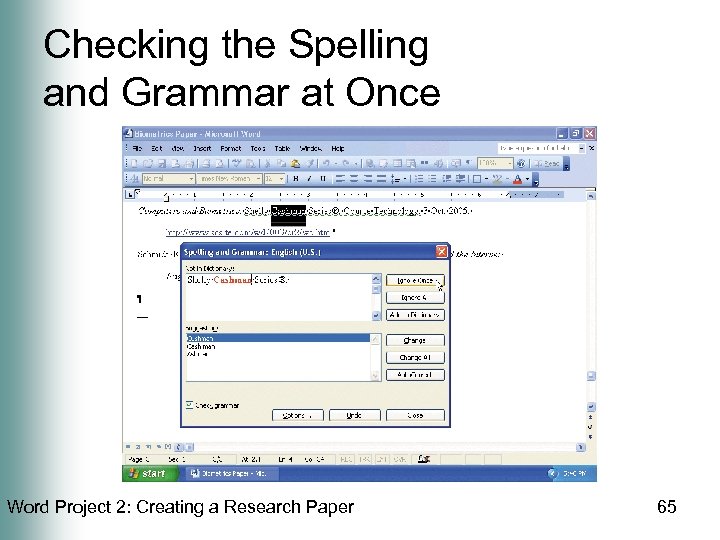 Checking the Spelling and Grammar at Once Word Project 2: Creating a Research Paper 65
 Saving a Document Again and Printing It • Click the Save button on the Standard toolbar • Click the Print button on the Standard toolbar Word Project 2: Creating a Research Paper 66
 Navigating to a Hyperlink • Display the third page of the research paper in the document window and then position the mouse pointer in the hyperlink • While holding down the CTRL key, click the hyperlink. Release the CTRL key • Close the browser window • If necessary, click the Microsoft Word program button on the taskbar to redisplay the Word window • Press CTRL + HOME Word Project 2: Creating a Research Paper 67
 E-mailing a Copy of the Research Paper • Click the E-mail button on the Standard toolbar • Fill in the To text box with Mr. Ortiz’s email address and the Introduction text box as shown on the next slide • Click the Send a Copy button Word Project 2: Creating a Research Paper 68
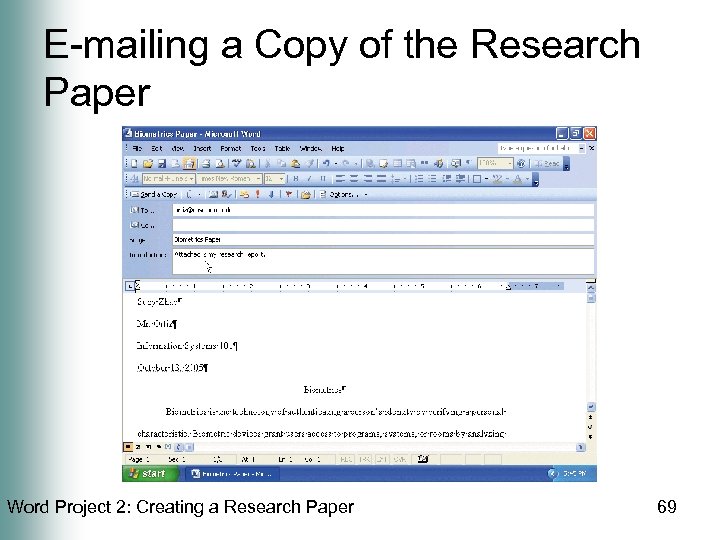 E-mailing a Copy of the Research Paper Word Project 2: Creating a Research Paper 69
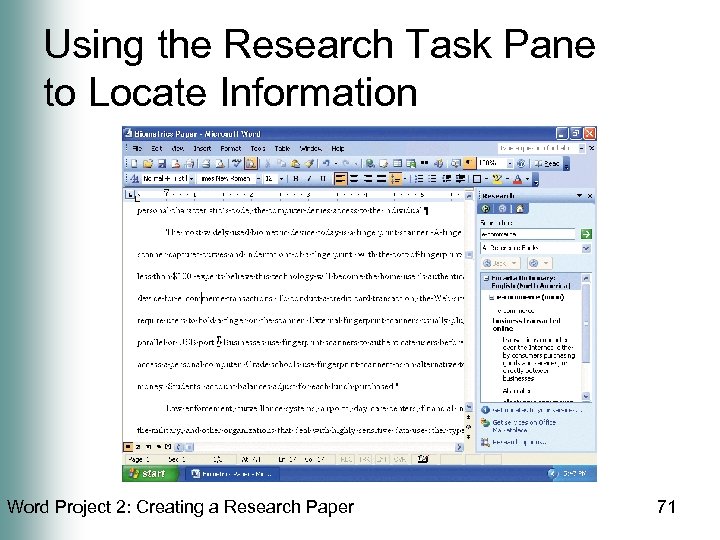
 Using the Research Task Pane to Locate Information • While holding down the ALT key, click the word for which you want a definition (in this case, e-commerce). Release the ALT key • If the Research task pane does not display the definition of the ALT+CLICKED word, click the Search for box arrow and then click All Reference Books Word Project 2: Creating a Research Paper 70
 Using the Research Task Pane to Locate Information Word Project 2: Creating a Research Paper 71
 Inserting Text from the Research Task Pane in a Word Document • In the Research task pane, double-click the word, Internet • Right-click the selected word • Click Copy on the shortcut menu to copy the selected text to the Clipboard • Drag through the word, e-commerce, in the research paper Word Project 2: Creating a Research Paper 72
 Inserting Text from the Research Task Pane in a Word Document • Right-click the selected text in the document • Click Paste on the shortcut menu • If necessary, press the SPACEBAR to insert a space after the inserted word • Click the Close button in the Research task pane Word Project 2: Creating a Research Paper 73
 Inserting Text from the Research Task Pane in a Word Document Word Project 2: Creating a Research Paper 74
 Quitting Word • Click the Close button in the Word window • If Word displays a dialog box, click the No button Word Project 2: Creating a Research Paper 75
 Summary • Describe the MLA documentation style for research papers • Change the margin settings and line spacing in a document • Use a header to number pages of a document • Apply formatting using shortcut keys • Modify paragraph indentation Word Project 2: Creating a Research Paper 76
 Summary • • • Add a footnote to a document Count the words in a document Insert a manual page break Create a hyperlink Sort selected paragraphs Word Project 2: Creating a Research Paper 77
 Summary • Proof and revise a document • Display the Web page associated with a hyperlink • E-mail a copy of a document • Use the Research task pane to locate information Word Project 2: Creating a Research Paper 78
 Microsoft Office 2003 Introductory Concepts and Techniques Word Project 2 Complete