


 Скачать презентацию Microsoft Desktop Deployment Assistance Program 3 Deploying Windows
257d79b2e792b7296498770c43e5c6a6.ppt
- Количество слайдов: 54
 Microsoft® Desktop Deployment Assistance Program 3. Deploying Windows XP Thomas Lee Chief Technologist QA plc thomas. lee@qa. com Deployment Assistance Program
 Agenda Windows XP SP 2 Setup Improvements Two types of Automated Deployment Scripted Install Image Automation of the Installation process Win PE XP SP 2
 Setup Agenda Unattended setup Win. PE new Imaging RIS Setup Tools
 Why not use OEM Build? Breaks the license Sys. Prep is different Lots of “OEM Stuff” Product Keys
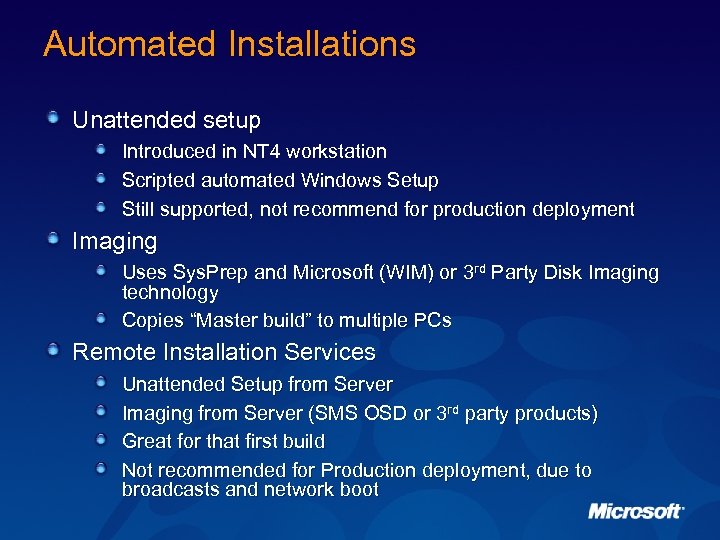 Automated Installations Unattended setup Introduced in NT 4 workstation Scripted automated Windows Setup Still supported, not recommend for production deployment Imaging Uses Sys. Prep and Microsoft (WIM) or 3 rd Party Disk Imaging technology Copies “Master build” to multiple PCs Remote Installation Services Unattended Setup from Server Imaging from Server (SMS OSD or 3 rd party products) Great for that first build Not recommended for Production deployment, due to broadcasts and network boot
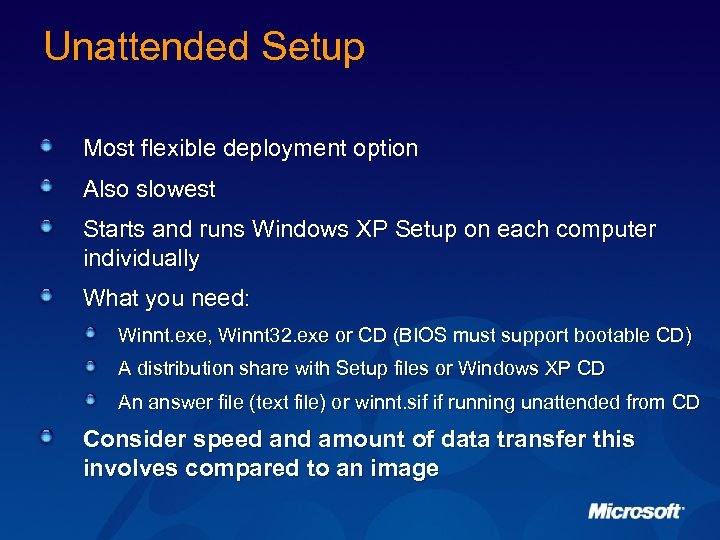 Unattended Setup Most flexible deployment option Also slowest Starts and runs Windows XP Setup on each computer individually What you need: Winnt. exe, Winnt 32. exe or CD (BIOS must support bootable CD) A distribution share with Setup files or Windows XP CD An answer file (text file) or winnt. sif if running unattended from CD Consider speed and amount of data transfer this involves compared to an image
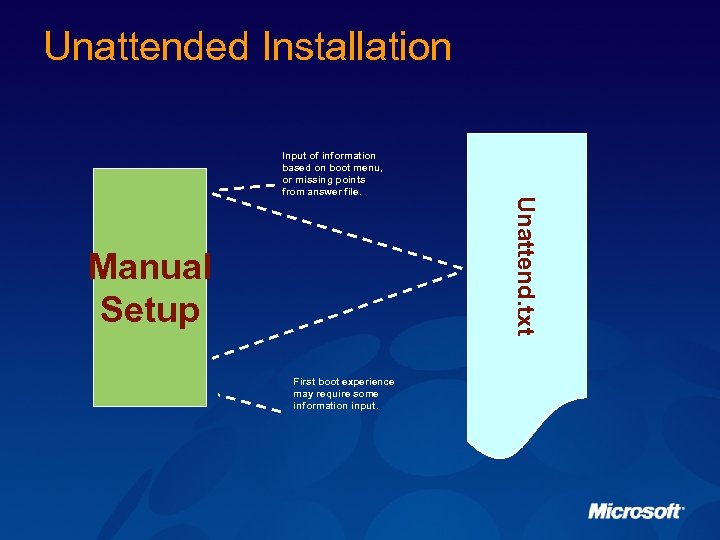 Unattended Installation Manual Setup First boot experience may require some information input. Unattend. txt Input of information based on boot menu, or missing points from answer file.
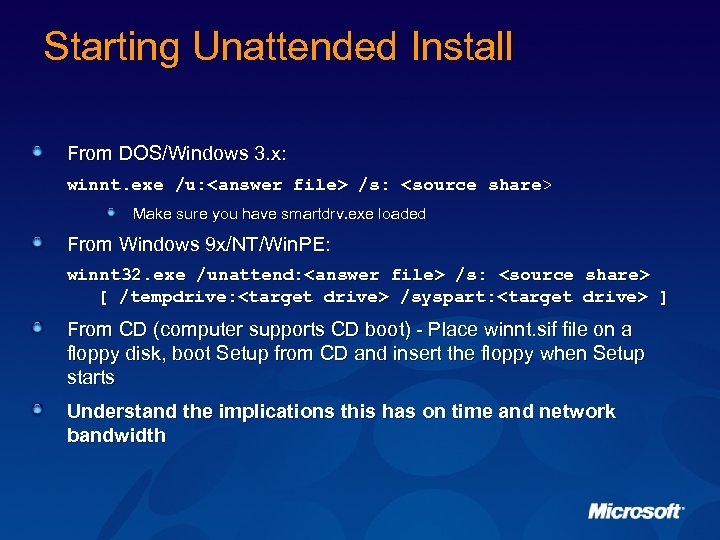 Starting Unattended Install From DOS/Windows 3. x: winnt. exe /u:
 Win PE Overview Features Limitations Scenarios Features for Windows PE Discussion
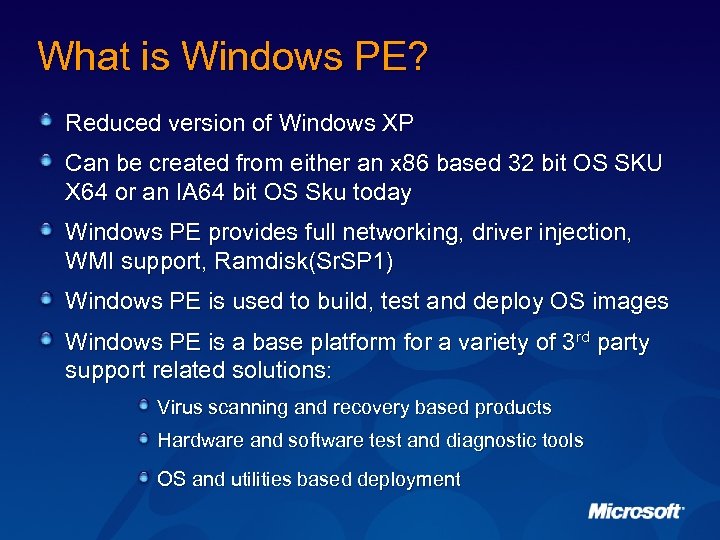 What is Windows PE? Reduced version of Windows XP Can be created from either an x 86 based 32 bit OS SKU X 64 or an IA 64 bit OS Sku today Windows PE provides full networking, driver injection, WMI support, Ramdisk(Sr. SP 1) Windows PE is used to build, test and deploy OS images Windows PE is a base platform for a variety of 3 rd party support related solutions: Virus scanning and recovery based products Hardware and software test and diagnostic tools OS and utilities based deployment
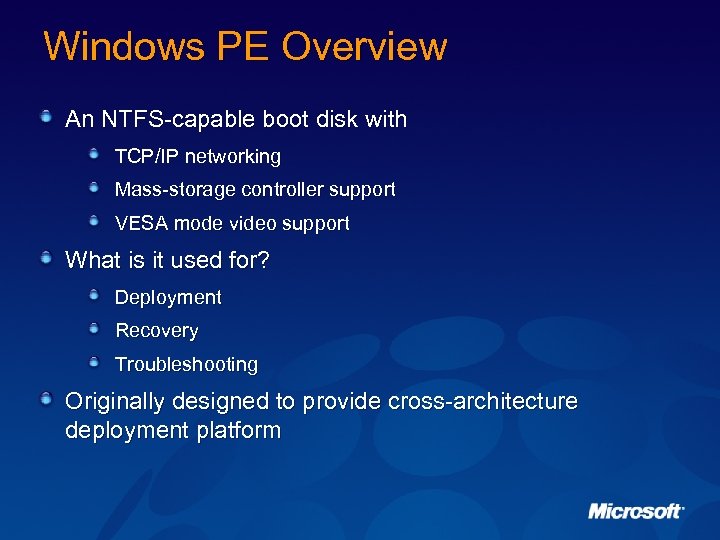 Windows PE Overview An NTFS-capable boot disk with TCP/IP networking Mass-storage controller support VESA mode video support What is it used for? Deployment Recovery Troubleshooting Originally designed to provide cross-architecture deployment platform
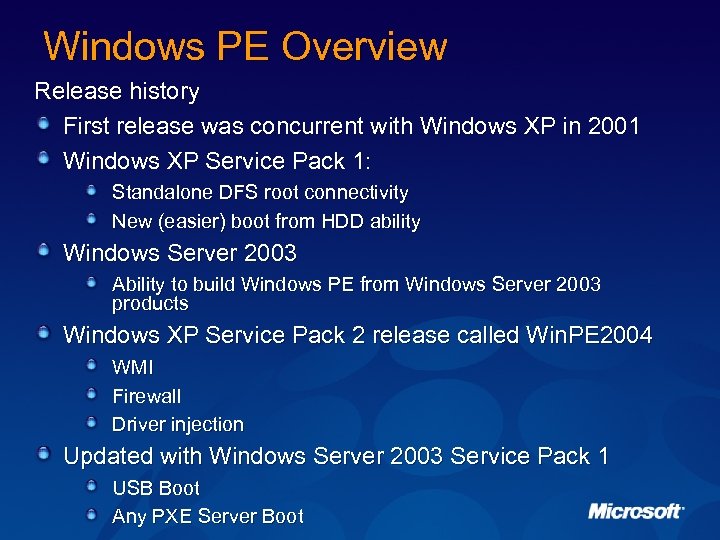 Windows PE Overview Release history First release was concurrent with Windows XP in 2001 Windows XP Service Pack 1: Standalone DFS root connectivity New (easier) boot from HDD ability Windows Server 2003 Ability to build Windows PE from Windows Server 2003 products Windows XP Service Pack 2 release called Win. PE 2004 WMI Firewall Driver injection Updated with Windows Server 2003 Service Pack 1 USB Boot Any PXE Server Boot
 Features Works with all systems that Windows XP and Windows Server 2003 support Can be built from Windows XP or Windows Server 2003 Device support: Networking* Mass-storage* VESA video support (single driver) *Includes all built in drivers for this class from the version of Windows it was built from. New drivers of this class can be easily added.
 Features VESA support specified by display controller hardware determines resultant color depth and resolution Can connect to standalone DFS roots and other SMB shares Ability to build-out storage, partition, do native FAT or NTFS disk formatting, 32 -bit disk imaging, I/O
 Features Boot support CD DVD (ISO only) Hard disk PXE (RIS only for Win. PE 2004) Supported for deploying Windows 2000 Windows XP Windows Server 2003
 Non-Features Windows Explorer shell Audio support Direct. X Visual Studio. NET applications ADSI connectivity
 Uses For Win. PE Deployment (broadest use today) Maintenance/repair/recovery Other utilities ISVs use; Anti-virus Diagnostics File-system repair tools
 Non-Uses For Win. PE Embedded operating system Reboots every 24 hours Use Windows XP Embedded General use operating system No Explorer Shell No IE Limited Application Support
 Building Win. PE mkimg. cmd Creates directory structure for CD If required manually tailor the platform Drivers, utilities Optionally customize the default scripts startnet. cmd Optionally create custom shell C/C++ Windows Script Host* HTA (HTML Applications)* *Support can be added using buildoptionalcomponents. vbs
 Building Win. PE continued OSCDimg. exe Creates ISO CD image of your directory El-torito bootable Same tool to create supported custom CD
 Demo • Using Setup Manager to build answer files • Win. PE and Diskpart. exe
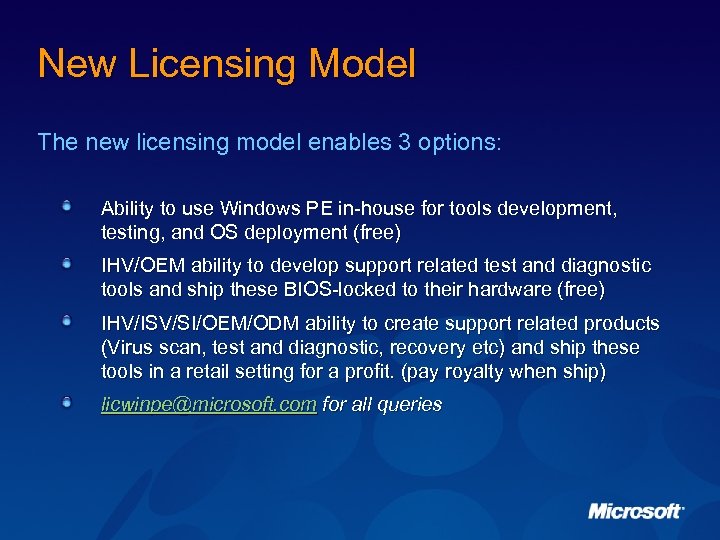 New Licensing Model The new licensing model enables 3 options: Ability to use Windows PE in-house for tools development, testing, and OS deployment (free) IHV/OEM ability to develop support related test and diagnostic tools and ship these BIOS-locked to their hardware (free) IHV/ISV/SI/OEM/ODM ability to create support related products (Virus scan, test and diagnostic, recovery etc) and ship these tools in a retail setting for a profit. (pay royalty when ship) licwinpe@microsoft. com for all queries
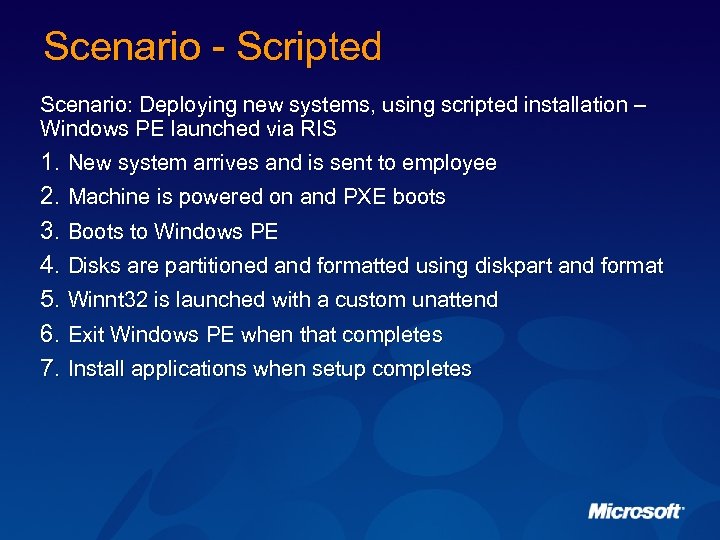 Scenario - Scripted Scenario: Deploying new systems, using scripted installation – Windows PE launched via RIS 1. New system arrives and is sent to employee 2. Machine is powered on and PXE boots 3. Boots to Windows PE 4. Disks are partitioned and formatted using diskpart and format 5. Winnt 32 is launched with a custom unattend 6. Exit Windows PE when that completes 7. Install applications when setup completes
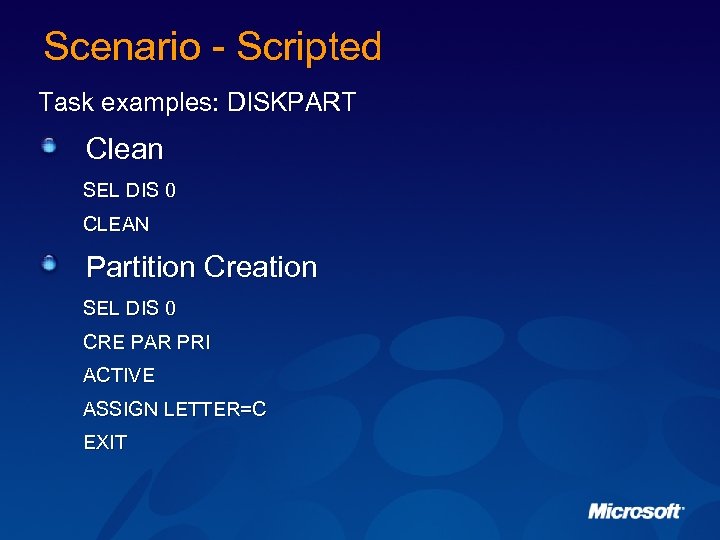 Scenario - Scripted Task examples: DISKPART Clean SEL DIS 0 CLEAN Partition Creation SEL DIS 0 CRE PAR PRI ACTIVE ASSIGN LETTER=C EXIT
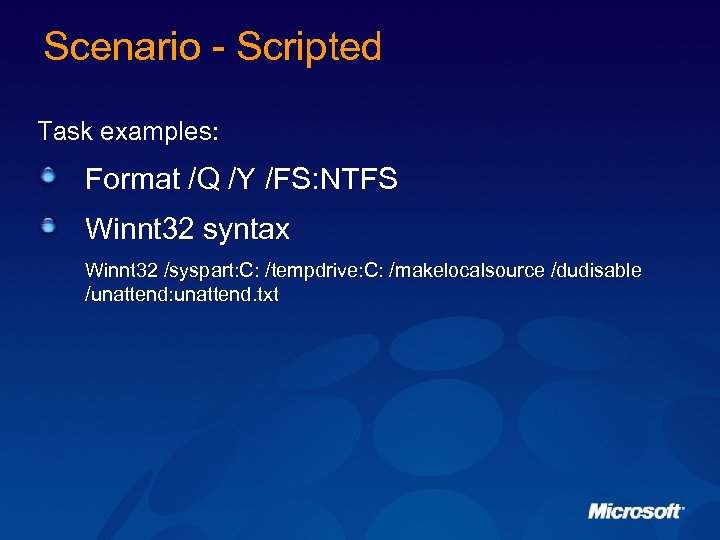 Scenario - Scripted Task examples: Format /Q /Y /FS: NTFS Winnt 32 syntax Winnt 32 /syspart: C: /tempdrive: C: /makelocalsource /dudisable /unattend: unattend. txt
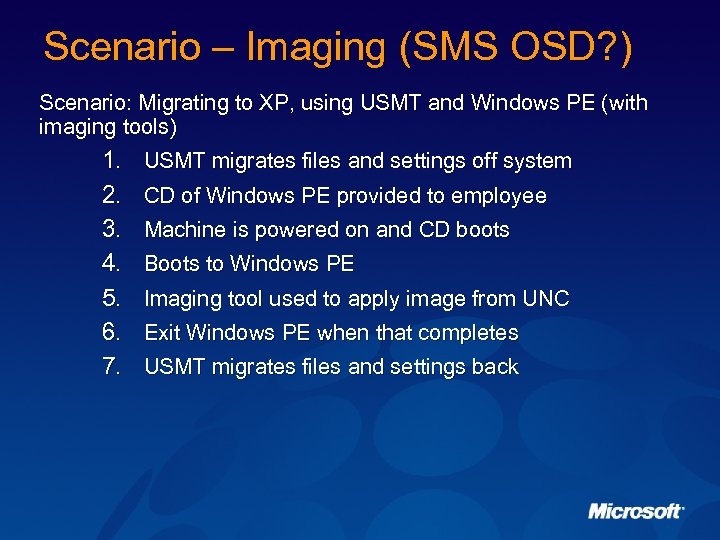 Scenario – Imaging (SMS OSD? ) Scenario: Migrating to XP, using USMT and Windows PE (with imaging tools) 1. 2. 3. 4. 5. 6. 7. USMT migrates files and settings off system CD of Windows PE provided to employee Machine is powered on and CD boots Boots to Windows PE Imaging tool used to apply image from UNC Exit Windows PE when that completes USMT migrates files and settings back
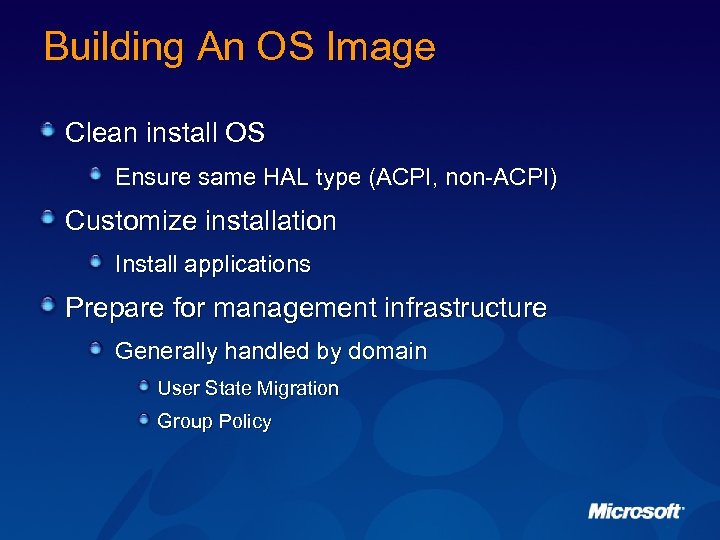 Building An OS Image Clean install OS Ensure same HAL type (ACPI, non-ACPI) Customize installation Install applications Prepare for management infrastructure Generally handled by domain User State Migration Group Policy
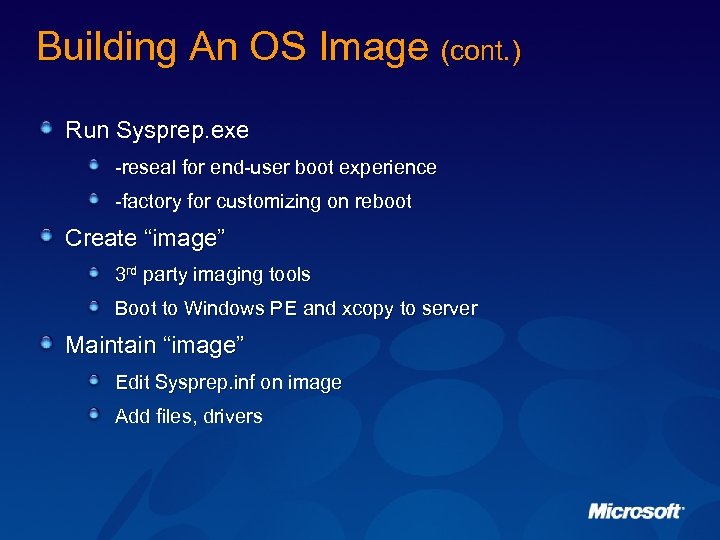 Building An OS Image (cont. ) Run Sysprep. exe -reseal for end-user boot experience -factory for customizing on reboot Create “image” 3 rd party imaging tools Boot to Windows PE and xcopy to server Maintain “image” Edit Sysprep. inf on image Add files, drivers
 Problems with Previous Win. PE 1. No support for WMI 2. No support for retrieving SMBIOS info 3. Can only PXE boot from RIS 4. CD swapping is complicated (/INRAM) 5. If Windows PE boots from hard-disk that disk cannot be repartitioned/reformatted
 Windows PE 2004 New Features Targeted Windows PE specific changes include: Ability to inject 32/64 bit device drivers easily into Windows PE (Windows XP and Windows Server 2003 drivers) WMI support for hardware based diagnostic tool access Built in firewall support enabled by default Build scripts documented to reduce the size of Windows PE Boot Windows PE in a RAMDisk via PXE, from Hard disk or CD Full support for all architectures Windows supports
 Add Device Drivers Change build scripts to support additional hardware device classes and drivers in base Windows PE image Provide ability to additional 32 drivers outside of “in-box” drivers to existing build of Windows PE using drvinst. cmd Add drivers after Windows PE image is built for test and diagnostic of the latest hardware/drivers avoiding full rebuilds
![DRVINST. CMD Source Options [/inf] – path to specific driver [/oscd] – path to](https://present5.com/presentation/257d79b2e792b7296498770c43e5c6a6/image-32.jpg "DRVINST. CMD Source Options [/inf] – path to specific driver [/oscd] – path to") DRVINST. CMD Source Options [/inf] – path to specific driver [/oscd] – path to OS CD Filter Options [/onlyid] – only install with matching PNP IDs [/ignoreid] - do not install these PNP IDs [/onlyclass] – only install this class of driver [/ignoreclass] – ignore these classes of driver Action Options [/inject] – specifies path to Win. PE image (c: winpe) [/preview] – list drivers that would be installed
DRVINST. CMD Source Options [/inf] – path to specific driver [/oscd] – path to OS CD Filter Options [/onlyid] – only install with matching PNP IDs [/ignoreid] - do not install these PNP IDs [/onlyclass] – only install this class of driver [/ignoreclass] – ignore these classes of driver Action Options [/inject] – specifies path to Win. PE image (c: winpe) [/preview] – list drivers that would be installed
 WMI Support Add WMI base support to provide access to underlying hardware within Windows PE Support for over 40+ providers and 1500+ classes. Leverage the ability to load a native driver for hardware validation and query
 RAMDisk Boot Ability to boot, load and run Windows PE within a RAMDisk on a PC via network (any PXE server), hard disk, or CD Provides ability to run tests and diagnostics remotely from the server or on local media Allows for CD swapping for deployment/recovery media
 Windows PE New Features - Summary Windows XP Service Pack 2 WMI Support w/ 47 providers and 1500 classes Enables IP addresses to be changed on the fly after the Win. PE CD has booted. Driver Injection and Pn. P support Windows Firewall support Set IP for multiple NICs, rather than just first NIC enumerated
 Windows PE New Features - Future Windows Server 2003 Service Pack 1 All features listed for XPSP 2 plus Major Overhaul release; lots of bug fixes Documentation getting a major clean up RAMDisk boot support for HD, CD and any vendors PXE* Full support for all architectures Windows Server 2003 Service Pack 1 will support MKIMG -- No longer need to maintain separate build directories with ia 64/amd 64/x 86 tools. Correct tools pulled from platform-specific build directories, allowing same modified build scripts across architectures to be used. ADO -- support named-pipe as well as TCPIP transport *Requires minimum of 256 MB
 Installing Windows XP from Source Windows XP Copy i 386 folder from XP CD ROM Windows XP SP 2 Run XPSP 2. EXE /S: d: winxp (see supporttoolsspdeploy. htm) (see supporttoolsdeploy. cab for GREAT info) Let SUS/WU add the rest
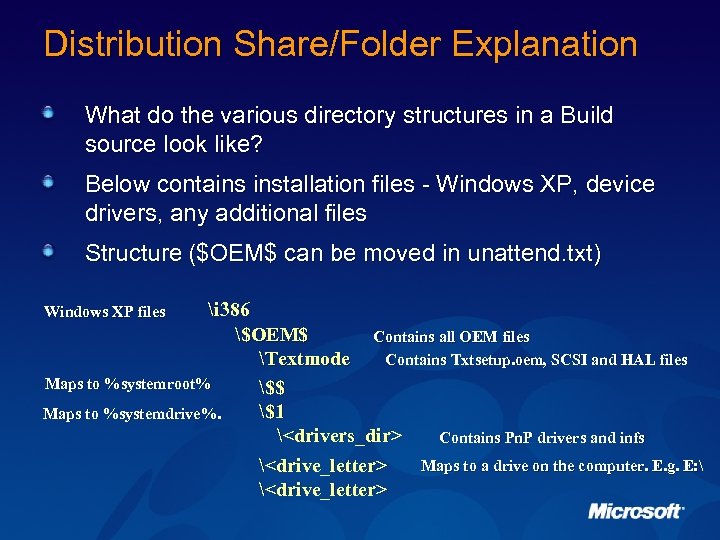 Distribution Share/Folder Explanation What do the various directory structures in a Build source look like? Below contains installation files - Windows XP, device drivers, any additional files Structure ($OEM$ can be moved in unattend. txt) i 386 $OEM$ Contains all OEM files Contains Txtsetup. oem, SCSI and HAL files Textmode Maps to %systemroot% $$ $1 Maps to %systemdrive%.
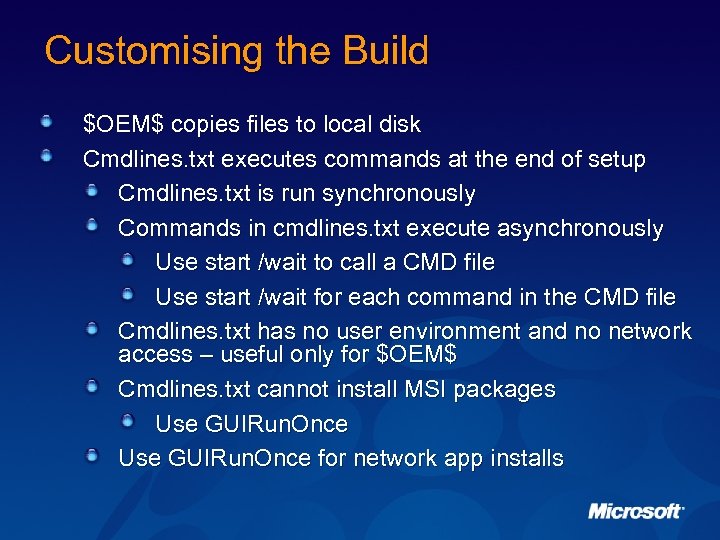 Customising the Build $OEM$ copies files to local disk Cmdlines. txt executes commands at the end of setup Cmdlines. txt is run synchronously Commands in cmdlines. txt execute asynchronously Use start /wait to call a CMD file Use start /wait for each command in the CMD file Cmdlines. txt has no user environment and no network access – useful only for $OEM$ Cmdlines. txt cannot install MSI packages Use GUIRun. Once for network app installs
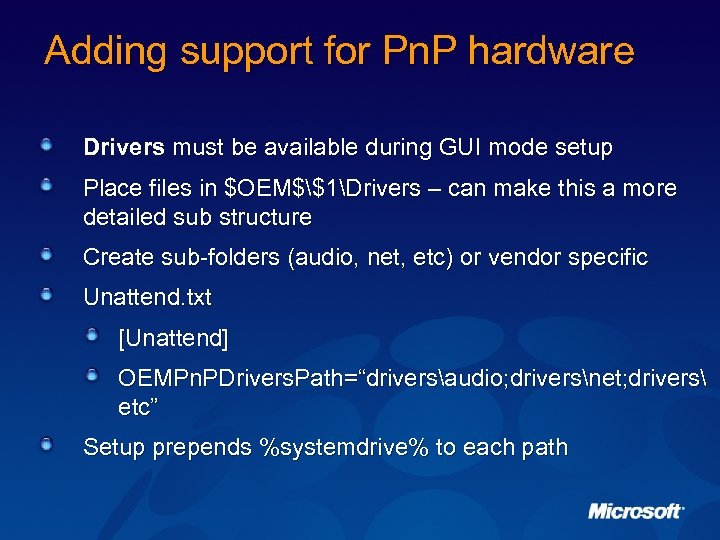 Adding support for Pn. P hardware Drivers must be available during GUI mode setup Place files in $OEM$$1Drivers – can make this a more detailed sub structure Create sub-folders (audio, net, etc) or vendor specific Unattend. txt [Unattend] OEMPn. PDrivers. Path=“driversaudio; driversnet; drivers etc” Setup prepends %systemdrive% to each path
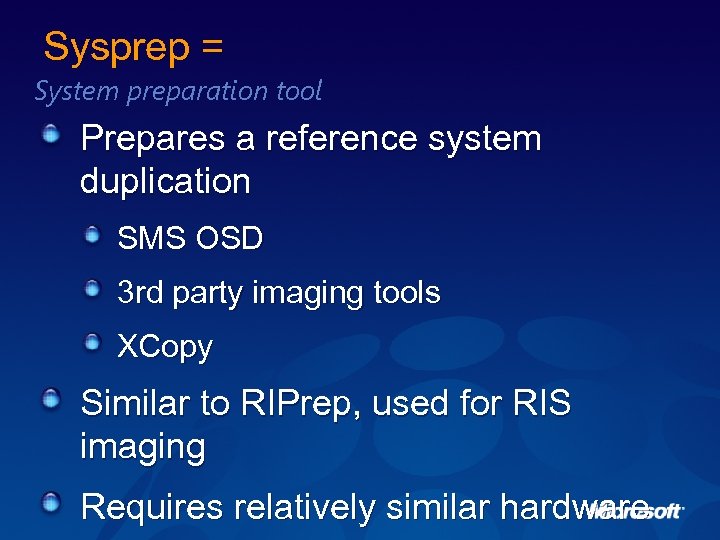 Sysprep = System preparation tool Prepares a reference system duplication SMS OSD 3 rd party imaging tools XCopy Similar to RIPrep, used for RIS imaging Requires relatively similar hardware
 Sysprep 2. 0 Enhancements Support for longer OEMPn. PPath strings Increased to 4096 characters Administrator profile copied to Default User Simplifies Default User configuration Factory switch Allows for updated or out of box drivers to be picked up by image at install time when Pn. P occurs Winbom. ini Allows gathering of files (e. g. , drivers, apps) from network or custom scripting/application installs -Pn. P switch not recommended
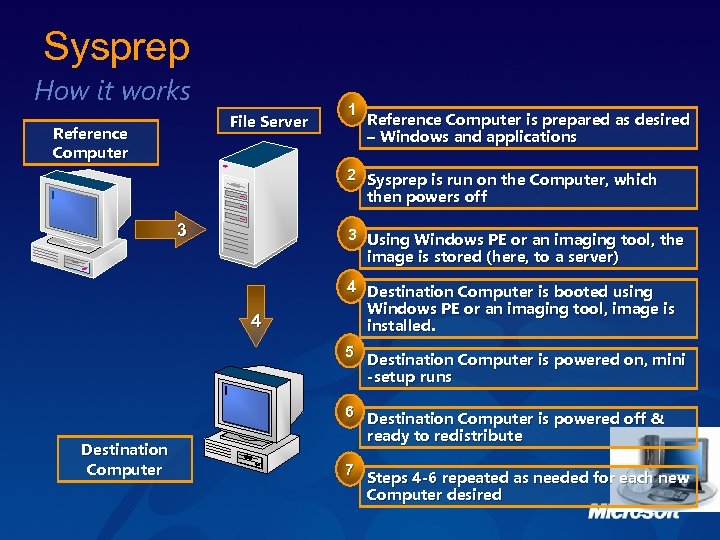 Sysprep How it works File Server Reference Computer 1 Reference Computer is prepared as desired – Windows and applications 2 Sysprep is run on the Computer, which then powers off 3 3 Using Windows PE or an imaging tool, the image is stored (here, to a server) 4 4 Destination Computer is booted using Windows PE or an imaging tool, image is installed. 5 Destination Computer is powered on, mini -setup runs Destination Computer 6 Destination Computer is powered off & ready to redistribute 7 Steps 4 -6 repeated as needed for each new Computer desired
 Sysprep Components Sysprep. exe Main tool Setupcl. exe used to regenerate security IDs Factory. exe When sysprep is run with the –factory option Sysprep. inf Answer file used by Sysprep
 Unattend And Setup Manager creates and modifies unattended setup answer files Unattend Sysprep RISetup Can be found with other deployment tools and guides in Deploy. cab on the product CD Updated versions of tools with XP SP 1 and XP SP 2
 Unattend And Setup Manager Enhancements Local admin password can be encrypted Setup Manager features Improved user interface Improved. chm file on the product CD for unattended setup and deployment
 Remote Installation Services RIS Remote Installation Service Allows for network initiated setup Clean scripted install (RISetup) Clean imaged install (RIPrep) Uses PXE network cards to initiate setup with minimal user interaction Boot floppy supports select additional network cards that are not PXE capable
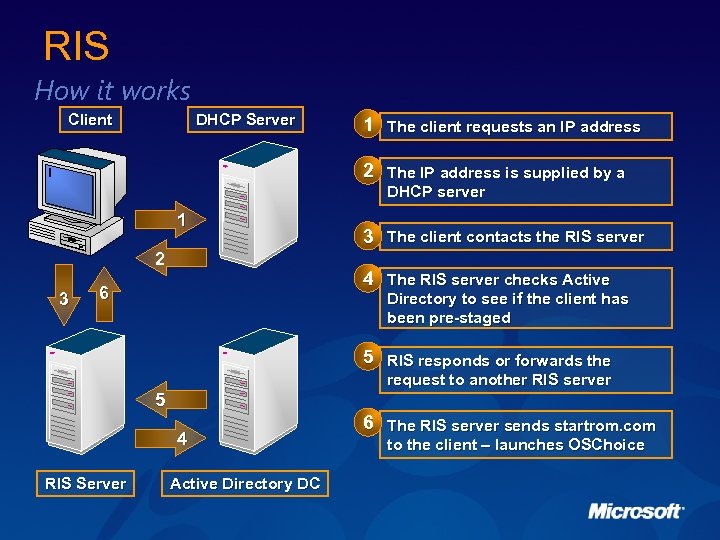 RIS How it works Client DHCP Server 1 The client requests an IP address 2 The IP address is supplied by a DHCP server 1 2 3 3 The client contacts the RIS server 4 The RIS server checks Active 6 Directory to see if the client has been pre-staged 5 RIS responds or forwards the request to another RIS server 5 4 RIS Server Active Directory DC 6 The RIS server sends startrom. com to the client – launches OSChoice
 RIS Windows 2003 Enhancements Support for deploying All retail versions of Windows 2000 (including Server and Advanced Server) Windows XP Professional All Windows Server 2003 products All 64 -bit versions of Windows Server 2003* Significant performance increase over RIS in Windows 2000 *RISetup only, not RIPrep-based images
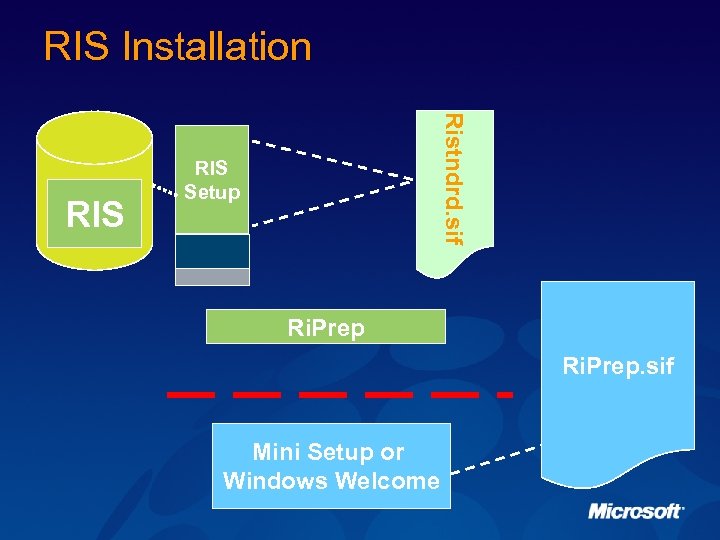 RIS Installation Ristndrd. sif RIS Setup Ri. Prep. sif Mini Setup or Windows Welcome
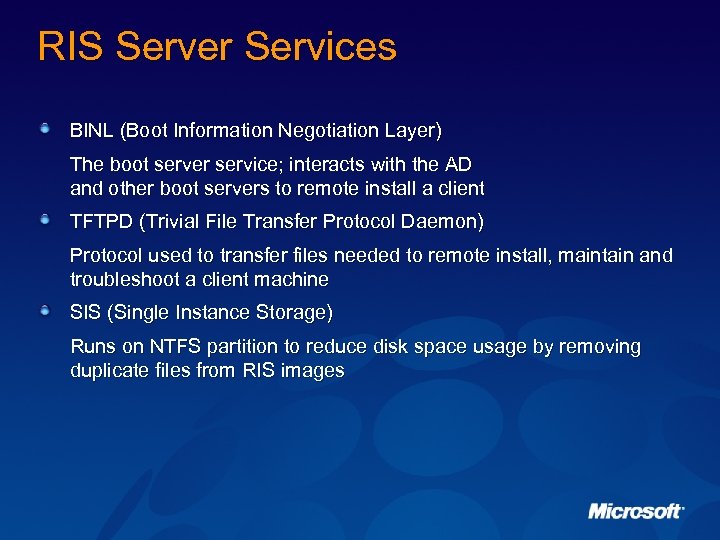 RIS Server Services BINL (Boot Information Negotiation Layer) The boot server service; interacts with the AD and other boot servers to remote install a client TFTPD (Trivial File Transfer Protocol Daemon) Protocol used to transfer files needed to remote install, maintain and troubleshoot a client machine SIS (Single Instance Storage) Runs on NTFS partition to reduce disk space usage by removing duplicate files from RIS images
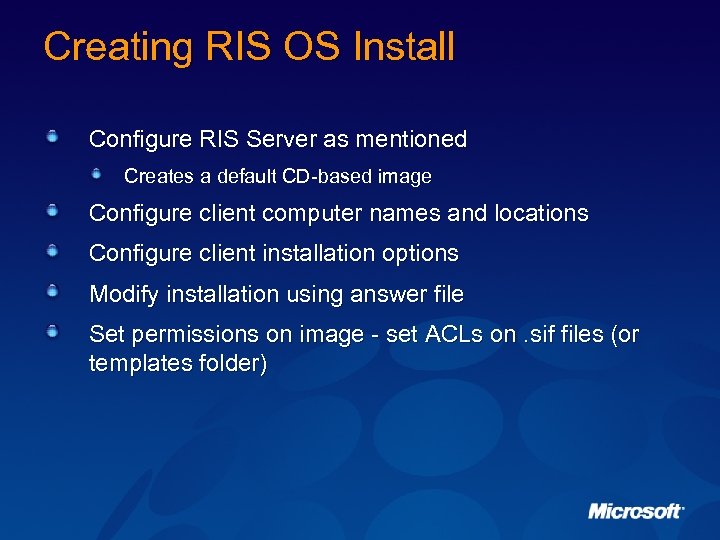 Creating RIS OS Install Configure RIS Server as mentioned Creates a default CD-based image Configure client computer names and locations Configure client installation options Modify installation using answer file Set permissions on image - set ACLs on. sif files (or templates folder)
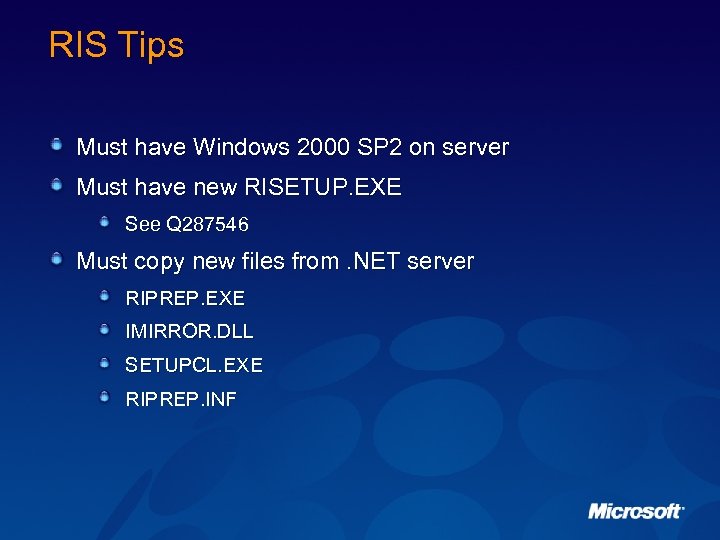 RIS Tips Must have Windows 2000 SP 2 on server Must have new RISETUP. EXE See Q 287546 Must copy new files from. NET server RIPREP. EXE IMIRROR. DLL SETUPCL. EXE RIPREP. INF
 © 2004 Microsoft Corporation. All rights reserved. This presentation is for informational purposes only. MICROSOFT MAKES NO WARRANTIES, EXPRESS OR IMPLIED, IN THIS SUMMARY.