 Скачать презентацию Mi Collab 7 0 Desktop Client End User
39717dda0325822470f0e5aa08dd722d.ppt
- Количество слайдов: 36



Mi. Collab 7. 0 Desktop Client End User Training David R. Clardy System Implementation Specialist August 18 th, 2015
Overview • Mi. Collab Client is a desktop application that allows you to control your Mitel IP phone from your computer. You can: • Make/Receive Calls • Forward Incoming Calls • Use Drag and Drop to Manage Conference Calls • View Presence and Availability of Colleagues • Collaborate with Others via Web Sessions • And More… 2 | © 2014 Mitel. Proprietary and Confidential.
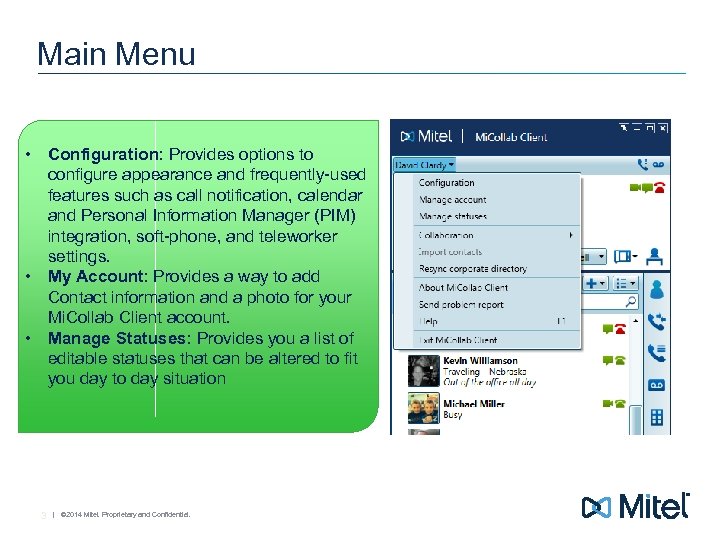
Main Menu • Configuration: Provides options to configure appearance and frequently-used features such as call notification, calendar and Personal Information Manager (PIM) integration, soft-phone, and teleworker settings. • My Account: Provides a way to add Contact information and a photo for your Mi. Collab Client account. • Manage Statuses: Provides you a list of editable statuses that can be altered to fit you day to day situation 3 | © 2014 Mitel. Proprietary and Confidential.
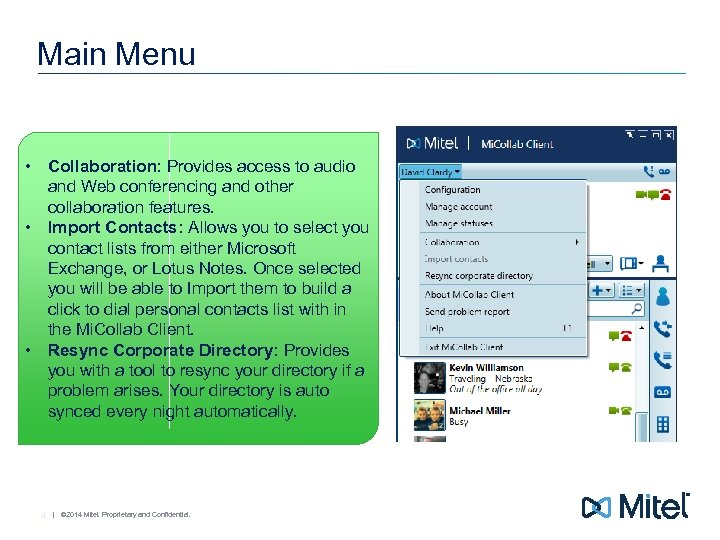
Main Menu • Collaboration: Provides access to audio and Web conferencing and other collaboration features. • Import Contacts: Allows you to select you contact lists from either Microsoft Exchange, or Lotus Notes. Once selected you will be able to Import them to build a click to dial personal contacts list with in the Mi. Collab Client. • Resync Corporate Directory: Provides you with a tool to resync your directory if a problem arises. Your directory is auto synced every night automatically. 4 | © 2014 Mitel. Proprietary and Confidential.
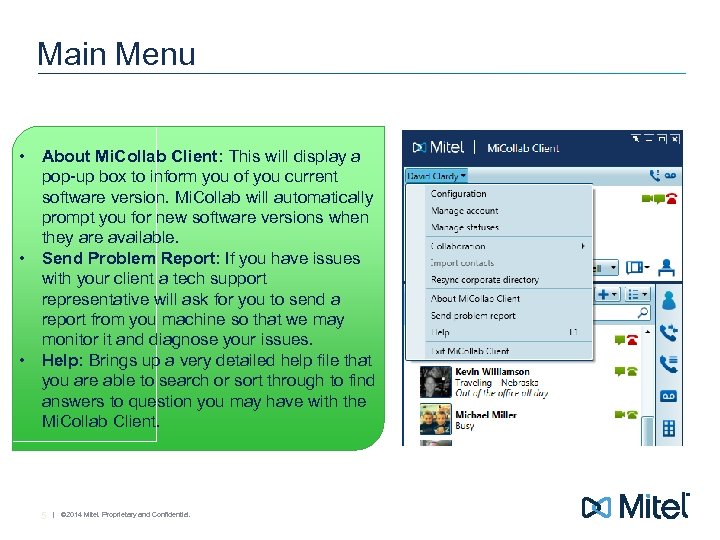
Main Menu • About Mi. Collab Client: This will display a pop-up box to inform you of you current software version. Mi. Collab will automatically prompt you for new software versions when they are available. • Send Problem Report: If you have issues with your client a tech support representative will ask for you to send a report from you machine so that we may monitor it and diagnose your issues. • Help: Brings up a very detailed help file that you are able to search or sort through to find answers to question you may have with the Mi. Collab Client. 5 | © 2014 Mitel. Proprietary and Confidential.
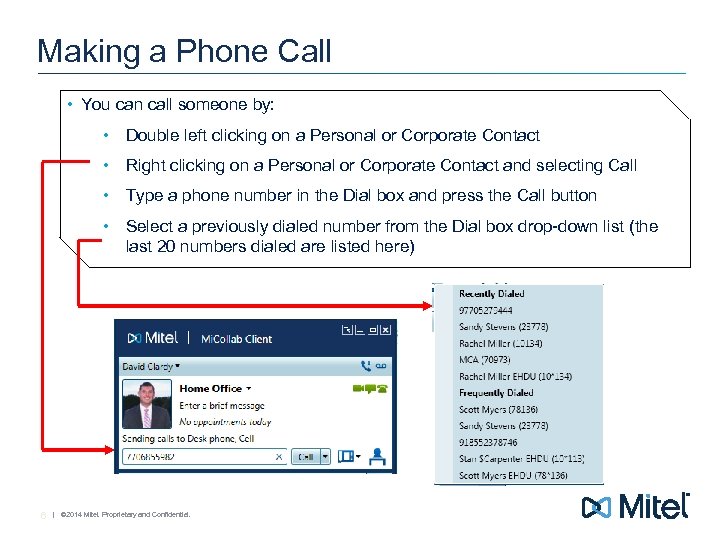
Making a Phone Call • You can call someone by: • Double left clicking on a Personal or Corporate Contact • Right clicking on a Personal or Corporate Contact and selecting Call • Type a phone number in the Dial box and press the Call button • Select a previously dialed number from the Dial box drop-down list (the last 20 numbers dialed are listed here) 6 | © 2014 Mitel. Proprietary and Confidential.
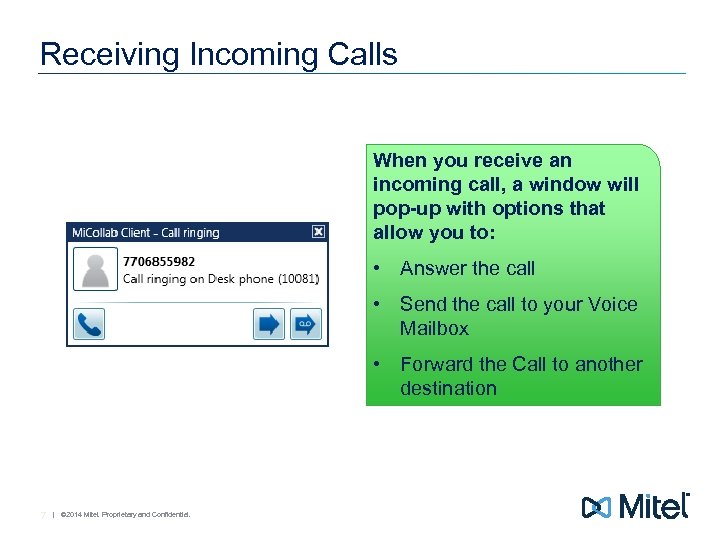
Receiving Incoming Calls When you receive an incoming call, a window will pop-up with options that allow you to: • Answer the call • Send the call to your Voice Mailbox • Forward the Call to another destination 7 | © 2014 Mitel. Proprietary and Confidential.
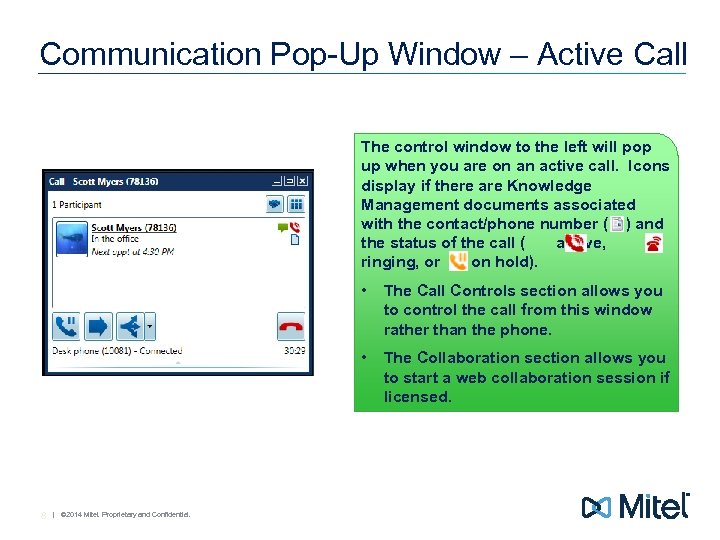
Communication Pop-Up Window – Active Call The control window to the left will pop up when you are on an active call. Icons display if there are Knowledge Management documents associated with the contact/phone number ( ) and the status of the call ( active, ringing, or on hold). • • 8 | © 2014 Mitel. Proprietary and Confidential. The Call Controls section allows you to control the call from this window rather than the phone. The Collaboration section allows you to start a web collaboration session if licensed.
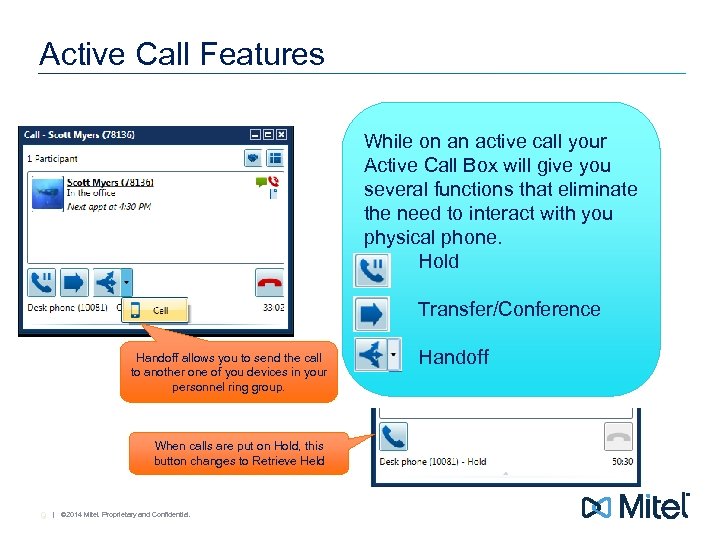
Active Call Features While on an active call your Active Call Box will give you several functions that eliminate the need to interact with you physical phone. • Hold • Handoff allows you to send the call to another one of you devices in your personnel ring group. When calls are put on Hold, this button changes to Retrieve Held 9 | © 2014 Mitel. Proprietary and Confidential. Transfer/Conference • Handoff
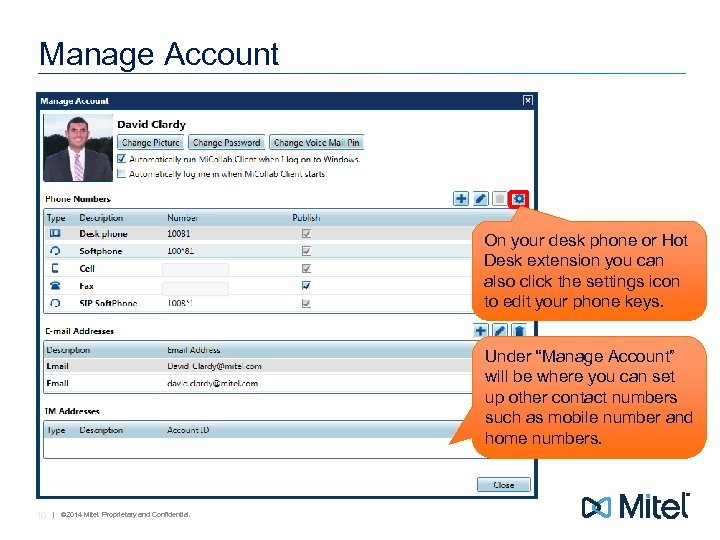
Manage Account On your desk phone or Hot Desk extension you can also click the settings icon to edit your phone keys. Under “Manage Account” will be where you can set up other contact numbers such as mobile number and home numbers. 10 | © 2014 Mitel. Proprietary and Confidential.
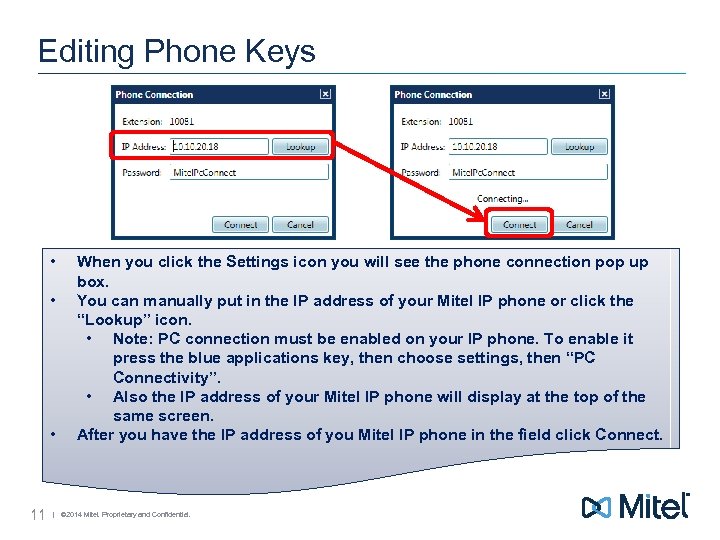
Editing Phone Keys • • • 11 When you click the Settings icon you will see the phone connection pop up box. You can manually put in the IP address of your Mitel IP phone or click the “Lookup” icon. • Note: PC connection must be enabled on your IP phone. To enable it press the blue applications key, then choose settings, then “PC Connectivity”. • Also the IP address of your Mitel IP phone will display at the top of the same screen. After you have the IP address of you Mitel IP phone in the field click Connect. | © 2014 Mitel. Proprietary and Confidential.
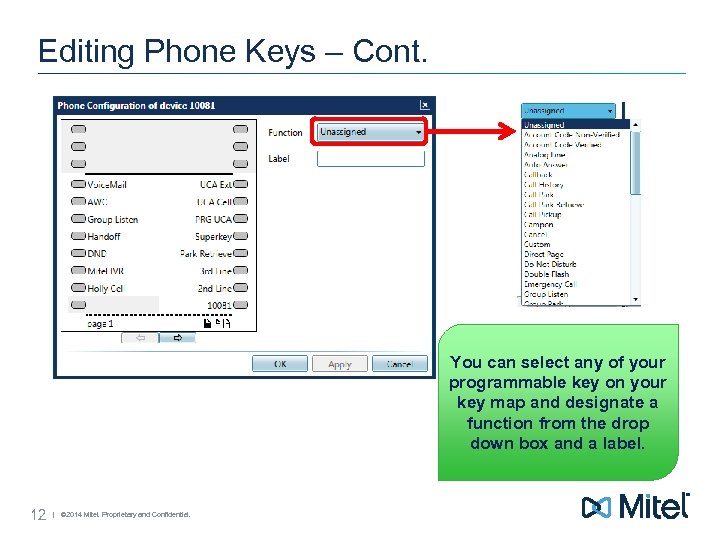
Editing Phone Keys – Cont. You can select any of your programmable key on your key map and designate a function from the drop down box and a label. 12 | © 2014 Mitel. Proprietary and Confidential.
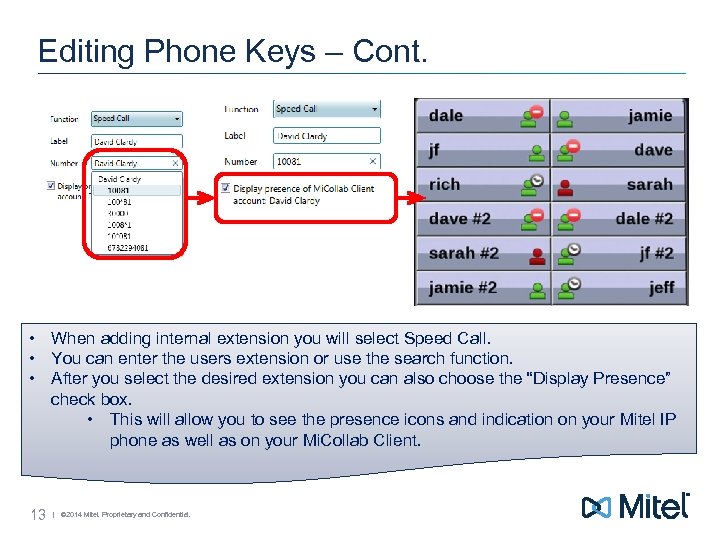
Editing Phone Keys – Cont. • When adding internal extension you will select Speed Call. • You can enter the users extension or use the search function. • After you select the desired extension you can also choose the “Display Presence” check box. • This will allow you to see the presence icons and indication on your Mitel IP phone as well as on your Mi. Collab Client. 13 | © 2014 Mitel. Proprietary and Confidential.
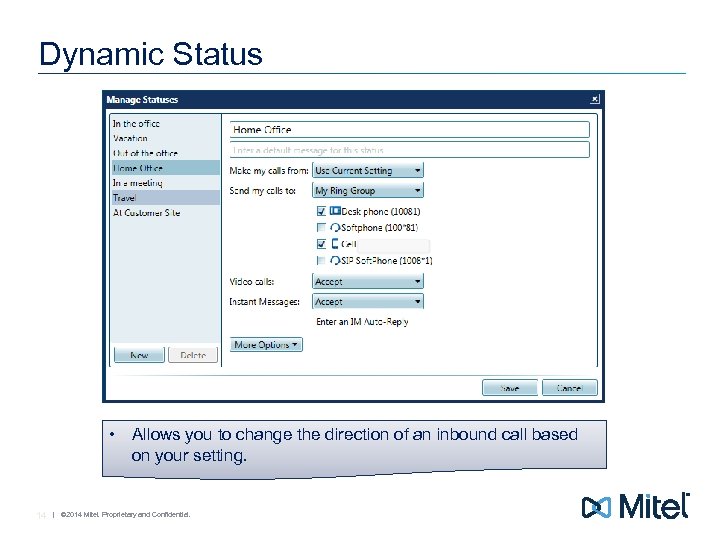
Dynamic Status • Allows you to change the direction of an inbound call based on your setting. 14 | © 2014 Mitel. Proprietary and Confidential.
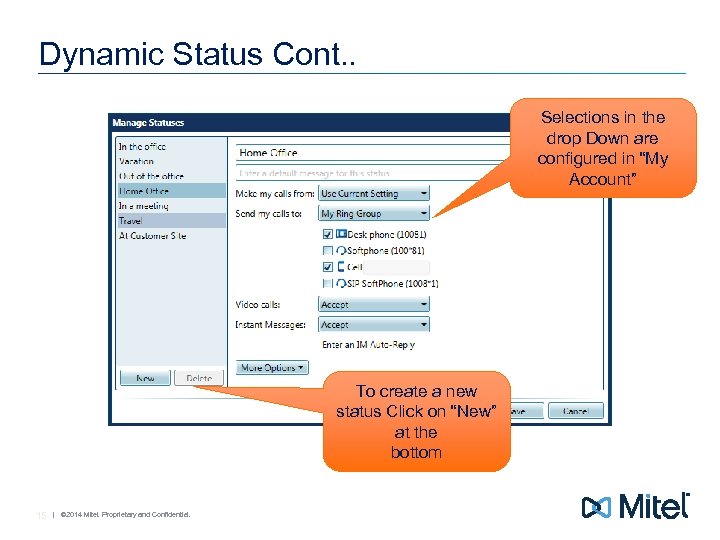
Dynamic Status Cont. . Selections in the drop Down are configured in “My Account” To create a new status Click on “New” at the bottom 15 | © 2014 Mitel. Proprietary and Confidential.
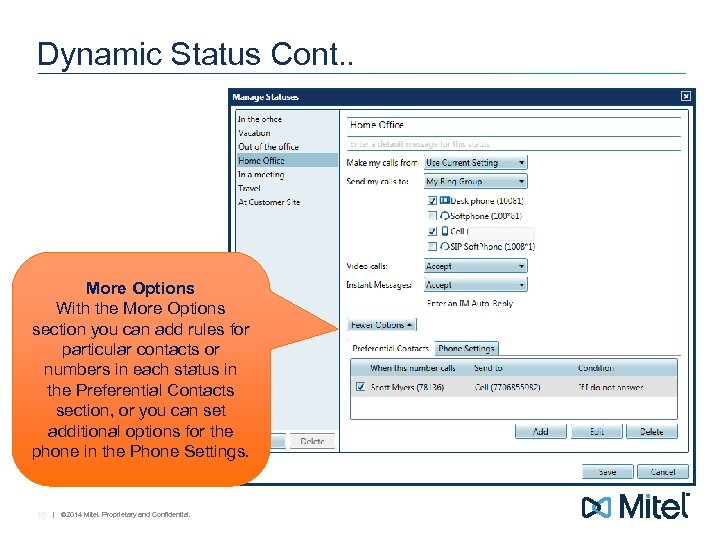
Dynamic Status Cont. . More Options With the More Options section you can add rules for particular contacts or numbers in each status in the Preferential Contacts section, or you can set additional options for the phone in the Phone Settings. 16 | © 2014 Mitel. Proprietary and Confidential.
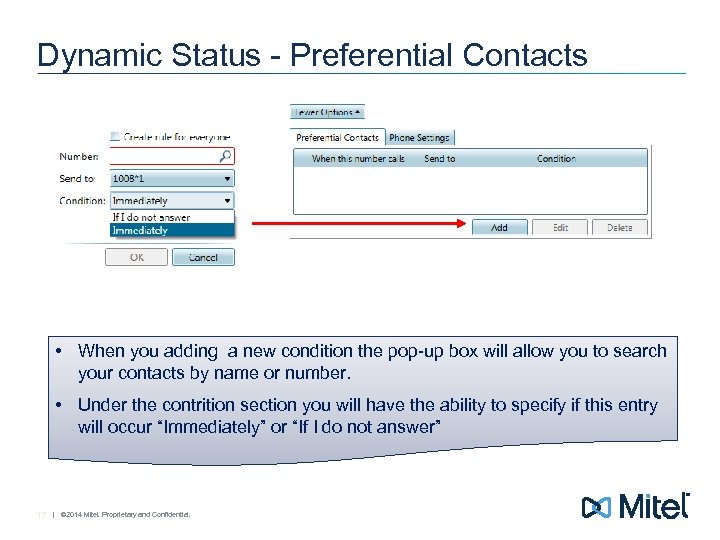
Dynamic Status - Preferential Contacts • When you adding a new condition the pop-up box will allow you to search your contacts by name or number. • Under the contrition section you will have the ability to specify if this entry will occur “Immediately” or “If I do not answer” 17 | © 2014 Mitel. Proprietary and Confidential.
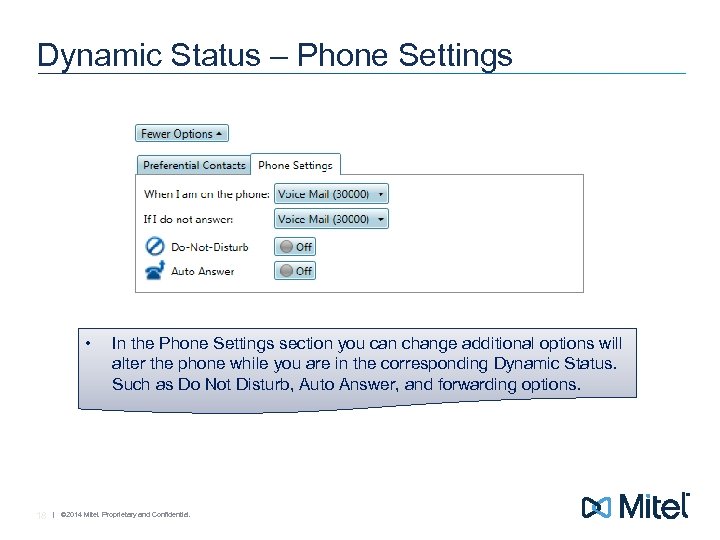
Dynamic Status – Phone Settings • 18 In the Phone Settings section you can change additional options will alter the phone while you are in the corresponding Dynamic Status. Such as Do Not Disturb, Auto Answer, and forwarding options. | © 2014 Mitel. Proprietary and Confidential.
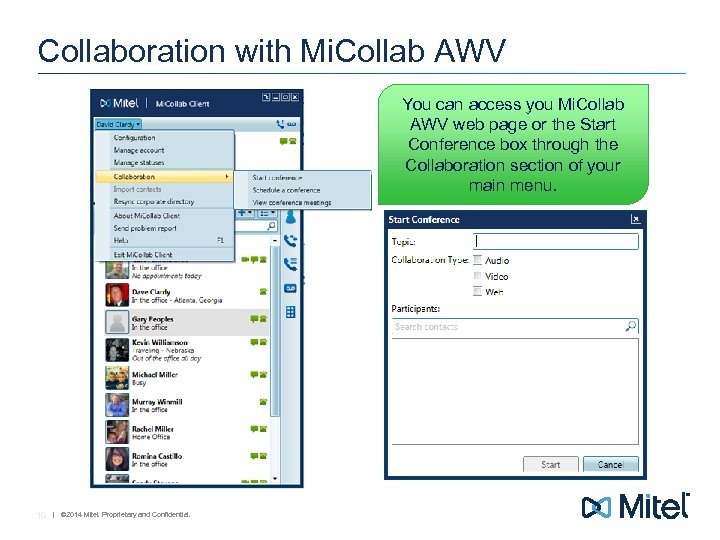
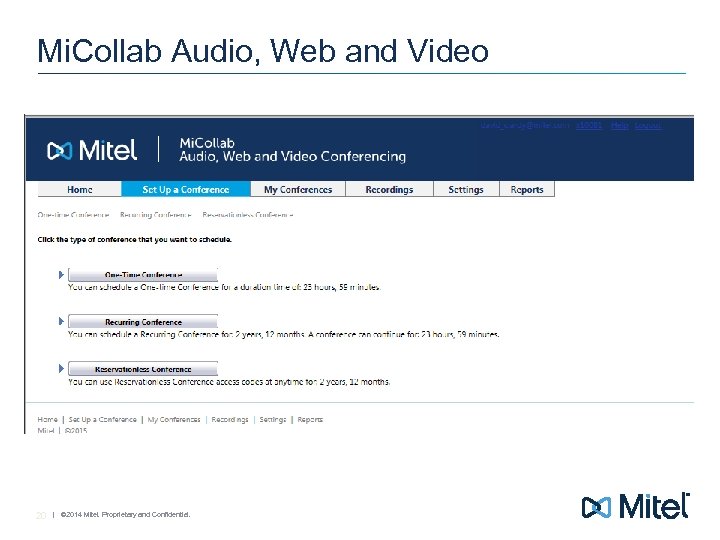
Collaboration with Mi. Collab AWV You can access you Mi. Collab AWV web page or the Start Conference box through the Collaboration section of your main menu. 19 | © 2014 Mitel. Proprietary and Confidential.
Mi. Collab Audio, Web and Video 20 | © 2014 Mitel. Proprietary and Confidential.
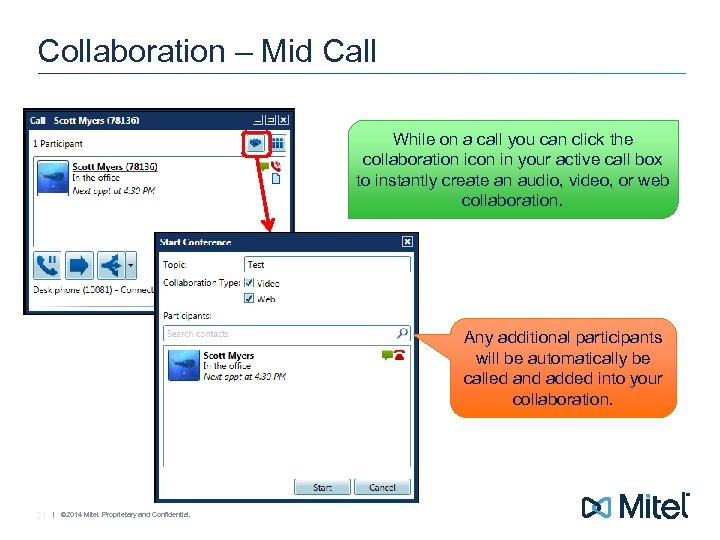
Collaboration – Mid Call While on a call you can click the collaboration icon in your active call box to instantly create an audio, video, or web collaboration. Any additional participants will be automatically be called and added into your collaboration. 21 | © 2014 Mitel. Proprietary and Confidential.
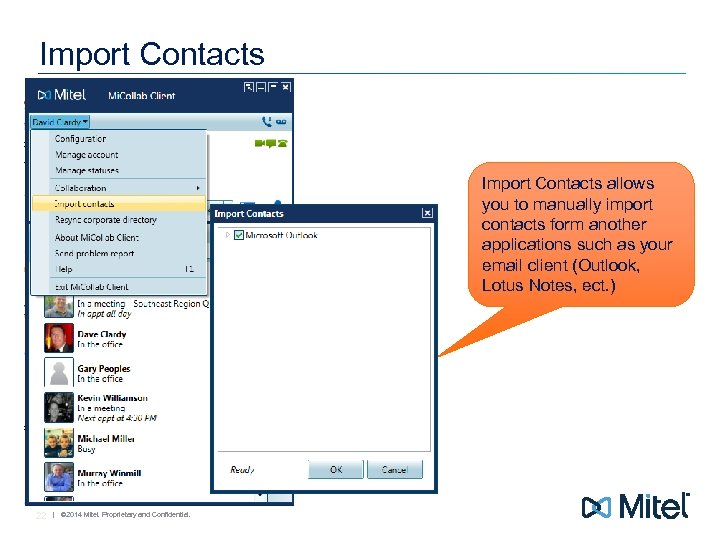
Import Contacts allows you to manually import contacts form another applications such as your email client (Outlook, Lotus Notes, ect. ) 22 | © 2014 Mitel. Proprietary and Confidential.
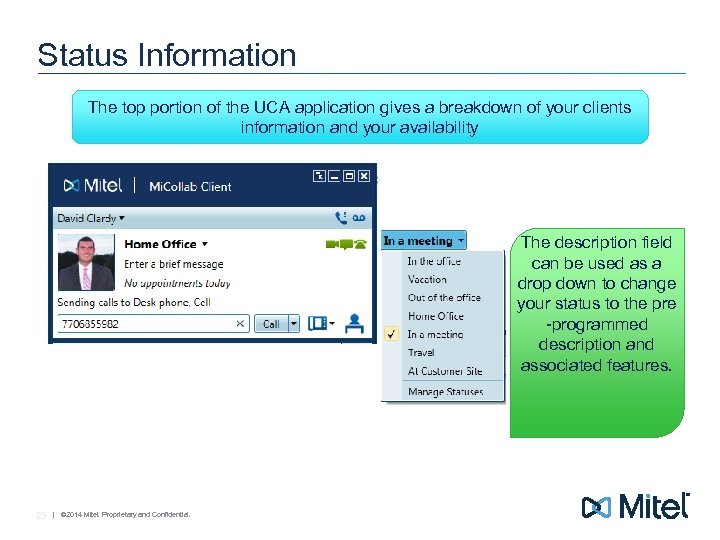
Status Information The top portion of the UCA application gives a breakdown of your clients information and your availability The description field can be used as a drop down to change your status to the pre -programmed description and associated features. 23 | © 2014 Mitel. Proprietary and Confidential.
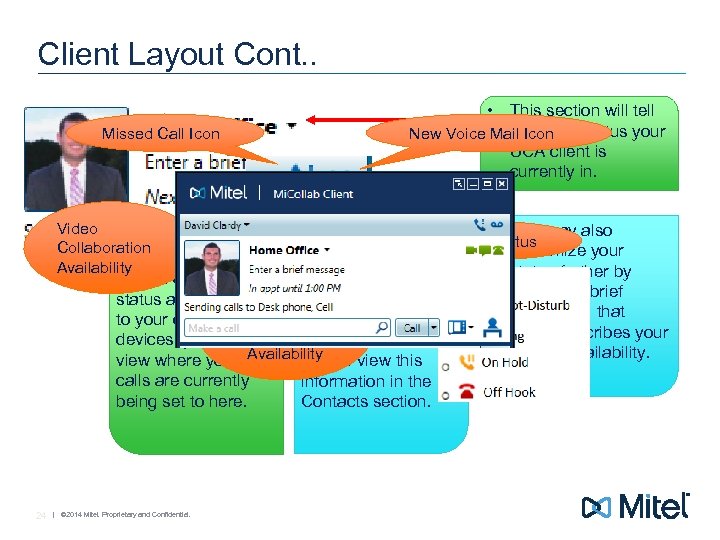
Client Layout Cont. . Missed Call Icon Video Collaboration Availability • This section will tell you what status your New Voice Mail Icon UCA client is currently in. As you change your Any Calendar status and route calls appointments will Instant to your different display here. Other Messaging will also be devices, you can users Availability to view this view where your able calls are currently information in the being set to here. Contacts section. 24 | © 2014 Mitel. Proprietary and Confidential. • You may also customize your status further by entering a brief description that better describes your current availability. Phone Status
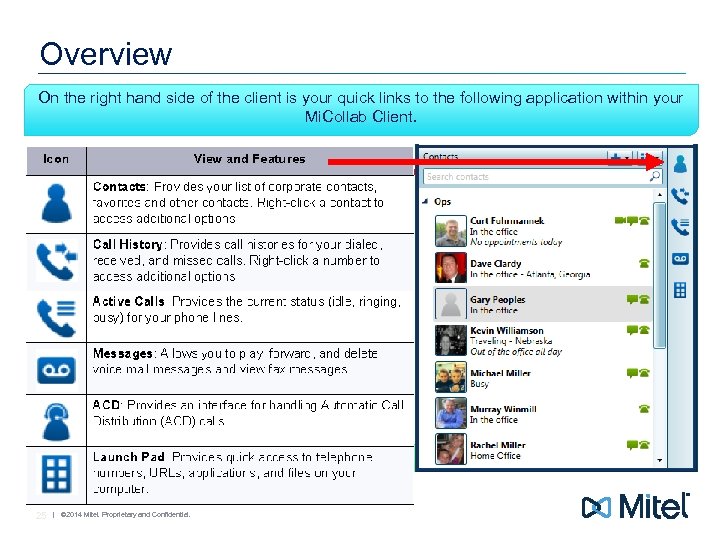
Overview On the right hand side of the client is your quick links to the following application within your Mi. Collab Client. 25 | © 2014 Mitel. Proprietary and Confidential.
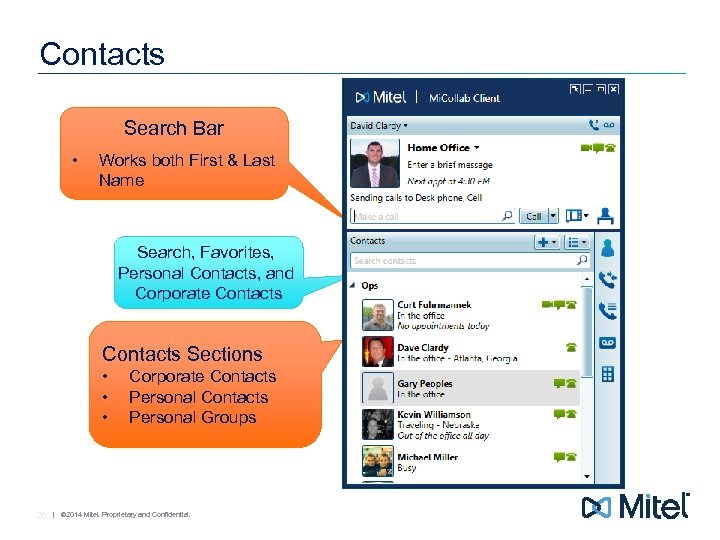
Contacts Search Bar • Works both First & Last Name Search, Favorites, Personal Contacts, and Corporate Contacts Sections • • • 26 Corporate Contacts Personal Groups | © 2014 Mitel. Proprietary and Confidential.
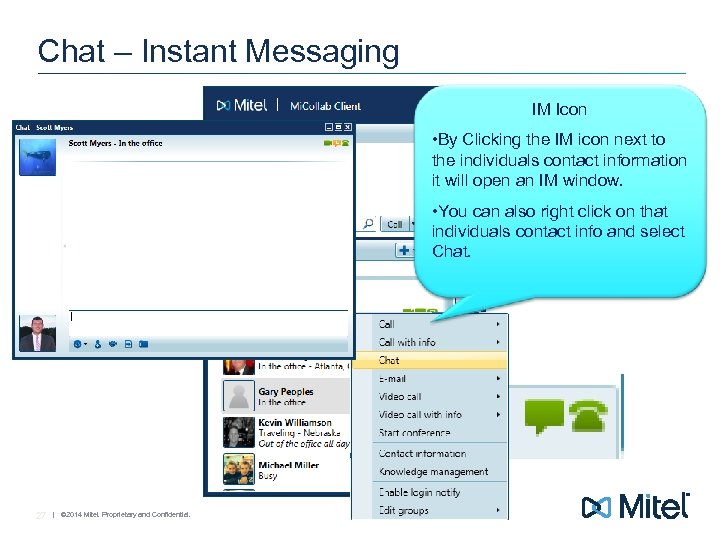
Chat – Instant Messaging IM Icon • By Clicking the IM icon next to the individuals contact information it will open an IM window. • You can also right click on that individuals contact info and select Chat. 27 | © 2014 Mitel. Proprietary and Confidential.
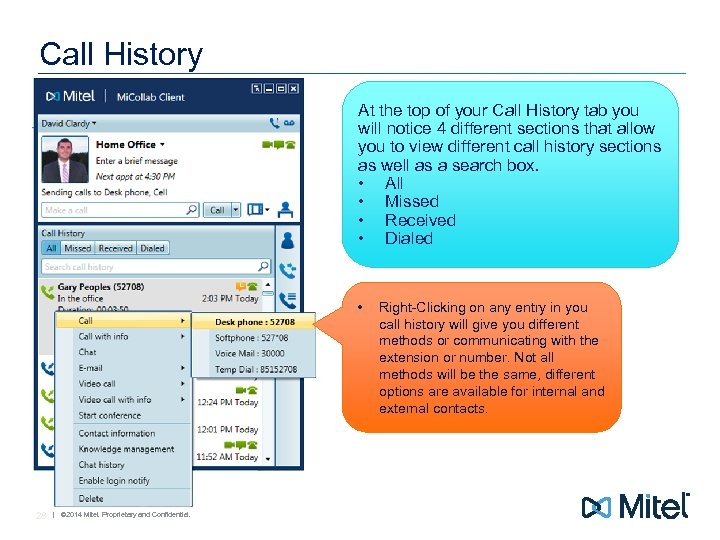
Call History At the top of your Call History tab you will notice 4 different sections that allow you to view different call history sections as well as a search box. • All • Missed • Received • Dialed • 28 | © 2014 Mitel. Proprietary and Confidential. Right-Clicking on any entry in you call history will give you different methods or communicating with the extension or number. Not all methods will be the same, different options are available for internal and external contacts.
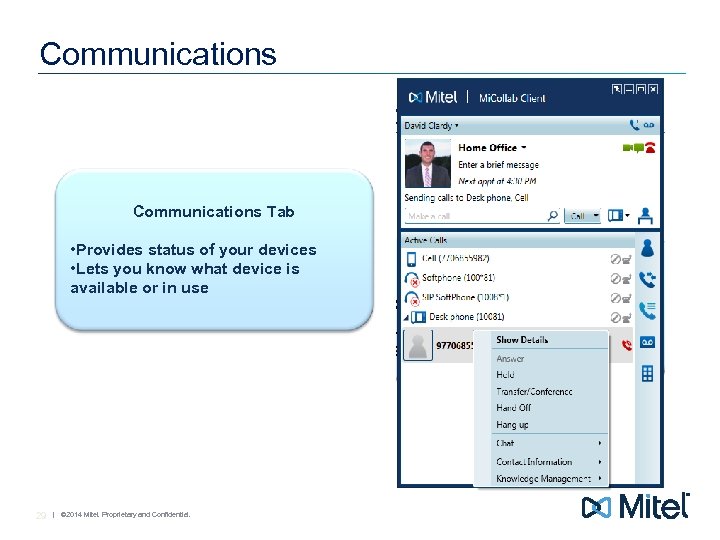
Communications Tab • Provides status of your devices • Lets you know what device is available or in use 29 | © 2014 Mitel. Proprietary and Confidential.
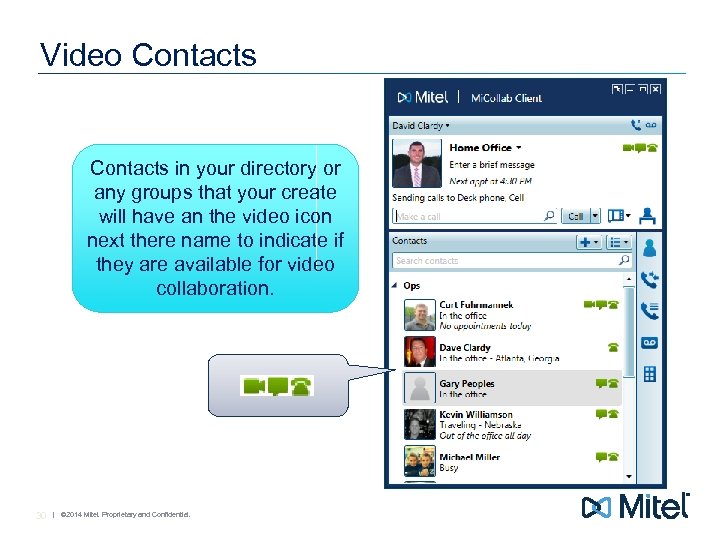
Video Contacts in your directory or any groups that your create will have an the video icon next there name to indicate if they are available for video collaboration. 30 | © 2014 Mitel. Proprietary and Confidential.
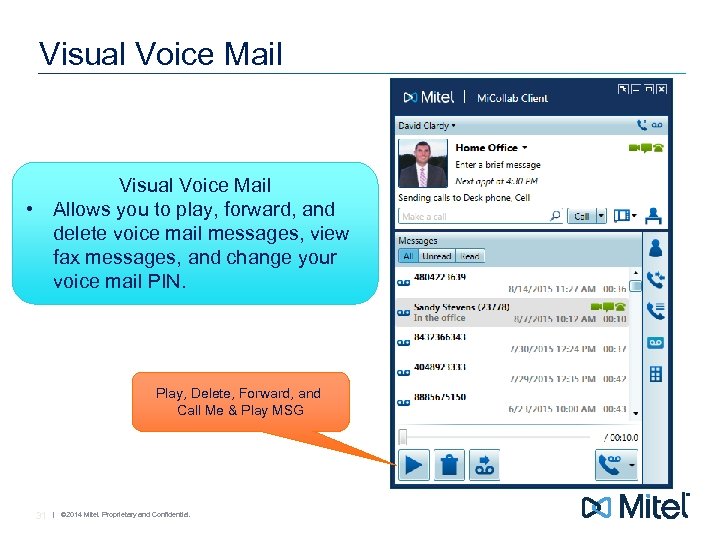
Visual Voice Mail • Allows you to play, forward, and delete voice mail messages, view fax messages, and change your voice mail PIN. Play, Delete, Forward, and Call Me & Play MSG 31 | © 2014 Mitel. Proprietary and Confidential.
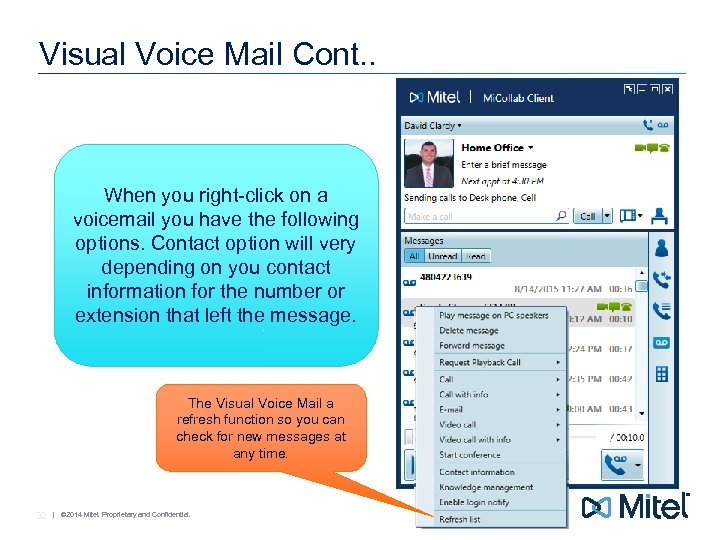
Visual Voice Mail Cont. . When you right-click on a voicemail you have the following options. Contact option will very depending on you contact information for the number or extension that left the message. The Visual Voice Mail a refresh function so you can check for new messages at any time. 32 | © 2014 Mitel. Proprietary and Confidential.
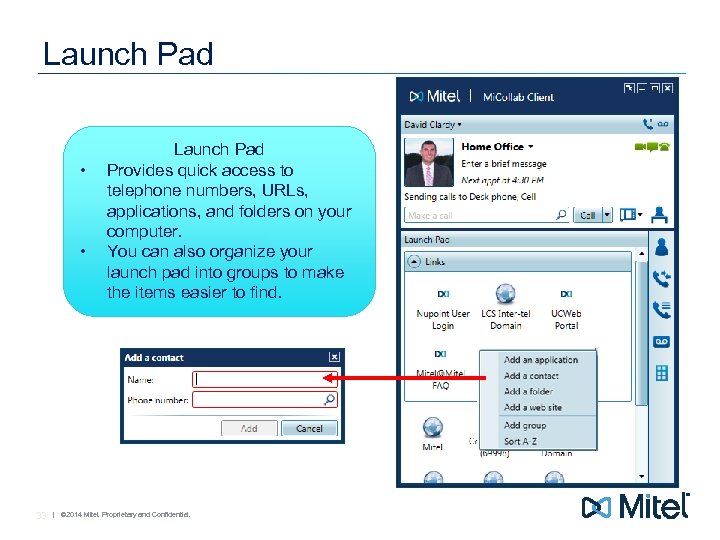
Launch Pad • • 33 Launch Pad Provides quick access to telephone numbers, URLs, applications, and folders on your computer. You can also organize your launch pad into groups to make the items easier to find. | © 2014 Mitel. Proprietary and Confidential.
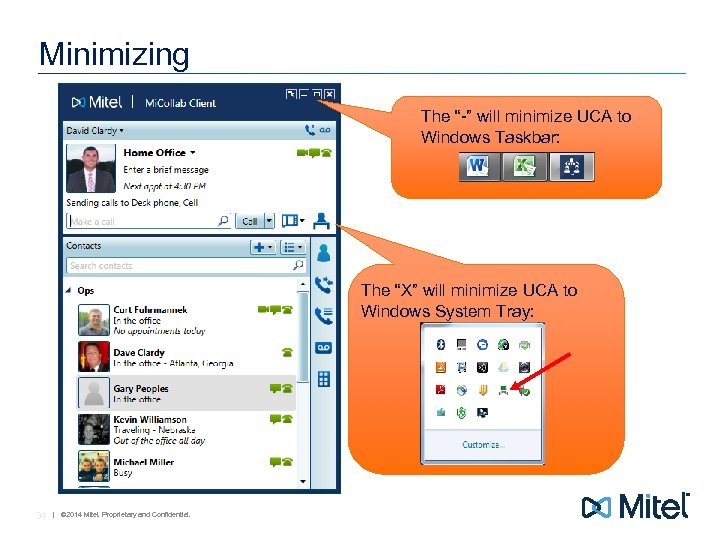
Minimizing The “-” will minimize UCA to Windows Taskbar: The “X” will minimize UCA to Windows System Tray: 34 | © 2014 Mitel. Proprietary and Confidential.

Questions?

THANK YOU The information conveyed in this presentation, including oral comments and written materials, is confidential and proprietary to Mitel® and is intended solely for Mitel employees and members of Mitel’s reseller channel. If you are not a Mitel employee or a Mitel authorized PARTNER, you are not the intended recipient of this information and are not invited to the conference, and cannot participate in or listen to and/or view the presentation. Please delete or return any related material. Mitel will enforce its rights to protect its confidential and proprietary information, and failure to comply with the foregoing may result in legal action against you or your company. David R. Clardy System Implementation Specialist August 18 th, 2015
Скачать презентацию Mi Collab 7 0 Desktop Client End User
39717dda0325822470f0e5aa08dd722d.ppt