Скачать презентацию Medical searching Kazem Heidari Five Information Sources
db418acf613abfc221ac6ceac310cd44.ppt
- Количество слайдов: 154
 Medical searching Kazem Heidari
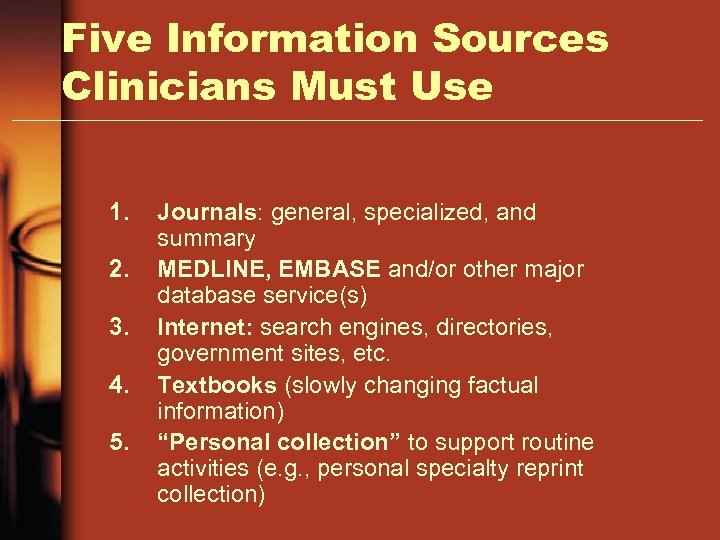 Five Information Sources Clinicians Must Use 1. 2. 3. 4. 5. Journals: general, specialized, and summary MEDLINE, EMBASE and/or other major database service(s) Internet: search engines, directories, government sites, etc. Textbooks (slowly changing factual information) “Personal collection” to support routine activities (e. g. , personal specialty reprint collection)
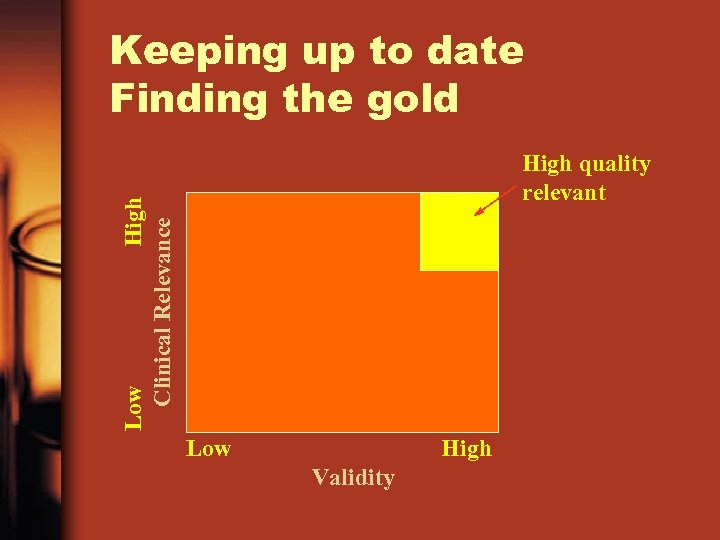 Keeping up to date Finding the gold Low High Clinical Relevance High quality relevant Low High Validity
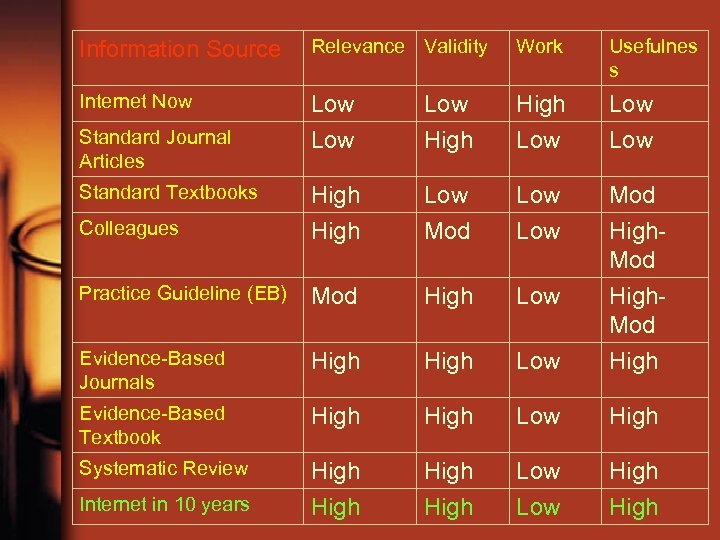 Information Source Relevance Validity Work Usefulnes s Internet Now Low Low High Low Low Colleagues High Low Mod High. Mod Practice Guideline (EB) Mod High Low Evidence-Based Journals High Low High. Mod High Evidence-Based Textbook High Low High Systematic Review High Low High Standard Journal Articles Standard Textbooks Internet in 10 years
 Medline • NLM’s premier bibliographic database • covering the fields of: – – – – medicine nursing dentistry, veterinary medicine, the health care system, the preclinical sciences other areas of the life sciences. • from more than 4, 600 biomedical journals published in the United States and 70 other countries. • 76% of MEDLINE records include abstracts • over 12 million records from 1966 to the present
 Premedline • Includes citations and abstracts for studies that have been published recently but not yet indexed
 Oldmedline • articles from international biomedical journals covering the fields of medicine, preclinical sciences, and allied health sciences. • approximately 1. 5 million OLDMEDLINE citations • Do not include abstracts, • originally printed in hardcopy indexes • published from 1953 through 1965. • Created using standards that are different from the data entry standards for MEDLINE records. • Variations among OLDMEDLINE citations in the data fields present as well as in their format, depending on the original source from which the citations were obtained. • lack the accumulated changes and improvements that have been made to data in MEDLINE during annual maintenance.
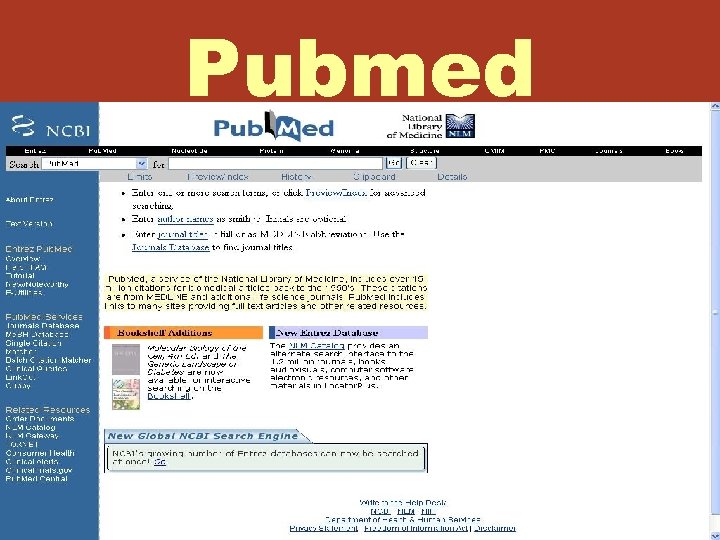 Pubmed
 Introduction • developed by the National Center for Biotechnology Information (NCBI) at the NLM available on the Web. • over 14 million bibliographic citations • back to the 1950 s • provides access, free of charge, to MEDLINE® • links to the full-text of articles at participating publishers’ Web sites, biological data, sequence centers, etc. from third parties. • links to the integrated molecular biology databases maintained by NCBI
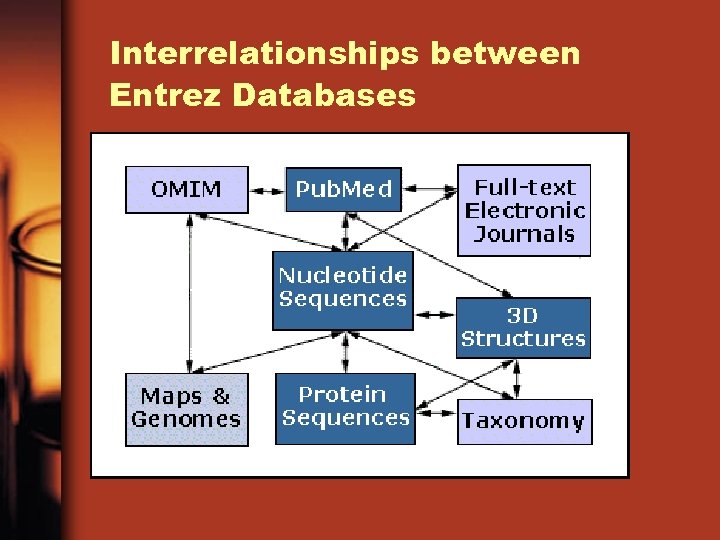 Interrelationships between Entrez Databases
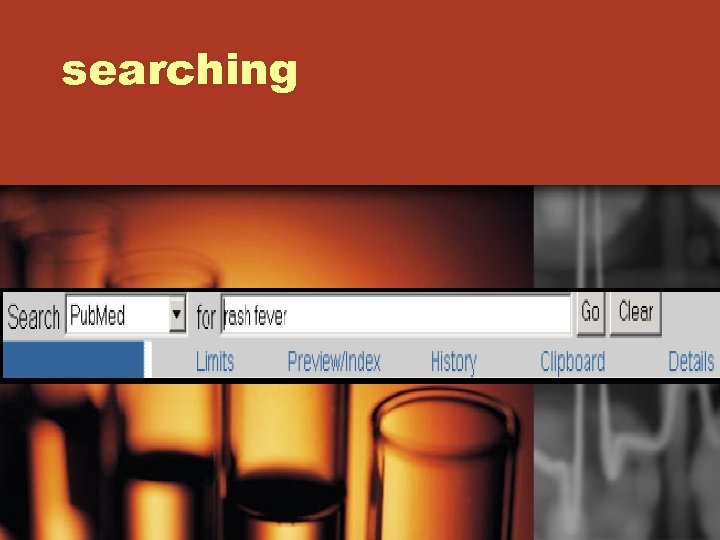 searching
 Pub. Med Automatic Term Mapping Unqualified terms that are entered in the query box are matched against (in this order): 1. Me. SH (Medical Subject Headings) Translation Table 2. Journals Translation Table 3. Author Index
 – Me. SH Translation Table contains: – Me. SH Headings – Subheadings – Publication Types – Entry Term mappings (also known as synonyms) for Me. SH terms – Mappings derived from the Unified Medical Language System (UMLS) – Supplementary Concepts and synonyms to the Supplementary Concepts
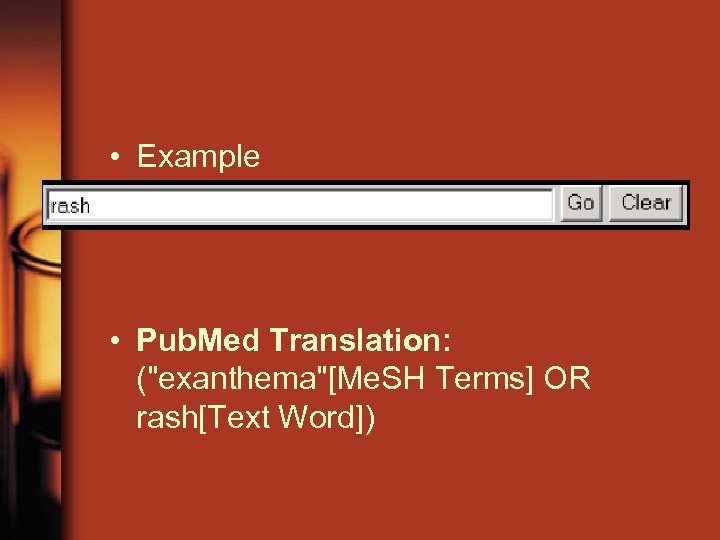 • Example • Pub. Med Translation: ("exanthema"[Me. SH Terms] OR rash[Text Word])
 – Journals Translation Table contains: – Full journal title – MEDLINE abbreviation – International Standard Serial Number (ISSN)
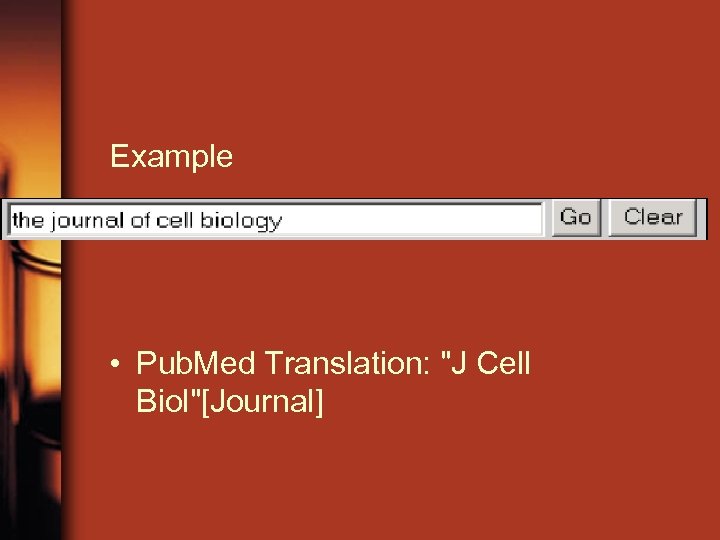 Example • Pub. Med Translation: "J Cell Biol"[Journal]
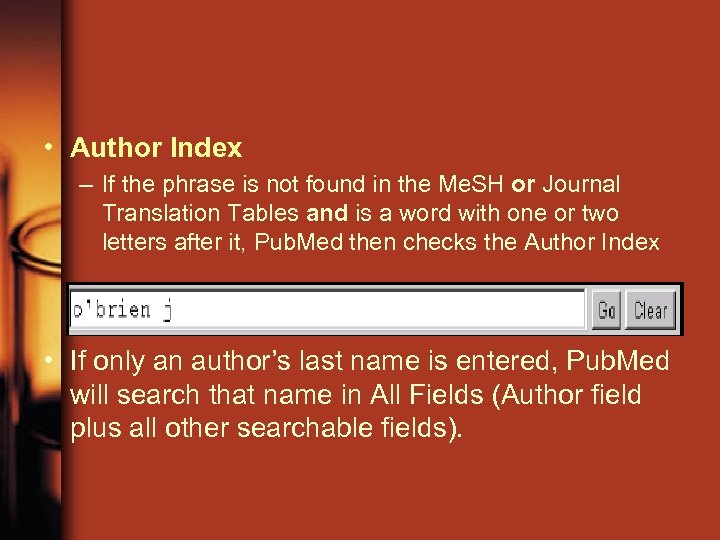 • Author Index – If the phrase is not found in the Me. SH or Journal Translation Tables and is a word with one or two letters after it, Pub. Med then checks the Author Index • If only an author’s last name is entered, Pub. Med will search that name in All Fields (Author field plus all other searchable fields).
 • If no match is found? – Pub. Med breaks apart the phrase and repeats the above process until a match is found. – Terms that don’t make a match will be searched in “All Fields. ” Individual terms will be combined (ANDed) together.
![• Example • Pub. Med Translation: – ((pressure [Me. SH Terms] OR pressure[Text](https://present5.com/presentation/db418acf613abfc221ac6ceac310cd44/image-20.jpg "• Example • Pub. Med Translation: – ((pressure [Me. SH Terms] OR pressure[Text") • Example • Pub. Med Translation: – ((pressure [Me. SH Terms] OR pressure[Text Word]) AND point[All Fields])
• Example • Pub. Med Translation: – ((pressure [Me. SH Terms] OR pressure[Text Word]) AND point[All Fields])
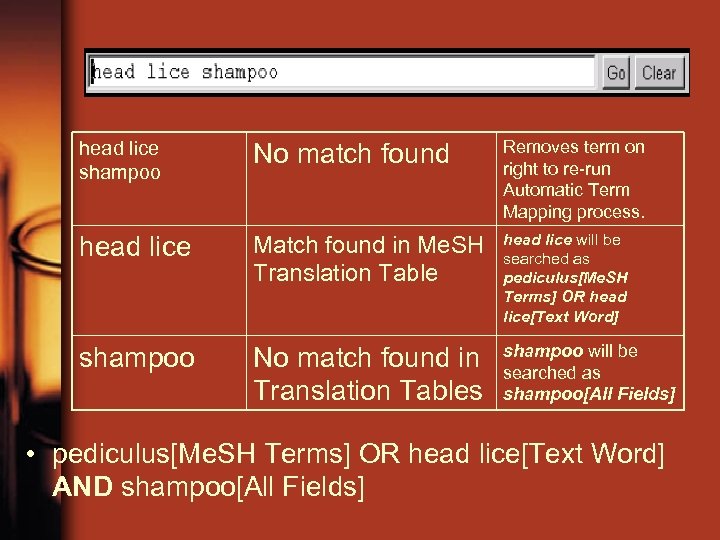 head lice shampoo No match found Removes term on right to re-run Automatic Term Mapping process. head lice Match found in Me. SH Translation Table head lice will be searched as pediculus[Me. SH Terms] OR head lice[Text Word] shampoo No match found in Translation Tables shampoo will be searched as shampoo[All Fields] • pediculus[Me. SH Terms] OR head lice[Text Word] AND shampoo[All Fields]
 Phrase Searching • Pub. Med searches for phrases under these conditions: – 1. The phrase is entered with a search tag • kidney allograft [tw] – 2. The phrase is enclosed in double quotes: (The absence of a search tag indicates the search should be conducted in All Fields. ) • “kidney allograft” – 3. The term is hyphenated: • first-line – 4. The term is truncated: • kidney allograft*
 • The above formats for phrase searching instruct Pub. Med to bypass automatic term mapping. Instead Pub. Med looks for the phrase in its Index of searchable terms. If the phrase is in the Index, Pub. Med will retrieve citations that contain the phrase. • When you enclose a phrase in double quotes, Pub. Med will not perform automatic term mapping
 Mesh
Mesh
 • Two selections are available for Me. SH searching from the field selection pull-down menu in Limits: – Me. SH Terms - Use when you want to specify that a term is searched only as a Me. SH heading not also as a Text Word. – Me. SH Major Topic - Use when you wish to limit to articles where the topic is the main point of the article.
 • When a term is searched as a Me. SH Heading, Pub. Med automatically searches that heading and the more specific headings underneath in the hierarchy. This is called exploding a term. • Searching with Me. SH terms will exclude in process citations and publisher-supplied citations as they have not been indexed with Me. SH headings.
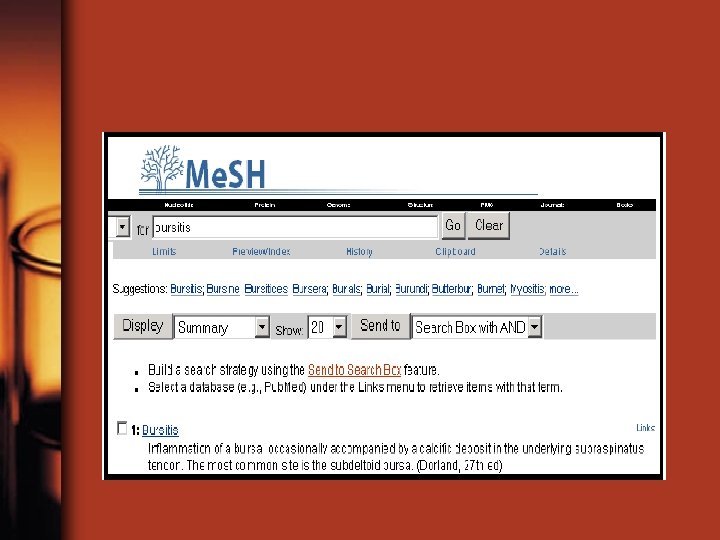
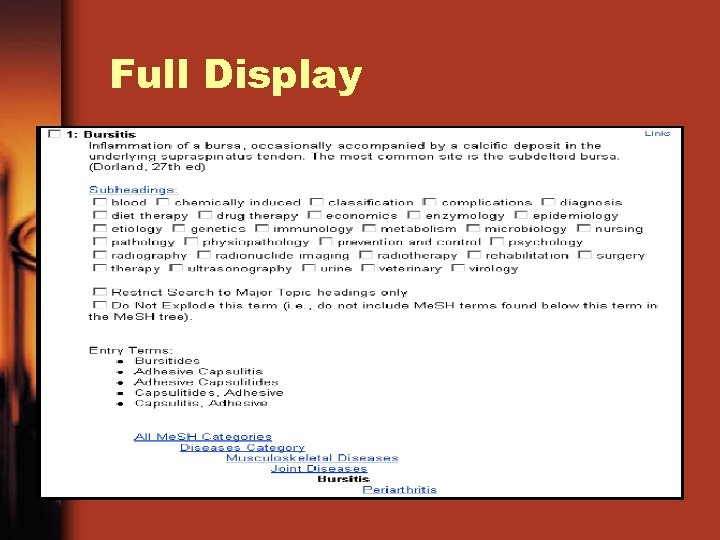
 Me. SH Database • The Me. SH Database allows you to: – Locate and select Me. SH terms (Headings, Subheadings, & Publication Types) – See the definition and other helpful information for a Me. SH term. – Build a Pub. Med search strategy. – Display Me. SH terms in the hierarchy. – Limit Me. SH terms to a major concept for a search. Attach subheadings for a search. – Link to the NLM Me. SH Section’s Me. SH Browser
 Full Display
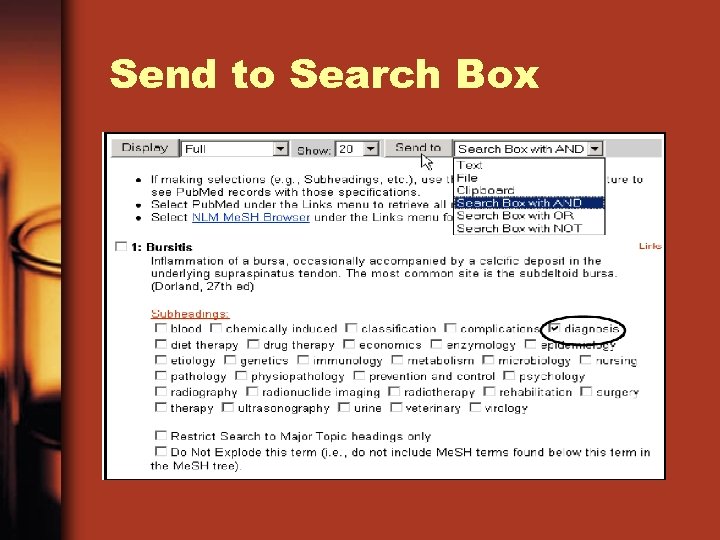 Send to Search Box
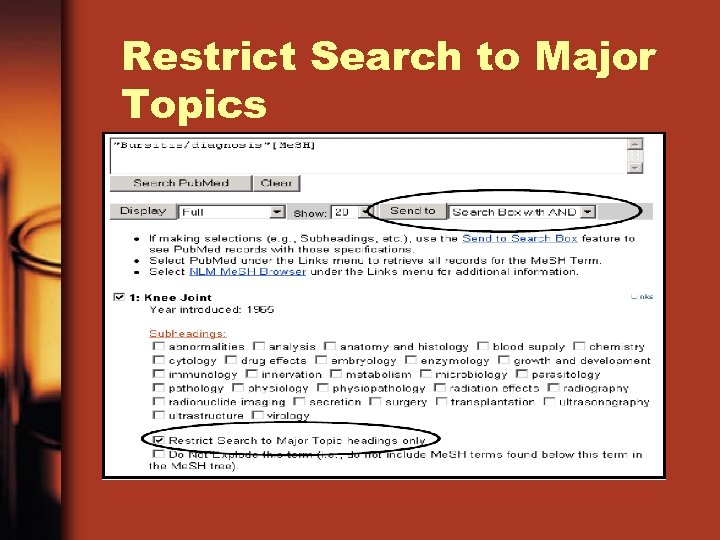 Restrict Search to Major Topics
 • Explode feature retrieve all the citations indexed to the term you are searching and all the citations to more specific aspects of the term. Me. SH are arranged in a hierarchy or tree structure. Example: The MEDLINE explode function applied to heart disease will retrieve all citations under heart disease and all those relating to specific heart diseases.
 Search Rules and Syntax
 Boolean Operators • The Boolean operators AND, OR, NOT must be entered in uppercase letters. • Boolean connectors are processed left to right. • Nesting
 Nesting • To change the order in which terms are processed, enclose the terms(s) in parentheses. The terms inside the set of parentheses will be processed as a unit and then incorporated into the overall strategy.
 Search Field Descriptions • Search field tags must be enclosed in square brackets. • 1 - Me. SH headings [MH] – [mh] to search a Me. SH heading – [majr] to search a Me. SH heading that is a major topic of an article – [mh: noexp] or [majr: noexp]
![• 2 - Subheadings [SH] – You can directly attach subheadings to Me.](https://present5.com/presentation/db418acf613abfc221ac6ceac310cd44/image-37.jpg "• 2 - Subheadings [SH] – You can directly attach subheadings to Me.") • 2 - Subheadings [SH] – You can directly attach subheadings to Me. SH headings using the format Me. SH heading/subheading. – Only one subheading may be attached to a Me. SH heading at a time. – For a Me. SH/subheading combination, Pub. Med always explodes the Me. SH term and also searches the subheading and its grouping if there is one.
• 2 - Subheadings [SH] – You can directly attach subheadings to Me. SH headings using the format Me. SH heading/subheading. – Only one subheading may be attached to a Me. SH heading at a time. – For a Me. SH/subheading combination, Pub. Med always explodes the Me. SH term and also searches the subheading and its grouping if there is one.
![• 3 - Pharmacologic Action [PA] – tag instructs Pub. Med to OR](https://present5.com/presentation/db418acf613abfc221ac6ceac310cd44/image-38.jpg "• 3 - Pharmacologic Action [PA] – tag instructs Pub. Med to OR") • 3 - Pharmacologic Action [PA] – tag instructs Pub. Med to OR together terms from a list made up of a PA term and the drug/substance terms known to have that action.
• 3 - Pharmacologic Action [PA] – tag instructs Pub. Med to OR together terms from a list made up of a PA term and the drug/substance terms known to have that action.
 • 4 - Truncation Symbol – The asterisk (*) is Pub. Med’s truncation symbol.
![• 5 - Text Words [TW] – Title – Abstract – Me. SH](https://present5.com/presentation/db418acf613abfc221ac6ceac310cd44/image-40.jpg "• 5 - Text Words [TW] – Title – Abstract – Me. SH") • 5 - Text Words [TW] – Title – Abstract – Me. SH headings and Subheading (includes single words and phrases) – Other Terms field – Chemical Names of Substances • Secondary Source Identifier (The SI field identifies other data sources, databanks and accession numbers of molecular sequences discussed in MEDLINE articles. ) – Personal Name as Subject
• 5 - Text Words [TW] – Title – Abstract – Me. SH headings and Subheading (includes single words and phrases) – Other Terms field – Chemical Names of Substances • Secondary Source Identifier (The SI field identifies other data sources, databanks and accession numbers of molecular sequences discussed in MEDLINE articles. ) – Personal Name as Subject
![• 6 - Other Terms [OT] – The Other Terms field contains largely](https://present5.com/presentation/db418acf613abfc221ac6ceac310cd44/image-41.jpg "• 6 - Other Terms [OT] – The Other Terms field contains largely") • 6 - Other Terms [OT] – The Other Terms field contains largely non-Me. SH subject terms. – For OLDMEDLINE citations, this field contains the original index terms. These terms are not updated. – The OT field is searchable with the Text Word and Other Term search tags
• 6 - Other Terms [OT] – The Other Terms field contains largely non-Me. SH subject terms. – For OLDMEDLINE citations, this field contains the original index terms. These terms are not updated. – The OT field is searchable with the Text Word and Other Term search tags
![• 7 - Title Word Searching [TI] – Enter significant terms (numbers, too)](https://present5.com/presentation/db418acf613abfc221ac6ceac310cd44/image-42.jpg "• 7 - Title Word Searching [TI] – Enter significant terms (numbers, too)") • 7 - Title Word Searching [TI] – Enter significant terms (numbers, too) from the title of an article. – Each word must be followed by the [TI] search field tag.
• 7 - Title Word Searching [TI] – Enter significant terms (numbers, too) from the title of an article. – Each word must be followed by the [TI] search field tag.
![• 8 - Author Searching [AU] – Use the “Last Name Initials” format](https://present5.com/presentation/db418acf613abfc221ac6ceac310cd44/image-43.jpg "• 8 - Author Searching [AU] – Use the “Last Name Initials” format") • 8 - Author Searching [AU] – Use the “Last Name Initials” format with the [au] tag. – If the first initial is included, Pub. Med automatically truncates the author’s name to account for varying initials.
• 8 - Author Searching [AU] – Use the “Last Name Initials” format with the [au] tag. – If the first initial is included, Pub. Med automatically truncates the author’s name to account for varying initials.
![• 9 - Corporate Author [CN] – Use the [cn] tag to search](https://present5.com/presentation/db418acf613abfc221ac6ceac310cd44/image-44.jpg "• 9 - Corporate Author [CN] – Use the [cn] tag to search") • 9 - Corporate Author [CN] – Use the [cn] tag to search for corporate authorship of an article. Search the whole name or individual words from the name. – This field was added in 2001; – Citations indexed pre-2000 and some citations indexed in 2000 -2001 display corporate authors at the end of the title field
• 9 - Corporate Author [CN] – Use the [cn] tag to search for corporate authorship of an article. Search the whole name or individual words from the name. – This field was added in 2001; – Citations indexed pre-2000 and some citations indexed in 2000 -2001 display corporate authors at the end of the title field
![• 10 - Personal Name as Subject[PS] – search for citations to articles](https://present5.com/presentation/db418acf613abfc221ac6ceac310cd44/image-45.jpg "• 10 - Personal Name as Subject[PS] – search for citations to articles") • 10 - Personal Name as Subject[PS] – search for citations to articles about a named individual.
• 10 - Personal Name as Subject[PS] – search for citations to articles about a named individual.
![• 11 - Journal Title [TA] – Search for journals using the full](https://present5.com/presentation/db418acf613abfc221ac6ceac310cd44/image-46.jpg "• 11 - Journal Title [TA] – Search for journals using the full") • 11 - Journal Title [TA] – Search for journals using the full journal title, or the MEDLINE abbreviation, or the ISSN. – All single-word journal titles should be tagged with [ta].
• 11 - Journal Title [TA] – Search for journals using the full journal title, or the MEDLINE abbreviation, or the ISSN. – All single-word journal titles should be tagged with [ta].
![• 12 - Languages [LA] – First three letters of the language may](https://present5.com/presentation/db418acf613abfc221ac6ceac310cd44/image-47.jpg "• 12 - Languages [LA] – First three letters of the language may") • 12 - Languages [LA] – First three letters of the language may be used as an abbreviation when searching. – Commonly-searched Languages are available from the pull-down menu in Limits. – The full list of Languages can be viewed and searched using the Preview/Index feature.
• 12 - Languages [LA] – First three letters of the language may be used as an abbreviation when searching. – Commonly-searched Languages are available from the pull-down menu in Limits. – The full list of Languages can be viewed and searched using the Preview/Index feature.
![• 13 - Entrez Date [EDAT] – Month and day are optional: •](https://present5.com/presentation/db418acf613abfc221ac6ceac310cd44/image-48.jpg "• 13 - Entrez Date [EDAT] – Month and day are optional: •") • 13 - Entrez Date [EDAT] – Month and day are optional: • 1999/07/10 [edat] • 1999/07 [edat]
• 13 - Entrez Date [EDAT] – Month and day are optional: • 1999/07/10 [edat] • 1999/07 [edat]
![• 14 - Publication Date [DP] – Month and day are optional](https://present5.com/presentation/db418acf613abfc221ac6ceac310cd44/image-49.jpg "• 14 - Publication Date [DP] – Month and day are optional") • 14 - Publication Date [DP] – Month and day are optional
• 14 - Publication Date [DP] – Month and day are optional
 • 15 - Date Ranging – The colon (: ) is used between ranging values. – To search on a date, use the format YYYY/MM/DD
![• 16 - Publication Type [PT] – Describes the type of material the](https://present5.com/presentation/db418acf613abfc221ac6ceac310cd44/image-51.jpg "• 16 - Publication Type [PT] – Describes the type of material the") • 16 - Publication Type [PT] – Describes the type of material the citation represents – Commonly-searched Publication Types are available from the pull-down menu in Limits. – Use the Preview/Index feature to view and search Publication types
• 16 - Publication Type [PT] – Describes the type of material the citation represents – Commonly-searched Publication Types are available from the pull-down menu in Limits. – Use the Preview/Index feature to view and search Publication types
![• 17 - Place of Publication [PL] – This field indicates the cited](https://present5.com/presentation/db418acf613abfc221ac6ceac310cd44/image-52.jpg "• 17 - Place of Publication [PL] – This field indicates the cited") • 17 - Place of Publication [PL] – This field indicates the cited journal’s country of publication. – Geographic Place of Publication regions are not searchable.
• 17 - Place of Publication [PL] – This field indicates the cited journal’s country of publication. – Geographic Place of Publication regions are not searchable.
![• 18 - Subset [SB] – Allows you to limit your search to](https://present5.com/presentation/db418acf613abfc221ac6ceac310cd44/image-53.jpg "• 18 - Subset [SB] – Allows you to limit your search to") • 18 - Subset [SB] – Allows you to limit your search to various Pub. Med subsets.
• 18 - Subset [SB] – Allows you to limit your search to various Pub. Med subsets.
 • 19 - Unique Identifier Searching – To search using the Pub. Med Unique Identifier (PMID), type in the number with or without the search field tag [uid]. – You can search for several Unique Identifier numbers by entering each number in the query box separated by a space, Pub. Med will OR them together. Do not enter the OR connector
![• 20 - Affiliation [AD] – May include the institutional affiliation and address](https://present5.com/presentation/db418acf613abfc221ac6ceac310cd44/image-55.jpg "• 20 - Affiliation [AD] – May include the institutional affiliation and address") • 20 - Affiliation [AD] – May include the institutional affiliation and address (including email address) of the first author of the article as it appears in the journal.
• 20 - Affiliation [AD] – May include the institutional affiliation and address (including email address) of the first author of the article as it appears in the journal.
 • 21 - Limiting to citations with abstracts – Use the value: hasabstract – Do not use a field tag; just use the search value. – Example: baseball AND hasabstract
 Search results
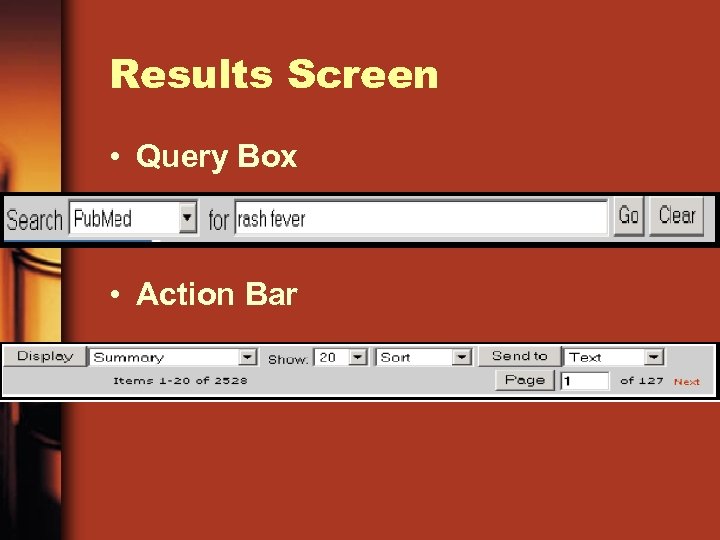 Results Screen • Query Box • Action Bar
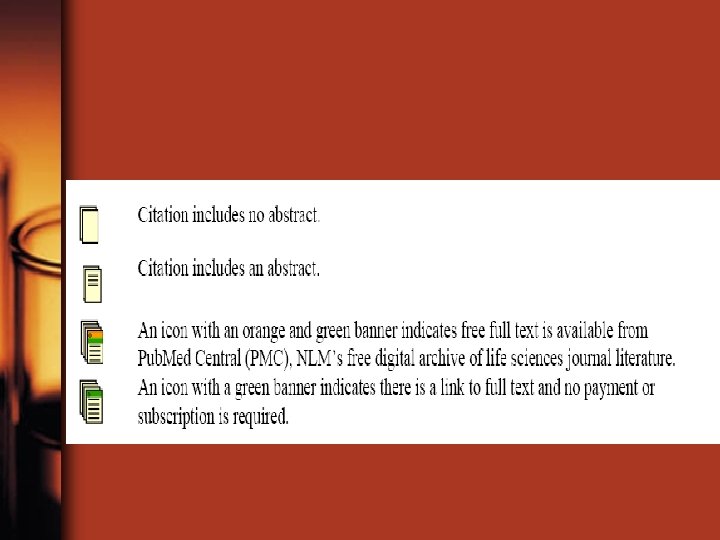
 Display Options • Summary Format – Author Name(s): All authors from the record are displayed. – Corporate Author: Identifies the corporate authorship of an article. – Links: Available links such as Related Articles, Protein, Nucleotide, Link. Out, Books, etc. – Title of the article: Most foreign language titles will be translated into English and placed within brackets. – Source: Includes journal title abbreviation, date of publication, volume, issue, and pagination. – Abstract/Free Full text icons
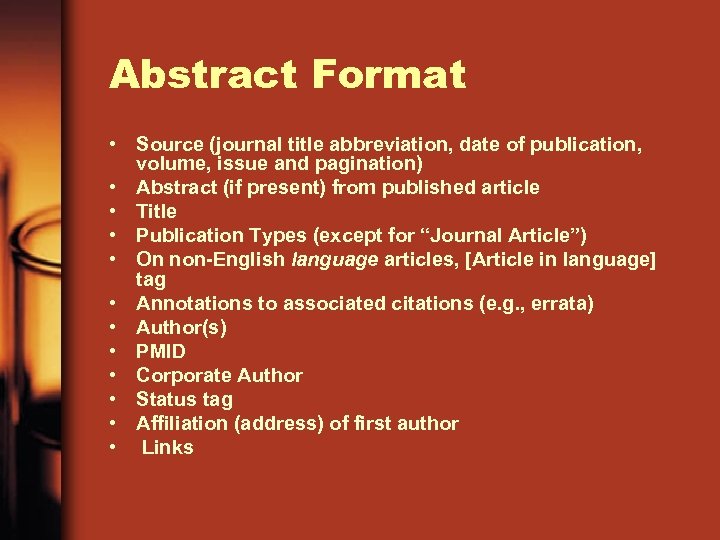 Abstract Format • Source (journal title abbreviation, date of publication, volume, issue and pagination) • Abstract (if present) from published article • Title • Publication Types (except for “Journal Article”) • On non-English language articles, [Article in language] tag • Annotations to associated citations (e. g. , errata) • Author(s) • PMID • Corporate Author • Status tag • Affiliation (address) of first author • Links
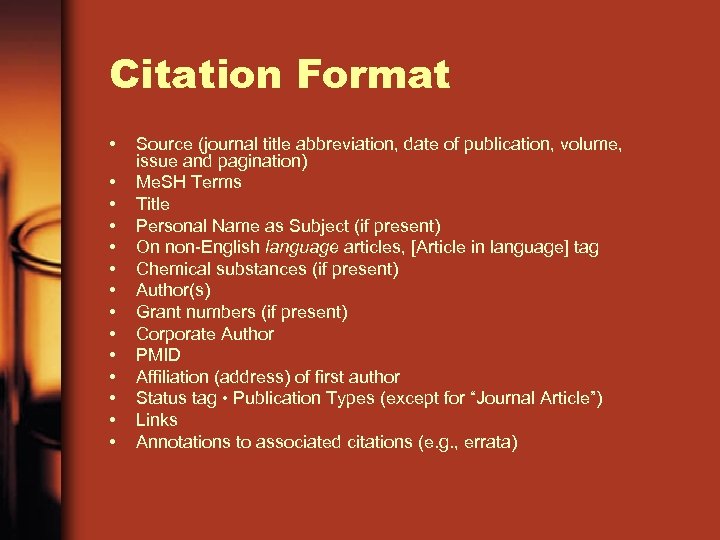 Citation Format • • • • Source (journal title abbreviation, date of publication, volume, issue and pagination) Me. SH Terms Title Personal Name as Subject (if present) On non-English language articles, [Article in language] tag Chemical substances (if present) Author(s) Grant numbers (if present) Corporate Author PMID Affiliation (address) of first author Status tag • Publication Types (except for “Journal Article”) Links Annotations to associated citations (e. g. , errata)
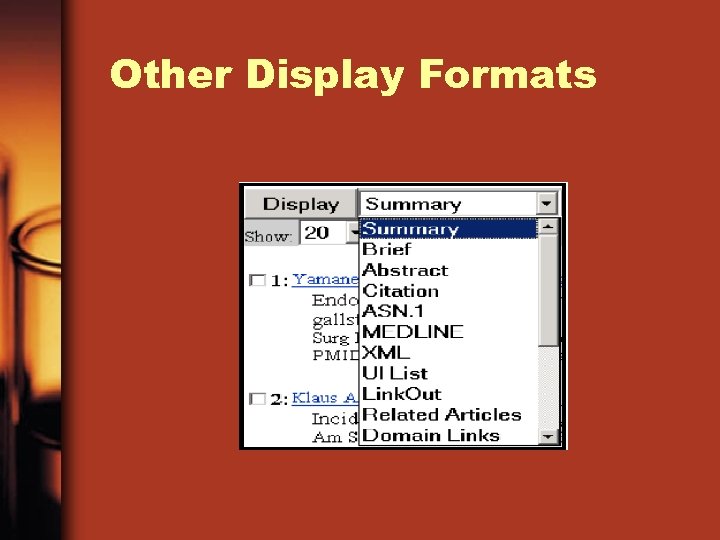 Other Display Formats
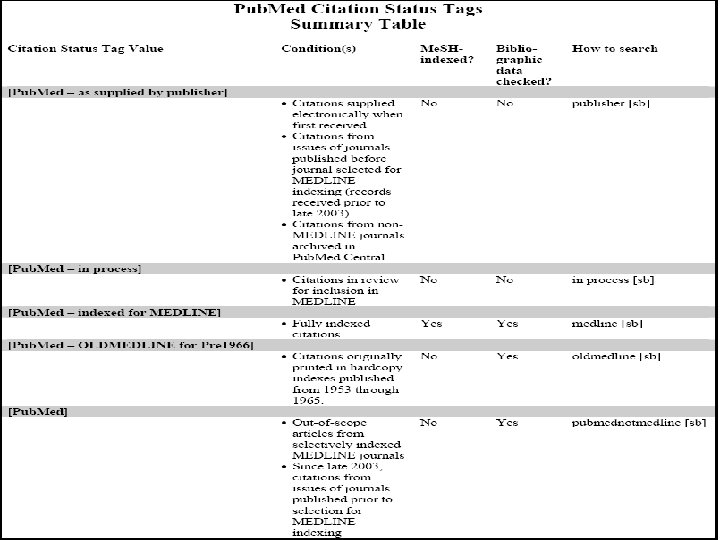
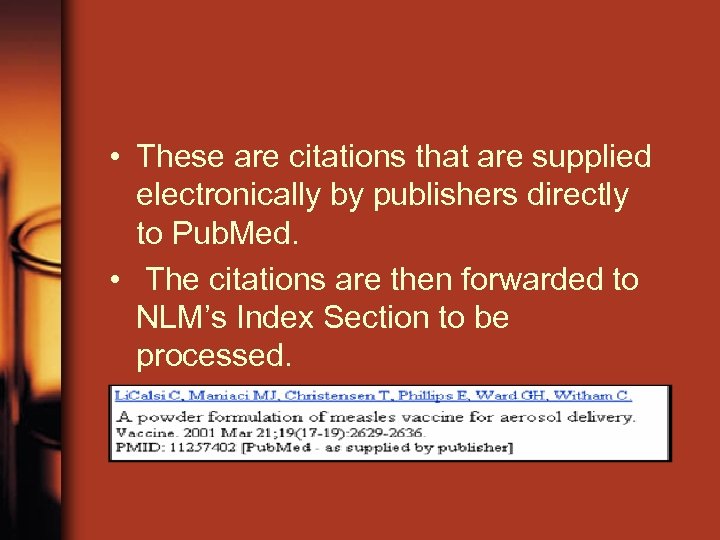 • These are citations that are supplied electronically by publishers directly to Pub. Med. • The citations are then forwarded to NLM’s Index Section to be processed. •
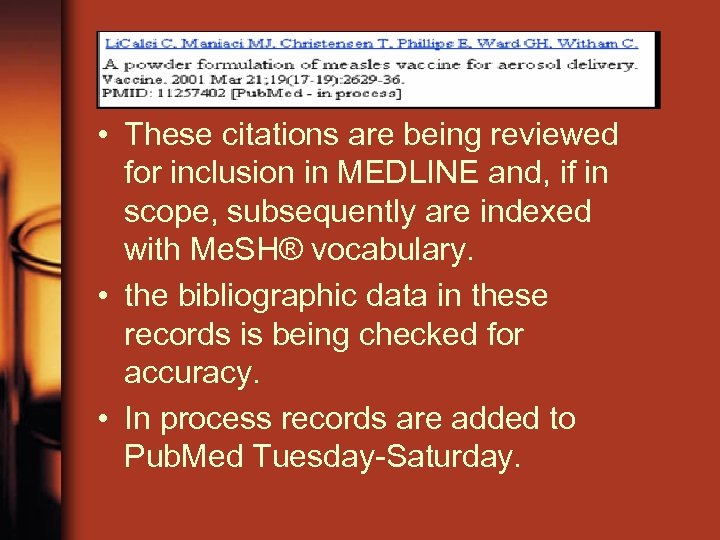 • These citations are being reviewed for inclusion in MEDLINE and, if in scope, subsequently are indexed with Me. SH® vocabulary. • the bibliographic data in these records is being checked for accuracy. • In process records are added to Pub. Med Tuesday-Saturday.
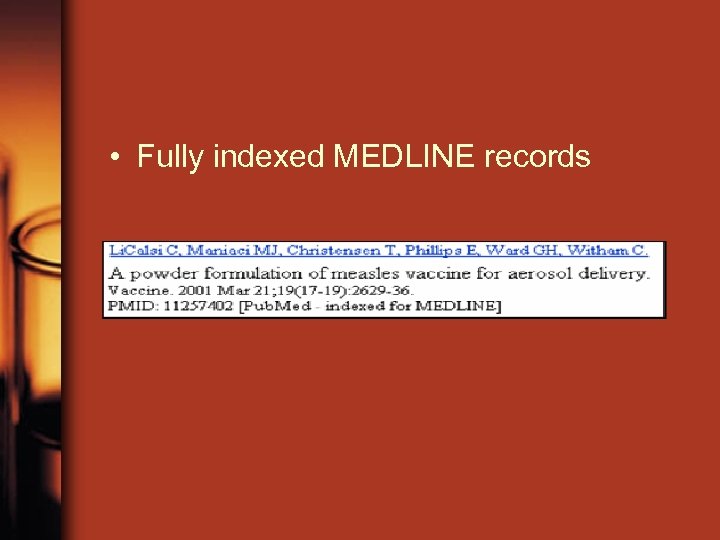 • Fully indexed MEDLINE records
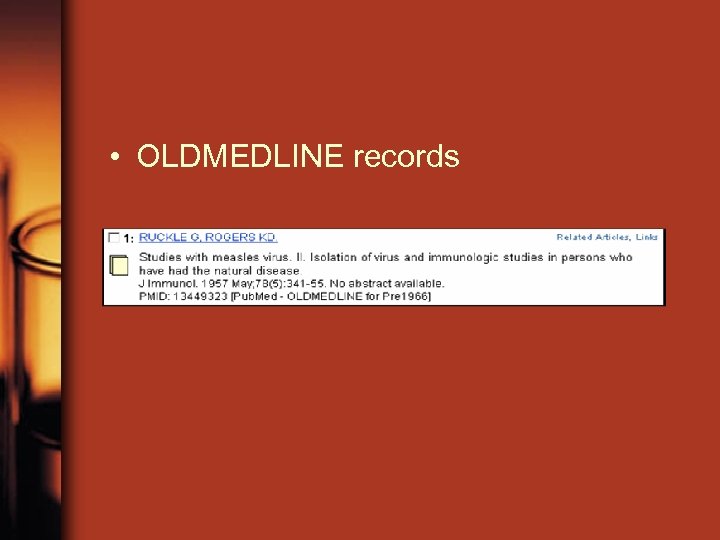 • OLDMEDLINE records
 • Non-Me. SH Indexed Citations • Some citations received electronically from publishers never become MEDLINE citations. • not indexed with Me. SH terms. • have either the status tag [Pub. Med] or [Pub. Med – as supplied by publisher] • There are three sources of these types of records:
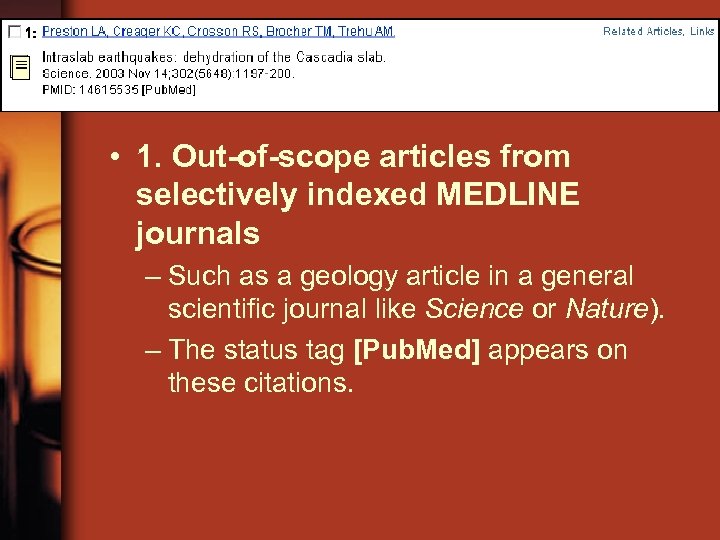 • 1. Out-of-scope articles from selectively indexed MEDLINE journals – Such as a geology article in a general scientific journal like Science or Nature). – The status tag [Pub. Med] appears on these citations.
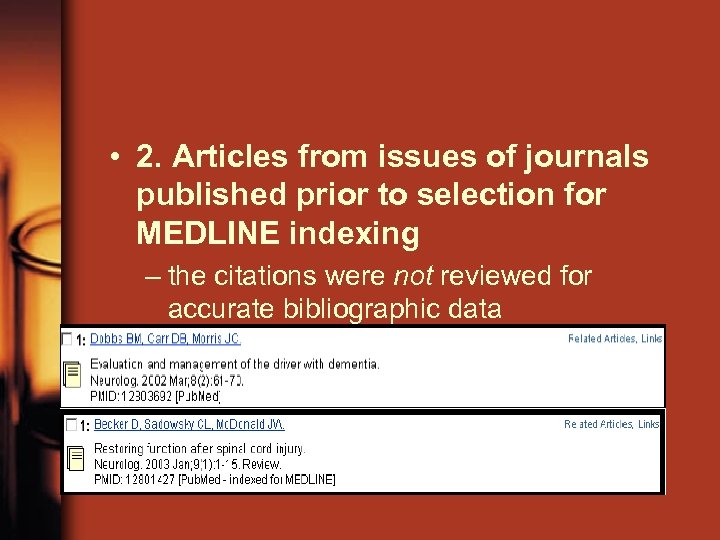 • 2. Articles from issues of journals published prior to selection for MEDLINE indexing – the citations were not reviewed for accurate bibliographic data
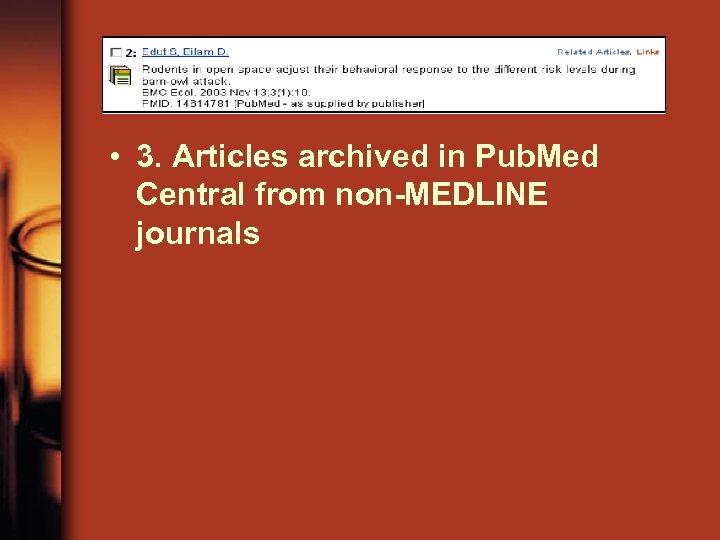 • 3. Articles archived in Pub. Med Central from non-MEDLINE journals
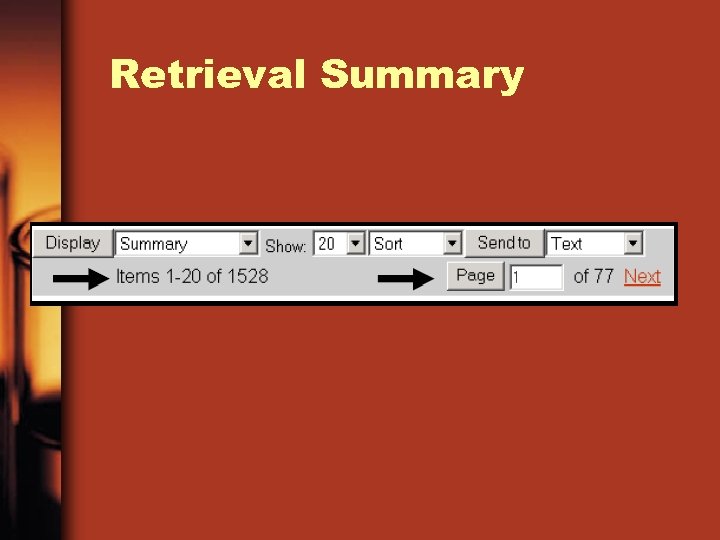 Retrieval Summary
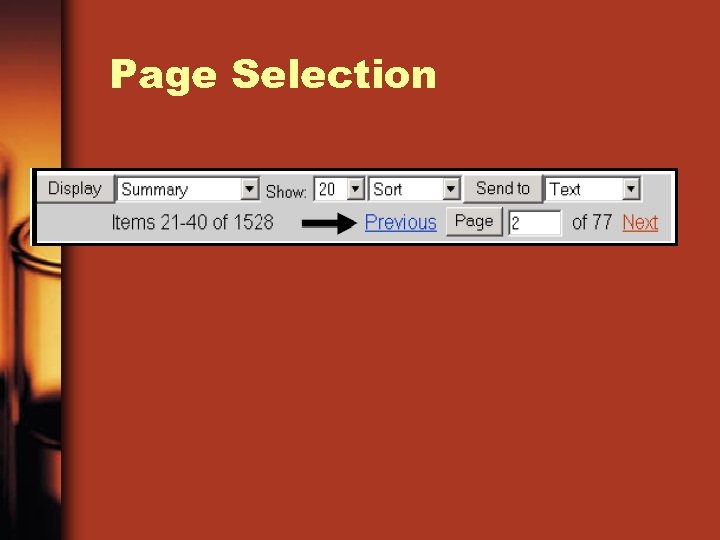 Page Selection
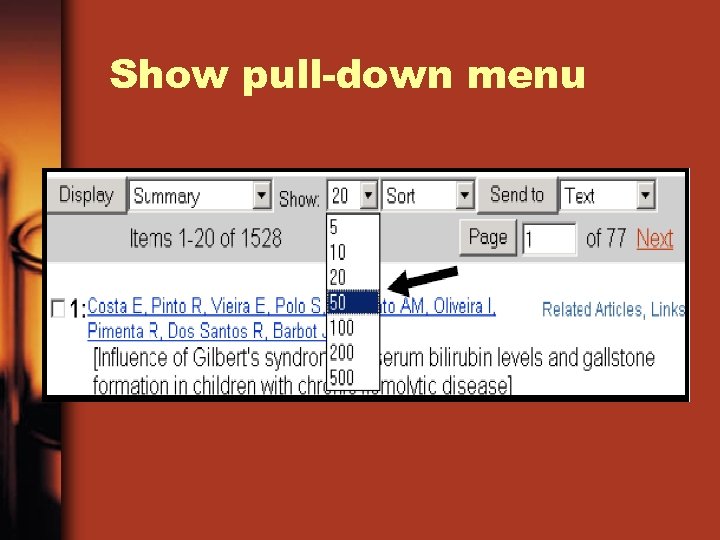 Show pull-down menu
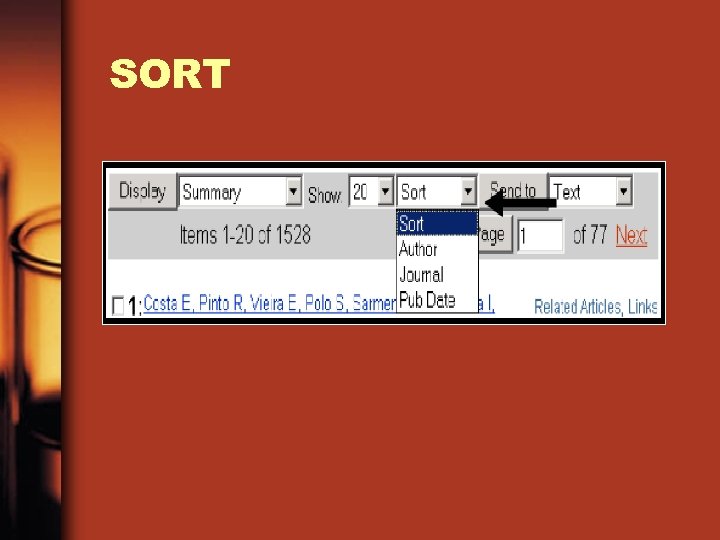 SORT
SORT
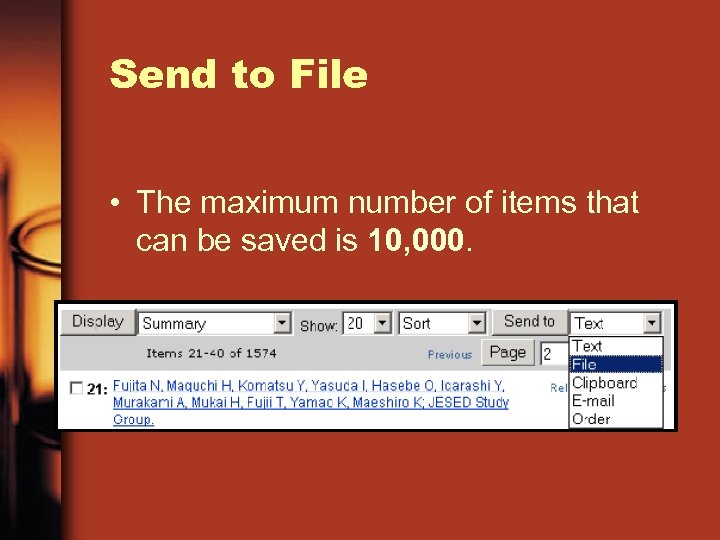 Send to File • The maximum number of items that can be saved is 10, 000.
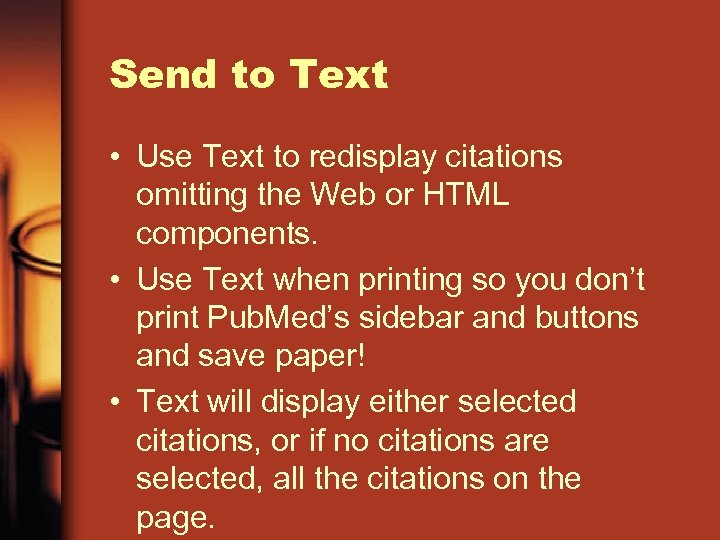 Send to Text • Use Text to redisplay citations omitting the Web or HTML components. • Use Text when printing so you don’t print Pub. Med’s sidebar and buttons and save paper! • Text will display either selected citations, or if no citations are selected, all the citations on the page.
 Send to Clipboard • The Clipboard allows you to collect selected citations from one search or several searches • that you may want to print, save, or order • The maximum number of items that can be placed in the Clipboard is 500. • Once you have added a citation to the Clipboard, the item number color will change.
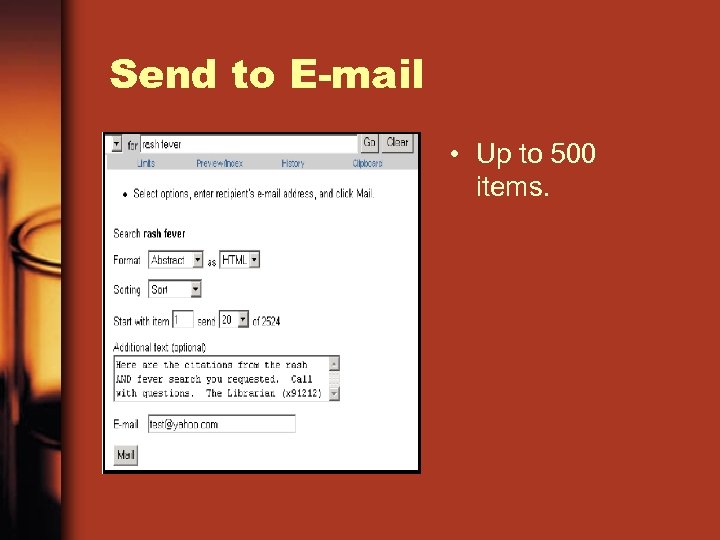 Send to E-mail • Up to 500 items.
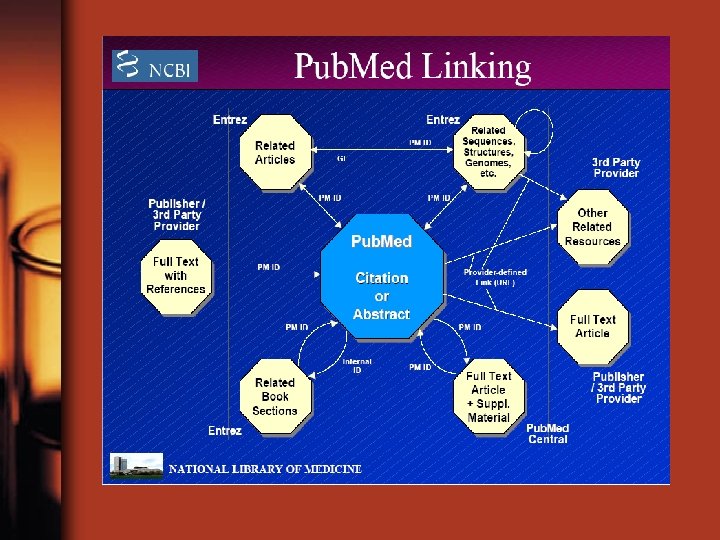
 Related Articles • Clicking on this link will access the citations in Pub. Med that are most closely related to the original citation. • Pub. Med compares words from the Title and Abstract of each citation, as well as the Me. SH headings assigned, using a powerful word-weighted algorithm. • display is in rank order from most to least relevant. • It can be refined by using history
 Link. Out • Link. Out provides links from Pub. Med and other Entrez databases to a wide variety of relevant webaccessible online resources including full-text publications. • Links back to citations in Pub. Med are often provided within the references at the end of an article viewed from a publisher’s Web site
 • The Link. Out format displays resources (if available) by broad categories (e. g. , LITERATURE), and then by subject categories (e. g. , Libraries) • Libraries link to see a list of libraries with electronic or print subscriptions for the cited journal. – free full text [sb] - Citations that include a link to a free full-text article. – full text [sb] - Citations that include a link to a full-text article.
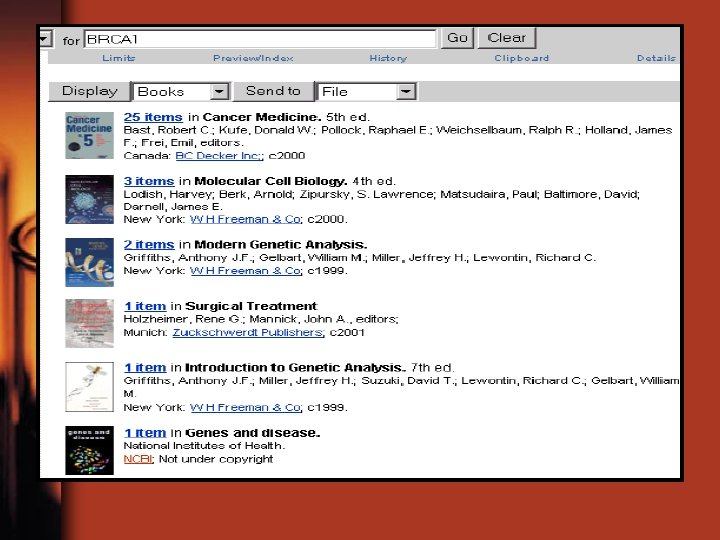
 • Books Link • Books links take you from terms in titles and abstracts to the Bookshelf database. This is a collection of biomedical books
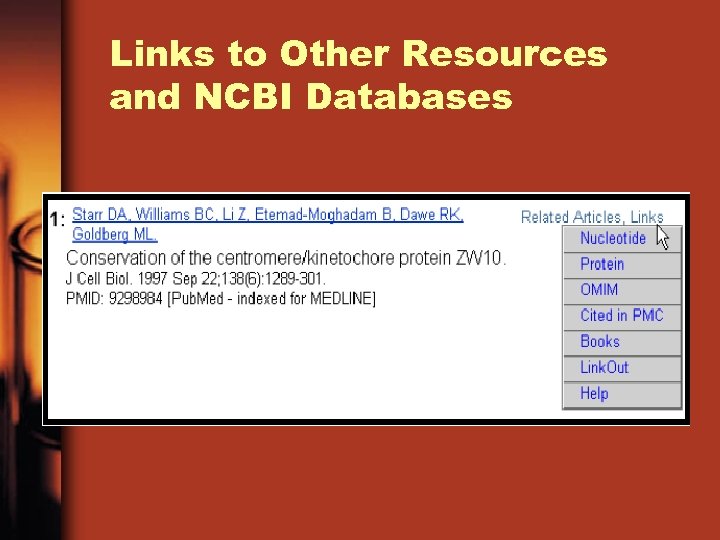 Links to Other Resources and NCBI Databases
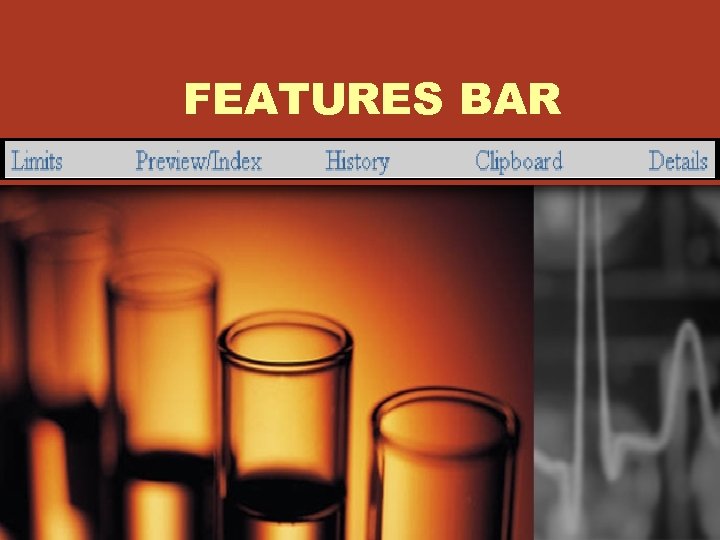 FEATURES BAR
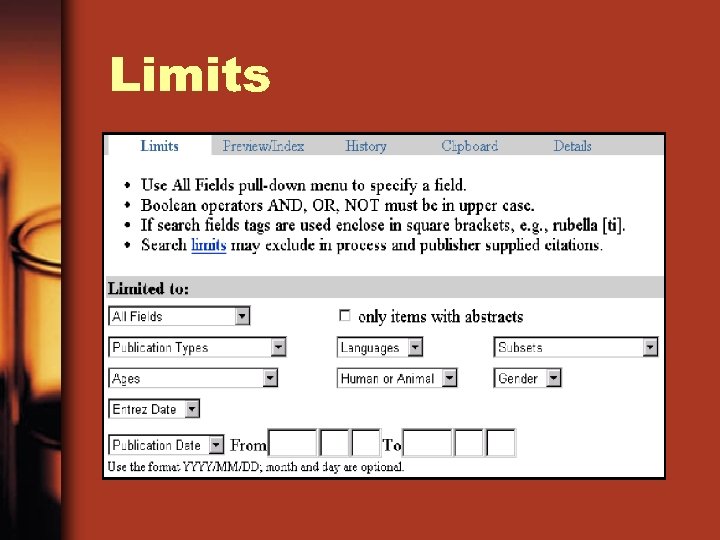 Limits
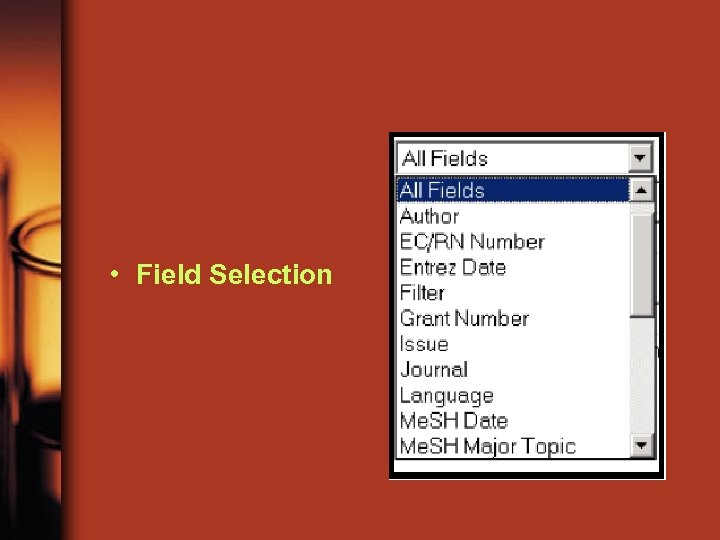 • Field Selection
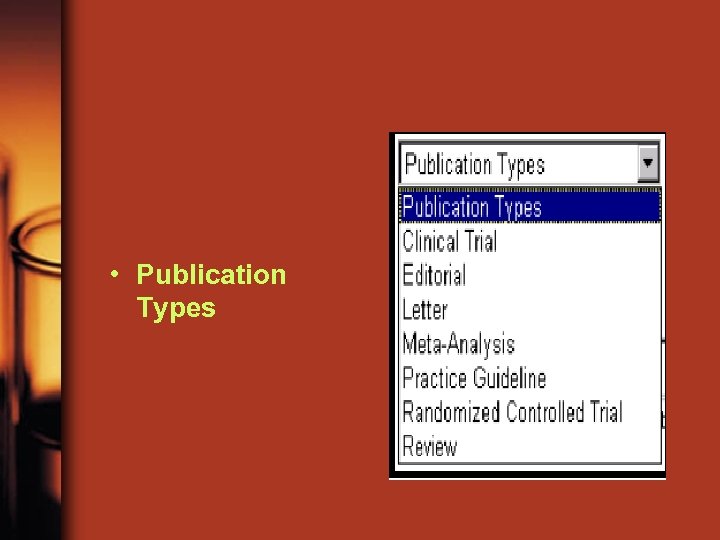 • Publication Types
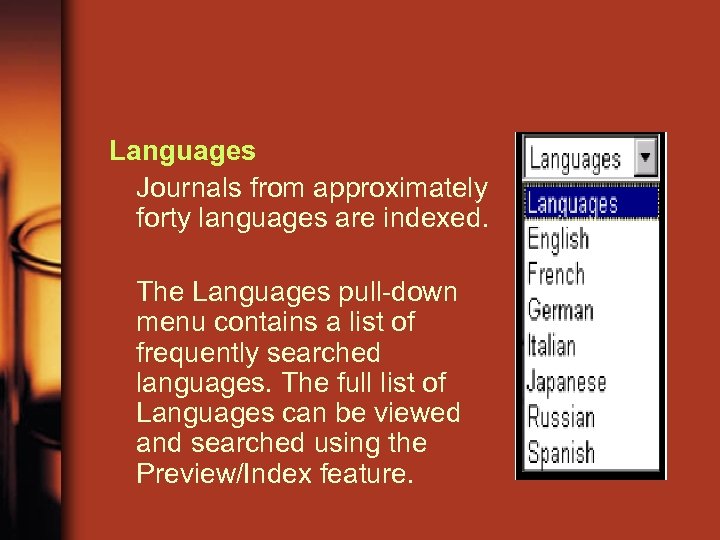 Languages Journals from approximately forty languages are indexed. The Languages pull-down menu contains a list of frequently searched languages. The full list of Languages can be viewed and searched using the Preview/Index feature.
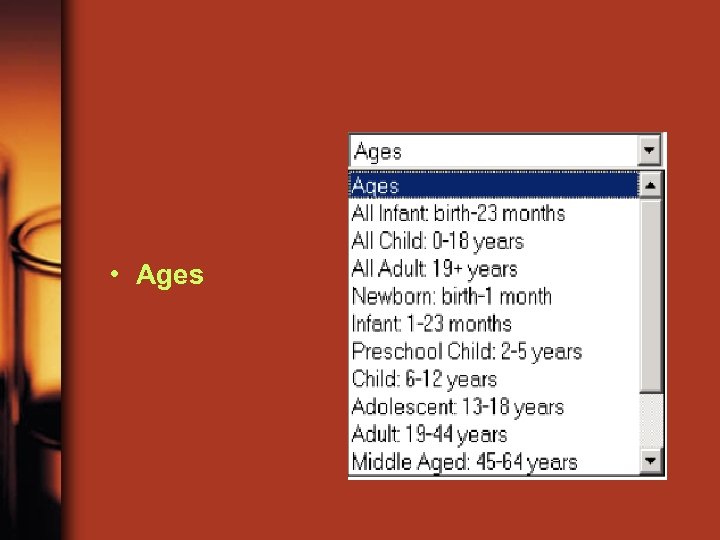 • Ages
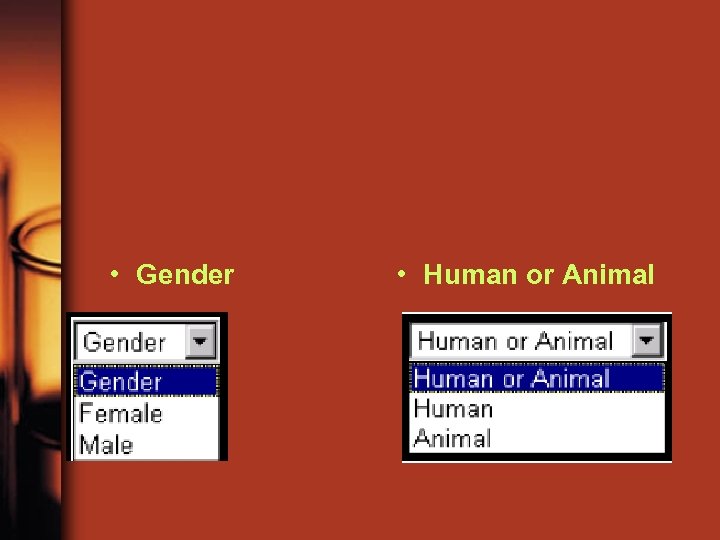 • Gender • Human or Animal
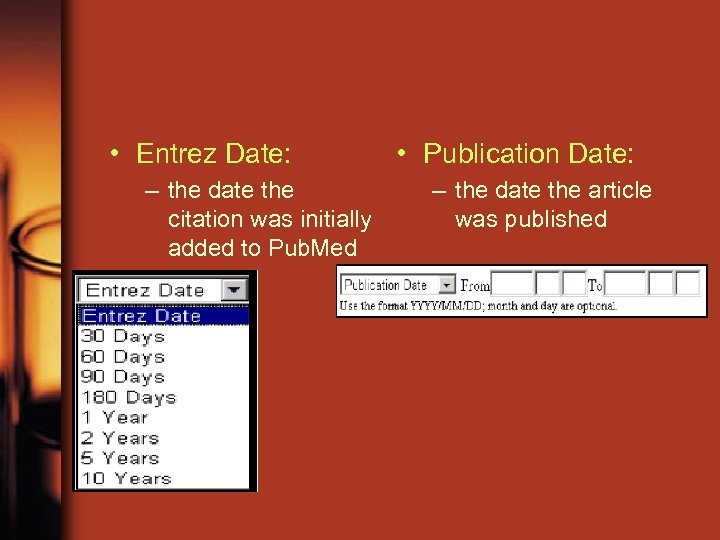 • Entrez Date: – the date the citation was initially added to Pub. Med • Publication Date: – the date the article was published
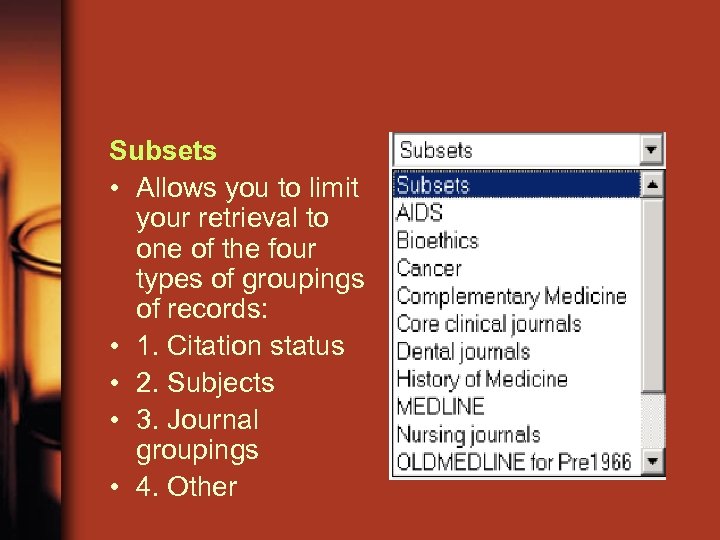 Subsets • Allows you to limit your retrieval to one of the four types of groupings of records: • 1. Citation status • 2. Subjects • 3. Journal groupings • 4. Other
 History
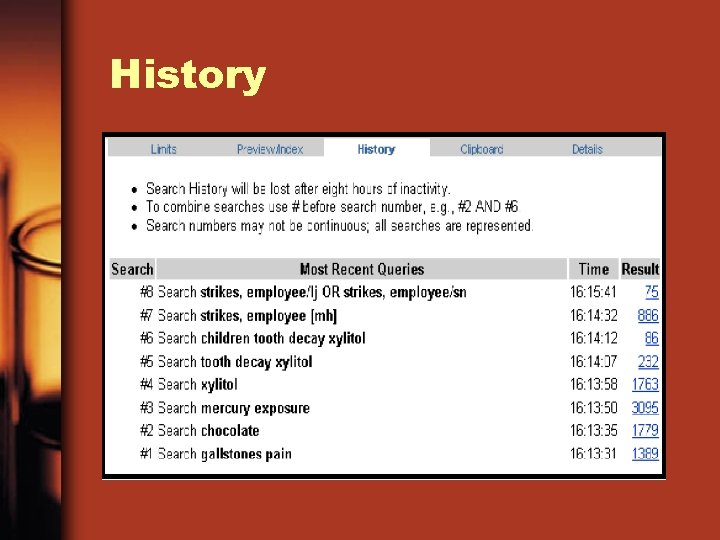
 History • History temporarily holds up to 100 searches and results. • The History screen displays: – Your search query – The time of the search – The number of citations in your search results • search history will be lost after 8 hours of inactivity.
 Preview/index Use Preview/Index to: – Preview the number of search results before displaying the citations. – Refine search strategies by adding one or more terms, one at a time. – Add terms to a strategy from specific search fields. – View and select terms from the Index to develop search strategies. – View your search strategy as you continue to refine your search.
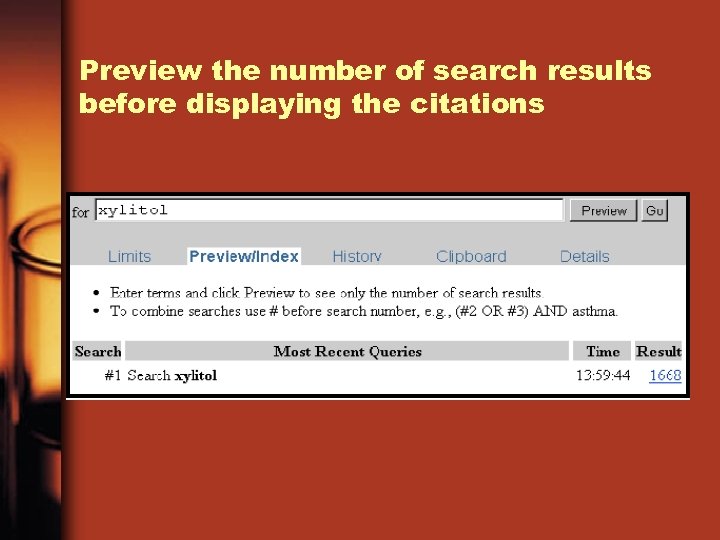 Preview the number of search results before displaying the citations
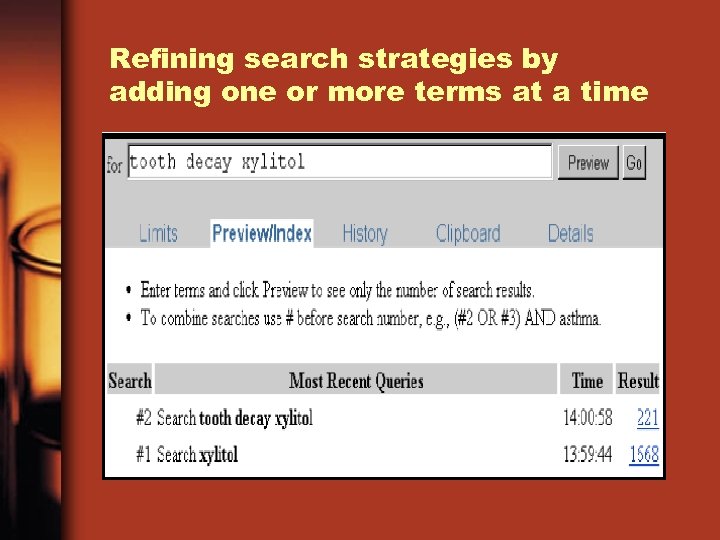 Refining search strategies by adding one or more terms at a time
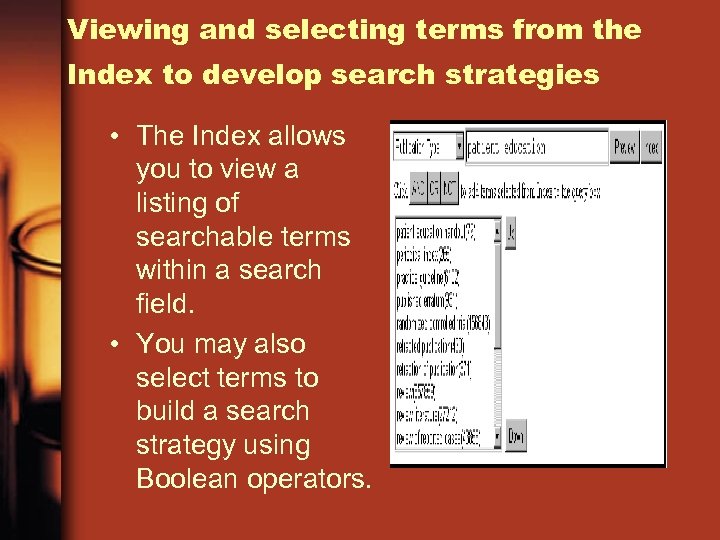 Viewing and selecting terms from the Index to develop search strategies • The Index allows you to view a listing of searchable terms within a search field. • You may also select terms to build a search strategy using Boolean operators.
 Clipboard • Pub. Med will add up to 500 citations from your retrieval to the clipboard. • The clipboard will be lost after 8 hours of inactivity. • To empty the Clipboard, select Clip Remove from the Send to menu and then click on the Send to button. • Citations on the Clipboard may be incorporated into a search statement using #0
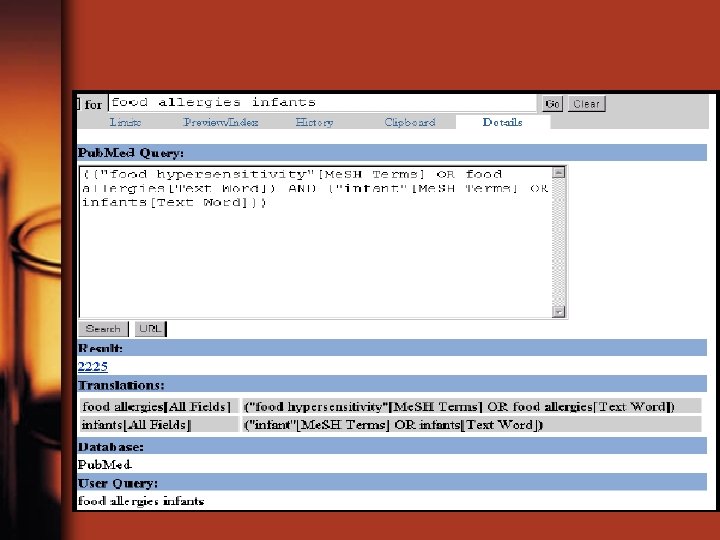
 Details • Clicking on Details displays your search query as it was translated by Pub. Med including Me. SH term and Pub. Med phrase index mappings. • The Pub. Med Query box in Details allows you to edit a search strategy and resubmit it. • Details also allows you to save a search strategy.
 • URL button • The translated search strategy will be displayed in the query box and this search strategy will also be embedded as part of the URL. • search strategy using the URL is useful – For adding to favorites (bookmark) – If you want to email the URL to a colleague or create a link on a Web page.
 Search strategy
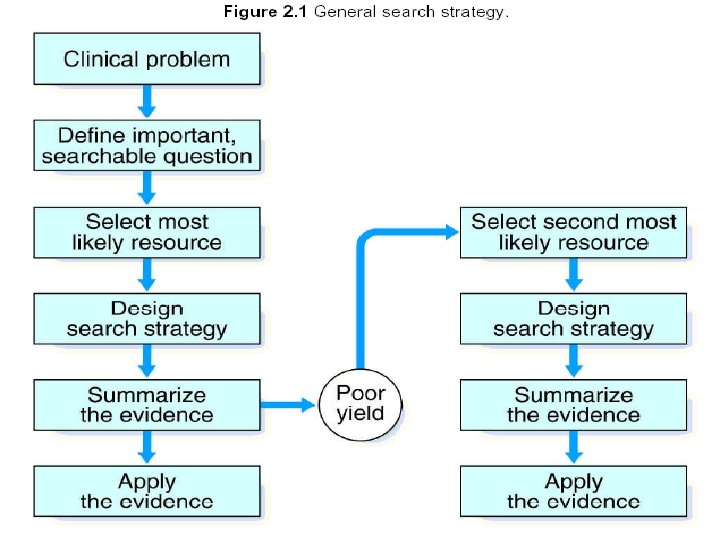
 Search Strategy • A systematic process used to find the most relevant information on a topic. During this process, one considers all potentially useful reference sources, selects works appropriate for the research need, locates information, and evaluates the relevance of the information found
 Reading journals • Browsing mode – Printed version is easier. • Problem solving mode – Electronic version is easier.
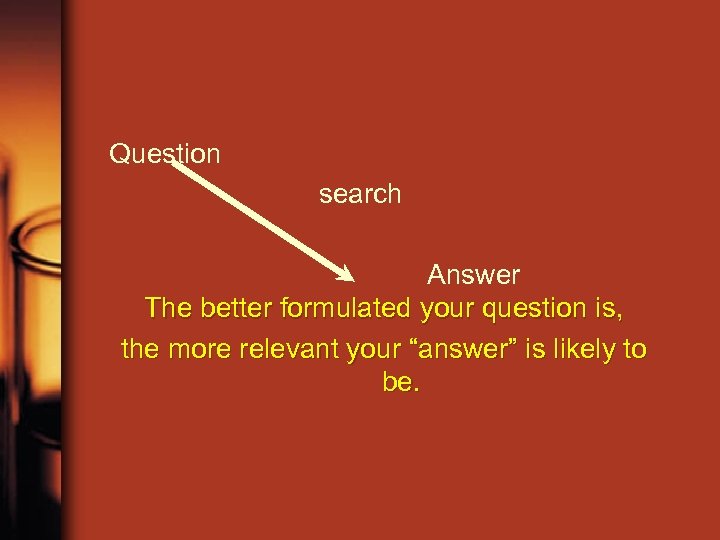 Question search Answer The better formulated your question is, the more relevant your “answer” is likely to be.
 TYPES OF QUESTIONS • Background • Foreground
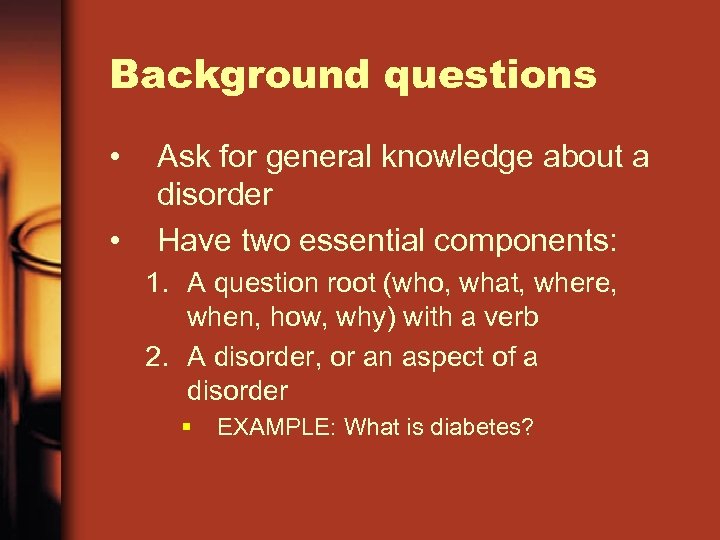 Background questions • • Ask for general knowledge about a disorder Have two essential components: 1. A question root (who, what, where, when, how, why) with a verb 2. A disorder, or an aspect of a disorder § EXAMPLE: What is diabetes?
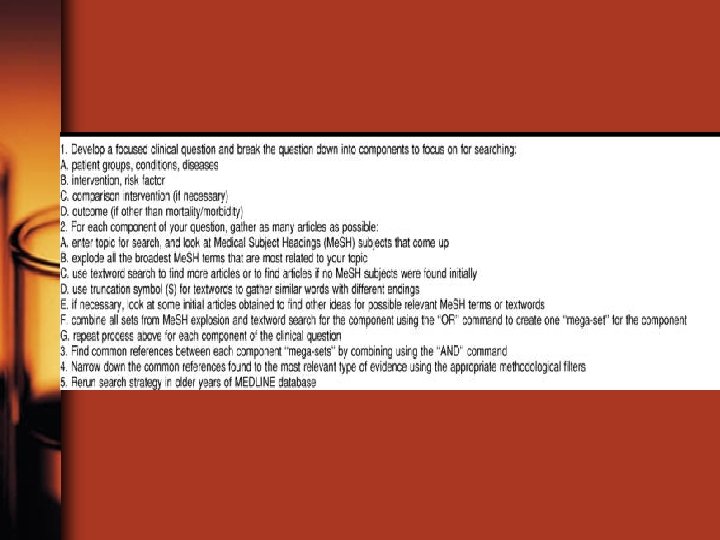
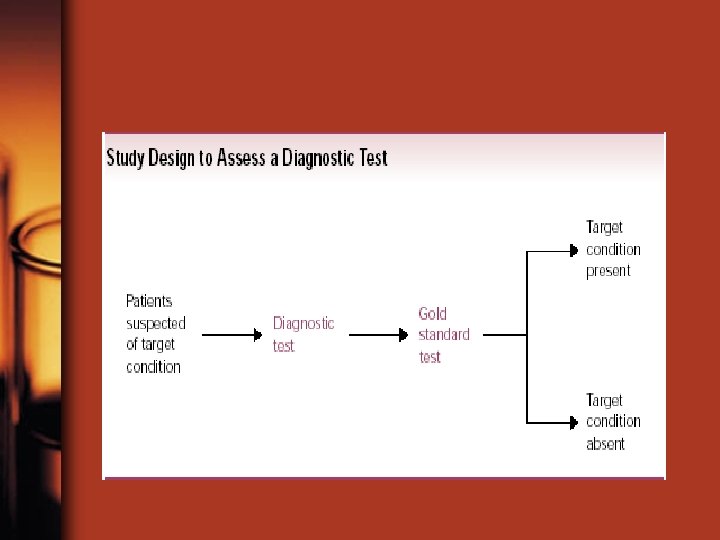
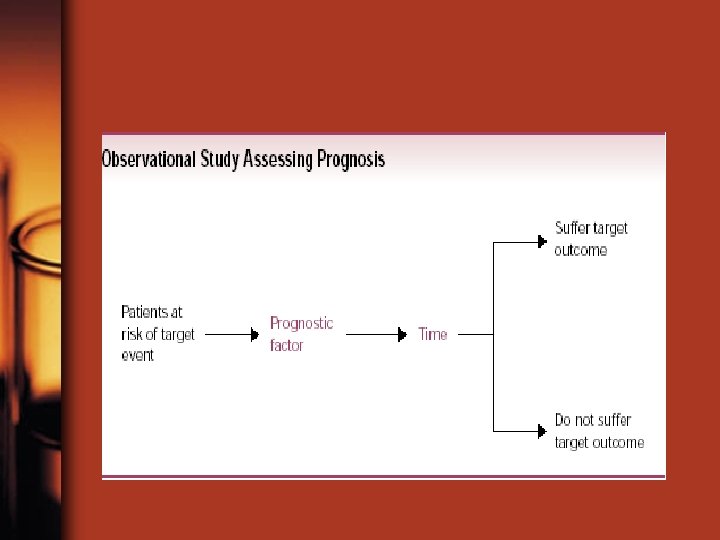
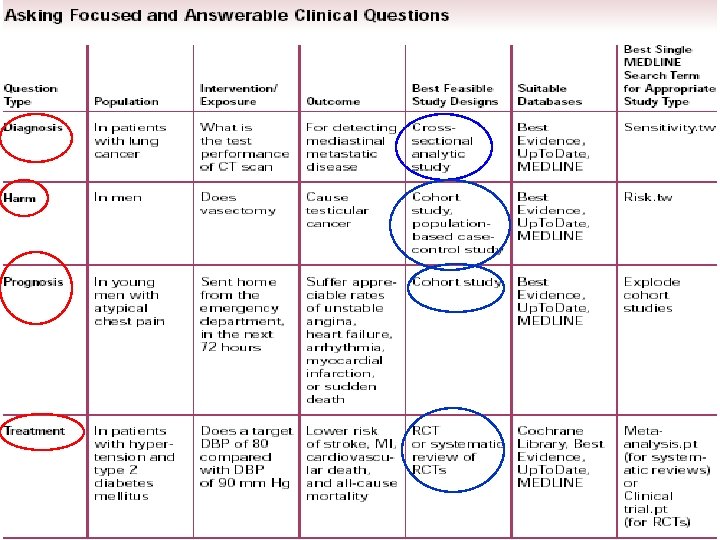
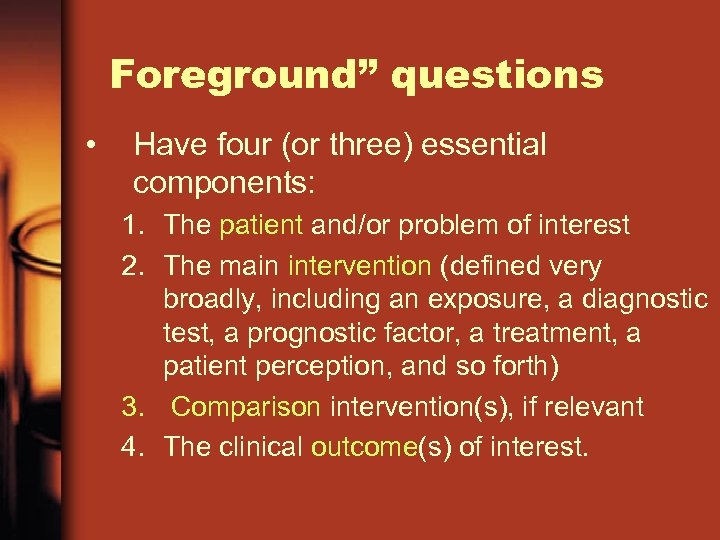 Foreground” questions • Have four (or three) essential components: 1. The patient and/or problem of interest 2. The main intervention (defined very broadly, including an exposure, a diagnostic test, a prognostic factor, a treatment, a patient perception, and so forth) 3. Comparison intervention(s), if relevant 4. The clinical outcome(s) of interest.
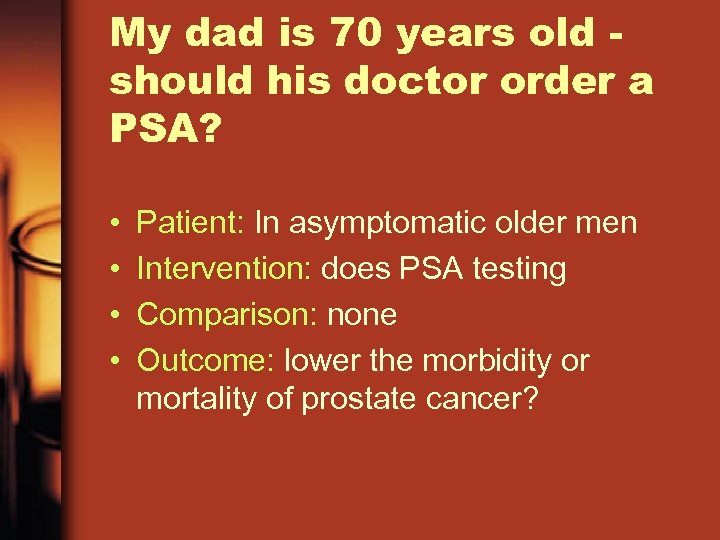 My dad is 70 years old should his doctor order a PSA? • • Patient: In asymptomatic older men Intervention: does PSA testing Comparison: none Outcome: lower the morbidity or mortality of prostate cancer?
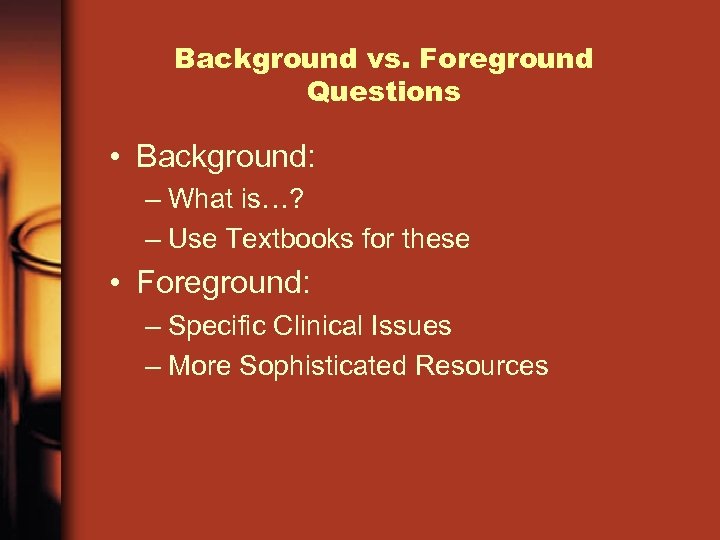 Background vs. Foreground Questions • Background: – What is…? – Use Textbooks for these • Foreground: – Specific Clinical Issues – More Sophisticated Resources
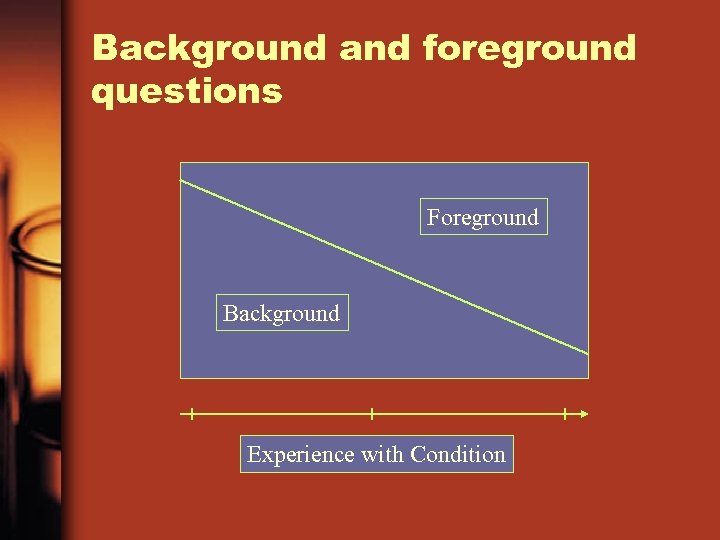 Background and foreground questions Foreground Background Experience with Condition
 Search Recommendation 1 • Recommendation: Use nouns or objects as query keywords • Example: Diabetes • Why important: actions (verbs), modifiers (adjectives, and adverbs), and conjunctions are either “thrown away” by search engines or too variable to be useful
 Search Recommendation 2 • Recommendation: Use 6 to 8 words in query • Example: Diabetes, mellitus, neuropathy, sensory, treatment, biguanide • Why important: more keywords chosen at appropriate level, can reduce the universe of possible documents returned by 99%
 Enough Number of Keywords • One of the biggest mistakes you can make in preparing a query is not providing enough keywords. • On average, most users submit 1. 5 keywords per query. This typically returns over 40, 000 documents and makes it impossible to get a good “hit”
 Search Recommendation 3 • Recommendation: Truncate words to pick up singular and pleural versions • Example: Therap* • Why important: use asterisk wildcard. The wildcard tell the search engine to match all characters after it, preserving keyword slots and increasing coverage by 50% or more
 Search Recommendation 4 • Recommendation: Use synonyms via the OR operator • Example: treatment OR therapy • Why important: cover the likely different ways a concept can be described. Generally avoid OR in other cases
 Search Recommendation 5 • Recommendation: Combine keywords into phrases where possible • Example: “diabetes mellitus” • Why important: use quotes to denote phrases. Phrases restrict results to exact matches, narrows results by many time
 Search Recommendation 6 • Recommendation: combine 2 to 3 concepts in query • Example: “diabetes mellitus”, “sensory neuropathy”, biguanide*, treatment OR therapy • Why important: triangulating on multiple query concepts, narrows and targets results, generally by more than 100 to 1
 Search Recommendation 7 • Recommendation: Distinguish concepts by parentheses • Example: (“diabetes mellitus”) (“sensory neuropathy”) (biguanide*) (treatment OR therapy) • Why important: simple way to ensure the search engine evaluate your query the way you want, from left to right
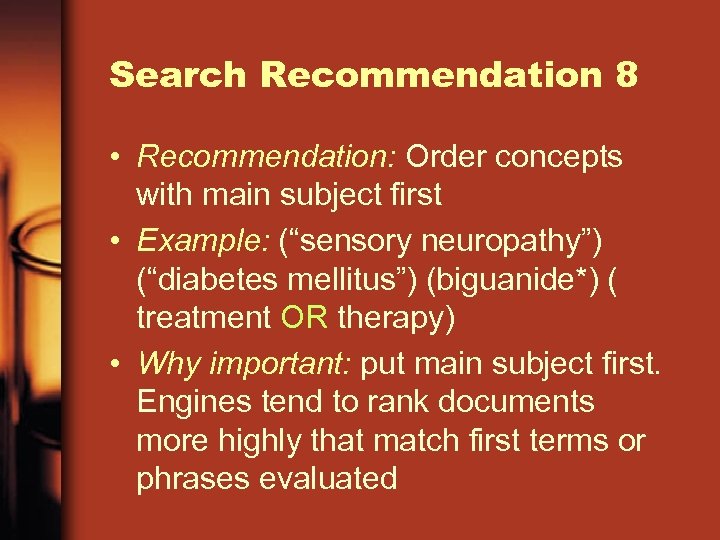 Search Recommendation 8 • Recommendation: Order concepts with main subject first • Example: (“sensory neuropathy”) (“diabetes mellitus”) (biguanide*) ( treatment OR therapy) • Why important: put main subject first. Engines tend to rank documents more highly that match first terms or phrases evaluated
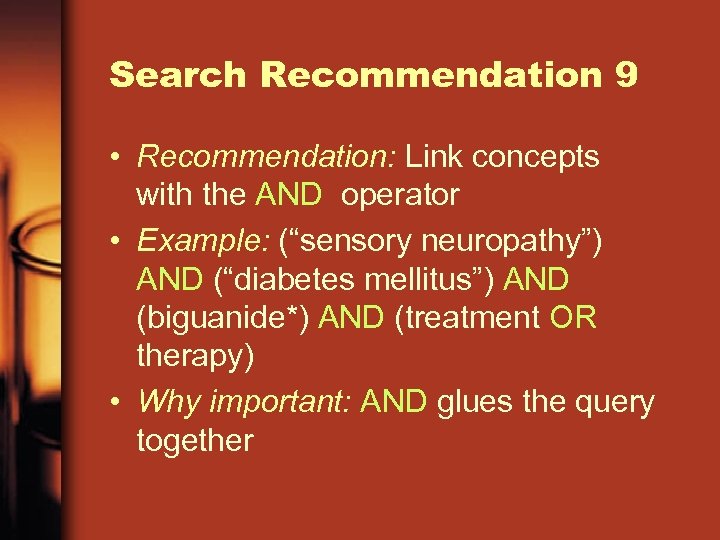 Search Recommendation 9 • Recommendation: Link concepts with the AND operator • Example: (“sensory neuropathy”) AND (“diabetes mellitus”) AND (biguanide*) AND (treatment OR therapy) • Why important: AND glues the query together
 Search Recommendation 11 • Recommendation: Refine your search if necessary • Why important: – Many sites offer a “Refine search” option so you can modify your search term – Some have a “more like this” option – Or go BACK to the search box to change your query
 Cubby
Cubby
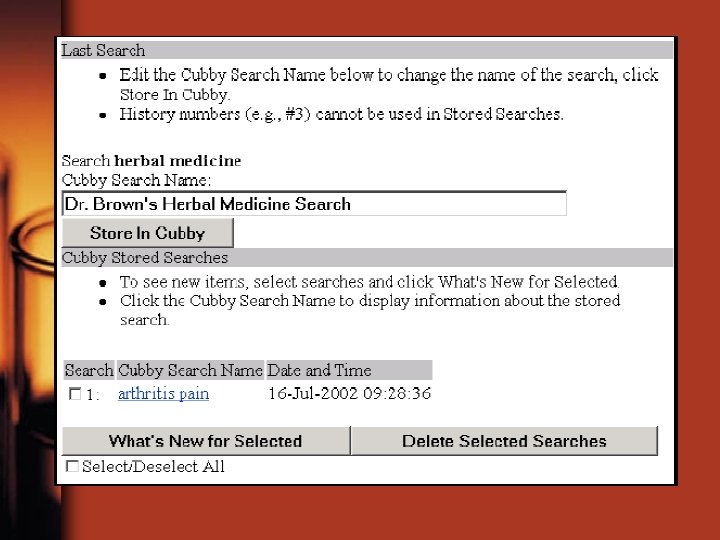
 Cubby • The Cubby stores searches that can be updated at any time from any computer (to check for new items since you last checked). • stores User Preferences (default e-mail address). • Stores Link. Out preferences that specify which Link. Out providers you want displayed in Pub. Med • stores Document Delivery Services preferences.
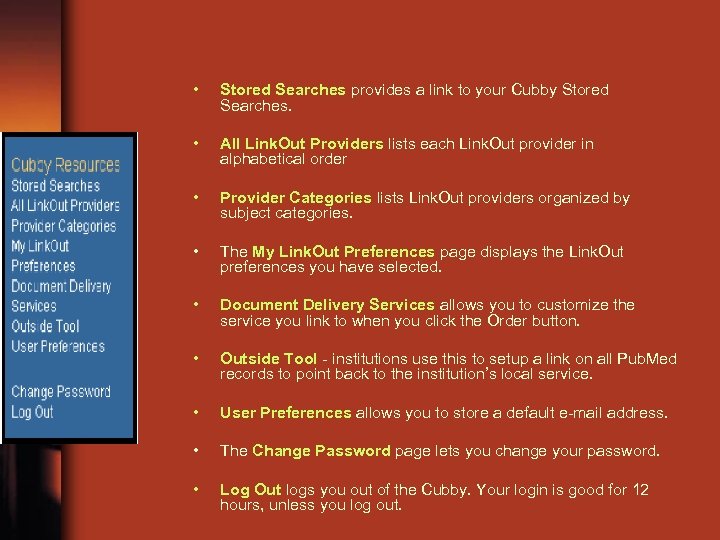 • Stored Searches provides a link to your Cubby Stored Searches. • All Link. Out Providers lists each Link. Out provider in alphabetical order • Provider Categories lists Link. Out providers organized by subject categories. • The My Link. Out Preferences page displays the Link. Out preferences you have selected. • Document Delivery Services allows you to customize the service you link to when you click the Order button. • Outside Tool - institutions use this to setup a link on all Pub. Med records to point back to the institution’s local service. • User Preferences allows you to store a default e-mail address. • The Change Password page lets you change your password. • Log Out logs you out of the Cubby. Your login is good for 12 hours, unless you log out.
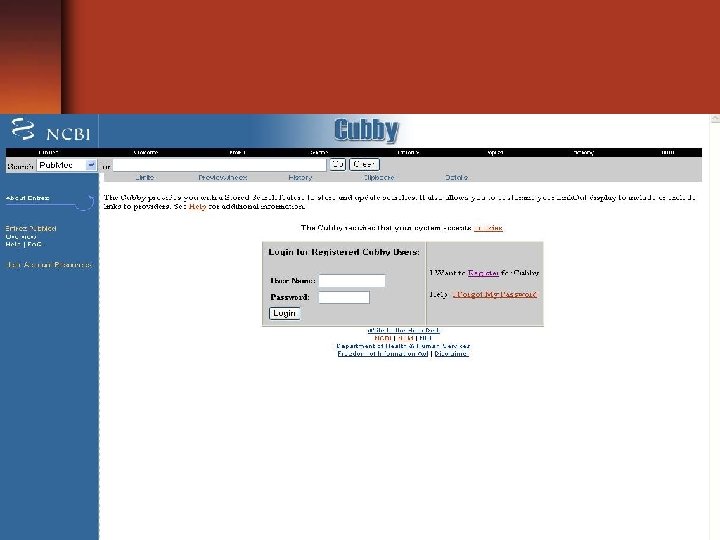
 • To use Cubby you need a User Name and Password • Up to 100 searches in a single Cubby account. • The Cubby will let you store multiple searches with identical names.
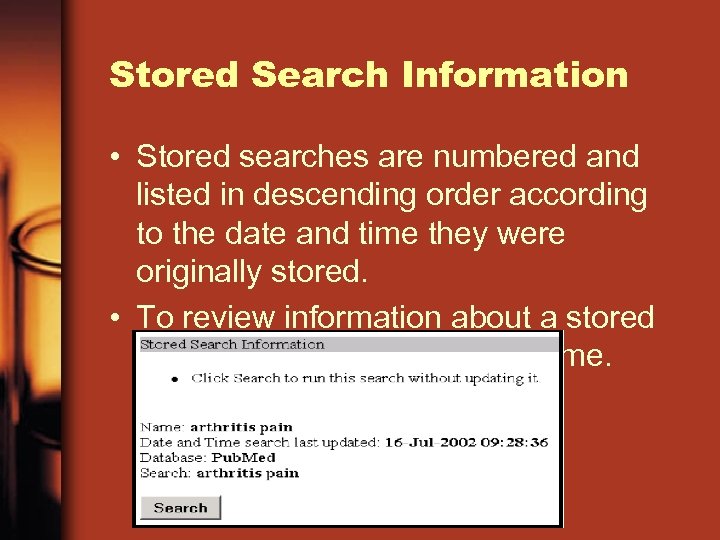 Stored Search Information • Stored searches are numbered and listed in descending order according to the date and time they were originally stored. • To review information about a stored search, click on the search name.
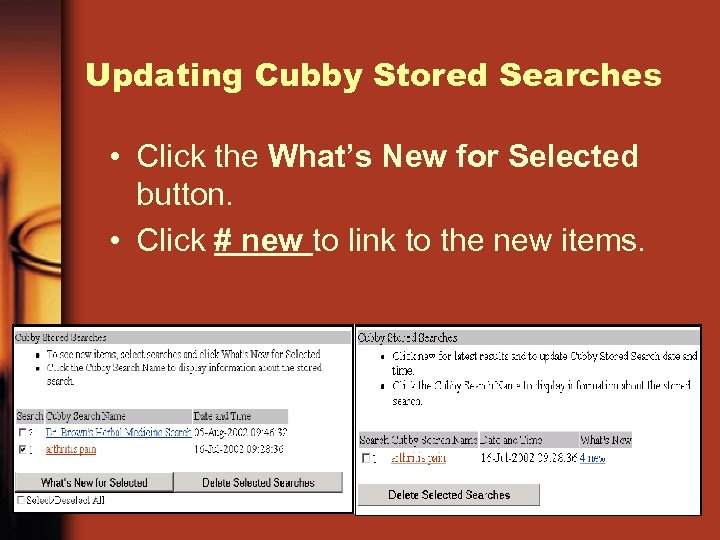 Updating Cubby Stored Searches • Click the What’s New for Selected button. • Click # new to link to the new items.
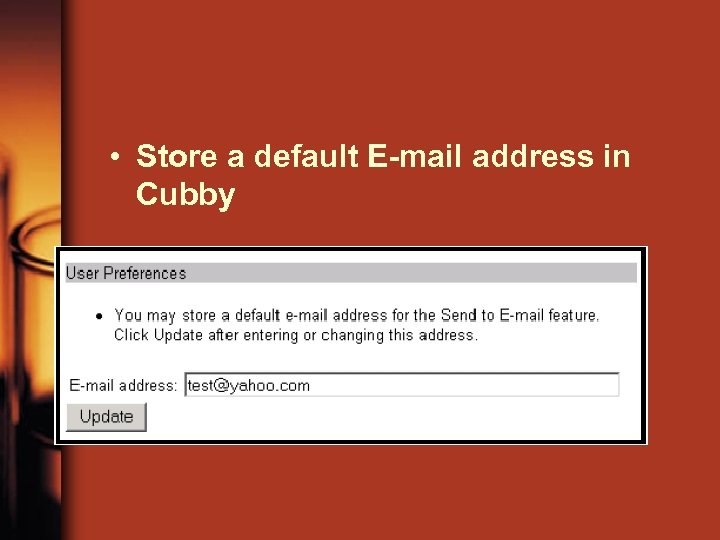 • Store a default E-mail address in Cubby
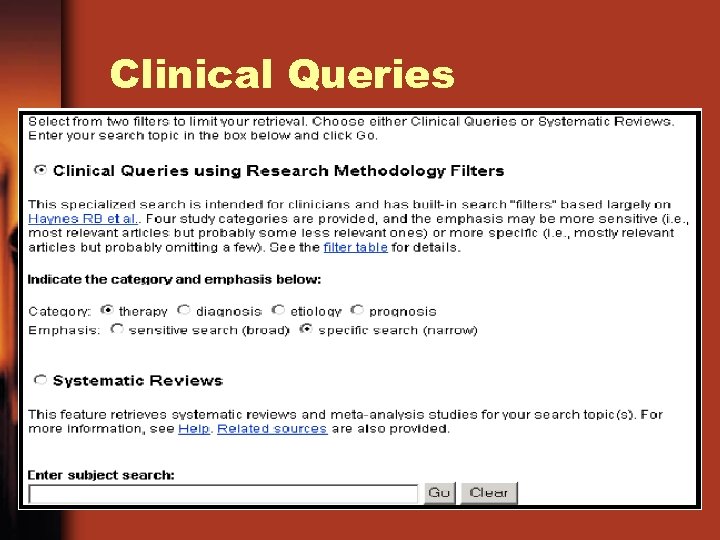 Clinical Queries
 • There are two search filters available from this page: – Clinical Queries – Systematic Reviews
 Clinical Queries • This specialized search query is intended for clinicians and has built-in search "filters" based on research done by R. Brian Haynes, M. D. , Ph. D. at Mc. Master University in Canada. • Four study categories or filters are provided : – – therapy diagnosis etiology prognosis • Two emphasis categories or filters are provided: – sensitivity (also referred to as “ recall” -- includes relevant articles but probably some less relevant; will get more retrieval) – specificity (also referred to as “ precision” -- will get less retrieval)
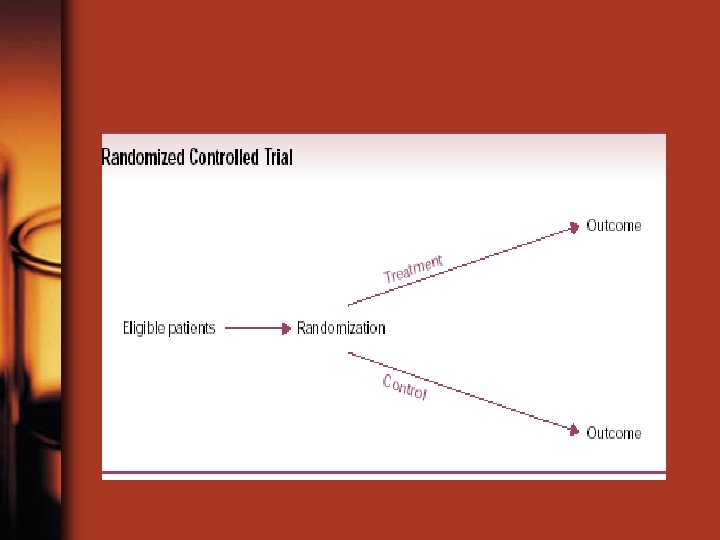
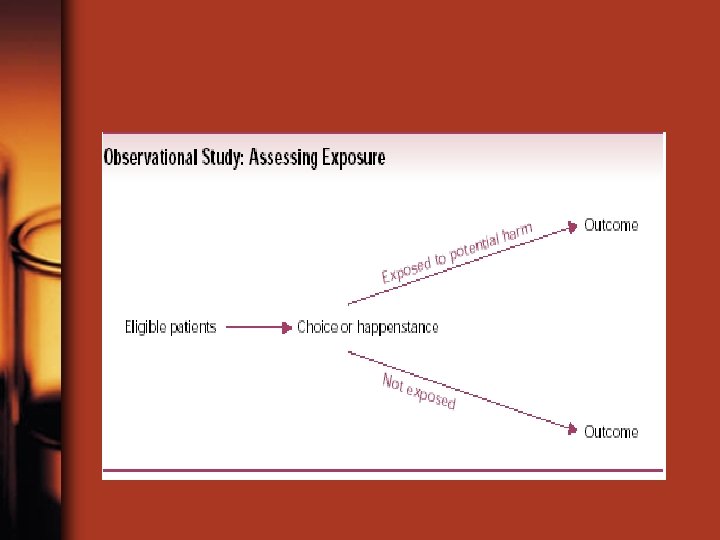
 Systematic Reviews • This feature is provided to help clinicians locate systematic reviews and similar articles. • It retrieves systematic reviews, metaanalyses, reviews of clinical trials, evidence-based medicine, consensus development conferences, and guidelines. Citations from journals specializing in clinical review studies are also included. • This subset can be combined directly with other search terms using AND systematic [sb].
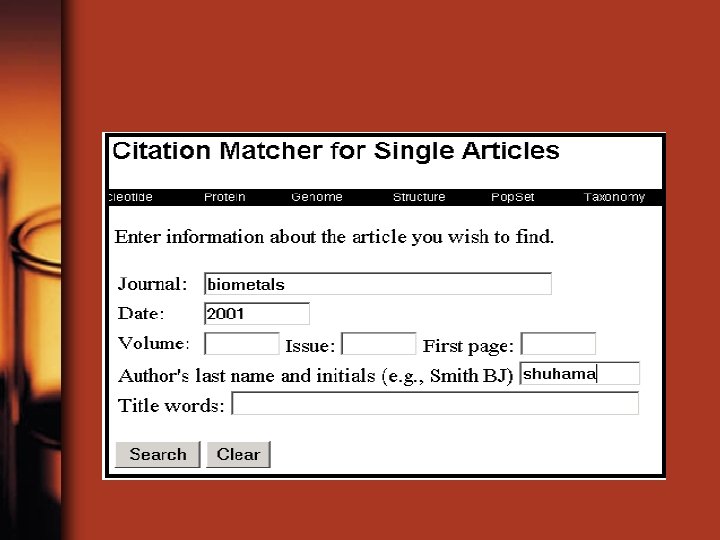
 Single Citation Matcher • Allows you to find a citation using information such as a journal name, volume, issue, page number, publication date, and title words. • The Single Citation Matcher can also be used to get a "Table of Contents" listing of items from a particular issue of a journal in Pub. Med
 Batch Citation Matcher • allows you to retrieve the Pub. Med IDs for many articles all at once. • The feature requires that you enter the bibliographic information (journal, volume, page, etc. ) in a specific format. • The Batch Citation Matcher is primarily a tool used by publishers to check their electronic submissions and links.
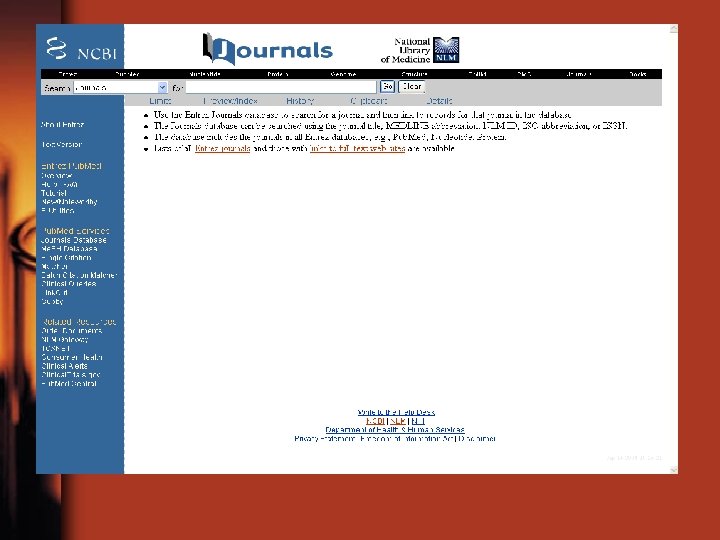
 Journals Database • Allows you to look up information about a Pub. Med journal in NLM’s LOCATORplus and search for citations in Pub. Med from that journal. • You can search for a journal using: – – journal title MEDLINE/Pub. Med title abbreviation NLM ID (NLM's unique journal identifier) ISO (International Organization for Standardization) abbreviation – print and electronic International Standard Serial Numbers (p. ISSNs and e. ISSNs)
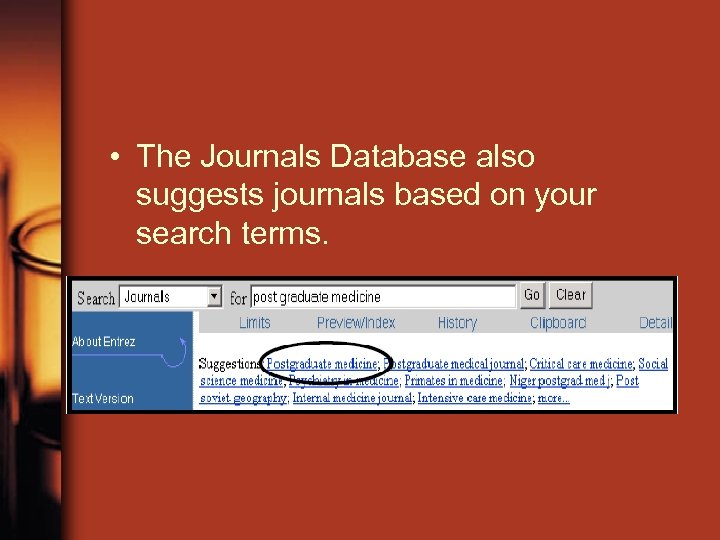 • The Journals Database also suggests journals based on your search terms.
 Journals Lists • click on links to full-text web sites for a list of full-text journals available on the Web to which Pub. Med is currently linked. • Click on Entrez journals to FTP a list of all journals that are included in Pub. Med in the GNU Zip, Uncompressed, UNIX Compress, or PKZIP format.