Скачать презентацию MEAGER Microsoft Excel Automated Grader Applications of
2d589cc7c89e5d8609ab34f2710688da.ppt
- Количество слайдов: 42
 MEAGER Microsoft Excel Automated Grader
 Applications of MEAGER • Microsoft Excel courses • Microsoft Office Apps courses
 Purposes • To reduce the time and effort required in grading assignments • To grade assignments more accurately and in greater detail compared to hand grading via hard copy
 What does MEAGER grade? • • Text labels Numbers Formulas Worksheet names • Fonts – – Face Size Style (B/I/U) Color
 What does MEAGER grade? (continued) • Cell – – – • Borders Alignment (L/R/C) Fill Color Indent level Orientation (tilt) Number format • Currency, Percent • Accounting, Scientific • Etc. – Color – Style • solid broken – Thickness • Row Height • Column Width • Merged Ranges
 What does MEAGER not grade? • Charts • Embedded objects – – Pictures Clip Art Org charts Word Art • Drawing objects – Shapes – Lines – Drop shadows • Controls – Buttons – List Box – Text Box, etc.
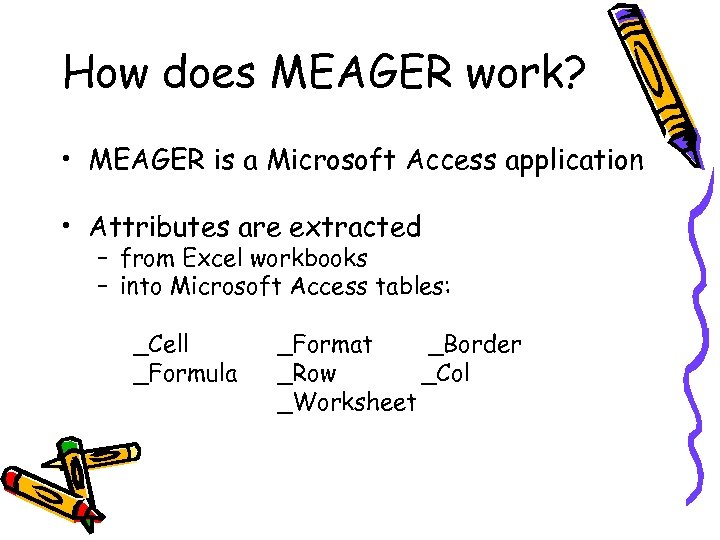 How does MEAGER work? • MEAGER is a Microsoft Access application • Attributes are extracted – from Excel workbooks – into Microsoft Access tables: _Cell _Formula _Format _Border _Row _Col _Worksheet
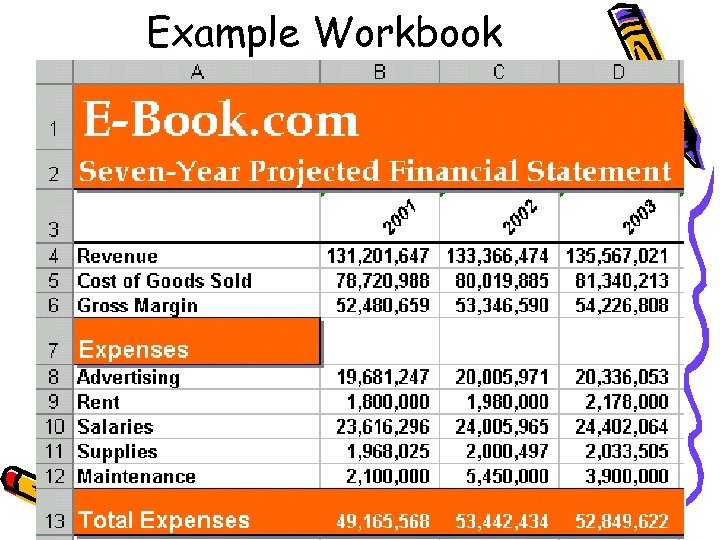 Example Workbook
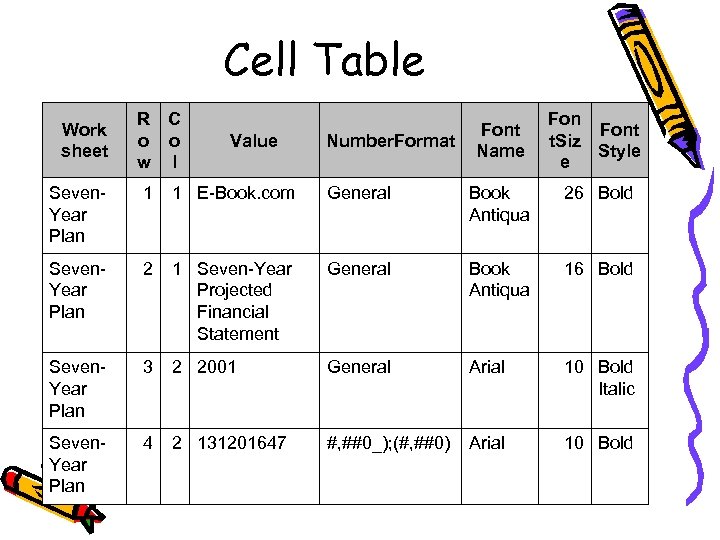 Cell Table Work sheet R C o o w l Value Number. Format Font Name Font t. Siz Style e Seven. Year Plan 1 1 E-Book. com General Book Antiqua 26 Bold Seven. Year Plan 2 1 Seven-Year Projected Financial Statement General Book Antiqua 16 Bold Seven. Year Plan 3 2 2001 General Arial 10 Bold Italic Seven. Year Plan 4 2 131201647 #, ##0_); (#, ##0) Arial 10 Bold
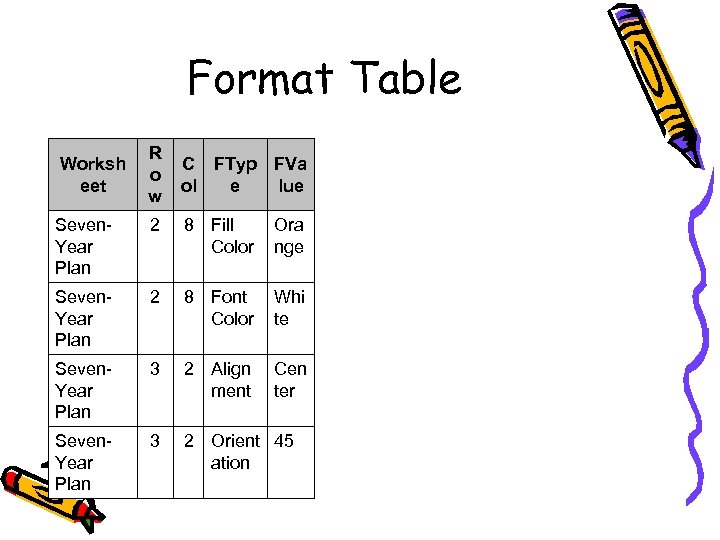 Format Table Worksh eet R o w C FTyp FVa ol e lue Seven. Year Plan 2 8 Fill Color Ora nge Seven. Year Plan 2 8 Font Color Whi te Seven. Year Plan 3 2 Align ment Cen ter Seven. Year Plan 3 2 Orient 45 ation
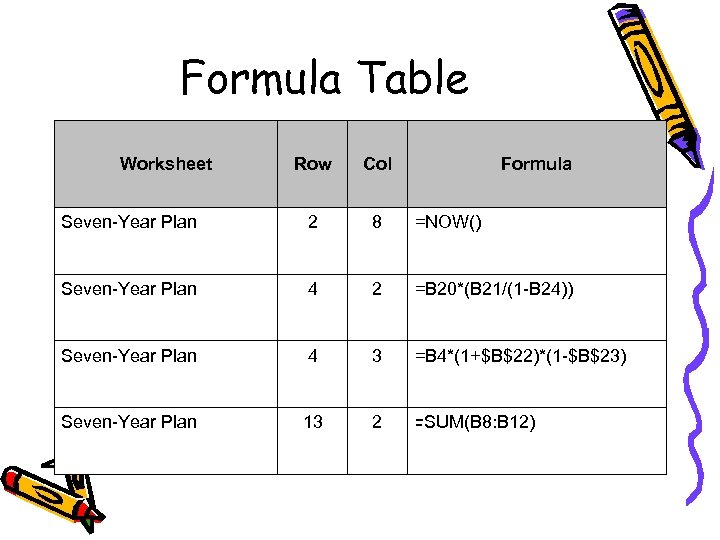 Formula Table Worksheet Row Col Formula Seven-Year Plan 2 8 =NOW() Seven-Year Plan 4 2 =B 20*(B 21/(1 -B 24)) Seven-Year Plan 4 3 =B 4*(1+$B$22)*(1 -$B$23) Seven-Year Plan 13 2 =SUM(B 8: B 12)
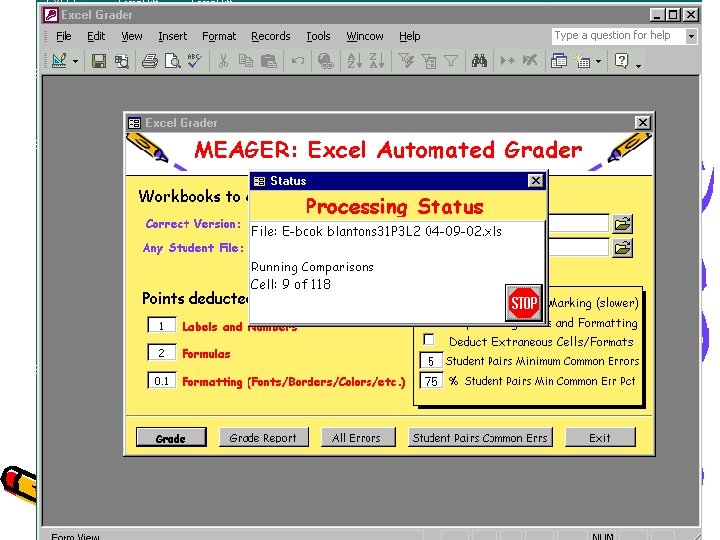
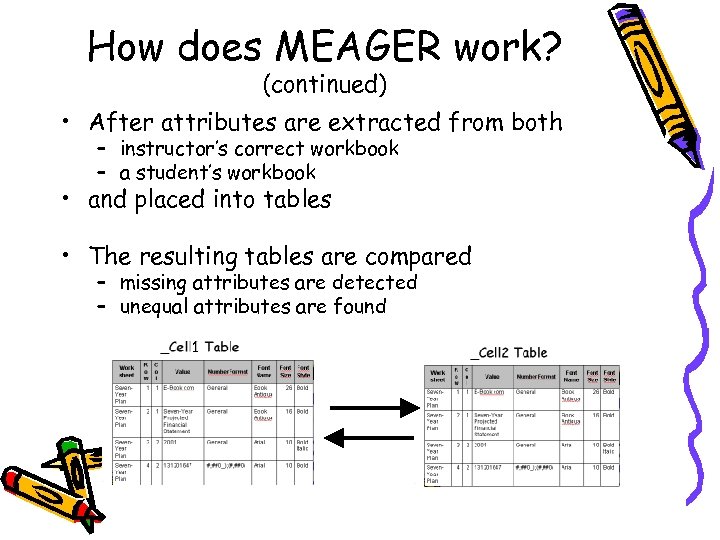 How does MEAGER work? (continued) • After attributes are extracted from both – instructor’s correct workbook – a student’s workbook • and placed into tables • The resulting tables are compared – missing attributes are detected – unequal attributes are found
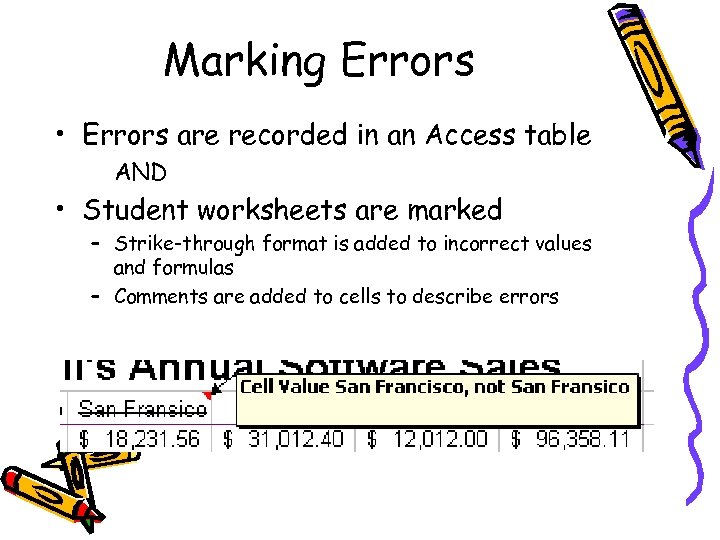 Marking Errors • Errors are recorded in an Access table AND • Student worksheets are marked – Strike-through format is added to incorrect values and formulas – Comments are added to cells to describe errors
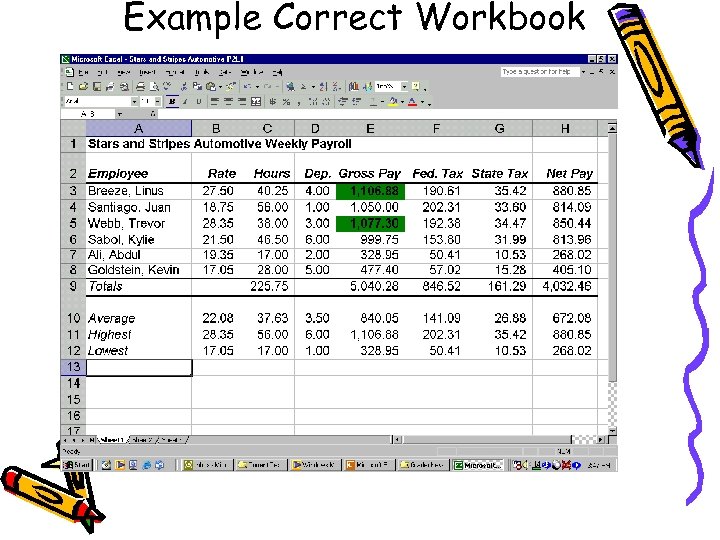 Example Correct Workbook
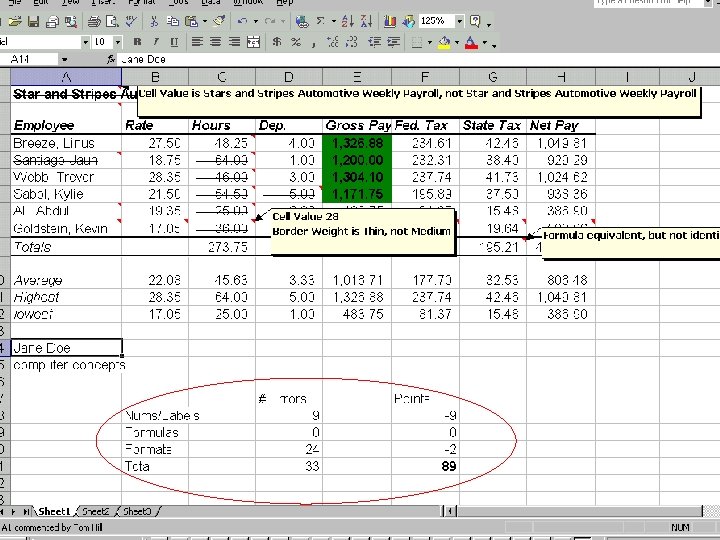 Student’s Marked Up Version
 Screenshots
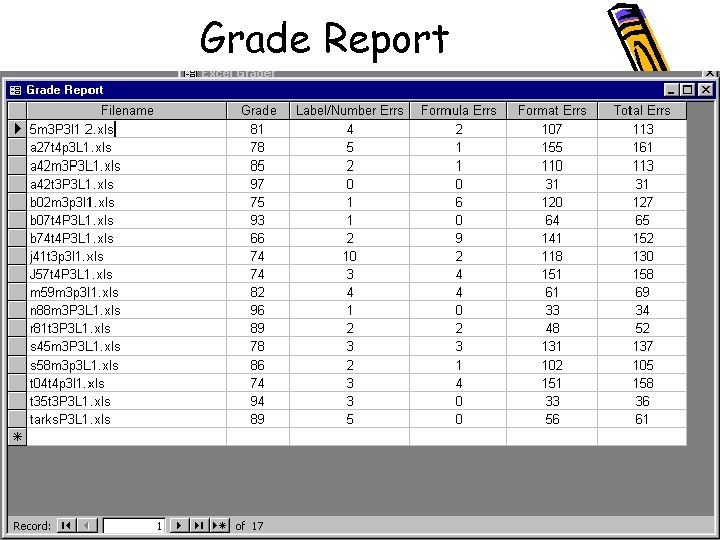 Grade Report
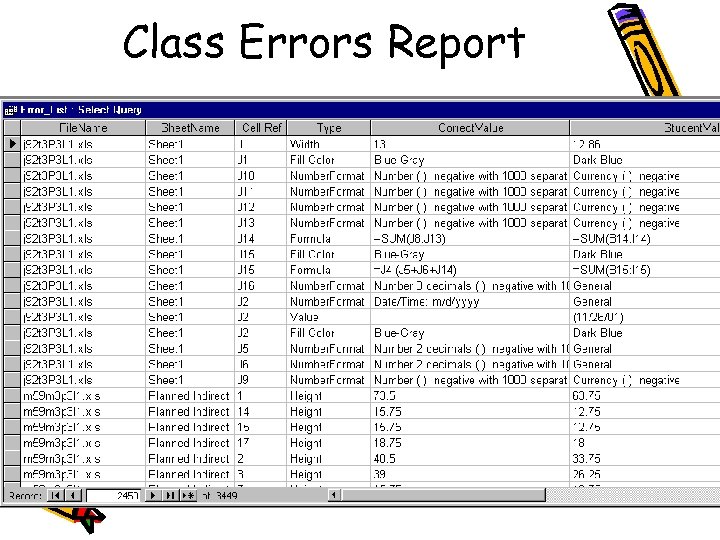 Class Errors Report
 Grading Challenges
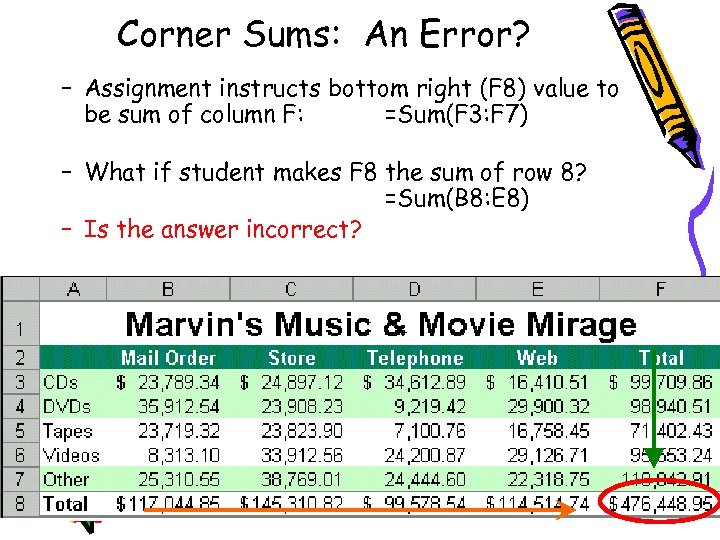 Corner Sums: An Error? – Assignment instructs bottom right (F 8) value to be sum of column F: =Sum(F 3: F 7) – What if student makes F 8 the sum of row 8? =Sum(B 8: E 8) – Is the answer incorrect?
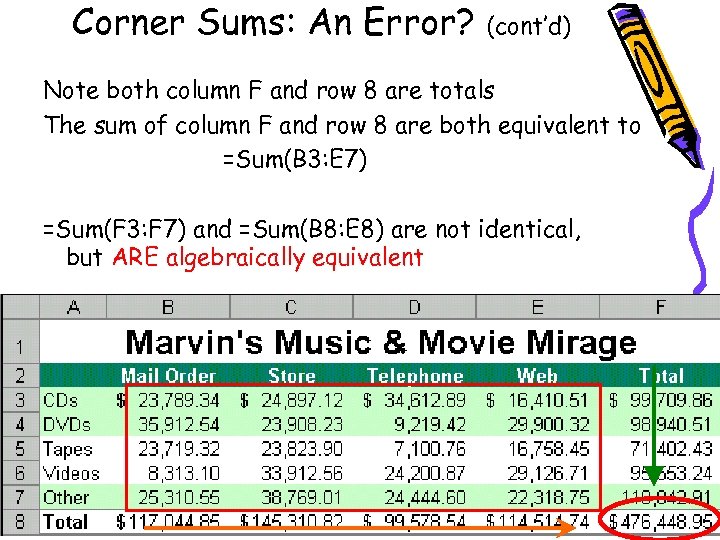 Corner Sums: An Error? (cont’d) Note both column F and row 8 are totals The sum of column F and row 8 are both equivalent to =Sum(B 3: E 7) =Sum(F 3: F 7) and =Sum(B 8: E 8) are not identical, but ARE algebraically equivalent
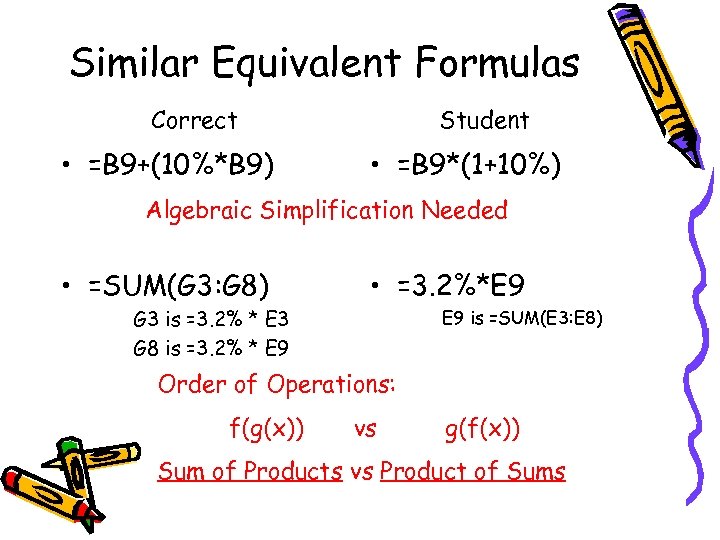 Similar Equivalent Formulas Correct • =B 9+(10%*B 9) Student • =B 9*(1+10%) Algebraic Simplification Needed • =SUM(G 3: G 8) • =3. 2%*E 9 is =SUM(E 3: E 8) G 3 is =3. 2% * E 3 G 8 is =3. 2% * E 9 Order of Operations: f(g(x)) vs g(f(x)) Sum of Products vs Product of Sums
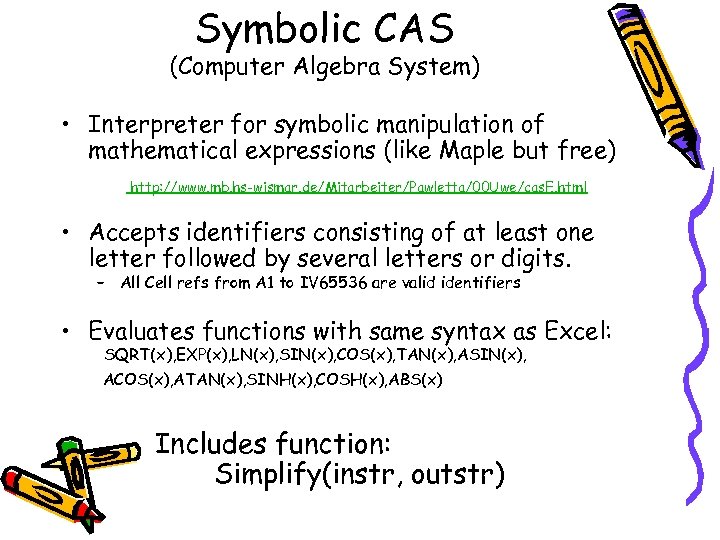 Symbolic CAS (Computer Algebra System) • Interpreter for symbolic manipulation of mathematical expressions (like Maple but free) http: //www. mb. hs-wismar. de/Mitarbeiter/Pawletta/00 Uwe/cas. E. html • Accepts identifiers consisting of at least one letter followed by several letters or digits. – All Cell refs from A 1 to IV 65536 are valid identifiers • Evaluates functions with same syntax as Excel: SQRT(x), EXP(x), LN(x), SIN(x), COS(x), TAN(x), ASIN(x), ACOS(x), ATAN(x), SINH(x), COSH(x), ABS(x) Includes function: Simplify(instr, outstr)
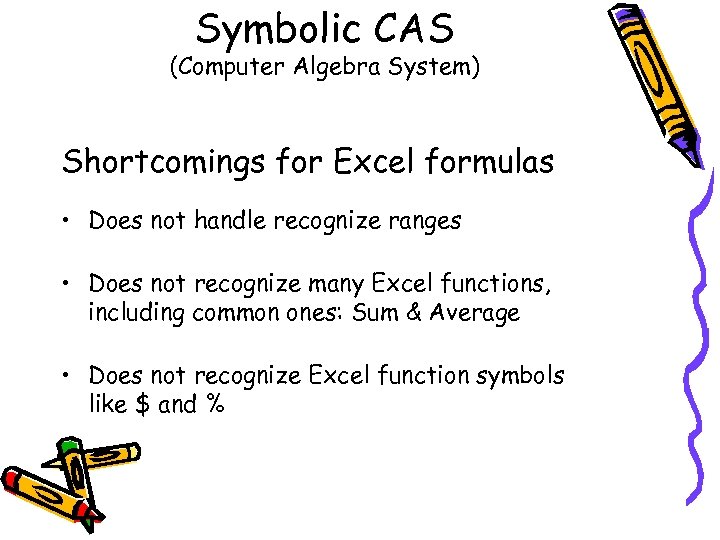 Symbolic CAS (Computer Algebra System) Shortcomings for Excel formulas • Does not handle recognize ranges • Does not recognize many Excel functions, including common ones: Sum & Average • Does not recognize Excel function symbols like $ and %
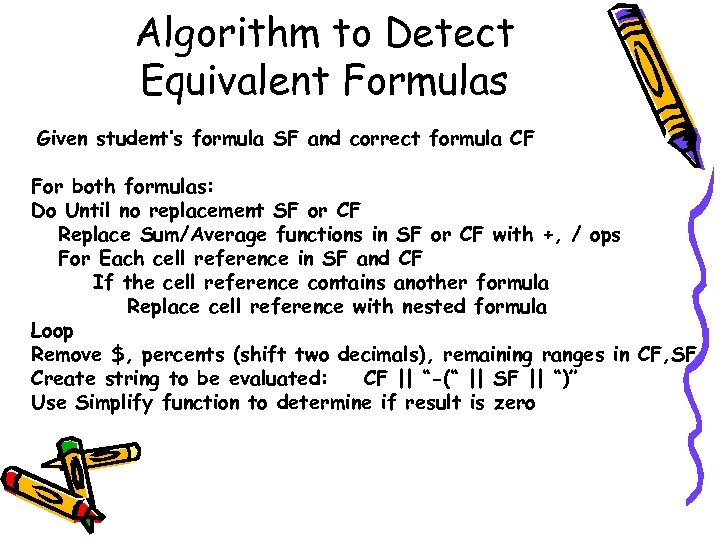 Algorithm to Detect Equivalent Formulas Given student’s formula SF and correct formula CF For both formulas: Do Until no replacement SF or CF Replace Sum/Average functions in SF or CF with +, / ops For Each cell reference in SF and CF If the cell reference contains another formula Replace cell reference with nested formula Loop Remove $, percents (shift two decimals), remaining ranges in CF, SF Create string to be evaluated: CF || “-(“ || SF || “)” Use Simplify function to determine if result is zero
 Challenge #2 Renaming Worksheets • Problem: – Assignment has multiple worksheets – Assignment requires three sheets to be renamed: Payroll, AP, AR – Student does not rename sheets, leaving nonempty sheets: Sheet 1, Sheet 2, Sheet 3 – How does one match worksheets?
 Renaming Worksheets • Possible solutions to matching worksheets – Match by highest percent of matching cell values • Expensive: every pair of worksheets must be compared – Match based on worksheet statistics • Match closest count of nonempty: constants, formulas, etc. – Match based on ordinal position
 Renaming Worksheets • MEAGER solution – Match based on worksheet statistics • Match closest count of nonempty cells (constants and formulas) – When multiple worksheets have same number of nonempty cells, no rename is performed
 How to use MEAGER
 Before Using MEAGER • (The hard part) Instructor must gather all student Excel files • Files need to have unique names so they can be placed in the same folder • Copy the student folder for possible grading again – The files are marked up (comments are added, scores are added at the bottom of the worksheet) • Correct file should be in a different folder than student file directory
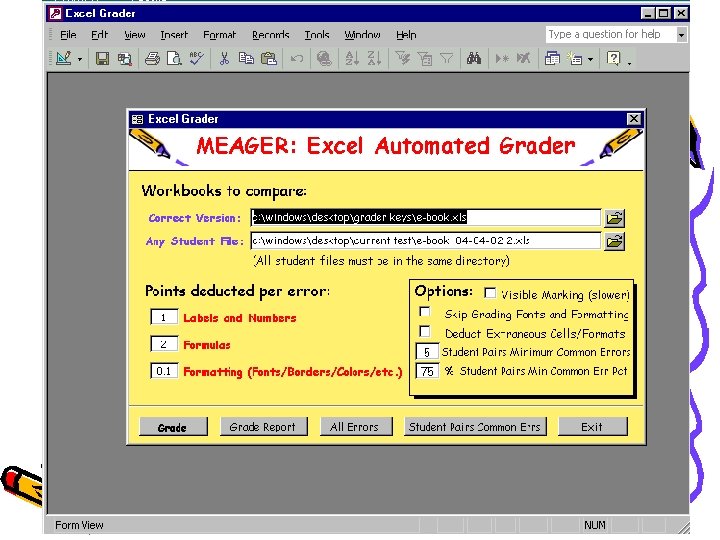
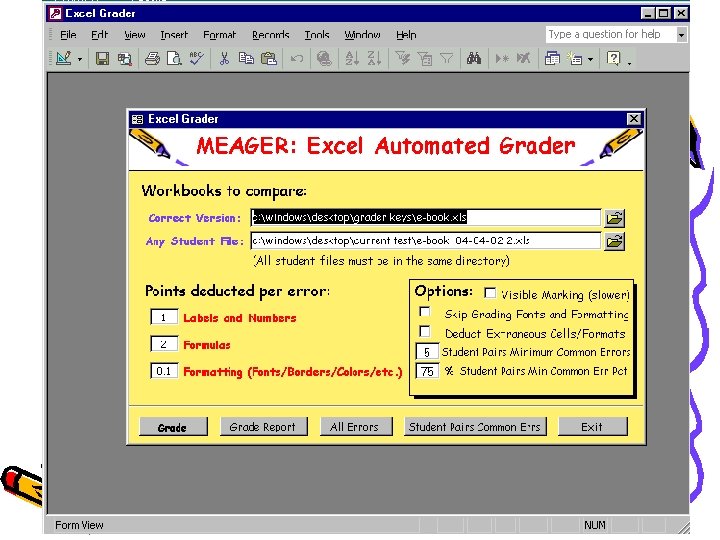
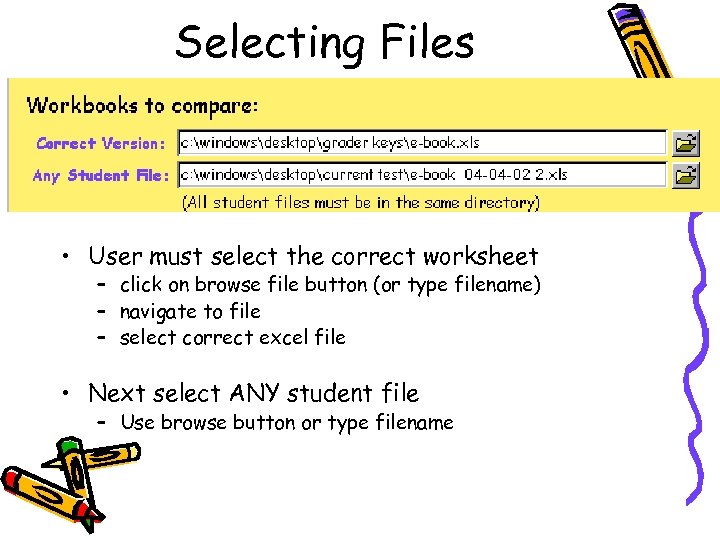 Selecting Files • User must select the correct worksheet – click on browse file button (or type filename) – navigate to file – select correct excel file • Next select ANY student file – Use browse button or type filename
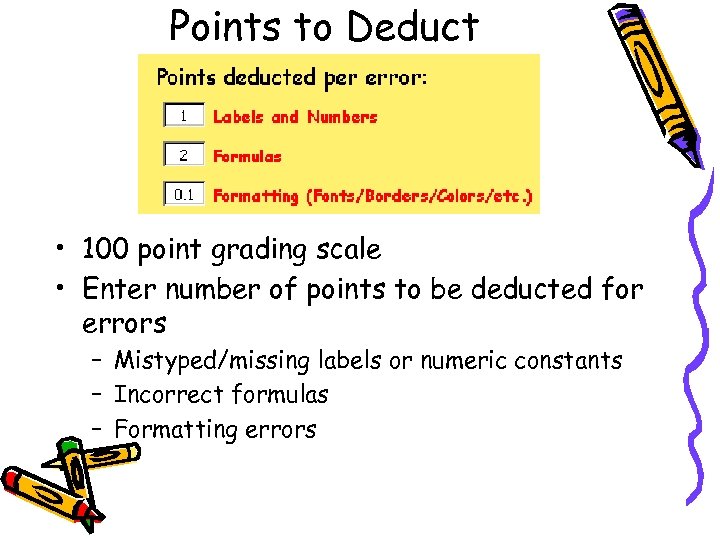 Points to Deduct • 100 point grading scale • Enter number of points to be deducted for errors – Mistyped/missing labels or numeric constants – Incorrect formulas – Formatting errors
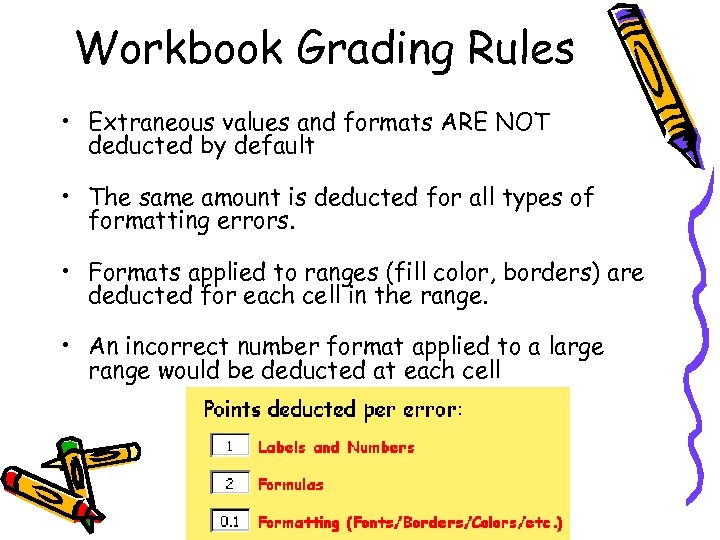 Workbook Grading Rules • Extraneous values and formats ARE NOT deducted by default • The same amount is deducted for all types of formatting errors. • Formats applied to ranges (fill color, borders) are deducted for each cell in the range. • An incorrect number format applied to a large range would be deducted at each cell
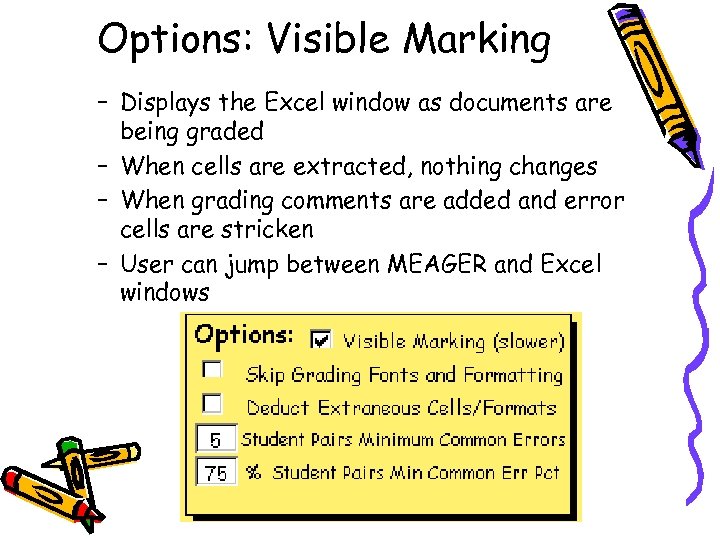 Options: Visible Marking – Displays the Excel window as documents are being graded – When cells are extracted, nothing changes – When grading comments are added and error cells are stricken – User can jump between MEAGER and Excel windows
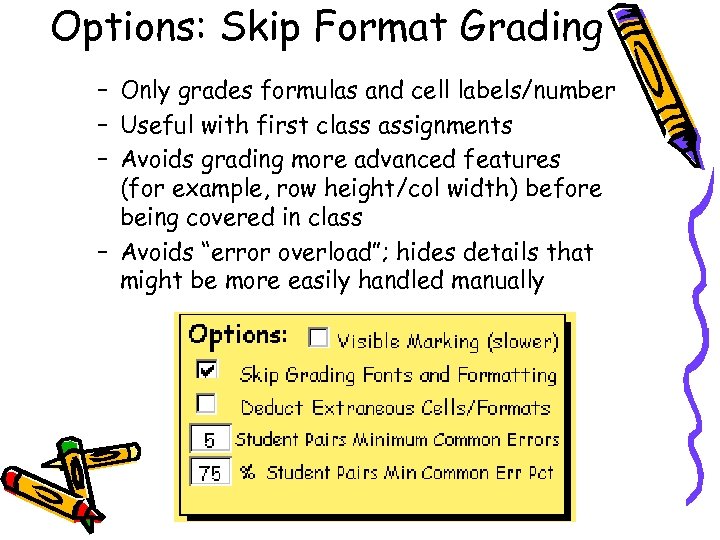 Options: Skip Format Grading – Only grades formulas and cell labels/number – Useful with first class assignments – Avoids grading more advanced features (for example, row height/col width) before being covered in class – Avoids “error overload”; hides details that might be more easily handled manually
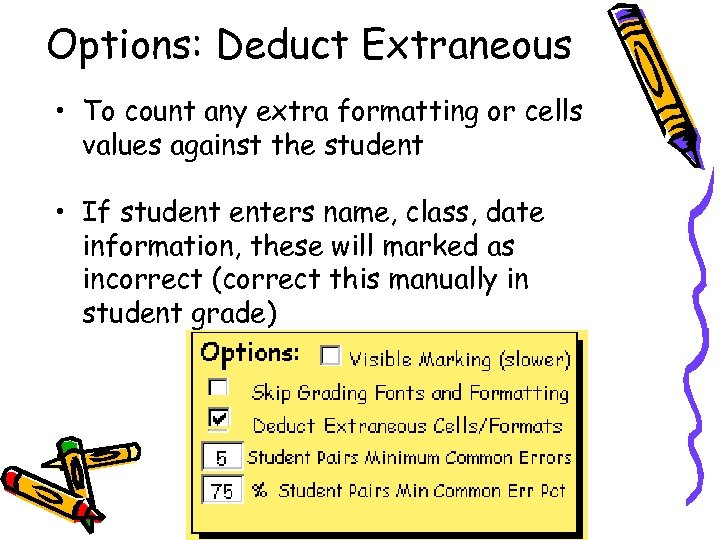 Options: Deduct Extraneous • To count any extra formatting or cells values against the student • If student enters name, class, date information, these will marked as incorrect (correct this manually in student grade)
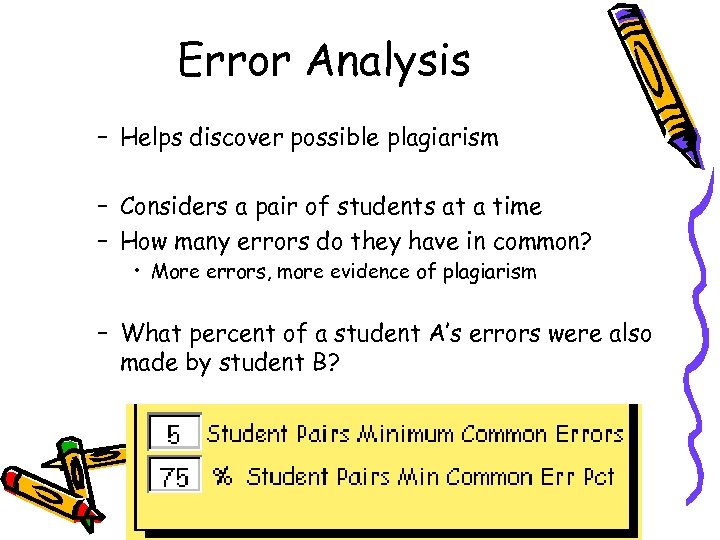 Error Analysis – Helps discover possible plagiarism – Considers a pair of students at a time – How many errors do they have in common? • More errors, more evidence of plagiarism – What percent of a student A’s errors were also made by student B?
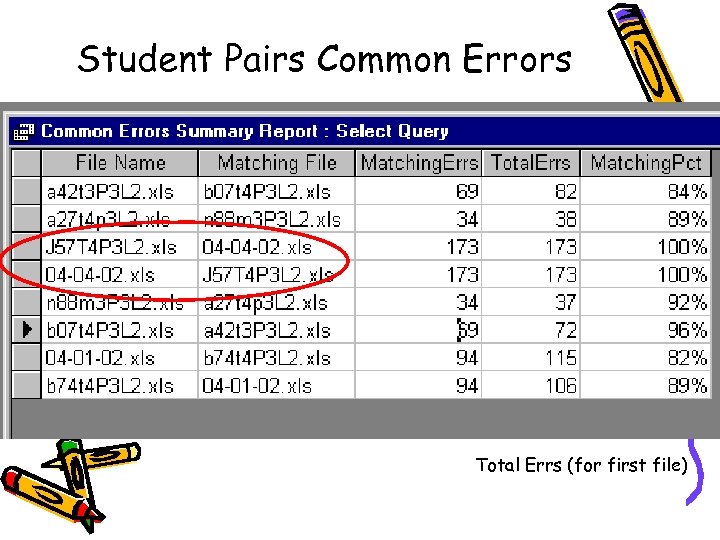 Student Pairs Common Errors Total Errs (for first file)