


 Скачать презентацию MCTS Guide to Microsoft Windows Server 2008 Applications
ece2c1b57905491c1ccadcbff7663266.ppt
- Количество слайдов: 63
 MCTS Guide to Microsoft Windows Server 2008 Applications Infrastructure Configuration (Exam # 70 -643) Chapter Seven Configuring Windows Server 2008 Web Services, Part 2
 Objectives • • • Back up and restore IIS Web site configurations Monitor the performance of an IIS Web site Configure SSL security utilizing certificates Configure site permissions and authentication Configure application permissions MCTS Guide to Microsoft Windows Server 2008 Applications Infrastructure Configuration (Exam # 70 -643) 2
 Managing Internet Information Services (IIS) • Backing up IIS configuration data – Speeds recovery in case of loss or damage from a security breach – Minimizes work required to move site to different server or directory • IIS 7 configuration data – Stored in XML text files • Application. Host. config – Located in %System. Drive%%System. Root%System 32inetsrv config MCTS Guide to Microsoft Windows Server 2008 Applications Infrastructure Configuration (Exam # 70 -643) 3
 Managing Internet Information Services (cont’d. ) • Web. config – Each site hosted by the server has this file – Located in the site’s root directory • IIS monitors files for changes and backs them up – Checks for changes every two minutes – Keeps 10 prior versions of the file – Stored in %System. Drive%Inet. PubHistory MCTS Guide to Microsoft Windows Server 2008 Applications Infrastructure Configuration (Exam # 70 -643) 4
 IIS Configuration Backup • App. Cmd. exe – Command line tool used to manually back up and restore full server configuration – Located in %System. Drive%%System. Root%System 32inetsrv • Initiating a backup App. Cmd add backup “Backup. Name” – Backup. Name parameter is optional – Backup consists of set of. xml files and. config files MCTS Guide to Microsoft Windows Server 2008 Applications Infrastructure Configuration (Exam # 70 -643) 5
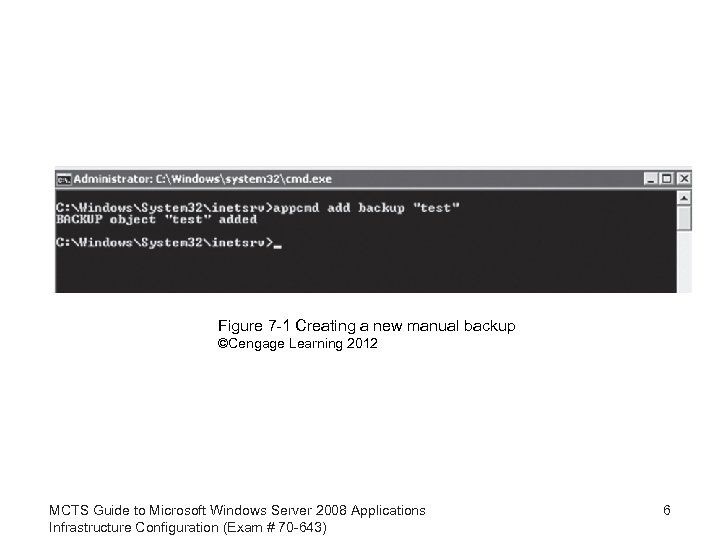 Figure 7 -1 Creating a new manual backup ©Cengage Learning 2012 MCTS Guide to Microsoft Windows Server 2008 Applications Infrastructure Configuration (Exam # 70 -643) 6
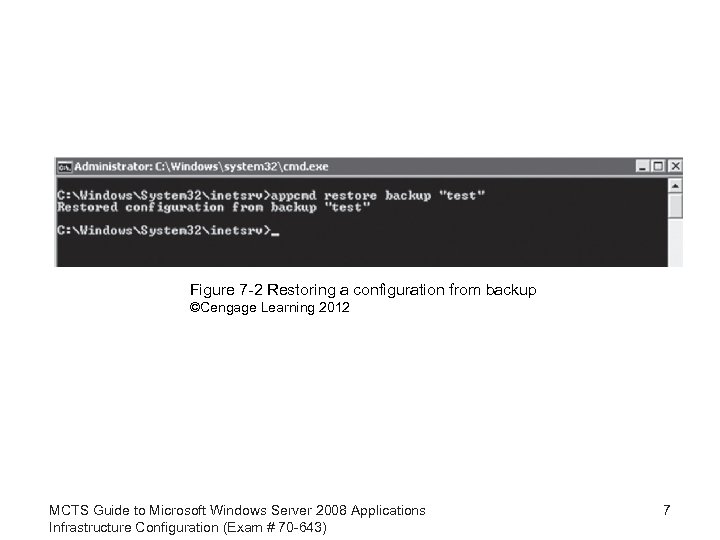 Figure 7 -2 Restoring a configuration from backup ©Cengage Learning 2012 MCTS Guide to Microsoft Windows Server 2008 Applications Infrastructure Configuration (Exam # 70 -643) 7
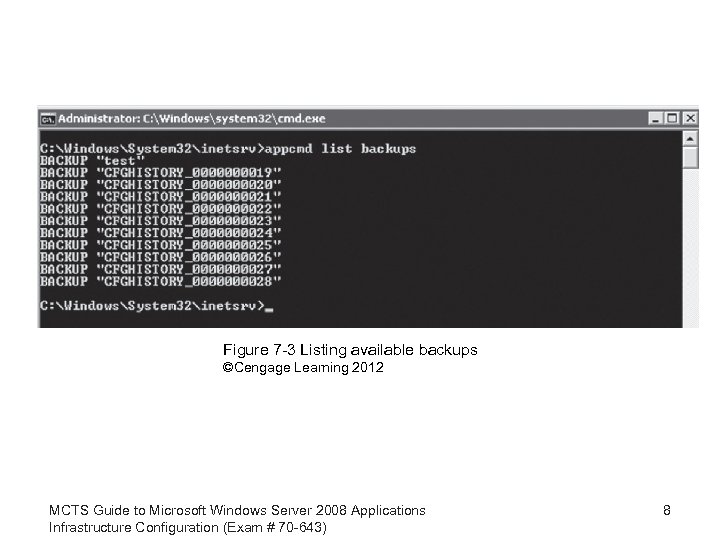 Figure 7 -3 Listing available backups ©Cengage Learning 2012 MCTS Guide to Microsoft Windows Server 2008 Applications Infrastructure Configuration (Exam # 70 -643) 8
 Activity 7 -1: Restore from an Automatic Backup • Create a new folder in C: inetpubwwwroot (or the name of the root folder for your server) called test • Copy the files iisstart. htm and welcome. png from c: inetpubwwwroot to that folder • Open IIS manager • Right-click sites and choose Add Website • Name your new site test. yourdomain. com • Set the physical path to C: inetpubwwwroottest • Change the port to 8081 and click OK MCTS Guide to Microsoft Windows Server 2008 Applications Infrastructure Configuration (Exam # 70 -643) 9
 Activity 7 -1: Restore from an Automatic Backup (cont’d. ) • Click Browse *; 8081(http) on the right side under Manage Web Site • Right-click the test Web site in the IIS Manager and click remove to delete the site – Click OK • Refresh the Web browser • Navigate to C: Inetpubhistory and locate the last folder created prior to removing the site – Select and copy the file application. Host. config MCTS Guide to Microsoft Windows Server 2008 Applications Infrastructure Configuration (Exam # 70 -643) 10
 Activity 7 -1: Restore from an Automatic Backup (cont’d. ) • Navigate to C: Windowssystem 32inetsrvconfig • Paste the file, overwriting the one that is there • Go to IIS Manager, right-click the server and choose refresh • Expand the list of sites to see that the site is in the list again • Return to your Web browser and refresh the page – The IIS 7 welcome page should appear MCTS Guide to Microsoft Windows Server 2008 Applications Infrastructure Configuration (Exam # 70 -643) 11
 Activity 7 -2: Create a Manual Backup and Restore a Site from It • Click the Start button, then click run and type cmd to open a command prompt window • Change the directory to C: Windowssystem 32inetsrv • Enter the command App. Cmd add backup “Test 01” – Minimize the command prompt window • Open IIS Manager • Choose the site test MCTS Guide to Microsoft Windows Server 2008 Applications Infrastructure Configuration (Exam # 70 -643) 12
 Activity 7 -2: Create a Manual Backup and Restore a Site from It (cont’d. ) • Click Browse *; 8081(http) on the right side under Manage Web Site • Right-click the test Web site and click remove • Refresh the Web browser to see the site is gone • Restore the command prompt window and type App. Cmd restore backup “Test 01” • Right-click the server in IIS manager and choose refresh • Expand site list to see the site is in the list again • Refresh Web browser MCTS Guide to Microsoft Windows Server 2008 Applications Infrastructure Configuration (Exam # 70 -643) 13
 Monitoring IIS • Ability to observe how sites and applications are consuming resources – Important tool in maintaining server performance • Two monitoring features added to IIS 7 – Ability to look at the real-time status of application pools, sites, worker processes, application domains, and running requests – Ability to create detailed trace event logs in XML format for failed requests MCTS Guide to Microsoft Windows Server 2008 Applications Infrastructure Configuration (Exam # 70 -643) 14
 Monitoring Real-Time Status • Allows detailed inspection of individual worker processes – Metrics • Percentage of CPU • Amount of memory being consumed • Viewing a list of the currently running worker processes – Open IIS Manager and click on the server in the tree view of Connections pane on the left – Double-click Worker Processes MCTS Guide to Microsoft Windows Server 2008 Applications Infrastructure Configuration (Exam # 70 -643) 15
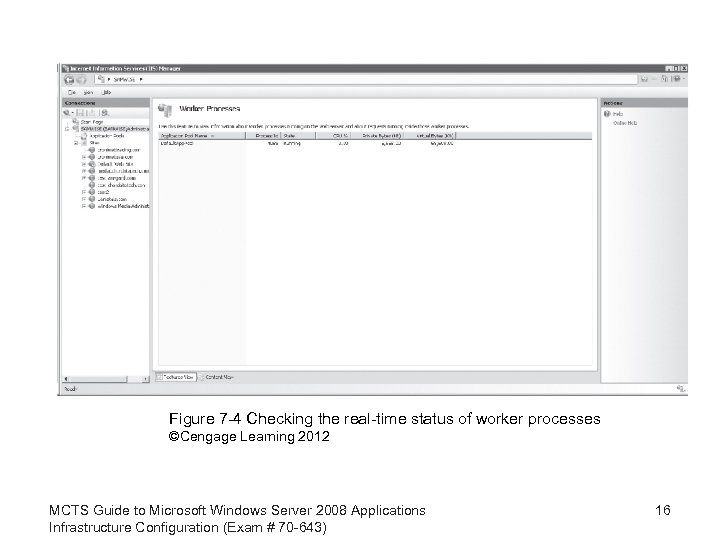 Figure 7 -4 Checking the real-time status of worker processes ©Cengage Learning 2012 MCTS Guide to Microsoft Windows Server 2008 Applications Infrastructure Configuration (Exam # 70 -643) 16
 Failed Request Tracing • Allows you to create a log file of failed requests for a specific site • Enables quick identification of problem areas • More efficient than trying to locate specific error transactions in a log file MCTS Guide to Microsoft Windows Server 2008 Applications Infrastructure Configuration (Exam # 70 -643) 17
 Activity 7 -3: Enable Failed Request Tracing • Open IIS Manager • Click Sites in the Connections Pane • In the Features View, double-click the site you wish to troubleshoot • In the Actions pane under configure, click Failed Request Tracing • In the dialog box that opens, click the check box to Enable logging for this site MCTS Guide to Microsoft Windows Server 2008 Applications Infrastructure Configuration (Exam # 70 -643) 18
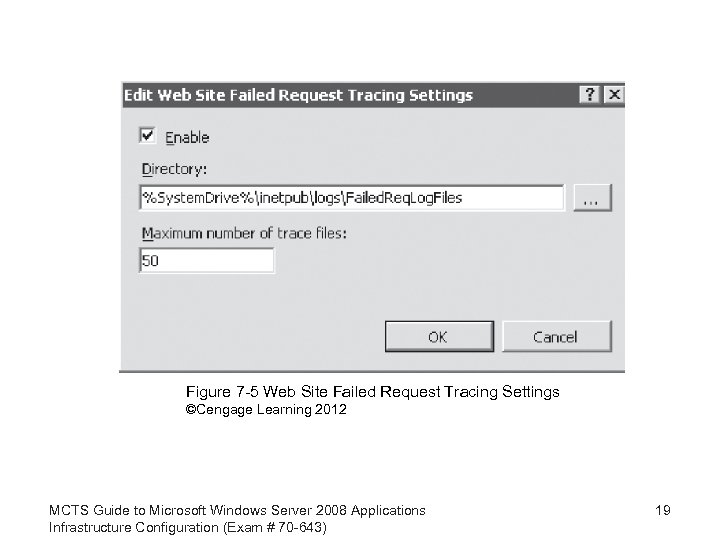 Figure 7 -5 Web Site Failed Request Tracing Settings ©Cengage Learning 2012 MCTS Guide to Microsoft Windows Server 2008 Applications Infrastructure Configuration (Exam # 70 -643) 19
 Activity 7 -3: Enable Failed Request Tracing (cont’d. ) • The default location of the log file is %System. Drive%inetpublogsFailed. Req. Log. Files – Change this to a new location with a directory named to identify the site • Specify the Maximum number of trace files to keep • Click OK – The server will begin logging failed requests to the site MCTS Guide to Microsoft Windows Server 2008 Applications Infrastructure Configuration (Exam # 70 -643) 20
 Configuring Logging • Transaction log file created by the Web server – Useful tool to track server performance over time – Can help manage usage trends for capacity planning and resource allocation • Standard location for the log files – %System. Drive%inetpublogsLog. Files • W 3 C log file format is the default – Customizable text-based format • Log file rollover – Default is to rollover daily MCTS Guide to Microsoft Windows Server 2008 Applications Infrastructure Configuration (Exam # 70 -643) 21
 Configuring Logging (cont’d. ) • Log files can be viewed in any text editor • Third-party log analysis software packages are available • Making changes to the log file format and settings – Click on a server or site in the Connections pane – Choose logging from the Features View pane MCTS Guide to Microsoft Windows Server 2008 Applications Infrastructure Configuration (Exam # 70 -643) 22
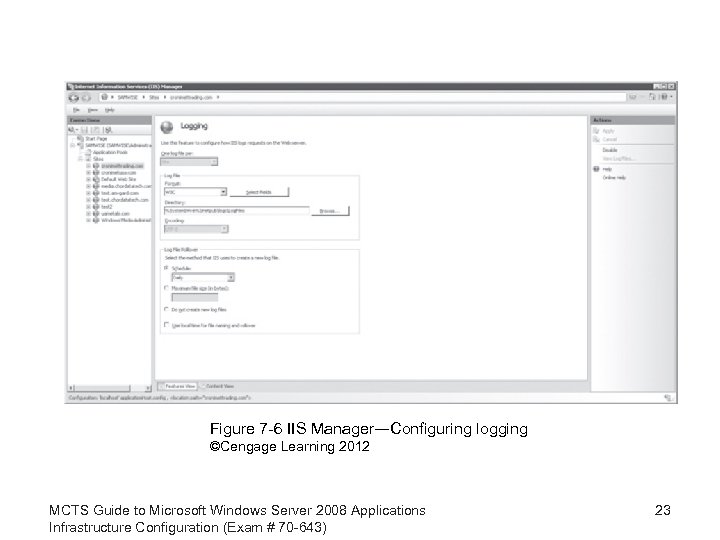 Figure 7 -6 IIS Manager―Configuring logging ©Cengage Learning 2012 MCTS Guide to Microsoft Windows Server 2008 Applications Infrastructure Configuration (Exam # 70 -643) 23
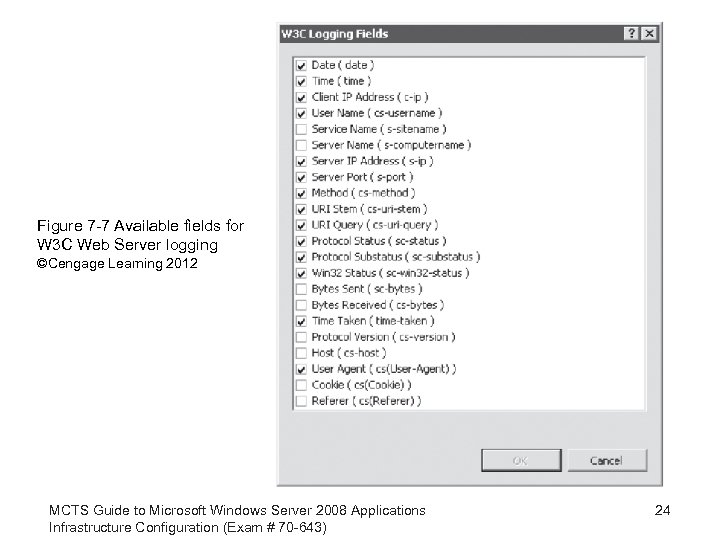 Figure 7 -7 Available fields for W 3 C Web Server logging ©Cengage Learning 2012 MCTS Guide to Microsoft Windows Server 2008 Applications Infrastructure Configuration (Exam # 70 -643) 24
 Delegation of Administrative Rights • IIS 7 administered locally by default • Delegating administrative rights – Useful for multiple administrators or multiple sites with several administrators – Install Management Service role service • Two types of identity credentials available – Windows credentials – IIS Manager credentials • IIS Manager users are stored in IIS itself • Users only have access to IIS MCTS Guide to Microsoft Windows Server 2008 Applications Infrastructure Configuration (Exam # 70 -643) 25
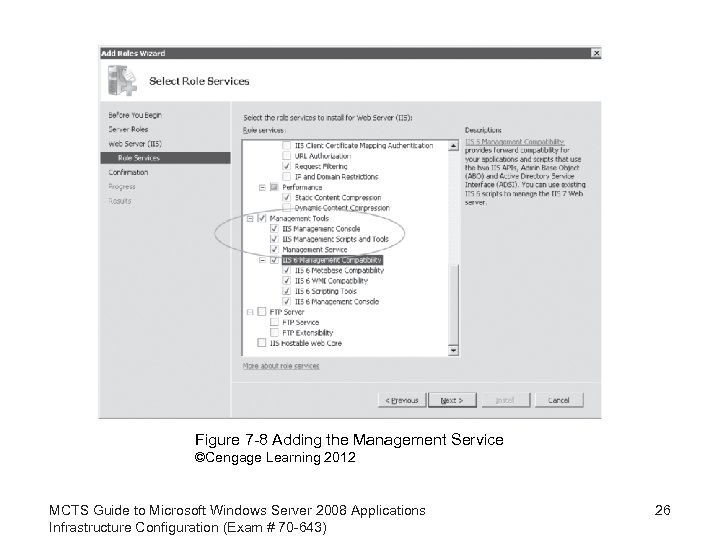 Figure 7 -8 Adding the Management Service ©Cengage Learning 2012 MCTS Guide to Microsoft Windows Server 2008 Applications Infrastructure Configuration (Exam # 70 -643) 26
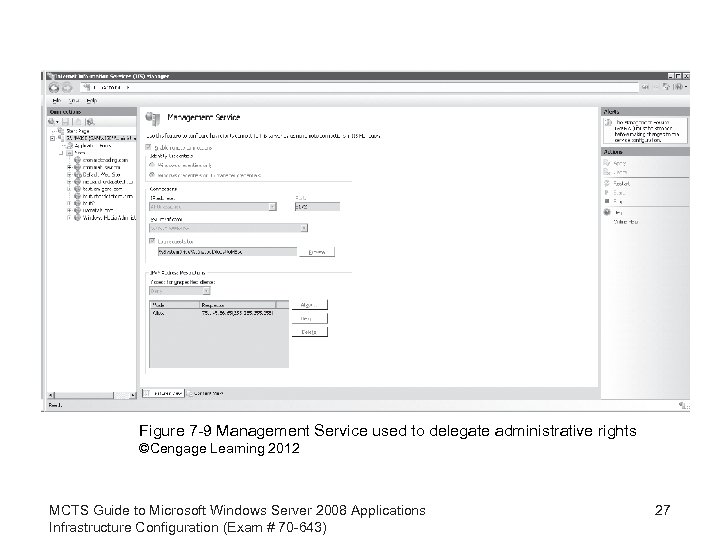 Figure 7 -9 Management Service used to delegate administrative rights ©Cengage Learning 2012 MCTS Guide to Microsoft Windows Server 2008 Applications Infrastructure Configuration (Exam # 70 -643) 27
 Delegation of Administrative Rights (cont’d. ) • Each feature of a server element: – Can have different permissions with different access levels • Three choices – Read/Write – Read Only – Not Delegated • Custom site delegation allows adjustment of settings on a site-by-site basis MCTS Guide to Microsoft Windows Server 2008 Applications Infrastructure Configuration (Exam # 70 -643) 28
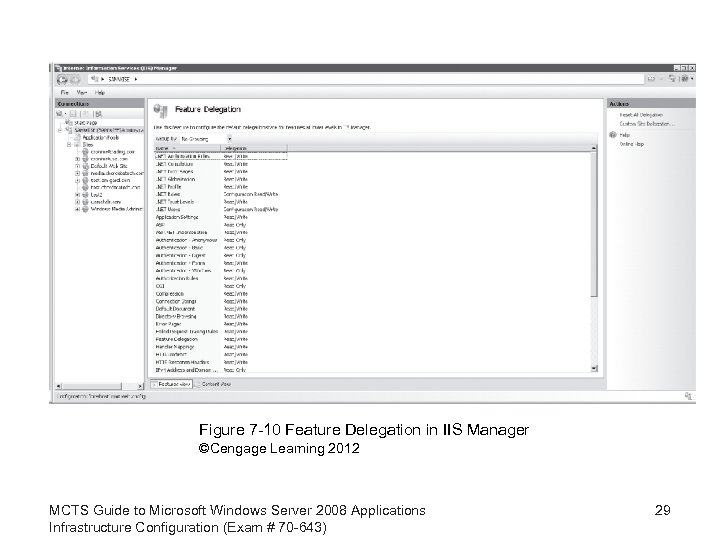 Figure 7 -10 Feature Delegation in IIS Manager ©Cengage Learning 2012 MCTS Guide to Microsoft Windows Server 2008 Applications Infrastructure Configuration (Exam # 70 -643) 29
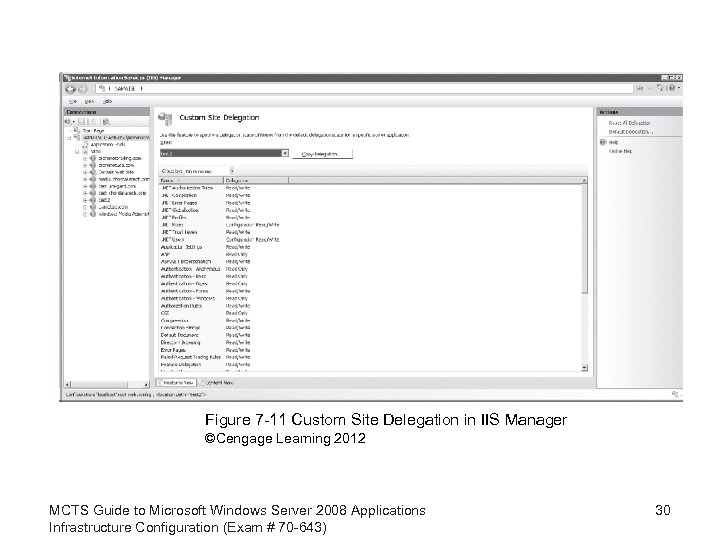 Figure 7 -11 Custom Site Delegation in IIS Manager ©Cengage Learning 2012 MCTS Guide to Microsoft Windows Server 2008 Applications Infrastructure Configuration (Exam # 70 -643) 30
 Delegation of Administrative Rights (cont’d. ) • Clicking Default Delegation resets settings back to ones inherited by the site from the server • Users who want to manage sites remotely: – Can download IIS 7 Manager from the Microsoft Download Center • Can choose to enable remote connections – Can also specify what identity credentials to use – Default remote management port is 8172 – Can restrict access to specify IP addresses to reduce attack surfaces on the server MCTS Guide to Microsoft Windows Server 2008 Applications Infrastructure Configuration (Exam # 70 -643) 31
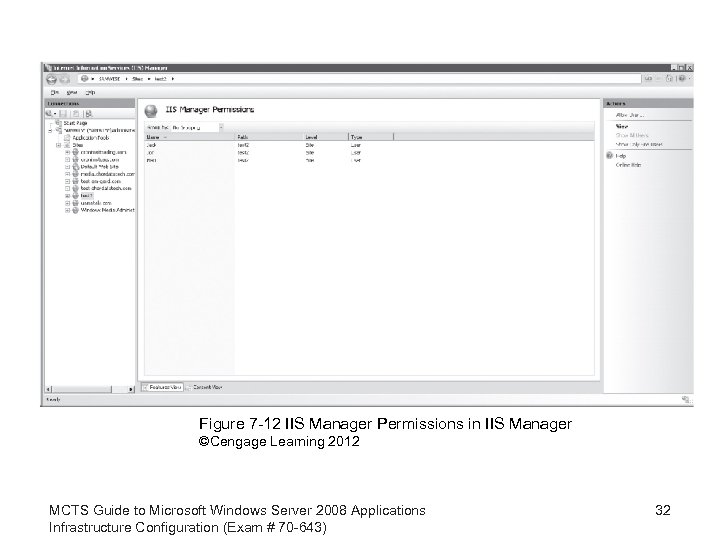 Figure 7 -12 IIS Manager Permissions in IIS Manager ©Cengage Learning 2012 MCTS Guide to Microsoft Windows Server 2008 Applications Infrastructure Configuration (Exam # 70 -643) 32
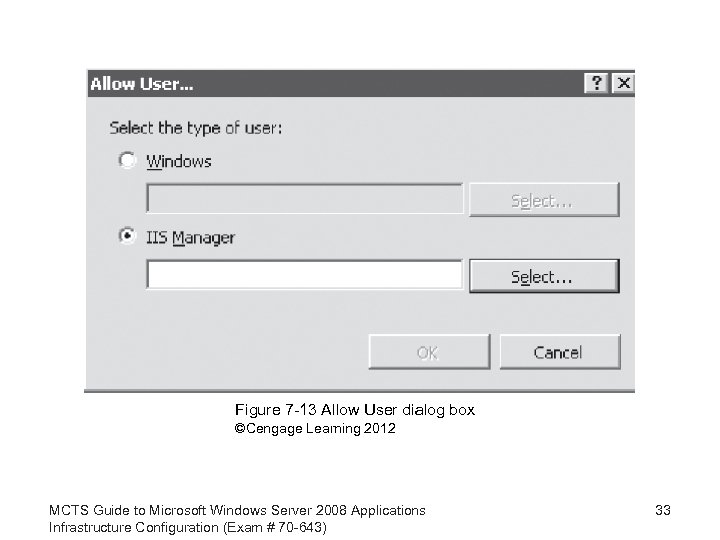 Figure 7 -13 Allow User dialog box ©Cengage Learning 2012 MCTS Guide to Microsoft Windows Server 2008 Applications Infrastructure Configuration (Exam # 70 -643) 33
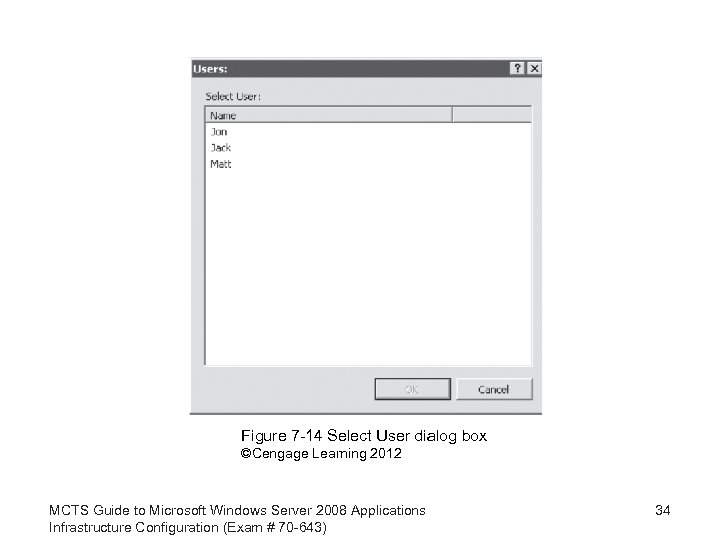 Figure 7 -14 Select User dialog box ©Cengage Learning 2012 MCTS Guide to Microsoft Windows Server 2008 Applications Infrastructure Configuration (Exam # 70 -643) 34
 Activity 7 -4: Delegate Site Administrative Rights to a Web Developer Outside of the Domain • Open IIS Manager • Choose the server in the Connections pane • Choose IIS Manager Users in the Features View pane • Open the Feature and choose Add User from the Actions pane • Enter the user name Tom and password tomtesting • Select a site in the Connections pane MCTS Guide to Microsoft Windows Server 2008 Applications Infrastructure Configuration (Exam # 70 -643) 35
 Activity 7 -4: Delegate Site Administrative Rights (cont’d. ) • Click Custom Site Delegation in the Actions pane • Select IIS Manager Permissions under Management in the Features View pane • Click Open Feature • Click Allow User in the actions pane • Select the user from IIS Manager • Click OK MCTS Guide to Microsoft Windows Server 2008 Applications Infrastructure Configuration (Exam # 70 -643) 36
 Configuring SSL Security • Secure Sockets Layer – Method for securing communication between a Web server and Web client – Encrypts the data being transmitted • Multiple levels of encryption available – Reliably identifies the server to the client • Server must have a Server Certificate • Certificate generated by third-party Certificate Authority • Self-signed certificate may be used for a test or development environment MCTS Guide to Microsoft Windows Server 2008 Applications Infrastructure Configuration (Exam # 70 -643) 37
 Activity 7 -5: Request a Certificate from a Third-Party Certificate Authority (CA) • Click on the server in the Connections pane of IIS Manager • Choose the Server Certificates icon under IIS in the Features View pane • Click Open Feature in the Actions pane • Choose the Create Certificate Request choice in the Actions pane • Type www. yourdomain. com in the Common name field MCTS Guide to Microsoft Windows Server 2008 Applications Infrastructure Configuration (Exam # 70 -643) 38
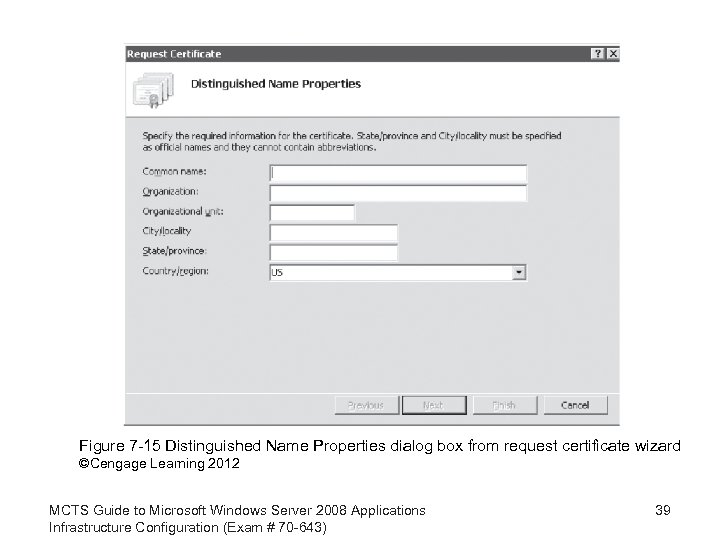 Figure 7 -15 Distinguished Name Properties dialog box from request certificate wizard ©Cengage Learning 2012 MCTS Guide to Microsoft Windows Server 2008 Applications Infrastructure Configuration (Exam # 70 -643) 39
 Activity 7 -5: Request a Certificate from a Third-Party CA (cont’d. ) • Type My Company Inc. in the Organization field • Type Information Technology in the Organizational unit field • Type Bigcity in the City/locality field • Type New York in the State/province field – Do not use abbreviations • Keep the default US in the Country/region field • Click Next • Choose the Cryptographic service provider MCTS Guide to Microsoft Windows Server 2008 Applications Infrastructure Configuration (Exam # 70 -643) 40
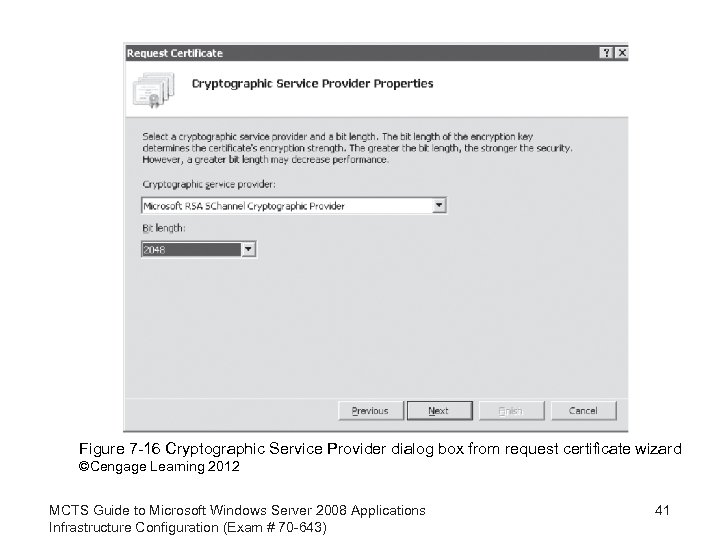 Figure 7 -16 Cryptographic Service Provider dialog box from request certificate wizard ©Cengage Learning 2012 MCTS Guide to Microsoft Windows Server 2008 Applications Infrastructure Configuration (Exam # 70 -643) 41
 Activity 7 -5: Request a Certificate from a Third-Party CA (cont’d. ) • Select 2048 as the Bit length • Click Next • Type test. text in the Specify a file name for the certificate request: field • Click Finish to generate the file • Once the CA processes the request, they will e-mail the certificate or send a link to log into their Web site to retrieve the certificate – Save the text file to the server hard drive with. cer extension MCTS Guide to Microsoft Windows Server 2008 Applications Infrastructure Configuration (Exam # 70 -643) 42
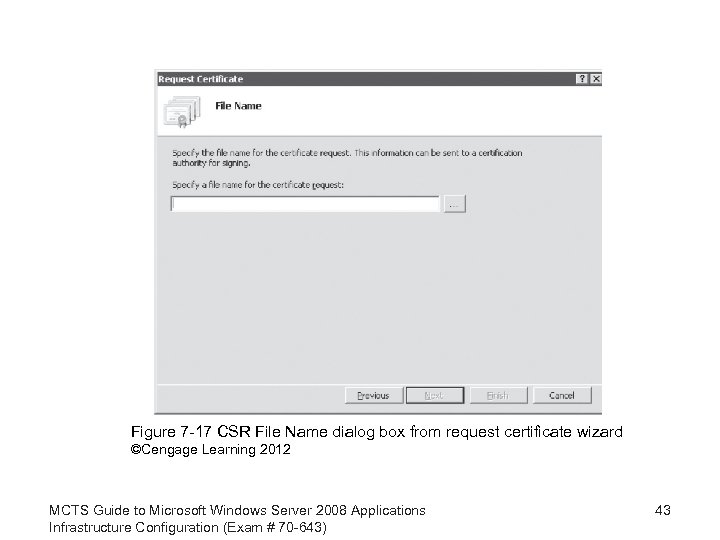 Figure 7 -17 CSR File Name dialog box from request certificate wizard ©Cengage Learning 2012 MCTS Guide to Microsoft Windows Server 2008 Applications Infrastructure Configuration (Exam # 70 -643) 43
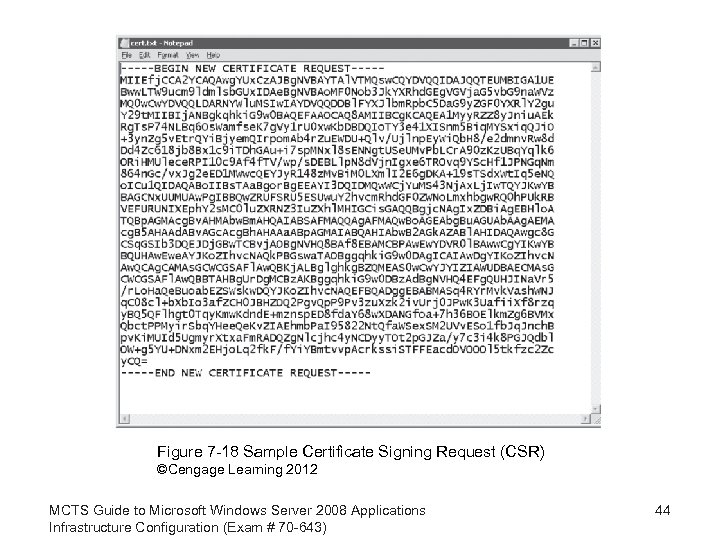 Figure 7 -18 Sample Certificate Signing Request (CSR) ©Cengage Learning 2012 MCTS Guide to Microsoft Windows Server 2008 Applications Infrastructure Configuration (Exam # 70 -643) 44
 Activity 7 -5: Request a Certificate from a Third-Party CA (cont’d. ) • Browse to the file name and fill in a friendly name • Click OK – Certificate is ready to use MCTS Guide to Microsoft Windows Server 2008 Applications Infrastructure Configuration (Exam # 70 -643) 45
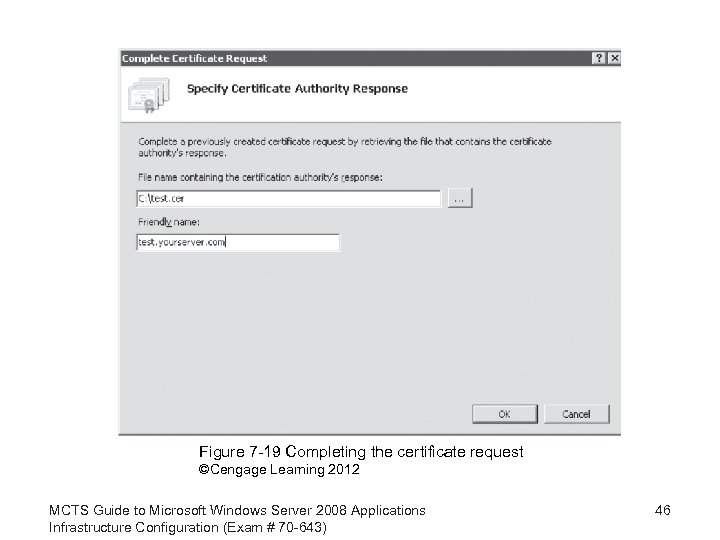 Figure 7 -19 Completing the certificate request ©Cengage Learning 2012 MCTS Guide to Microsoft Windows Server 2008 Applications Infrastructure Configuration (Exam # 70 -643) 46
 Activity 7 -6: Configure a Self-Signed Certificate • Click the server in the Connections pane of IIS manager • Choose the Server Certificates icon under IIS in the Features View pane • Click Open Feature in the Actions Pane • Choose Create Self-Signed Certificate from the Actions pane • Enter a friendly name for the certificate – Use test. yourserver. com as in previous activities • Click OK MCTS Guide to Microsoft Windows Server 2008 Applications Infrastructure Configuration (Exam # 70 -643) 47
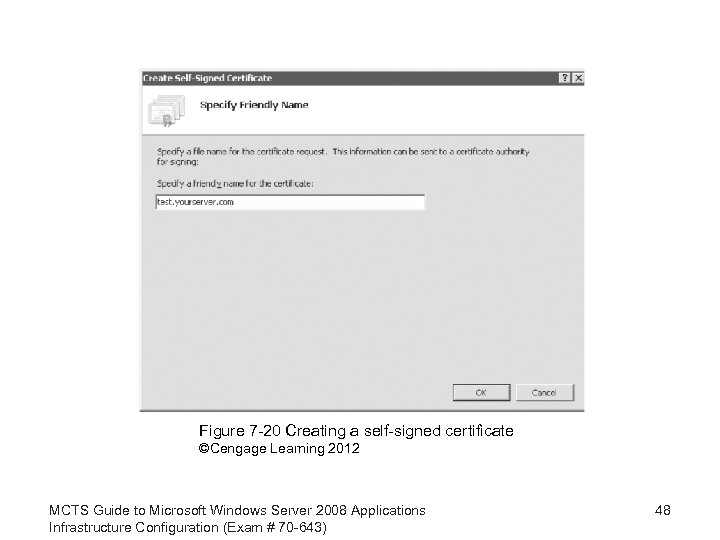 Figure 7 -20 Creating a self-signed certificate ©Cengage Learning 2012 MCTS Guide to Microsoft Windows Server 2008 Applications Infrastructure Configuration (Exam # 70 -643) 48
 Renewing a Certificate • Need to generate a request • Go to server node in Connections pane of IIS Manager and choose Server Certificates • Click Open Feature in the Actions pane • Choose the certificate you wish to renew • Click on Renew in the Actions pane • Choose Create a renewal certificate request • Click Next • Enter a file name for the request and click Finish MCTS Guide to Microsoft Windows Server 2008 Applications Infrastructure Configuration (Exam # 70 -643) 49
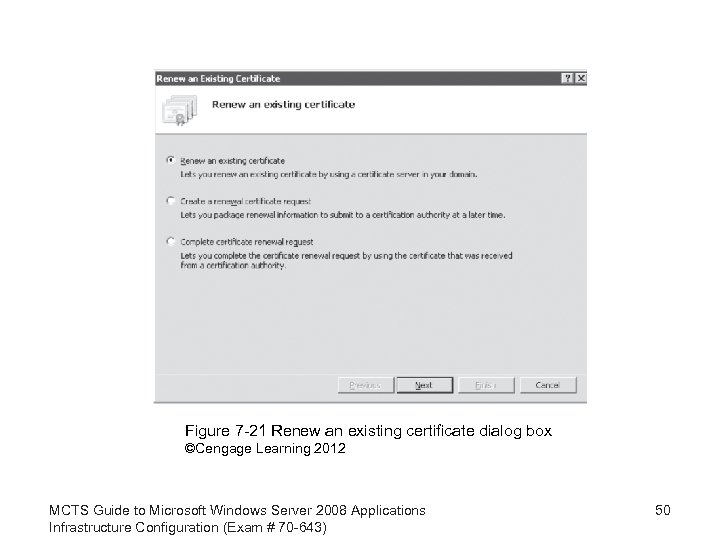 Figure 7 -21 Renew an existing certificate dialog box ©Cengage Learning 2012 MCTS Guide to Microsoft Windows Server 2008 Applications Infrastructure Configuration (Exam # 70 -643) 50
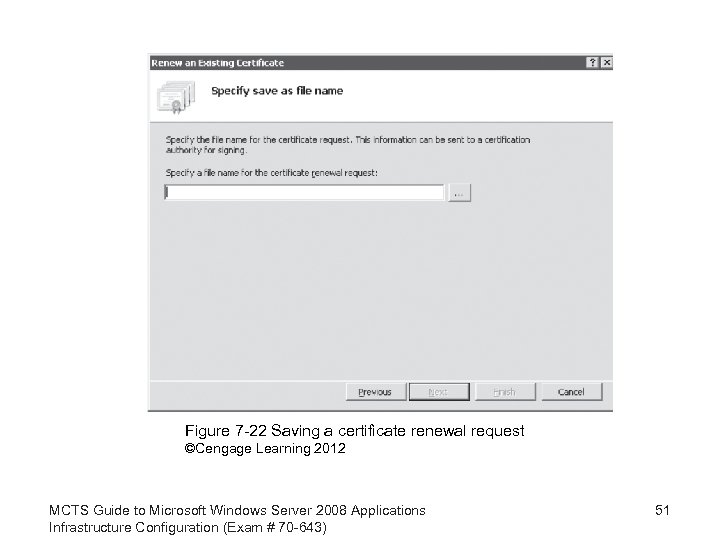 Figure 7 -22 Saving a certificate renewal request ©Cengage Learning 2012 MCTS Guide to Microsoft Windows Server 2008 Applications Infrastructure Configuration (Exam # 70 -643) 51
 Importing and Exporting Certificates • Certificates are not bound to a server • May export and import certificates if Web site is moved to another physical server • Exporting a certificate – Select it from the list of certificates and choose Export from the actions pane – Enter a file name and password – Click OK MCTS Guide to Microsoft Windows Server 2008 Applications Infrastructure Configuration (Exam # 70 -643) 52
 Importing and Exporting Certificates (cont’d. ) • Importing a certificate – Choose Import from the Actions pane – Browse to the. pfx file and type the password – Use check box to determine whether to allow the certificate to be exported later – Click OK MCTS Guide to Microsoft Windows Server 2008 Applications Infrastructure Configuration (Exam # 70 -643) 53
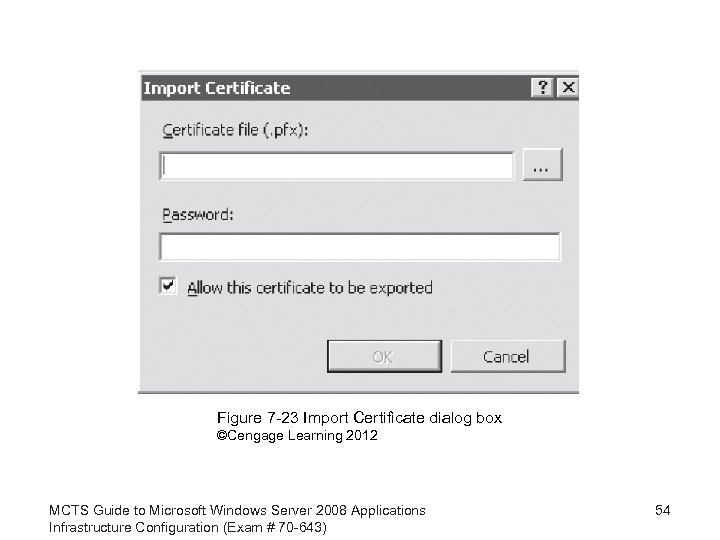 Figure 7 -23 Import Certificate dialog box ©Cengage Learning 2012 MCTS Guide to Microsoft Windows Server 2008 Applications Infrastructure Configuration (Exam # 70 -643) 54
 Configuring Web Site Permissions and Authentication • Seven authentication methods supported by IIS – Each requires different modules to be installed using the server roles – Anonymous – ASP. NET Impersonation – Basic – Client certificates – Digest – Forms – Windows MCTS Guide to Microsoft Windows Server 2008 Applications Infrastructure Configuration (Exam # 70 -643) 55
 Configuring Application Permissions • Restrict permissions of Web applications to protect the server • IIS 7 supports Code Access Security (CAS) policy • CAS policies – Define what operations are accessible to Web applications written with. NET code • Five trust levels that can be set at server, application, or virtual directory and folder level – Settings for the levels are defined within XML-based. config files MCTS Guide to Microsoft Windows Server 2008 Applications Infrastructure Configuration (Exam # 70 -643) 56
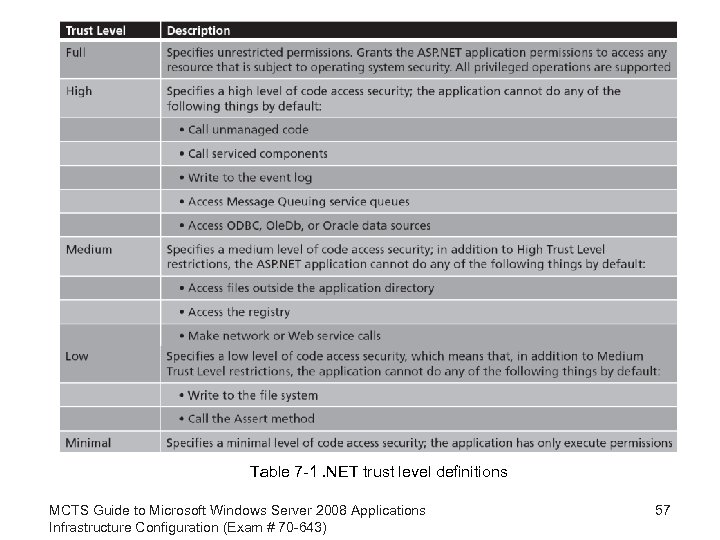 Table 7 -1. NET trust level definitions MCTS Guide to Microsoft Windows Server 2008 Applications Infrastructure Configuration (Exam # 70 -643) 57
 Activity 7 -7: Assigning. NET Trust Levels to a Specific Site • Click on the server in the Connections pane of IIS Manager • Select a site from the list in the Connections pane • Double-click the. NET Trust Levels icon in the Features View pane • Select Medium (web_mediumtrust. config) from the drop-down menu • Click Apply in the Actions pane MCTS Guide to Microsoft Windows Server 2008 Applications Infrastructure Configuration (Exam # 70 -643) 58
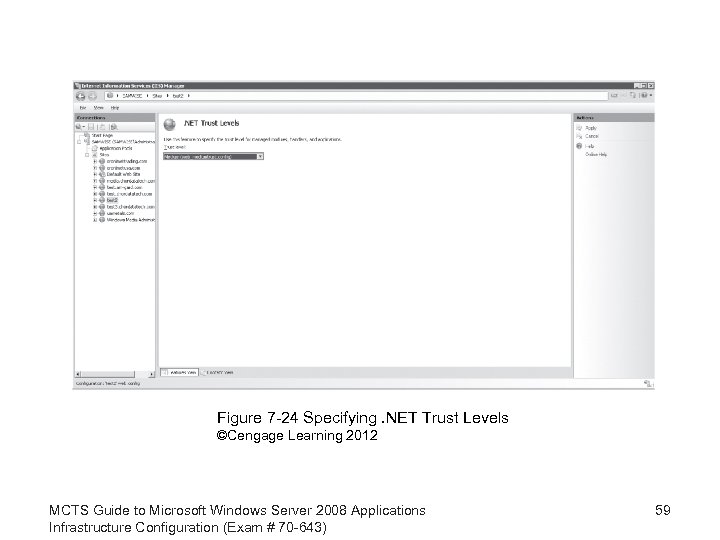 Figure 7 -24 Specifying. NET Trust Levels ©Cengage Learning 2012 MCTS Guide to Microsoft Windows Server 2008 Applications Infrastructure Configuration (Exam # 70 -643) 59
 Client Certificate Mappings • One-to-one – Server has a matching certificate for every user that will access restricted content – Useful for a small number of users • Many-to-one – Server authenticates users based on client certificate information • Active Directory – Can greatly simplify the use of client certificates – Administrator sets up a certificate-based infrastructure MCTS Guide to Microsoft Windows Server 2008 Applications Infrastructure Configuration (Exam # 70 -643) 60
 Configuring Site Permissions and Authentication • Configuring authentication – Choose appropriate object in the Connections pane – Double-click Authentication in the Features pane – Choose appropriate available authentication method from the list – Choose Enable from the Actions pane MCTS Guide to Microsoft Windows Server 2008 Applications Infrastructure Configuration (Exam # 70 -643) 61
 Summary • Administrative tasks for IIS running on a server – – Backing up and restoring sites Monitoring server performance Restricting access to different parts of the server Encrypting data coming to and from the server • IIS configuration can easily be backed up or copied to other servers • Server performance metrics can be observed in real time • Failed requests can be logged to specific error file MCTS Guide to Microsoft Windows Server 2008 Applications Infrastructure Configuration (Exam # 70 -643) 62
 Summary (cont’d. ) • Different levels of management can be delegated to users inside a Windows Server 2008 domain, and outside of a domain • SSL security can be configured using certificates • Trusted certificates are issued by several different Certificate Authorities • Access to Web sites, folders, or applications can be restricted to certain users or groups by the use of authentication – Seven different kinds of authentication MCTS Guide to Microsoft Windows Server 2008 Applications Infrastructure Configuration (Exam # 70 -643) 63