


 Скачать презентацию MCTS Guide to Configuring Microsoft Windows Server 2008
727a639fce2d65c8e68b8d3bf49a6ea3.ppt
- Количество слайдов: 52
 MCTS Guide to Configuring Microsoft Windows Server 2008 Active Directory Chapter 5: Account Management
 Objectives • • • Explain how to manage user accounts Work with user profiles Describe factors in managing group accounts Work with computer accounts Describe tools for automating account management MCTS Windows Server 2008 Active Directory 2
 Managing User Accounts • User accounts have two main functions in AD – Provide a method for user authentication to the network – Provide detailed information about a user • Windows machines that are not part of a domain store accounts in the Security Accounts Manager (SAM) database on the local machine • User accounts created in AD are referred to as domain user accounts; these accounts can usually log on to any computer that’s in the AD forest MCTS Windows Server 2008 Active Directory 3
 Managing User Accounts (cont. ) • The following guidelines apply to the built-in Administrator account: – Local administrator account has full access to all aspects of a computer, while domain administrator account has full access to all aspects of the domain – Default Administrator account should be renamed and given a strong password – Administrator account should only be used while performing administrative operations – Administrator account can be renamed or disabled but not deleted MCTS Windows Server 2008 Active Directory 4
 Managing User Accounts (cont. ) • The following guidelines apply to the built-in Guest account: – Guest account is disabled by default after install and must be enabled before it can be used for logon – Guest account can have a blank password – Should be renamed if it is to be used – Account has limited access to a computer or domain but has access to any resource for which the Everyone group has permission MCTS Windows Server 2008 Active Directory 5
 Creating and Modifying User Accounts • When creating a user account in an Active Directory domain, keep the following considerations in mind: – User accounts must be unique throughout the domain – Account names are not case sensitive, can be from 1 to 20 characters, and can use letters, numbers, and special characters (with some exceptions) – Develop a standard naming convention (example: John Doe, j. doe) – By default, complex passwords are required; passwords are case sensitive – Defaults only require a logon name and password to create a valid user (with DSADD), but additional information should be provided to facilitate AD searches MCTS Windows Server 2008 Active Directory 6
 Creating and Modifying User Accounts (cont. ) • When you use AD Users and Computers to add users, you must enter a value for the following attributes: – – – – Full name User logon name (pre-Windows 2000) Password and Confirm Password User must change password at next logon User cannot change password Password never expires Account is disabled MCTS Windows Server 2008 Active Directory 7
 Using User Templates • A user template is simply a user account that’s copied to create users with common attributes • Tips for creating user templates – Create one template account for each department or OU – Disable the template account to eliminate security risks – Add an underscore or other special character to the beginning of a template account’s name to make it easy to recognize – Fill in as many common attributes as you can so that after the account is created, less customizing is necessary • Not all attributes can be copied, creating some limitations MCTS Windows Server 2008 Active Directory 8
 Modifying Multiple Users • Selecting multiple users using ctrl + click or shift + click allows them all to be edited simultaneously • The following actions can be performed: – – – – Add to a group Disable account Enable account Move Send Mail Cut Delete Properties MCTS Windows Server 2008 Active Directory 9
 Understanding Account Properties • Some account changes can be made only by rightclicking a user account or by using the action menu of AD Users and Computers – Reset a password – Rename an account – Move an account; Accounts / AD objects can be moved with one of three methods • Right-click the user and click move • Right-click the user and click cut • Drag the user from one container to another MCTS Windows Server 2008 Active Directory 10
 The General Tab • Contains descriptive information about the account but does not affect the user’s account logon, group memberships, rights, or permissions • Fields worth mentioning – Display name • Same as the CN when account is first created – E-mail • Can be used to send an e-mail to the user using the default mail application – Web page • Can contain a URL and allows you to open the specified URL by right-clicking the user account MCTS Windows Server 2008 Active Directory 11
 The Account Tab • Contains the information that most affects a user’s logon to the domain – – – User logon name and User logon name (pre-Windows 2000) Logon Hours Log On To Unlock account Account options • Store password using reversible encryption • Smart card is required for interactive logon • Account is sensitive and cannot be delegated – Account expires MCTS Windows Server 2008 Active Directory 12
 The Profile Tab • Used to specify the location of files that make up a user’s profile, a logon script, and the location of a home folder – Profile path • Vista or Server 2008 has the profile in the C: Usersusername directory • Windows XP uses C: Documents and Settingsusername – Logon Script • Will run a script when user logs on • Preferred to use group policy, but Windows NT and 9 x can’t use group policies – Home folder • Can be a local path or a drive letter that points to a network share MCTS Windows Server 2008 Active Directory 13
 The Member Of Tab • Lists groups the user belongs to • Can be used to change group memberships • Set Primary Group button is needed only when a user is logging in to a Macintosh, Unix, or Linux client computer MCTS Windows Server 2008 Active Directory 14
 Terminal Services Tabs • Settings in these tabs affect a user’s session and connection properties when connecting to a Windows Server 2008 Terminal Services server – – Terminal Services Profile Remote Control Environment Sessions MCTS Windows Server 2008 Active Directory 15
 Using Contacts and Distribution Lists • A contact is an Active Directory object that usually represents a person for informational purposes only • Most common use of a contact is for integration into Microsoft Exchange’s address book • Distribution lists are created in the same way as groups • Distribution lists are also used with Microsoft Exchange to send e-mails, but to several people at once MCTS Windows Server 2008 Active Directory 16
 Working with User Profiles • A user profile is a collection of a user’s personal files and settings that define his or her working environment • Some key folders in a user’s profile (N/A denotes that folder doesn’t exist in Windows XP) – – – – App. Data (N/A) Desktop Documents (My Documents) Downloads (N/A) Favorites Music (My Music) Pictures (My Pictures) Ntuser. dat MCTS Windows Server 2008 Active Directory 17
 Working with User Profiles (cont. ) • A local profile is a user profile stored on the same system where the user logs on • Local profiles are created from a default profile when the user first logs on to a specific machine • Changes on one local profile will not migrate to another local profile on another machine • For consistent profiles that reflect changes made on multiple machines, use roaming profiles MCTS Windows Server 2008 Active Directory 18
 Roaming Profiles • A roaming profile follows the user no matter which computer he or she logs on to • Profile is copied from a network share when the user logs on to a computer in the network • Creates a local copy of the roaming profile, called a profile’s cached copy • Changes made to the profile are then replicated from locally cached copy back to the profile on the network share when the user logs off MCTS Windows Server 2008 Active Directory 19
 Roaming Profiles (cont. ) • The roaming profile is created from one of two locations – The NETLOGON share – The Default profile on the local system • To customize the default roaming profile: – – – Create a user with a local profile Log on to a system as the user you created Customize your environment Log off and log on as Administrator Use Control Panel’s User Profiles applet to copy the user’s profile to the NETLOGON share on your domain controller in a folder named Default User. V 2 MCTS Windows Server 2008 Active Directory 20
 Configuring Roaming Profiles • Two parts to configuring roaming profiles – Configuring a shared folder to hold roaming profiles – Configuring each user account’s properties to specify the roaming profile’s location • The default or existing local profile will be copied to the roaming profile • Folder with user’s logon name and. V 2 are created automatically with appropriate permissions • . V 2 distinguishes a roaming profile from a pre-Vista roaming profile MCTS Windows Server 2008 Active Directory 21
 Mandatory Profiles • Used when you don’t want users to be able to change their profile or only have the ability to make temporary changes • Commonly used in situations where a common logon is assigned for multiple users • Works like a roaming profile, but changes made to the profile will not be copied to the server MCTS Windows Server 2008 Active Directory 22
 Super Mandatory Profiles • Normal mandatory profiles will allow using a temporary profile based on the default profile, should the roaming or mandatory profile be unavailable due to network issues • Super mandatory profiles prevent a user from logging on to the domain when the mandatory profile is unavailable MCTS Windows Server 2008 Active Directory 23
 Managing Profiles • Profiles can be managed in the User Profiles dialog box with the following three buttons: – Change Type – Delete – Copy To • Many aspects of a user’s profile can be managed by using group policies MCTS Windows Server 2008 Active Directory 24
 The Cost of Roaming Profiles • Profiles can become bloated • If a profile is detected to be newer on a server than the version of the profile on the machine a user is logging into, the whole profile must be copied – The reverse is also true if the profile on the local machine should prove to be more up to date • Some problems caused by roaming profiles can be reduced by folder redirection pg. 175 (discussed more in Chp. 7) MCTS Windows Server 2008 Active Directory 25
 Group Types • A distribution group is used to group users together mainly for sending e-mails to several people at once with an Active Directory integrated e-mail application, such as Microsoft Exchange • Can have the following objects as members: – – – User accounts Contacts Other distribution groups Security groups Computers MCTS Windows Server 2008 Active Directory 26
 Group Types (cont. ) • Security groups are the main AD object administrators use to manage network resource access and grant rights to users • Can contain the same types of objects as distribution groups • If a contact is part of a security group that is assigned permissions to a resource, the contact does not make use of the permissions because a contact is not a security principal – Security principals are: Users, Groups, & Computers MCTS Windows Server 2008 Active Directory 27
 Converting Group Type • Group type can be changed from security to distribution and vice versa • Only security groups can be added to a DACL; if a security group is converted to a distribution group, the entry will remain in a DACL, but it has no effect on access to the resource • Converting group types is not commonly done MCTS Windows Server 2008 Active Directory 28
 Group Scope • Group scope determines the reach of a group’s application in a domain or a forest • Three group scope options are possible in a Windows Server 2008 forest – Domain local – Global – Universal • Fourth scope called local applies only to groups created in the SAM database of a member computer or stand-alone computer MCTS Windows Server 2008 Active Directory 29
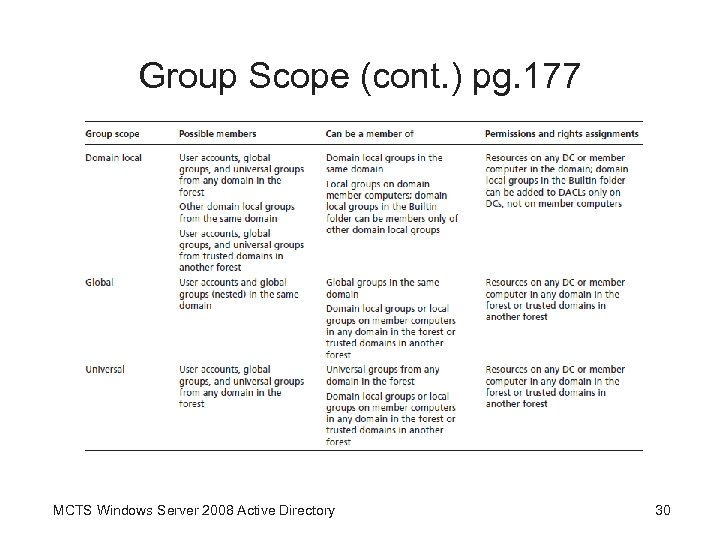 Group Scope (cont. ) pg. 177 MCTS Windows Server 2008 Active Directory 30
 Domain Local Groups • A domain local group is the main security principal recommended for assigning rights and permissions to domain resources • Global and Universal groups can be used for the same purpose, but Microsoft best practices recommend using these groups to aggregate users with similar access or rights requirements MCTS Windows Server 2008 Active Directory 31
 Domain Local Groups (cont. ) • In a single domain environment, or when users from only one domain are assigned access to a resource, use AGDLP – – Accounts are made members of Global groups, which are made members of Domain Local groups, which are assigned Permissions to resources MCTS Windows Server 2008 Active Directory 32
 Domain Local Groups (cont. ) • In multidomain environments where users from different domains are assigned access to a resource, use AGGUDLP – – – Accounts are made members of Global groups, which when necessary are nested in other Global groups, which are made members of Universal groups, which are then made members of Domain Local groups, which are assigned Permissions to resources MCTS Windows Server 2008 Active Directory 33
 Global Groups • A global group is used mainly to group users from the same domain with similar access or rights requirements • Considered global because it can be made a member of a domain local group in any domain in the forest or trusted domains in other forests • Global groups are easier to manage than creating domain local groups, especially if dealing with an organization that has multiple departments needing access to a single resource • Global groups scale better than domain local groups MCTS Windows Server 2008 Active Directory 34
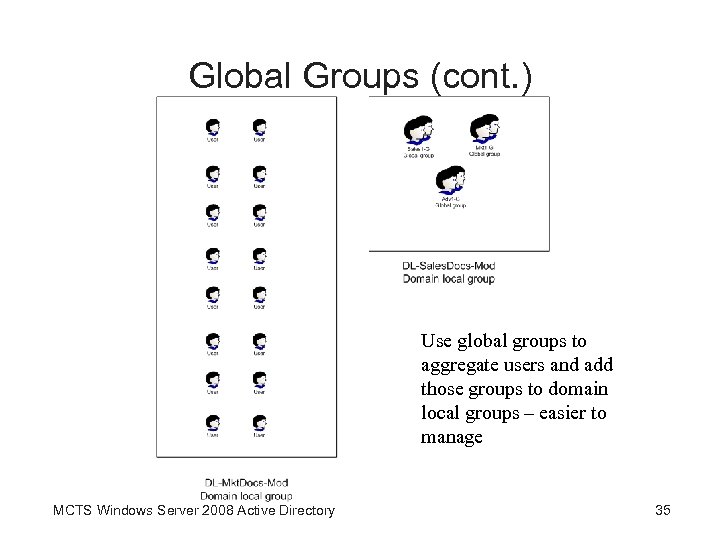 Global Groups (cont. ) Use global groups to aggregate users and add those groups to domain local groups – easier to manage MCTS Windows Server 2008 Active Directory 35
 Universal Groups • A universal group can contain users from any domain in the forest and be assigned permission to resources in any domain in the forest • Universal groups’ membership information is stored only on global catalog servers • Universal group membership changes require replication to all global catalog servers MCTS Windows Server 2008 Active Directory 36
 Local Groups • A local group is created in the local SAM database on a member server or workstation or a stand-alone computer • When a computer joins a domain, Windows changes the membership of two local groups automatically – Administrators: Domain Admin global group added – Users: Domain users global group added • Local groups can have the following account types as members: – – Local user accounts Domain local groups Global or universal groups MCTS Windows Server 2008 Active Directory 37
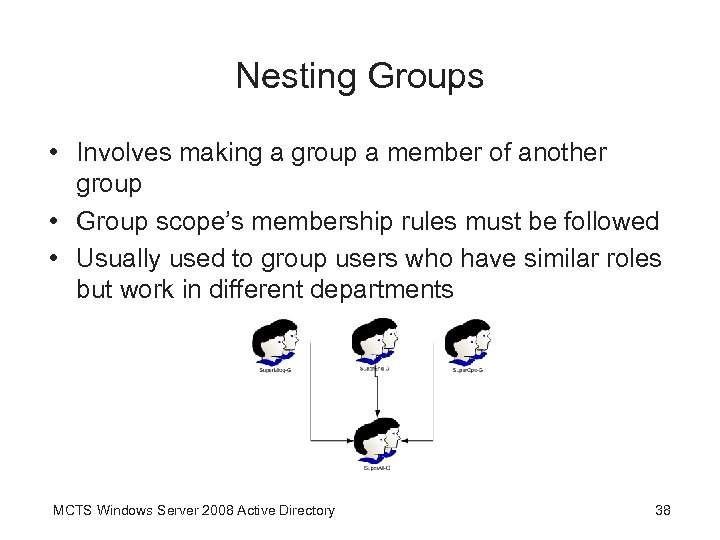 Nesting Groups • Involves making a group a member of another group • Group scope’s membership rules must be followed • Usually used to group users who have similar roles but work in different departments MCTS Windows Server 2008 Active Directory 38
 Converting Group Scope • Group scope can be converted, with some restrictions – Universal to domain local, provided it’s not a member of another universal group – Universal to global, provided no universal group is a member – Global to universal, provided it’s not a member of another global group – Domain local to universal, provided no domain local group is a member MCTS Windows Server 2008 Active Directory 39
 Default Groups in a Windows Domain • Builtin folder – Domain local groups used for assigning rights and permissions in the local domain • Users folder – Combination of domain local, global, and, in the forest root domain, universal scope – User accounts are generally added to global and universal groups in this folder for assigning permissions and rights in the domain and forest • Special identity groups – Can be assigned permissions by adding them to resources’ DACLs – Can not be changed manually MCTS Windows Server 2008 Active Directory 40
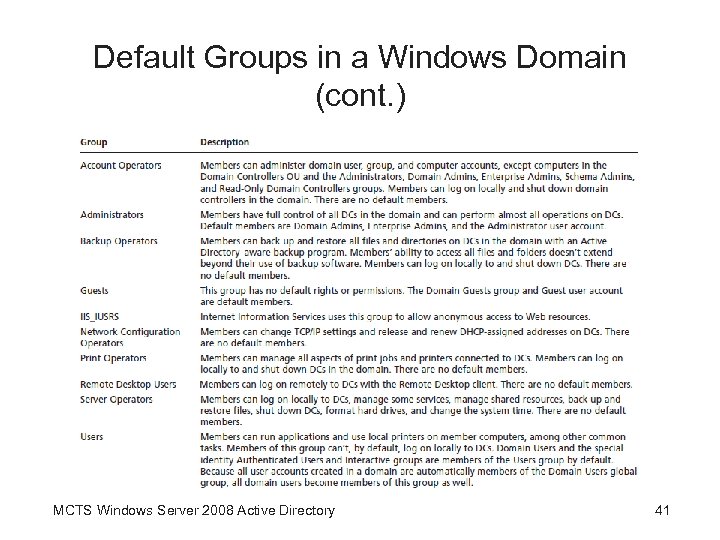 Default Groups in a Windows Domain (cont. ) MCTS Windows Server 2008 Active Directory 41
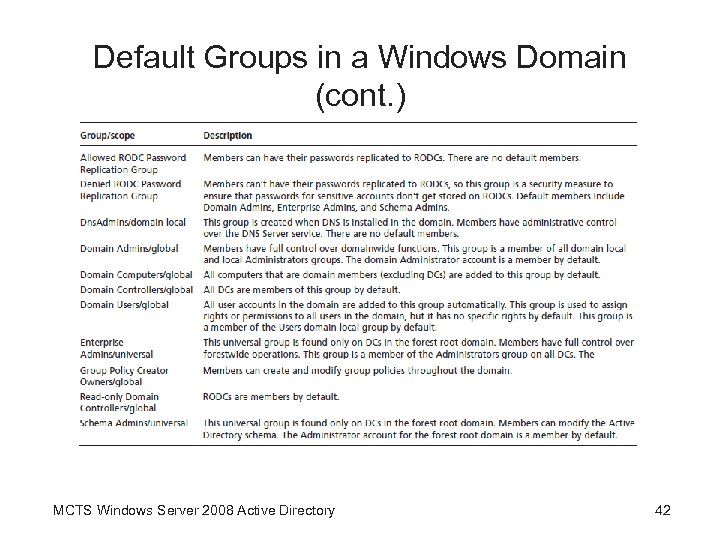 Default Groups in a Windows Domain (cont. ) MCTS Windows Server 2008 Active Directory 42
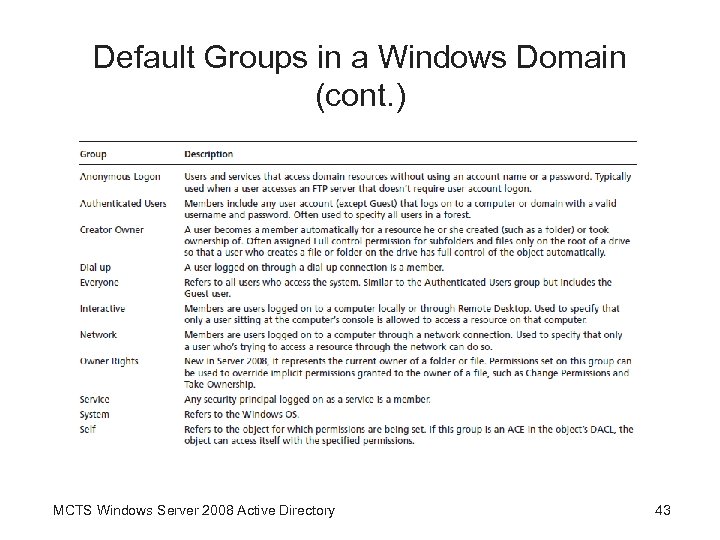 Default Groups in a Windows Domain (cont. ) MCTS Windows Server 2008 Active Directory 43
 Working with Computer Accounts • Advantages of having users log on to computers that are domain members – – Single sign-on Active Directory search Group policies Remote management • Computer accounts are usually created when a computer is joined to a domain • Computer accounts have an associated password and must log on to the domain – This password changes every 30 days by default; can cause synchronization issues if a computer is left off for too long MCTS Windows Server 2008 Active Directory 44
 Command-Line Tools for Managing Active Directory Objects • Most commonly used command line tools for managing accounts (pg. 188) – – – DSADD DSGET DSMOD DSMOVE DSQUERY DSRM • Typing /? after a command will show help information and command syntax MCTS Windows Server 2008 Active Directory 45
 Command-Line Tools for Managing Active Directory Objects (cont. ) • DSADD syntax • DSADD Object. Type Object. DN [options] – Object. Type is the type of object you want to create, such as user or group – Object. DN is the object’s distinguished name (DN) • Components of DN – – CN (Common Name) (can be repeated if object is in a folder) OU (Organizational Unit) DC (Domain Component) • Command-line programs allow piping of output from one command to another, via | MCTS Windows Server 2008 Active Directory 46
 Bulk Import and Export with CSVDE and LDIFDE • CSVDE and LDIFDE can bulk import or export AD data • CSVDE uses comma-separated values (CSV) • LDIFDE uses LDAP Directory Interchange Format (LDIF) • CSVDE can only create objects in AD, whereas LDIFDE can create or modify objects MCTS Windows Server 2008 Active Directory 47
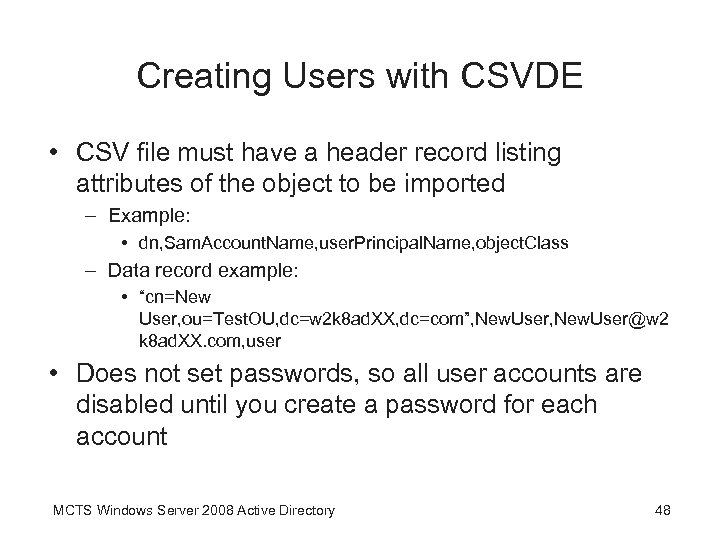 Creating Users with CSVDE • CSV file must have a header record listing attributes of the object to be imported – Example: • dn, Sam. Account. Name, user. Principal. Name, object. Class – Data record example: • “cn=New User, ou=Test. OU, dc=w 2 k 8 ad. XX, dc=com”, New. User@w 2 k 8 ad. XX. com, user • Does not set passwords, so all user accounts are disabled until you create a password for each account MCTS Windows Server 2008 Active Directory 48
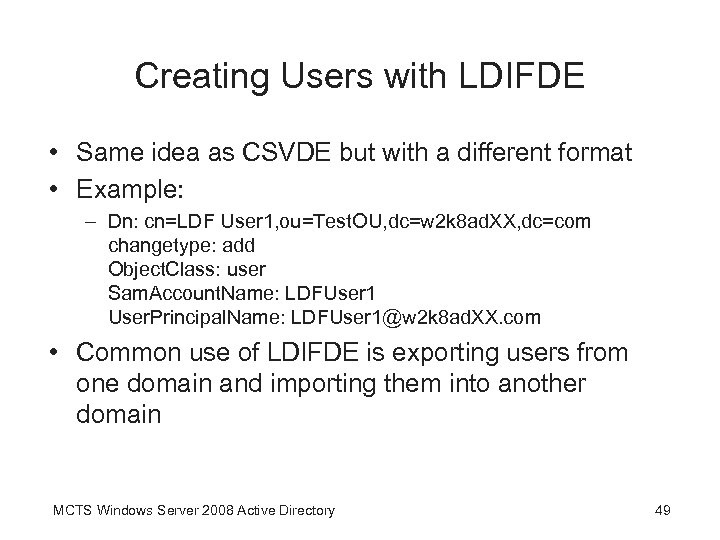 Creating Users with LDIFDE • Same idea as CSVDE but with a different format • Example: – Dn: cn=LDF User 1, ou=Test. OU, dc=w 2 k 8 ad. XX, dc=com changetype: add Object. Class: user Sam. Account. Name: LDFUser 1 User. Principal. Name: LDFUser 1@w 2 k 8 ad. XX. com • Common use of LDIFDE is exporting users from one domain and importing them into another domain MCTS Windows Server 2008 Active Directory 49
 Chapter Summary • Three categories of users in Windows: Local, domain, and built-in • User account names must be unique in a domain, aren’t case sensitive, and must be 20 or fewer characters – Complex password is required by default; naming standards should be used • User templates facilitate creating users who have some attributes in common, such as group memberships MCTS Windows Server 2008 Active Directory 50
 Chapter Summary (cont. ) • The most important user account properties are in the General, Account, Profile, Member Of, and Terminal Services tabs • A user profile contains personal files and settings that define the user’s environment – A profile stored on a network share is called a roaming profile; profiles can be made mandatory • Groups are the primary security principal used to grant rights and permissions MCTS Windows Server 2008 Active Directory 51
 Chapter Summary (cont. ) • Three group scopes in Active Directory: domain local, global, and universal – The recommended use of groups can be summarized with the acronyms AGDLP and AGGUDLP • Computers that are domain members have computer accounts in Active Directory • Computer accounts are created automatically when a computer joins a domain or manually by an administrator • Account management can be automated by command-line tools such as DSADD MCTS Windows Server 2008 Active Directory 52