


 Скачать презентацию Mc Graw-Hill Irwin 1 2006 The Mc Graw-Hill
0dbcd88c1458d1de886051d766aed136.ppt
- Количество слайдов: 103
 Mc. Graw-Hill/Irwin 1 © 2006 The Mc. Graw-Hill Companies, Inc. All rights reserved.
 Chapter A Look under the Hood Understanding the Registry Working with Device Drivers Managing Performance in Windows File Systems The Windows Startup Process Troubleshooting Windows Problems
 Learning Objectives • Define the role of the registry in Windows and back up and modify the registry when needed • Install, configure, and manage device drivers • Monitor and optimize performance in Windows • Compare the file systems supported by Windows • Describe the Windows startup process • Troubleshoot common Windows problems Mc. Graw-Hill/Irwin 3 © 2006 The Mc. Graw-Hill Companies, Inc. All rights reserved.
 Understanding the Registry • The Registry Defined • The registry is a database that includes settings for: • • • Mc. Graw-Hill/Irwin Device drivers Services Installed applications Operating system components User preferences 4 © 2006 The Mc. Graw-Hill Companies, Inc. All rights reserved.
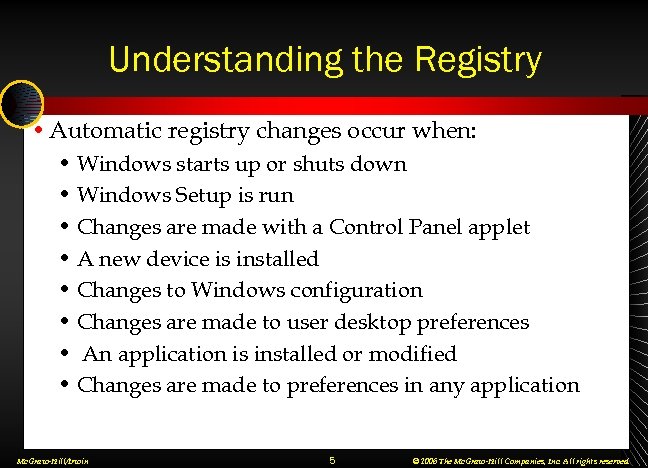 Understanding the Registry • Automatic registry changes occur when: • Windows starts up or shuts down • Windows Setup is run • Changes are made with a Control Panel applet • A new device is installed • Changes to Windows configuration • Changes are made to user desktop preferences • An application is installed or modified • Changes are made to preferences in any application Mc. Graw-Hill/Irwin 5 © 2006 The Mc. Graw-Hill Companies, Inc. All rights reserved.
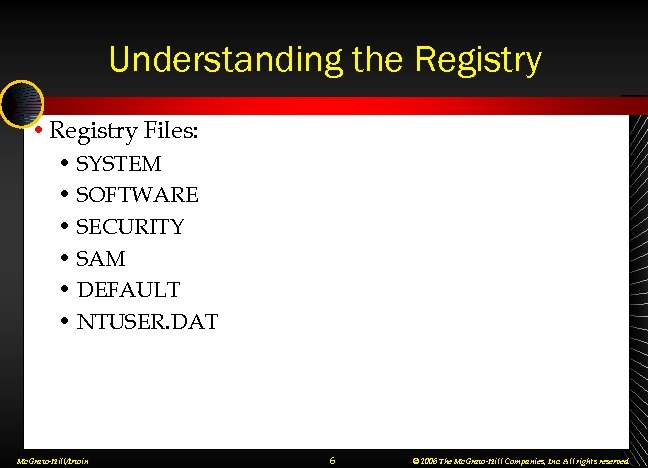 Understanding the Registry • Registry Files: • SYSTEM • SOFTWARE • SECURITY • SAM • DEFAULT • NTUSER. DAT Mc. Graw-Hill/Irwin 6 © 2006 The Mc. Graw-Hill Companies, Inc. All rights reserved.
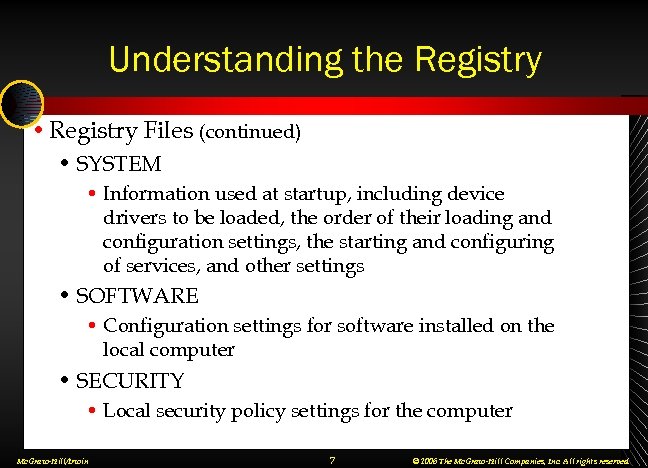 Understanding the Registry • Registry Files (continued) • SYSTEM • Information used at startup, including device drivers to be loaded, the order of their loading and configuration settings, the starting and configuring of services, and other settings • SOFTWARE • Configuration settings for software installed on the local computer • SECURITY • Local security policy settings for the computer Mc. Graw-Hill/Irwin 7 © 2006 The Mc. Graw-Hill Companies, Inc. All rights reserved.
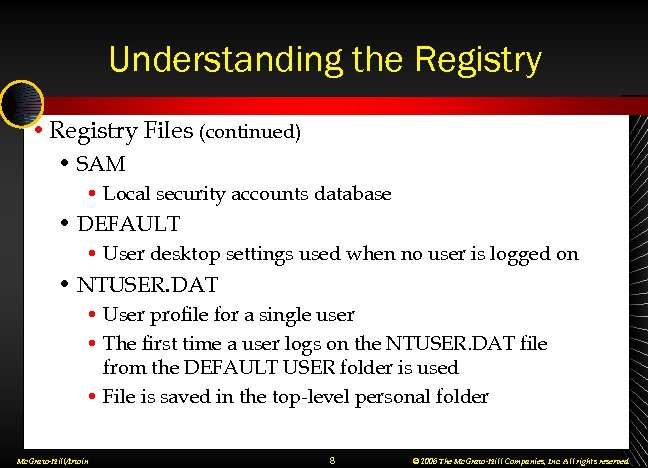 Understanding the Registry • Registry Files (continued) • SAM • Local security accounts database • DEFAULT • User desktop settings used when no user is logged on • NTUSER. DAT • User profile for a single user • The first time a user logs on the NTUSER. DAT file from the DEFAULT USER folder is used • File is saved in the top-level personal folder Mc. Graw-Hill/Irwin 8 © 2006 The Mc. Graw-Hill Companies, Inc. All rights reserved.
 Understanding the Registry • Viewing the Registry Structure • View as a hierarchical structure • Use REGEDIT. EXE or REGEDT 32. EXE • Navigation similar to disk folders • root keys — five folders at the top • subtrees — root keys and their contents • subkey — key that exists within another key • value entries — settings within a key Mc. Graw-Hill/Irwin 9 © 2006 The Mc. Graw-Hill Companies, Inc. All rights reserved.
 Understanding the Registry • Data Types in Value Entries • Format of the data within a key • The Short List • • • Mc. Graw-Hill/Irwin REG_BINARY REG_DWORD REG_EXPAND_SZ REG_MULTI-SZ REG_SZ 10 © 2006 The Mc. Graw-Hill Companies, Inc. All rights reserved.
 Understanding the Registry • Permanent Portions of the Registry: Registry Hives • HKEY_LOCAL_MACHINESYSTEM • HKEY_LOCAL_MACHINESOFTWARE • HKEY_LOCAL_MACHINESECURITY • HKEY_LOCAL_MACHINESAM • HKEY_USERS. DEFAULT • HKEY_CURRENT_USER and HKEY_USER Mc. Graw-Hill/Irwin 11 © 2006 The Mc. Graw-Hill Companies, Inc. All rights reserved.
 Understanding the Registry Temporary Portion of the Registry • HKEY_LOCAL_MACHINEHardware • Information from the hardware detection process during Windows startup • It is not saved to a file Mc. Graw-Hill/Irwin 12 © 2006 The Mc. Graw-Hill Companies, Inc. All rights reserved.
 Working with Device Drivers • Finding Device Drivers • Windows distribution CD • On floppy disk or CD that came with the device • Web site of the manufacturer Mc. Graw-Hill/Irwin 13 © 2006 The Mc. Graw-Hill Companies, Inc. All rights reserved.
 Working with Device Drivers • Permissions Required for Installing and Configuring Device Drivers • Administrator or member of Administrators group to install any device driver in Windows • Any member of Users group may disconnect and reconnect a device • Driver is not uninstalled during disconnect, just given a status of not present Mc. Graw-Hill/Irwin 14 © 2006 The Mc. Graw-Hill Companies, Inc. All rights reserved.
 Working with Device Drivers • Working with Signed vs. Unsigned Device Drivers • Code signing of device drivers (driver signing) • Windows uses file signature verification • Administrator can control how Windows reacts to unsigned drivers • Driver Signing Options • Ignore • Warn • Block Mc. Graw-Hill/Irwin 15 © 2006 The Mc. Graw-Hill Companies, Inc. All rights reserved.
 Working with Device Drivers • Disconnecting a Plug-and-Play Device • Can disconnect USB and IEE 1394 external plug-and-play devices while powered up • First warn Windows using the Safely Remove Hardware icon in the System Tray • Safely Remove Hardware dialog box • Stop a Hardware Device dialog box Mc. Graw-Hill/Irwin 16 © 2006 The Mc. Graw-Hill Companies, Inc. All rights reserved.
 Working with Device Drivers • Installing and Configuring a Non-Pn. P Device • Follow instructions in documentation • Manufacturer’s installation program preferred • If no installation program for driver, use Add Hardware applet Mc. Graw-Hill/Irwin 17 © 2006 The Mc. Graw-Hill Companies, Inc. All rights reserved.
 Working with Device Drivers • Using Device Manager to Manage Device Drivers • View and change device properties • Update device drivers • Configure device settings • Uninstall devices • Available since Windows 95 (except NT) • Roll back a driver update in Windows XP • System | Hardware | Device Manager button Mc. Graw-Hill/Irwin 18 © 2006 The Mc. Graw-Hill Companies, Inc. All rights reserved.
 Working with Device Drivers Step-by-Step 8. 01 Getting to Know Device Manager Page 389 Mc. Graw-Hill/Irwin 19 © 2006 The Mc. Graw-Hill Companies, Inc. All rights reserved.
 Working with Device Drivers • Hardware Profiles • Include registry keys that contain: • Settings defining the devices that must be started during Windows startup • The list of files associated with each device • Configuration settings for each device • Profile 1 is created during Windows installation • Defines all the existing hardware at the time of installation • Every device is enabled Mc. Graw-Hill/Irwin 20 © 2006 The Mc. Graw-Hill Companies, Inc. All rights reserved.
 Working with Device Drivers • Hardware Profiles (continued) • On a desktop computer, you will probably always have a single hardware profile • View, create, copy, rename, and modify hardware profiles by clicking the Hardware Profiles button on the Hardware page in System Properties • If two or more hardware profiles, Windows startup pauses and displays the Hardware Profile /Configuration Recovery menu • Useful on a laptop with a docking station Mc. Graw-Hill/Irwin 21 © 2006 The Mc. Graw-Hill Companies, Inc. All rights reserved.
 Managing Performance in Windows • Windows Performance Settings • Windows NT 4. 0 and Windows 2000 Performance Settings • Limited compared to Windows XP • Windows XP Visual Effects • Let Windows Choose What's Best for My Computer • Adjust for Best Appearance • Adjust for Best Performance • Custom Mc. Graw-Hill/Irwin 22 © 2006 The Mc. Graw-Hill Companies, Inc. All rights reserved.
 Managing Performance in Windows Step-by-Step 8. 02 Experiment with Visual Effects Page 395 Mc. Graw-Hill/Irwin 23 © 2006 The Mc. Graw-Hill Companies, Inc. All rights reserved.
 Managing Performance in Windows • Windows Performance Settings (continued) • Processor Scheduling • Programs • Background Services • Memory Usage • Programs • System Cache • Virtual Memory • Custom size • System managed size • No paging file Mc. Graw-Hill/Irwin 24 © 2006 The Mc. Graw-Hill Companies, Inc. All rights reserved.
 Managing Performance in Windows • Performance Monitoring • Frequently done on network servers • Not usually done on Windows desktop computers • Few performance monitoring tools in desktop OSs Mc. Graw-Hill/Irwin 25 © 2006 The Mc. Graw-Hill Companies, Inc. All rights reserved.
 Managing Performance in Windows • Performance Monitoring (continued) • System Monitor • Gathers and displays performance data • Monitors counters belonging to objects • Displays results in report, graph, or histogram • Performance Logs and Alerts • Create alerts • Create counter logs • Create trace logs Mc. Graw-Hill/Irwin 26 © 2006 The Mc. Graw-Hill Companies, Inc. All rights reserved.
 Windows File Systems • FAT File Systems in Windows • Logical structure • File allocation table (FAT) • Directories • FAT 16 used by DOS and Windows • FAT 32 introduced in Windows 95 OEM Service Release 2 • Allows larger partitions • Allocates disk space more efficiently • FAT 12 is used on floppy disks Mc. Graw-Hill/Irwin 27 © 2006 The Mc. Graw-Hill Companies, Inc. All rights reserved.
 Windows File Systems • Windows NTFS File System • Available since Windows NT, excluding Windows 9 x • Logical structure: Master File Table • Includes a transaction processing system • Allocates disk space more efficiently than FAT • NTFS 5 theoretically supports a volume size of 256 TB Mc. Graw-Hill/Irwin 28 © 2006 The Mc. Graw-Hill Companies, Inc. All rights reserved.
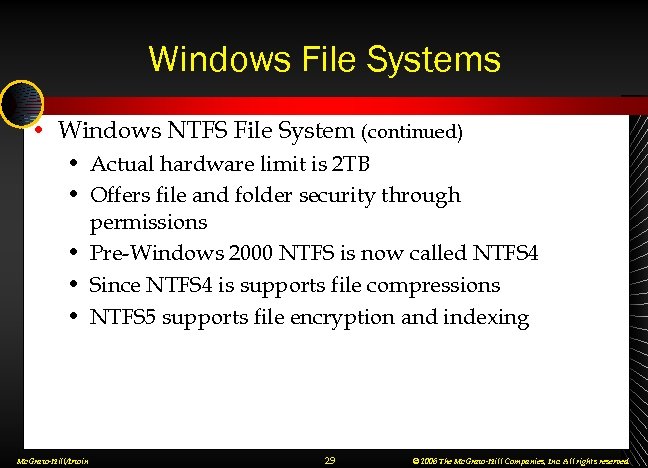 Windows File Systems • Windows NTFS File System (continued) • Actual hardware limit is 2 TB • Offers file and folder security through permissions • Pre-Windows 2000 NTFS is now called NTFS 4 • Since NTFS 4 is supports file compressions • NTFS 5 supports file encryption and indexing Mc. Graw-Hill/Irwin 29 © 2006 The Mc. Graw-Hill Companies, Inc. All rights reserved.
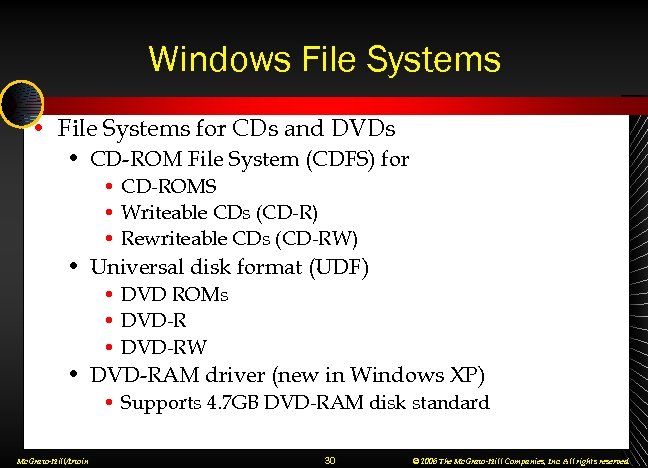 Windows File Systems • File Systems for CDs and DVDs • CD-ROM File System (CDFS) for • CD-ROMS • Writeable CDs (CD-R) • Rewriteable CDs (CD-RW) • Universal disk format (UDF) • DVD ROMs • DVD-RW • DVD-RAM driver (new in Windows XP) • Supports 4. 7 GB DVD-RAM disk standard Mc. Graw-Hill/Irwin 30 © 2006 The Mc. Graw-Hill Companies, Inc. All rights reserved.
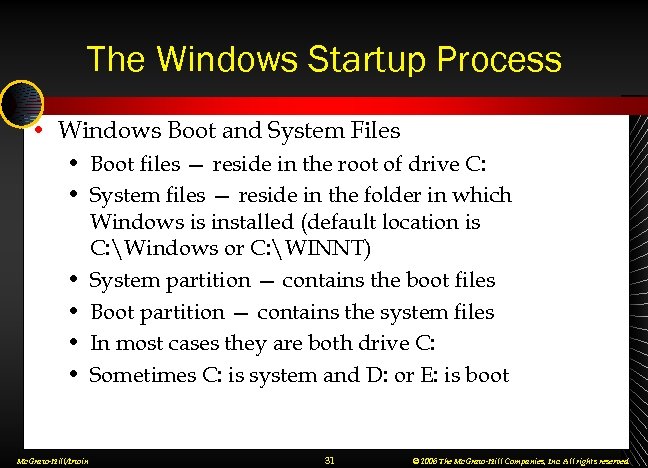 The Windows Startup Process • Windows Boot and System Files • Boot files — reside in the root of drive C: • System files — reside in the folder in which Windows is installed (default location is C: Windows or C: WINNT) • System partition — contains the boot files • Boot partition — contains the system files • In most cases they are both drive C: • Sometimes C: is system and D: or E: is boot Mc. Graw-Hill/Irwin 31 © 2006 The Mc. Graw-Hill Companies, Inc. All rights reserved.
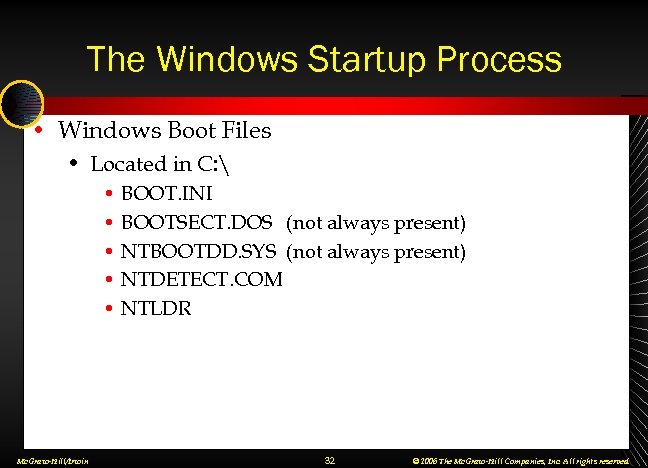 The Windows Startup Process • Windows Boot Files • Located in C: • BOOT. INI • BOOTSECT. DOS (not always present) • NTBOOTDD. SYS (not always present) • NTDETECT. COM • NTLDR Mc. Graw-Hill/Irwin 32 © 2006 The Mc. Graw-Hill Companies, Inc. All rights reserved.
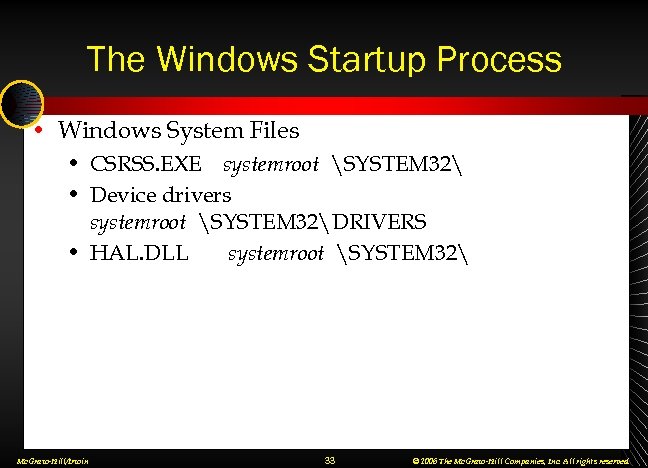 The Windows Startup Process • Windows System Files • CSRSS. EXE systemroot SYSTEM 32 • Device drivers systemroot SYSTEM 32DRIVERS • HAL. DLL systemroot SYSTEM 32 Mc. Graw-Hill/Irwin 33 © 2006 The Mc. Graw-Hill Companies, Inc. All rights reserved.
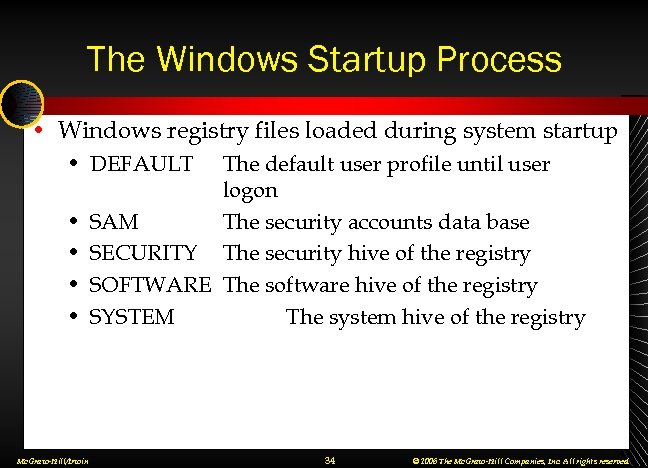 The Windows Startup Process • Windows registry files loaded during system startup • DEFAULT The default user profile until user logon • SAM The security accounts data base • SECURITY The security hive of the registry • SOFTWARE The software hive of the registry • SYSTEM The system hive of the registry Mc. Graw-Hill/Irwin 34 © 2006 The Mc. Graw-Hill Companies, Inc. All rights reserved.
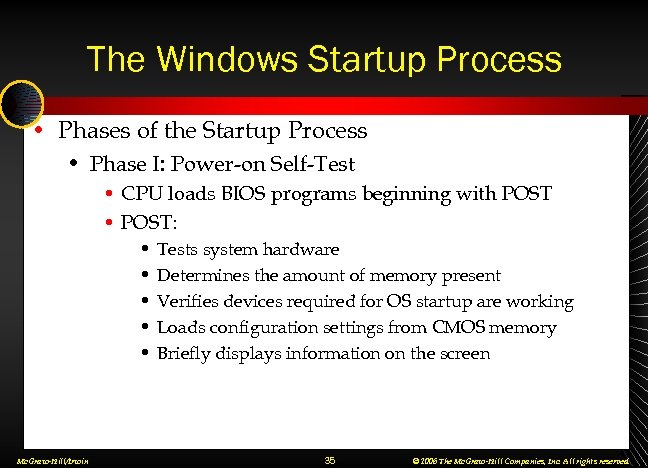 The Windows Startup Process • Phases of the Startup Process • Phase I: Power-on Self-Test • CPU loads BIOS programs beginning with POST • POST: • • • Mc. Graw-Hill/Irwin Tests system hardware Determines the amount of memory present Verifies devices required for OS startup are working Loads configuration settings from CMOS memory Briefly displays information on the screen 35 © 2006 The Mc. Graw-Hill Companies, Inc. All rights reserved.
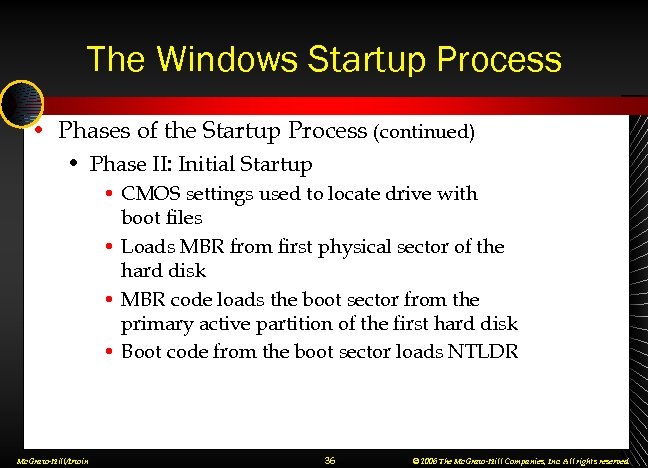 The Windows Startup Process • Phases of the Startup Process (continued) • Phase II: Initial Startup • CMOS settings used to locate drive with boot files • Loads MBR from first physical sector of the hard disk • MBR code loads the boot sector from the primary active partition of the first hard disk • Boot code from the boot sector loads NTLDR Mc. Graw-Hill/Irwin 36 © 2006 The Mc. Graw-Hill Companies, Inc. All rights reserved.
 The Windows Startup Process • Phases of the Startup Process (continued) • Phase III: Boot Loader Phase • NTLDR (the boot loader) takes control • • • Mc. Graw-Hill/Irwin Switches the processor to protected mode Starts the files system code Reads the BOOT. INI file In some cases, displays the OS Selection menu If a Windows NT family OS is selected, NTLDR remains in control and moves to the next phase 37 © 2006 The Mc. Graw-Hill Companies, Inc. All rights reserved.
 The Windows Startup Process • Phases of the Startup Process (continued) • Phase IV: Detect and Configure Hardware • NTLDR starts NTDETECT. COM • NTDETECT. COM scans the hardware and gives the list to NTLDR for later inclusion in the registry Mc. Graw-Hill/Irwin 38 © 2006 The Mc. Graw-Hill Companies, Inc. All rights reserved.
 The Windows Startup Process • Phases of the Startup Process (continued) • Phase V: Kernel Loading • NTLDR looks in BOOT. INI for location of NTOSKRNL • NTLDR starts NTOSKRNL. EXE (the kernel) • NTLDR passes on the hardware information • NTLDR loads HAL. DLL • NTLDR loads SYSTEM • NTLDR loads drivers required at startup • Kernel scans the registry for other components Mc. Graw-Hill/Irwin 39 © 2006 The Mc. Graw-Hill Companies, Inc. All rights reserved.
 The Windows Startup Process • Phases of the Startup Process (continued) • Phase V: Kernel Loading (continued) • Kernel loads and initializes the components • Kernel starts SMSS. EXE • SMSS. EXE loads the kernel-mode Windows subsystem • Windows switches from text mode to graphics mode • Session manager starts user-mode Windows subsystem • Session manager creates pagefile. sys • Session manager starts the Windows logon service Mc. Graw-Hill/Irwin 40 © 2006 The Mc. Graw-Hill Companies, Inc. All rights reserved.
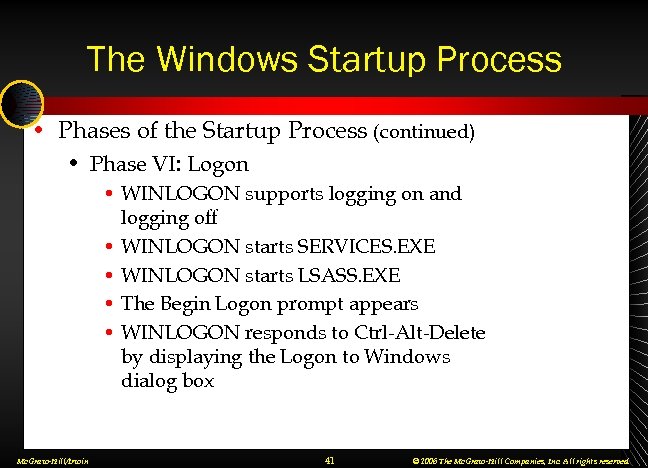 The Windows Startup Process • Phases of the Startup Process (continued) • Phase VI: Logon • WINLOGON supports logging on and logging off • WINLOGON starts SERVICES. EXE • WINLOGON starts LSASS. EXE • The Begin Logon prompt appears • WINLOGON responds to Ctrl-Alt-Delete by displaying the Logon to Windows dialog box Mc. Graw-Hill/Irwin 41 © 2006 The Mc. Graw-Hill Companies, Inc. All rights reserved.
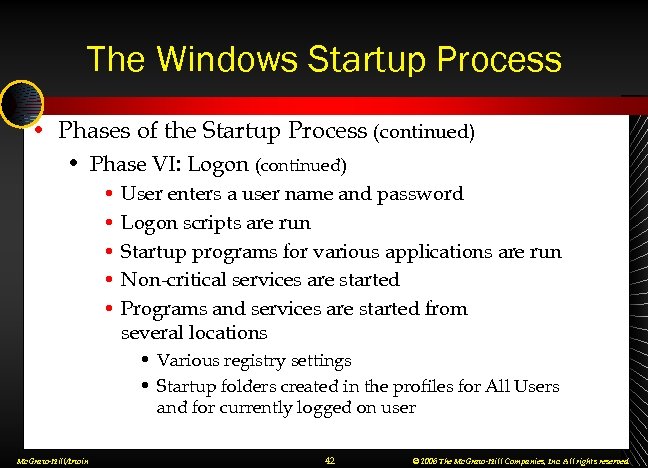 The Windows Startup Process • Phases of the Startup Process (continued) • Phase VI: Logon (continued) • User enters a user name and password • Logon scripts are run • Startup programs for various applications are run • Non-critical services are started • Programs and services are started from several locations • Various registry settings • Startup folders created in the profiles for All Users and for currently logged on user Mc. Graw-Hill/Irwin 42 © 2006 The Mc. Graw-Hill Companies, Inc. All rights reserved.
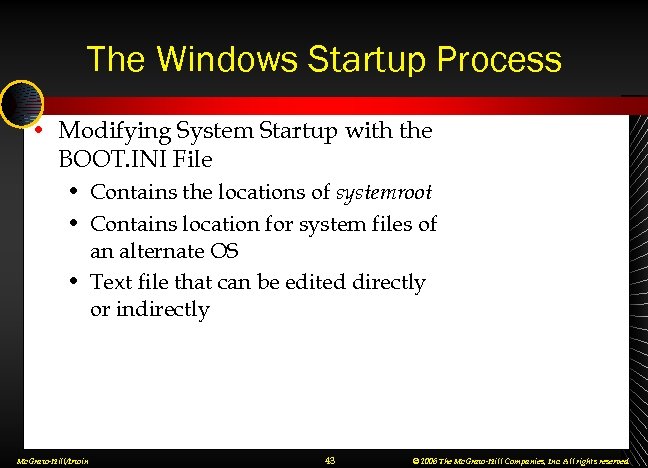 The Windows Startup Process • Modifying System Startup with the BOOT. INI File • Contains the locations of systemroot • Contains location for system files of an alternate OS • Text file that can be edited directly or indirectly Mc. Graw-Hill/Irwin 43 © 2006 The Mc. Graw-Hill Companies, Inc. All rights reserved.
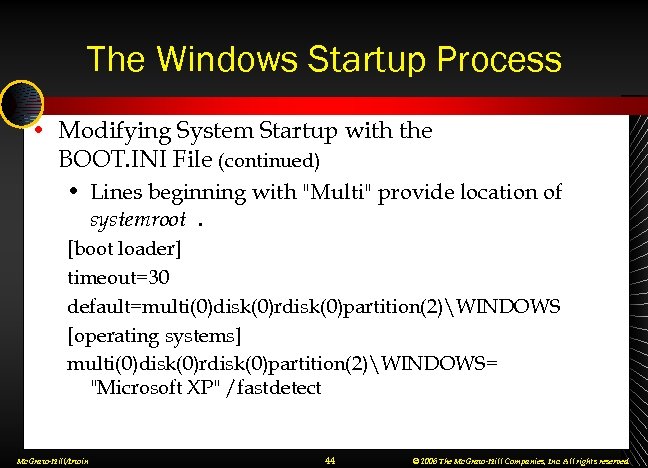 The Windows Startup Process • Modifying System Startup with the BOOT. INI File (continued) • Lines beginning with "Multi" provide location of systemroot. [boot loader] timeout=30 default=multi(0)disk(0)rdisk(0)partition(2)WINDOWS [operating systems] multi(0)disk(0)rdisk(0)partition(2)WINDOWS= "Microsoft XP" /fastdetect Mc. Graw-Hill/Irwin 44 © 2006 The Mc. Graw-Hill Companies, Inc. All rights reserved.
 Troubleshooting Windows Problems • Cooperative Troubleshooting • Elicit problem symptoms from customers • Have customers reproduce errors as part of the diagnostics process • Identify recent changes to the computer by the user Mc. Graw-Hill/Irwin 45 © 2006 The Mc. Graw-Hill Companies, Inc. All rights reserved.
 Troubleshooting Windows Problems • Proactive Tasks • Keeping Windows Updated • Windows XP Service Pack 2 • Configuring Automatic Update • Working with Windows Update • Using Runas • Command-line program for running a single command using a user account other than the one currently logged on. • Use when logged on as an ordinary user, and needing to run a single command requiring administrative rights Mc. Graw-Hill/Irwin 46 © 2006 The Mc. Graw-Hill Companies, Inc. All rights reserved.
 Troubleshooting Windows Problems Step-by-Step 8. 03 Create and Test a Runas Shortcut Page 409 Mc. Graw-Hill/Irwin 47 © 2006 The Mc. Graw-Hill Companies, Inc. All rights reserved.
 Troubleshooting Windows Problems • Create Startup Disks • Windows NT/2000/XP startup disks • Only contain the boot files • Cannot start up Windows completely unless the system files are located on the hard disk • Use when boot files are damaged on the hard drive • Start with this disk to bypass the hard disk boot files • Format floppy disk in Windows • Copy to the floppy: NTLDR, NTDETECT. COM, BOOT. INI, and NTBOOTDD. SYS (if present) Mc. Graw-Hill/Irwin 48 © 2006 The Mc. Graw-Hill Companies, Inc. All rights reserved.
 Troubleshooting Windows Problems Step-by-Step 8. 04 Creating and Testing a Windows Startup Disk Page 411 Mc. Graw-Hill/Irwin 49 © 2006 The Mc. Graw-Hill Companies, Inc. All rights reserved.
 Troubleshooting Windows Problems • Create Startup Disks (continued) • MS-DOS and Windows 98 Startup Disks • Both run MS-DOS • Cannot start up Windows completely unless the system files are located on the hard disk • Use when boot files are damaged on the hard drive • Start with this disk to by-pass the hard disk boot files • Format floppy disk in Windows • Copy to the floppy: NTLDR, NTDETECT. COM, BOOT. INI, and NTBOOTDD. SYS (if present) Mc. Graw-Hill/Irwin 50 © 2006 The Mc. Graw-Hill Companies, Inc. All rights reserved.
 Troubleshooting Windows Problems • Back up Data Files and the Registry • Before making changes, back up data files and registry • Back up a portion of the registry using Regedit • Back up entire registry using a backup program • Third-party backup programs • More options; and a greater variety of media • Windows Backup (NTBACKUP) • NT version only backs up to tape • Windows 2000/XP versions back up to any hard disk or network location (providing permissions allows) Mc. Graw-Hill/Irwin 51 © 2006 The Mc. Graw-Hill Companies, Inc. All rights reserved.
 Troubleshooting Windows Problems • Alerts • Notification triggered by defined system event • Windows NT 4. 0 Control Panel | Server applet • Predefined events only; cannot specify events • Can only define who receives alerts • Windows 2000/XP Performance Logs and Alerts node of Computer Management • Selectable triggering events • Example: when disk space reaches 80% capacity • Action can be more than an alert Mc. Graw-Hill/Irwin 52 © 2006 The Mc. Graw-Hill Companies, Inc. All rights reserved.
 Troubleshooting Windows Problems Step-by-Step 8. 05 Configuring an Alert Page 414 Mc. Graw-Hill/Irwin 53 © 2006 The Mc. Graw-Hill Companies, Inc. All rights reserved.
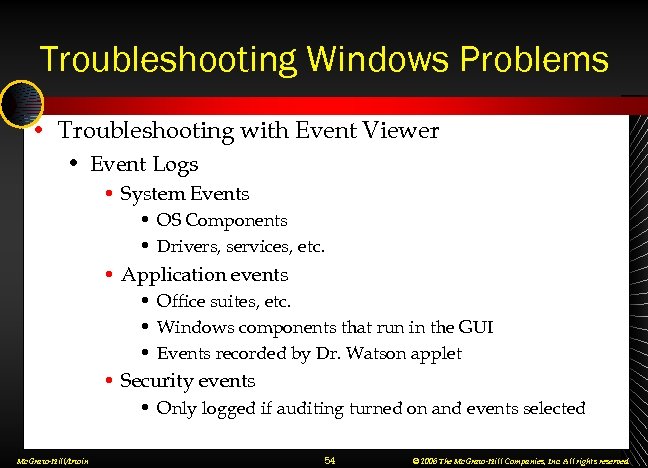 Troubleshooting Windows Problems • Troubleshooting with Event Viewer • Event Logs • System Events • OS Components • Drivers, services, etc. • Application events • Office suites, etc. • Windows components that run in the GUI • Events recorded by Dr. Watson applet • Security events • Only logged if auditing turned on and events selected Mc. Graw-Hill/Irwin 54 © 2006 The Mc. Graw-Hill Companies, Inc. All rights reserved.
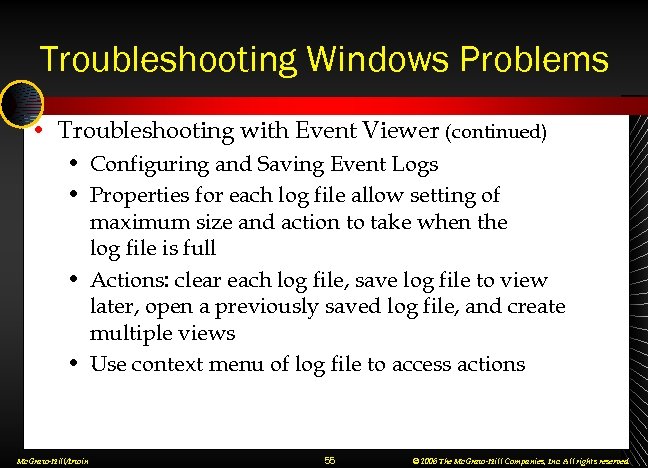 Troubleshooting Windows Problems • Troubleshooting with Event Viewer (continued) • Configuring and Saving Event Logs • Properties for each log file allow setting of maximum size and action to take when the log file is full • Actions: clear each log file, save log file to view later, open a previously saved log file, and create multiple views • Use context menu of log file to access actions Mc. Graw-Hill/Irwin 55 © 2006 The Mc. Graw-Hill Companies, Inc. All rights reserved.
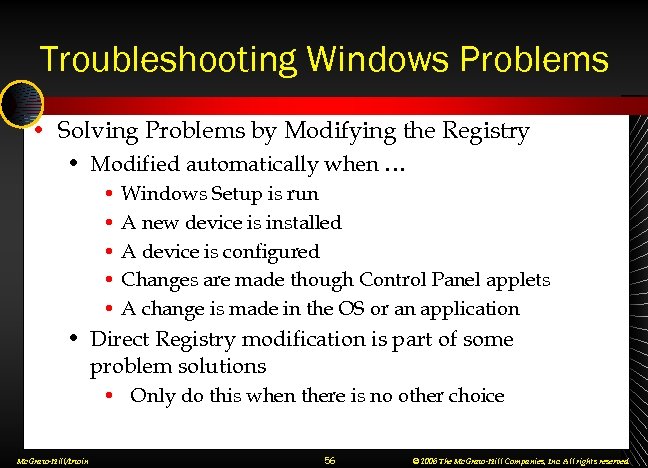 Troubleshooting Windows Problems • Solving Problems by Modifying the Registry • Modified automatically when … • Windows Setup is run • A new device is installed • A device is configured • Changes are made though Control Panel applets • A change is made in the OS or an application • Direct Registry modification is part of some problem solutions • Only do this when there is no other choice Mc. Graw-Hill/Irwin 56 © 2006 The Mc. Graw-Hill Companies, Inc. All rights reserved.
 Troubleshooting Windows Problems Step-by-Step 8. 06 Modifying the Registry Page 420 Mc. Graw-Hill/Irwin 57 © 2006 The Mc. Graw-Hill Companies, Inc. All rights reserved.
 Troubleshooting Windows Problems • Last Known Good Configuration Recovery • Startup option in Windows NT family of OSs • Selects the last configuration changes set before the last successful user logon • How to: • Windows NT 4. 0 • Select OS from OS selection menu • Press space bar to bring up Last Known Good Menu • Press L to switch to the last known good configuration • Windows 2000 and Windows XP • Press F 8 after the POST and before Windows “splash” screen appears • Select Last Known Good Configuration Mc. Graw-Hill/Irwin 58 © 2006 The Mc. Graw-Hill Companies, Inc. All rights reserved.
 Troubleshooting Windows Problems • Troubleshooting Startup Problems with the Windows Startup Disk • NTLDR or NTDETECT. COM is missing • Boot with Windows startup disk, and copy the missing file from A: to C: • NTOSKRNL is invalid or missing • Usually indicates that BOOT. INI is missing, damaged, or contains incorrect path • Boot with Windows startup disk, and copy BOOT. INI file from A: to C: Mc. Graw-Hill/Irwin 59 © 2006 The Mc. Graw-Hill Companies, Inc. All rights reserved.
 Troubleshooting Windows Problems • Troubleshooting Startup Problems with Startup Modes • Windows NT 4. 0 Startup Options are limited • Normal Windows startup • Windows startup with standard VGA driver • Windows 2000 and Windows XP Professional • Safe Mode – minus several drivers and components • Safe Mode with Networking – like above, with networking enabled • Safe Mode with command prompt – a command prompt as a user interface (EXPLORER not started) Mc. Graw-Hill/Irwin 60 © 2006 The Mc. Graw-Hill Companies, Inc. All rights reserved.
 Troubleshooting Windows Problems Step-by-Step 8. 07 Using Safe Mode Page 424 Mc. Graw-Hill/Irwin 61 © 2006 The Mc. Graw-Hill Companies, Inc. All rights reserved.
 Troubleshooting Windows Problems • Troubleshooting Startup Problems with Startup Modes (continued) • Windows 2000 and Windows XP Professional (continued) • Enable Boot Logging • Enable VGA Mode • Directory Services Restore Mode (domain controllers) • Debugging Mode • Start Windows Normally • Reboot • Return to OS Choices Menu Mc. Graw-Hill/Irwin 62 © 2006 The Mc. Graw-Hill Companies, Inc. All rights reserved.
 Troubleshooting Windows Problems • Troubleshooting Device Problems • Device manager shows a yellow exclamation mark next to a device with a problem • Problem may be hardware, driver, or the ability of the OS to automatically configure it • Double-click device icon to open Properties • Use Troubleshoot button to find problem resolution Mc. Graw-Hill/Irwin 63 © 2006 The Mc. Graw-Hill Companies, Inc. All rights reserved.
 Troubleshooting Windows Problems Step-by-Step 8. 08 Working with Device Manager Page 427 Mc. Graw-Hill/Irwin 64 © 2006 The Mc. Graw-Hill Companies, Inc. All rights reserved.
 Troubleshooting Windows Problems • Recovery Options • Advanced options beyond Safe Mode • Emergency Repair Process • Recovery Console • System Restore • Automated System Recovery (ASR) Mc. Graw-Hill/Irwin 65 © 2006 The Mc. Graw-Hill Companies, Inc. All rights reserved.
 Chapter Summary Understanding the Registry • The registry is a database of all configuration settings in Windows. Avoid directly editing the registry, because you can cause severe damage. The Control Panel applets provide a safe way to edit the registry. Mc. Graw-Hill/Irwin 66 © 2006 The Mc. Graw-Hill Companies, Inc. All rights reserved.
 Chapter Summary Understanding the Registry • The registry is created during Windows setup, (and modified) anytime a setup or installation program is run after that, and during startup and shutdown. It is also modified anytime a device driver is installed, and whenever any application, Windows component, or device is configured. Mc. Graw-Hill/Irwin 67 © 2006 The Mc. Graw-Hill Companies, Inc. All rights reserved.
 Chapter Summary Understanding the Registry • Most of the registry is saved in several files, called hives. They include SYSTEM, SOFTWARE, SECURITY, SAM, DEFAULT, and NTUSER. DAT. • Two registry editors are found in Windows— Regedit. exe and Regedt 32. exe. Until Windows XP, these were two separate editors with different features. Beginning with Windows XP, either command name brings up the same new and improved version of the registry editor. Mc. Graw-Hill/Irwin 68 © 2006 The Mc. Graw-Hill Companies, Inc. All rights reserved.
 Chapter Summary Understanding the Registry • The registry is viewed in a hierarchical folder structure in Registry Editor. • A key is a folder object that can contain one or more sets of settings as well as other keys. • The five top-level keys, or root keys, in the registry are called subtrees. • A key that exists within another key is called a subkey. Mc. Graw-Hill/Irwin 69 © 2006 The Mc. Graw-Hill Companies, Inc. All rights reserved.
 Chapter Summary Understanding the Registry • Settings within a key are called value entries. Each value entry has a name, type, and data. • The permanent portions of the registry are contained in the registry hives, saved in the files. • HKEY_LOCAL_MACHINEHardware contains the temporary portion of the registry, the information gathered during hardware detection during each Windows startup. Mc. Graw-Hill/Irwin 70 © 2006 The Mc. Graw-Hill Companies, Inc. All rights reserved.
 Chapter Summary Working with Device Drivers • A device driver is program code created by the device manufacturer that allows an OS to control a physical device. • Look for device drivers on the floppy disk or CD that comes with a device, or at the web site of the manufacturer. • You must be logged on as Administrator or a member of the Administrators group to install any device driver in Windows. Mc. Graw-Hill/Irwin 71 © 2006 The Mc. Graw-Hill Companies, Inc. All rights reserved.
 Chapter Summary Working with Device Drivers • Once a device has been installed, a user may disconnect and reconnect the device without restriction—the driver will not be uninstalled. • Code signing is designed to avoid problems caused by badly written code. It involves a digital signature, provided by Microsoft as a seal of approval of program code. Mc. Graw-Hill/Irwin 72 © 2006 The Mc. Graw-Hill Companies, Inc. All rights reserved.
 Chapter Summary Working with Device Drivers • Windows uses a process called file signature verification to check for code signing, and an administrator can configure what action Windows takes when it detects code that does not contain a digital signature. Configure with the Driver Signing button located on the Hardware page of the System applet. Mc. Graw-Hill/Irwin 73 © 2006 The Mc. Graw-Hill Companies, Inc. All rights reserved.
 Chapter Summary Working with Device Drivers • Always read the manufacturer’s documentation, and follow the instructions before attempting to install a device driver, whether it is plug-and-play or not. Mc. Graw-Hill/Irwin 74 © 2006 The Mc. Graw-Hill Companies, Inc. All rights reserved.
 Chapter Summary Working with Device Drivers • When an administrator installs or connects a plug-and-play device to a Windows computer, the device will be automatically detected, and the driver will be installed and configured with little or no interaction from the user, except to provide the device driver disk if requested. Mc. Graw-Hill/Irwin 75 © 2006 The Mc. Graw-Hill Companies, Inc. All rights reserved.
 Chapter Summary Working with Device Drivers • Plug-and-play devices connected to USB or IEEE 1394 (Fire. Wire) can be disconnected without restarting Windows. • Install non-plug-and-play devices by using the manufacturer's instructions and installation program, if available. If the device does not come with an installation program, and you have the correct device drivers, use the Add New Hardware applet in Control Panel. Mc. Graw-Hill/Irwin 76 © 2006 The Mc. Graw-Hill Companies, Inc. All rights reserved.
 Chapter Summary Working with Device Drivers • Device Manager is the tool in Windows 2000 and Windows XP for managing and troubleshooting device problems. • A hardware profile includes the registry keys that contain the settings defining the devices that must be started during Windows startup, the files associated with each device, and configuration settings for each device. Mc. Graw-Hill/Irwin 77 © 2006 The Mc. Graw-Hill Companies, Inc. All rights reserved.
 Chapter Summary Working with Device Drivers • Most Windows computers, especially desktops, only have a single hardware profile. • Hardware profiles are very handy for a laptop computer that has two or more configurations, usually including one when it is connected to a docking station and another when it is undocked. Mc. Graw-Hill/Irwin 78 © 2006 The Mc. Graw-Hill Companies, Inc. All rights reserved.
 Chapter Summary Managing Performance in Windows • Windows performance settings are available on the Advanced tab of the System Properties dialog box, but you should not have to make any changes to these settings, because Windows automatically adjusts to system changes to provide good performance. Mc. Graw-Hill/Irwin 79 © 2006 The Mc. Graw-Hill Companies, Inc. All rights reserved.
 Chapter Summary Managing Performance in Windows • Visual effects include treatments of the GUI that make Windows more visually interesting and even fun to use, but which may come at a price—the use of processor and memory. • The Advanced page of Performance Options has even more settings, including Processor Scheduling, Memory Usage, and Virtual Memory. Mc. Graw-Hill/Irwin 80 © 2006 The Mc. Graw-Hill Companies, Inc. All rights reserved.
 Chapter Summary Managing Performance in Windows • When a Windows computer is running low on memory for the operating system and any loaded application programs, it will use and manage a portion of disk space as RAM. This is called virtual memory. • Windows virtual memory uses a paging file called PAGEFILE. SYS, which is usually located on the root of C: . Mc. Graw-Hill/Irwin 81 © 2006 The Mc. Graw-Hill Companies, Inc. All rights reserved.
 Chapter Summary Managing Performance in Windows • Normally, Windows manages virtual memory, adjusting for changing memory needs, but an administrator can control the size, location, and even the number of paging files. Mc. Graw-Hill/Irwin 82 © 2006 The Mc. Graw-Hill Companies, Inc. All rights reserved.
 Chapter Summary Managing Performance in Windows • Performance monitoring is something that is usually done on network servers, not on Windows desktop computers. Server administrators use performance monitoring to ensure that the quality of service is maintained, and as an early warning of potential problems that can show up first as performance problems. Mc. Graw-Hill/Irwin 83 © 2006 The Mc. Graw-Hill Companies, Inc. All rights reserved.
 Chapter Summary Managing Performance in Windows • Beginning with Windows 2000, Performance Monitor is replaced by a console called Performance containing two nodes: System Monitor and Performance Logs and Alerts. • System Monitor, available in both Windows 2000 and Windows XP Professional, allows an administrator to gather and view performance data involving memory, disk, processor, network, and other objects. Mc. Graw-Hill/Irwin 84 © 2006 The Mc. Graw-Hill Companies, Inc. All rights reserved.
 Chapter Summary Managing Performance in Windows • The Performance Logs and Alert node in the Performance console actually allows three types of activities—creating alerts and creating two types of log files: counter and trace. • The FAT file system supported in Windows 2000 and Windows XP includes FAT 12, FAT 16, and FAT 32. Mc. Graw-Hill/Irwin 85 © 2006 The Mc. Graw-Hill Companies, Inc. All rights reserved.
 Chapter Summary Windows File Systems • Windows NT 4. 0 supports FAT 12, FAT 16, FAT 32, and NTFS 4. • The NTFS 5 file system is supported in both Windows 2000 and Windows XP. Mc. Graw-Hill/Irwin 86 © 2006 The Mc. Graw-Hill Companies, Inc. All rights reserved.
 Chapter Summary Windows File Systems • The CD-ROM File System (CDFS) allows Windows OSs to read CD-ROMs and to read and write to writeable CDs (CD-R) and rewriteable CDs (CD-RW). Windows NT 4. 0 does not natively support any writeable or rewriteable CDs. Mc. Graw-Hill/Irwin 87 © 2006 The Mc. Graw-Hill Companies, Inc. All rights reserved.
 Chapter Summary Windows File Systems • The universal disk format (UDF) is a file system driver required for Windows to read DVD ROMs and to read and write DVD-R and DVD-RW. Windows XP has a DVD-RAM driver that supports the 4. 7 GB DVD-RAM disk standards. Mc. Graw-Hill/Irwin 88 © 2006 The Mc. Graw-Hill Companies, Inc. All rights reserved.
 Chapter Summary Windows Startup Process • The Windows boot files, used during the boot sequence of startup, are NTLDR, NTDETECT. COM, BOOT. INI, and NTBOOTDD. SYS. • The Windows system files, used during the load sequence of Windows startup, are NTOSKRNL. EXE, SYSTEM, and many components and driver files. Mc. Graw-Hill/Irwin 89 © 2006 The Mc. Graw-Hill Companies, Inc. All rights reserved.
 Chapter Summary Windows Startup Process • A Windows startup disk is created by formatting a diskette and copying the boot files from the root of C: to the root of A: . • A Windows startup disk can be used in case of damage to the boot files on an NT computer. Mc. Graw-Hill/Irwin 90 © 2006 The Mc. Graw-Hill Companies, Inc. All rights reserved.
 Chapter Summary Windows Startup Process • There are several phases to the Windows startup process: Power-On Self-Test (POST), initial startup, boot loader, detect and configure hardware, logon, and plug-and-play device detection. • You can view System, Application, and Security logs in Event Viewer. Mc. Graw-Hill/Irwin 91 © 2006 The Mc. Graw-Hill Companies, Inc. All rights reserved.
 Chapter Summary Troubleshooting Windows Problems • Cooperative troubleshooting is a method to use when troubleshooting problems on another person's computer. It involves • Eliciting problem symptoms from customers • Having customers reproduce errors as part of the diagnostics process • Identifying recent changes to the computer by the user Mc. Graw-Hill/Irwin 92 © 2006 The Mc. Graw-Hill Companies, Inc. All rights reserved.
 Chapter Summary Troubleshooting Windows Problems • Several proactive tasks make troubleshooting easier, or even preventable. These include keeping Windows updated, knowing how to use administrative tools like the Runas command, preparing startup disks for each computer, maintaining backups, backing up the registry, and configuring alerts. Mc. Graw-Hill/Irwin 93 © 2006 The Mc. Graw-Hill Companies, Inc. All rights reserved.
 Chapter Summary Troubleshooting Windows Problems • Automatic Update is provided with Windows XP, Windows 2000 (SP 3 or later), and Windows Server 2003. It can be configured to automatically download critical updates and, optionally, to automatically install them. Mc. Graw-Hill/Irwin 94 © 2006 The Mc. Graw-Hill Companies, Inc. All rights reserved.
 Chapter Summary Troubleshooting Windows Problems • Windows Update is an application that connects to Microsoft's Windows Update web site, checks the status of your computer, and then provides a list of critical and recommended updates that you may choose to download and install. • Runas is a command-line command that allows you to run a single command using a user account other than the one with which you logged on. Mc. Graw-Hill/Irwin 95 © 2006 The Mc. Graw-Hill Companies, Inc. All rights reserved.
 Chapter Summary Troubleshooting Windows Problems • A startup disk allows you to start up a computer from the floppy disk drive, a handy thing to do when you troubleshoot startup problems. • The Windows NT 4. 0, Windows 2000, and Windows XP startup disks are similar and can only be used through the detect and configure hardware phases; after that, there must be Windows system files on the hard disk to complete the Windows startup. Mc. Graw-Hill/Irwin 96 © 2006 The Mc. Graw-Hill Companies, Inc. All rights reserved.
 Chapter Summary Troubleshooting Windows Problems • A Windows 98 or MS-DOS startup disk will boot up a computer to the command prompt from which you can run a variety of MS-DOS programs, including FDISK to partition a hard disk or FORMAT to format a hard drive. • Maintain current backups of the entire system and the registry so that you can restore a system to its previous state after troubleshooting. Mc. Graw-Hill/Irwin 97 © 2006 The Mc. Graw-Hill Companies, Inc. All rights reserved.
 Chapter Summary Troubleshooting Windows Problems • The Windows Backup program in Windows NT 4. 0 will back up the registry when the system partition is selected for backup. In Windows 2000 and Windows XP Professional, the Windows Backup program will back up the registry when System State is selected. Mc. Graw-Hill/Irwin 98 © 2006 The Mc. Graw-Hill Companies, Inc. All rights reserved.
 Chapter Summary Troubleshooting Windows Problems • An administrator can configure alerts to warn of events that could lead to problems if not dealt with. • Use Event Viewer to view logs of system, security, and application events, paying attention to the warning and error logs for messages that can be used to solve problems. • While directly editing the registry should be avoided, learn how to edit it in case a registry edit is the only way to solve a problem. Mc. Graw-Hill/Irwin 99 © 2006 The Mc. Graw-Hill Companies, Inc. All rights reserved.
 Chapter Summary Troubleshooting Windows Problems • Last Known Good Configuration is a startup option that will select the last set of configuration changes since the last successful user logon. • Use a Windows startup disk to troubleshoot and solve problems with startup that involve damaged or missing boot files. Mc. Graw-Hill/Irwin 100 © 2006 The Mc. Graw-Hill Companies, Inc. All rights reserved.
 Chapter Summary Troubleshooting Windows Problems • Windows NT 4. 0, Windows 2000, and Windows XP all have a startup option called VGA mode that can be used successfully when there is a problem with a manufacturer's video driver. • Windows 2000 and Windows XP have Safe Mode startup options, inherited from Windows 98. They include Safe Mode, Safe Mode With Networking, and Safe Mode With Command Prompt. Mc. Graw-Hill/Irwin 101 © 2006 The Mc. Graw-Hill Companies, Inc. All rights reserved.
 Chapter Summary Troubleshooting Windows Problems • Device Manager is the primary tool for troubleshooting device problems. A yellow exclamation mark on a device in Device Manager indicates a problem. Open the properties dialog box to see an explanation. • Use Device Manager to uninstall, update, and remove device drivers. You can also use it to disable a device without removing the driver. Mc. Graw-Hill/Irwin 102 © 2006 The Mc. Graw-Hill Companies, Inc. All rights reserved.
 Chapter Summary Troubleshooting Windows Problems • Windows Recovery options include the Emergency Repair Process (Windows NT 4. 0 and Windows 2000), the Recovery Console (beginning with Windows 2000), System Restore (beginning with Windows Me), and Automated System Recovery (beginning with Windows XP Professional). Mc. Graw-Hill/Irwin 103 © 2006 The Mc. Graw-Hill Companies, Inc. All rights reserved.