


 Скачать презентацию Mc Graw-Hill Irwin 1 2006 The Mc Graw-Hill
3a40585d71b39d17bf70125d60145f59.ppt
- Количество слайдов: 119
 Mc. Graw-Hill/Irwin 1 © 2006 The Mc. Graw-Hill Companies, Inc. All rights reserved.
 Chapter 11 Linux on the Desktop Linux Overview Installing Linux Basic Linux Skills Manage Files and Directories with Shell Command Use a GUI Desktop in Linux Configure Linux Troubleshoot Common Linux Problems
 Chapter Objectives • Describe Linux features, benefits and limitations • Install Linux • Log in, log out, and use Linux commands • Manage files and directories • Use a GUI desktop in Linux • Configure Linux for users • Troubleshoot common Linux problems Mc. Graw-Hill/Irwin 3 © 2006 The Mc. Graw-Hill Companies, Inc. All rights reserved.
 Linux Overview • Why Learn Linux? • Qualifying for a job • Freedom to choose your operating system • Improving your skills Mc. Graw-Hill/Irwin 4 © 2006 The Mc. Graw-Hill Companies, Inc. All rights reserved.
 Linux Overview • The Evolution of Linux • GNU organization created in 1984 • Goal: to develop a free version of a UNIX-like OS • GNU has developed thousands of applications that run on UNIX and Linux platforms • Many GNU applications are distributed with Linux Mc. Graw-Hill/Irwin 5 © 2006 The Mc. Graw-Hill Companies, Inc. All rights reserved.
 Linux Overview • The Evolution of Linux (continued) • UNIX Wars • Open Systems Foundation (OSF) formed in 1988 • Founded by a group of UNIX licensees • To lobby for an “open” UNIX after AT&T formed a partnership with Sun Microsystems to develop a single UNIX combining features of many versions • AT&T and other licensees form UNIX International to oppose the OSF Mc. Graw-Hill/Irwin 6 © 2006 The Mc. Graw-Hill Companies, Inc. All rights reserved.
 Linux Overview • The Evolution of Linux (continued) • Free and open software thrives today, supported by many organizations that previously opposed it • Linux is the best example of this phenomenon • Linux’ popularity is growing • IBM, Sun, and others have added Linux to their server lines • Vendors offer inexpensive web servers running Apache Web Server on Linux Mc. Graw-Hill/Irwin 7 © 2006 The Mc. Graw-Hill Companies, Inc. All rights reserved.
 Linux Overview • The Evolution of Linux (continued) • Dell sells servers with Red Hat Linux preinstalled • Red Hat offers Linux classes and certification exams • Comp. TIA offers a Linux+ certification • Internet Data Corporation (IDC) stated that Linux is the fastest growing operating system in the world Mc. Graw-Hill/Irwin 8 © 2006 The Mc. Graw-Hill Companies, Inc. All rights reserved.
 Linux Overview • The Evolution of Linux (continued) • 1991: Linux Torvalds started a new hobby, writing open-source version of MINIX, a UNIX -like OS • Open-source software is distributed with all its source code. • Modified code must also be freely distributed. Mc. Graw-Hill/Irwin 9 © 2006 The Mc. Graw-Hill Companies, Inc. All rights reserved.
 Linux Overview • The Evolution of Linux (continued) • By 1994 there were several versions of the Linux kernel, including Slackware and Red Hat versions • Both include the C++ language, TCP/IP, and primitive web servers • Available as downloads from the Internet Mc. Graw-Hill/Irwin 10 © 2006 The Mc. Graw-Hill Companies, Inc. All rights reserved.
 Linux Overview • The Evolution of Linux (continued) • Today, the open-source movement has gained credibility and vendors such as Novell and IBM offer open-source software as well as proprietary products • Microsoft has proposed a system of "shared code" in which they make the source code of some of their products available to customers and partners, but maintain intellectual property rights Mc. Graw-Hill/Irwin 11 © 2006 The Mc. Graw-Hill Companies, Inc. All rights reserved.
 Linux Overview • Benefits of Linux • Linux is inexpensive • Numerous versions can be freely downloaded • Sites offer Linux in convenient ISO images • Prepackaged value-added Linux for sale • Linux can be legally shared with others • Great savings for companies needing large volumes Mc. Graw-Hill/Irwin 12 © 2006 The Mc. Graw-Hill Companies, Inc. All rights reserved.
 Linux Overview • Benefits of Linux (continued) • Linux can run on old equipment • Many versions can run on old i 386 computers • A non-profit could install Linux on donated computers • Computers too outdated for new versions of Windows continue to run reliably for years— as web servers! Mc. Graw-Hill/Irwin 13 © 2006 The Mc. Graw-Hill Companies, Inc. All rights reserved.
 Linux Overview • Benefits of Linux (continued) • Linux is fast • Runs respectably well on old computers • Even faster on new computers • Linux programs are efficient and lean Mc. Graw-Hill/Irwin 14 © 2006 The Mc. Graw-Hill Companies, Inc. All rights reserved.
 Linux Overview • Benefits of Linux (continued) • Linux is stable • Well-written code • Improves the stability • If an application crashes, remove the program from memory and restart the computer • Linux is used on web servers where stability is crucial • Web hosting providers guarantee 99. 9 percent (or better) uptime Mc. Graw-Hill/Irwin 15 © 2006 The Mc. Graw-Hill Companies, Inc. All rights reserved.
 Linux Overview • Benefits of Linux (continued) • Linux is open source • Users can read the source code and modify it as needed • Means little to the average user of the final version of a Linux kernel • During development, “beta” releases of the kernel are available to developers who will download the code and test it thoroughly Mc. Graw-Hill/Irwin 16 © 2006 The Mc. Graw-Hill Companies, Inc. All rights reserved.
 Linux Overview • Benefits of Linux (continued) • Linux is open source (continued) • When possible, they will find any problems and correct the code • This process helps to ensure that the final release of the kernel is as well written as possible • Once the final version is released, developers can adjust the kernel as needed Mc. Graw-Hill/Irwin 17 © 2006 The Mc. Graw-Hill Companies, Inc. All rights reserved.
 Linux Overview • Drawbacks of Linux • Lack of centralized support • Vendors offer support for their bundles • Support for free distributions is spotty • Limited Software Selection • Smaller selection than for Windows OSs • Examples: Star Office and Open Office • Limited Hardware Support • Driver availability is improving Mc. Graw-Hill/Irwin 18 © 2006 The Mc. Graw-Hill Companies, Inc. All rights reserved.
 Linux Overview • Drawbacks of Linux (continued) • Complexity • Limited number of users will invest time to learn shell commands • Assumes knowledge of OS and commands • Intimidating to beginners • Case-sensitivity adds to complexity • Users need to apply what they know about OSs Mc. Graw-Hill/Irwin 19 © 2006 The Mc. Graw-Hill Companies, Inc. All rights reserved.
 Linux Overview • When to Use Linux • Education: small budget combined with skilled staff • Inexpensive web servers • Web development • Preparing for your future Mc. Graw-Hill/Irwin 20 © 2006 The Mc. Graw-Hill Companies, Inc. All rights reserved.
 Installing Linux • Acquiring Linux • Many sources • Some offer Linux totally free • Others offer free Linux and sell many add-ons, such as manuals and installation software • Mandrake (www. mandrake. com) • Red Hat (www. redhat. com) • Slackware (ww. slackware. com) • Su. Se (www. novell. com/linux/suse/) Mc. Graw-Hill/Irwin 21 © 2006 The Mc. Graw-Hill Companies, Inc. All rights reserved.
 Installing Linux • Preparing for Linux Installation • Keep your Linux installation simple • Hardware requirements, compatibility, and minimums • Be prepared to work with the root account • Standard installation vs. dual booting • Booting into the Linux installation program • Performing the installation Mc. Graw-Hill/Irwin 22 © 2006 The Mc. Graw-Hill Companies, Inc. All rights reserved.
 Installing Linux Step-by-Step 11. 01 Installing Linux Page 545 Mc. Graw-Hill/Irwin 23 © 2006 The Mc. Graw-Hill Companies, Inc. All rights reserved.
 Basic Linux Skills and Concepts • Logging into Linux • Linux requires authentication of each user • Command-line login at login prompt • Name of computer, followed by a space and the word login, followed by a colon and a blinking cursor • Enter user name; when prompted, enter password • $ prompt appears after successful login of ordinary user • # prompt appears after successful login of root Mc. Graw-Hill/Irwin 24 © 2006 The Mc. Graw-Hill Companies, Inc. All rights reserved.
 Basic Linux Skills and Concepts • Log out • Type “exit” Or • Press Ctrl-D Mc. Graw-Hill/Irwin 25 © 2006 The Mc. Graw-Hill Companies, Inc. All rights reserved.
 Basic Linux Skills and Concepts • Shutting Down Linux • Only root can shut down Linux from command line • shutdown –h now • Linux shuts down and turns off the computer • shutdown –r now • Linux shuts down and reboots the computer Mc. Graw-Hill/Irwin 26 © 2006 The Mc. Graw-Hill Companies, Inc. All rights reserved.
 Basic Linux Skills and Concepts • Shutting Down Linux (continued) • man shutdown • The man command will display the complete list of switches for the shutdown command • A Linux GUI will allow ordinary user to shutdown • Select Log Out | Shutdown • Root can enable/disable this feature in the GUI Mc. Graw-Hill/Irwin 27 © 2006 The Mc. Graw-Hill Companies, Inc. All rights reserved.
 Basic Linux Skills and Concepts • Working With Linux Commands • Comparing DOS and Linux • Many differences • DOS is single user, single tasking • Linux is multi-user, multitasking • Similarities in command-line interface Mc. Graw-Hill/Irwin 28 © 2006 The Mc. Graw-Hill Companies, Inc. All rights reserved.
 Basic Linux Skills and Concepts • Working With Linux Commands (continued) • The Shell • Character-mode user interface component • Processes commands • Issues error messages and other feedback • Called COMMAND. COM in DOS • Called BASH in Linux Mc. Graw-Hill/Irwin 29 © 2006 The Mc. Graw-Hill Companies, Inc. All rights reserved.
 Basic Linux Skills and Concepts • Working With Linux Commands (continued) • Case Sensitivity • DOS is case insensitive • Linux is case sensitive • Designation of Switches • A switch changes the way a command runs • Switches in DOS begin with a slash (/) • Switches in Linux begin with a dash (-) Mc. Graw-Hill/Irwin 30 © 2006 The Mc. Graw-Hill Companies, Inc. All rights reserved.
 Basic Linux Skills and Concepts • Working With Linux Commands (continued) • Use of Spaces • DOS allows a space to be omitted between a command a switch • Each part of a Linux command must by separated by a space • These commands will not work in Linux • shutdown-h now • shutdown -hnow Mc. Graw-Hill/Irwin 31 © 2006 The Mc. Graw-Hill Companies, Inc. All rights reserved.
 Basic Linux Skills and Concepts • Working With Linux Commands (continued) • Paths • DOS and Windows • Paths begin with a drive designator (C: ) • A backslash () after the drive designator indicates the root of that logical drive • Portions of path separated with backslashes Mc. Graw-Hill/Irwin 32 © 2006 The Mc. Graw-Hill Companies, Inc. All rights reserved.
 Basic Linux Skills and Concepts • Working With Linux Commands (continued) • Paths • Linux • No drive letter designation • Path begins with a slash (/) indicating the root • Portions of path separated with slashes • Example: /etc/gtk • Everything (devices, services, etc. ) is a file • /dev/sda 0 (the first hard drive on a SCSI interface) • /dev/hda 1 (the first hard drive on an IDE interface) Mc. Graw-Hill/Irwin 33 © 2006 The Mc. Graw-Hill Companies, Inc. All rights reserved.
 Basic Linux Skills and Concepts • Working With Linux Commands (continued) • Linux Feedback • DOS and Linux similar in providing cryptic feedback • No feedback when command is successful • Both provide error messages • Linux provides minimum output • DOS dir command lists more information on files • Linux ls command (without switches) only shows file names Mc. Graw-Hill/Irwin 34 © 2006 The Mc. Graw-Hill Companies, Inc. All rights reserved.
 Basic Linux Skills and Concepts • The Command Syntax • command
 Basic Linux Skills and Concepts • Command-Line History • Shell commands are saved during a session • Scroll through the commands at the $ prompt • Up Arrow and Down Arrow • Move within a command to edit it • Left Arrow and Right Arrow • Press Enter to run command • Command history saved in the bash_history file Mc. Graw-Hill/Irwin 36 © 2006 The Mc. Graw-Hill Companies, Inc. All rights reserved.
 Basic Linux Skills and Concepts • Command Completion • A feature that completes a command line • Enter portion of a command press the Tab key • Linux will try to guess the remaining portion Mc. Graw-Hill/Irwin 37 © 2006 The Mc. Graw-Hill Companies, Inc. All rights reserved.
 Basic Linux Skills and Concepts • The Help Manual • Online manual accessed with man command • Syntax: man command • Where command is the name of the command you wish to view • Enter man to see documentation for the man command • Page Down and Page Up to scroll one screen at a time • Up Arrow and Down Arrow to scroll one line at a time Mc. Graw-Hill/Irwin 38 © 2006 The Mc. Graw-Hill Companies, Inc. All rights reserved.
 Managing Files and Directories with Shell Commands • Working with Directories in Linux • Learn the Linux directory structure • A home directory for each user • /home/user name • User has full control over contents of the home directory • Becomes current at login Mc. Graw-Hill/Irwin 39 © 2006 The Mc. Graw-Hill Companies, Inc. All rights reserved.
 Managing Files and Directories with Shell Commands • Working with Directories in Linux (continued) • Predefined directories used by the system • Ordinary user cannot change • Examples • /etc • /bin Mc. Graw-Hill/Irwin 40 © 2006 The Mc. Graw-Hill Companies, Inc. All rights reserved.
 Managing Files and Directories with Shell Commands • Working with Directories in Linux (continued) • Listing the Contents of a Directory • The ls command is like the DOS dir command • By default provides only the names of visible files in the current directory. • Use switches to change the listing Mc. Graw-Hill/Irwin 41 © 2006 The Mc. Graw-Hill Companies, Inc. All rights reserved.
 Managing Files and Directories with Shell Commands • Working with Directories in Linux (continued) • Listing the Contents of a Directory (continued) • Simple Directory Listings • ls /etc • Color indicates type of file • Fancy Directory Listings • Require one or more switches Mc. Graw-Hill/Irwin 42 © 2006 The Mc. Graw-Hill Companies, Inc. All rights reserved.
 Managing Files and Directories with Shell Commands • Working with Directories in Linux (continued) • Changing the Current Directory • Like DOS, cd is command to change directory • Only parameter is path to directory • Only need name to change to child of current directory • Need full path to other directories • Prompt changes to reflect the move Mc. Graw-Hill/Irwin 43 © 2006 The Mc. Graw-Hill Companies, Inc. All rights reserved.
 Managing Files and Directories with Shell Commands • Working with Directories in Linux (continued) • Relative Path • Shorthand for navigating directories • Move up one level in hierarchy with cd. . • Place ". . " between two slashes to move up more levels • Example: cd. . /etc • Moves up two levels and then into the etc directory • The single dot (. ) refers to the current directory Mc. Graw-Hill/Irwin 44 © 2006 The Mc. Graw-Hill Companies, Inc. All rights reserved.
 Managing Files and Directories with Shell Commands • Working with Directories in Linux (continued) • Wildcards • Symbols that replace one or more characters • The asterisk (*) in a filename replaces all the characters from the point at which the asterisk is placed to the end of the name. • Example: bi* refers to all files or directories beginning with "bi“ Mc. Graw-Hill/Irwin 45 © 2006 The Mc. Graw-Hill Companies, Inc. All rights reserved.
 Managing Files and Directories with Shell Commands • Working with Directories in Linux (continued) • Wildcards (continued) • Enter a range of characters for the wild card • Example: ls [c-d]* • The dollar sign represents a single character Mc. Graw-Hill/Irwin 46 © 2006 The Mc. Graw-Hill Companies, Inc. All rights reserved.
 Managing Files and Directories with Shell Commands • Creating Directories • Use the mkdir command • Requires at least the name of the directory • Example: mkdir junk • Verify success using the ls command • Create several directories at once Mc. Graw-Hill/Irwin 47 © 2006 The Mc. Graw-Hill Companies, Inc. All rights reserved.
 Managing Files and Directories with Shell Commands • Copying Files in Linux • Linux copy command is cp • Requires two parameters • Source file • Target filename or location • Can use relative path symbols and wildcards Mc. Graw-Hill/Irwin 48 © 2006 The Mc. Graw-Hill Companies, Inc. All rights reserved.
 Managing Files and Directories with Shell Commands • Creating and Editing Files in Linux • Use a text editor to create and edit text files • Use text files for script files, programming code, etc. Mc. Graw-Hill/Irwin 49 © 2006 The Mc. Graw-Hill Companies, Inc. All rights reserved.
 Managing Files and Directories with Shell Commands • Creating and Editing Files in Linux (continued) • Using pico • Provides a series of commands at the bottom of the screen • Backspace, Delete, and other keys work as expected • Text will wrap to the next line after 80 characters • Ctrl-T starts the spell checker Mc. Graw-Hill/Irwin 50 © 2006 The Mc. Graw-Hill Companies, Inc. All rights reserved.
 Managing Files and Directories with Shell Commands • Creating and Editing Files in Linux (continued) • The vi Text Editor • One of the oldest Linux editors • Vi is a line editor • Edit one line at a time • Three modes • Text • Colon • Graphical Mc. Graw-Hill/Irwin 51 © 2006 The Mc. Graw-Hill Companies, Inc. All rights reserved.
 Managing Files and Directories with Shell Commands • Creating and Editing Files in Linux (continued) • The emacs Text Editor • Popular with developers for writing programs • The emacs dance • The Backspace key does not work as expected Mc. Graw-Hill/Irwin 52 © 2006 The Mc. Graw-Hill Companies, Inc. All rights reserved.
 Managing Files and Directories with Shell Commands • Deleting Files in Linux • Linux command to delete a file is rm • Requires at least one parameter: a file name • Include multiple file names to delete more than one • Us the ls command to confirm a deletion Mc. Graw-Hill/Irwin 53 © 2006 The Mc. Graw-Hill Companies, Inc. All rights reserved.
 Managing Files and Directories with Shell Commands • Renaming or Moving Files in Linux • The Linux command to move or rename a file is mv • Requires two parameters • Name of original file • New name or location of file Mc. Graw-Hill/Irwin 54 © 2006 The Mc. Graw-Hill Companies, Inc. All rights reserved.
 Managing Files and Directories with Shell Commands • Viewing the Contents of a File • Several commands for viewing text files • If used on binary files, they display “garbage” Mc. Graw-Hill/Irwin 55 © 2006 The Mc. Graw-Hill Companies, Inc. All rights reserved.
 Managing Files and Directories with Shell Commands • Viewing the Contents of a File • The more command • Displays the entire contents of a file one page at a time • Spacebar moves through file one page at a time • Enter moves through file one line at a time • Use to display output from another command • Example: ls –a | more • Only moves forward through a file, not backward Mc. Graw-Hill/Irwin 56 © 2006 The Mc. Graw-Hill Companies, Inc. All rights reserved.
 Managing Files and Directories with Shell Commands • Viewing the Contents of a File (continued) • The head command • Displays just the first ten lines of a file • Helpful in cases where this is all the info needed • The less command • Nearly equivalent to the more command • Allows you to move forward and backward in the file Mc. Graw-Hill/Irwin 57 © 2006 The Mc. Graw-Hill Companies, Inc. All rights reserved.
 Managing Files and Directories with Shell Commands • Viewing the Contents of a File (continued) • The tail command • Displays just the last ten lines of a file • Helpful in cases where this is all the info needed • The cat command • Displays the entire contents of a file • Can take a very long time for a large file Mc. Graw-Hill/Irwin 58 © 2006 The Mc. Graw-Hill Companies, Inc. All rights reserved.
 Managing Files and Directories with Shell Commands Step-by-Step 11. 02 Displaying the Contents of a File Page 566 Mc. Graw-Hill/Irwin 59 © 2006 The Mc. Graw-Hill Companies, Inc. All rights reserved.
 Managing Files and Directories with Shell Commands • File and Folder Permissions • Determine which files to secure. • Linux file and folder attributes seen with ls -l • Column of 10 characters on left • First character: file (-), directory (d), or link (l) • 2 nd, 3 rd, and 4 th characters show permissions of owner • 5 th, 6 th, and 7 th characters show permissions of group • 8 th , 9 th, and 10 th characters show permissions of all others Mc. Graw-Hill/Irwin 60 © 2006 The Mc. Graw-Hill Companies, Inc. All rights reserved.
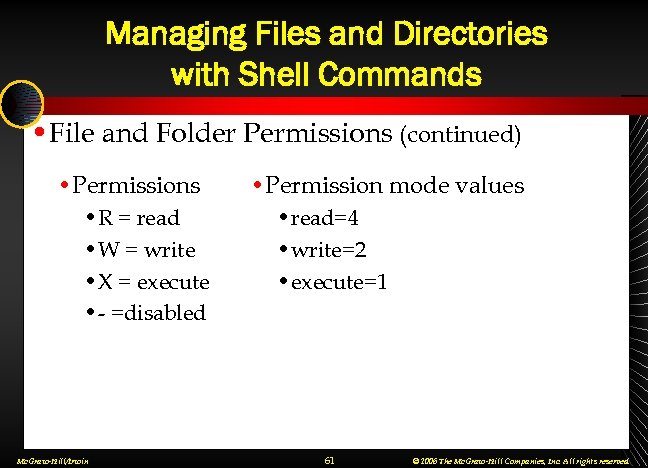 Managing Files and Directories with Shell Commands • File and Folder Permissions (continued) • Permissions • R = read • W = write • X = execute • - =disabled Mc. Graw-Hill/Irwin • Permission mode values • read=4 • write=2 • execute=1 61 © 2006 The Mc. Graw-Hill Companies, Inc. All rights reserved.
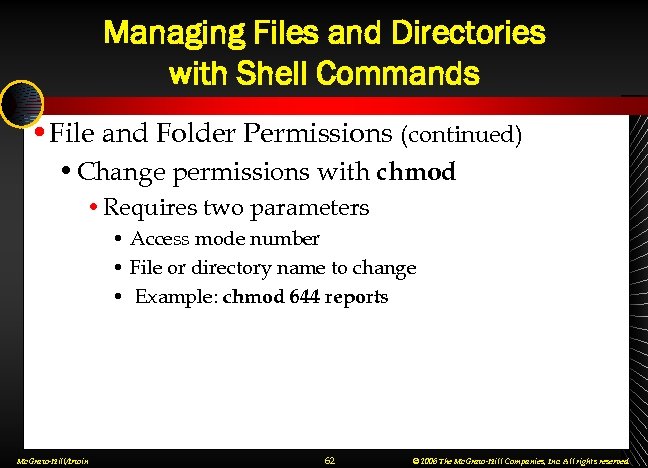 Managing Files and Directories with Shell Commands • File and Folder Permissions (continued) • Change permissions with chmod • Requires two parameters • Access mode number • File or directory name to change • Example: chmod 644 reports Mc. Graw-Hill/Irwin 62 © 2006 The Mc. Graw-Hill Companies, Inc. All rights reserved.
 Managing Files and Directories with Shell Commands Step-by-Step 11. 03 Working with Directories Page 570 Mc. Graw-Hill/Irwin 63 © 2006 The Mc. Graw-Hill Companies, Inc. All rights reserved.
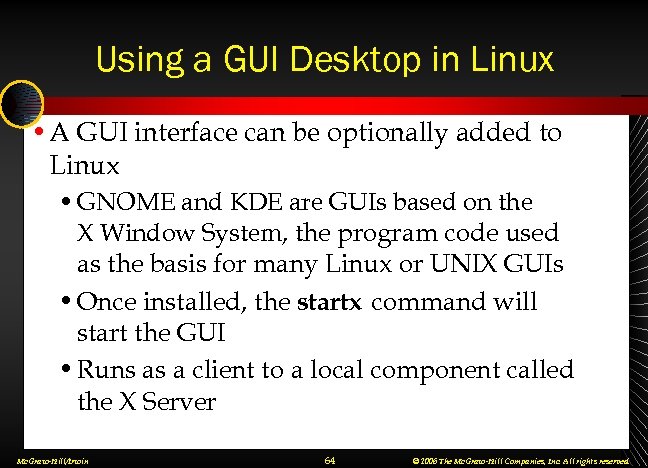 Using a GUI Desktop in Linux • A GUI interface can be optionally added to Linux • GNOME and KDE are GUIs based on the X Window System, the program code used as the basis for many Linux or UNIX GUIs • Once installed, the startx command will start the GUI • Runs as a client to a local component called the X Server Mc. Graw-Hill/Irwin 64 © 2006 The Mc. Graw-Hill Companies, Inc. All rights reserved.
 Using a GUI Desktop in Linux • The GNOME Desktop • Install during OS installation or later • Choice of text login or GUI login • Text login, starts up at the command prompt • GUI login starts up X Window GUI Mc. Graw-Hill/Irwin 65 © 2006 The Mc. Graw-Hill Companies, Inc. All rights reserved.
 Using a GUI Desktop in Linux • The GNOME Desktop (continued) • Starting a GUI after a Text Login • At the $ prompt type startx • GUI displays • GNOME menu in GUI like Windows Start menu • Other similar objects Mc. Graw-Hill/Irwin 66 © 2006 The Mc. Graw-Hill Companies, Inc. All rights reserved.
 Using a GUI Desktop in Linux • The GNOME Desktop (continued) • The Workspace Switcher • Work with applications in groupings • Each set is in its own workspace • Workspace switcher is in the middle of the panel • Click on a square to open a workspace • Changes to preferences in one affects all • Only the open applications are unique Mc. Graw-Hill/Irwin 67 © 2006 The Mc. Graw-Hill Companies, Inc. All rights reserved.
 Using a GUI Desktop in Linux Step-by Step 11. 04 Managing Workspaces in GNOME Page 573 Mc. Graw-Hill/Irwin 68 © 2006 The Mc. Graw-Hill Companies, Inc. All rights reserved.
 Configuring Linux for Users • Using the Root Account • Root Account at the Command Shell • While logged on as an ordinary user, enter su root • Must supply password • This substitutes the root user • Only change to prompt is the ending # Mc. Graw-Hill/Irwin 69 © 2006 The Mc. Graw-Hill Companies, Inc. All rights reserved.
 Configuring Linux for Users • Using the Root Account (continued) • Using the Root Account in a GUI • While logged on as an ordinary user, enter a command that requires root • A dialog box will prompt for the root password Mc. Graw-Hill/Irwin 70 © 2006 The Mc. Graw-Hill Companies, Inc. All rights reserved.
 Configuring Linux for Users • Managing Users • Several users can use one computer • Each user must have a unique account • Creates a home directory for each new user • Users must protect home directory with permissions Mc. Graw-Hill/Irwin 71 © 2006 The Mc. Graw-Hill Companies, Inc. All rights reserved.
 Configuring Linux for Users • Managing Users (continued) • Creating User Accounts • Each name must be unique • Example naming convention • First letter of first name plus the last name (or portion) • Create a user with useradd • useradd aphoenix • Confirm account with the finger command • finger aphoenix Mc. Graw-Hill/Irwin 72 © 2006 The Mc. Graw-Hill Companies, Inc. All rights reserved.
 Configuring Linux for Users • Managing Users (continued) • Changing User Passwords • Change passwords with passwd • Entering passwd without parameters will allow you to change your own password • The root account can change any account's password • passwd username • Linux will only accept complex passwords Mc. Graw-Hill/Irwin 73 © 2006 The Mc. Graw-Hill Companies, Inc. All rights reserved.
 Configuring Linux for Users • Managing Users (continued) • Deleting Users • Delete users with userdel • Example: userdel username • Home directory not removed when user is deleted • Manually delete this folder and its contents Mc. Graw-Hill/Irwin 74 © 2006 The Mc. Graw-Hill Companies, Inc. All rights reserved.
 Configuring Linux for Users Step-by-Step 11. 05 Deleting an Account Page 579 Mc. Graw-Hill/Irwin 75 © 2006 The Mc. Graw-Hill Companies, Inc. All rights reserved.
 Configuring Linux for Users • Configure a Printer • User printtool program • Select the printer • Select printer port • LPT 1 printer port has Linux file name of /dev/1 p 0 • From GUI, open a terminal window and enter printtool • Printtool wizard opens • Guides user through process Mc. Graw-Hill/Irwin 76 © 2006 The Mc. Graw-Hill Companies, Inc. All rights reserved.
 Configuring Linux for Users Step-by-Step 11. 06 Adding a Printer Page 581 Mc. Graw-Hill/Irwin 77 © 2006 The Mc. Graw-Hill Companies, Inc. All rights reserved.
 Configuring Linux for Users • Installing Software • Red Hat Package Manager • Standardized method for installing, uninstalling, and updating programs • RPM package contains application and installation program compressed into a single file • File extension of "rpm" Mc. Graw-Hill/Irwin 78 © 2006 The Mc. Graw-Hill Companies, Inc. All rights reserved.
 Configuring Linux for Users • Installing Software (continued) • Red Hat Package Manager (continued) • Sometimes additional files with updates • Look for RPM packages on CDs and at download sites • Not just for Red Hat Linux • Look for a package manager in the Linux GUI Mc. Graw-Hill/Irwin 79 © 2006 The Mc. Graw-Hill Companies, Inc. All rights reserved.
 Configuring Linux for Users Step-by-Step 11. 07 Software Installation with RPM Page 584 Mc. Graw-Hill/Irwin 80 © 2006 The Mc. Graw-Hill Companies, Inc. All rights reserved.
 Troubleshooting Common Linux Problems • The GNOME will not start • Typical cause is an improperly selected video card or monitor • Run the Xconfigurator program in Red Hat previous to version 8 • Run redhat-configxfree 86 in Red Hat 8 or later • Change the video and monitor drivers Mc. Graw-Hill/Irwin 81 © 2006 The Mc. Graw-Hill Companies, Inc. All rights reserved.
 Troubleshooting Common Linux Problems • Make GNOME start automatically • Modify the file /etc/inittab • Script file used by Linux at bootup • Includes run levels that control bootup • Runlevel 3 starts Linux in multi-user mode with networking • Runlevel 5 starts Linux in a GUI • Modify from command line text editor or in GUI Mc. Graw-Hill/Irwin 82 © 2006 The Mc. Graw-Hill Companies, Inc. All rights reserved.
 Troubleshooting Common Linux Problems Step-by-Step 11. 08 Modify the Startup Settings Page 586 Mc. Graw-Hill/Irwin 83 © 2006 The Mc. Graw-Hill Companies, Inc. All rights reserved.
 Troubleshooting Common Linux Problems • I Cannot Save My File • Usually result of trying to save a file in a location outside the user's home directory • Direct the application to save the file in a location within the user's directory Mc. Graw-Hill/Irwin 84 © 2006 The Mc. Graw-Hill Companies, Inc. All rights reserved.
 Troubleshooting Common Linux Problems • My Screen Displays Gibberish • Usually result of trying to view nontextual data as text • Example: cat a. out • The a. out file is binary, so the output is gibberish • If problem persists after output is complete, log out and log in again Mc. Graw-Hill/Irwin 85 © 2006 The Mc. Graw-Hill Companies, Inc. All rights reserved.
 Troubleshooting Common Linux Problems • Command Not Found Error • Number one cause is typos • Use the Up Arrow key to move up through the command-line history and review the string entered • Use the Left Arrow and Right Arrow keys to move through the line and correct error • Press Enter to test correction Mc. Graw-Hill/Irwin 86 © 2006 The Mc. Graw-Hill Companies, Inc. All rights reserved.
 Chapter Summary Linux Overview • Linux, originally created by Linus Torvalds, is free, open-source software that is like UNIX in stability and function. • Many versions of Linux exist for all types of computers, and Linux is often used on web servers. • Linux benefits include cost (it is free or inexpensively bundled), the ability to run on old hardware, speed, and stability. Mc. Graw-Hill/Irwin 87 © 2006 The Mc. Graw-Hill Companies, Inc. All rights reserved.
 Chapter Summary Linux Overview • Drawbacks of Linux include lack of centralized support, limited software selection, limited hardware support, and complexity. • Use Linux when cost, stability, and security are major factors, such as in schools, or anytime an inexpensive web server is required. It is also a great platform for web development. Mc. Graw-Hill/Irwin 88 © 2006 The Mc. Graw-Hill Companies, Inc. All rights reserved.
 Chapter Summary Installing Linux • Acquire Linux from many sources, including free downloads and inexpensive bundles from such vendors as Mandrake, Red Hat, Slackware, and Su. SE (Novell). • Decide how to install—clean installation, upgrade, or dual-boot. • Keep the installation simple, and fine-tune it later, especially as far as undetected devices go. Mc. Graw-Hill/Irwin 89 © 2006 The Mc. Graw-Hill Companies, Inc. All rights reserved.
 Chapter Summary Installing Linux • Linux memory requirements are small compared to Windows operating systems. • While the OS itself has minimal hard disk space requirements, many distributions come with a large number of packages that will greatly increase hard disk space needs. • Verify that the version of Linux you are installing is compatible with your hard disk controller. Mc. Graw-Hill/Irwin 90 © 2006 The Mc. Graw-Hill Companies, Inc. All rights reserved.
 Chapter Summary Installing Linux • Linux supports all standard video graphics adapters and monitors, supports the use of a mouse, primarily in graphics interfaces, and supports many printers, modems, and network adapters. Mc. Graw-Hill/Irwin 91 © 2006 The Mc. Graw-Hill Companies, Inc. All rights reserved.
 Chapter Summary Installing Linux • Be prepared to work with the root account (super user) before installing Linux; give this account a strong password, and only use it when you need to perform system maintenance tasks, such as changing the configuration or installing software packages. Mc. Graw-Hill/Irwin 92 © 2006 The Mc. Graw-Hill Companies, Inc. All rights reserved.
 Chapter Summary Installing Linux • When planning for a dual-boot installation, plan to give each operating system a separate hard disk partition. • You can boot into a Linux installation program from a bootable CD. If this is not possible, then create a bootable floppy disk to boot using the raw write program usually available with the installation files. Mc. Graw-Hill/Irwin 93 © 2006 The Mc. Graw-Hill Companies, Inc. All rights reserved.
 Chapter Summary Installing Linux • The Red Hat installation program can be run in GUI mode, providing online help in a pane onscreen throughout the process. Mc. Graw-Hill/Irwin 94 © 2006 The Mc. Graw-Hill Companies, Inc. All rights reserved.
 Chapter Summary Basic Linux Skills • Linux requires authentication via a login— either in the command shell or in a GUI. • Whether you are logging in from the command shell or a GUI, a Linux password never shows on the screen, and the cursor does not move while you type in the password. Mc. Graw-Hill/Irwin 95 © 2006 The Mc. Graw-Hill Companies, Inc. All rights reserved.
 Chapter Summary Basic Linux Skills • When an ordinary user logs into the command shell, the prompt consists of the user name and the computer name (hostname) separated by an @ sign, followed again by the user name. The second instance of your user name indicates the current directory. All this is contained within square brackets and followed by a $ sign. This is often called the $ (dollar) prompt. Mc. Graw-Hill/Irwin 96 © 2006 The Mc. Graw-Hill Companies, Inc. All rights reserved.
 Chapter Summary Basic Linux Skills • When the root account logs in at the command shell, the prompt is similar, but ends with a # sign. • Log out of Linux by typing exit at the $ prompt, which allows you to leave Linux without shutting down. Mc. Graw-Hill/Irwin 97 © 2006 The Mc. Graw-Hill Companies, Inc. All rights reserved.
 Chapter Summary Basic Linux Skills • Only root can shut down Linux from the command line. This is accomplished with the shutdown command, which has many switches (that change the outcome of a command). Entering shutdown -h now tells Linux to shut down immediately and then to halt after shutting down. Mc. Graw-Hill/Irwin 98 © 2006 The Mc. Graw-Hill Companies, Inc. All rights reserved.
 Chapter Summary Working with Linux Commands • The Linux shell is called BASH, while the DOS shell is COMMAND. COM. • Linux is case sensitive, while DOS is case insensitive. • A switch is a subcommand that changes the outcome of a command. Switches in DOS are preceded by a forward slash (/ ), while switches in Linux are preceded by a hyphen (-). Mc. Graw-Hill/Irwin 99 © 2006 The Mc. Graw-Hill Companies, Inc. All rights reserved.
 Chapter Summary Working with Linux Commands • DOS will allow you to forget a space before a switch, but Linux requires that each part of a command-line entry be separated by a space. • In DOS a full path to a file or directory begins with a drive letter, but Linux does not use drive letters. • Each device in Linux is also shown as part of the file system, as in /dev/sda 0 (the first hard drive on a SCSI interface). Mc. Graw-Hill/Irwin 100 © 2006 The Mc. Graw-Hill Companies, Inc. All rights reserved.
 Chapter Summary Working with Linux Commands • Linux, like DOS, provides very little feedback at the command shell. • The Linux command-line syntax is command -switch parameter. You may also combine switches and have more than one parameter, depending on the command. Mc. Graw-Hill/Irwin 101 © 2006 The Mc. Graw-Hill Companies, Inc. All rights reserved.
 Chapter Summary Working with Linux Commands • Linux saves command-line history during a command shell session, which allows you to use the up arrow and down arrow keys to retrieve and reuse commands you have used since you logged in. Mc. Graw-Hill/Irwin 102 © 2006 The Mc. Graw-Hill Companies, Inc. All rights reserved.
 Chapter Summary Working with Linux Commands • Linux also provides command completion that will complete part of the command line, particularly if it recognizes a portion of a directory path. Use the TAB key to retrieve the rest of a directory name. • The man command gives you access to the Linux shell commands help manual. Mc. Graw-Hill/Irwin 103 © 2006 The Mc. Graw-Hill Companies, Inc. All rights reserved.
 Chapter Summary Manage Files and Directories with Shell Commands • File management is crucial, particularly since everything in Linux is a file. • Linux has several directories for system files and a home directory for each user. • Your home directory is the only place you can save files, and when you log in, this directory becomes your current (or working) directory. Mc. Graw-Hill/Irwin 104 © 2006 The Mc. Graw-Hill Companies, Inc. All rights reserved.
 Chapter Summary Manage Files and Directories with Shell Commands • Your home directory path is /home/username. A shorthand for this path in a shell command is ~. • The /bin directory within your home directory contains many of the Linux commands. • The /etc directory contains settings and configuration data for your Linux computer. Mc. Graw-Hill/Irwin 105 © 2006 The Mc. Graw-Hill Companies, Inc. All rights reserved.
 Chapter Summary Manage Files and Directories with Shell Commands • There are many other directories created for the use of the system, and an ordinary user cannot access these directories. • The ls command is the Linux equivalent of the DOS command DIR, because it lists the contents of a directory. • The cd command allows you to change the current directory. Mc. Graw-Hill/Irwin 106 © 2006 The Mc. Graw-Hill Companies, Inc. All rights reserved.
 Chapter Summary Manage Files and Directories with Shell Commands • The more command displays a file one screen at a time. • You can use special symbols with the shell commands to navigate to directories that are relative to your current directory. The double dot (. . ) refers to one level up, the single dot (. ) refers to the current directory, and the tilde (~) refers to the home directory. Mc. Graw-Hill/Irwin 107 © 2006 The Mc. Graw-Hill Companies, Inc. All rights reserved.
 Chapter Summary Manage Files and Directories with Shell Commands • The asterisk (*) is used as a wildcard to replace all the characters from the point at which the asterisk is placed to the end of the name. • Square brackets can be used with the asterisk to include a range of characters to precede the wildcard. Mc. Graw-Hill/Irwin 108 © 2006 The Mc. Graw-Hill Companies, Inc. All rights reserved.
 Chapter Summary Manage Files and Directories with Shell Commands • Linux also allows you to use the dollar sign ($) to represent a single character within a file name. • The mkdir command creates directories. • The cp command copies files. • A text editor works with plain text. Mc. Graw-Hill/Irwin 109 © 2006 The Mc. Graw-Hill Companies, Inc. All rights reserved.
 Chapter Summary Manage Files and Directories with Shell Commands • Pico, vi, and emacs are text editors that come with some distributions of Linux. • The rm command deletes a file. The mv command renames or moves files. • The more, head, less, tail, and cat commands can be used to view files. Mc. Graw-Hill/Irwin 110 © 2006 The Mc. Graw-Hill Companies, Inc. All rights reserved.
 Chapter Summary Manage Files and Directories with Shell Commands • Use permission attributes on files and folders to control access to them. • The permissions include r (read), w (write), x (execute), and - (disabled). • Use the chmode command to modify attributes, based on mode number. • Permission attribute modes are 1 (execute), 2 (write), and 4 (read). Mc. Graw-Hill/Irwin 111 © 2006 The Mc. Graw-Hill Companies, Inc. All rights reserved.
 Chapter Summary Use a GUI Desktop in Linux • GNOME and KDE are Linux GUIs. • Many Linux GUIs use the X Window System for their underlying program code. • To run the GNOME from the command shell, enter the command startx. Mc. Graw-Hill/Irwin 112 © 2006 The Mc. Graw-Hill Companies, Inc. All rights reserved.
 Chapter Summary Use a GUI Desktop in Linux • The GNOME GUI resembles Windows and Apple Mac OS interfaces with windows, icons, menus, folder icons, and other familiar GUI objects. • The GNOME Workspace Switcher lets you switch between different sets of applications. Mc. Graw-Hill/Irwin 113 © 2006 The Mc. Graw-Hill Companies, Inc. All rights reserved.
 Chapter Summary Configure Linux • The root account must be used to create and manage users, and to make system changes. • When logged in as an ordinary user, use the su command to log on as another user (most often root). • When logged in as an ordinary user in a GUI, you will automatically be prompted to provide the root password anytime you attempt to perform a root-only function. Mc. Graw-Hill/Irwin 114 © 2006 The Mc. Graw-Hill Companies, Inc. All rights reserved.
 Chapter Summary Configure Linux • The useradd command creates a user at the command prompt. • The finger command displays information about a user. • The passwd command changes user passwords. • The userdel command deletes a user, but it does not delete the associated home directory. The home directories must be manually deleted by root. Mc. Graw-Hill/Irwin 115 © 2006 The Mc. Graw-Hill Companies, Inc. All rights reserved.
 Chapter Summary Configure Linux • The LPT 1 port is represented by the file /dev/lp 0. • The Printtool utility is used in either the command shell or in the GUI to install printers into Linux. • Many programs for Linux come in a special format so that they can be installed and managed with the Red Hat Package Manager (RPM), a system designed by Red Hat. Mc. Graw-Hill/Irwin 116 © 2006 The Mc. Graw-Hill Companies, Inc. All rights reserved.
 Chapter Summary Configure Linux • An RPM package has a file extension of RPM. These packages are available from many sources and will install in any version of Linux with Red Hat Package Manager or a similar system. • When installing software in a Linux GUI, look for a package manager; it will work very much like Windows Add or Remove Programs. Mc. Graw-Hill/Irwin 117 © 2006 The Mc. Graw-Hill Companies, Inc. All rights reserved.
 Chapter Summary Troubleshoot Common Linux Problems • Video problems are solved using the XConfigurator. • To change the behavior of Linux at startup, modify the inittab file and provide the correct run level. • You must have permission to save a file in a directory. Mc. Graw-Hill/Irwin 118 © 2006 The Mc. Graw-Hill Companies, Inc. All rights reserved.
 Chapter Summary Troubleshoot Common Linux Problems • Displaying a binary file results in garbage on the screen. • The "Command Not Found Error" usually results from a typo at the command prompt. Mc. Graw-Hill/Irwin 119 © 2006 The Mc. Graw-Hill Companies, Inc. All rights reserved.