


 Скачать презентацию Materials Management Material Handlers MM_HI_300 1 Introduction
a830d3179a5330699fff42bdb1c9d29f.ppt
- Количество слайдов: 126
 Materials Management Material Handlers MM_HI_300 1
 Introduction • Content • Objectives MM_HI_300 2
 Course Content • Unit 1 – Organizational Structure and Master Data • Unit 2 – MIGO Functions and Features • Unit 3 – Basic Inventory Concepts and Processes • Unit 4 – Goods Receipts • Unit 5 – Reservations & Goods Issues • Unit 6 – Transfer Postings • Course Summary MM_HI_300 3
 Learning Objectives • At the conclusion of this course you should be able to: Understand the relationship between the organizational structure and master data Use the MIGO transaction to execute various goods movements in SAP Create a personal favorites list of frequently used movement types Understand the relationship between goods movements and movement types Execute goods movements in SAP MM_HI_300 4
 Learning Objectives cont’d • At the conclusion of this course you should be able to: Cancel/ reverse goods movements Execute a return to vendor transaction, issue goods to cost centers, reservations and scrap Transfer materials from one location to another Pick and issue materials to reservations Differentiate between a stock material and nonstock material MM_HI_300 5
 Unit 1 Organizational Structure and Material Master MM_HI_300 6
 Learning Objectives • At the conclusion of this unit you should be able to: Understand the organizational structure from an inventory management viewpoint Display a material master plant and storage location views Determine which materials are stock and non-stock MM_HI_300 7
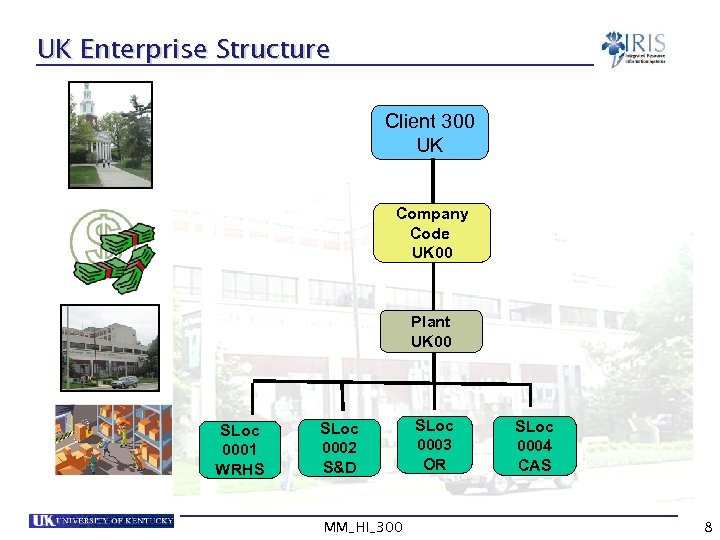 UK Enterprise Structure Client 300 UK Company Code UK 00 Plant UK 00 SLoc 0001 WRHS SLoc 0002 S&D MM_HI_300 SLoc 0003 OR SLoc 0004 CAS 8
 Material Master • UK manages the basic data on all its materials in the material master • The material master stores all the relevant data needed to procure, consume and store a material • Data in the material master is organized by levels (client, plant, storage location, etc. ) • Materials are also grouped together using material types • Material types group together materials with similar attributes • UK Hospital Inventory is using three material types: ZIBE – Stocked hospital supplies ZIEN - Services ZLAG – Non-stocked hospital supplies MM_HI_300 9
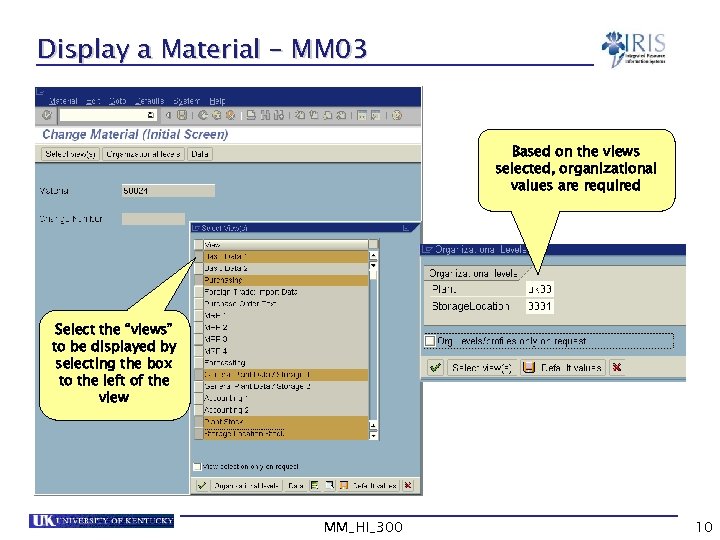 Display a Material – MM 03 Based on the views selected, organizational values are required Select the “views” to be displayed by selecting the box to the left of the view MM_HI_300 10
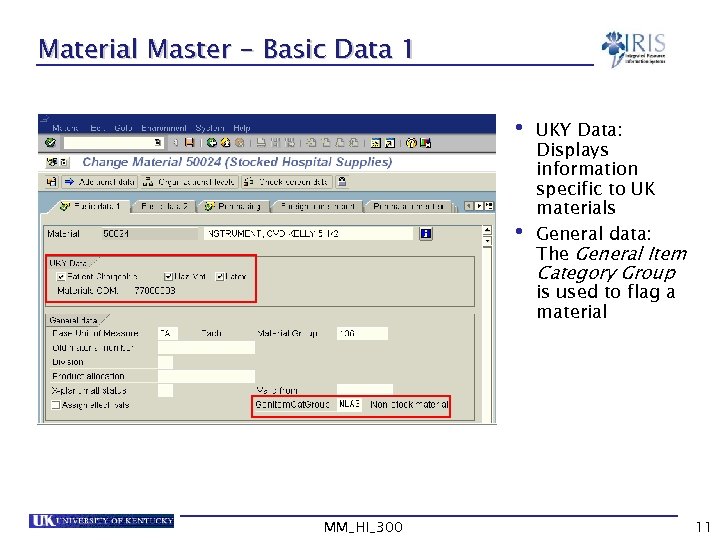 Material Master - Basic Data 1 • UKY Data: • Displays information specific to UK materials General data: The General Item Category Group is used to flag a material MM_HI_300 11
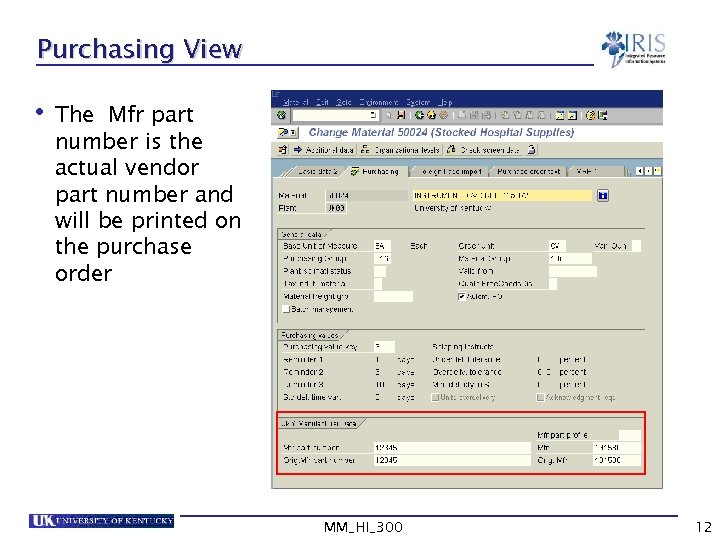 Purchasing View • The Mfr part number is the actual vendor part number and will be printed on the purchase order MM_HI_300 12
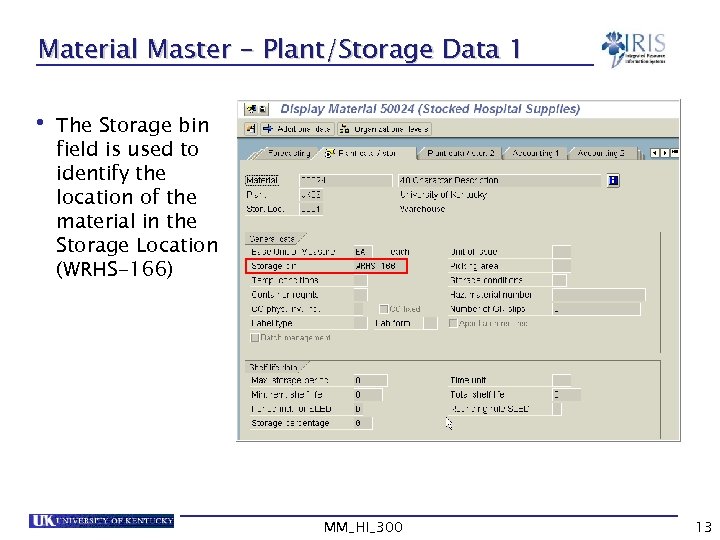 Material Master - Plant/Storage Data 1 • The Storage bin field is used to identify the location of the material in the Storage Location (WRHS-166) MM_HI_300 13
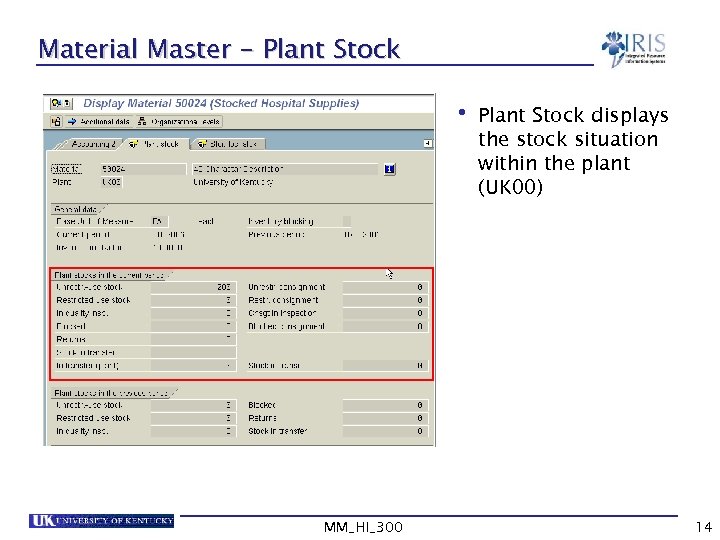 Material Master - Plant Stock • Plant Stock displays the stock situation within the plant (UK 00) MM_HI_300 14
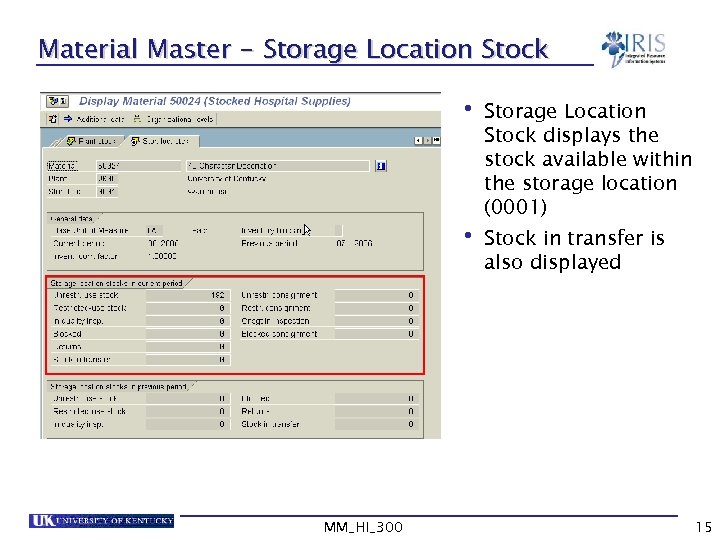 Material Master - Storage Location Stock • Storage Location Stock displays the stock available within the storage location (0001) • Stock in transfer is also displayed MM_HI_300 15
 Summary • You should now be able to: Understand the organizational structure from an inventory management viewpoint Display material master views Determine which materials are stock and non-stock MM_HI_300 16
 Unit 2 Inventory Management Overview MM_HI_300 17
 Learning Objectives • At the conclusion of this unit you should be able to: Understand the high level process overview Understand the goods movement concept in SAP Describe different kinds of goods movements in SAP and their relationship to movement types MM_HI_300 18
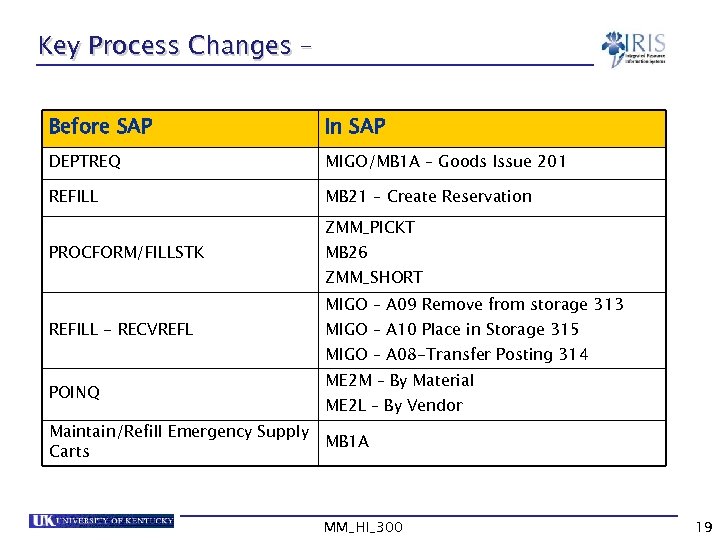 Key Process Changes – Before SAP In SAP DEPTREQ MIGO/MB 1 A – Goods Issue 201 REFILL MB 21 – Create Reservation ZMM_PICKT PROCFORM/FILLSTK MB 26 ZMM_SHORT MIGO – A 09 Remove from storage 313 REFILL - RECVREFL MIGO – A 10 Place in Storage 315 MIGO – A 08 -Transfer Posting 314 POINQ Maintain/Refill Emergency Supply Carts ME 2 M – By Material ME 2 L – By Vendor MB 1 A MM_HI_300 19
 Goods Movements • A Goods Movement is movement of inventory that changes inventory balances in a given location • Goods movements are represented by movement types • Movement types are 3 digit numerical codes that describe the inventory transaction • All material movements require the use of a combination of material master data and movement types • You will not be able to perform some movement types if there is not inventory in the plant or storage location • Material documents and accounting documents are generated real-time providing an audit trail for the goods movement MM_HI_300 20
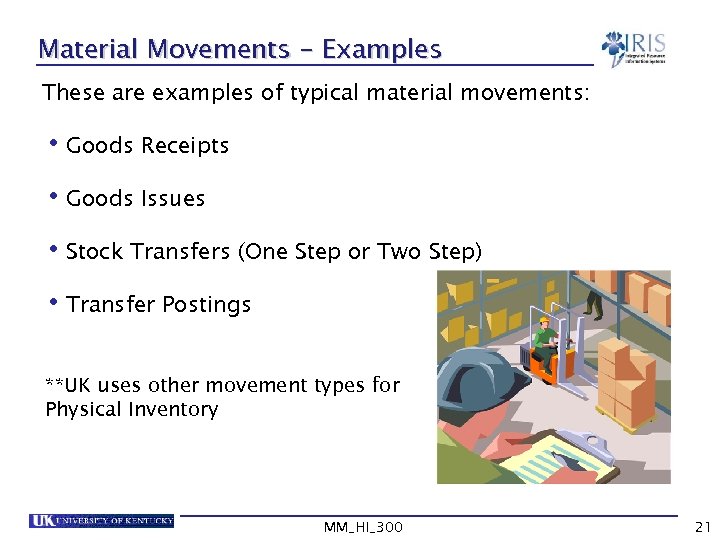 Material Movements - Examples These are examples of typical material movements: • Goods Receipts • Goods Issues • Stock Transfers (One Step or Two Step) • Transfer Postings **UK uses other movement types for Physical Inventory MM_HI_300 21
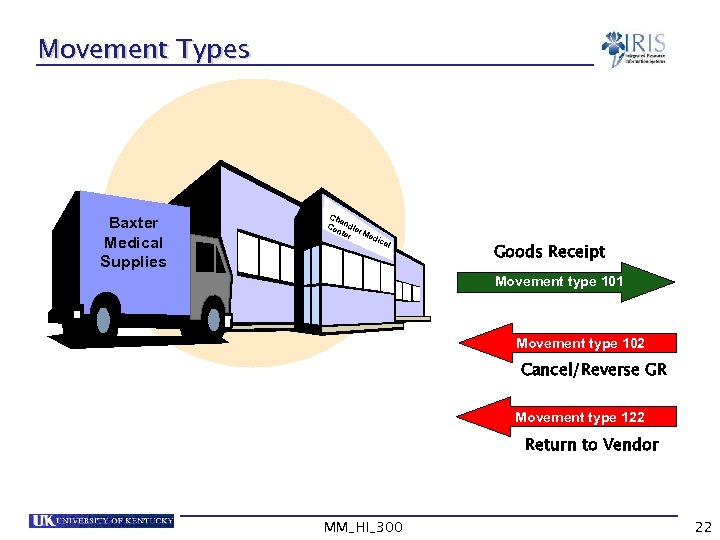 Movement Types Baxter Medical Supplies Ch a Ce ndle nte r M ed r i cal Goods Receipt Movement type 101 Movement type 102 Cancel/Reverse GR Movement type 122 Return to Vendor MM_HI_300 22
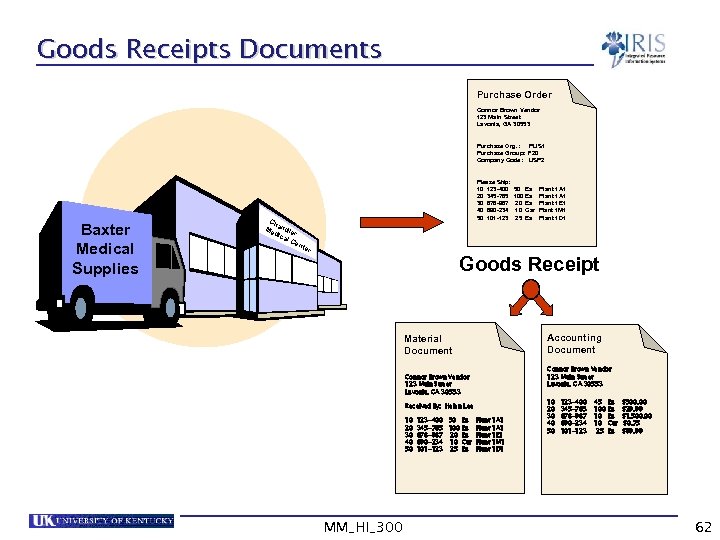
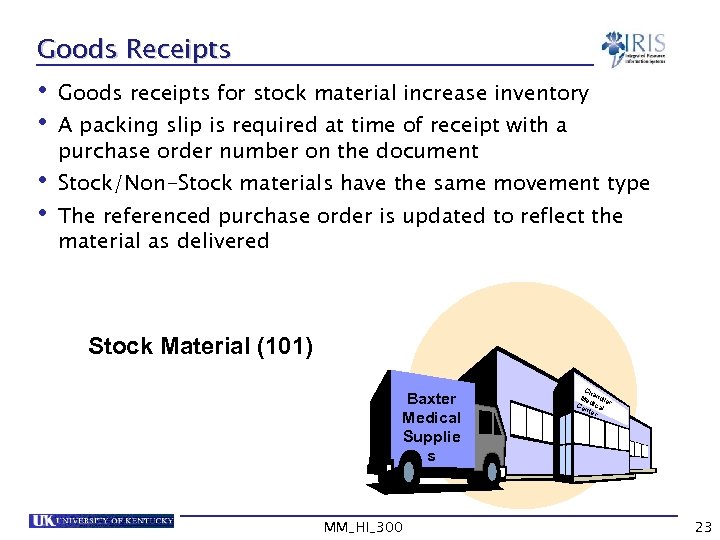 Goods Receipts • Goods receipts for stock material increase inventory • A packing slip is required at time of receipt with a purchase order number on the document • Stock/Non-Stock materials have the same movement type • The referenced purchase order is updated to reflect the material as delivered Stock Material (101) Baxter Medical Supplies Supplie s MM_HI_300 Ch Me andle Ce dical r nte r 23
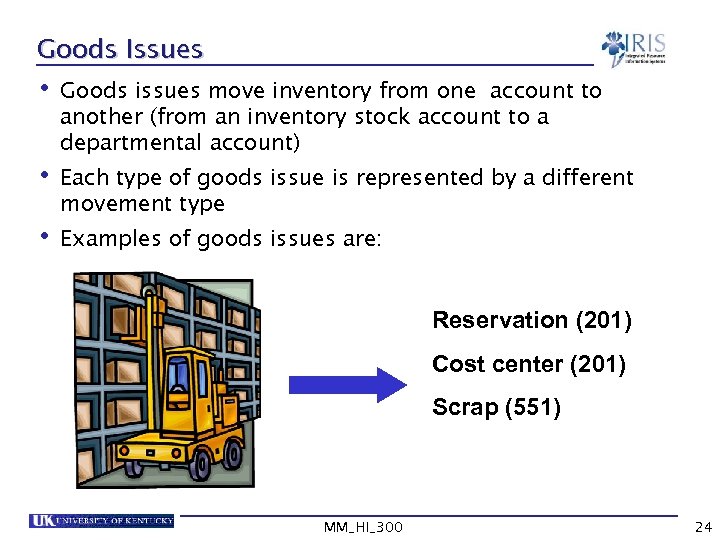 Goods Issues • Goods issues move inventory from one account to another (from an inventory stock account to a departmental account) • Each type of goods issue is represented by a different movement type • Examples of goods issues are: Reservation (201) Cost center (201) Scrap (551) MM_HI_300 24
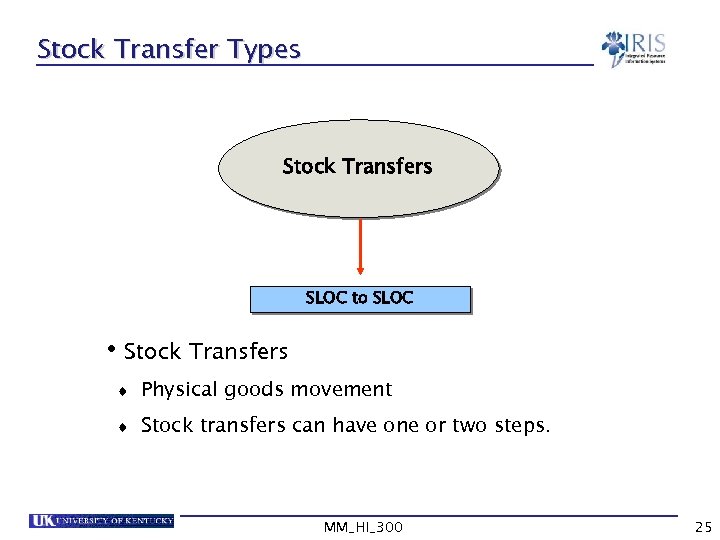 Stock Transfer Types Stock Transfers SLOC to SLOC • Stock Transfers t Physical goods movement t Stock transfers can have one or two steps. MM_HI_300 25
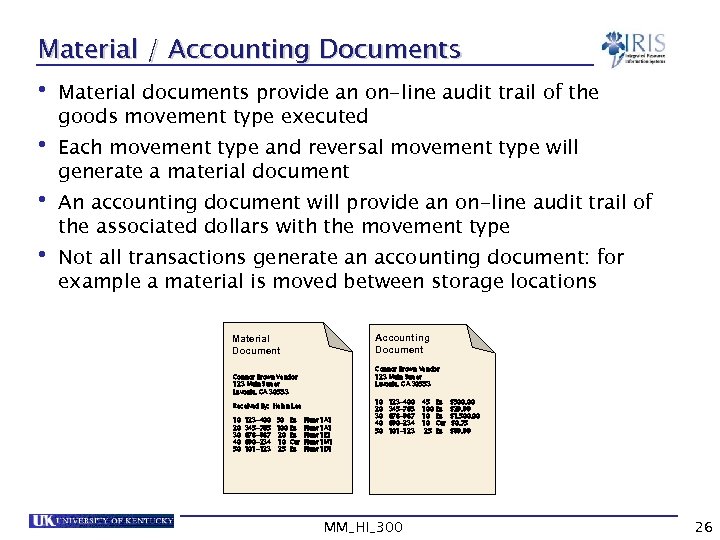 Material / Accounting Documents • Material documents provide an on-line audit trail of the goods movement type executed • Each movement type and reversal movement type will generate a material document • An accounting document will provide an on-line audit trail of the associated dollars with the movement type • Not all transactions generate an accounting document: for example a material is moved between storage locations Accounting Document Material Document Connor Brown Vendor 123 Main Street Lavonia, GA 30553 Received By: Helen Lee 10 20 30 40 50 123 -400 50 Ea 345 -765 100 Ea 678 -987 20 Ea 890 -234 10 Car 101 -123 25 Ea Plant 1 A 1 Plant 1 E 1 Plant 1 M 1 Plant 1 D 1 10 20 30 40 50 123 -400 345 -765 678 -987 890 -234 101 -123 MM_HI_300 45 100 10 10 25 Ea Ea Ea Car Ea $500. 00 $29. 99 $1, 500. 00 $0. 75 $99. 99 26
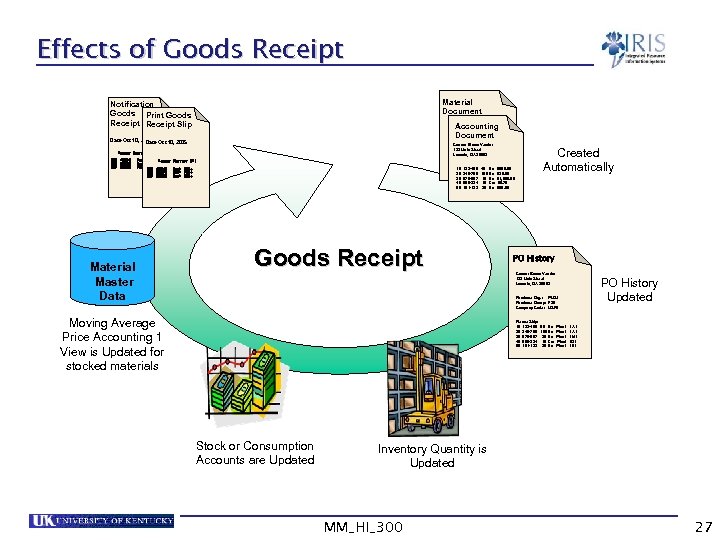 Effects of Goods Receipt Material Document Notification Goods Print Goods Receipt Slip Connor Brown Vendor 123 Main Street Lavonia, GA 30553 Accounting Document Date Oct 10, 2002 Oct 10, 2005 Date Received By: Helen Lee Connor Brown Vendor 10 123 Main Street. Ea Plant 123 -400 45 Lavonia, GA 30553 1000 20 345 -765 100 Ea Plant 2000 10 123 -400 45 Plant 30 678 -987 10 Ea Ea $500. 00 20 1000 345 -765 100 Ea $29. 99 30 678 -987 10 Plant 40 890 -234 10 Car Ea $1, 500. 00 40 3000 890 -234 10 Car $0. 75 50 101 -123 25 Plant 50 101 -123 25 Ea Ea $99. 99 3000 Account Short text UNI 001 400040 002 500050 003 600600 Stock 500+ Account Stock 300+ Stock 001 400040 100+ 002 500050 003 600600 Material Master Data Short text UNI Stock 500+ 300+ 100+ Goods Receipt Created Automatically PO History Connor Brown Vendor 123 Main Street Lavonia, GA 30553 PO History Updated Purchase Org. : PUS 1 Purchase Group: F 20 Company Code: USP 2 Moving Average Price Accounting 1 View is Updated for stocked materials Please Ship: 10 123 -400 20 345 -765 30 678 -987 40 890 -234 50 101 -123 Stock or Consumption Accounts are Updated 50 Ea 100 Ea 20 Ea 10 Car 25 Ea Plant Plant 1 A 1 1 M 1 1 D 1 1 E 1 Inventory Quantity is Updated MM_HI_300 27
 Summary • You should now be able to: Explain the use of movement types Understand the relationship between transaction and reference documents Understand the relationship between movement types and transaction MM_HI_300 28
 Unit 3 MIGO Features & Functions MM_HI_300 29
 Learning Objectives • At the conclusion of this unit you should be able to: Explain a transaction variant Understand the relationship between transaction variants and reference documents Understand the relationship between movement types and transaction variants Create a Personal List for frequently used movement types MM_HI_300 30
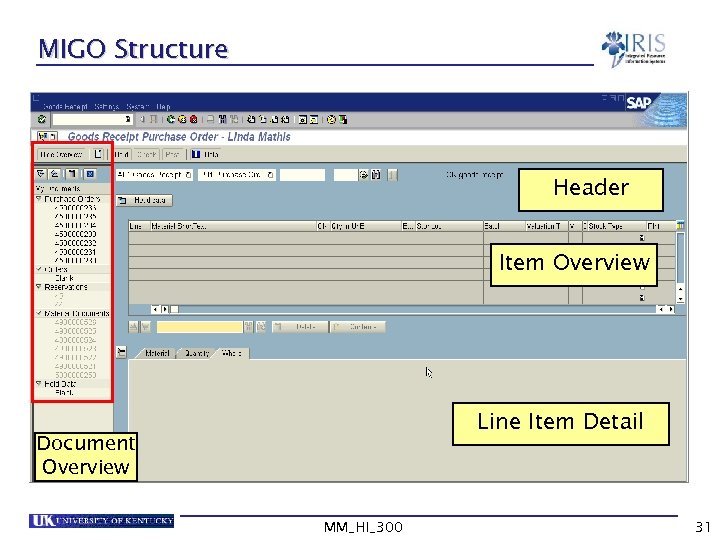 MIGO Structure Header Item Overview Line Item Detail Document Overview MM_HI_300 31
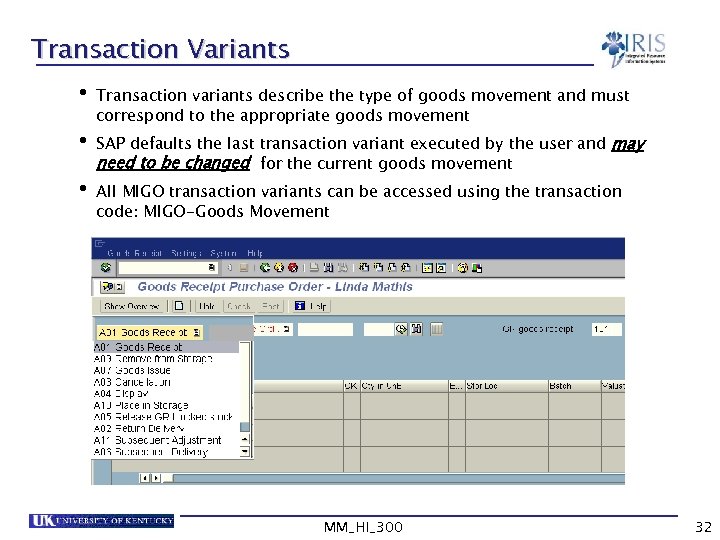 Transaction Variants • Transaction variants describe the type of goods movement and must correspond to the appropriate goods movement • SAP defaults the last transaction variant executed by the user and may need to be changed for the current goods movement • All MIGO transaction variants can be accessed using the transaction code: MIGO-Goods Movement MM_HI_300 32
 Reference Documents • Reference documents are linked to Transaction Variants • Examples of reference documents are: Purchase Orders Reservations • Only certain reference documents are allowed for each transaction variant • SAP will display Error Messages in the event a user tries to use the wrong combination of Transaction Variant and Reference Document MM_HI_300 33
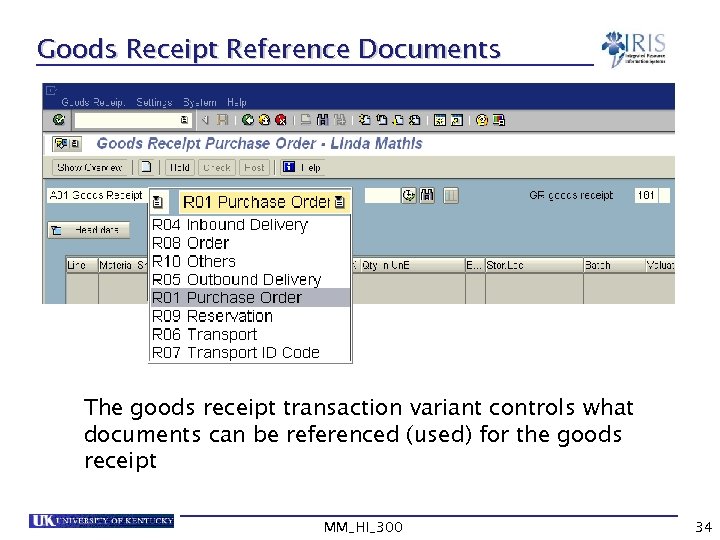 Goods Receipt Reference Documents The goods receipt transaction variant controls what documents can be referenced (used) for the goods receipt MM_HI_300 34
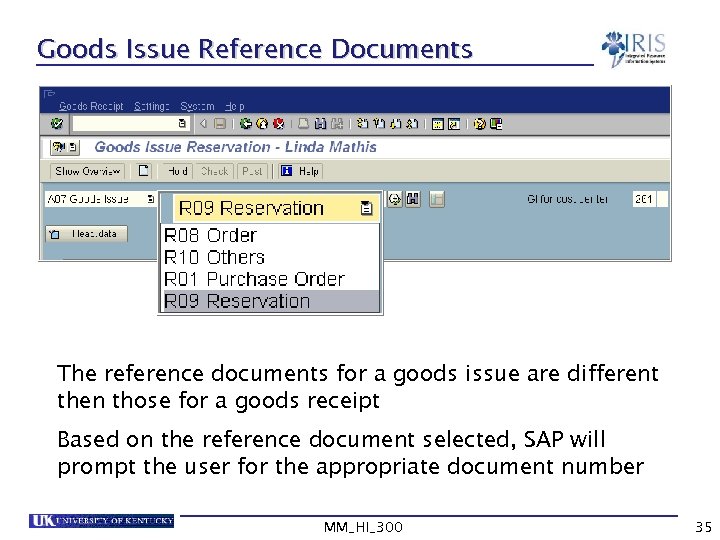 Goods Issue Reference Documents The reference documents for a goods issue are different then those for a goods receipt Based on the reference document selected, SAP will prompt the user for the appropriate document number MM_HI_300 35
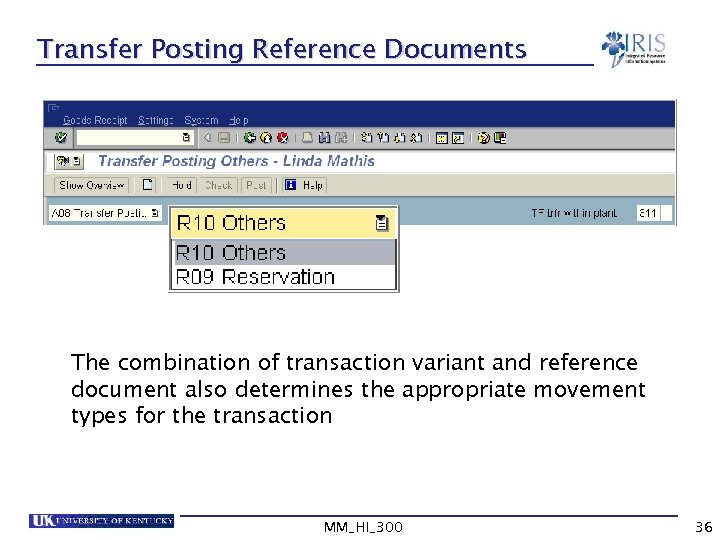 Transfer Posting Reference Documents The combination of transaction variant and reference document also determines the appropriate movement types for the transaction MM_HI_300 36
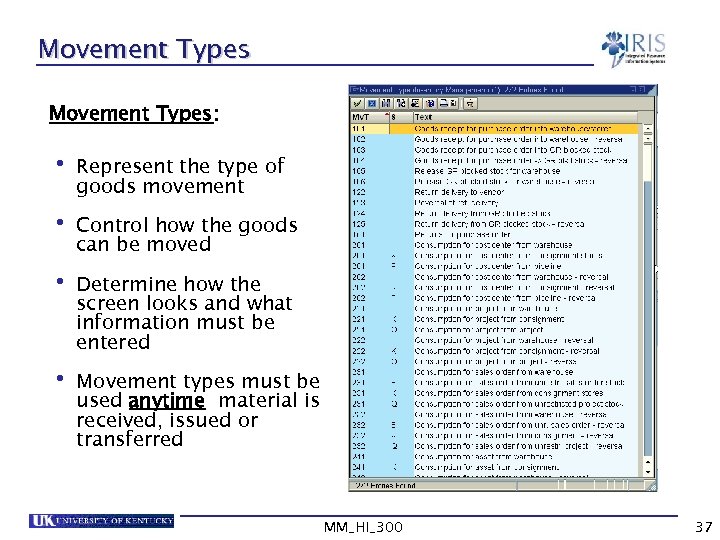 Movement Types: • Represent the type of goods movement • Control how the goods can be moved • Determine how the screen looks and what information must be entered • Movement types must be used anytime material is received, issued or transferred MM_HI_300 37
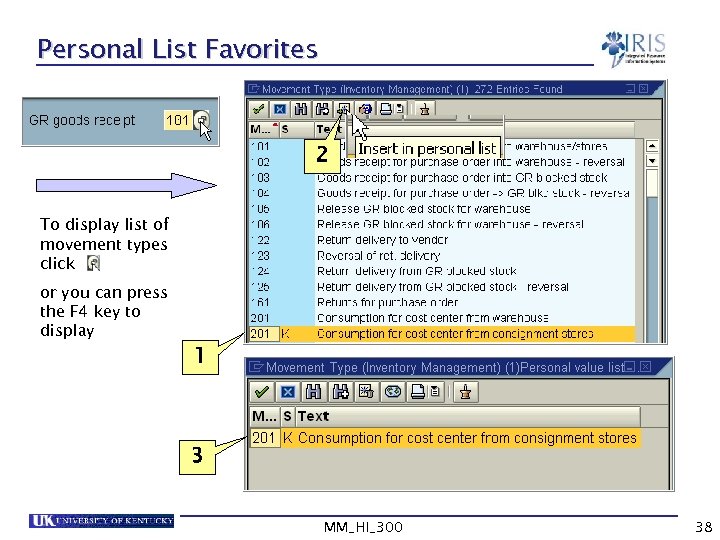 Personal List Favorites 2 To display list of movement types click or you can press the F 4 key to display 1 3 MM_HI_300 38
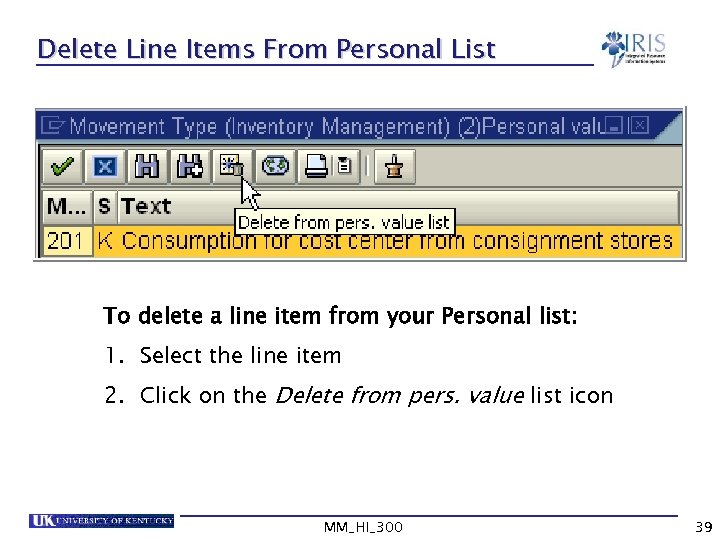 Delete Line Items From Personal List To delete a line item from your Personal list: 1. Select the line item 2. Click on the Delete from pers. value list icon MM_HI_300 39
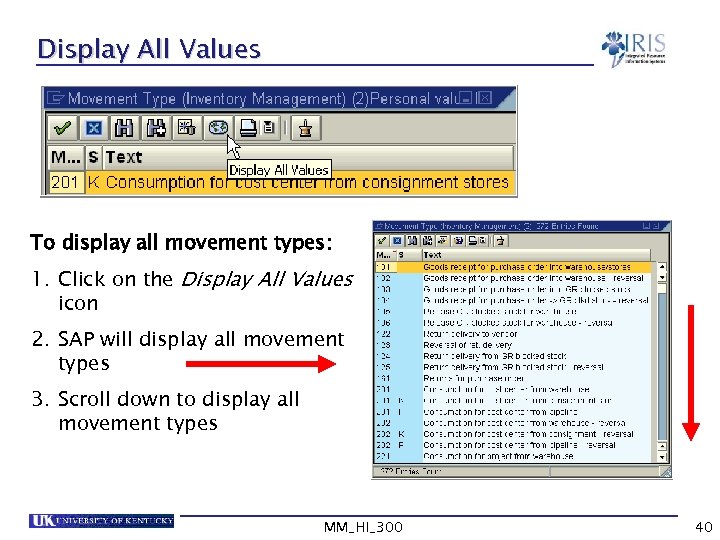 Display All Values To display all movement types: 1. Click on the Display All Values icon 2. SAP will display all movement types 3. Scroll down to display all movement types MM_HI_300 40
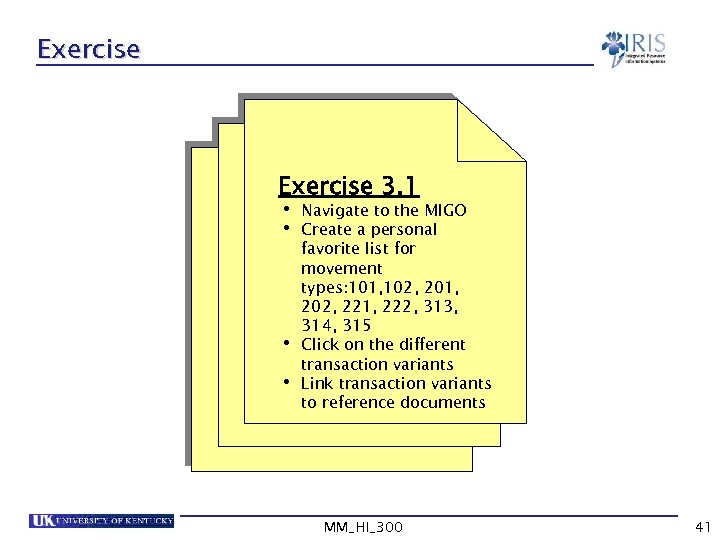 Exercise 3. 1 • Navigate to the MIGO • Create a personal • • favorite list for movement types: 101, 102, 201, 202, 221, 222, 313, 314, 315 Click on the different transaction variants Link transaction variants to reference documents MM_HI_300 41
 Summary • You should now be able to: Explain the use of transaction variants Understand the relationship between transaction variants and reference documents Understand the relationship between movement types and transaction variants Create a Personal List for frequently used movement types Post a goods movement MM_HI_300 42
 Unit 4 Goods Receipts MM_HI_300 43
 Learning Objectives • At the conclusion of this unit you should be able to: Post goods receipts for: § A single purchase order § Multiple line item purchase order § A partial delivery Cancel / Reverse a goods receipt Display the material documents Understand the impact of a goods receipt Return a material to a vendor MM_HI_300 44
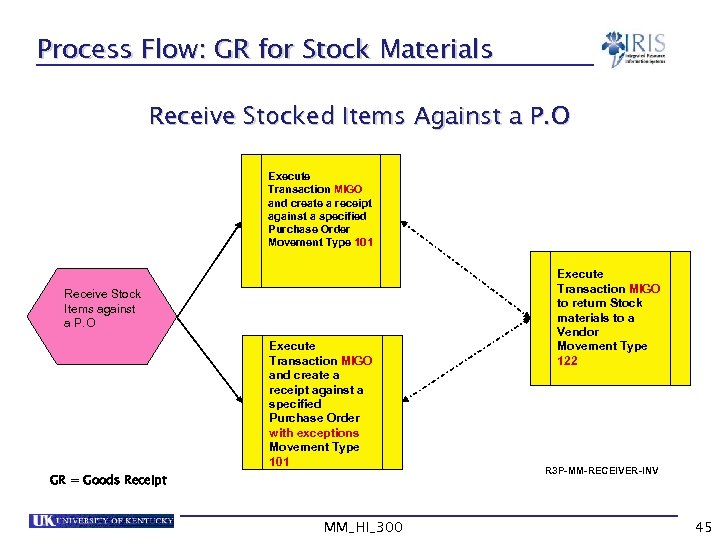 Process Flow: GR for Stock Materials Receive Stocked Items Against a P. O Execute Transaction MIGO and create a receipt against a specified Purchase Order Movement Type 101 Receive Stock Items against a P. O Execute Transaction MIGO and create a receipt against a specified Purchase Order with exceptions Movement Type 101 GR = Goods Receipt MM_HI_300 Execute Transaction MIGO to return Stock materials to a Vendor Movement Type 122 R 3 P-MM-RECEIVER-INV 45
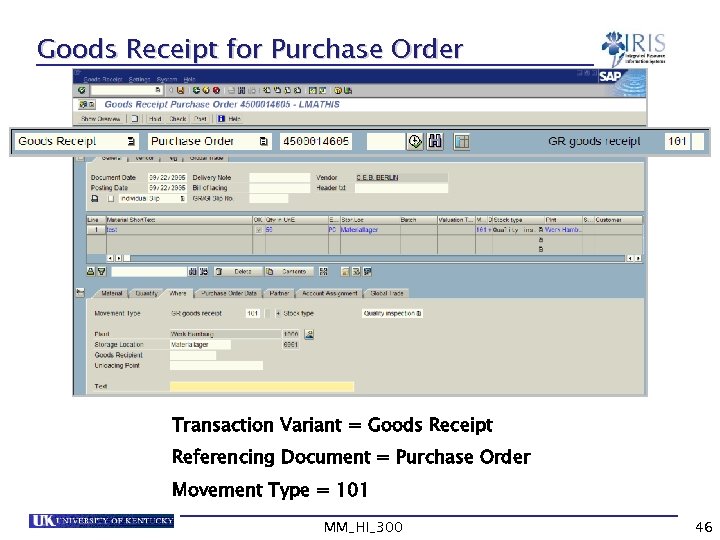 Goods Receipt for Purchase Order 4500004445 Transaction Variant = Goods Receipt Referencing Document = Purchase Order Movement Type = 101 MM_HI_300 46
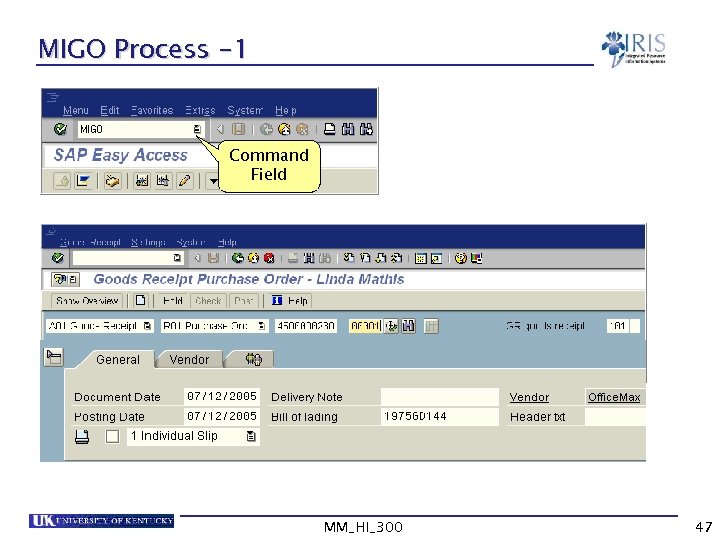 MIGO Process -1 Command Field MM_HI_300 47
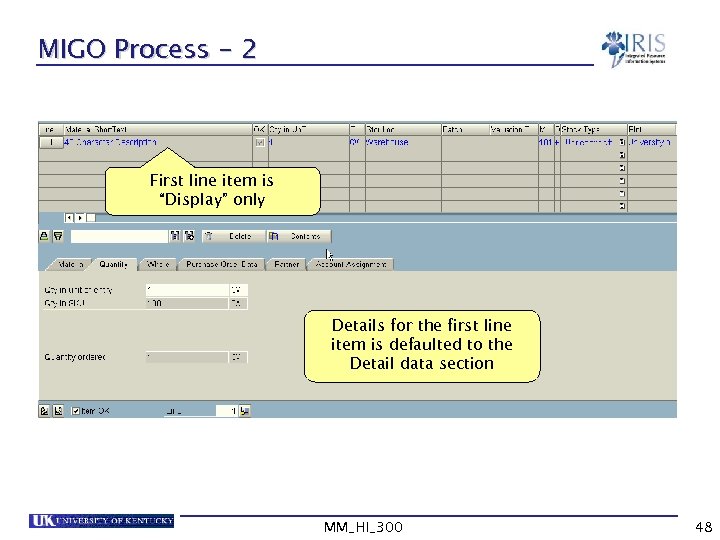 MIGO Process - 2 First line item is “Display” only Details for the first line item is defaulted to the Detail data section MM_HI_300 48
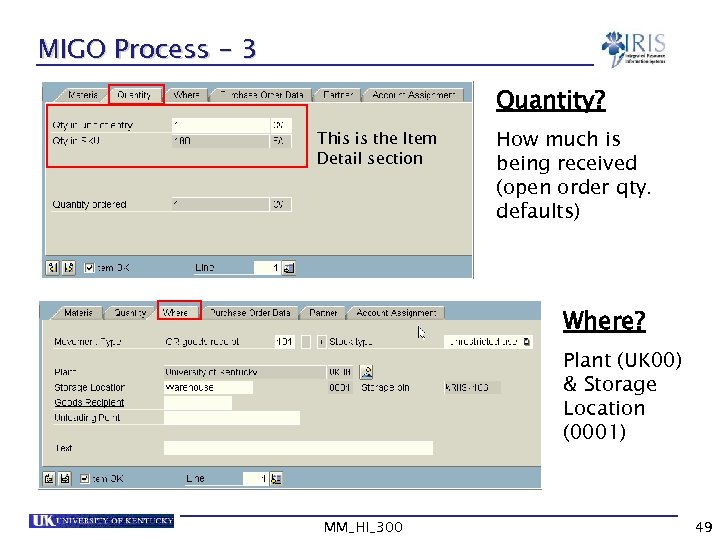 MIGO Process - 3 Quantity? This is the Item Detail section How much is being received (open order qty. defaults) Where? Plant (UK 00) & Storage Location (0001) MM_HI_300 49
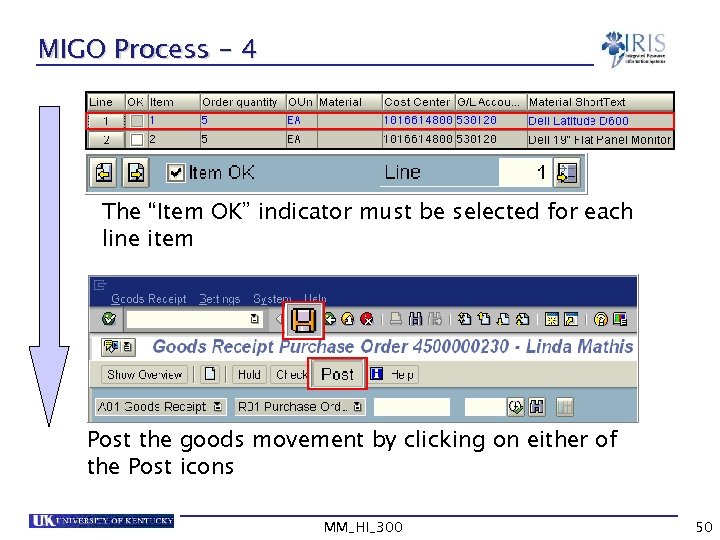 MIGO Process - 4 The “Item OK” indicator must be selected for each line item Post the goods movement by clicking on either of the Post icons MM_HI_300 50
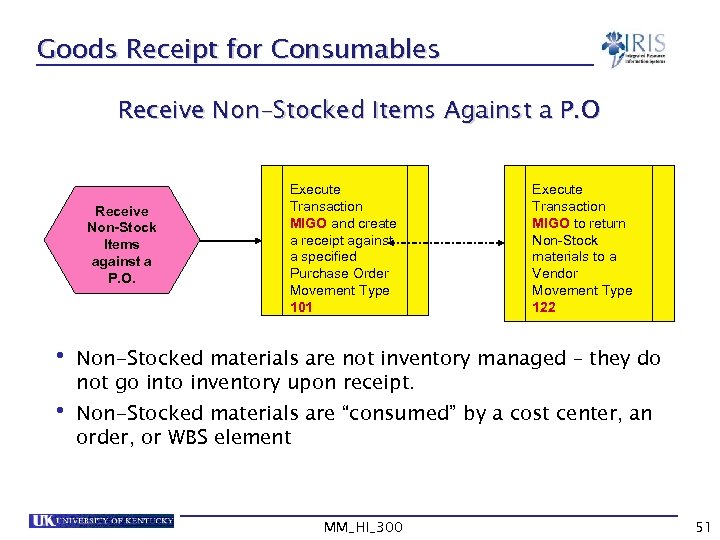 Goods Receipt for Consumables Receive Non-Stocked Items Against a P. O Receive Non-Stock Items against a P. O. Execute Transaction MIGO and create a receipt against a specified Purchase Order Movement Type 101 Execute Transaction MIGO to return Non-Stock materials to a Vendor Movement Type 122 • Non-Stocked materials are not inventory managed – they do not go into inventory upon receipt. • Non-Stocked materials are “consumed” by a cost center, an order, or WBS element MM_HI_300 51
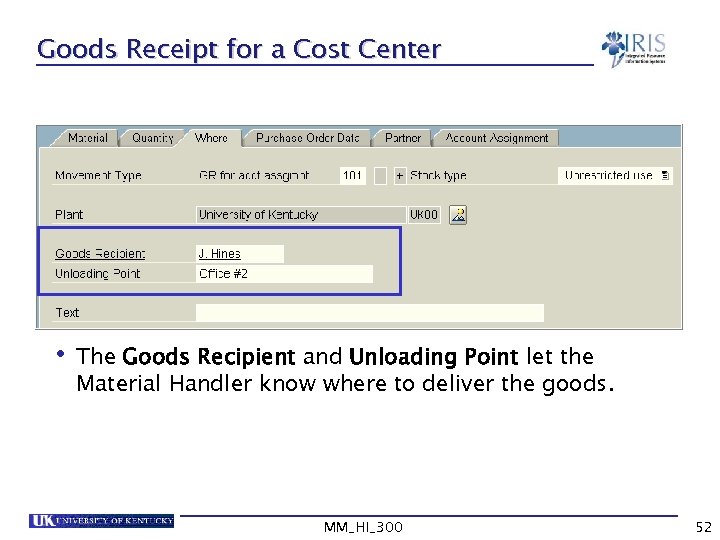 Goods Receipt for a Cost Center • The Goods Recipient and Unloading Point let the Material Handler know where to deliver the goods. MM_HI_300 52
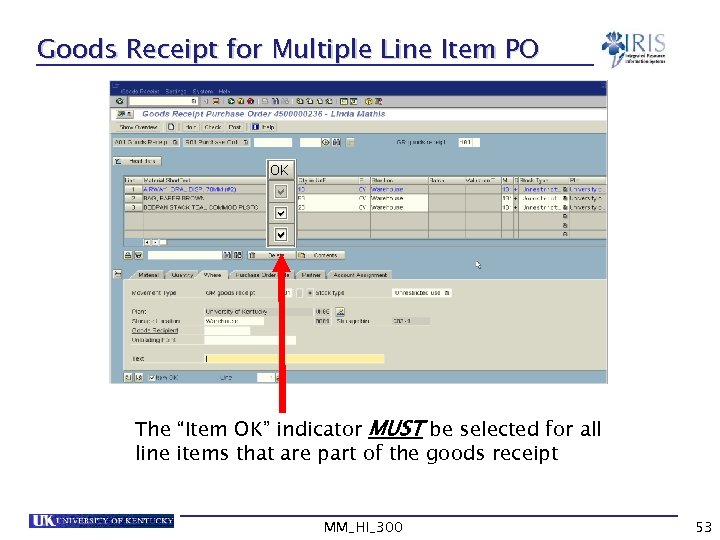 Goods Receipt for Multiple Line Item PO The “Item OK” indicator MUST be selected for all line items that are part of the goods receipt MM_HI_300 53
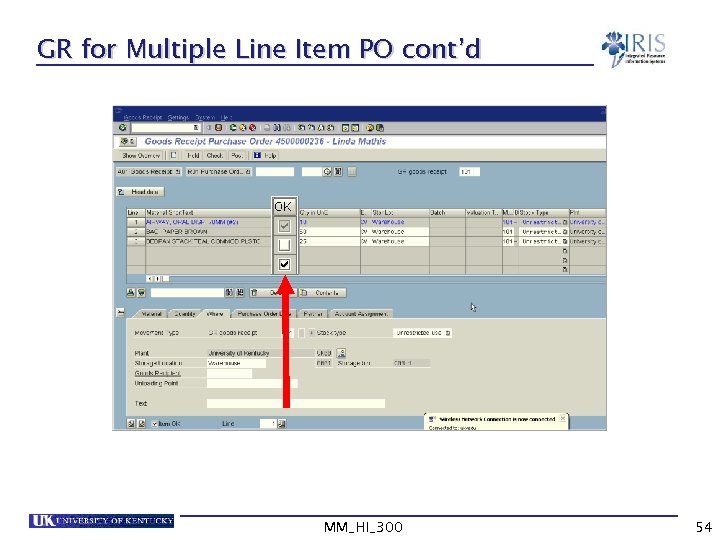 GR for Multiple Line Item PO cont’d MM_HI_300 54
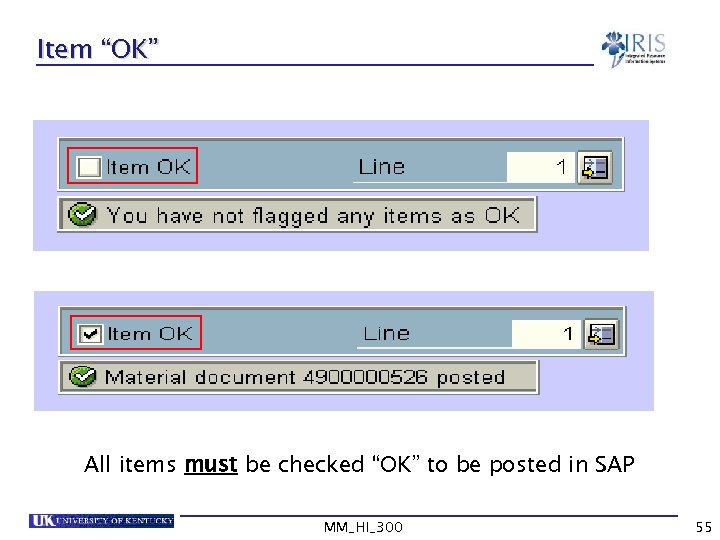 Item “OK” All items must be checked “OK” to be posted in SAP MM_HI_300 55
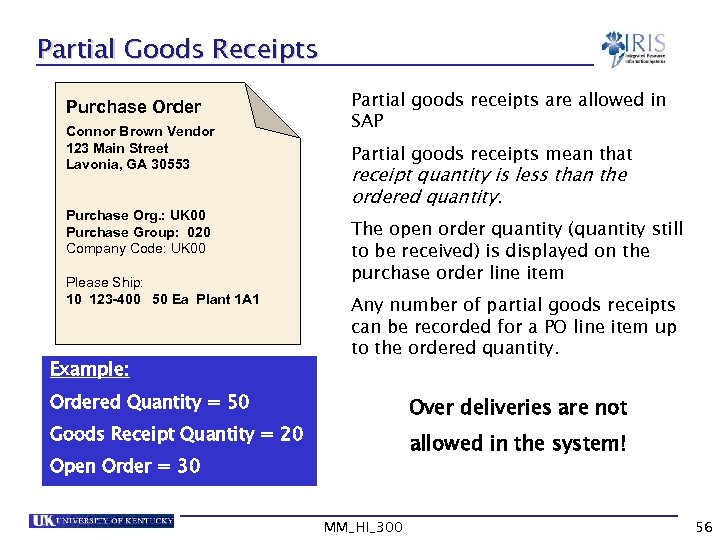 Partial Goods Receipts Purchase Order Connor Brown Vendor 123 Main Street Lavonia, GA 30553 Purchase Org. : UK 00 Purchase Group: 020 Company Code: UK 00 Please Ship: 10 123 -400 50 Ea Plant 1 A 1 Example: Partial goods receipts are allowed in SAP Partial goods receipts mean that receipt quantity is less than the ordered quantity. The open order quantity (quantity still to be received) is displayed on the purchase order line item Any number of partial goods receipts can be recorded for a PO line item up to the ordered quantity. Ordered Quantity = 50 Over deliveries are not Goods Receipt Quantity = 20 allowed in the system! Open Order = 30 MM_HI_300 56
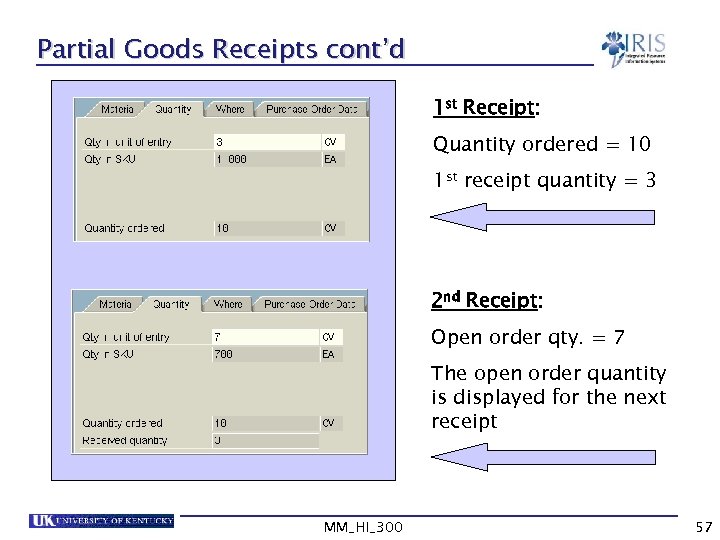 Partial Goods Receipts cont’d 1 st Receipt: Quantity ordered = 10 1 st receipt quantity = 3 2 nd Receipt: Open order qty. = 7 The open order quantity is displayed for the next receipt MM_HI_300 57
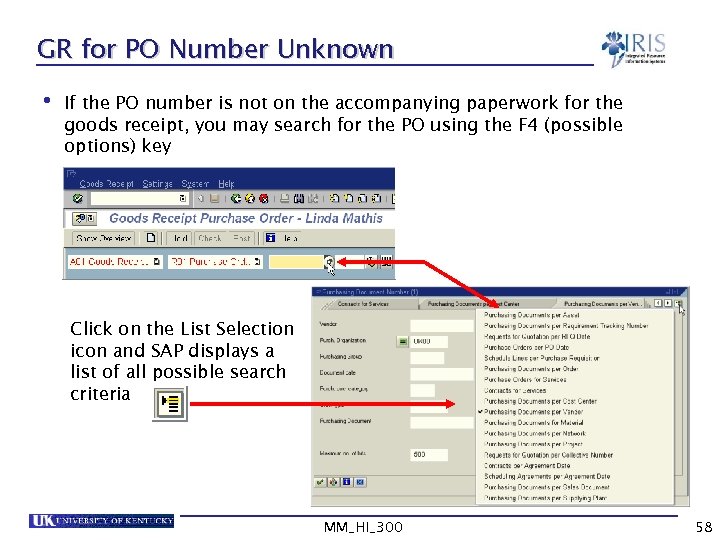 GR for PO Number Unknown • If the PO number is not on the accompanying paperwork for the goods receipt, you may search for the PO using the F 4 (possible options) key Click on the List Selection icon and SAP displays a list of all possible search criteria MM_HI_300 58
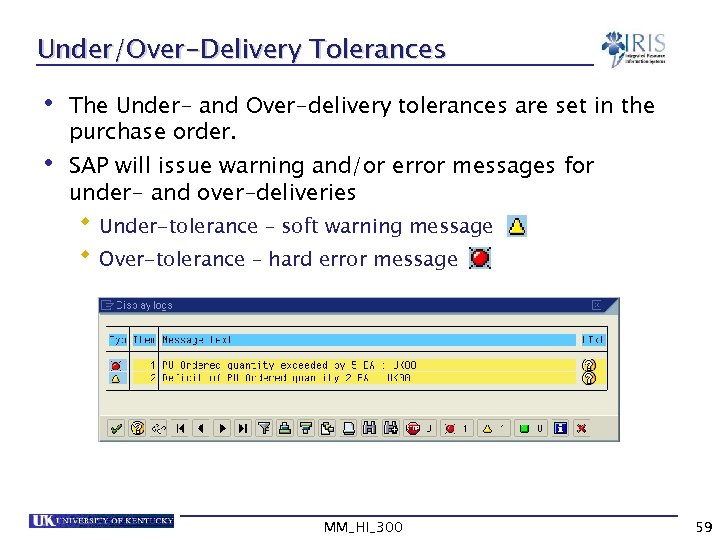 Under/Over-Delivery Tolerances • The Under- and Over-delivery tolerances are set in the purchase order. • SAP will issue warning and/or error messages for under- and over-deliveries Under-tolerance – soft warning message Over-tolerance – hard error message MM_HI_300 59
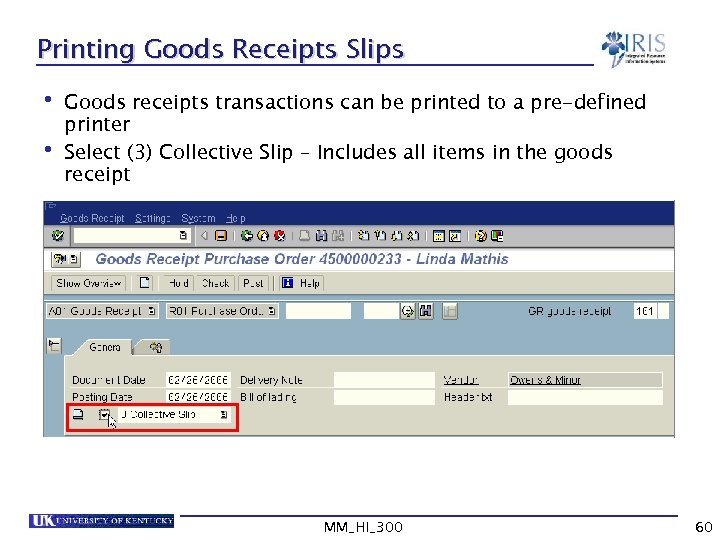 Printing Goods Receipts Slips • Goods receipts transactions can be printed to a pre-defined printer • Select (3) Collective Slip – Includes all items in the goods receipt MM_HI_300 60
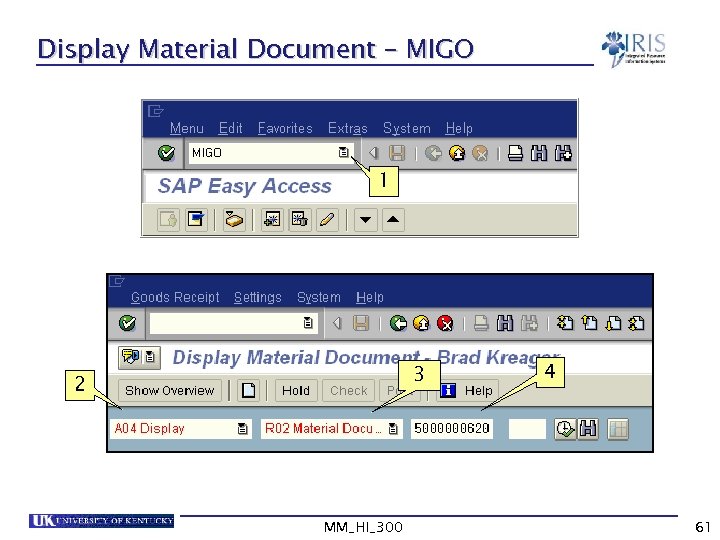 Display Material Document – MIGO 1 3 2 MM_HI_300 4 61
 Goods Receipts Documents Purchase Order Connor Brown Vendor 123 Main Street Lavonia, GA 30553 Purchase Org. : PUS 1 Purchase Group: F 20 Company Code: USP 2 Baxter Medical Supplies Ch Me andle dic r al C e Please Ship: 10 123 -400 20 345 -765 30 678 -987 40 890 -234 50 101 -123 50 Ea 100 Ea 20 Ea 10 Car 25 Ea Plant 1 A 1 Plant 1 E 1 Plant 1 M 1 Plant 1 D 1 nte r Goods Receipt Accounting Document Material Document Connor Brown Vendor 123 Main Street Lavonia, GA 30553 Received By: Helen Lee 10 20 30 40 50 MM_HI_300 123 -400 50 Ea 345 -765 100 Ea 678 -987 20 Ea 890 -234 10 Car 101 -123 25 Ea Plant 1 A 1 Plant 1 E 1 Plant 1 M 1 Plant 1 D 1 10 20 30 40 50 123 -400 345 -765 678 -987 890 -234 101 -123 45 100 10 10 25 Ea Ea Ea Car Ea $500. 00 $29. 99 $1, 500. 00 $0. 75 $99. 99 62
 Exercise 4. 1 • GR for POs: • Single Item • Consumable • Multiple items • Partial receipts • Display a material document MM_HI_300 63
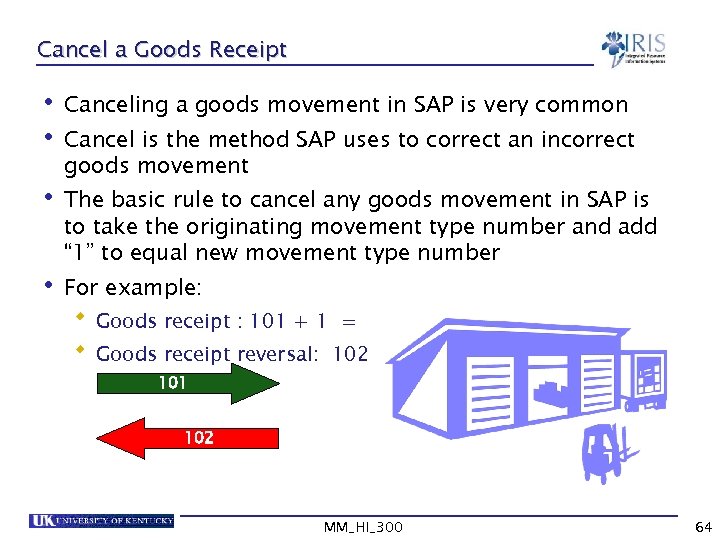 Cancel a Goods Receipt • Canceling a goods movement in SAP is very common • Cancel is the method SAP uses to correct an incorrect goods movement • The basic rule to cancel any goods movement in SAP is to take the originating movement type number and add “ 1” to equal new movement type number • For example: Goods receipt : 101 + 1 = Goods receipt reversal: 102 101 102 MM_HI_300 64
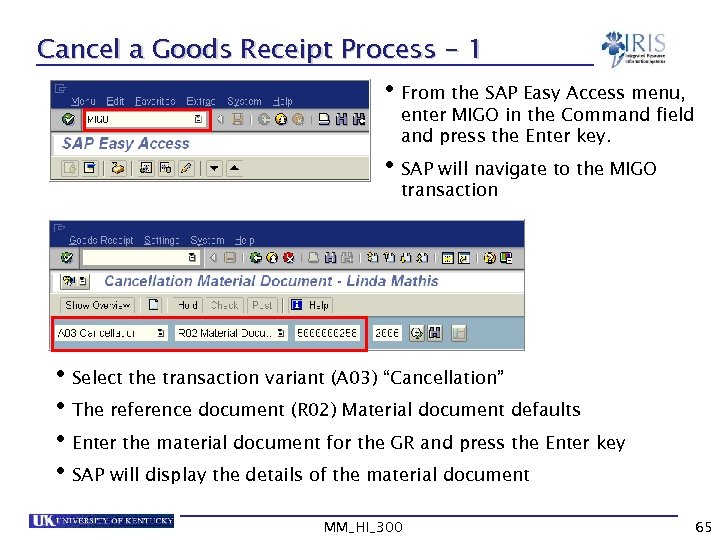 Cancel a Goods Receipt Process - 1 • From the SAP Easy Access menu, enter MIGO in the Command field and press the Enter key. • SAP will navigate to the MIGO transaction • Select the transaction variant (A 03) “Cancellation” • The reference document (R 02) Material document defaults • Enter the material document for the GR and press the Enter key • SAP will display the details of the material document MM_HI_300 65
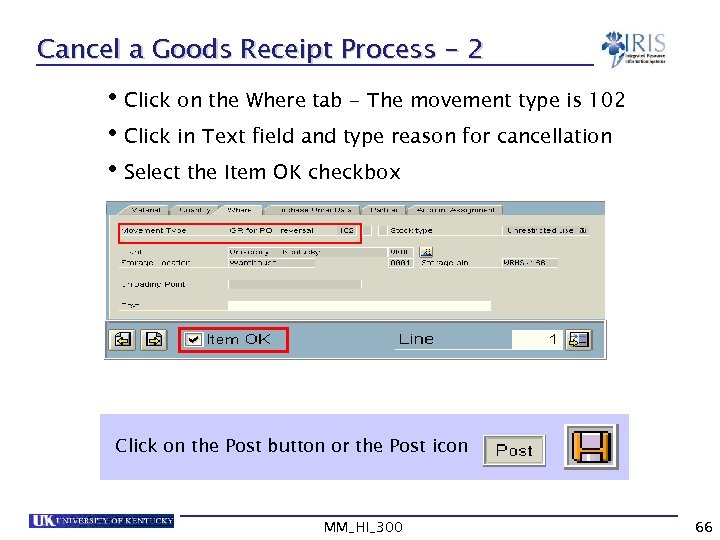 Cancel a Goods Receipt Process - 2 • Click on the Where tab - The movement type is 102 • Click in Text field and type reason for cancellation • Select the Item OK checkbox Click on the Post button or the Post icon MM_HI_300 66
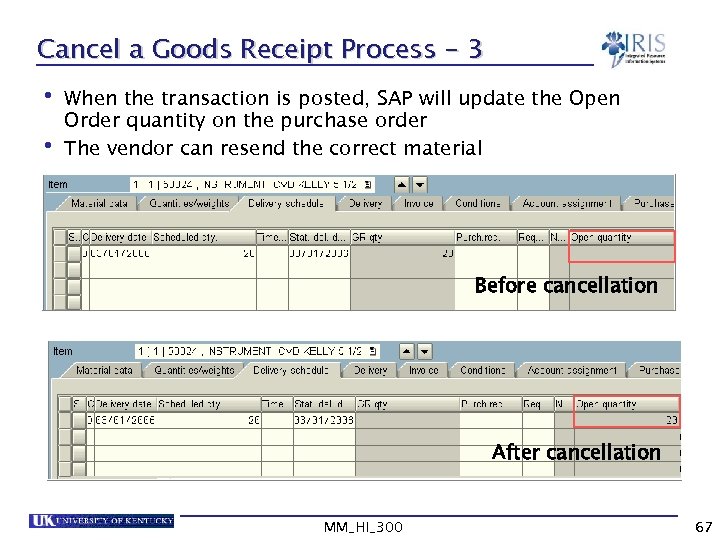 Cancel a Goods Receipt Process - 3 • When the transaction is posted, SAP will update the Open Order quantity on the purchase order • The vendor can resend the correct material Before cancellation After cancellation MM_HI_300 67
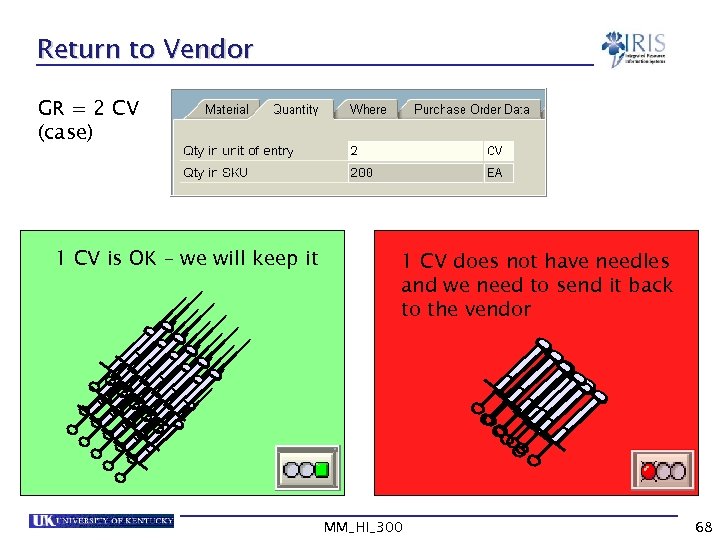 Return to Vendor GR = 2 CV (case) 1 CV is OK – we will keep it 1 CV does not have needles and we need to send it back to the vendor MM_HI_300 68
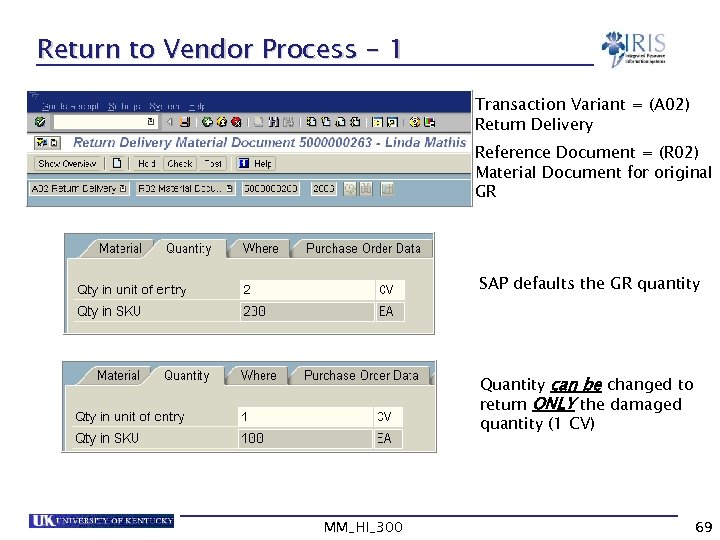 Return to Vendor Process - 1 Transaction Variant = (A 02) Return Delivery Reference Document = (R 02) Material Document for original GR SAP defaults the GR quantity Quantity can be changed to return ONLY the damaged quantity (1 CV) MM_HI_300 69
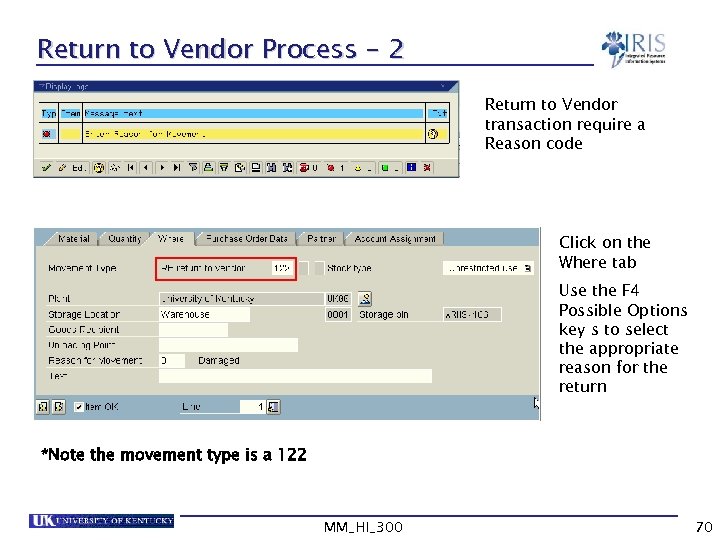 Return to Vendor Process - 2 Return to Vendor transaction require a Reason code Click on the Where tab Use the F 4 Possible Options key s to select the appropriate reason for the return *Note the movement type is a 122 MM_HI_300 70
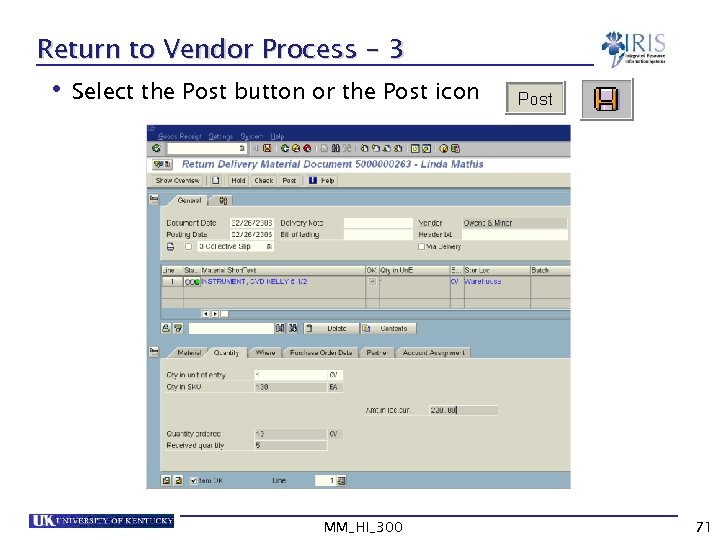 Return to Vendor Process - 3 • Select the Post button or the Post icon MM_HI_300 71
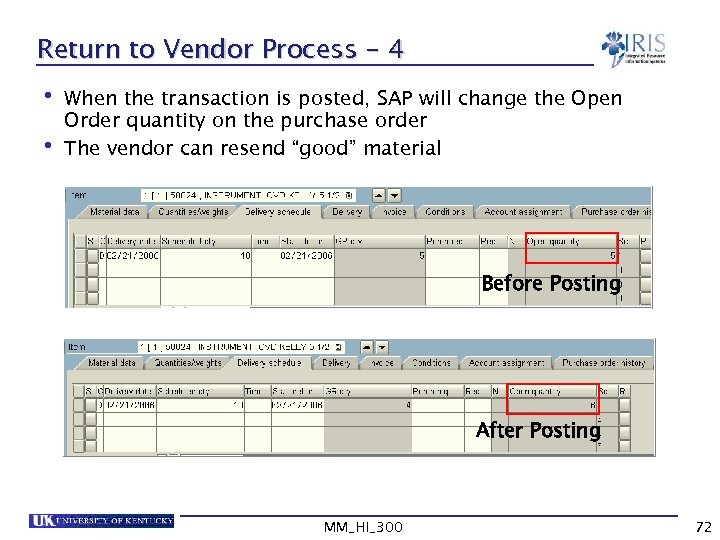 Return to Vendor Process - 4 • When the transaction is posted, SAP will change the Open Order quantity on the purchase order • The vendor can resend “good” material Before Posting After Posting MM_HI_300 72
 Exercise 4. 2 Cancel/Reverse a single line item GR Cancel/Reverse a multiple line item GR Return to Vendor • • • MM_HI_300 73
 Summary • You should be able to: Post goods receipts for: § A single purchase order § Multiple line item purchase order § A partial delivery Cancel / Reverse a goods receipt Display the material documents Understand the impact of a goods receipt Return a material to a vendor MM_HI_300 74
 Unit 5 Goods Issues & Reservations MM_HI_300 75
 Learning Objectives • At the conclusion of this unit you should be able to: Understand the concept of goods issues in SAP Understand what reservations are and why they are used Post goods issues using MIGO and MB 1 A for: § § Cost centers Reservations WBS Elements To scrap MM_HI_300 76
 Learning Objectives cont’d • At the conclusion of this unit you should be able to: Use custom transactions to mass process reservations: § ZMM_PICKT § MB 26 § ZMM_SHORT Cancel / Reverse Goods Issues Print goods issues material documents MM_HI_300 77
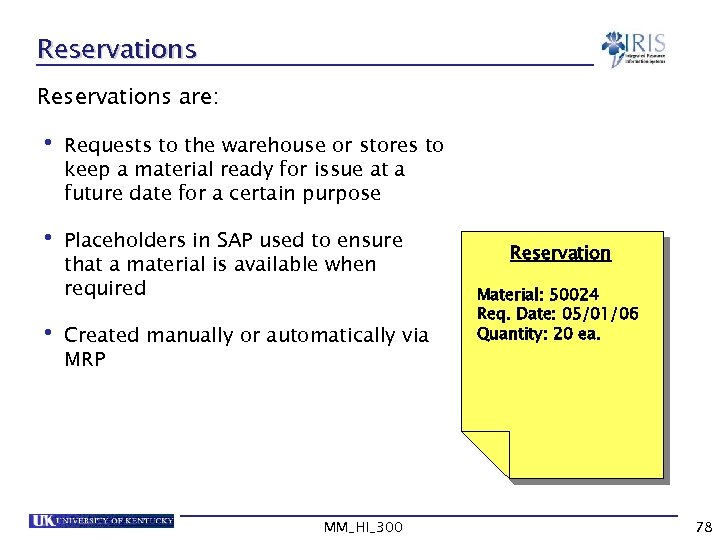 Reservations are: • Requests to the warehouse or stores to keep a material ready for issue at a future date for a certain purpose • Placeholders in SAP used to ensure that a material is available when required • Created manually or automatically via MRP MM_HI_300 Reservation Material: 50024 Req. Date: 05/01/06 Quantity: 20 ea. 78
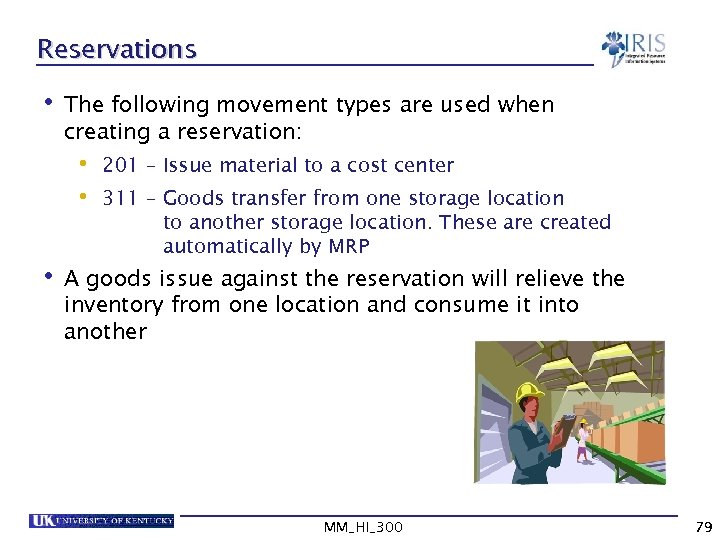 Reservations • The following movement types are used when creating a reservation: • 201 – Issue material to a cost center • 311 – Goods transfer from one storage location to another storage location. These are created automatically by MRP • A goods issue against the reservation will relieve the inventory from one location and consume it into another MM_HI_300 79
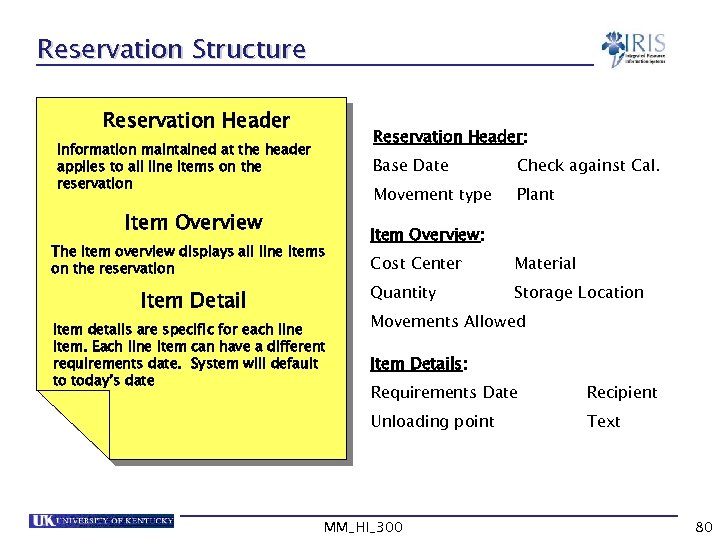 Reservation Structure Reservation Header: Information maintained at the header applies to all line items on the reservation Base Date Movement type Item Overview The item overview displays all line items on the reservation Check against Cal. Plant Item Overview: Item details are specific for each line item. Each line item can have a different requirements date. System will default to today’s date Material Quantity Item Detail Cost Center Storage Location Movements Allowed Item Details: Requirements Date Recipient Unloading point Text MM_HI_300 80
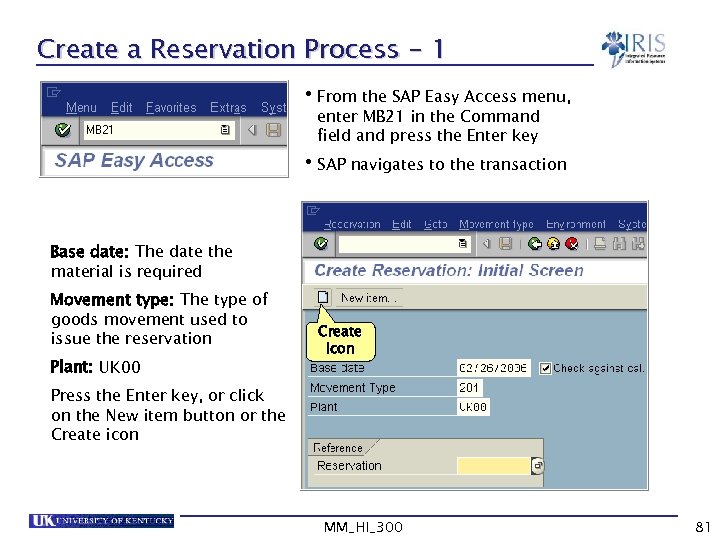 Create a Reservation Process - 1 • From the SAP Easy Access menu, enter MB 21 in the Command field and press the Enter key • SAP navigates to the transaction Base date: The date the material is required Movement type: The type of goods movement used to issue the reservation Plant: UK 00 Create icon Press the Enter key, or click on the New item button or the Create icon MM_HI_300 81
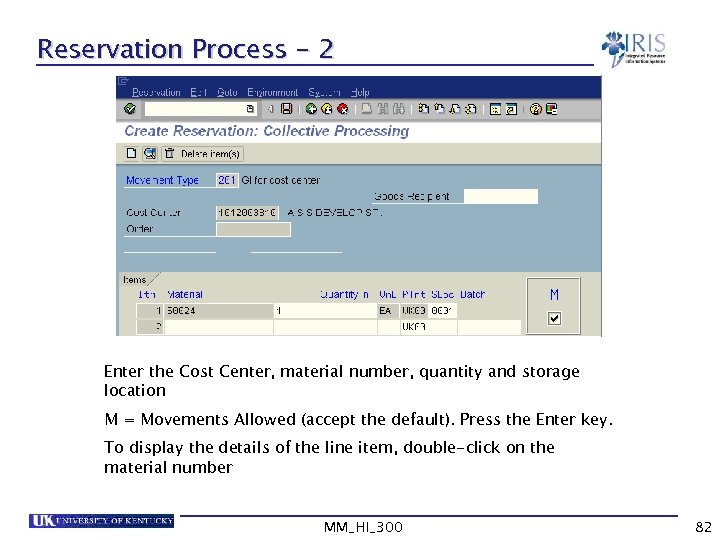 Reservation Process - 2 Enter the Cost Center, material number, quantity and storage location M = Movements Allowed (accept the default). Press the Enter key. To display the details of the line item, double-click on the material number MM_HI_300 82
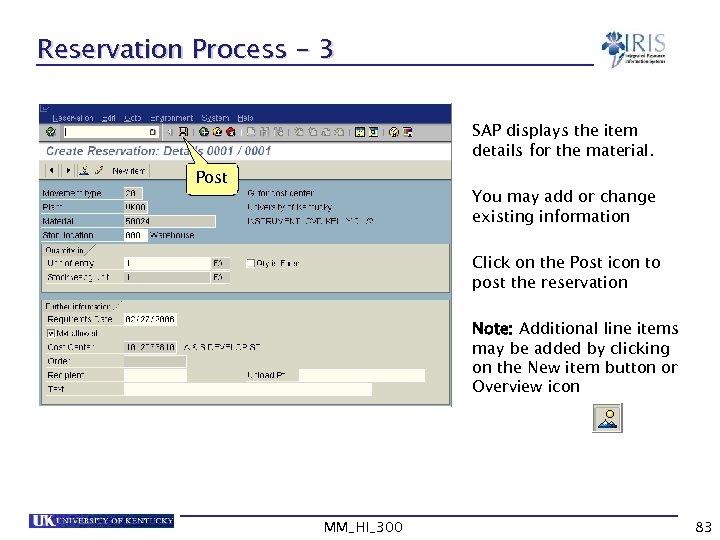 Reservation Process - 3 SAP displays the item details for the material. Post You may add or change existing information Click on the Post icon to post the reservation Note: Additional line items may be added by clicking on the New item button or Overview icon MM_HI_300 83
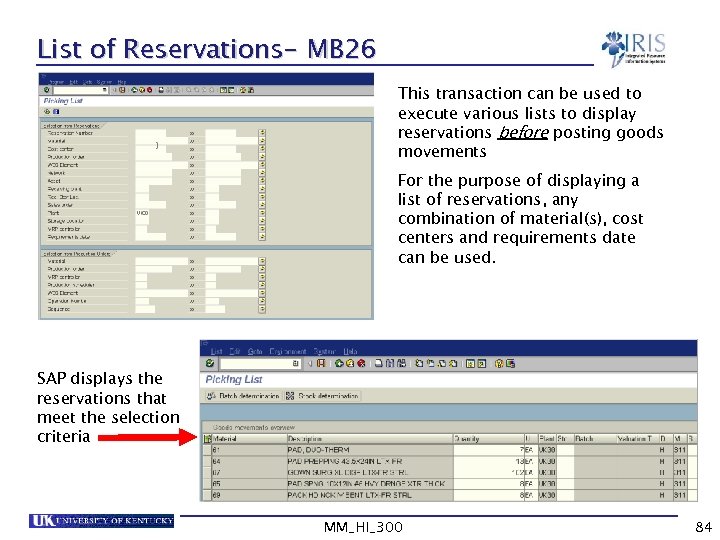 List of Reservations- MB 26 This transaction can be used to execute various lists to display reservations before posting goods movements For the purpose of displaying a list of reservations, any combination of material(s), cost centers and requirements date can be used. SAP displays the reservations that meet the selection criteria MM_HI_300 84
 Exercise 5. 1 Create a reservation for a cost center Use MB 26 to execute a list of reservations • • MM_HI_300 85
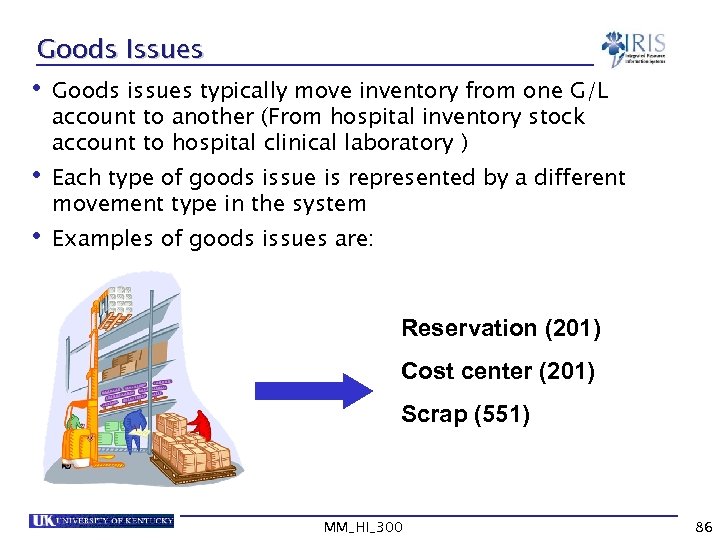 Goods Issues • Goods issues typically move inventory from one G/L account to another (From hospital inventory stock account to hospital clinical laboratory ) • Each type of goods issue is represented by a different movement type in the system • Examples of goods issues are: Reservation (201) Cost center (201) Scrap (551) MM_HI_300 86
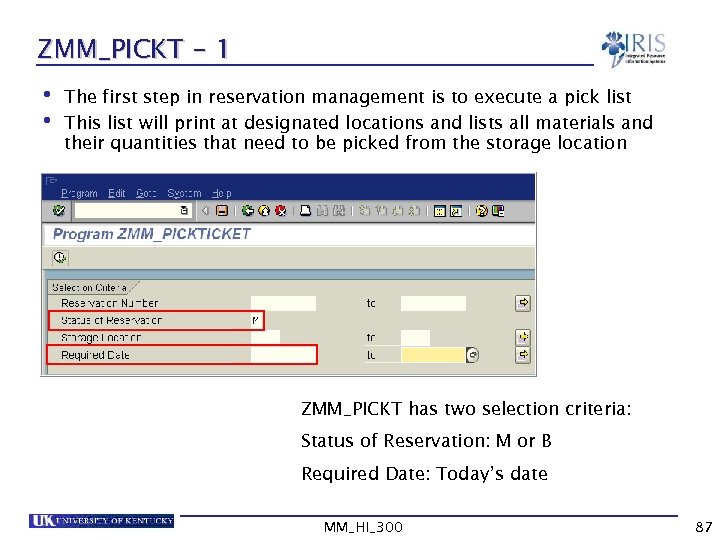 ZMM_PICKT - 1 • The first step in reservation management is to execute a pick list • This list will print at designated locations and lists all materials and their quantities that need to be picked from the storage location ZMM_PICKT has two selection criteria: Status of Reservation: M or B Required Date: Today’s date MM_HI_300 87
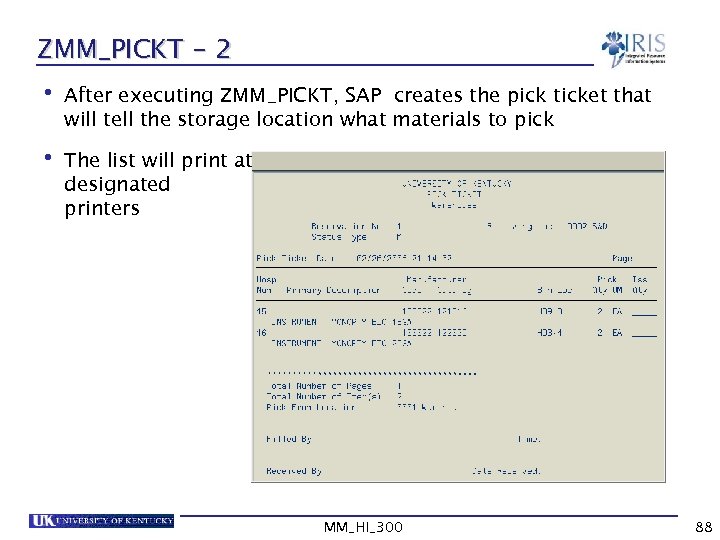 ZMM_PICKT - 2 • After executing ZMM_PICKT, SAP creates the pick ticket that will tell the storage location what materials to pick • The list will print at designated printers MM_HI_300 88
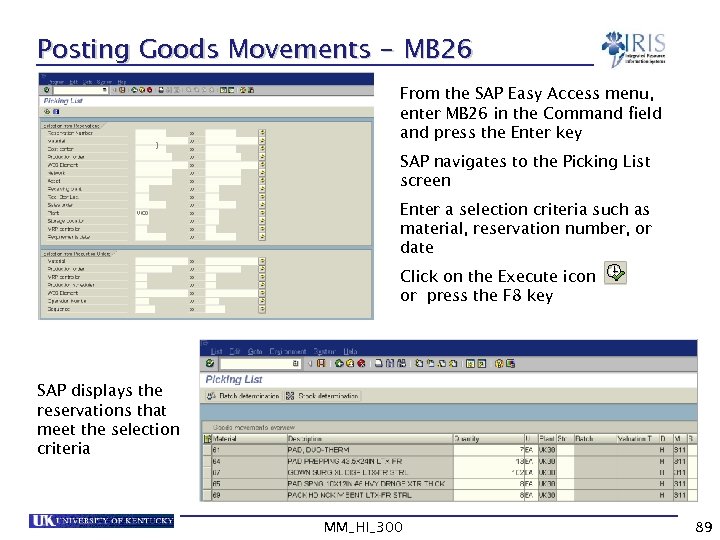 Posting Goods Movements - MB 26 From the SAP Easy Access menu, enter MB 26 in the Command field and press the Enter key SAP navigates to the Picking List screen Enter a selection criteria such as material, reservation number, or date Click on the Execute icon or press the F 8 key SAP displays the reservations that meet the selection criteria MM_HI_300 89
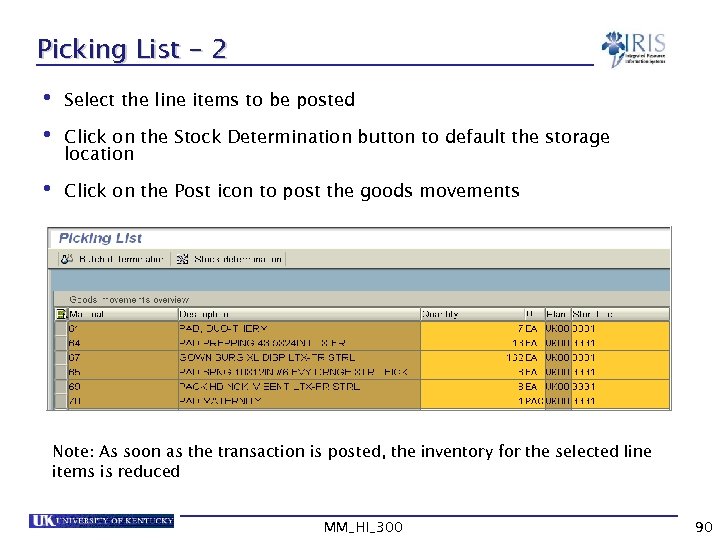 Picking List - 2 • Select the line items to be posted • Click on the Stock Determination button to default the storage location • Click on the Post icon to post the goods movements Note: As soon as the transaction is posted, the inventory for the selected line items is reduced MM_HI_300 90
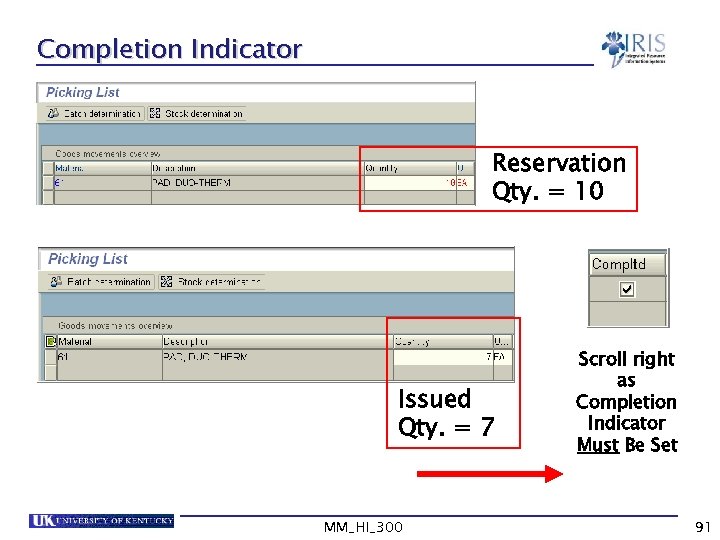 Completion Indicator Reservation Qty. = 10 Issued Qty. = 7 MM_HI_300 Scroll right as Completion Indicator Must Be Set 91
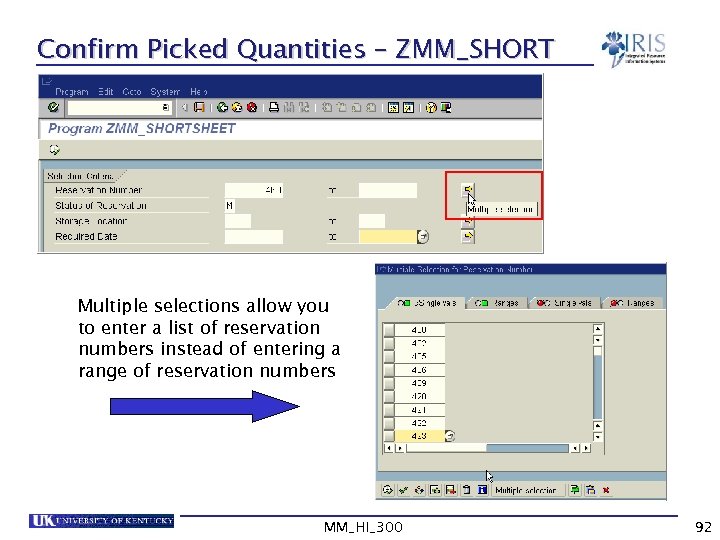 Confirm Picked Quantities – ZMM_SHORT Multiple selections allow you to enter a list of reservation numbers instead of entering a range of reservation numbers MM_HI_300 92
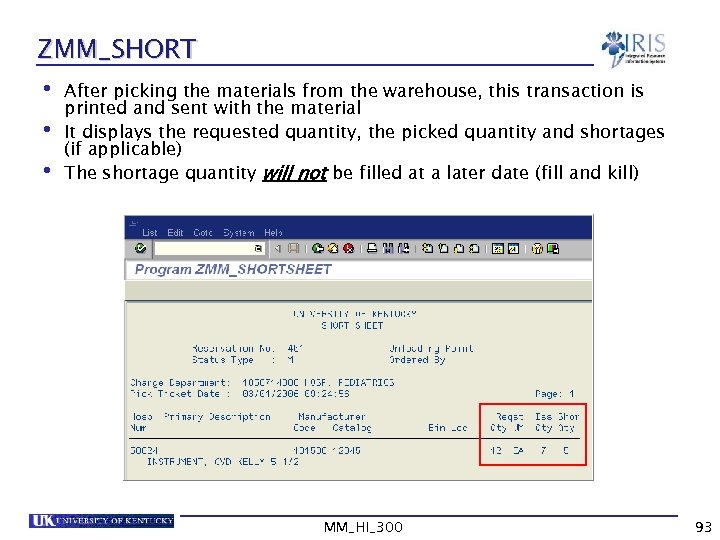 ZMM_SHORT • After picking the materials from the warehouse, this transaction is printed and sent with the material • It displays the requested quantity, the picked quantity and shortages (if applicable) • The shortage quantity will not be filled at a later date (fill and kill) MM_HI_300 93
 Exercise 5. 2 Execute ZMM_PICKT Post goods movements using MB 26 Execute ZMM_SHORT • • • MM_HI_300 94
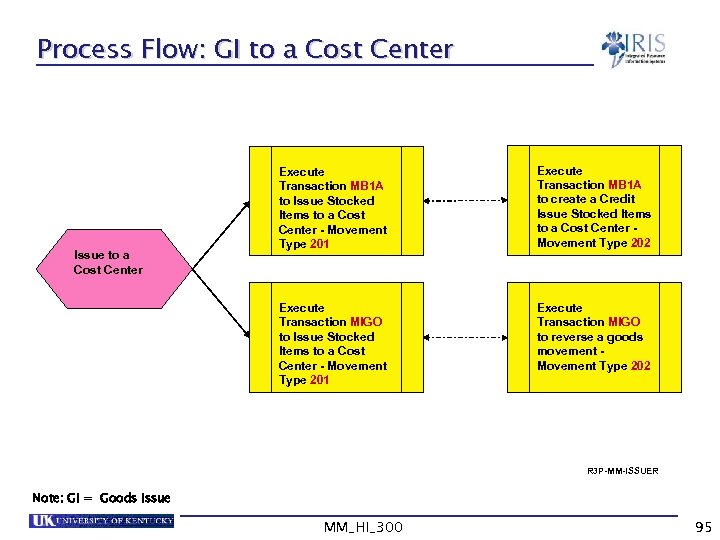 Process Flow: GI to a Cost Center Execute Transaction MB 1 A to create a Credit Issue Stocked Items to a Cost Center Movement Type 202 Execute Transaction MIGO to Issue Stocked Items to a Cost Center - Movement Type 201 Issue to a Cost Center Execute Transaction MB 1 A to Issue Stocked Items to a Cost Center - Movement Type 201 Execute Transaction MIGO to reverse a goods movement Movement Type 202 R 3 P-MM-ISSUER Note: GI = Goods Issue MM_HI_300 95
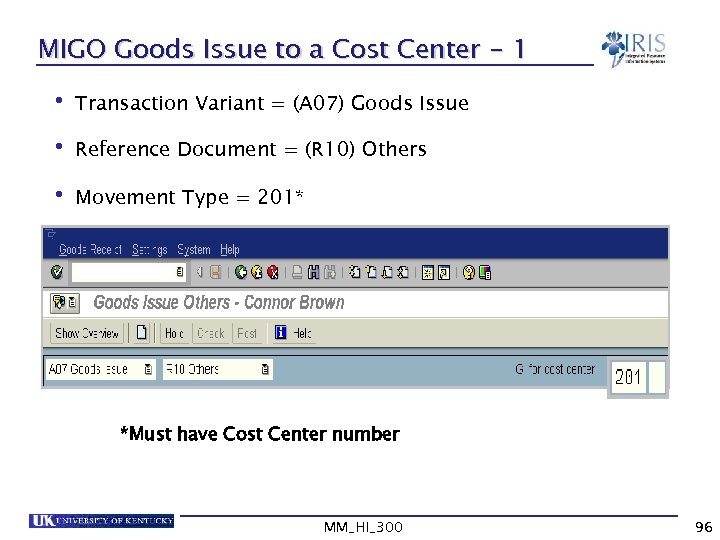 MIGO Goods Issue to a Cost Center - 1 • Transaction Variant = (A 07) Goods Issue • Reference Document = (R 10) Others • Movement Type = 201* *Must have Cost Center number MM_HI_300 96
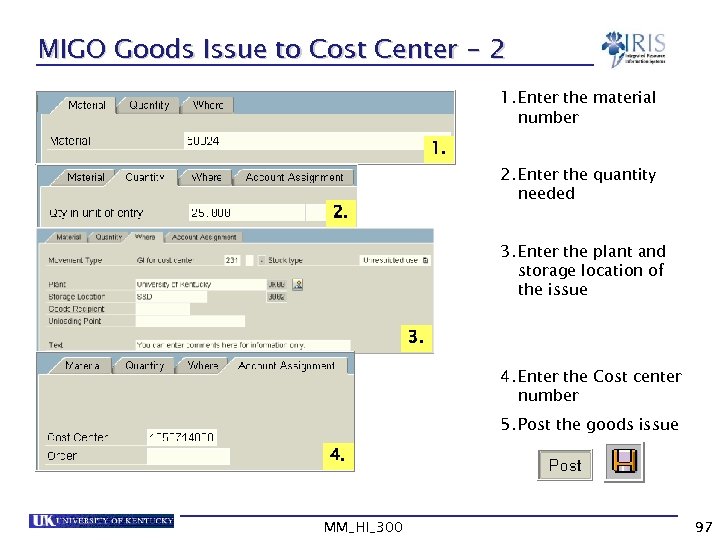 MIGO Goods Issue to Cost Center - 2 1. Enter the material number 1. 2. Enter the quantity needed 2. 3. Enter the plant and storage location of the issue 3. 4. Enter the Cost center number 5. Post the goods issue 4. MM_HI_300 97
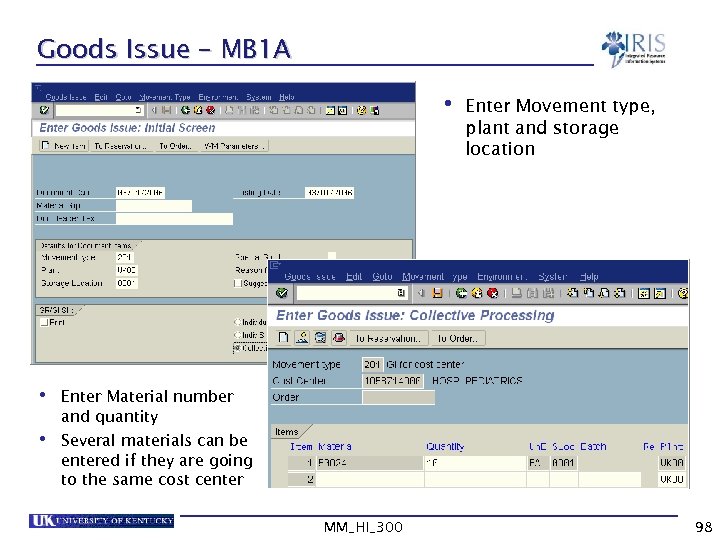 Goods Issue – MB 1 A • Enter Movement type, plant and storage location • • Enter Material number and quantity Several materials can be entered if they are going to the same cost center MM_HI_300 98
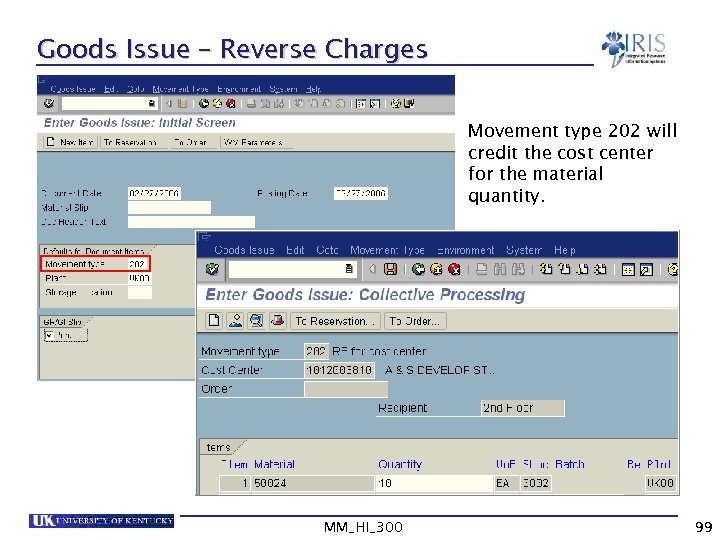 Goods Issue – Reverse Charges Movement type 202 will credit the cost center for the material quantity. MM_HI_300 99
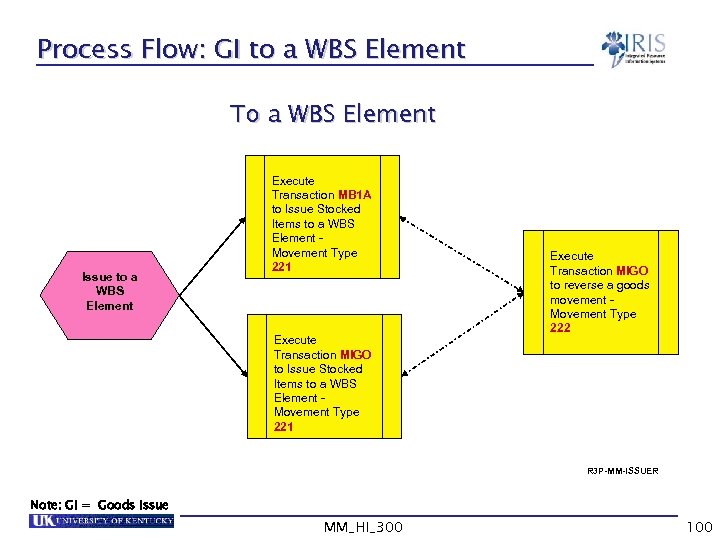 Process Flow: GI to a WBS Element To a WBS Element Issue to a WBS Element Execute Transaction MB 1 A to Issue Stocked Items to a WBS Element Movement Type 221 Execute Transaction MIGO to reverse a goods movement Movement Type 222 R 3 P-MM-ISSUER Note: GI = Goods Issue MM_HI_300 100
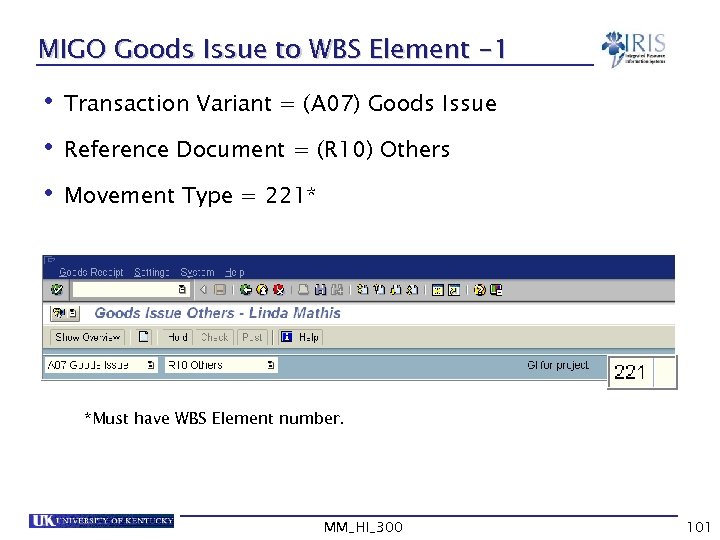 MIGO Goods Issue to WBS Element -1 • Transaction Variant = (A 07) Goods Issue • Reference Document = (R 10) Others • Movement Type = 221* *Must have WBS Element number. MM_HI_300 101
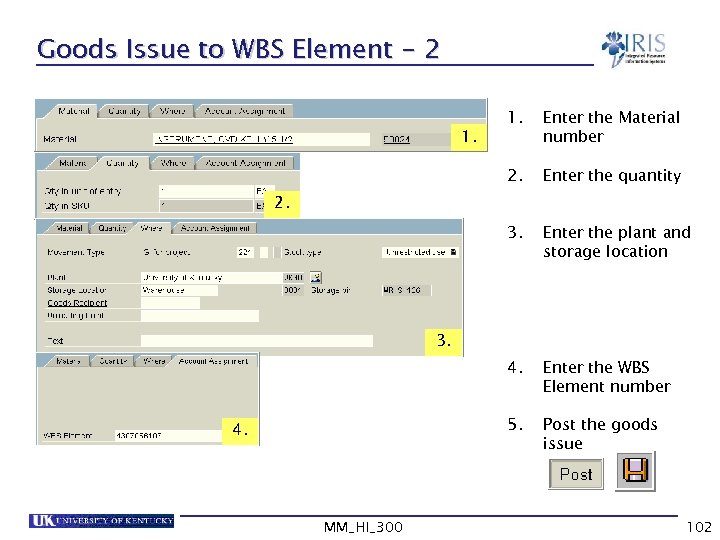 Goods Issue to WBS Element - 2 Enter the Material number 2. Enter the quantity 3. Enter the plant and storage location 4. Enter the WBS Element number 5. 1. Post the goods issue 2. 3. 4. MM_HI_300 102
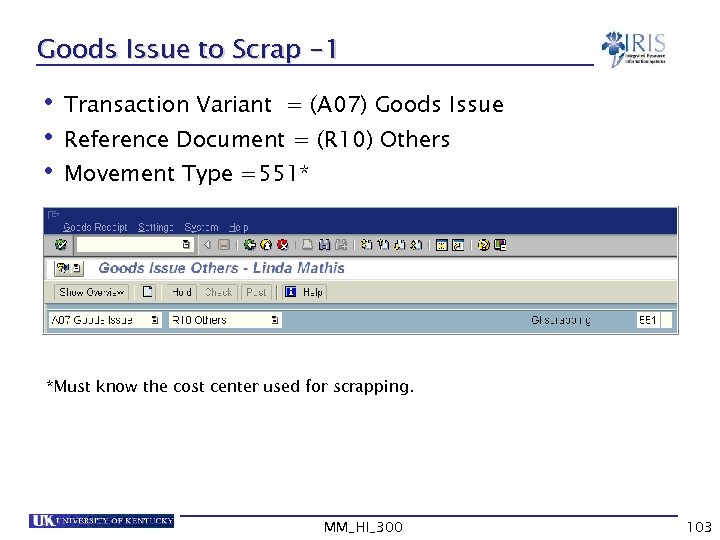 Goods Issue to Scrap -1 • Transaction Variant = (A 07) Goods Issue • Reference Document = (R 10) Others • Movement Type =551* *Must know the cost center used for scrapping. MM_HI_300 103
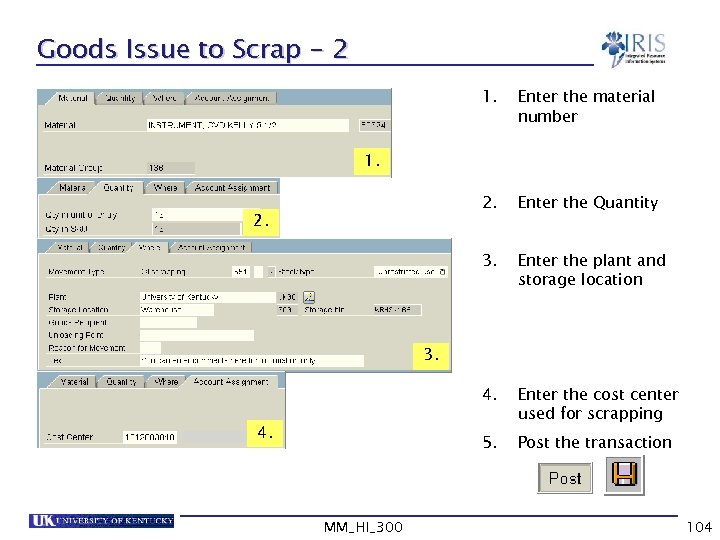 Goods Issue to Scrap - 2 1. Enter the material number 2. Enter the Quantity 3. Enter the plant and storage location 4. Enter the cost center used for scrapping 5. Post the transaction 1. 2. 3. 4. MM_HI_300 104
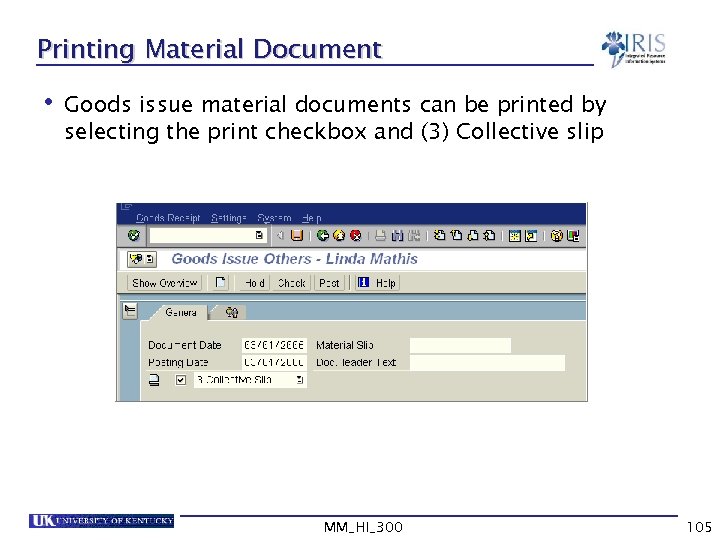 Printing Material Document • Goods issue material documents can be printed by selecting the print checkbox and (3) Collective slip MM_HI_300 105
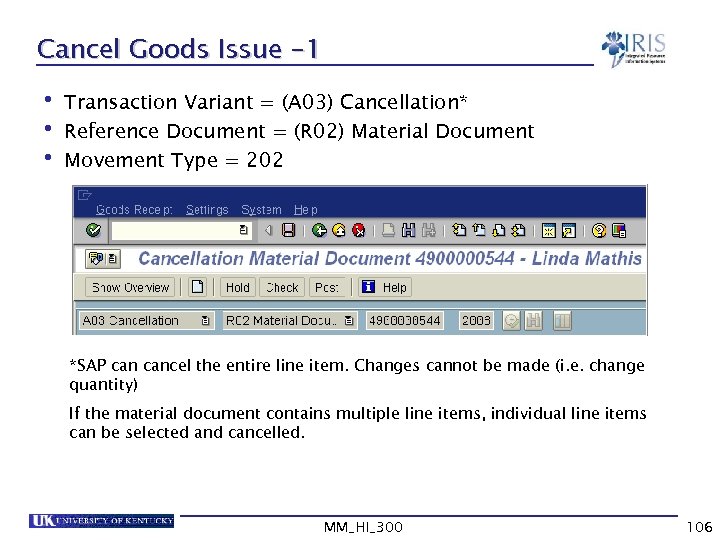 Cancel Goods Issue -1 • Transaction Variant = (A 03) Cancellation* • Reference Document = (R 02) Material Document • Movement Type = 202 *SAP cancel the entire line item. Changes cannot be made (i. e. change quantity) If the material document contains multiple line items, individual line items can be selected and cancelled. MM_HI_300 106
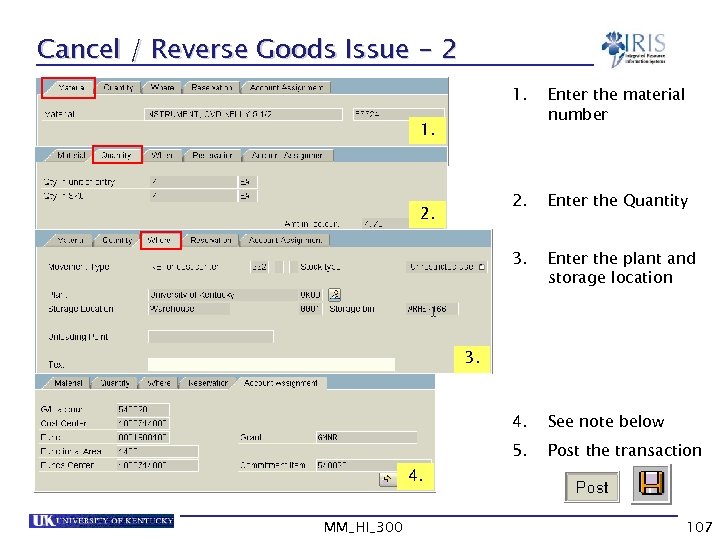 Cancel / Reverse Goods Issue - 2 1. Enter the material number 2. Enter the Quantity 3. Enter the plant and storage location 4. See note below 5. Post the transaction 1. 2. 3. 4. MM_HI_300 107
 Exercise 5. 3 Post a Goods Issue using MIGO Post Goods Issue using MB 1 A Cancel a Goods Issue from one cost center and issue to another Print material documents • • MM_HI_300 108
 Summary • You should now be able to: Understand the concept of goods issues in SAP Understand what reservations are and why they are used Post goods issues using MIGO and MB 1 A for: § § Cost centers Reservations WBS Elements To scrap MM_HI_300 109
 Summary cont’d • You should now be able to: Use custom transactions to mass process reservations: § ZMM_PICKT § MB 26 § ZMM_SHORT Cancel / Reverse Goods Issues Print goods issues material documents MM_HI_300 110
 Unit 6 al pit os H W ar eh ou se Hospital Inventory Transfer Postings MM_HI_300 111
 Learning Objectives • At the conclusion of this unit you should be able to: Execute a two step transfer posting Display stock in transfer Cancel a two step transfer posting MM_HI_300 112
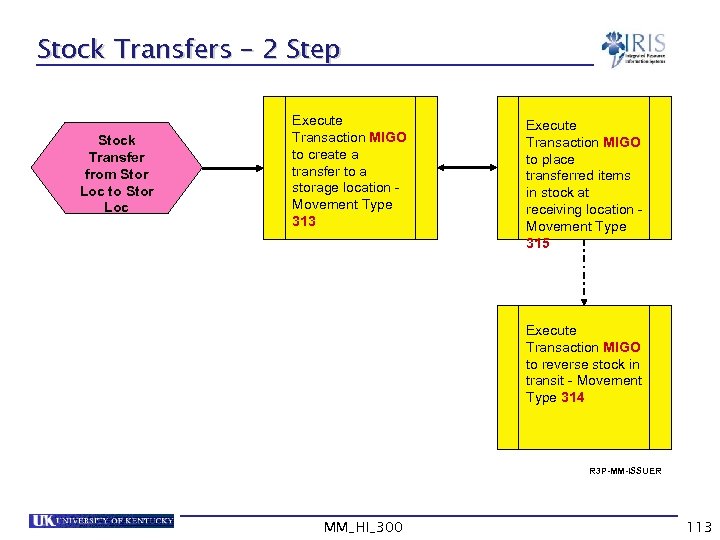 Stock Transfers – 2 Step Stock Transfer from Stor Loc to Stor Loc Execute Transaction MIGO to create a transfer to a storage location Movement Type 313 Execute Transaction MIGO to place transferred items in stock at receiving location Movement Type 315 Execute Transaction MIGO to reverse stock in transit - Movement Type 314 R 3 P-MM-ISSUER MM_HI_300 113
 Transfer Postings • Goods movements do not only occur in the form of goods receipts and goods issues. Internal stock transfers might also be necessary • A stock transfer from storage location to storage location in the same plant causes an update of the stock quantities in both storage locations • Stock transfers can be executed using a one-step or two-step procedure • UK will use a two-step procedure MM_HI_300 114
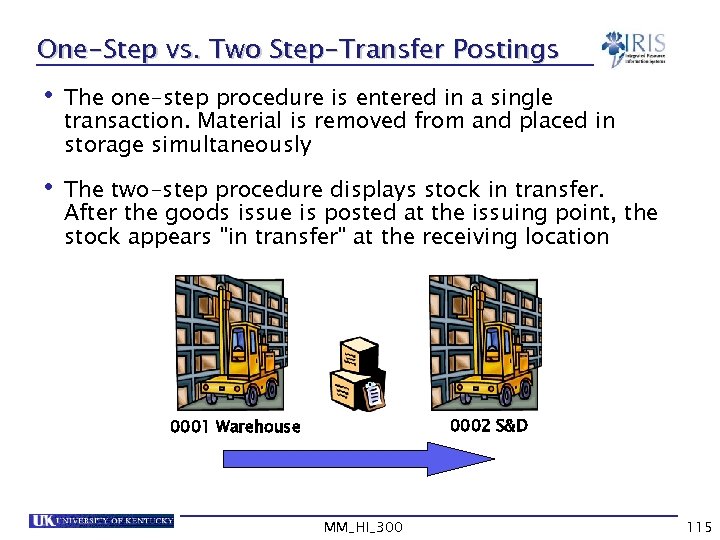 One-Step vs. Two Step-Transfer Postings • The one-step procedure is entered in a single transaction. Material is removed from and placed in storage simultaneously • The two-step procedure displays stock in transfer. After the goods issue is posted at the issuing point, the stock appears "in transfer" at the receiving location 0002 S&D 0001 Warehouse MM_HI_300 115
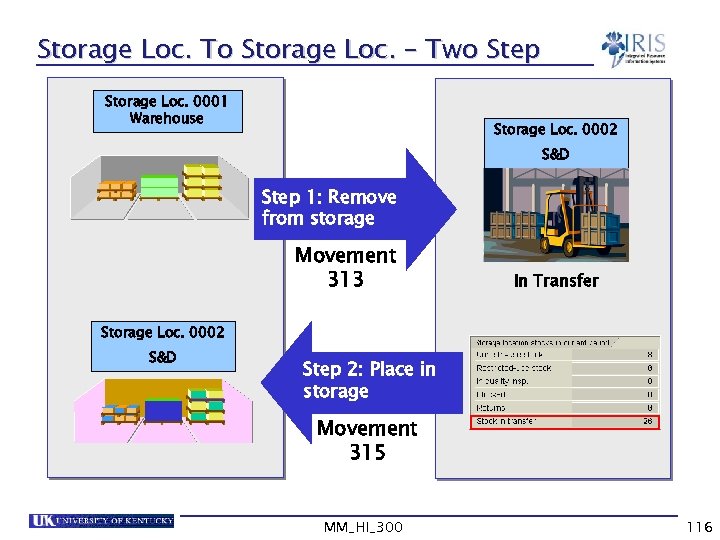 Storage Loc. To Storage Loc. – Two Step Storage Loc. 0001 Warehouse Storage Loc. 0002 S&D Step 1: Remove from storage Movement 313 In Transfer Storage Loc. 0002 S&D Step 2: Place in storage Movement 315 MM_HI_300 116
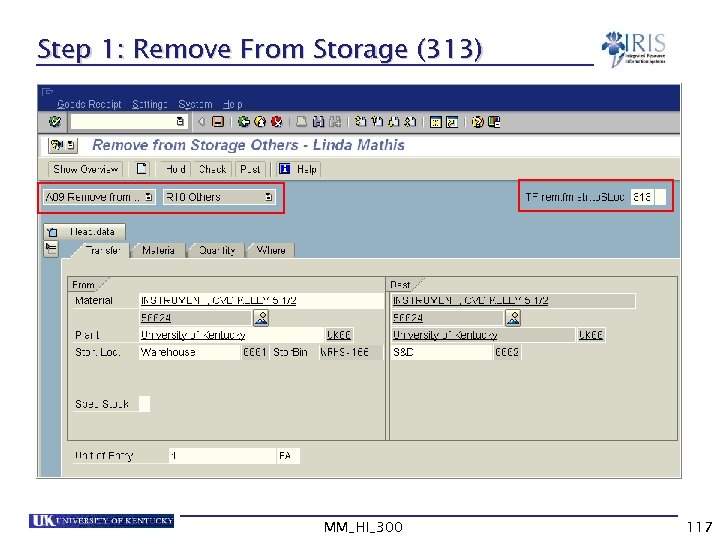 Step 1: Remove From Storage (313) MM_HI_300 117
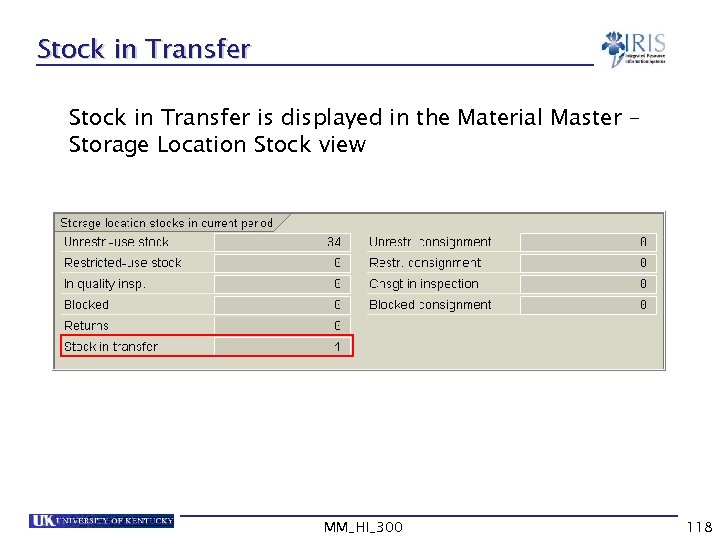 Stock in Transfer is displayed in the Material Master – Storage Location Stock view MM_HI_300 118
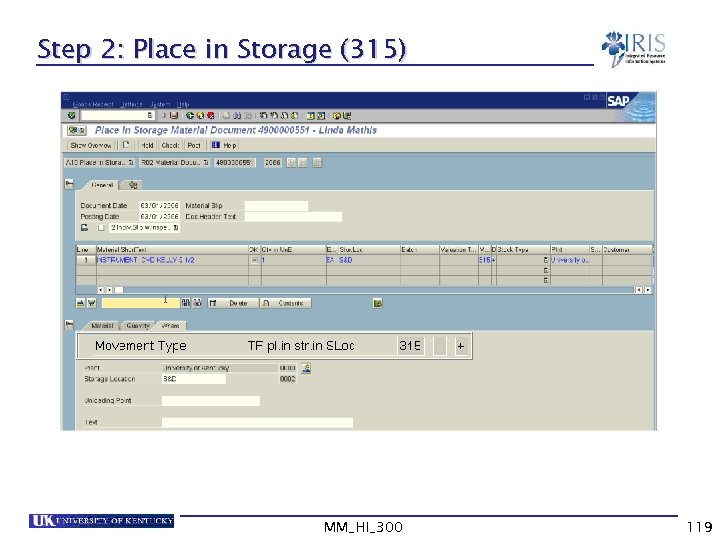 Step 2: Place in Storage (315) MM_HI_300 119
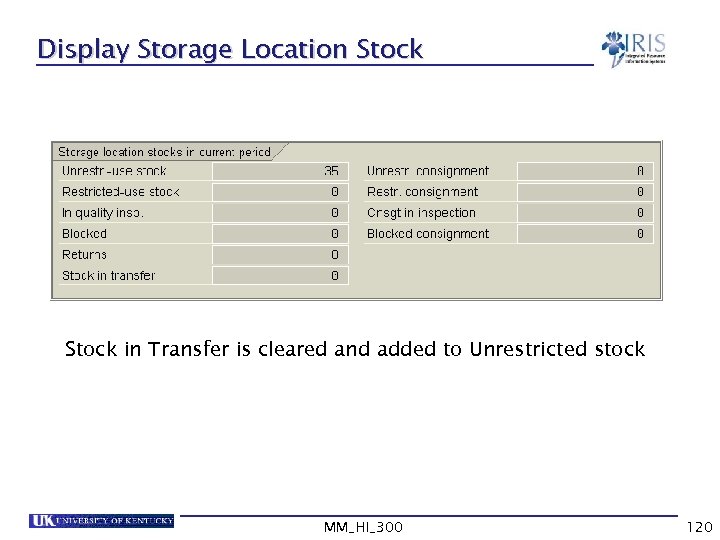 Display Storage Location Stock in Transfer is cleared and added to Unrestricted stock MM_HI_300 120
 Cancel / Reverse Goods Movements • The general rule to cancel a movement is to add “ 1” to the movement type that created the movement A 102 cancels a 101 A 222 cancels a 221 A 314 cancels a 313 A 316 cancels a 315 • Cancellations are generally mistakes that are easily corrected in SAP with the corresponding movement type MM_HI_300 121
 Cancel / Reverse 313 • To cancel / reverse a 313: You executed a 313 to put material in transfer to S&D (0002). Before you posted the 315, you discovered that the material needs to go to OR (0003) instead The 313 must be cancelled (314) to put the stock back in transfer status, then transferred to the correct storage location MM_HI_300 122
 Cancel/Reverse a Two-Step Transfer Posting • To cancel the entire two-step transfer posting (313 and 315) you must cancel the 315 material document first then the cancel the 313 material document • For example: You executed a 313 to put material in transfer to S&D (0002). Then you posted the 315. You discovered that the material needs to go to OR (0003) instead The 315 must be cancelled (316) first The 313 can then be cancelled with a 314 The material can then be transferred to the correct storage location MM_HI_300 123
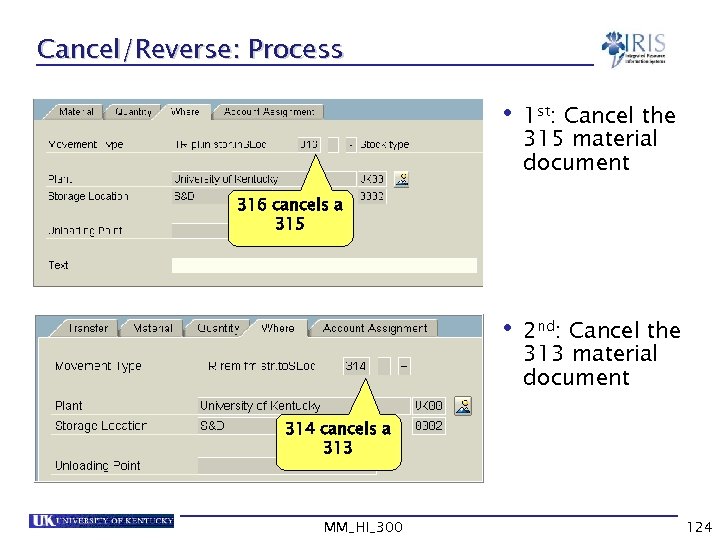 Cancel/Reverse: Process • 1 st: • 2 nd: Cancel the 315 material document 316 cancels a 315 Cancel the 313 material document 314 cancels a 313 MM_HI_300 124
 Course Summary • You should be able to: Understand the relationship between the organizational structure and master data Use the MIGO transaction to execute various goods movements in SAP Create a personal favorites list of frequently used movement types Execute goods movements in SAP Cancel/ reverse goods movements MM_HI_300 126
 Course Summary cont’d • You should now be able to: Understand the relationship between goods movements and movement types Execute a return to vendor transaction, issue goods to cost centers, reservations and scrap Transfer materials from one location to another Pick and issue materials to reservations Differentiate between a stock material and nonstock material MM_HI_300 127