


 Скачать презентацию Managing Image Files on The Grid Mohamed M
2b4af539a0d9901e38f8604ee044a910.ppt
- Количество слайдов: 39
 Managing Image Files on The Grid Mohamed M. Hafez
 • Personal Information • Project Aim JINR-Dubna, Russia Agenda • Project Architecture • Project Steps • Acknowledgements 2
 Teaching Assistant, Information Systems Department Faculty of Computers and Information, Cairo University, Egypt B. Sc. in Information Systems, Faculty of Computers and Information, Cairo University - Excellent with honor degree JINR-Dubna, Russia Personal Information E-mail: mhafez@fci-cu. edu. eg Cell: (+2)0105223476 3
 Project Name: Managing Image Files on the Grid Group: Grid Computing JINR-Dubna, Russia Project Information Supervisors: Alexander Uzhinskiy & Nikolay Kutovskiy 4
 Transferring multiple images from the local machine to the grid network based on a time schedule. JINR-Dubna, Russia Project Aim 5
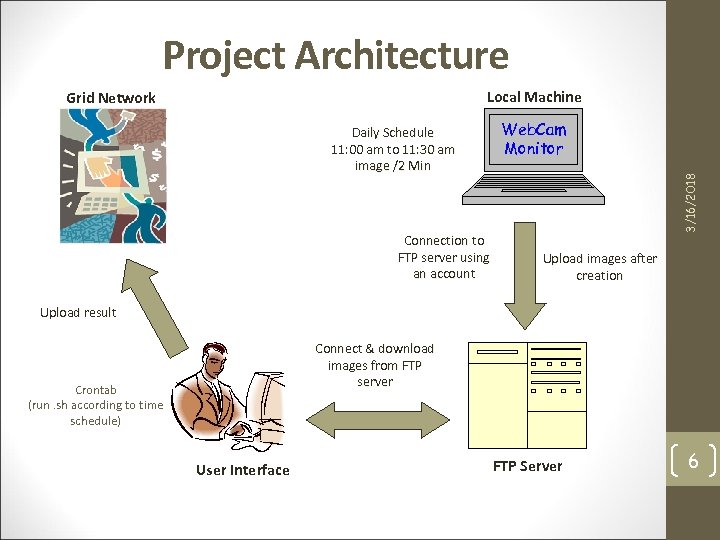 Project Architecture Local Machine Daily Schedule 11: 00 am to 11: 30 am image /2 Min Connection to FTP server using an account Web. Cam Monitor 3/16/2018 Grid Network Upload images after creation Upload result Connect & download images from FTP server Crontab (run. sh according to time schedule) User Interface FTP Server 6
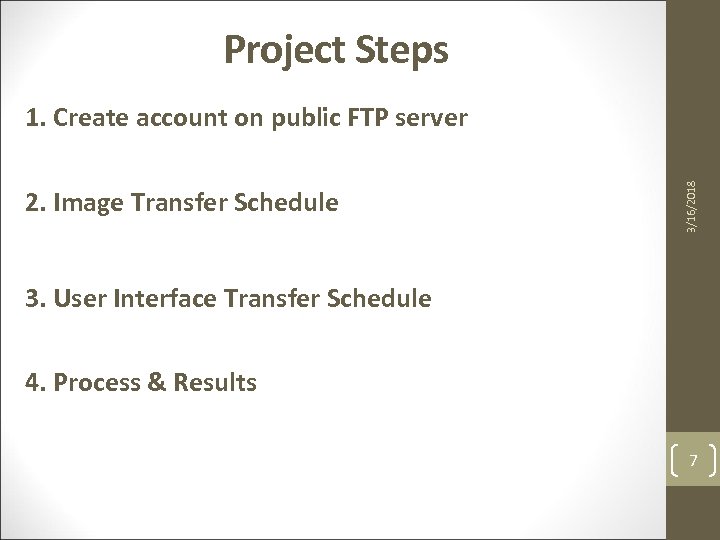 Project Steps 2. Image Transfer Schedule 3/16/2018 1. Create account on public FTP server 3. User Interface Transfer Schedule 4. Process & Results 7
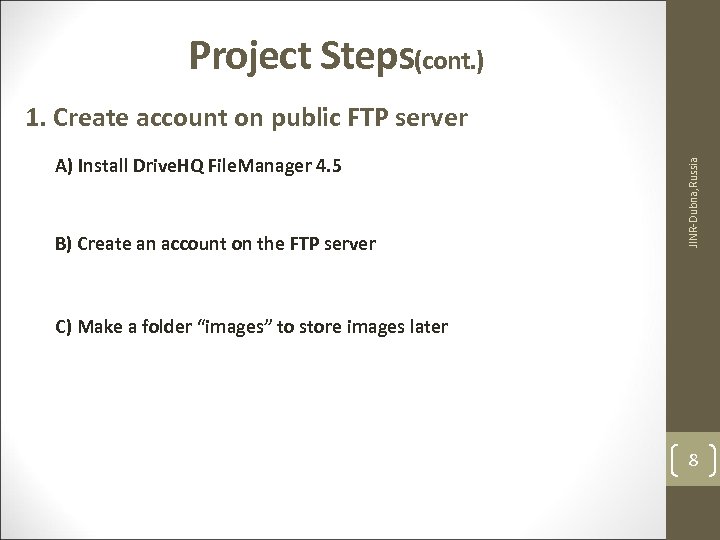 Project Steps(cont. ) A) Install Drive. HQ File. Manager 4. 5 B) Create an account on the FTP server JINR-Dubna, Russia 1. Create account on public FTP server C) Make a folder “images” to store images later 8
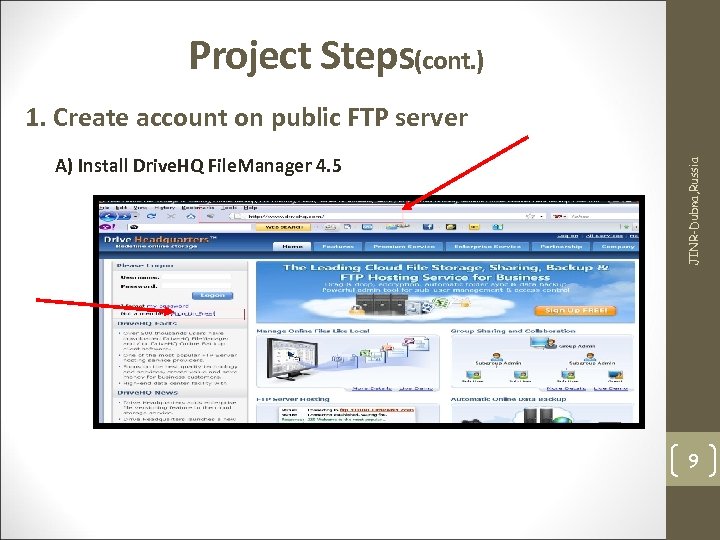 Project Steps(cont. ) A) Install Drive. HQ File. Manager 4. 5 JINR-Dubna, Russia 1. Create account on public FTP server 9
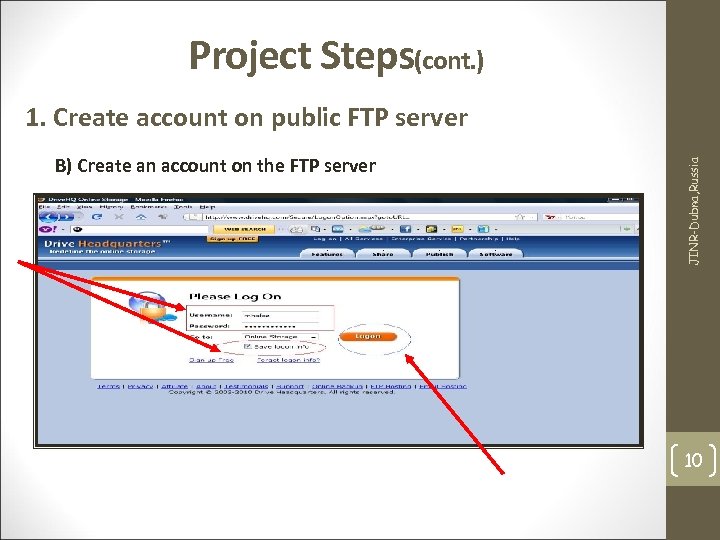 Project Steps(cont. ) B) Create an account on the FTP server JINR-Dubna, Russia 1. Create account on public FTP server 10
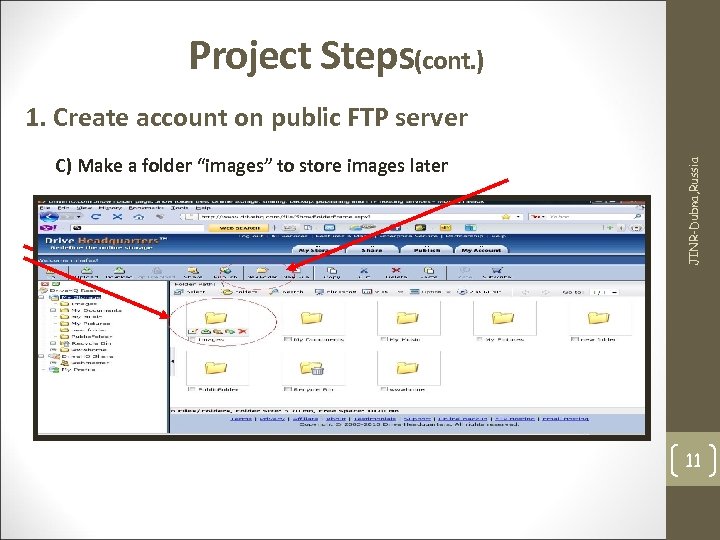 Project Steps(cont. ) C) Make a folder “images” to store images later JINR-Dubna, Russia 1. Create account on public FTP server 11
 Project Steps(cont. ) A) Install Web. Cam Monitor 5. 2 B) Choose local/remote machine camera(s) C) Prepare capturing schedule JINR-Dubna, Russia 2. Image Transfer Schedule D) Configure image and naming settings E) Specify FTP server to store images 12
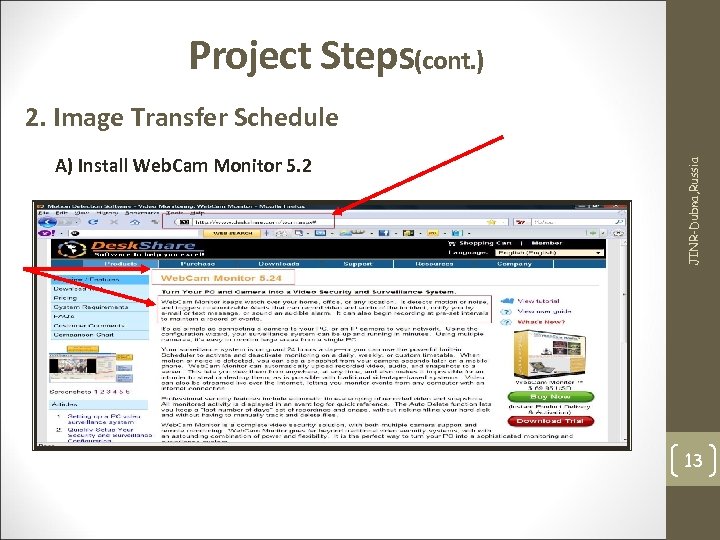 Project Steps(cont. ) A) Install Web. Cam Monitor 5. 2 JINR-Dubna, Russia 2. Image Transfer Schedule 13
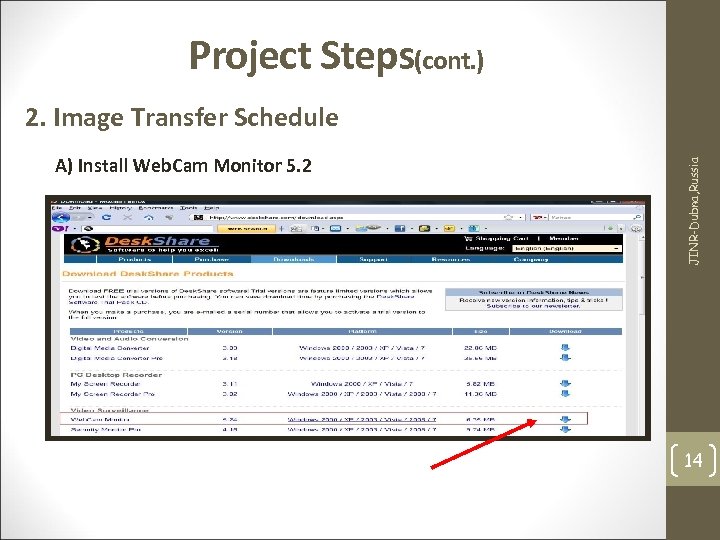 Project Steps(cont. ) A) Install Web. Cam Monitor 5. 2 JINR-Dubna, Russia 2. Image Transfer Schedule 14
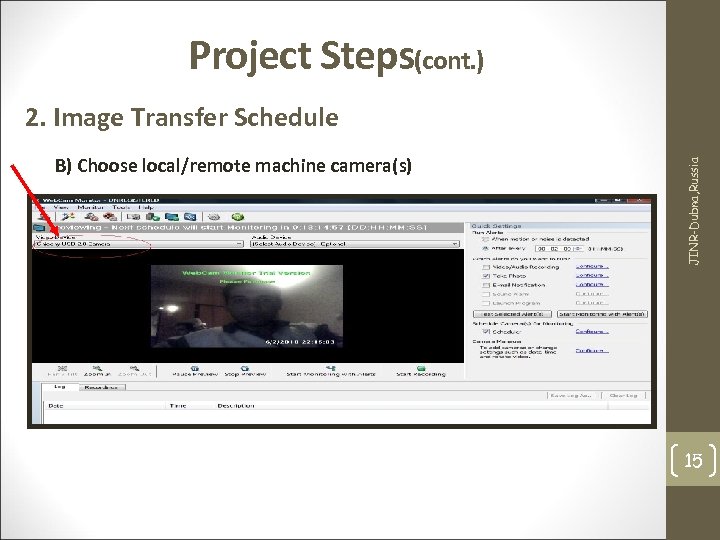 Project Steps(cont. ) B) Choose local/remote machine camera(s) JINR-Dubna, Russia 2. Image Transfer Schedule 15
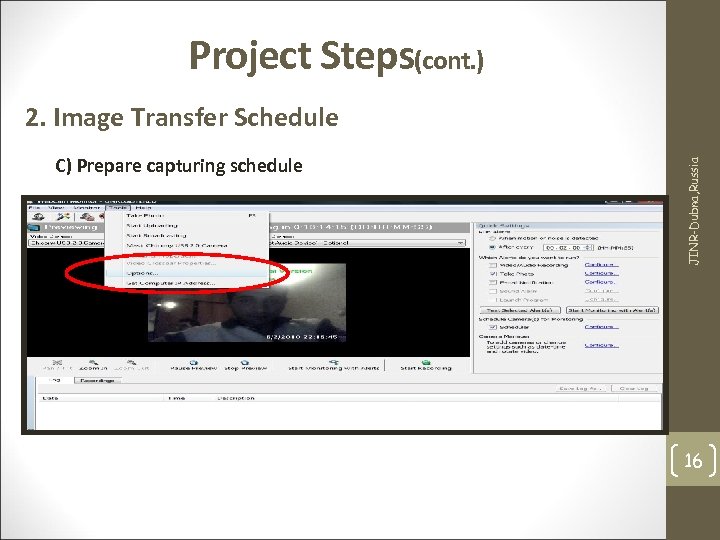 Project Steps(cont. ) C) Prepare capturing schedule JINR-Dubna, Russia 2. Image Transfer Schedule 16
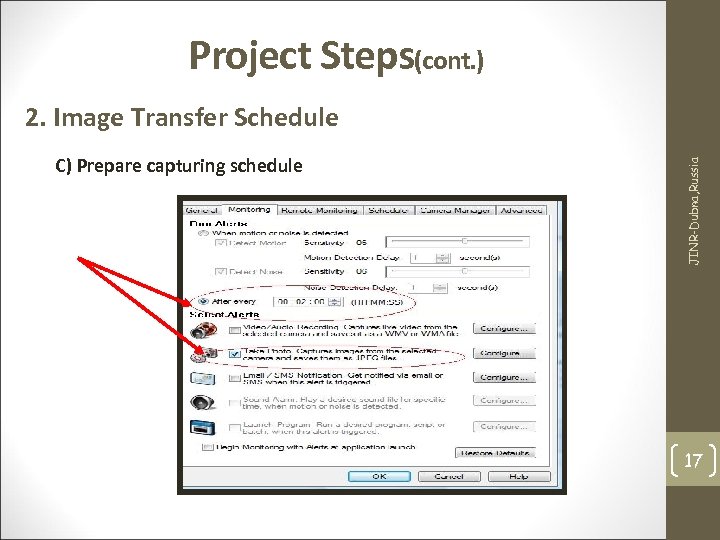 Project Steps(cont. ) C) Prepare capturing schedule JINR-Dubna, Russia 2. Image Transfer Schedule 17
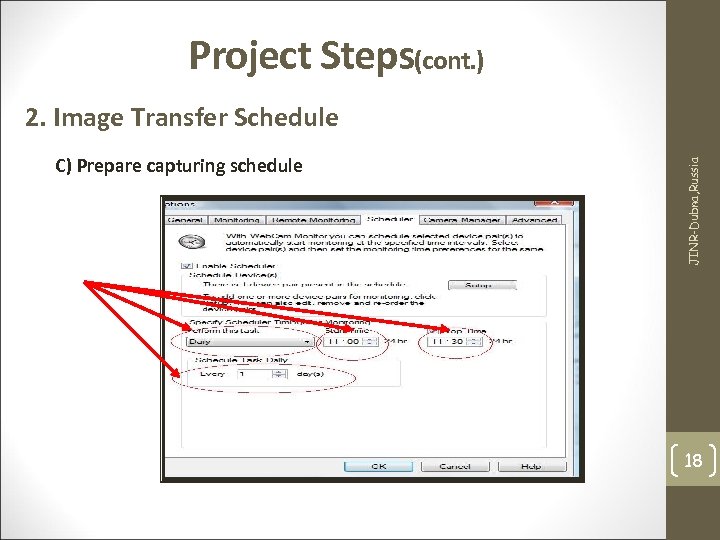 Project Steps(cont. ) C) Prepare capturing schedule JINR-Dubna, Russia 2. Image Transfer Schedule 18
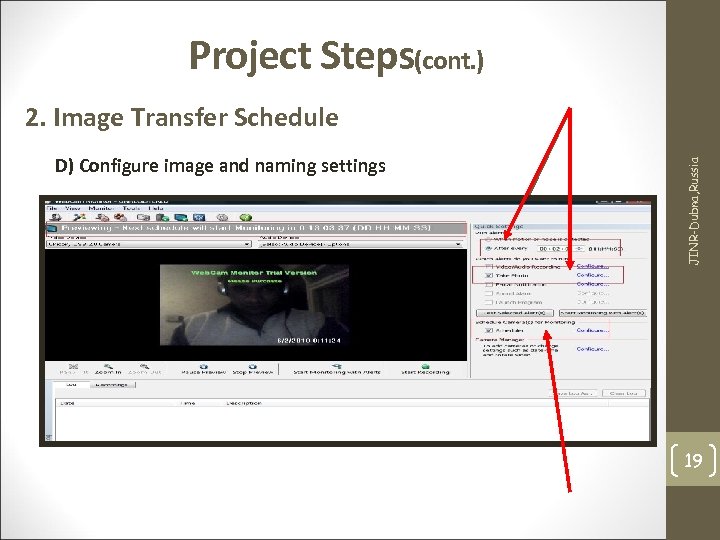 Project Steps(cont. ) D) Configure image and naming settings JINR-Dubna, Russia 2. Image Transfer Schedule 19
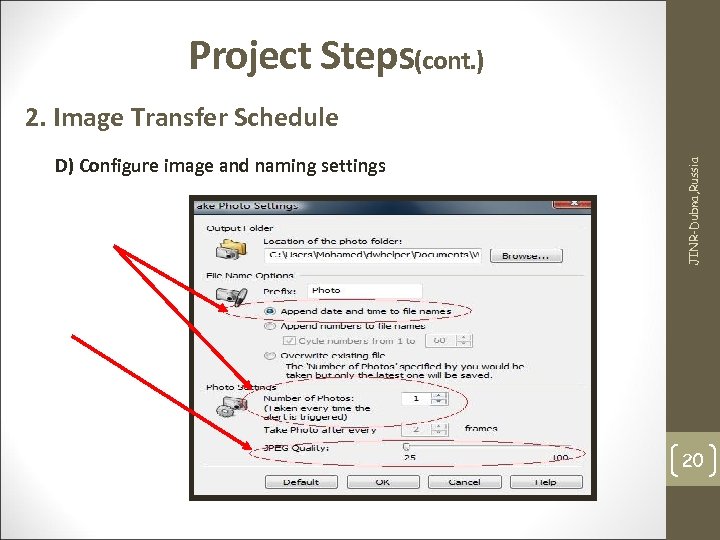 Project Steps(cont. ) D) Configure image and naming settings JINR-Dubna, Russia 2. Image Transfer Schedule 20
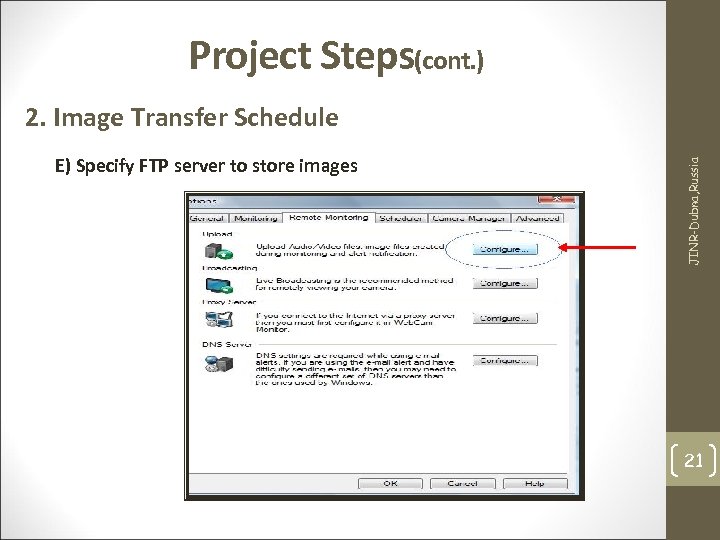 Project Steps(cont. ) E) Specify FTP server to store images JINR-Dubna, Russia 2. Image Transfer Schedule 21
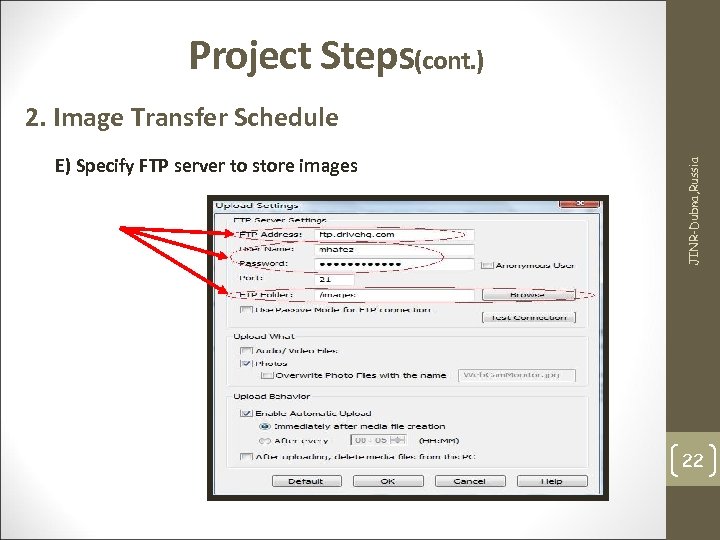 Project Steps(cont. ) E) Specify FTP server to store images JINR-Dubna, Russia 2. Image Transfer Schedule 22
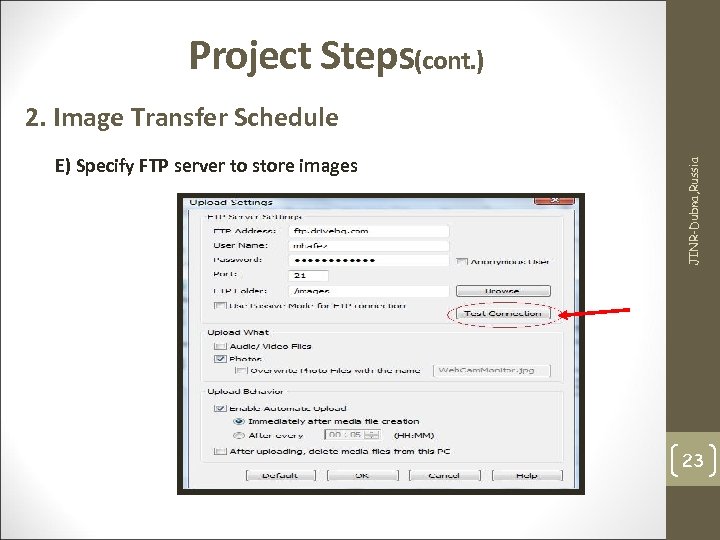 Project Steps(cont. ) E) Specify FTP server to store images JINR-Dubna, Russia 2. Image Transfer Schedule 23
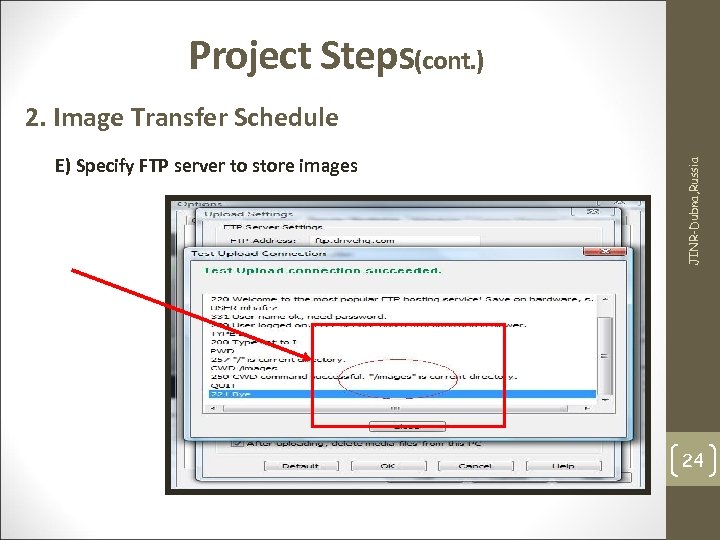 Project Steps(cont. ) E) Specify FTP server to store images JINR-Dubna, Russia 2. Image Transfer Schedule 24
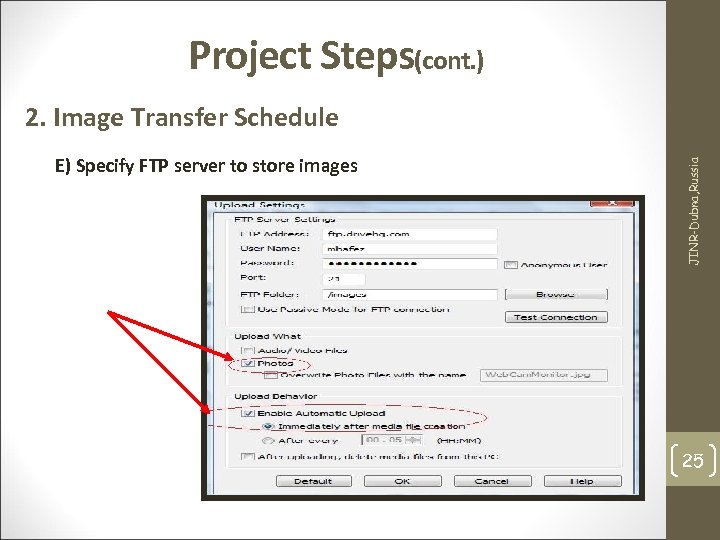 Project Steps(cont. ) E) Specify FTP server to store images JINR-Dubna, Russia 2. Image Transfer Schedule 25
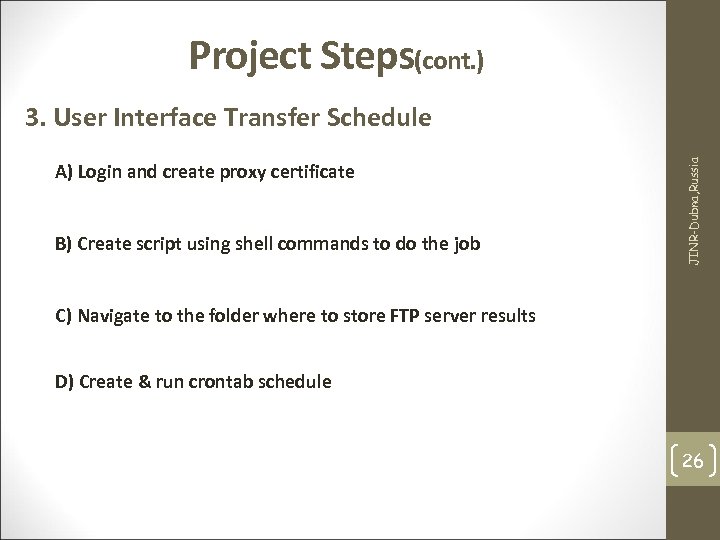 Project Steps(cont. ) A) Login and create proxy certificate B) Create script using shell commands to do the job JINR-Dubna, Russia 3. User Interface Transfer Schedule C) Navigate to the folder where to store FTP server results D) Create & run crontab schedule 26
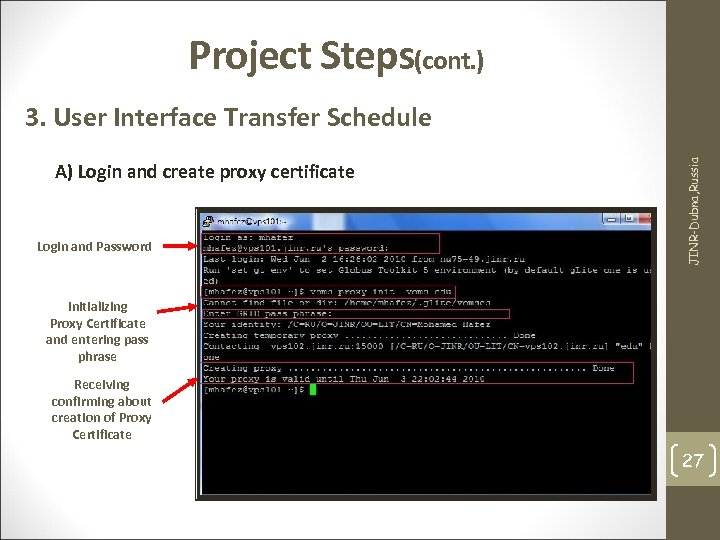 Project Steps(cont. ) A) Login and create proxy certificate Login and Password JINR-Dubna, Russia 3. User Interface Transfer Schedule Initializing Proxy Certificate and entering pass phrase Receiving confirming about creation of Proxy Certificate 27
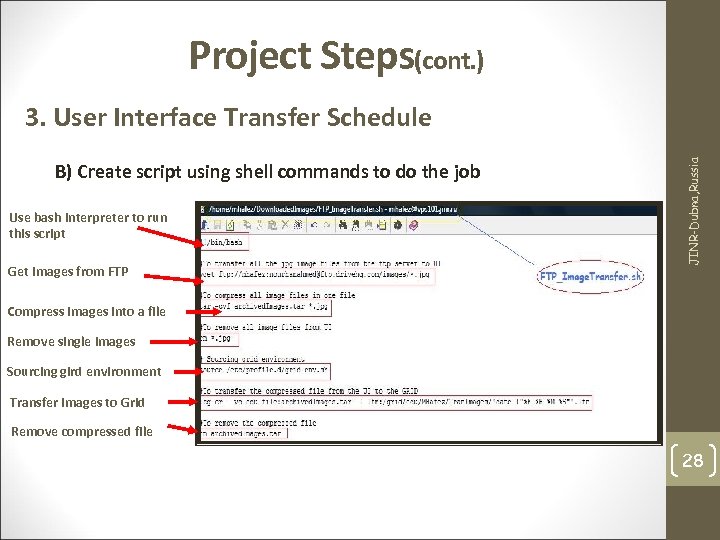 Project Steps(cont. ) B) Create script using shell commands to do the job Use bash interpreter to run this script Get images from FTP JINR-Dubna, Russia 3. User Interface Transfer Schedule Compress images into a file Remove single images Sourcing gird environment Transfer images to Grid Remove compressed file 28
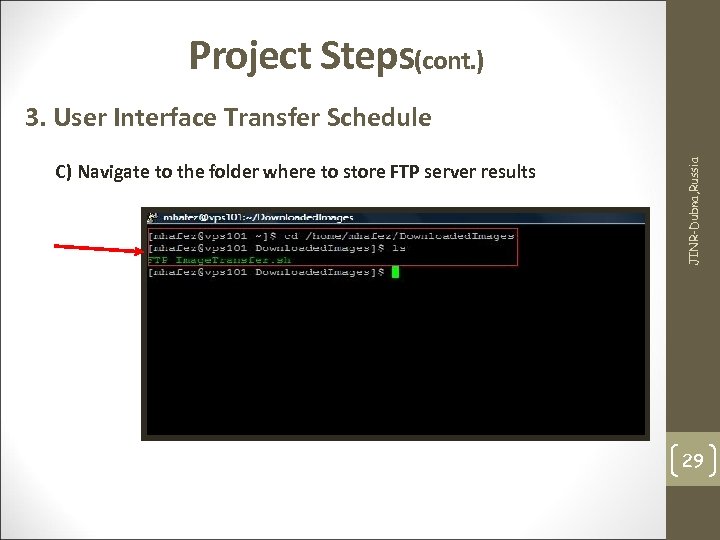 Project Steps(cont. ) C) Navigate to the folder where to store FTP server results JINR-Dubna, Russia 3. User Interface Transfer Schedule 29
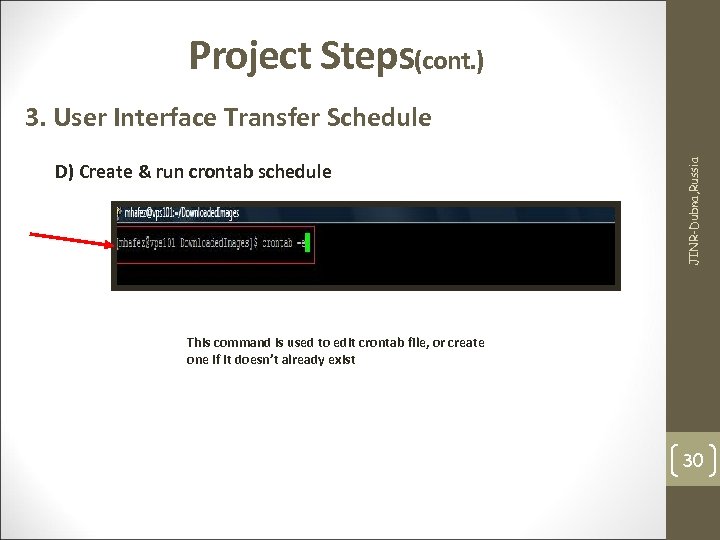 Project Steps(cont. ) D) Create & run crontab schedule JINR-Dubna, Russia 3. User Interface Transfer Schedule This command is used to edit crontab file, or create one if it doesn’t already exist 30
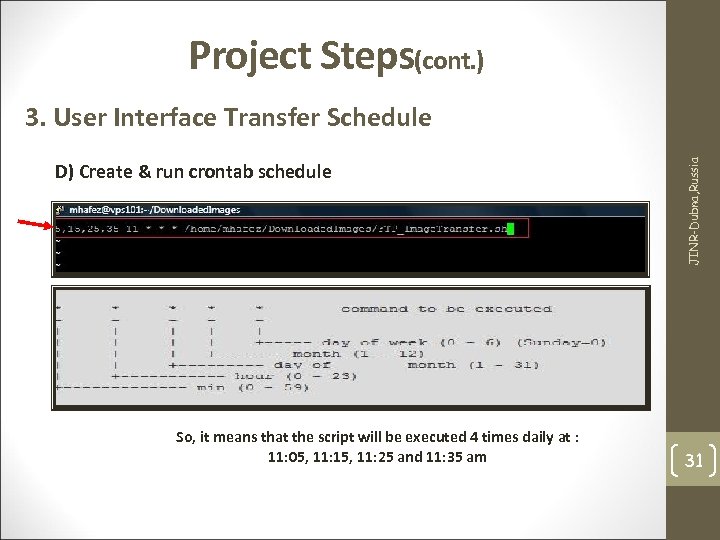 Project Steps(cont. ) D) Create & run crontab schedule So, it means that the script will be executed 4 times daily at : 11: 05, 11: 15, 11: 25 and 11: 35 am JINR-Dubna, Russia 3. User Interface Transfer Schedule 31
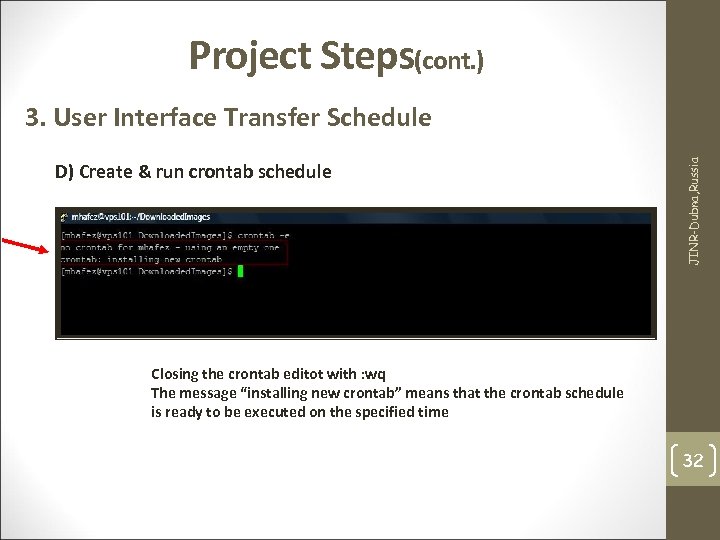 Project Steps(cont. ) D) Create & run crontab schedule JINR-Dubna, Russia 3. User Interface Transfer Schedule Closing the crontab editot with : wq The message “installing new crontab” means that the crontab schedule is ready to be executed on the specified time 32
 Project Steps(cont. ) A) Uploading images on FTP server B) Downloading images from FTP to UI JINR-Dubna, Russia 4. Process & Results C) Compressing images to a single file D) Transferring the compressed file to the grid network 33
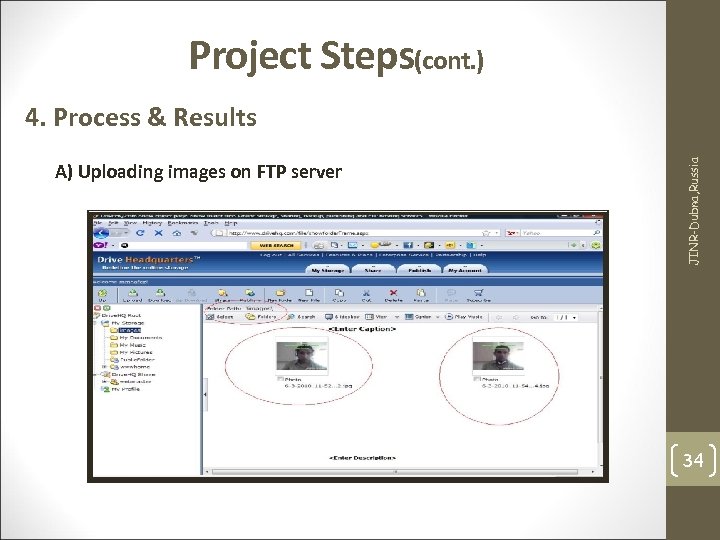 Project Steps(cont. ) A) Uploading images on FTP server JINR-Dubna, Russia 4. Process & Results 34
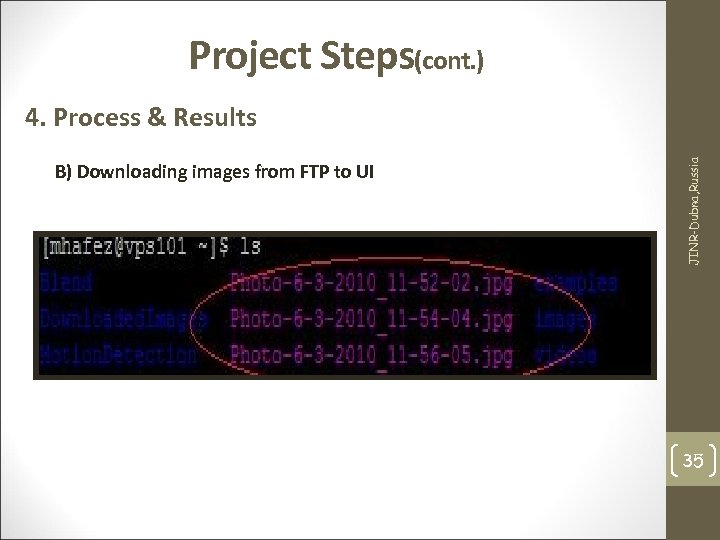 Project Steps(cont. ) B) Downloading images from FTP to UI JINR-Dubna, Russia 4. Process & Results 35
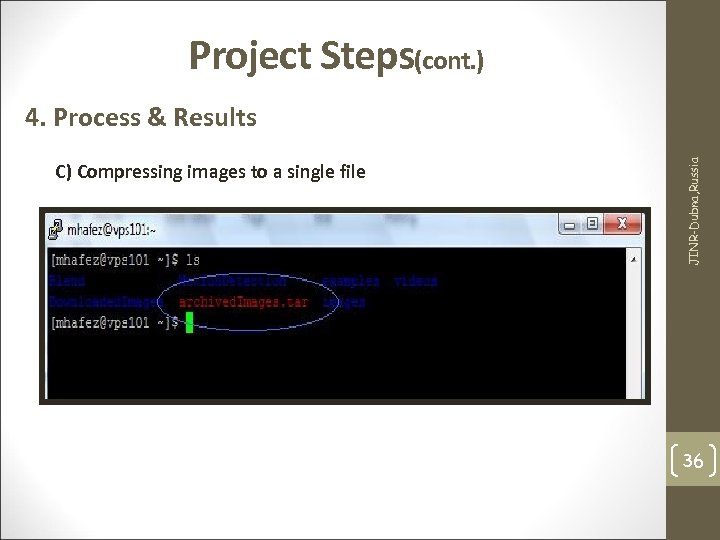 Project Steps(cont. ) C) Compressing images to a single file JINR-Dubna, Russia 4. Process & Results 36
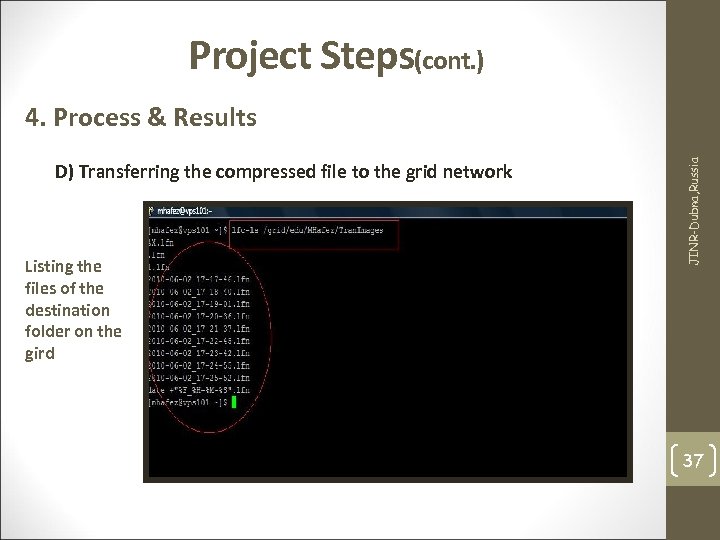 Project Steps(cont. ) D) Transferring the compressed file to the grid network Listing the files of the destination folder on the gird JINR-Dubna, Russia 4. Process & Results 37
 Thanks to ASRT - Egypt Thanks to Prof. Ali El-Lithi JINR-Dubna, Russia Acknowledgements Thanks to JINR & Dubna 38
 JINR-Dubna, Russia Спасибо 39