 Скачать презентацию Managing Database With Oracle Replacement for Ch 10
925a853af0b6ae538470b81244652166.ppt
- Количество слайдов: 39



Managing Database With Oracle Replacement for Ch 10 COP 4708
Introduction • Oracle is the world’s most popular DBMS - It is a powerful and robust DBMS that runs on many different operating systems • Oracle DBMS engine available in several versions: – The Personal Edition of Oracle (is available with this text and can also be downloaded from Oracle) – Express Edition (the one that we downloaded and installed) – Standard Edition – Professional Edition • Example of Oracle products: – SQL*Plus: a utility for processing SQL and creating components like stored procedures and triggers: • PL/SQL is a programming language that adds programming constructs to the SQL language – Oracle Developer (Forms & Reports Builder)
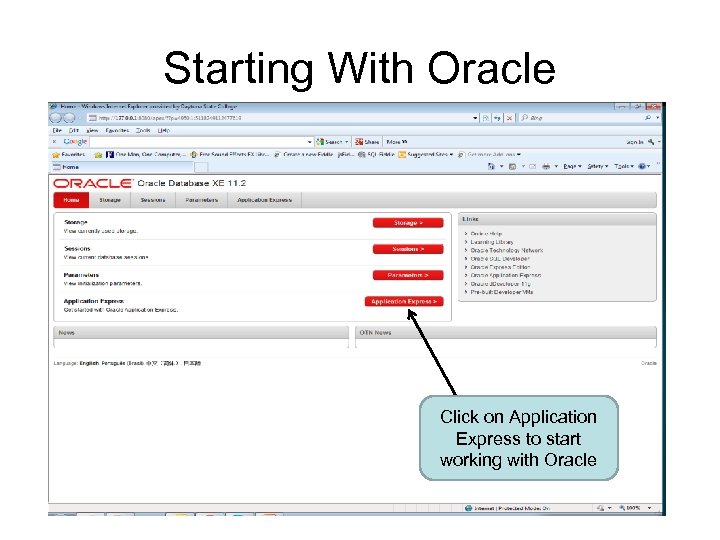
Starting With Oracle Click on Application Express to start working with Oracle
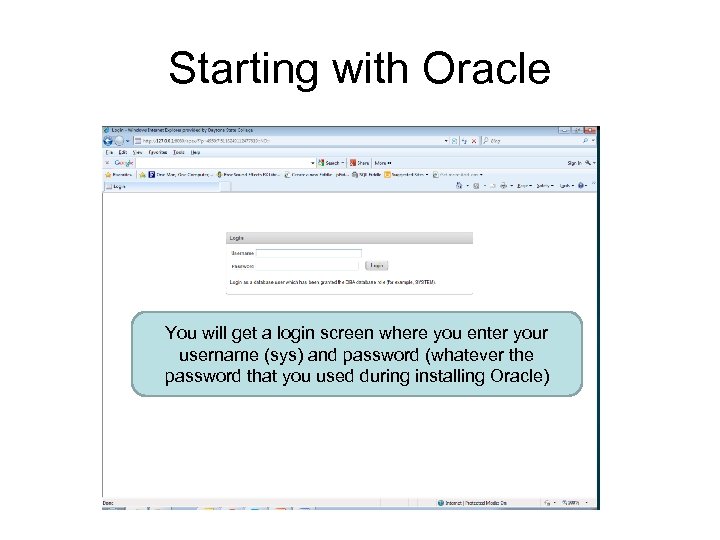
Starting with Oracle You will get a login screen where you enter your username (sys) and password (whatever the password that you used during installing Oracle)
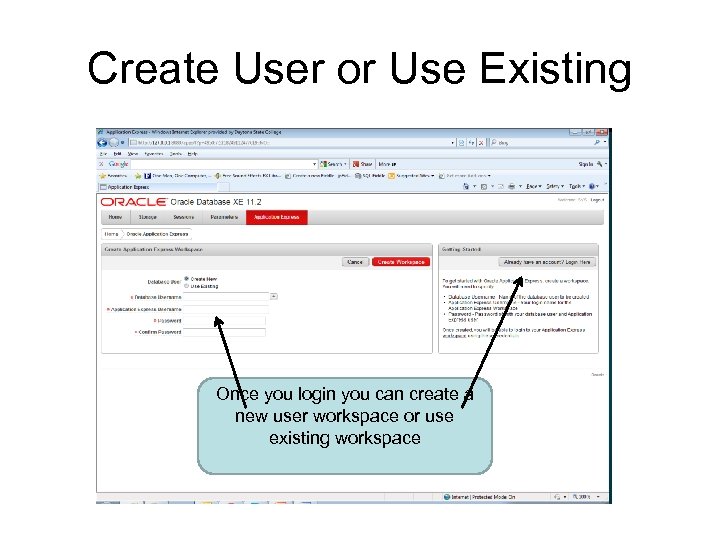
Create User or Use Existing Once you login you can create a new user workspace or use existing workspace
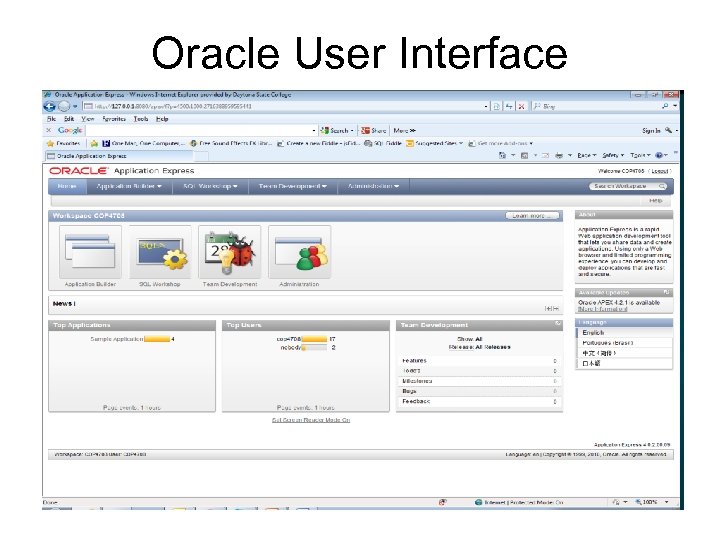
Oracle User Interface
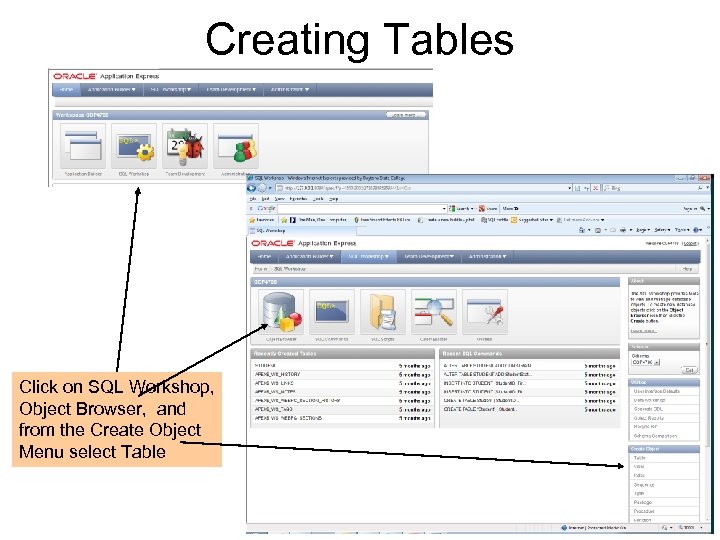
Creating Tables Click on SQL Workshop, Object Browser, and from the Create Object Menu select Table
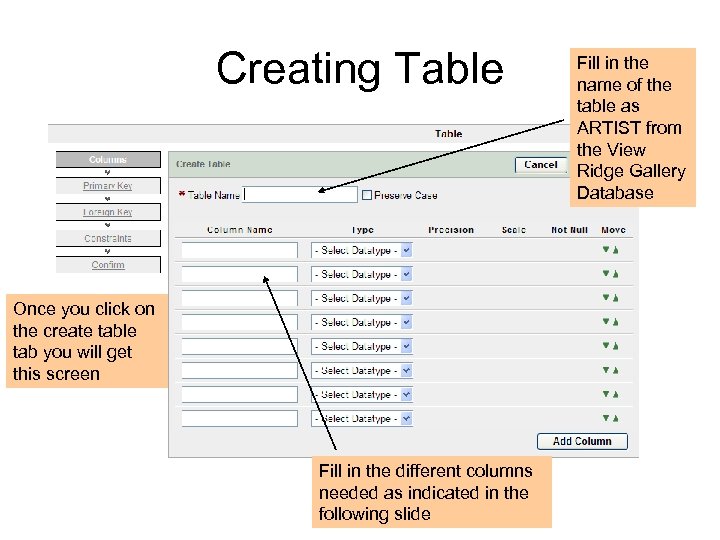
Creating Table Once you click on the create table tab you will get this screen Fill in the different columns needed as indicated in the following slide Fill in the name of the table as ARTIST from the View Ridge Gallery Database
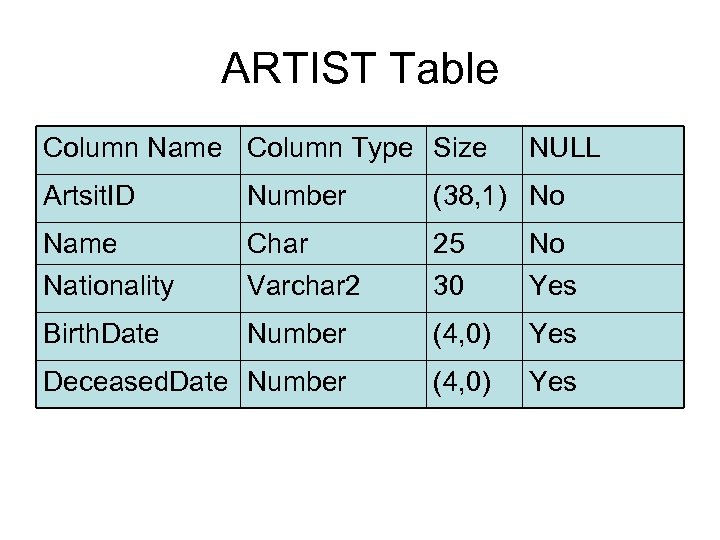
ARTIST Table Column Name Column Type Size NULL Artsit. ID Number (38, 1) No Name Char 25 No Nationality Varchar 2 30 Yes Birth. Date Number (4, 0) Yes Deceased. Date Number (4, 0) Yes
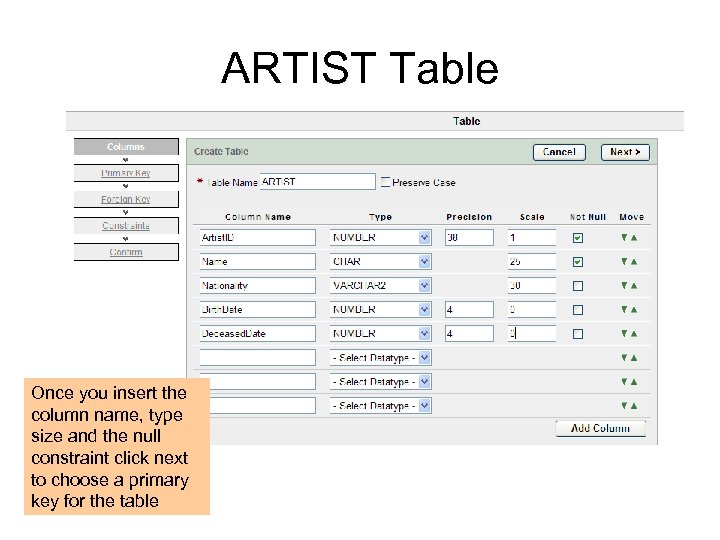
ARTIST Table Once you insert the column name, type size and the null constraint click next to choose a primary key for the table
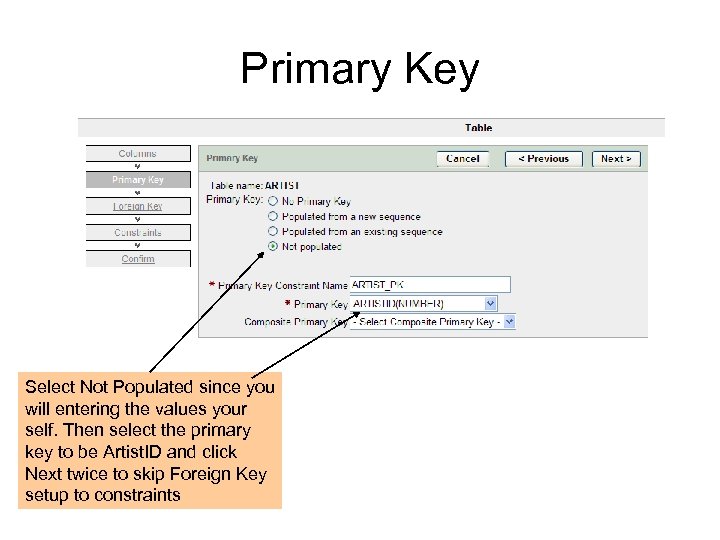
Primary Key Select Not Populated since you will entering the values your self. Then select the primary key to be Artist. ID and click Next twice to skip Foreign Key setup to constraints
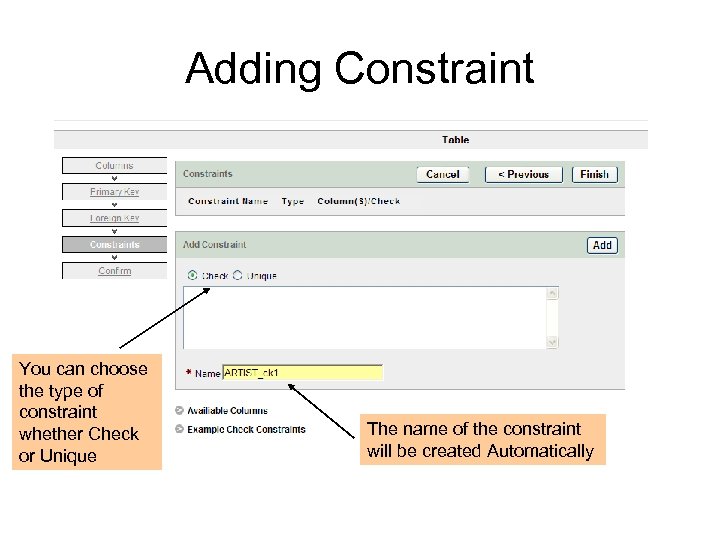
Adding Constraint You can choose the type of constraint whether Check or Unique The name of the constraint will be created Automatically
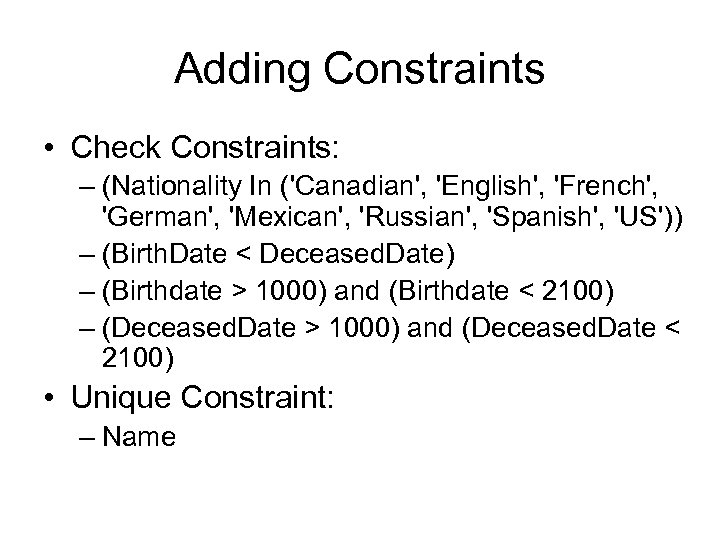
Adding Constraints • Check Constraints: – (Nationality In ('Canadian', 'English', 'French', 'German', 'Mexican', 'Russian', 'Spanish', 'US')) – (Birth. Date < Deceased. Date) – (Birthdate > 1000) and (Birthdate < 2100) – (Deceased. Date > 1000) and (Deceased. Date < 2100) • Unique Constraint: – Name
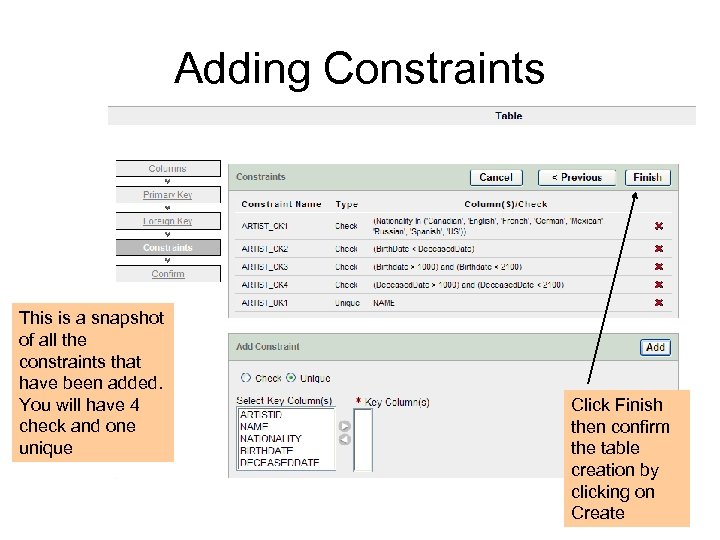
Adding Constraints This is a snapshot of all the constraints that have been added. You will have 4 check and one unique Click Finish then confirm the table creation by clicking on Create
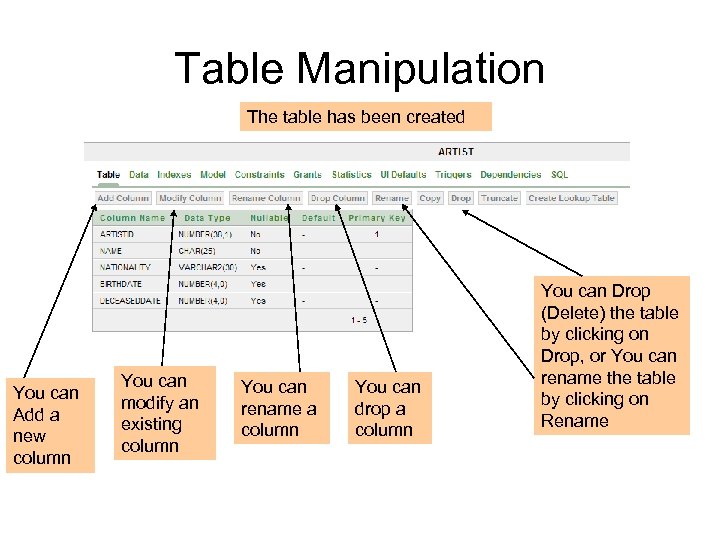
Table Manipulation The table has been created You can Add a new column You can modify an existing column You can rename a column You can drop a column You can Drop (Delete) the table by clicking on Drop, or You can rename the table by clicking on Rename
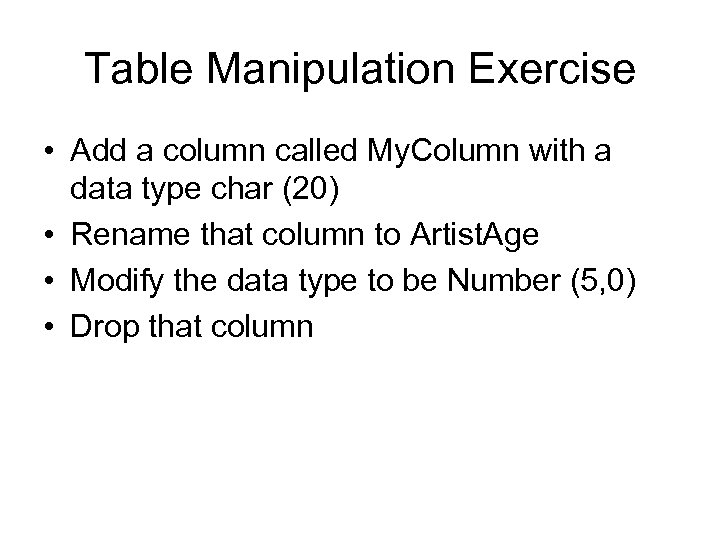
Table Manipulation Exercise • Add a column called My. Column with a data type char (20) • Rename that column to Artist. Age • Modify the data type to be Number (5, 0) • Drop that column
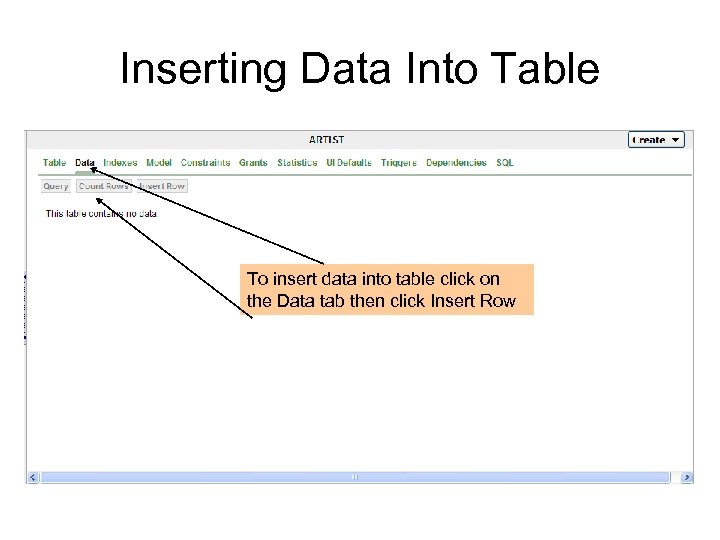
Inserting Data Into Table To insert data into table click on the Data tab then click Insert Row
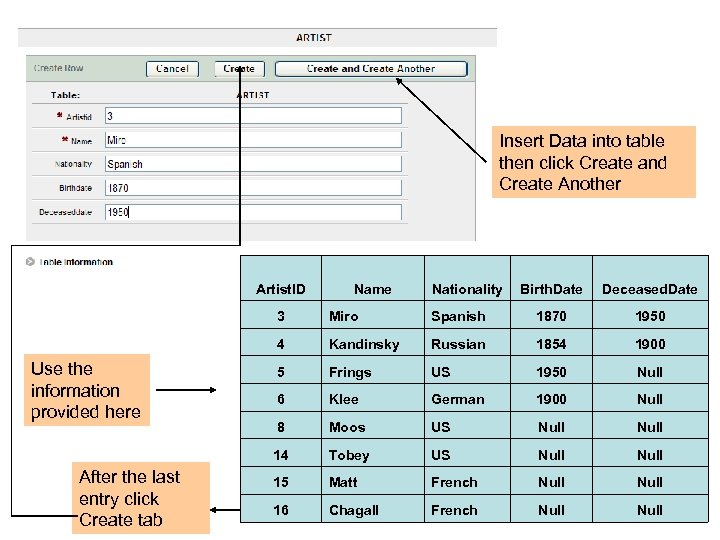
Insert Data into table then click Create and Create Another Artist. ID Name Nationality Birth. Date Deceased. Date 3 1870 1950 Kandinsky Russian 1854 1900 5 Frings US 1950 Null 6 Klee German 1900 Null 8 Moos US Null 14 After the last entry click Create tab Spanish 4 Use the information provided here Miro Tobey US Null 15 Matt French Null 16 Chagall French Null
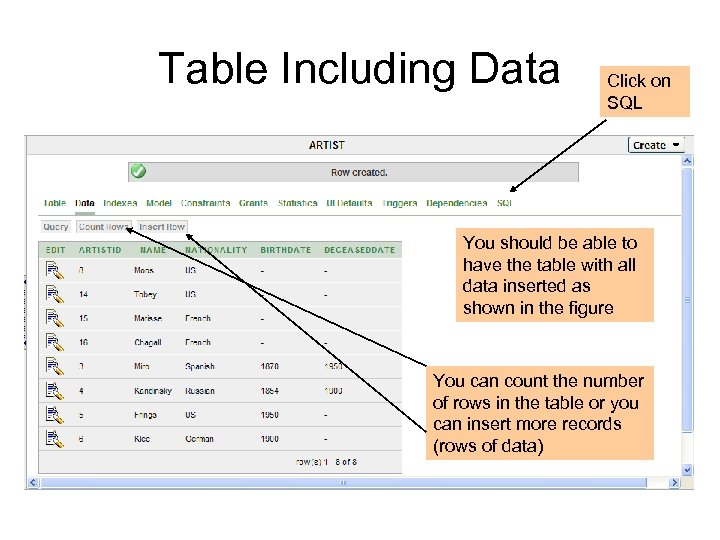
Table Including Data Click on SQL You should be able to have the table with all data inserted as shown in the figure You can count the number of rows in the table or you can insert more records (rows of data)
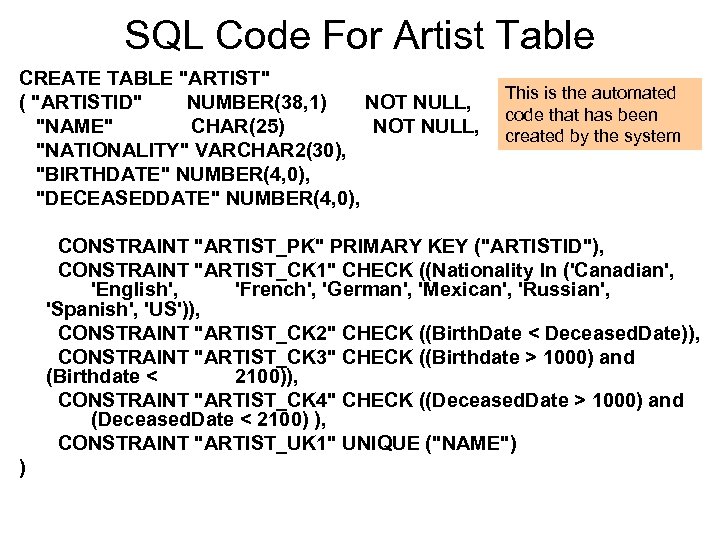
SQL Code For Artist Table CREATE TABLE "ARTIST" ( "ARTISTID" NUMBER(38, 1) NOT NULL, "NAME" CHAR(25) NOT NULL, "NATIONALITY" VARCHAR 2(30), "BIRTHDATE" NUMBER(4, 0), "DECEASEDDATE" NUMBER(4, 0), This is the automated code that has been created by the system CONSTRAINT "ARTIST_PK" PRIMARY KEY ("ARTISTID"), CONSTRAINT "ARTIST_CK 1" CHECK ((Nationality In ('Canadian', 'English', 'French', 'German', 'Mexican', 'Russian', 'Spanish', 'US')), CONSTRAINT "ARTIST_CK 2" CHECK ((Birth. Date < Deceased. Date)), CONSTRAINT "ARTIST_CK 3" CHECK ((Birthdate > 1000) and (Birthdate < 2100)), CONSTRAINT "ARTIST_CK 4" CHECK ((Deceased. Date > 1000) and (Deceased. Date < 2100) ), CONSTRAINT "ARTIST_UK 1" UNIQUE ("NAME") )
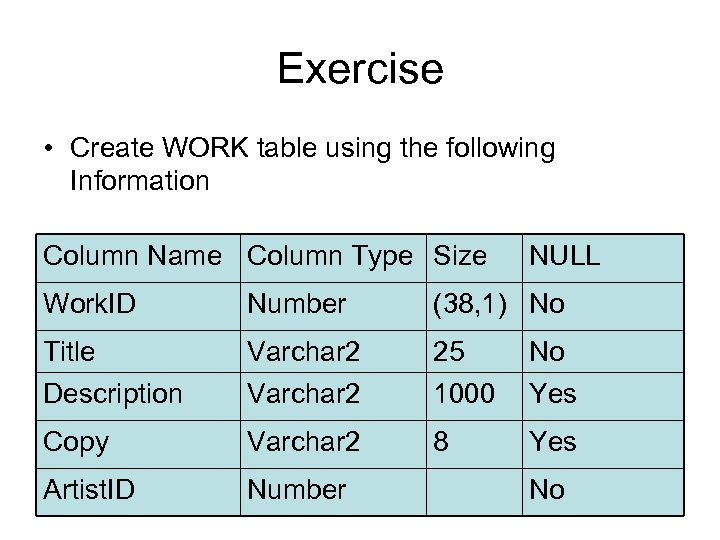
Exercise • Create WORK table using the following Information Column Name Column Type Size NULL Work. ID Number (38, 1) No Title Varchar 2 25 No Description Varchar 2 1000 Yes Copy Varchar 2 8 Yes Artist. ID Number No
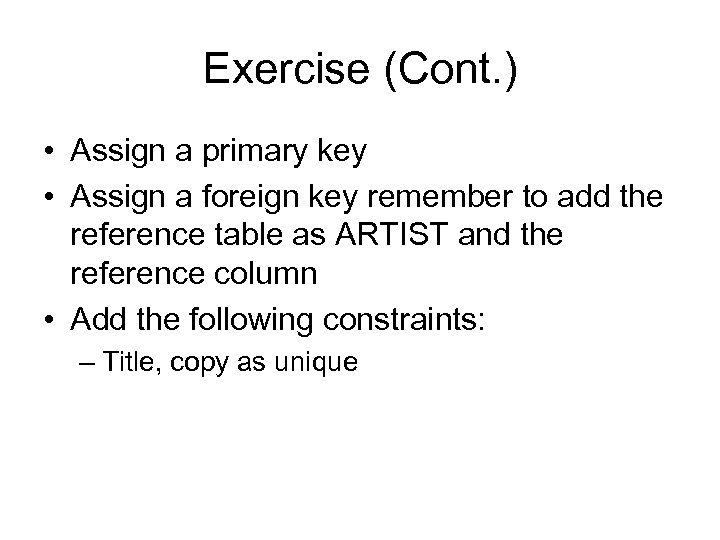
Exercise (Cont. ) • Assign a primary key • Assign a foreign key remember to add the reference table as ARTIST and the reference column • Add the following constraints: – Title, copy as unique
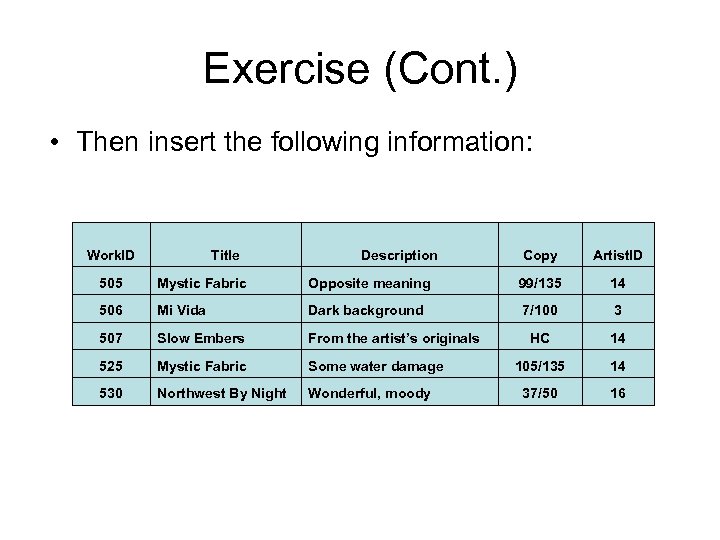
Exercise (Cont. ) • Then insert the following information: Work. ID Title Description Copy Artist. ID 505 Mystic Fabric Opposite meaning 99/135 14 506 Mi Vida Dark background 7/100 3 507 Slow Embers From the artist’s originals HC 14 525 Mystic Fabric Some water damage 105/135 14 530 Northwest By Night Wonderful, moody 37/50 16
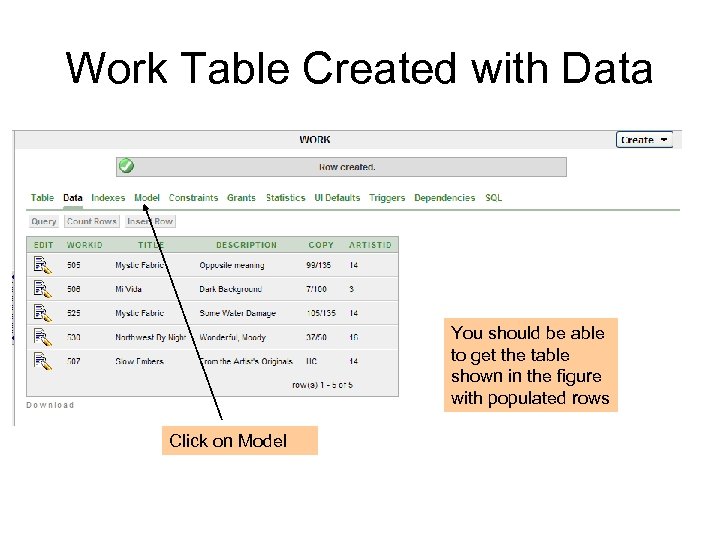
Work Table Created with Data You should be able to get the table shown in the figure with populated rows Click on Model
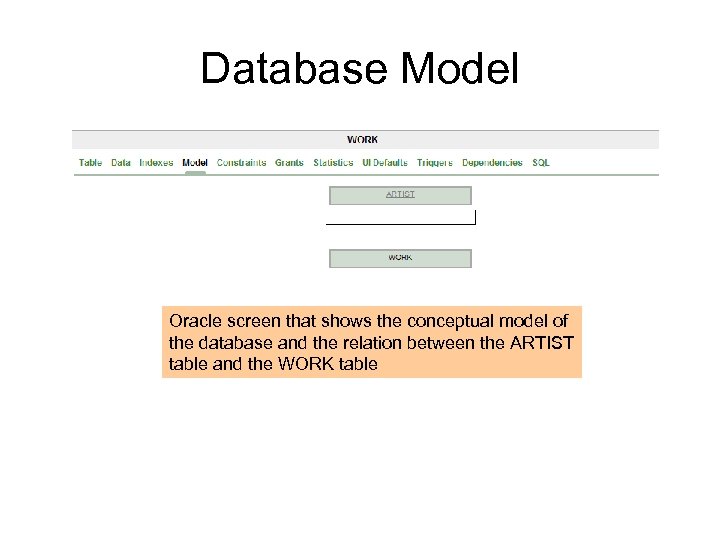
Database Model Oracle screen that shows the conceptual model of the database and the relation between the ARTIST table and the WORK table
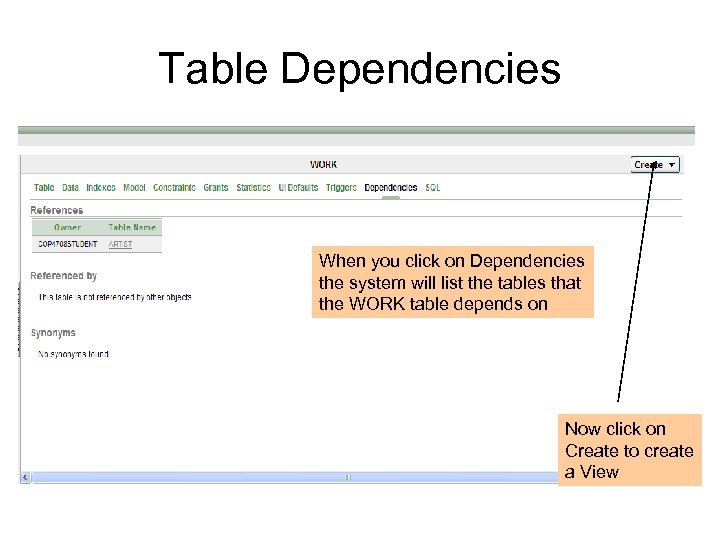
Table Dependencies When you click on Dependencies the system will list the tables that the WORK table depends on Now click on Create to create a View
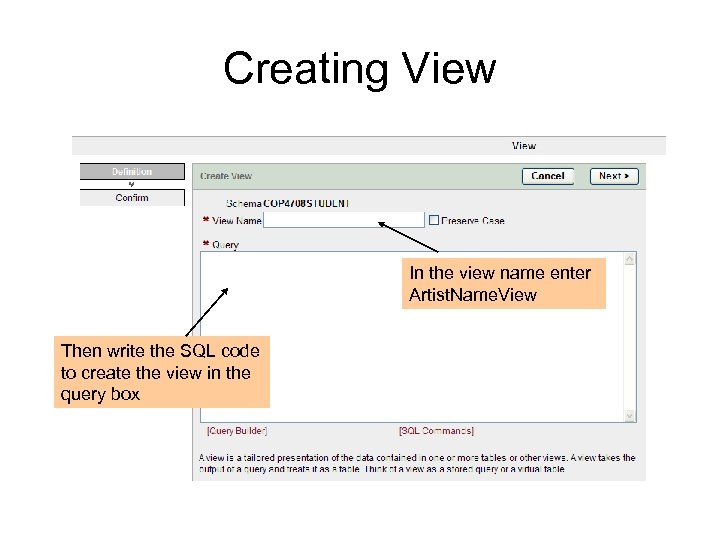
Creating View In the view name enter Artist. Name. View Then write the SQL code to create the view in the query box
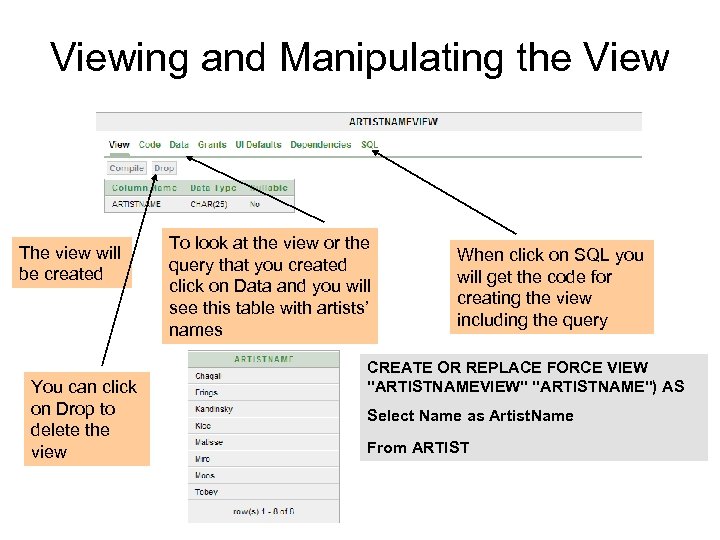
Viewing and Manipulating the View The view will be created You can click on Drop to delete the view To look at the view or the query that you created click on Data and you will see this table with artists’ names When click on SQL you will get the code for creating the view including the query CREATE OR REPLACE FORCE VIEW "ARTISTNAMEVIEW" "ARTISTNAME") AS Select Name as Artist. Name From ARTIST
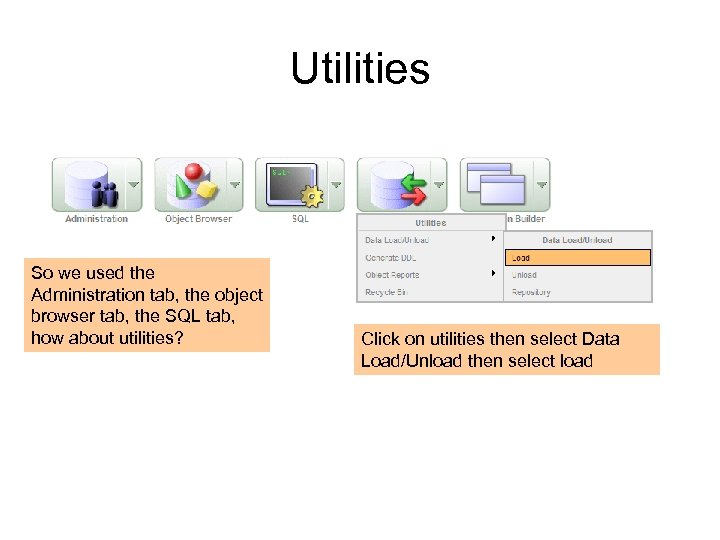
Utilities So we used the Administration tab, the object browser tab, the SQL tab, how about utilities? Click on utilities then select Data Load/Unload then select load
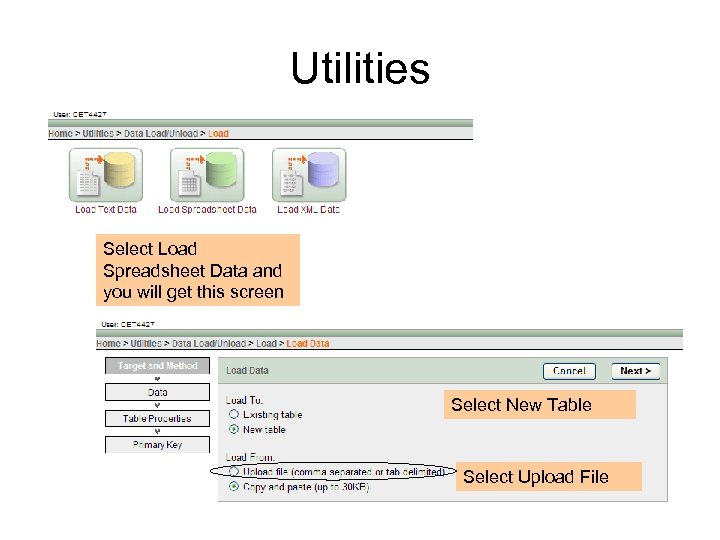
Utilities Select Load Spreadsheet Data and you will get this screen Select New Table Select Upload File
Spreadsheet file • Before you upload the file to Oracle open your Excel sheet that has the table • Click save as • Keep the file under the same name in our case will be (Customer Table) • Select Save as type (Text (Tab delimited)(*. text) then save
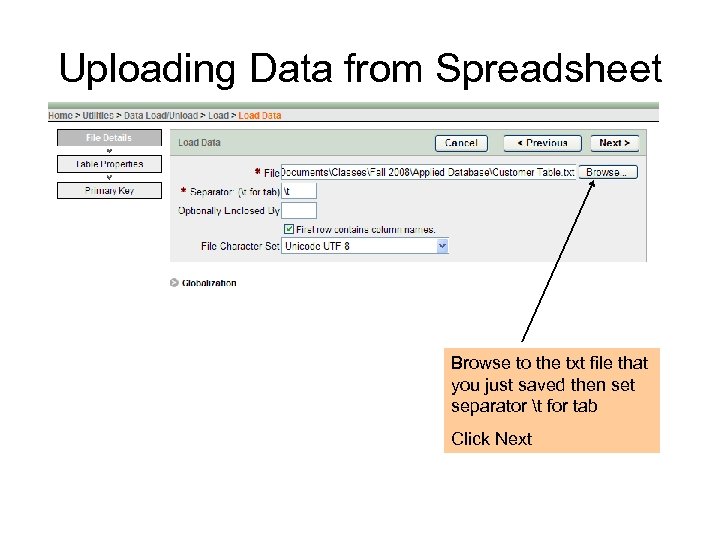
Uploading Data from Spreadsheet Browse to the txt file that you just saved then set separator t for tab Click Next
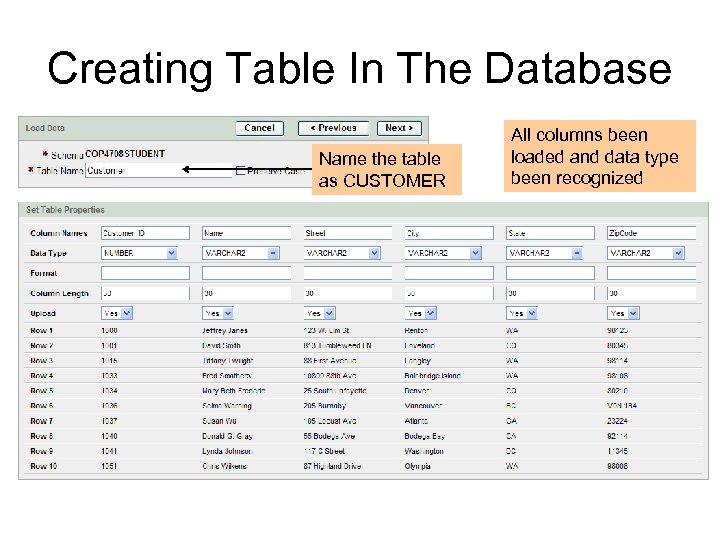
Creating Table In The Database Name the table as CUSTOMER All columns been loaded and data type been recognized
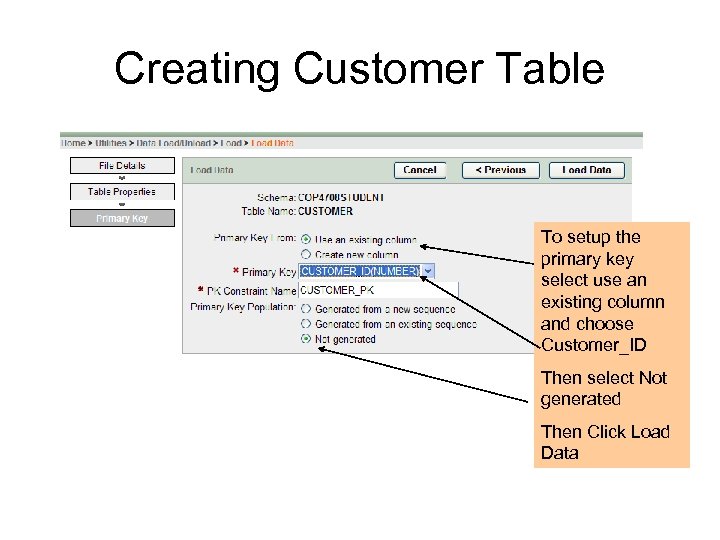
Creating Customer Table To setup the primary key select use an existing column and choose Customer_ID Then select Not generated Then Click Load Data
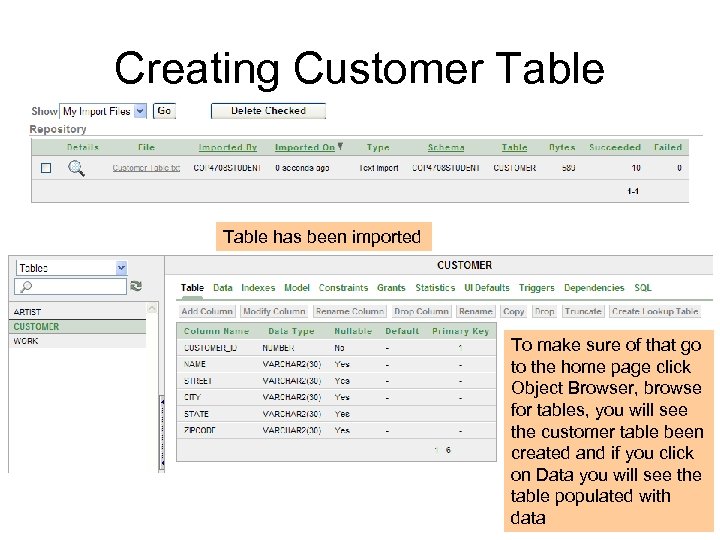
Creating Customer Table has been imported To make sure of that go to the home page click Object Browser, browse for tables, you will see the customer table been created and if you click on Data you will see the table populated with data
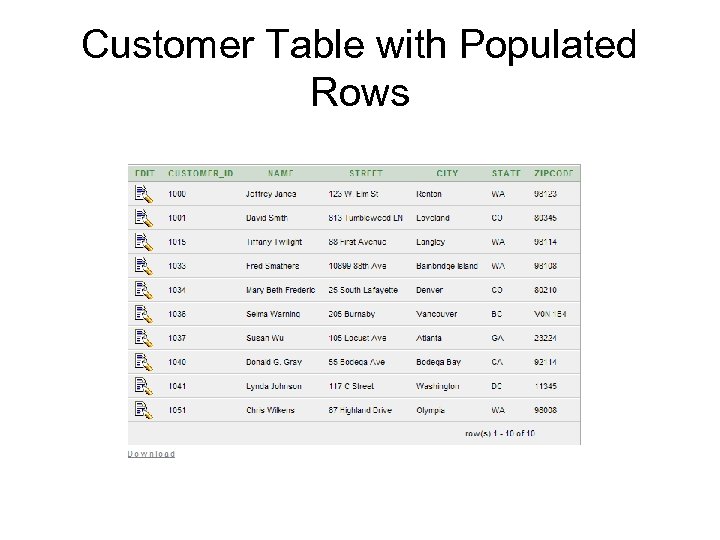
Customer Table with Populated Rows
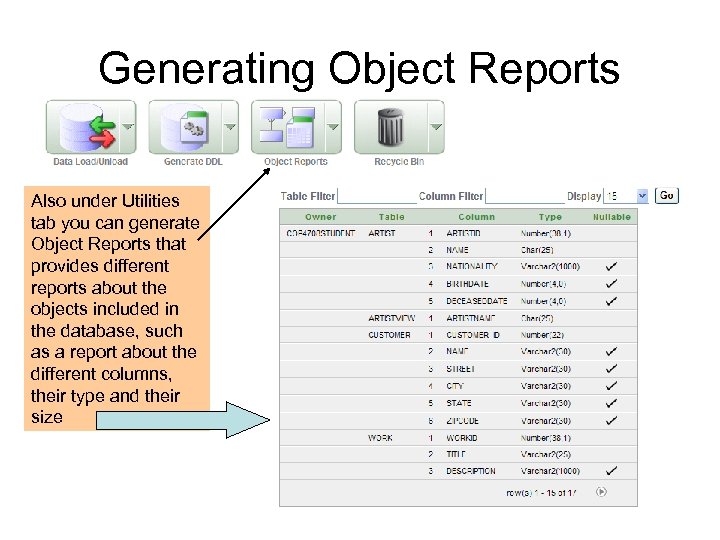
Generating Object Reports Also under Utilities tab you can generate Object Reports that provides different reports about the objects included in the database, such as a report about the different columns, their type and their size
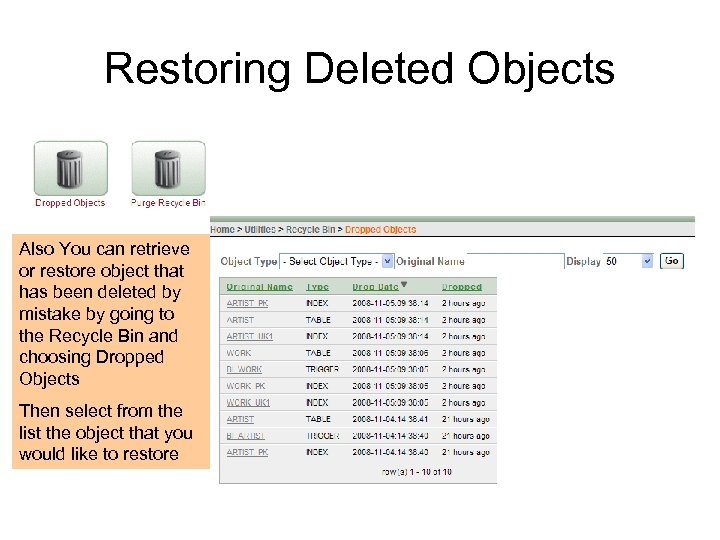
Restoring Deleted Objects Also You can retrieve or restore object that has been deleted by mistake by going to the Recycle Bin and choosing Dropped Objects Then select from the list the object that you would like to restore
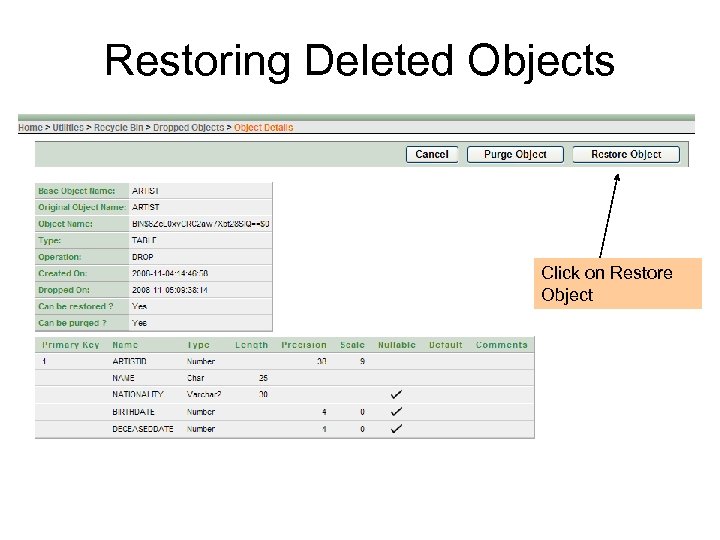
Restoring Deleted Objects Click on Restore Object
Скачать презентацию Managing Database With Oracle Replacement for Ch 10
925a853af0b6ae538470b81244652166.ppt