


 Скачать презентацию Maintaining Your Computer Tech Tuesday Lausanne Collegiate School
3d11c8cdd07aea4757a5958c9230b2d0.ppt
- Количество слайдов: 17
 Maintaining Your Computer Tech Tuesday Lausanne Collegiate School December 11, 2001
 Why Maintain Your Computer? Bikes must have air pumped in their tires. Cars must have their oil changed. Your computer must be kept in running order as well. What can you do to keep it in tip-top shape?
 3 Steps to Maintenance: Remember your A, B, Cs (and Ds) Clean your hardware when needed Know what to fix and what to have others fix
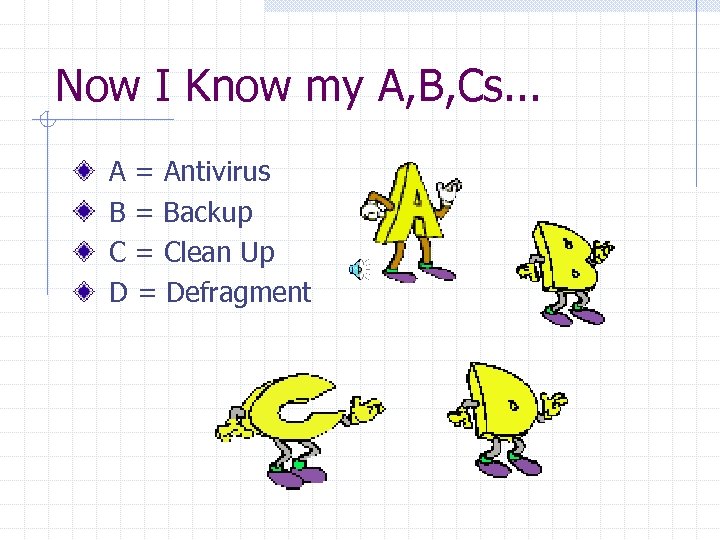 Now I Know my A, B, Cs. . . A = Antivirus B = Backup C = Clean Up D = Defragment
 Antivirus Virus - A program created to destroy or interfere with your software/hardware Run Norton Anti. Virus once a week to prevent infestation or repair damage Need more info? Email me for the Power. Point on Viruses
 Backup Computers aren’t perfect; stuff can get lost or damaged Protect yourself; backup your work weekly Where to backup to: Floppy Disks - not reliable Email - safe for one file or two Server (best, ask for PPT on Backing Up)
 Clean Up Easier to find stuff if you clean up Only keep files you must work on ASAP on your desktop and file the rest. Email me for the Power. Point on File Management
 Defragment Your computer is in a hurry and throws every piece of data in whatever empty spot it finds Not organized and slows you down Go to Start>Accessories>System Tools>Disk Defragmenter and run it monthly to speed up your computer
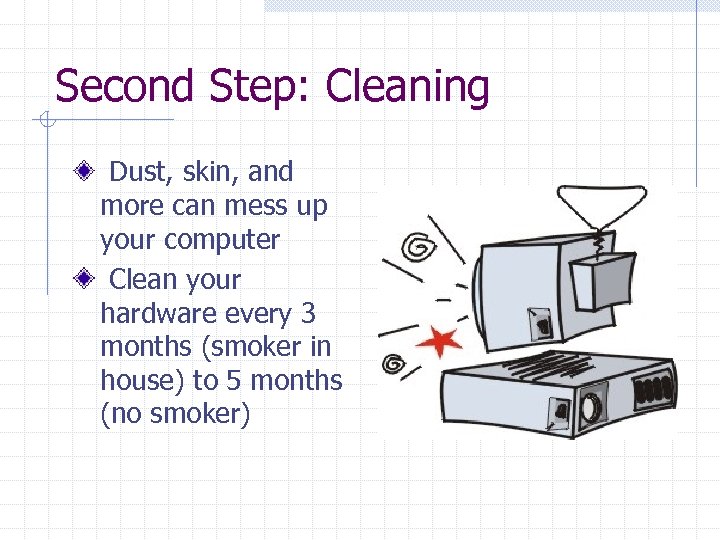 Second Step: Cleaning Dust, skin, and more can mess up your computer Clean your hardware every 3 months (smoker in house) to 5 months (no smoker)
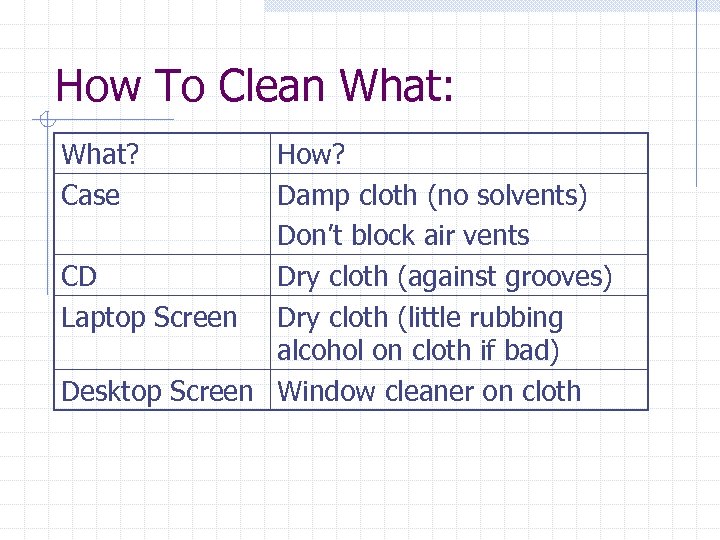 How To Clean What: What? Case How? Damp cloth (no solvents) Don’t block air vents CD Dry cloth (against grooves) Laptop Screen Dry cloth (little rubbing alcohol on cloth if bad) Desktop Screen Window cleaner on cloth
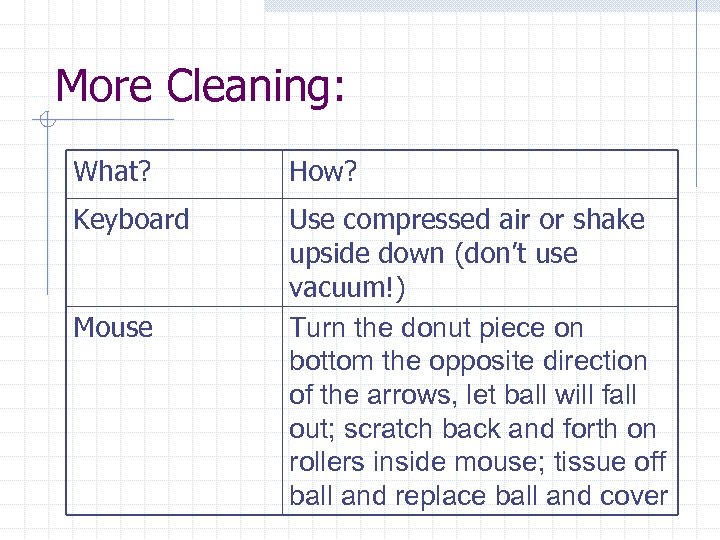 More Cleaning: What? How? Keyboard Use compressed air or shake upside down (don’t use vacuum!) Turn the donut piece on bottom the opposite direction of the arrows, let ball will fall out; scratch back and forth on rollers inside mouse; tissue off ball and replace ball and cover Mouse
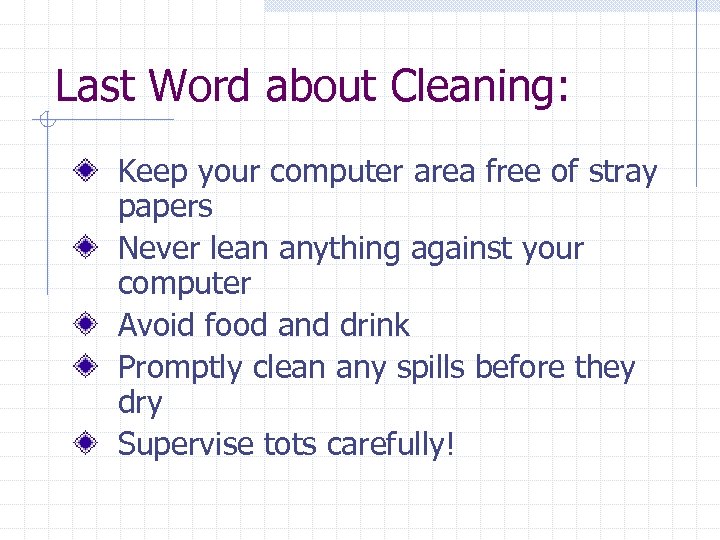 Last Word about Cleaning: Keep your computer area free of stray papers Never lean anything against your computer Avoid food and drink Promptly clean any spills before they dry Supervise tots carefully!
 Last Step: What to fix? We are smart! We are Lynxes! We can fix our computer’s minor ailments! (Repeat the above 3 times to yourself)
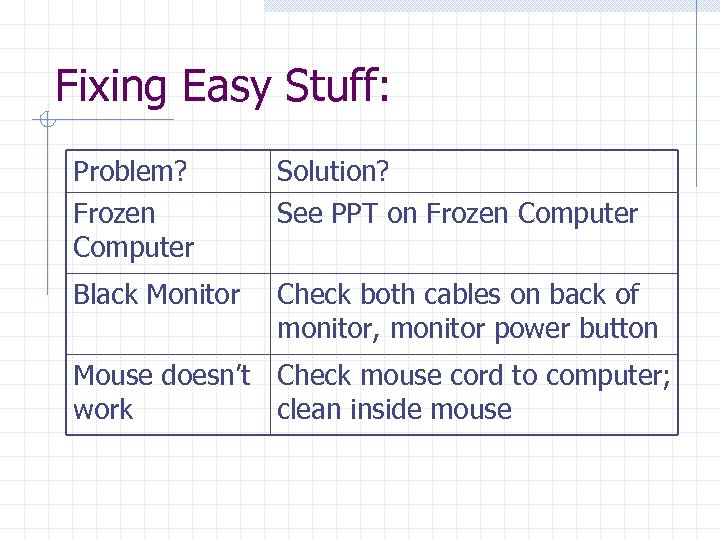 Fixing Easy Stuff: Problem? Frozen Computer Solution? See PPT on Frozen Computer Black Monitor Check both cables on back of monitor, monitor power button Mouse doesn’t Check mouse cord to computer; work clean inside mouse
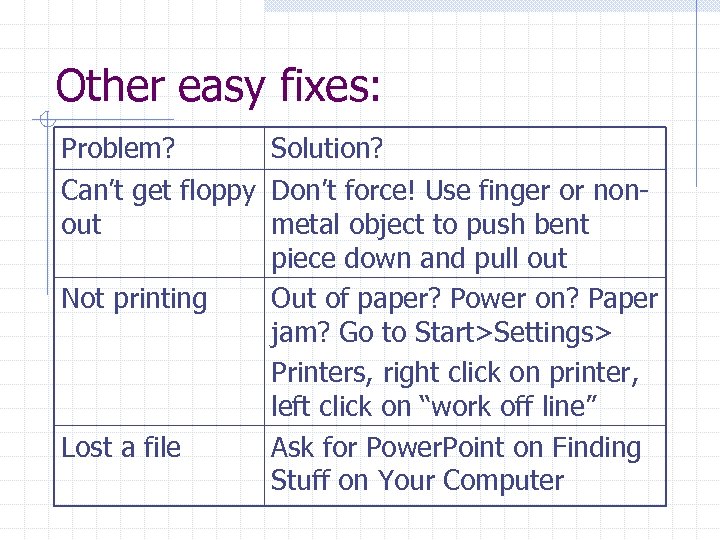 Other easy fixes: Problem? Solution? Can’t get floppy Don’t force! Use finger or nonout metal object to push bent piece down and pull out Not printing Out of paper? Power on? Paper jam? Go to Start>Settings> Printers, right click on printer, left click on “work off line” Lost a file Ask for Power. Point on Finding Stuff on Your Computer
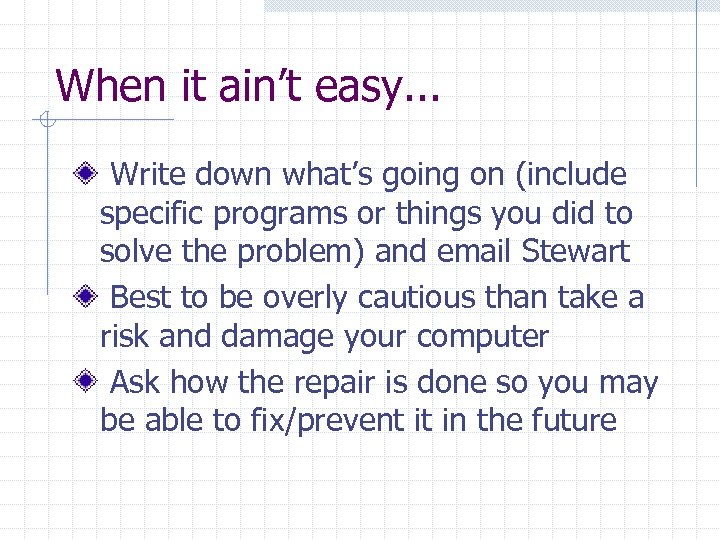 When it ain’t easy. . . Write down what’s going on (include specific programs or things you did to solve the problem) and email Stewart Best to be overly cautious than take a risk and damage your computer Ask how the repair is done so you may be able to fix/prevent it in the future
 Have a Happy Holiday Break! Starting January 8 th, Back to Basics! First session: Operating System