


 Скачать презентацию Mad Cap Flare Controlling Document Look and
22049915f49b77bae6dbfcb7dd1e9083.ppt
- Количество слайдов: 43
 Mad. Cap Flare – Controlling Document Look and Feel with CSS Mike Hamilton V. P. Product Management Mad. Cap Software mhamilton@madcapsoftware. com
 Slides are available on Mike’s blog at: http: //madcapsoftware 2. wordpress. com
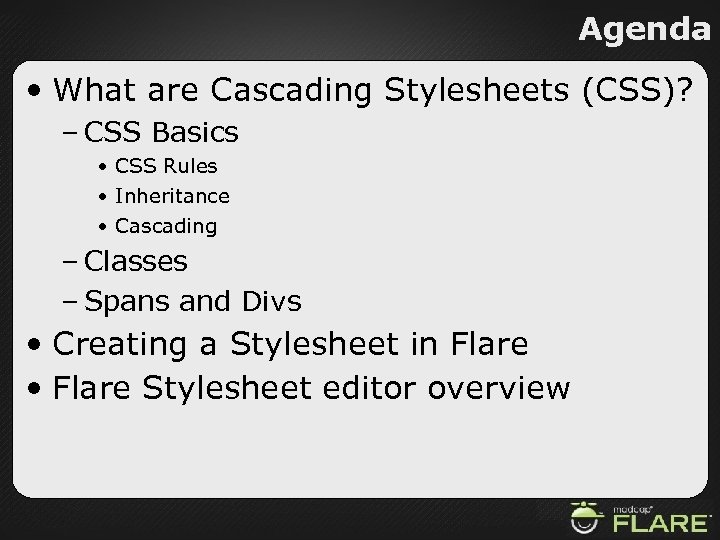 Agenda • What are Cascading Stylesheets (CSS)? – CSS Basics • CSS Rules • Inheritance • Cascading – Classes – Spans and Divs • Creating a Stylesheet in Flare • Flare Stylesheet editor overview
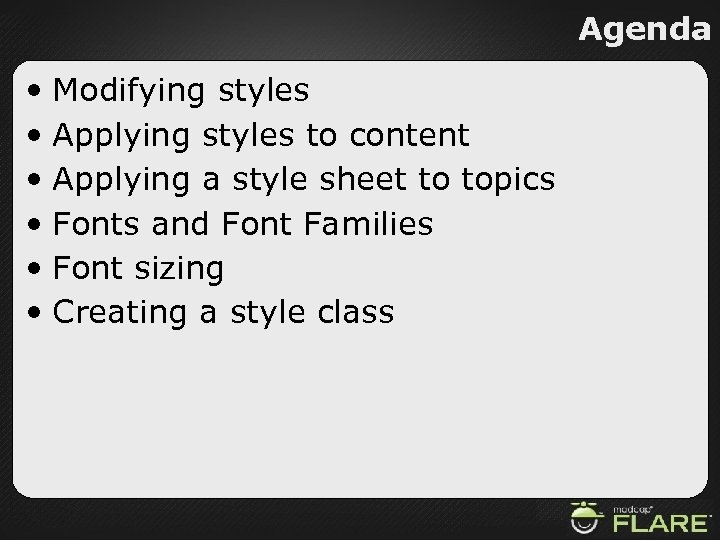 Agenda • Modifying styles • Applying styles to content • Applying a style sheet to topics • Fonts and Font Families • Font sizing • Creating a style class
 Cascading Stylesheets Introduction
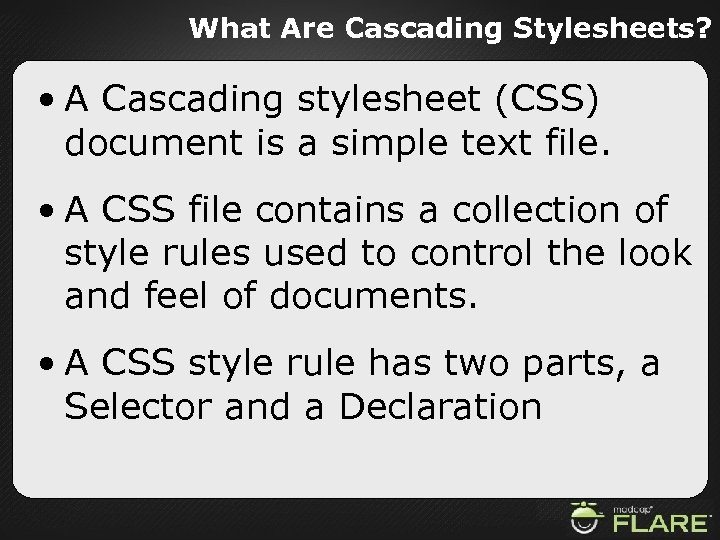 What Are Cascading Stylesheets? • A Cascading stylesheet (CSS) document is a simple text file. • A CSS file contains a collection of style rules used to control the look and feel of documents. • A CSS style rule has two parts, a Selector and a Declaration
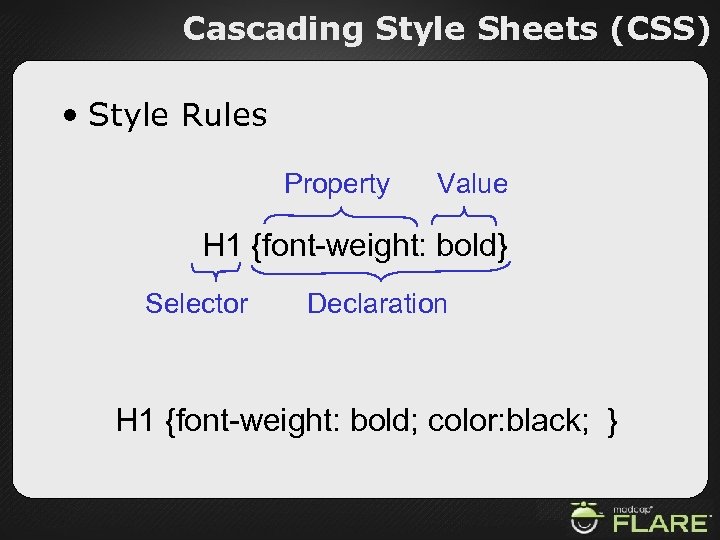 Cascading Style Sheets (CSS) • Style Rules Property Value H 1 {font-weight: bold} Selector Declaration H 1 {font-weight: bold; color: black; }
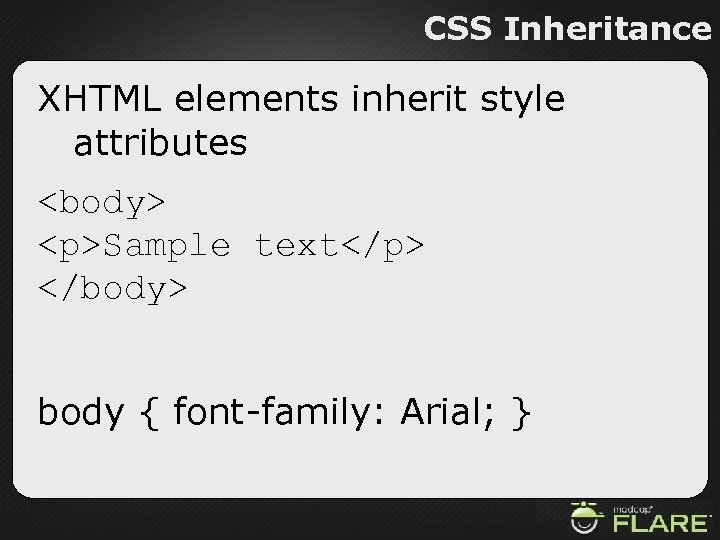 CSS Inheritance XHTML elements inherit style attributes
Sample text
body { font-family: Arial; }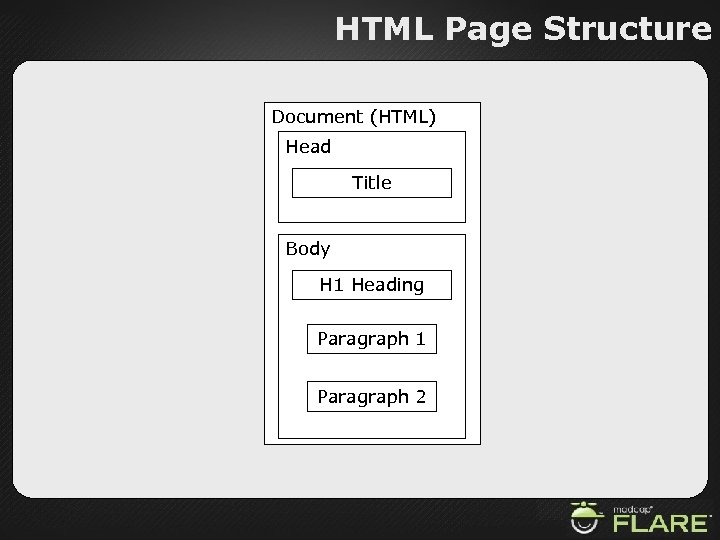 HTML Page Structure Document (HTML) Head Title Body H 1 Heading Paragraph 1 Paragraph 2
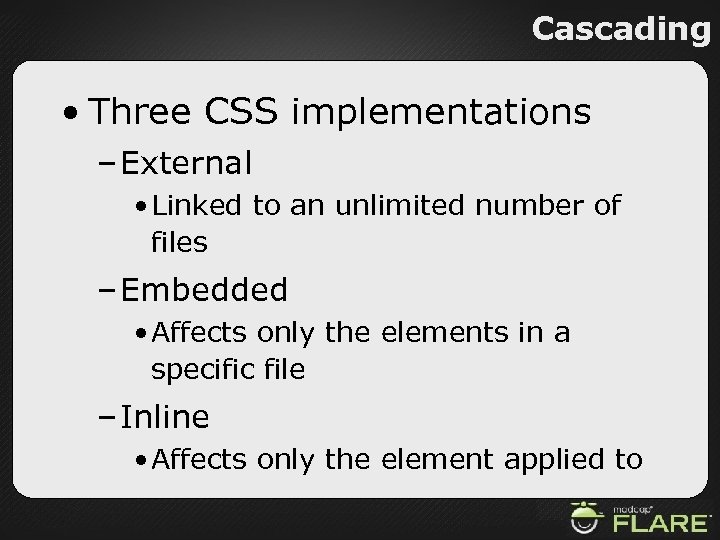 Cascading • Three CSS implementations – External • Linked to an unlimited number of files – Embedded • Affects only the elements in a specific file – Inline • Affects only the element applied to
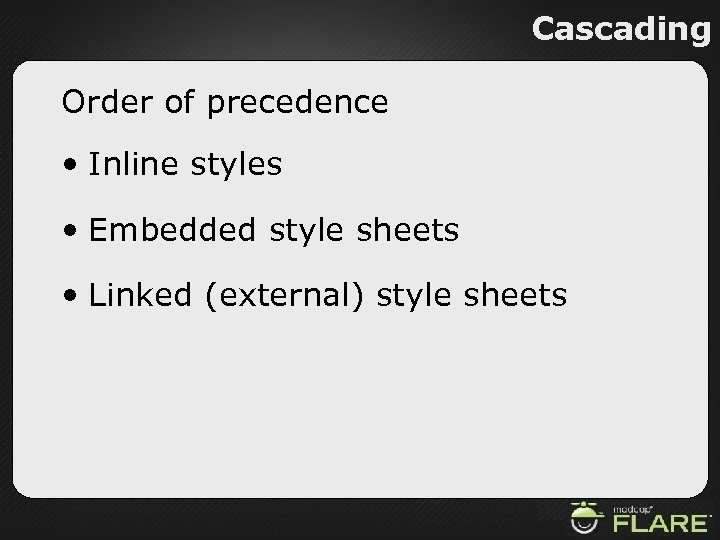 Cascading Order of precedence • Inline styles • Embedded style sheets • Linked (external) style sheets
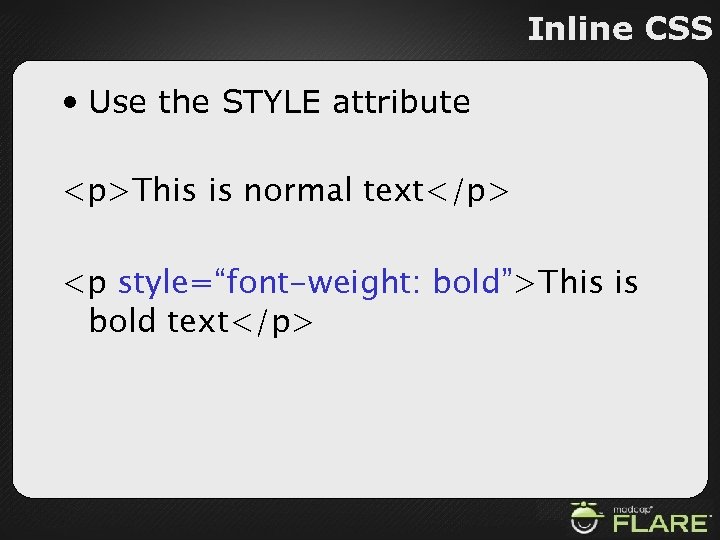 Inline CSS • Use the STYLE attribute
This is normal text
This is bold text
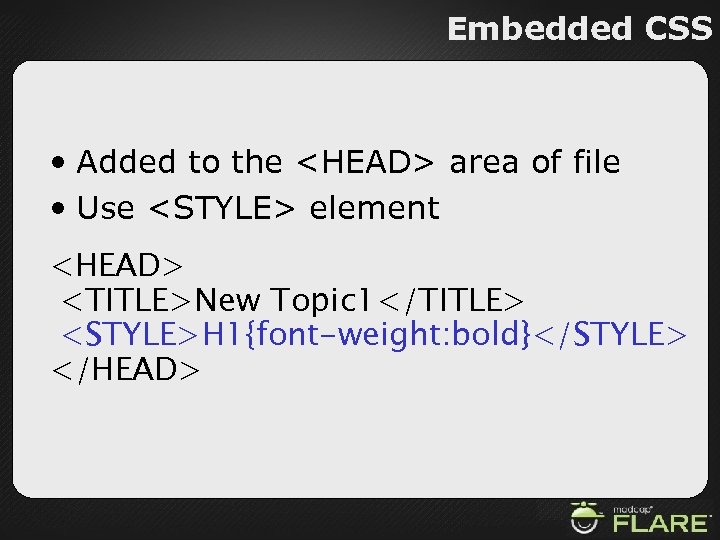 Embedded CSS • Added to the
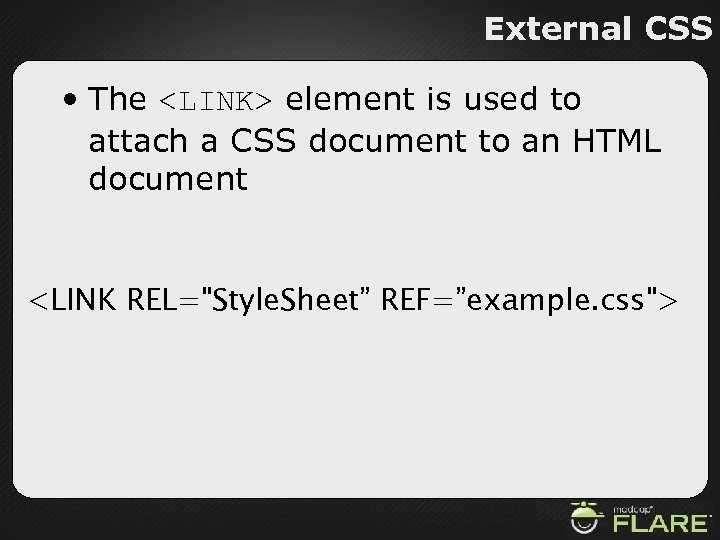 External CSS • The element is used to attach a CSS document to an HTML document
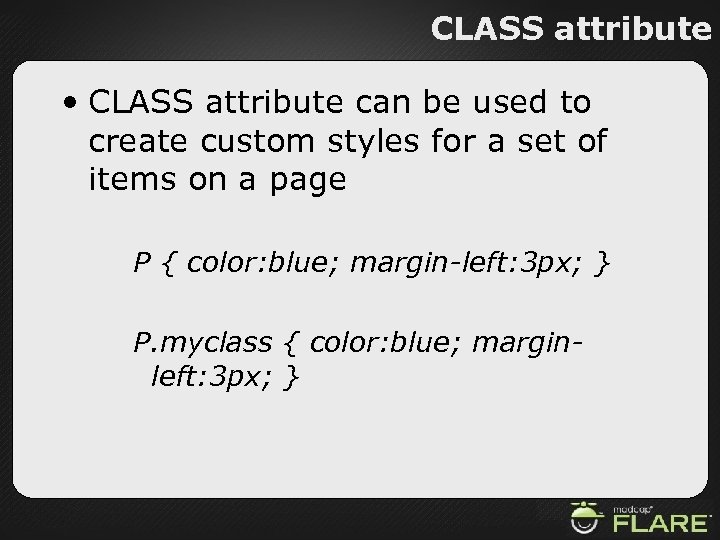 CLASS attribute • CLASS attribute can be used to create custom styles for a set of items on a page P { color: blue; margin-left: 3 px; } P. myclass { color: blue; marginleft: 3 px; }
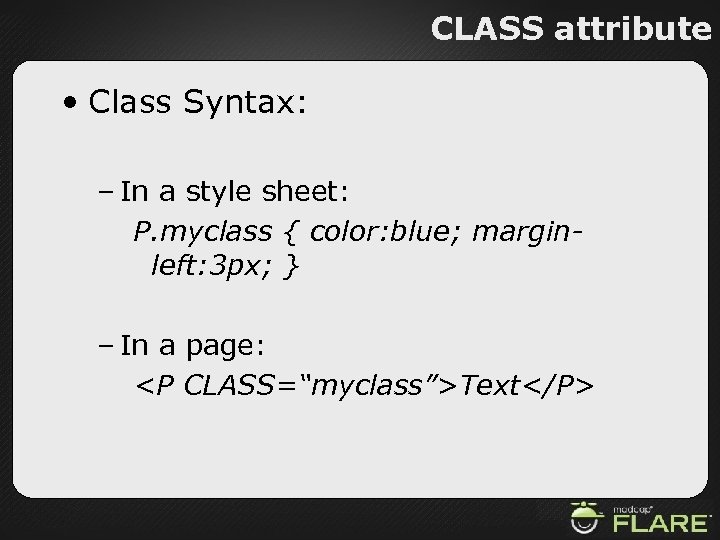 CLASS attribute • Class Syntax: – In a style sheet: P. myclass { color: blue; marginleft: 3 px; } – In a page:
Text
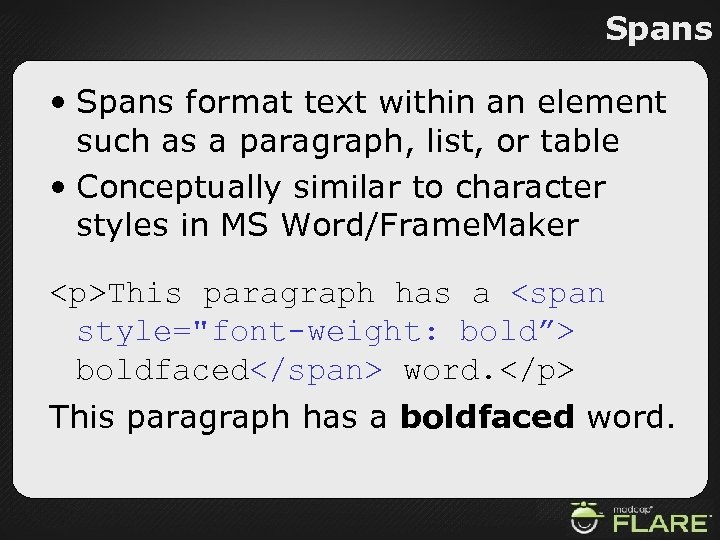 Spans • Spans format text within an element such as a paragraph, list, or table • Conceptually similar to character styles in MS Word/Frame. Maker
This paragraph has a Paragraph 1 Paragraph 2 Paragraph 3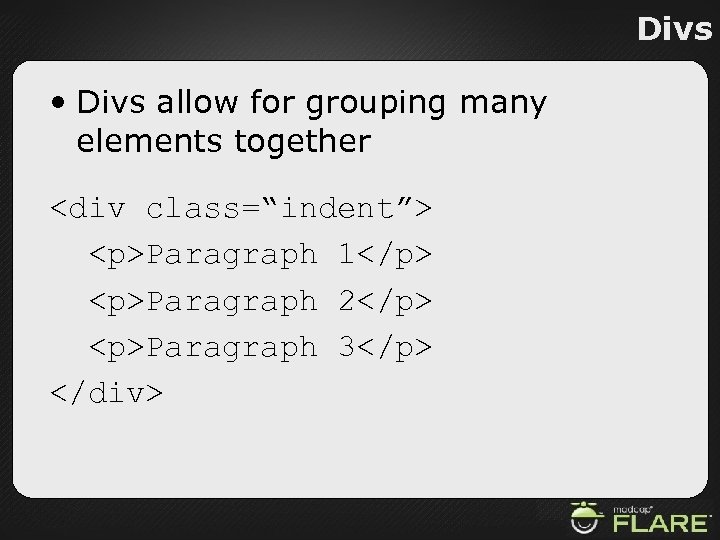 Divs • Divs allow for grouping many elements together
 Using Cascading Stylesheets in Flare
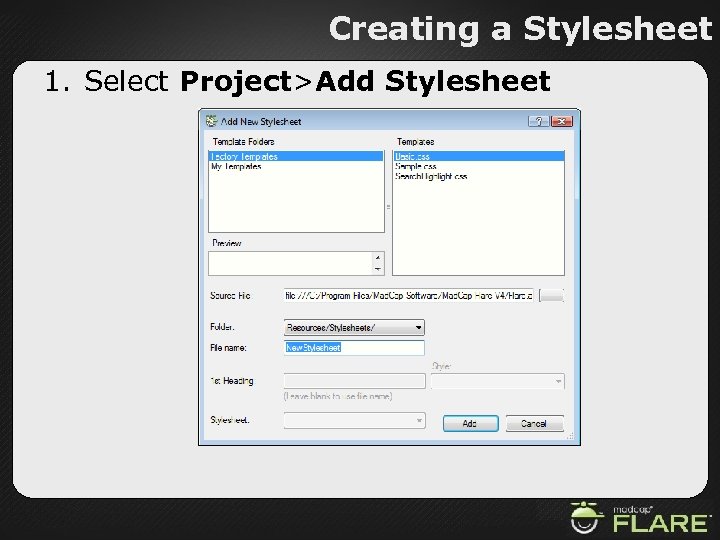 Creating a Stylesheet 1. Select Project>Add Stylesheet
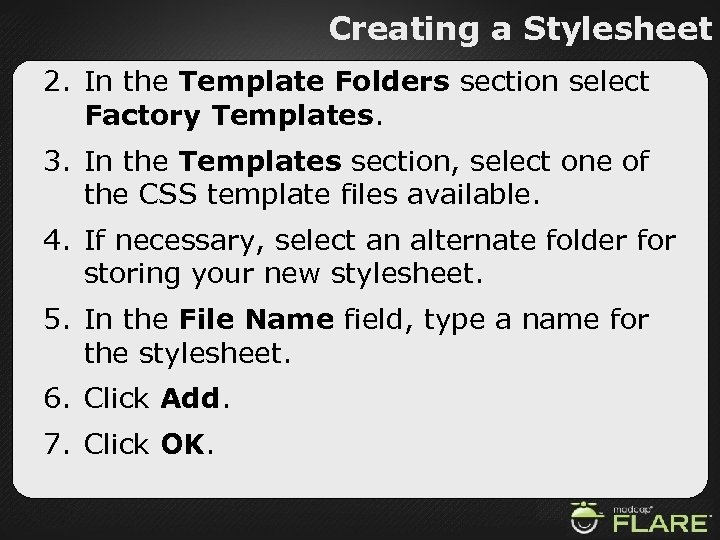 Creating a Stylesheet 2. In the Template Folders section select Factory Templates. 3. In the Templates section, select one of the CSS template files available. 4. If necessary, select an alternate folder for storing your new stylesheet. 5. In the File Name field, type a name for the stylesheet. 6. Click Add. 7. Click OK.
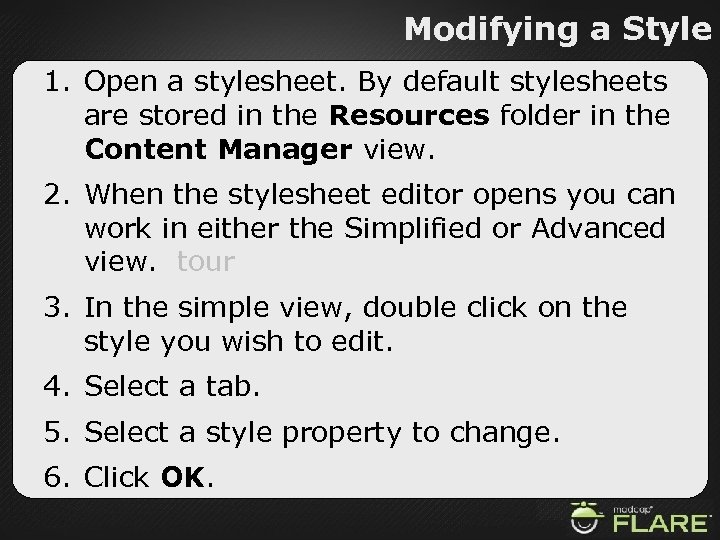 Modifying a Style 1. Open a stylesheet. By default stylesheets are stored in the Resources folder in the Content Manager view. 2. When the stylesheet editor opens you can work in either the Simplified or Advanced view. tour 3. In the simple view, double click on the style you wish to edit. 4. Select a tab. 5. Select a style property to change. 6. Click OK.
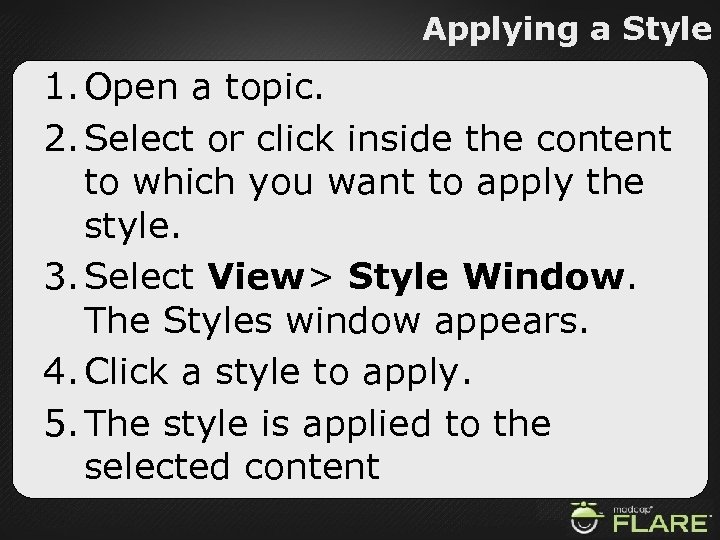 Applying a Style 1. Open a topic. 2. Select or click inside the content to which you want to apply the style. 3. Select View> Style Window. The Styles window appears. 4. Click a style to apply. 5. The style is applied to the selected content
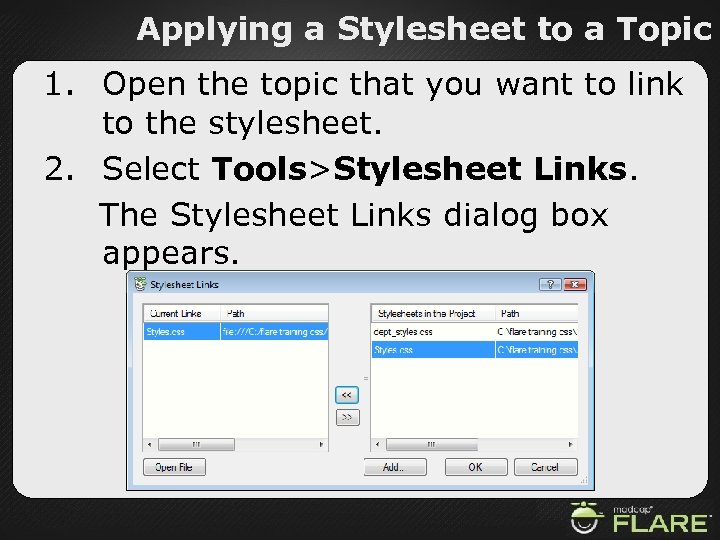 Applying a Stylesheet to a Topic 1. Open the topic that you want to link to the stylesheet. 2. Select Tools>Stylesheet Links. The Stylesheet Links dialog box appears.
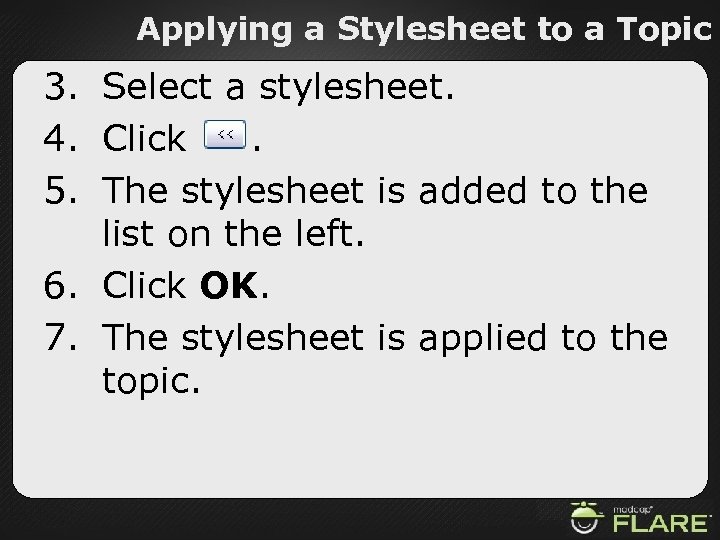 Applying a Stylesheet to a Topic 3. Select a stylesheet. 4. Click . 5. The stylesheet is added to the list on the left. 6. Click OK. 7. The stylesheet is applied to the topic.
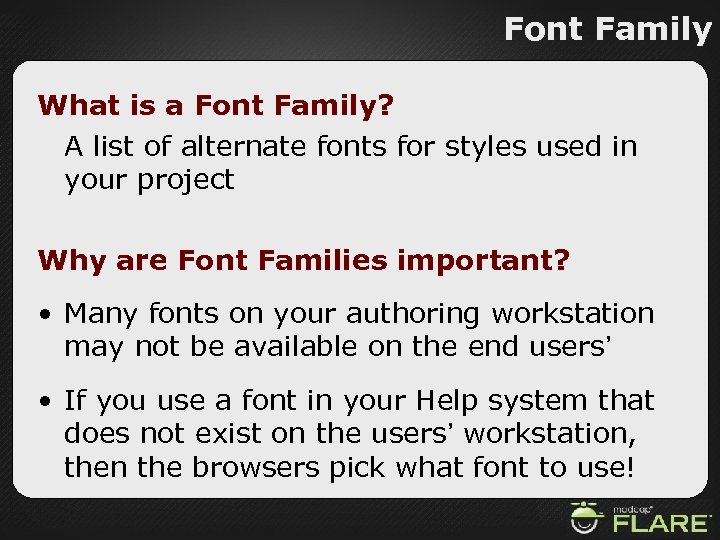 Font Family What is a Font Family? A list of alternate fonts for styles used in your project Why are Font Families important? • Many fonts on your authoring workstation may not be available on the end users’ • If you use a font in your Help system that does not exist on the users’ workstation, then the browsers pick what font to use!
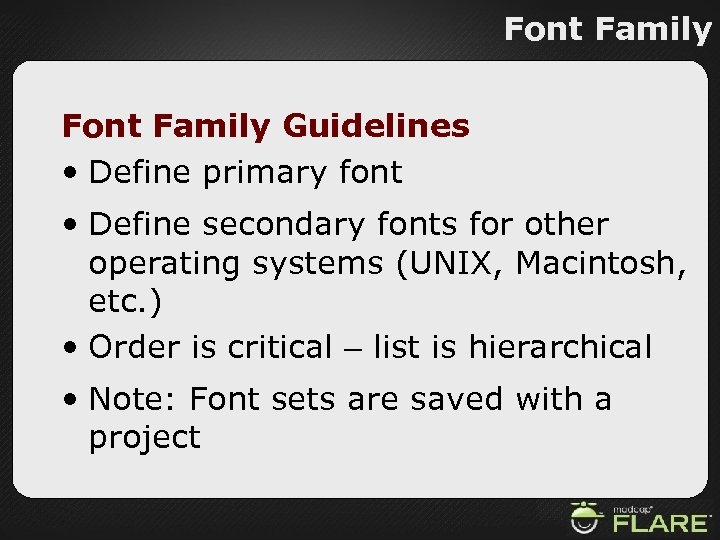 Font Family Guidelines • Define primary font • Define secondary fonts for other operating systems (UNIX, Macintosh, etc. ) • Order is critical – list is hierarchical • Note: Font sets are saved with a project
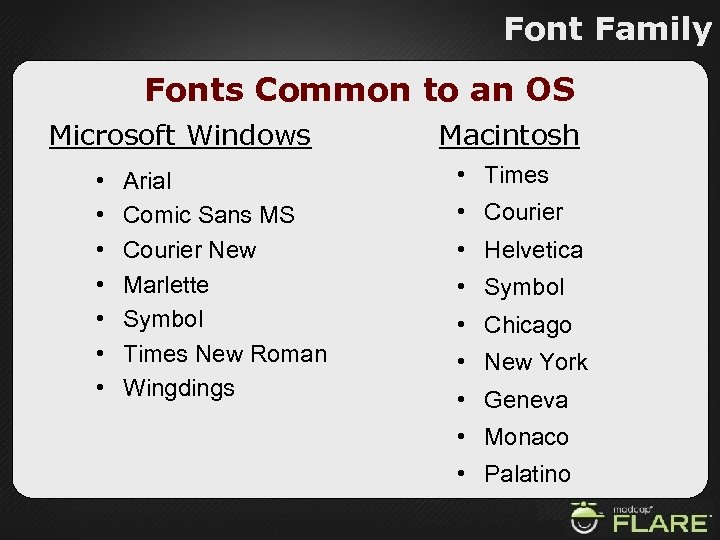 Font Family Fonts Common to an OS Microsoft Windows • • Arial Comic Sans MS Courier New Marlette Symbol Times New Roman Wingdings Macintosh • Times • Courier • Helvetica • Symbol • Chicago • New York • Geneva • Monaco • Palatino
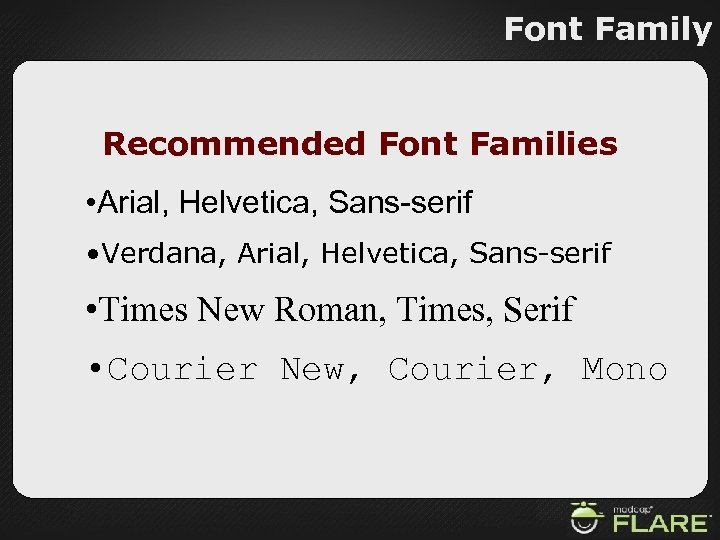 Font Family Recommended Font Families • Arial, Helvetica, Sans-serif • Verdana, Arial, Helvetica, Sans-serif • Times New Roman, Times, Serif • Courier New, Courier, Mono
 Font Family Demo Creating a Font Family in Flare
 Font Sizing There are two ways to define font sizes in an HTML environment – Fixed Font Sizing – Relative Font Sizing
 Font Sizing Fixed Font Sizing • Fixed Font Sizing defines the size of fonts using absolute units such as points (pt), picas (pc), inches (in), centimeters (cm), etc. • Because of the differences in how various types of computers display content, Fixed Font Sizing will ALWAYS cause fonts to display smaller on some systems (like the Macintosh)
 Font Sizing Relative Font Sizing • Relative Font Sizing defines the size of fonts using relative units such as percentages (%), the em unit (em), numerical values (1 -7), and descriptive values (xx-small - xx-large), etc. • Relative sizes refer to the font size of the parent element. This allows fonts to scale appropriately to different resolutions, browsers or platforms
 Font Sizing Relative Font Size Guidelines • Define the size for the normal style as 100% to provide consistent looking, legible text on any platform • Define heading styles as a percentage of the normal text – e. g. Heading 1=120%, Heading 2=115%, etc.
 Font Sizing Demo Setting Relative Font Sizes in Flare
 Creating a Style Class 1. Open a stylesheet. 2. If the Stylesheet Editor opens to the Simplified view, click Advanced View. 3. Select the p style. 4. Click Add Class in the Stylesheet Editor toolbar. 5. The New Style dialog box appears. 6. Type a name for the style.
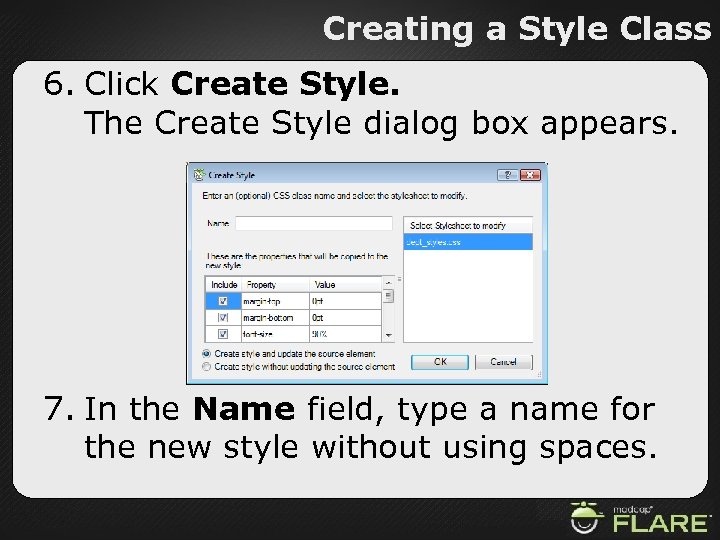 Creating a Style Class 6. Click Create Style. The Create Style dialog box appears. 7. In the Name field, type a name for the new style without using spaces.
 Creating a Style Class 8. If you do not want to include a style property in the new style, click the check box next to the value to remove the checkmark. 9. If you want the new style to be applied to the selected content, select Create style and update the source element. If you do not want the new style to be applied to the selected content, select Create style without updating the source element. 10. Click OK. 11. The new style is added to the stylesheet.
 Auto-Numbering can be used to allow for automated figure or table numbers, for government style paragraph numbering, or for automatically generating chapter numbers • Create a custom style class • Add auto-numbering to the style class • Use the new style class in the Master Page Link
 Cross-References Cross-references allow for an extremely elegant single-source handling of linking • Controlled by CSS • Can look like standard hyperlinks for online publishing • Converted to proper page number references when going to print Link
 Suggested Reading List 1. Watch all of the built in Flare tutorial videos. 2. Read as much of the online help overview information as I could handle. 3. Build a couple or three test projects to get a feel for what is going on. 4. Coming from Robo. Help, get a copy of Scott's great book. Mad. Cap Flare for Robo. Help Users by Scott De. Loach ISBN-13: 978 -0615141459
 Suggested Reading List HTML, XHTML, and CSS, Sixth Edition (Visual Quickstart Guide) by Elizabeth Castro ISBN-13: 978 -0 -321 -43084 -7 Technical Writing 101: A Real-World Guide to Planning and Writing Technical Documentation by Alan S. Pringle and Sarah O'Keefe ISBN-13: 978 -0970473325 CSS: The Definitive Guide, Second Edition by Eric Meyer ISBN-13: 978 -0596527334 DHTML and CSS for the World Wide Web, Third Edition (Visual Quickstart Guide) by Jason Teague ISBN-13: 978 -0 -201 -73084 -5
 Questions?