 Скачать презентацию m Uzima INSTALLATION BY RUTH KEITANY 3 17 2018 m
04432c2d75336d2b07fd80ac0310873a.ppt
- Количество слайдов: 37




m. Uzima INSTALLATION BY RUTH KEITANY 3/17/2018 m. Uzima Installation 1
OBJECTIVES At the end of the presentation the following objectives should be realized. 1. Understand the meaning of installation. 2. To know what is needed before installing m. Uzima application. 3. Know where you get the latest m. Uzima application. 4. To know When to install or uninstall m. Uzima 5. To know How to install and uninstall m. Uzima. 6. To know who installs m. Uzima application. 7. To know when m. Uzima has been successfully installed. 3/17/2018 m. Uzima Installation 2
8. To understand the initial wizard of loading the application after successful installation of the application 9. Understand what you are required to do in each step of the wizard 10. To understand the devices that supports the application 3/17/2018 m. Uzima Installation 3
What is installation? This is the process of making ready for use e. g device, machinery, software etc 3/17/2018 m. Uzima Installation 4
Who installs m. Uzima application The system administrators who are also the implementers of the m. Uzima application are responsible to install the application in the devices. 3/17/2018 m. Uzima Installation 5
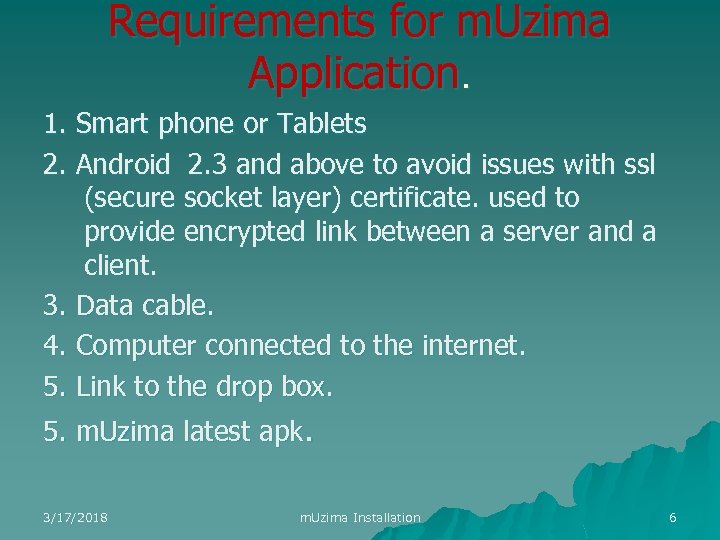
Requirements for m. Uzima Application. 1. Smart phone or Tablets 2. Android 2. 3 and above to avoid issues with ssl (secure socket layer) certificate. used to provide encrypted link between a server and a client. 3. Data cable. 4. Computer connected to the internet. 5. Link to the drop box. 5. m. Uzima latest apk. 3/17/2018 m. Uzima Installation 6
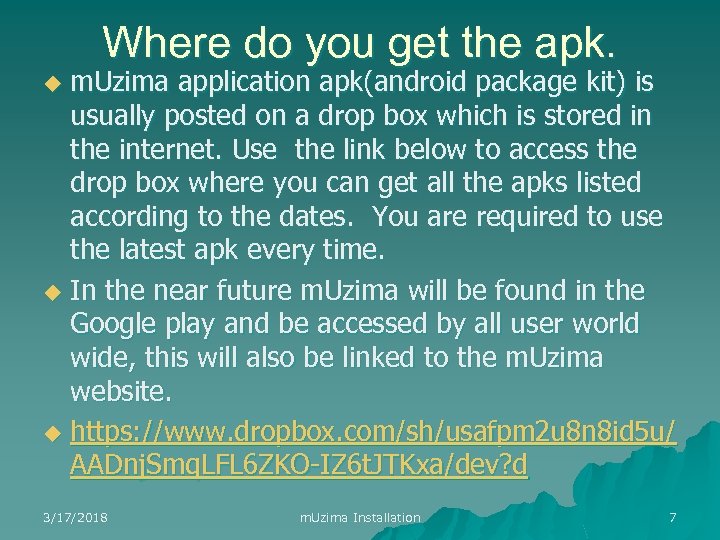
Where do you get the apk. m. Uzima application apk(android package kit) is usually posted on a drop box which is stored in the internet. Use the link below to access the drop box where you can get all the apks listed according to the dates. You are required to use the latest apk every time. u In the near future m. Uzima will be found in the Google play and be accessed by all user world wide, this will also be linked to the m. Uzima website. u https: //www. dropbox. com/sh/usafpm 2 u 8 n 8 id 5 u/ AADnj. Smq. LFL 6 ZKO-IZ 6 t. JTKxa/dev? d u 3/17/2018 m. Uzima Installation 7
When do you install m. Uzima application. Installation is done: 1. Anytime you want to use m. Uzima application and the application is not in your device. 2. When are upgrading the existing m. Uzima application with a new application (apk version). 3/17/2018 m. Uzima Installation 8
When do you uninstall m. Uzima application Uninstalling means removing the application from your device. This is done when u There a technical problem with your device and the application is to be setup/installed afresh. 3/17/2018 m. Uzima Installation 9
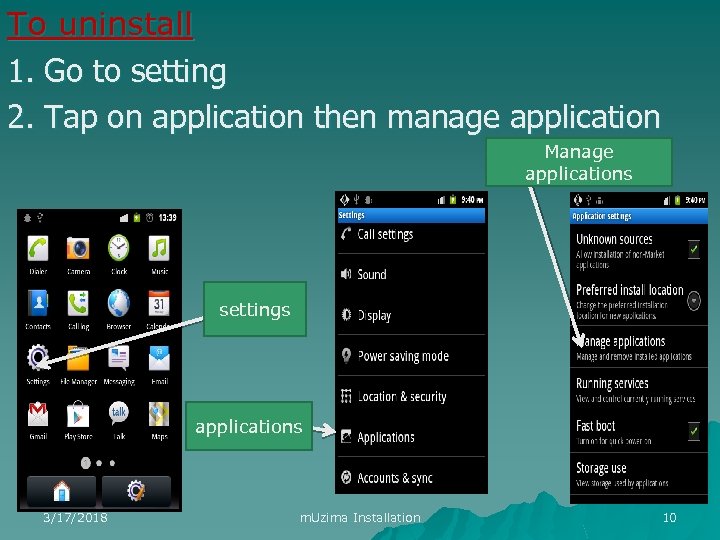
To uninstall 1. Go to setting 2. Tap on application then manage application Manage applications settings applications 3/17/2018 m. Uzima Installation 10
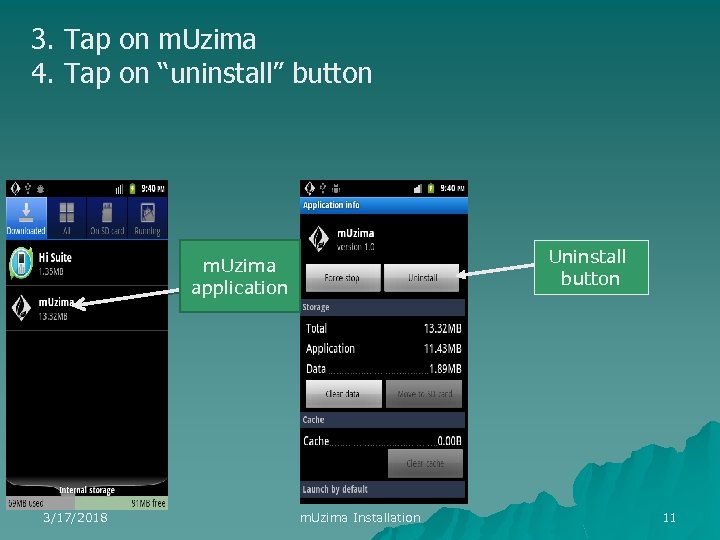
3. Tap on m. Uzima 4. Tap on “uninstall” button Uninstall button m. Uzima application 3/17/2018 m. Uzima Installation 11
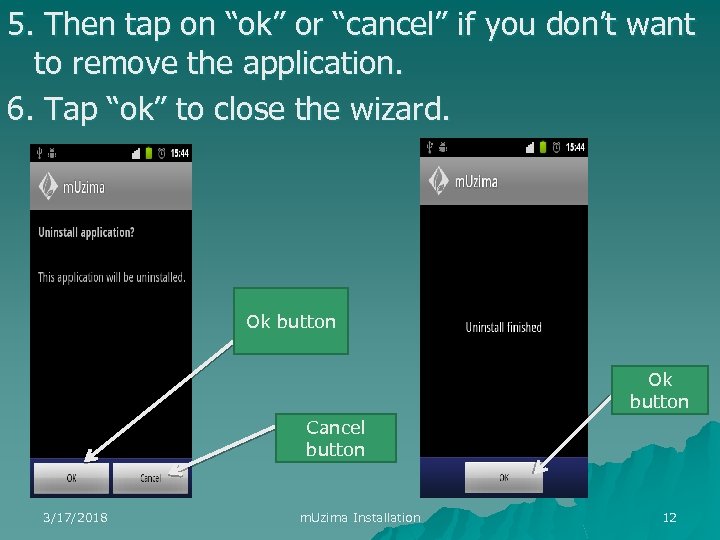
5. Then tap on “ok” or “cancel” if you don’t want to remove the application. 6. Tap “ok” to close the wizard. Ok button Cancel button 3/17/2018 m. Uzima Installation 12
How to install m. Uzima. Before installing m. Uzima application ensure: u Your phone is fully charged. u You have a computer that is connected to the internet to enable you access the drop box. u You have a data cable to be used to transfer the m. Uzima application from the computer to the phone. 3/17/2018 m. Uzima Installation 13
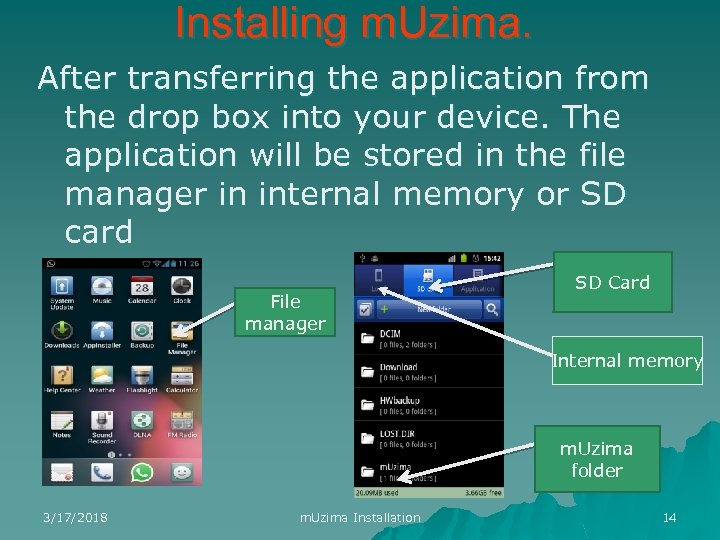
Installing m. Uzima. After transferring the application from the drop box into your device. The application will be stored in the file manager in internal memory or SD card File manager SD Card Internal memory m. Uzima folder 3/17/2018 m. Uzima Installation 14
Methods of installing m. Uzima There are two methods of installing m. Uzima. 1. Installing m. Uzima for the first time in your device. 2. Installing m. Uzima when another application is already running in your device. This will replace the existing application with the new one and all previous user data will be saved 3/17/2018 m. Uzima Installation 15
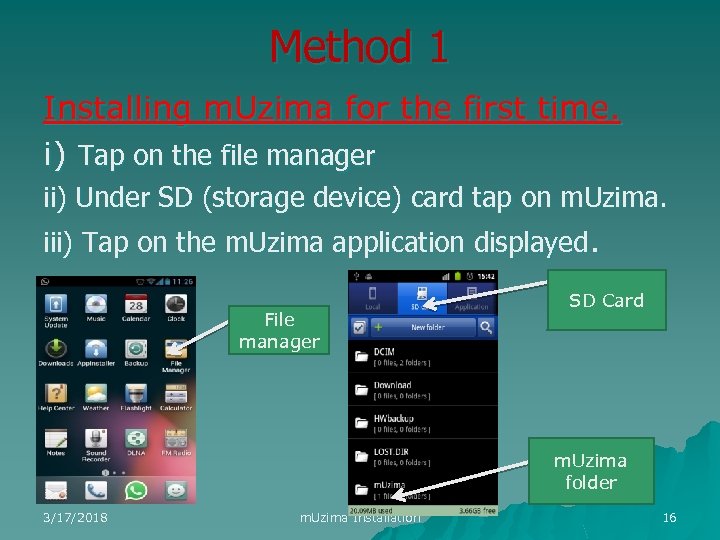
Method 1 Installing m. Uzima for the first time. i) Tap on the file manager ii) Under SD (storage device) card tap on m. Uzima. iii) Tap on the m. Uzima application displayed. File manager SD Card m. Uzima folder 3/17/2018 m. Uzima Installation 16
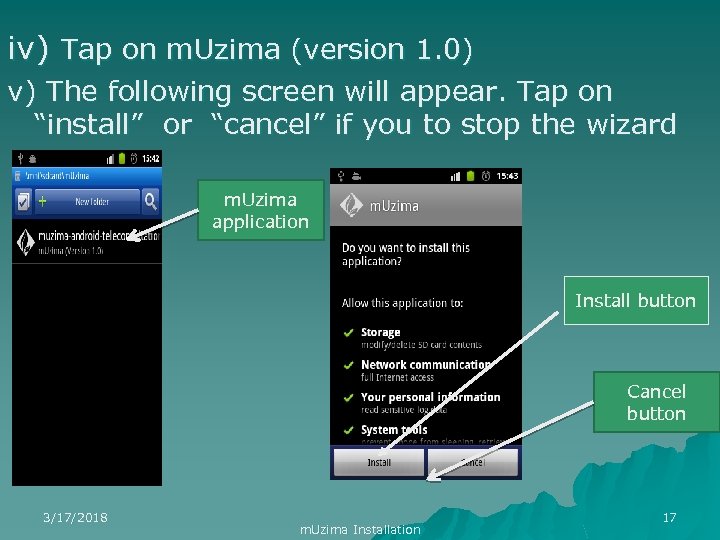
iv) Tap on m. Uzima (version 1. 0) v) The following screen will appear. Tap on “install” or “cancel” if you to stop the wizard m. Uzima application Install button Cancel button 3/17/2018 m. Uzima Installation 17
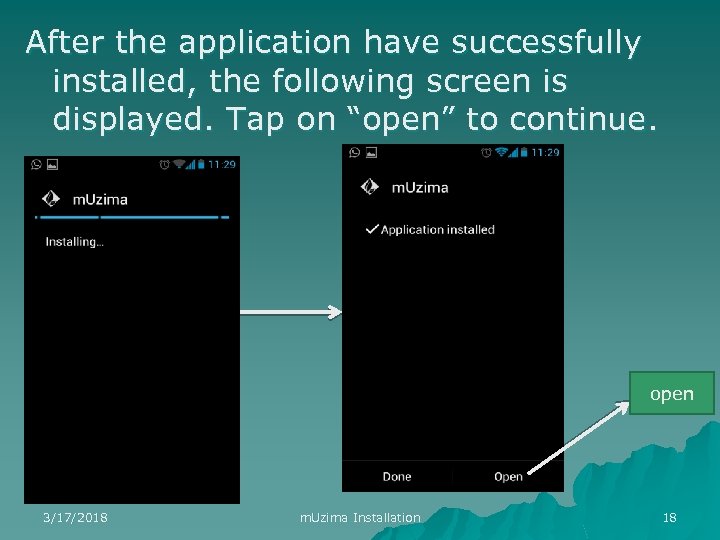
After the application have successfully installed, the following screen is displayed. Tap on “open” to continue. open 3/17/2018 m. Uzima Installation 18
Method 2 Installing m. Uzima when another application is already running in your device. This will replace the existing application with the new one and all previous user data will be saved.
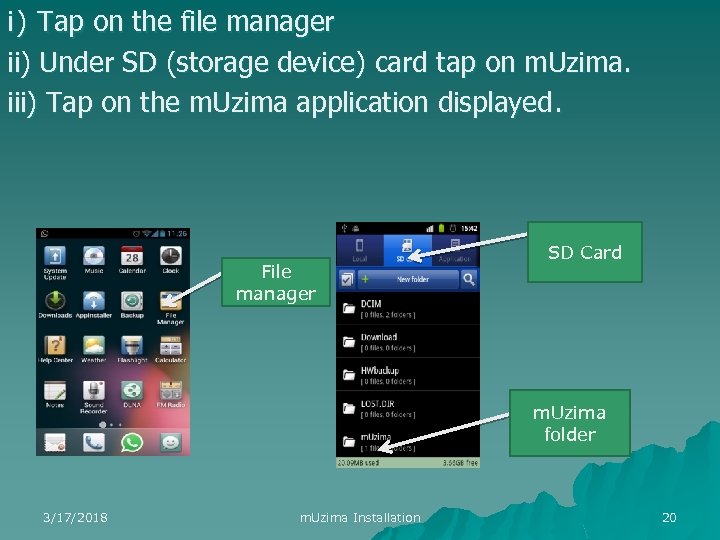
i) Tap on the file manager ii) Under SD (storage device) card tap on m. Uzima. iii) Tap on the m. Uzima application displayed. File manager SD Card m. Uzima folder 3/17/2018 m. Uzima Installation 20
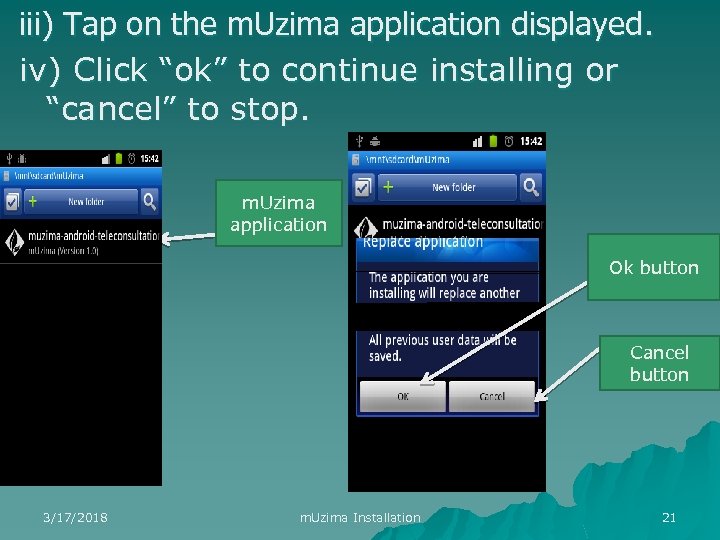
iii) Tap on the m. Uzima application displayed. iv) Click “ok” to continue installing or “cancel” to stop. m. Uzima application Ok button Cancel button 3/17/2018 m. Uzima Installation 21
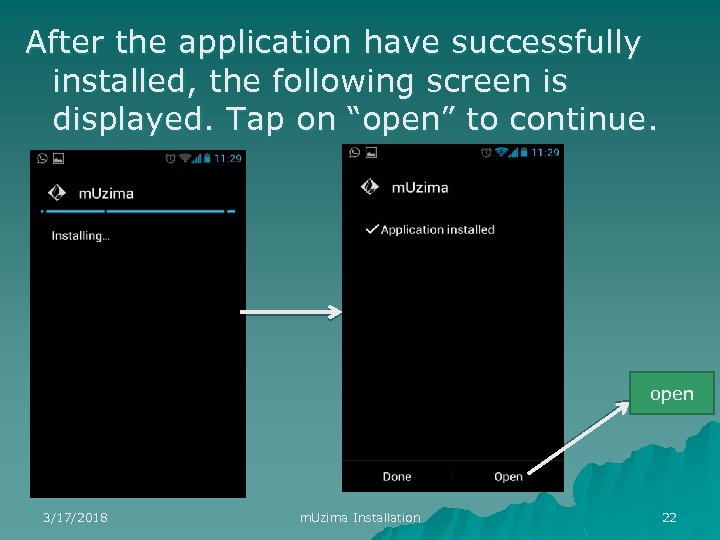
After the application have successfully installed, the following screen is displayed. Tap on “open” to continue. open 3/17/2018 m. Uzima Installation 22
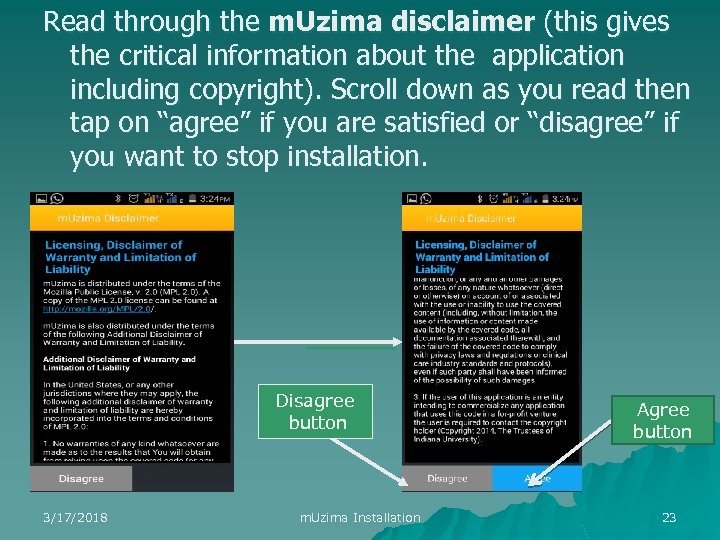
Read through the m. Uzima disclaimer (this gives the critical information about the application including copyright). Scroll down as you read then tap on “agree” if you are satisfied or “disagree” if you want to stop installation. Disagree button 3/17/2018 m. Uzima Installation Agree button 23
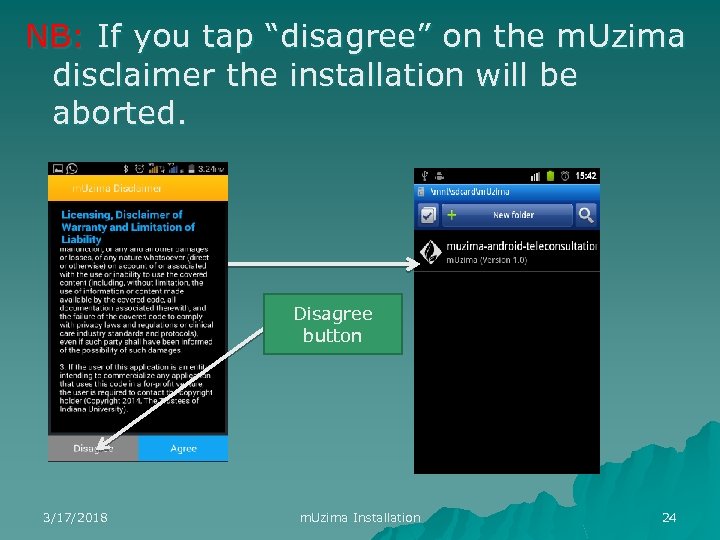
NB: If you tap “disagree” on the m. Uzima disclaimer the installation will be aborted. Disagree button 3/17/2018 m. Uzima Installation 24
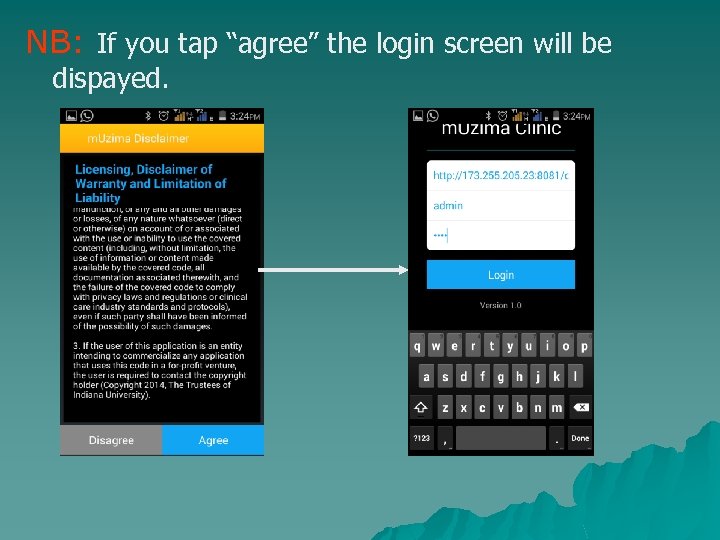
NB: If you tap “agree” the login screen will be dispayed.
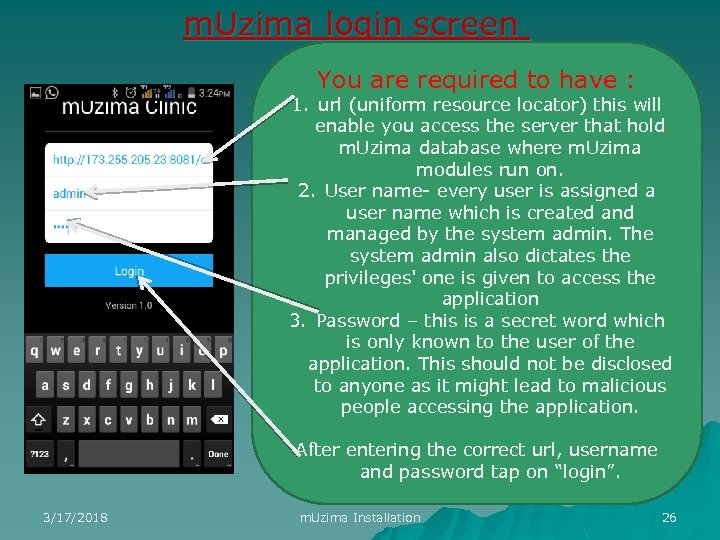
m. Uzima login screen You are required to have : 1. url (uniform resource locator) this will enable you access the server that hold m. Uzima database where m. Uzima modules run on. 2. User name- every user is assigned a user name which is created and managed by the system admin. The system admin also dictates the privileges' one is given to access the application 3. Password – this is a secret word which is only known to the user of the application. This should not be disclosed to anyone as it might lead to malicious people accessing the application. After entering the correct url, username and password tap on “login”. 3/17/2018 m. Uzima Installation 26
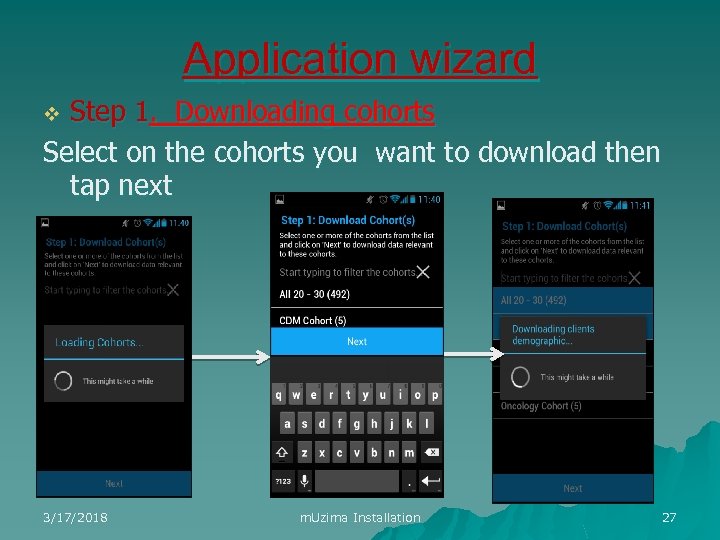
Application wizard Step 1. Downloading cohorts Select on the cohorts you want to download then tap next v 3/17/2018 m. Uzima Installation 27
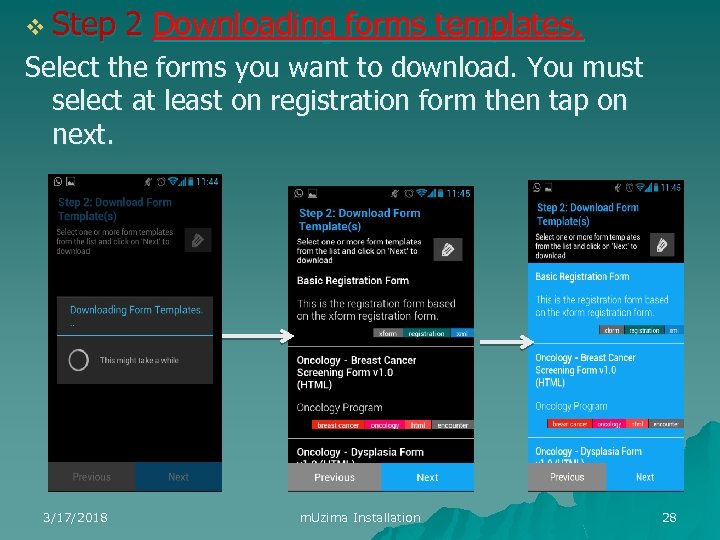
v Step 2 Downloading forms templates. Select the forms you want to download. You must select at least on registration form then tap on next. 3/17/2018 m. Uzima Installation 28
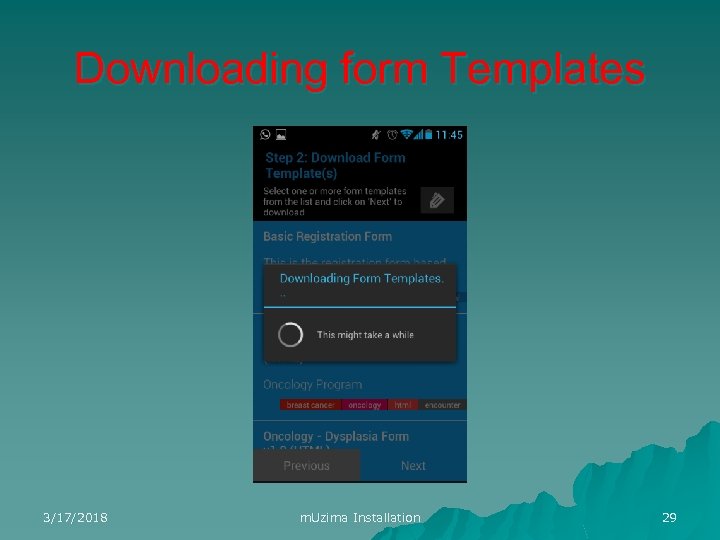
Downloading form Templates 3/17/2018 m. Uzima Installation 29
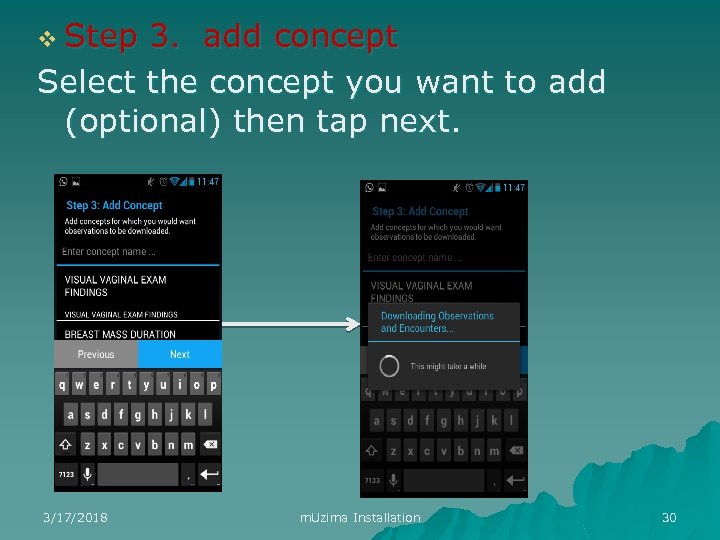
v Step 3. add concept Select the concept you want to add (optional) then tap next. 3/17/2018 m. Uzima Installation 30
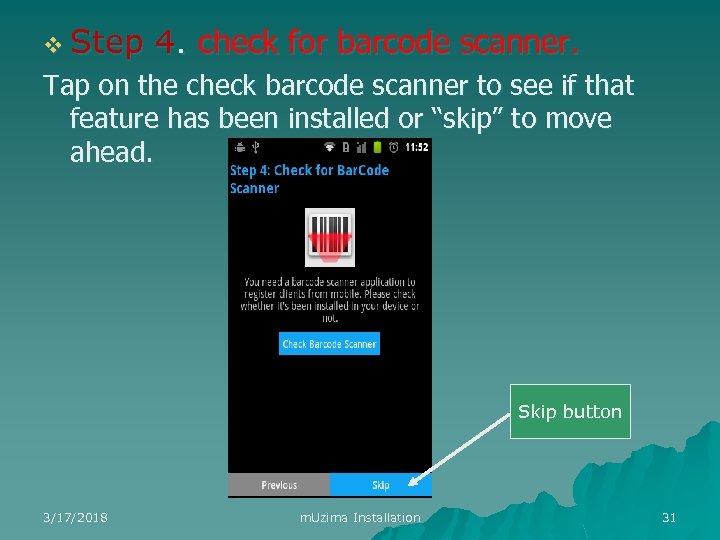
v Step 4. check for barcode scanner. Tap on the check barcode scanner to see if that feature has been installed or “skip” to move ahead. Skip button 3/17/2018 m. Uzima Installation 31
What is an observation? Anything actively measured or observed during an encounter. As an example, patients' weights, heights, blood pressures, and BMIs are observations, as well as qualitative facts including the number of years a patient smoked, the activities in which the patient experiences shortness of breath, and finding on an Xray. 3/17/2018 m. Uzima Installation 32
What is an encounter? It is a single, specific interaction between the patient and a provider. An encounter can be any interaction and includes doctor visits, laboratory tests, food distribution, home visits, counselor appointments, etc. 3/17/2018 m. Uzima Installation 33
What is a concept ? A concept is a medical term used to describe all the labels and the blank spaces in the form. There are two types of concepts 1. Question concept- this are questions asked during clinic visits e. g. age, height, weight etc 2. Answer concept- this are observation captured during clinic visits e. g. 23 yrs, 156 cm, 50 kgs etc 3/17/2018 m. Uzima Installation 34
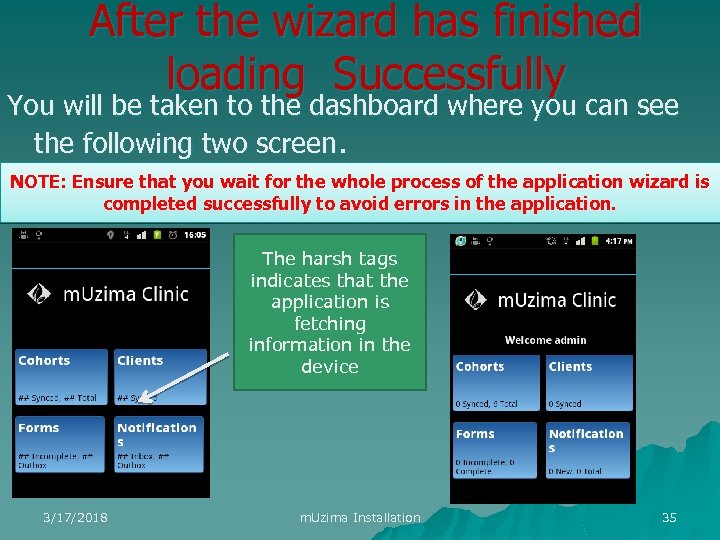
After the wizard has finished loading Successfully You will be taken to the dashboard where you can see the following two screen. NOTE: Ensure that you wait for the whole process of the application wizard is completed successfully to avoid errors in the application. The harsh tags indicates that the application is fetching information in the device 3/17/2018 m. Uzima Installation 35
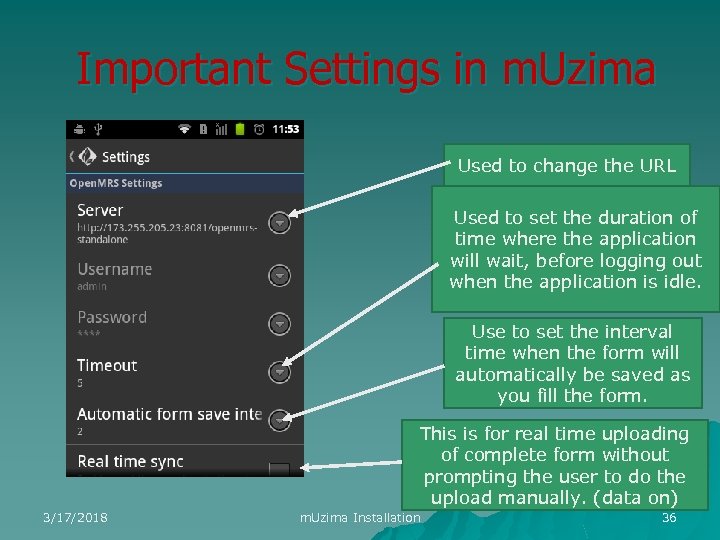
Important Settings in m. Uzima Used to change the URL Used to set the duration of time where the application will wait, before logging out when the application is idle. Use to set the interval time when the form will automatically be saved as you fill the form. This is for real time uploading of complete form without prompting the user to do the upload manually. (data on) 3/17/2018 m. Uzima Installation 36
THANK YOU 3/17/2018 m. Uzima Installation 37
Скачать презентацию m Uzima INSTALLATION BY RUTH KEITANY 3 17 2018 m
04432c2d75336d2b07fd80ac0310873a.ppt