


 Скачать презентацию Linux Guide to Linux Certification Second Edition Chapter
0f63dd288e1e03601907257d39452860.ppt
- Количество слайдов: 78
 Linux+ Guide to Linux Certification, Second Edition Chapter 1 Introduction to Linux+ Guide to Linux Certification, 2 e
 Operating Systems • Computers have two fundamental components: – Hardware: Physical components inside a computer – Software: Set of instructions or programs that understand how to use the hardware of the computer in a meaningful way Linux+ Guide to Linux Certification, 2 e 2
 Operating Systems (continued) • Hardware components include: – – – Processor (CPU) Physical memory (RAM) Hard disk, floppy disk, and CD-ROM drives Sound and video cards Circuit boards Linux+ Guide to Linux Certification, 2 e 3
 Operating Systems (continued) • Two different types of programs are executed on a computer: – Applications – Operating system (OS) software • Device Driver: Software containing instructions that the OS uses to control and interact with a specific type of computer hardware • User Interface: An application program that allows the user to interact with the OS and other application programs Linux+ Guide to Linux Certification, 2 e 4
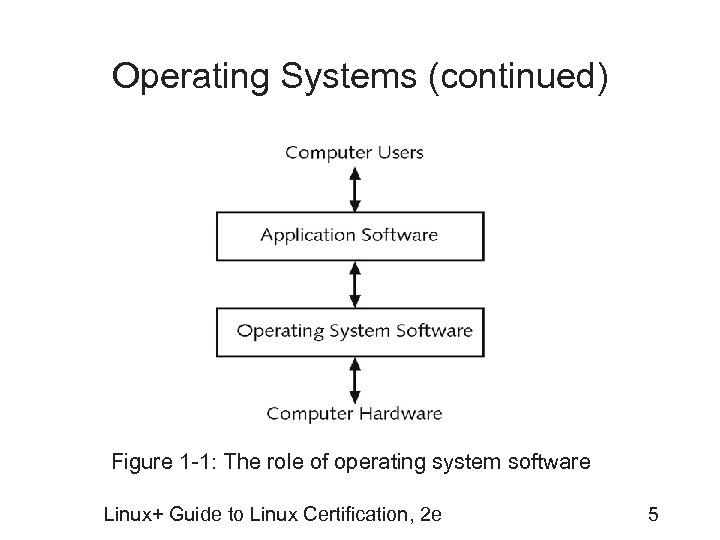 Operating Systems (continued) Figure 1 -1: The role of operating system software Linux+ Guide to Linux Certification, 2 e 5
 Operating Systems (continued) • Graphical user interface (GUI): Component of an OS that provides a user-friendly interface • System services: Applications that handle systemrelated tasks – Printing – Scheduling programs – Network access Linux+ Guide to Linux Certification, 2 e 6
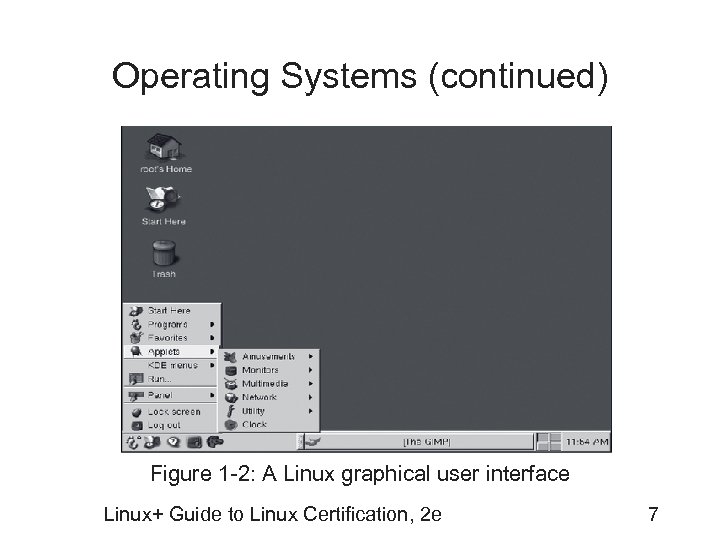 Operating Systems (continued) Figure 1 -2: A Linux graphical user interface Linux+ Guide to Linux Certification, 2 e 7
 The Linux Operating System • OS used to run a variety of applications on a variety of different hardware • Has the ability to manage thousands of tasks at the same time • Allows multiple users to access the system simultaneously – Multiuser and multitasking OS Linux+ Guide to Linux Certification, 2 e 8
 Versions of the Linux Operating System • Core component is called the Linux kernel – Written almost entirely in the C programming language • Software can be used to modify appearance of Linux, but the kernel is common to all Linux+ Guide to Linux Certification, 2 e 9
 Identifying Kernel Versions • Linux kernel versions are composed of: – Major number – Minor number • If odd, referred to as a developmental kernel • If even, referred to as a production kernel – Revision number Linux+ Guide to Linux Certification, 2 e 10
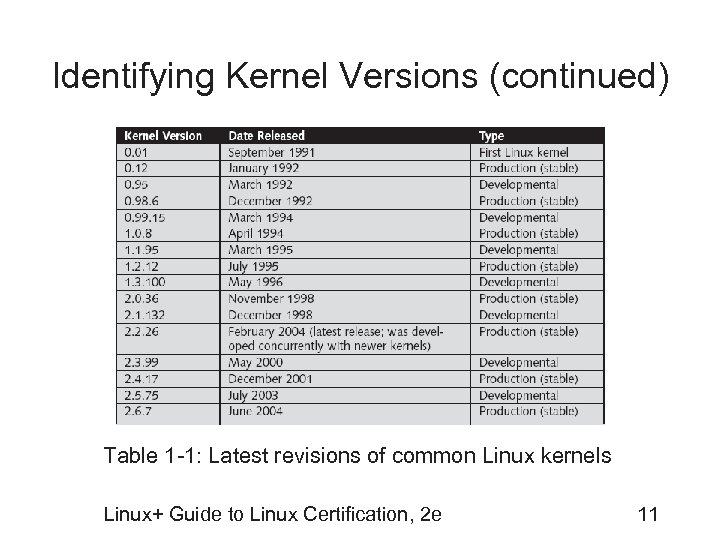 Identifying Kernel Versions (continued) Table 1 -1: Latest revisions of common Linux kernels Linux+ Guide to Linux Certification, 2 e 11
 Licensing Linux • Open Source Software (OSS): Programs distributed and licensed so that the source code is available to anyone who wants to examine, utilize, or improve upon it – Format and structure of source code follows rules defined by the programming language in which it was written Linux+ Guide to Linux Certification, 2 e 12
 Licensing Linux (continued) • Implications of OSS: – Developed very rapidly through widespread collaboration – Bugs (errors) are noted and promptly fixed – Features evolve quickly based on users’ needs – Perceived value of the software increases because it is based on usefulness, not on price Linux+ Guide to Linux Certification, 2 e 13
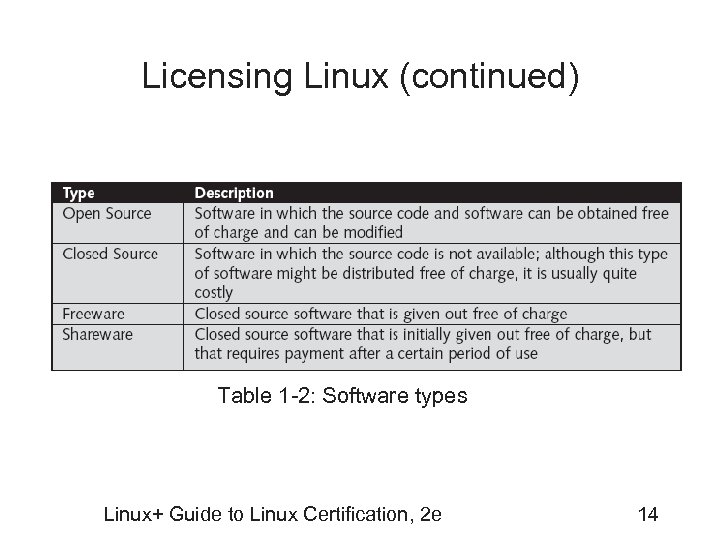 Licensing Linux (continued) Table 1 -2: Software types Linux+ Guide to Linux Certification, 2 e 14
 Types of Closed Source Licenses • Most closed source software is sold commercially – e. g. , Microsoft or Electronic Arts software • Freeware: Distributed free of charge; source code is not available • Shareware: Initially free, but requires payment after a period of time or usage Linux+ Guide to Linux Certification, 2 e 15
 Linux Advantages: Meeting Business Needs • Common software available for Linux includes: – – – – Scientific and engineering software Software emulators Web servers, Web browsers, and e-commerce suites Desktop productivity software Graphics manipulation software Database software Security software Linux+ Guide to Linux Certification, 2 e 16
 Linux Advantages: Ease of Customization • Ability to control the inner workings of an OS – To use Linux as an Internet Web server, compile the kernel to include only the support needed to be an Internet Web server • Results in a much smaller and faster kernel Linux+ Guide to Linux Certification, 2 e 17
 Linux Advantages: Ease of Obtaining Support • Linux documentation can be found on the Internet – Frequently Asked Questions (FAQs) – HOWTO documents • Linux Newsgroups • Linux User Group (LUG): Open forum of Linux users who discuss and assist each other in using and modifying the Linux OS Linux+ Guide to Linux Certification, 2 e 18
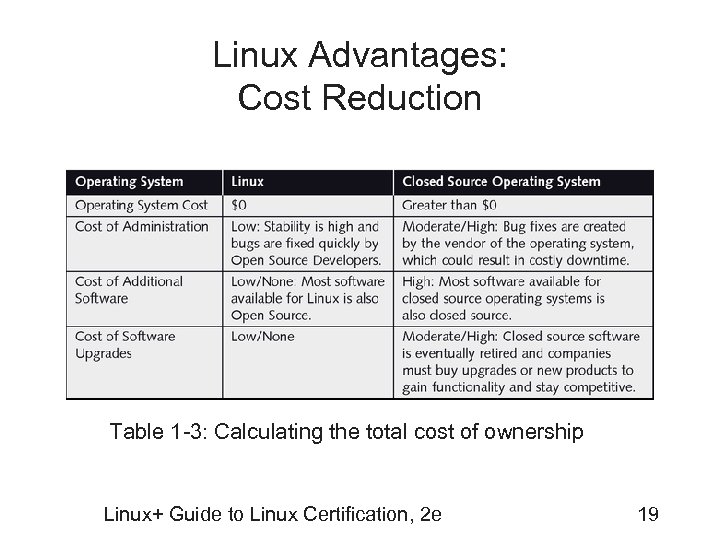 Linux Advantages: Cost Reduction Table 1 -3: Calculating the total cost of ownership Linux+ Guide to Linux Certification, 2 e 19
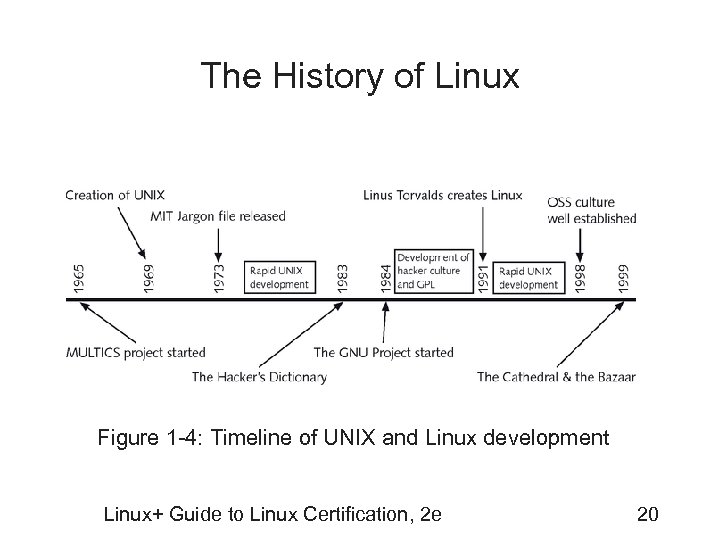 The History of Linux Figure 1 -4: Timeline of UNIX and Linux development Linux+ Guide to Linux Certification, 2 e 20
 UNIX • Evolved from Multiplexed Information and Computing Service (MULTICS) • The first true multitasking, multiuser OS • Written in the C programming language – Portable OS • OS from which Linux originated Linux+ Guide to Linux Certification, 2 e 21
 UNIX (continued) • Berkeley Software Distribution (BSD) – Version of the original UNIX source code • Common flavors of UNIX today include: – Sun Microsystems’s Solaris – Hewlett-Packard’s HP-UX – IBM’s AIX UNIX Linux+ Guide to Linux Certification, 2 e 22
 Linux • First developed by Linus Torvalds in 1991 – Published under the GNU license • Linux kernel developed collaboratively and centrally managed – Linux is simply a by-product of OSS development Linux+ Guide to Linux Certification, 2 e 23
 Linux Distributions • Red Hat and Su. SE • Distributions may appear different on the surface, but run the same kernel • Most distributions ship with a GUI that can be further customized to suit needs of the user – Core component of this GUI is X Windows Linux+ Guide to Linux Certification, 2 e 24
 Linux Distributions (continued) • GUI environment: X Windows in combination with a window manager and desktop environment • Two competing GUI environments in Linux: – GNU Object Model Environment (GNOME) – Kommon Desktop Environment (KDE) Linux+ Guide to Linux Certification, 2 e 25
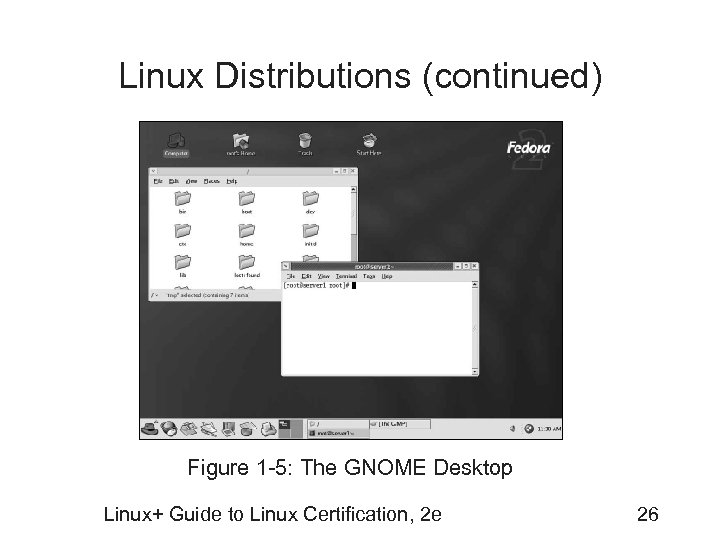 Linux Distributions (continued) Figure 1 -5: The GNOME Desktop Linux+ Guide to Linux Certification, 2 e 26
 Common Uses of Linux • May be customized to provide services for a variety of companies in a variety of situations • Workstation services: Services used on a local computer • Server services: Services made available for other computers across a network Linux+ Guide to Linux Certification, 2 e 27
 Internet Servers: Mail Services • Mail transfer agent (MTA): An e-mail server • Mail delivery agent (MDA): Service that downloads e-mail from an MTA • Mail user agent (MUA): Program that allows e-mail to be read by a user Linux+ Guide to Linux Certification, 2 e 28
 Internet Servers: Routing and FTP Services • Routing: Provides interconnection between separate networks – Core service necessary for Internet to function – Linux provides support for routing and is easily customizable • File Transfer Protocol (FTP) Services: Most common and efficient method for transferring files over the Internet Linux+ Guide to Linux Certification, 2 e 29
 Internet Servers: Firewalls and Proxy Services • Firewall: Protects companies from outside intruders on the Internet – Linux has firewall support built into the kernel • Proxy server: requests Internet resources such as Web sites and FTP sites on behalf of the computer inside the company Linux+ Guide to Linux Certification, 2 e 30
 Internet Servers: Web Services and News Services • Web services: Web servers host information (text, pictures, music, binary data, and video) – Can also process programs known as Common Gateway Interface (CGI) scripts and provide secure connections • News services: News servers allow users to post messages in forums called newsgroups – Most Web servers do not provide means for users to communicate Linux+ Guide to Linux Certification, 2 e 31
 Internet Servers: DNS Services • Computers communicating on a network need to be uniquely identified – Each computer is assigned an Internet Protocol (IP) address • Long string of numbers • Allows computers to identify and reference each other • Fully Qualified Domain Name (FQDN): Masks IP addresses with user-friendly names Linux+ Guide to Linux Certification, 2 e 32
 File and Print Servers • Linux is well-suited for centrally sharing resources – More economical to share files and printers over a network – Inherently fast and light – A distribution specific to a certain task can be installed on the central server Linux+ Guide to Linux Certification, 2 e 33
 Application Servers • Application server: Intermediary between a client computer and a database • Database: Organized collection of data that is arranged into tables of related information • Database Management Systems (DBMS): Set of programs designed for creation, modification, manipulation, maintenance, and access of information from databases Linux+ Guide to Linux Certification, 2 e 34
 Linux+ Guide to Linux Certification, Second Edition Chapter 2 Preparing for Linux Installation Linux+ Guide to Linux Certification, 2 e
 Objectives • Describe common types of hardware and their features • Obtain the hardware and software information necessary to install Linux+ Guide to Linux Certification, 2 e 36
 Understanding Hardware: Central Processing Units (CPUs) • Core component of any computer – Also known as microprocessor or processor • Two main components: – Arithmetic logic unit (ALU): Mathematical calculations and logic-based operations executed here – Control unit (CU): Instruction code or commands loaded and carried out here Linux+ Guide to Linux Certification, 2 e 37
 Understanding Hardware: CPUs (continued) • Processor architecture: Arrangement of a processor’s integral electronics • Two main processor architectures: – Complex Instruction Set Computer (CISC) – Reduced Instruction Set Computer (RISC) Linux+ Guide to Linux Certification, 2 e 38
 Understanding Hardware: CPUs (continued) • Clock speed: Internal time cycle of a processor – Determines speed that processor executes commands – Measured in Megahertz (MHz) • A processor may require one cycle to complete a command or may be superscalar • Amount of information a processor can process at one time is a major factor in clock speed – Measured in binary digits (bits) – The more information that can be worked on at once, the faster data can be manipulated Linux+ Guide to Linux Certification, 2 e 39
 Understanding Hardware: CPUs (continued) • Cache: Temporary store of information – Cache size and location affect a processor’s ability to calculate larger volumes of data • Level 1 (L 1) cache: Cache stored in the processor itself • Level 2 (L 2) cache: Cache stored in a separate computer chip – Connected to processor via high speed link • Level 3 (L 3) cache: Cache stored on a separate computer chip – Connected directly to processor Linux+ Guide to Linux Certification, 2 e 40
 Understanding Hardware: CPUs (continued) • Multiple processors can work together – Perform the same tasks faster – Symmetric Multi-Processing (SMP): Allows OS and memory to use both processors simultaneously for any task – ASymmetric Multi-Processing (ASMP): Each processor given a set of tasks to complete independently Linux+ Guide to Linux Certification, 2 e 41
 Understanding Hardware: Physical Memory • Storage area for information that is directly wired through circuit boards to the processor • Two main categories: – Random Access Memory (RAM) • Volatile memory – Read Only Memory (ROM) Linux+ Guide to Linux Certification, 2 e 42
 Understanding Hardware: Physical Memory―RAM • Requires constant supply of electricity to maintain stored information • Directly related to computer performance • Two major categories: – Dynamic RAM (DRAM) – Static RAM (SRAM) Linux+ Guide to Linux Certification, 2 e 43
 Understanding Hardware: Physical Memory―RAM (continued) • Three main types of DRAM sticks: – Single In-line Memory Modules (SIMM) • No longer produced – Dual In-line Memory Modules (DIMM) – Small Outline Dual In-line Memory Modules (SODIMM) • Used in portable notebook computers and Macintosh systems Linux+ Guide to Linux Certification, 2 e 44
 Understanding Hardware: Physical Memory―RAM (continued) • Three recent DIMM technologies: – Synchronous Dynamic Random Access Memory (SDRAM) – Double Data Rate Synchronous Dynamic Random Access Memory (DDR SDRAM) – Rambus Dynamic Random Access Memory (RDRAM) Linux+ Guide to Linux Certification, 2 e 45
 Understanding Hardware: Physical Memory―ROM • Read-only Memory: Physical memory that can be read but not written to – Nonvolatile • Basic Input/Output System (BIOS) ROM: Stores programs used to initialize hardware components when starting computer Linux+ Guide to Linux Certification, 2 e 46
 Understanding Hardware: Physical Memory―ROM Variants • Programmable Read Only Memory (PROM): Can only be written to once • Erasable Programmable Read Only Memory (EPROM): Contents can be repeatedly erased and rewritten as a whole • Electronically Erasable Programmable Read Only Memory (EEPROM): Whole or partial contents can be repeatedly erased/rewritten Linux+ Guide to Linux Certification, 2 e 47
 Understanding Hardware: Disk Drives • Most information in a computer maintained using nonvolatile media, not consisting of integrated circuits – – – Hard disk Floppy disk CD-ROM, DVD CD-RW, DVD-RW disk Zip disk Flash Memory Linux+ Guide to Linux Certification, 2 e 48
 Understanding Hardware: Disk Drives―Hard Disk Drives • Not directly wired to the processor – Pass through a hard disk controller card • Controls flow of information to and from the hard disk drive (HDD) • Two types of controller cards: – Integrated Drive Electronics (IDE) • Also known as Advanced Technology Attachment (ATA) controllers – Small Computer System Interface (SCSI) Linux+ Guide to Linux Certification, 2 e 49
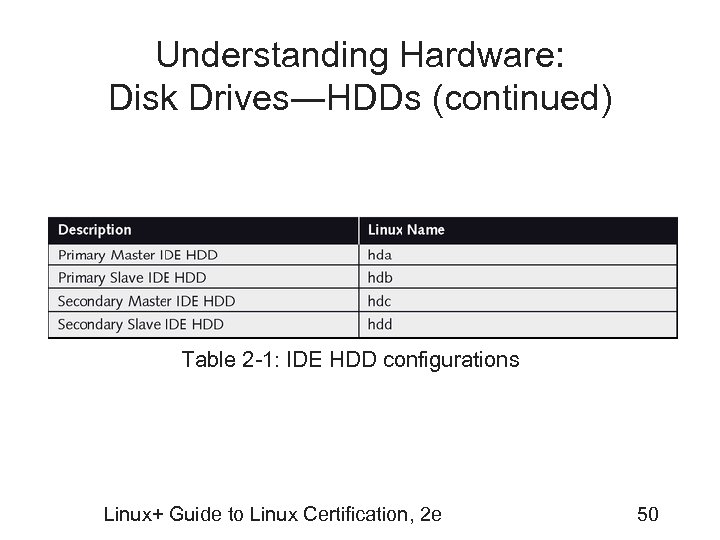 Understanding Hardware: Disk Drives―HDDs (continued) Table 2 -1: IDE HDD configurations Linux+ Guide to Linux Certification, 2 e 50
 Understanding Hardware: Disk Drives―HDDs (continued) • Partitions: Small, manageable sections of a hard drive • Filesystems: Specify how data should reside on the hard disk itself – A partition must be formatted with a filesystem Linux+ Guide to Linux Certification, 2 e 51
 Understanding Hardware: Disk Drives―HDDs (continued) • Primary partitions: Major unique and separate HDD divisions • Extended partitions: Partitions that can be further subdivided into logical drives • Master Boot Record (MBR): Table of all partition information for a hard disk – Stored outside of all partitions Linux+ Guide to Linux Certification, 2 e 52
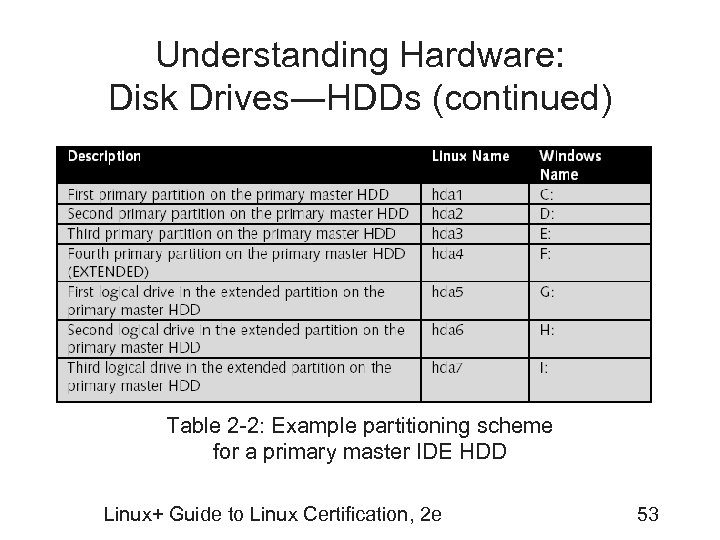 Understanding Hardware: Disk Drives―HDDs (continued) Table 2 -2: Example partitioning scheme for a primary master IDE HDD Linux+ Guide to Linux Certification, 2 e 53
 Understanding Hardware: Disk Drives―Other Information Storage Devices • Removable media: Information storage media that can be removed from the computer – Transferable between computers • Floppy disks: Store information electro-magnetically – Used in floppy disk drives • Zip disks: Similar to floppy disks – Can store much more information – Used in zip drives Linux+ Guide to Linux Certification, 2 e 54
 Understanding Hardware: Disk Drives―Other Information Storage Devices (continued) • DVDs and CD-ROMs: Use lasers to read reflected light pulses – Greater data transfer speed – Larger storage capacity – More resistance to data loss than floppy disks or ZIP disks • Flash memory drives: Use EEPROM chips to store information Linux+ Guide to Linux Certification, 2 e 55
 Understanding Hardware: Mainboards and Peripheral Components • Bus: Pathway information takes from one hardware device to another via a mainboard • Mainboard (also called a motherboard): Circuit board that connects all other hardware components together via slots or ports on the circuit board • Peripheral components: Attach to the mainboard of a computer – e. g. , video cards, sound cards, and network interface cards (NICs) – Connected via an Input/Output bus represented by different slots or ports on the mainboard Linux+ Guide to Linux Certification, 2 e 56
 Understanding Hardware: Mainboards and Peripheral Components (continued) • Three common slots for peripheral devices: – Industry Standard Architecture (ISA): Information transfer at 8 MHz – Peripheral Component Interconnect (PCI): Information transfer at 33 MHz • Can use Direct Memory Access (DMA) – Accelerated Graphics Port (AGP): Information transfer over 66 MHz • Designed for video card peripherals Linux+ Guide to Linux Certification, 2 e 57
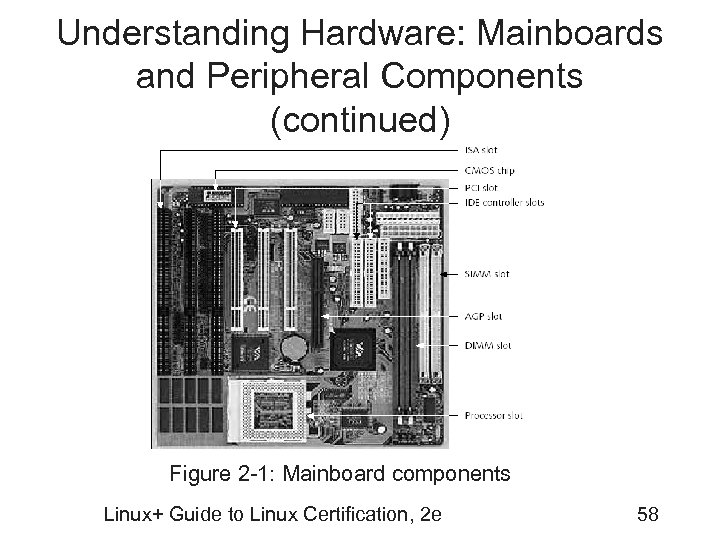 Understanding Hardware: Mainboards and Peripheral Components (continued) Figure 2 -1: Mainboard components Linux+ Guide to Linux Certification, 2 e 58
 Understanding Hardware: Mainboards and Peripheral Components (continued) • Other peripherals may have external connections to mainboard – – – PS/2 COM (Serial) LPT USB IEEE 1394 (Firewire) PCMCIA Linux+ Guide to Linux Certification, 2 e 59
 Understanding Hardware: Mainboards and Peripheral Components (continued) • Personal Computer Memory Card International Association (PCMCIA) ports: Allow a small card to be inserted into the computer with electronics necessary to provide certain functionality • Advanced Power Management (APM): BIOS feature that shuts off power to unused peripheral devices Linux+ Guide to Linux Certification, 2 e 60
 Understanding Hardware: Mainboards and Peripheral Components (continued) • Interrupt Request Line (IRQ): Specifies a unique channel from a device to the CPU • Input/Output (IO) address: Small working area of RAM where CPU can pass information to and receive information from a device • Plug-and-Play (Pn. P): OS and peripheral devices that automatically assign the correct IRQ, I/O address, and DMA settings Linux+ Guide to Linux Certification, 2 e 61
 Understanding Hardware: Video Adapter Cards and Monitors • Video adapter cards: Provide graphical display when connected to a monitor – Commonly referred to as video cards • Resolution: Total number of pixels that can be displayed on a computer video screen • Color depth: Total set of colors that can be displayed on a computer video screen Linux+ Guide to Linux Certification, 2 e 62
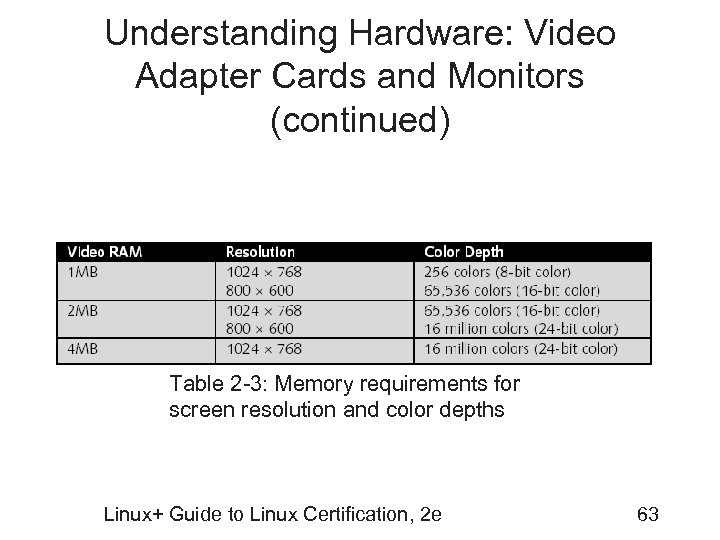 Understanding Hardware: Video Adapter Cards and Monitors (continued) Table 2 -3: Memory requirements for screen resolution and color depths Linux+ Guide to Linux Certification, 2 e 63
 Understanding Hardware: Video Adapter Cards and Monitors (continued) • Refresh rate: Rate at which information displayed on a video screen is refreshed – Measured in Hertz (Hz) – Two types of refresh rates: • HSync (horizontal refresh) • VSync (vertical refresh) Linux+ Guide to Linux Certification, 2 e 64
 Understanding Hardware: Keyboards and Mice • Facilitates user input and direction • Variety of ways to connect to motherboard – – – Serial port Large circular AT 5 -pin connector Small circular PS/2 6 -pin connector USB connection Wireless or radio connection • Check hardware components against a Hardware Compatibility List (HCL) Linux+ Guide to Linux Certification, 2 e 65
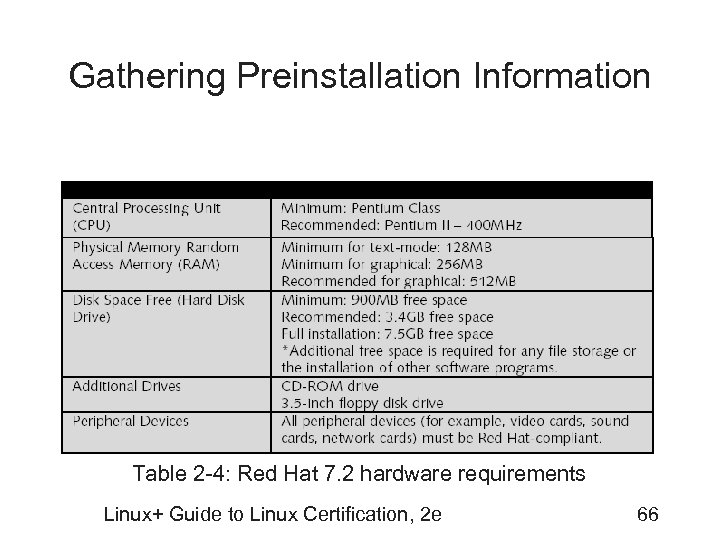 Gathering Preinstallation Information Table 2 -4: Red Hat 7. 2 hardware requirements Linux+ Guide to Linux Certification, 2 e 66
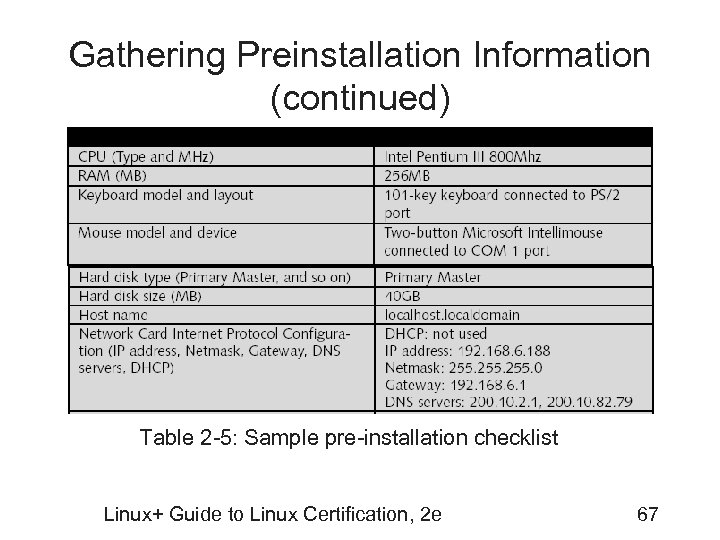 Gathering Preinstallation Information (continued) Table 2 -5: Sample pre-installation checklist Linux+ Guide to Linux Certification, 2 e 67
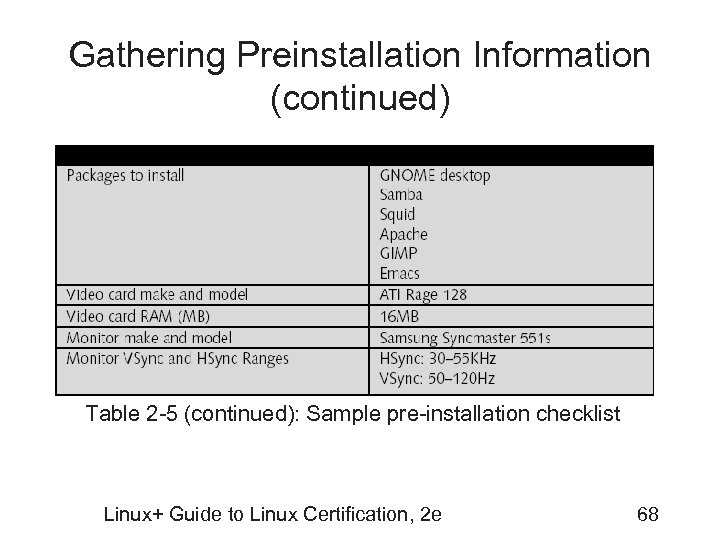 Gathering Preinstallation Information (continued) Table 2 -5 (continued): Sample pre-installation checklist Linux+ Guide to Linux Certification, 2 e 68
 Gathering Hardware Information • Tools and resources to check hardware against a preinstallation checklist: – Computer manuals – Windows System Information tool (if Windows already installed) – Windows Device Manager (if Windows already installed) Linux+ Guide to Linux Certification, 2 e 69
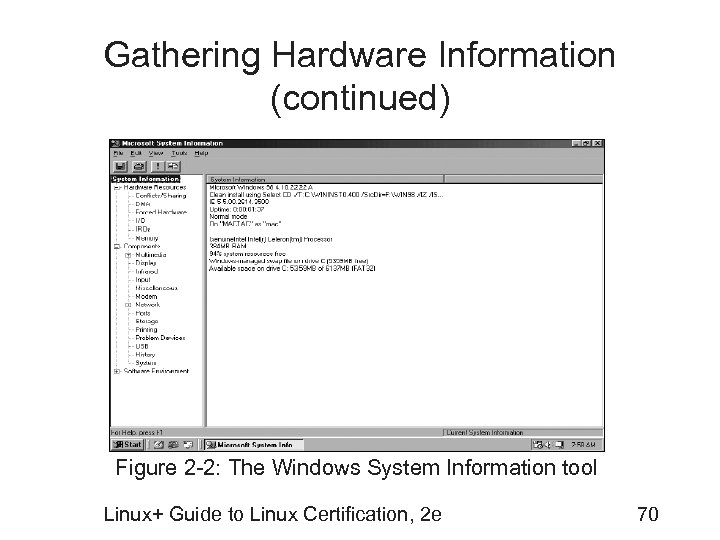 Gathering Hardware Information (continued) Figure 2 -2: The Windows System Information tool Linux+ Guide to Linux Certification, 2 e 70
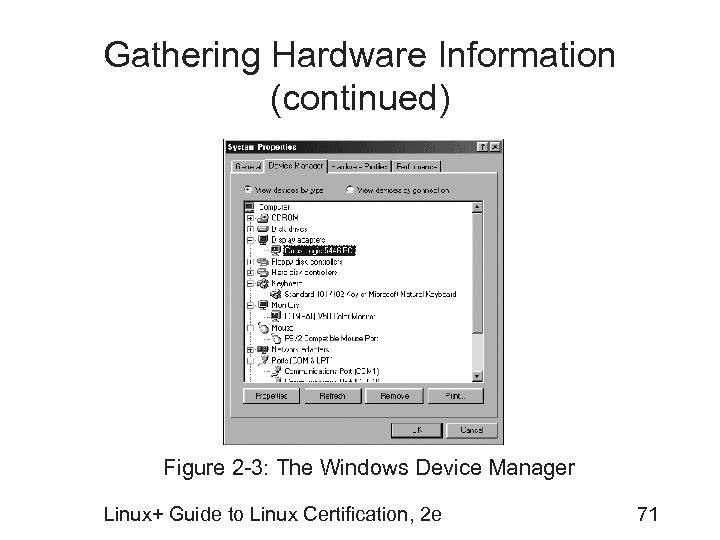 Gathering Hardware Information (continued) Figure 2 -3: The Windows Device Manager Linux+ Guide to Linux Certification, 2 e 71
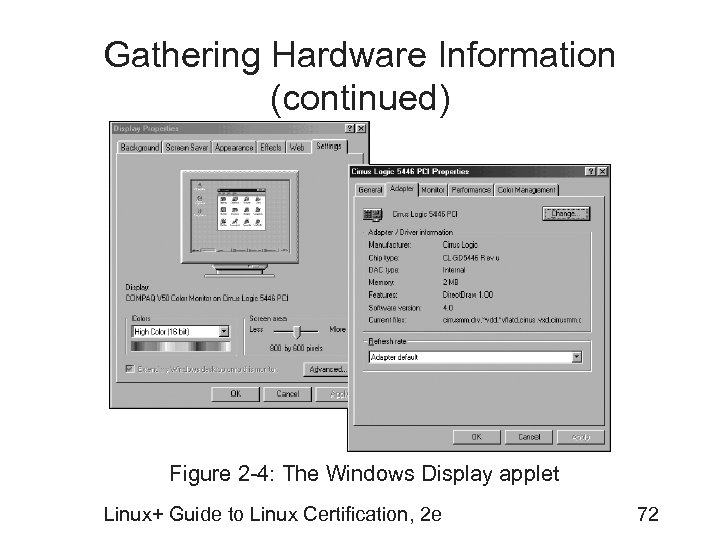 Gathering Hardware Information (continued) Figure 2 -4: The Windows Display applet Linux+ Guide to Linux Certification, 2 e 72
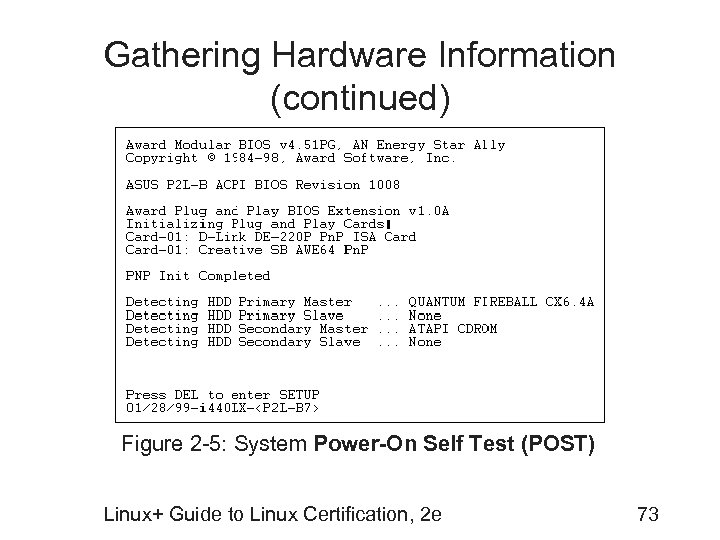 Gathering Hardware Information (continued) Figure 2 -5: System Power-On Self Test (POST) Linux+ Guide to Linux Certification, 2 e 73
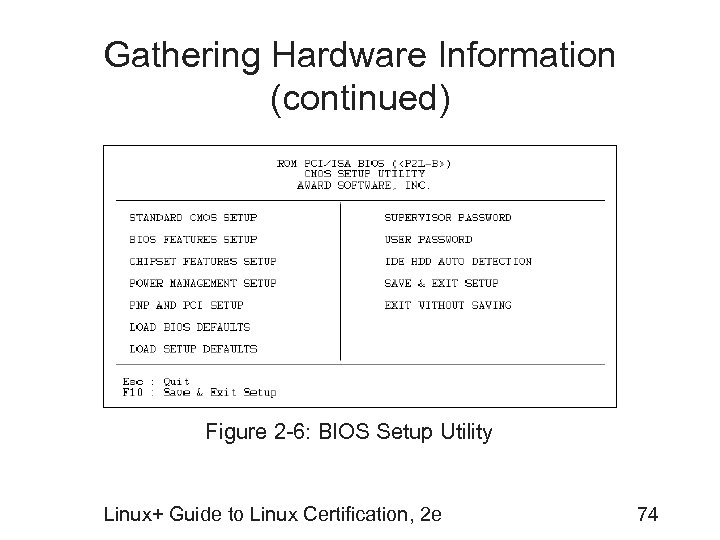 Gathering Hardware Information (continued) Figure 2 -6: BIOS Setup Utility Linux+ Guide to Linux Certification, 2 e 74
 Gathering Software Information • Identifying system network configuration: – – – Hostname IP address Netmask Gateway DNS servers • Resolve FQDNs Linux+ Guide to Linux Certification, 2 e 75
 Gathering Software Information (continued) • Dynamic Host Configuration Protocol (DHCP) server: Server on network providing IP configuration to requesting computers – If selected during installation, Linux will attempt to get IP settings from a DHCP server on the network Linux+ Guide to Linux Certification, 2 e 76
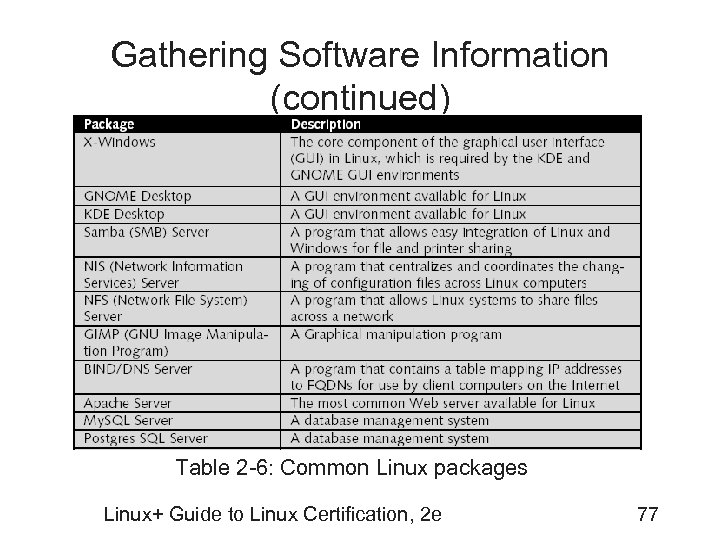 Gathering Software Information (continued) Table 2 -6: Common Linux packages Linux+ Guide to Linux Certification, 2 e 77
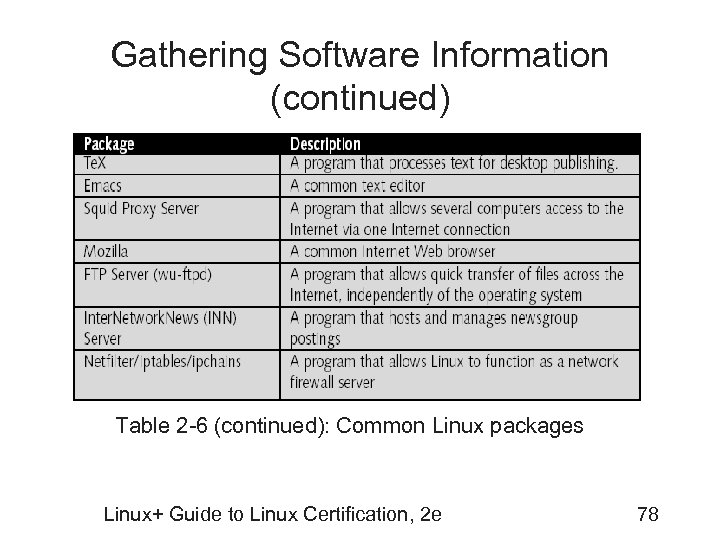 Gathering Software Information (continued) Table 2 -6 (continued): Common Linux packages Linux+ Guide to Linux Certification, 2 e 78