


 Скачать презентацию Liferay SSO and LDAP Integration Copyright 2000
5ee217052753eed7c6349e619e39e34b.ppt
- Количество слайдов: 17
 Liferay, SSO and LDAP Integration Copyright © 2000 -2007 Liferay, Inc. All Rights Reserved. No material may be reproduced electronically or in print without written permission from Liferay, Inc.
 Objectives Integration – Liferay, LDAP and SSO 1. Overview 2. Demo 3. CAS-SSO for Liferay
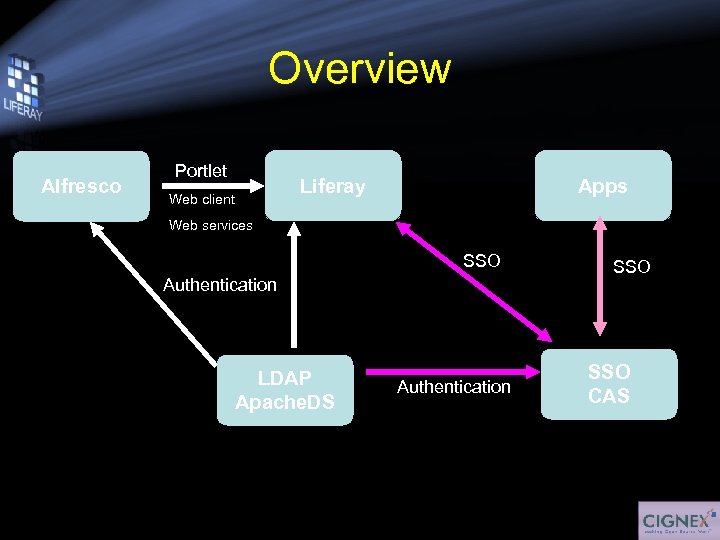 Overview Alfresco Portlet Liferay Web client Apps Web services SSO Authentication LDAP Apache. DS Authentication SSO CAS
 Real Integration See real integration – Demo Then do exercise – CAS – SSO, LDAP and Liferay - integration Set tomcat as linked source in ext project - In Resource perspective, edit. classpath; - Remove “
 CAS - SSO Install CAS-SSO server • Download CAS SSO (from copy) • URL: http: //docs. cignex. com • Login as admin/admin • Find: cas-web. war • Click it – download • Copy the war file and paste it to the Tomcat webapps directory. • Go to the Tomcat conf/server. xml file and uncomment the SSL section to open port 8443. See next page.
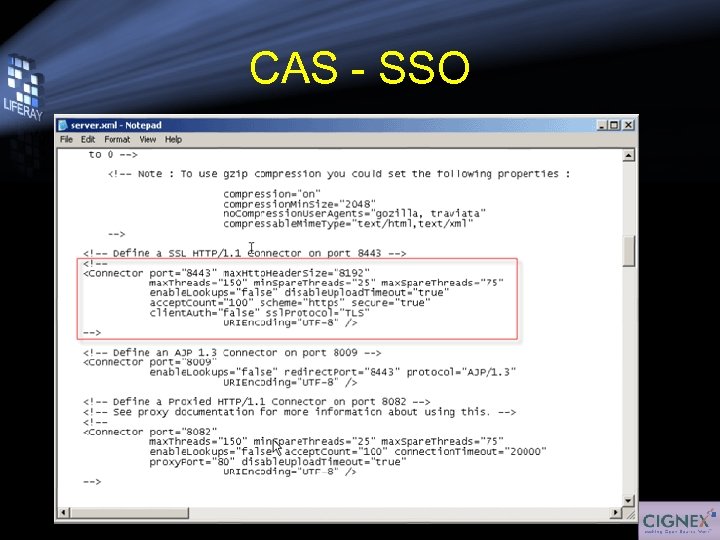 CAS - SSO
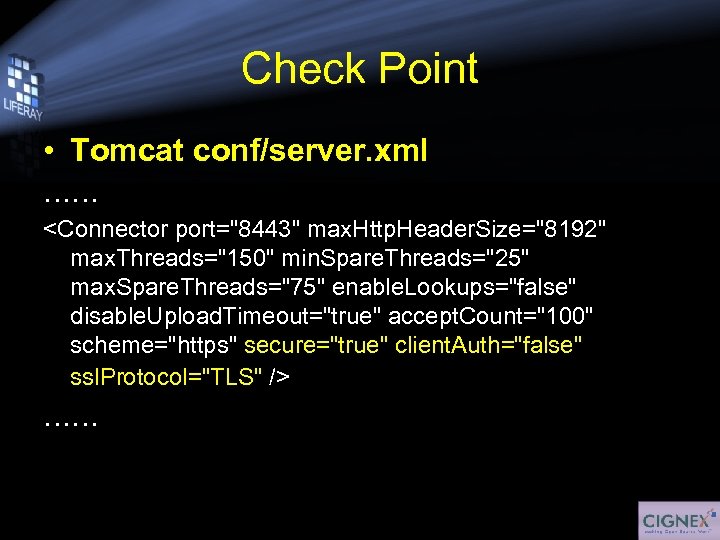 Check Point • Tomcat conf/server. xml ……
 CAS - SSO Install CAS-SSO client • Get the Yale CAS Client 2. 0. 11 (from copy) • Casclient. jar • Copy the file; Go to the lib file in Tomcat (webappsROOTWEB_INFlib) and paste the casclient. jar file to replace the existing one. • In the command prompt go to Tomcat webapps/ROOT directory. • Generate the SSL cert, enter: keytool -genkey -alias tomcat -keypass changeit -keyalg RSA
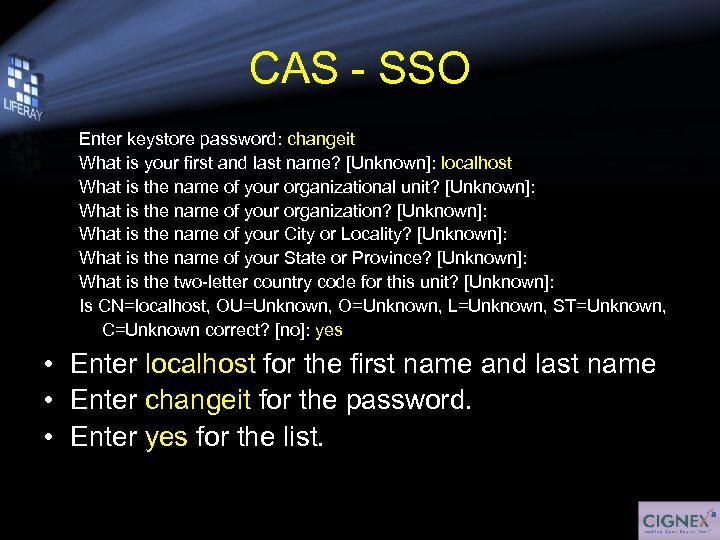 CAS - SSO Enter keystore password: changeit What is your first and last name? [Unknown]: localhost What is the name of your organizational unit? [Unknown]: What is the name of your organization? [Unknown]: What is the name of your City or Locality? [Unknown]: What is the name of your State or Province? [Unknown]: What is the two-letter country code for this unit? [Unknown]: Is CN=localhost, OU=Unknown, O=Unknown, L=Unknown, ST=Unknown, C=Unknown correct? [no]: yes • Enter localhost for the first name and last name • Enter changeit for the password. • Enter yes for the list.
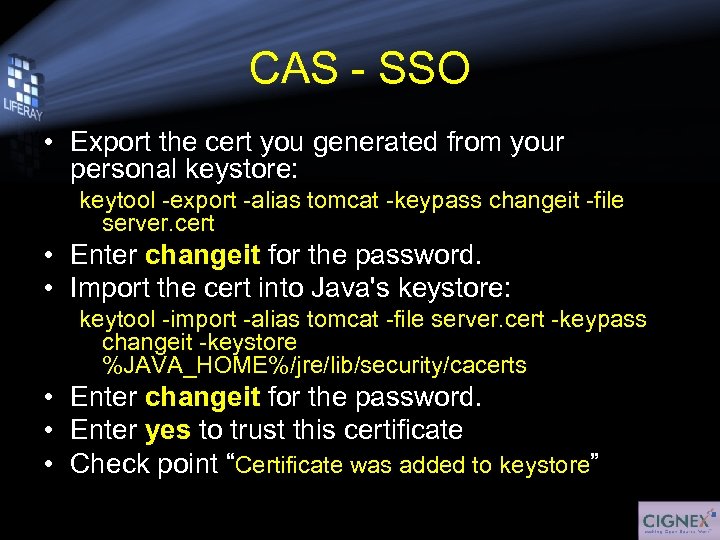 CAS - SSO • Export the cert you generated from your personal keystore: keytool -export -alias tomcat -keypass changeit -file server. cert • Enter changeit for the password. • Import the cert into Java's keystore: keytool -import -alias tomcat -file server. cert -keypass changeit -keystore %JAVA_HOME%/jre/lib/security/cacerts • Enter changeit for the password. • Enter yes to trust this certificate • Check point “Certificate was added to keystore”
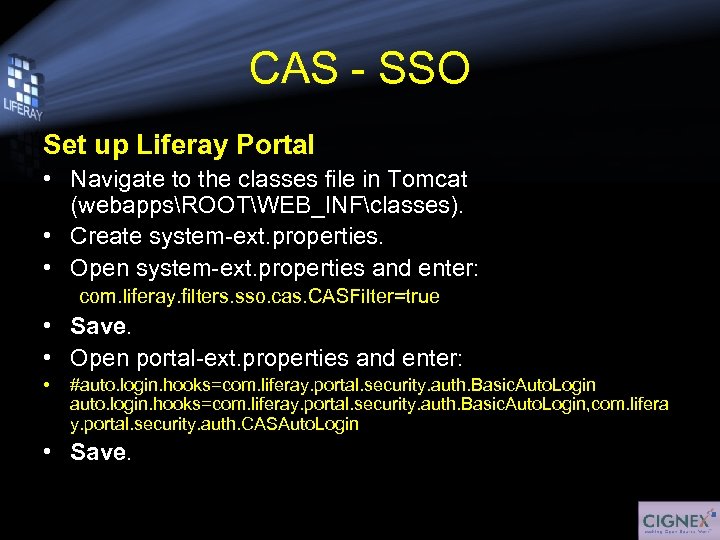 CAS - SSO Set up Liferay Portal • Navigate to the classes file in Tomcat (webappsROOTWEB_INFclasses). • Create system-ext. properties. • Open system-ext. properties and enter: com. liferay. filters. sso. cas. CASFilter=true • Save. • Open portal-ext. properties and enter: • #auto. login. hooks=com. liferay. portal. security. auth. Basic. Auto. Login, com. lifera y. portal. security. auth. CASAuto. Login • Save.
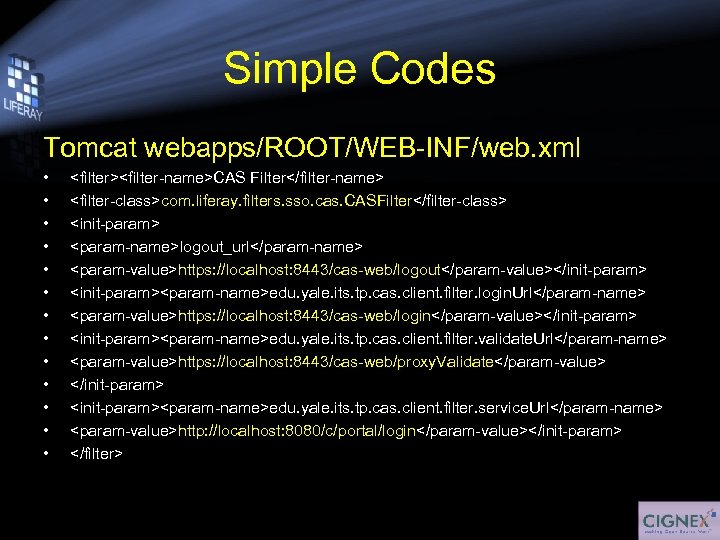 Simple Codes Tomcat webapps/ROOT/WEB-INF/web. xml • • • •
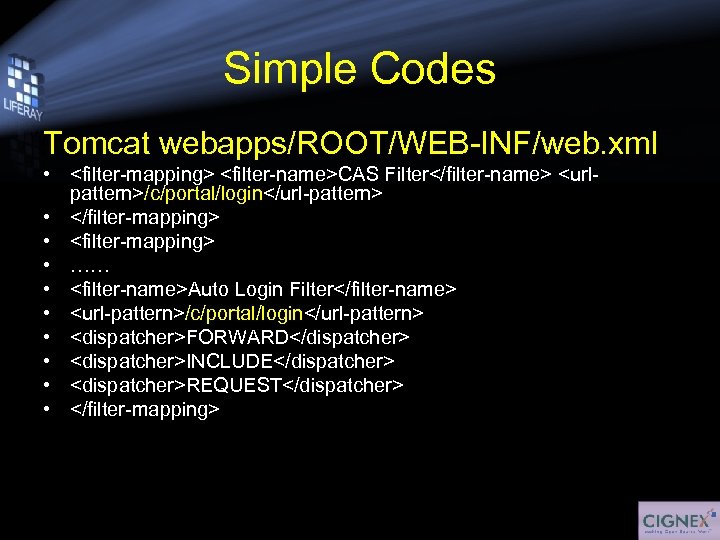 Simple Codes Tomcat webapps/ROOT/WEB-INF/web. xml •
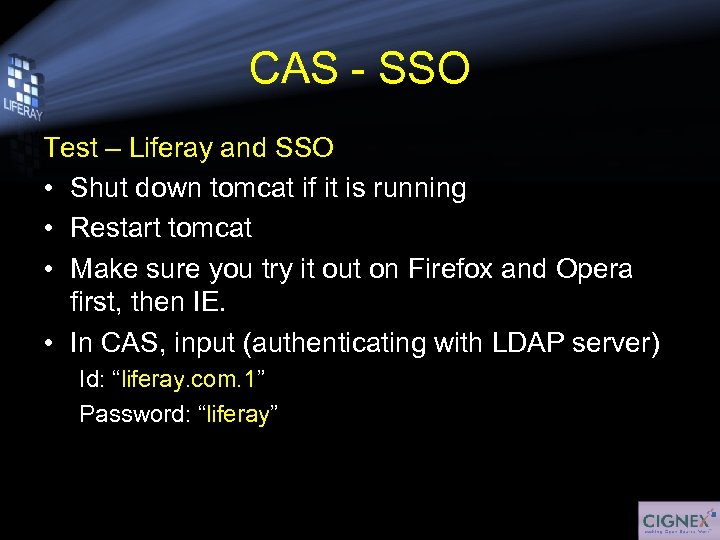 CAS - SSO Test – Liferay and SSO • Shut down tomcat if it is running • Restart tomcat • Make sure you try it out on Firefox and Opera first, then IE. • In CAS, input (authenticating with LDAP server) Id: “liferay. com. 1” Password: “liferay”
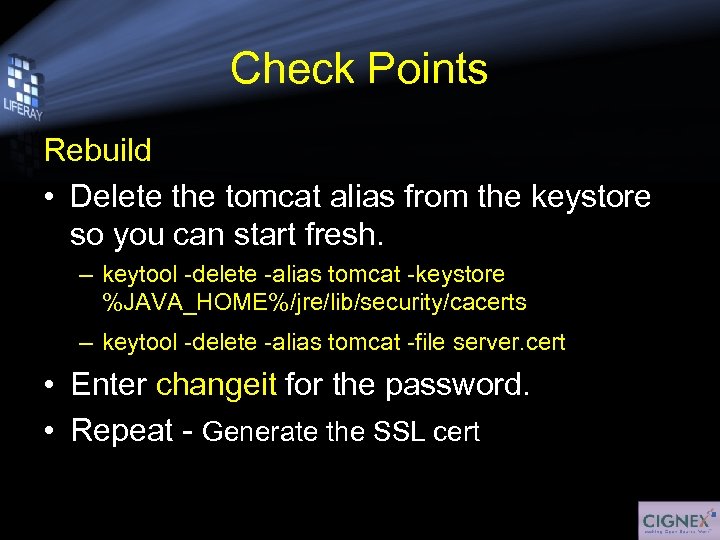 Check Points Rebuild • Delete the tomcat alias from the keystore so you can start fresh. – keytool -delete -alias tomcat -keystore %JAVA_HOME%/jre/lib/security/cacerts – keytool -delete -alias tomcat -file server. cert • Enter changeit for the password. • Repeat - Generate the SSL cert
 CAS - SSO • Congratulation! • Q&A
 Revision History Jonas Yuan 06/07/07 06/11/07 Created for Liferay 4. 2. 2 Change java home