


 Скачать презентацию Leveraging Wireshark for Wireless Network Analysis 4 1 2008 Joshua
68d92fb4720d745a4bb0d6862e85ff55.ppt
- Количество слайдов: 47
 Leveraging Wireshark for Wireless Network Analysis 4/1/2008 Joshua Wright Senior Security Researcher | Aruba Networks Mike Kershaw Wireless Hacker | Aruba Networks SHARKFEST '08 Foothill College March 31 - April 2, 2008 Sample captures at www. willhackforsushi. com/resources/sharkfest 08 -samples. zip
 Introduction Wireshark and wireless analysis Leveraging display filters Customizing the display Enhancing filters with macros Searching for anomalies Extracting data Decrypting frame contents Sample captures at www. willhackforsushi. com/resources/sharkfest 08 -samples. zip
 Introduction Wireless networks have become ubiquitious for many organizations Users bring experiences with home wireless to the enterprise WPA, PEAP, WMM, Qo. S, 802. 11 n, hotspots, TKIP, RFID, WIDS, rogues, DSSS, FMC (it's all complicated) Wireless troubleshooting can be complex Physical layer issues notoriously difficult to characterize Wireshark is indispensable for Wi. Fi troubleshooting
 Wireless Sniffing Wireless capture a universal troubleshooting and analysis mechanism Requires no authentication or access privileges Useful for security auditing, see the network as an adversary does Wireless cards support multiple operating modes Master, Managed, Ad-Hoc, Monitor Captures in monitor mode disclose 802. 11 frame information Captures in managed mode disclose Ethernet data
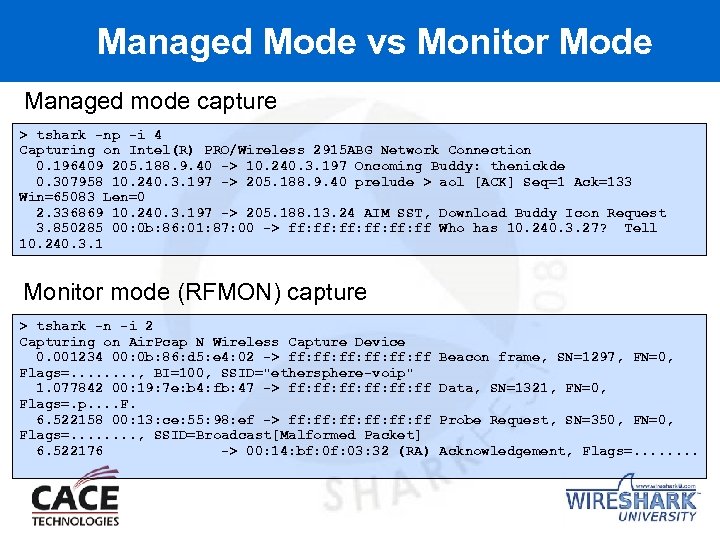 Managed Mode vs Monitor Mode Managed mode capture > tshark -np -i 4 Capturing on Intel(R) PRO/Wireless 2915 ABG Network Connection 0. 196409 205. 188. 9. 40 -> 10. 240. 3. 197 Oncoming Buddy: thenickde 0. 307958 10. 240. 3. 197 -> 205. 188. 9. 40 prelude > aol [ACK] Seq=1 Ack=133 Win=65083 Len=0 2. 336869 10. 240. 3. 197 -> 205. 188. 13. 24 AIM SST, Download Buddy Icon Request 3. 850285 00: 0 b: 86: 01: 87: 00 -> ff: ff: ff: ff Who has 10. 240. 3. 27? Tell 10. 240. 3. 1 Monitor mode (RFMON) capture > tshark -n -i 2 Capturing on Air. Pcap N Wireless Capture Device 0. 001234 00: 0 b: 86: d 5: e 4: 02 -> ff: ff: ff: ff Flags=. . . . , BI=100, SSID="ethersphere-voip" 1. 077842 00: 19: 7 e: b 4: fb: 47 -> ff: ff: ff: ff Flags=. p. . F. 6. 522158 00: 13: ce: 55: 98: ef -> ff: ff: ff: ff Flags=. . . . , SSID=Broadcast[Malformed Packet] 6. 522176 -> 00: 14: bf: 03: 32 (RA) Beacon frame, SN=1297, FN=0, Data, SN=1321, FN=0, Probe Request, SN=350, FN=0, Acknowledgement, Flags=. . . .
 RFMON Implementation Capture mode driven by drivers Most Linux wireless drivers support RFMON "Yay open source software!" Windows drivers do not support RFMON "What, you want to use it for something other than what we intended? " Airpcap From CACE Technologies Listens on one channel at a time May collect from other nearby channels
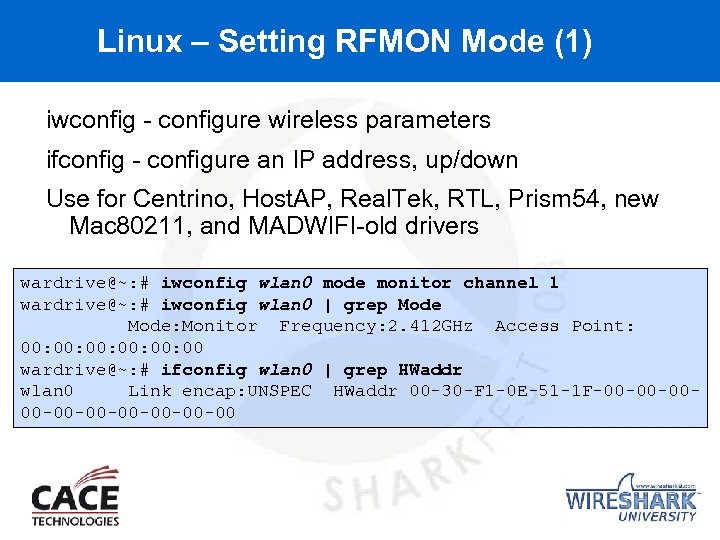 Linux – Setting RFMON Mode (1) iwconfig - configure wireless parameters ifconfig - configure an IP address, up/down Use for Centrino, Host. AP, Real. Tek, RTL, Prism 54, new Mac 80211, and MADWIFI-old drivers wardrive@~: # iwconfig wlan 0 mode monitor channel 1 wardrive@~: # iwconfig wlan 0 | grep Mode: Monitor Frequency: 2. 412 GHz Access Point: 00: 00: 00 wardrive@~: # ifconfig wlan 0 | grep HWaddr wlan 0 Link encap: UNSPEC HWaddr 00 -30 -F 1 -0 E-51 -1 F-00 -00 -00 -00 -00
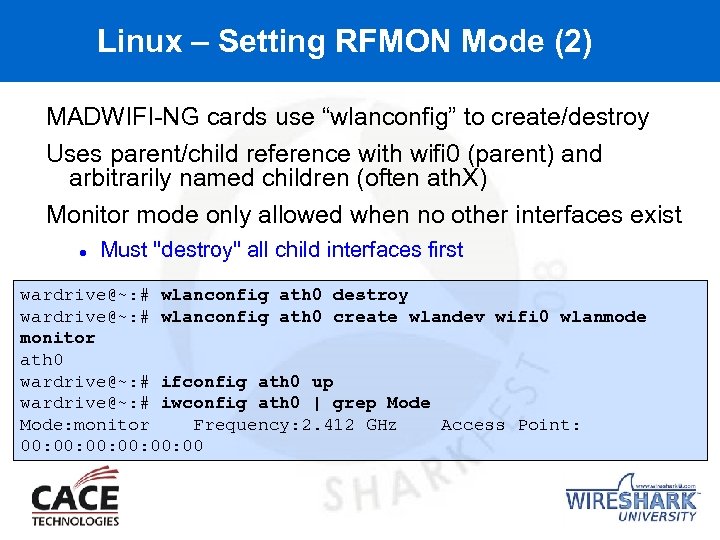 Linux – Setting RFMON Mode (2) MADWIFI-NG cards use “wlanconfig” to create/destroy Uses parent/child reference with wifi 0 (parent) and arbitrarily named children (often ath. X) Monitor mode only allowed when no other interfaces exist Must "destroy" all child interfaces first wardrive@~: # wlanconfig ath 0 destroy wardrive@~: # wlanconfig ath 0 create wlandev wifi 0 wlanmode monitor ath 0 wardrive@~: # ifconfig ath 0 up wardrive@~: # iwconfig ath 0 | grep Mode: monitor Frequency: 2. 412 GHz Access Point: 00: 00: 00
 Linux – Setting RFMON mode (3) Madwifi-NG seems to be “finicky” about monitor mode. Technically possible to combine managed + monitor or master + monitor but this doesn't work often Doesn't like channel hopping in monitor mode, often “Doesn't like” means “stops reporting data after a few minutes for no good reason” Reload your drivers with “autocreate=none” wardrive@~: # rmmod ath_pci wardrive@~: # modprobe ath_pci autocreate=none
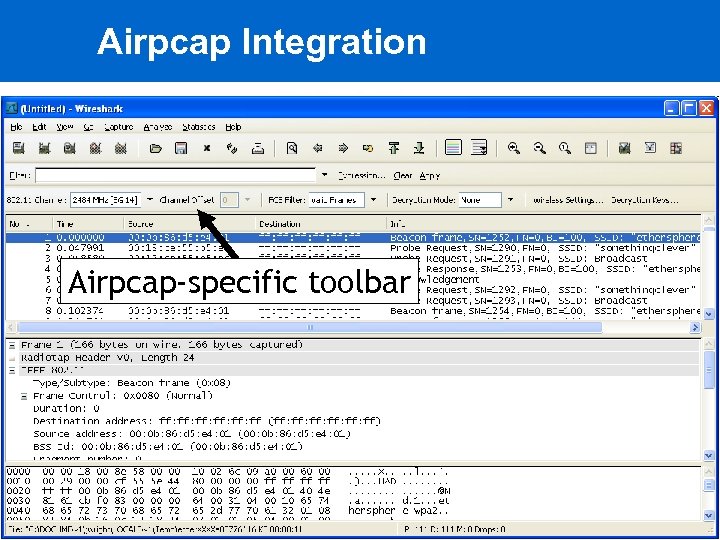 Airpcap Integration Airpcap-specific toolbar
 Leveraging Display Filters Mastering display filters is the first step in becoming a Wireshark Power User Much of the functionality leverages display filters Concept: Use the value of any dissected field to show/hide frames Combine field analysis with Boolean operators Often used to reduce the number of frames listed in the Packet List view display. field. name operator value
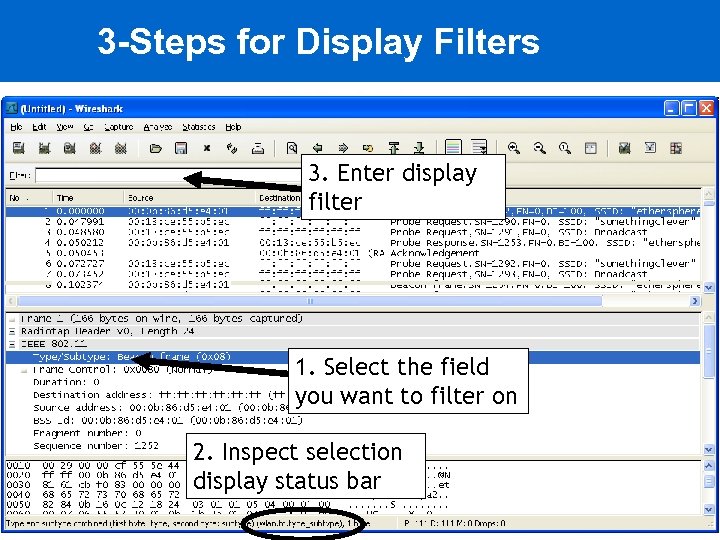 3 -Steps for Display Filters 3. Enter display filter 1. Select the field you want to filter on 2. Inspect selection display status bar
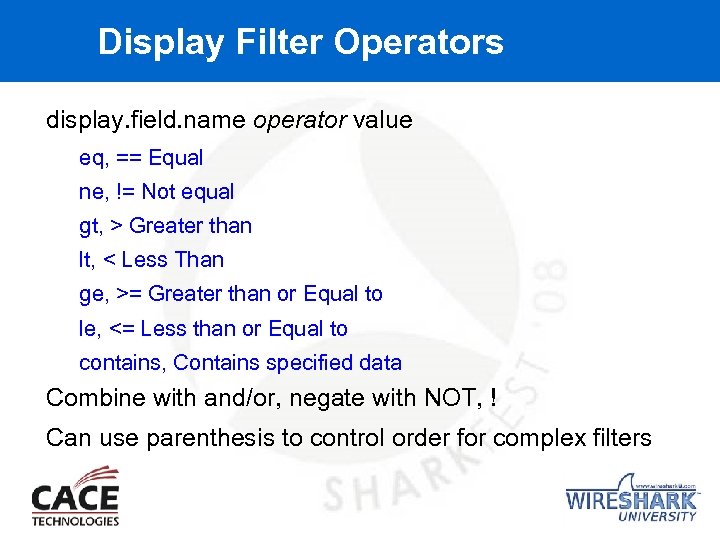 Display Filter Operators display. field. name operator value eq, == Equal ne, != Not equal gt, > Greater than lt, < Less Than ge, >= Greater than or Equal to le, <= Less than or Equal to contains, Contains specified data Combine with and/or, negate with NOT, ! Can use parenthesis to control order for complex filters
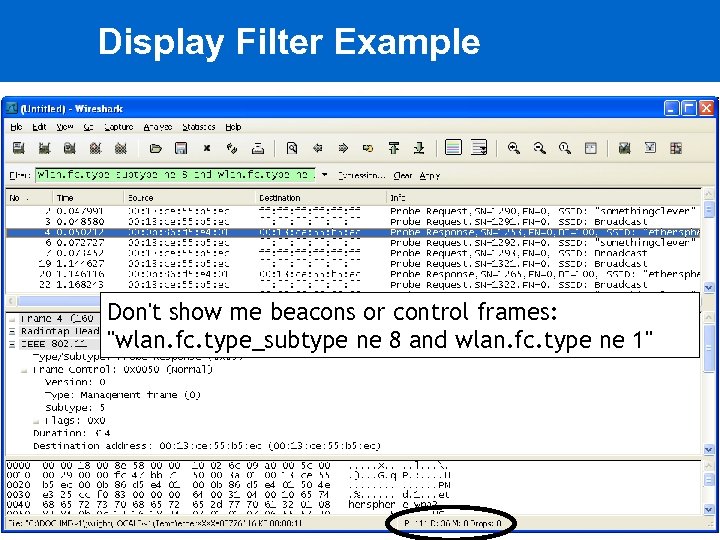 Display Filter Example Don't show me beacons or control frames: "wlan. fc. type_subtype ne 8 and wlan. fc. type ne 1"
 Customizing the Display: Columns Libpcap captures with Prism. AVS or Radiotap headers identify RSSI, rate information Airo. Peek NX show RSSI percentage, rate Can add columns to display Edit Preferences Columns New, name column, select format "IEEE 802. 11 TX Rate" Repeat for "IEEE 802. 11 RSSI" Wireshark >=0. 99. 6, no need to restart for column changes to take effect
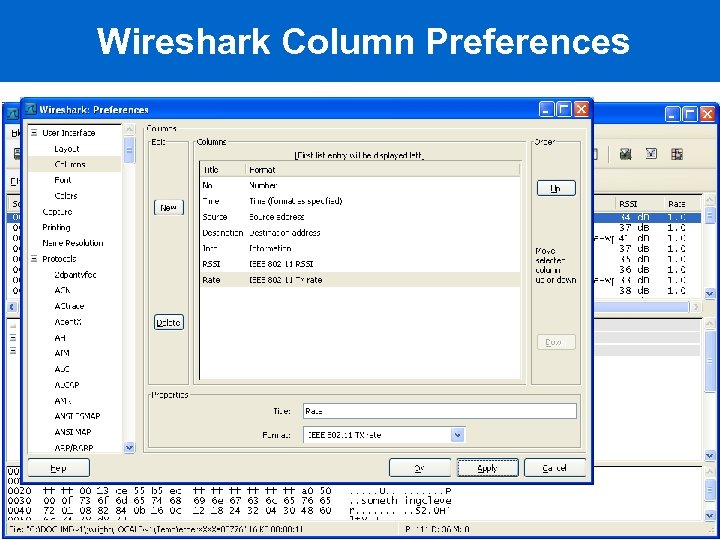 Wireshark Column Preferences
 Coloring the Display Can change the packet list display colors depending on frame characteristics Identify the characteristics with display filters A few colored lines can make analysis of a large capture much easier, faster Click View Coloring Rules Name the view, enter the display filter, select foreground and background colors Can save custom rules to a file, apply when desired Most-specific frames should be ordered first
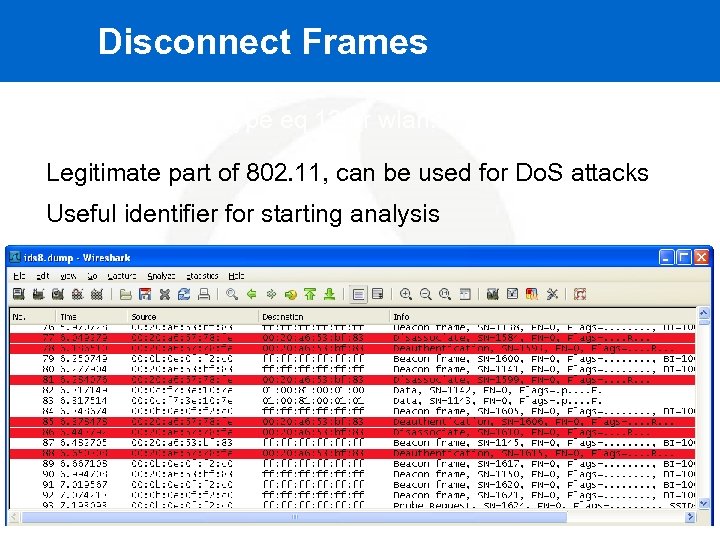 Disconnect Frames "wlan. fc. type_subtype eq 12 or wlan. fc. type_subtype eq 10" Legitimate part of 802. 11, can be used for Do. S attacks Useful identifier for starting analysis
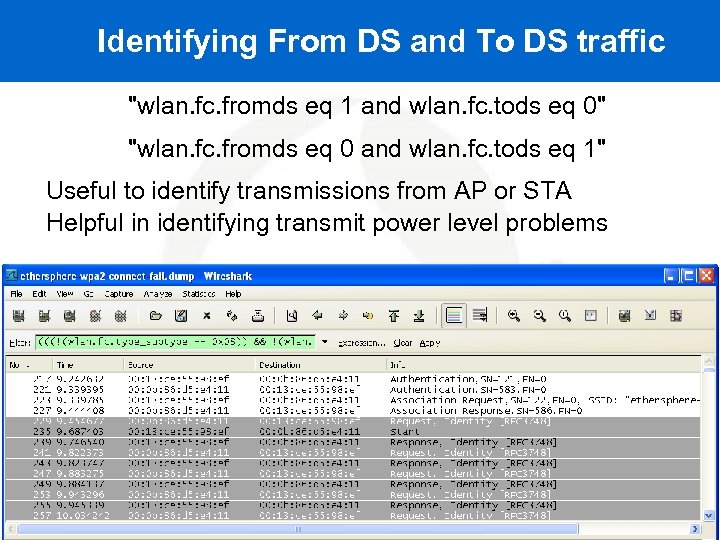 Identifying From DS and To DS traffic "wlan. fc. fromds eq 1 and wlan. fc. tods eq 0" "wlan. fc. fromds eq 0 and wlan. fc. tods eq 1" Useful to identify transmissions from AP or STA Helpful in identifying transmit power level problems
 Other Ideas for Colorizing Packets Identify traffic from your AP provider (or inverse) (wlan. addr[0: 3] eq 00: 0 b: 86 or wlan. bssid[0: 3] eq 00: 0 b: 86) Identify packets that are retries "wlan. fc. retry eq 1" Identify packets with weak signal Capture-specific, depending on how RSSI is represented Airo. Peek NX: "wlan. signal_strength < 20" Identify frames with a bad FCS "wlan. fcs_bad eq 1" White-on-white makes them easy to ignore, but can view by selecting the frame
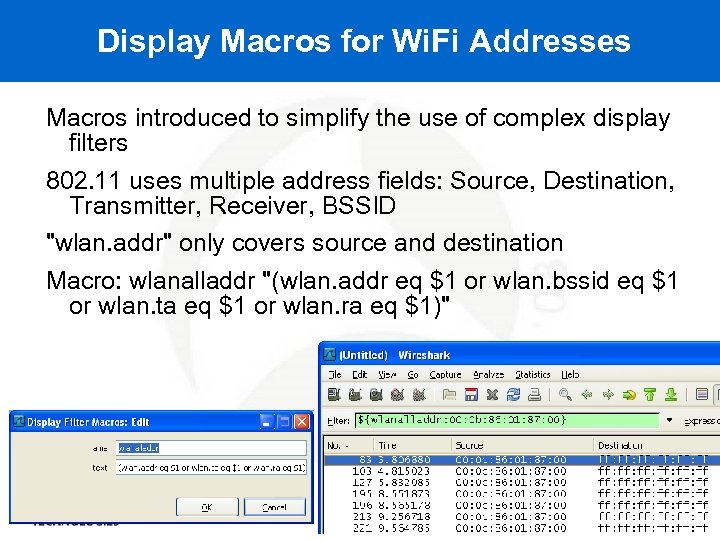 Display Macros for Wi. Fi Addresses Macros introduced to simplify the use of complex display filters 802. 11 uses multiple address fields: Source, Destination, Transmitter, Receiver, BSSID "wlan. addr" only covers source and destination Macro: wlanalladdr "(wlan. addr eq $1 or wlan. bssid eq $1 or wlan. ta eq $1 or wlan. ra eq $1)"
 Searching for Anomalies "The wireless network sucks" "I can't connect" "I get dropped" "My performance sucks" Having a packet capture from the wireless side can be very revealing for troubleshooting Intermittent problems can be tough to capture Enter "tshark" Monitoring laptop near user with a problem When the user experiences the drop, they hit "CTRL+C" to stop a capture
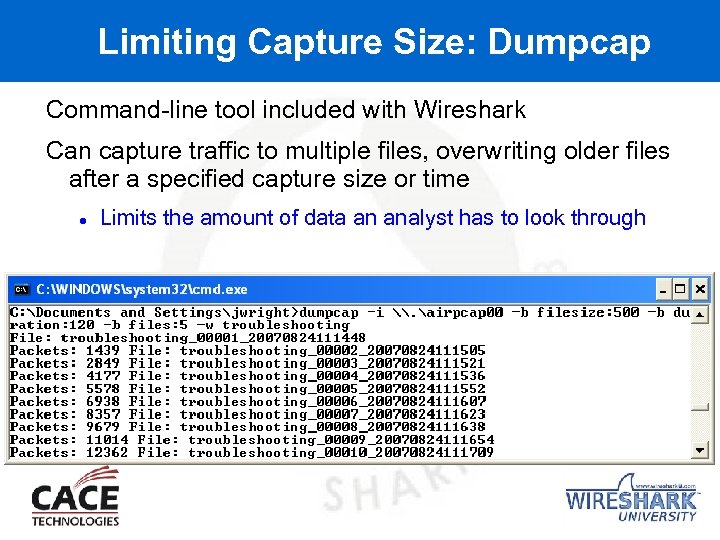 Limiting Capture Size: Dumpcap Command-line tool included with Wireshark Can capture traffic to multiple files, overwriting older files after a specified capture size or time Limits the amount of data an analyst has to look through
 Assessing Captures - Unable to Connect Apply an "exclusive filter" Keep adding exclusion criteria to the display filter until you get to a smaller number of frames that can be inspected manually Skip to deauth frames - often immediately follow suspicious activity Skip to authenticate request frame - inspect exchange that follows
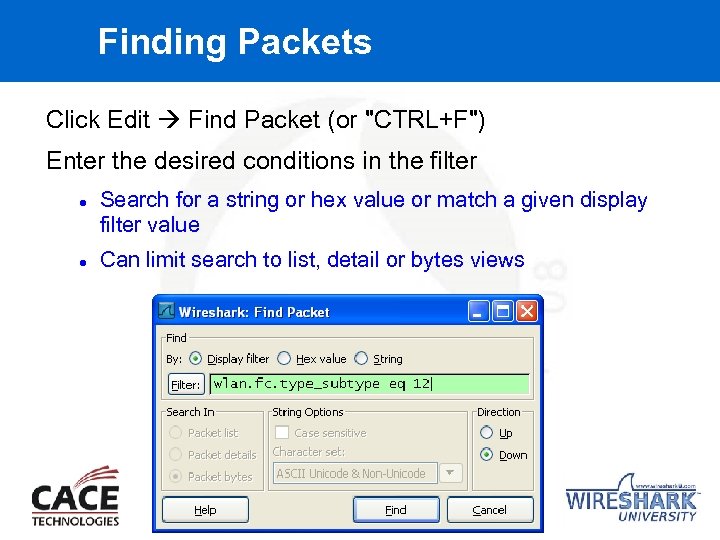 Finding Packets Click Edit Find Packet (or "CTRL+F") Enter the desired conditions in the filter Search for a string or hex value or match a given display filter value Can limit search to list, detail or bytes views
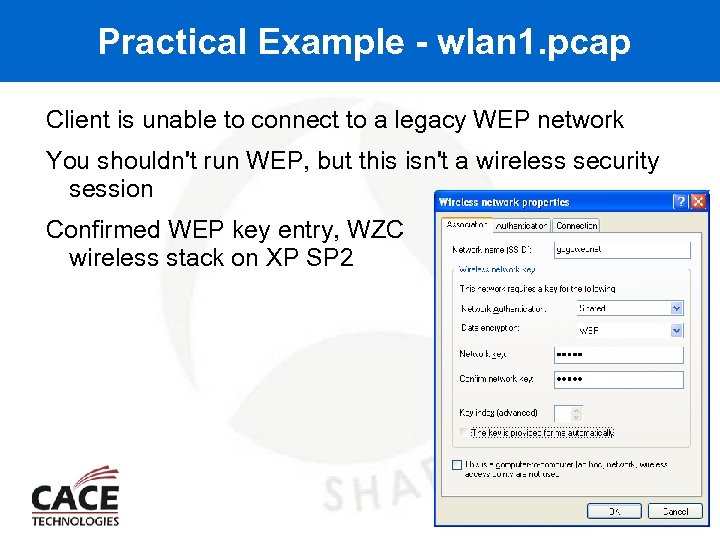 Practical Example - wlan 1. pcap Client is unable to connect to a legacy WEP network You shouldn't run WEP, but this isn't a wireless security session Confirmed WEP key entry, WZC wireless stack on XP SP 2
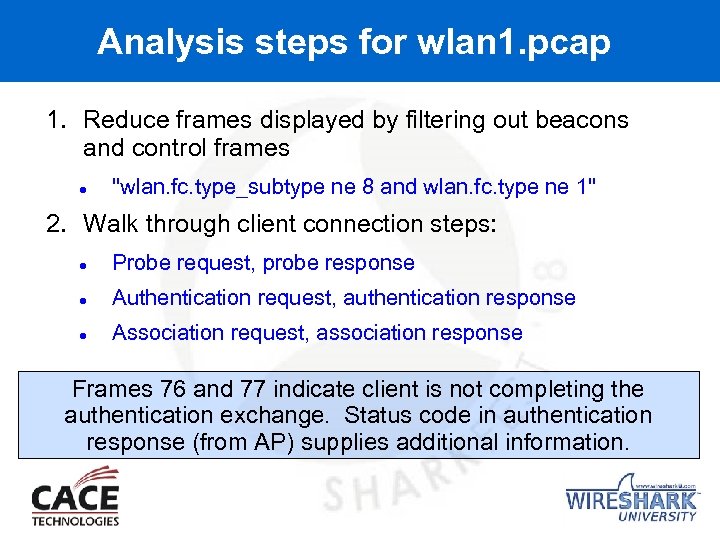 Analysis steps for wlan 1. pcap 1. Reduce frames displayed by filtering out beacons and control frames "wlan. fc. type_subtype ne 8 and wlan. fc. type ne 1" 2. Walk through client connection steps: Probe request, probe response Authentication request, authentication response Association request, association response Frames 76 and 77 indicate client is not completing the authentication exchange. Status code in authentication response (from AP) supplies additional information.
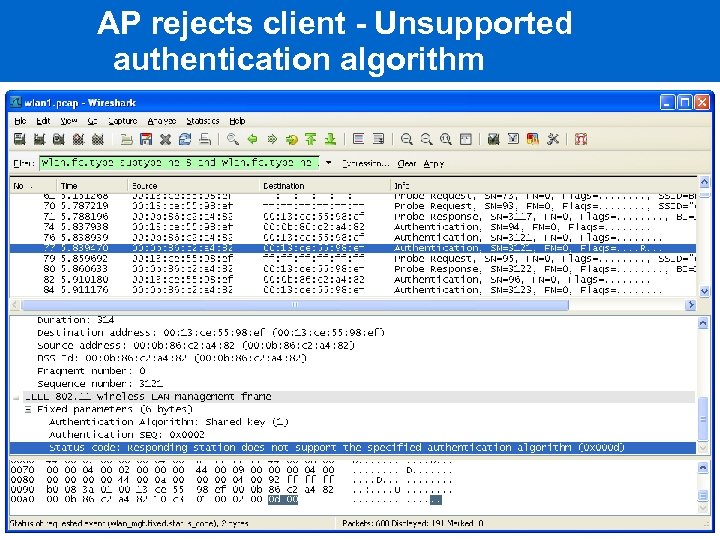 AP rejects client - Unsupported authentication algorithm
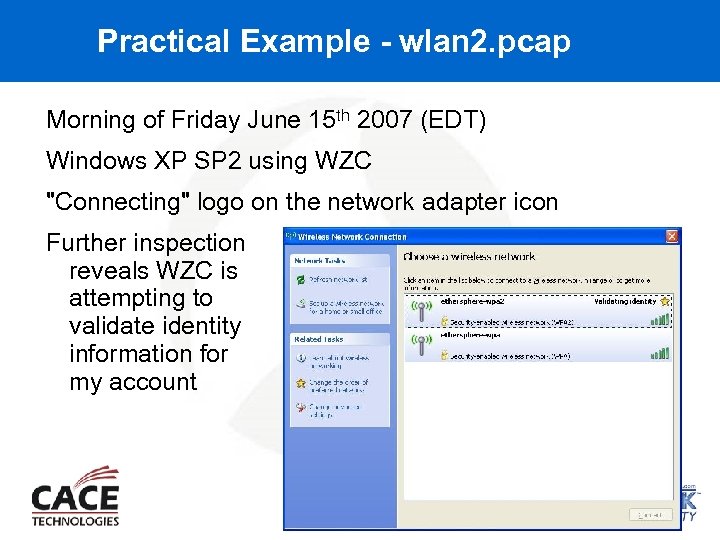 Practical Example - wlan 2. pcap Morning of Friday June 15 th 2007 (EDT) Windows XP SP 2 using WZC "Connecting" logo on the network adapter icon Further inspection reveals WZC is attempting to validate identity information for my account
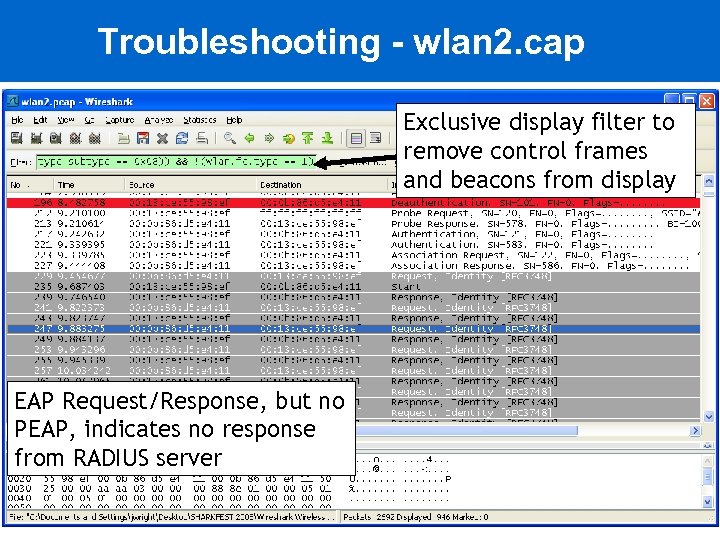 Troubleshooting - wlan 2. cap Exclusive display filter to remove control frames and beacons from display EAP Request/Response, but no PEAP, indicates no response from RADIUS server
 Practical Example - wlan 3. pcap "Josh, Question for you. I've got a local wireless LAN that's having serious performance problems, and I'm looking at some packet captures in an attempt to diagnose the issue(s). " Station in question is 00: 18: f 3: 92: 30: 82 Initial analysis by analyst suggested possible Do. S attack Lots of deauthenticate frames observed Deauth floods are the port scans of the wired IDS world. They are often misrepresented, and can easily make a smart analyst look silly.
 Filename: Kismet-May-02 -2007 -3. dump Uh, oh: capture was taken with Kismet is a great analysis tool, uses channel hopping by default Captures with channel hopping enabled can be deceptive re: RSSI, retries, lost frames Inspect beacons over time to determine if channel hopping was enabled or not
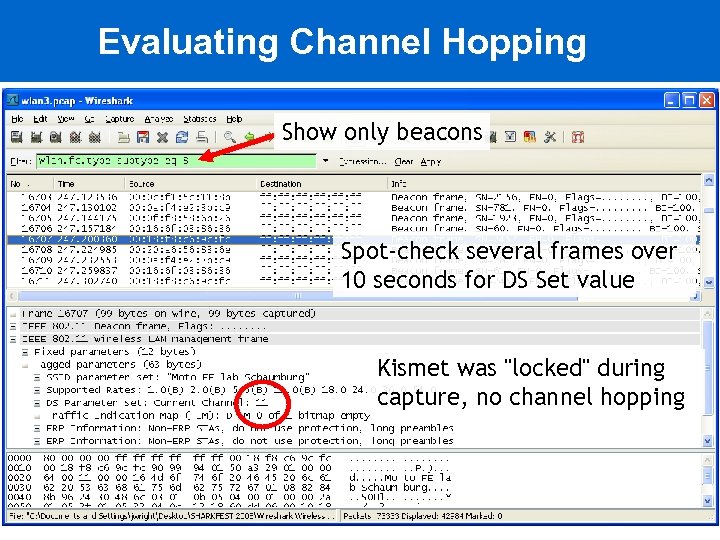 Evaluating Channel Hopping Show only beacons Spot-check several frames over 10 seconds for DS Set value Kismet was "locked" during capture, no channel hopping
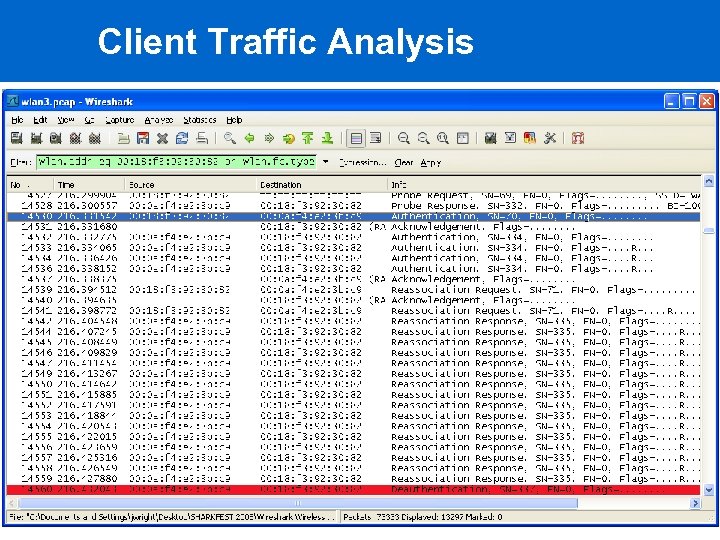 Client Traffic Analysis
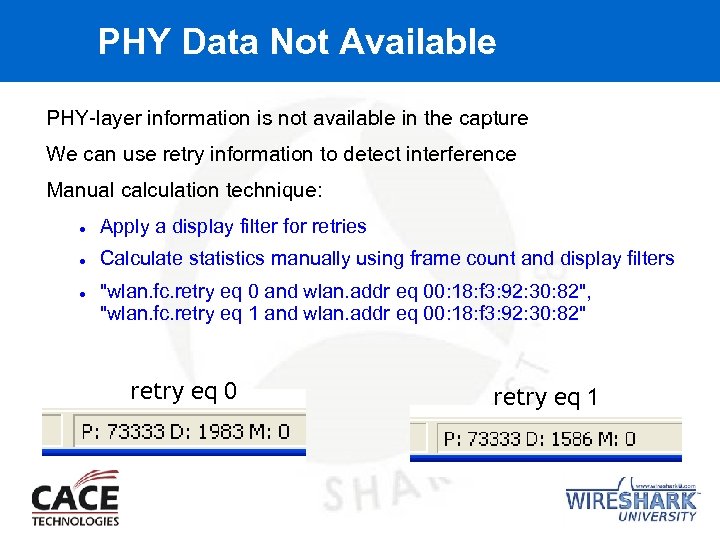 PHY Data Not Available PHY-layer information is not available in the capture We can use retry information to detect interference Manual calculation technique: Apply a display filter for retries Calculate statistics manually using frame count and display filters "wlan. fc. retry eq 0 and wlan. addr eq 00: 18: f 3: 92: 30: 82", "wlan. fc. retry eq 1 and wlan. addr eq 00: 18: f 3: 92: 30: 82" retry eq 0 retry eq 1
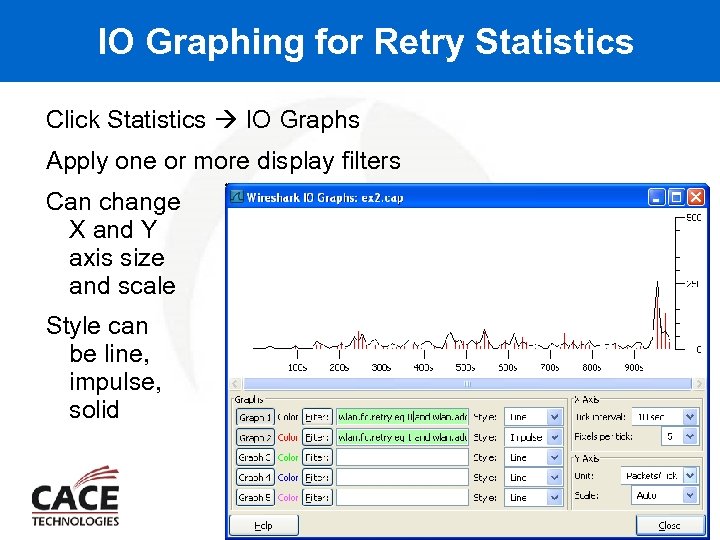 IO Graphing for Retry Statistics Click Statistics IO Graphs Apply one or more display filters Can change X and Y axis size and scale Style can be line, impulse, solid
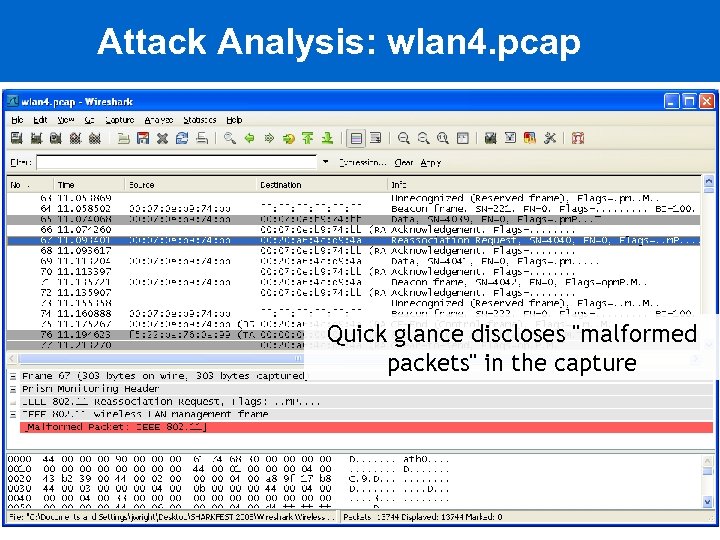 Attack Analysis: wlan 4. pcap Quick glance discloses "malformed packets" in the capture
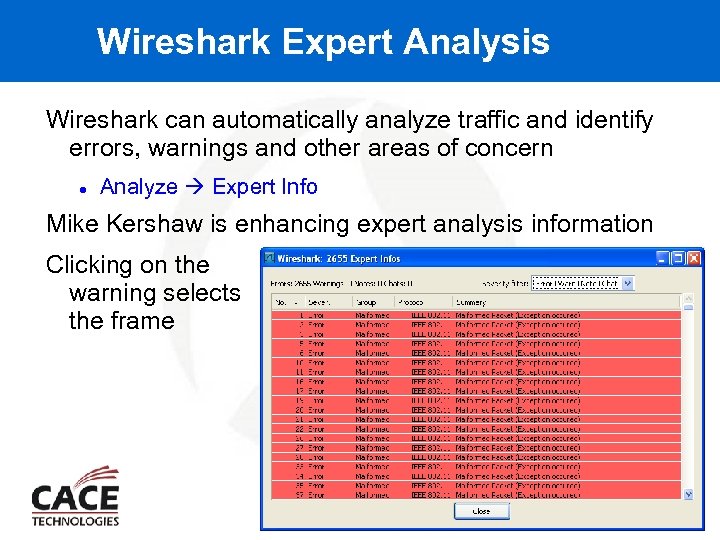 Wireshark Expert Analysis Wireshark can automatically analyze traffic and identify errors, warnings and other areas of concern Analyze Expert Info Mike Kershaw is enhancing expert analysis information Clicking on the warning selects the frame
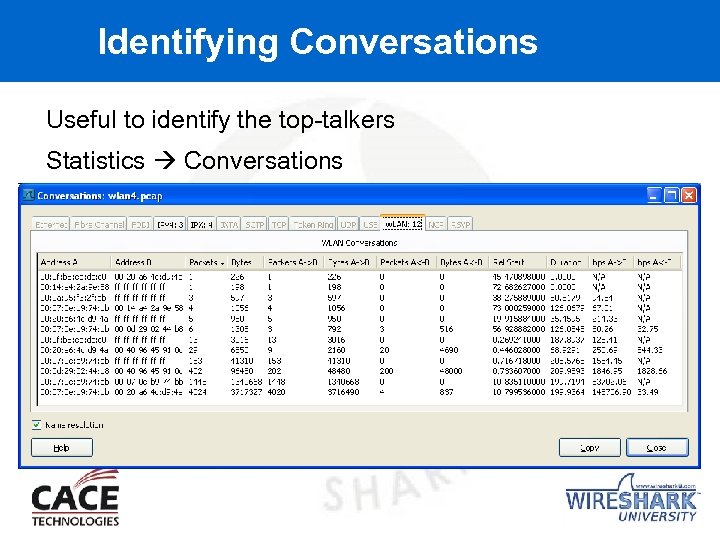 Identifying Conversations Useful to identify the top-talkers Statistics Conversations
 Spoofed Frames? Casual inspection turned up more anomalies Lots of frames with the fragment bit set Lots of IE anomalies Reserved type and subtype combinations Beginning to suspect spoofed frames Can apply sequence number analysis techniques to identify anomalies Using IO Graphs When referring to the source address, be sure to differentiate From. DS and To. DS
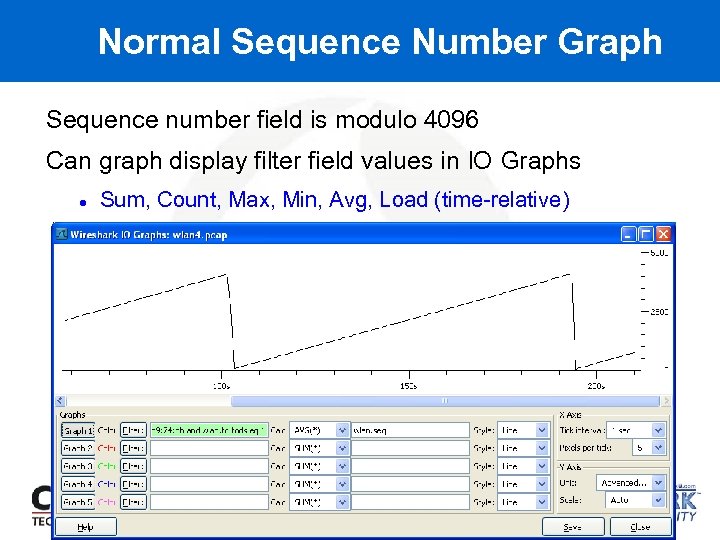 Normal Sequence Number Graph Sequence number field is modulo 4096 Can graph display filter field values in IO Graphs Sum, Count, Max, Min, Avg, Load (time-relative)
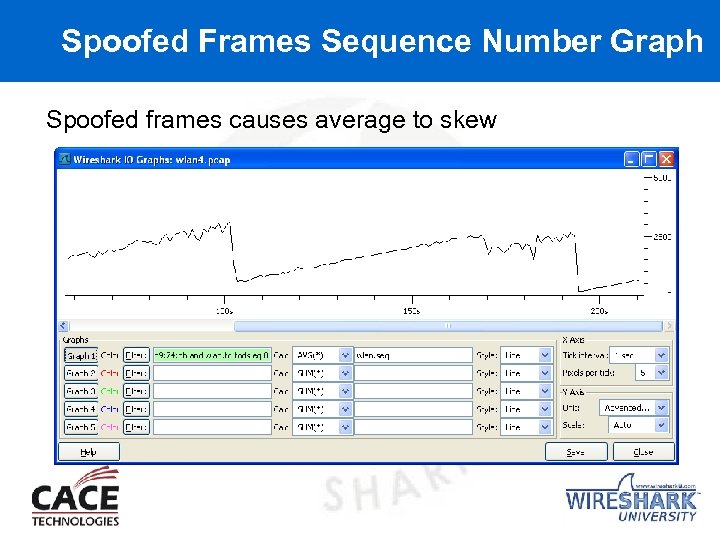 Spoofed Frames Sequence Number Graph Spoofed frames causes average to skew
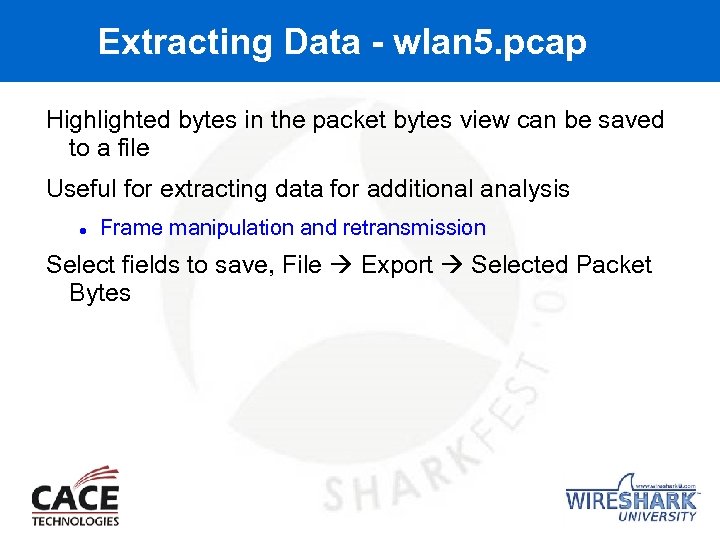 Extracting Data - wlan 5. pcap Highlighted bytes in the packet bytes view can be saved to a file Useful for extracting data for additional analysis Frame manipulation and retransmission Select fields to save, File Export Selected Packet Bytes
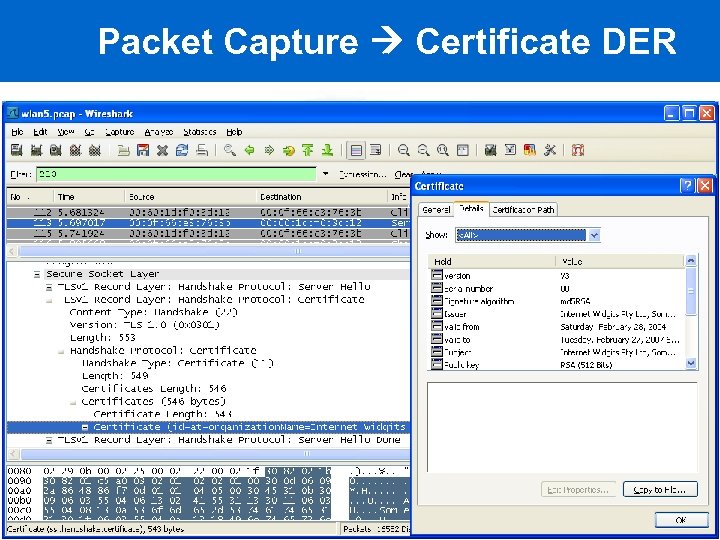 Packet Capture Certificate DER
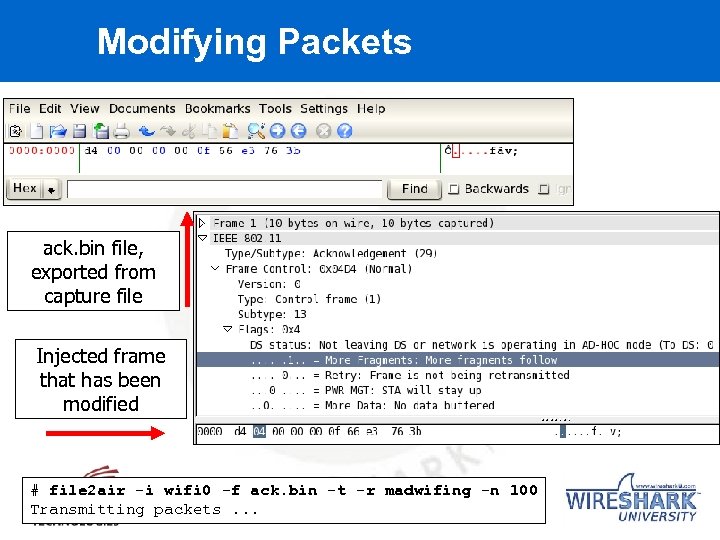 Modifying Packets ack. bin file, exported from capture file Injected frame that has been modified # file 2 air -i wifi 0 -f ack. bin -t -r madwifing -n 100 Transmitting packets. . .
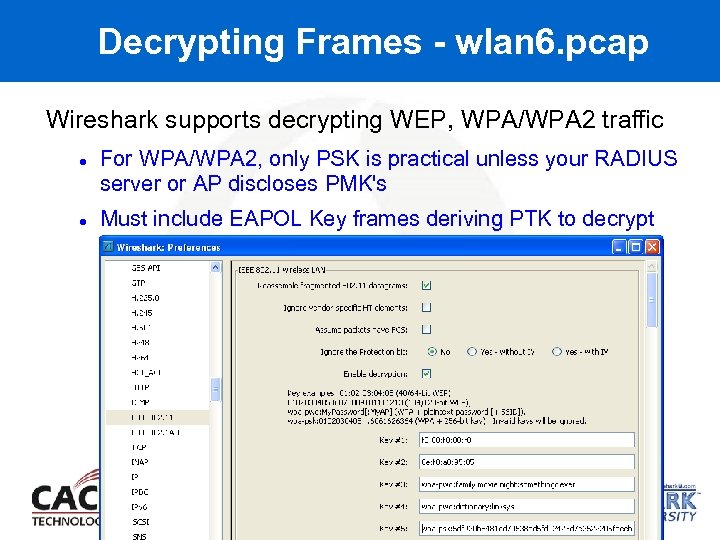 Decrypting Frames - wlan 6. pcap Wireshark supports decrypting WEP, WPA/WPA 2 traffic For WPA/WPA 2, only PSK is practical unless your RADIUS server or AP discloses PMK's Must include EAPOL Key frames deriving PTK to decrypt
 Conclusion Wireshark is a powerful analysis tool Monitor-mode functionality on Linux or with Airpcap on Windows Display filters are applied in many Wireshark features Familiarity with the tool and specification reduces the time needed to identify the problem! Questions? Sample captures at www. willhackforsushi. com/resources/sharkfest 08 -samples. zip