


 Скачать презентацию Lesson 8 Working with Large Worksheets Sorting
c46d8e3dae3aa6063415f73c12a8523e.ppt
- Количество слайдов: 120
 Lesson 8: Working with Large Worksheets
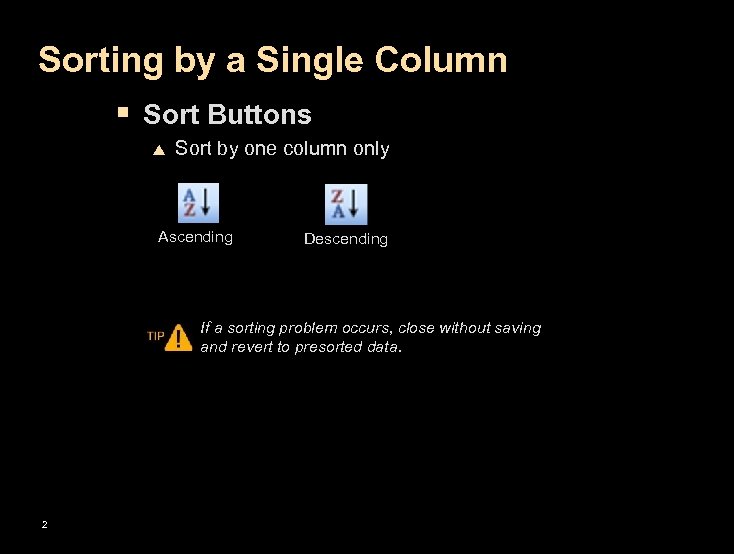 Sorting by a Single Column § Sort Buttons p Sort by one column only Ascending Descending If a sorting problem occurs, close without saving and revert to presorted data. 2
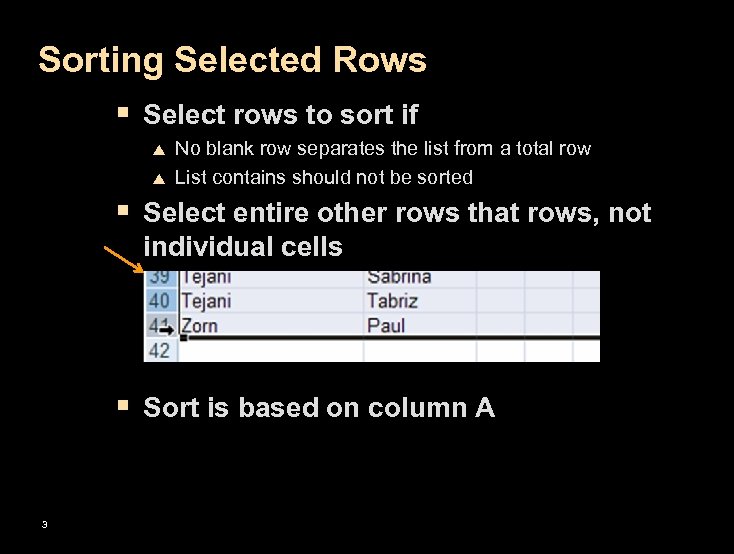 Sorting Selected Rows § Select rows to sort if p p No blank row separates the list from a total row List contains should not be sorted § Select entire other rows that rows, not individual cells § Sort is based on column A 3
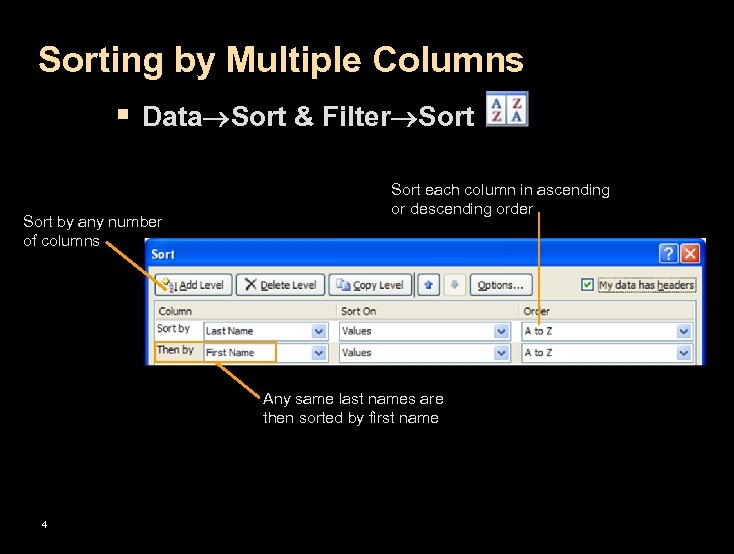 Sorting by Multiple Columns § Data Sort & Filter Sort by any number of columns Sort each column in ascending or descending order Any same last names are then sorted by first name 4
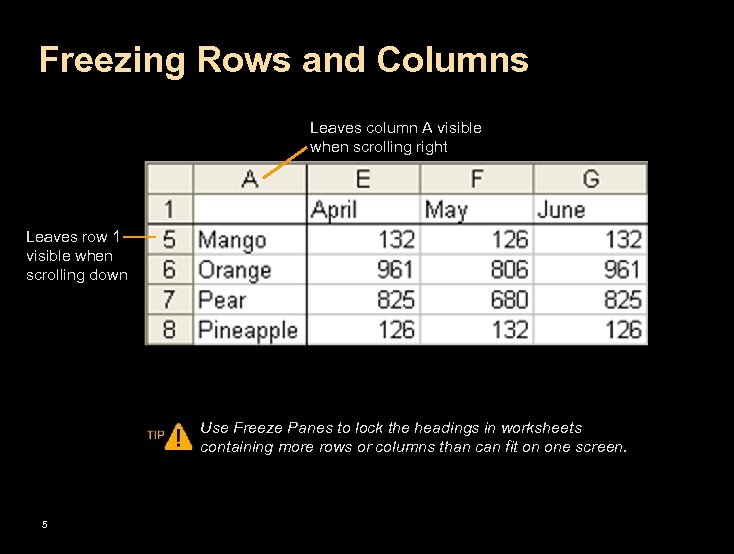 Freezing Rows and Columns Leaves column A visible when scrolling right Leaves row 1 visible when scrolling down Use Freeze Panes to lock the headings in worksheets containing more rows or columns than can fit on one screen. 5
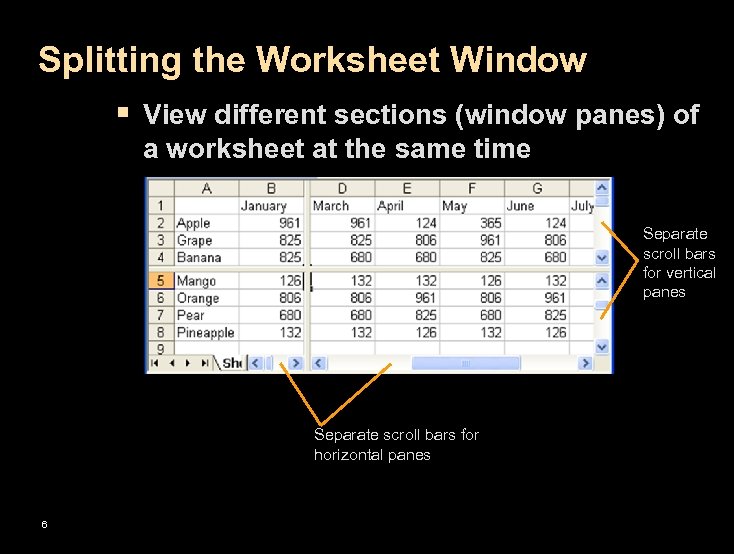 Splitting the Worksheet Window § View different sections (window panes) of a worksheet at the same time Separate scroll bars for vertical panes Separate scroll bars for horizontal panes 6
 Lesson 9: Protecting Workbooks
 Protecting Workbooks and Worksheets § Three levels: p p p 8 Workbook level Worksheet level Cell level
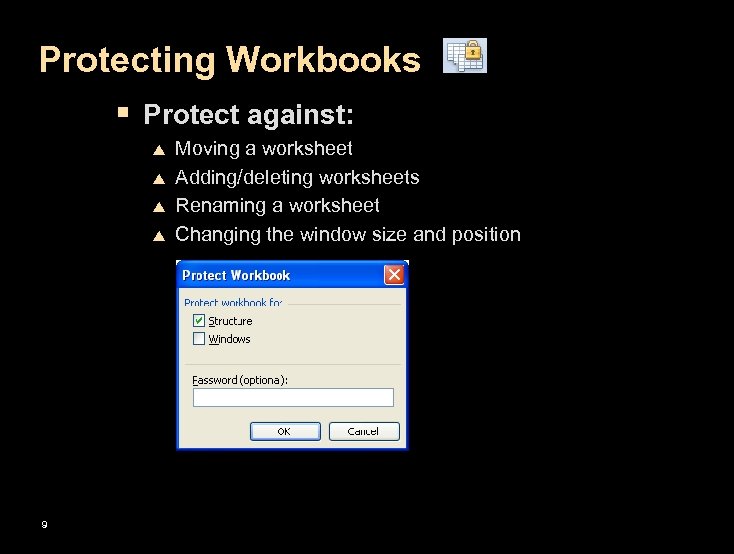 Protecting Workbooks § Protect against: p p 9 Moving a worksheet Adding/deleting worksheets Renaming a worksheet Changing the window size and position
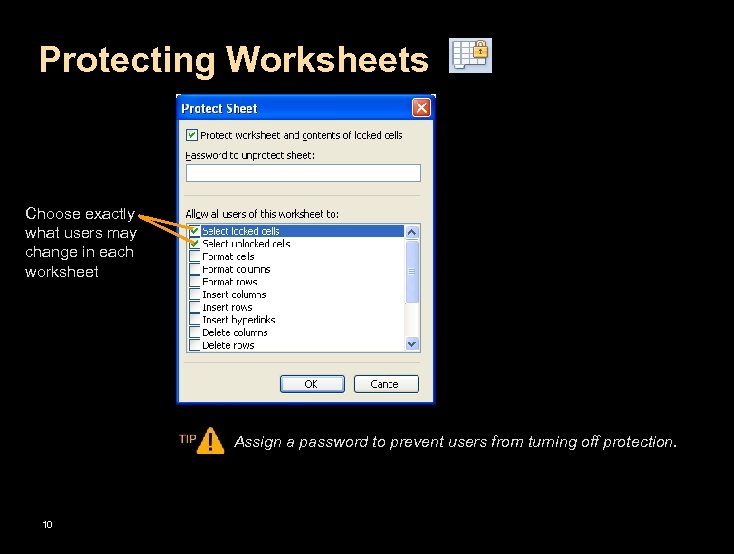 Protecting Worksheets Choose exactly what users may change in each worksheet Assign a password to prevent users from turning off protection. 10
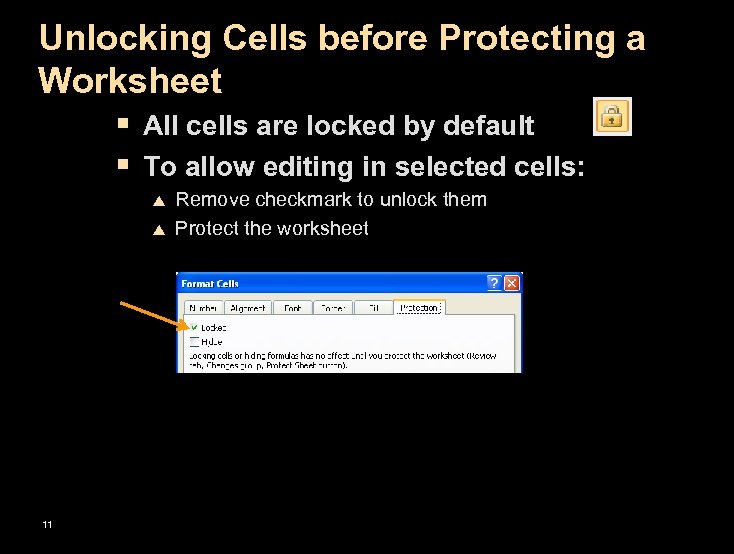 Unlocking Cells before Protecting a Worksheet § All cells are locked by default § To allow editing in selected cells: p p 11 Remove checkmark to unlock them Protect the worksheet
 Protecting Workbooks with Digital Signatures § Authenticates that the workbook: p p p Originated from you Came from a reliable source Has not been altered since it was saved § Methods p p Self-signature – limited security Via digital certificate – recommended Your network security administrator can give you a digital certificate. 12
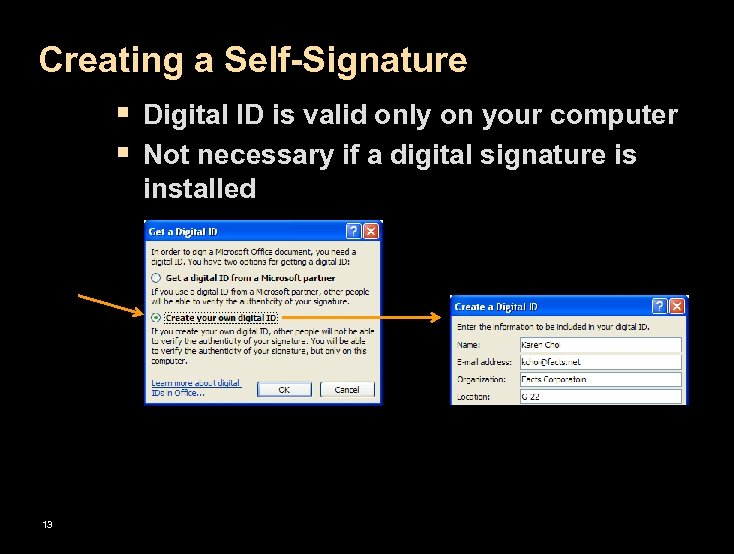 Creating a Self-Signature § Digital ID is valid only on your computer § Not necessary if a digital signature is installed 13
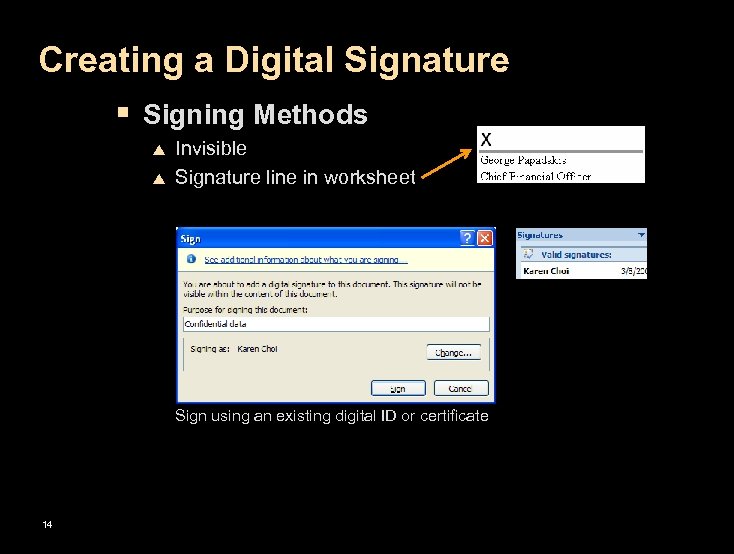 Creating a Digital Signature § Signing Methods p p Invisible Signature line in worksheet Sign using an existing digital ID or certificate 14
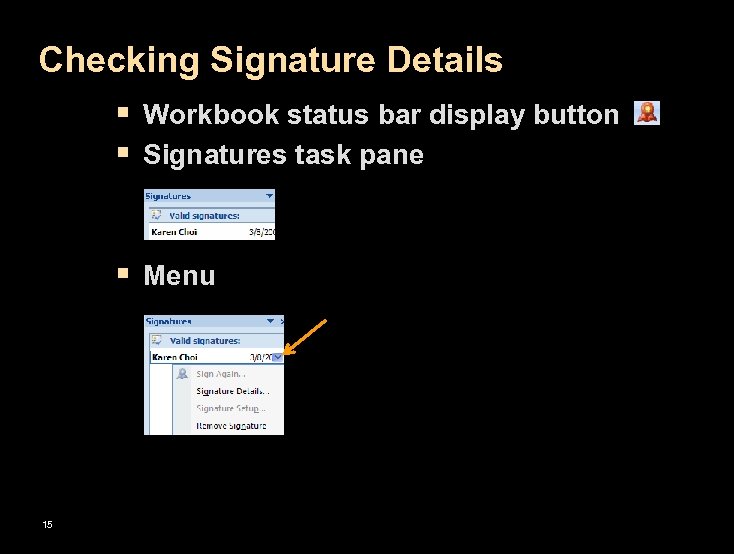 Checking Signature Details § Workbook status bar display button § Signatures task pane § Menu 15
 Lesson 10: Managing Multiple-Sheet Workbooks
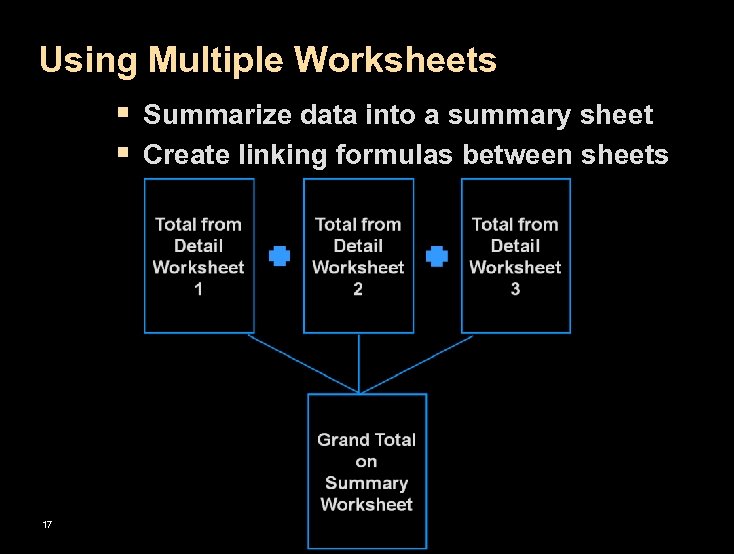 Using Multiple Worksheets § Summarize data into a summary sheet § Create linking formulas between sheets 17
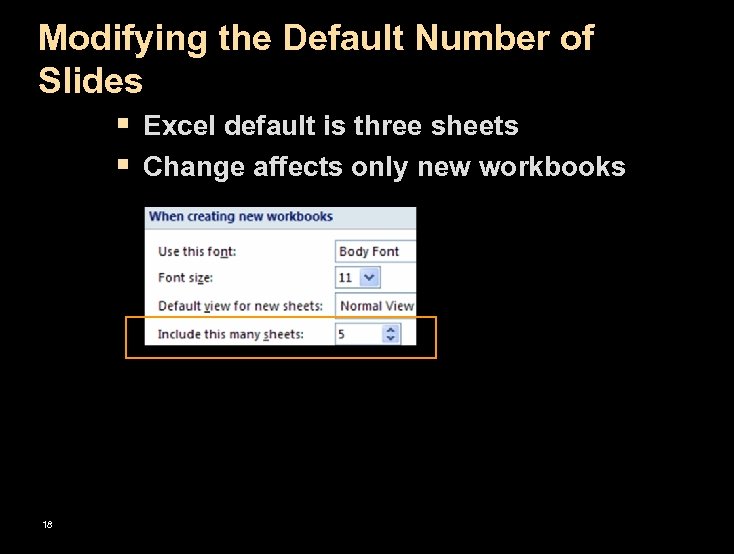 Modifying the Default Number of Slides § Excel default is three sheets § Change affects only new workbooks 18
 Linking Cells: Why Link? § Reflect management needs p p Top-level managers want to see the big picture Department-level managers are interested in details § Automatic updating p Results in linked cells update when detail cells change § Data entered only once 19
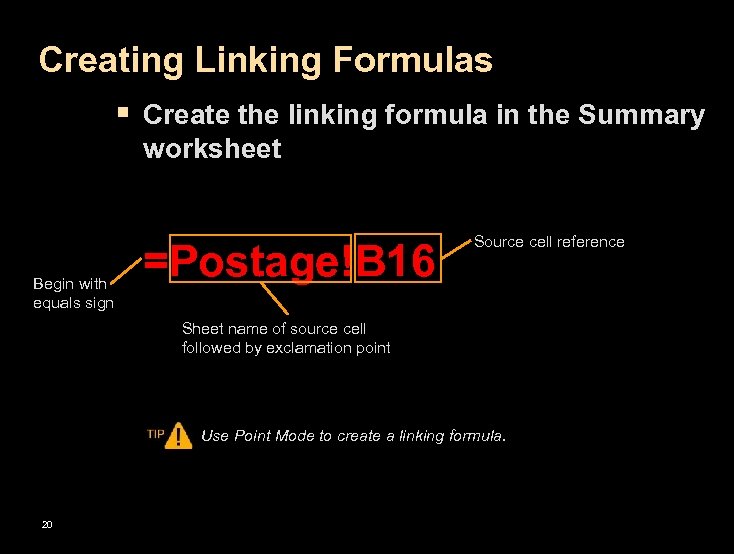 Creating Linking Formulas § Create the linking formula in the Summary worksheet Begin with equals sign =Postage!B 16 Source cell reference Sheet name of source cell followed by exclamation point Use Point Mode to create a linking formula. 20
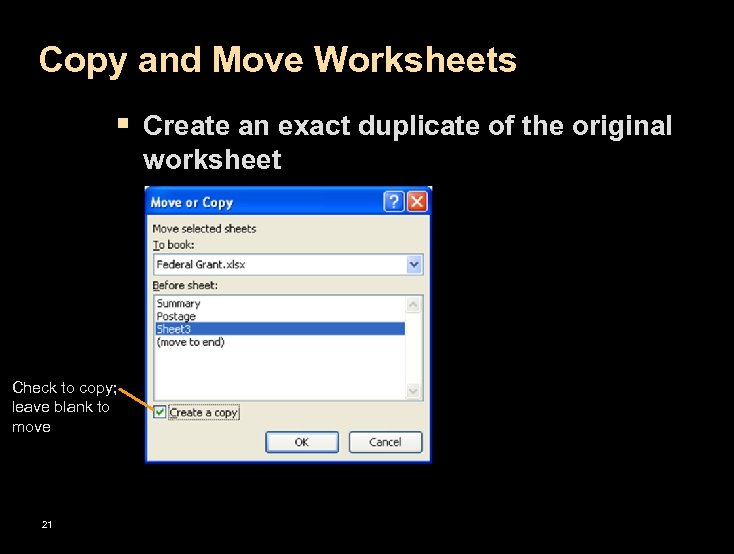 Copy and Move Worksheets § Create an exact duplicate of the original worksheet Check to copy; leave blank to move 21
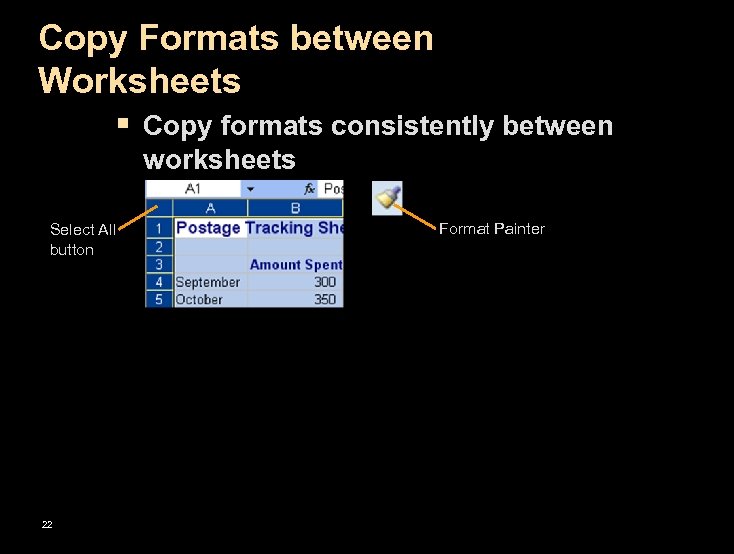 Copy Formats between Worksheets § Copy formats consistently between worksheets Select All button 22 Format Painter
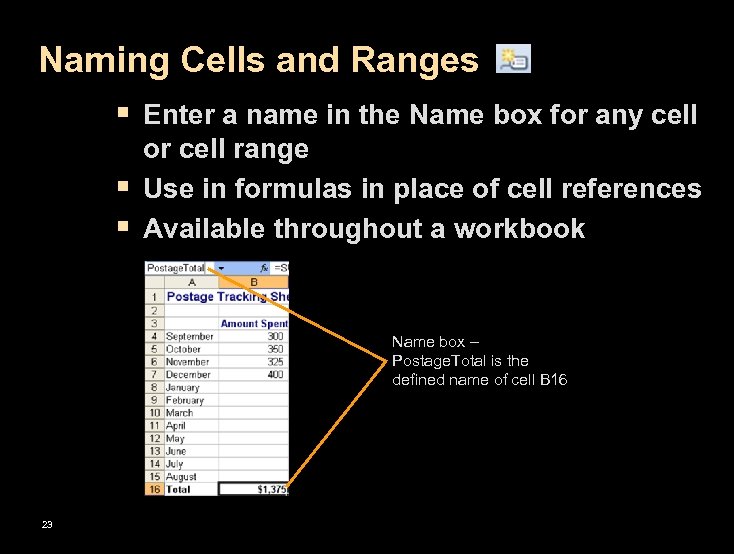 Naming Cells and Ranges § Enter a name in the Name box for any cell § § or cell range Use in formulas in place of cell references Available throughout a workbook Name box – Postage. Total is the defined name of cell B 16 23
 Naming Rules § § Must begin with a letter Cannot resemble a cell reference (A 3) No spaces, hyphens, or symbols Underscores, periods, capital letters OK p p p 24 Instructional_Materials Instructional. Materials
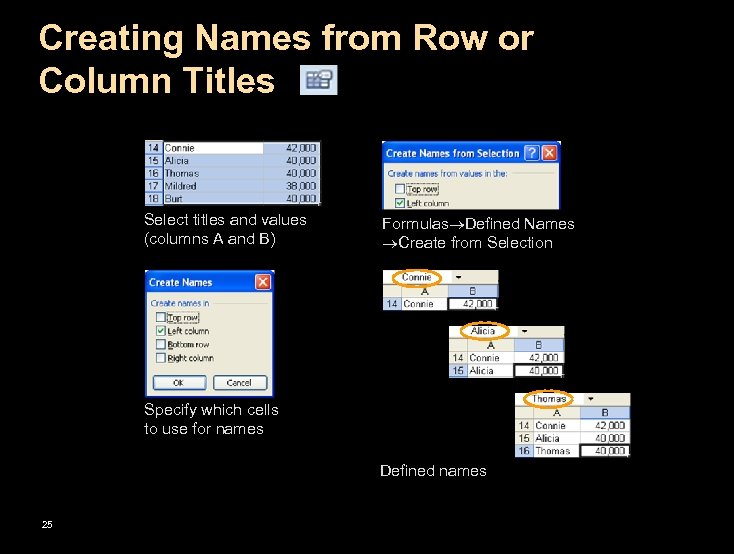 Creating Names from Row or Column Titles Select titles and values (columns A and B) Formulas Defined Names Create from Selection Specify which cells to use for names Defined names 25
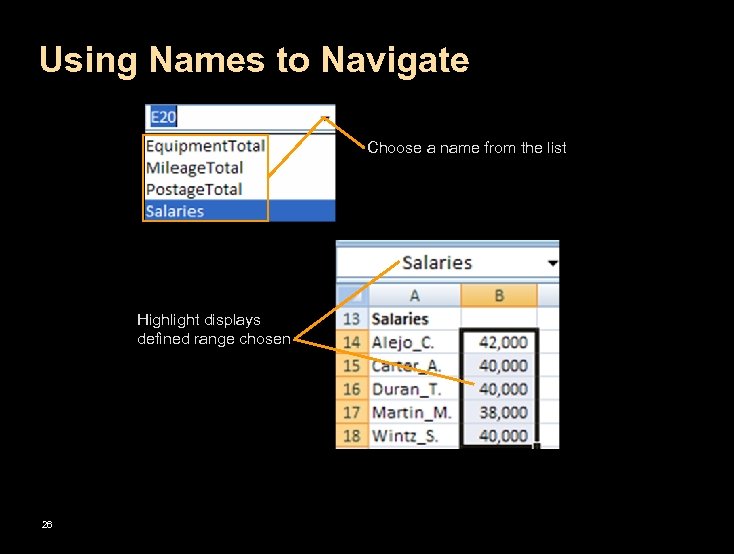 Using Names to Navigate Choose a name from the list Highlight displays defined range chosen 26
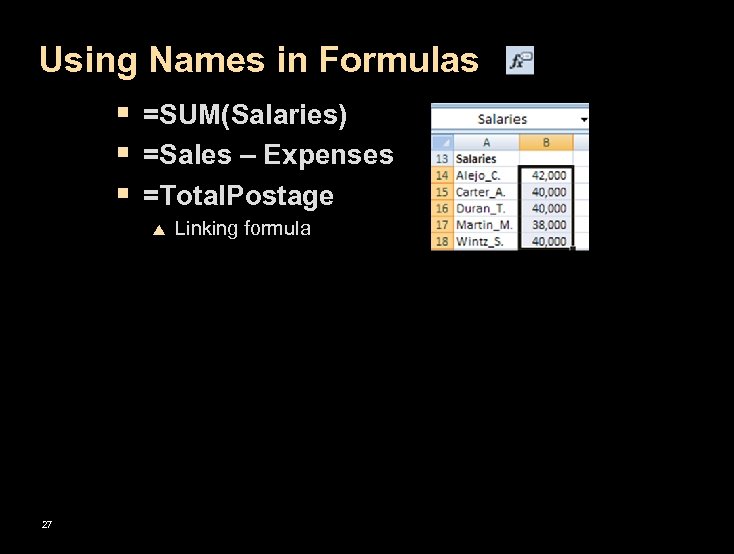 Using Names in Formulas § =SUM(Salaries) § =Sales – Expenses § =Total. Postage p 27 Linking formula
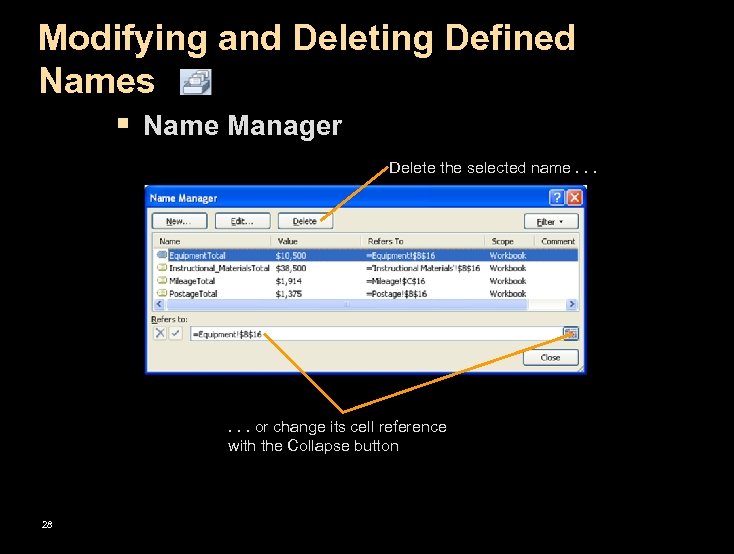 Modifying and Deleting Defined Names § Name Manager Delete the selected name. . . or change its cell reference with the Collapse button 28
 Types of Hyperlinks § Internal p To cells in a workbook § External p p p 29 To another workbook or non-Excel file To a web page To an email address in Outlook
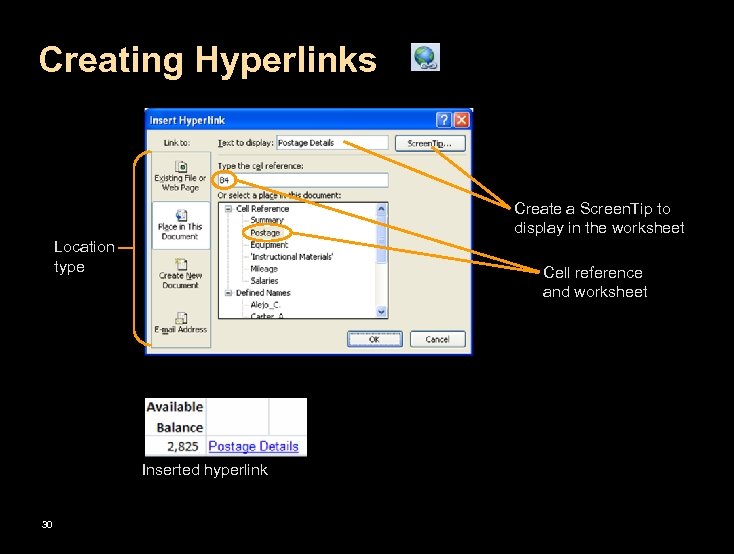 Creating Hyperlinks Create a Screen. Tip to display in the worksheet Location type Cell reference and worksheet Inserted hyperlink 30
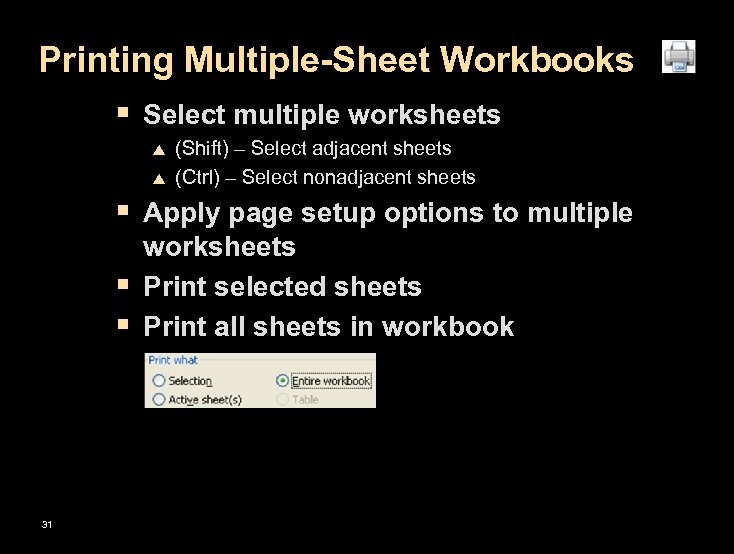 Printing Multiple-Sheet Workbooks § Select multiple worksheets p p (Shift) – Select adjacent sheets (Ctrl) – Select nonadjacent sheets § Apply page setup options to multiple § § 31 worksheets Print selected sheets Print all sheets in workbook
 Lesson 11: Creating Tables and Outlines
 Why Use a Table? § Automatic table expansion when rows or § § 33 columns are added Calculated columns copy a formula automatically Table style library Filtering automatically available Function drop-down list for cells in total row
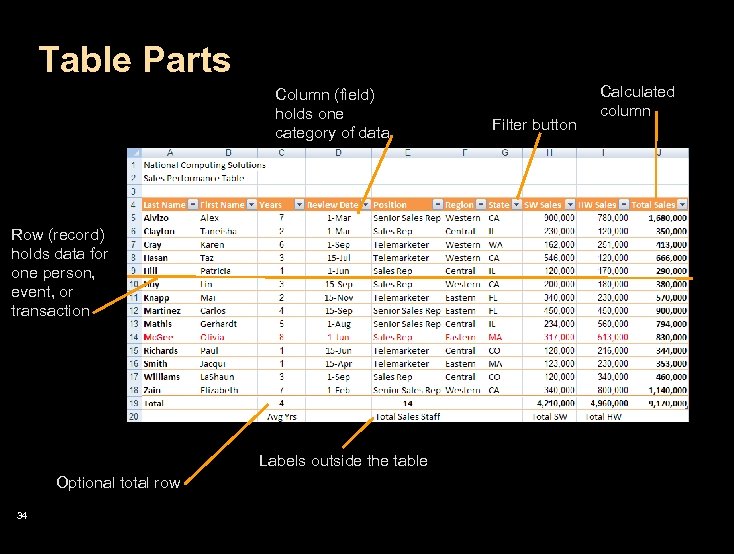 Table Parts Column (field) holds one category of data Row (record) holds data for one person, event, or transaction Labels outside the table Optional total row 34 Filter button Calculated column
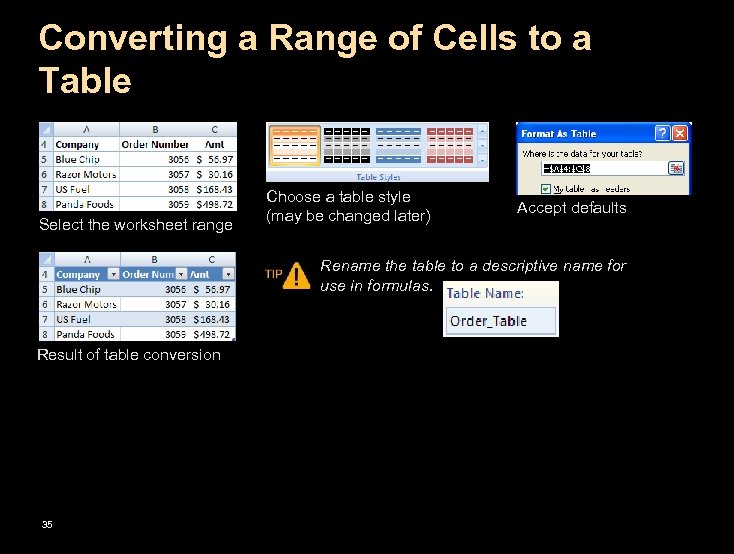 Converting a Range of Cells to a Table Select the worksheet range Choose a table style (may be changed later) Accept defaults Rename the table to a descriptive name for use in formulas. Result of table conversion 35
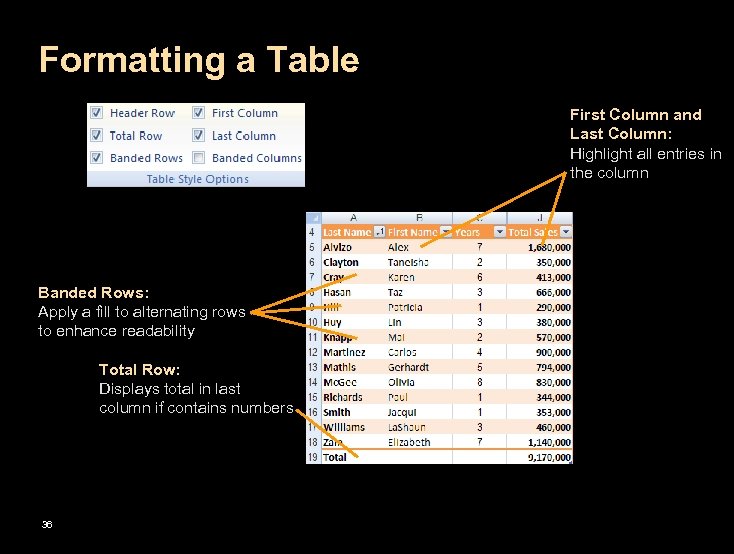 Formatting a Table First Column and Last Column: Highlight all entries in the column Banded Rows: Apply a fill to alternating rows to enhance readability Total Row: Displays total in last column if contains numbers 36
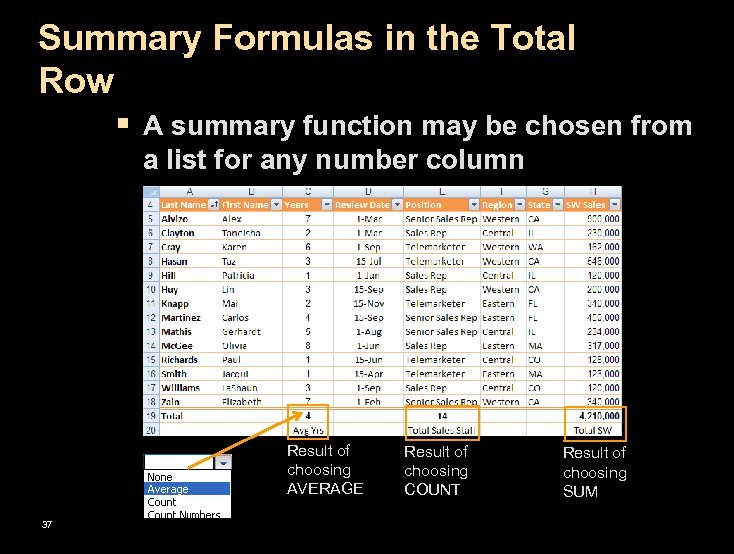 Summary Formulas in the Total Row § A summary function may be chosen from a list for any number column Result of choosing AVERAGE 37 Result of choosing COUNT Result of choosing SUM
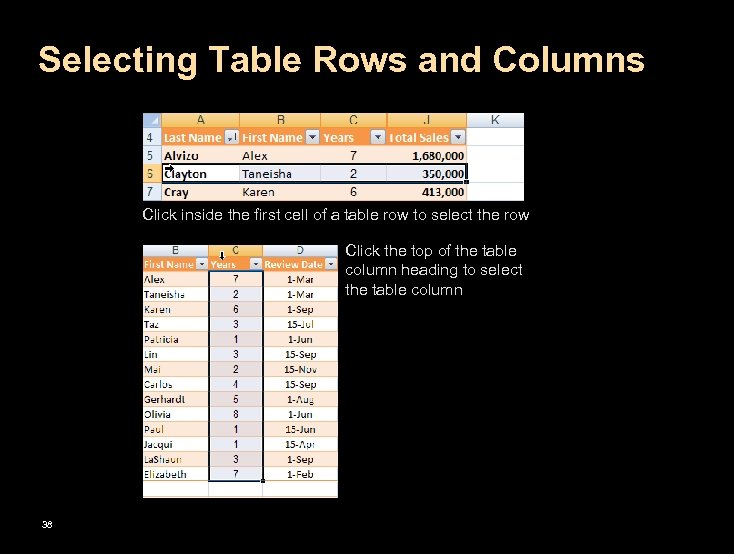 Selecting Table Rows and Columns Click inside the first cell of a table row to select the row Click the top of the table column heading to select the table column 38
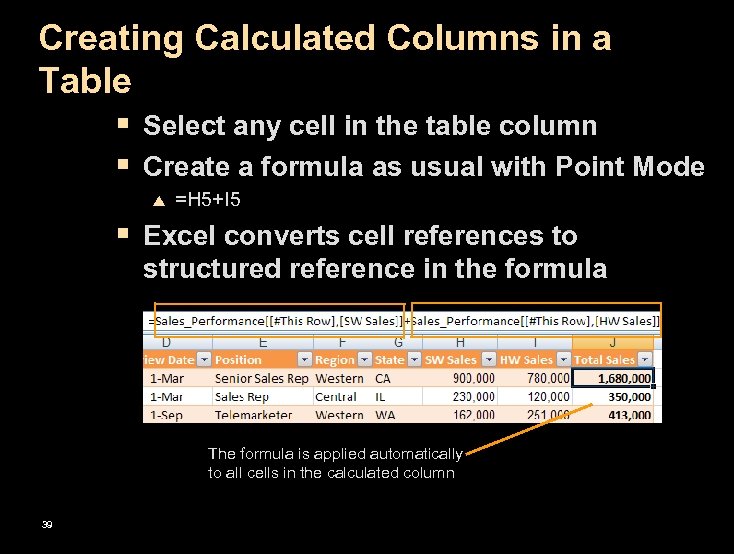 Creating Calculated Columns in a Table § Select any cell in the table column § Create a formula as usual with Point Mode p =H 5+I 5 § Excel converts cell references to structured reference in the formula The formula is applied automatically to all cells in the calculated column 39
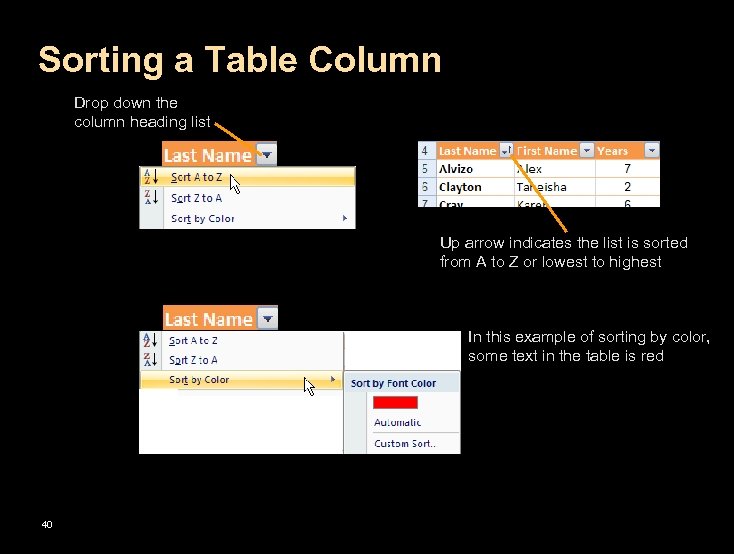 Sorting a Table Column Drop down the column heading list Up arrow indicates the list is sorted from A to Z or lowest to highest In this example of sorting by color, some text in the table is red 40
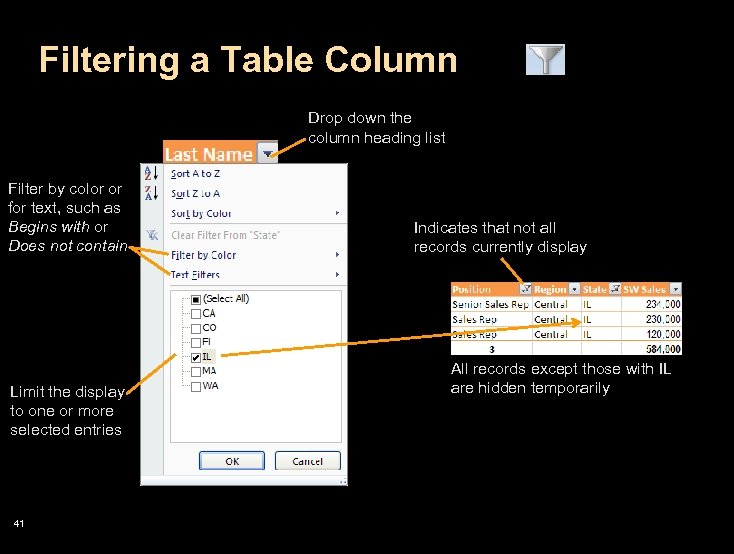 Filtering a Table Column Drop down the column heading list Filter by color or for text, such as Begins with or Does not contain Limit the display to one or more selected entries 41 Indicates that not all records currently display All records except those with IL are hidden temporarily
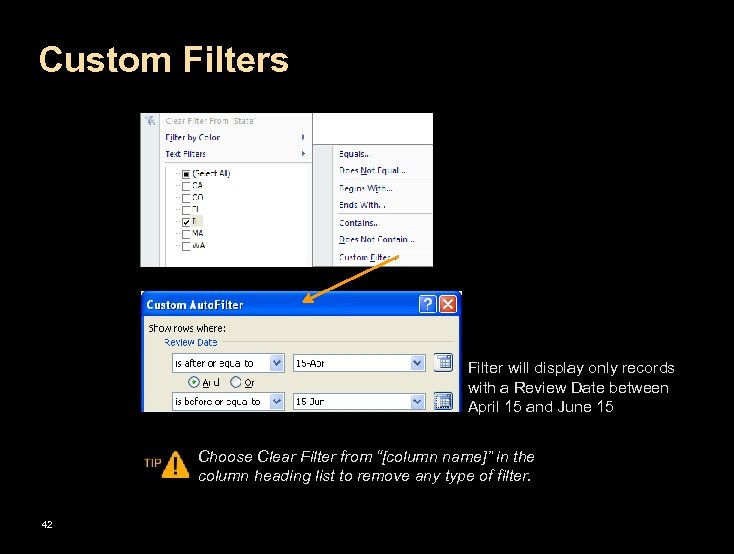 Custom Filters Filter will display only records with a Review Date between April 15 and June 15 Choose Clear Filter from “[column name]” in the column heading list to remove any type of filter. 42
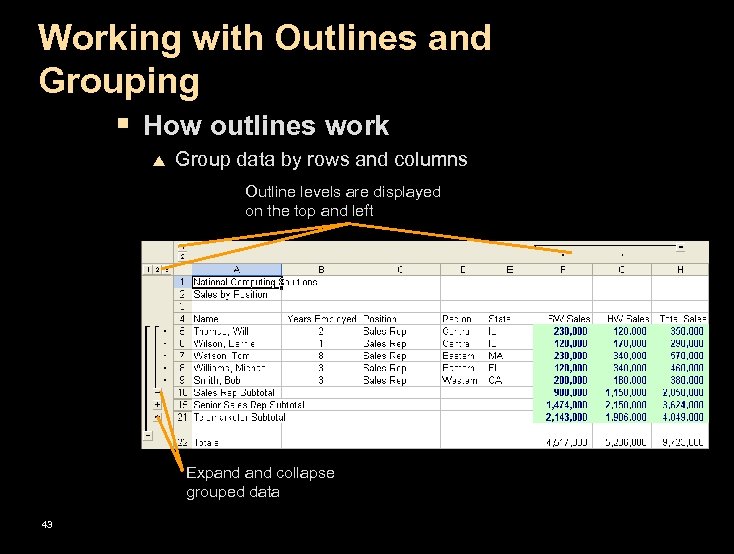 Working with Outlines and Grouping § How outlines work p Group data by rows and columns Outline levels are displayed on the top and left Expand collapse grouped data 43
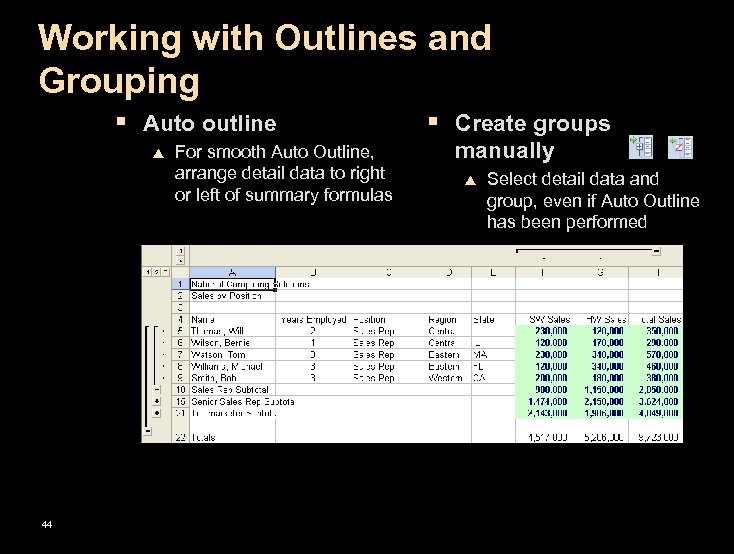 Working with Outlines and Grouping § Auto outline p 44 For smooth Auto Outline, arrange detail data to right or left of summary formulas § Create groups manually p Select detail data and group, even if Auto Outline has been performed
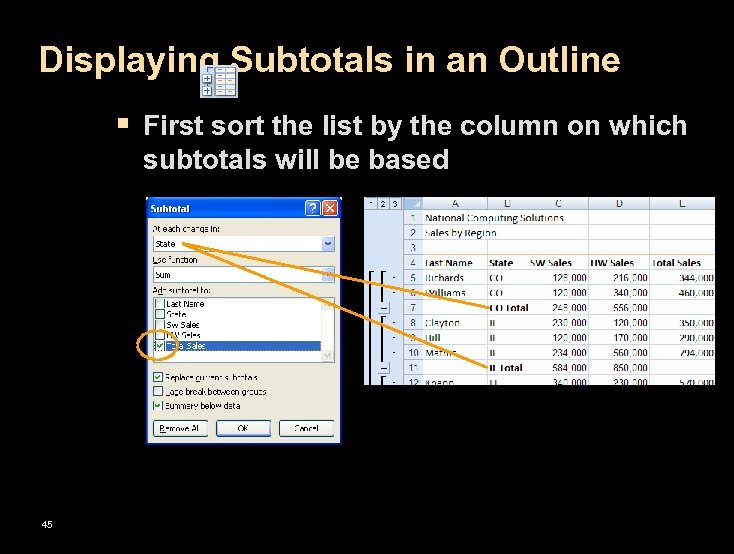 Displaying Subtotals in an Outline § First sort the list by the column on which subtotals will be based 45
 Lesson 12: Creating Pivot. Tables and Macros
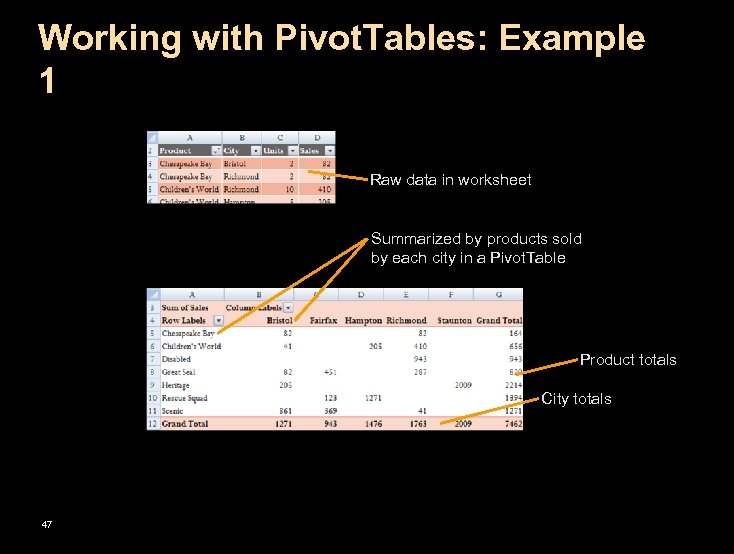 Working with Pivot. Tables: Example 1 Raw data in worksheet Summarized by products sold by each city in a Pivot. Table Product totals City totals 47
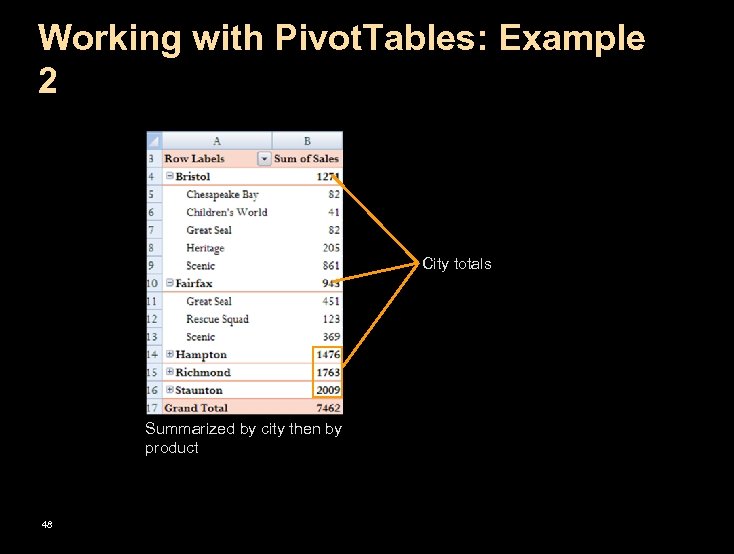 Working with Pivot. Tables: Example 2 City totals Summarized by city then by product 48
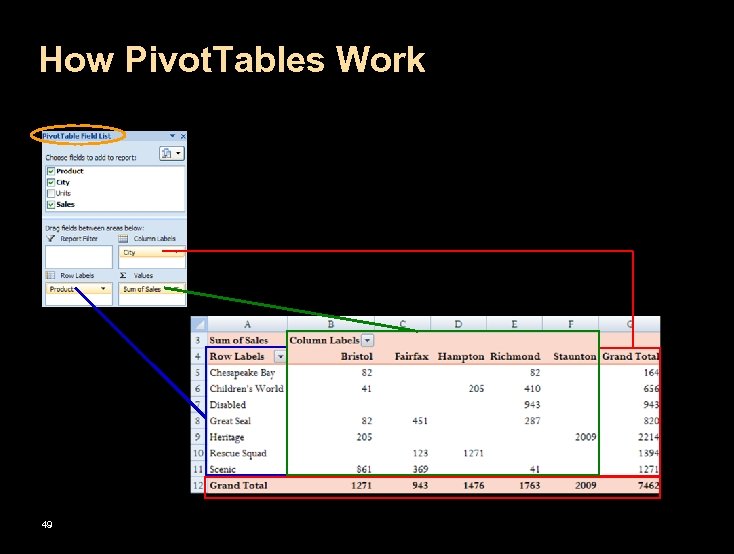 How Pivot. Tables Work 49
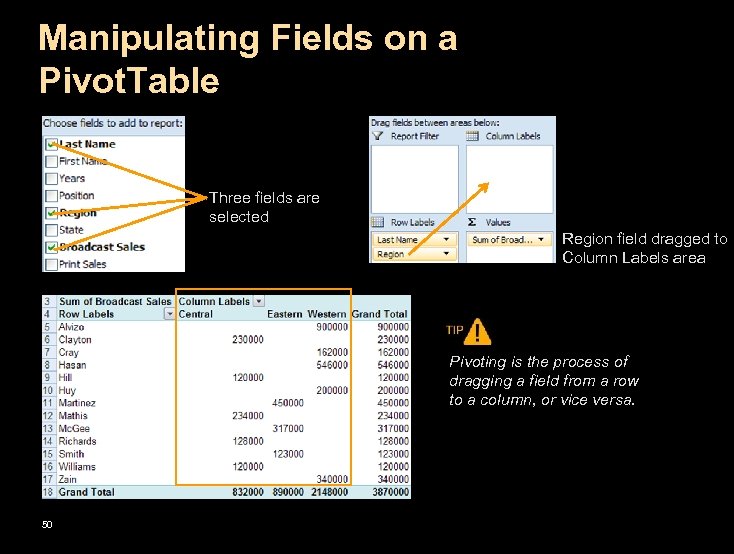 Manipulating Fields on a Pivot. Table Three fields are selected Region field dragged to Column Labels area Pivoting is the process of dragging a field from a row to a column, or vice versa. 50
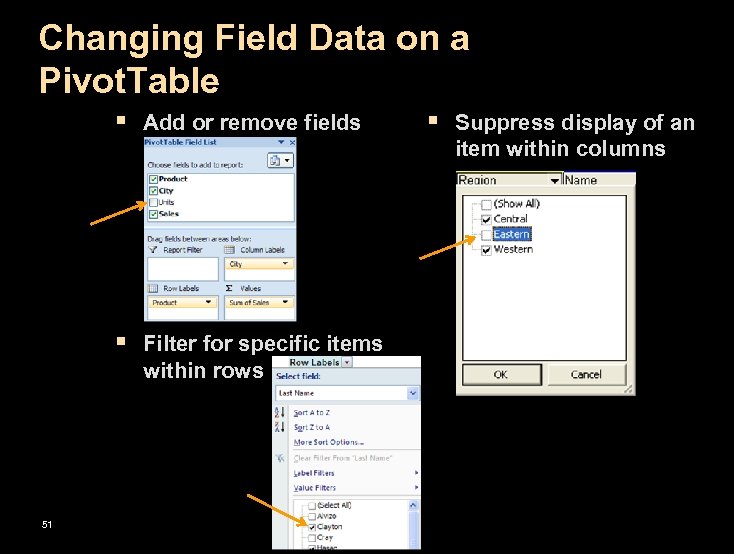 Changing Field Data on a Pivot. Table § Add or remove fields § Suppress display of an item within columns § Filter for specific items within rows 51
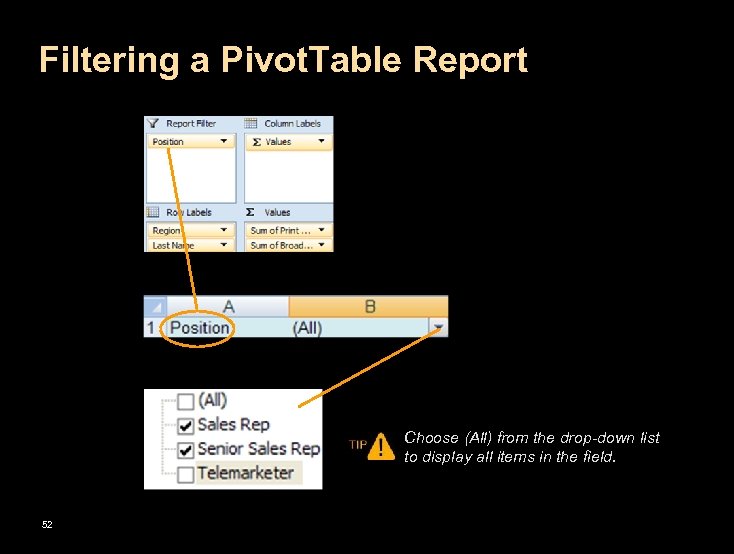 Filtering a Pivot. Table Report Choose (All) from the drop-down list to display all items in the field. 52
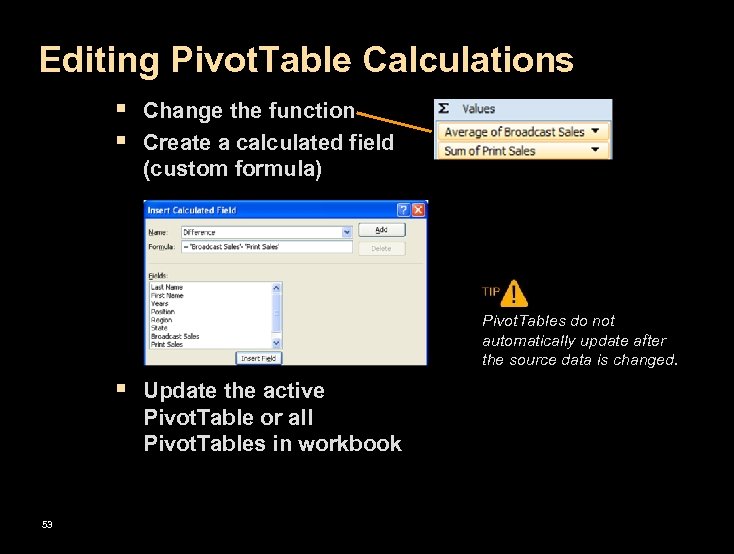 Editing Pivot. Table Calculations § Change the function § Create a calculated field (custom formula) Pivot. Tables do not automatically update after the source data is changed. § Update the active Pivot. Table or all Pivot. Tables in workbook 53
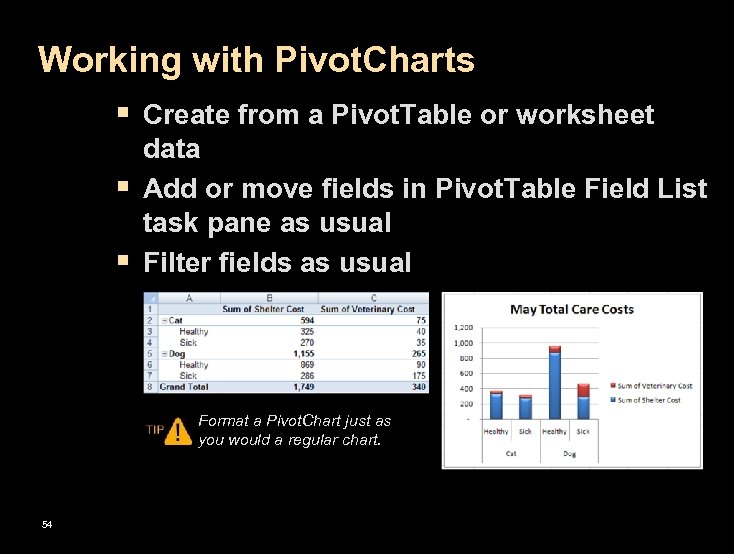 Working with Pivot. Charts § Create from a Pivot. Table or worksheet § § data Add or move fields in Pivot. Table Field List task pane as usual Filter fields as usual Format a Pivot. Chart just as you would a regular chart. 54
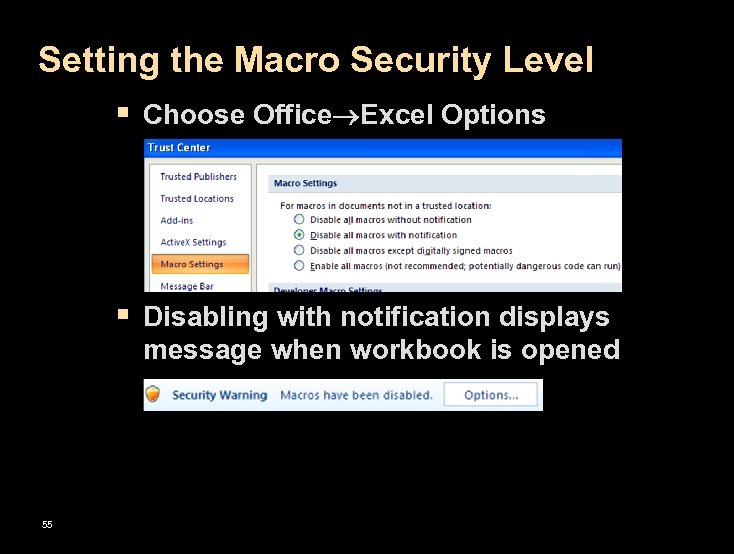 Setting the Macro Security Level § Choose Office Excel Options § Disabling with notification displays message when workbook is opened 55
 Macros § Set of instructions that can be played back § 56 at any time Useful for automating routine tasks
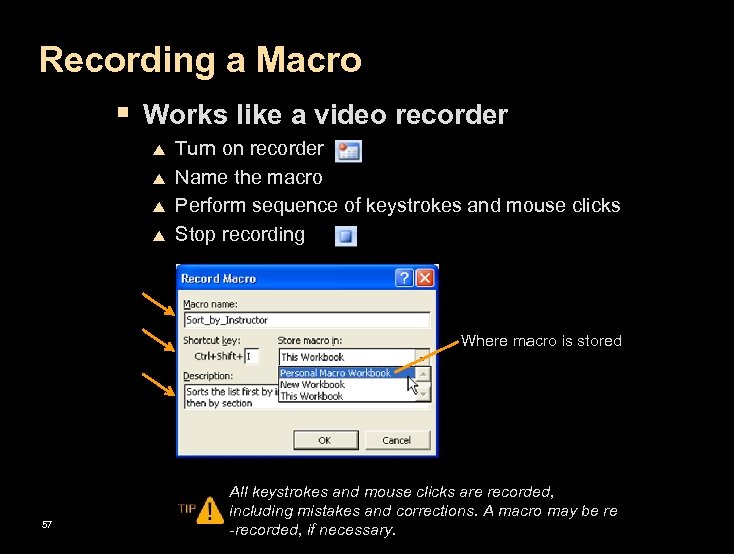 Recording a Macro § Works like a video recorder p p Turn on recorder Name the macro Perform sequence of keystrokes and mouse clicks Stop recording Where macro is stored 57 All keystrokes and mouse clicks are recorded, including mistakes and corrections. A macro may be re -recorded, if necessary.
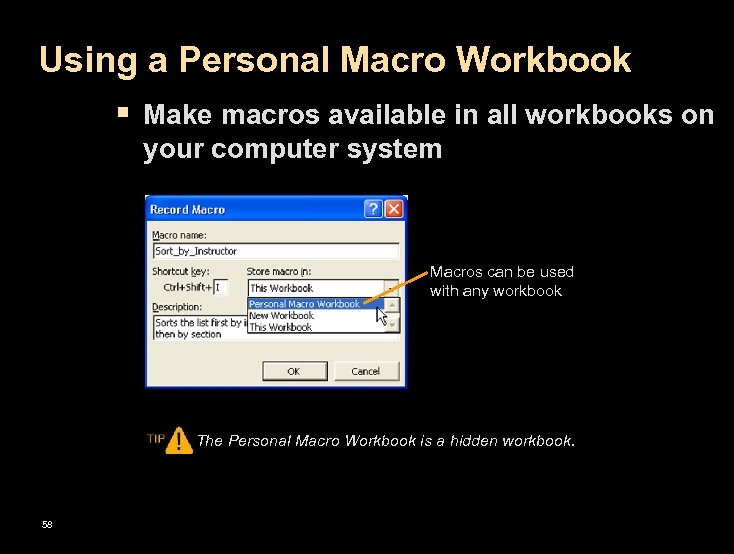 Using a Personal Macro Workbook § Make macros available in all workbooks on your computer system Macros can be used with any workbook The Personal Macro Workbook is a hidden workbook. 58
 Assigning Macros § Macros may be run using: p p p 59 Run command in the Macro dialog box Shortcut keys Custom buttons
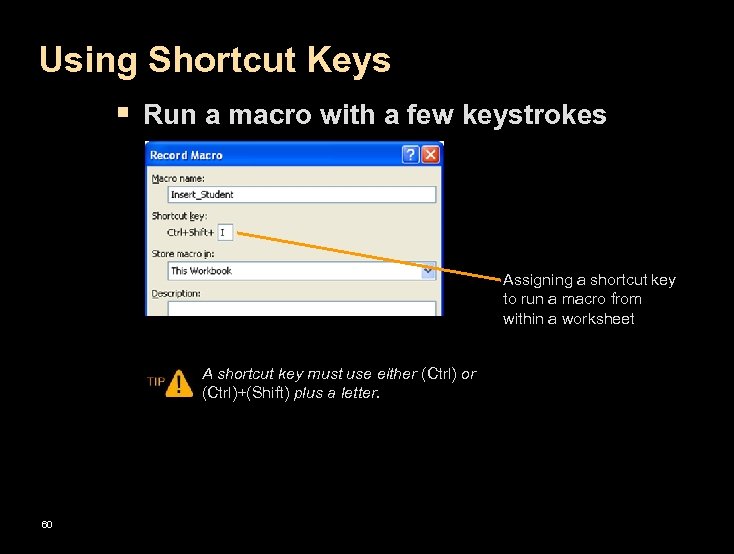 Using Shortcut Keys § Run a macro with a few keystrokes Assigning a shortcut key to run a macro from within a worksheet A shortcut key must use either (Ctrl) or (Ctrl)+(Shift) plus a letter. 60
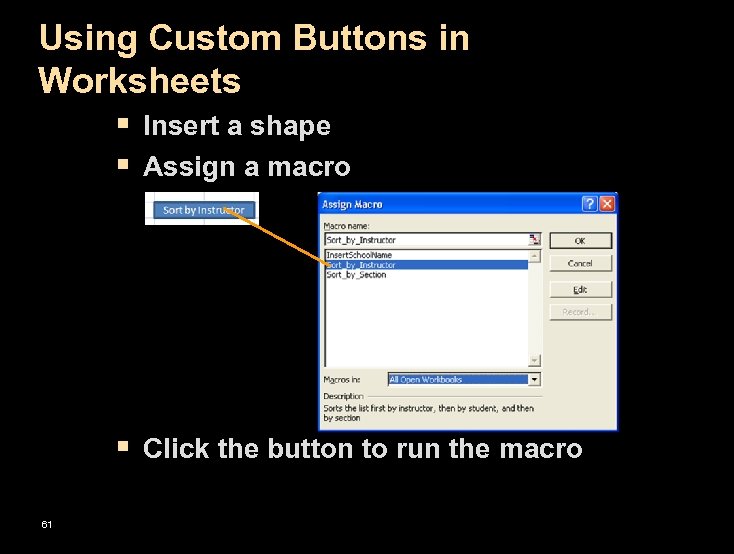 Using Custom Buttons in Worksheets § Insert a shape § Assign a macro § Click the button to run the macro 61
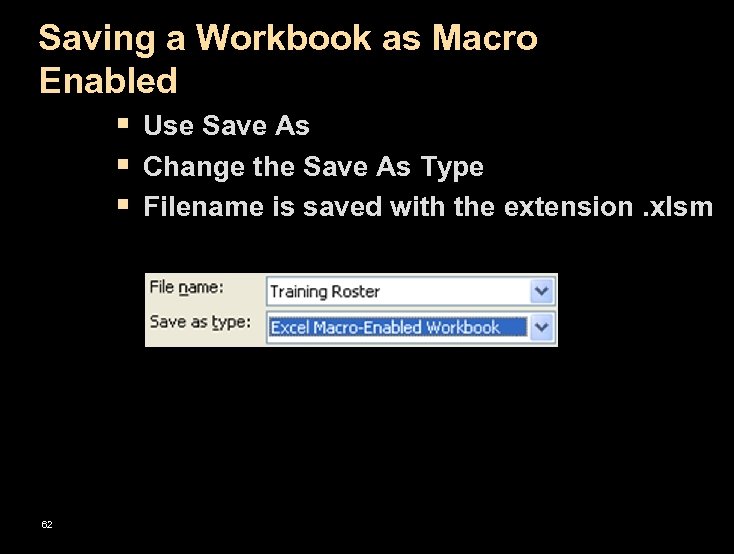 Saving a Workbook as Macro Enabled § Use Save As § Change the Save As Type § Filename is saved with the extension. xlsm 62
 Lesson 13: Using Financial Functions and Data Analysis
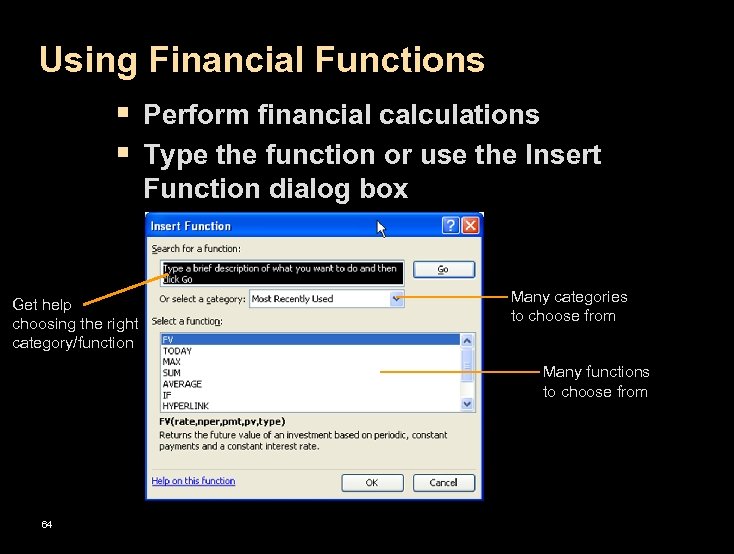 Using Financial Functions § Perform financial calculations § Type the function or use the Insert Function dialog box Get help choosing the right category/function Many categories to choose from Many functions to choose from 64
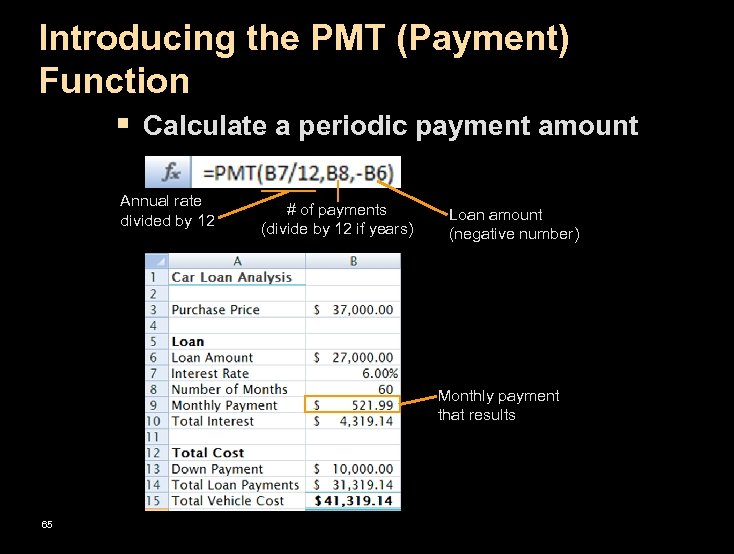 Introducing the PMT (Payment) Function § Calculate a periodic payment amount Annual rate divided by 12 # of payments (divide by 12 if years) Loan amount (negative number) Monthly payment that results 65
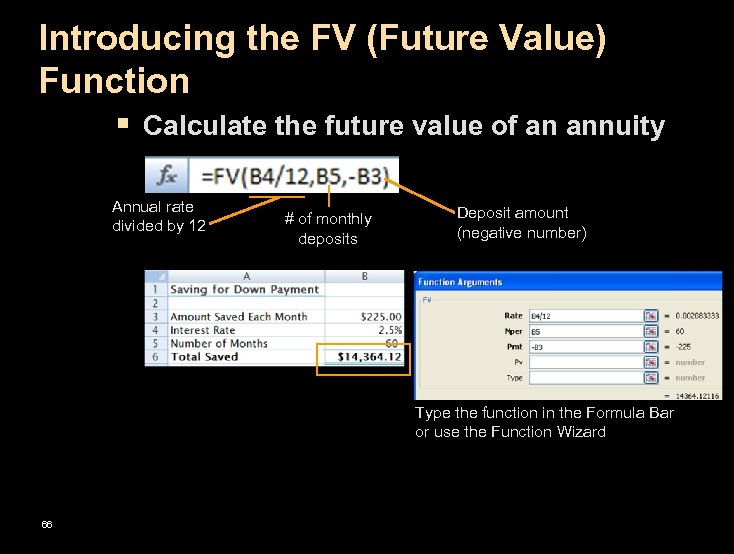 Introducing the FV (Future Value) Function § Calculate the future value of an annuity Annual rate divided by 12 # of monthly deposits Deposit amount (negative number) Type the function in the Formula Bar or use the Function Wizard 66
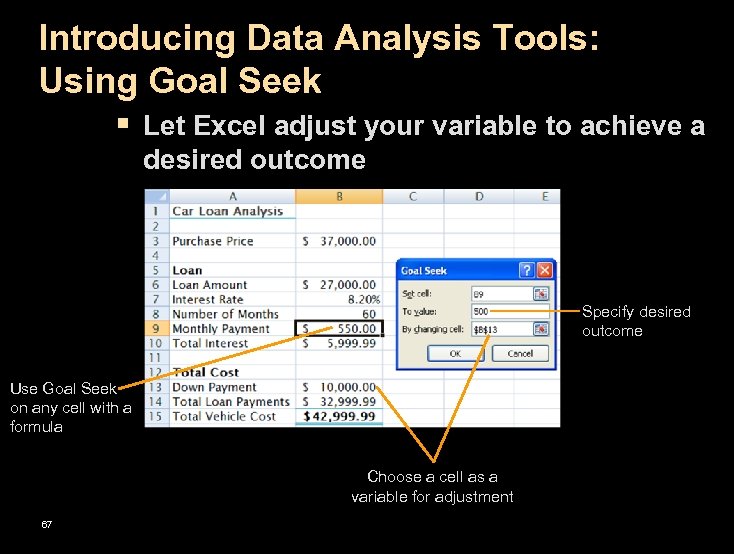 Introducing Data Analysis Tools: Using Goal Seek § Let Excel adjust your variable to achieve a desired outcome Specify desired outcome Use Goal Seek on any cell with a formula Choose a cell as a variable for adjustment 67
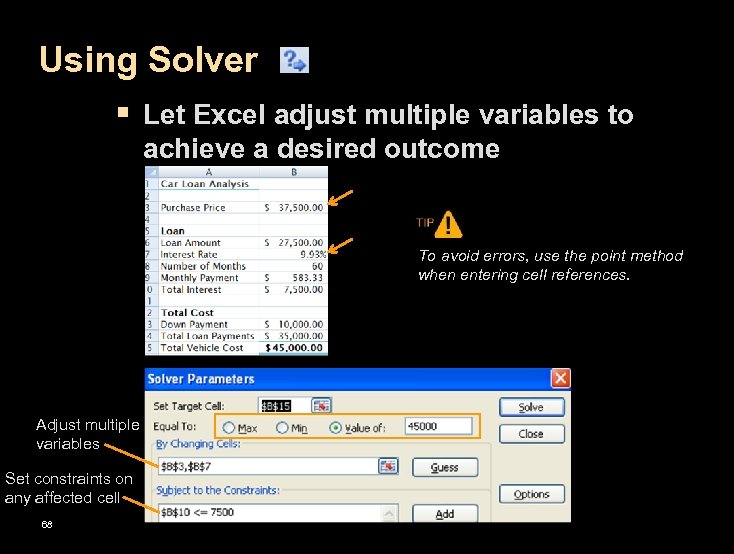 Using Solver § Let Excel adjust multiple variables to achieve a desired outcome To avoid errors, use the point method when entering cell references. Adjust multiple variables Set constraints on any affected cell 68
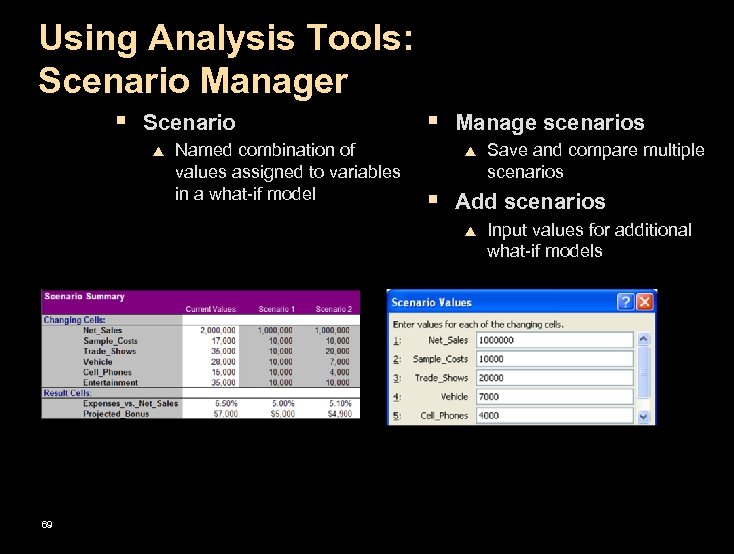 Using Analysis Tools: Scenario Manager § Scenario p Named combination of values assigned to variables in a what-if model § Manage scenarios p § Add scenarios p 69 Save and compare multiple scenarios Input values for additional what-if models
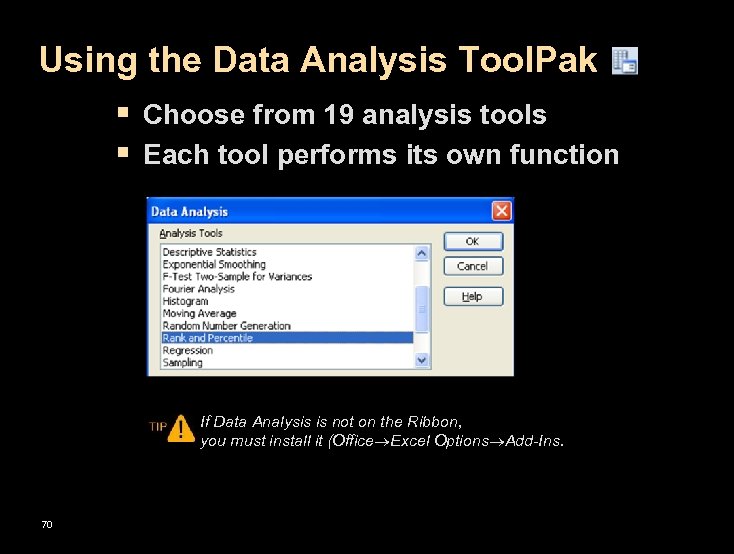 Using the Data Analysis Tool. Pak § Choose from 19 analysis tools § Each tool performs its own function If Data Analysis is not on the Ribbon, you must install it (Office Excel Options Add-Ins. 70
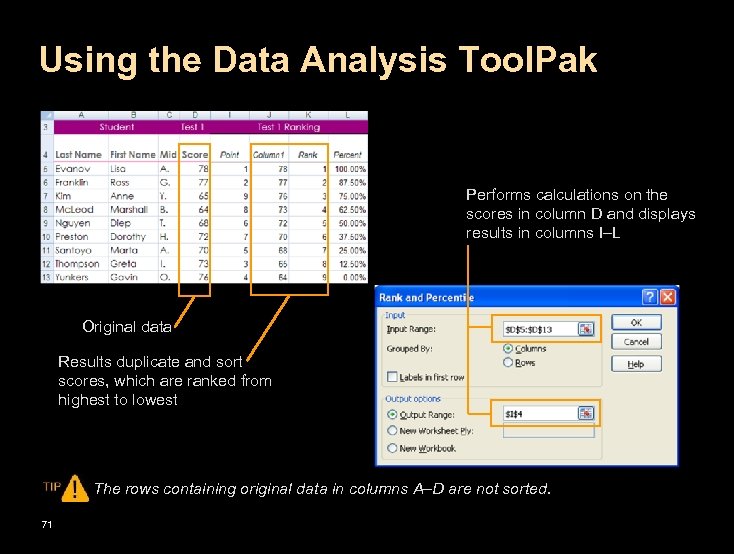 Using the Data Analysis Tool. Pak Performs calculations on the scores in column D and displays results in columns I–L Original data Results duplicate and sort scores, which are ranked from highest to lowest The rows containing original data in columns A–D are not sorted. 71
 Lesson 14: Auditing and Additional Functions
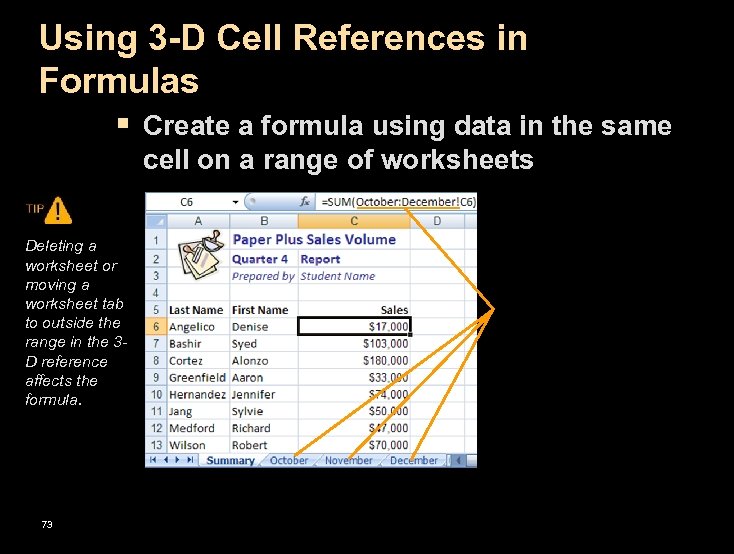 Using 3 -D Cell References in Formulas § Create a formula using data in the same cell on a range of worksheets Deleting a worksheet or moving a worksheet tab to outside the range in the 3 D reference affects the formula. 73
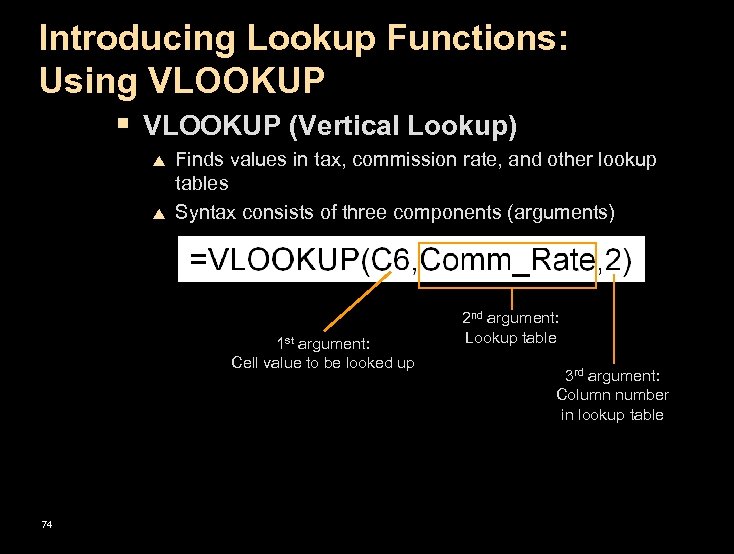 Introducing Lookup Functions: Using VLOOKUP § VLOOKUP (Vertical Lookup) p p Finds values in tax, commission rate, and other lookup tables Syntax consists of three components (arguments) 1 st argument: Cell value to be looked up 74 2 nd argument: Lookup table 3 rd argument: Column number in lookup table
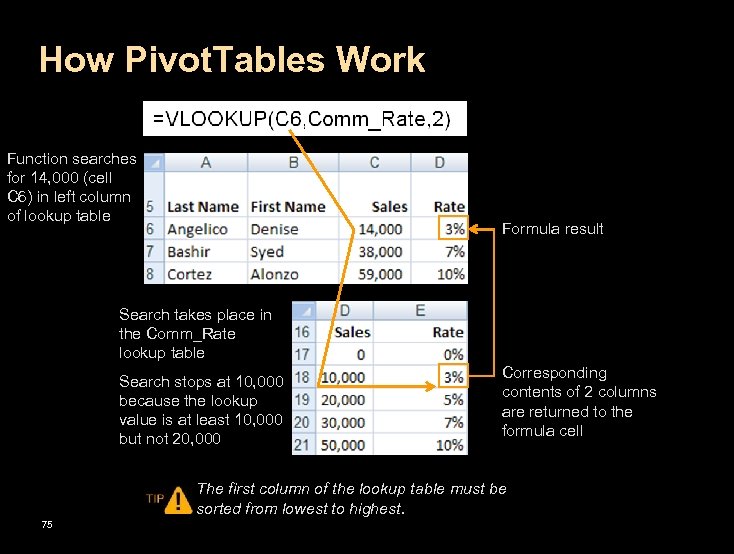 How Pivot. Tables Work Function searches for 14, 000 (cell C 6) in left column of lookup table Formula result Search takes place in the Comm_Rate lookup table Search stops at 10, 000 because the lookup value is at least 10, 000 but not 20, 000 Corresponding contents of 2 columns are returned to the formula cell The first column of the lookup table must be sorted from lowest to highest. 75
 Creating a Formula with the IF Function § Take an action if the logical test is true § Take a different action if false 2 nd argument: Action if true 1 st argument: Logical test to be evaluated 76 3 rd argument: Action if false
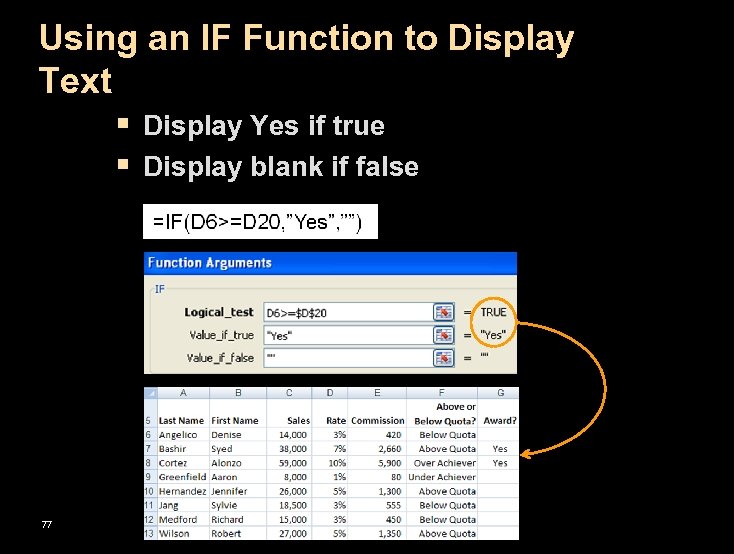 Using an IF Function to Display Text § Display Yes if true § Display blank if false 77
 Using Criteria IF Functions § Use AVERAGEIF, COUNTIF, and SUMIF to calculate using one criterion 2 nd argument: Criterion 1 st argument: Cells to be evaluated 78 3 rd argument: Sum only the cells in this range that meet the criterion
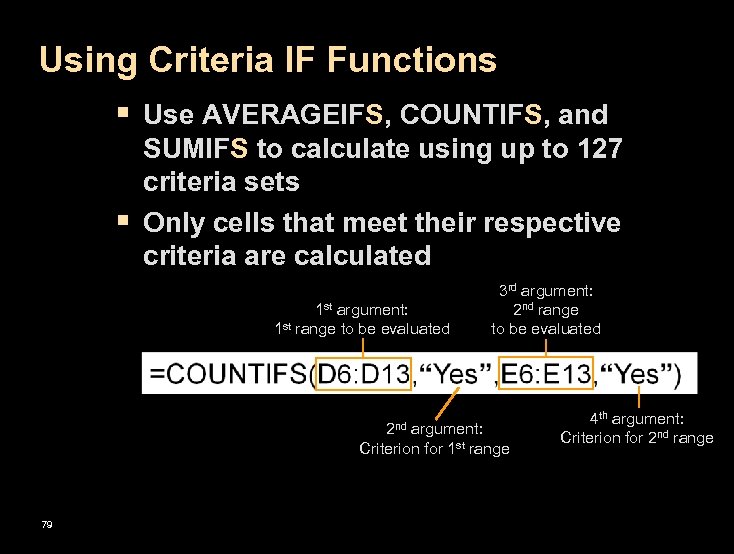 Using Criteria IF Functions § Use AVERAGEIFS, COUNTIFS, and § SUMIFS to calculate using up to 127 criteria sets Only cells that meet their respective criteria are calculated 1 st argument: 1 st range to be evaluated 2 nd 3 rd argument: 2 nd range to be evaluated argument: Criterion for 1 st range 79 4 th argument: Criterion for 2 nd range
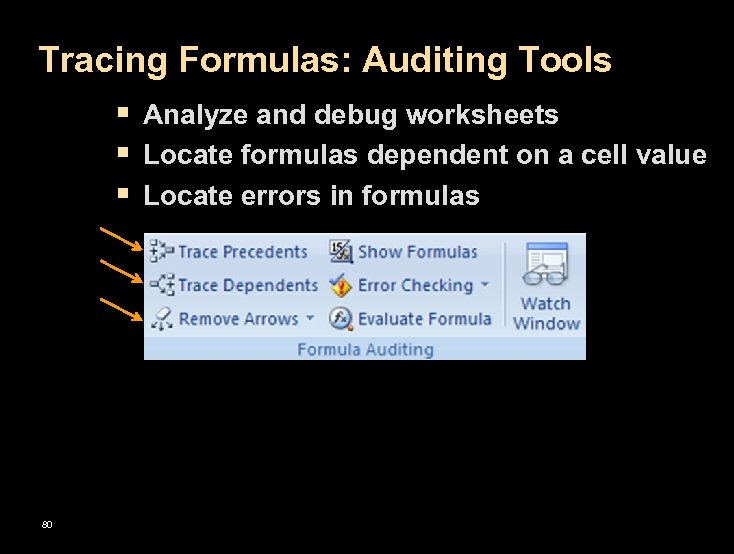 Tracing Formulas: Auditing Tools § Analyze and debug worksheets § Locate formulas dependent on a cell value § Locate errors in formulas 80
 Tracing Precedents § Trace precedents p p 81 Precedents = cells referenced by a formula Trace Precedents command displays arrows to precedent cells
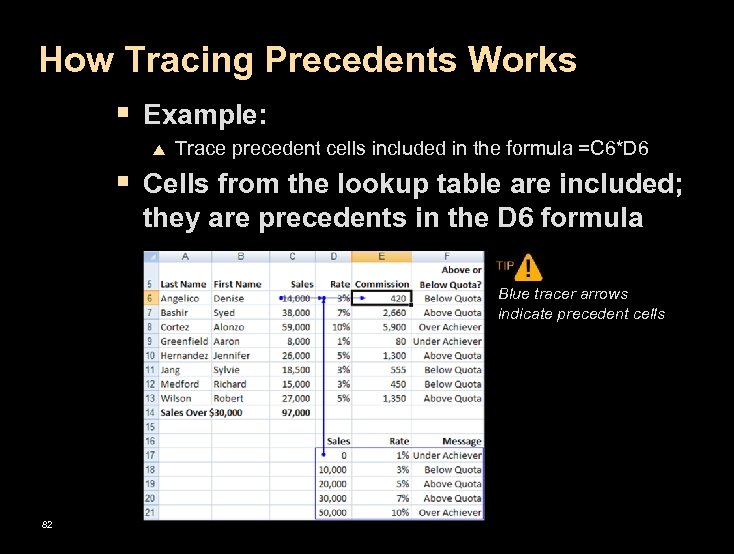 How Tracing Precedents Works § Example: p Trace precedent cells included in the formula =C 6*D 6 § Cells from the lookup table are included; they are precedents in the D 6 formula Blue tracer arrows indicate precedent cells 82
 Tracing Dependents § Trace dependents p p 83 Dependents = Cells containing formulas that reference the selected cell Trace Dependents command displays arrows to the dependent cells
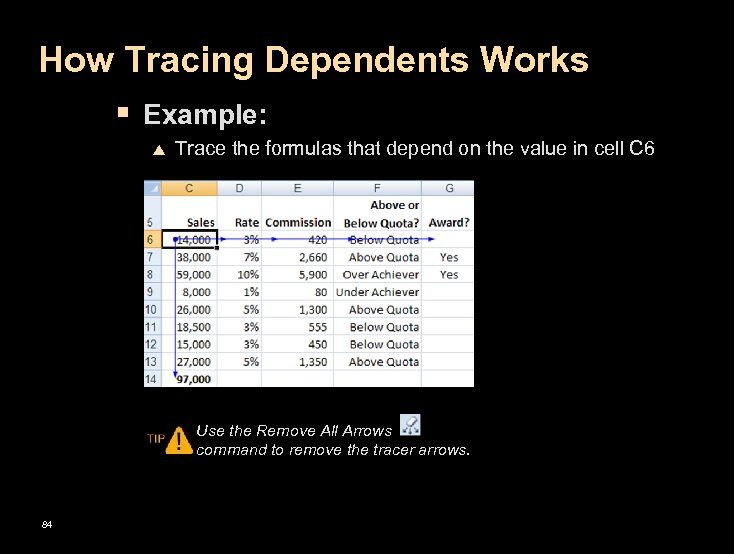 How Tracing Dependents Works § Example: p Trace the formulas that depend on the value in cell C 6 Use the Remove All Arrows command to remove the tracer arrows. 84
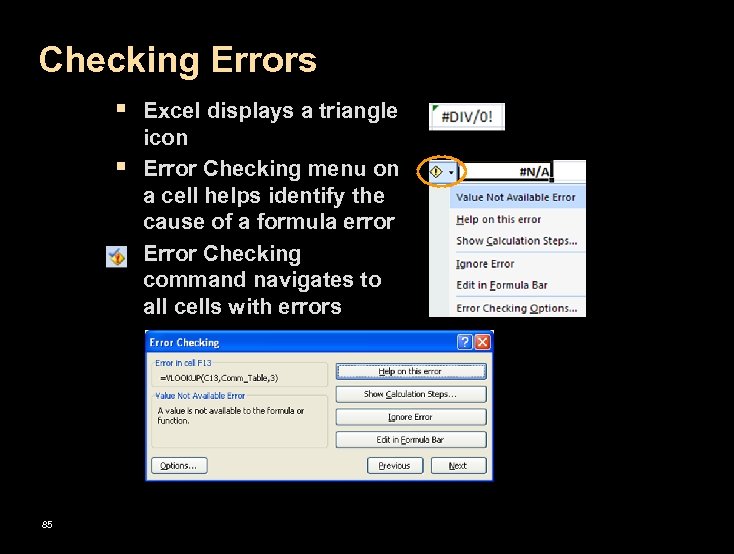 Checking Errors § Excel displays a triangle § § 85 icon Error Checking menu on a cell helps identify the cause of a formula error Error Checking command navigates to all cells with errors
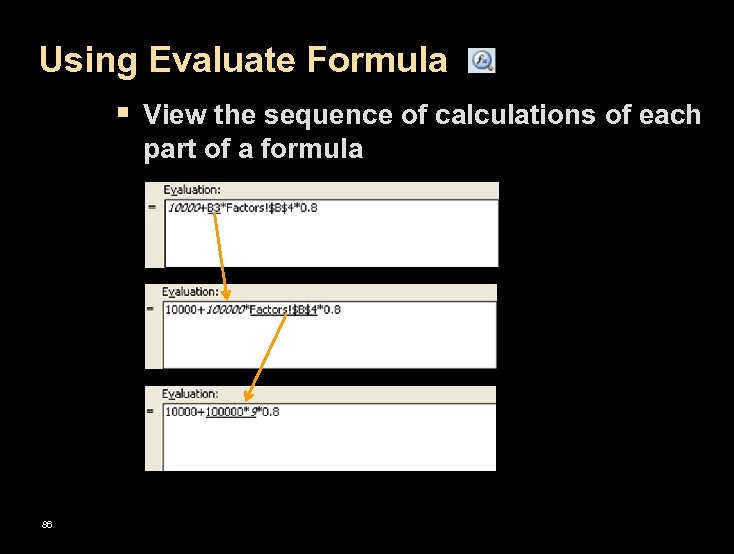 Using Evaluate Formula § View the sequence of calculations of each part of a formula 86
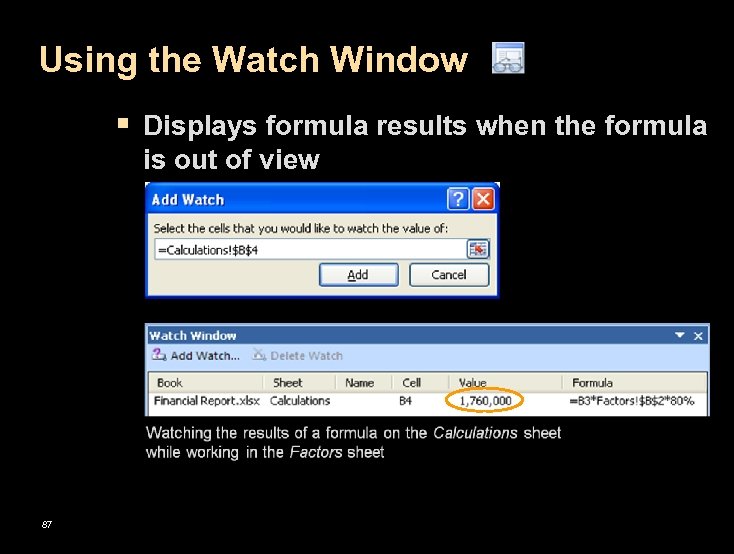 Using the Watch Window § Displays formula results when the formula is out of view 87
 Lesson 15: Using Advanced Formatting and Analysis Tools
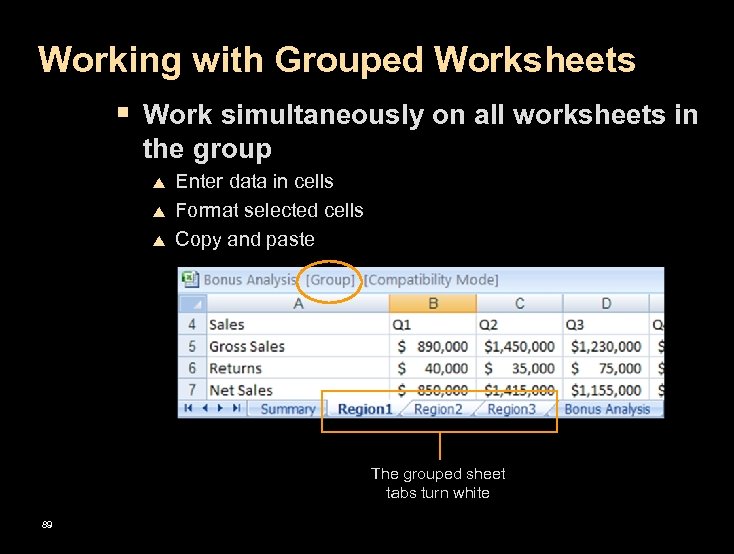 Working with Grouped Worksheets § Work simultaneously on all worksheets in the group p Enter data in cells Format selected cells Copy and paste The grouped sheet tabs turn white 89
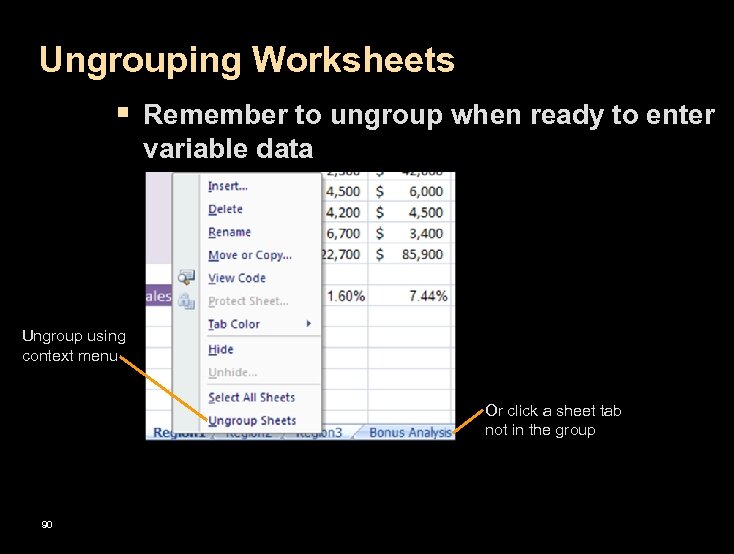 Ungrouping Worksheets § Remember to ungroup when ready to enter variable data Ungroup using context menu Or click a sheet tab not in the group 90
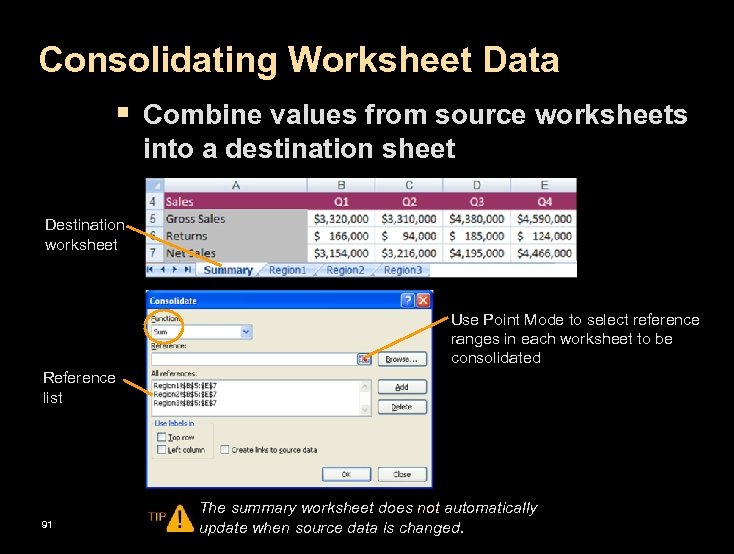 Consolidating Worksheet Data § Combine values from source worksheets into a destination sheet Destination worksheet Use Point Mode to select reference ranges in each worksheet to be consolidated Reference list 91 The summary worksheet does not automatically update when source data is changed.
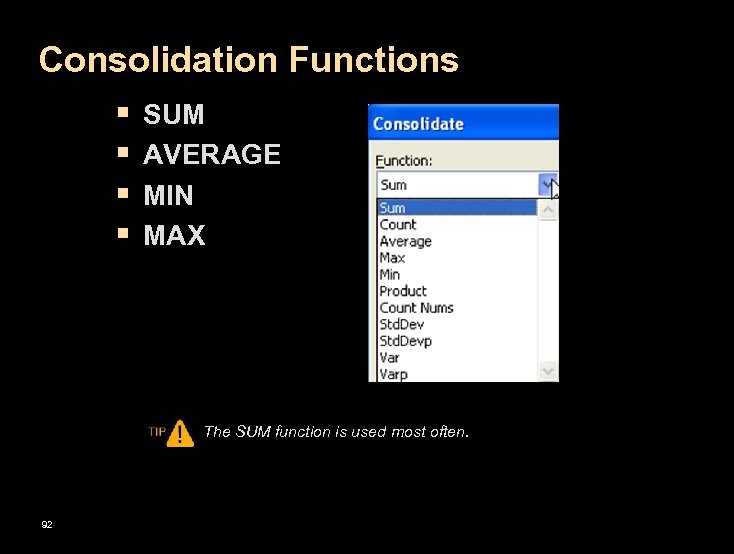 Consolidation Functions § § SUM AVERAGE MIN MAX The SUM function is used most often. 92
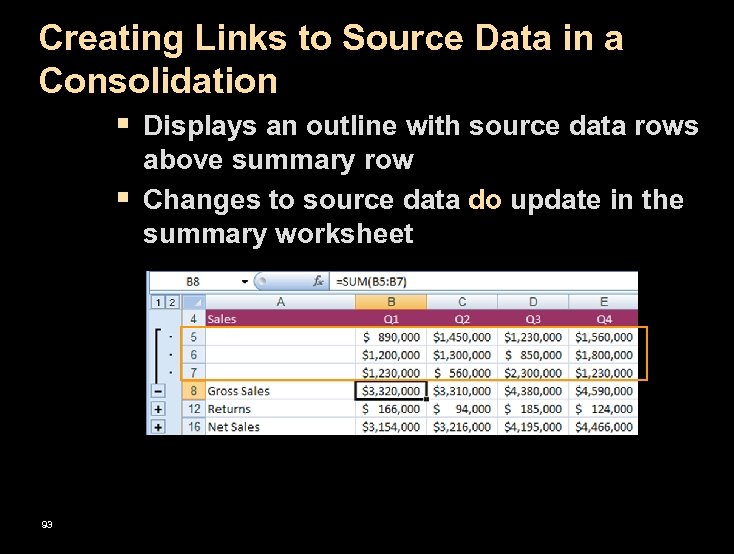 Creating Links to Source Data in a Consolidation § Displays an outline with source data rows § 93 above summary row Changes to source data do update in the summary worksheet
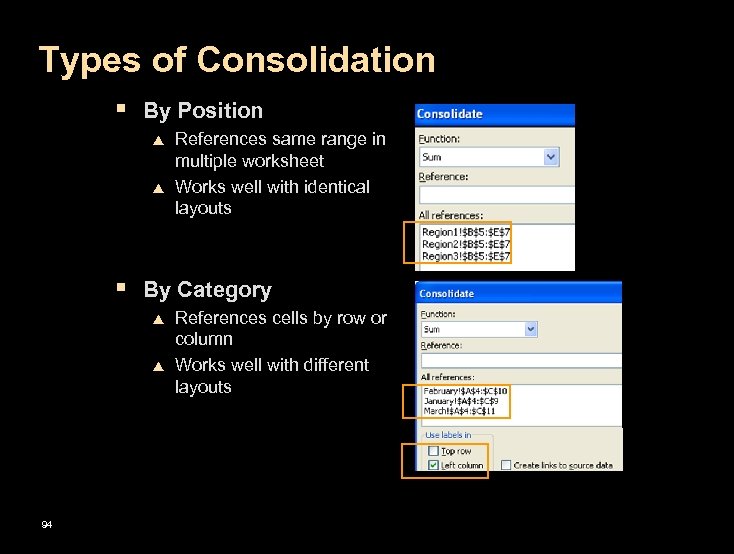 Types of Consolidation § By Position p p References same range in multiple worksheet Works well with identical layouts § By Category p p 94 References cells by row or column Works well with different layouts
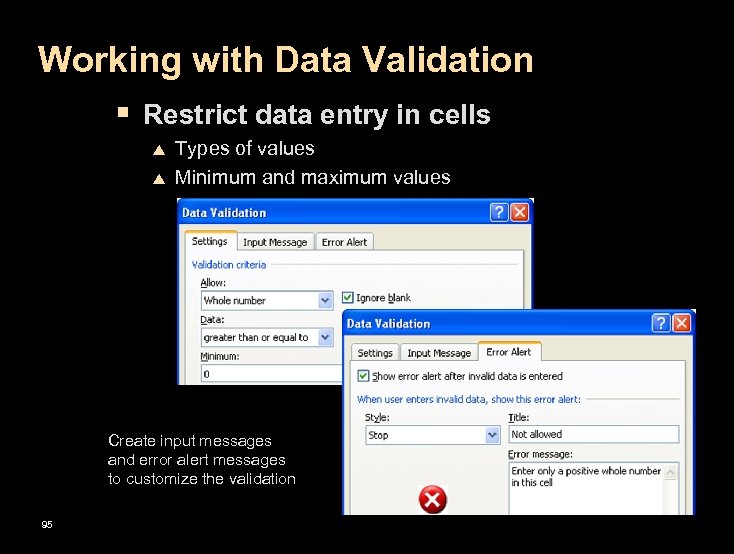 Working with Data Validation § Restrict data entry in cells p p Types of values Minimum and maximum values Create input messages and error alert messages to customize the validation 95
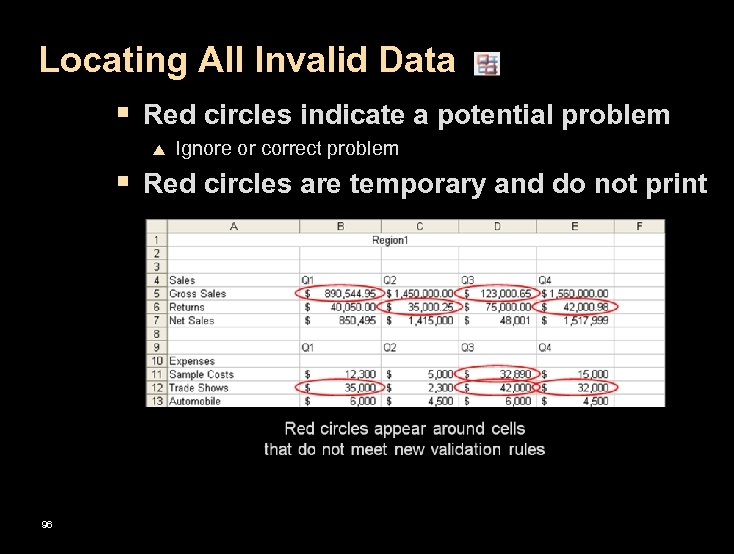 Locating All Invalid Data § Red circles indicate a potential problem p Ignore or correct problem § Red circles are temporary and do not print 96
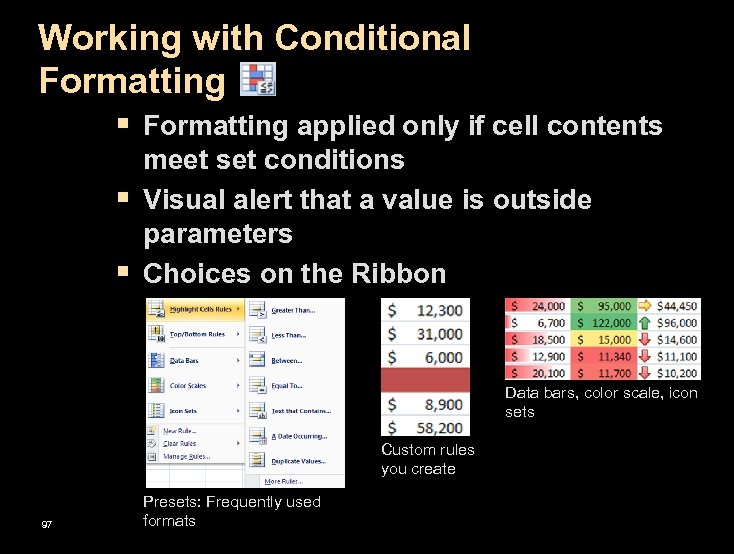 Working with Conditional Formatting § Formatting applied only if cell contents § § meet set conditions Visual alert that a value is outside parameters Choices on the Ribbon Data bars, color scale, icon sets Custom rules you create 97 Presets: Frequently used formats
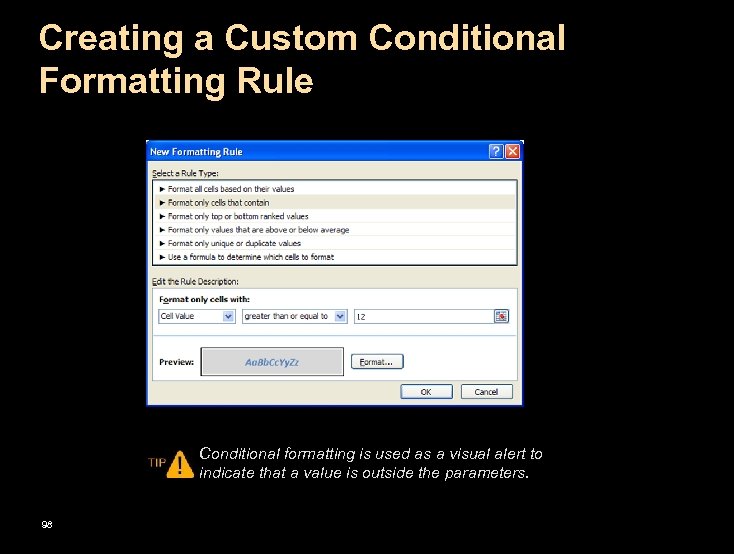 Creating a Custom Conditional Formatting Rule Conditional formatting is used as a visual alert to indicate that a value is outside the parameters. 98
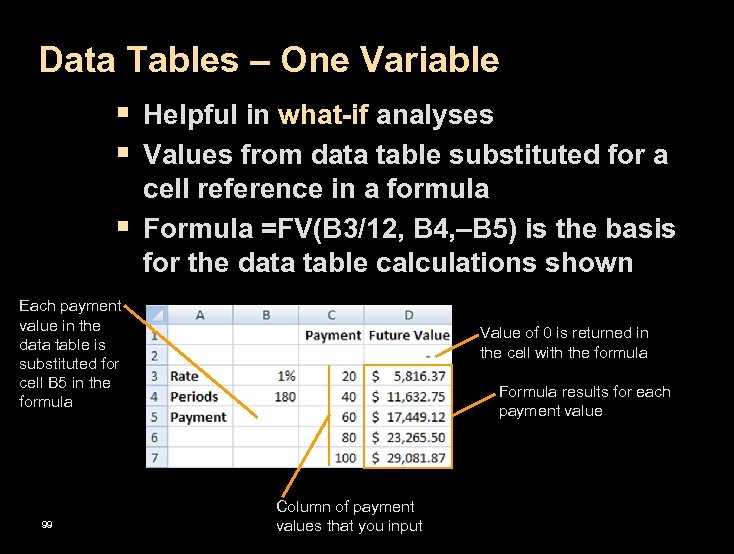 Data Tables – One Variable § Helpful in what-if analyses § Values from data table substituted for a § cell reference in a formula Formula =FV(B 3/12, B 4, –B 5) is the basis for the data table calculations shown Each payment value in the data table is substituted for cell B 5 in the formula 99 Value of 0 is returned in the cell with the formula Formula results for each payment value Column of payment values that you input
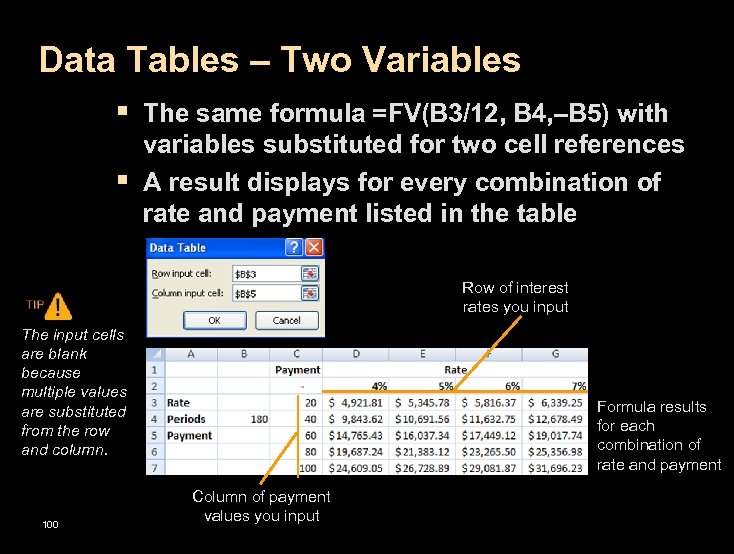 Data Tables – Two Variables § The same formula =FV(B 3/12, B 4, –B 5) with § variables substituted for two cell references A result displays for every combination of rate and payment listed in the table Row of interest rates you input The input cells are blank because multiple values are substituted from the row and column. 100 Formula results for each combination of rate and payment Column of payment values you input
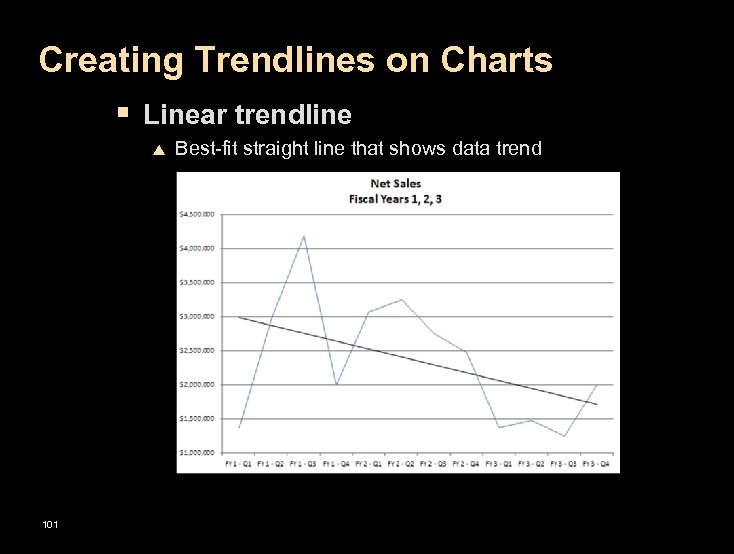 Creating Trendlines on Charts § Linear trendline p 101 Best-fit straight line that shows data trend
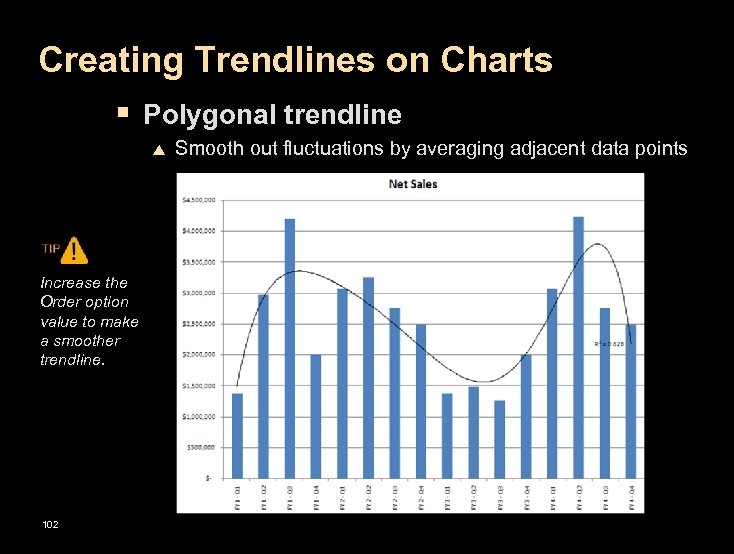 Creating Trendlines on Charts § Polygonal trendline p Increase the Order option value to make a smoother trendline. 102 Smooth out fluctuations by averaging adjacent data points
 Lesson 16: Integrating Excel with Other Programs
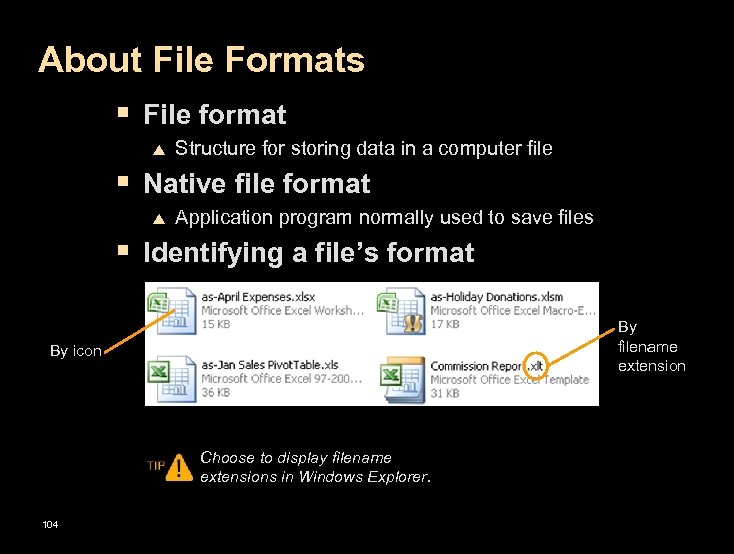 About File Formats § File format p Structure for storing data in a computer file § Native file format p Application program normally used to save files § Identifying a file’s format By filename extension By icon Choose to display filename extensions in Windows Explorer. 104
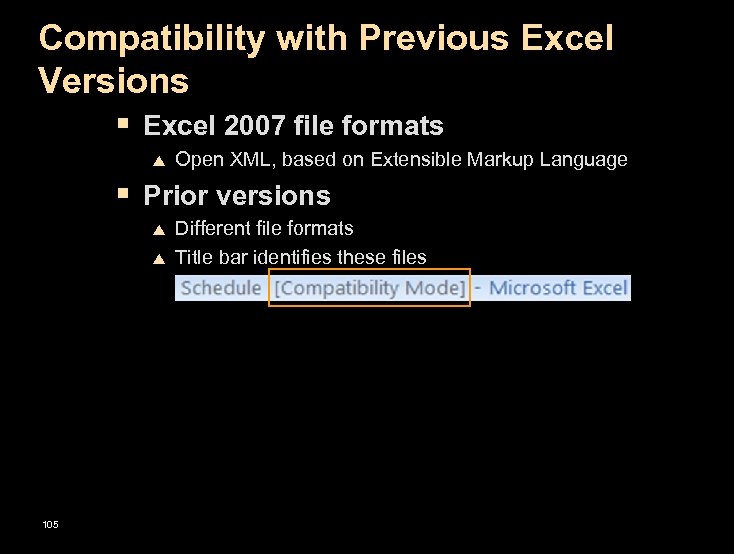 Compatibility with Previous Excel Versions § Excel 2007 file formats p Open XML, based on Extensible Markup Language § Prior versions p p 105 Different file formats Title bar identifies these files
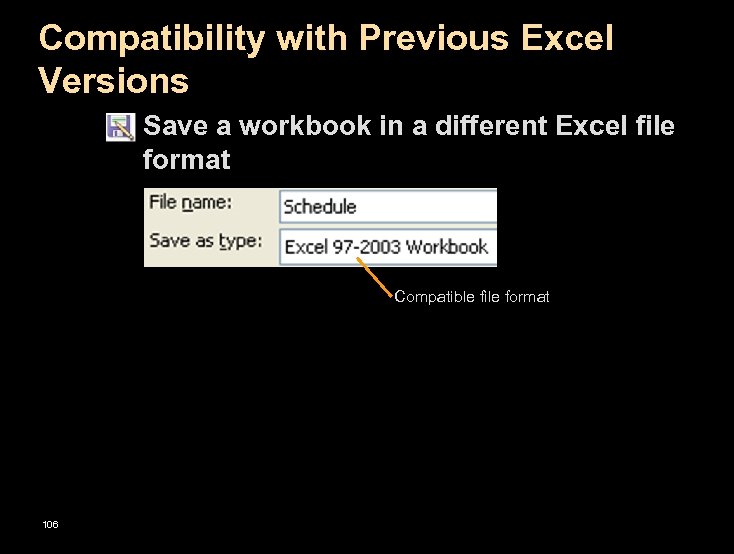 Compatibility with Previous Excel Versions § Save a workbook in a different Excel file format Compatible file format 106
 Handling Compatibility Issues § Compatibility Checker p p File owner scans workbook Any changes to correct incompatibility remove features in all Excel versions § Compatibility Pack p p p 107 Users of versions 2000, 2002 (XP), and 2003 install a file converter Incompatible features hidden Features visible when file is reopened in Excel 2007
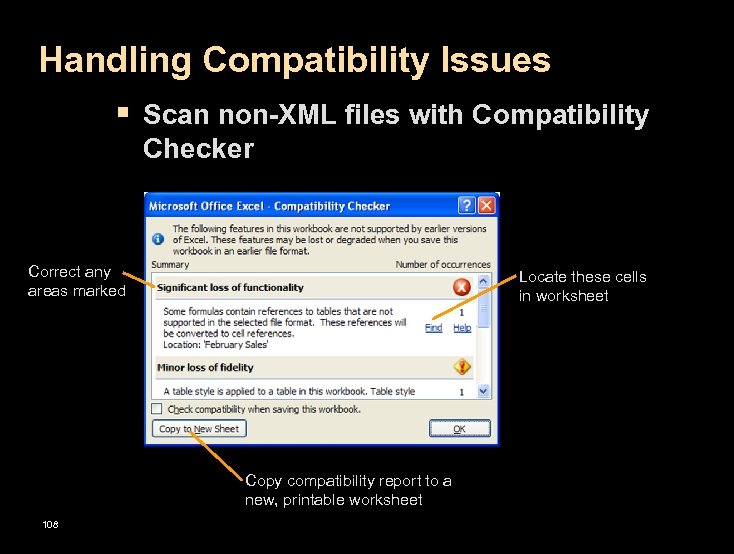 Handling Compatibility Issues § Scan non-XML files with Compatibility Checker Correct any areas marked Locate these cells in worksheet Copy compatibility report to a new, printable worksheet 108
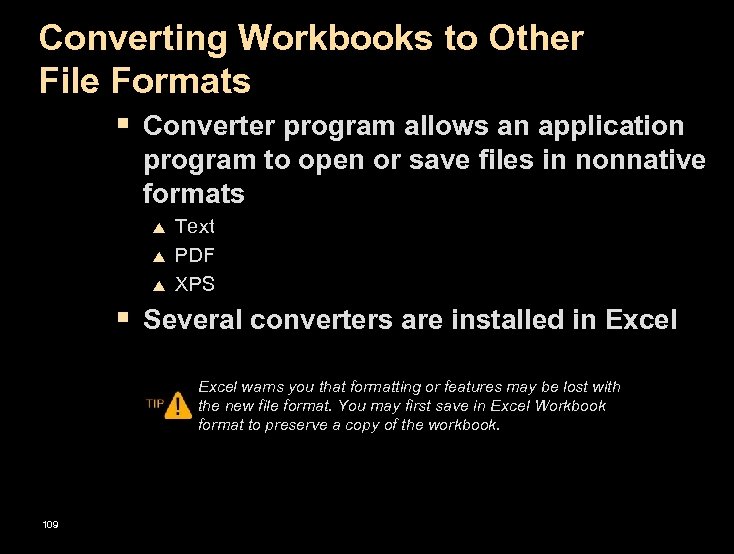 Converting Workbooks to Other File Formats § Converter program allows an application program to open or save files in nonnative formats p p p Text PDF XPS § Several converters are installed in Excel warns you that formatting or features may be lost with the new file format. You may first save in Excel Workbook format to preserve a copy of the workbook. 109
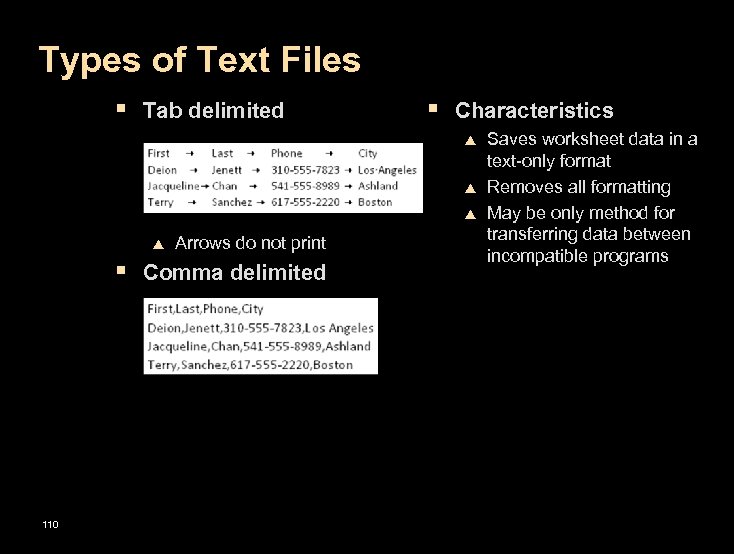 Types of Text Files § Tab delimited § Characteristics p p Arrows do not print § Comma delimited 110 Saves worksheet data in a text-only format Removes all formatting May be only method for transferring data between incompatible programs
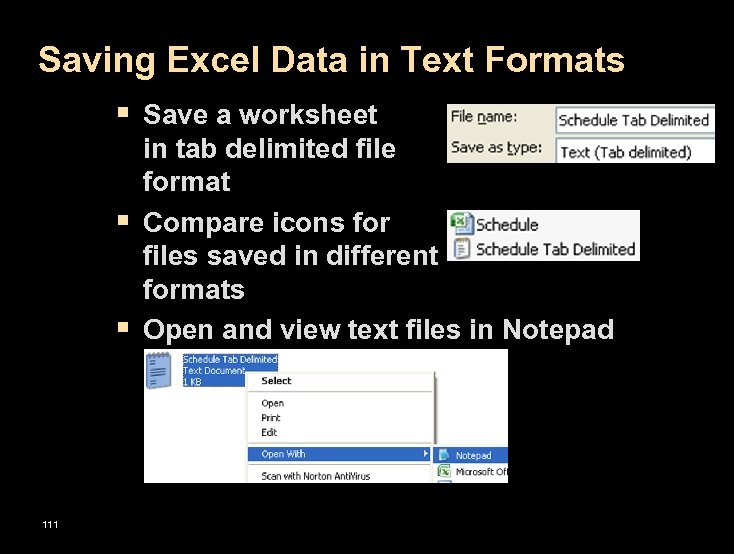 Saving Excel Data in Text Formats § Save a worksheet § § 111 in tab delimited file format Compare icons for files saved in different formats Open and view text files in Notepad
 Additional File Format Types § PDF (Portable Document Format) § XPS (XML Paper Specification § Characteristics p p Users may use a free reader to view/print workbooks with all formatting intact; don’t need Excel at all Prevents users from making any changes or accessing hidden information The PDF and XPS command appears on the Save As submenu after you download and install a converter. 112
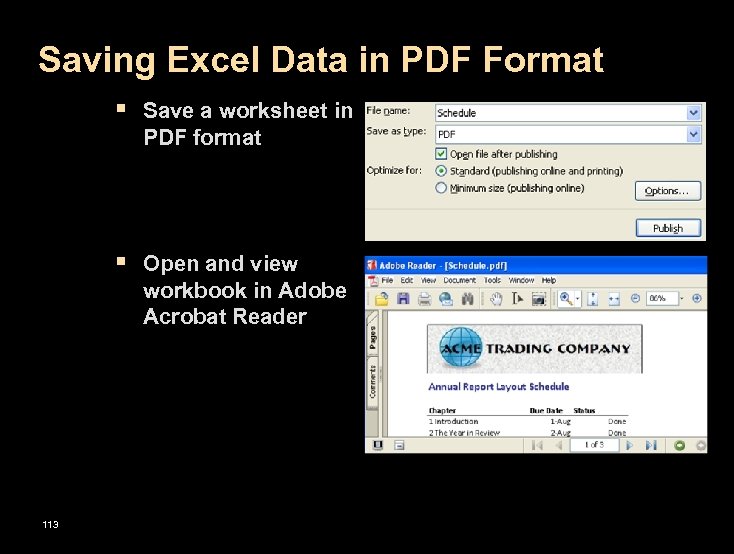 Saving Excel Data in PDF Format § Save a worksheet in PDF format § Open and view workbook in Adobe Acrobat Reader 113
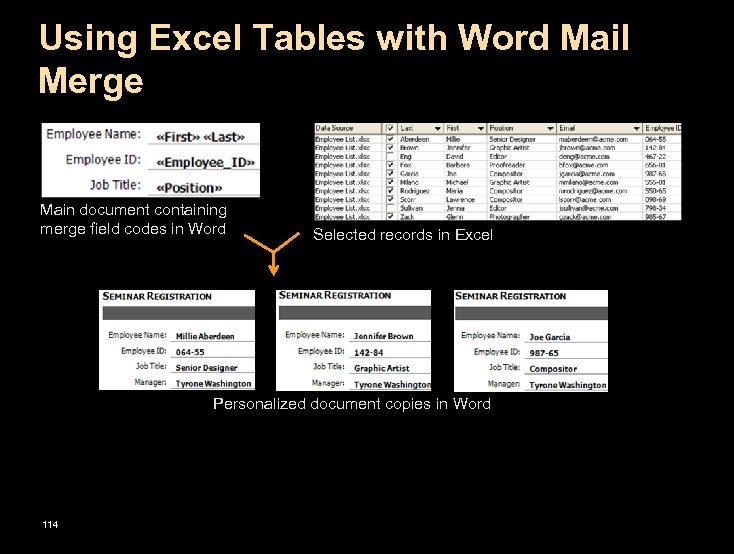 Using Excel Tables with Word Mail Merge Main document containing merge field codes in Word Selected records in Excel Personalized document copies in Word 114
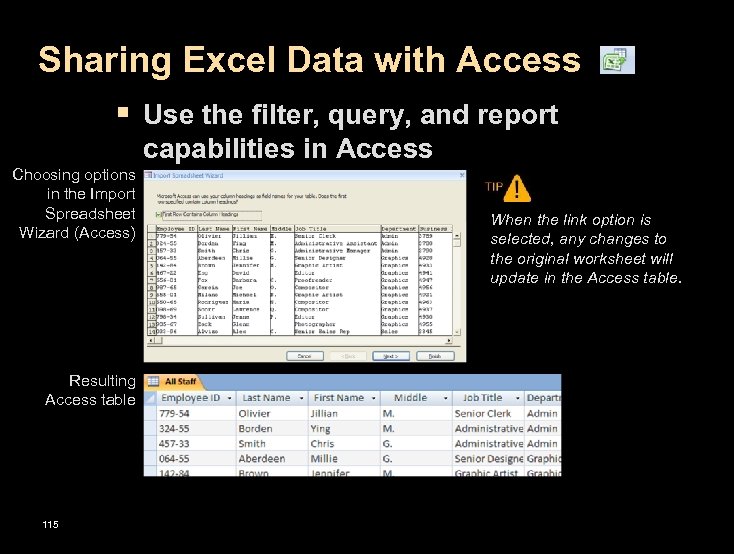 Sharing Excel Data with Access § Use the filter, query, and report capabilities in Access Choosing options in the Import Spreadsheet Wizard (Access) Resulting Access table 115 When the link option is selected, any changes to the original worksheet will update in the Access table.
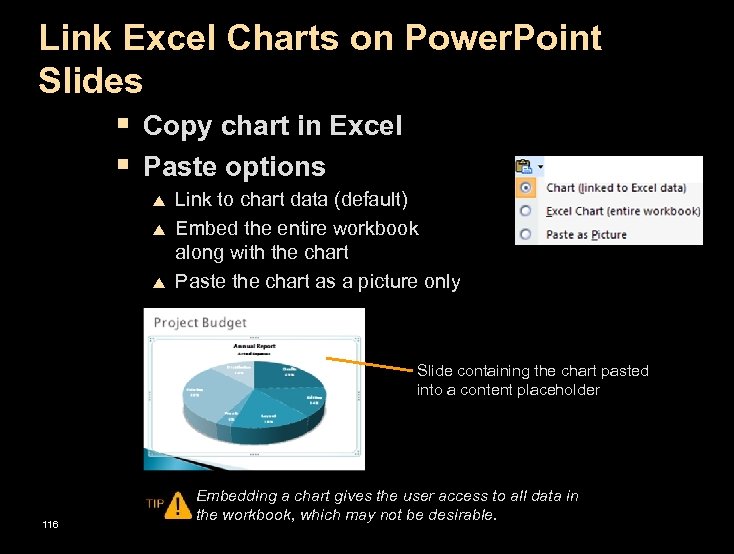 Link Excel Charts on Power. Point Slides § Copy chart in Excel § Paste options p p p Link to chart data (default) Embed the entire workbook along with the chart Paste the chart as a picture only Slide containing the chart pasted into a content placeholder 116 Embedding a chart gives the user access to all data in the workbook, which may not be desirable.
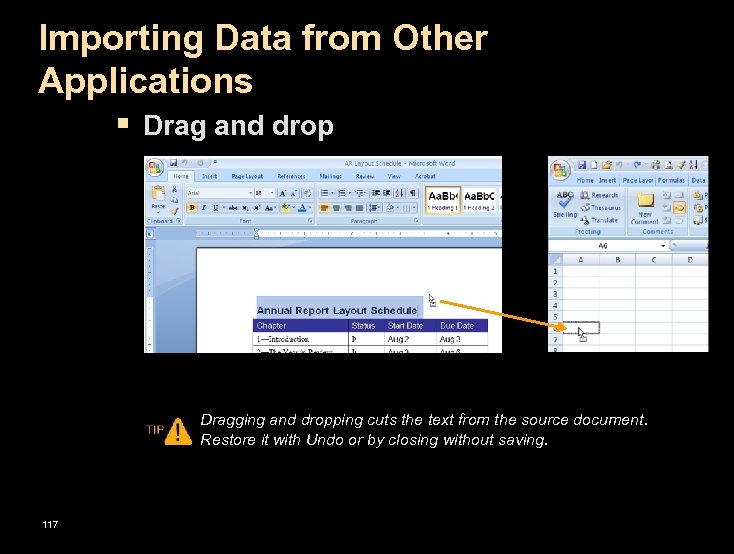 Importing Data from Other Applications § Drag and drop Dragging and dropping cuts the text from the source document. Restore it with Undo or by closing without saving. 117
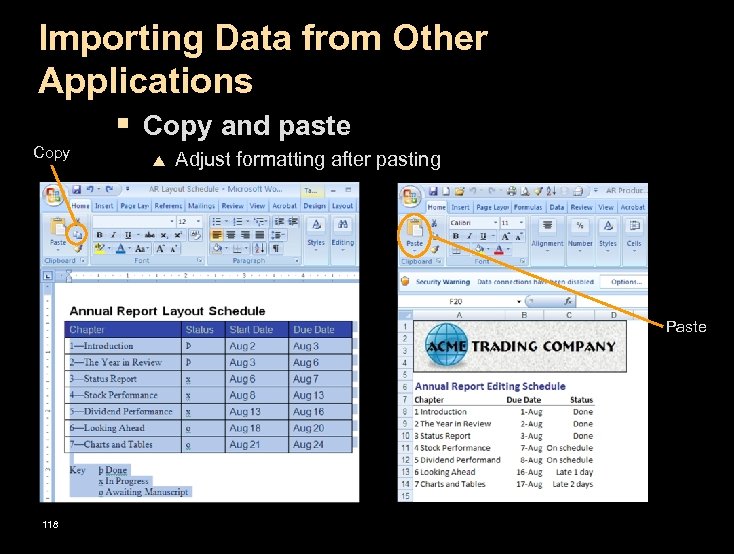 Importing Data from Other Applications § Copy and paste Copy p Adjust formatting after pasting Paste 118
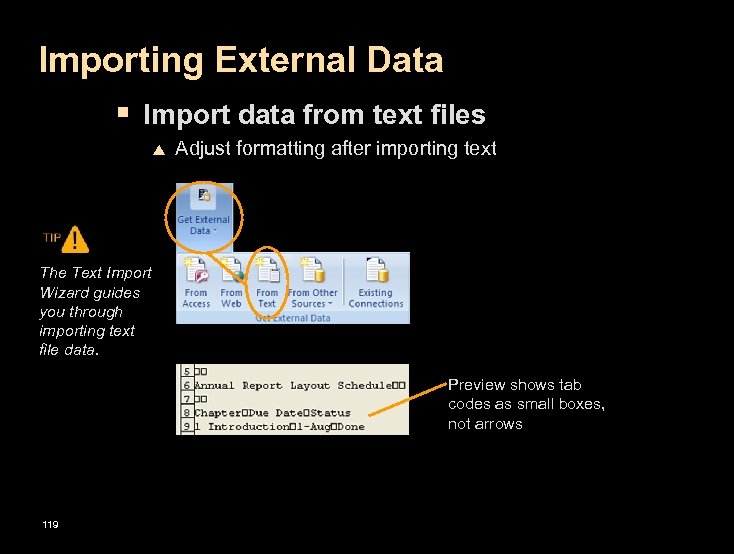 Importing External Data § Import data from text files p Adjust formatting after importing text The Text Import Wizard guides you through importing text file data. Preview shows tab codes as small boxes, not arrows 119
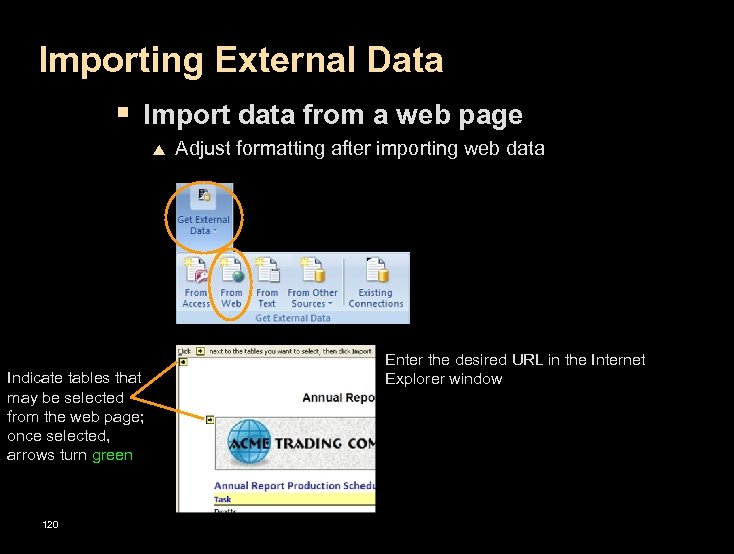 Importing External Data § Import data from a web page p Indicate tables that may be selected from the web page; once selected, arrows turn green 120 Adjust formatting after importing web data Enter the desired URL in the Internet Explorer window