


 Скачать презентацию Legal Research for International Students using Prepared for
5a5aaa40db1246c33a16141f19f86651.ppt
- Количество слайдов: 81
 Legal Research for International Students, using Prepared for Pericles American Business & Legal Education Project By Professor Dent Moscow, Russia, December 2003, updated 2008
 TYPES OF LEGAL INFORMATION ON THE LEXIS-NEXIS SYSTEM § Case Law- all U. S. case law (both reported and some § § § unreported cases) modern cases from the UK, Canada, Australia and other common law countries; Statutory Law-All US federal and state laws, available within 24 hours of publication, selected legislation from many other countries; Administrative Law-US Code of Federal Regulations, Federal Register (containing draft laws and regulations), regulations of most US states, partial regulations of many foreign countries; Law journals-over 700 US and foreign law reviews; Legal encyclopedias and treatises; Legal newspapers and newsletters.
 OTHER TYPES OF INFORMATION ON THE LEXIS-NEXIS SYSTEM § News - Newspapers, magazines, wire services, newsletters, journals, broadcast transcripts, from both US and foreign sources; § Company and financial information – SEC (Securities & Exchange Commission) company filings, patent information, private and public company profiles; § Political information – information on U. S. Congressional hearings, public opinion polling, speeches etc. ; § Marketing Information – demographics.
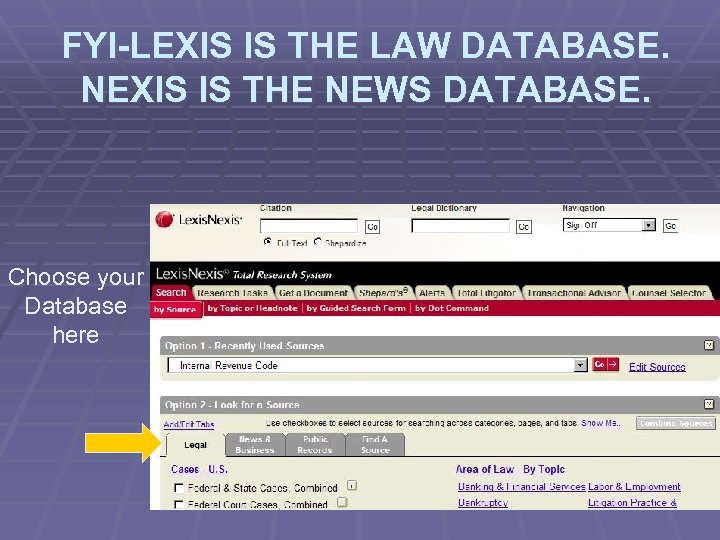 FYI-LEXIS IS THE LAW DATABASE. NEXIS IS THE NEWS DATABASE. Choose your Database here
 WARNING! § Not all information is available with all accounts. Your student account may restrict access to some databases. § Student accounts may only be used for educational purposes. Using Lexis-Nexis for paid work is prohibited. If Lexis believes that you are using your free account for commercial work, your account could be disconnected. § Do not give your password to anyone. (If your password is used on more than one computer at a time, your account could be disconnected. )
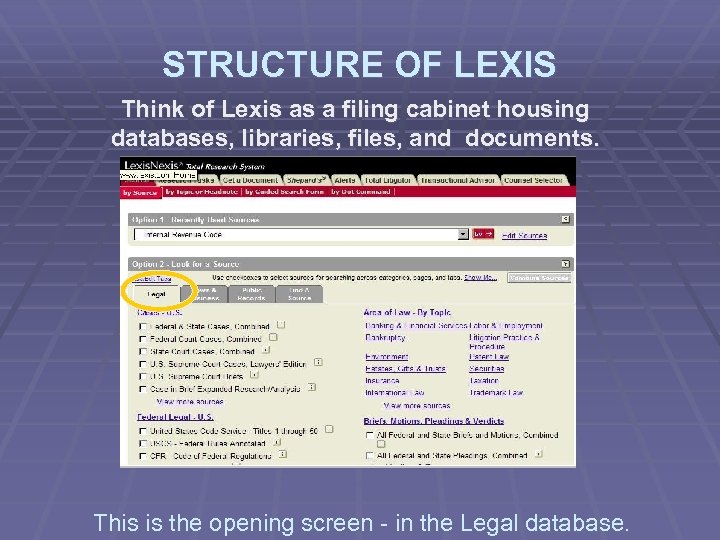 STRUCTURE OF LEXIS Think of Lexis as a filing cabinet housing databases, libraries, files, and documents. This is the opening screen - in the Legal database.
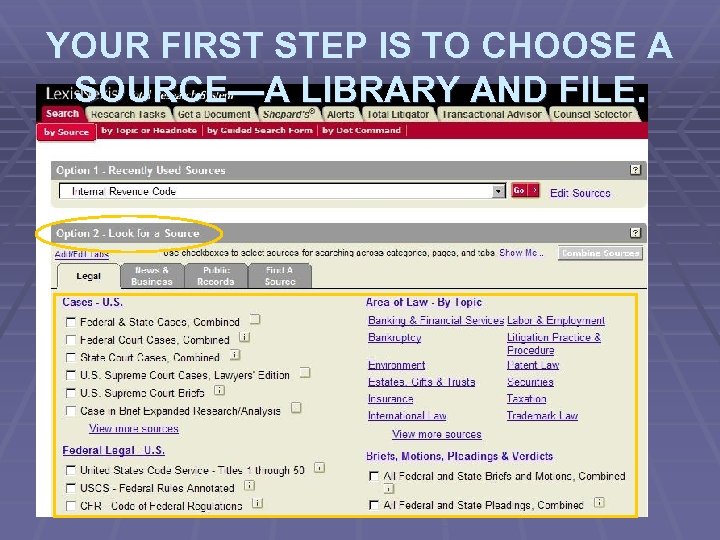 YOUR FIRST STEP IS TO CHOOSE A SOURCE—A LIBRARY AND FILE.
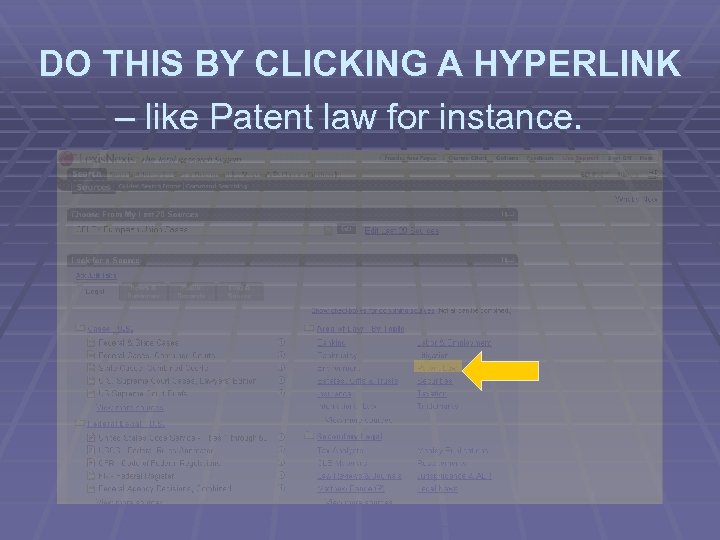 DO THIS BY CLICKING A HYPERLINK – like Patent law for instance.
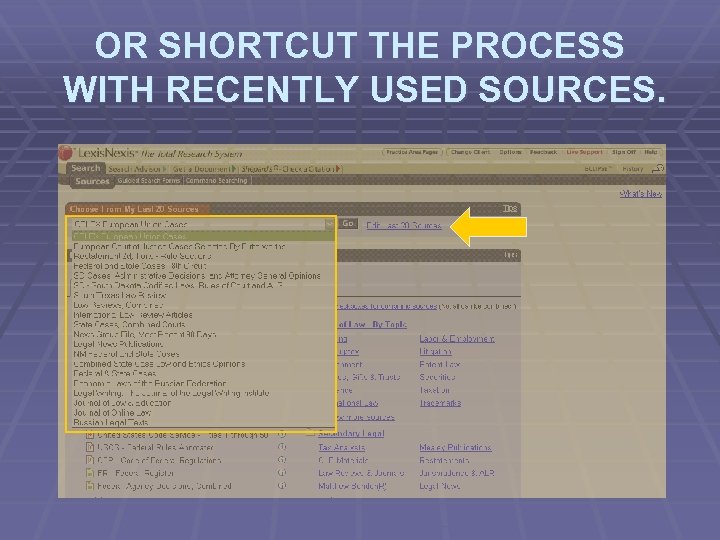 OR SHORTCUT THE PROCESS WITH RECENTLY USED SOURCES.
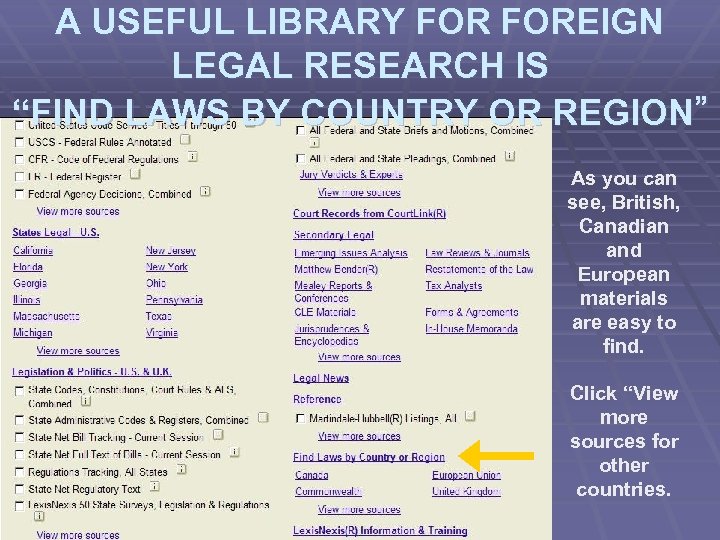 A USEFUL LIBRARY FOREIGN LEGAL RESEARCH IS “FIND LAWS BY COUNTRY OR REGION” As you can see, British, Canadian and European materials are easy to find. Click “View more sources for other countries.
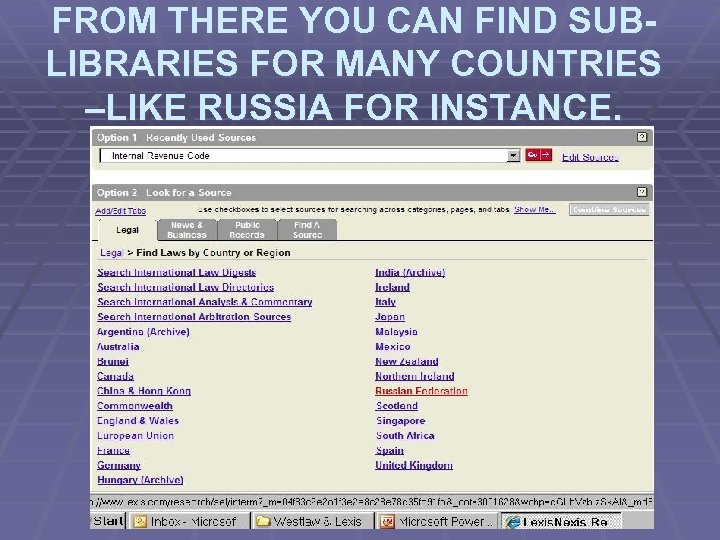 FROM THERE YOU CAN FIND SUBLIBRARIES FOR MANY COUNTRIES –Ll. KE RUSSIA FOR INSTANCE.
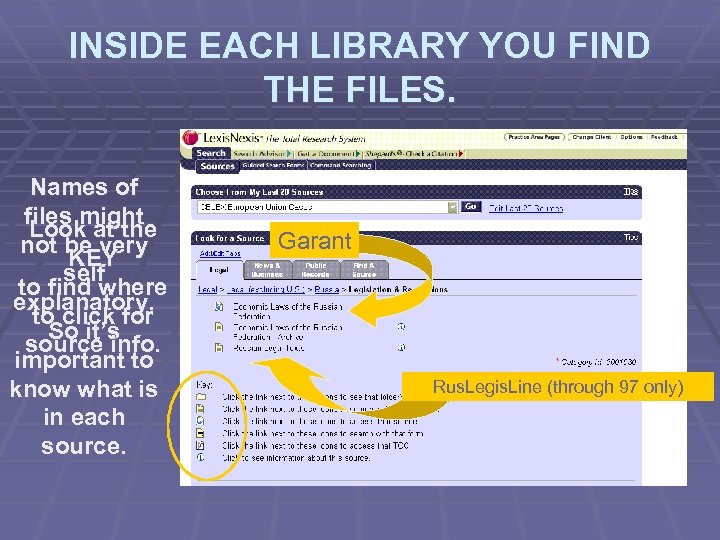 INSIDE EACH LIBRARY YOU FIND THE FILES. Names of files might Look at the not be very KEY self to find where explanatory. to click for So it’s source info. important to know what is in each source. Garant Rus. Legis. Line (through 97 only)
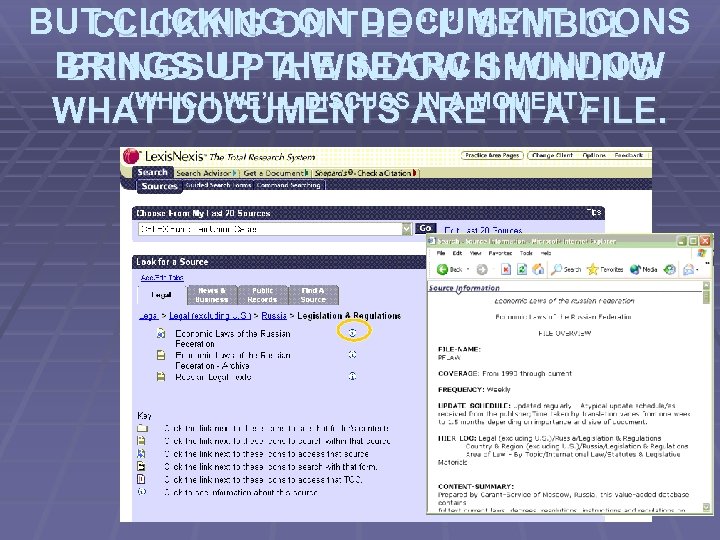 BUT CLICKING ON DOCUMENT ICONS CLICKING ON THE “I” SYMBOL BRINGS UP THE SEARCH WINDOW BRINGS UP A WINDOW SHOWING (WHICH WE’LL DISCUSS IN A MOMENT). WHAT DOCUMENTS ARE IN A FILE.
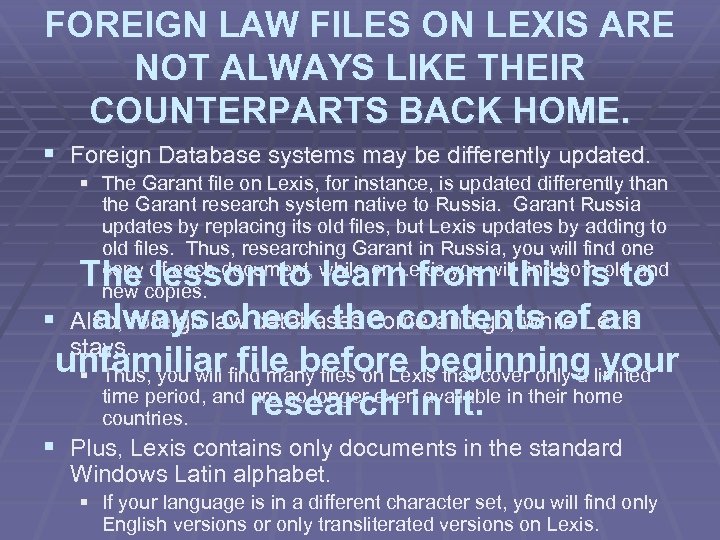 FOREIGN LAW FILES ON LEXIS ARE NOT ALWAYS LIKE THEIR COUNTERPARTS BACK HOME. § Foreign Database systems may be differently updated. § The Garant file on Lexis, for instance, is updated differently than the Garant research system native to Russia. Garant Russia updates by replacing its old files, but Lexis updates by adding to old files. Thus, researching Garant in Russia, you will find one copy of each document, while on Lexis you will find both old and new copies. The lesson to learn from this is to § Also, foreign law databases come and go, while Lexis always check the contents of an stays. unfamiliar find many files on Lexis that cover only a limited § Thus, you will file before beginning your time period, and are no longer even available in their home research in it. countries. § Plus, Lexis contains only documents in the standard Windows Latin alphabet. § If your language is in a different character set, you will find only English versions or only transliterated versions on Lexis.
 BUT EVEN IF IT ISN’T PERFECTLY INTERNATIONAL YET, LEXIS HAS ONE BIG ADVANTAGE OVER WESTLAW FOREIGN LEGAL RESEARCH. In the Lexis system one subscription gets you access to all material from all countries. Contrarily, in the Westlaw system there are different subscriptions for different countries. Westlaw UK, for instance, doesn’t contain all U. S. case law, and Westlaw U. S. doesn’t contain much European Law. With Lexis you get one stop shopping!
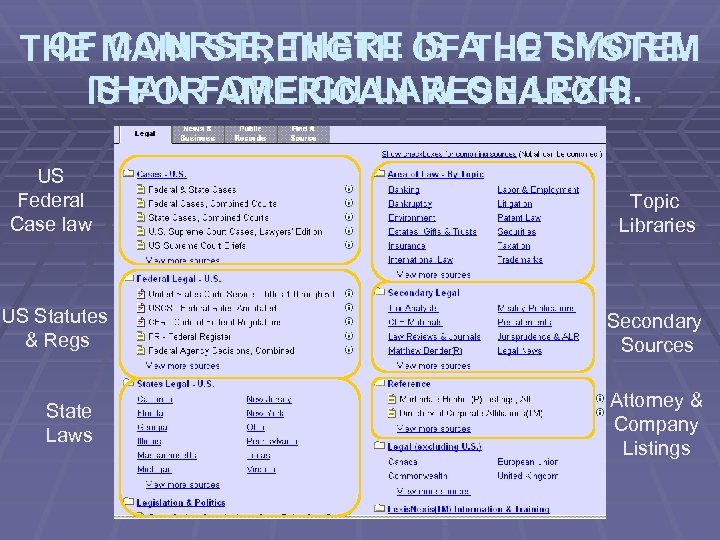 OF COURSE, THERE IS THE SYSTEM THE MAIN STRENGTH OFA LOT MORE THAN AMERICAN RESEARCH! IS FORFOREIGN LAW ON LEXIS. US Federal Case law Topic Libraries US Statutes & Regs Secondary Sources State Laws Attorney & Company Listings
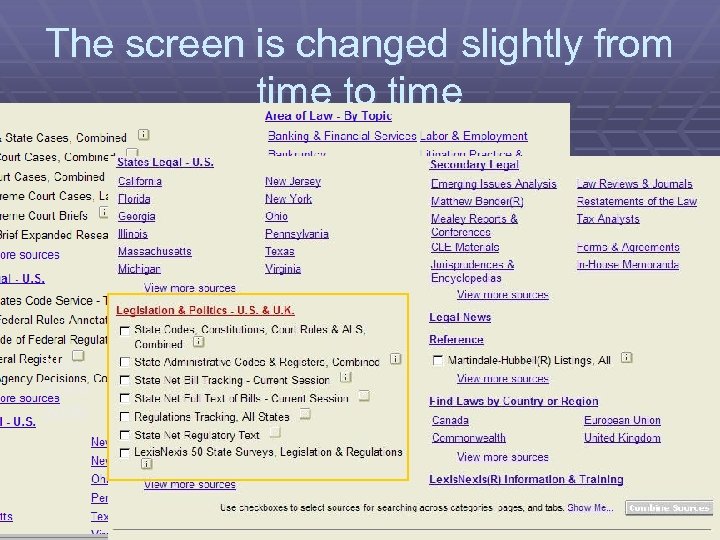 The screen is changed slightly from time to time New Since 2008 New since 2007
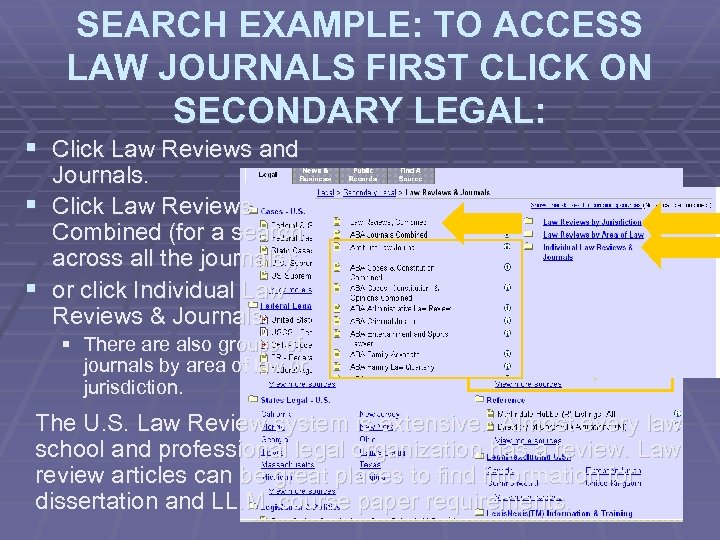 SEARCH EXAMPLE: TO ACCESS LAW JOURNALS FIRST CLICK ON SECONDARY LEGAL: § Click Law Reviews and Journals. § Click Law Reviews Combined (for a search across all the journals); § or click Individual Law Reviews & Journals. § There also groups of journals by area of law or jurisdiction. The U. S. Law Review system is extensive. Almost every law school and professional legal organization has a review. Law review articles can be great places to find information for dissertation and LL. M. course paper requirements.
 NO, NO REASON AT ALL THAT THIS GUY IS ON THE SCREEN. Now to wake know --Exceptthat you up; how to find the right library, lets figure out how to search for -- And to tell you that we are going on to discuss a new skill materials.
 WAYS TO SEARCH LEXIS-NEXIS § BOOLEAN – “Terms and Connectors” uses a combination of search words and logical connectors. § FREESTYLE – “Natural Language” allows users to enter a search description by typing in a question or phrase. § EASY SEARCH—just for quick, easy tasks
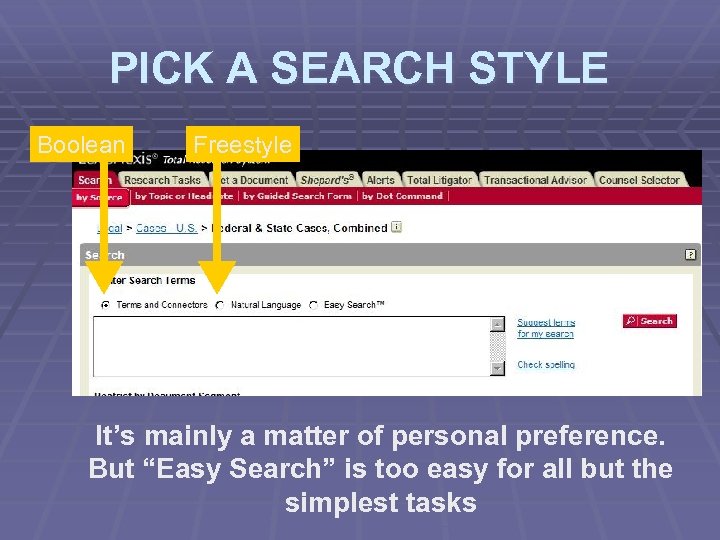 PICK A SEARCH STYLE Boolean Freestyle It’s mainly a matter of personal preference. But “Easy Search” is too easy for all but the simplest tasks
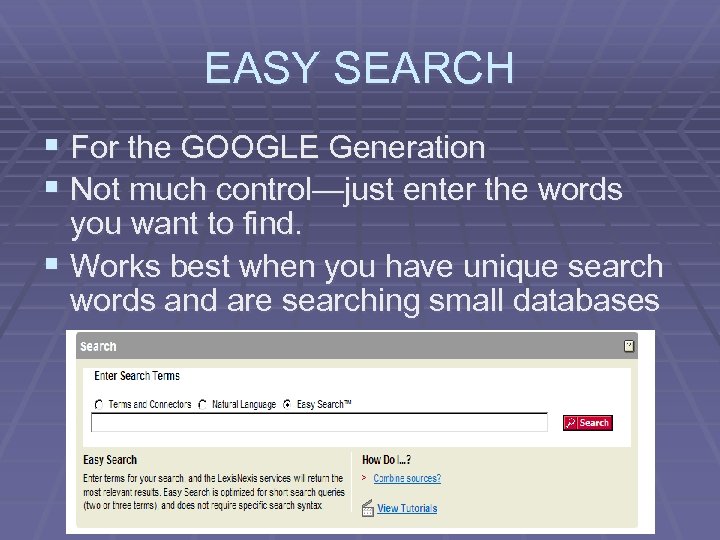 EASY SEARCH § For the GOOGLE Generation § Not much control—just enter the words you want to find. § Works best when you have unique search words and are searching small databases
 ADVANTAGES OF BOOLEAN § Most research experts prefer this method of § § searching It’s faster and generally more efficient. (This is important when you are paying for search time) It gives you more control over the search engine and more predicable results. The results are usually in precedent and date order—so the most important and most recent documents appear first. You can impress your friends with how efficient you are!
 ADVANTAGES OF NATURAL LANGUAGE § There is less to learn. § You just type a question and let the computer do the logical work. § The computer adds synonyms and recognizes citations, phrases etc. § Natural Language works better when you already know your issue and the terms likely to occur in the documents you want to find. § Natural Language arranges your results by a statistical analysis of a document’s probable relevance.
 WHEN NATURAL LANGUAGE IS BEST: When you are doing short search research §§When you only have a backgroundproblem and don’t than looking time to think of Boolean ratherwant to take thefor specific types of terms. documents § When you are searching long documents that § Better notsegments. when you are paying for don’t have to do this §search time. It can quickly get time consuming Natural language looks for concentrations of your search terms and expensive. then lists the documents by probable relevance. This can help you find the right documents more quickly in a long mass of text. § When you don’t know what connectors to use. § (ie: don’t know how close terms are likely to occur to one another).
 PLANNING A BOOLEAN SEARCH § Define the information needed. § Choose appropriate search terms/words to define the info you need (use help). § Connect the search words. § Simplify (truncate) the search words. § Confine the search to a particular document segment or time frame.
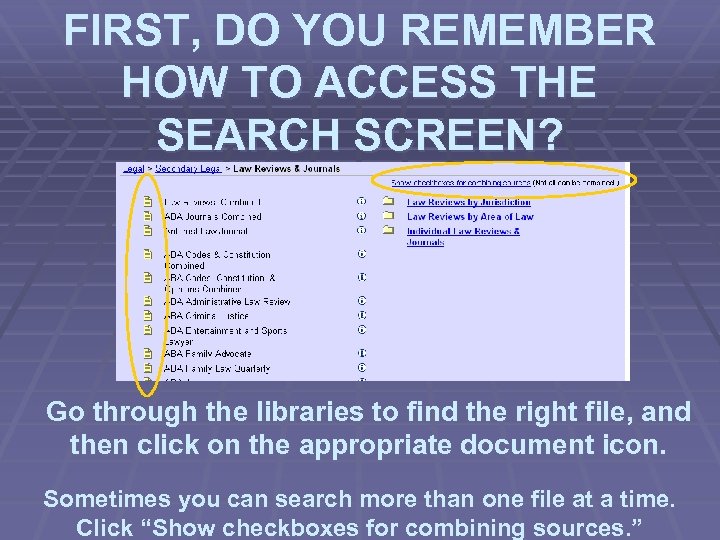 FIRST, DO YOU REMEMBER HOW TO ACCESS THE SEARCH SCREEN? Go through the libraries to find the right file, and then click on the appropriate document icon. Sometimes you can search more than one file at a time. Click “Show checkboxes for combining sources. ”
 Next we’ll see a quick overview of the search screen and skills, and then we’ll examine how to do it more closely.
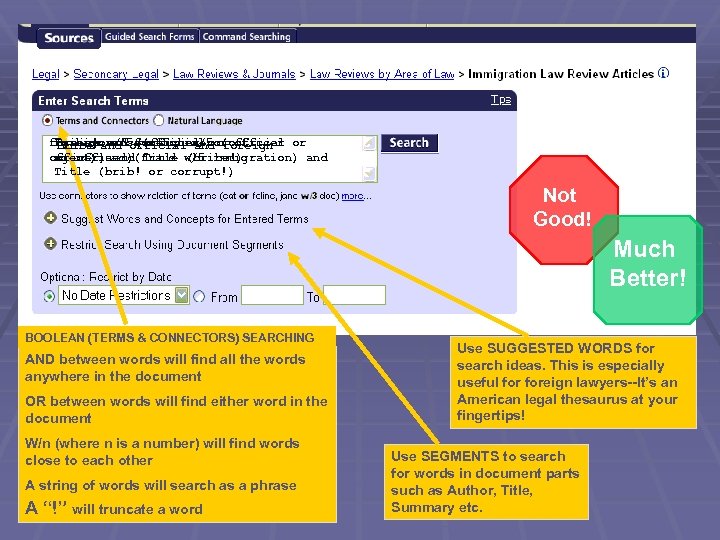 foreign and search here or(official or foreign and official w/5 or officer bribe! w/5 foreign and foreign Type your (official w/5 (official Bribe officer)and (fraud w/5 immigration) and agent) and Title (bribe!) or officer) Title (brib! or corrupt!) Not Good! Much Better! BOOLEAN (TERMS & CONNECTORS) SEARCHING AND between words will find all the words anywhere in the document OR between words will find either word in the document W/n (where n is a number) will find words close to each other A string of words will search as a phrase A “!” will truncate a word Use SUGGESTED WORDS for search ideas. This is especially useful foreign lawyers--It’s an American legal thesaurus at your fingertips! Use SEGMENTS to search for words in document parts such as Author, Title, Summary etc.
 SELECTING SEARCH WORDS § Seek words that are likely to be unique to the type of document you want. § Think of similar terms: seeking cases about children? Look also for “minor, ” “infant, ” “juvenile. ” § Using the SUGGESTED WORDS AND CONCEPTS feature will help a lot! § Check your spelling before searching. § Think about whether to use American or British spelling! § Compound Words will read as one. § A search for “hard-disk” will also find “harddisk” but not “hard disk” § Noise words are not searchable. § Personal pronouns (he, it, etc. ) and forms of “to be” § Conjunctions (and, and not, or, but not) act as connectors
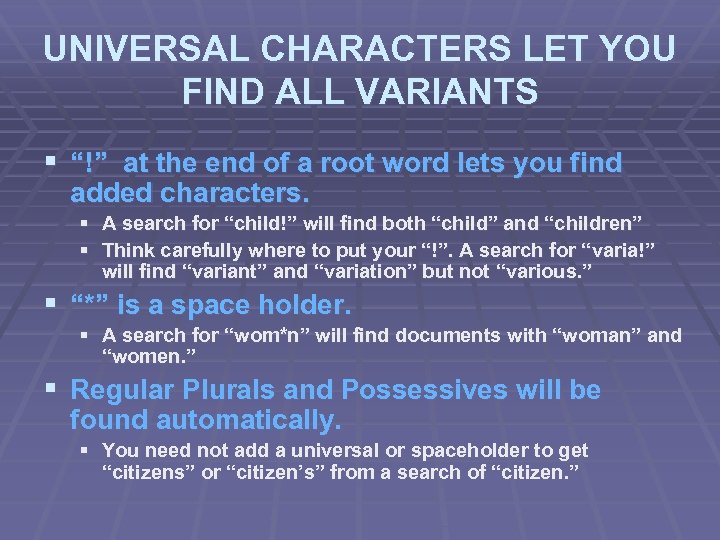 UNIVERSAL CHARACTERS LET YOU FIND ALL VARIANTS § “!” at the end of a root word lets you find added characters. § A search for “child!” will find both “child” and “children” § Think carefully where to put your “!”. A search for “varia!” will find “variant” and “variation” but not “various. ” § “*” is a space holder. § A search for “wom*n” will find documents with “woman” and “women. ” § Regular Plurals and Possessives will be found automatically. § You need not add a universal or spaceholder to get “citizens” or “citizen’s” from a search of “citizen. ”
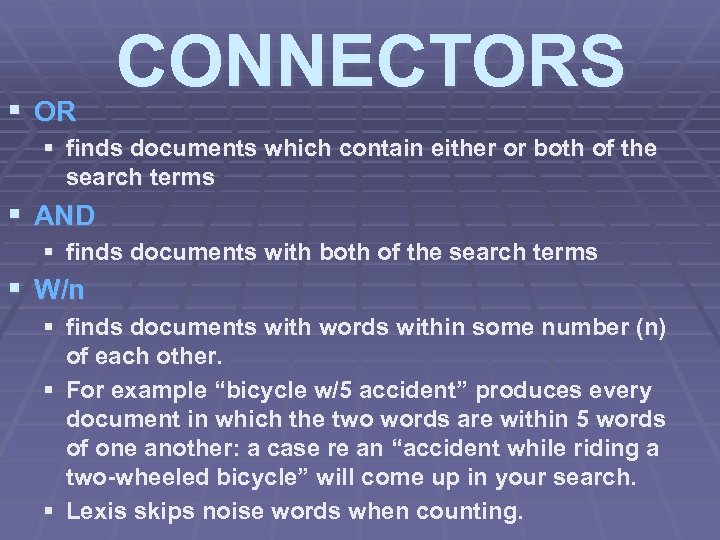 § OR CONNECTORS § finds documents which contain either or both of the search terms § AND § finds documents with both of the search terms § W/n § finds documents with words within some number (n) of each other. § For example “bicycle w/5 accident” produces every document in which the two words are within 5 words of one another: a case re an “accident while riding a two-wheeled bicycle” will come up in your search. § Lexis skips noise words when counting.
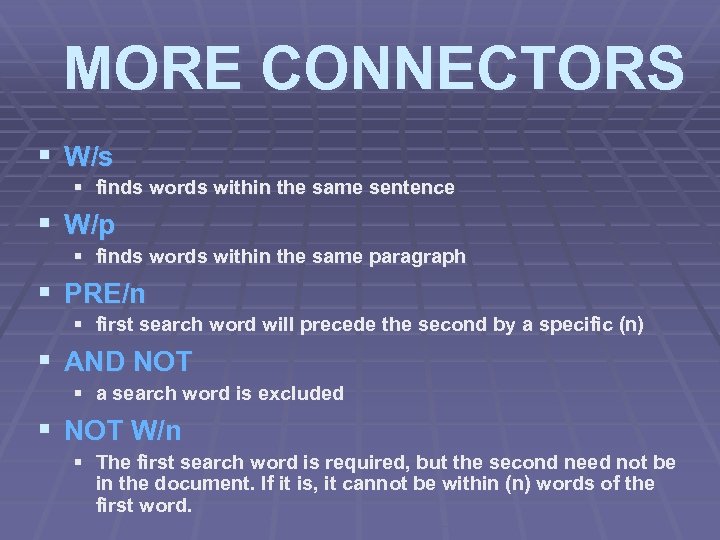 MORE CONNECTORS § W/s § finds words within the same sentence § W/p § finds words within the same paragraph § PRE/n § first search word will precede the second by a specific (n) § AND NOT § a search word is excluded § NOT W/n § The first search word is required, but the second need not be in the document. If it is, it cannot be within (n) words of the first word.
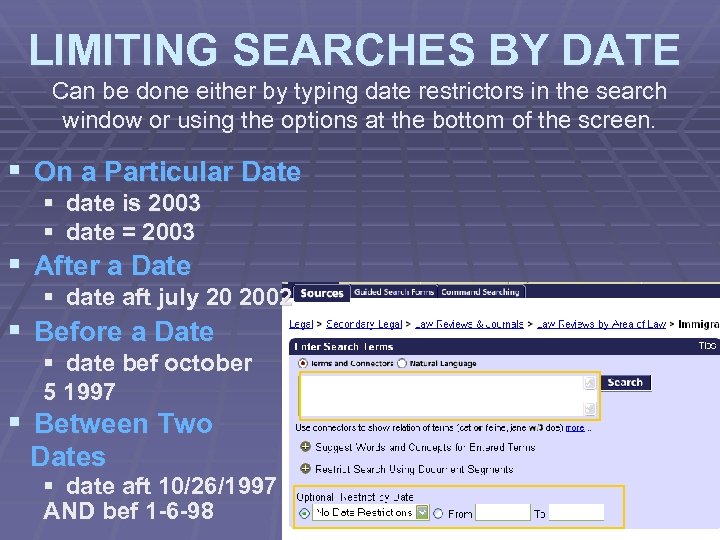 LIMITING SEARCHES BY DATE Can be done either by typing date restrictors in the search window or using the options at the bottom of the screen. § On a Particular Date § date is 2003 § date = 2003 § After a Date § date aft july 20 2002 § Before a Date § date bef october 5 1997 § Between Two Dates § date aft 10/26/1997 AND bef 1 -6 -98
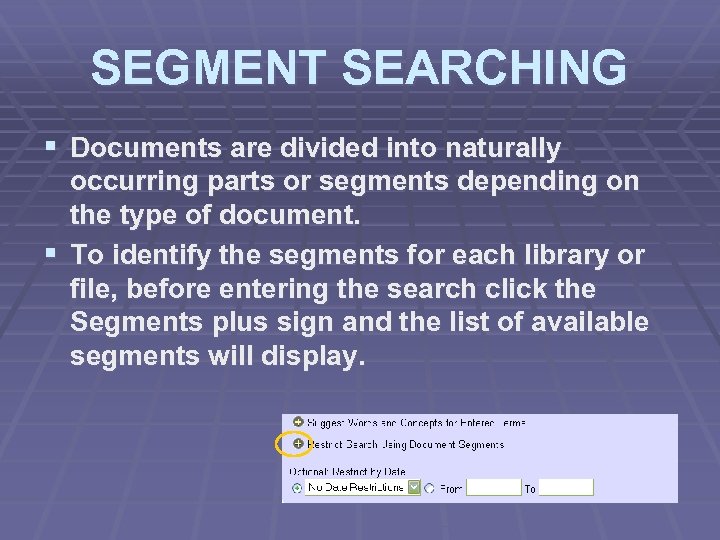 SEGMENT SEARCHING § Documents are divided into naturally occurring parts or segments depending on the type of document. § To identify the segments for each library or file, before entering the search click the Segments plus sign and the list of available segments will display.
 EXAMPLES OF SEGMENT SEARCHING § LIST OF AVAILABLE SEGMENTS § Court Case §CITES §COUNSEL §COURT §JUDGES §OPINIONBY
 DISPLAYING SEARCH RESULTS § When LEXIS-NEXIS completes the search, you § § will see a message telling how many documents matched the search. Search results can be viewed as: CITE LIST - list of retrieved citations KWIC - Key Words in Context shows terms with a block of text around them. The default is 25 surrounding words. You can click again on the Kwic button to increase or decrease the words shown. CUSTOM – Displays whatever “Segments” of the document that you want to see. FULL - shows the entire retrieved document
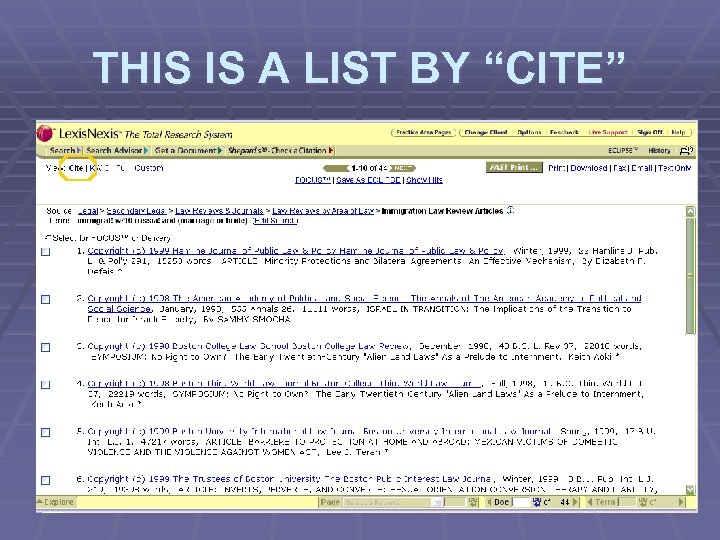 THIS IS A LIST BY “CITE”
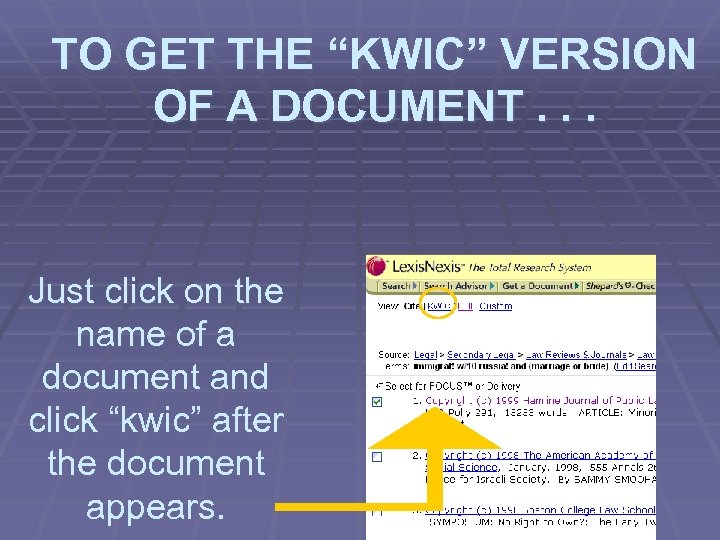 TO GET THE “KWIC” VERSION OF A DOCUMENT. . . Just click on the name of a document and click “kwic” after the document appears.
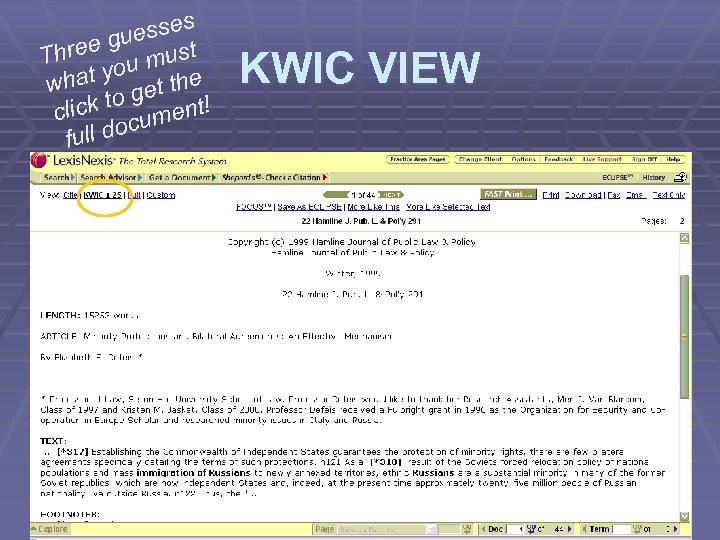 s esse u ree g must Th u at yo t the wh to ge nt! click cume o full d KWIC VIEW
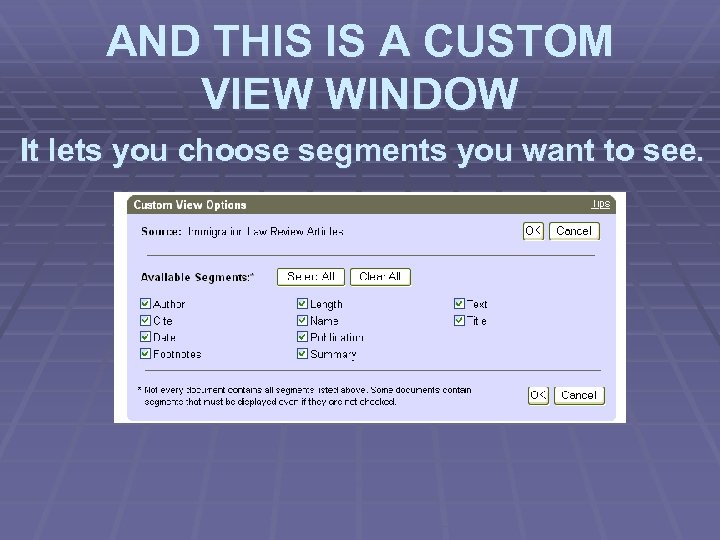 AND THIS IS A CUSTOM VIEW WINDOW It lets you choose segments you want to see.
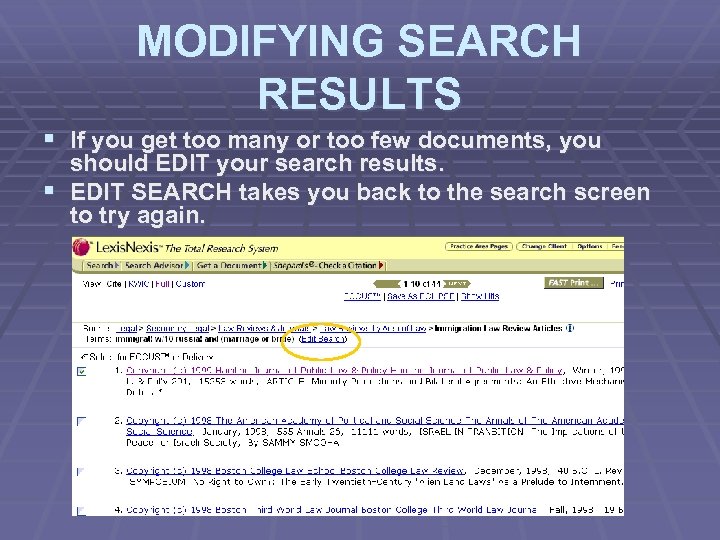 MODIFYING SEARCH RESULTS § If you get too many or too few documents, you should EDIT your search results. § EDIT SEARCH takes you back to the search screen to try again.
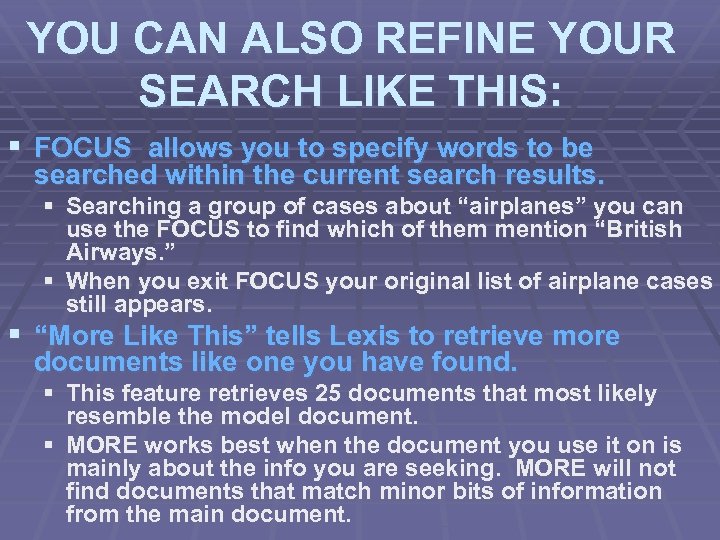 YOU CAN ALSO REFINE YOUR SEARCH LIKE THIS: § FOCUS allows you to specify words to be searched within the current search results. § Searching a group of cases about “airplanes” you can use the FOCUS to find which of them mention “British Airways. ” § When you exit FOCUS your original list of airplane cases still appears. § “More Like This” tells Lexis to retrieve more documents like one you have found. § This feature retrieves 25 documents that most likely resemble the model document. § MORE works best when the document you use it on is mainly about the info you are seeking. MORE will not find documents that match minor bits of information from the main document.
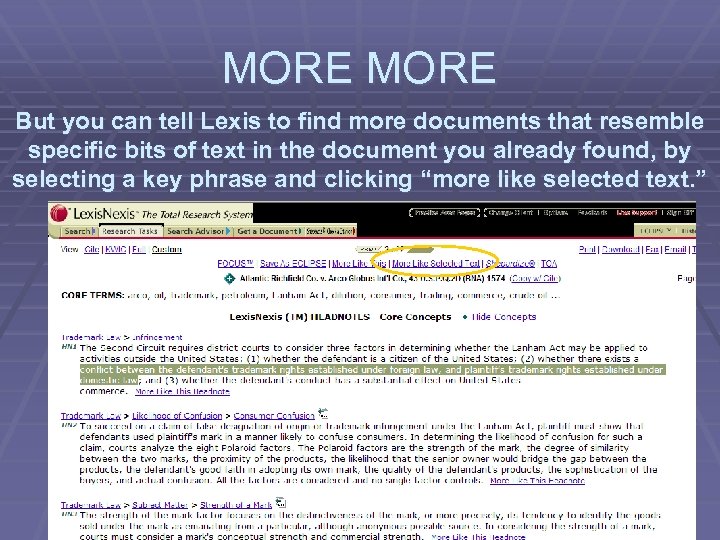 MORE But you can tell Lexis to find more documents that resemble specific bits of text in the document you already found, by selecting a key phrase and clicking “more like selected text. ”
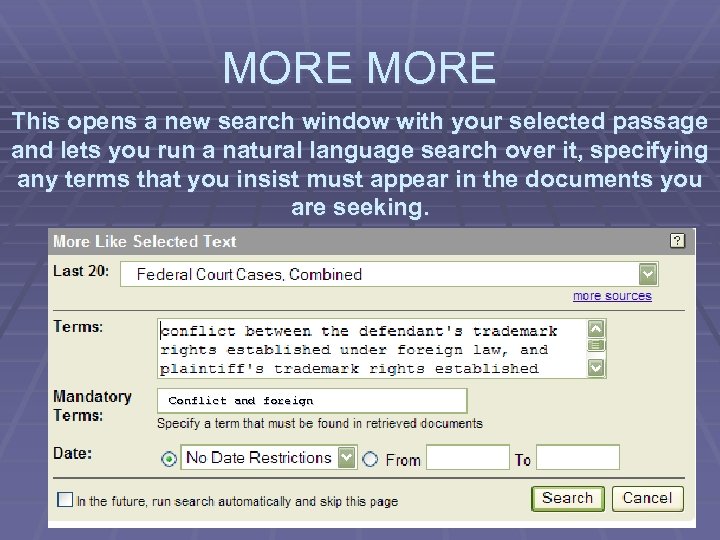 MORE This opens a new search window with your selected passage and lets you run a natural language search over it, specifying any terms that you insist must appear in the documents you are seeking. Conflict and foreign
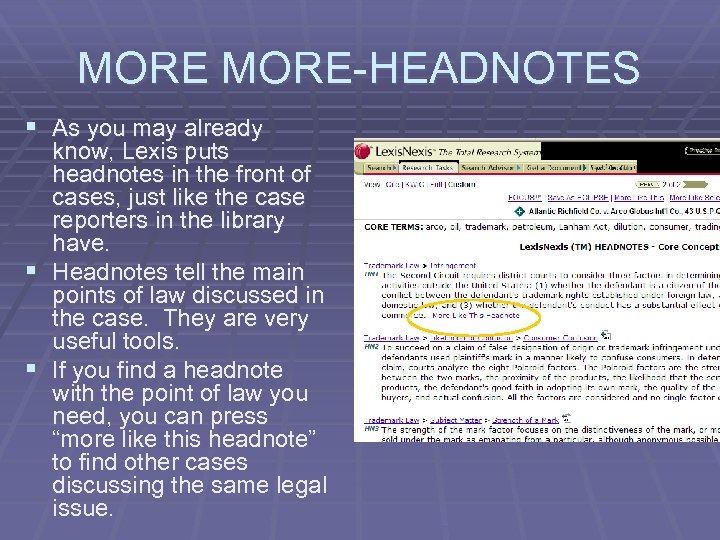 MORE-HEADNOTES § As you may already know, Lexis puts headnotes in the front of cases, just like the case reporters in the library have. § Headnotes tell the main points of law discussed in the case. They are very useful tools. § If you find a headnote with the point of law you need, you can press “more like this headnote” to find other cases discussing the same legal issue.
 THE JUDGE IS BACK TO SAY LET’S MOVE THE CASE ALONG Time to learn how to keep your search results.
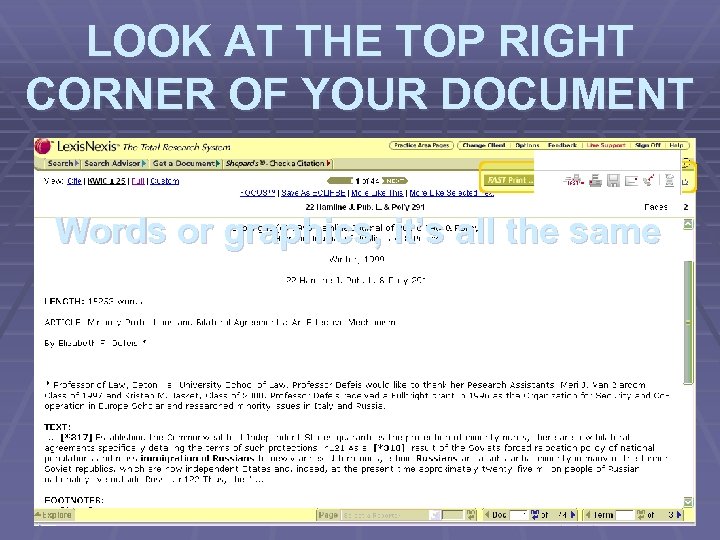 LOOK AT THE TOP RIGHT CORNER OF YOUR DOCUMENT Words or graphics, it’s all the same
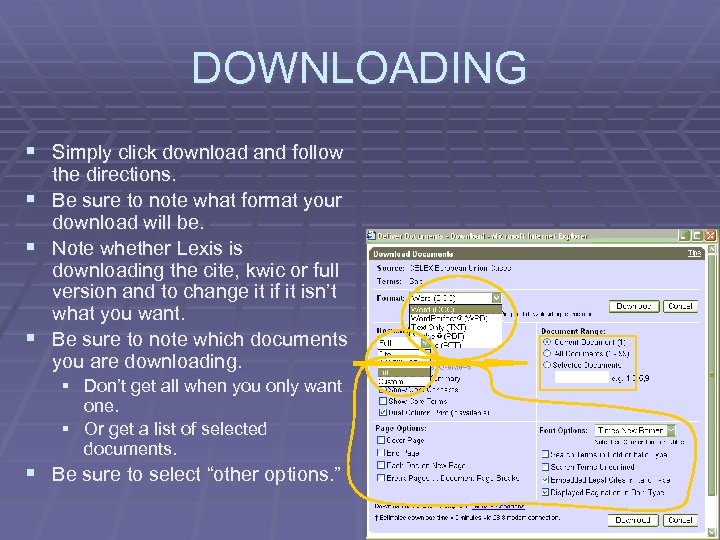 DOWNLOADING § Simply click download and follow § § § the directions. Be sure to note what format your download will be. Note whether Lexis is downloading the cite, kwic or full version and to change it if it isn’t what you want. Be sure to note which documents you are downloading. § Don’t get all when you only want one. § Or get a list of selected documents. § Be sure to select “other options. ”
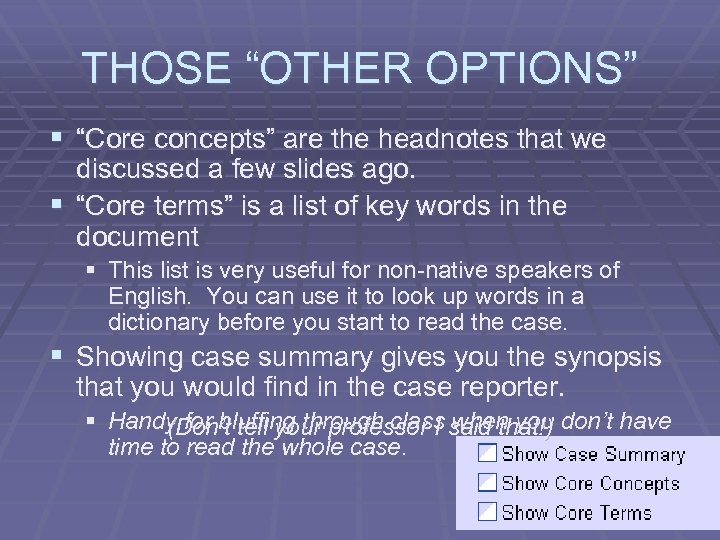 THOSE “OTHER OPTIONS” § “Core concepts” are the headnotes that we discussed a few slides ago. § “Core terms” is a list of key words in the document § This list is very useful for non-native speakers of English. You can use it to look up words in a dictionary before you start to read the case. § Showing case summary gives you the synopsis that you would find in the case reporter. § Handy for bluffing through class said that!) don’t have (Don’t tell your professor I when you time to read the whole case.
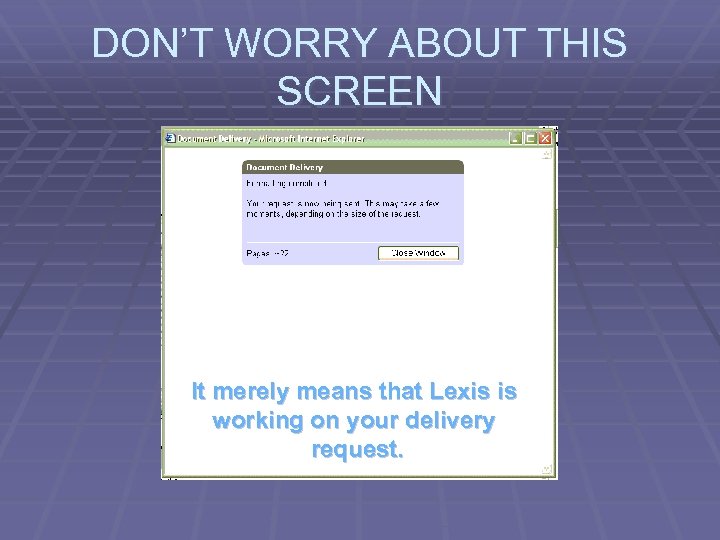 DON’T WORRY ABOUT THIS SCREEN It merely means that Lexis is working on your delivery request.
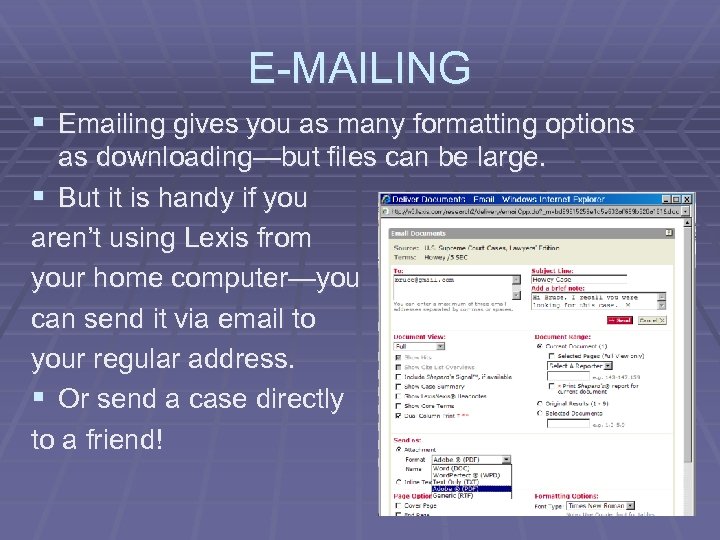 E-MAILING § Emailing gives you as many formatting options as downloading—but files can be large. § But it is handy if you aren’t using Lexis from your home computer—you can send it via email to your regular address. § Or send a case directly to a friend!
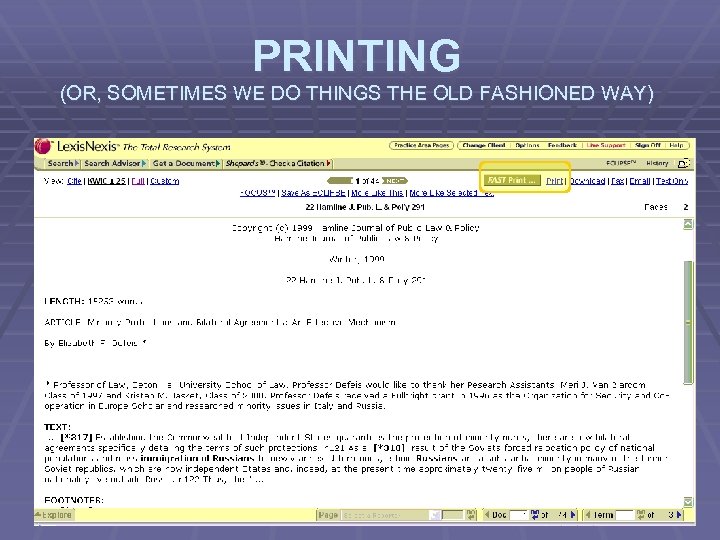 PRINTING (OR, SOMETIMES WE DO THINGS THE OLD FASHIONED WAY)
 PRINTING § Before you say that printing is better, you should be warned of a few things. § First, Lexis documents can be longgggg! § Thus, printing everything can be an expensive use of paper. § Second, when printing directly from Lexis, you won’t have a saved document on your computer to cut and paste from, or run searches on later. § Finally, you must be careful where you print: the “Fast Print” option may not send your document to a printer attached to your computer.
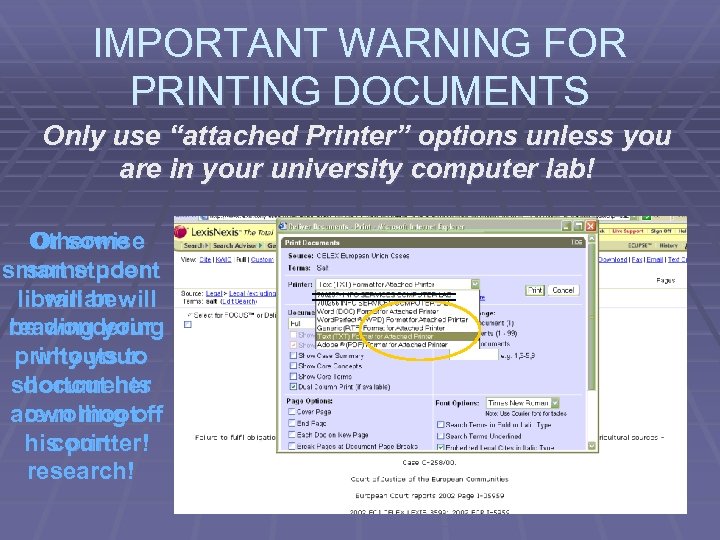 IMPORTANT WARNING FOR PRINTING DOCUMENTS Only use “attached Printer” options unless you are in your university computer lab! Otherwise Or some smart student some poor librarian will be reading your be wondering printouts to why your shortcut her documents are rolling off own moot his printer! court research!
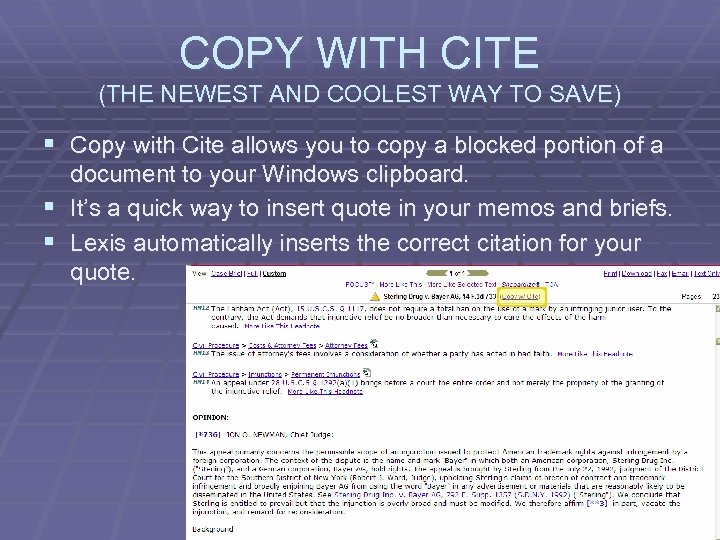 COPY WITH CITE (THE NEWEST AND COOLEST WAY TO SAVE) § Copy with Cite allows you to copy a blocked portion of a document to your Windows clipboard. § It’s a quick way to insert quote in your memos and briefs. § Lexis automatically inserts the correct citation for your quote.
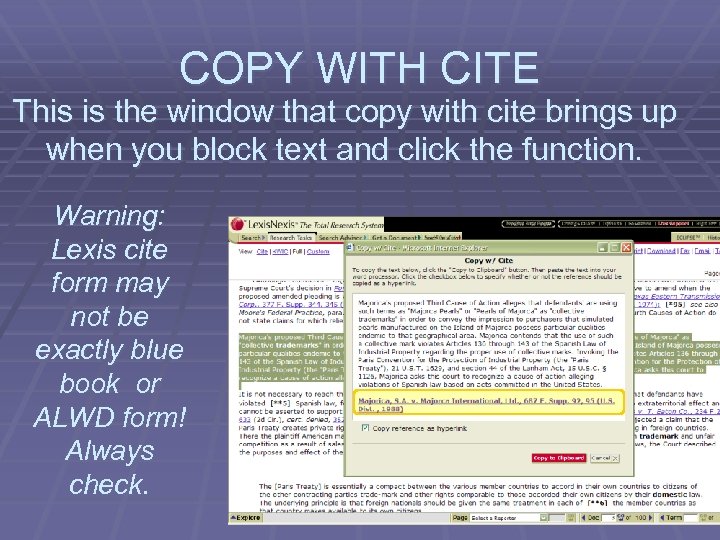 COPY WITH CITE This is the window that copy with cite brings up when you block text and click the function. Warning: Lexis cite form may not be exactly blue book or ALWD form! Always check.
 HERE COMES THE JUDGE ONCE MORE To say “Lets look deeper into this” – Lets see the advanced stuff!
 ADVANCED TECHNIQUE NUMBER 1 BYPASSING THE HUNT THROUGH THE LIBRARIES with Guided Search Forms, Dot Command Searches, and Get a Document
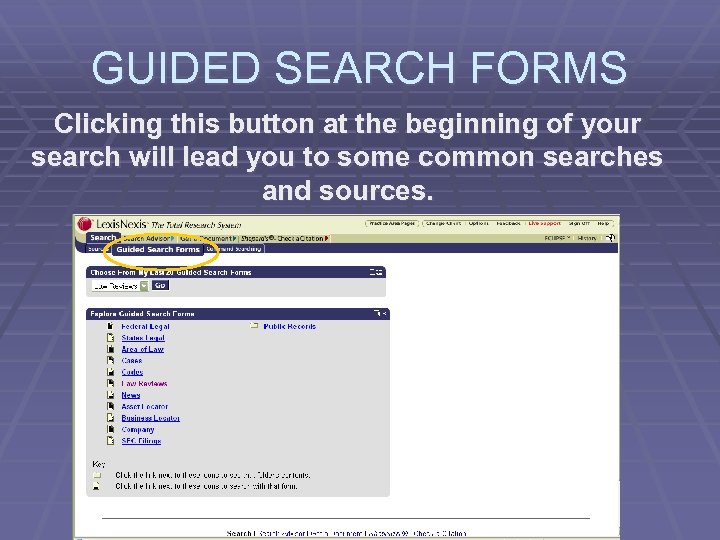 GUIDED SEARCH FORMS Clicking this button at the beginning of your search will lead you to some common searches and sources.
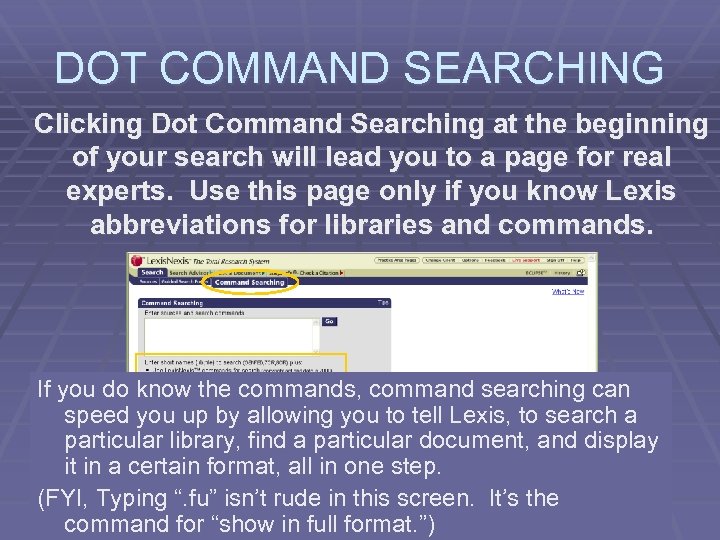 DOT COMMAND SEARCHING Clicking Dot Command Searching at the beginning of your search will lead you to a page for real experts. Use this page only if you know Lexis abbreviations for libraries and commands. If you do know the commands, command searching can speed you up by allowing you to tell Lexis, to search a particular library, find a particular document, and display it in a certain format, all in one step. (FYI, Typing “. fu” isn’t rude in this screen. It’s the command for “show in full format. ”)
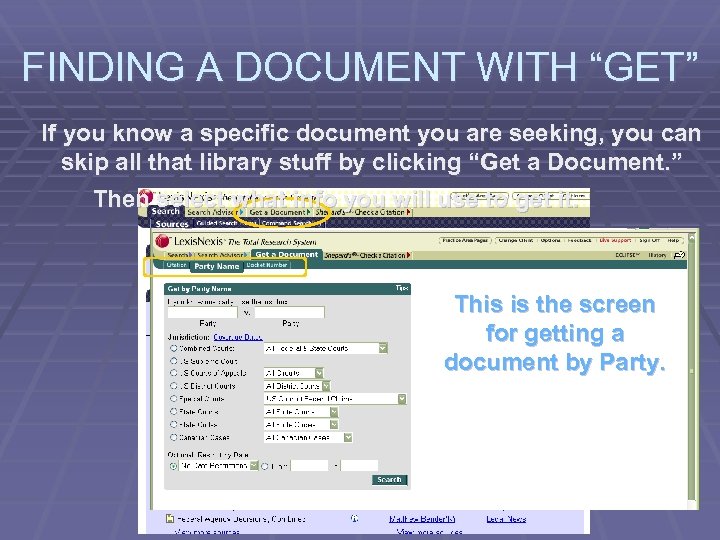 FINDING A DOCUMENT WITH “GET” If you know a specific document you are seeking, you can skip all that library stuff by clicking “Get a Document. ” Then select what info you will use to get it. This is the screen for getting a document by Party.
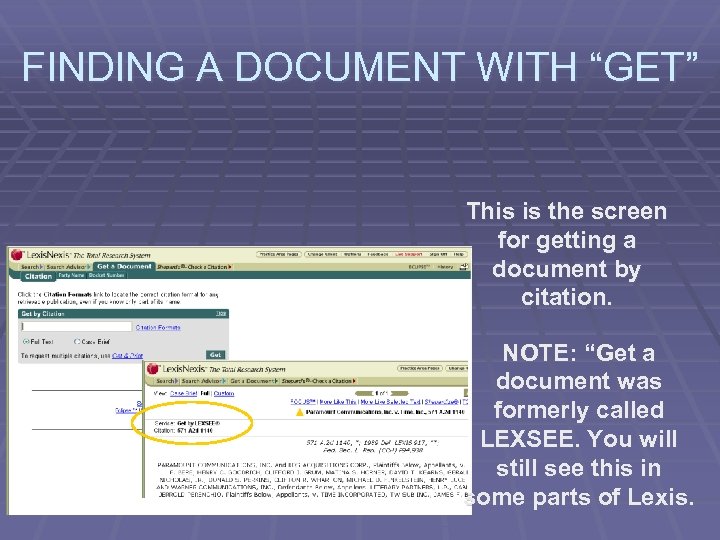 FINDING A DOCUMENT WITH “GET” This is the screen for getting a document by citation. NOTE: “Get a document was formerly called LEXSEE. You will still see this in some parts of Lexis.
 ADVANCED TECHNIQUE NUMBER 2 CUSTOMIZING WITH RESEARCH TASKS § The “Research Tasks” button, immediately to the right of the “Search” button, allows you to see several commonly used tools on one screen. § You can customize your Lexis window by having it open up to a “Research Task” screen instead of to the regular “Search” screen.
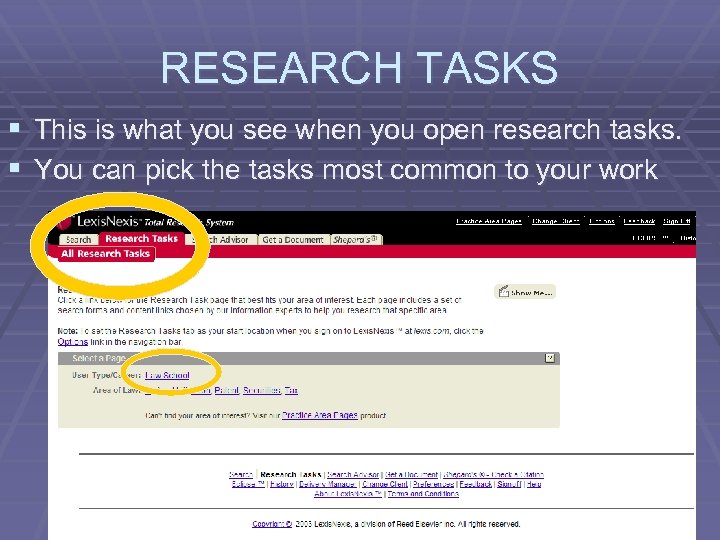 RESEARCH TASKS § This is what you see when you open research tasks. § You can pick the tasks most common to your work
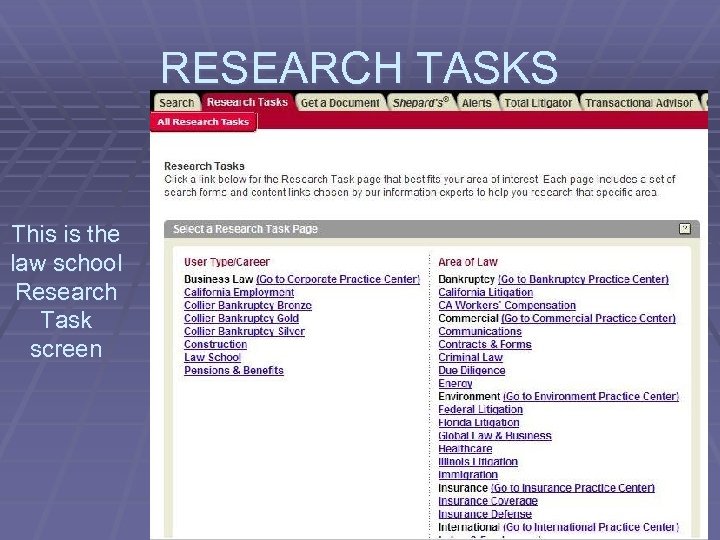 RESEARCH TASKS This is the law school Research Task screen
 ADVANCED TECHNIQUE NUMBER 3 GETTING A “FISH” (Form) with Total Litigator and Transactional Advisor
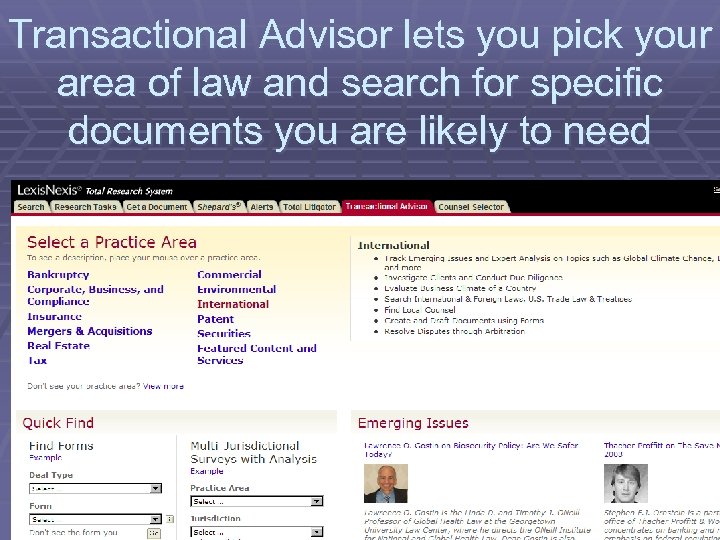 Transactional Advisor lets you pick your area of law and search for specific documents you are likely to need
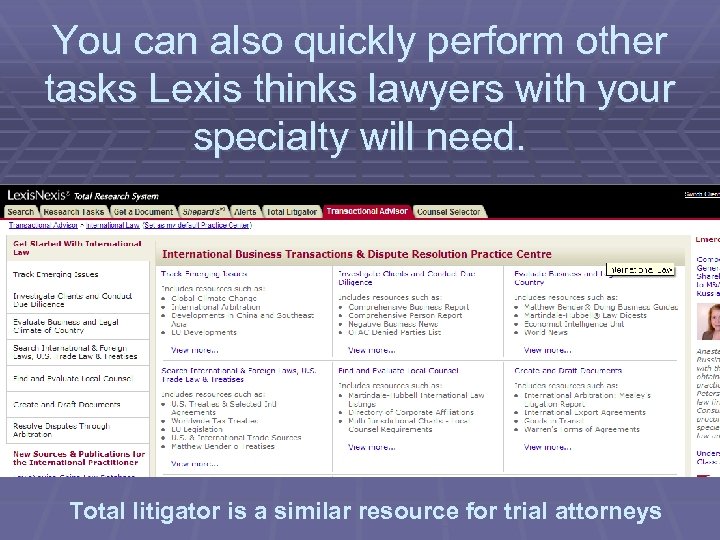 You can also quickly perform other tasks Lexis thinks lawyers with your specialty will need. Total litigator is a similar resource for trial attorneys
 ADVANCED TECHNIQUE NUMBER 4 REUSING OLD SEARCHES with History and Alert
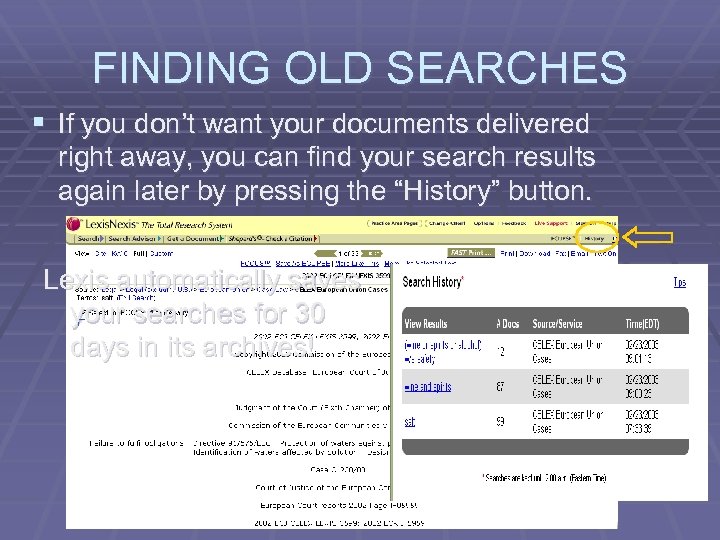 FINDING OLD SEARCHES § If you don’t want your documents delivered right away, you can find your search results again later by pressing the “History” button. Lexis automatically saves your searches for 30 days in its archives!
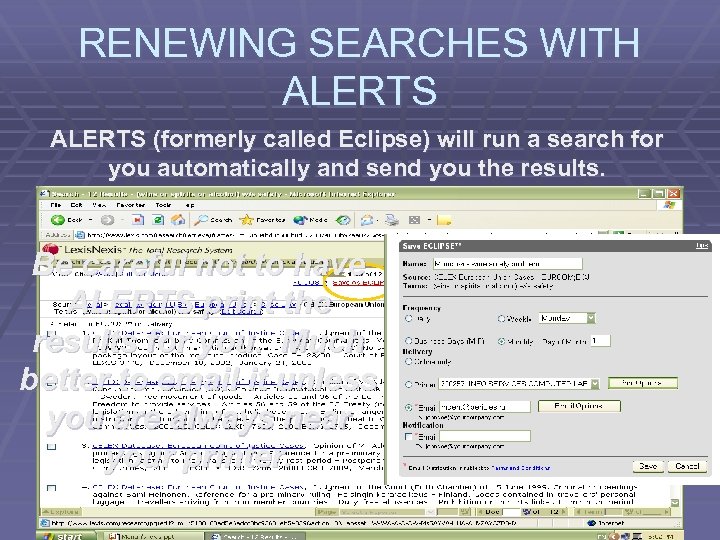 RENEWING SEARCHES WITH ALERTS (formerly called Eclipse) will run a search for you automatically and send you the results. Be careful not to have ALERTS print the results for you. Much better to email it unless you are always near your printer.
 GREAT ALERT USES § Know hard it is to get your local news when you are out of the country? § You can run a Nexis search on foreign newspapers and have Alerts automatically email you the news from home every day. § Need to make sure your thesis research is up to date? § Save your search as an Alert and it will automatically send you any new cases or law review articles about your topic.
 ADVANCED TECHNIQUE NUMBER 5 CHECKING CITES BY SHEPHARDING
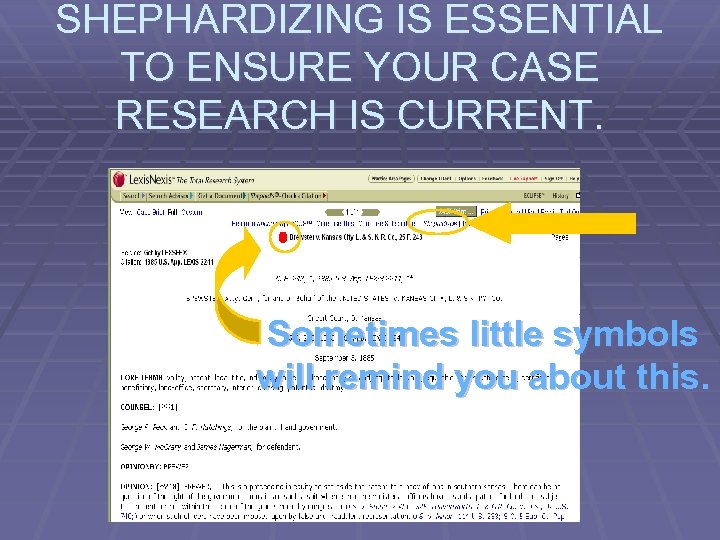 SHEPHARDIZING IS ESSENTIAL TO ENSURE YOUR CASE RESEARCH IS CURRENT. Sometimes little symbols will remind you about this.
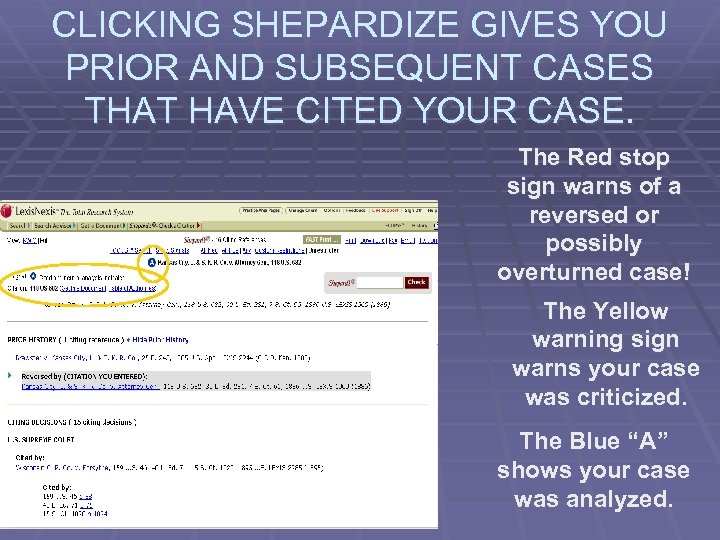 CLICKING SHEPARDIZE GIVES YOU PRIOR AND SUBSEQUENT CASES THAT HAVE CITED YOUR CASE. The Red stop sign warns of a reversed or possibly overturned case! The Yellow warning sign warns your case was criticized. The Blue “A” shows your case was analyzed.
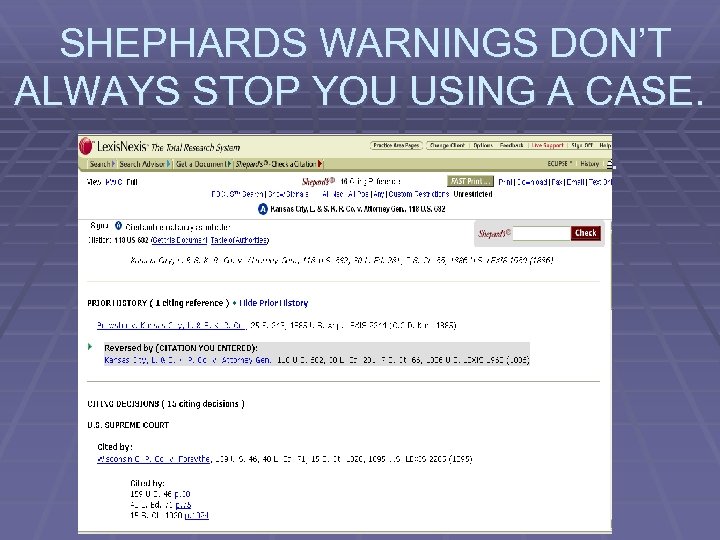 SHEPHARDS WARNINGS DON’T ALWAYS STOP YOU USING A CASE. § Some warning icons don’t mean much. § Moving your mouse over the icon will give you the definition § Warnings appear even if a very minor part of the case is criticized. § Click on the cite that appears in Shepards and carefully read the citing case to see if your original case is still good law on the point you need.
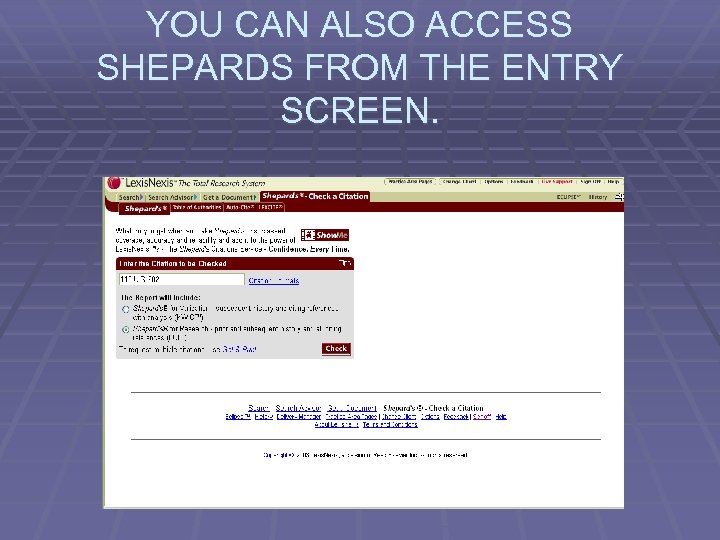 YOU CAN ALSO ACCESS SHEPARDS FROM THE ENTRY SCREEN.
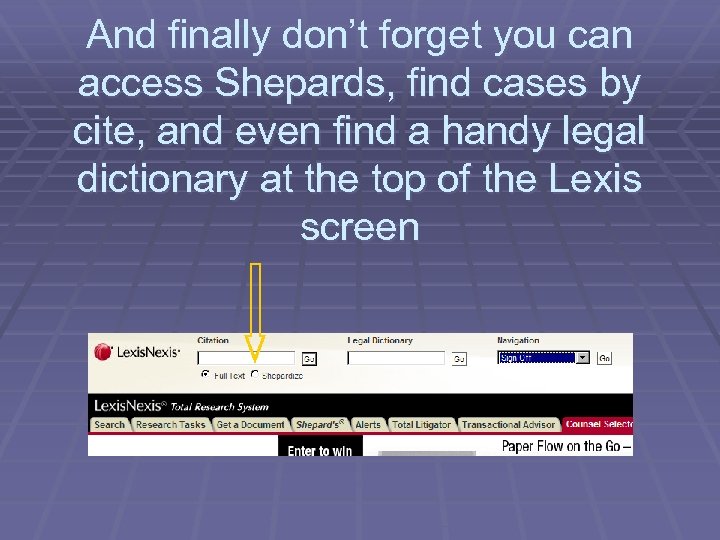 And finally don’t forget you can access Shepards, find cases by cite, and even find a handy legal dictionary at the top of the Lexis screen
 THAT’S THE END OF ADVANCED TECHNIQUES AND ALMOST THE END OF THE SHOW. GOODBYE! Just don’t forget to sign off when you leave!
 If you have any questions or comments about this show Please address them to: Marian Dent Pericles American Business & Legal Education Project 1 st Miusskaya Ul. 22 -3 Moscow, Russia 125047 (7 -495) 649 -2273 mdent@pericles. ru www. pericles. ru