


 Скачать презентацию Lecture 2 Part 2 Hardware Systems 2 3
Lecture 2 part 2.pptx
- Количество слайдов: 46
 Lecture 2 (Part 2). Hardware Systems 2. 3 Processor and Memory 2. 4 Peripherals 2. 5 Storage devices 2. 6 Putting Together the Hardware Components 2. 7 Improving Computer performance
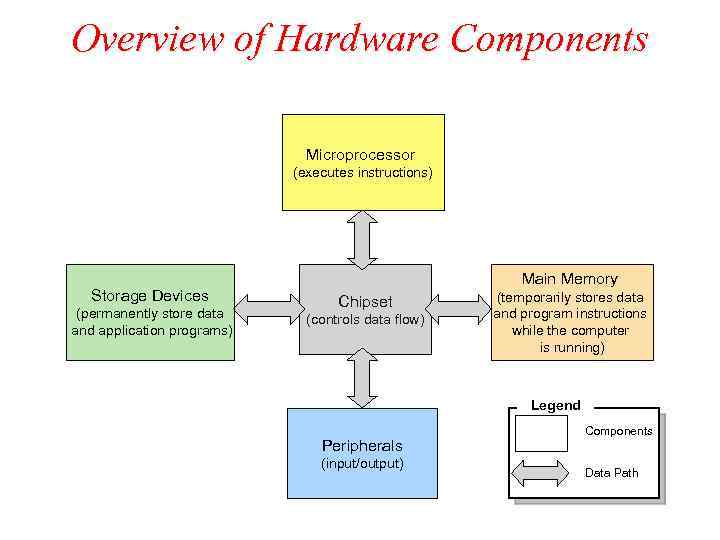 Overview of Hardware Components Microprocessor (executes instructions) Storage Devices (permanently store data and application programs) Main Memory Chipset (controls data flow) (temporarily stores data and program instructions while the computer is running) Legend Peripherals (input/output) Components Data Path
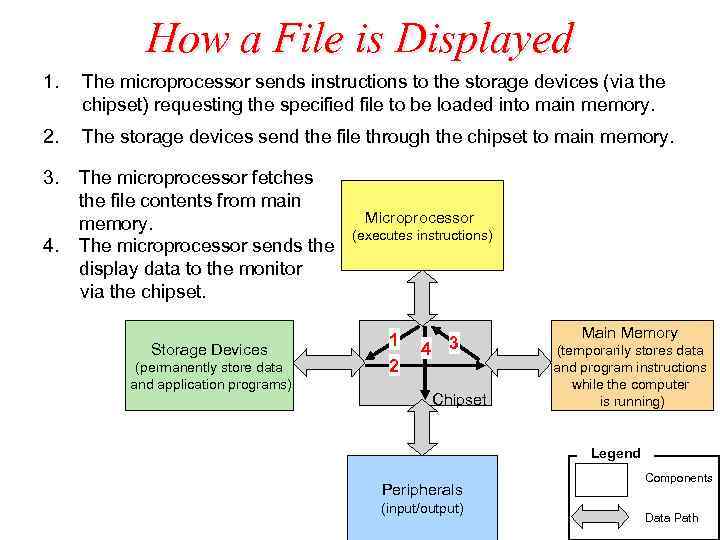 How a File is Displayed 1. The microprocessor sends instructions to the storage devices (via the chipset) requesting the specified file to be loaded into main memory. 2. The storage devices send the file through the chipset to main memory. 3. The microprocessor fetches the file contents from main memory. The microprocessor sends the display data to the monitor via the chipset. 4. Storage Devices (permanently store data and application programs) Microprocessor (executes instructions) 1 2 4 3 Chipset Main Memory (temporarily stores data and program instructions while the computer is running) Legend Peripherals (input/output) Components Data Path
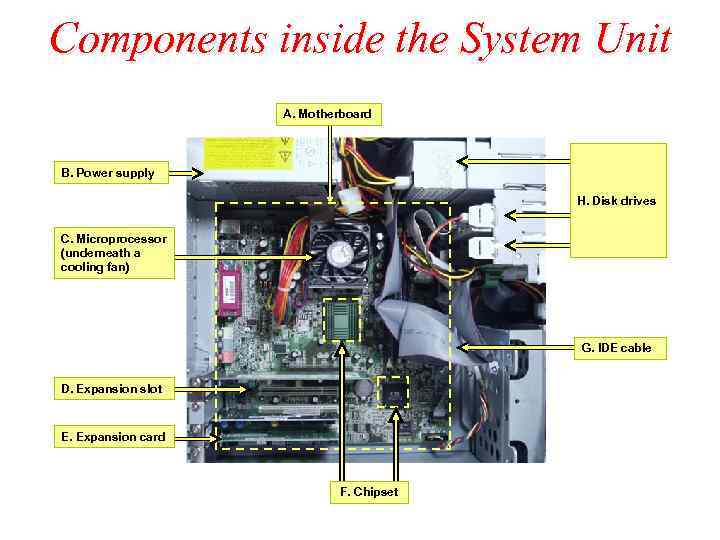 Components inside the System Unit A. Motherboard B. Power supply H. Disk drives C. Microprocessor (underneath a cooling fan) G. IDE cable D. Expansion slot E. Expansion card F. Chipset
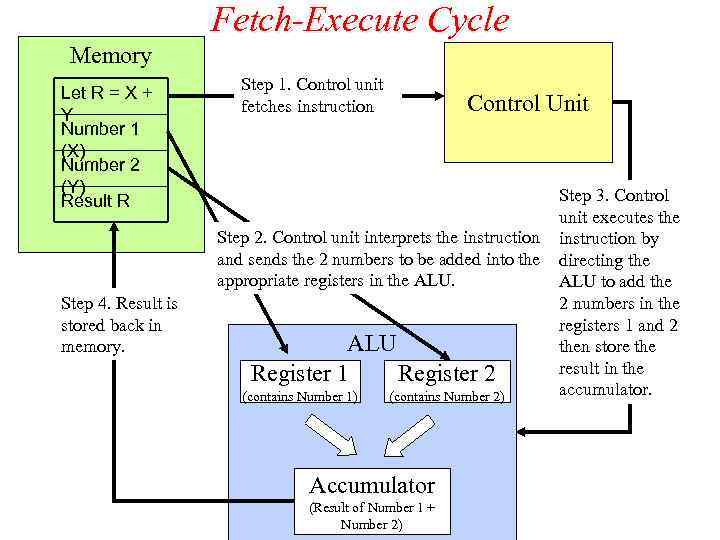 Fetch-Execute Cycle Memory Let R = X + Y Number 1 (X) Number 2 (Y) Result R Step 1. Control unit fetches instruction Control Unit Step 2. Control unit interprets the instruction and sends the 2 numbers to be added into the appropriate registers in the ALU. Step 4. Result is stored back in memory. ALU Register 1 Register 2 (contains Number 1) (contains Number 2) Accumulator (Result of Number 1 + Number 2) Step 3. Control unit executes the instruction by directing the ALU to add the 2 numbers in the registers 1 and 2 then store the result in the accumulator.
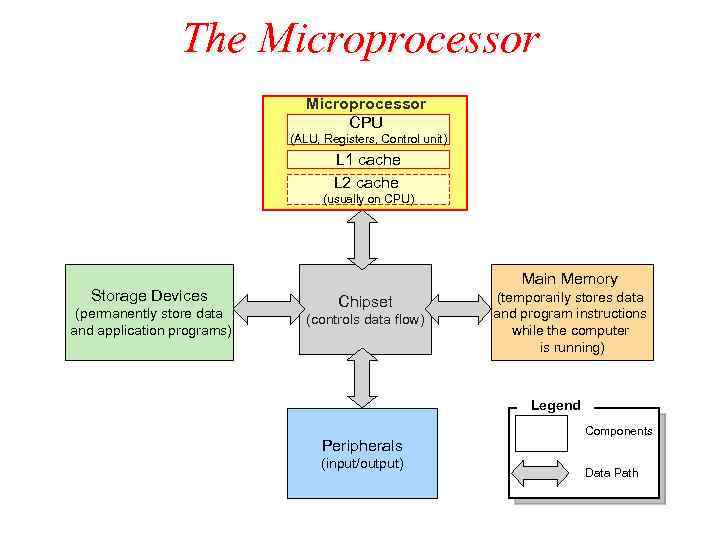 The Microprocessor CPU (ALU, Registers, Control unit) L 1 cache L 2 cache (usually on CPU) Storage Devices (permanently store data and application programs) Main Memory Chipset (controls data flow) (temporarily stores data and program instructions while the computer is running) Legend Peripherals (input/output) Components Data Path
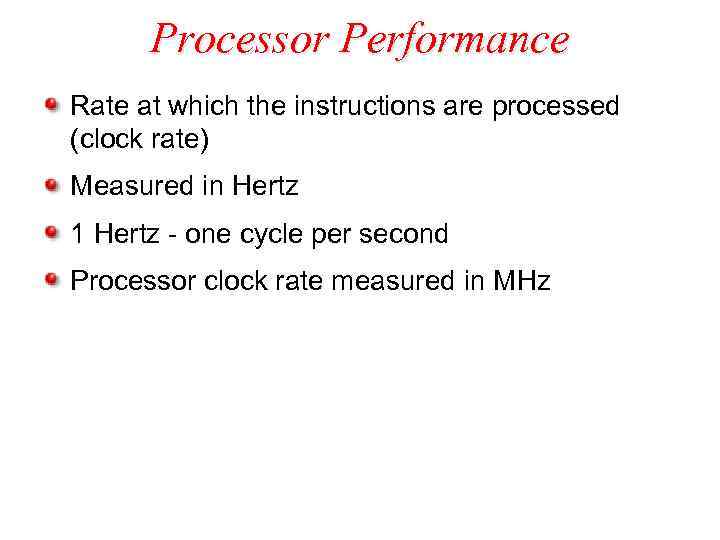 Processor Performance Rate at which the instructions are processed (clock rate) Measured in Hertz 1 Hertz - one cycle per second Processor clock rate measured in MHz
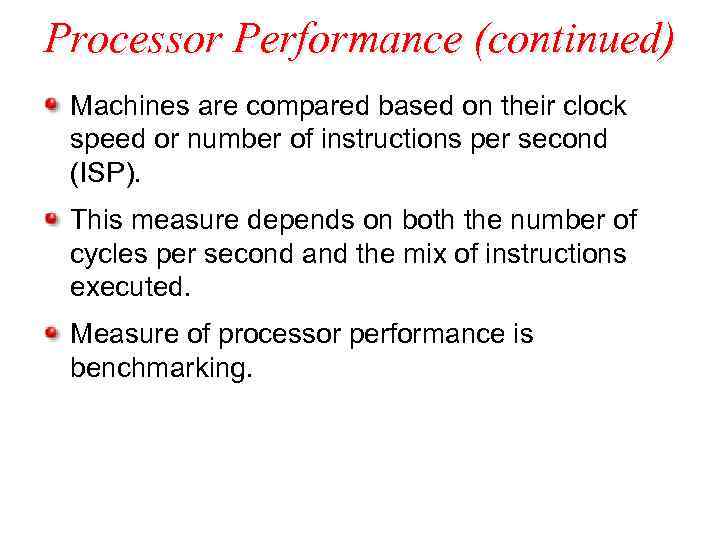 Processor Performance (continued) Machines are compared based on their clock speed or number of instructions per second (ISP). This measure depends on both the number of cycles per second and the mix of instructions executed. Measure of processor performance is benchmarking.
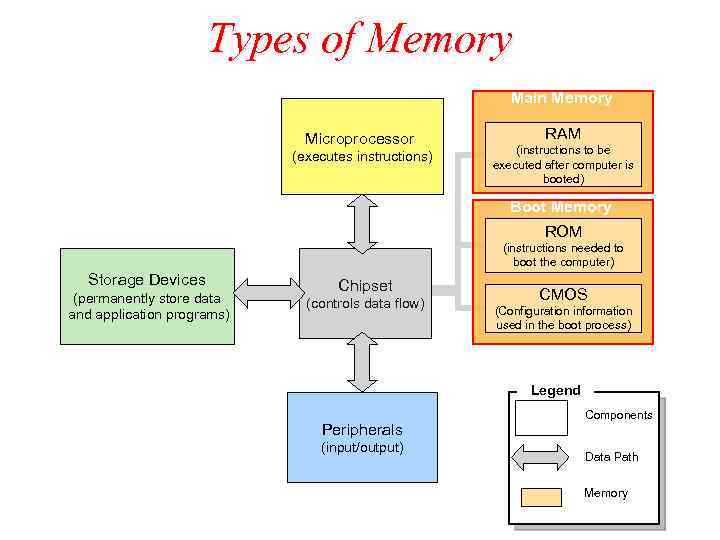 Types of Memory Main Memory Microprocessor (executes instructions) RAM (instructions to be executed after computer is booted) Boot Memory ROM (instructions needed to boot the computer) Storage Devices (permanently store data and application programs) Chipset (controls data flow) CMOS (Configuration information used in the boot process) Legend Peripherals (input/output) Components Data Path Memory
 Types of Memory (continued) RAM (random access memory) is a temporary holding area for both data and instructions. It is also referred to as main memory. - Data in RAM is lost when computer is turned off. - Measured by its memory capacity and latency. Capacity is the maximum number of bits or bytes that can be stored. The capacity of RAM is typically measured in megabytes (MB). Many computers have RAM capacity of 128 MB or more. Latency is the delay between the time when the memory device receives an address and the time when the first bit of data is available from the memory device. This delay is also referred to as access time. Latency is typically measured in nanoseconds (ns), billionth of a second (10 -9 sec). Latency measures the speed of RAM.
 DRAM - Dynamic RAM is a common type of RAM. – Made of an integrated circuit (IC), composed of millions of transistors and capacitors. – Capacitor holds electrons. An empty capacitor represents a zero, and a non-empty capacitor represents a one. Each capacitor can register either a zero or a one for a memory cell, storing one bit of data. – The transistor is like a switch that controls whether the capacitor's state (charged or not charged, 1 or 0) is to be read or changed.
 DRAM (continued) – However, a capacitor is like a cup that leaks, in order to keep its charge, the memory control needs to be recharged or refreshed periodically. Therefore, it is called the dynamic RAM because its state is not constant. – Refreshing capacitors also takes time and slows down memory.
 DRAM (continued) SDRAM (Synchronous Dynamic RAM) – Used in many personal computers – Fast and relatively inexpensive – Synchronized to the clock so that data can be sent to the CPU at each tick of the clock, increasing the number of instructions the processor can execute within a given time
 DRAM (continued) DDR SDRAM (Double Data Rate SDRAM) – Transfers twice the amount of data per clock cycle compared to SDRAM – Capacity is up to 2 GB
 DRAM (continued) RDRAM (Rambus Dynamic RAM) – Higher bandwidth than SDRAM – More expensive compared to SDRAM – Enhances the performance of applications that access large amounts of data through memory, i. e. real-time video and video editing
 DRAM (continued) SRAM (Static RAM) – Uses transistors to store data – Because SRAM does not use capacitors, reading data from SRAM does not require recharging the capacitors. Therefore, it is faster than DRAM. – Holds fewer bits and costs more compared to DRAM of the same size – Used in the cache because it is fast and cache does not require a large memory capacity
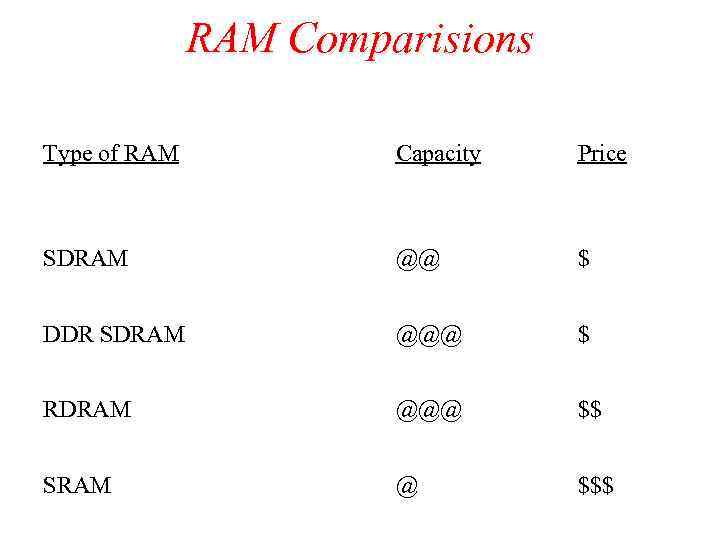 RAM Comparisions Type of RAM Capacity Price SDRAM @@ $ DDR SDRAM @@@ $ RDRAM @@@ $$ SRAM @ $$$
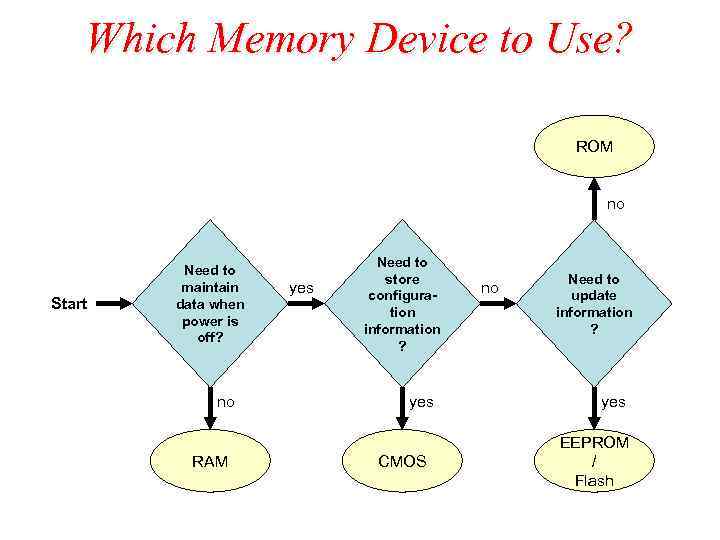 Which Memory Device to Use? ROM no Start Need to maintain data when power is off? no RAM yes Need to store configuration information ? yes CMOS no Need to update information ? yes EEPROM / Flash
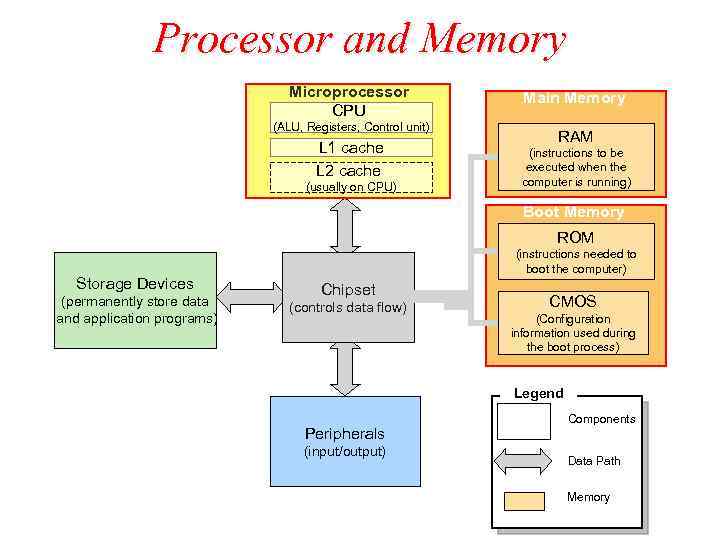 Processor and Memory Microprocessor CPU (ALU, Registers, Control unit) L 1 cache L 2 cache (usually on CPU) Main Memory RAM (instructions to be executed when the computer is running) Boot Memory ROM Storage Devices (permanently store data and application programs) (instructions needed to boot the computer) Chipset (controls data flow) CMOS (Configuration information used during the boot process) Legend Peripherals (input/output) Components Data Path Memory
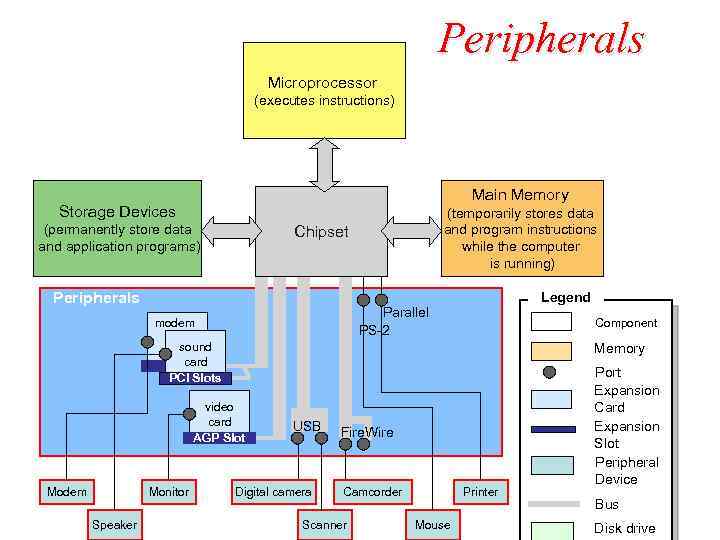 Peripherals Storage Devices Microprocessor (executes instructions) Main Memory Storage Devices (permanently store data and application programs) (temporarily stores data and program instructions while the computer is running) Chipset Peripherals Legend Parallel PS-2 modem Component sound card PCI Slots Memory video card AGP Slot Modem Monitor Speaker USB Digital camera Fire. Wire Camcorder Scanner Printer Mouse Port Expansion Card Expansion Slot Peripheral Device Bus Disk drive
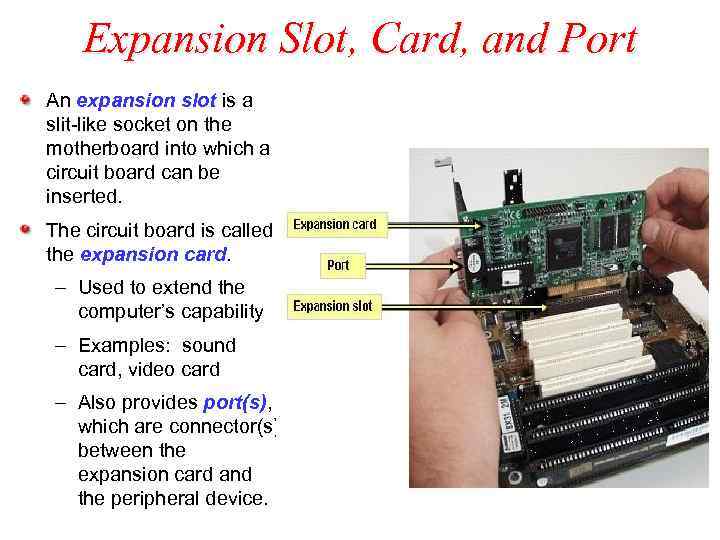 Expansion Slot, Card, and Port An expansion slot is a slit-like socket on the motherboard into which a circuit board can be inserted. The circuit board is called the expansion card. – Used to extend the computer’s capability – Examples: sound card, video card – Also provides port(s), which are connector(s) between the expansion card and the peripheral device.
 Expansion Slots The two most common types of expansion slots are Peripheral Component Interconnect (PCI) and Accelerated Graphics Port (AGP). PCI (Peripheral Component Interconnect ) slot – Can hold a variety of expansion cards such as a sound card or an Ethernet card AGP (Accelerated Graphics Port) slot – Primarily used for graphics cards PCMCIA (personal computer memory card international association) slot – Used for laptops in place of PCI slots – Relatively smaller than a PCI slot
 Expansion Cards Small circuit boards that control the peripheral devices – Graphics Cards • Takes signals from the processor and displays the graphics, images in the monitor – Sound Cards • Converts analog sound signals to digital and vice versa – Modem • Transmits data over phone or cable lines
 Expansion Cards (continued) – Ethernet card • Serves as the interface to a Local Area Network (LAN) • Transfers data at a rate of 10 Mb/s • Newer versions of Ethernet called "Fast Ethernet" and "Gigabit Ethernet" support data rates of 100 Mb/s and 1 Gb/s (1000 Mb/s).
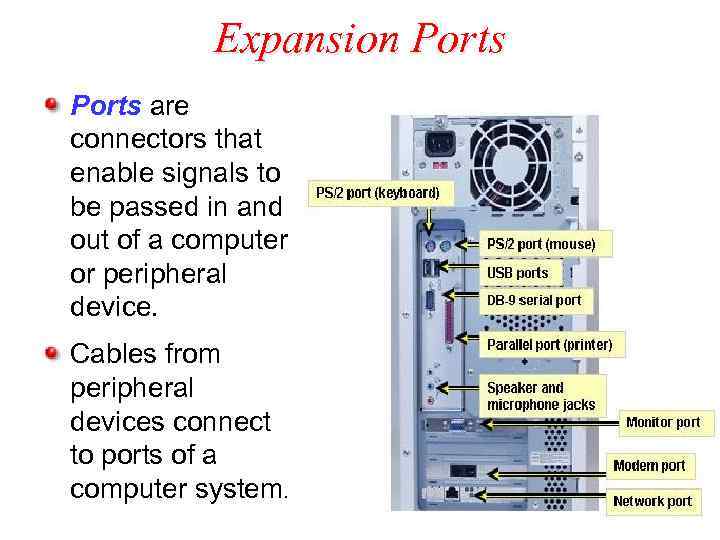 Expansion Ports are connectors that enable signals to be passed in and out of a computer or peripheral device. Cables from peripheral devices connect to ports of a computer system.
 Different Types of Ports PS/2 port, also known as serial port – Transfers data one bit at a time – Uses a 6 -pin, mini-DIN configuration, which look like a small, round port – Used to be the de facto standard for keyboard and mouse connections, however, they are gradually being replaced by USB ports.
 Different Types of Ports (continued) DB-9 port – Also becoming obsolete – Used to connect PDA devices before the advent of USB ports – Connects external modem, barcode scanner, and other older electronic devices
 Different Types of Ports (continued) DB-25 F, also known as Parallel port – Transfers data one byte at a time – Requires a 25 -pin male connector (DB-25 M) on the cable – Can be used for printers or external drives
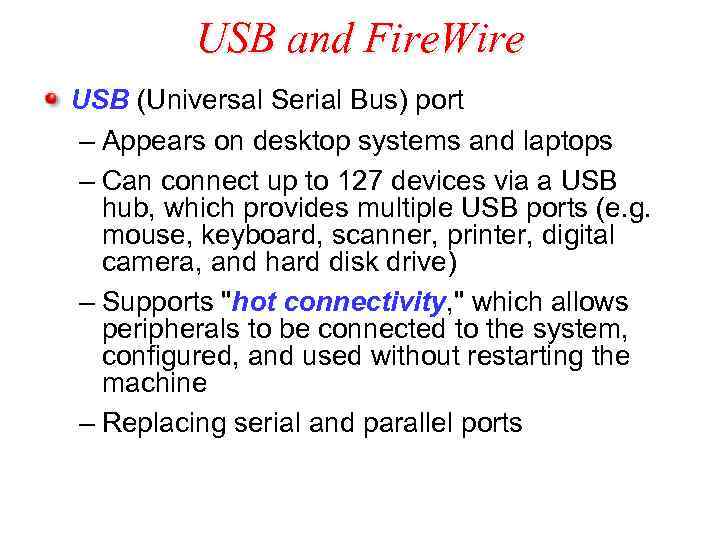 USB and Fire. Wire USB (Universal Serial Bus) port – Appears on desktop systems and laptops – Can connect up to 127 devices via a USB hub, which provides multiple USB ports (e. g. mouse, keyboard, scanner, printer, digital camera, and hard disk drive) – Supports "hot connectivity, " which allows peripherals to be connected to the system, configured, and used without restarting the machine – Replacing serial and parallel ports
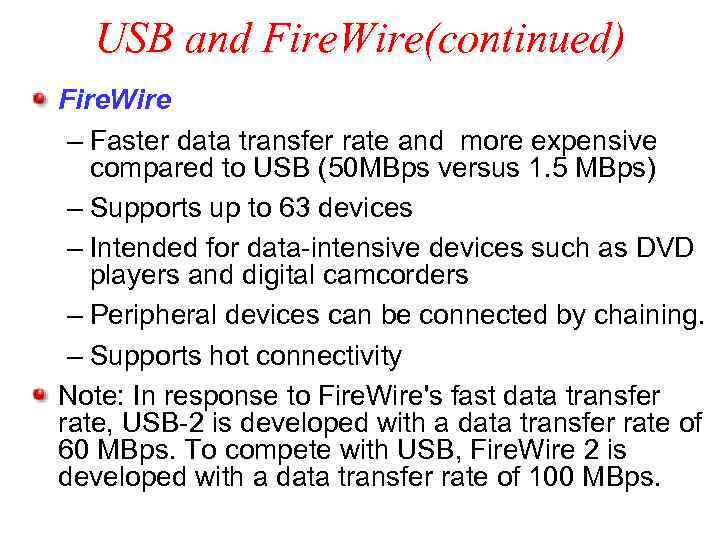 USB and Fire. Wire(continued) Fire. Wire – Faster data transfer rate and more expensive compared to USB (50 MBps versus 1. 5 MBps) – Supports up to 63 devices – Intended for data-intensive devices such as DVD players and digital camcorders – Peripheral devices can be connected by chaining. – Supports hot connectivity Note: In response to Fire. Wire's fast data transfer rate, USB-2 is developed with a data transfer rate of 60 MBps. To compete with USB, Fire. Wire 2 is developed with a data transfer rate of 100 MBps.
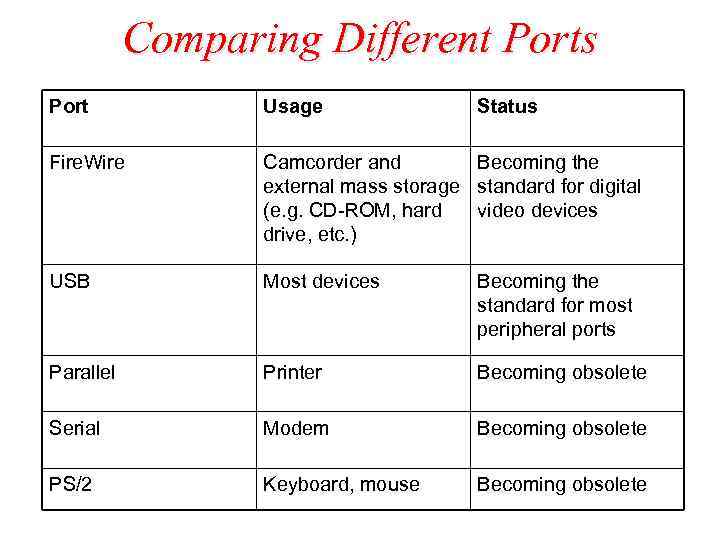 Comparing Different Ports Port Usage Status Fire. Wire Camcorder and Becoming the external mass storage standard for digital (e. g. CD-ROM, hard video devices drive, etc. ) USB Most devices Becoming the standard for most peripheral ports Parallel Printer Becoming obsolete Serial Modem Becoming obsolete PS/2 Keyboard, mouse Becoming obsolete
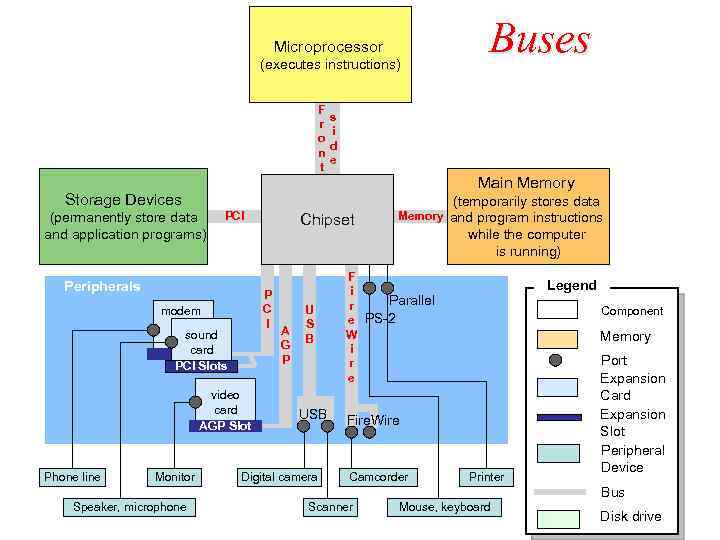 Microprocessor Storage Devices (executes instructions) F r o n t s i d e Main Memory Storage Devices (permanently store data and application programs) PCI Peripherals sound card PCI Slots video card AGP Slot Monitor Chipset P C I modem Phone line Buses A G P U S B USB Digital camera (temporarily stores data Memory and program instructions while the computer is running) F i Parallel r e PS-2 W i r e Legend Component Memory Fire. Wire Camcorder Printer Port Expansion Card Expansion Slot Peripheral Device Bus Speaker, microphone Scanner Mouse, keyboard Disk drive
 Bus A bus is a pathway through which data is transferred from one part of a computer to another. Consists of the data bus and the address bus. – data bus transfers the data itself. – address bus transfers information about where the data is to go.
 BUS (continued) Has a width, a speed, and a transfer rate. – The width, also called the word size, of a bus is measured in bits. – The speed of a bus is measured in hertz (Hz), or cycles per second. – Transfer rate is the measure of how much data may be moved from one device to another in one second. • Transfer rate can be increased by transferring data multiple times during a cycle or increasing the number of channels used to transfer data.
 Different Types of Buses Front Side bus – Bus on the motherboard that transfers data between the CPU and the chipset Memory Buses: RAM bus and DRAM bus – Usually transfers data multiple times during a clock cycle or uses multiple channels to transmit data to increase data transfer rate to match that of the CPU.
 Different Types of Buses (continued) PCI (Peripheral Component Interconnect) – Predominant bus for newer systems – 32 bits (standard), running at 33 MHz—giving PCI up to 133 MBps of bandwidth AGP (Accelerated Graphics Port) – Bus architecture similar to that of PCI – Provides video cards with rapid access to the system memory – To date, only used for graphics cards, especially those that perform texture-mapping onto three-dimensional renderings – Very fast, running at 66 MHz with a 32 -bit word size, and transferring 266 MBps
 Different Types of Buses (continued) IDE bus – Transfers data between storage devices and the chipset USB (Universal Serial Bus) and Fire. Wire (IEEE 1394) – Transfer data one bit at a time at a variable pace – Not rated with a MHz speed; rated by peak transfer rate.
 Different Types of Buses (continued) USB – Faster than standard serial connections, with a peak transfer rate of 1. 5 MBps. – Considered a low-speed bus and is designed to handle low to medium-speed peripherals – An extension to USB-1 is USB-2, which supports data rates up to 60 MBps versus the 1. 5 MBps in USB-1; USB-2 is fully compatible with USB-1.
 Different Types of Buses (continued) Fire. Wire – High transfer rate designed for high-speed external peripherals such as DVD-ROM and hard disk drives – Fire. Wire 2 (IEEE 1394 b) emerged with data rates up to 100 MBps, double that of Fire. Wire 1 (IEEE 1394).
 Input Devices Cameras – Digital Camera • Enables photos taken to be stored in digital form, which can uploaded onto a computer. – Web Camera (webcam) • Captures live video and sends the compressed image stream to the computer or to other computers via the Internet Scanners – Convert a 2 -D physical image (for example, a photograph or a paper copy of an image) into a digital image that can be viewed and edited on your computer
 Input Devices (continued) Digital Camcorders – Record video in digital form, which can be uploaded onto a computer without further loss in image quality – Recorded video can be edited using movieediting software – Images are more clear than those captured by a webcam, but requires more bandwidth – Uses fire. Wire jack/interface to enable host computers to provide enough bandwidth for the camcorder
 Output Devices: Monitors and Projectors CRT (cathode ray tube) monitors – Used to be the most common type of computer monitors until LCD monitors began to gain popularity – Use three electron beams to create colors, red, green, and blue. – To generate white, all three beams are fired simultaneously. To create black, all three beams are turned off. – Other colors are created using different mixtures of these three color beams. – Inexpensive and dependable. Also found in conventional TV sets.
 Output Devices: Monitors and Projectors (continued) LCD (liquid crystal display) monitors – Produce images by manipulating light within a layer of liquid crystal cells – Also known as flat-panel screens – Compact, lightweight, easy-to-read, and emit less radiation compared to CRT monitors – Used in notebook computers and desktop computers
 Projectors Enable images on the computer screen to be magnified and projected onto a bigger screen Use two types of technologies – LCD (liquid crystal display) system • Images are projected as light shines through a layer of liquid crystal cells – DLP (digital light processing) system • Uses tiny mirrors that reside on a special microchip called the Digital Micromirror Device (DMD) • Images are smoother and have better contrast than those created using LCD
 Printers Ink Printers – Works by spraying and dyeing the page with color – Rated according to their resolution and color depth • Color depth is the range of colors that any given drop may represent • Resolution is measured in dpi, the number of dots per inch (horizontally or vertically) that a printer can place on a page. Sometimes the dpi is the same both horizontally and vertically, such as 1200 dpi. Other times, the horizontal and vertical dpi differ—as in 1440 x 720 dpi. – Use a four-color process, CMYK (cyan, magenta, yellow, and black), to produce various colors. Sometimes the color black is excluded because it can be produced by mixing the other three colors. – Multiple drops of colors can also be placed on a single dot to produce more colors.
 Printers (continued) Dye-Sublimation Printers – Used to print high-quality images like those at a photo lab – Use solid dyes consisting of the four colors, cyan, magenta, yellow, and black. – Varying mixtures of CMYK color dyes can be used to represent different colors, achieving photo-like quality – The print head heats and vaporizes the dyes to allow them to permeate the glossy surface of the printing paper before they solidify Laser Printers – Use toner cartridges that contain toner, a colored powder – Uses laser beams to charge the image of the page onto a photoelectric drum – When the paper runs through the printer in between the drum and the toner cartridge, the electro-magnetic charge of the drum picks up the toner and then transfers it to the paper. A heat and pressure system then fuses the powder to the page.