


 Скачать презентацию Lecture 11 Senior-Lecturer Sarsenova Zh N Google
SDP1_Lecture 11.pptx
- Количество слайдов: 17
 Lecture 11 Senior-Lecturer: Sarsenova Zh. N.
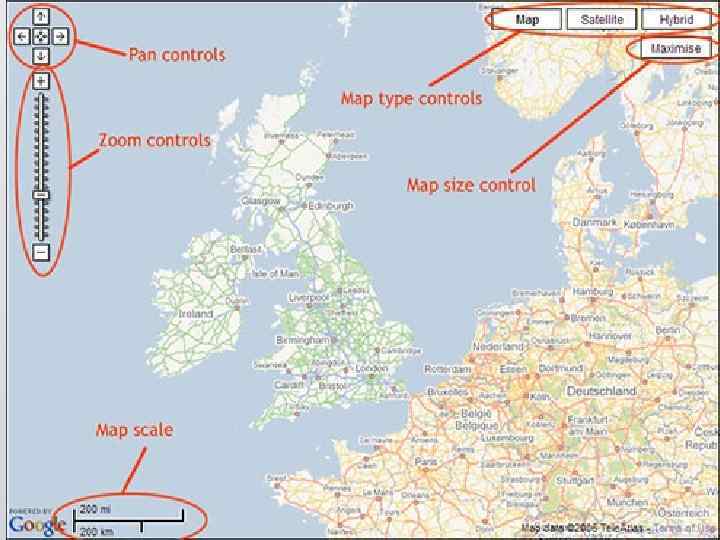
 Google Maps Controls Default control sets: • Zoom - displays a slider or "+/-" buttons to control the zoom level of the map • Pan - displays a pan control for panning the map • Map. Type - lets the user toggle between map types (roadmap and satellite) • Street View - displays a Pegman icon which can be dragged to the map to enable Street View
 Google Maps Controls more controls • Scale - displays a map scale element • Rotate - displays a small circular icon which allows you to rotate maps • Overview Map - displays a thumbnail overview map reflecting the current map viewport within a wider area
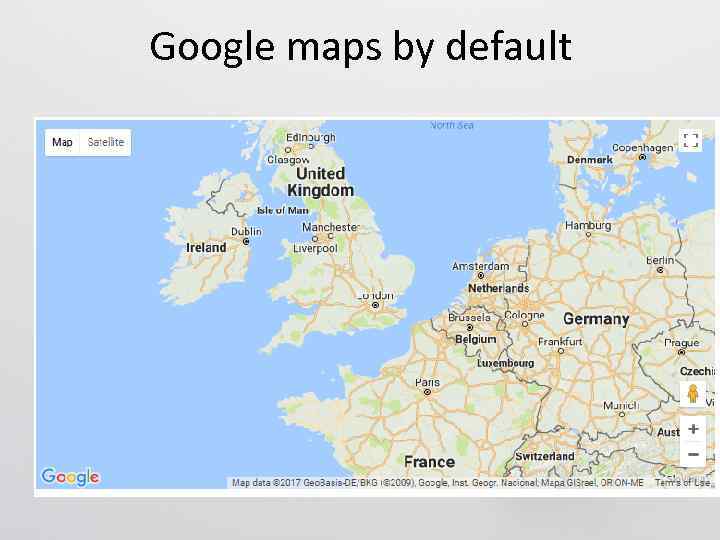 Google maps by default
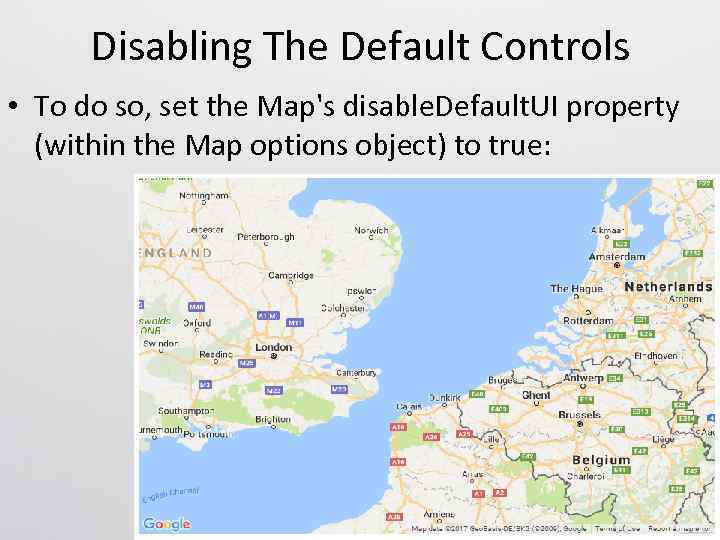 Disabling The Default Controls • To do so, set the Map's disable. Default. UI property (within the Map options object) to true:
 Turn On All Controls • Some controls appear on the map by default; while others will not appear unless you set them. • Adding or removing controls from the map is specified in the Map options object. • Set the control to true to make it visible - Set the control to false to hide it.
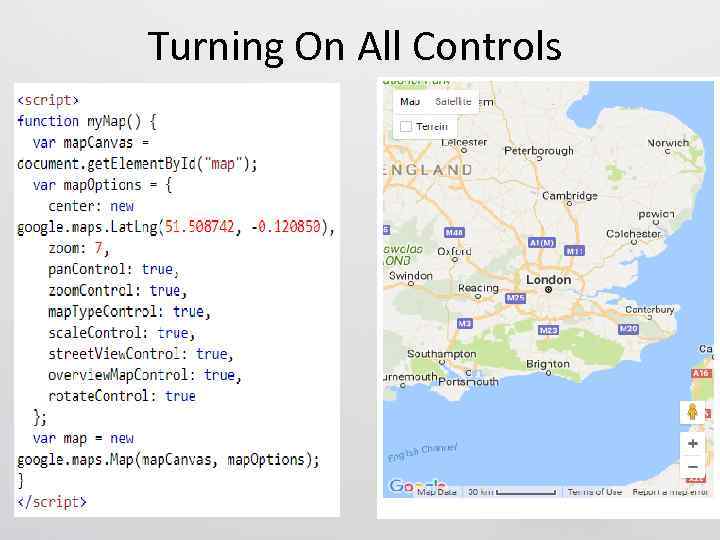 Turning On All Controls
 Configurable control is the Map. Type control. • Options for modifying a control are specified in the map. Type. Control. Options field. The map. Type. Control. Options field may contain: • google. maps. Map. Type. Control. Style. HORIZONTAL _BAR - display one button for each map type • google. maps. Map. Type. Control. Style. DROPDOWN_ MENU - select map type via a dropdown menu • google. maps. Map. Type. Control. Style. DEFAULT - displays the "default" behavior (depends on screen size)
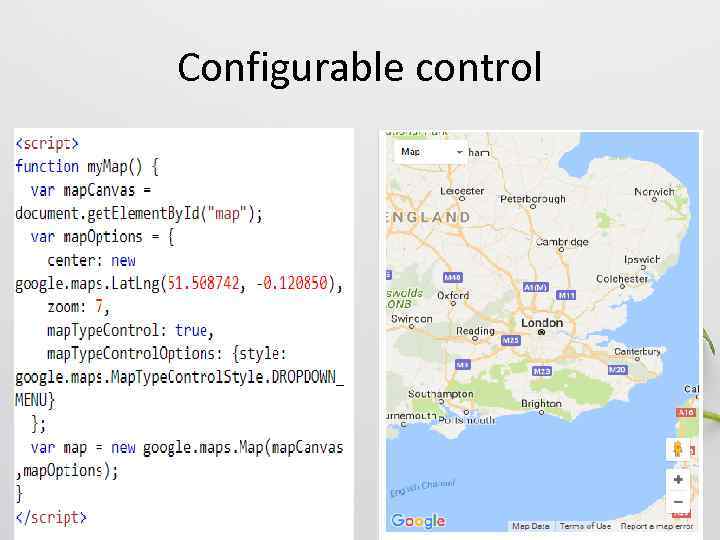 Configurable control
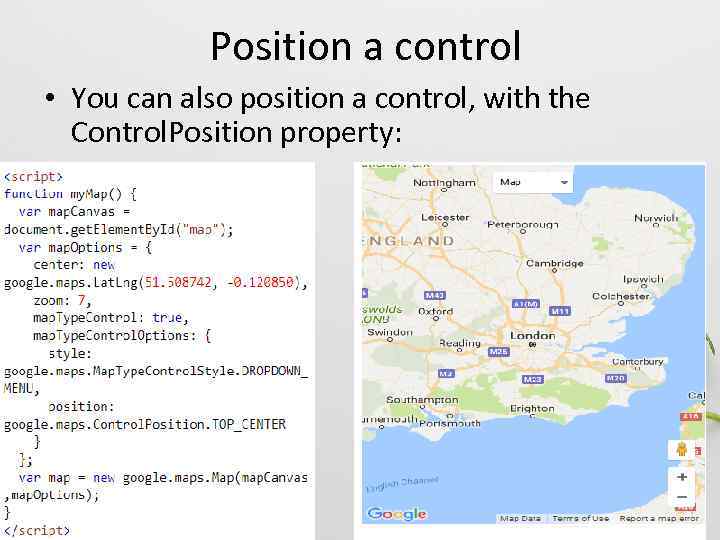 Position a control • You can also position a control, with the Control. Position property:
 User-editable and draggable shapes • Making a shape editable adds handles to the shape, which people can use to reposition, reshape, and resize the shape directly on the map. You can also make a shape draggable, so people can move it to a different place on the map. • User-made changes to the object do not persist between sessions. If you want to save the user's edits, you must capture and store the information yourself.
 Make a shape editable • Any shape(polylines, polygons, circles, and rectangles) can be set as user-editable, by setting editable to true in the shape's options.
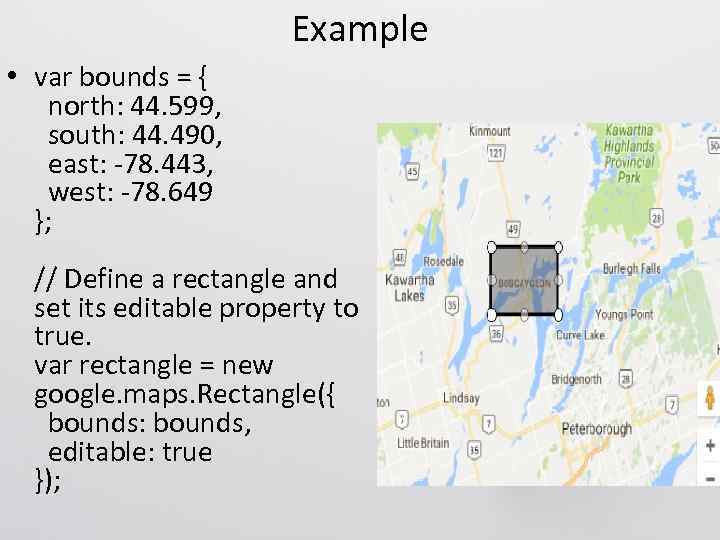 Example • var bounds = { north: 44. 599, south: 44. 490, east: -78. 443, west: -78. 649 }; // Define a rectangle and set its editable property to true. var rectangle = new google. maps. Rectangle({ bounds: bounds, editable: true });
 Make a marker draggable • To allow users to drag a marker to a different location on the map, set draggable to true in the marker options.
 Make a marker draggable Example • var my. Latlng = new google. maps. Lat. Lng(25. 363882, 131. 044922); var map. Options = { zoom: 4, center: my. Latlng } var map = new google. maps. Map(document. get. Element. By. Id("map"), map. Options); // Place a draggable marker on the map var marker = new google. maps. Marker({ position: my. Latlng, map: map, draggable: true, title: "Drag me!" });
 Home Task • Project 4