


 Скачать презентацию Lecture 10 Introduction to Google Maps Senior-Lecturer Sarsenova
SDP1_Lecture 10.pptx
- Количество слайдов: 34
 Lecture 10 Introduction to Google Maps Senior-Lecturer: Sarsenova Zh. N.
 Introduction • 1. Step: Create an HTML page • 2. Step: Add a map with marker • 3. Step: Get an API key https: //developers. google. com/maps /documentation/javascript/example s/map-simple
 Google Maps API • An API is a set of methods and tools that can be used for building software applications.
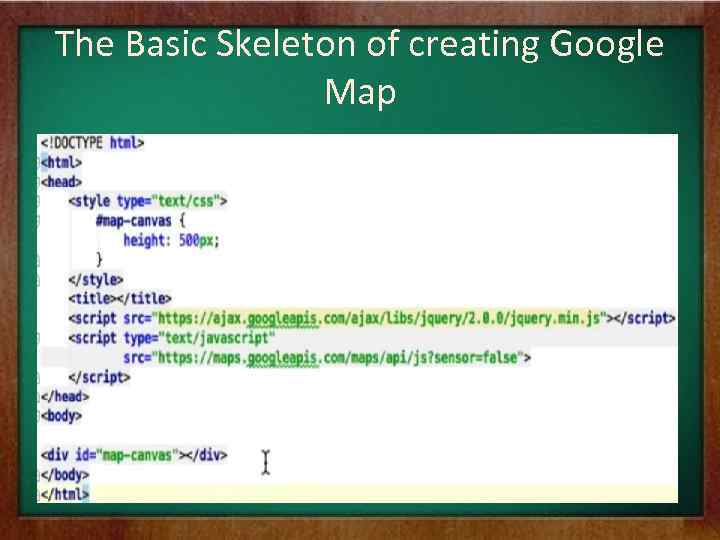 The Basic Skeleton of creating Google Map
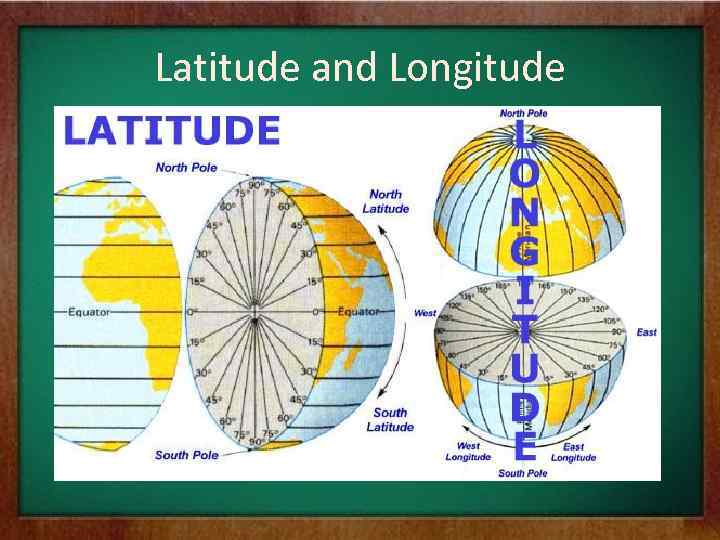 Latitude and Longitude
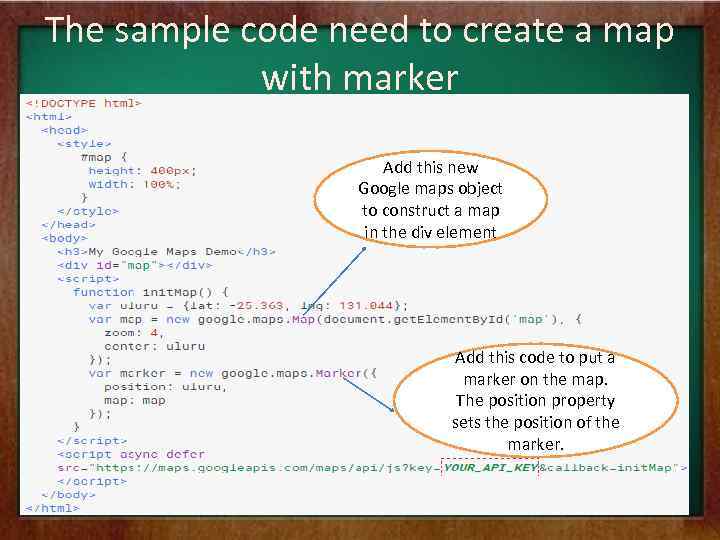 The sample code need to create a map with marker Add this new Google maps object to construct a map in the div element Add this code to put a marker on the map. The position property sets the position of the marker.
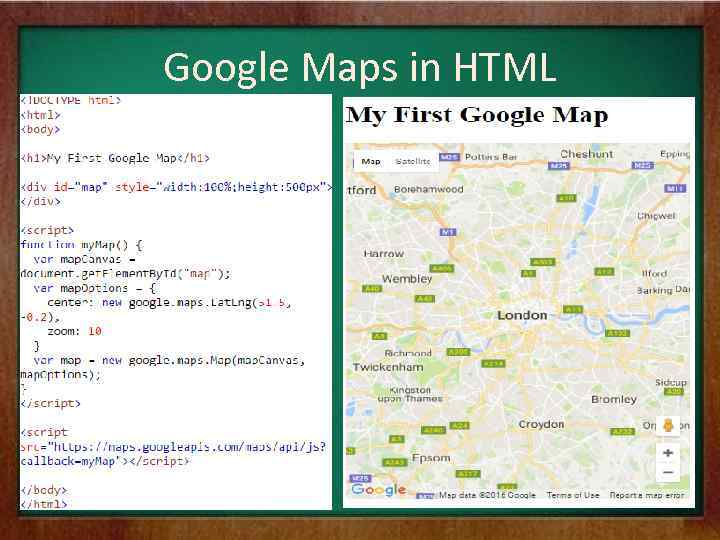 Google Maps in HTML
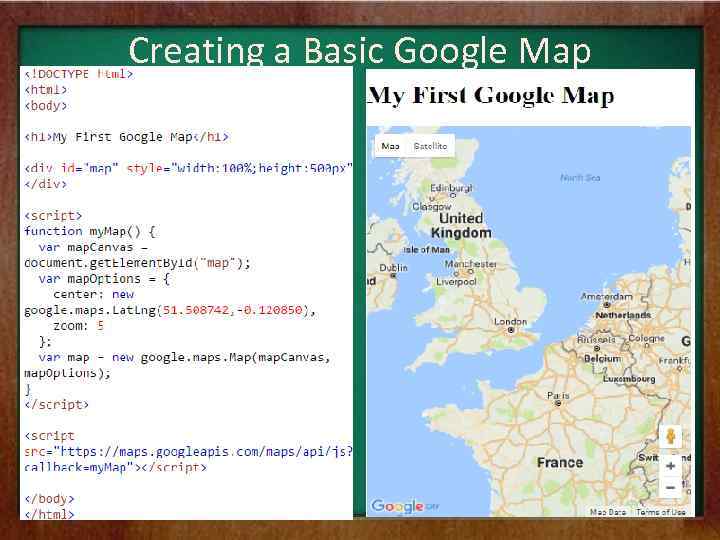 Creating a Basic Google Map
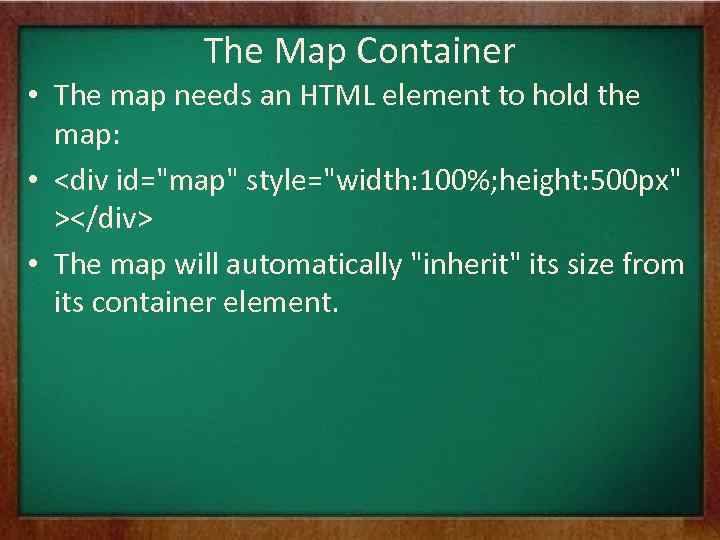 The Map Container • The map needs an HTML element to hold the map: •
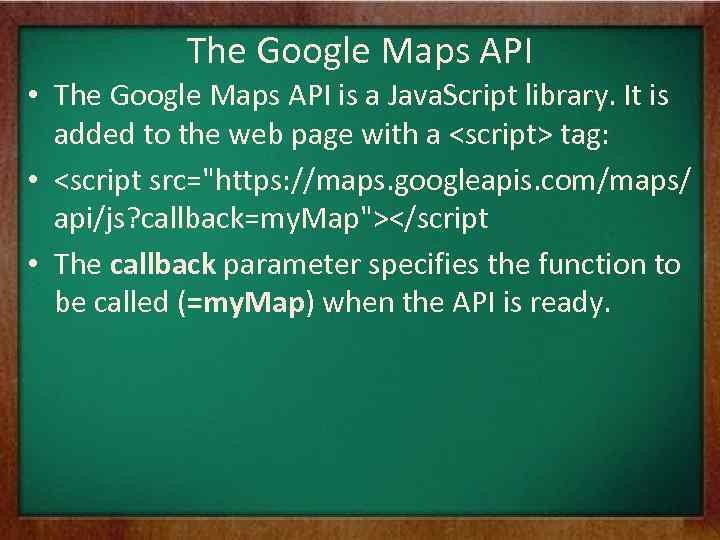 The Google Maps API • The Google Maps API is a Java. Script library. It is added to the web page with a
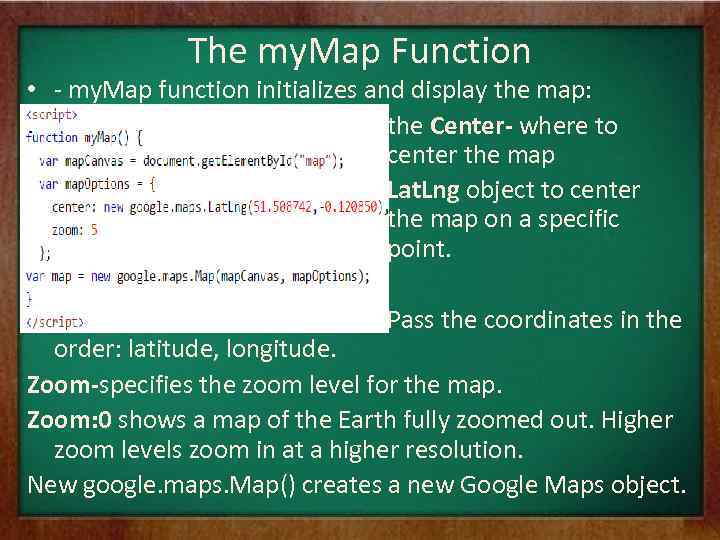 The my. Map Function • - my. Map function initializes and display the map: the Center- where to center the map Lat. Lng object to center the map on a specific point. Pass the coordinates in the order: latitude, longitude. Zoom-specifies the zoom level for the map. Zoom: 0 shows a map of the Earth fully zoomed out. Higher zoom levels zoom in at a higher resolution. New google. maps. Map() creates a new Google Maps object.
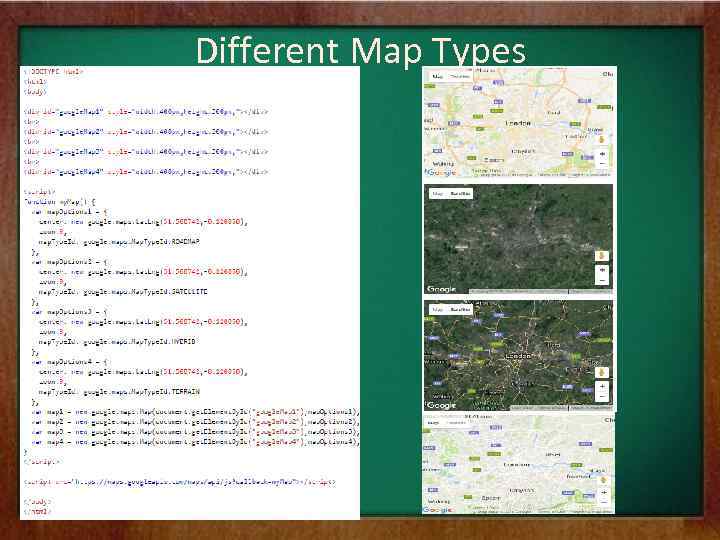 Different Map Types
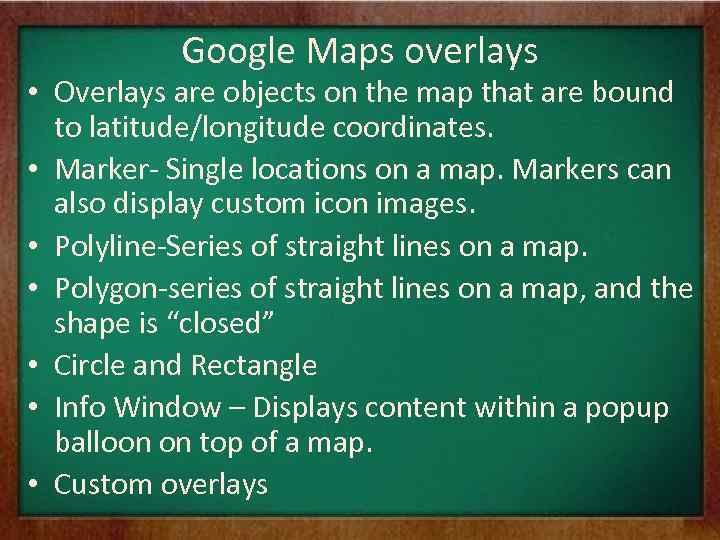 Google Maps overlays • Overlays are objects on the map that are bound to latitude/longitude coordinates. • Marker- Single locations on a map. Markers can also display custom icon images. • Polyline-Series of straight lines on a map. • Polygon-series of straight lines on a map, and the shape is “closed” • Circle and Rectangle • Info Window – Displays content within a popup balloon on top of a map. • Custom overlays
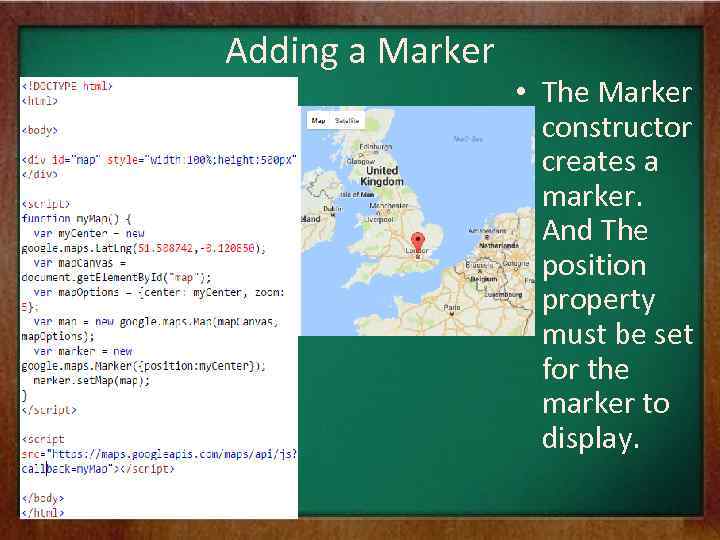 Adding a Marker • The Marker constructor creates a marker. And The position property must be set for the marker to display.
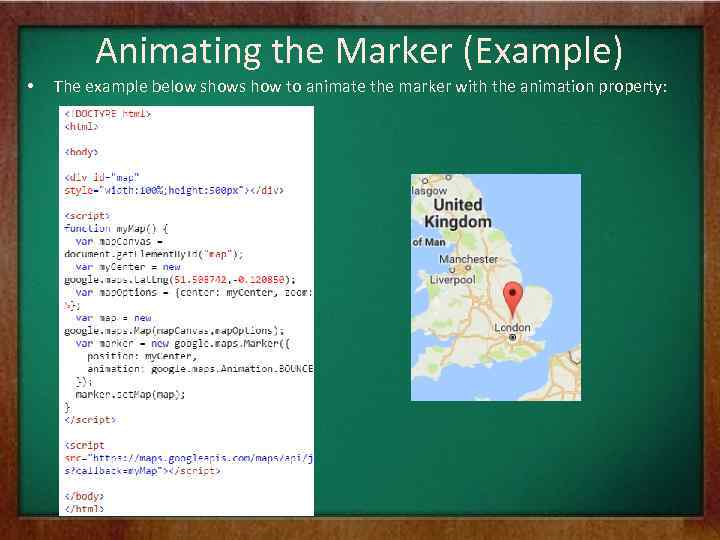 Animating the Marker (Example) • The example below shows how to animate the marker with the animation property:
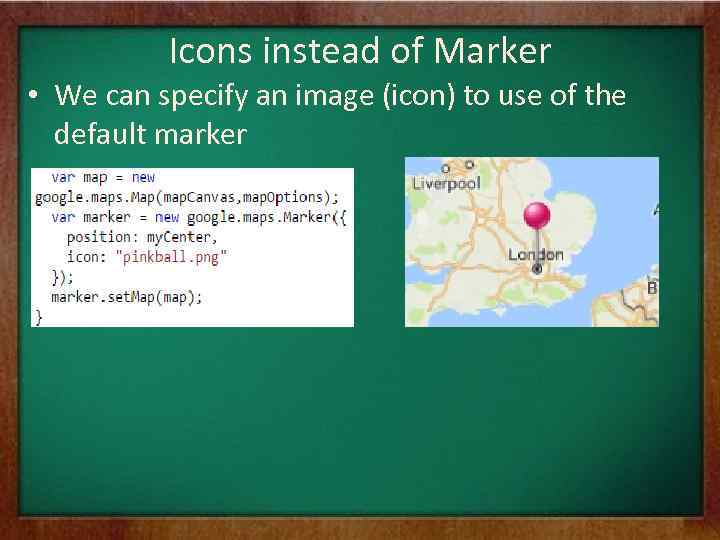 Icons instead of Marker • We can specify an image (icon) to use of the default marker
 Polyline • A polyline is a line that is drawn through a series of coordinates in an ordered sequence. • A polyline supports the following properties:
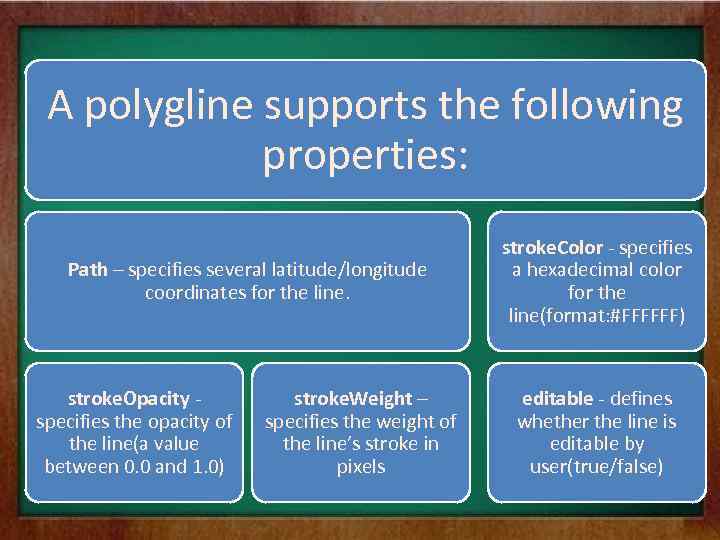 A polygline supports the following properties: Path – specifies several latitude/longitude coordinates for the line. stroke. Opacity specifies the opacity of the line(a value between 0. 0 and 1. 0) stroke. Weight – specifies the weight of the line’s stroke in pixels stroke. Color - specifies a hexadecimal color for the line(format: #FFFFFF) editable - defines whether the line is editable by user(true/false)
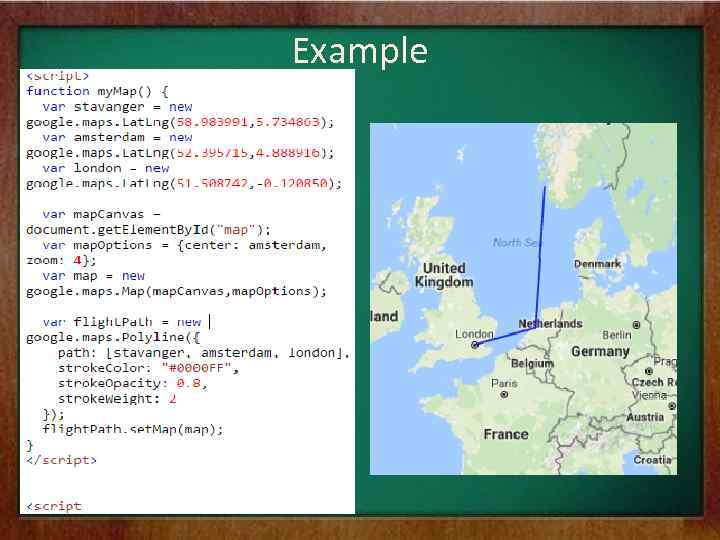 Example
 Polygon • A Polygon is similar to a Polyline in that it consists of a series of coordinates in an ordered sequence. However, polygons are designed to define regions within a closed loop. • Polygons are made of straight lines, and the shape is “closed” (all the lines connect up).
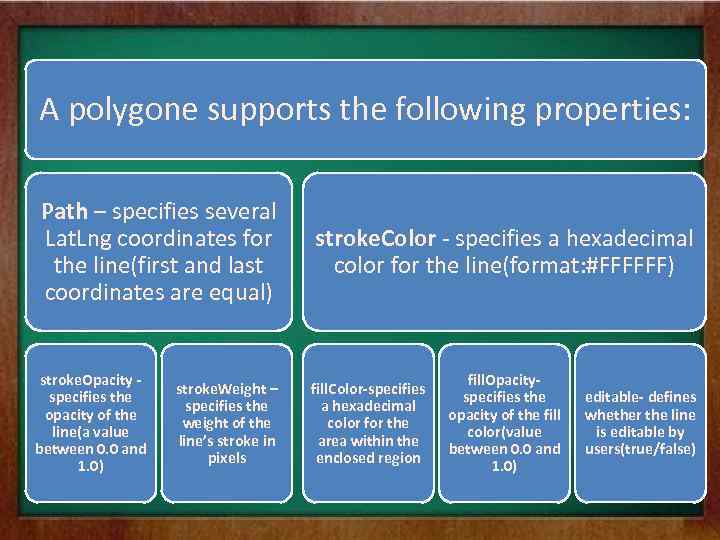 A polygone supports the following properties: Path – specifies several Lat. Lng coordinates for the line(first and last coordinates are equal) stroke. Opacity specifies the opacity of the line(a value between 0. 0 and 1. 0) stroke. Weight – specifies the weight of the line’s stroke in pixels stroke. Color - specifies a hexadecimal color for the line(format: #FFFFFF) fill. Color-specifies a hexadecimal color for the area within the enclosed region fill. Opacityspecifies the opacity of the fill color(value between 0. 0 and 1. 0) editable- defines whether the line is editable by users(true/false)
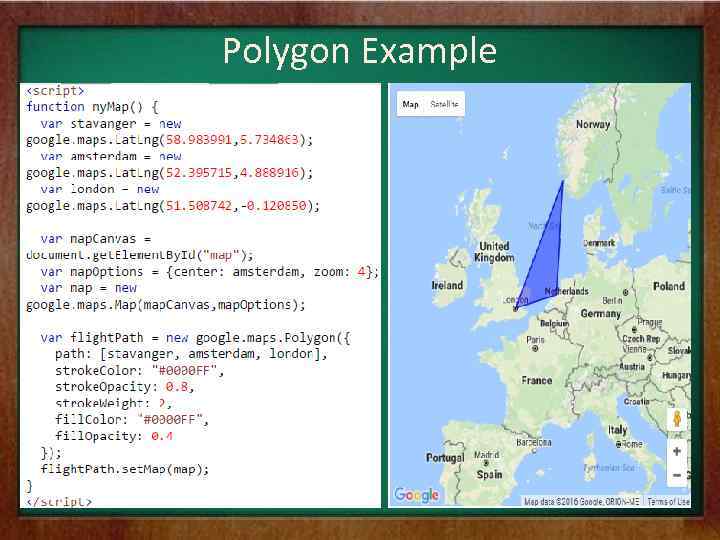 Polygon Example
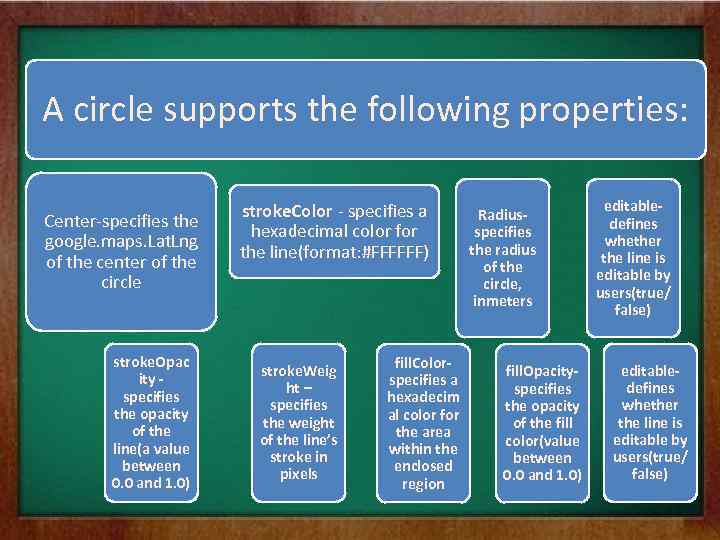 A circle supports the following properties: Center-specifies the google. maps. Lat. Lng of the center of the circle stroke. Opac ity specifies the opacity of the line(a value between 0. 0 and 1. 0) stroke. Color - specifies a hexadecimal color for the line(format: #FFFFFF) stroke. Weig ht – specifies the weight of the line’s stroke in pixels fill. Colorspecifies a hexadecim al color for the area within the enclosed region Radiusspecifies the radius of the circle, inmeters fill. Opacityspecifies the opacity of the fill color(value between 0. 0 and 1. 0) editabledefines whether the line is editable by users(true/ false)
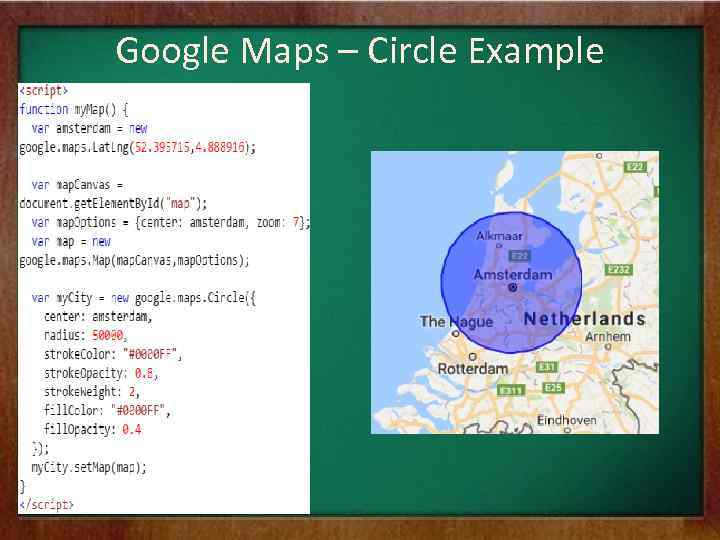 Google Maps – Circle Example
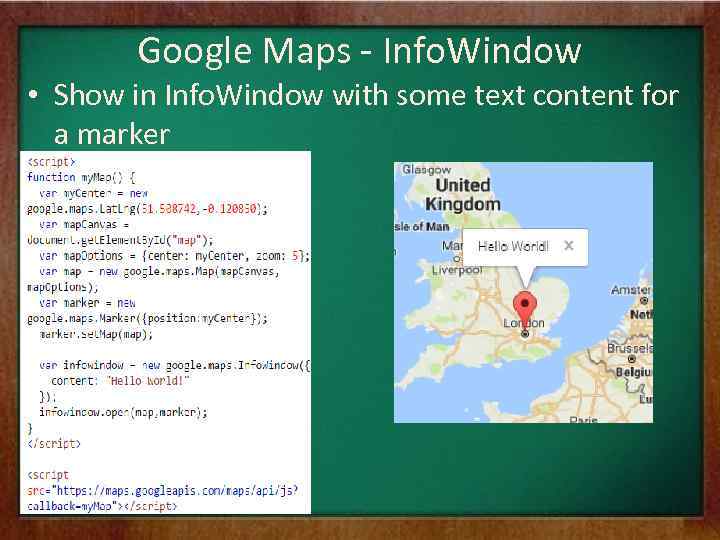 Google Maps - Info. Window • Show in Info. Window with some text content for a marker
 Google Maps Events
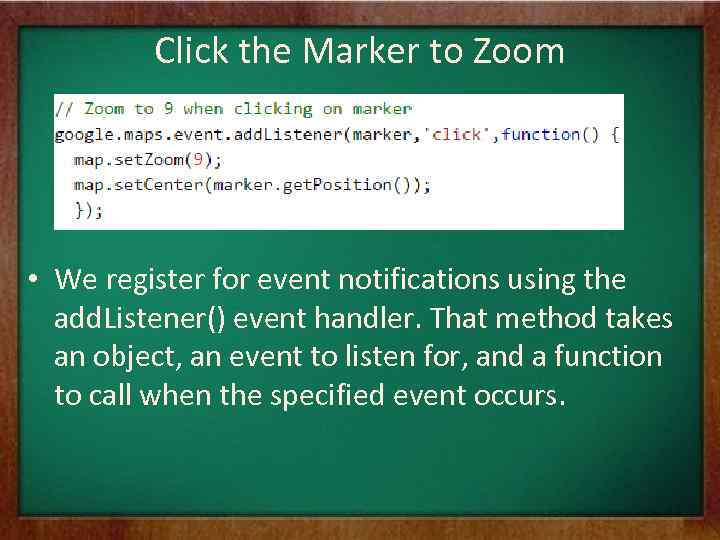 Click the Marker to Zoom • We register for event notifications using the add. Listener() event handler. That method takes an object, an event to listen for, and a function to call when the specified event occurs.
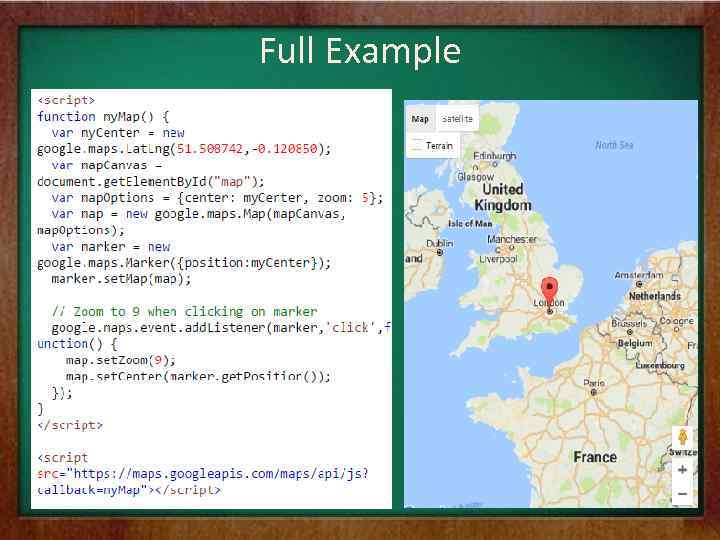 Full Example
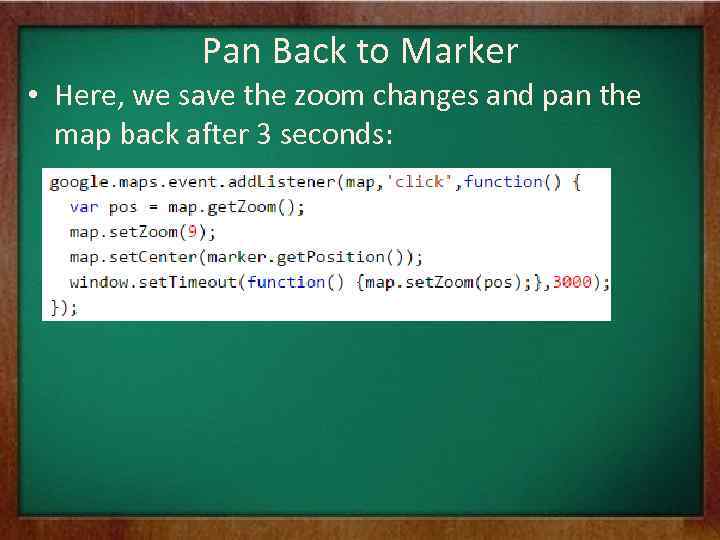 Pan Back to Marker • Here, we save the zoom changes and pan the map back after 3 seconds:
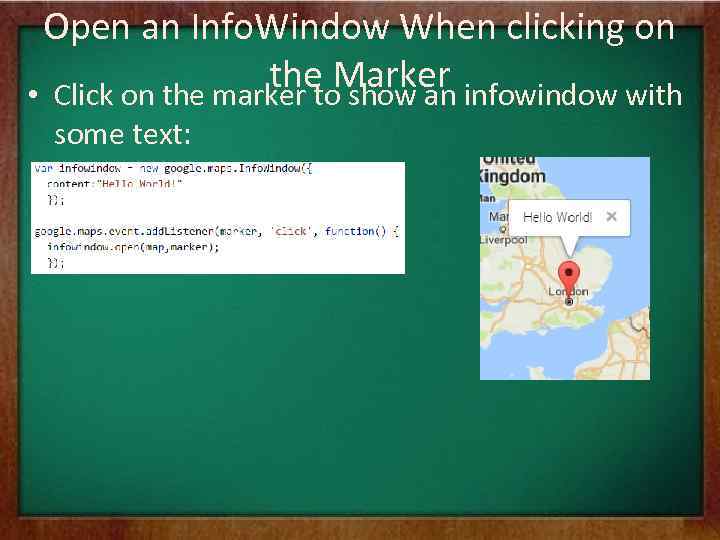 Open an Info. Window When clicking on the Marker • Click on the marker to show an infowindow with some text:
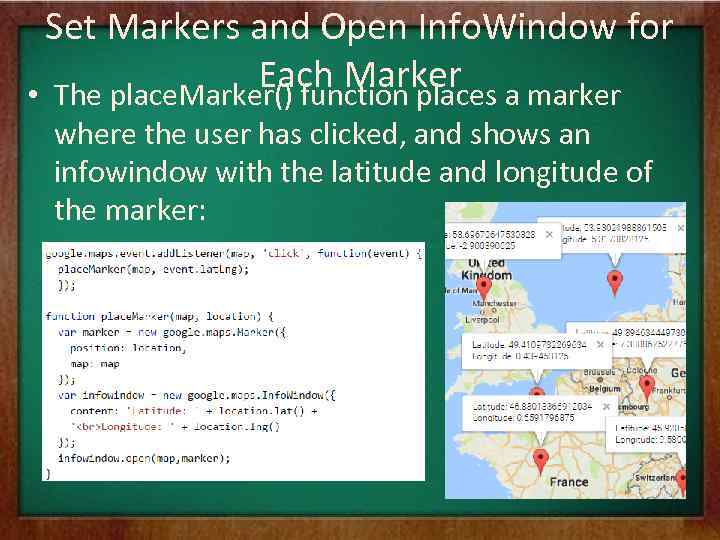 Set Markers and Open Info. Window for Each Marker • The place. Marker() function places a marker where the user has clicked, and shows an infowindow with the latitude and longitude of the marker:
 Google Maps Types Google Maps API supports: - ROADMAP (normal, default 2 D map) - SATELLITE (photographic map) - HYBRID (photographic map + road and city names) - TERRAIN (map with mountains, river, etc)
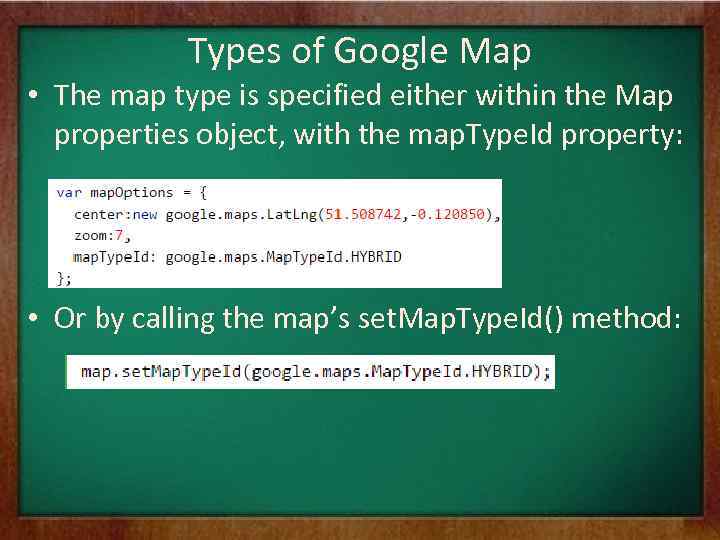 Types of Google Map • The map type is specified either within the Map properties object, with the map. Type. Id property: • Or by calling the map’s set. Map. Type. Id() method:
 Good Luck!!!