


 Скачать презентацию Lecture 1 -2 Senior-Lecturer Sarsenova Zh N
SDP1_Lecture 2.pptx
- Количество слайдов: 59
 Lecture 1 -2 Senior-Lecturer: Sarsenova Zh. N.
 Introducing the World Wide Web • In 1969, the first transmission over the Internet took place • Web pages are the basic unit of a website, and every website is a collection of one or more pages
 Introducing HTML: The Language of the Web • Web pages are written in HTML (Hyper. Text Markup Language) • A markup language is a set of markup tags • It tells browsers how to display the contents of a web page, using special instructions (called tags) that instruct the browser when to start a paragraph, italicize a word, or display a picture
 Creating an HTML File • Fire up your favorite text editor • Start writing HTML content. • When you finish your web page, save the document. In the Encoding list, choose UTF-8. • When you name your file, use the extension. htm or. html
 HTML Tags • HTML tags are formatting instructions that tell a browser how to transform ordinary text into something visually appealing. If you were to take all the tags out of an HTML document, the resulting page would consist of nothing more than plain, unformatted text.
 What’s in a Tag • To create a tag, you type HTML code between the brackets. (look like this: < >) • For example, one simple tag is the tag, which stands for “bold” (tag names are always lowercase). • As you’ve seen, tags come in pairs. When you use a start tag (like for bold), you have to include an end tag (like ). This combination of start and end tags and the text in between them makes up an HTML element.
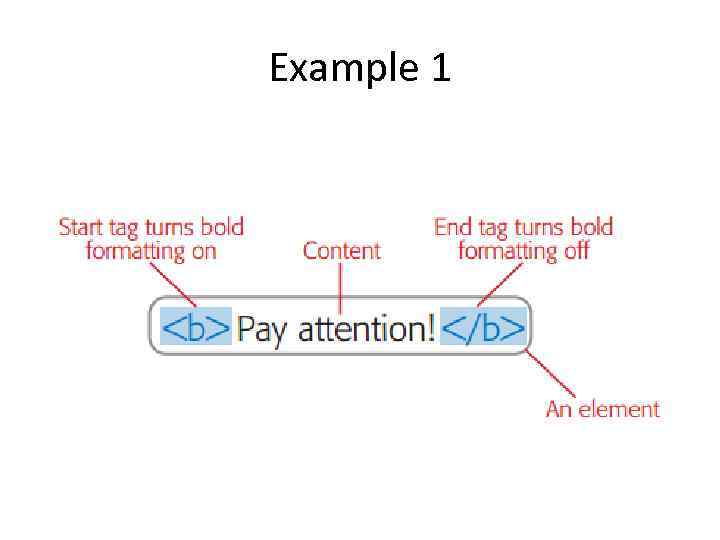 Example 1
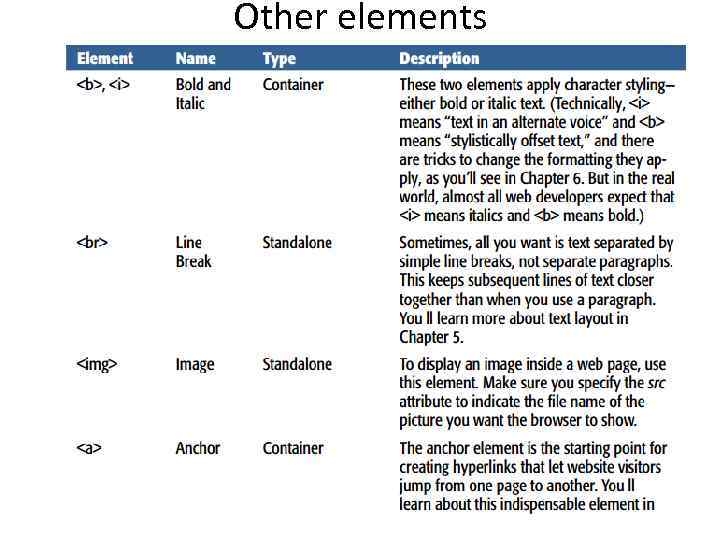
 Types of elements: • Container elements are, by far, the most common type. They apply formatting to the content nestled between the start and end tags. • Standalone elements don’t turn formatting on or off. Instead, they insert something, like an image, into a page. One example is the element, which inserts a line break in a page. Standalone elements don’t come in pairs, as container elements do, and you may hear them referred to as empty elements because you can’t put any text inside them.
 Nesting Elements • Nesting elements is one of the basic building block techniques of web pages. • You can also nest elements to create more complicated page components, like bulleted lists.
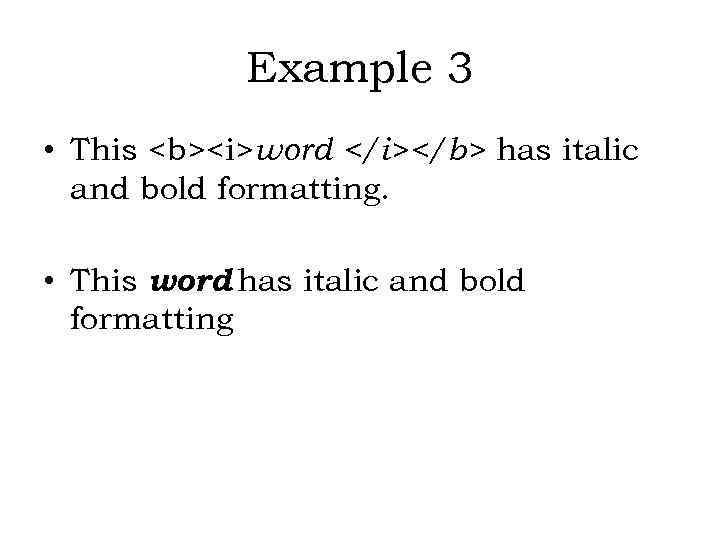 Example 3 • This word has italic and bold formatting. • This word has italic and bold formatting
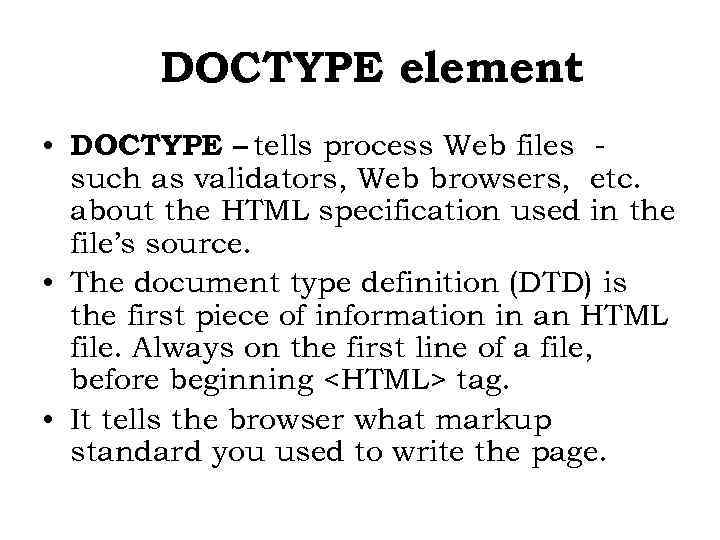 DOCTYPE element • DOCTYPE – tells process Web files such as validators, Web browsers, etc. about the HTML specification used in the file’s source. • The document type definition (DTD) is the first piece of information in an HTML file. Always on the first line of a file, before beginning tag. • It tells the browser what markup standard you used to write the page.
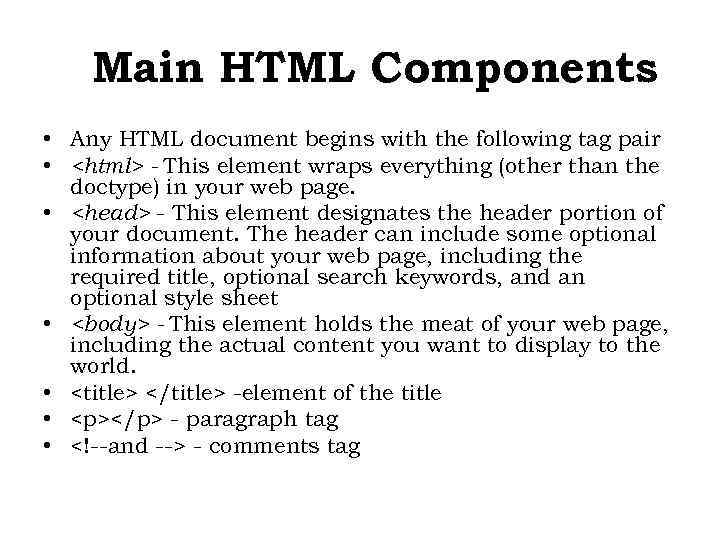 Main HTML Components • Any HTML document begins with the following tag pair • - This element wraps everything (other than the doctype) in your web page. •
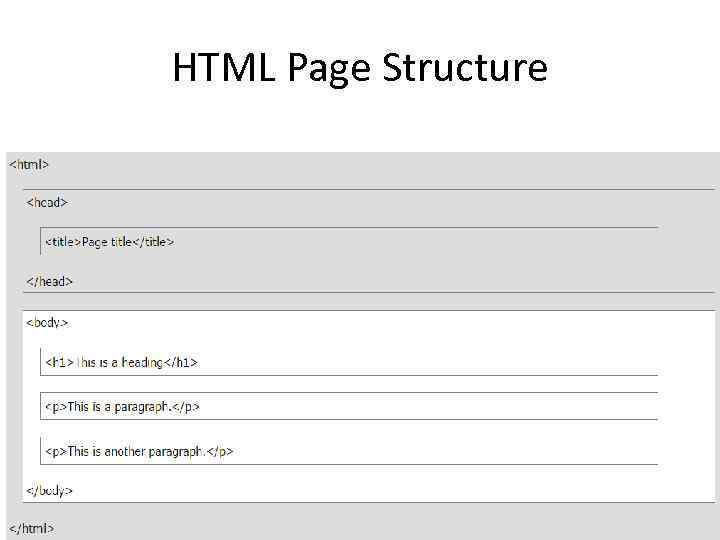 HTML Page Structure
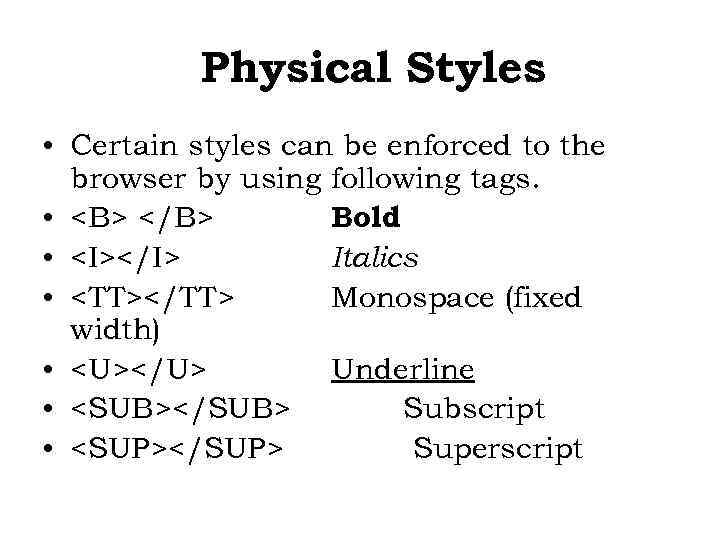 Physical Styles • Certain styles can be enforced to the browser by using following tags. • Bold • Italics • Monospace (fixed width) • Underline • Subscript • Superscript
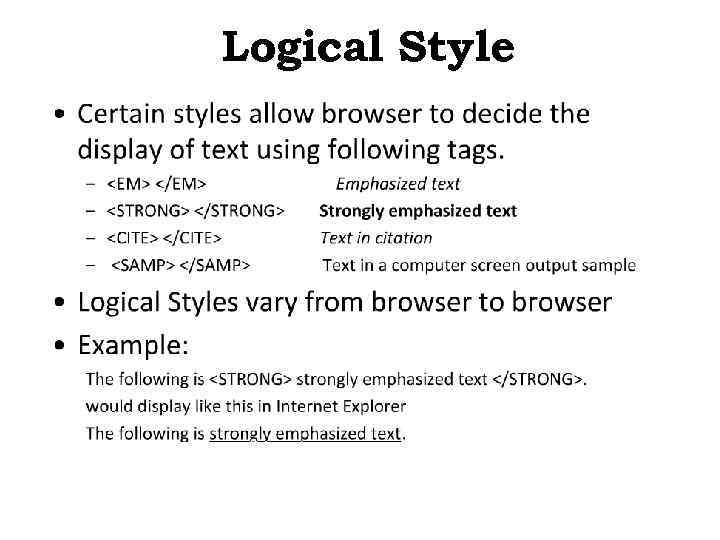 Logical Style
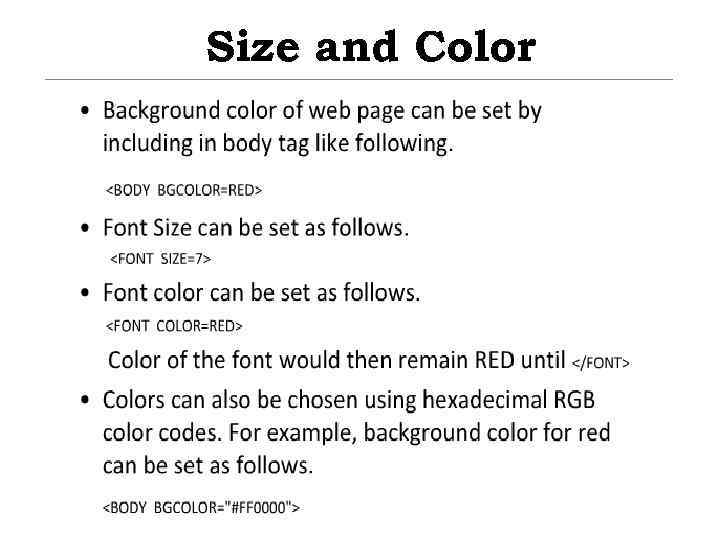 Size and Color
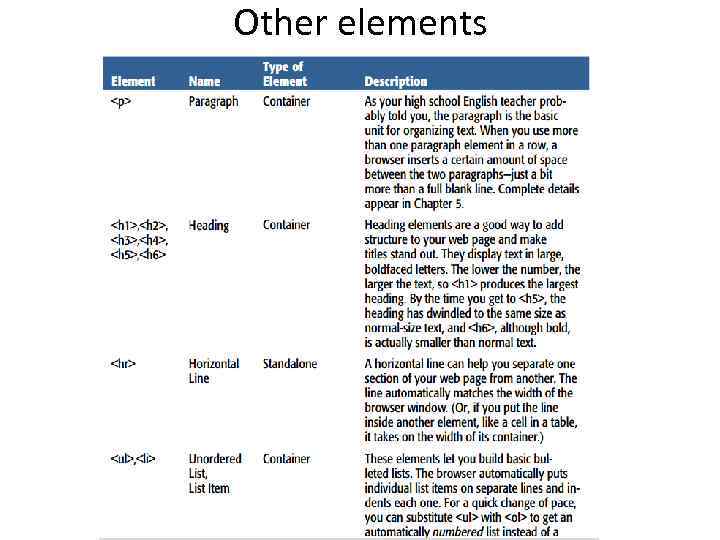 Other elements
 Other elements
 Horizontal Lines
 Preformatted Text
 Lists
Lists
 Linking other pages
 Creating Links to Other Files
 Creating Internal Links
 Embedding image in Web Page
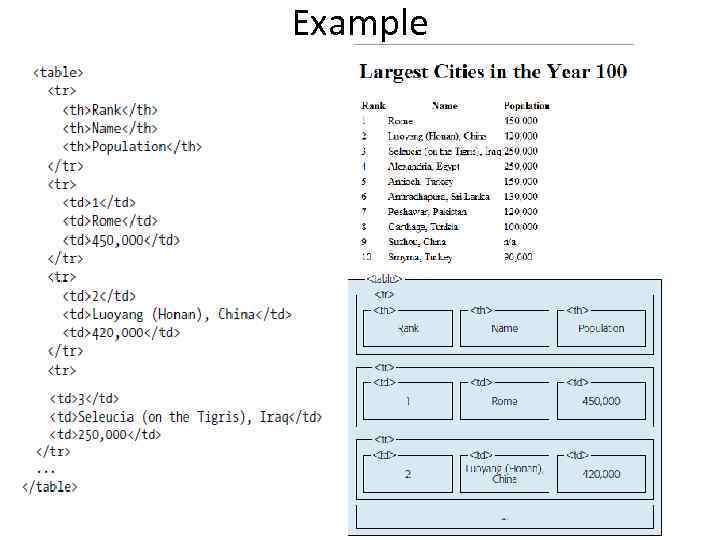
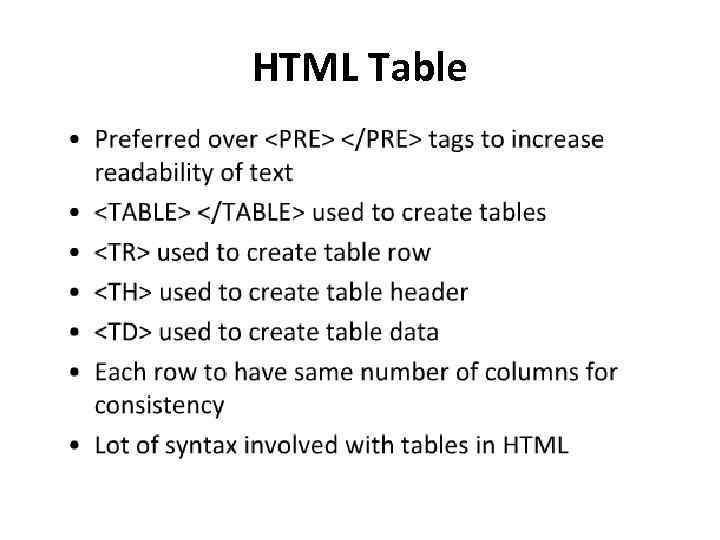 HTML Table
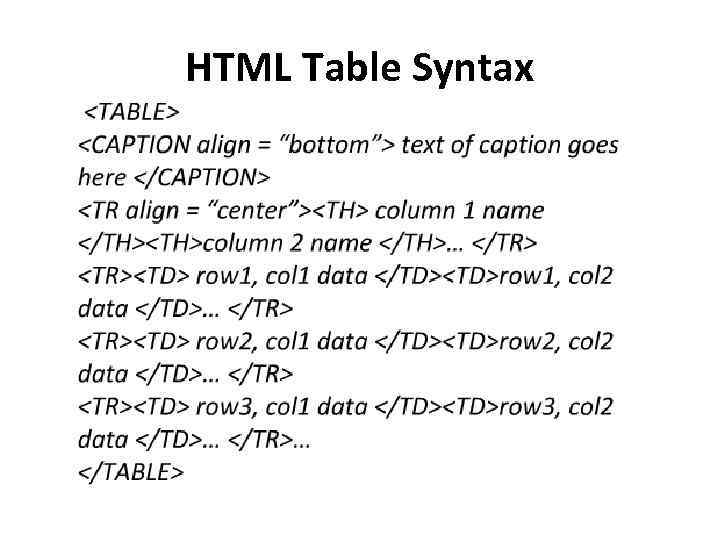 HTML Table Syntax
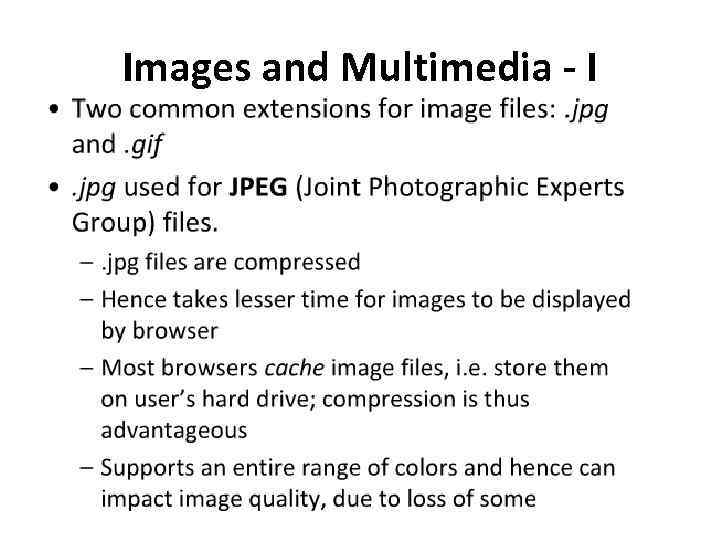 Images and Multimedia - I
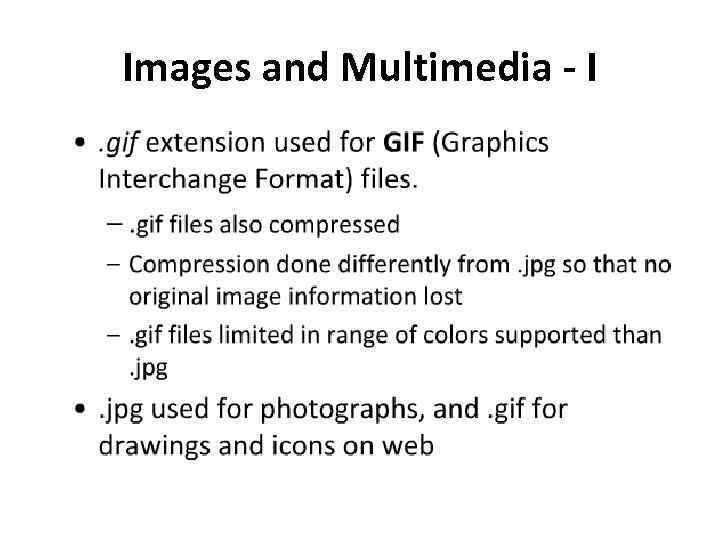 Images and Multimedia - I
 • Home work • Read from book 19 -35 pages • Book: Creating a Web Site: Missing Manual
 Question • Give examples of container element • Give examples of standalone element
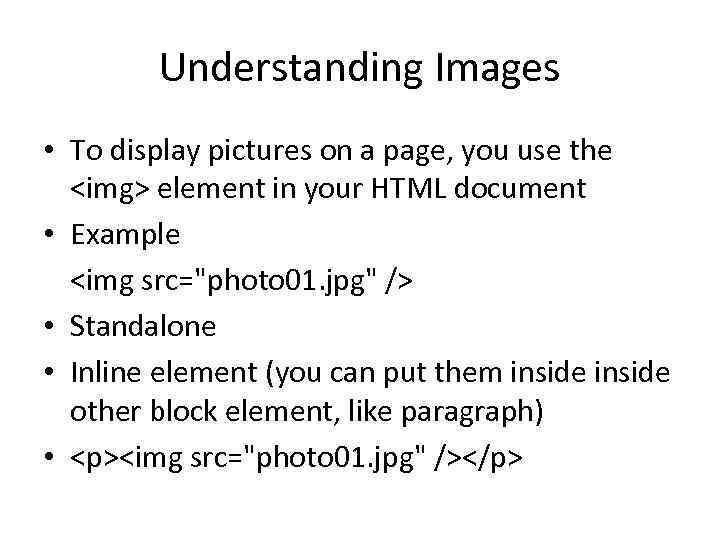 Understanding Images • To display pictures on a page, you use the
 element in your HTML document • Example
• Standalone • Inline element (you can put them inside other block element, like paragraph) •
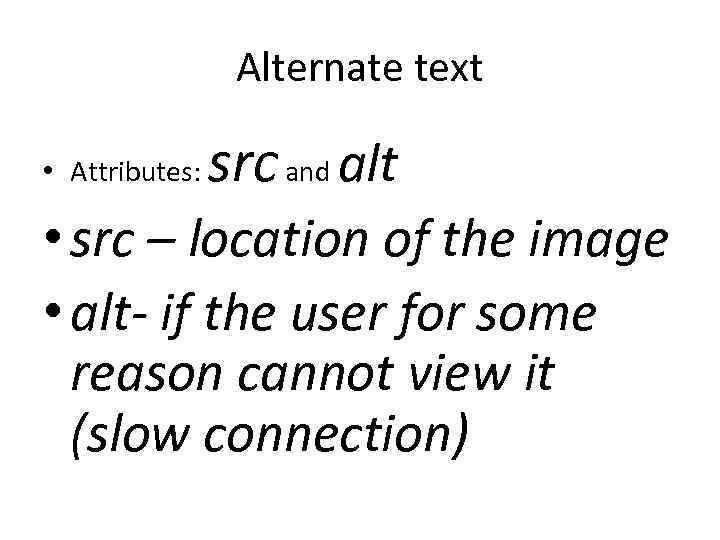 Alternate text • Attributes: src and alt • src – location of the image • alt- if the user for some reason cannot view it (slow connection)
 Examples of
 with attributes •
 Picture Size • Web weavers measure graphics in units called pixels. • A pixel represents one tiny dot on a computer screen. •
 HTML Elements for Tables •
| represents a table cell (“td” stands for “table data”). For each cell you want in a row, you add one | element. You put the text that you want to appear in that cell inside the | element. • | is an optional table element; you use it when you want to define a column heading. You can use a | element instead of a | element any time, although it usually makes the most sense in the first row of a table.
|
|---|