


 Скачать презентацию Lead Partner Seminar IMIS 2007 -2013 Common Monitoring
3888581f45eb51dff32a6a28ede9871b.ppt
- Количество слайдов: 24
 Lead Partner Seminar IMIS 2007 -2013 Common Monitoring and Information System of the Hungary-Slovakia Territorial Cooperation Programme Nitra, 13 November 2012 www. husk-cbc. eu
 Agenda 1. IMIS 2007 - 2013 and online reporting in general 2. Guidance on filling in Progress Report 3. Break 4. Individual training, questions and answers
 IMIS 2007 -2013 and online reporting Éva Koi IMIR 2007 -2013 project leader
 Content • IMIS 2007 -2013 in general • Online reporting • E-submission of Progress Reports • Live demonstration of the IMIS 2007 -2013 Front Office surface
 What is IMIS 2007 -2013? • Developed specially for the needs of the ETC programme • Integrated Monitoring and Management IT system • One common system for the whole programme area • Internet-based • Workflow-oriented
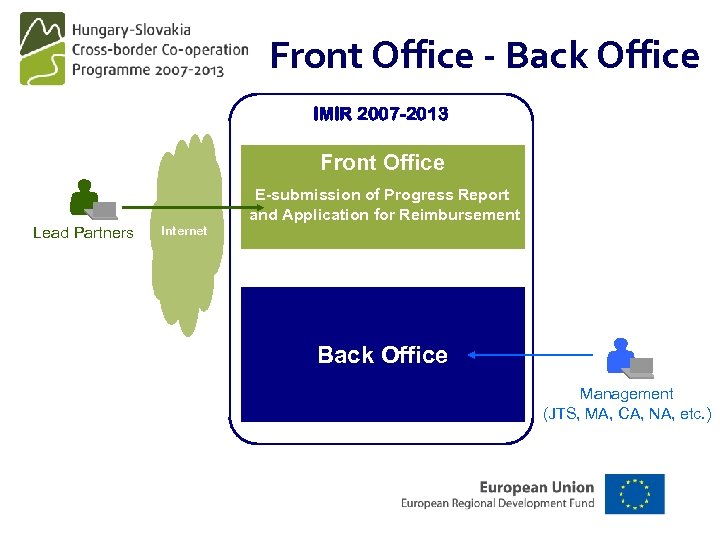 Front Office - Back Office IMIR 2007 -2013 Front Office E-submission of Progress Report and Application for Reimbursement Lead Partners Internet Back Office Management (JTS, MA, CA, NA, etc. )
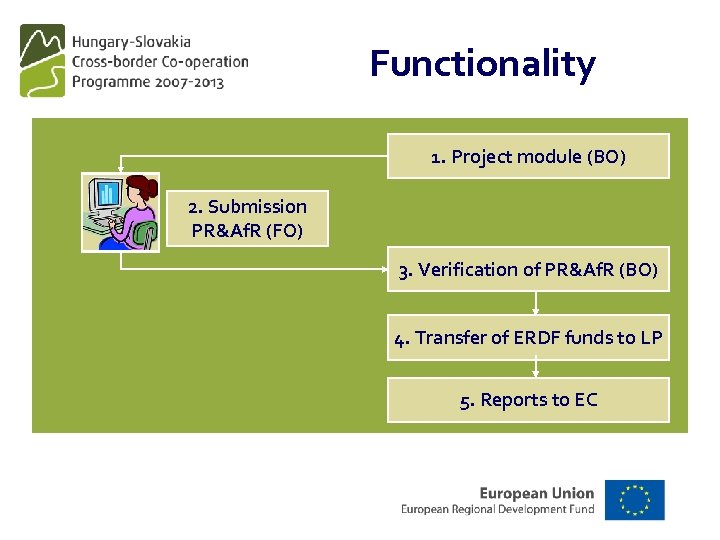 Functionality 1. Project module (BO) 2. Submission PR&Af. R (FO) 3. Verification of PR&Af. R (BO) 4. Transfer of ERDF funds to LP 5. Reports to EC
 Characteristics Main characteristics of the online reporting system • Filling in Progress Report (PR) and Application for Reimbursement (Af. R) via Internet access • System generated Progress report and Application for Reimbursement • The Progress Report can be saved, stored and printed • Documents can be uploaded • Direct communication with the monitoring system
 Advantages I. System support for a „perfect Progress Report” • • • Built-in counterchecks Automatic calculations - data aggregation Sample Progress Report - overview Af. R is generated on the basis of the PR No difference between the electronic and the paper version
 Advantages II. • Updated information on PR status • • • Under preparation Submitted Need amendment Approved Rejected • Speeds up the payment process • Verification of the PR by the JTS can be started right after the online submission • Updated information on financial progress • Planned amounts, Previously reported amounts, Current report, Accumulated amounts
 Technical Information
 Content • Login and Front Office opening screen • Progress report: main page structure • Way of submission: • Check report • Document generation • Field types, chart types, button types • Infrastructure
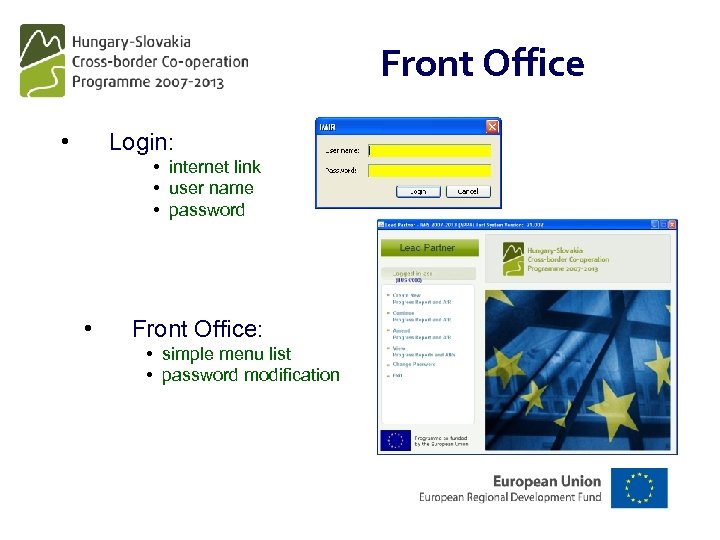 Front Office • Login: • internet link • user name • password • Front Office: • simple menu list • password modification
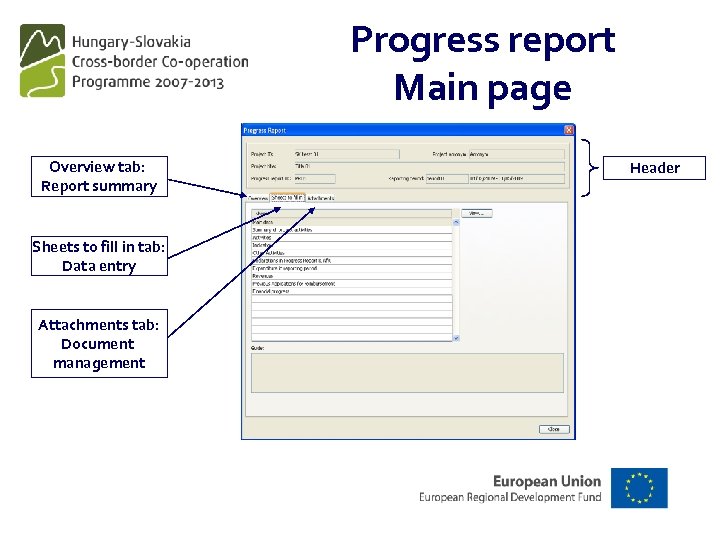 Progress report Main page Overview tab: Report summary Sheets to fill in tab: Data entry Attachments tab: Document management Header
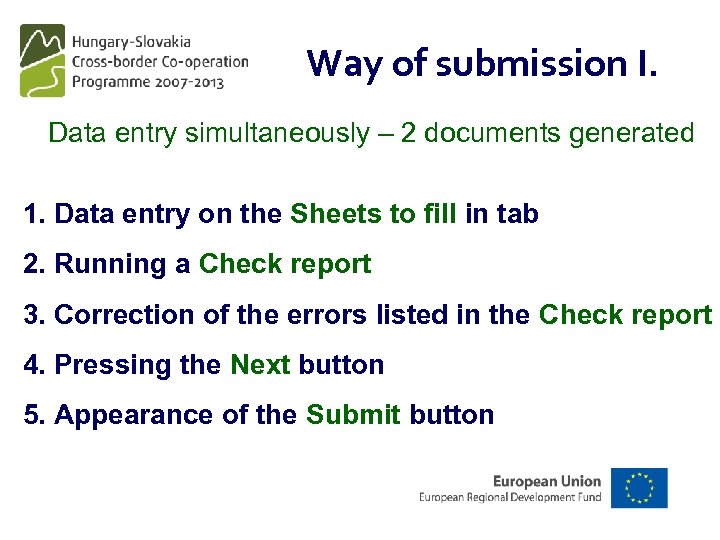 Way of submission I. Data entry simultaneously – 2 documents generated 1. Data entry on the Sheets to fill in tab 2. Running a Check report 3. Correction of the errors listed in the Check report 4. Pressing the Next button 5. Appearance of the Submit button
 Way of submission II. 6. Clicking on the Submit button: • Uploading declarations • Generation of final documents: PR & Af. R 7. Clicking on Submit again: officially submitted Documents can also be generated before running the Check report but these are only samples with a well-recognizable „Sample – do not submit” label on them.
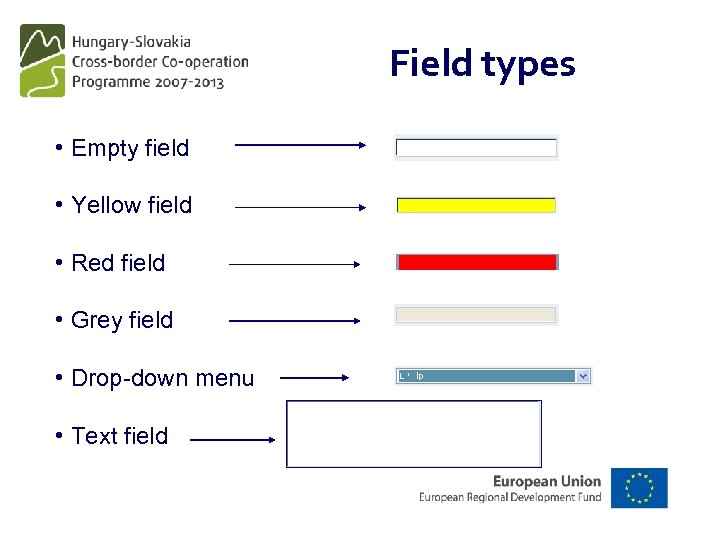 Field types • Empty field • Yellow field • Red field • Grey field • Drop-down menu • Text field
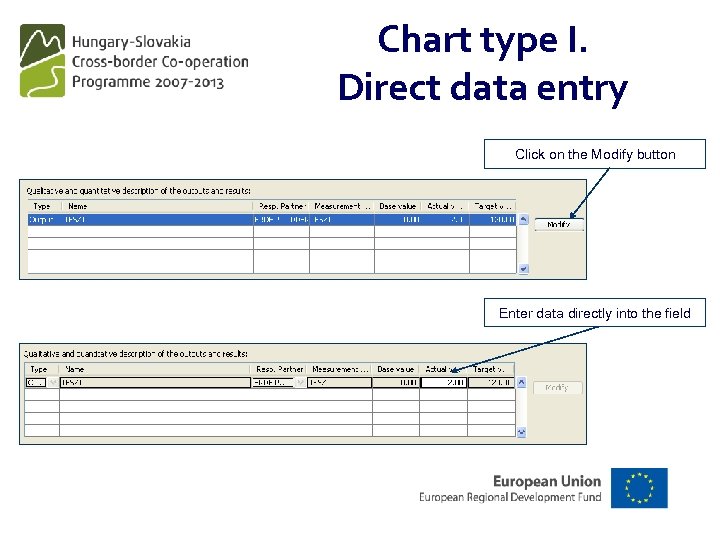 Chart type I. Direct data entry Click on the Modify button Enter data directly into the field
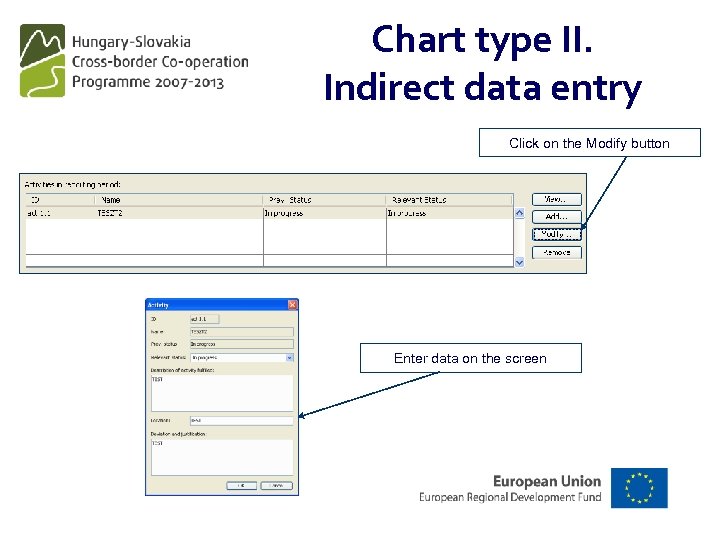 Chart type II. Indirect data entry Click on the Modify button Enter data on the screen
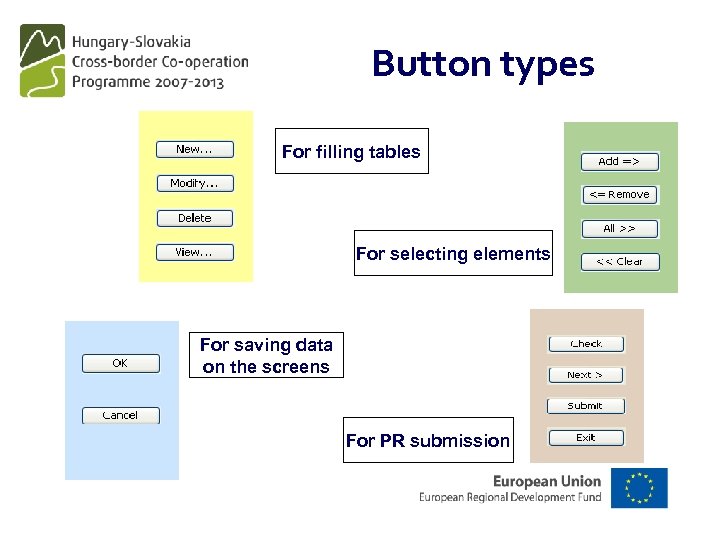 Button types For filling tables For selecting elements For saving data on the screens For PR submission
 Infrastructure I. • Online system (accessible via Internet) • Technology: • Java front end • Oracle database • Language of the system: English • Encrypted client-server communication (Certificate: personal key usage) • Programmes applied by the system: Internet Explorer/Mozilla Firefox, MS Office, Adobe Pdf reader, Java
 Infrastructure II. • In case of network problems: „Please try to log in again as network problem has occurred” • In case of inactive period lasting at least 20 minutes (not used) the system automatically disconnects the link between the client and the server for security reasons and sends the message seen above • The system asks the confirmation of the installed Certificate (e. g. inactive status, document generation) 1 project – 1 online user at once
 Information VÁTI Nonprofit Kft. Directorate of European Cooperation Programmes Process management and IMIS unit 1016 Budapest, Gellérthegy u. 30 -32. Éva Koi – IMIR 2007 -2013 projektvezető, Péter Szabó – IMIR informatikai rendszervező E-mail: imisoffice@vati. hu
 Thank you for your kind attention!