 Скачать презентацию Knowledge Tools for website design Goals
fa59e25be9bd8abe453ef0e7d4d7b59d.ppt
- Количество слайдов: 17




Knowledge & Tools for website design
Goals • Understand the difference between absolute and relative links. • Create. html documents with both absolute and relatative links • Understand what publishing does • Use the File Transfer Software to publish
![[C, 4] is an absolute address 1 2 3 4 5 6 Go to](https://present5.com/presentation/fa59e25be9bd8abe453ef0e7d4d7b59d/image-3.jpg "[C, 4] is an absolute address 1 2 3 4 5 6 Go to")
[C, 4] is an absolute address 1 2 3 4 5 6 Go to the intersection Ave C and Street 4. 7 8 9 10 11 12 A B C D E F G H I J K L {South 5, East 4} is a relative address
Absolute vs Relative • Absolute – A fixed position according to the global grid (or position system) • Relative – Directions to somewhere from your current starting position.
![Grids are not the only position system [45 degrees, 4 inches] 45 o](https://present5.com/presentation/fa59e25be9bd8abe453ef0e7d4d7b59d/image-5.jpg "Grids are not the only position system [45 degrees, 4 inches] 45 o")
Grids are not the only position system [45 degrees, 4 inches] 45 o
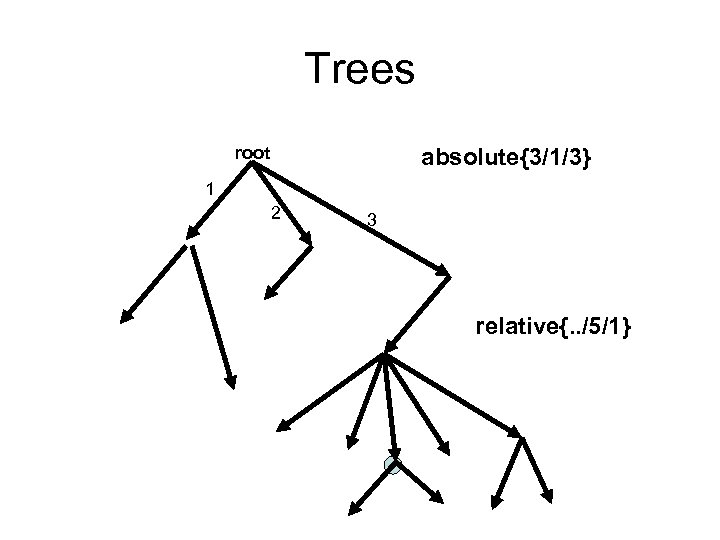
Trees root absolute{3/1/3} 1 2 3 relative{. . /5/1}
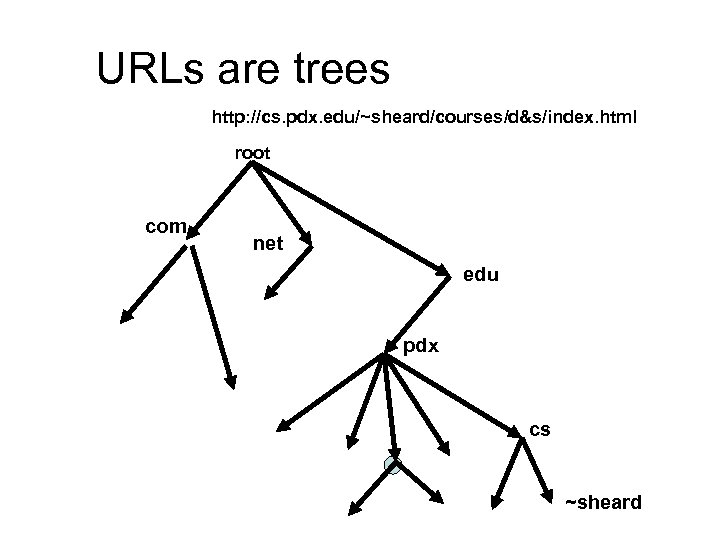
URLs are trees http: //cs. pdx. edu/~sheard/courses/d&s/index. html root com net edu pdx cs ~sheard
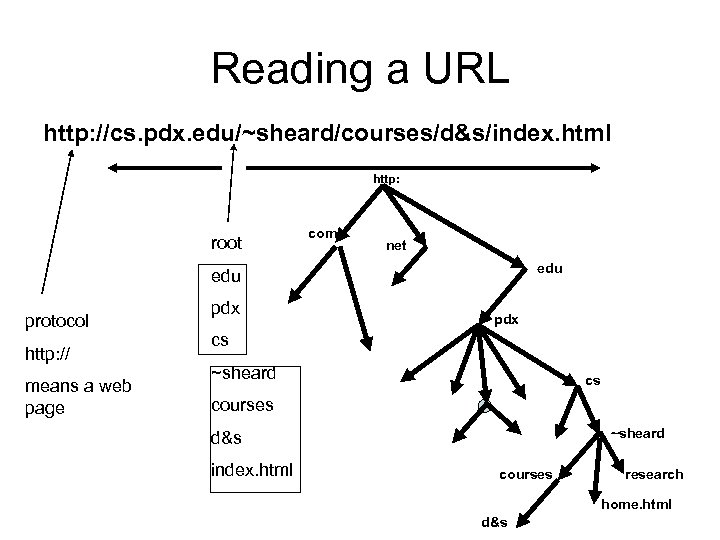
Reading a URL http: //cs. pdx. edu/~sheard/courses/d&s/index. html http: root com net edu protocol http: // means a web page pdx cs ~sheard cs courses ~sheard d&s index. html courses research home. html d&s
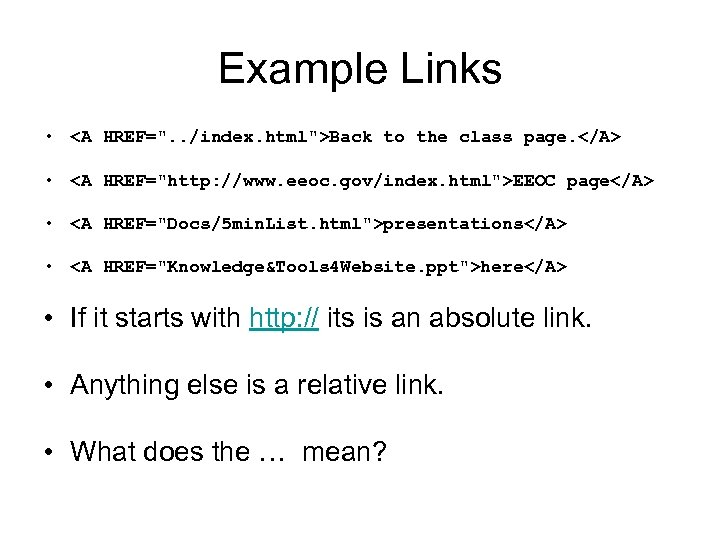
Example Links • <A HREF=". . /index. html">Back to the class page. </A> • <A HREF="http: //www. eeoc. gov/index. html">EEOC page</A> • <A HREF="Docs/5 min. List. html">presentations</A> • <A HREF="Knowledge&Tools 4 Website. ppt">here</A> • If it starts with http: // its is an absolute link. • Anything else is a relative link. • What does the … mean?
Creating pages • We can create pages with a tool – Front Page – Dream Weaver – Iweb – Publisher • Or we can edit. html files. • Its worth knowing how to read some html, because this helps you debug
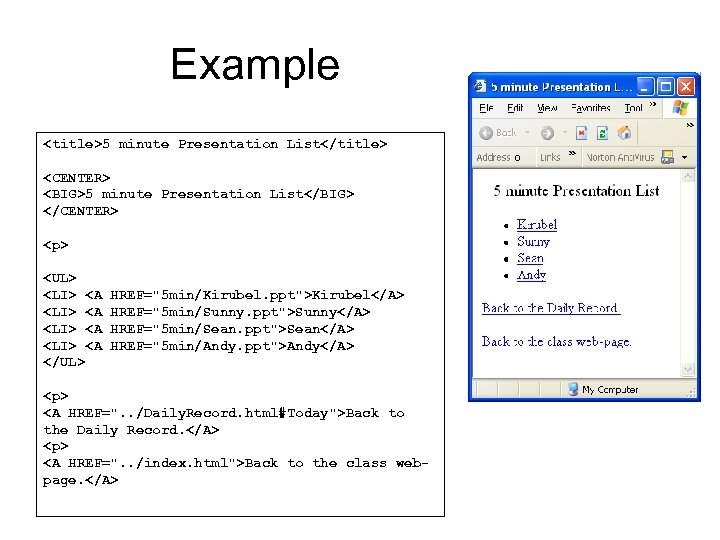
Example <title>5 minute Presentation List</title> <CENTER> <BIG>5 minute Presentation List</BIG> </CENTER> <p> <UL> <LI> <A </UL> HREF="5 min/Kirubel. ppt">Kirubel</A> HREF="5 min/Sunny. ppt">Sunny</A> HREF="5 min/Sean. ppt">Sean</A> HREF="5 min/Andy. ppt">Andy</A> <p> <A HREF=". . /Daily. Record. html#Today">Back to the Daily Record. </A> <p> <A HREF=". . /index. html">Back to the class webpage. </A>
Why do we need to publish • Every web page is reachable from the web root (http: // for the pages we will build) • The H drive is not accessible. • The public_html on the odin machines are – e. g. odin. pdx. edu/~sheard – the public_html is implicit (we don’t have to write it down).
Tools for publishing • To publish we need to create a set of files and directories reachable from the www root. • The public_html directory in your unix home directory is set up to be reachable – e. g. odin. pdx. edu/~sheard • Copy files by using – File Transfer Tool (see next few slides) – Myfiles (only works on windows)
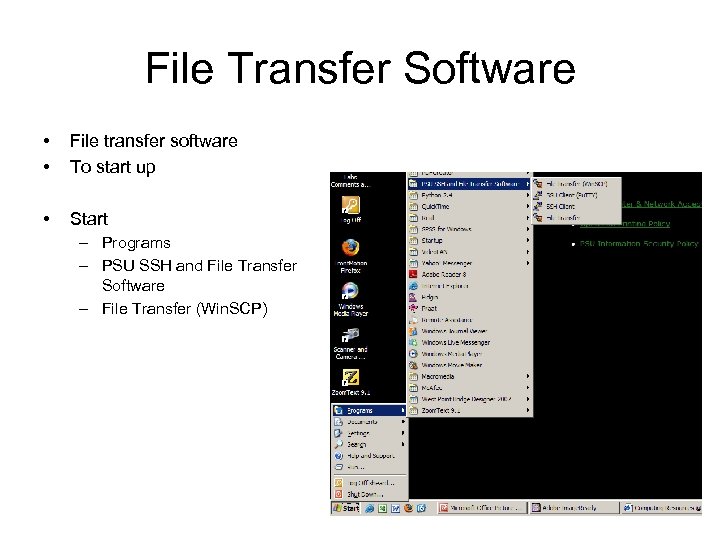
File Transfer Software • • File transfer software To start up • Start – Programs – PSU SSH and File Transfer Software – File Transfer (Win. SCP)
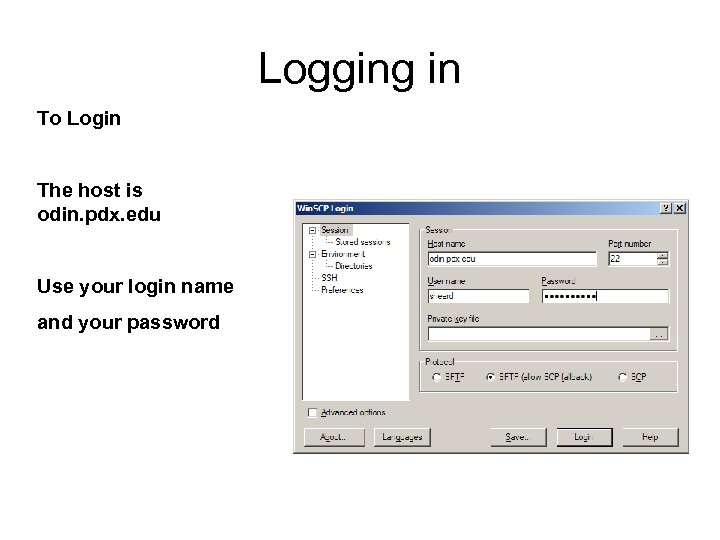
Logging in To Login The host is odin. pdx. edu Use your login name and your password
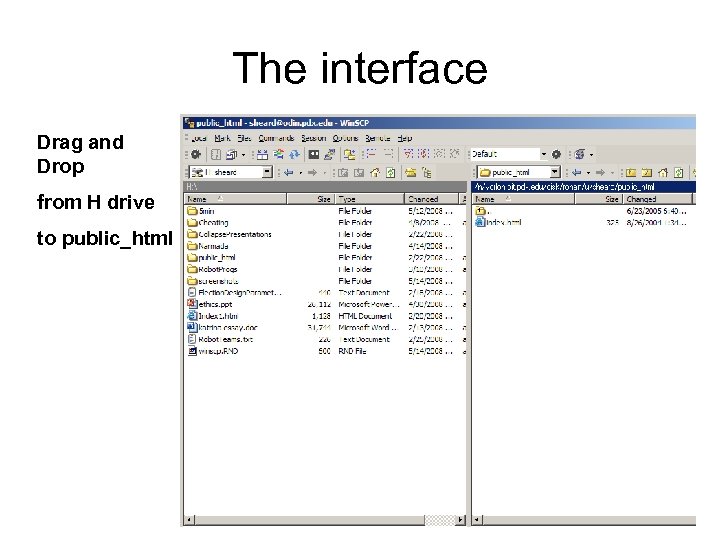
The interface Drag and Drop from H drive to public_html
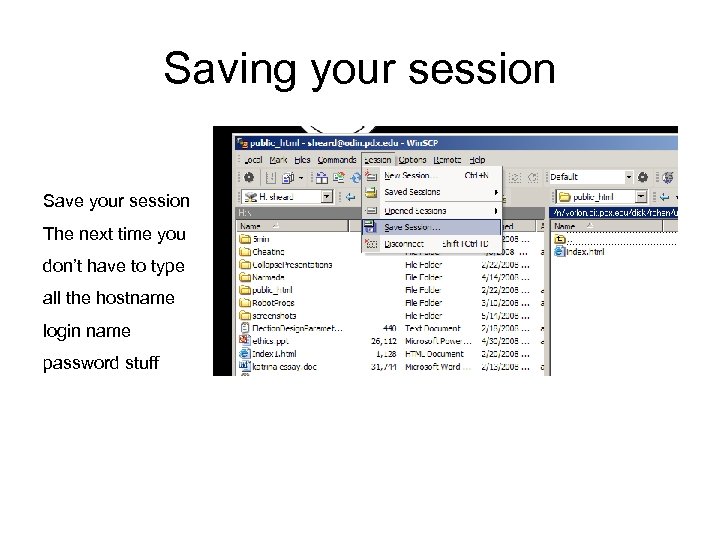
Saving your session Save your session The next time you don’t have to type all the hostname login name password stuff
Скачать презентацию Knowledge Tools for website design Goals
fa59e25be9bd8abe453ef0e7d4d7b59d.ppt