Скачать презентацию JEOL 7000 F Exploring the JEOL Control Program
62331ed35b25c014ed16412b1f924464.ppt
- Количество слайдов: 44
 JEOL 7000 F Exploring the JEOL Control Program
 Goals • Look at all of the menu items and their functions. – Note where icon brings up the same function. • Look at any items not in menu but brought up by icons and vice versa. • Other items of interest?
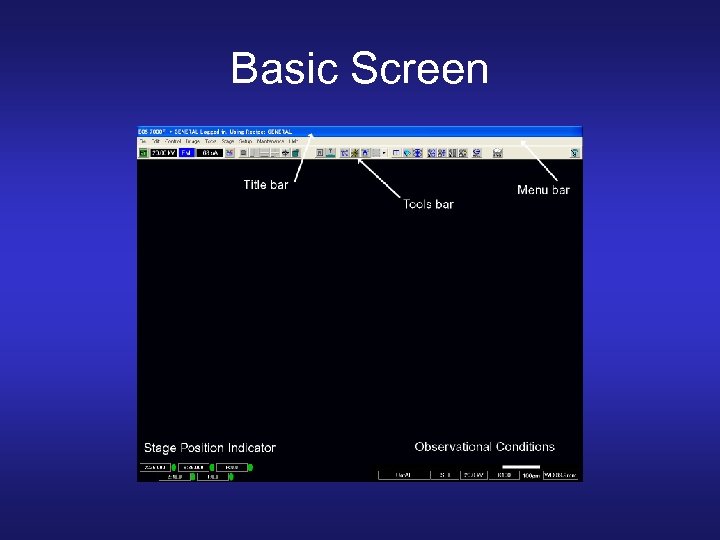 Basic Screen
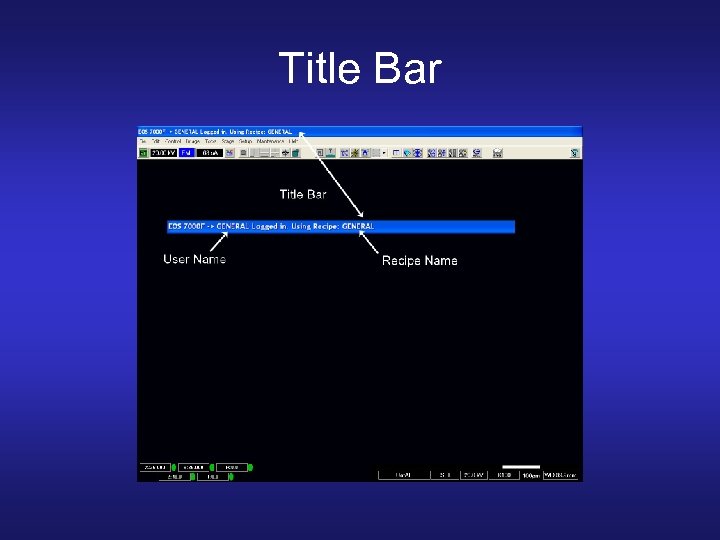 Title Bar
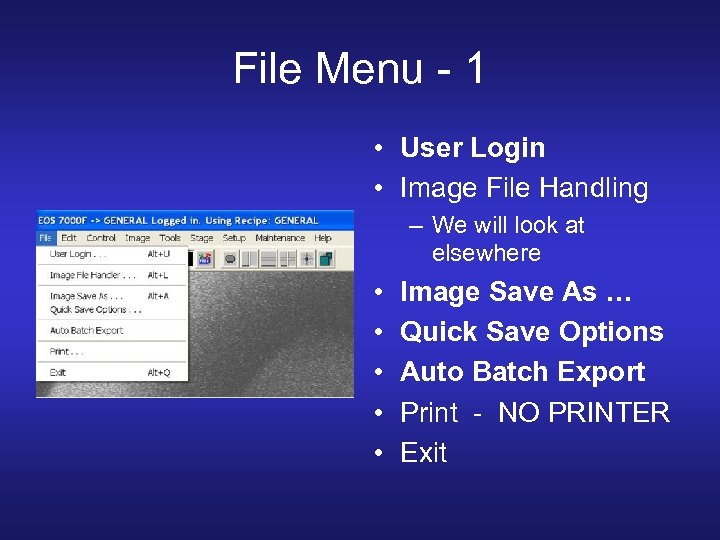 File Menu - 1 • User Login • Image File Handling – We will look at elsewhere • • • Image Save As … Quick Save Options Auto Batch Export Print - NO PRINTER Exit
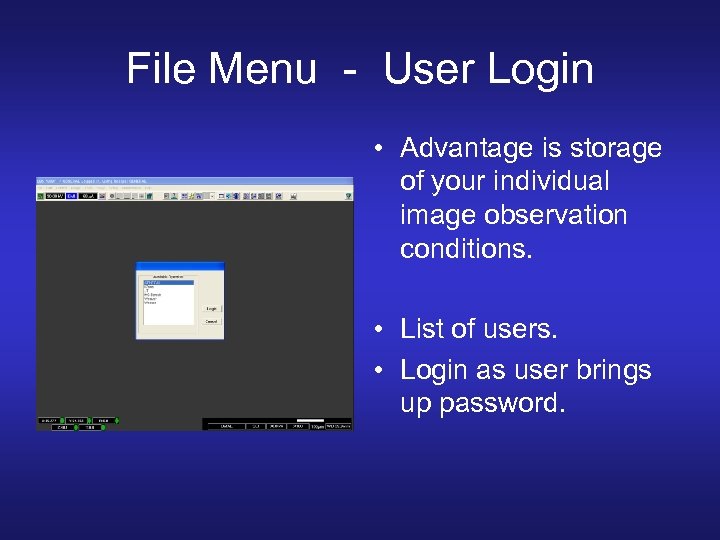 File Menu - User Login • Advantage is storage of your individual image observation conditions. • List of users. • Login as user brings up password.
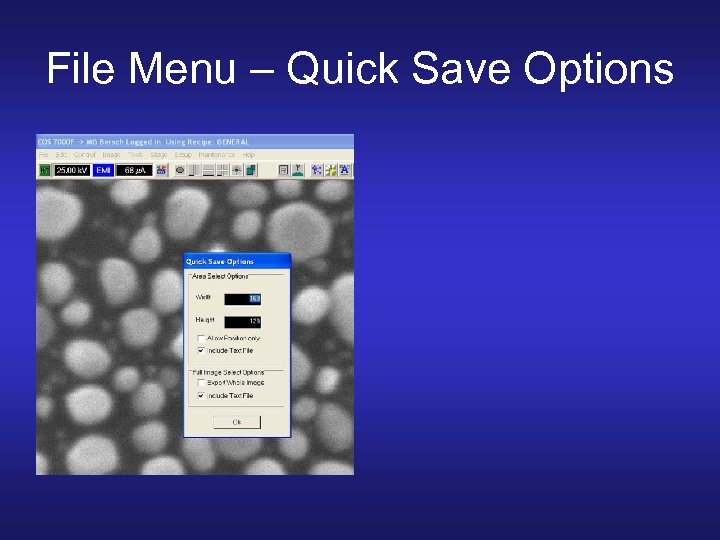 File Menu – Quick Save Options
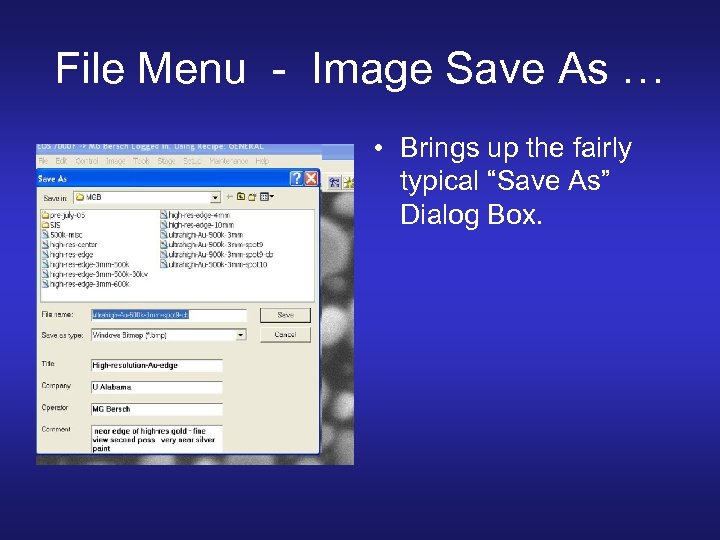 File Menu - Image Save As … • Brings up the fairly typical “Save As” Dialog Box.
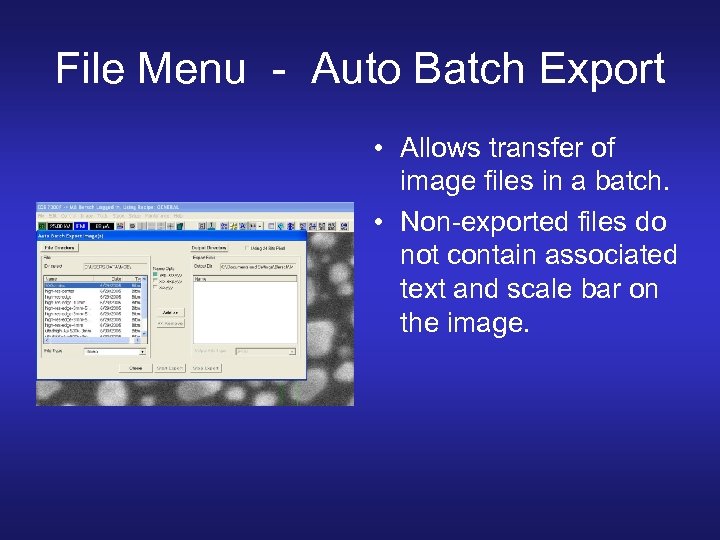 File Menu - Auto Batch Export • Allows transfer of image files in a batch. • Non-exported files do not contain associated text and scale bar on the image.
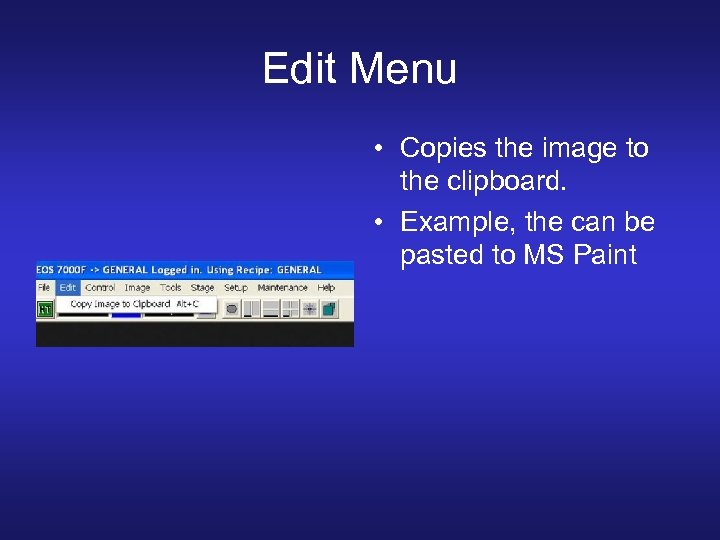 Edit Menu • Copies the image to the clipboard. • Example, the can be pasted to MS Paint
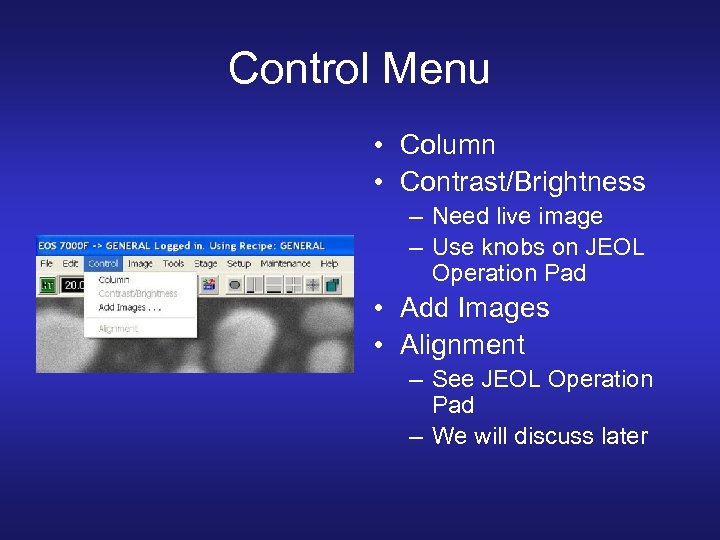 Control Menu • Column • Contrast/Brightness – Need live image – Use knobs on JEOL Operation Pad • Add Images • Alignment – See JEOL Operation Pad – We will discuss later
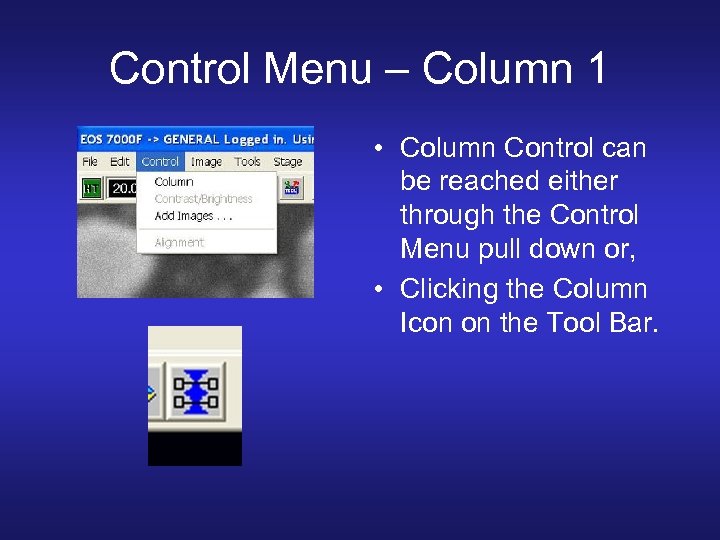 Control Menu – Column 1 • Column Control can be reached either through the Control Menu pull down or, • Clicking the Column Icon on the Tool Bar.
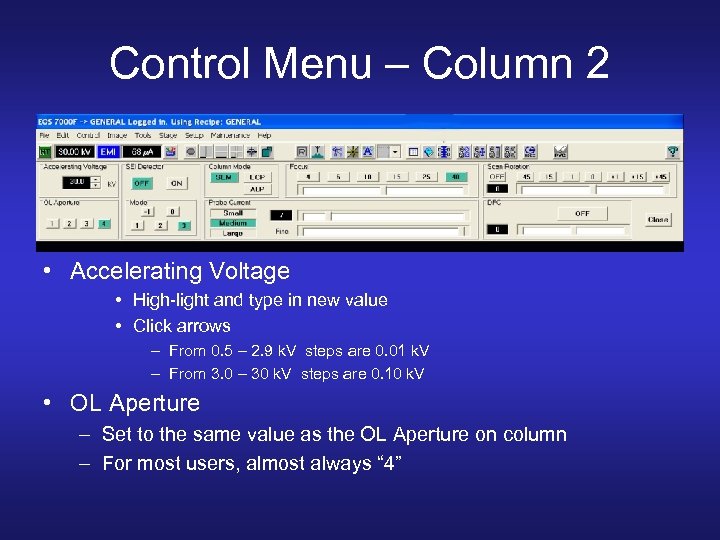 Control Menu – Column 2 • Accelerating Voltage • High-light and type in new value • Click arrows – From 0. 5 – 2. 9 k. V steps are 0. 01 k. V – From 3. 0 – 30 k. V steps are 0. 10 k. V • OL Aperture – Set to the same value as the OL Aperture on column – For most users, almost always “ 4”
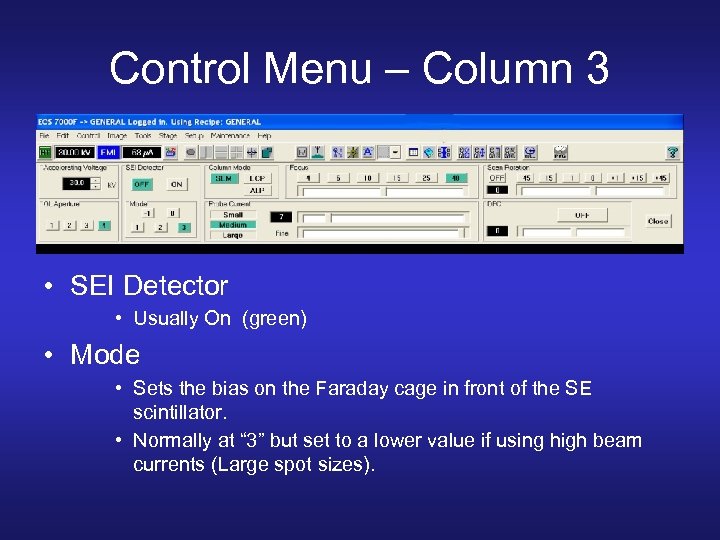 Control Menu – Column 3 • SEI Detector • Usually On (green) • Mode • Sets the bias on the Faraday cage in front of the SE scintillator. • Normally at “ 3” but set to a lower value if using high beam currents (Large spot sizes).
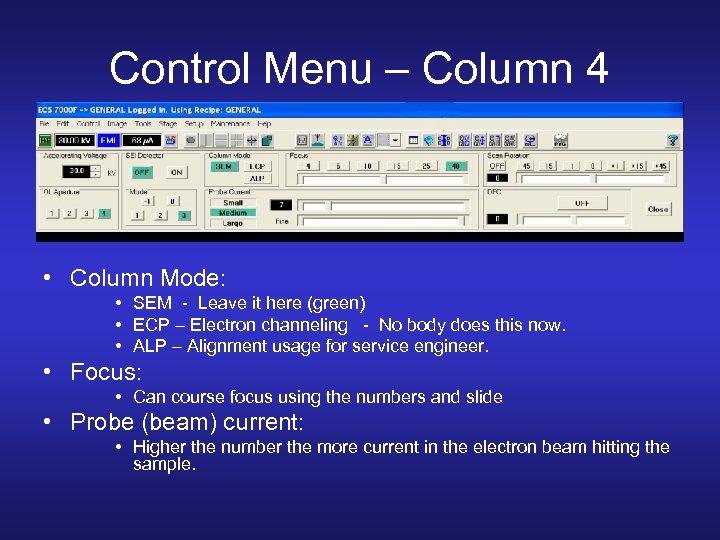 Control Menu – Column 4 • Column Mode: • SEM - Leave it here (green) • ECP – Electron channeling - No body does this now. • ALP – Alignment usage for service engineer. • Focus: • Can course focus using the numbers and slide • Probe (beam) current: • Higher the number the more current in the electron beam hitting the sample.
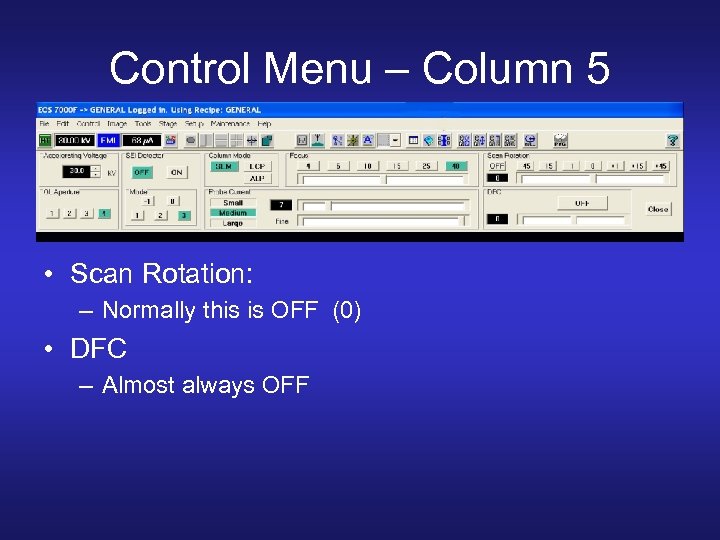 Control Menu – Column 5 • Scan Rotation: – Normally this is OFF (0) • DFC – Almost always OFF
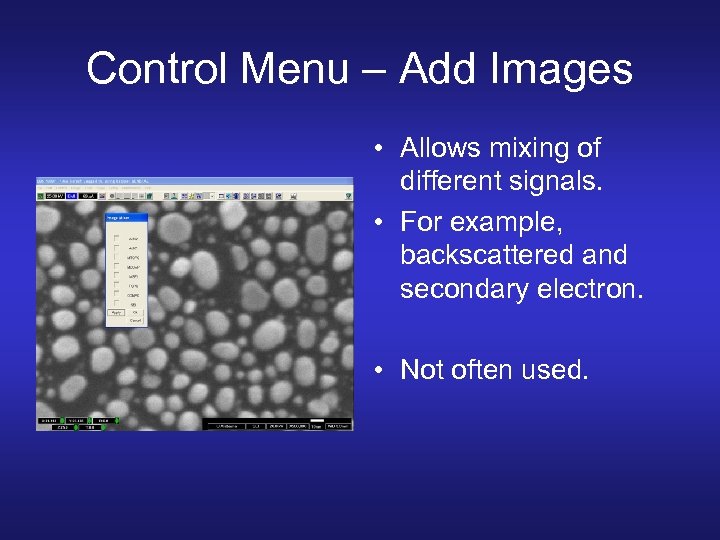 Control Menu – Add Images • Allows mixing of different signals. • For example, backscattered and secondary electron. • Not often used.
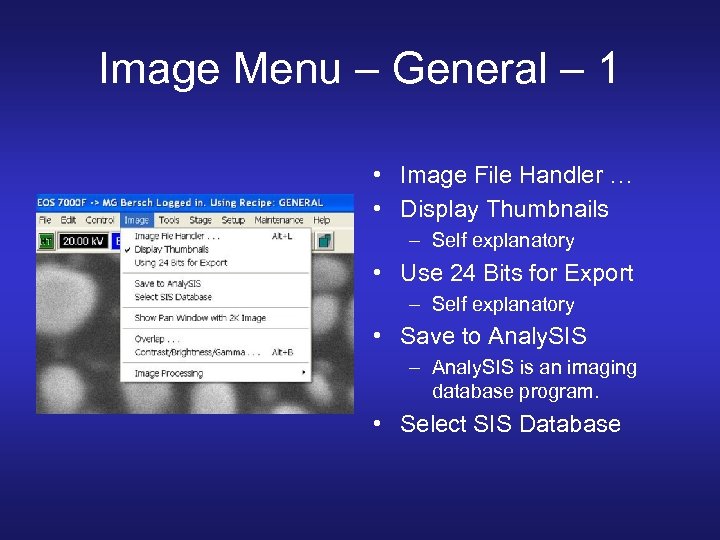 Image Menu – General – 1 • Image File Handler … • Display Thumbnails – Self explanatory • Use 24 Bits for Export – Self explanatory • Save to Analy. SIS – Analy. SIS is an imaging database program. • Select SIS Database
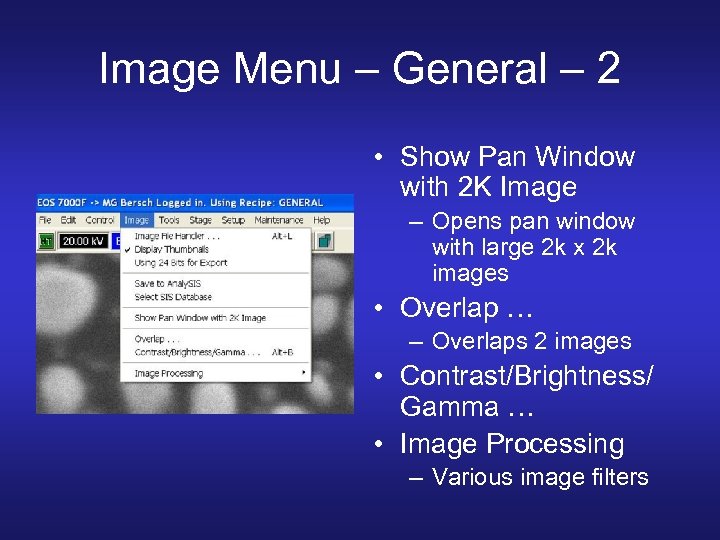 Image Menu – General – 2 • Show Pan Window with 2 K Image – Opens pan window with large 2 k x 2 k images • Overlap … – Overlaps 2 images • Contrast/Brightness/ Gamma … • Image Processing – Various image filters
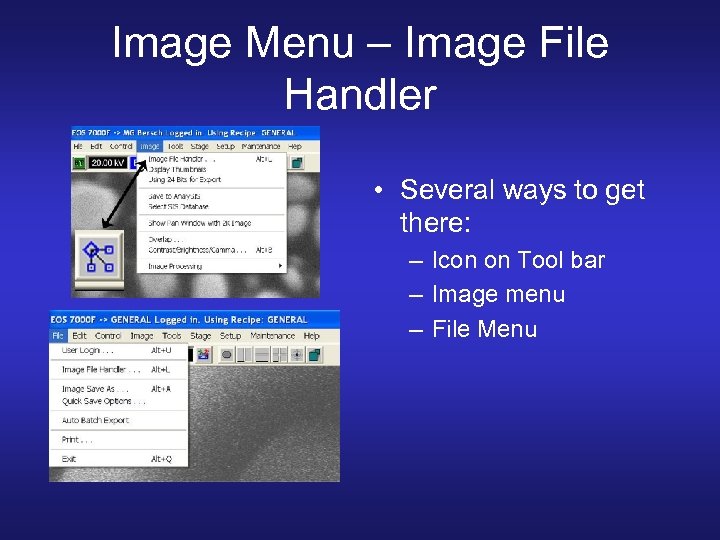 Image Menu – Image File Handler • Several ways to get there: – Icon on Tool bar – Image menu – File Menu
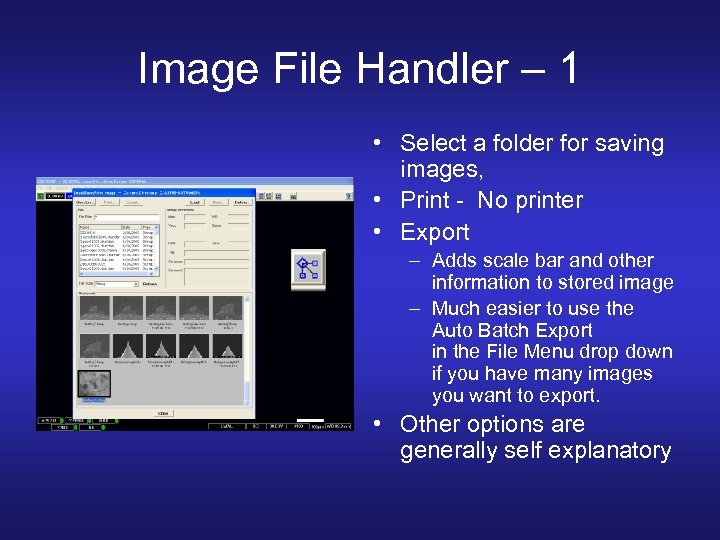 Image File Handler – 1 • Select a folder for saving images, • Print - No printer • Export – Adds scale bar and other information to stored image – Much easier to use the Auto Batch Export in the File Menu drop down if you have many images you want to export. • Other options are generally self explanatory
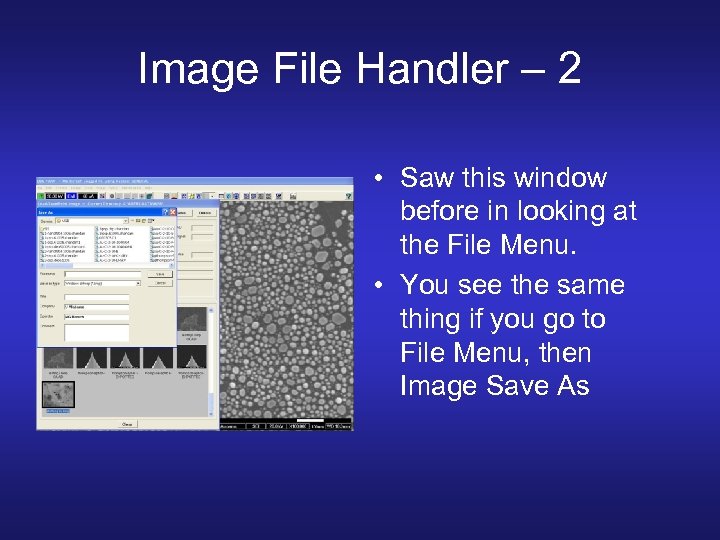 Image File Handler – 2 • Saw this window before in looking at the File Menu. • You see the same thing if you go to File Menu, then Image Save As
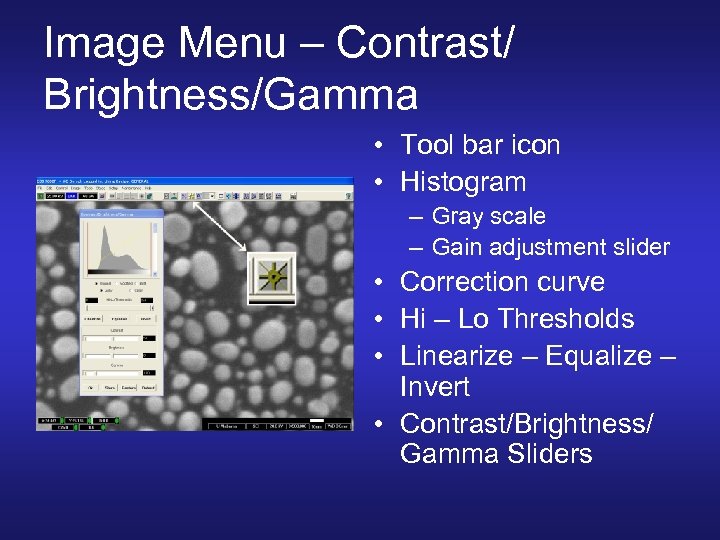 Image Menu – Contrast/ Brightness/Gamma • Tool bar icon • Histogram – Gray scale – Gain adjustment slider • Correction curve • Hi – Lo Thresholds • Linearize – Equalize – Invert • Contrast/Brightness/ Gamma Sliders
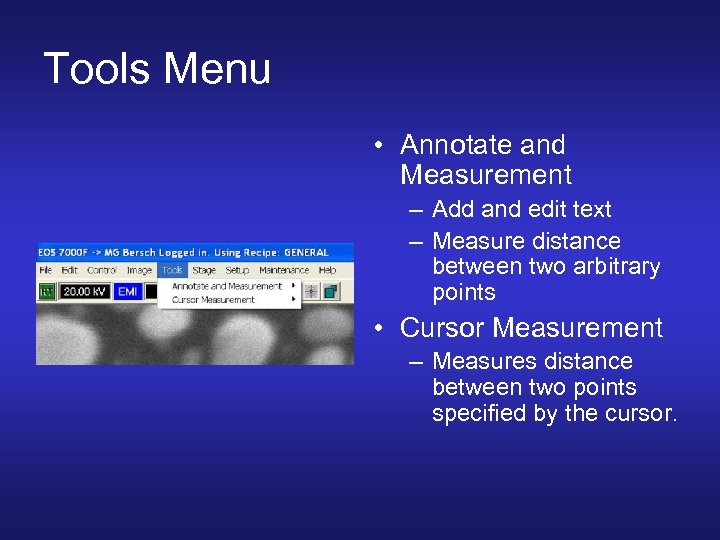 Tools Menu • Annotate and Measurement – Add and edit text – Measure distance between two arbitrary points • Cursor Measurement – Measures distance between two points specified by the cursor.
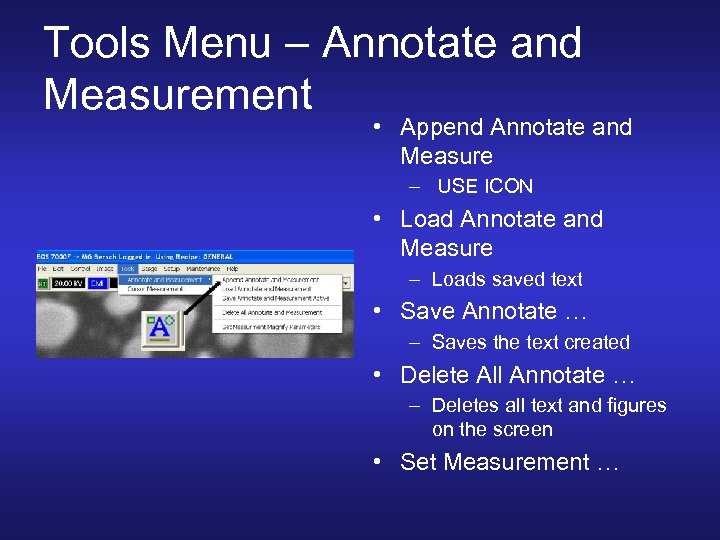 Tools Menu – Annotate and Measurement • Append Annotate and Measure – USE ICON • Load Annotate and Measure – Loads saved text • Save Annotate … – Saves the text created • Delete All Annotate … – Deletes all text and figures on the screen • Set Measurement …
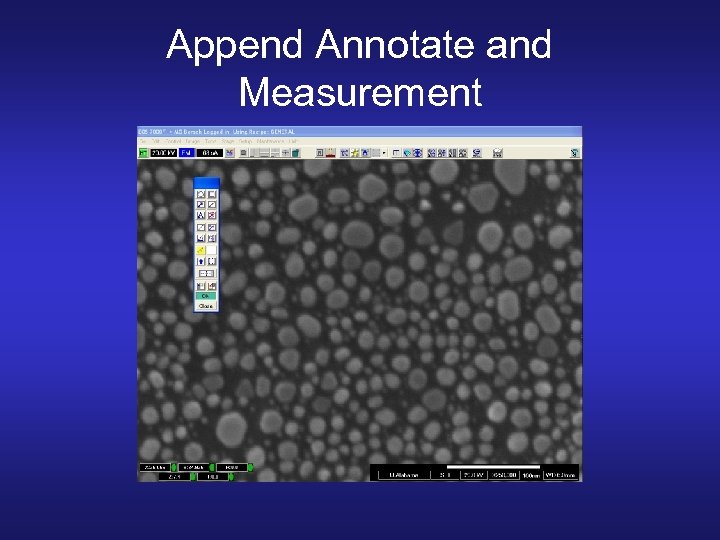 Append Annotate and Measurement
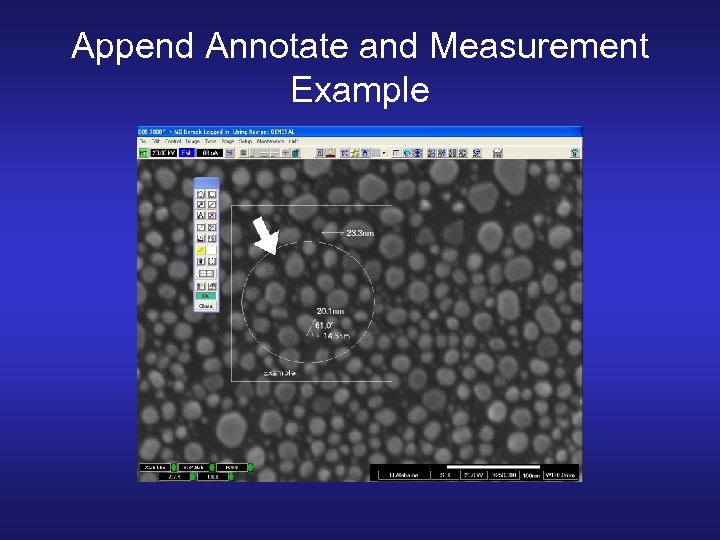 Append Annotate and Measurement Example
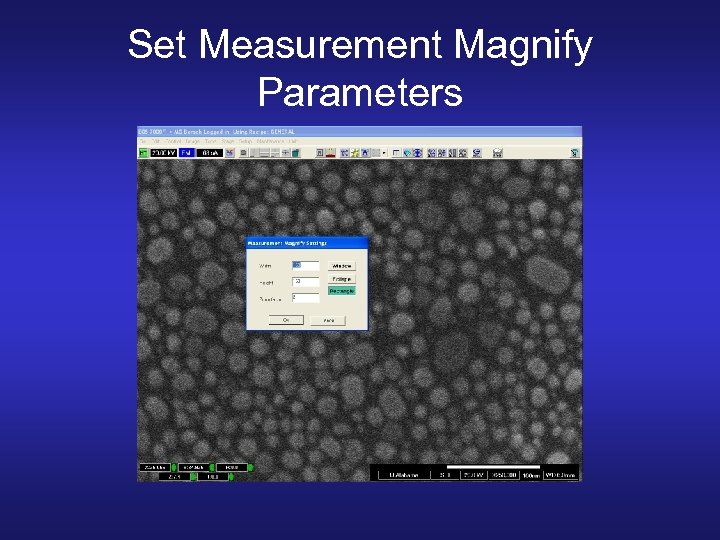 Set Measurement Magnify Parameters
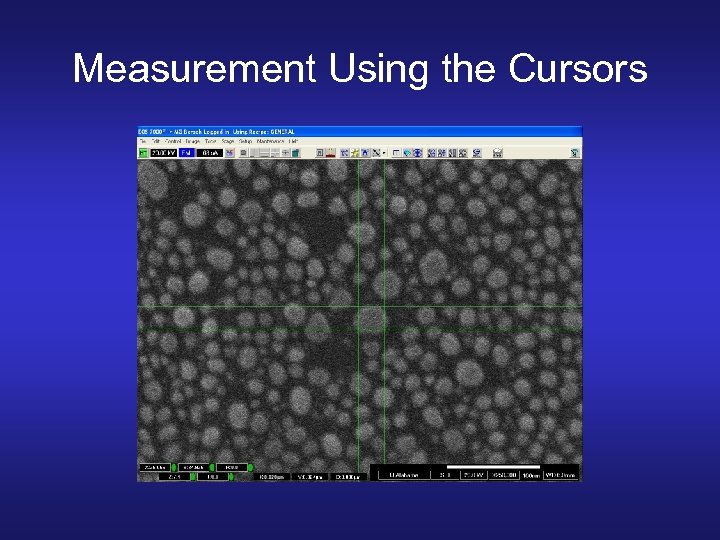 Measurement Using the Cursors
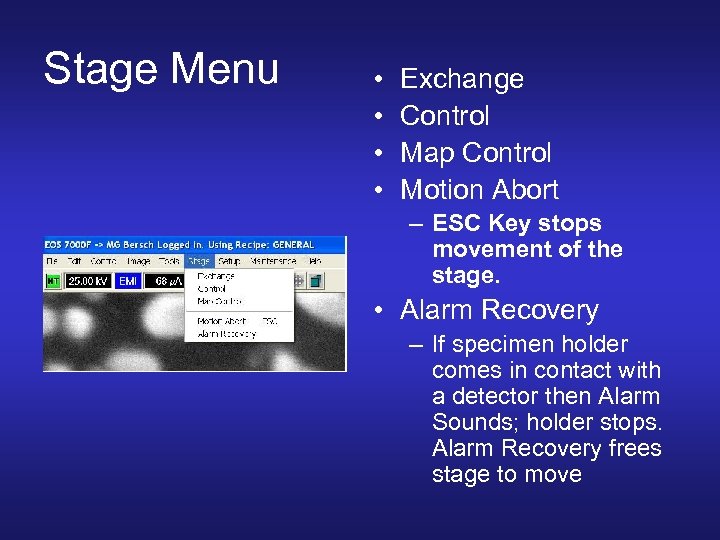 Stage Menu • • Exchange Control Map Control Motion Abort – ESC Key stops movement of the stage. • Alarm Recovery – If specimen holder comes in contact with a detector then Alarm Sounds; holder stops. Alarm Recovery frees stage to move
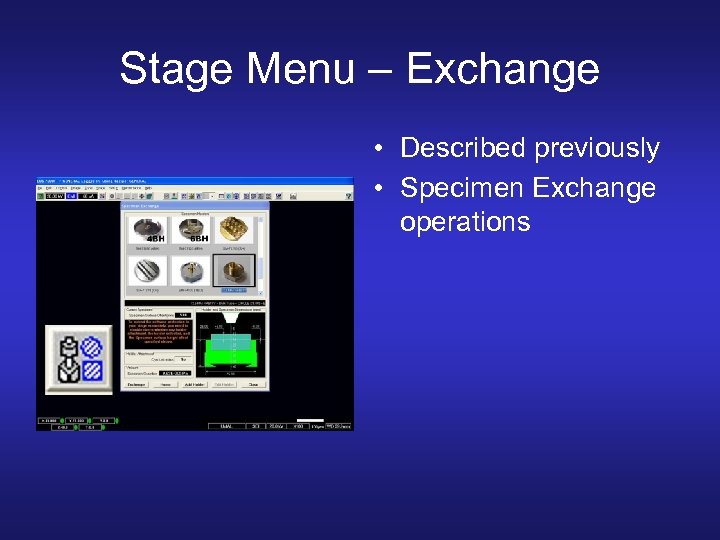 Stage Menu – Exchange • Described previously • Specimen Exchange operations
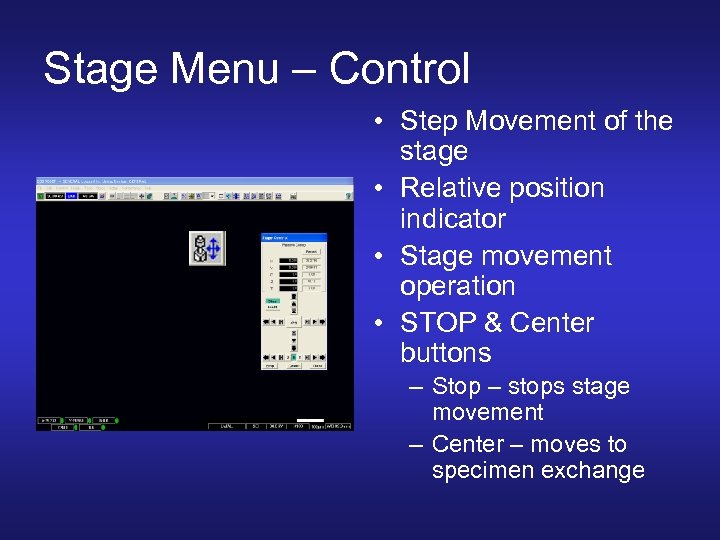 Stage Menu – Control • Step Movement of the stage • Relative position indicator • Stage movement operation • STOP & Center buttons – Stop – stops stage movement – Center – moves to specimen exchange
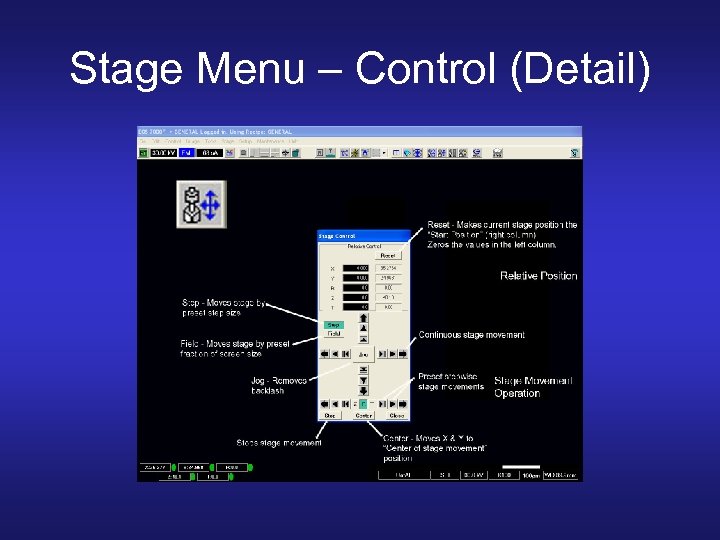 Stage Menu – Control (Detail)
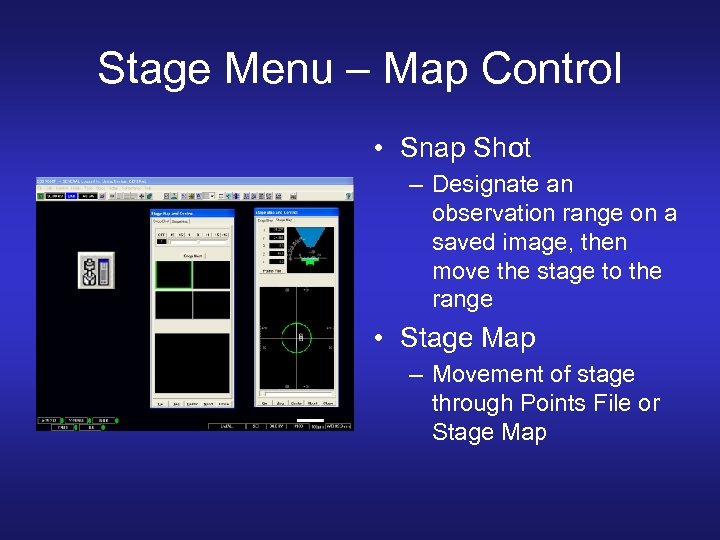 Stage Menu – Map Control • Snap Shot – Designate an observation range on a saved image, then move the stage to the range • Stage Map – Movement of stage through Points File or Stage Map
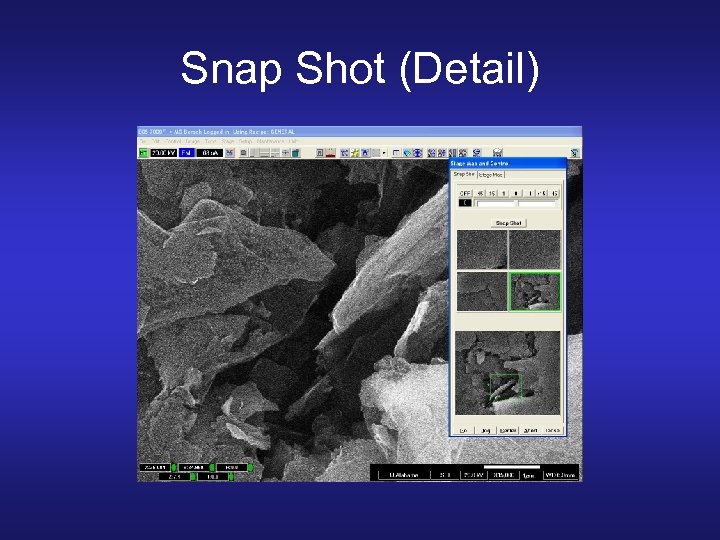 Snap Shot (Detail)
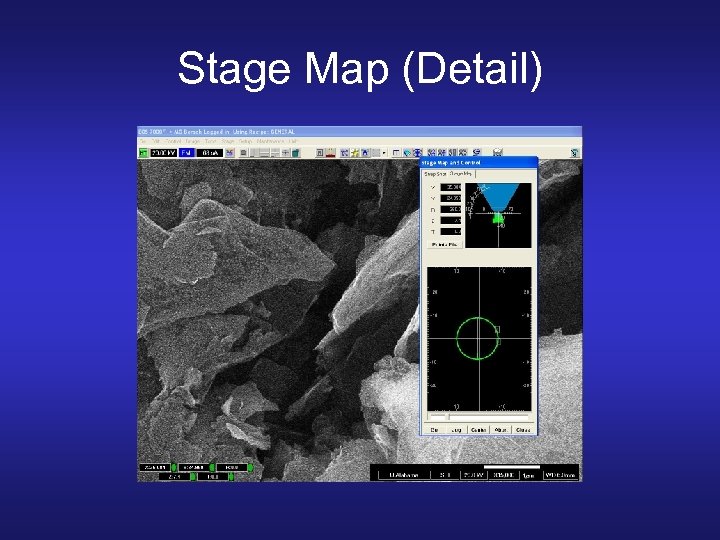 Stage Map (Detail)
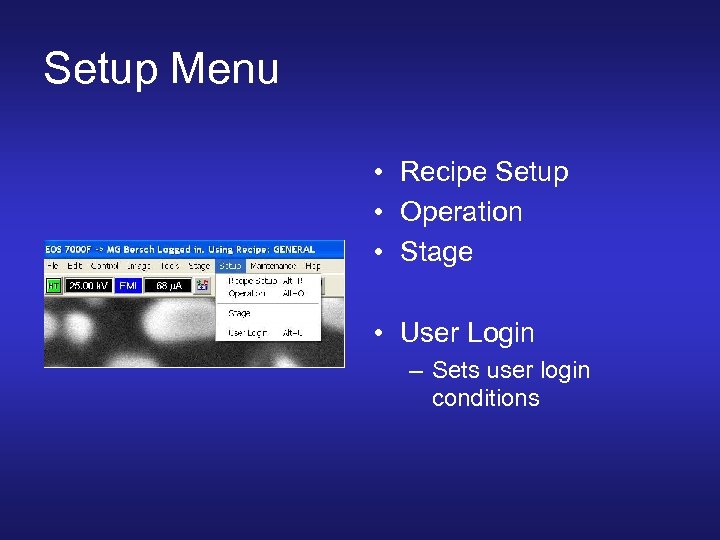 Setup Menu • Recipe Setup • Operation • Stage • User Login – Sets user login conditions
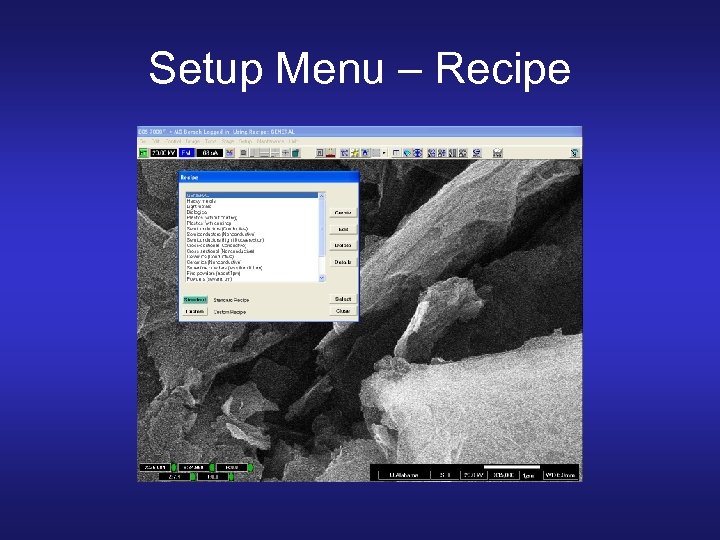 Setup Menu – Recipe
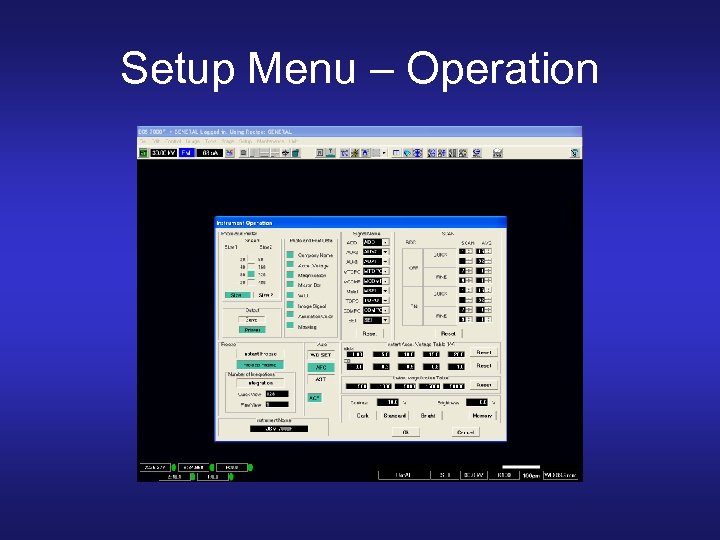 Setup Menu – Operation
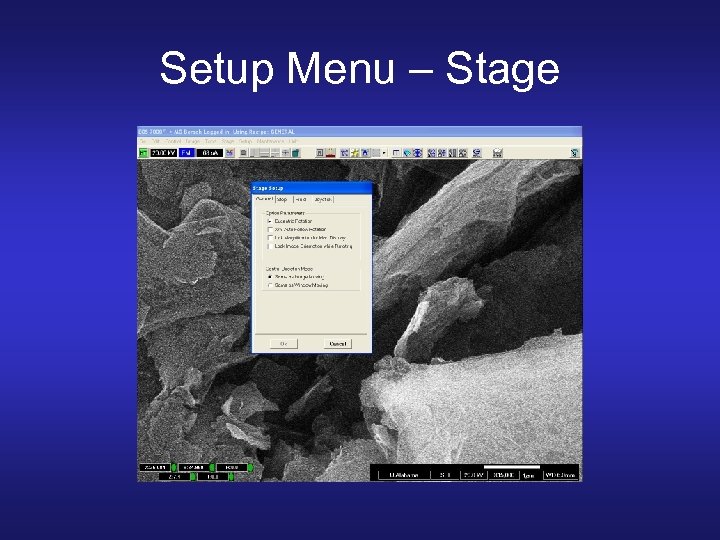 Setup Menu – Stage
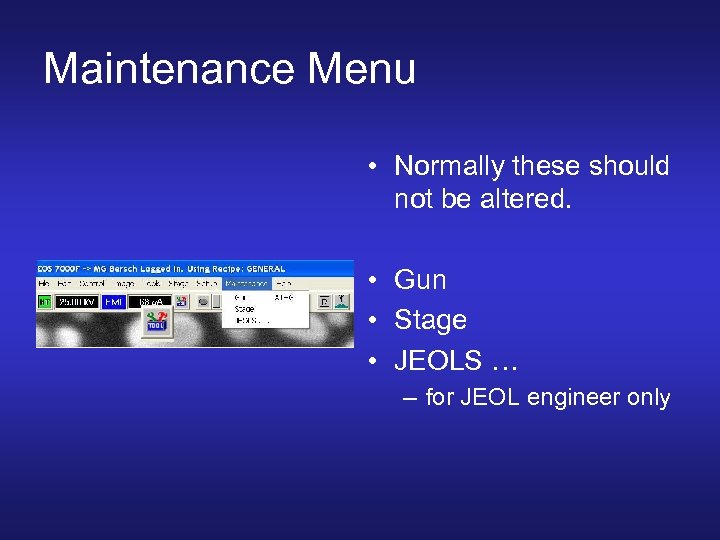 Maintenance Menu • Normally these should not be altered. • Gun • Stage • JEOLS … – for JEOL engineer only
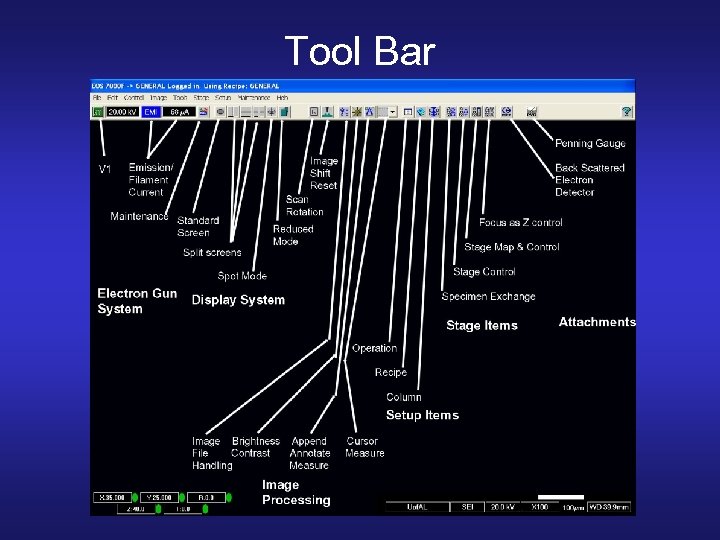 Tool Bar
 Other Items • • • REPLACE ALL TOOLS Dispose of trash Leave the lab in good order. LOG IN / LOG OUT Note any problems