 Скачать презентацию Javascript DOM Peter Atkinson 1 Objectives
6d114aa64a472bb9318d69d39abb17bc.ppt
- Количество слайдов: 38



Javascript DOM Peter Atkinson 1
Objectives • Understand the nature and structure of the DOM • Add and remove content from the page • Access and change element attributes – including source and class • Insert markup into a page using inner. HTML • Change style attribute using Javascript 2
What is the DOM? • • Browser Wars 1997 W 3 C standardised DOM 1998 End of ‘browser sniffing’ Document Object Model – an API that can be used by any language. A knowledge of the DOM will help with PHP or XML 3
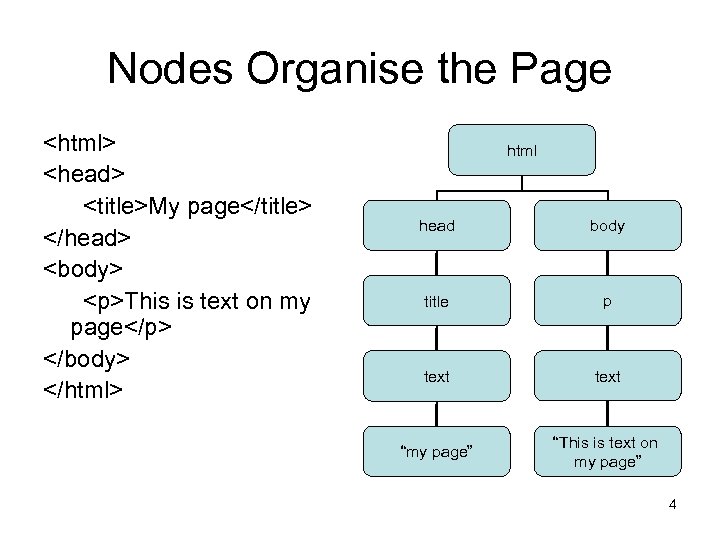
Nodes Organise the Page <html> <head> <title>My page</title> </head> <body> <p>This is text on my page</p> </body> </html> html head body title p text “my page” “This is text on my page” 4
What is a Node? • Element Node – contains an HTML tag • Text Node – contains text • Text Nodes are contained in Element Nodes 5
Adding Some Text To A Page There are five steps: 1. Create a new Element 2. Create new Text 3. Append the new Text to the new Element 4. Find an existing Element 5. Append the new Element to the existing Element 6
1. Create New Element Node Let us, say create a new <p> tag (element) so that we can attach some text to it For convenience, we can put the new object into a variable var new. Node; new. Node = document. create. Element(“p”) 7
2. Create a Text Node Next, create a text node Again, for convenience, we can put the new text node into a variable var new. Text; new. Text = document. create. Text. Node(“Some text. ”) 8
3. Attach the New Text Node to the New Element To put the text into the page, we have to attach the text node to the new HTML element: new. Node. append. Child(new. Text); 9
4. Find an Existing Element The new element with our text node attached to it is still floating around in a Javascript world. We need to find an existing element so that we can attach it For convenience, we shall put this existing element into a variable var doc. Element; doc. Element = document. get. Element. By. Id(“this. Location”); 10
5. Append the New Element to the Existing Element To insert our text into the page, we now have to append the new element to the existing element doc. Element. append. Child(new. Node); 11
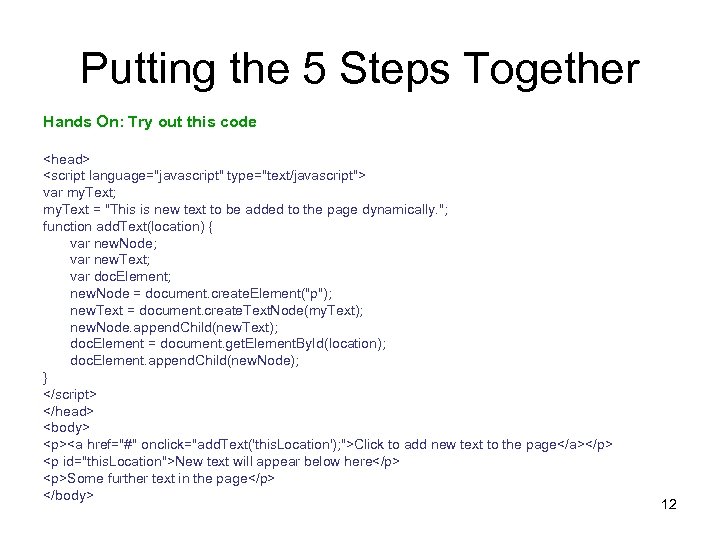
Putting the 5 Steps Together Hands On: Try out this code <head> <script language="javascript" type="text/javascript"> var my. Text; my. Text = "This is new text to be added to the page dynamically. "; function add. Text(location) { var new. Node; var new. Text; var doc. Element; new. Node = document. create. Element("p"); new. Text = document. create. Text. Node(my. Text); new. Node. append. Child(new. Text); doc. Element = document. get. Element. By. Id(location); doc. Element. append. Child(new. Node); } </script> </head> <body> <p><a href="#" onclick="add. Text('this. Location'); ">Click to add new text to the page</a></p> <p id="this. Location">New text will appear below here</p> <p>Some further text in the page</p> </body> 12
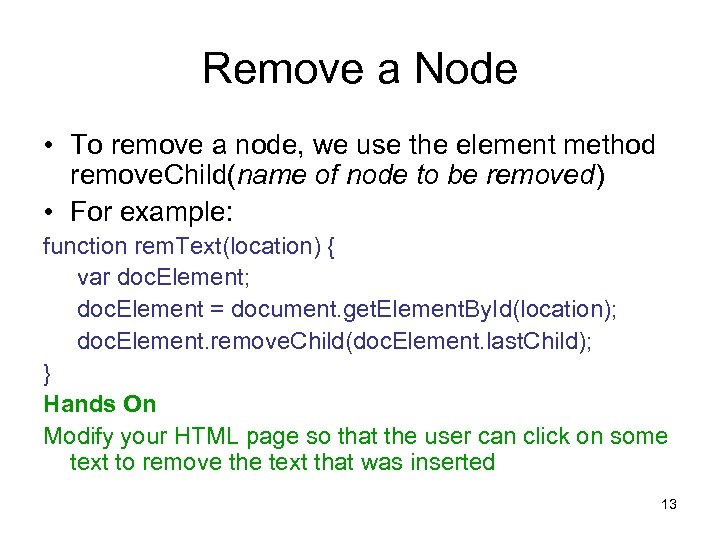
Remove a Node • To remove a node, we use the element method remove. Child(name of node to be removed) • For example: function rem. Text(location) { var doc. Element; doc. Element = document. get. Element. By. Id(location); doc. Element. remove. Child(doc. Element. last. Child); } Hands On Modify your HTML page so that the user can click on some text to remove the text that was inserted 13
get. Elements. By. Tag. Name() • get. Element. By. Id() allows you to work with elements by their individual id but often you will want to work with a group of elements • get. Elements. By. Tag. Name() allows you to work with groups of elements. This method returns an array 14
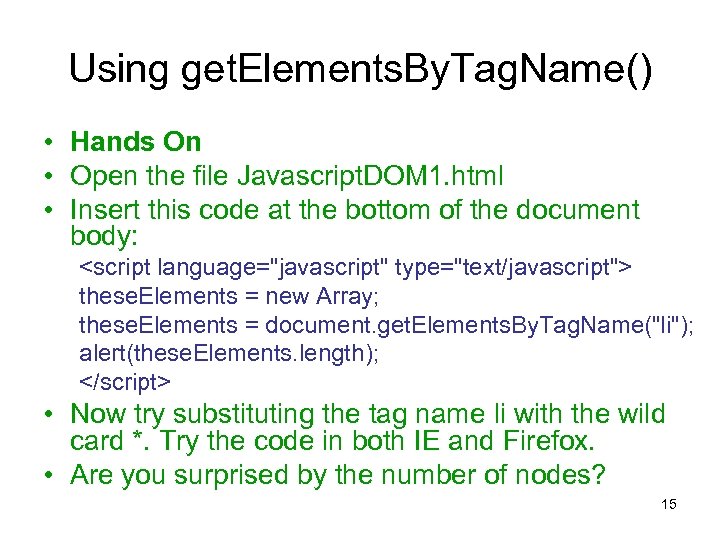
Using get. Elements. By. Tag. Name() • Hands On • Open the file Javascript. DOM 1. html • Insert this code at the bottom of the document body: <script language="javascript" type="text/javascript"> these. Elements = new Array; these. Elements = document. get. Elements. By. Tag. Name("li"); alert(these. Elements. length); </script> • Now try substituting the tag name li with the wild card *. Try the code in both IE and Firefox. • Are you surprised by the number of nodes? 15
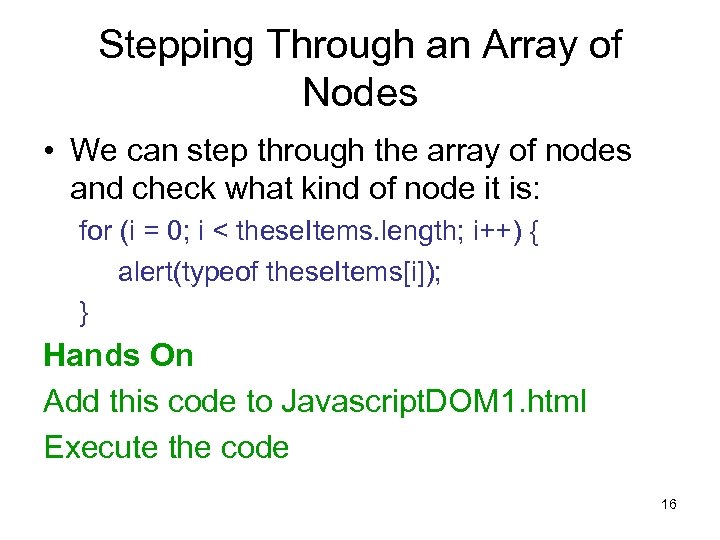
Stepping Through an Array of Nodes • We can step through the array of nodes and check what kind of node it is: for (i = 0; i < these. Items. length; i++) { alert(typeof these. Items[i]); } Hands On Add this code to Javascript. DOM 1. html Execute the code 16
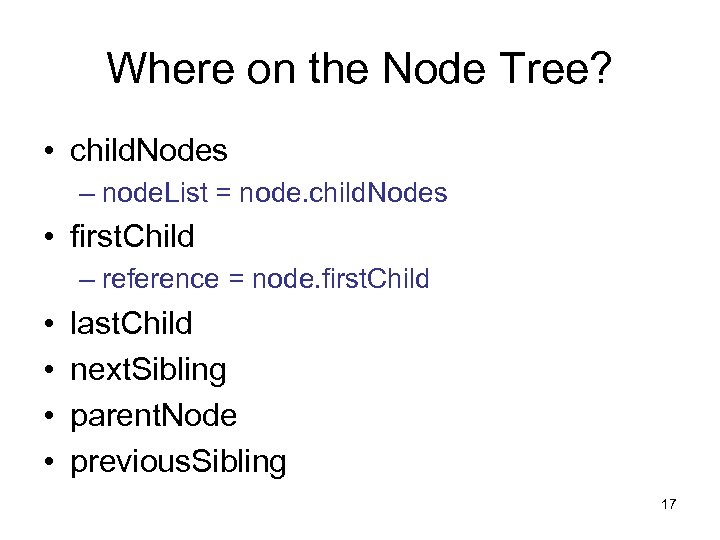
Where on the Node Tree? • child. Nodes – node. List = node. child. Nodes • first. Child – reference = node. first. Child • • last. Child next. Sibling parent. Node previous. Sibling 17
Attribute Nodes • We can get at the attributes of an element through attribute nodes • Attribute nodes, like text nodes are always contained in element nodes • We shall look at methods: – get. Attribute() – set. Attribute() 18
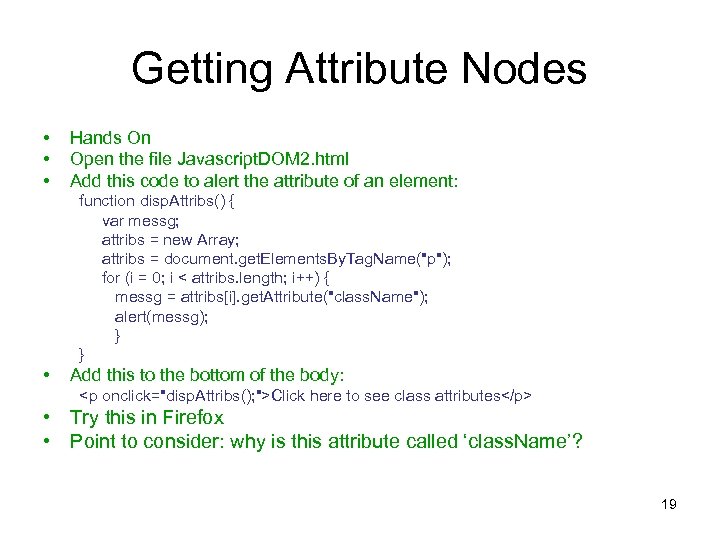
Getting Attribute Nodes • • • Hands On Open the file Javascript. DOM 2. html Add this code to alert the attribute of an element: function disp. Attribs() { var messg; attribs = new Array; attribs = document. get. Elements. By. Tag. Name("p"); for (i = 0; i < attribs. length; i++) { messg = attribs[i]. get. Attribute("class. Name"); alert(messg); } } • Add this to the bottom of the body: <p onclick="disp. Attribs(); ">Click here to see class attributes</p> • Try this in Firefox • Point to consider: why is this attribute called ‘class. Name’? 19
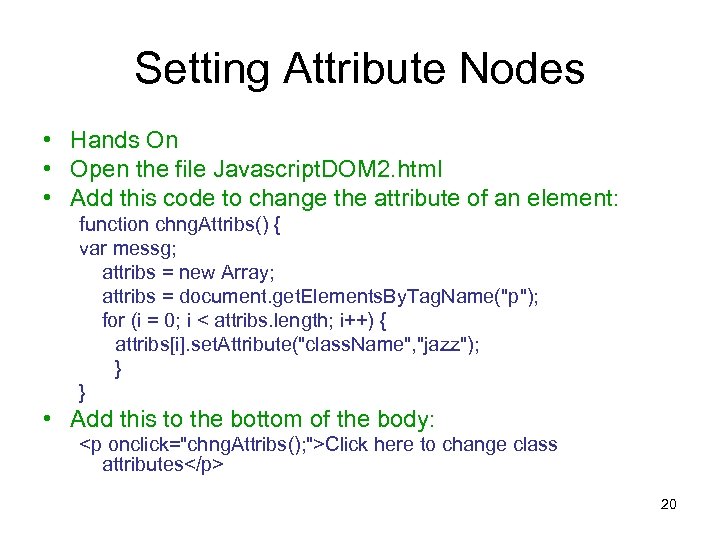
Setting Attribute Nodes • Hands On • Open the file Javascript. DOM 2. html • Add this code to change the attribute of an element: function chng. Attribs() { var messg; attribs = new Array; attribs = document. get. Elements. By. Tag. Name("p"); for (i = 0; i < attribs. length; i++) { attribs[i]. set. Attribute("class. Name", "jazz"); } } • Add this to the bottom of the body: <p onclick="chng. Attribs(); ">Click here to change class attributes</p> 20
User inserts and removes text • Hands On • Use file Javascript. DOM 3. html • Place code in this page so that: – When the user mouseovers on an image, the relevant text appears – When the user mouseouts on an image, the text disappears 21
Accessing Images • • Hands On Open Javascript. DOM 4. html Examine the layout of the page We are going to modify the behaviour of the page so that instead of the images displaying in a new window, they display on the same page • Write a function that will alter the source of the placeholder image on the page to another image • Call this function from the onclick event of each link 22
Suggested Solution • Hint: • Get the value of the attribute href from the link • Find the placeholder node • Set the src attribute of the placeholder to be the same value as the href attribute of the link 23
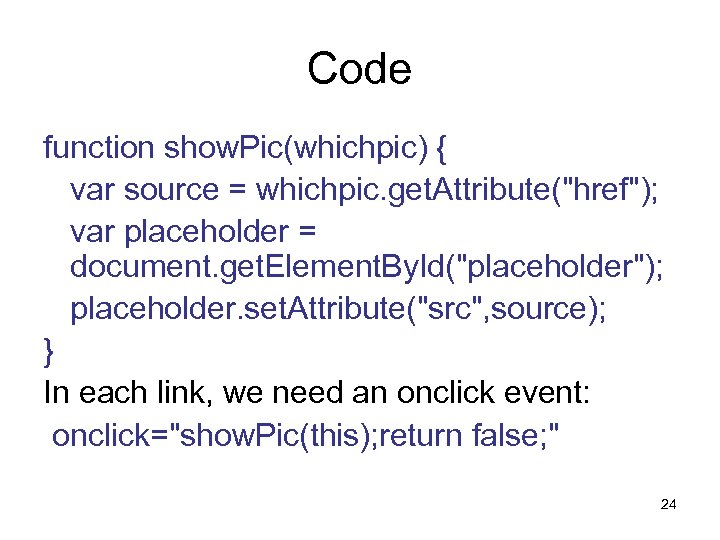
Code function show. Pic(whichpic) { var source = whichpic. get. Attribute("href"); var placeholder = document. get. Element. By. Id("placeholder"); placeholder. set. Attribute("src", source); } In each link, we need an onclick event: onclick="show. Pic(this); return false; " 24
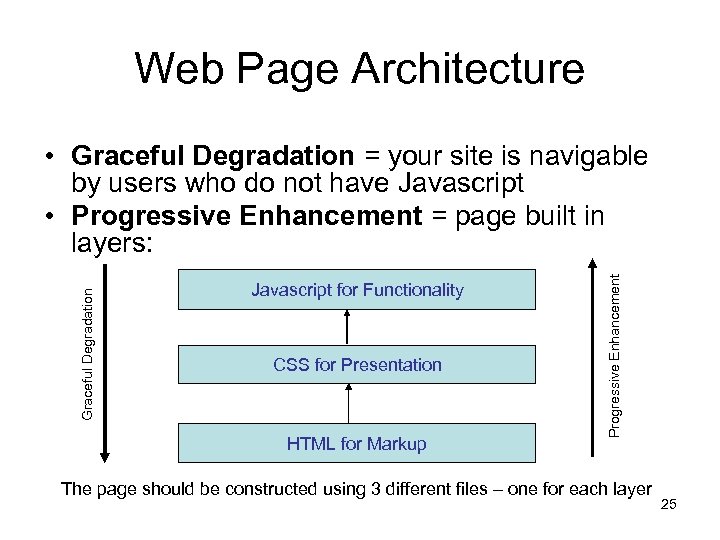
Web Page Architecture Javascript for Functionality CSS for Presentation HTML for Markup Progressive Enhancement Graceful Degradation • Graceful Degradation = your site is navigable by users who do not have Javascript • Progressive Enhancement = page built in layers: The page should be constructed using 3 different files – one for each layer 25
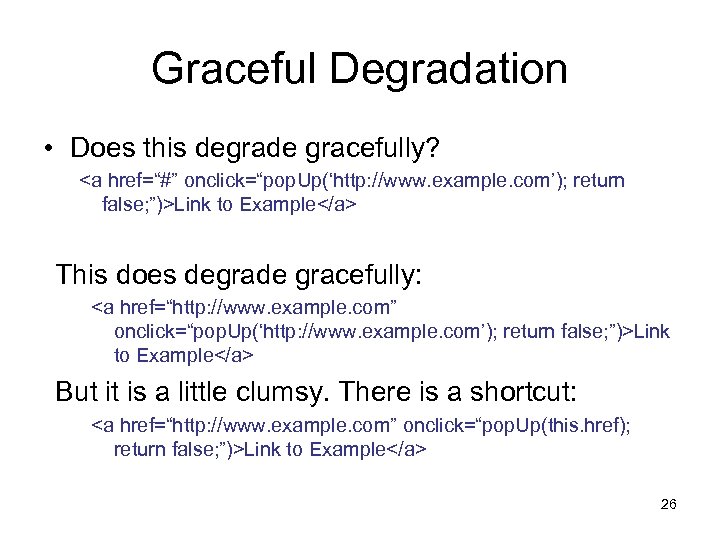
Graceful Degradation • Does this degrade gracefully? <a href=“#” onclick=“pop. Up(‘http: //www. example. com’); return false; ”)>Link to Example</a> This does degrade gracefully: <a href=“http: //www. example. com” onclick=“pop. Up(‘http: //www. example. com’); return false; ”)>Link to Example</a> But it is a little clumsy. There is a shortcut: <a href=“http: //www. example. com” onclick=“pop. Up(this. href); return false; ”)>Link to Example</a> 26
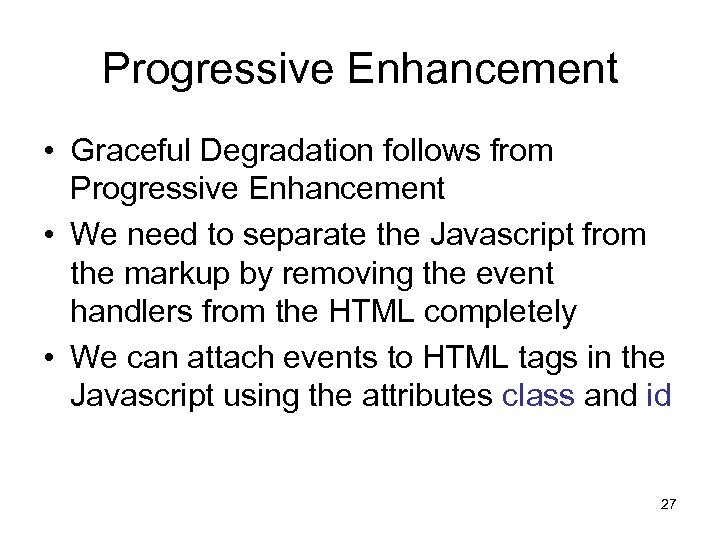
Progressive Enhancement • Graceful Degradation follows from Progressive Enhancement • We need to separate the Javascript from the markup by removing the event handlers from the HTML completely • We can attach events to HTML tags in the Javascript using the attributes class and id 27
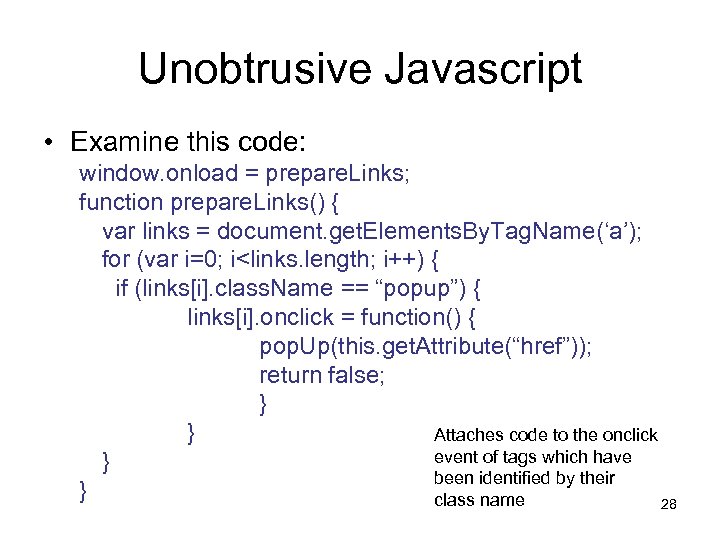
Unobtrusive Javascript • Examine this code: window. onload = prepare. Links; function prepare. Links() { var links = document. get. Elements. By. Tag. Name(‘a’); for (var i=0; i<links. length; i++) { if (links[i]. class. Name == “popup”) { links[i]. onclick = function() { pop. Up(this. get. Attribute(“href”)); return false; } } Attaches code to the onclick event of tags which have } been identified by their } class name 28
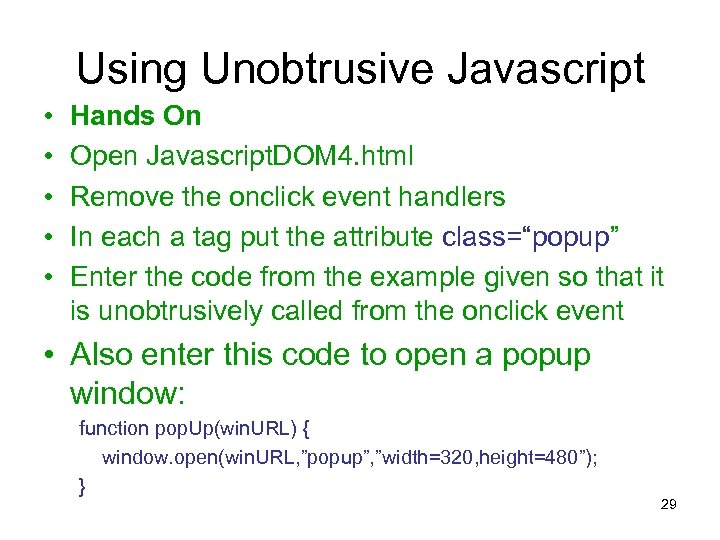
Using Unobtrusive Javascript • • • Hands On Open Javascript. DOM 4. html Remove the onclick event handlers In each a tag put the attribute class=“popup” Enter the code from the example given so that it is unobtrusively called from the onclick event • Also enter this code to open a popup window: function pop. Up(win. URL) { window. open(win. URL, ”popup”, ”width=320, height=480”); } 29
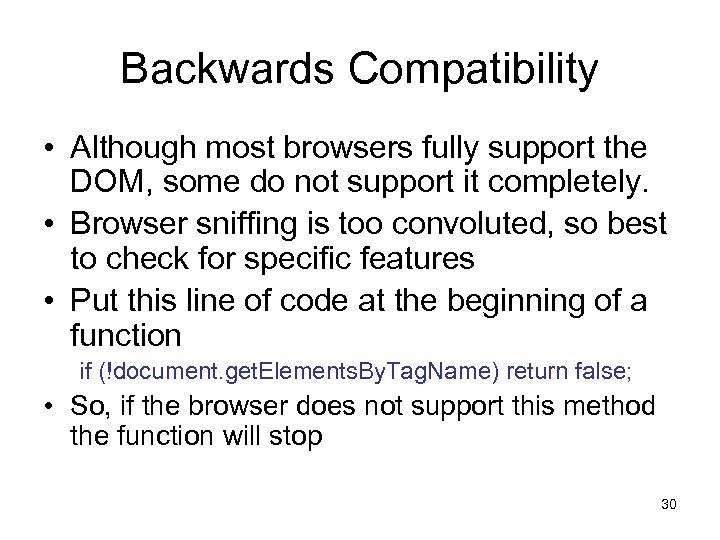
Backwards Compatibility • Although most browsers fully support the DOM, some do not support it completely. • Browser sniffing is too convoluted, so best to check for specific features • Put this line of code at the beginning of a function if (!document. get. Elements. By. Tag. Name) return false; • So, if the browser does not support this method the function will stop 30
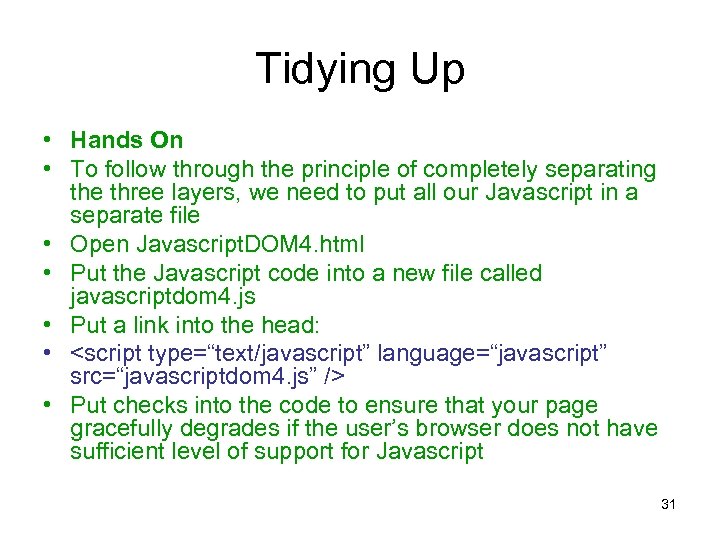
Tidying Up • Hands On • To follow through the principle of completely separating the three layers, we need to put all our Javascript in a separate file • Open Javascript. DOM 4. html • Put the Javascript code into a new file called javascriptdom 4. js • Put a link into the head: • <script type=“text/javascript” language=“javascript” src=“javascriptdom 4. js” /> • Put checks into the code to ensure that your page gracefully degrades if the user’s browser does not have sufficient level of support for Javascript 31
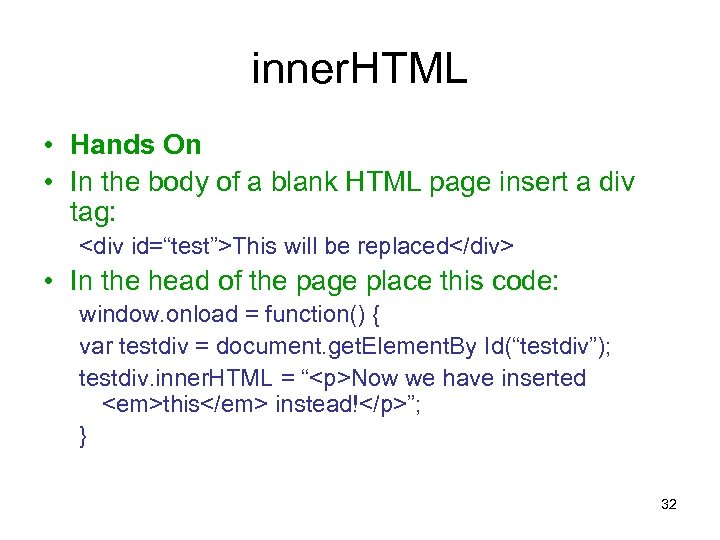
inner. HTML • Hands On • In the body of a blank HTML page insert a div tag: <div id=“test”>This will be replaced</div> • In the head of the page place this code: window. onload = function() { var testdiv = document. get. Element. By Id(“testdiv”); testdiv. inner. HTML = “<p>Now we have inserted <em>this</em> instead!</p>”; } 32
Using inner. HTML • All the HTML in the tag is replaced when the inner. HTML method is used • inner. HTML is not part of the DOM – so it may one day disappear – though it is universally recognised by browsers • Tags within the inner. HTML are not part of the DOM tree so they cannot be manipulated 33
Recap • Hands On • Now let us use the DOM to insert the same HTML into the div tag 1. Create an element node “p” assigned to the variable para 2. Create a text node assigned to the variable txt 1 (‘Now we have inserted’) 3. Append txt 1 to para 4. Create an element node em assigned to the variable emphasis 5. Append emphasis to para 6. Create a text node assigned to the variable txt 2 (‘this’) 7. Append txt 2 to emaphasis 8. Append emphasis to para 9. Create a text node assigned to the variable txt 3 (‘instead!’) 10. Append txt 3 to para 11. Append para to the element testdiv in the document 34
Javascript and CSS • Hands On • Open file Javascript. DOM 6. html and examine the code • Now try out each of the 3 user events • What do you notice about the difference between append. Child and insert. Before? Syntax of insert. Before: parent. Element. insert. Before(new. Element, target. Element) 35
Points about CSS • If style is set inline, it can be manipulated using Javascript • If style is set by CSS, Javascript cannot directly manipulate it • However, Javascript can set the style of the element and override the CSS • Also, Javascript can indirectly manipulate style using the class tag 36
Changing the Class Attribute • A useful way of manipulating style through Javascript is to add a second class to an element eg: thiselement. class. Name += “ newclass”; – adds the class ‘newclass’ to the class attribute • • Hands On Open file Javascript. DOM 7. html Create a style for the tags with the class plain Create a further style with more emphasis called ‘emphatic’ • Write Javascript code that adds the emphatic class to an element as the user mouseovers and removes it when the user mouseouts 37

Objectives • Understand the nature and structure of the DOM • Add and remove content from the page • Access and change element attributes – including source and class • Insert markup into a page using inner. HTML • Change style attribute using Javascript 38
Скачать презентацию Javascript DOM Peter Atkinson 1 Objectives
6d114aa64a472bb9318d69d39abb17bc.ppt