


 Скачать презентацию Java and Project Delivery E CE 250 Winter 2002
54b86438d6af1315aaa6caf9b6fbc274.ppt
- Количество слайдов: 21
 Java and Project Delivery E&CE 250 Winter 2002 http: //ece. uwaterloo. ca/~rrolon/java/tutorial. ppt http: //ece. uwaterloo. ca/~rrolon/java/tutorial. pdf
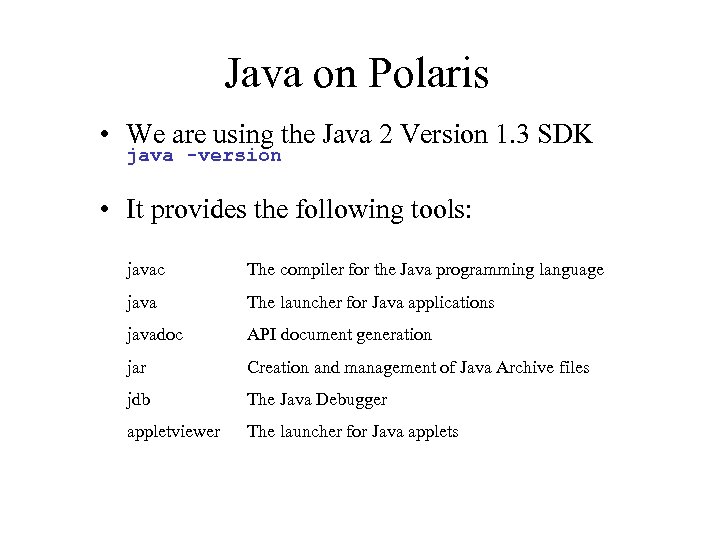 Java on Polaris • We are using the Java 2 Version 1. 3 SDK java -version • It provides the following tools: javac The compiler for the Java programming language java The launcher for Java applications javadoc API document generation jar Creation and management of Java Archive files jdb The Java Debugger appletviewer The launcher for Java applets
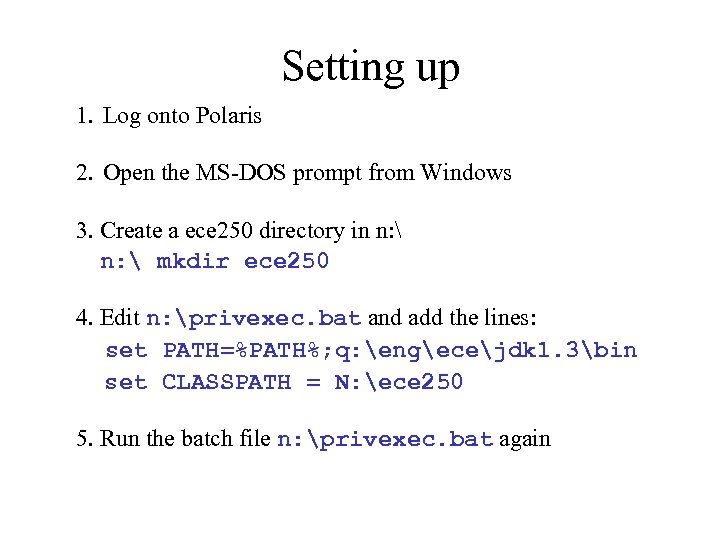 Setting up 1. Log onto Polaris 2. Open the MS-DOS prompt from Windows 3. Create a ece 250 directory in n: mkdir ece 250 4. Edit n: privexec. bat and add the lines: set PATH=%PATH%; q: engecejdk 1. 3bin set CLASSPATH = N: ece 250 5. Run the batch file n: privexec. bat again
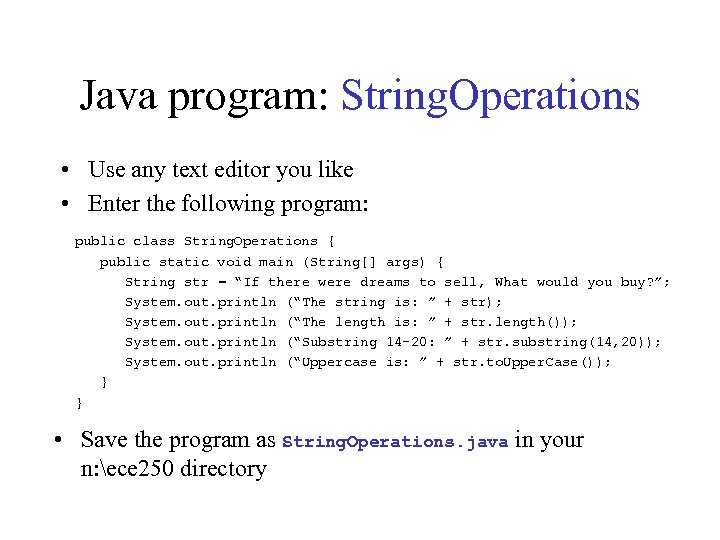 Java program: String. Operations • Use any text editor you like • Enter the following program: public class String. Operations { public static void main (String[] args) { String str = “If there were dreams to sell, What would you buy? ”; System. out. println (“The string is: ” + str); System. out. println (“The length is: ” + str. length()); System. out. println (“Substring 14 -20: ” + str. substring(14, 20)); System. out. println (“Uppercase is: ” + str. to. Upper. Case()); } } • Save the program as String. Operations. java in your n: ece 250 directory
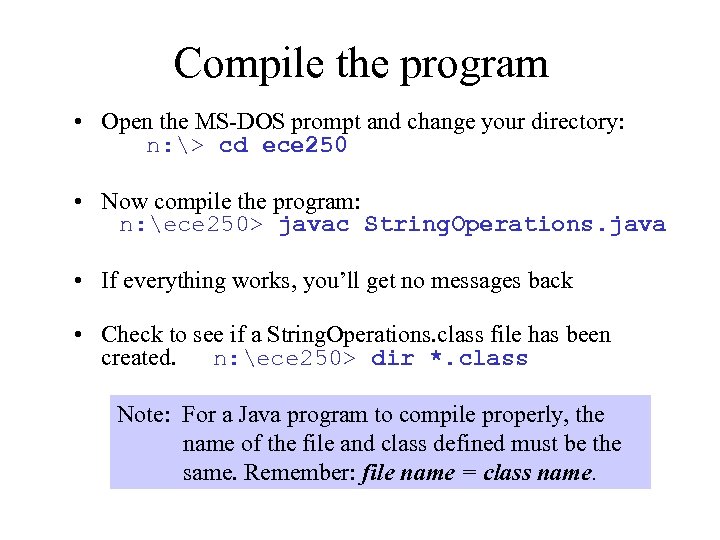 Compile the program • Open the MS-DOS prompt and change your directory: n: > cd ece 250 • Now compile the program: n: ece 250> javac String. Operations. java • If everything works, you’ll get no messages back • Check to see if a String. Operations. class file has been created. n: ece 250> dir *. class Note: For a Java program to compile properly, the name of the file and class defined must be the same. Remember: file name = class name.
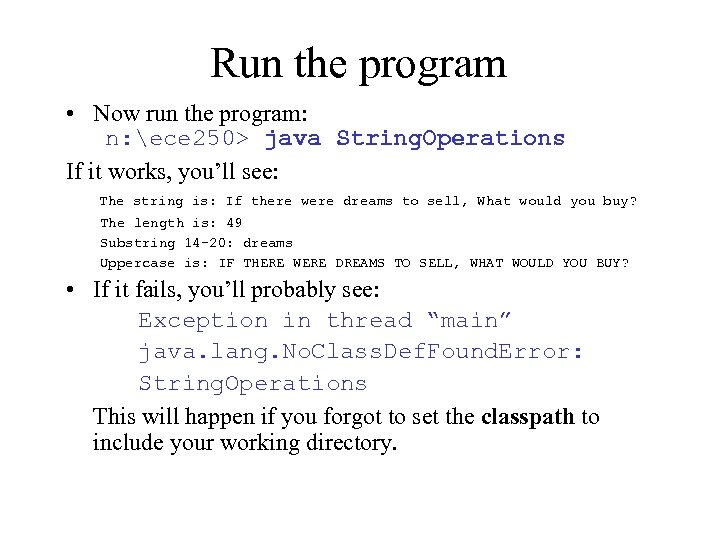 Run the program • Now run the program: n: ece 250> java String. Operations If it works, you’ll see: The string is: If there were dreams to sell, What would you buy? The length is: 49 Substring 14 -20: dreams Uppercase is: IF THERE WERE DREAMS TO SELL, WHAT WOULD YOU BUY? • If it fails, you’ll probably see: Exception in thread “main” java. lang. No. Class. Def. Found. Error: String. Operations This will happen if you forgot to set the classpath to include your working directory.
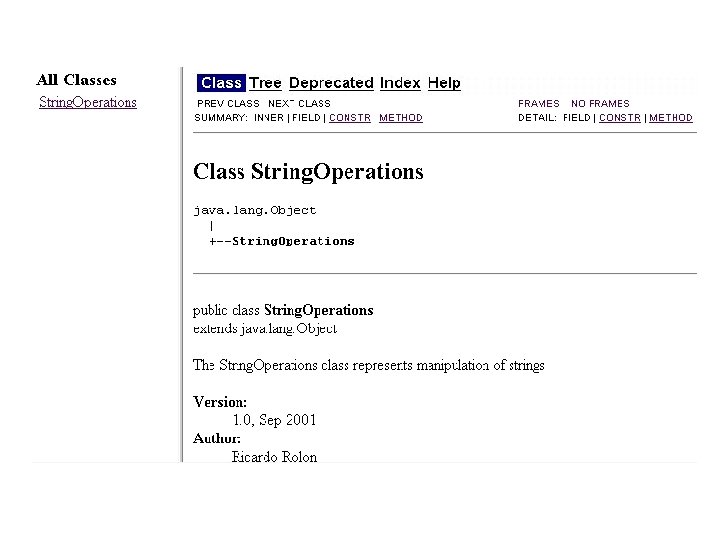
 javadoc http: //java. sun. com/j 2 se/1. 3/docs/tooldocs/javadoc/ • A brief introduction to javadoc: – The purpose of this tool is to automatically generate HTML documentation from your. java source files. – You can run Javadoc on individual. java files, or. jar files – A comment must be added before the section it is commenting
 javadoc • The documentation is created by adding special tags in your. java files. These tags enable you to document your source code. • The tags start with an "at" sign (@) and are case-sensitive (they must be typed with the lowercase letters as shown) • Some common tags are: @author @version @exception @throws
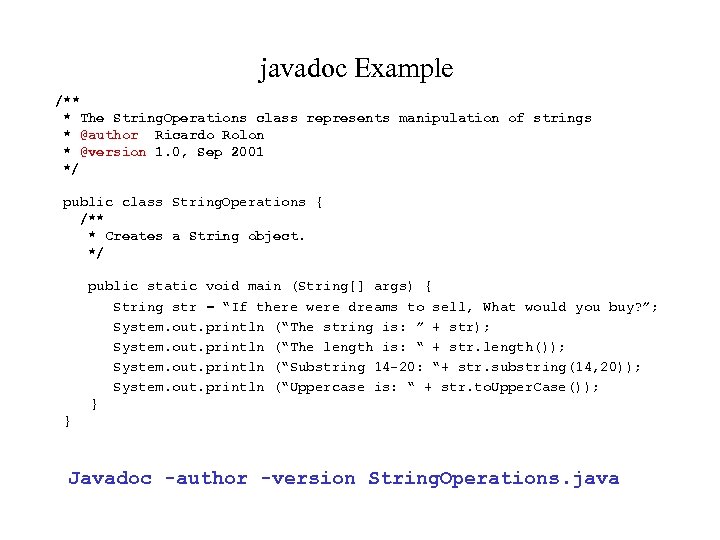 javadoc Example /** * The String. Operations class represents manipulation of strings * @author Ricardo Rolon * @version 1. 0, Sep 2001 */ public class String. Operations { /** * Creates a String object. */ public static void main (String[] args) { String str = “If there were dreams to sell, What would you buy? ”; System. out. println (“The string is: ” + str); System. out. println (“The length is: “ + str. length()); System. out. println (“Substring 14 -20: “+ str. substring(14, 20)); System. out. println (“Uppercase is: “ + str. to. Upper. Case()); } } Javadoc -author -version String. Operations. java
 Jar files http: //www. javasoft. com/j 2 se/1. 3/docs/tooldocs/win 32/jar. html • The jar tool allows you to create archives, similar to a. zip archive. (In fact, they are based on ZIP compression) • There are several reasons we want to do this: – easier to transfer (compressed files = less time over a network) – easier to execute (all the. class files are in the. jar, makes only one connection to the server) – jar’s can be signed by the author (security) – can store additional files like. html, readmes, etc.
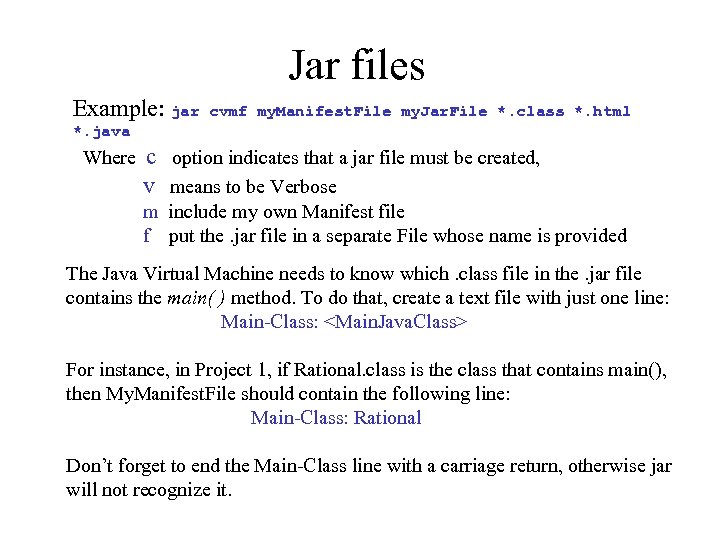 Jar files Example: jar cvmf my. Manifest. File my. Jar. File *. class *. html *. java Where c option indicates that a jar file must be created, v means to be Verbose m include my own Manifest file f put the. jar file in a separate File whose name is provided The Java Virtual Machine needs to know which. class file in the. jar file contains the main( ) method. To do that, create a text file with just one line: Main-Class:
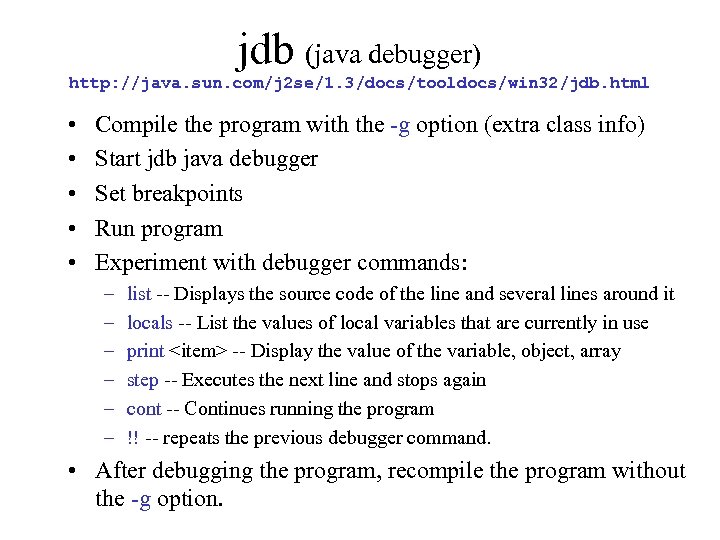 jdb (java debugger) http: //java. sun. com/j 2 se/1. 3/docs/tooldocs/win 32/jdb. html • • • Compile the program with the -g option (extra class info) Start jdb java debugger Set breakpoints Run program Experiment with debugger commands: – – – list -- Displays the source code of the line and several lines around it locals -- List the values of local variables that are currently in use print
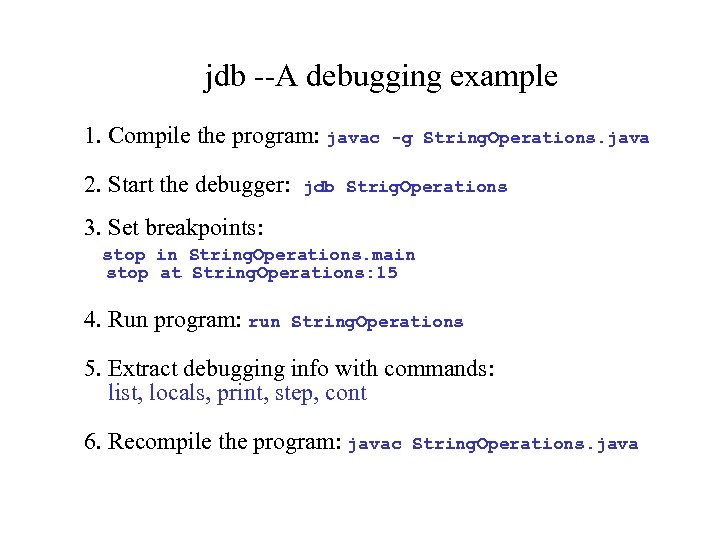 jdb --A debugging example 1. Compile the program: javac 2. Start the debugger: -g String. Operations. java jdb Strig. Operations 3. Set breakpoints: stop in String. Operations. main stop at String. Operations: 15 4. Run program: run String. Operations 5. Extract debugging info with commands: list, locals, print, step, cont 6. Recompile the program: javac String. Operations. java
 Free Java Tools • JBuilder, Borland. • Visual. Age for Java, IBM. • Forte for Java (http: //www. sun. com/forte/ffj/), Sun Microsystems. JCreator, JEditor, etc. • No native methods!! Keep this in mind: We have to be able to compile it and run it on the Java 2 SDK 1. 3 platform
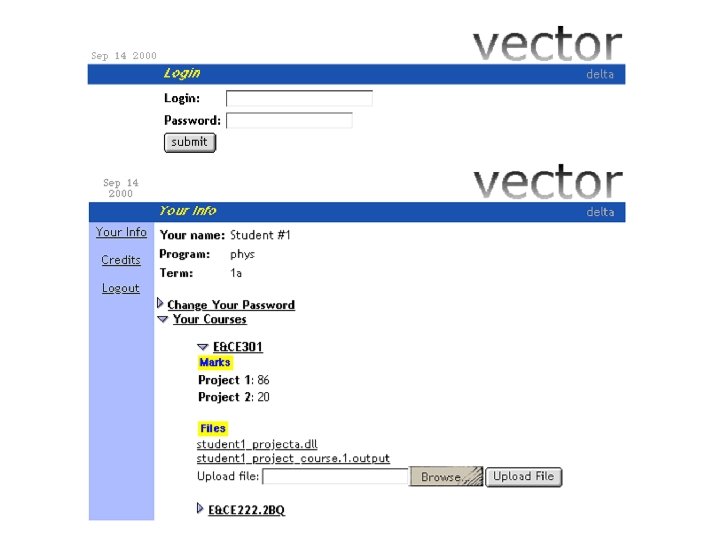
 Vector http: //webobjects. uwaterloo. ca • Vector is a web-based application course administration • E&CE 250 will use Vector for the following: – Tracking of your marks for Projects – Electronic submission of your Projects • Every student in this course has an account in Vector. • Use your Polaris userid to login, and your ID # as your initial password. • Change your password immediately.
 Submitting files with Vector • Project 1 -3 – individual submission, under student. ID • Project 4 – group submission, under group. ID [even if group of one student]
 Project 1 -3: Naming of. jar files • Name the file as your numeric Student id followed by pn where n is the project number. (That is, just 12345678 p 1. jar) • In Vector, the file name will be prep ended by your Polaris account • For example: If your Polaris userid is “student 1” then this will upload the file as student 1_12345678 p 1. jar
 Project 4: Naming of. jar files • Send email to ece 250 with group membership by signup due date (even if group of 1). You will get your Group. ID by email. • Name the file as your Group. ID followed by p 4 where n is the project number. (If the Group. ID is E 250 G 007, use E 250 G 007 p 4. jar) • In Vector, the file name will be prepended by your Group. ID • For the above example, the file will be uploaded as E 250 G 007_E 250 G 007 p 4. jar
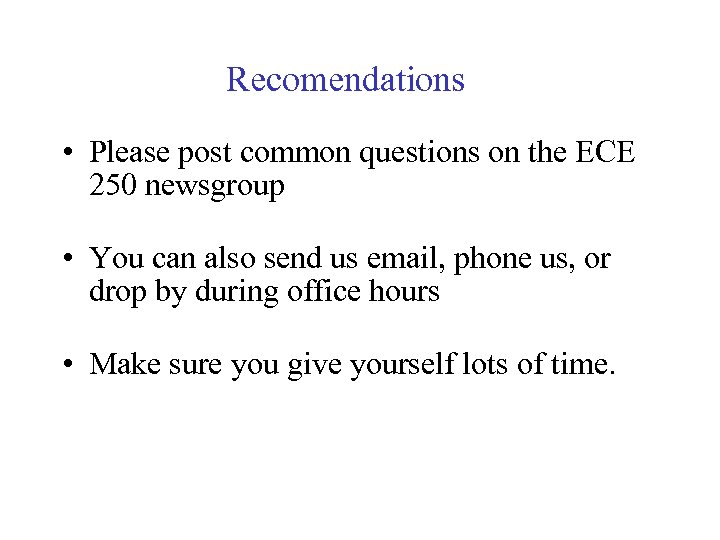 Recomendations • Please post common questions on the ECE 250 newsgroup • You can also send us email, phone us, or drop by during office hours • Make sure you give yourself lots of time.