


 Скачать презентацию Introduction to Programming the WWW I CMSC 10100
2ed82c2f54650b25e290b413b6821a91.ppt
- Количество слайдов: 29
 Introduction to Programming the WWW I CMSC 10100 -1 Winter 2003 Lecture 4
 Topics for the Day • Links • More about images § different file types § making thumbnails § bandwidth issues • Introduction to image maps
 Different Types of Hyperlinks • Absolute URLs point to Web pages on other Web servers • Relative URLs point to Web pages on the same Web server • Named Anchors point to a different location on the current Web page
 All Hyperlinks Have Two Parts • The Link Label is the visible element that the user points to and clicks (link labels can be text segments or images) • The Link Destination is the location that the link takes you to when you click on the link • Only the link destinations are handled differently for absolute URLs, relative URLs, and named anchors
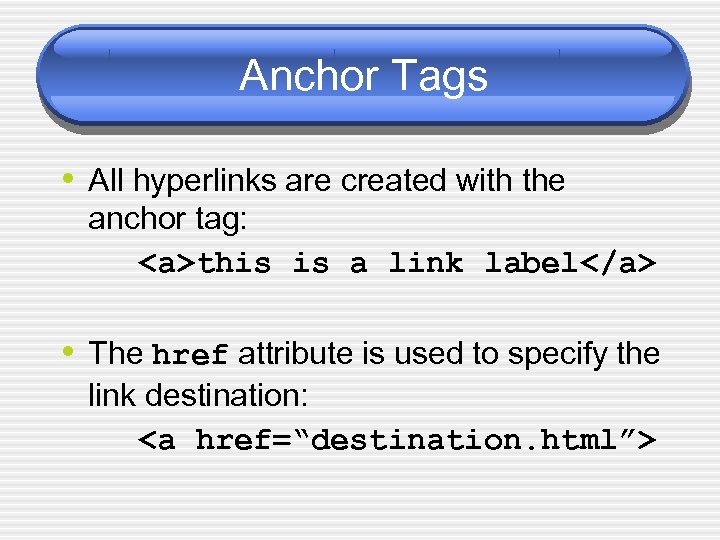 Anchor Tags • All hyperlinks are created with the anchor tag: this is a link label • The href attribute is used to specify the link destination:
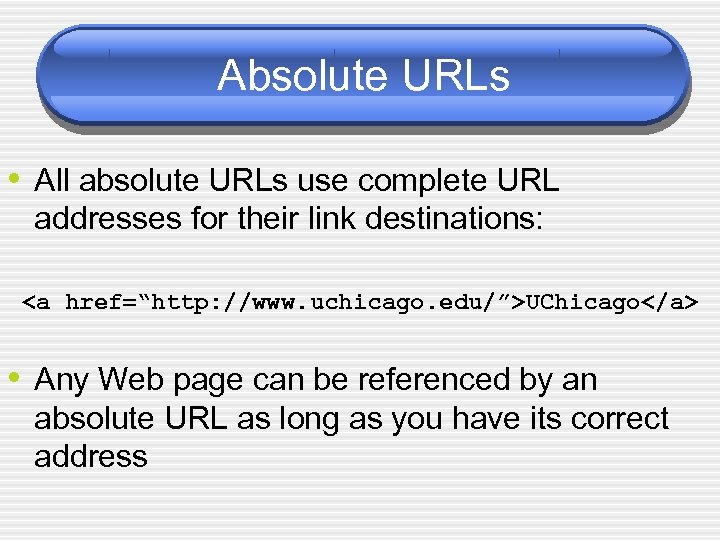 Absolute URLs • All absolute URLs use complete URL addresses for their link destinations: UChicago • Any Web page can be referenced by an absolute URL as long as you have its correct address
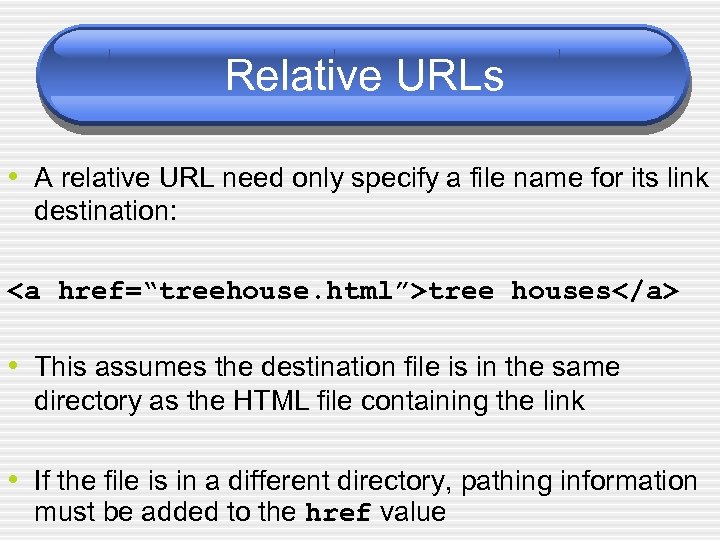 Relative URLs • A relative URL need only specify a file name for its link destination: tree houses • This assumes the destination file is in the same directory as the HTML file containing the link • If the file is in a different directory, pathing information must be added to the href value
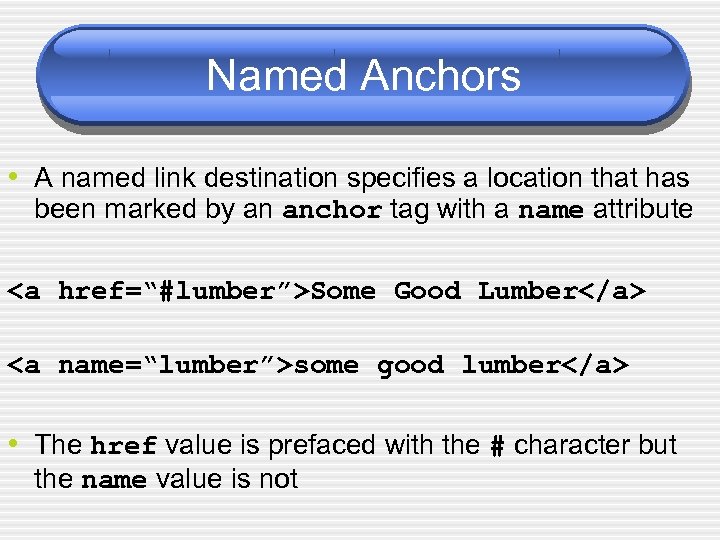 Named Anchors • A named link destination specifies a location that has been marked by an anchor tag with a name attribute Some Good Lumber some good lumber • The href value is prefaced with the # character but the name value is not
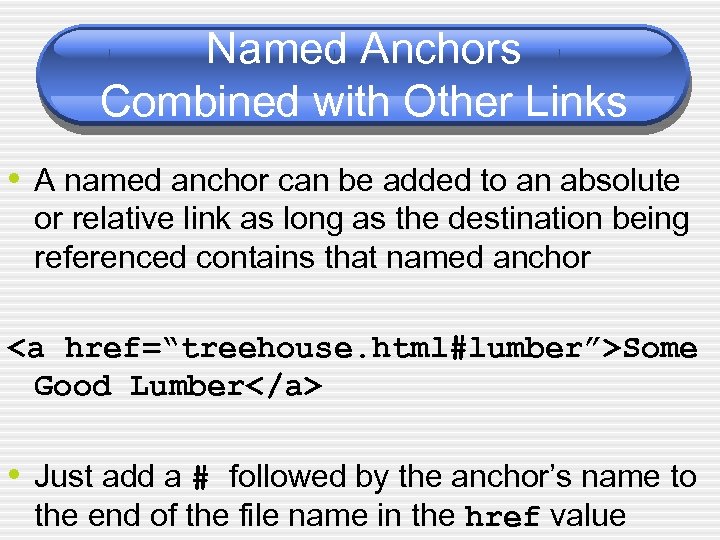 Named Anchors Combined with Other Links • A named anchor can be added to an absolute or relative link as long as the destination being referenced contains that named anchor Some Good Lumber • Just add a # followed by the anchor’s name to the end of the file name in the href value
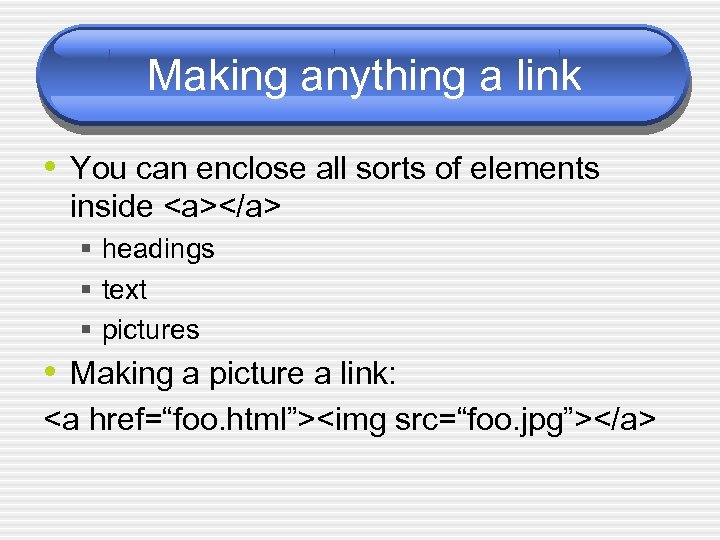 Making anything a link • You can enclose all sorts of elements inside § headings § text § pictures • Making a picture a link:
 Link Maintenance • An absolute link that works today may not work tomorrow • Dead links frustrate visitors and detract from your Web pages • To keep all of your links operational, you have to test them periodically and update any that have died
 Automated Link Checkers • If you have a large number of links, you • • • should automate the process of link testing You can subscribe to a Web-based service for link testing and weekly or monthly link reports You can obtain your own link testing software and run it yourself You could also write a Perl script…
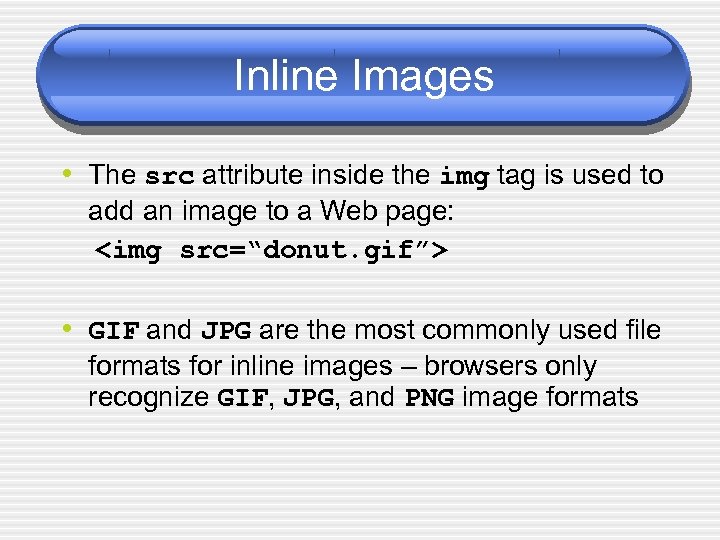 Inline Images • The src attribute inside the img tag is used to add an image to a Web page:
 • GIF and JPG are the most commonly used file formats for inline images – browsers only recognize GIF, JPG, and PNG image formats
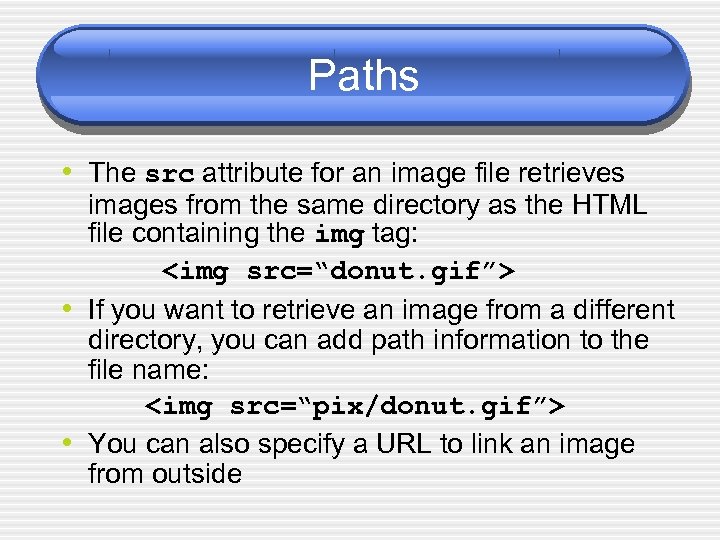 Paths • The src attribute for an image file retrieves • • images from the same directory as the HTML file containing the img tag:
 If you want to retrieve an image from a different directory, you can add path information to the file name:
You can also specify a URL to link an image from outside
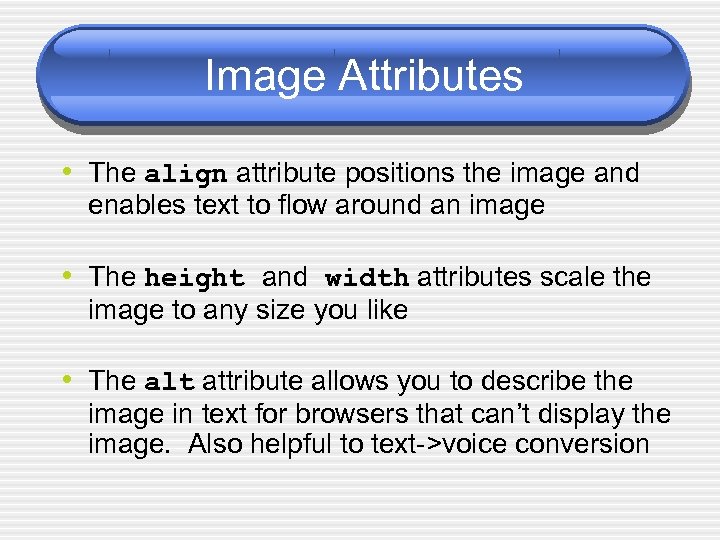 Image Attributes • The align attribute positions the image and enables text to flow around an image • The height and width attributes scale the image to any size you like • The alt attribute allows you to describe the image in text for browsers that can’t display the image. Also helpful to text->voice conversion
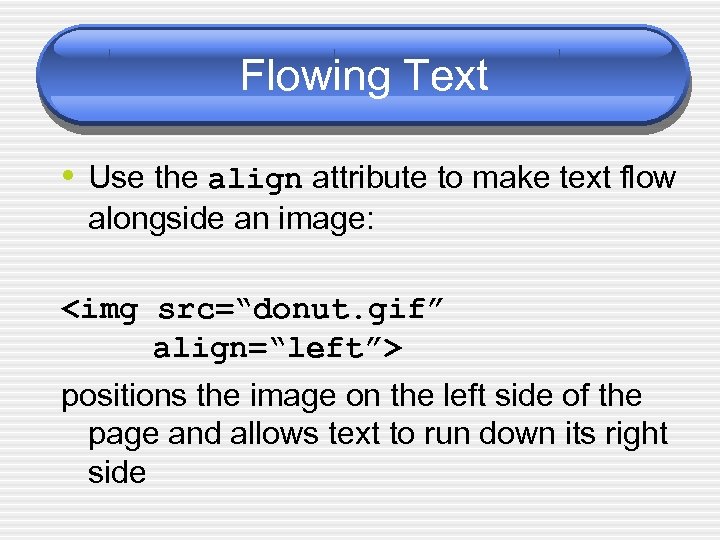 Flowing Text • Use the align attribute to make text flow alongside an image:
 positions the image on the left side of the page and allows text to run down its right side
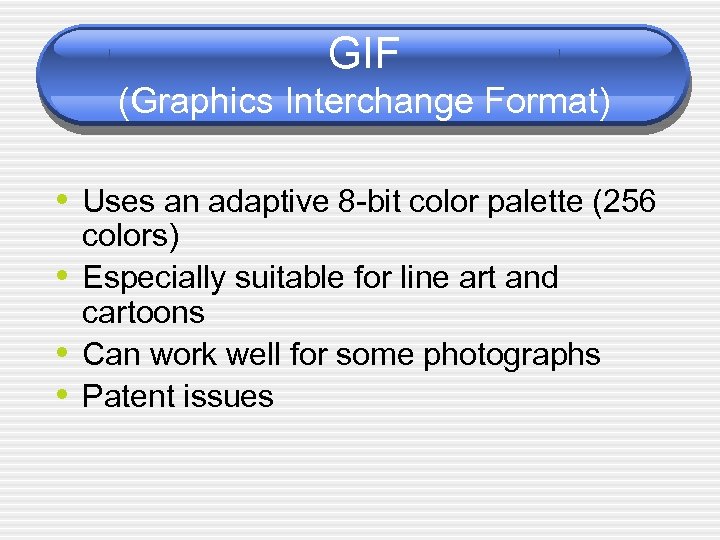 GIF (Graphics Interchange Format) • Uses an adaptive 8 -bit color palette (256 • • • colors) Especially suitable for line art and cartoons Can work well for some photographs Patent issues
 JPEG (Joint Photographic Experts Group) • Uses a fixed 24 -bit color palette (millions • • of colors) Especially suitable for high-resolution photographs Uses lossy file compression
 PNG (Portable Network Graphics) • • W 3 C free stand-in format for GIF Often smaller than GIF lossless (like GIF) Does not support animation
 Lossy Image Compression • Trades image quality for memory savings • Very good for minimizing bandwidth • You control the trade-off when you save • the image Supported by JPG, not by GIF or PNG
 Interlaced GIFs • Displays images incrementally in four passes • Gives users something to look at while the image is still downloading • Any GIF image can be converted to an interlaced GIF
 Transparent GIFs • Transparent regions in an image allow the background color or pattern of a Web page to show through • Any GIF image can be made transparent by specifying one color in the image that defines its transparent regions • The background of a photograph can be made transparent after some graphics editing
 Animated GIFs • The GIF file format supports cartoon animations • An animated GIF is stored in a single GIF file • To display an animated GIF, just specify the GIF file in the SRC attribute of an IMG tag
 Image Maps • Navigational menus and navigation bars have clickable regions that take the user to different locations • HTML’s map element makes it possible to specify different clickable regions within a single image • Image maps can be created manually with the “ISMAP trick” or with the help of an image mapper • Best created with software
 Thumbnail Previews • Let your visitors decide if they want to download a large (bandwidth intensive) image • Use lossy file compression to create a small (light bandwidth) thumbnail version of the original image • Make thumbnail sketch a link label so users can click through to the original image if they want it
 Making thumbnails • Load image in a program (e. g. Photoshop) • Reduce the image quality under the save • options Set a small height and width in the page
 File conversion for “hackers” • Use the command “convert” § § § Part of Image Magic installed in our department Linux system Can get (via fink) version for Mac OSX can reduce image quality, do interlacing convert -quality 10 foo. jpg foo. tn. jpg
 Bandwidth Limitations • Image files consume more bandwidth • • than text files Users who access the Internet via telephone lines will have to wait for image files that are 100 KB or larger Whenever possible, use image files no larger than 30 -40 KB
 Battling Bandwidth Limitations • Always specify height and width attributes • • • for all your images so the browser can “work around” each image while it is downloading Don’t put any large images at the top of a Web page Use interlaced GIFs and progressive JPGs Use the 1 x 1 image trick (with caution)