 Скачать презентацию Introduction to NET By Amrendra Sharan
11b92cbada3220864beb6e5255eaeffa.ppt
- Количество слайдов: 36



Introduction to. NET By : Amrendra Sharan • Content : – Introduction to. NET Technology – Introduction to Web Based Applications – Introduction to ASP. NET 1
Introduction to. NET Technology
What is. NET ? Microsoft. NET is a Framework – Microsoft. NET is a Framework which provides a common platform to Execute or, Run the applications developed in various programming languages. – Microsoft announced the. NET initiative in July 2000. – The main intention was to bridge the gap in interoperability between services of various programming languages. 3
. NET Framework Objectives • The. NET Framework is designed to fulfill the following objectives: – Provide object-oriented programming environment – Provide environment for developing various types of applications, such as Windows-based applications and Webbased applications – To ensure that code based on the. NET Framework can integrate with any other code 4
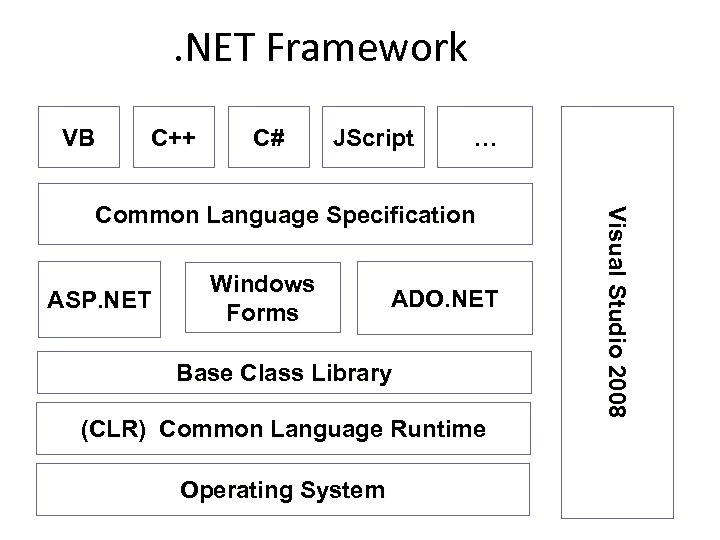
. NET Framework VB C++ C# JScript … ASP. NET Windows Forms ADO. NET Base Class Library (CLR) Common Language Runtime Operating System V i s u a l S tu d i o 2 0 0 8 Common Language Specification
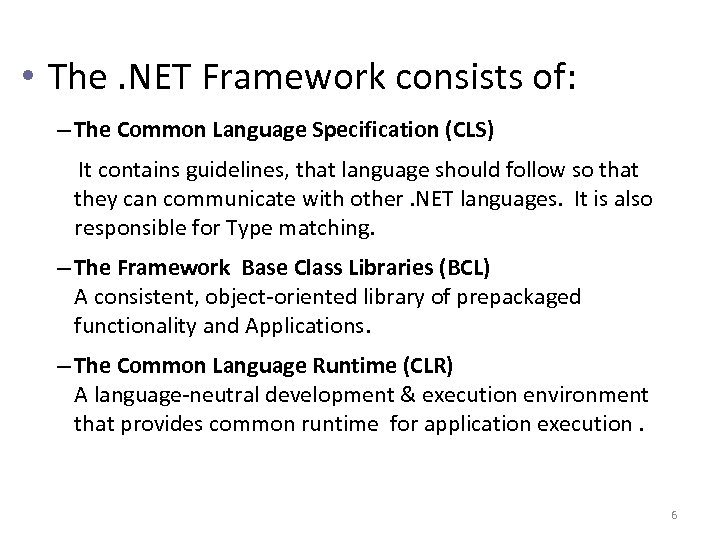
• The. NET Framework consists of: – The Common Language Specification (CLS) It contains guidelines, that language should follow so that they can communicate with other. NET languages. It is also responsible for Type matching. – The Framework Base Class Libraries (BCL) A consistent, object-oriented library of prepackaged functionality and Applications. – The Common Language Runtime (CLR) A language-neutral development & execution environment that provides common runtime for application execution. 6
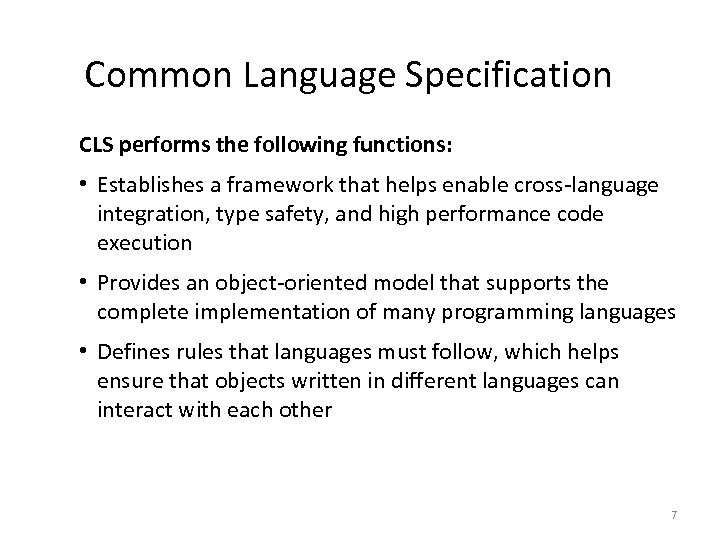
Common Language Specification CLS performs the following functions: • Establishes a framework that helps enable cross-language integration, type safety, and high performance code execution • Provides an object-oriented model that supports the complete implementation of many programming languages • Defines rules that languages must follow, which helps ensure that objects written in different languages can interact with each other 7
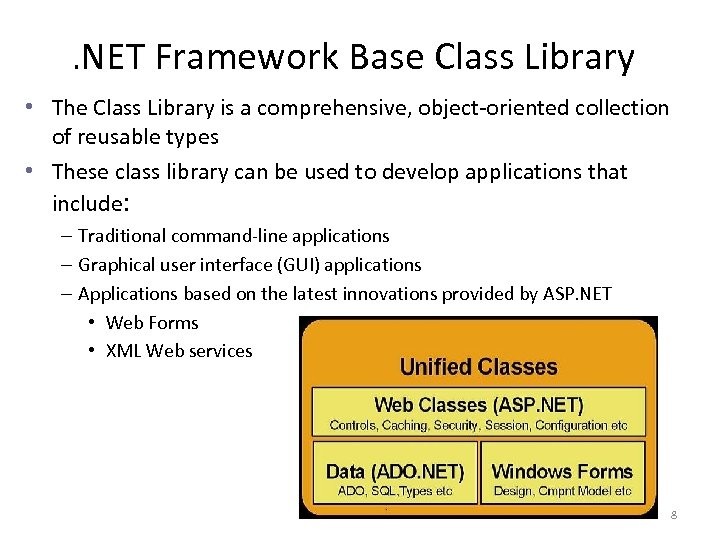
. NET Framework Base Class Library • The Class Library is a comprehensive, object-oriented collection of reusable types • These class library can be used to develop applications that include: – Traditional command-line applications – Graphical user interface (GUI) applications – Applications based on the latest innovations provided by ASP. NET • Web Forms • XML Web services 8
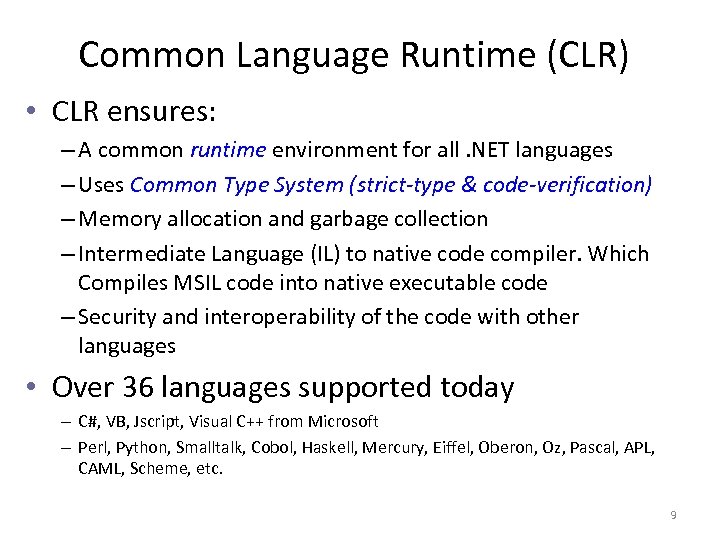
Common Language Runtime (CLR) • CLR ensures: – A common runtime environment for all. NET languages – Uses Common Type System (strict-type & code-verification) – Memory allocation and garbage collection – Intermediate Language (IL) to native code compiler. Which Compiles MSIL code into native executable code – Security and interoperability of the code with other languages • Over 36 languages supported today – C#, VB, Jscript, Visual C++ from Microsoft – Perl, Python, Smalltalk, Cobol, Haskell, Mercury, Eiffel, Oberon, Oz, Pascal, APL, CAML, Scheme, etc. 9
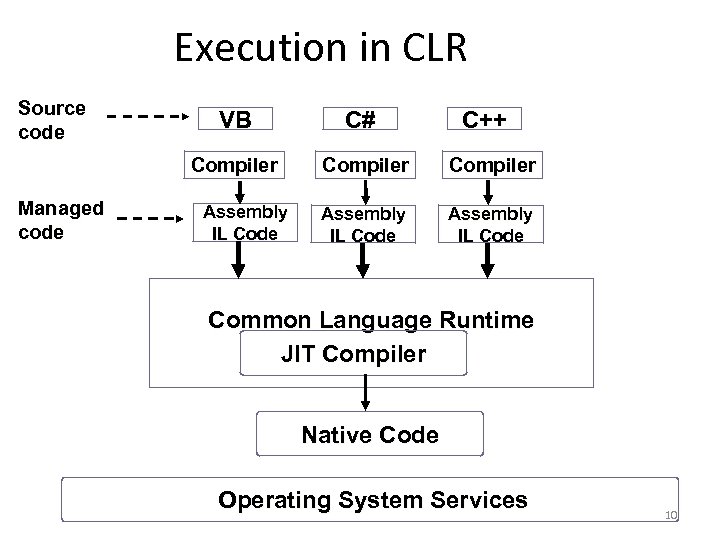
Execution in CLR Source code C# Compiler Managed code VB Compiler Assembly IL Code C++ Common Language Runtime JIT Compiler Native Code Operating System Services 10
Visual Studio 2008 IDE Microsoft has introduced Visual Studio. NET, which is a tool (also called Integrated Development Environment) for developing. NET applications by using programming languages such as VB, C#, VC++ and VJ#. etc. 11
C# (C Sharp) • Microsoft C# (pronounced C Sharp) developed by Microsoft Corporation, USA • New programming language that runs on the. NET Framework • C# is simple, modern, type safe, and object oriented • C# code is compiled as managed code • Combines the best features of Visual Basic, C++ and Java 12
C# Features • Simple • Modern • Object-Oriented • Type-safe • Versionable • Compatible • Secure 13
Introduction to Web Based Applications
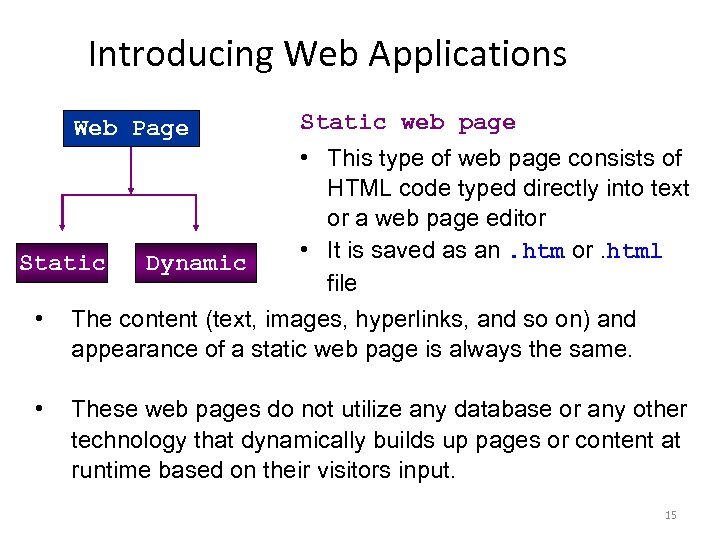
Introducing Web Applications Web Page Static web page • This type of web page consists of HTML code typed directly into text or a web page editor • It is saved as an. htm or. html Static Dynamic file • The content (text, images, hyperlinks, and so on) and appearance of a static web page is always the same. • These web pages do not utilize any database or any other technology that dynamically builds up pages or content at runtime based on their visitors input. 15
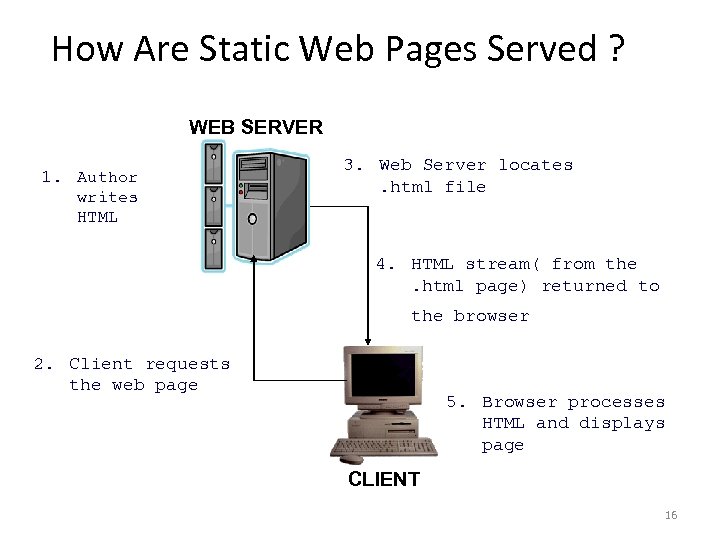
How Are Static Web Pages Served ? WEB SERVER 1. Author writes HTML 3. Web Server locates. html file 4. HTML stream( from the. html page) returned to the browser 2. Client requests the web page 5. Browser processes HTML and displays page CLIENT 16
Dynamic web page • Dynamic Web sites provide its visitors to modify the content of the web page based on their input. • They utilize databases and other mechanisms that enable to – identify their visitors – present them with customized greeting messages – restructure the content according to user input etc. . • Examples: – Online shopping stores, – search engines – email – chat, community portals etc. 17
Dynamic web page • Dynamic Web sites make use of “server-side technology”. • Server-side technologies add an extra layer to the static web page that enables the Web Server to generate HTML on the fly. • The web server will first – interpret the server-side code present in web pages, – generate the appropriate HTML and then – send the response to the web browser. 18
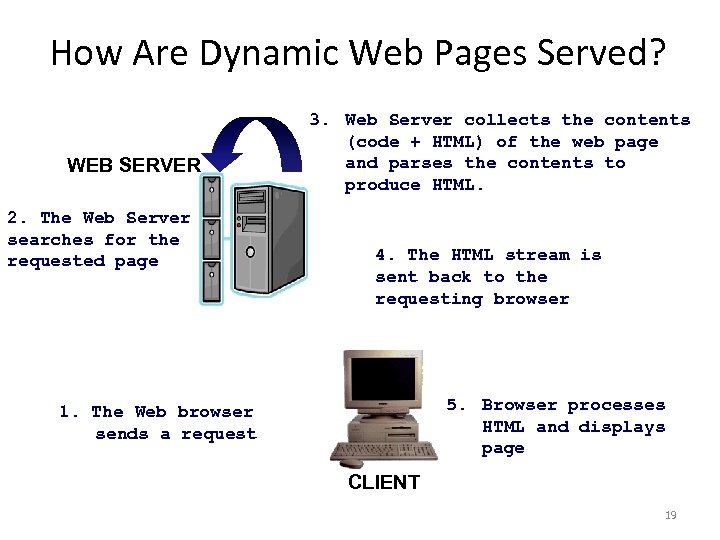
How Are Dynamic Web Pages Served? WEB SERVER 2. The Web Server searches for the requested page 3. Web Server collects the contents (code + HTML) of the web page and parses the contents to produce HTML. 4. The HTML stream is sent back to the requesting browser 5. Browser processes HTML and displays page 1. The Web browser sends a request CLIENT 19
Introduction to ASP. NET
Introduction to ASP. NET is part of the Microsoft. NET framework ASP. NET is an effective and flexible technology for creating interactive and dynamic web pages. It is a convergence of two major Microsoft technologies: – Active Server Pages (ASP) • Active Server Pages is Microsoft’s server side scripting technology for building dynamic web pages. –. NET Framework • The. NET Framework is a suite of technologies designed by Microsoft where program development takes place. 21
Introduction to ASP. NET It is built on. NET Common Language Runtime ASP. NET : Provides better user authentication Has better language support. Has a large set of new controls (web controls) Uses compiled code, which increases the performance of the applications It is programmable using any of the. NET languages (VB. NET, C#, VJ# etc). The ASP. NET pages are saved with the. aspx extension. 22
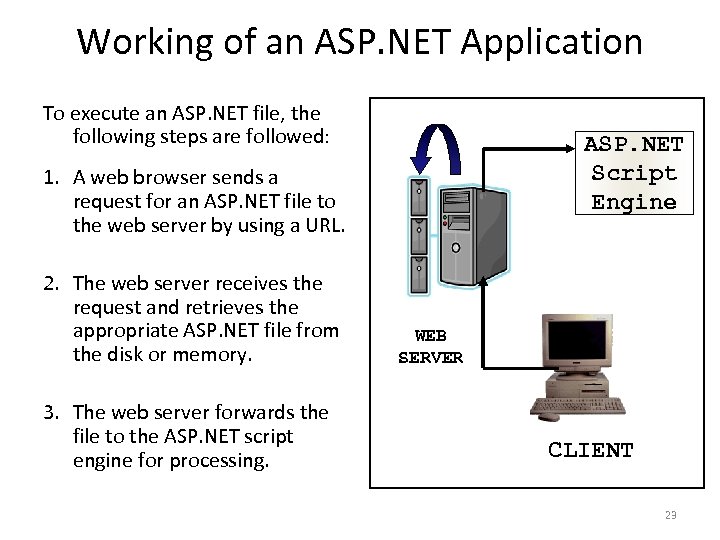
Working of an ASP. NET Application To execute an ASP. NET file, the following steps are followed: ASP. NET Script Engine 1. A web browser sends a request for an ASP. NET file to the web server by using a URL. 2. The web server receives the request and retrieves the appropriate ASP. NET file from the disk or memory. 3. The web server forwards the file to the ASP. NET script engine for processing. WEB SERVER CLIENT 23
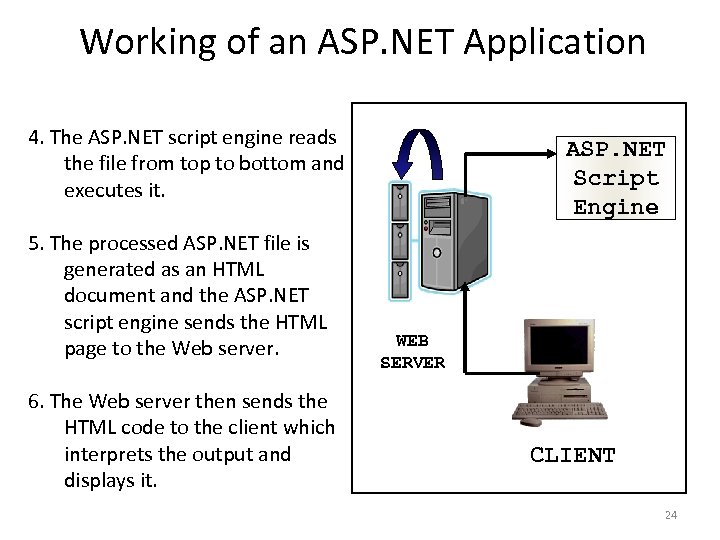
Working of an ASP. NET Application 4. The ASP. NET script engine reads the file from top to bottom and executes it. 5. The processed ASP. NET file is generated as an HTML document and the ASP. NET script engine sends the HTML page to the Web server. 6. The Web server then sends the HTML code to the client which interprets the output and displays it. ASP. NET Script Engine WEB SERVER CLIENT 24
Advantages of ASP. NET • • • Easy Programming Model Flexible Language Options Compiled Execution Rich Output Caching Web-Farm Session State Enhanced Reliability Master Pages Themes Improved Security Web Services Improved Performance and Scalability 25
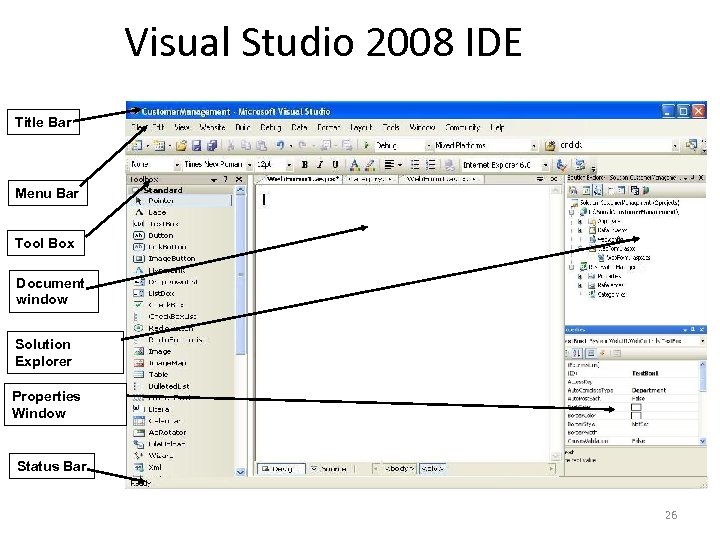
Visual Studio 2008 IDE Title Bar Menu Bar Tool Box Document window Solution Explorer Properties Window Status Bar 26
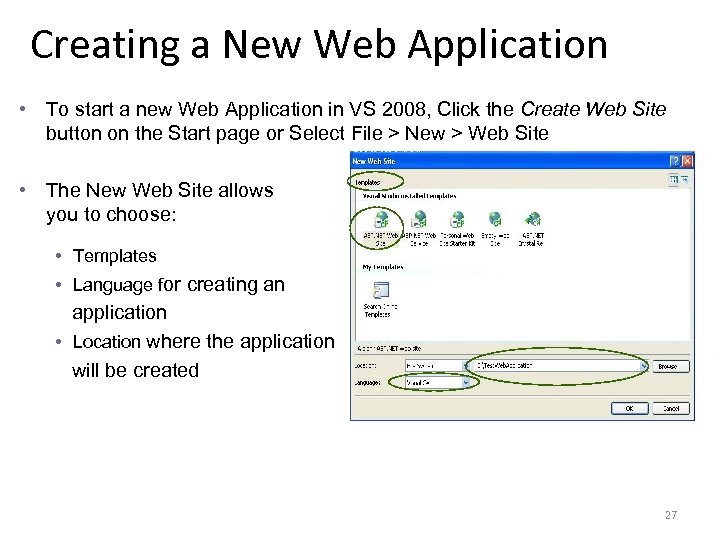
Creating a New Web Application • To start a new Web Application in VS 2008, Click the Create Web Site button on the Start page or Select File > New > Web Site • The New Web Site allows you to choose: • Templates • Language for creating an application • Location where the application will be created 27
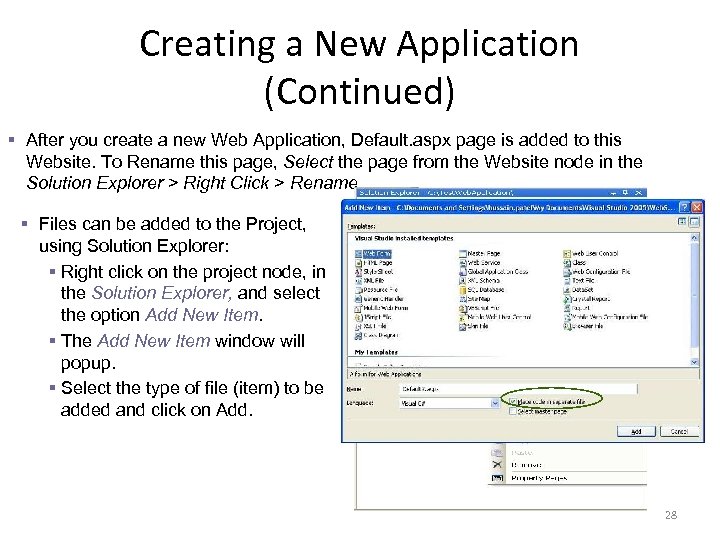
Creating a New Application (Continued) § After you create a new Web Application, Default. aspx page is added to this Website. To Rename this page, Select the page from the Website node in the Solution Explorer > Right Click > Rename. § Files can be added to the Project, using Solution Explorer: § Right click on the project node, in the Solution Explorer, and select the option Add New Item. § The Add New Item window will popup. § Select the type of file (item) to be added and click on Add. 28
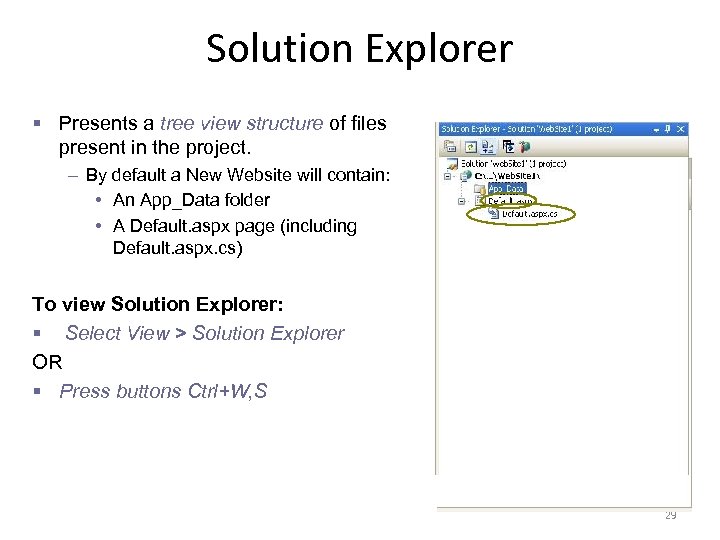
Solution Explorer § Presents a tree view structure of files present in the project. – By default a New Website will contain: • An App_Data folder • A Default. aspx page (including Default. aspx. cs) To view Solution Explorer: § Select View > Solution Explorer OR § Press buttons Ctrl+W, S 29
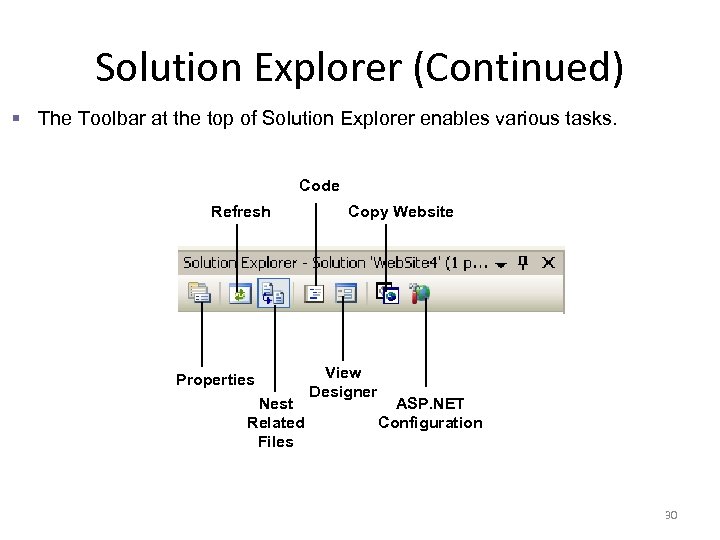
Solution Explorer (Continued) § The Toolbar at the top of Solution Explorer enables various tasks. Code Refresh Properties Nest Related Files Copy Website View Designer ASP. NET Configuration 30
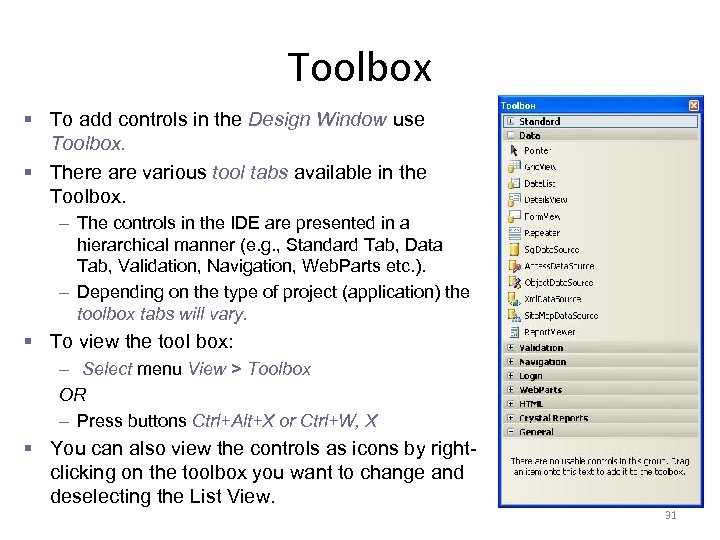
Toolbox § To add controls in the Design Window use Toolbox. § There are various tool tabs available in the Toolbox. – The controls in the IDE are presented in a hierarchical manner (e. g. , Standard Tab, Data Tab, Validation, Navigation, Web. Parts etc. ). – Depending on the type of project (application) the toolbox tabs will vary. § To view the tool box: – Select menu View > Toolbox OR – Press buttons Ctrl+Alt+X or Ctrl+W, X § You can also view the controls as icons by rightclicking on the toolbox you want to change and deselecting the List View. 31
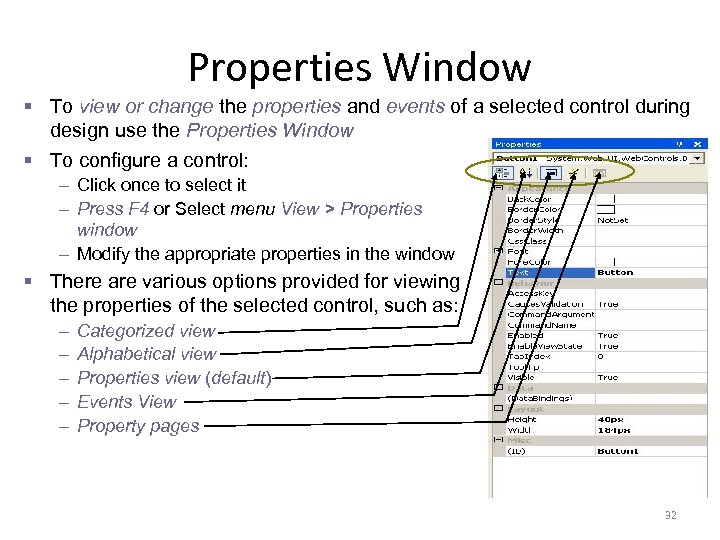
Properties Window § To view or change the properties and events of a selected control during design use the Properties Window § To configure a control: – Click once to select it – Press F 4 or Select menu View > Properties window – Modify the appropriate properties in the window § There are various options provided for viewing the properties of the selected control, such as: – – – Categorized view Alphabetical view Properties view (default) Events View Property pages 32
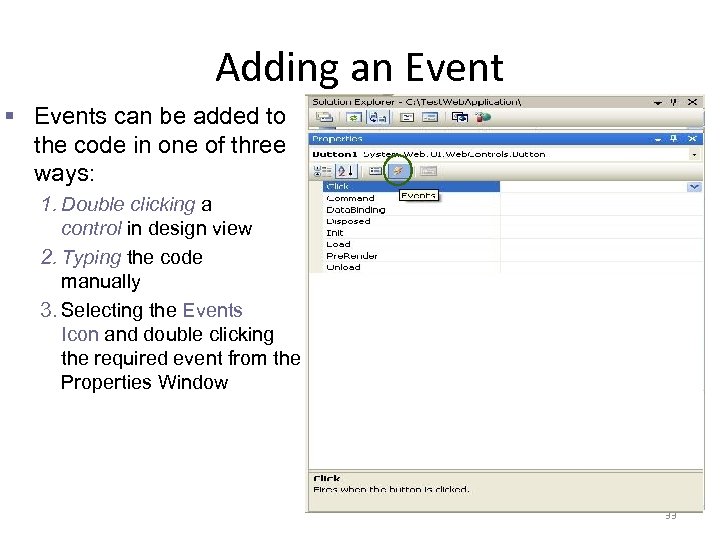
Adding an Event § Events can be added to the code in one of three ways: 1. Double clicking a control in design view 2. Typing the code manually 3. Selecting the Events Icon and double clicking the required event from the Properties Window Event Handler For Button 33
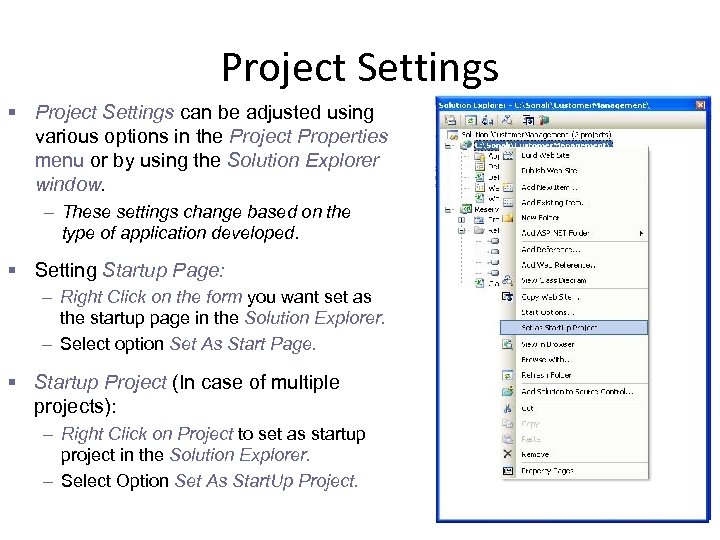
Project Settings § Project Settings can be adjusted using various options in the Project Properties menu or by using the Solution Explorer window. – These settings change based on the type of application developed. § Setting Startup Page: – Right Click on the form you want set as the startup page in the Solution Explorer. – Select option Set As Start Page. § Startup Project (In case of multiple projects): – Right Click on Project to set as startup project in the Solution Explorer. – Select Option Set As Start. Up Project. 34
Resources • Visual Studio 2008 Website http: //msdn. microsoft. com/vstudio/ 35
Questions and Comments 36
Скачать презентацию Introduction to NET By Amrendra Sharan
11b92cbada3220864beb6e5255eaeffa.ppt