


 Скачать презентацию Introduction to Microsoft Word and Word Processing Lead-Deadwood
3e80f15d7056775937d1f7bab2336d6e.ppt
- Количество слайдов: 24
 Introduction to Microsoft Word and Word Processing Lead-Deadwood Middle School
 Word Processing • Used to create, modify, and print documents.
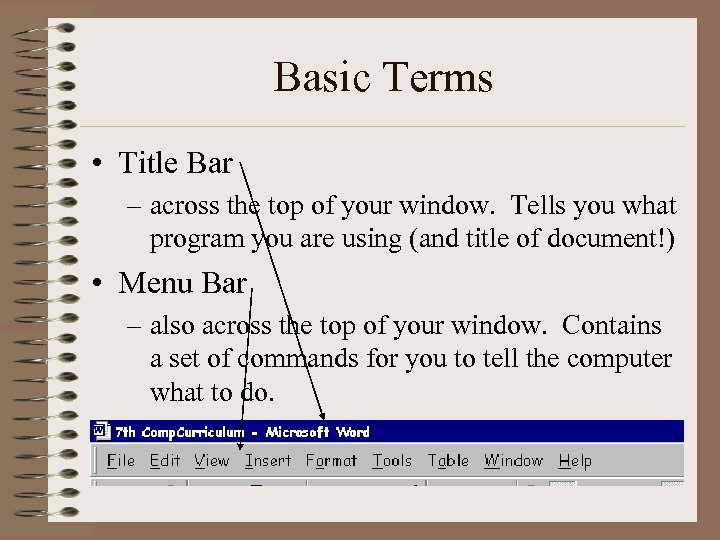 Basic Terms • Title Bar – across the top of your window. Tells you what program you are using (and title of document!) • Menu Bar – also across the top of your window. Contains a set of commands for you to tell the computer what to do.
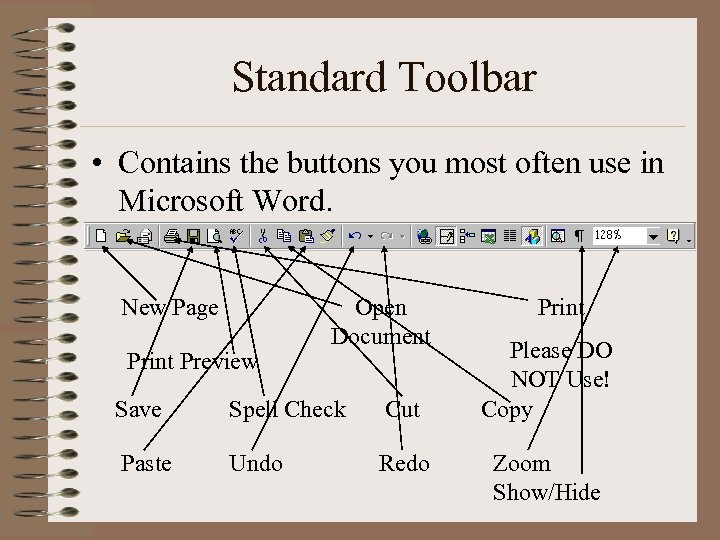 Standard Toolbar • Contains the buttons you most often use in Microsoft Word. New Page Print Preview Open Document Save Spell Check Cut Paste Undo Redo Print Please DO NOT Use! Copy Zoom Show/Hide
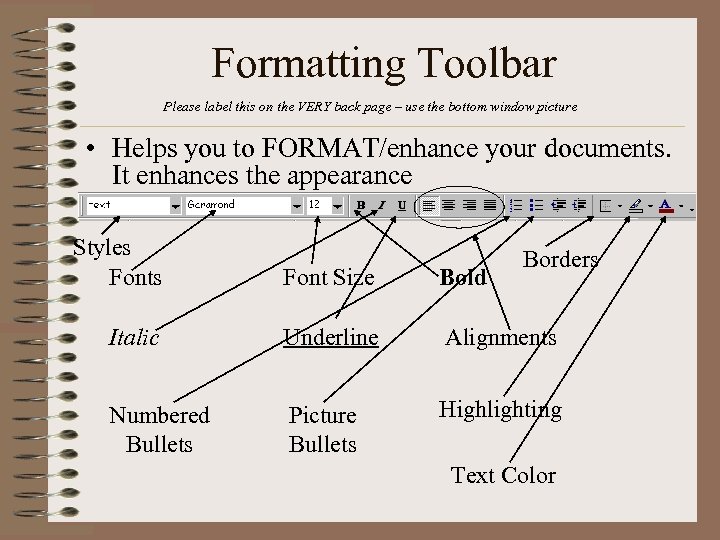 Formatting Toolbar Please label this on the VERY back page – use the bottom window picture • Helps you to FORMAT/enhance your documents. It enhances the appearance Styles Font Size Bold Italic Underline Alignments Numbered Bullets Picture Bullets Highlighting Borders Text Color
 Line Spacing • Allows you to change the size of the space between the lines. – Choose either Single, 1. 5, or Double – Double is most commonly used in reports. • To Format Line Spacing: – Select Text, then – From the Menu Bar choose: Format, Paragraph, then the spacing you want from the Line Spacing box.
 Line Spacing (continued) • Single Space – (SS) No blank lines between typed lines. • Wraparound – (Soft Returns) – When the computer automatically moves your text to a new line – Always want to do this, unless it shows/tells you to! (DO NOT use return key!)
 Line Spacing (continued) • Hard Return – – When you hit enter/return and tell the computer to start a new line. – Can see them with the ¶ symbol. • Double Space – DS Return is when you press ENTER twice. – DS line spacing is one blank line in-between typed lines • Quadruple Space – QS Return is when you press ENTER 4 times. – No QS Line spacing.
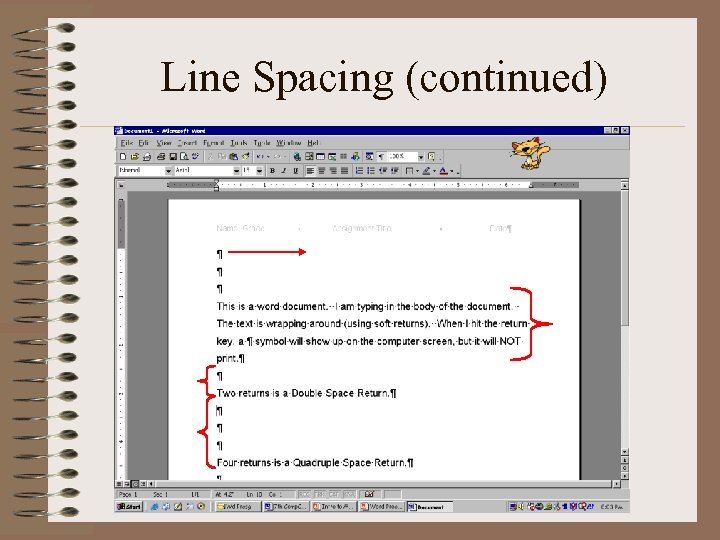 Line Spacing (continued)
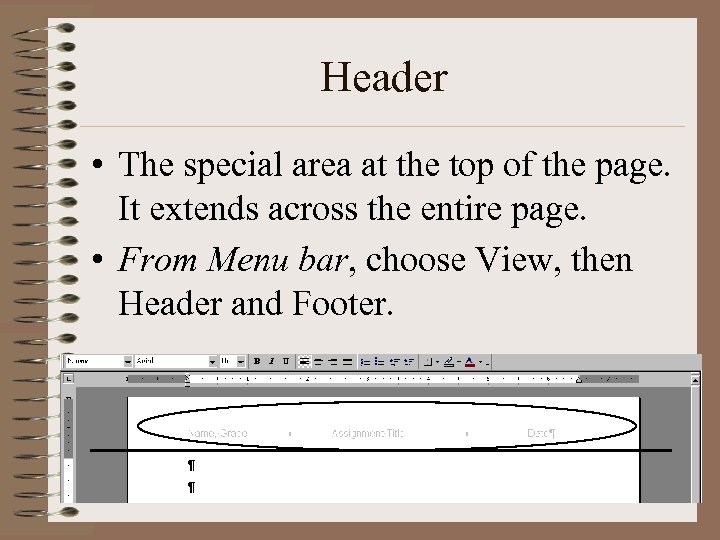 Header • The special area at the top of the page. It extends across the entire page. • From Menu bar, choose View, then Header and Footer.
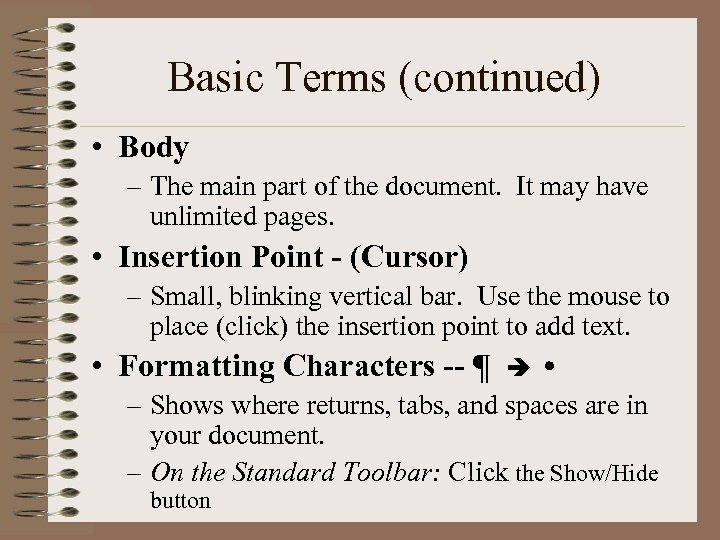 Basic Terms (continued) • Body – The main part of the document. It may have unlimited pages. • Insertion Point - (Cursor) – Small, blinking vertical bar. Use the mouse to place (click) the insertion point to add text. • Formatting Characters -- ¶ – Shows where returns, tabs, and spaces are in your document. – On the Standard Toolbar: Click the Show/Hide button
 Spell Check • Finds words that are not in the Microsoft Word dictionary. – It will suggest spellings. You can choose to ignore or replace it. – From the Menu Bar: Choose Tools, Spelling and Grammar. – ~OR~ Click on the ABC button on the Standard Toolbar. • All words underlined in Red are Not in Dictionary. • All words/sentences underlined in Green are not grammatically correct.
 Using/Formatting Text • Delete – Removes the character to the right of the insertion point – Also removes any graphic or text that is highlighted or selected. • Space Bar – Inserts a space. • Return/Enter Key – (Same Key!) – Inserts a new line
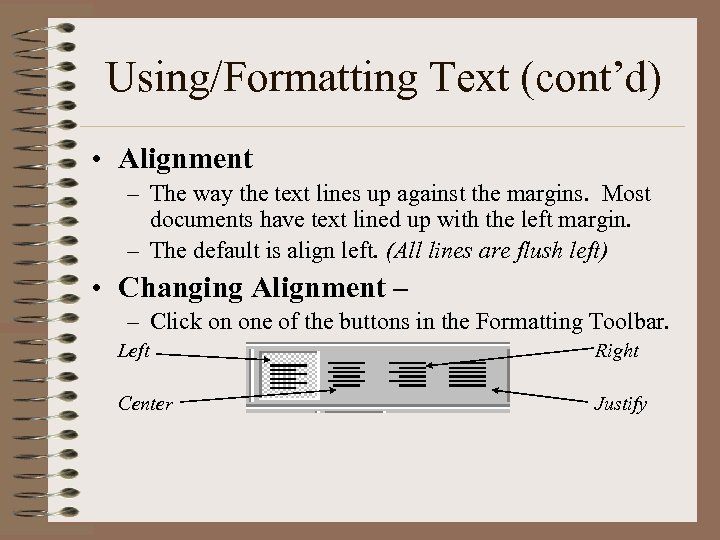 Using/Formatting Text (cont’d) • Alignment – The way the text lines up against the margins. Most documents have text lined up with the left margin. – The default is align left. (All lines are flush left) • Changing Alignment – – Click on one of the buttons in the Formatting Toolbar. Left Right Center Justify
 The 4 Types of Alignment • • Left: All text lined up on the left side. (Right side is uneven) Centered: All text is in the middle. (Both sides are uneven) Right: All text is lined up on the right side. (Left side is uneven) Justified or Full: Text is lined up on both sides. (Uneven spacing between words)
 Printing • From the Menu Bar: File, Print – ~OR~ use Ctrl-P. • Double check what you are printing – Power. Point slides, handouts, charts, graphs, etc. • Double check WHERE you are printing – is the correct printer stated? (HS 218 Lab) • Click OK.
 Page Margins • White area that is your border on all sides of your document (Top, Bottom, Left, Right) • To change your margins – From the Menu Bar: File, Page Setup, then change the sizes on the T, B, L, R margins. • Never change the Gutter – it is always 0! (zero)
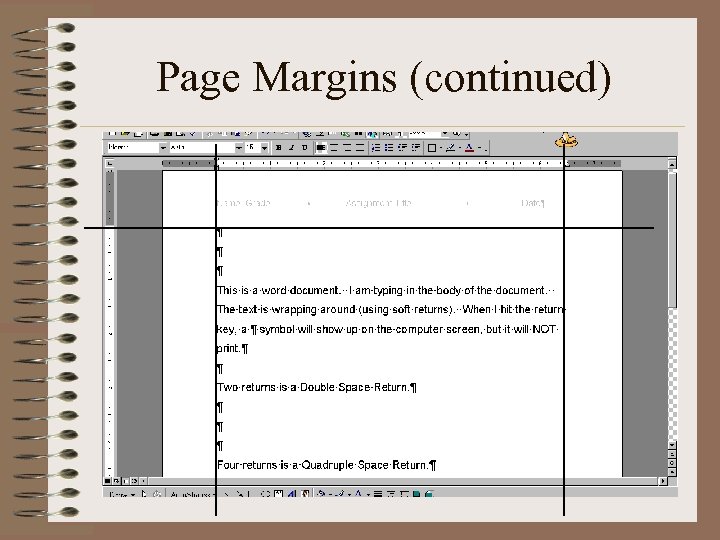 Page Margins (continued)
 Tab Settings • This allows you to custom-set a tab stop any place in your document. • Great for making lists and organizing information • Left Tab (default) – – All text is lined up on the left side • Right Tab – – All text is lined up on the right side • Center Tab – – All text is lined up in the center
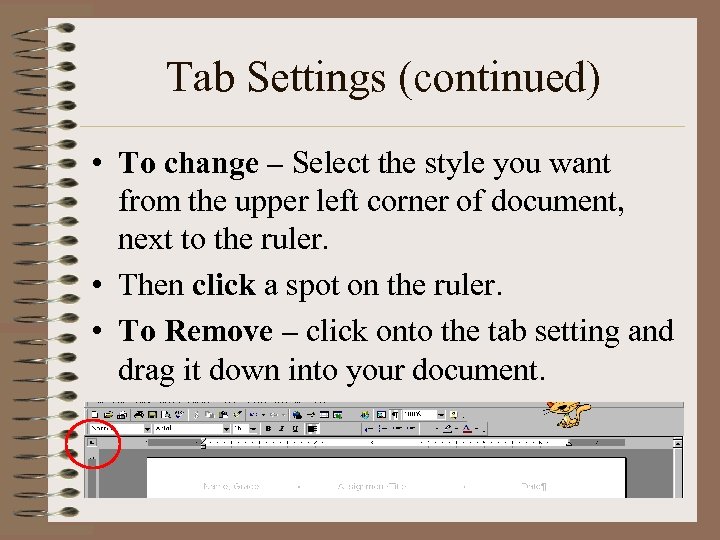 Tab Settings (continued) • To change – Select the style you want from the upper left corner of document, next to the ruler. • Then click a spot on the ruler. • To Remove – click onto the tab setting and drag it down into your document.
 Bullets • Allow you to enhance a list or set of ideas in a document. – From the Menu Bar: Format, Bullets and Numbering, then choose style you want. – ~OR~ Click on the bullets/numbering button on the formatting toolbar • To get rid of bullets: place cursor in text, click on bullets button to turn it OFF.
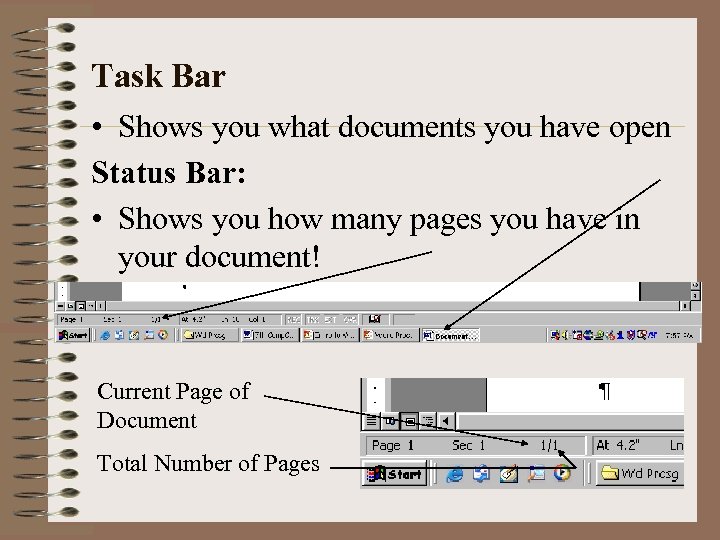 Task Bar • Shows you what documents you have open Status Bar: • Shows you how many pages you have in your document! Current Page of Document Total Number of Pages
 Clip. Art/Graphics • To Insert Clip. Art: Insert, Picture, Clip. Art. – can use clip gallery or use Clips Online • To Insert Graphics: Insert, Picture, From File – follow the path to your folder and choose graphic you want • To Format your Clip. Art/Graphic: Select picture, Format, Picture, choose Layout Tab, select Square or Tight Wrapping. – Now you can move it all around your document!
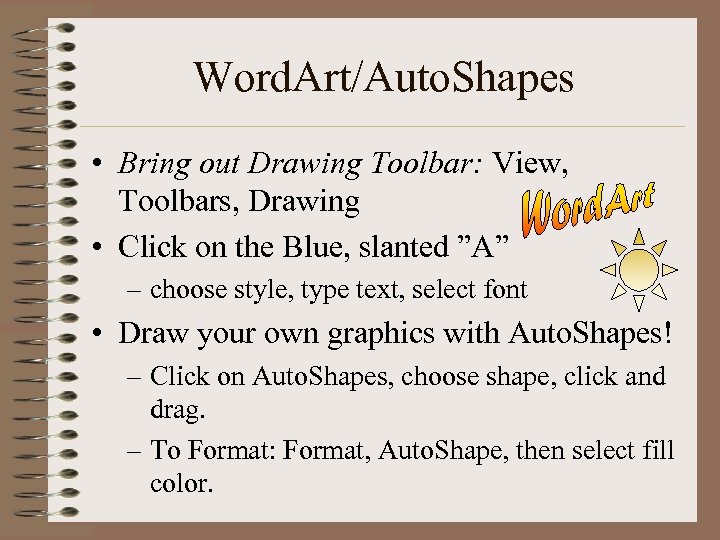 Word. Art/Auto. Shapes • Bring out Drawing Toolbar: View, Toolbars, Drawing • Click on the Blue, slanted ”A” – choose style, type text, select font • Draw your own graphics with Auto. Shapes! – Click on Auto. Shapes, choose shape, click and drag. – To Format: Format, Auto. Shape, then select fill color.