


 Скачать презентацию Introduction to ezi Link Training For the Ministry
69ecb2bacea35192e6da6809136a8f80.ppt
- Количество слайдов: 76
 Introduction to ezi. Link Training For the Ministry of Forests and Sustainable Resource Management
 Overview of Session w w Instruction on concepts Hands-on exercises and examples Troubleshooting Questions and Answers
 Training Objectives w At the end of the training, participants will be able to: w Use ezi. Link to create XML/GML files for Opening Definition, Disturbance, Silviculture Activity, Forest Cover Polygon and Milestone reporting, w Submit the XML/GML files through the ESF Submission System; and w Check for results of ESF submission and know where in ezi. Link to address any rejected submissions.
 Agenda • Introduction of Instructors and Students • Introduction to e-Submission Concepts • Introduction to the Basic Navigation in ezi. Link • Opening, Changing and Saving Submissions • Practice Exercises • Creating a New Submission • Practice Exercises • Quality Assurance and Cartography
 Section 1 - Introduction to e-Submission Concepts
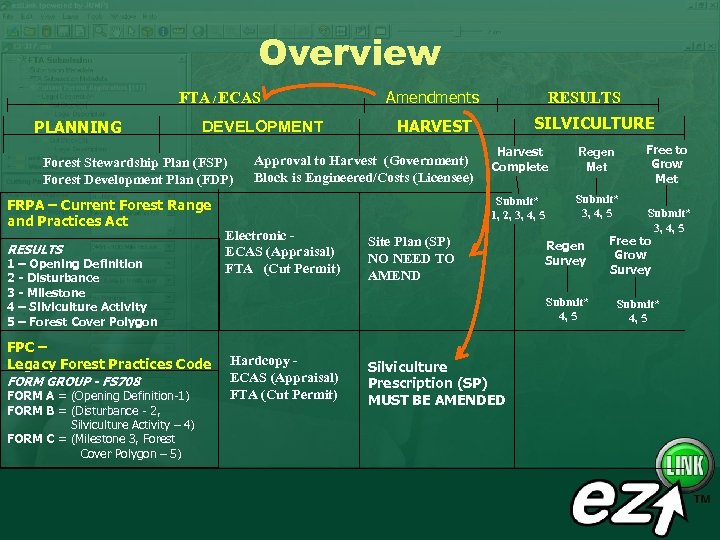 Overview FTA / ECAS PLANNING DEVELOPMENT RESULTS 1 – Opening Definition 2 - Disturbance 3 - Milestone 4 – Silviculture Activity 5 – Forest Cover Polygon FPC – Legacy Forest Practices Code FORM GROUP - FS 708 FORM A = (Opening Definition-1) FORM B = (Disturbance - 2, Silviculture Activity – 4) FORM C = (Milestone 3, Forest Cover Polygon – 5) RESULTS SILVICULTURE HARVEST Approval to Harvest (Government) Block is Engineered/Costs (Licensee) Free to Grow Met Electronic ECAS (Appraisal) FTA (Cut Permit) Harvest Complete Regen Met Submit* 1, 2, 3, 4, 5 Forest Stewardship Plan (FSP) Forest Development Plan (FDP) FRPA – Current Forest Range and Practices Act Amendments Submit* 3, 4, 5 Site Plan (SP) NO NEED TO AMEND Regen Survey Submit* 4, 5 Hardcopy ECAS (Appraisal) FTA (Cut Permit) Silviculture Prescription (SP) MUST BE AMENDED Submit* 3, 4, 5 Free to Grow Survey Submit* 4, 5
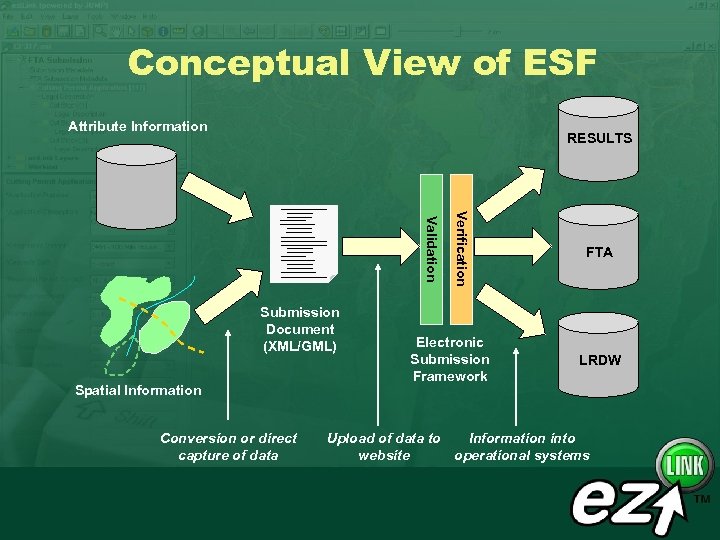 Conceptual View of ESF Attribute Information RESULTS Spatial Information Conversion or direct capture of data Verification Validation Submission Document (XML/GML) Electronic Submission Framework FTA LRDW Upload of data to Information into website operational systems
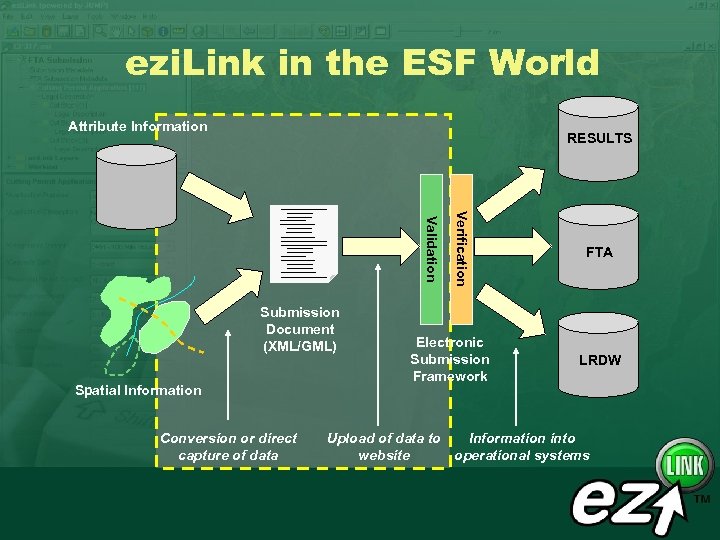 ezi. Link in the ESF World Attribute Information RESULTS Spatial Information Conversion or direct capture of data Verification Validation Submission Document (XML/GML) Electronic Submission Framework FTA LRDW Upload of data to Information into website operational systems
 What ezi. Link does. . . w Creates submission documents w Support for spatial and attributes w Entry or loading data for submission w Performs quality assurance of submissions w Provides Tools to support e-submission process w Uploading and status checking w Printing submission contents w FTA, RESULTS and ABR submissions
 What ezi. Link Does Not Do. . . w Perform data management w Understand business rules associated with the submission w Replace mapping and business management systems
 District Use of ezi. Link w Districts will use ezi. Link to create the submission documents w add clean spatial information to a submission w add attribute information to a submission w Quality assure and troubleshoot submissions
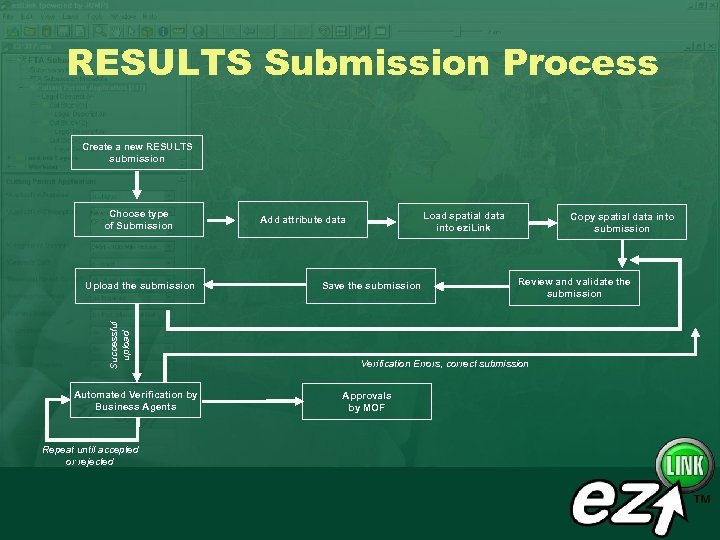 RESULTS Submission Process Create a new RESULTS submission Choose type of Submission Successful upload Upload the submission Automated Verification by Business Agents Repeat until accepted or rejected Load spatial data into ezi. Link Add attribute data Save the submission Copy spatial data into submission Review and validate the submission Verification Errors, correct submission Approvals by MOF
 RESULTS Submissions Supported w w w Opening Definition Disturbance Reporting Silviculture Activity Reporting Forest Cover Polygon Reporting Milestone Reporting
 Section 2 - Introduction to Basics
 Terminology w Feature w A real world thing represented in ezi. Link that can include spatial and non-spatial attributes w Item w Something that can be manipulated in ezi. Link (copied, pasted, edited) w Layer w a collection of spatial features that have a common theme and style
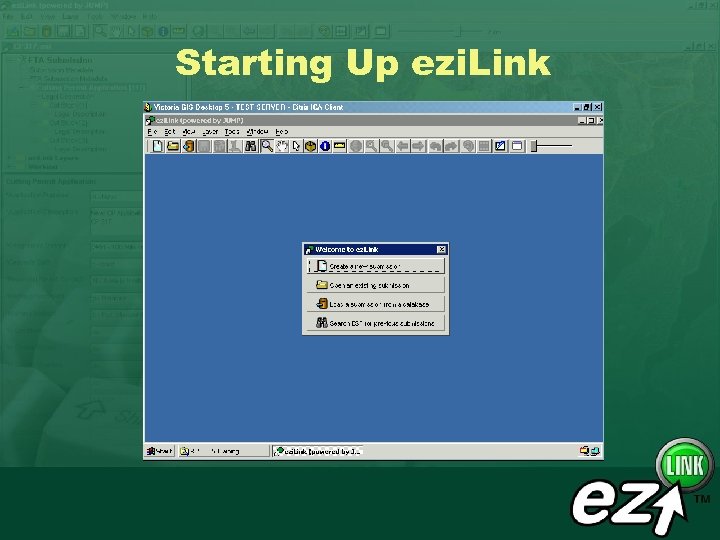 Starting Up ezi. Link
 Initial Options on Start w Create A New Submission w Creates a new submission w Open An Existing Submission w Opens a FTA, RESULTS or ABR submission w Does not have to be created in ezi. Link w Load A Submission From a Database w Loads and links spatial data for management system w Search ESF for Previous Submissions w Searches bases on user criteria
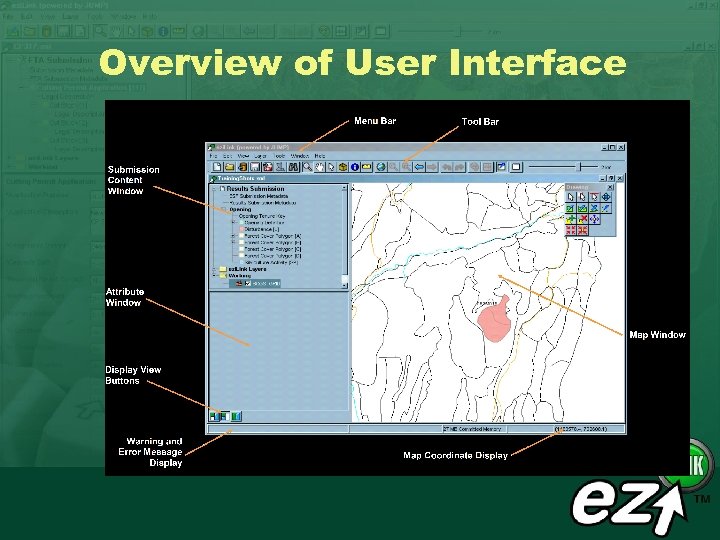 Overview of User Interface
 Menus w File management and e-submission utilities w Edit w Selection and copy functions w View w Change spatial display w Change what is visible to the user
 Menus w Layer w Functions for creating and working with spatial layers w Tools w Quality assurance tools w Tools to manipulate information w ezi. Link preferences w Window w Help
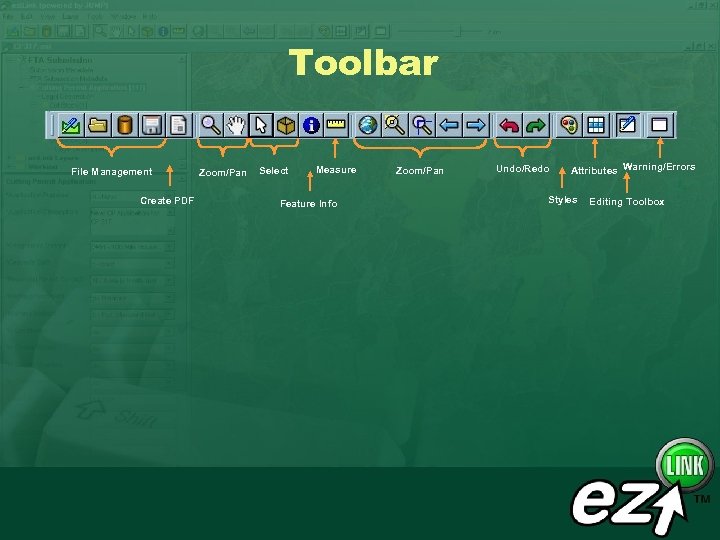 Toolbar File Management Create PDF Zoom/Pan Select Measure Feature Info Zoom/Pan Undo/Redo Attributes Warning/Errors Styles Editing Toolbox
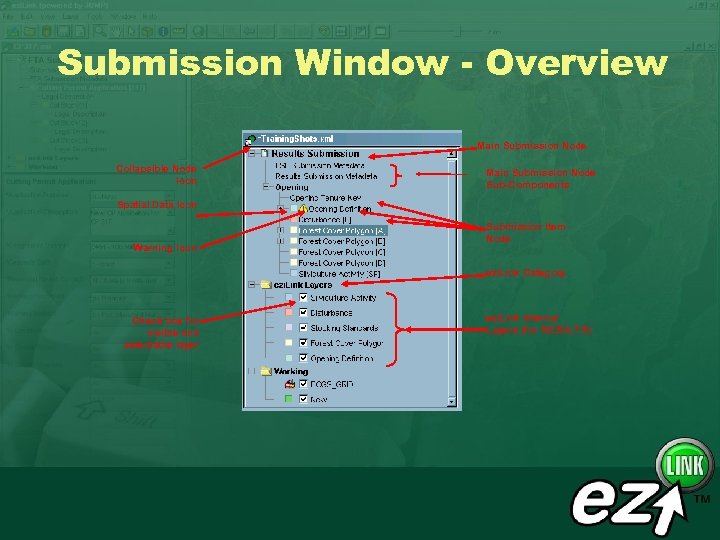 Submission Window - Overview Main Submission Node Collapsible Node Icon Main Submission Node Sub-Components Spatial Data Icon Warning Icon Submission Item Node ezi. Link Category Check box for visible and selectable layer ezi. Link Internal Layers (for RESULTS)
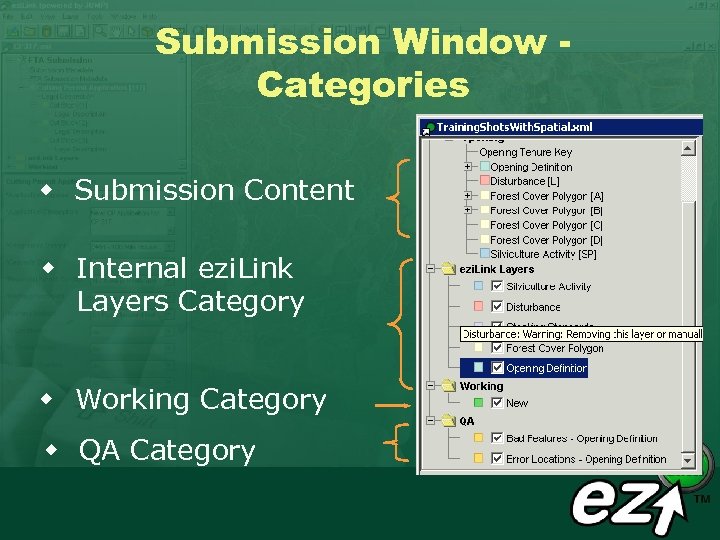 Submission Window Categories w Submission Content w Internal ezi. Link Layers Category w Working Category w QA Category
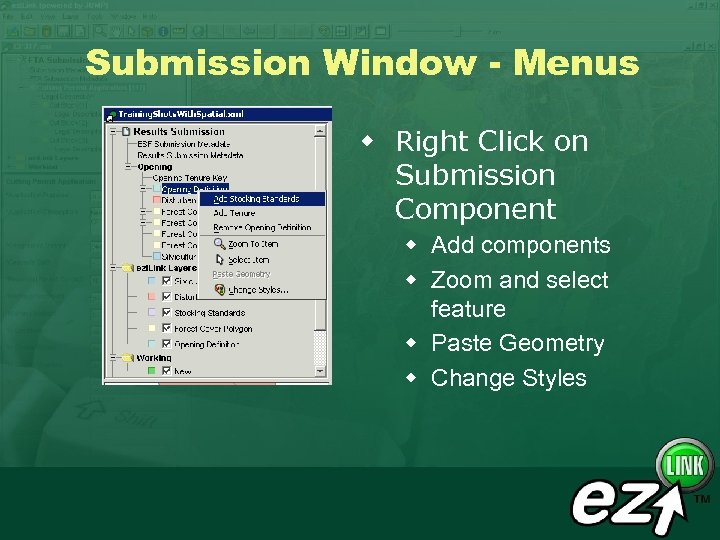 Submission Window - Menus w Right Click on Submission Component w Add components w Zoom and select feature w Paste Geometry w Change Styles
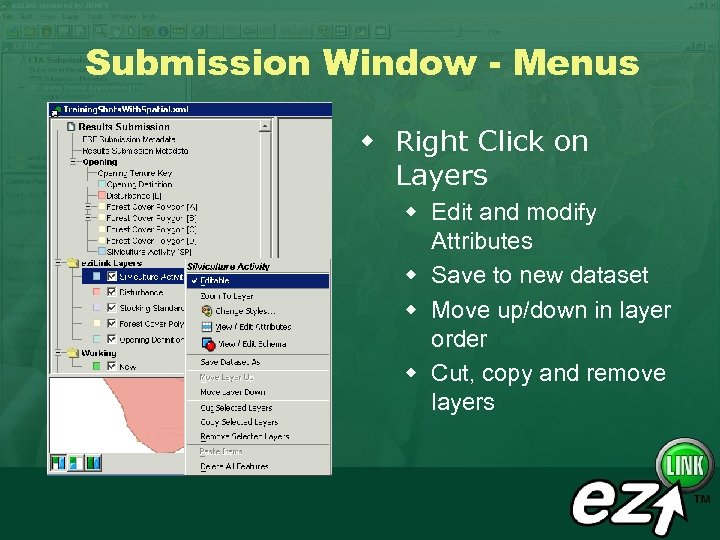 Submission Window - Menus w Right Click on Layers w Edit and modify Attributes w Save to new dataset w Move up/down in layer order w Cut, copy and remove layers
 Key Items for New Submissions w Things to have w Client number and contact information w Details about the submission to be made w Spatial data • Format • Projection of the source data • Clearly identifies what spatial feature belongs with what attributes
 Section 3 - Working with Spatial Data
 Overview w ezi. Link support reading from Shapefile, IGDS, GML and WKT w Shapefile format is recommended w Structure more similar to that required by submissions w The better the data coming in, the less work you have to do
 Projections w ezi. Link Supports the standard projections used in BC w Albers (BC Standard) w UTM w Geographics (lat/long) w Data is re-projected as data is loaded w when loading data be sure to select the projection of the source data
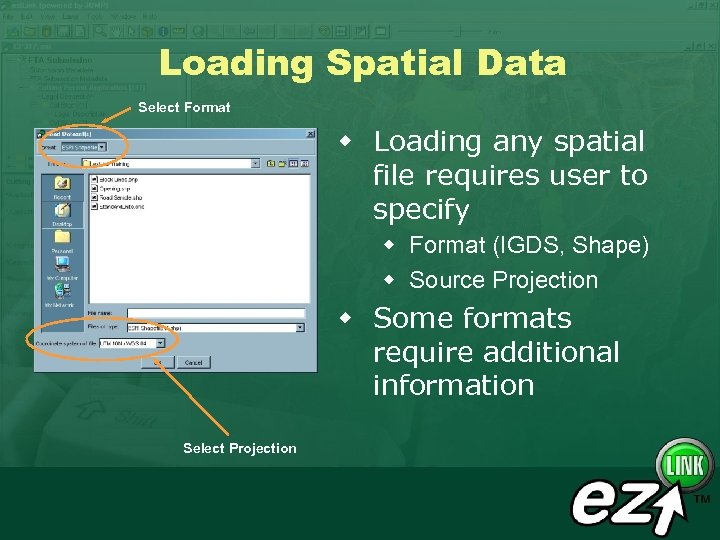 Loading Spatial Data Select Format w Loading any spatial file requires user to specify w Format (IGDS, Shape) w Source Projection w Some formats require additional information Select Projection
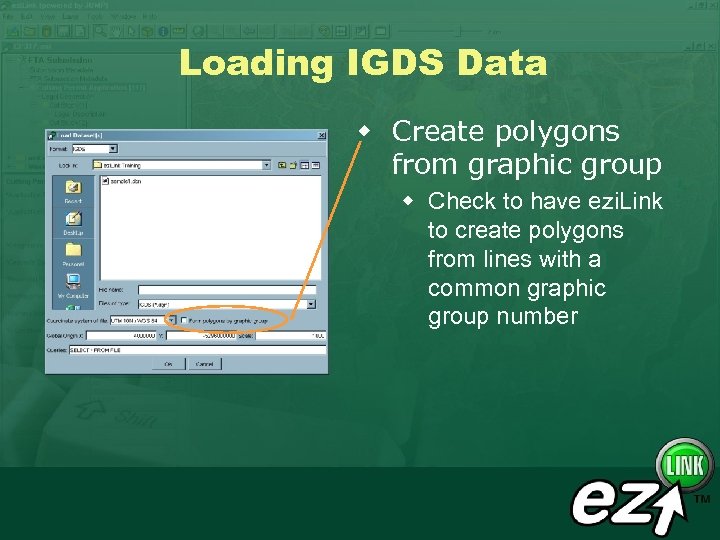 Loading IGDS Data w Create polygons from graphic group w Check to have ezi. Link to create polygons from lines with a common graphic group number
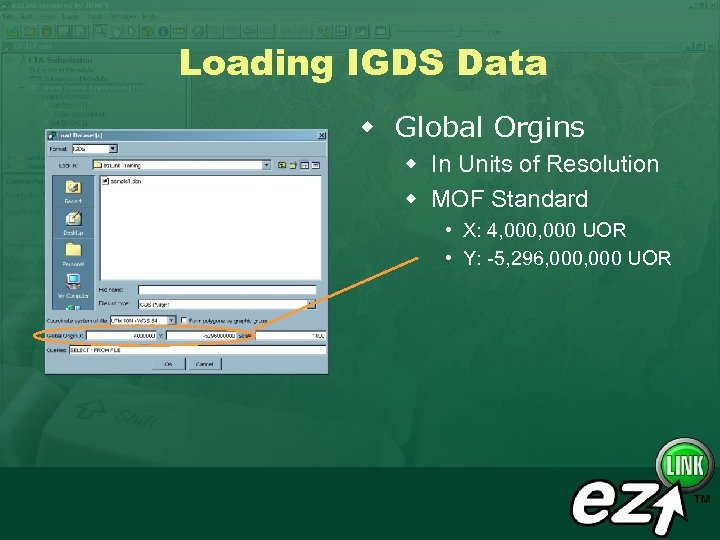 Loading IGDS Data w Global Orgins w In Units of Resolution w MOF Standard • X: 4, 000 UOR • Y: -5, 296, 000 UOR
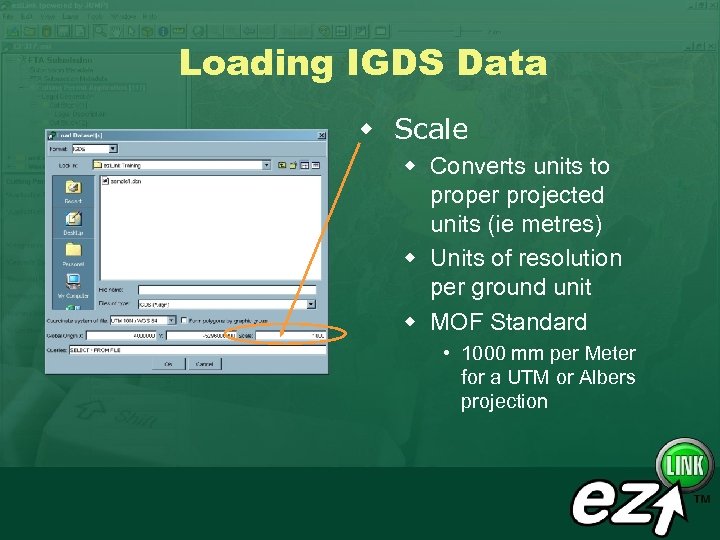 Loading IGDS Data w Scale w Converts units to proper projected units (ie metres) w Units of resolution per ground unit w MOF Standard • 1000 mm per Meter for a UTM or Albers projection
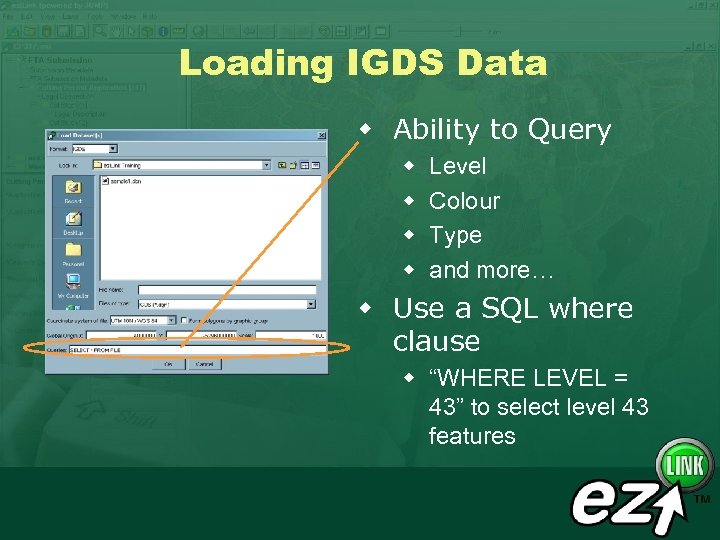 Loading IGDS Data w Ability to Query w w Level Colour Type and more… w Use a SQL where clause w “WHERE LEVEL = 43” to select level 43 features
 IGDS Data Recommendations w Simple geometry is better - limit use of complex shapes w Geometry should be ‘cleaned’ through Maps 3 D to resolve issues w Use the standard global origins and units of measure w Text is loaded into points and labeled
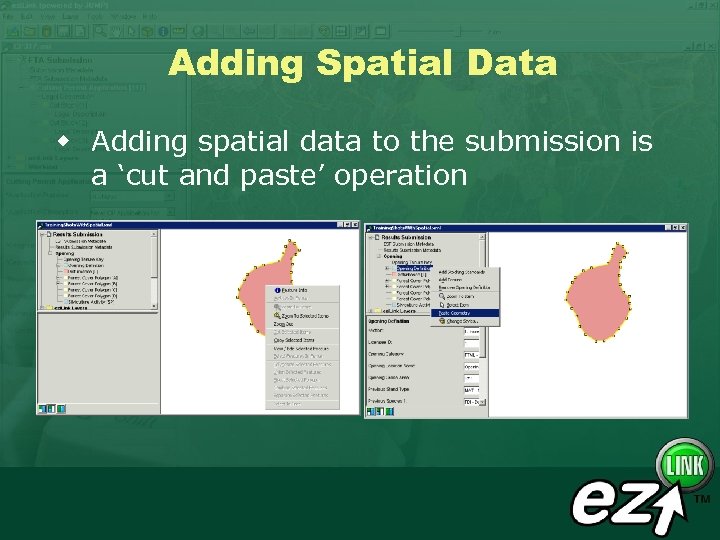 Adding Spatial Data w Adding spatial data to the submission is a ‘cut and paste’ operation
 Adding Spatial Data w Only one geometry can be pasted into a single submission component. w i. e. a single polygon or multi-part polygon can be pasted into an Opening Definition in the submission window
 Exercises w Practice with w loading shapefile w copying geometry into submission w Exercise 10 & 11 from the Training Manual
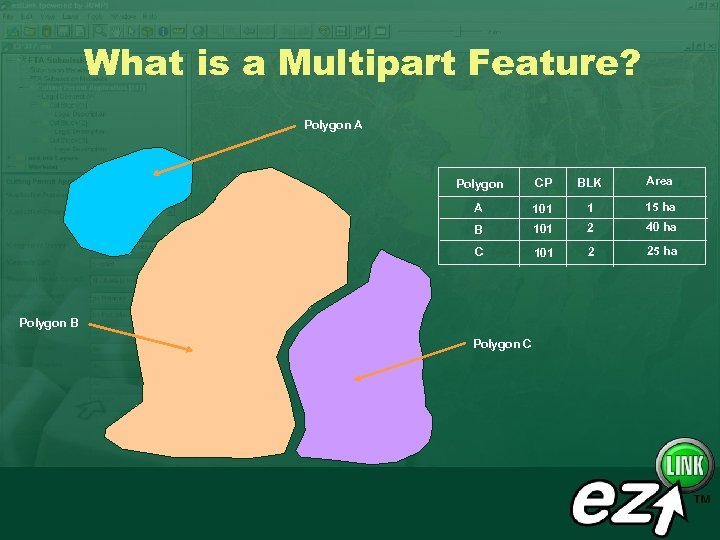 What is a Multipart Feature? Polygon A Polygon CP BLK Area A 101 1 15 ha B 101 2 40 ha C 101 2 25 ha Polygon B Polygon C
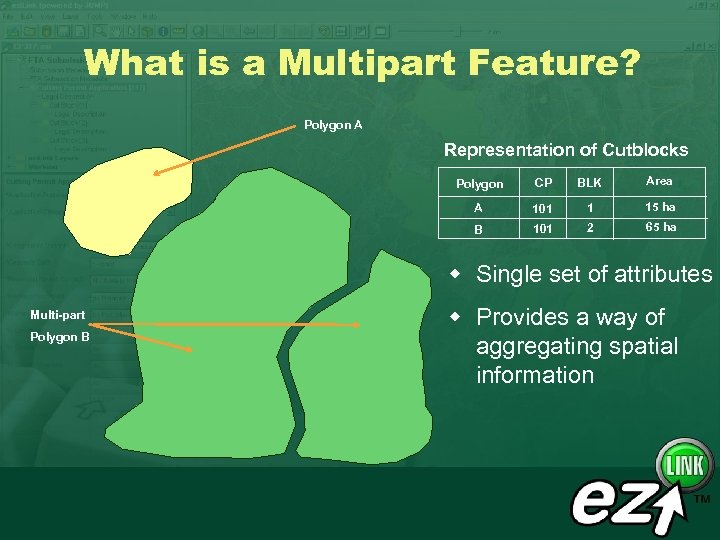 What is a Multipart Feature? Polygon A Representation of Cutblocks Polygon CP BLK Area A 101 1 15 ha B 101 2 65 ha w Single set of attributes Multi-part Polygon B w Provides a way of aggregating spatial information
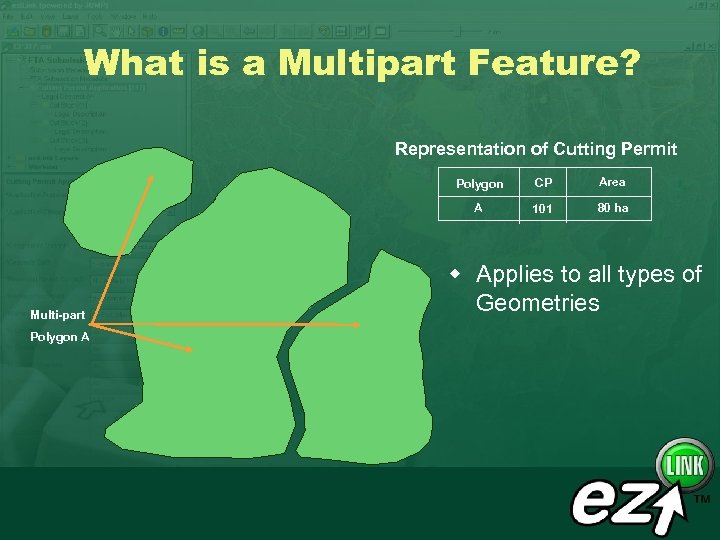 What is a Multipart Feature? Representation of Cutting Permit Polygon A Area A Multi-part CP 101 80 ha w Applies to all types of Geometries
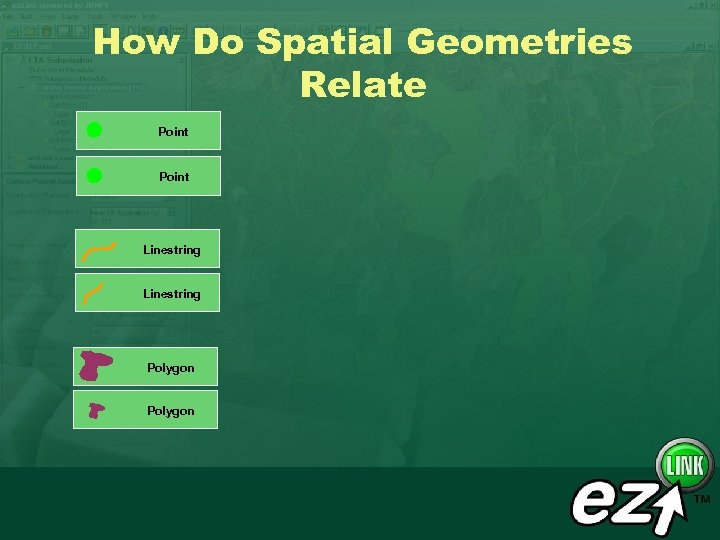 How Do Spatial Geometries Relate Point Linestring Polygon
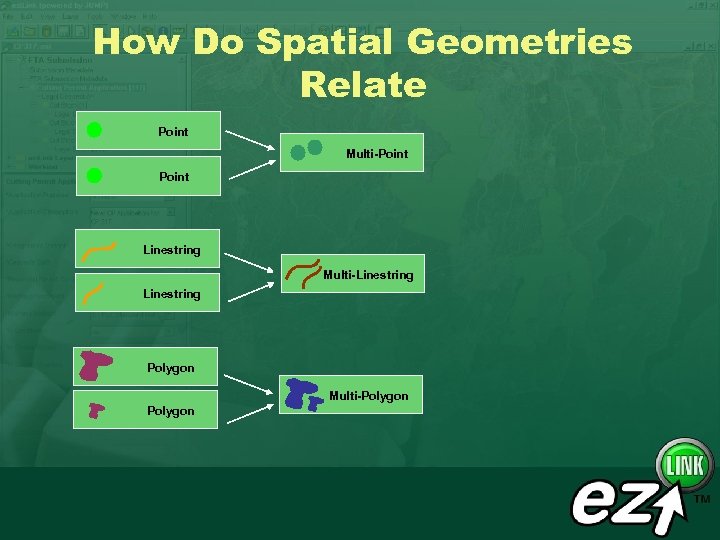 How Do Spatial Geometries Relate Point Multi-Point Linestring Multi-Linestring Polygon Multi-Polygon
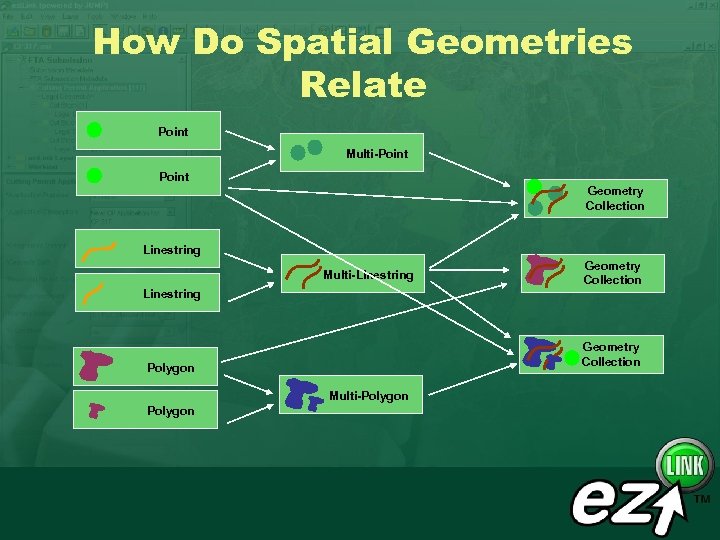 How Do Spatial Geometries Relate Point Multi-Point Geometry Collection Linestring Multi-Linestring Geometry Collection Polygon Multi-Polygon
 Widely Used Spatial Functions w Used with to interact selected features w Operates on features not entire layers
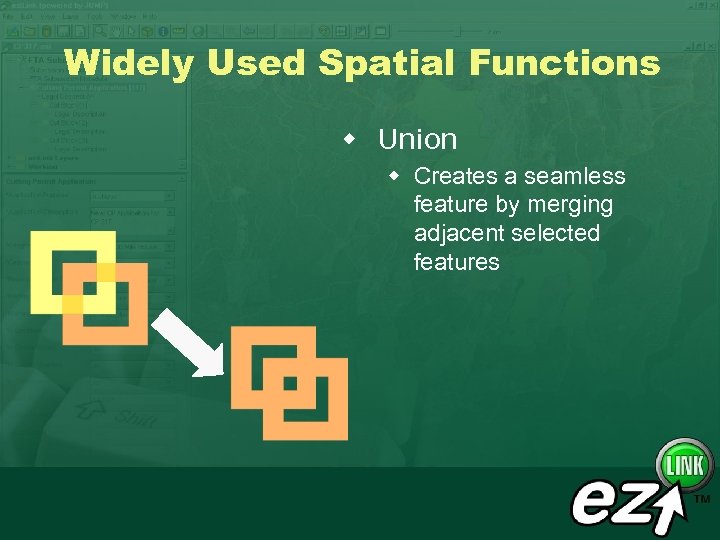 Widely Used Spatial Functions w Union w Creates a seamless feature by merging adjacent selected features
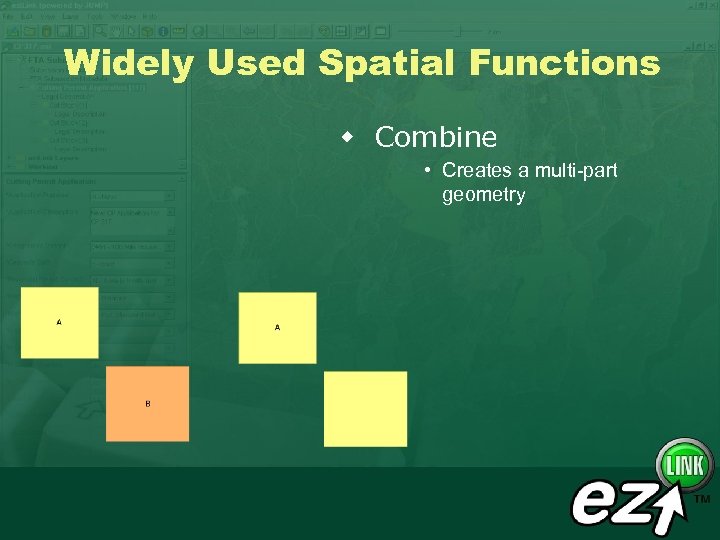 Widely Used Spatial Functions w Combine • Creates a multi-part geometry
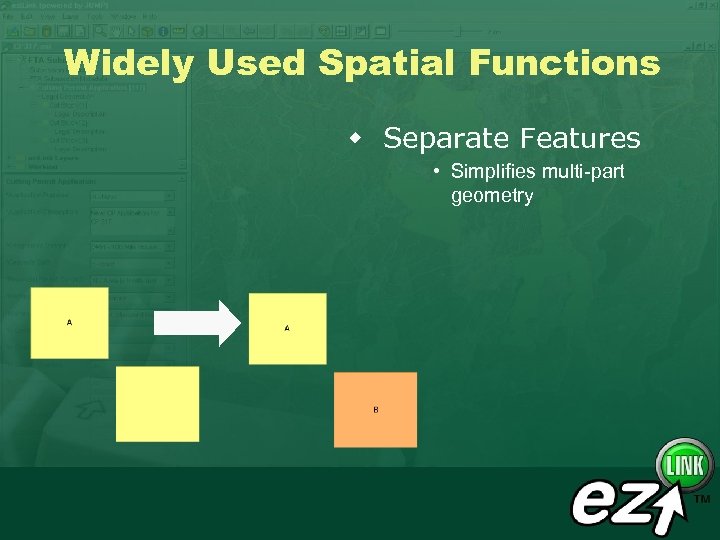 Widely Used Spatial Functions w Separate Features • Simplifies multi-part geometry
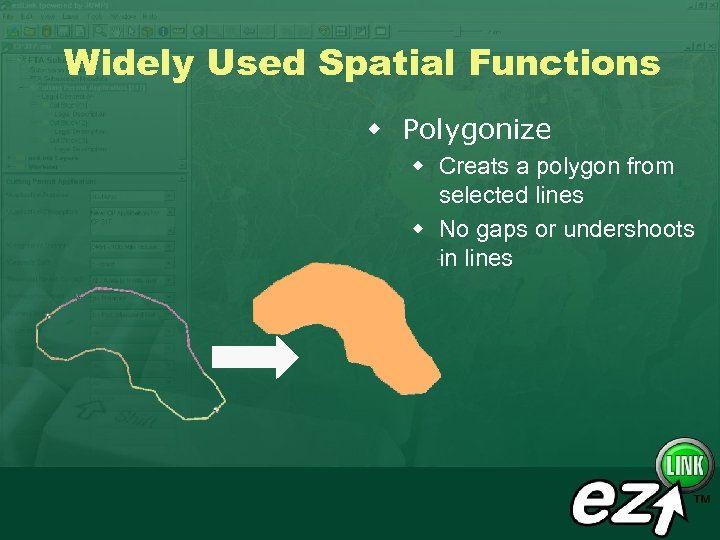 Widely Used Spatial Functions w Polygonize w Creats a polygon from selected lines w No gaps or undershoots in lines
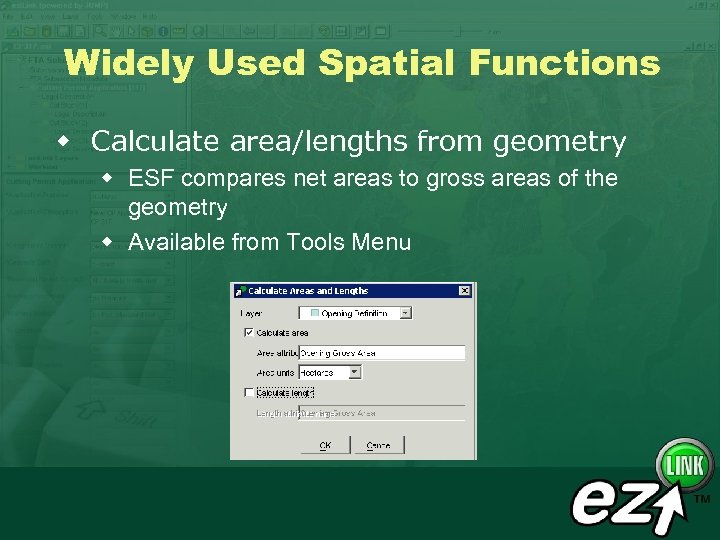 Widely Used Spatial Functions w Calculate area/lengths from geometry w ESF compares net areas to gross areas of the geometry w Available from Tools Menu
 Exercises w Practice with basics of manipulating spatial data w Exercise 12, 13, & 14 from the Training Manual
 Section 4 - Basic Cartographic Operations
 Overview of Cartography w ezi. Link supports basic cartographic operations w Labeling w Theming w Graphic display for colour, fill, transparency, etc… w Save the styles and reuse in all submissions w Access reference information across the internet for government servers
 Working with Themes and Layers w Layers can be saved and reloaded w Allows users to reuse styles w Saved under the “Layers” menu w Can be set-up permanently for all FTA or RESULTS submissions in the ezi. Link preferences.
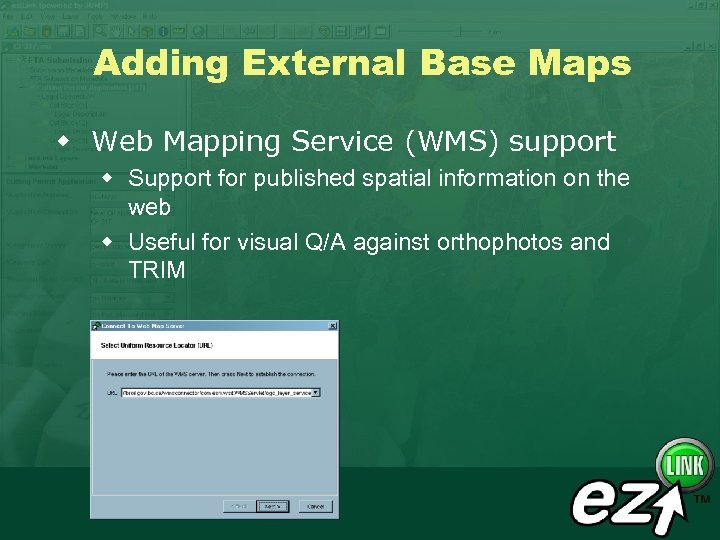 Adding External Base Maps w Web Mapping Service (WMS) support w Support for published spatial information on the web w Useful for visual Q/A against orthophotos and TRIM
 Exercises w Practice with changing styles, saving formatting and external data w Exercise 15, 16 & 17, 18 from the Training Manual
 Section 5 - e-Submission Utilities and Services
 e-Submission Utilities w w Generate PDF Report Upload of Submission Query of Submission Status Management of Submission Details
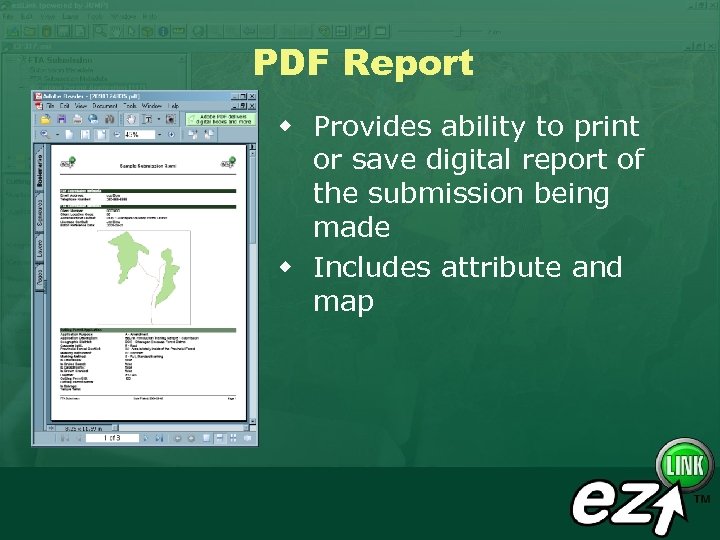 PDF Report w Provides ability to print or save digital report of the submission being made w Includes attribute and map
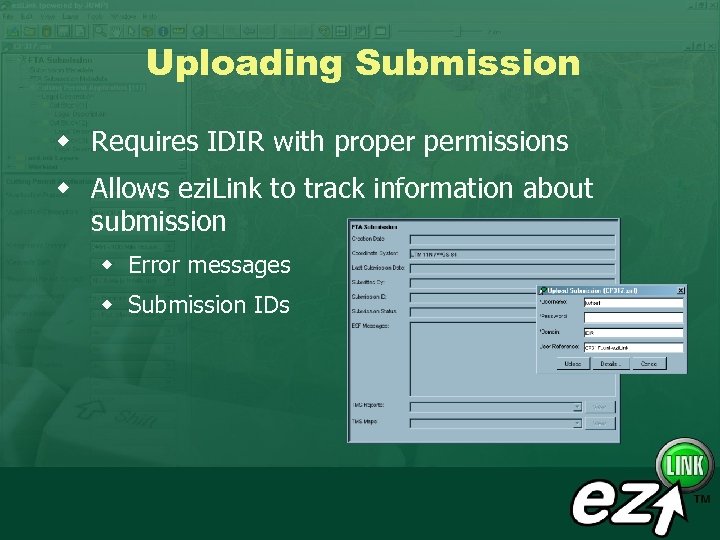 Uploading Submission w Requires IDIR with proper permissions w Allows ezi. Link to track information about submission w Error messages w Submission IDs
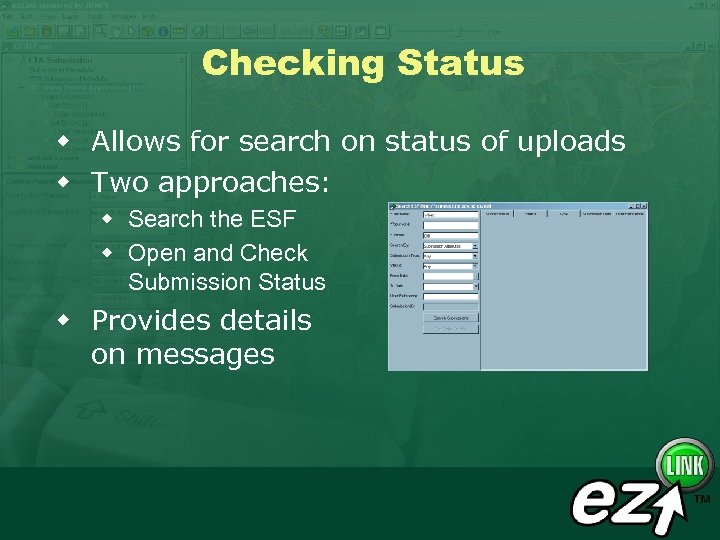 Checking Status w Allows for search on status of uploads w Two approaches: w Search the ESF w Open and Check Submission Status w Provides details on messages
 Exercises w Practice with searching ESF and generating PDF document w Exercise 19 & 20 from the Training Manual
 Section 6 - Quality Assurance and Troubleshooting
 Steps for Q/A w Ensure all minimum requirements are completed w no flags in the submission content window w Validate Layers that will be submitted w Checks on spatial topology and content w Visually inspect against WMS Layers w Looking for data not in correct location w Review attributes w Ensure that attributes make sense
 Checking Minimum Requirements w Review the submission content window and ensure that warning flags are completely removed
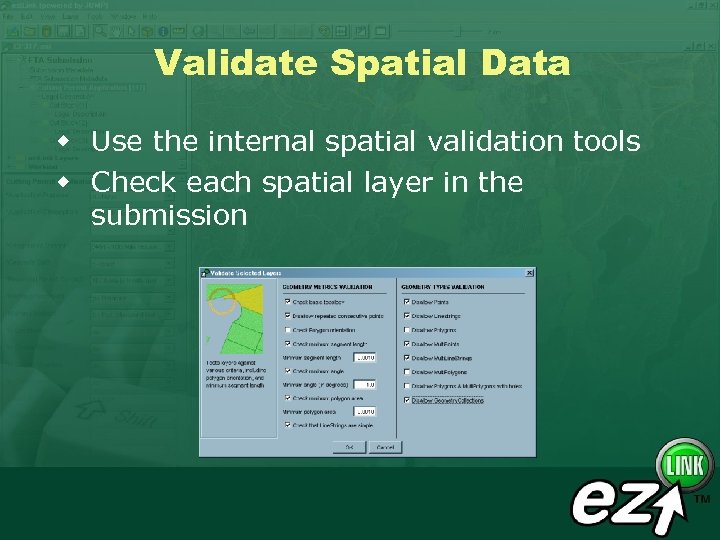 Validate Spatial Data w Use the internal spatial validation tools w Check each spatial layer in the submission
 Validate Spatial Data w Check w Basic Topology • Self intersections w Consecutive Points • Identifies duplicate vertices w Minimum Segment Length • Distance between vertices
 Validate Spatial Data w Check w Minimum Angle • identifies spikes in the geometry w Minimum Area • Small sliver polygons w Geometry Types
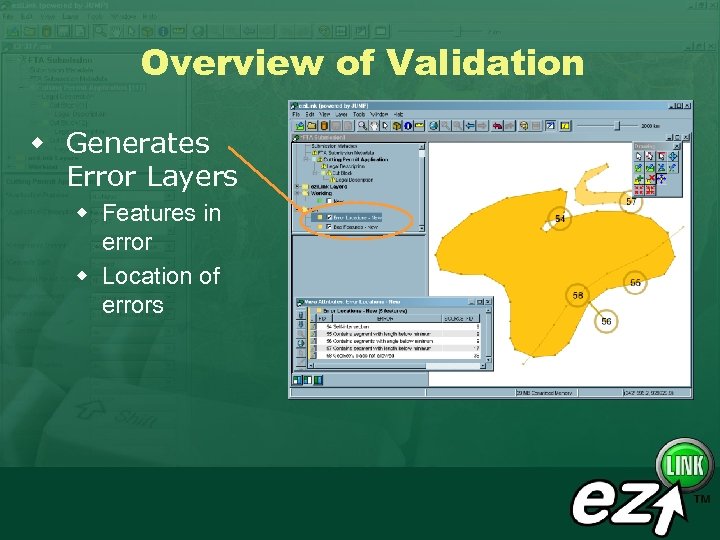 Overview of Validation w Generates Error Layers w Features in error w Location of errors
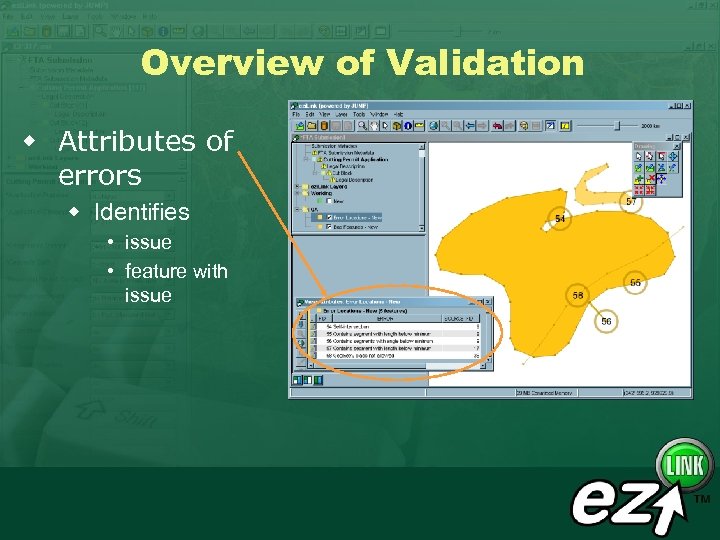 Overview of Validation w Attributes of errors w Identifies • issue • feature with issue
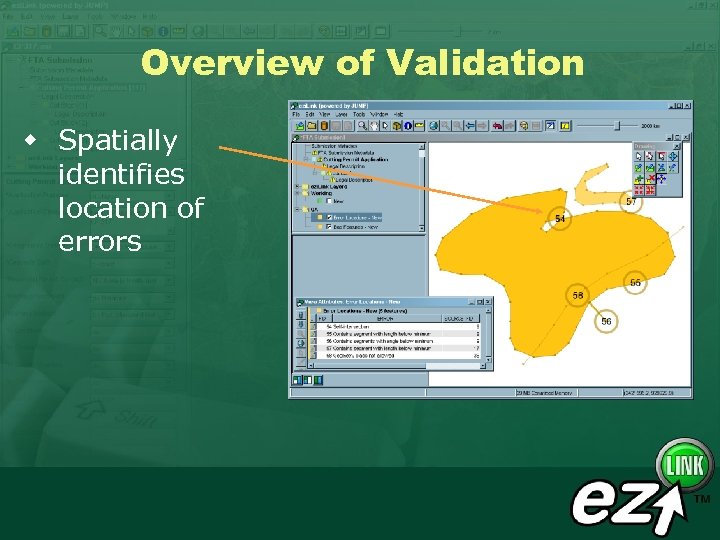 Overview of Validation w Spatially identifies location of errors
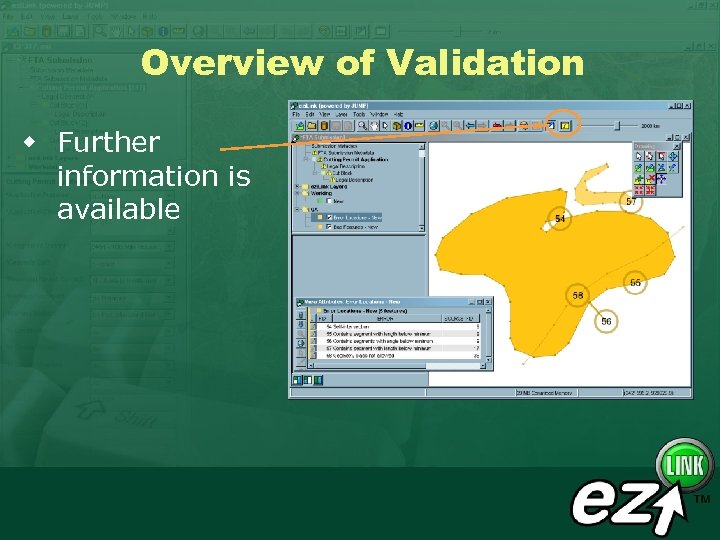 Overview of Validation w Further information is available
 Common Problems w “Net Area is Greater than Gross Area” w “Self Intersection” w “Incorrect Client Code”
 Section 8 - Support
 Support Resources w A wealth of self-help information available on the INCOSADA Project Website and through MSRM Support Desk w FAQ w Downloads w Telephone Support
 Support Resources E-Mail Address for Support FORHISP. APPHELP@gems 5. gov. bc. ca Telephone Support (250) 387 -8888