


 Скачать презентацию Introduction to computers In this section of notes
a03d6150d7810f55acbf9aacc894f277.ppt
- Количество слайдов: 77
 Introduction to computers In this section of notes you will learn what are the basic components of a computer system and learn about some common peripherals James Tam
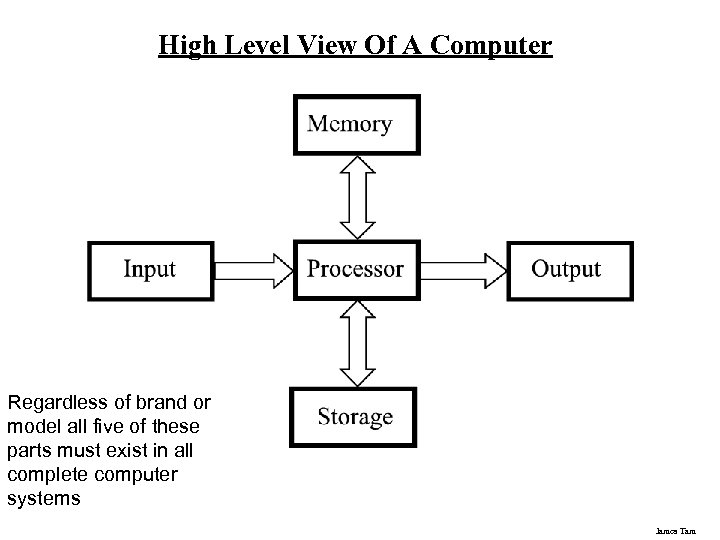 High Level View Of A Computer Regardless of brand or model all five of these parts must exist in all complete computer systems James Tam
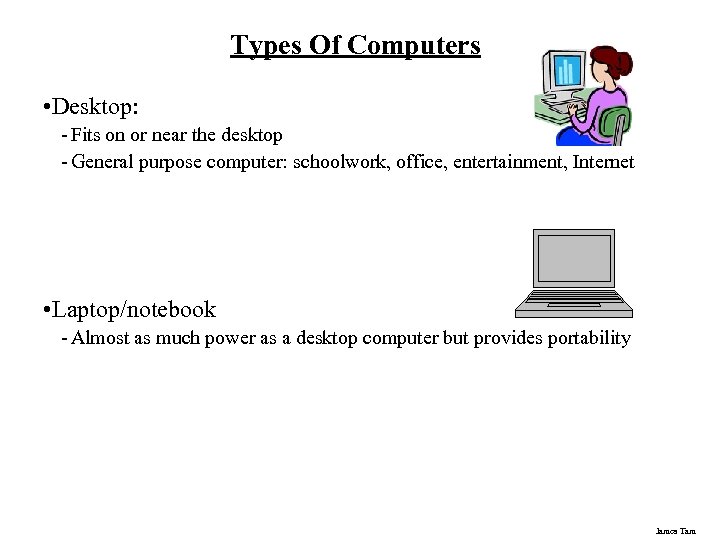 Types Of Computers • Desktop: - Fits on or near the desktop - General purpose computer: schoolwork, office, entertainment, Internet • Laptop/notebook - Almost as much power as a desktop computer but provides portability James Tam
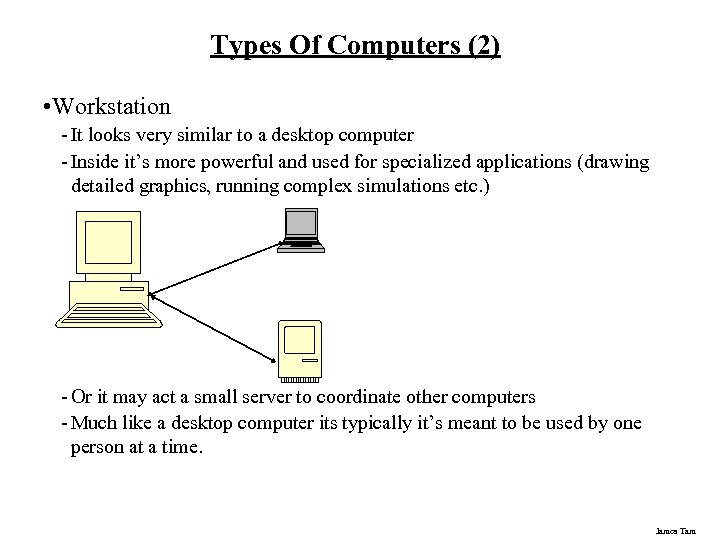 Types Of Computers (2) • Workstation - It looks very similar to a desktop computer - Inside it’s more powerful and used for specialized applications (drawing detailed graphics, running complex simulations etc. ) - Or it may act a small server to coordinate other computers - Much like a desktop computer its typically it’s meant to be used by one person at a time. James Tam
 Types Of Computers (3) • Main frame - Similar to workstations they’re used for specialized situations. - Often many users will be simultaneously using the mainframe - Needed when reliability is important (e. g. , a company that handles many online purchases, scientific research) - It may not be much more powerful than a desktop computer but the increased reliability substantially increases the cost. James Tam
 Types Of Computers (4) • Super computer - An extremely powerful computer that can quickly perform calculations - Very expensive • PDA (personal digital assistant) - A handheld computing device - They provide some of the power of a full computer but are only slightly larger than a mobile phone. James Tam
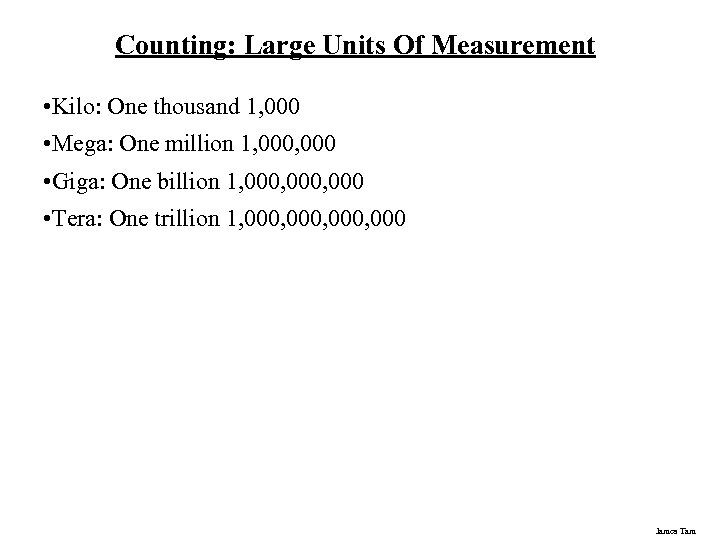 Counting: Large Units Of Measurement • Kilo: One thousand 1, 000 • Mega: One million 1, 000 • Giga: One billion 1, 000, 000 • Tera: One trillion 1, 000, 000 James Tam
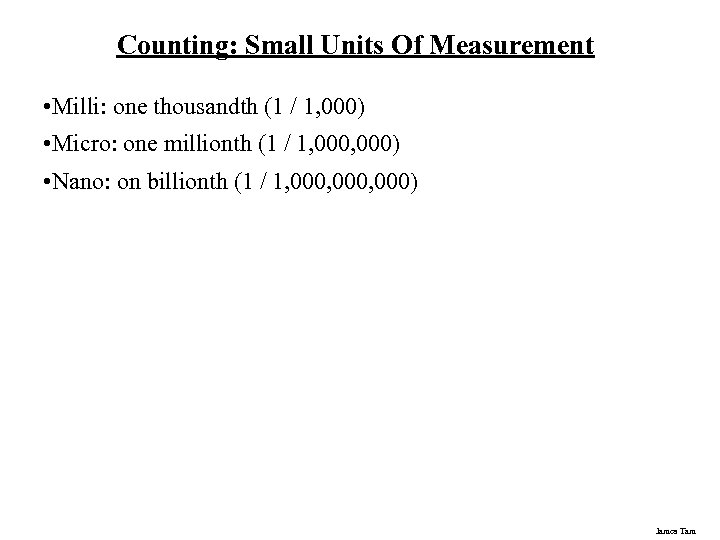 Counting: Small Units Of Measurement • Milli: one thousandth (1 / 1, 000) • Micro: one millionth (1 / 1, 000) • Nano: on billionth (1 / 1, 000, 000) James Tam
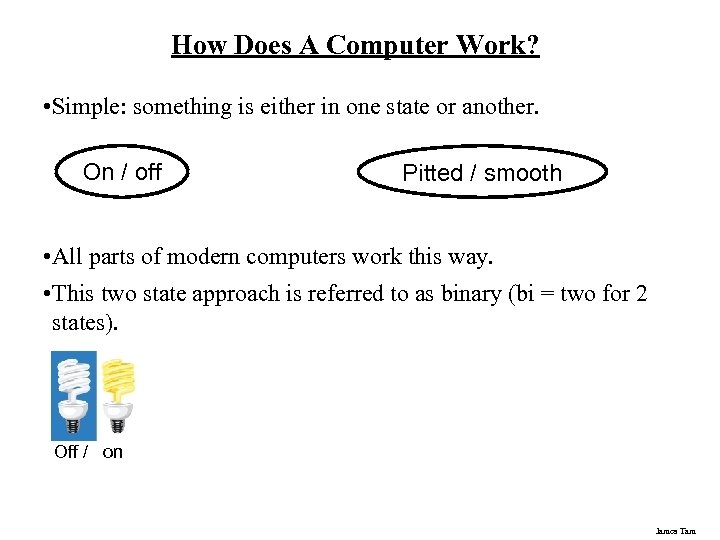 How Does A Computer Work? • Simple: something is either in one state or another. On / off Pitted / smooth • All parts of modern computers work this way. • This two state approach is referred to as binary (bi = two for 2 states). Off / on James Tam
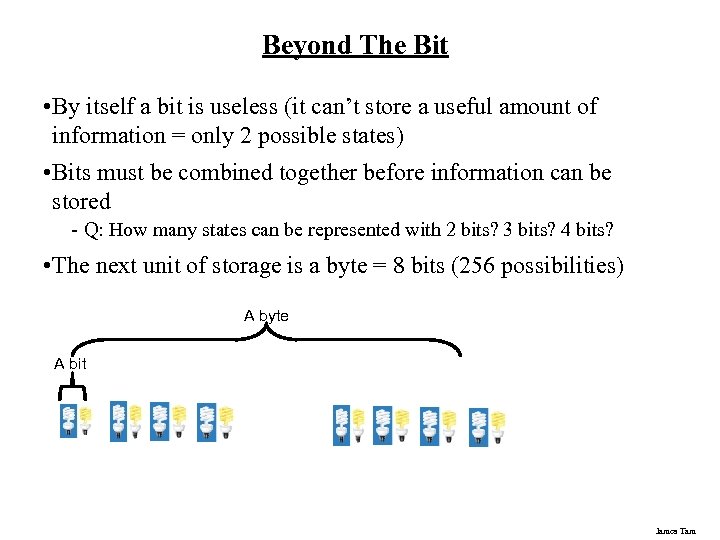 Beyond The Bit • By itself a bit is useless (it can’t store a useful amount of information = only 2 possible states) • Bits must be combined together before information can be stored - Q: How many states can be represented with 2 bits? 3 bits? 4 bits? • The next unit of storage is a byte = 8 bits (256 possibilities) A byte A bit James Tam
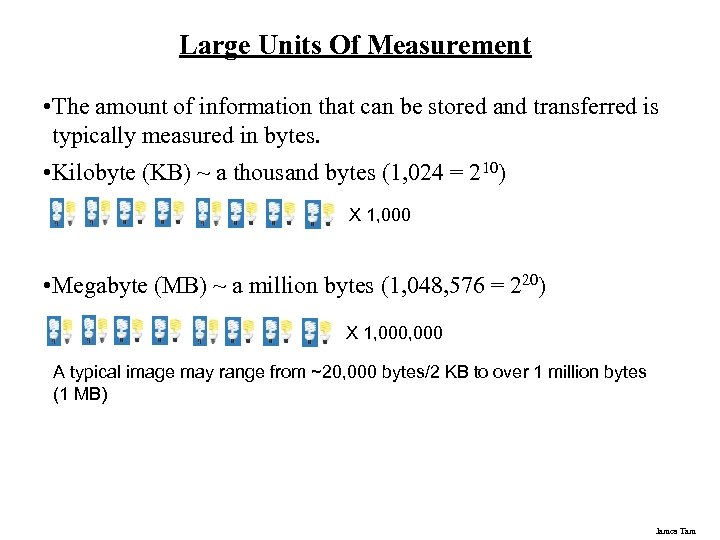 Large Units Of Measurement • The amount of information that can be stored and transferred is typically measured in bytes. • Kilobyte (KB) ~ a thousand bytes (1, 024 = 210) X 1, 000 • Megabyte (MB) ~ a million bytes (1, 048, 576 = 220) X 1, 000 A typical image may range from ~20, 000 bytes/2 KB to over 1 million bytes (1 MB) James Tam
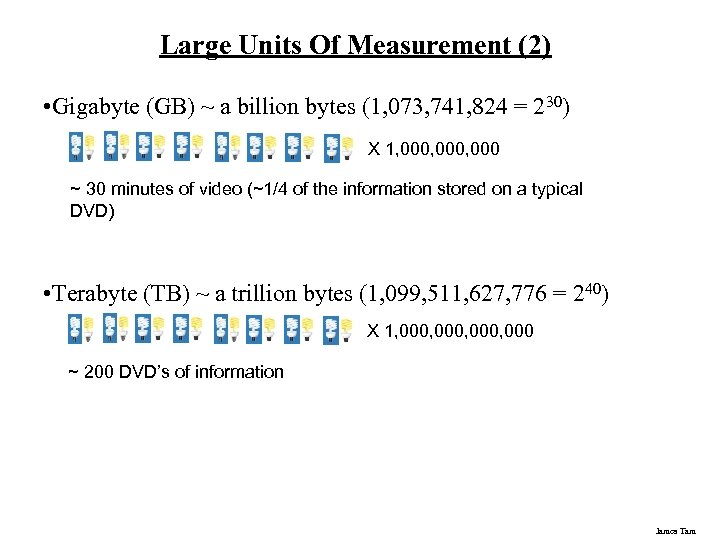 Large Units Of Measurement (2) • Gigabyte (GB) ~ a billion bytes (1, 073, 741, 824 = 230) X 1, 000, 000 ~ 30 minutes of video (~1/4 of the information stored on a typical DVD) • Terabyte (TB) ~ a trillion bytes (1, 099, 511, 627, 776 = 240) X 1, 000, 000 ~ 200 DVD’s of information James Tam
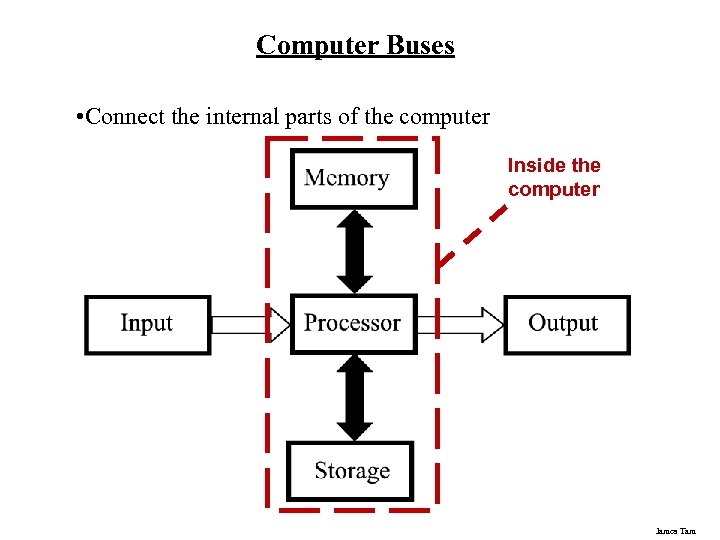 Computer Buses • Connect the internal parts of the computer Inside the computer James Tam
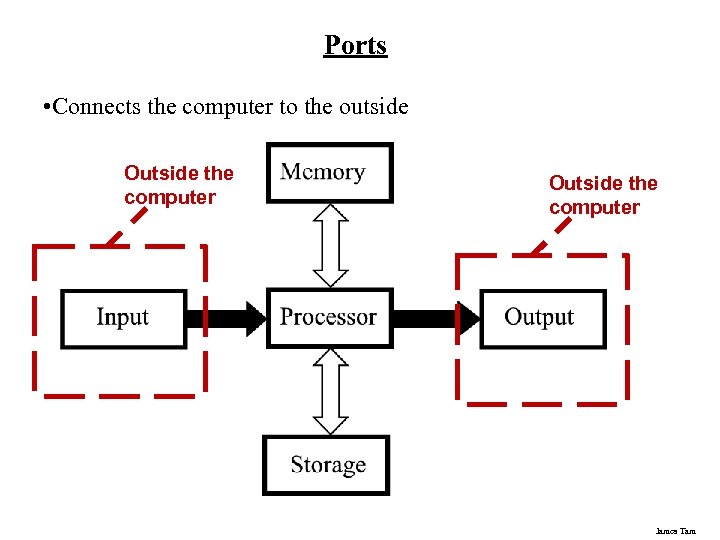 Ports • Connects the computer to the outside Outside the computer James Tam
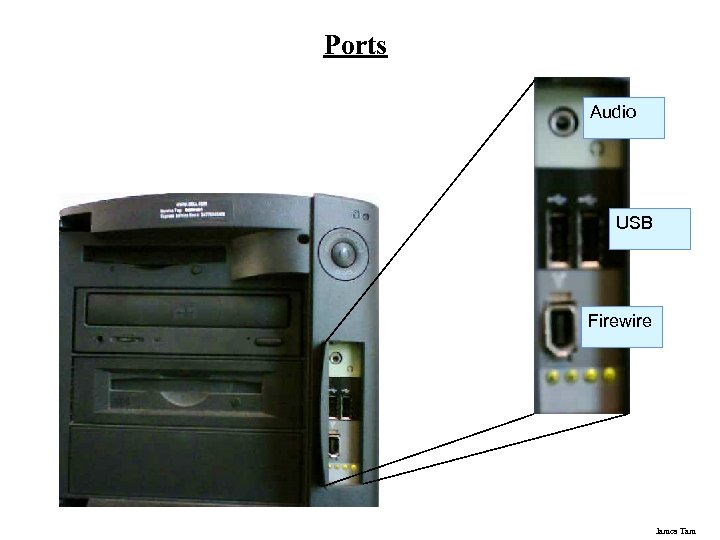 Ports Audio USB Firewire James Tam
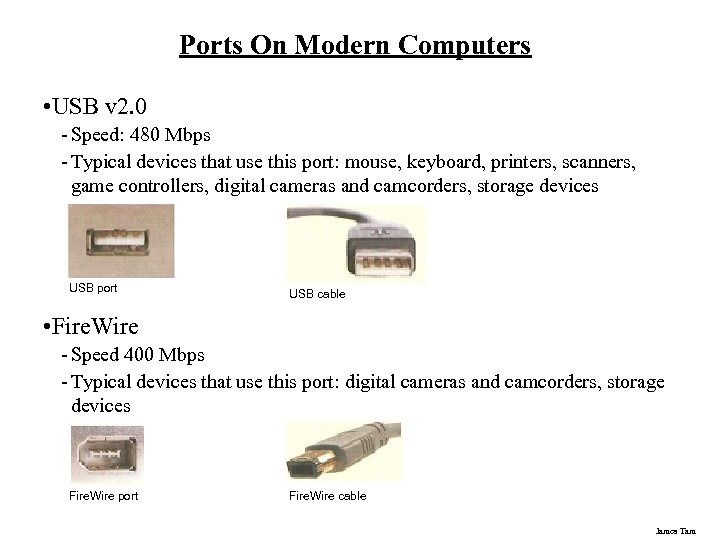 Ports On Modern Computers • USB v 2. 0 - Speed: 480 Mbps - Typical devices that use this port: mouse, keyboard, printers, scanners, game controllers, digital cameras and camcorders, storage devices USB port USB cable • Fire. Wire - Speed 400 Mbps - Typical devices that use this port: digital cameras and camcorders, storage devices Fire. Wire port Fire. Wire cable James Tam
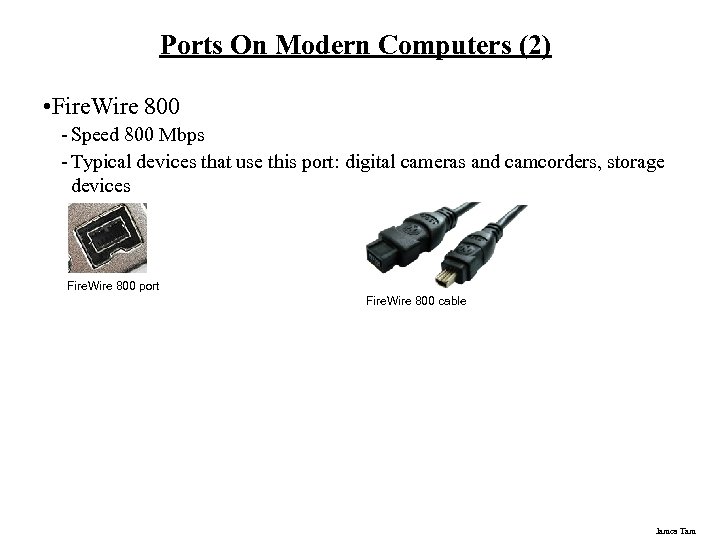 Ports On Modern Computers (2) • Fire. Wire 800 - Speed 800 Mbps - Typical devices that use this port: digital cameras and camcorders, storage devices Fire. Wire 800 port Fire. Wire 800 cable James Tam
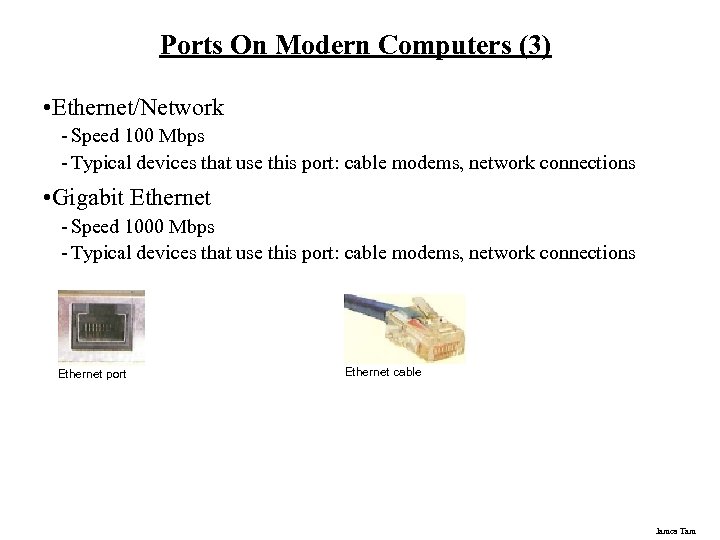 Ports On Modern Computers (3) • Ethernet/Network - Speed 100 Mbps - Typical devices that use this port: cable modems, network connections • Gigabit Ethernet - Speed 1000 Mbps - Typical devices that use this port: cable modems, network connections Ethernet port Ethernet cable James Tam
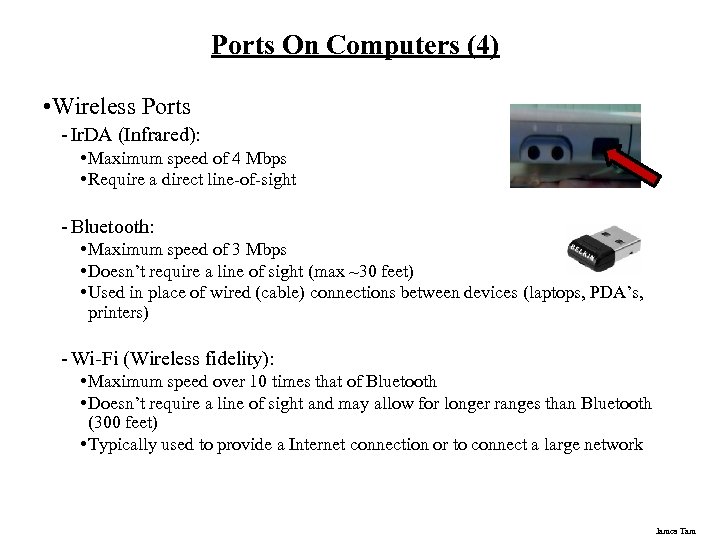 Ports On Computers (4) • Wireless Ports - Ir. DA (Infrared): • Maximum speed of 4 Mbps • Require a direct line-of-sight - Bluetooth: • Maximum speed of 3 Mbps • Doesn’t require a line of sight (max ~30 feet) • Used in place of wired (cable) connections between devices (laptops, PDA’s, printers) - Wi-Fi (Wireless fidelity): • Maximum speed over 10 times that of Bluetooth • Doesn’t require a line of sight and may allow for longer ranges than Bluetooth (300 feet) • Typically used to provide a Internet connection or to connect a large network James Tam
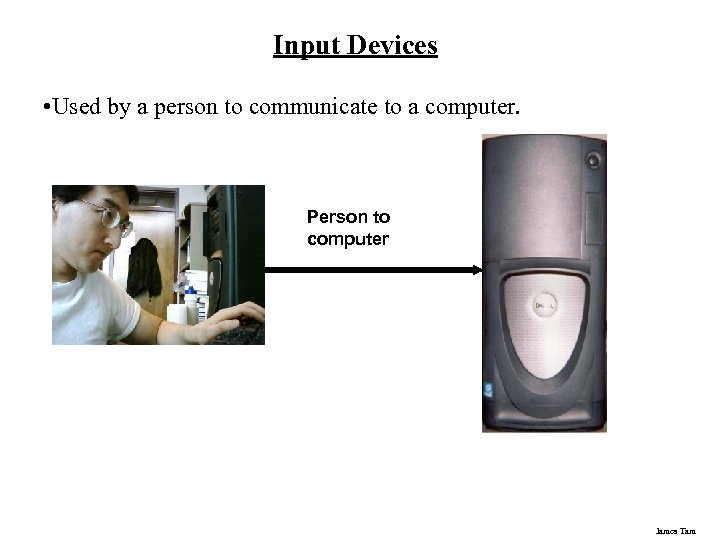 Input Devices • Used by a person to communicate to a computer. Person to computer James Tam
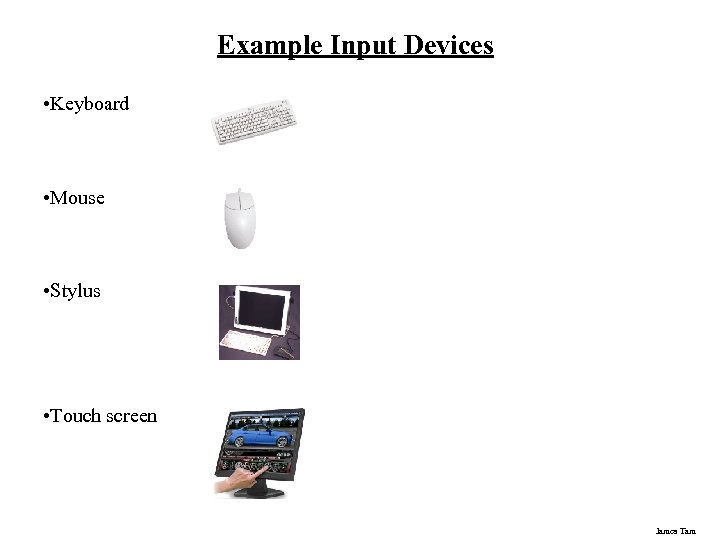 Example Input Devices • Keyboard • Mouse • Stylus • Touch screen James Tam
 Keyboards • Wired - Least expensive - Requires a physical connection • Wireless - Costlier - Reduces the number of wires (no direct physical connection between the keyboard and the computer) - Can introduces additional issues: battery use, security - Types • Infrared Similar to a TV remote control Unidirectional / line-of-sight • Radio frequency (RF) Omni directional James Tam
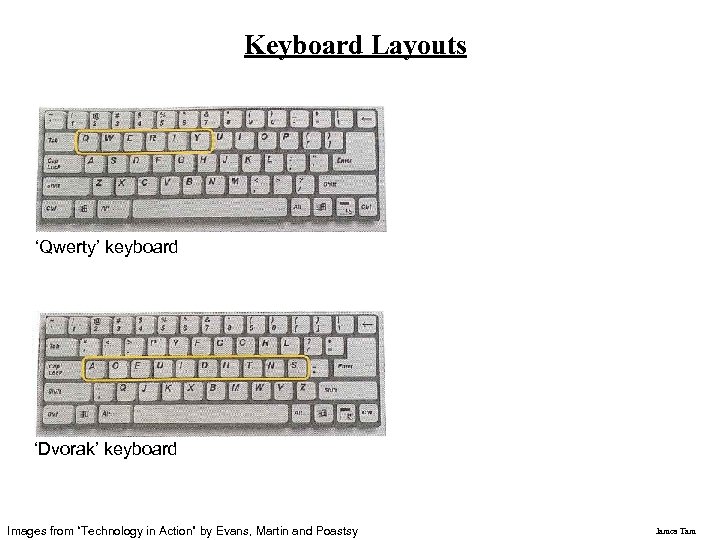 Keyboard Layouts ‘Qwerty’ keyboard ‘Dvorak’ keyboard Images from “Technology in Action” by Evans, Martin and Poastsy James Tam
 Mice • Similar to keyboards they can be wired or wireless • Input method: - Roller ball - Optical - Laser James Tam
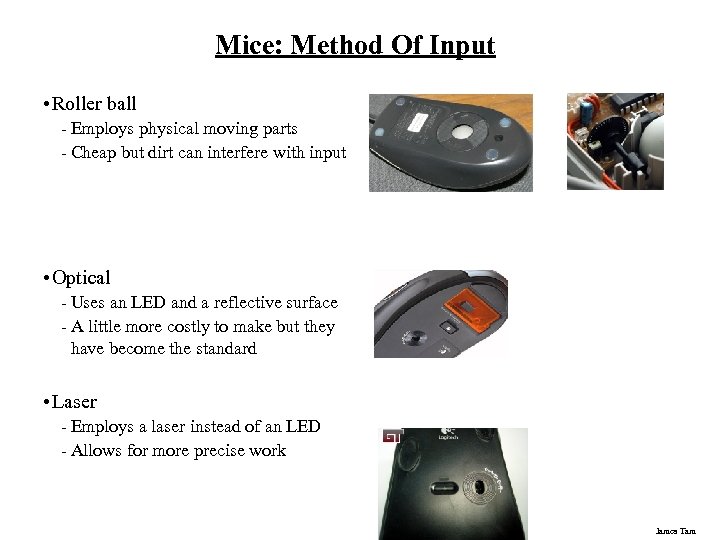 Mice: Method Of Input • Roller ball - Employs physical moving parts - Cheap but dirt can interfere with input • Optical - Uses an LED and a reflective surface - A little more costly to make but they have become the standard • Laser - Employs a laser instead of an LED - Allows for more precise work James Tam
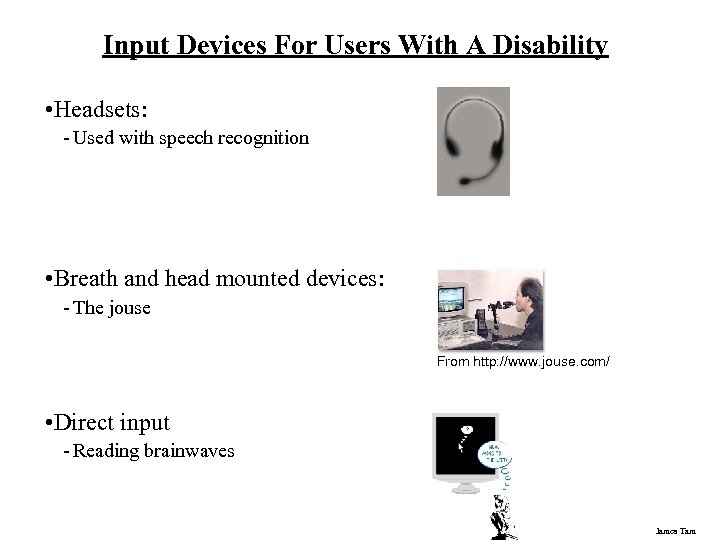 Input Devices For Users With A Disability • Headsets: - Used with speech recognition • Breath and head mounted devices: - The jouse From http: //www. jouse. com/ • Direct input - Reading brainwaves James Tam
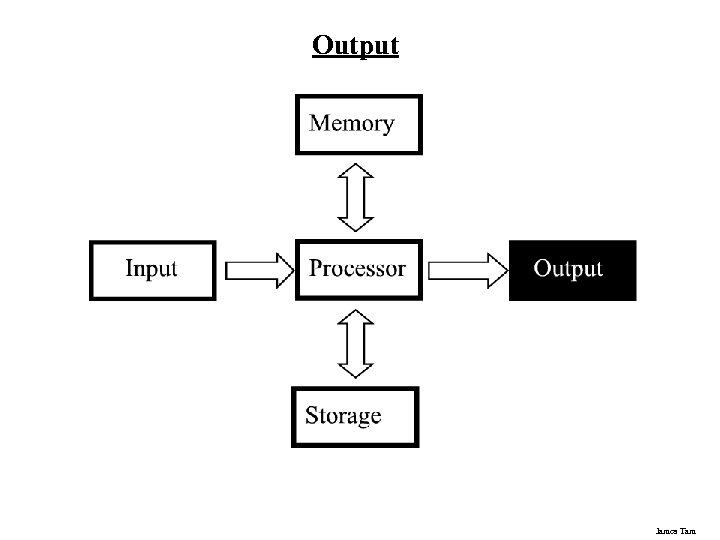 Output James Tam
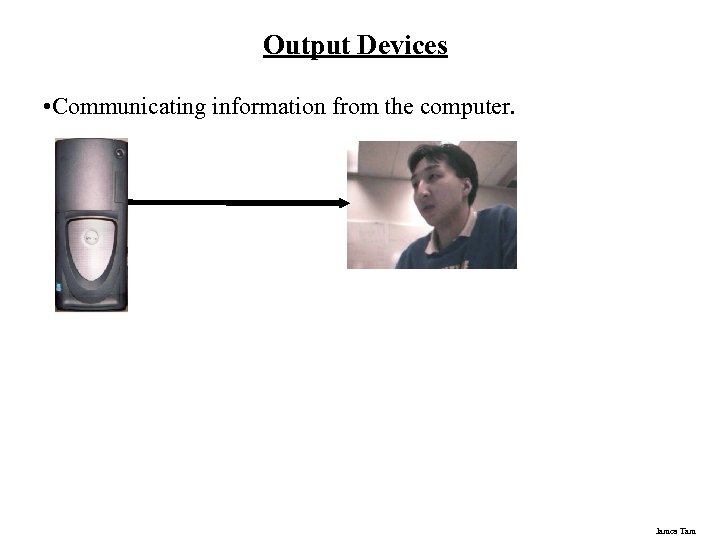 Output Devices • Communicating information from the computer. James Tam
 The Most Common Output Device: The Monitor James Tam
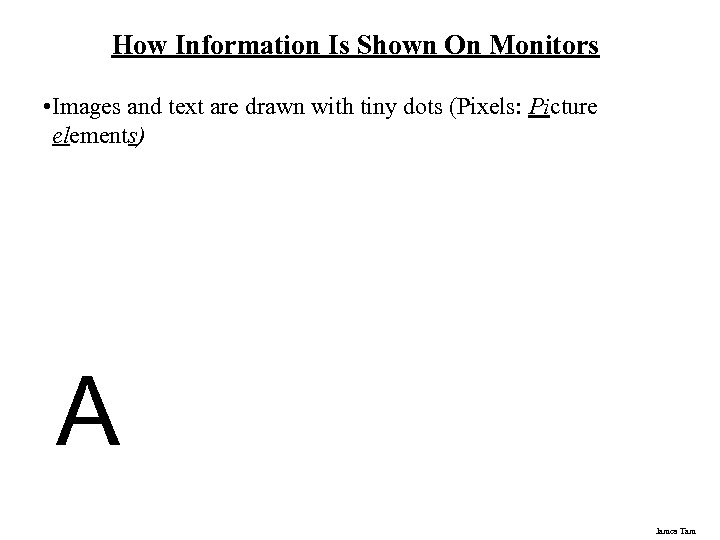 How Information Is Shown On Monitors • Images and text are drawn with tiny dots (Pixels: Picture elements) A James Tam
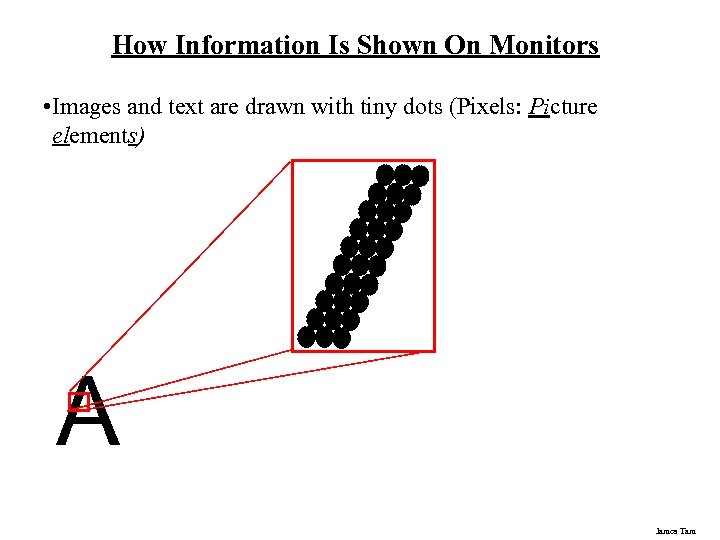 How Information Is Shown On Monitors • Images and text are drawn with tiny dots (Pixels: Picture elements) A James Tam
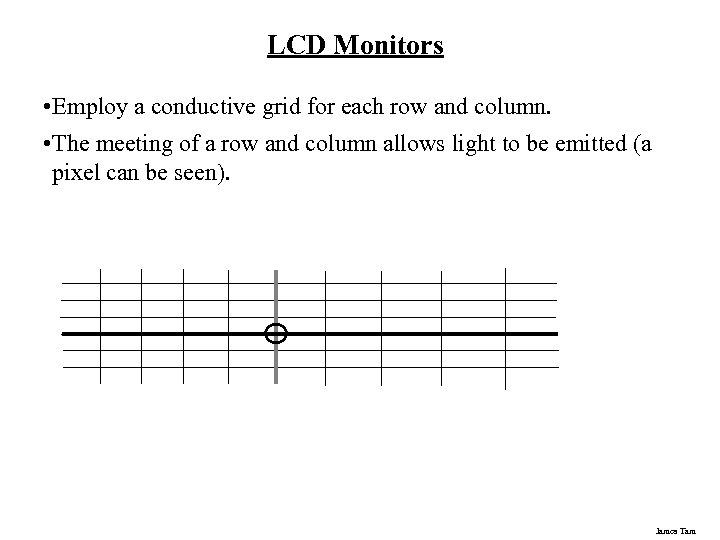 LCD Monitors • Employ a conductive grid for each row and column. • The meeting of a row and column allows light to be emitted (a pixel can be seen). James Tam
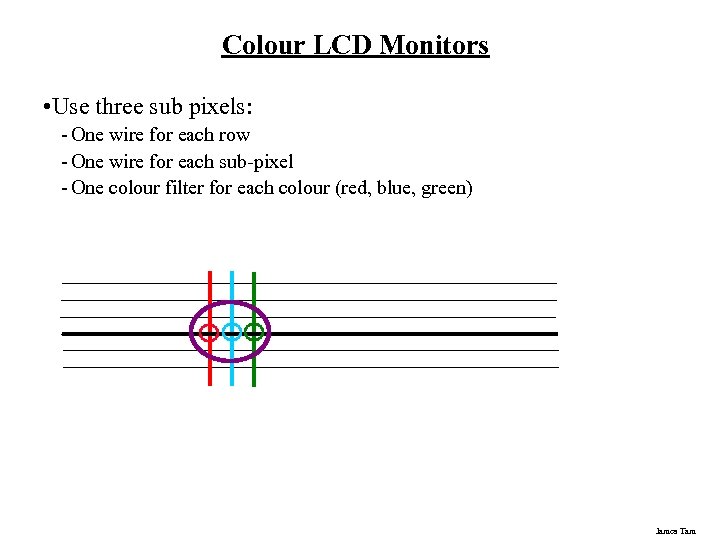 Colour LCD Monitors • Use three sub pixels: - One wire for each row - One wire for each sub-pixel - One colour filter for each colour (red, blue, green) James Tam
 Common Characteristics Of Monitors • Size • Resolution • Aspect ratio James Tam
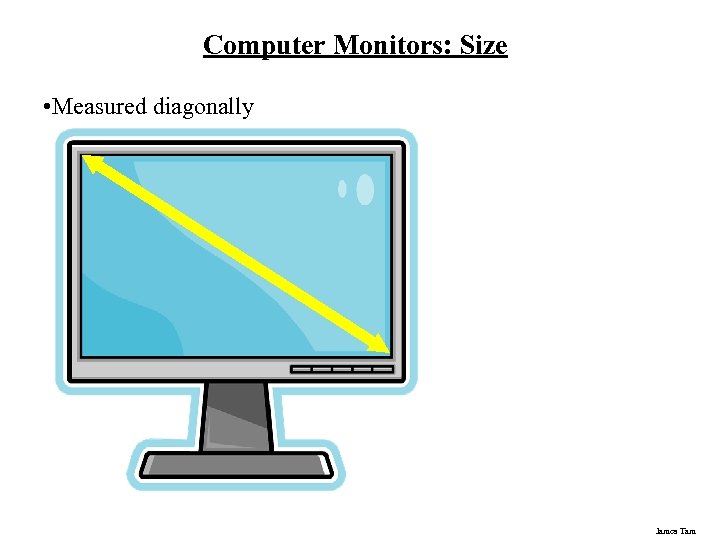 Computer Monitors: Size • Measured diagonally James Tam
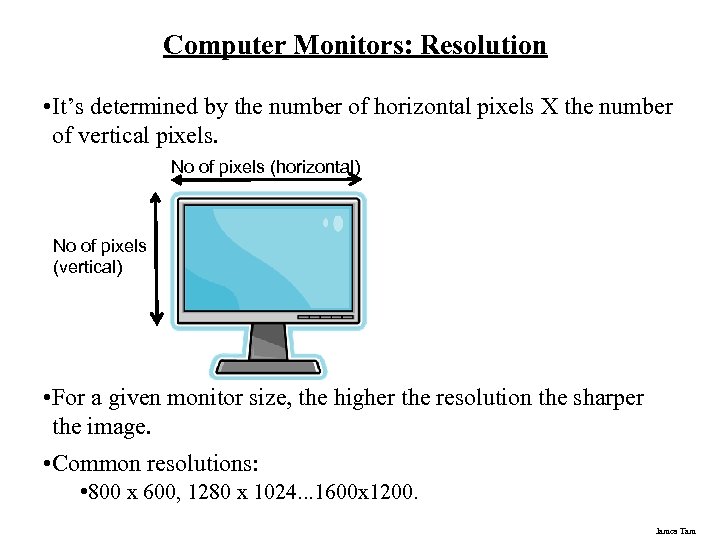 Computer Monitors: Resolution • It’s determined by the number of horizontal pixels X the number of vertical pixels. No of pixels (horizontal) No of pixels (vertical) • For a given monitor size, the higher the resolution the sharper the image. • Common resolutions: • 800 x 600, 1280 x 1024. . . 1600 x 1200. James Tam
 Monitor Resolution: Tradeoff • Keep in mind that a higher resolution may result in a sharper display but objects will be smaller. James Tam
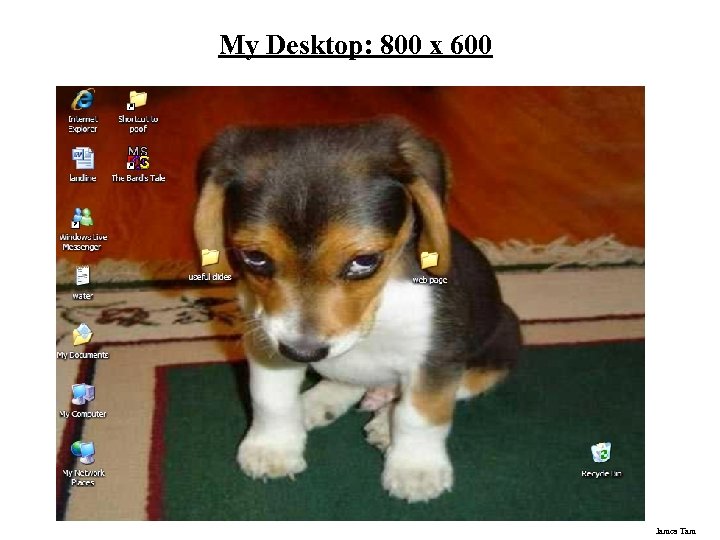 My Desktop: 800 x 600 James Tam
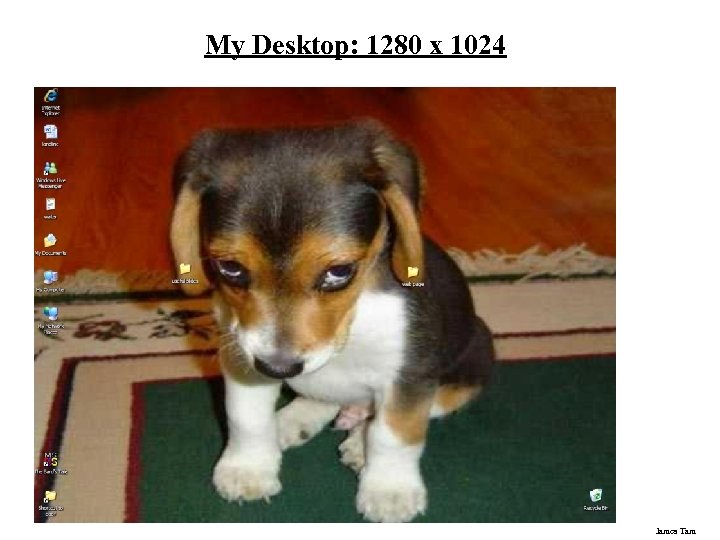 My Desktop: 1280 x 1024 James Tam
 Computer Resolution: LCD Monitors • Native resolution: is the best (only) resolution for displaying information. (Other resolutions may be possible by simulating the resolution or graphical effects). James Tam
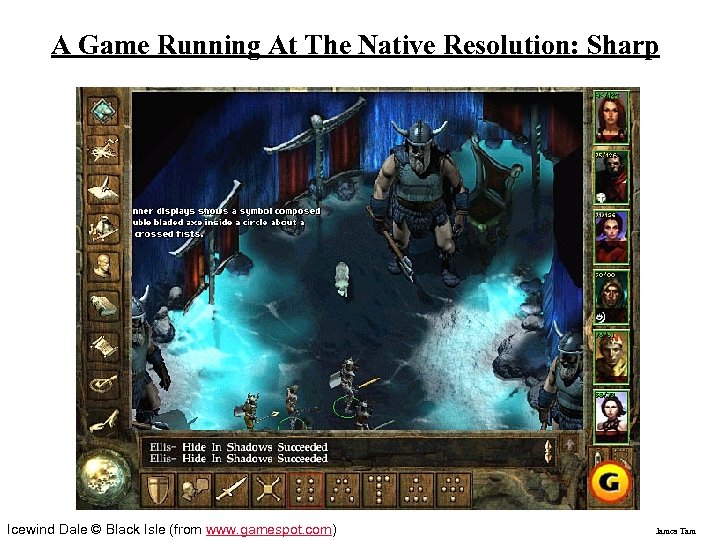 A Game Running At The Native Resolution: Sharp Icewind Dale © Black Isle (from www. gamespot. com) James Tam
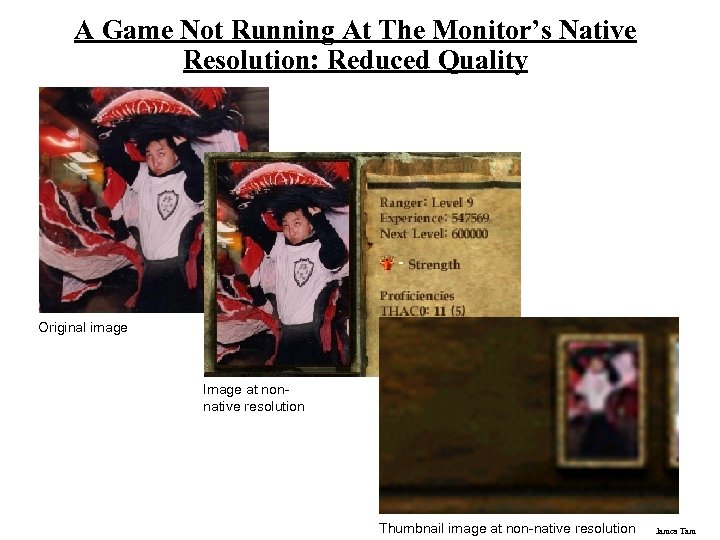 A Game Not Running At The Monitor’s Native Resolution: Reduced Quality Original image Image at nonnative resolution Thumbnail image at non-native resolution James Tam
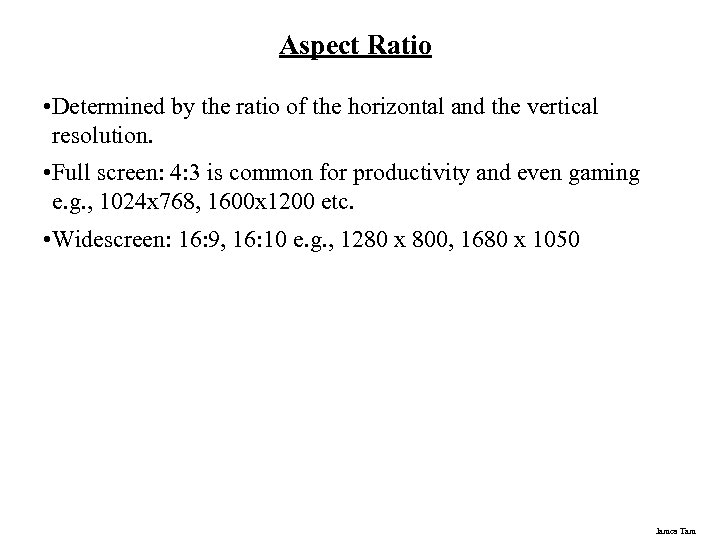 Aspect Ratio • Determined by the ratio of the horizontal and the vertical resolution. • Full screen: 4: 3 is common for productivity and even gaming e. g. , 1024 x 768, 1600 x 1200 etc. • Widescreen: 16: 9, 16: 10 e. g. , 1280 x 800, 1680 x 1050 James Tam
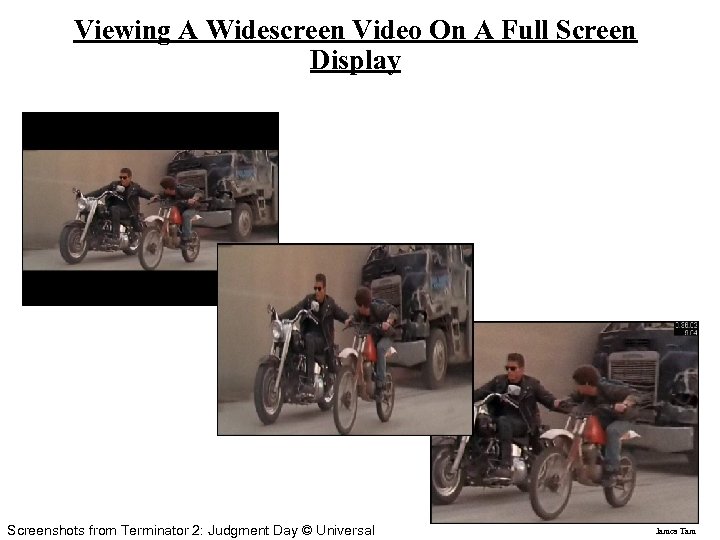 Viewing A Widescreen Video On A Full Screen Display Screenshots from Terminator 2: Judgment Day © Universal James Tam
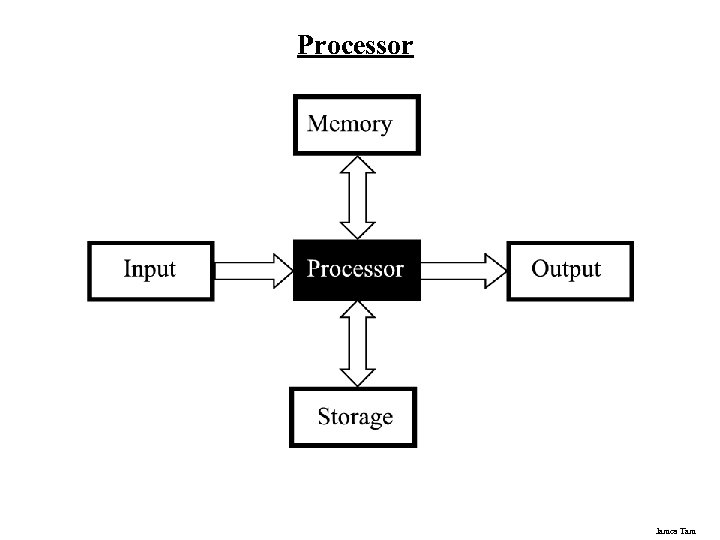 Processor James Tam
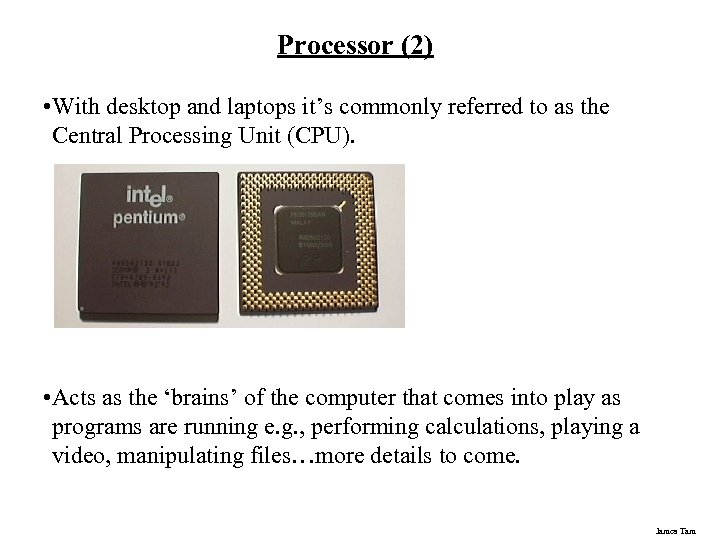 Processor (2) • With desktop and laptops it’s commonly referred to as the Central Processing Unit (CPU). • Acts as the ‘brains’ of the computer that comes into play as programs are running e. g. , performing calculations, playing a video, manipulating files…more details to come. James Tam
 Some Determinants Of Processor Speed • The processor model • The clock speed James Tam
 Processor Models • The two main CPU manufacturers are AMD and Intel, the following models are the ones manufactured by Intel listed from the slowest to the fastest: • Celeron - Produced at the same time as the Pentium 3 & 4 processors (below) they were developed as a less expensive slower alternative. - If everything else is the same a Pentium will be faster than a Celeron - They are still available with some new computers in Qatar. • Pentium 3: - An older, and slower processor but still included with some new computers in Qatar. • Pentium 4: - Also an older type of processor but faster than the Pentium 3 James Tam
 Processor Models (2) • Core family of processors - They’re newer than the Pentium 4 and generally faster. - Many have multiple processing cores (2 or 4) which makes it even faster if you run multiple programs at the same time or for programs that are written specifically to run faster on multiple cores (e. g. , some games, drawing programs like Photoshop) • Laptop processors: - Some of the processors used in desktop computers are also used in laptops - Centrino technology: includes the above processors but incorporates other technology that is useful for a laptop user: • Uses less power (extends laptop battery life) • Faster high definition video playback • Built in hardware for fast wireless connections James Tam
 Processor Clock Speed • The second traditional measure of the computational speed of a computer. • For each clock ‘cycle’ an instruction is executed (pulsed) by the computer. - 1 Hz = 1 pulse is sent out each second (1 second passes between each pulse) - 10 Hz = 10 pulses are sent out each second (0. 1 seconds passes between each pulse) - : - 25 MHz = 25 million pulses sent out each second (0. 000 04 seconds between each pulse or 40 ns between pulses) - 3. 8 Ghz = 3. 8 billion pulses sent out each second (0. 26 ns between pulses) James Tam
 How Is Having A Faster Processor Beneficial? • Calculations are performed faster (e. g. , large spreadsheet) • Programs are loaded faster (includes the time to start up your computer) • Viewing videos and copying music to your computer may be faster and more free of ‘glitches’ James Tam
 Common Processor Clock Speeds • Budget processors - Laptop: 1. 06 – 2. 6 GHz - Desktop: 1. 8 – 3 GHz • Higher end processors - 2. 33 – 3 GHz James Tam
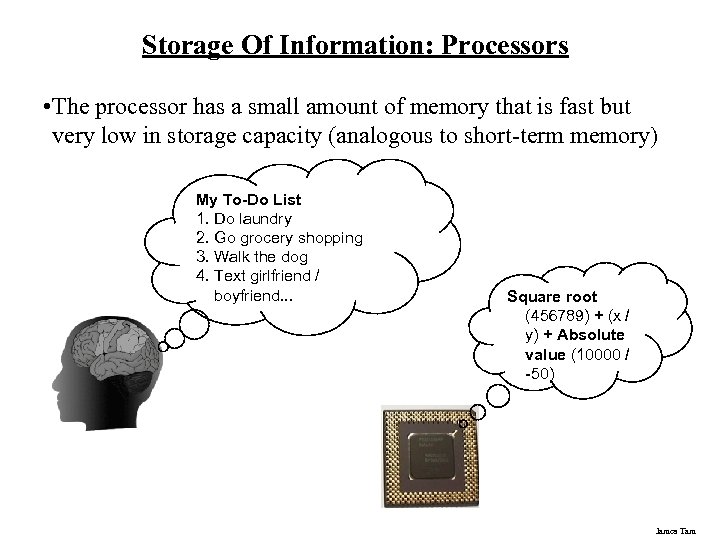 Storage Of Information: Processors • The processor has a small amount of memory that is fast but very low in storage capacity (analogous to short-term memory) My To-Do List 1. Do laundry 2. Go grocery shopping 3. Walk the dog 4. Text girlfriend / boyfriend. . . Square root (456789) + (x / y) + Absolute value (10000 / -50) James Tam
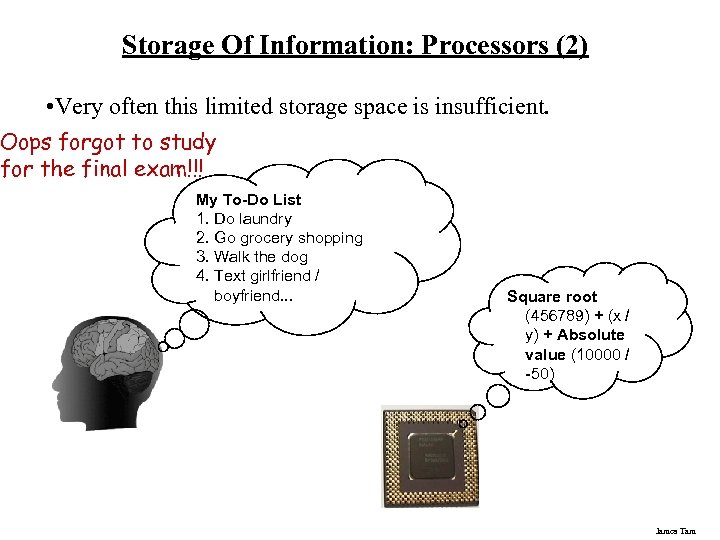 Storage Of Information: Processors (2) • Very often this limited storage space is insufficient. Oops forgot to study for the final exam!!! My To-Do List 1. Do laundry 2. Go grocery shopping 3. Walk the dog 4. Text girlfriend / boyfriend. . . Square root (456789) + (x / y) + Absolute value (10000 / -50) James Tam
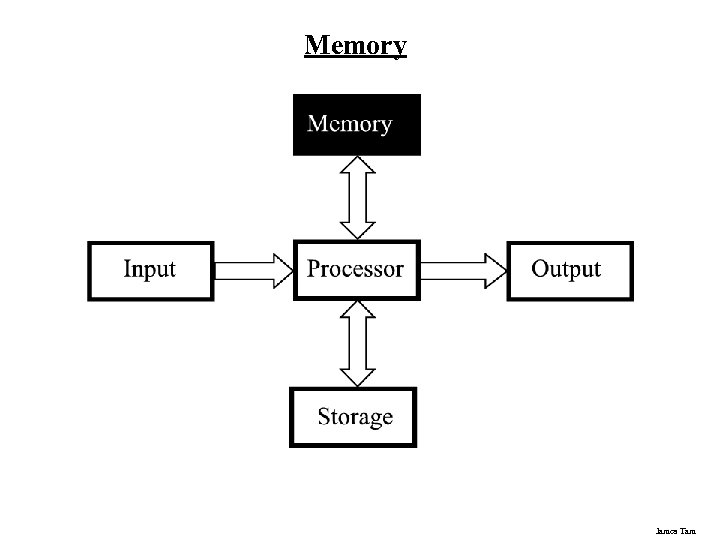 Memory James Tam
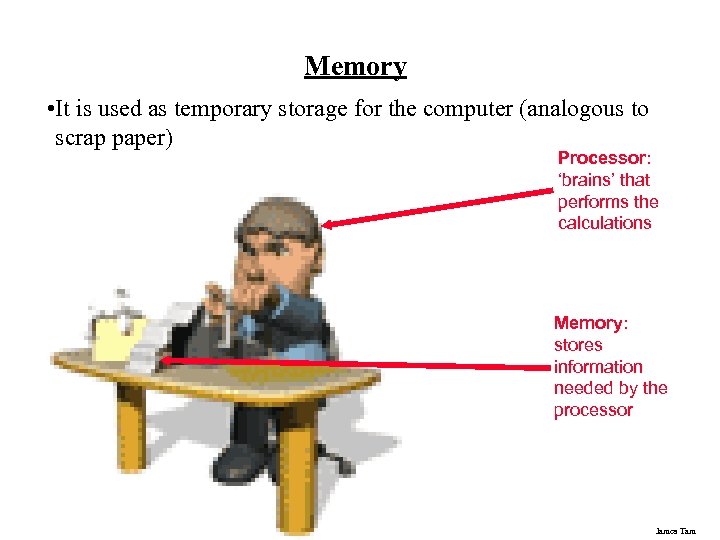 Memory • It is used as temporary storage for the computer (analogous to scrap paper) Processor: ‘brains’ that performs the calculations Memory: stores information needed by the processor James Tam
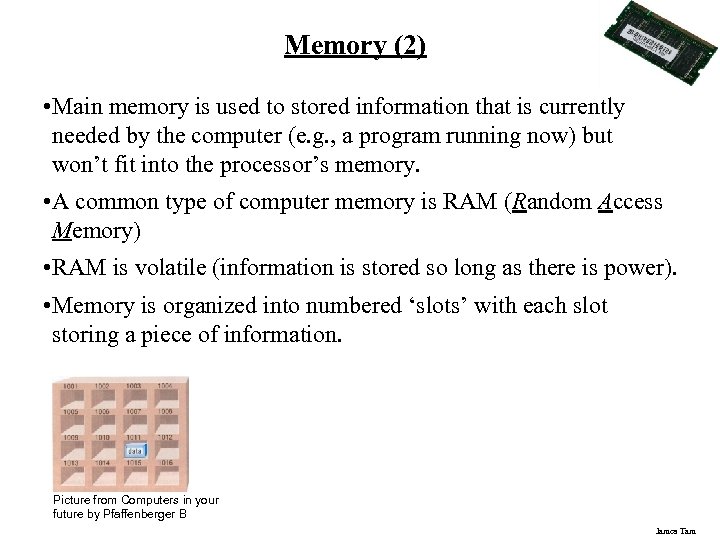 Memory (2) • Main memory is used to stored information that is currently needed by the computer (e. g. , a program running now) but won’t fit into the processor’s memory. • A common type of computer memory is RAM (Random Access Memory) • RAM is volatile (information is stored so long as there is power). • Memory is organized into numbered ‘slots’ with each slot storing a piece of information. Picture from Computers in your future by Pfaffenberger B James Tam
 How Much RAM? • Rules of thumb: - Generally larger numbers are better (stores more) - Giga is better than Mega • Systems vary widely depending on price but the typical starting values range from 1 GB – 4 GB • The maximum RAM that can be installed on a home desktop computer is around 4 GB – 8 GB James Tam
 Limitations Of Memory • It can store more information than the processor’s memory but it is still finite in size. • Example showing memory being used for a computer with 2 GB RAM: - Computer is turned on and Windows Vista is loaded (minimum of 512 MB to 1 GB – depending upon the version - of RAM required) - The user runs a program to play a movie (~30 MB of RAM) - The movie player is of typical length, around two hours (~ 4 GB) - Total Memory requirements: Over 5 GB of RAM (can’t be all stored in RAM) - Note: This is a simplified example because most computers will be running many other programs at the same time (e. g. , security software to protect the computer against things like Viruses). • Also recall that RAM is volatile and information stored there will be lost after the computer is shut off (something else is needed) James Tam
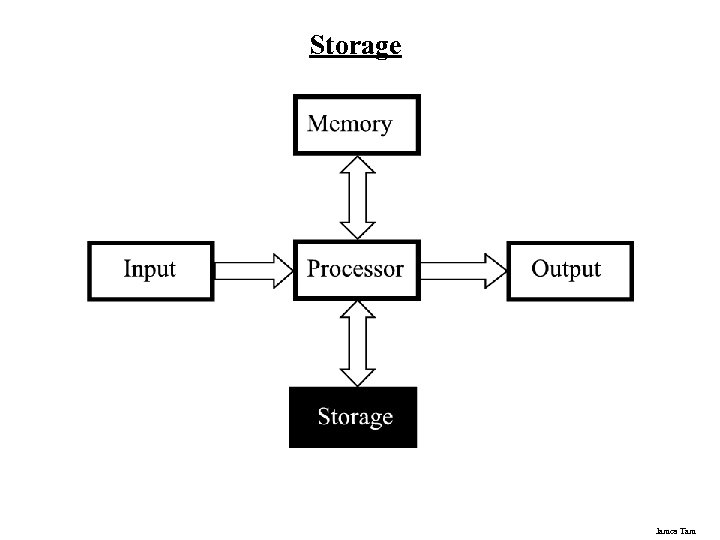 Storage James Tam
 Storage Vs. Memory Storage (e. g. , hard drive) Memory (RAM) • Information is not needed immediately but will eventually be needed (e. g. , a program is installed on the computer in case it’s needed at some point although not necessarily at this immediate moment) • Information is required now e. g. , a program that is currently running will be stored in memory. James Tam
 Storage Vs. Memory (2) Storage (e. g. , hard drive) Memory (RAM) • The information is retained longer (e. g. , a saved document) • The information stored here is volatile (e. g. , a document you’ve worked on but not saved is gone when the computer is shut off). James Tam
 Storage Vs. Memory (3) Storage (e. g. , hard drive) Memory (RAM) • Accessing the information is slower (~1, 000 times) but much more information can be stored x 10 to x 1000+ times more than RAM • Access to the information is fast but far less can be stored here James Tam
 Storage Vs. Memory (4) Storage (e. g. , hard drive) Memory (RAM) • Storing information is less expensive ~100 times less • Storing information is more expensive James Tam
 Common Forms Of Storage 1. Magnetic - Hard drives - Floppy and zip drives 2. Optical - CD - DVD 3. Solid State - Flash drives James Tam
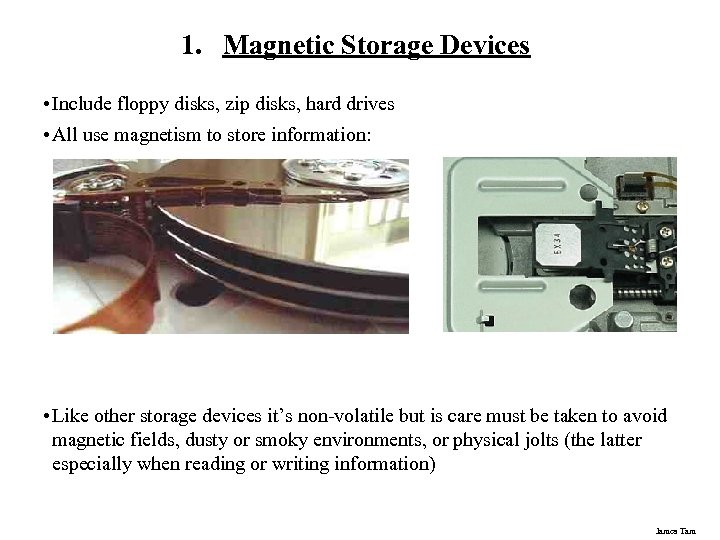
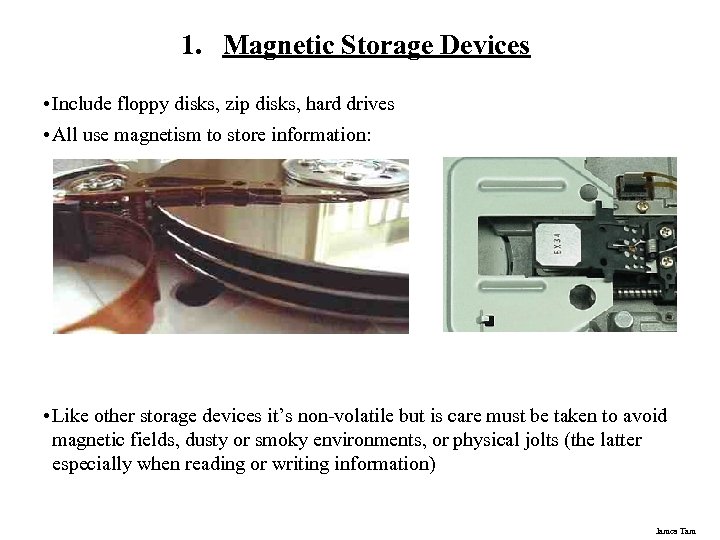 1. Magnetic Storage Devices • Include floppy disks, zip disks, hard drives • All use magnetism to store information: • Like other storage devices it’s non-volatile but is care must be taken to avoid magnetic fields, dusty or smoky environments, or physical jolts (the latter especially when reading or writing information) James Tam
 1. Magnetic Storage Devices • Include floppy disks, zip disks, hard drives • All use magnetism to store information: • Like other storage devices it’s non-volatile but is care must be taken to avoid magnetic fields, dusty or smoky environments, or physical jolts (the latter especially when reading or writing information) James Tam
 2. Optical Storage Devices • Use lasers to store and retrieve information (CD’s and DVD’s). • The storage capacity difference is approximately 1: 8 (CD: DVD). • Categories: - Can only read information off the disc (CD-ROM, DVD-ROM). - Can read and also record information to the disk (CD-R, DVD+R). - Can read, record and also re-write information multiple times (CD-RW, DVD+RW). • Optical storage devices aren’t as susceptible to as many problems as magnetic devices but care must be taken not to scratch or otherwise damage the surface. James Tam
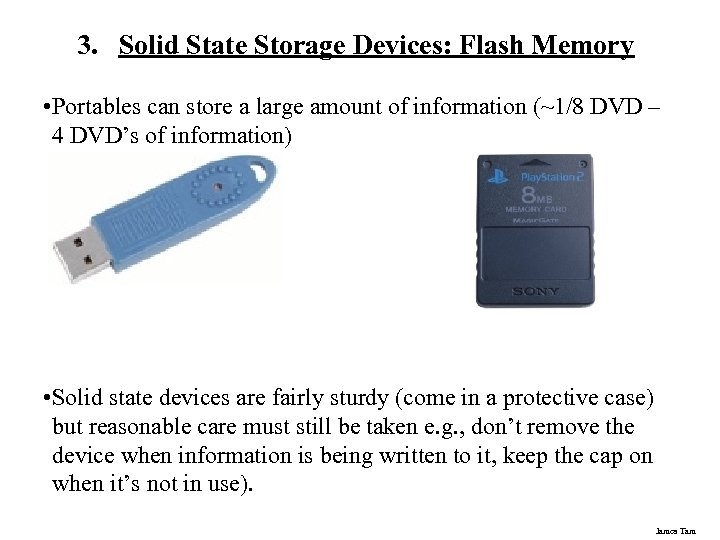 3. Solid State Storage Devices: Flash Memory • Portables can store a large amount of information (~1/8 DVD – 4 DVD’s of information) • Solid state devices are fairly sturdy (come in a protective case) but reasonable care must still be taken e. g. , don’t remove the device when information is being written to it, keep the cap on when it’s not in use). James Tam
 Buying Storage For Your Computer • Rules of thumb: - As is the case with memory larger numbers are generally better (stores more) - Tera is largest unit, which is better than Giga, which in turn is larger than Mega • Common storage capacities: - Hard drives: 40 GB to 2+ TB - CD’s ~600 MB - DVD’s ~4 GB to 50 GB - USB keys and USB drives ~1 GB to 64 GB James Tam
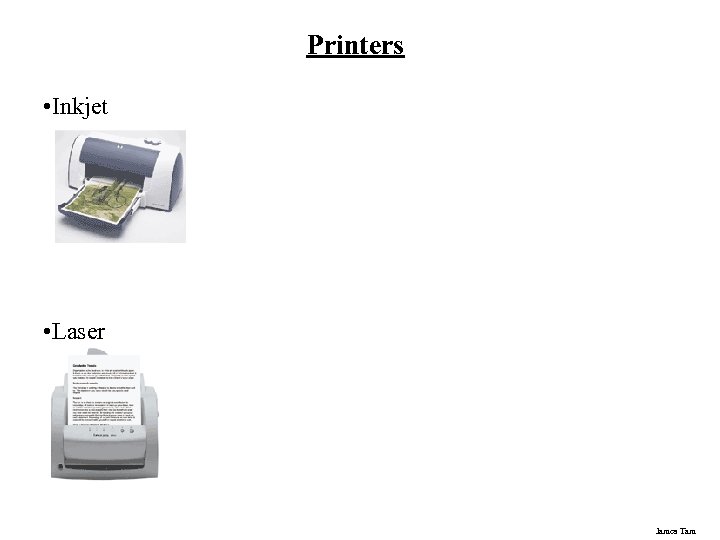 Printers • Inkjet • Laser James Tam
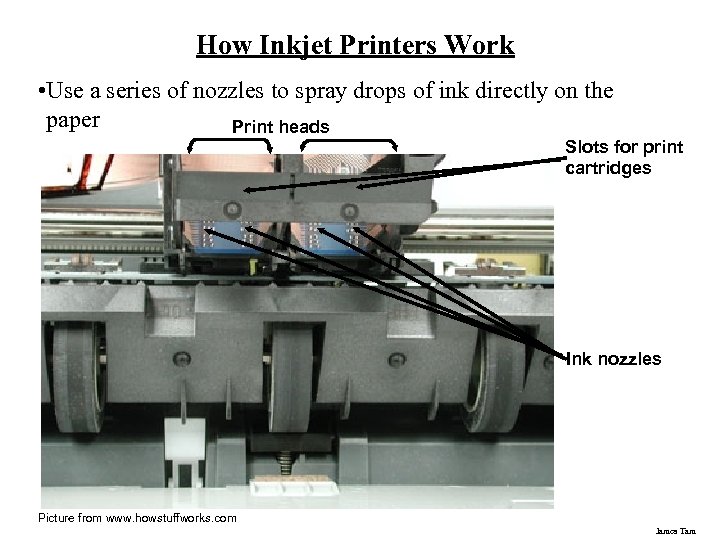 How Inkjet Printers Work • Use a series of nozzles to spray drops of ink directly on the paper Print heads Slots for print cartridges Ink nozzles Picture from www. howstuffworks. com James Tam
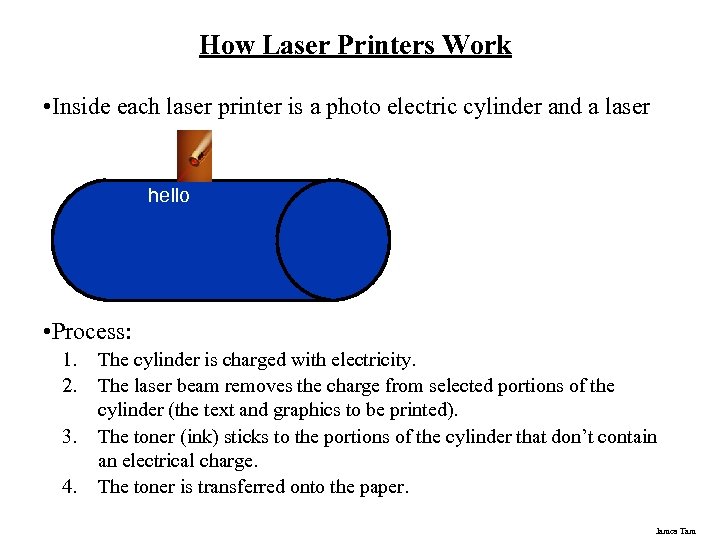 How Laser Printers Work • Inside each laser printer is a photo electric cylinder and a laser hello • Process: 1. 2. 3. 4. The cylinder is charged with electricity. The laser beam removes the charge from selected portions of the cylinder (the text and graphics to be printed). The toner (ink) sticks to the portions of the cylinder that don’t contain an electrical charge. The toner is transferred onto the paper. James Tam
 Inkjet Vs. Laser Printers • Printing photographic style pictures: Inkjet • Speed: Laser is faster • Cost of the printer: Inkjet printers cost less initially • Cost per page printed: Inkjet printers tend to cost more over time James Tam
 After This Section You Should Now Know • What are the five components of the high level conceptual computer and the purpose of each part • The names and uses for the different types of computers (desktop, super computer etc. ) • Large and small units of measurement for the computer • Units of storage on the computer (from bit to Terabyte) • What is a computer bus • What is a port and some of the characteristics of the more common ports • Some characteristics of wired and wireless mice and keyboards • Different input methods/control for mice James Tam
 After This Section You Should Now Know (2) • The difference between storage and memory • How pixels are used to produce text and graphics on a monitor • The way in which LCD monitors create pixels • What are the common characteristics of computer monitors • What are some of the things that determine processor speed • Some of the benefits of having a faster processor • Approximate clock speeds of modern processors • What is memory and its purpose in the computer • How much memory is found in a typical computer and the typical maximums for the amount of memory that can be installed James Tam
 After This Section You Should Now Know (3) • What are the common forms of storage and the characteristics of each • The maximum capacity of the common forms of storage • How inkjet and laser printers work as well as their relative strengths and weaknesses James Tam