


 Скачать презентацию Introduction to AFRS Dept of Enterprise Services
074e6e4292e07e6618c4ebd411e32215.ppt
- Количество слайдов: 60
 Introduction to AFRS Dept of Enterprise Services
 Class Objectives n n n DES Communication Tools Navigate through AFRS screens Limited understanding of screens plus provide reference documents and resource links Report Basics (Enterprise Reporting) Review of other DES class options
 How does DES communicate? n DES provides updates, outage notices, new features, etc… utilizing the following communication tools: ¨ Listserv email notifications ¨ OFM Connection Newsletter ¨ AFRS Logon Screen Notification ¨ Direct Mail
 Links to Listserv and Connection n In order to obtain information pertinent to your job needs. Individuals need to subscribe to listserv at: http: //listserv. wa. gov/archives/swfs. html To see the latest Connection articles, go to: http: //www. ofm. wa. gov/reports/connect. pdf
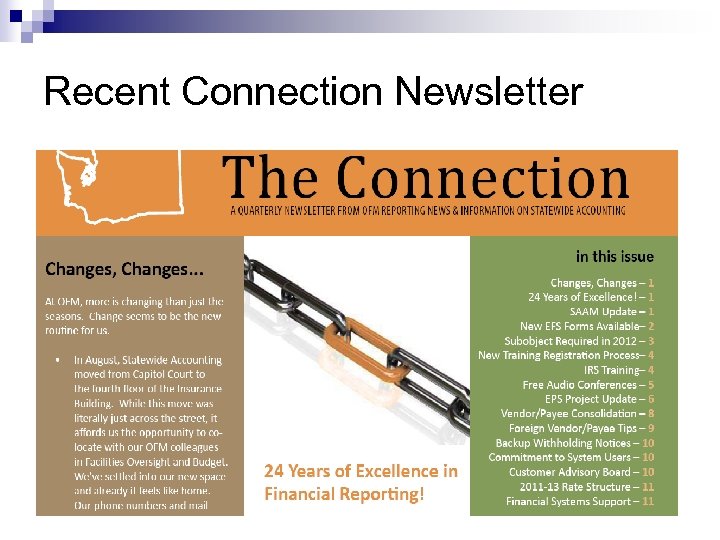 Recent Connection Newsletter
 What is AFRS? n Agency Financial Reporting System (AFRS) is the central accounting system and the official book of record for Washington State.
 Features of AFRS n Maintains the state enterprise and agency chart of accounts n Manages vendor registration and payment n Processes state agency financial transactions n Processes interagency/interfund payments n Allows input via online, entry interfaces and Financial Toolbox
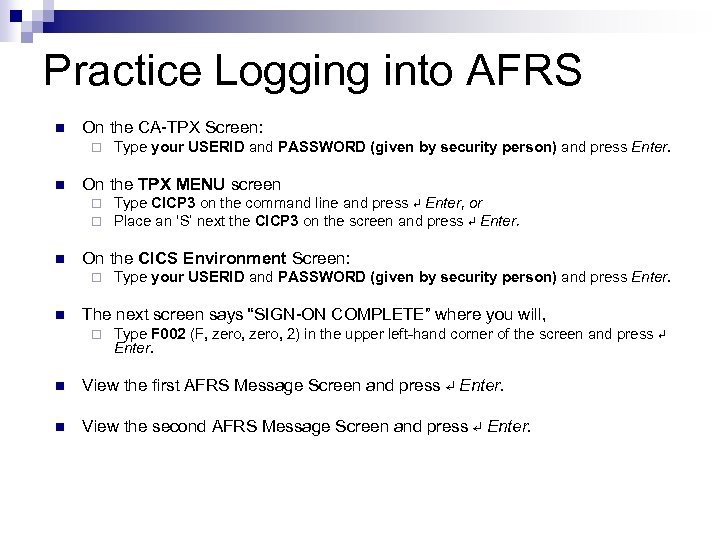 Practice Logging into AFRS n On the CA-TPX Screen: ¨ n On the TPX MENU screen ¨ ¨ n Type CICP 3 on the command line and press ↵ Enter, or Place an ‘S’ next the CICP 3 on the screen and press ↵ Enter. On the CICS Environment Screen: ¨ n Type your USERID and PASSWORD (given by security person) and press Enter. The next screen says “SIGN-ON COMPLETE” where you will, ¨ Type F 002 (F, zero, 2) in the upper left-hand corner of the screen and press ↵ Enter. n View the first AFRS Message Screen and press ↵ Enter. n View the second AFRS Message Screen and press ↵ Enter.
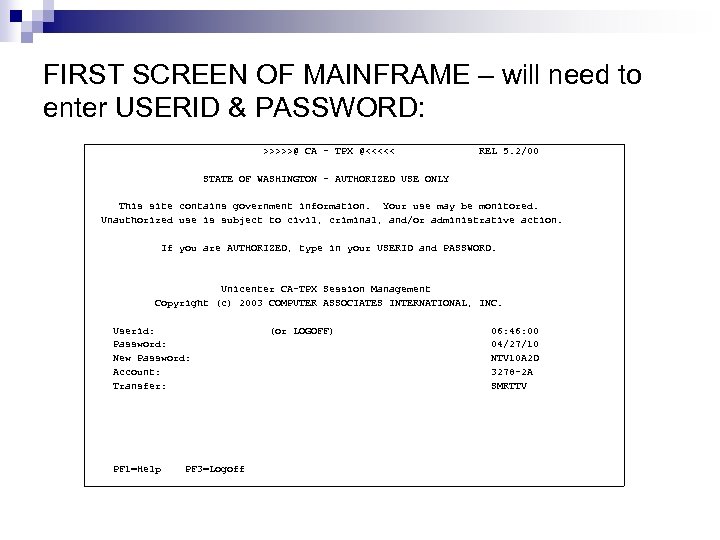 FIRST SCREEN OF MAINFRAME – will need to enter USERID & PASSWORD: >>>>>@ CA - TPX @<<<<< REL 5. 2/00 STATE OF WASHINGTON - AUTHORIZED USE ONLY This site contains government information. Your use may be monitored. Unauthorized use is subject to civil, criminal, and/or administrative action. If you are AUTHORIZED, type in your USERID and PASSWORD. Unicenter CA-TPX Session Management Copyright (c) 2003 COMPUTER ASSOCIATES INTERNATIONAL, INC. Userid: Password: New Password: Account: Transfer: PF 1=Help PF 3=Logoff (or LOGOFF) 06: 46: 00 04/27/10 NTV 10 A 2 D 3278 -2 A SMRTTV
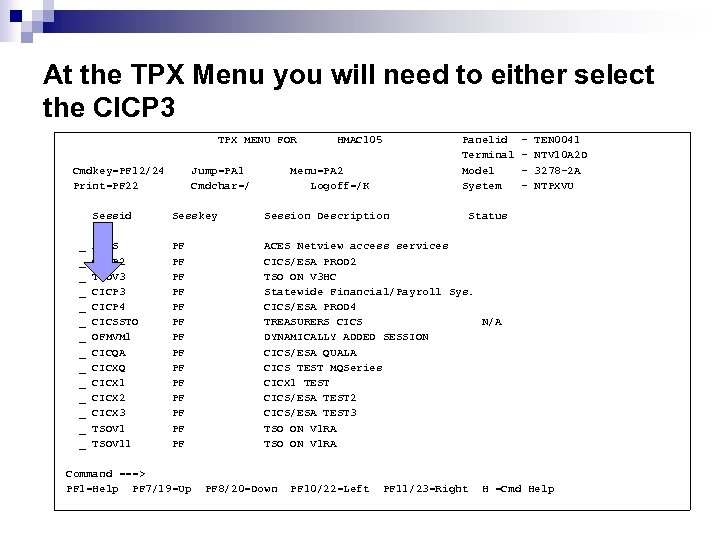 At the TPX Menu you will need to either select the CICP 3 TPX MENU FOR Cmdkey=PF 12/24 Print=PF 22 Menu=PA 2 Logoff=/K Jump=PA 1 Cmdchar=/ HMAC 105 Panelid Terminal Model System Status Sessid _ _ _ _ Sesskey Session Description ACES CICP 2 TSOV 3 CICP 4 CICSSTO OFMVM 1 CICQA CICXQ CICX 1 CICX 2 CICX 3 TSOV 11 PF PF PF PF - TEN 0041 NTV 10 A 2 D 3278 -2 A NTPXVU ACES Netview access services CICS/ESA PROD 2 TSO ON V 3 HC Statewide Financial/Payroll Sys. CICS/ESA PROD 4 TREASURERS CICS N/A DYNAMICALLY ADDED SESSION CICS/ESA QUALA CICS TEST MQSeries CICX 1 TEST CICS/ESA TEST 2 CICS/ESA TEST 3 TSO ON V 1 RA Command ===> PF 1=Help PF 7/19=Up PF 8/20=Down PF 10/22=Left PF 11/23=Right H =Cmd Help
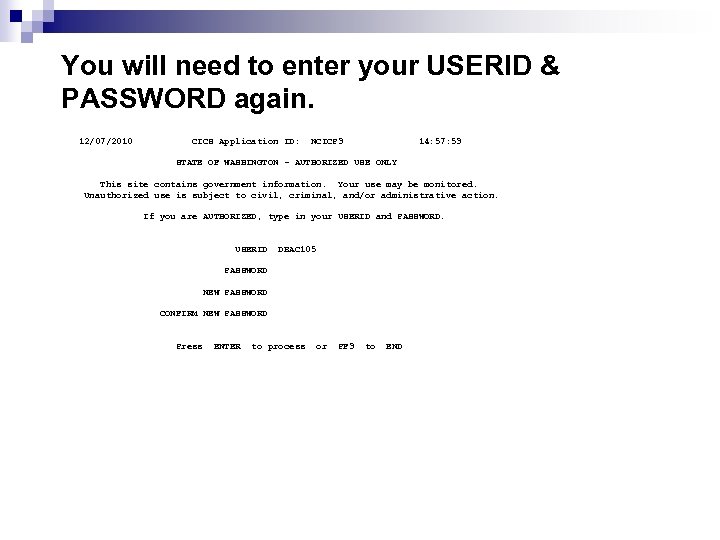 You will need to enter your USERID & PASSWORD again. 12/07/2010 CICS Application ID: NCICP 3 14: 57: 53 STATE OF WASHINGTON - AUTHORIZED USE ONLY This site contains government information. Your use may be monitored. Unauthorized use is subject to civil, criminal, and/or administrative action. If you are AUTHORIZED, type in your USERID and PASSWORD. USERID DBAC 105 PASSWORD NEW PASSWORD CONFIRM NEW PASSWORD Press ENTER to process or PF 3 to END
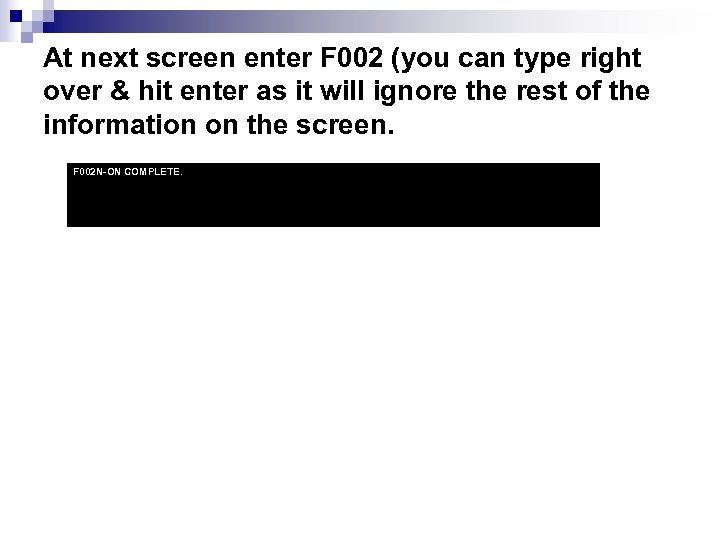 At next screen enter F 002 (you can type right over & hit enter as it will ignore the rest of the information on the screen. F 002 N-ON COMPLETE.
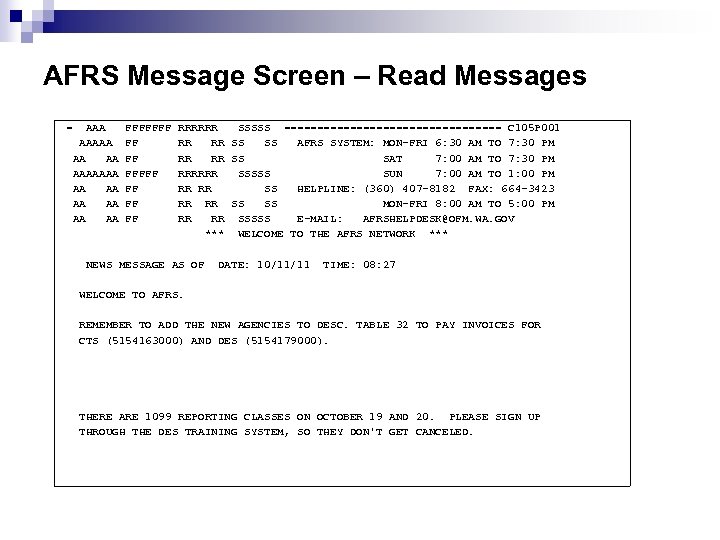 AFRS Message Screen – Read Messages = AAAAA AAAAAAA AA FFFFFFF FF RRRRRR SSSSS ================= C 105 P 001 RR RR SS SS AFRS SYSTEM: MON-FRI 6: 30 AM TO 7: 30 PM RR RR SS SAT 7: 00 AM TO 7: 30 PM RRRRRR SSSSS SUN 7: 00 AM TO 1: 00 PM RR RR SS HELPLINE: (360) 407 -8182 FAX: 664 -3423 RR RR SS SS MON-FRI 8: 00 AM TO 5: 00 PM RR RR SSSSS E-MAIL: AFRSHELPDESK@OFM. WA. GOV *** WELCOME TO THE AFRS NETWORK *** NEWS MESSAGE AS OF DATE: 10/11/11 TIME: 08: 27 WELCOME TO AFRS. REMEMBER TO ADD THE NEW AGENCIES TO DESC. TABLE 32 TO PAY INVOICES FOR CTS (5154163000) AND DES (5154179000). THERE ARE 1099 REPORTING CLASSES ON OCTOBER 19 AND 20. PLEASE SIGN UP THROUGH THE DES TRAINING SYSTEM, SO THEY DON'T GET CANCELED.
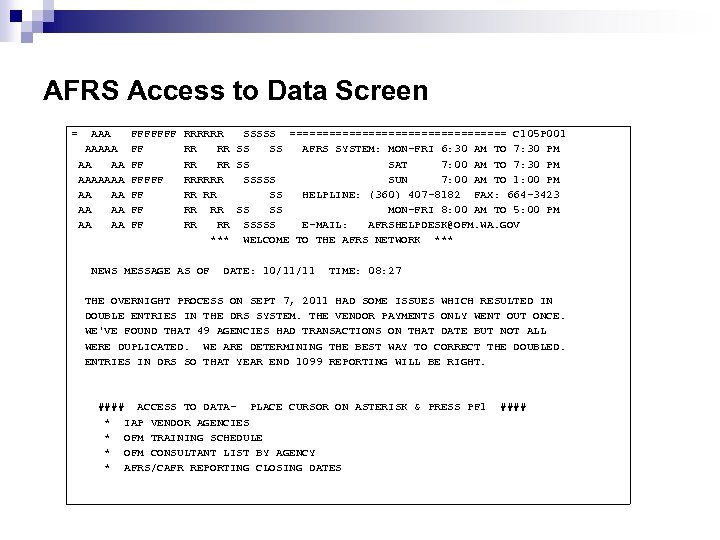 AFRS Access to Data Screen = AAAAA AAAAAAA AA FFFFFFF FF RRRRRR SSSSS ================= C 105 P 001 RR RR SS SS AFRS SYSTEM: MON-FRI 6: 30 AM TO 7: 30 PM RR RR SS SAT 7: 00 AM TO 7: 30 PM RRRRRR SSSSS SUN 7: 00 AM TO 1: 00 PM RR RR SS HELPLINE: (360) 407 -8182 FAX: 664 -3423 RR RR SS SS MON-FRI 8: 00 AM TO 5: 00 PM RR RR SSSSS E-MAIL: AFRSHELPDESK@OFM. WA. GOV *** WELCOME TO THE AFRS NETWORK *** NEWS MESSAGE AS OF DATE: 10/11/11 TIME: 08: 27 THE OVERNIGHT PROCESS ON SEPT 7, 2011 HAD SOME ISSUES WHICH RESULTED IN DOUBLE ENTRIES IN THE DRS SYSTEM. THE VENDOR PAYMENTS ONLY WENT OUT ONCE. WE'VE FOUND THAT 49 AGENCIES HAD TRANSACTIONS ON THAT DATE BUT NOT ALL WERE DUPLICATED. WE ARE DETERMINING THE BEST WAY TO CORRECT THE DOUBLED. ENTRIES IN DRS SO THAT YEAR END 1099 REPORTING WILL BE RIGHT. #### ACCESS TO DATA- PLACE CURSOR ON ASTERISK & PRESS PF 1 * IAP VENDOR AGENCIES * OFM TRAINING SCHEDULE * OFM CONSULTANT LIST BY AGENCY * AFRS/CAFR REPORTING CLOSING DATES ####
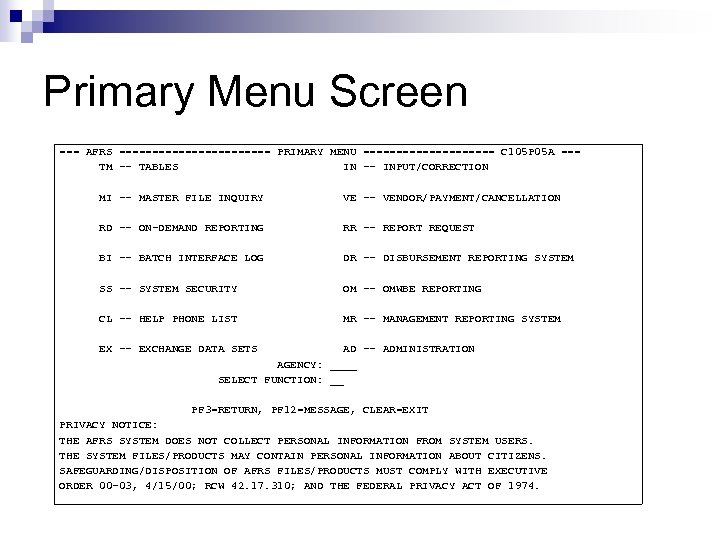 Primary Menu Screen === AFRS ============ PRIMARY MENU ========== C 105 P 05 A === TM -- TABLES IN -- INPUT/CORRECTION MI -- MASTER FILE INQUIRY VE -- VENDOR/PAYMENT/CANCELLATION RD -- ON-DEMAND REPORTING RR -- REPORT REQUEST BI -- BATCH INTERFACE LOG DR -- DISBURSEMENT REPORTING SYSTEM SS -- SYSTEM SECURITY OM -- OMWBE REPORTING CL -- HELP PHONE LIST MR -- MANAGEMENT REPORTING SYSTEM EX -- EXCHANGE DATA SETS AD -- ADMINISTRATION AGENCY: ____ SELECT FUNCTION: __ PF 3=RETURN, PF 12=MESSAGE, CLEAR=EXIT PRIVACY NOTICE: THE AFRS SYSTEM DOES NOT COLLECT PERSONAL INFORMATION FROM SYSTEM USERS. THE SYSTEM FILES/PRODUCTS MAY CONTAIN PERSONAL INFORMATION ABOUT CITIZENS. SAFEGUARDING/DISPOSITION OF AFRS FILES/PRODUCTS MUST COMPLY WITH EXECUTIVE ORDER 00 -03, 4/15/00; RCW 42. 17. 310; AND THE FEDERAL PRIVACY ACT OF 1974.
 TM- Table Maintenance n AFRS tables are non-financial files containing valid codes, titles, and reference data used in editing and reporting AFRS financial data. n Some tables are statewide and some are agency tables. n DES maintains the statewide tables containing codes and vendor records that are used by all agencies. Agencies have 'view only' access to these tables. n Agency staff maintain the agency tables for their respective agencies. AFRS provides real time updates and edits to the tables.
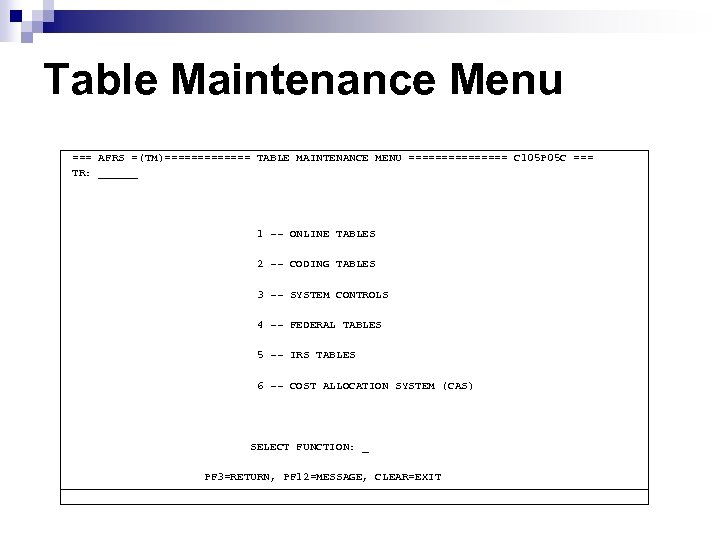 Table Maintenance Menu === AFRS =(TM)======= TABLE MAINTENANCE MENU ======== C 105 P 05 C === TR: ______ 1 -- ONLINE TABLES 2 -- CODING TABLES 3 -- SYSTEM CONTROLS 4 -- FEDERAL TABLES 5 -- IRS TABLES 6 -- COST ALLOCATION SYSTEM (CAS) SELECT FUNCTION: _ PF 3=RETURN, PF 12=MESSAGE, CLEAR=EXIT
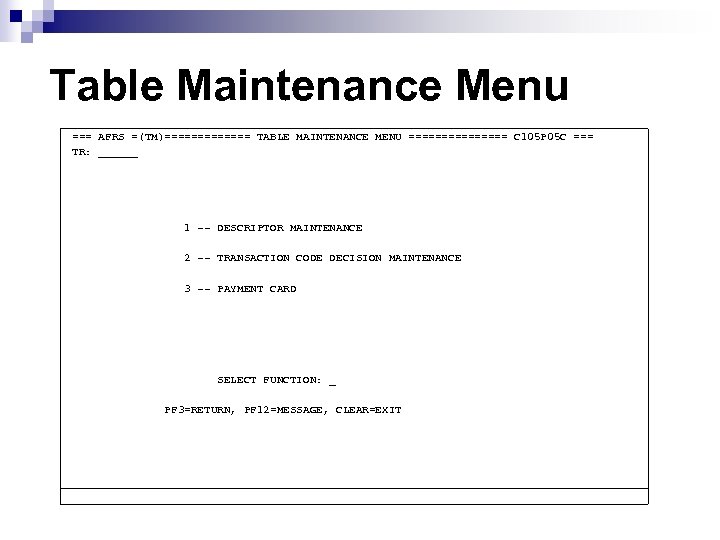 Table Maintenance Menu === AFRS =(TM)======= TABLE MAINTENANCE MENU ======== C 105 P 05 C === TR: ______ 1 -- DESCRIPTOR MAINTENANCE 2 -- TRANSACTION CODE DECISION MAINTENANCE 3 -- PAYMENT CARD SELECT FUNCTION: _ PF 3=RETURN, PF 12=MESSAGE, CLEAR=EXIT
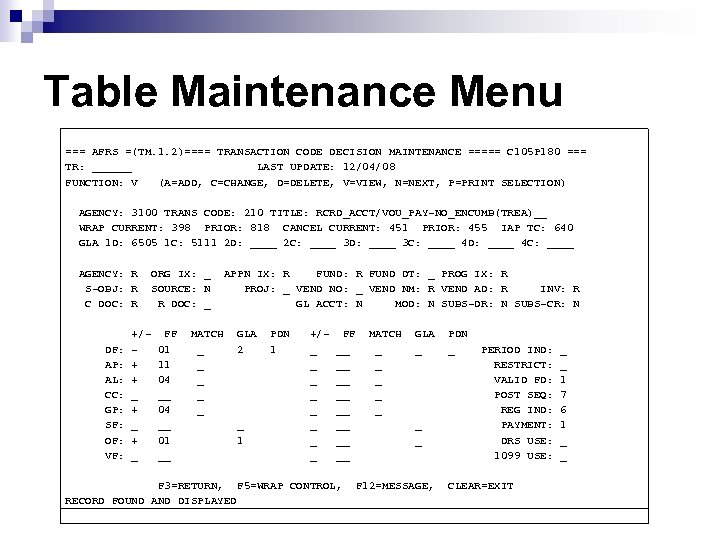 Table Maintenance Menu === AFRS =(TM. 1. 2)==== TRANSACTION CODE DECISION MAINTENANCE ===== C 105 P 180 === TR: ______ LAST UPDATE: 12/04/08 FUNCTION: V (A=ADD, C=CHANGE, D=DELETE, V=VIEW, N=NEXT, P=PRINT SELECTION) AGENCY: 3100 TRANS CODE: 210 TITLE: RCRD_ACCT/VOU_PAY-NO_ENCUMB(TREA)__ WRAP CURRENT: 398 PRIOR: 818 CANCEL CURRENT: 451 PRIOR: 455 IAP TC: 640 GLA 1 D: 6505 1 C: 5111 2 D: ____ 2 C: ____ 3 D: ____ 3 C: ____ 4 D: ____ 4 C: ____ AGENCY: R S-OBJ: R C DOC: R DF: AP: AL: CC: GP: SF: OF: VF: ORG IX: _ SOURCE: N R DOC: _ +/+ + _ + _ FF 01 11 04 __ 01 __ MATCH _ _ _ APPN IX: R FUND DT: _ PROG IX: R PROJ: _ VEND NO: _ VEND NM: R VEND AD: R INV: R GL ACCT: N MOD: N SUBS-DR: N SUBS-CR: N GLA 2 _ 1 PDN 1 +/_ _ _ _ FF __ __ F 3=RETURN, F 5=WRAP CONTROL, RECORD FOUND AND DISPLAYED MATCH _ _ _ GLA _ _ _ F 12=MESSAGE, PDN _ PERIOD IND: RESTRICT: VALID FD: POST SEQ: REG IND: PAYMENT: DRS USE: 1099 USE: CLEAR=EXIT _ _ 1 7 6 1 _ _
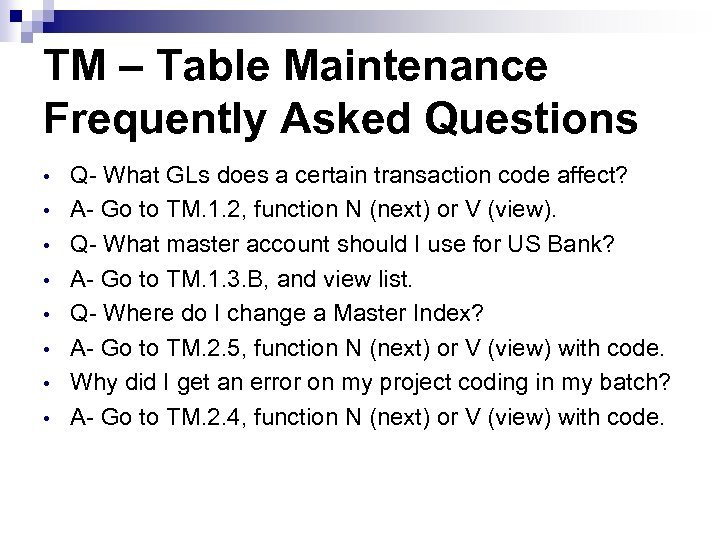 TM – Table Maintenance Frequently Asked Questions • • Q- What GLs does a certain transaction code affect? A- Go to TM. 1. 2, function N (next) or V (view). Q- What master account should I use for US Bank? A- Go to TM. 1. 3. B, and view list. Q- Where do I change a Master Index? A- Go to TM. 2. 5, function N (next) or V (view) with code. Why did I get an error on my project coding in my batch? A- Go to TM. 2. 4, function N (next) or V (view) with code.
 TM – Table Maintenance Resource Documents Agency Financial Reporting System Table Maintenance Overview System Reference Document Information for all TM table documents can be found at the following hyperlink address: http: //swfs. ofm. wa. gov/Reference/contentsnew. asp
 MI - Master File Inquiry n View allotment, appropriation, general ledger and subsidiary balances as of nightly update. n Reprint remittance advices and view IAP (Inter-agency Payment) receipts for billing agencies.
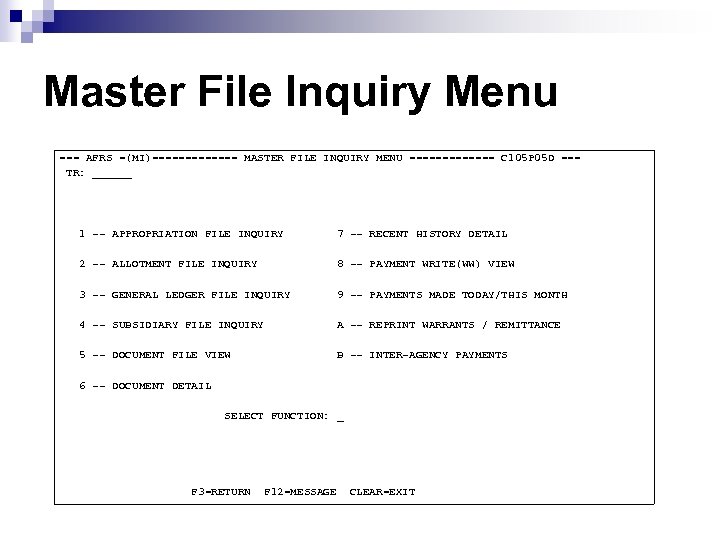 Master File Inquiry Menu === AFRS =(MI)======= MASTER FILE INQUIRY MENU ======= C 105 P 05 D === TR: ______ 1 -- APPROPRIATION FILE INQUIRY 7 -- RECENT HISTORY DETAIL 2 -- ALLOTMENT FILE INQUIRY 8 -- PAYMENT WRITE(WW) VIEW 3 -- GENERAL LEDGER FILE INQUIRY 9 -- PAYMENTS MADE TODAY/THIS MONTH 4 -- SUBSIDIARY FILE INQUIRY A -- REPRINT WARRANTS / REMITTANCE 5 -- DOCUMENT FILE VIEW B -- INTER-AGENCY PAYMENTS 6 -- DOCUMENT DETAIL SELECT FUNCTION: _ F 3=RETURN F 12=MESSAGE CLEAR=EXIT
 MI – Master File Inquiry Frequently Asked Questions • • Q- Did my batch process last night? A- Go to MI. 7 screen, enter batch ID info. and view batch details. MI. 8 will allow user to see the warrant/EFT pmt. numbers in a batch. Q- What is the balance of my encumbrance? A- Go to MI. 5, enter document number and see the balance left for the document.
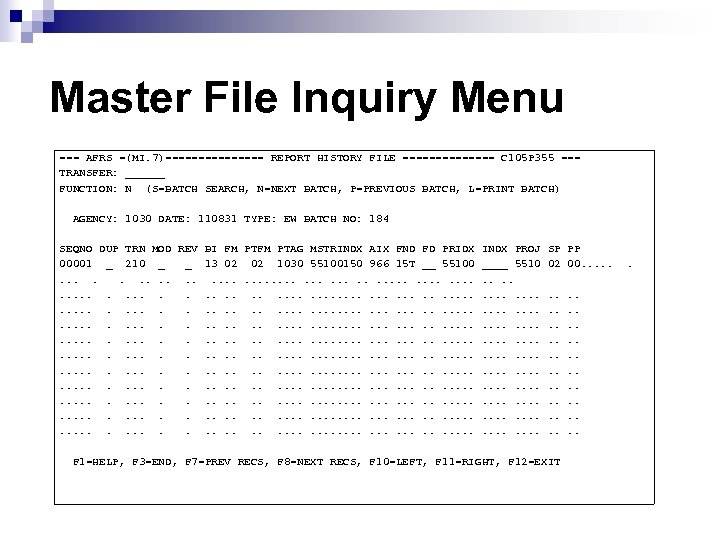 Master File Inquiry Menu === AFRS =(MI. 7)======== REPORT HISTORY FILE ======= C 105 P 355 === TRANSFER: ______ FUNCTION: N (S=BATCH SEARCH, N=NEXT BATCH, P=PREVIOUS BATCH, L=PRINT BATCH) AGENCY: 1030 DATE: 110831 TYPE: EW BATCH NO: 184 SEQNO DUP TRN MOD REV BI FM PTAG MSTRINDX AIX FND FD PRIDX 00001 _ 210 _ _ 13 02 02 1030 55100150 966 15 T __ 55100. . . . . . . . . . . . . . . . . . . . . . . . . . . . . INDX PROJ ____ 5510. . . . . . SP PP 02 00. . . F 1=HELP, F 3=END, F 7=PREV RECS, F 8=NEXT RECS, F 10=LEFT, F 11=RIGHT, F 12=EXIT . .
 BI - Batch Interface Log n View a log containing the date and time that AFRS received batch interfaces for your agency. n Allows user to see where an interface is coming from (Toolbox, TEMS, other) n Allows user to see if interface was successful
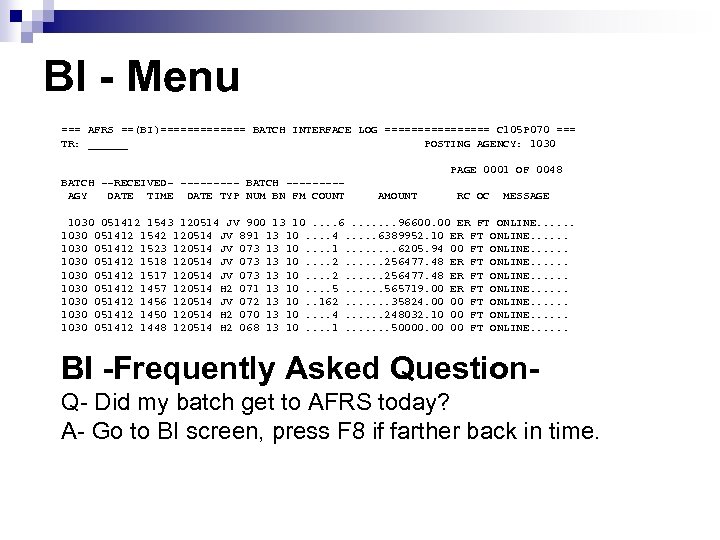 BI - Menu === AFRS ==(BI)======= BATCH INTERFACE LOG ======== C 105 P 070 === TR: ______ POSTING AGENCY: 1030 PAGE 0001 OF 0048 BATCH --RECEIVED- ----- BATCH ----AGY DATE TIME DATE TYP NUM BN FM COUNT AMOUNT RC OC MESSAGE 1030 051412 1543 120514 JV 900 13 10. . 6. . . . 96600. 00 ER FT ONLINE. . . 1030 051412 1542 120514 JV 891 13 10. . 4. . . 6389952. 10 ER FT ONLINE. . . 1030 051412 1523 120514 JV 073 13 10. . 1. . . . 6205. 94 00 FT ONLINE. . . 1030 051412 1518 120514 JV 073 13 10. . 256477. 48 ER FT ONLINE. . . 1030 051412 1517 120514 JV 073 13 10. . 256477. 48 ER FT ONLINE. . . 1030 051412 1457 120514 H 2 071 13 10. . 565719. 00 ER FT ONLINE. . . 1030 051412 1456 120514 JV 072 13 10. . 162. . . . 35824. 00 00 FT ONLINE. . . 1030 051412 1450 120514 H 2 070 13 10. . 4. . . 248032. 10 00 FT ONLINE. . . 1030 051412 1448 120514 H 2 068 13 10. . 1. . . . 50000. 00 00 FT ONLINE. . . BI -Frequently Asked Question- Q- Did my batch get to AFRS today? A- Go to BI screen, press F 8 if farther back in time.
 SS- System Security n Agency security officers: Add or update AFRS security levels online for agency Logon. ID's n Changes to Logon. ID’s or passwords are done through Consolidated Technolgy (CTS) service desk 753 -2454. n Print a report of agency AFRS security records.
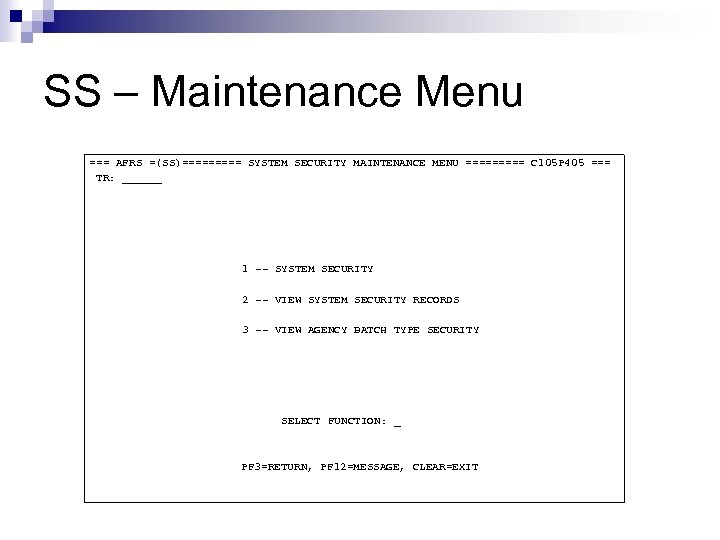 SS – Maintenance Menu === AFRS =(SS)===== SYSTEM SECURITY MAINTENANCE MENU ===== C 105 P 405 === TR: ______ 1 -- SYSTEM SECURITY 2 -- VIEW SYSTEM SECURITY RECORDS 3 -- VIEW AGENCY BATCH TYPE SECURITY SELECT FUNCTION: _ PF 3=RETURN, PF 12=MESSAGE, CLEAR=EXIT
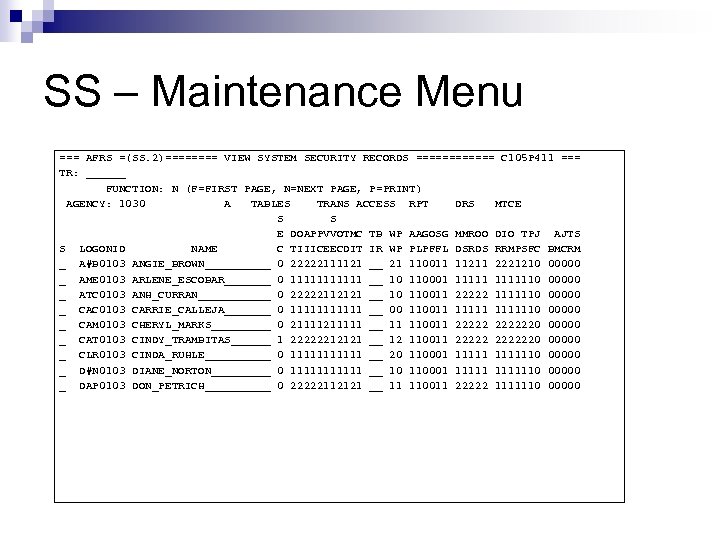 SS – Maintenance Menu === AFRS =(SS. 2)==== VIEW SYSTEM SECURITY RECORDS ====== C 105 P 411 === TR: ______ FUNCTION: N (F=FIRST PAGE, N=NEXT PAGE, P=PRINT) AGENCY: 1030 A TABLES TRANS ACCESS RPT DRS MTCE S S E DOAPPVVOTMC TB WP AAGOSG MMROO DIO TPJ AJTS S LOGONID NAME C TIIICEECDIT IR WP PLPFFL DSRDS RRMPSFC BMCRM _ A#B 0103 ANGIE_BROWN_____ 0 22222111121 __ 21 110011 11211 2221210 00000 _ AME 0103 ARLENE_ESCOBAR_______ 0 111111 __ 10 110001 1111110 00000 _ ATC 0103 ANH_CURRAN______ 0 22222112121 __ 10 110011 22222 1111110 00000 _ CAC 0103 CARRIE_CALLEJA_______ 0 111111 __ 00 110011 1111110 00000 _ CAM 0103 CHERYL_MARKS_____ 0 211111 __ 11 110011 2222220 00000 _ CAT 0103 CINDY_TRAMBITAS______ 1 22222212121 __ 12 110011 2222220 00000 _ CLR 0103 CINDA_RUHLE_____ 0 111111 __ 20 110001 1111110 00000 _ D#N 0103 DIANE_NORTON_____ 0 111111 __ 10 110001 1111110 00000 _ DAP 0103 DON_PETRICH_____ 0 22222112121 __ 11 110011 22222 1111110 00000
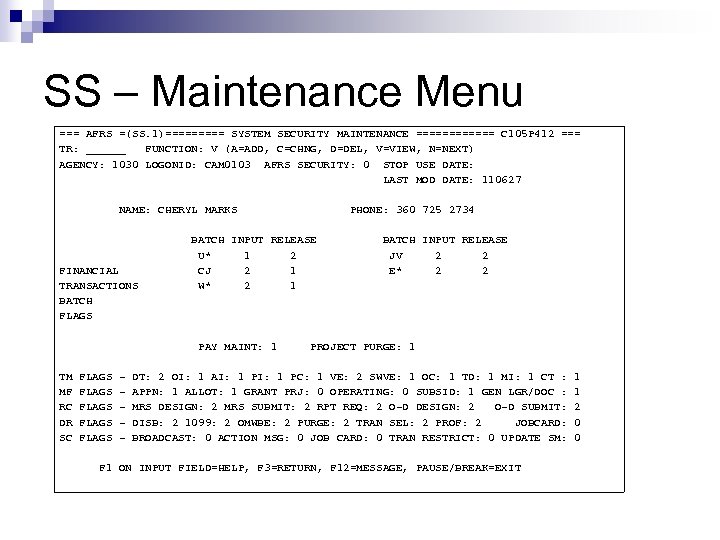 SS – Maintenance Menu === AFRS =(SS. 1)===== SYSTEM SECURITY MAINTENANCE ====== C 105 P 412 === TR: ______ FUNCTION: V (A=ADD, C=CHNG, D=DEL, V=VIEW, N=NEXT) AGENCY: 1030 LOGONID: CAM 0103 AFRS SECURITY: 0 STOP USE DATE: LAST MOD DATE: 110627 NAME: CHERYL MARKS FINANCIAL TRANSACTIONS BATCH FLAGS BATCH INPUT RELEASE U* 1 2 CJ 2 1 W* 2 1 PAY MAINT: 1 TM MF RC DR SC FLAGS FLAGS - PHONE: 360 725 2734 BATCH INPUT RELEASE JV 2 2 E* 2 2 PROJECT PURGE: 1 DT: 2 OI: 1 AI: 1 PC: 1 VE: 2 SWVE: 1 OC: 1 TD: 1 MI: 1 CT : APPN: 1 ALLOT: 1 GRANT PRJ: 0 OPERATING: 0 SUBSID: 1 GEN LGR/DOC : MRS DESIGN: 2 MRS SUBMIT: 2 RPT REQ: 2 O-D DESIGN: 2 O-D SUBMIT: DISB: 2 1099: 2 OMWBE: 2 PURGE: 2 TRAN SEL: 2 PROF: 2 JOBCARD: BROADCAST: 0 ACTION MSG: 0 JOB CARD: 0 TRAN RESTRICT: 0 UPDATE SM: F 1 ON INPUT FIELD=HELP, F 3=RETURN, F 12=MESSAGE, PAUSE/BREAK=EXIT 1 1 2 0 0
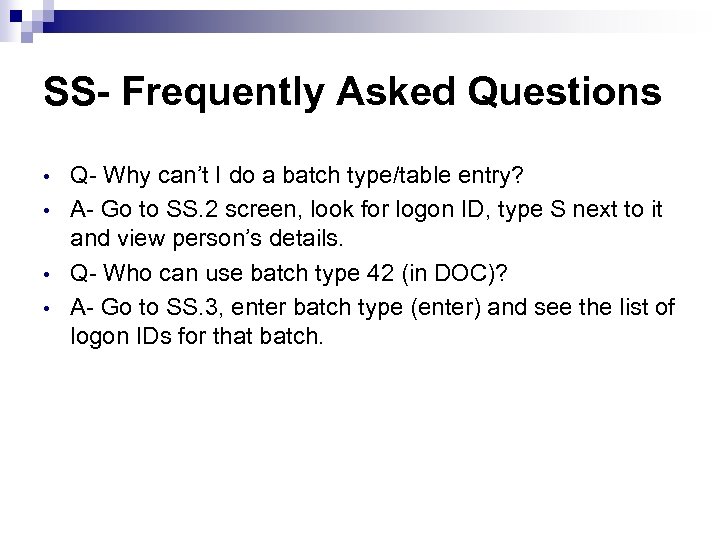 SS- Frequently Asked Questions • • Q- Why can’t I do a batch type/table entry? A- Go to SS. 2 screen, look for logon ID, type S next to it and view person’s details. Q- Who can use batch type 42 (in DOC)? A- Go to SS. 3, enter batch type (enter) and see the list of logon IDs for that batch.
 SS- Reference Link Financial Systems Security User Documentation http: //swfs. ofm. wa. gov/Reference/finsyssecurit y. pdf
 IN - Financial Input/Error Correction/Payment Maintenance n Input financial and payment maintenance transactions. n System edits transactions on input screens against AFRS tables for valid coding either on-line or overnight. n System holds financial transactions and payment maintenance transactions for nightly processing and file updates.
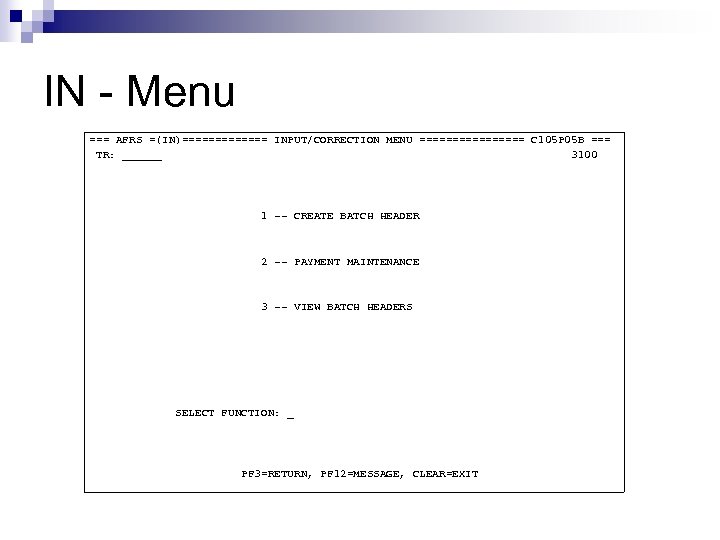 IN - Menu === AFRS =(IN)======= INPUT/CORRECTION MENU ======== C 105 P 05 B === TR: ______ 3100 1 -- CREATE BATCH HEADER 2 -- PAYMENT MAINTENANCE 3 -- VIEW BATCH HEADERS SELECT FUNCTION: _ PF 3=RETURN, PF 12=MESSAGE, CLEAR=EXIT
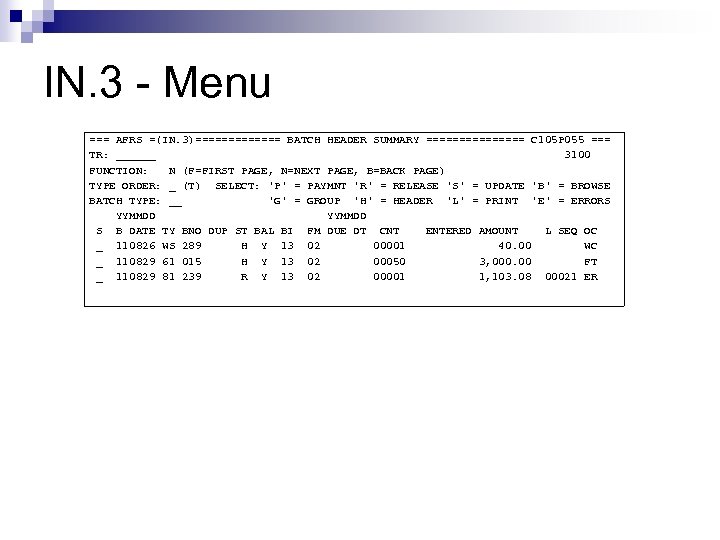 IN. 3 - Menu === AFRS =(IN. 3)======= BATCH HEADER SUMMARY ======== C 105 P 055 === TR: ______ 3100 FUNCTION: N (F=FIRST PAGE, N=NEXT PAGE, B=BACK PAGE) TYPE ORDER: _ (T) SELECT: 'P' = PAYMNT 'R' = RELEASE 'S' = UPDATE 'B' = BROWSE BATCH TYPE: __ 'G' = GROUP 'H' = HEADER 'L' = PRINT 'E' = ERRORS YYMMDD S B DATE TY BNO DUP ST BAL BI FM DUE DT CNT ENTERED AMOUNT L SEQ OC _ 110826 WS 289 H Y 13 02 00001 40. 00 WC _ 110829 61 015 H Y 13 02 00050 3, 000. 00 FT _ 110829 81 239 R Y 13 02 00001 1, 103. 08 00021 ER
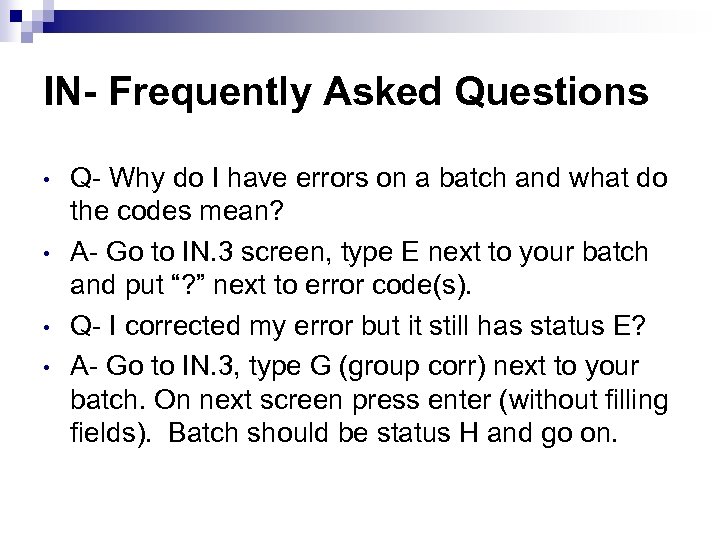 IN- Frequently Asked Questions • • Q- Why do I have errors on a batch and what do the codes mean? A- Go to IN. 3 screen, type E next to your batch and put “? ” next to error code(s). Q- I corrected my error but it still has status E? A- Go to IN. 3, type G (group corr) next to your batch. On next screen press enter (without filling fields). Batch should be status H and go on.
 IN – Reference Links n Input Record Coding Elements http: //swfs. ofm. wa. gov/Reference/inalpha 2. doc
 VE - Vendor Maintenance n Provides access to vendor information, payment process control, & warrant cancellation screens in a convenient place. n Provides access from vendor search screen directly to DRS.
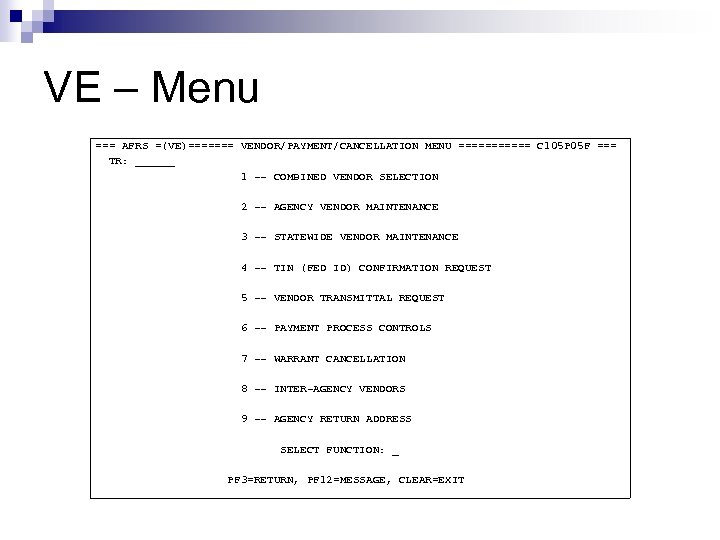 VE – Menu === AFRS =(VE)======= VENDOR/PAYMENT/CANCELLATION MENU ====== C 105 P 05 F === TR: ______ 1 -- COMBINED VENDOR SELECTION 2 -- AGENCY VENDOR MAINTENANCE 3 -- STATEWIDE VENDOR MAINTENANCE 4 -- TIN (FED ID) CONFIRMATION REQUEST 5 -- VENDOR TRANSMITTAL REQUEST 6 -- PAYMENT PROCESS CONTROLS 7 -- WARRANT CANCELLATION 8 -- INTER-AGENCY VENDORS 9 -- AGENCY RETURN ADDRESS SELECT FUNCTION: _ PF 3=RETURN, PF 12=MESSAGE, CLEAR=EXIT
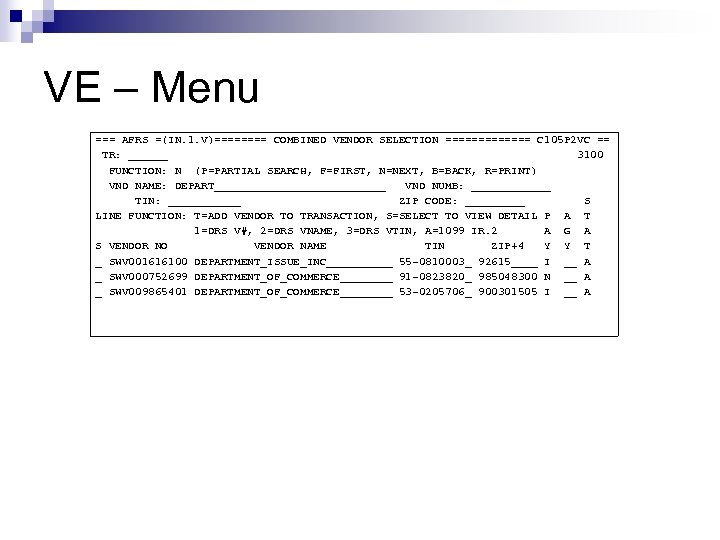 VE – Menu === AFRS =(IN. 1. V)==== COMBINED VENDOR SELECTION ======= C 105 P 2 VC == TR: ______ 3100 FUNCTION: N (P=PARTIAL SEARCH, F=FIRST, N=NEXT, B=BACK, R=PRINT) VND NAME: DEPART_____________ VND NUMB: ______ TIN: ______ ZIP CODE: _____ S LINE FUNCTION: T=ADD VENDOR TO TRANSACTION, S=SELECT TO VIEW DETAIL P A T 1=DRS V#, 2=DRS VNAME, 3=DRS VTIN, A=1099 IR. 2 A G A S VENDOR NO VENDOR NAME TIN ZIP+4 Y Y T _ SWV 001616100 DEPARTMENT_ISSUE_INC_____ 55 -0810003_ 92615____ I __ A _ SWV 000752699 DEPARTMENT_OF_COMMERCE____ 91 -0823820_ 985048300 N __ A _ SWV 009865401 DEPARTMENT_OF_COMMERCE____ 53 -0205706_ 900301505 I __ A
 VE- Frequently Asked Questions • • Q- How do I find a vendor number? A- Go to VE. 1 screen, select 1. On next screen type P (partial) and type part of vendor name or TIN# (enter). Select vendor you want on list. Q- How do I find a contact name/number? A- Go to VE. 6, type N for function or V-view and batch type to find batch type contact and message.
 VE – Reference Link Agency Financial Reporting System VENDOR FILE MAINTENANCE http: //swfs. ofm. wa. gov/Reference/Vendor_Maintenance. pdf
 Practice: logging off of AFRS n Press the Pause/Break key which acts as a clear function, then type logoff in the upper left-hand corner of the screen and press ↵ Enter. n Or - press F 3 until you see AFRS SYSTEM EXITED , then type logoff ↵ Enter. n Or – Click on the disconnect function in upper left corner of screen.
 Getting access to Enterprise Reporting (ER) E-mail the AFRS/ER helpdesk (afrshelpdesk@ofm. wa. gov) with the following info: n Agency Name or Number n User Name [First & Last] n Your Phone Number n Your Email Address n Preferred Logon. ID: 4 -6 characters plus your 3 -digit agency code. If you already have an AFRS or network logon. ID, that can be used for Enterprise Reporting also Example: mine is dbac 105. You will get a reply e-mail with instructions/password.
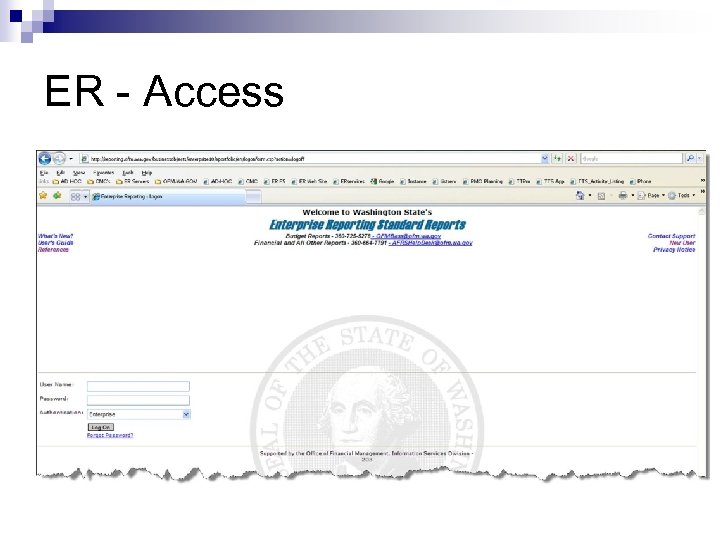 ER - Access
 How to log on to ER Enterprise Reporting customers must have online access either through the Washington State Intranet, or through a secure Fortress server to use Enterprise Reporting from outside of the state firewall.
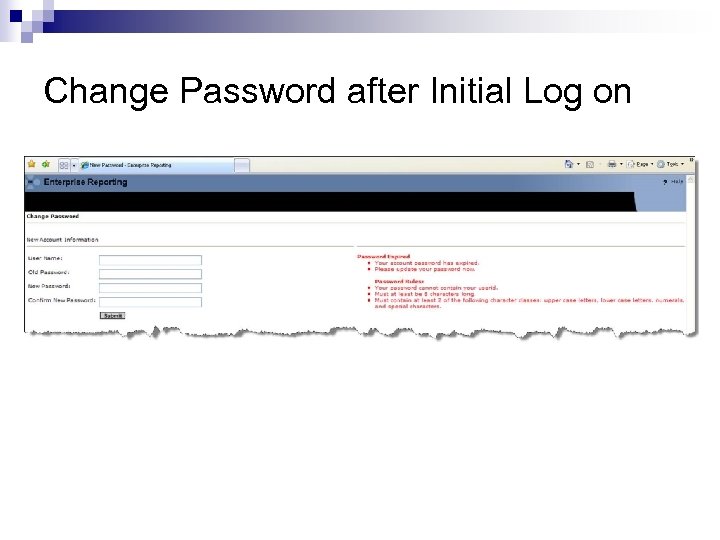 Change Password after Initial Log on
 Creating your new password n n Enter your User Name in the Old Password Box Enter your new password in the next two boxes, following the password criteria below - Then click Submit Password must be changed every 120 days. After five incorrect logon attempts, your user account will be locked. Please call/e-mail the AFRS Help Desk (360 -664 -7725 or afrshelpdesk@ofm. wa. gov) and we will reset your password.
 How do I find a list of Financial Reports available in ER? Start Internet Explorer. • In the Address field, type http: //reporting. ofm/reporting/ for the Intranet web site or • https: //fortress. wa. gov/ofm/reporting/ for the Internet web site and click Go, or press [Enter]. The Enterprise Reporting logon screen is displayed • At the top right hand corner of the ER web page, click on [References] link. • Arrow down the Reference web page to click on [Financial Reports Report Inventory] • The Report_Inventory. htm web page will give you a list of all financial reports available in Enterprise Reporting.
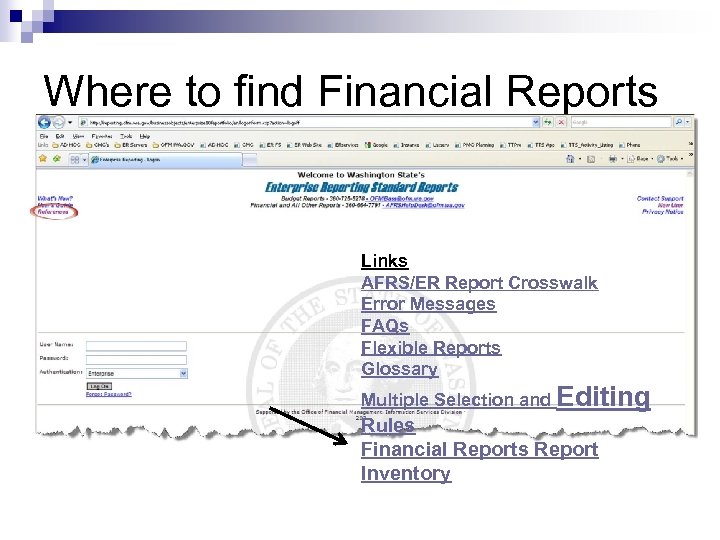 Where to find Financial Reports Links AFRS/ER Report Crosswalk Error Messages FAQs Flexible Reports Glossary Multiple Selection and Editing Rules Financial Reports Report Inventory
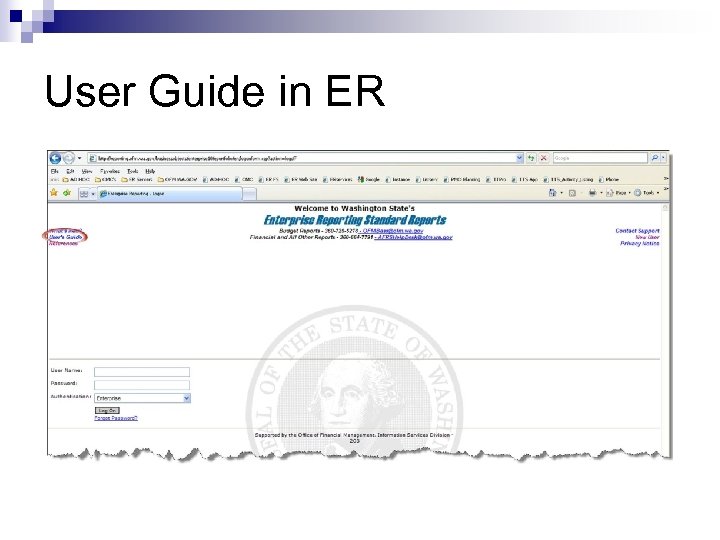
 How do I access the User Guide to Enterprise Reporting? Start Internet Explorer. • In the Address field, type http: //reporting. ofm/reporting/ for the Intranet web site or https: //fortress. wa. gov/ofm/reporting/ for the Internet web site and click Go, or press [Enter]. The Enterprise Reporting logon screen is displayed • At the top right hand corner of the ER web page, click on [User’s Guide] link. • The first few pages of the ER User’s Guide are Overview, Primary Menu, Application Navigation, Folder Structure, etc.
 User Guide in ER
 DES Training Classes Available Selecting AFRS Transaction Codes - Intro Level n Class Description: This two hour class covers AFRS Transaction Codes (TC), how they are used in accounting transactions and the common TCs needed at a WA state finance office. Emphasis is on preparing original entries by using the proper General Ledger (GL) Accounts. In the last part of the class participants complete practice exercises to select a TC. n Target Audience: This class is for an AFRS user that has taken the Intro to AFRS class, has some basic accounting knowledge and wants to know more about the list of transaction codes they have at their desk.
 DES Training Classes Available Selecting AFRS Transaction Codes - Advanced n Class Description: This two hour class looks at the important parts of an AFRS Transaction Code (TC) and explains the meaning of each part as it relates to selecting a TC for an accounting event. The class presents a process or sequence of factors to consider when selecting a TC. Emphasis is on preparing correcting entries by selecting the proper General Ledger (GL) Accounts. In the last part of the class participants complete practice exercises to select a TC. n Target Audience: This class is for an AFRS user that has knowledge about creating an AFRS transaction code. This class is for an AFRS transaction code preparer that would like to understand how the transaction works and how to create a correcting entry. This class follows the two hour class titled Selecting AFRS Transaction Codes - Introduction.
 DES Training Classes Available n AFRS TRANSACTION INPUT Class Description: This class provides instruction and hands-on practice in the following AFRS on-line functions: entering financial transactions, using the payment features, reviewing and releasing batches, selecting vendor, correcting errors, warrant cancellation/SOL and reviewing transactions using the master file inquiry screen. ¨ Target Group: Fiscal personnel with little or no AFRS on-line experience who will be performing one of the following functions: financial batch input, batch review and release, Vendor Table maintenance, and error corrections. ¨ n INTRODUCTION TO IRS 1099 -MISC REPORTING Class Description: This class will give employees basic information concerning Internal Revenue Service IRS 1099 -MISC reporting, including a non-technical overview of forms required, terms used, available training, important dates, and how to access the IRS website. ¨ Target Group: Fiscal and other agency personnel who will be involved with IRS 1099 -MISC reporting for the first time. ¨
 DES Training Classes Available n OMWBE* REPORTING (*Office of Minority & Women’s Business Enterprises) FROM AFRS/DRS ¨ Class Description: This two hour class gives employees basic information concerning how OMWBE reporting is done from the Agency Financial Reporting System (AFRS). The rules for successful coding and reporting are discussed, as well as ways to apply and correct OMWBE specific transaction coding to accurately portray levels of public contracting and procurement participation by minorities, women and all others who may be socially and economically disadvantaged. ¨ Target Group: Purchasing and fiscal personnel who are concerned with how OMWBE reporting works, and the key requirements for accurate OMWBE reporting through the Enterprise Reporting system and ORS system.
 DES Training Classes - ER n Enterprise Reporting Financial Reports - for New Users Class Description: This class provides 1) an overview of the ER infrastructure 2) a demonstration in scheduling and viewing Financial Reports structured through the state intranet, 3) a hands-on session with structured training exercises, providing an opportunity for students to schedule and view financial reports in ER. ¨ Target Group: Agency personnel who are new to ER Financial Reports and are interested in accessing AFRS financial data for reporting or analysis through an interactive on-line mode. ¨ n Enterprise Reporting Financial Reports - Flexible Reporting Class Description: This class provides 1) an in-depth review of the Financial Reports flexible features that allow users to select groupings, sections, subtotals and balances, 2) a demonstration of how the flexible features can be used to create a customized report, 3) a hands-on session for the students to schedule and view their own flexible reports in ER. ¨ Target Group: It is recommended that you take the Financial Reports--for New Users Class prior to taking Enterprise Reporting Financial Reports - Flexible Reporting Features. ¨
 Additional ER Training n Enterprise Reporting (ER) - Introduction to the Ad Hoc Tool ¨ Class Description: Learn about the features of the Enterprise Reporting (ER) Ad Hoc Tool allowing users access to statewide financial data over the intranet or Internet. It provides querying, reporting, and analysis capabilities in a single tool. The training is conducted using financial data from the Agency Financial Reporting System (AFRS). Participants will learn about basic tool functionality using an interactive hands-on format. ¨ Target Group: Enterprise Reporting - Introduction to the Ad Hoc Tool is for users who have experience requesting Enterprise Reporting Financial Reports. Users of the Ad Hoc Tool will need an understanding of their agency’s business reporting needs and the relationship to AFRS data.
 Any Questions? Contact us: n DES Solutions Center 360 -407 -9100 E-mail: solutionscenter@des. wa. gov n