


 Скачать презентацию Introduction Student News VTC Welcome to the
0db9d49ab67cad93d81290c09393f584.ppt
- Количество слайдов: 60
 Introduction Student News VTC • Welcome to the April 2011 Student VTC. • Our next VTC will be Thursday, May 19, 2011. • If you have comments or suggestions for upcoming VTC’s, please email them to: stucoord@esd 101. net
 News
News
 News Upcoming Workshops Manual Scheduling and Auto Scheduling workshop will be May 5 th at NEWESD 101 – 9: 00 AM – 1: 00 PM Elementary schools will be offered Next Year Scheduling in June as usual.
 News Upcoming Release • May Release Weekend 3: 00 AM – 9: 00 PM Saturday, May 7 th, 2011 Users must be logged out during this installation

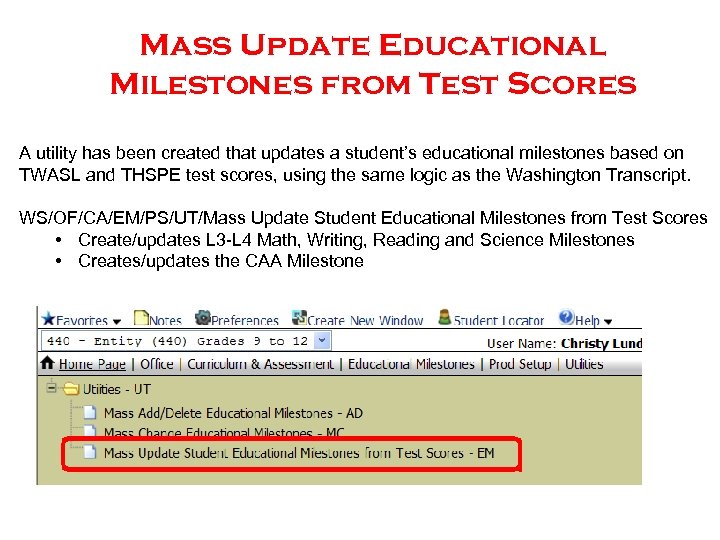 Mass Update Educational Milestones from Test Scores A utility has been created that updates a student’s educational milestones based on TWASL and THSPE test scores, using the same logic as the Washington Transcript. WS/OF/CA/EM/PS/UT/Mass Update Student Educational Milestones from Test Scores • Create/updates L 3 -L 4 Math, Writing, Reading and Science Milestones • Creates/updates the CAA Milestone
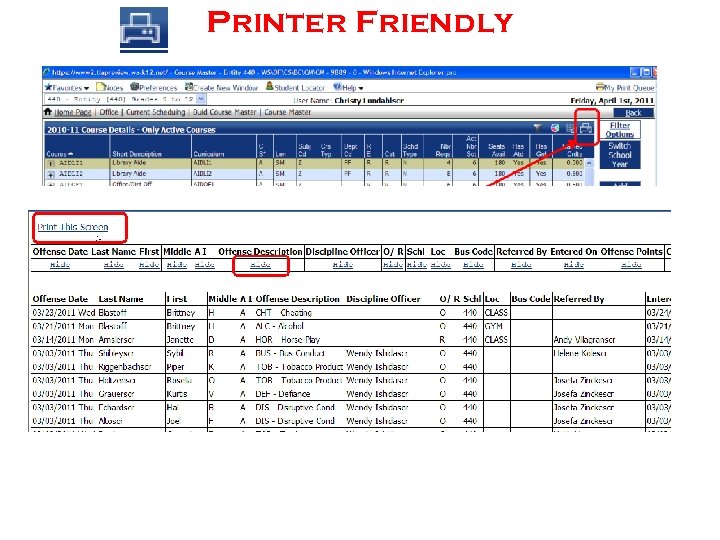 Printer Friendly New - Create Printer Friendly Display of This Browse
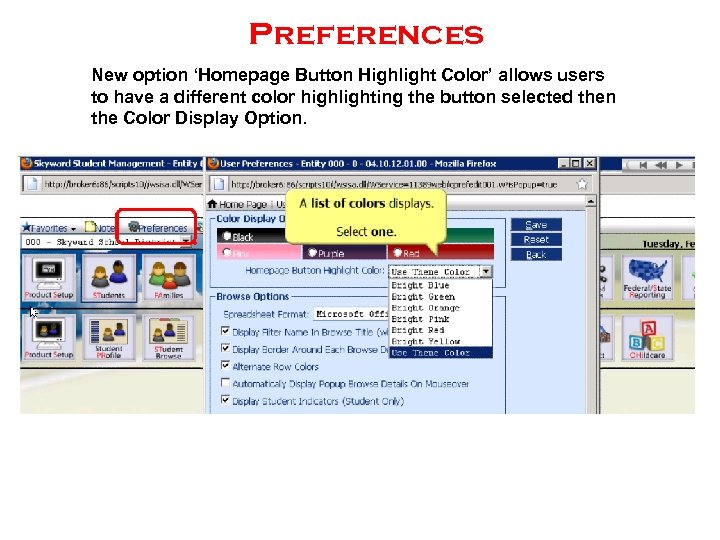 Preferences New option ‘Homepage Button Highlight Color’ allows users to have a different color highlighting the button selected then the Color Display Option.
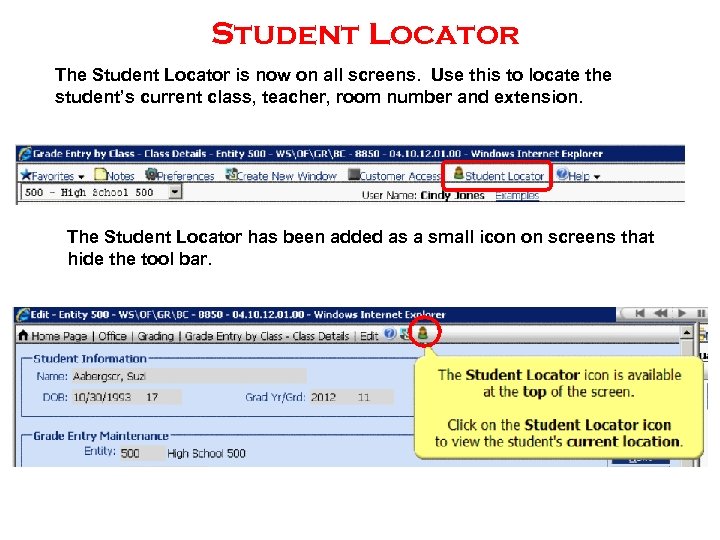 Student Locator The Student Locator is now on all screens. Use this to locate the student’s current class, teacher, room number and extension. The Student Locator has been added as a small icon on screens that hide the tool bar.
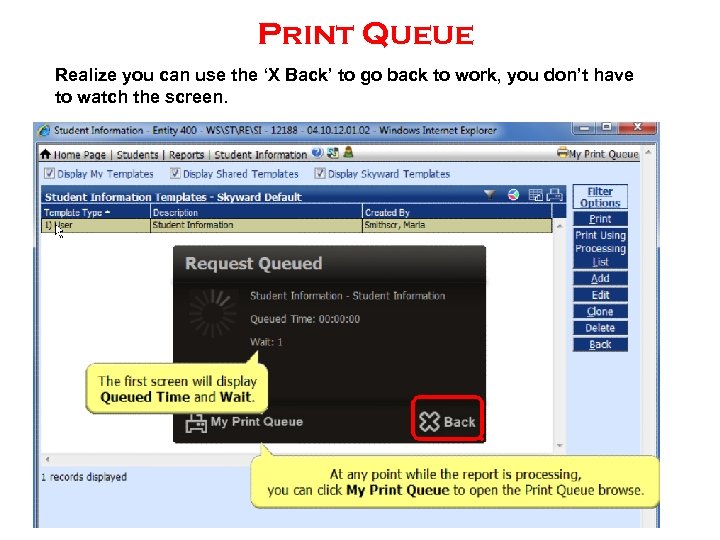 Print Queue Realize you can use the ‘X Back’ to go back to work, you don’t have to watch the screen.
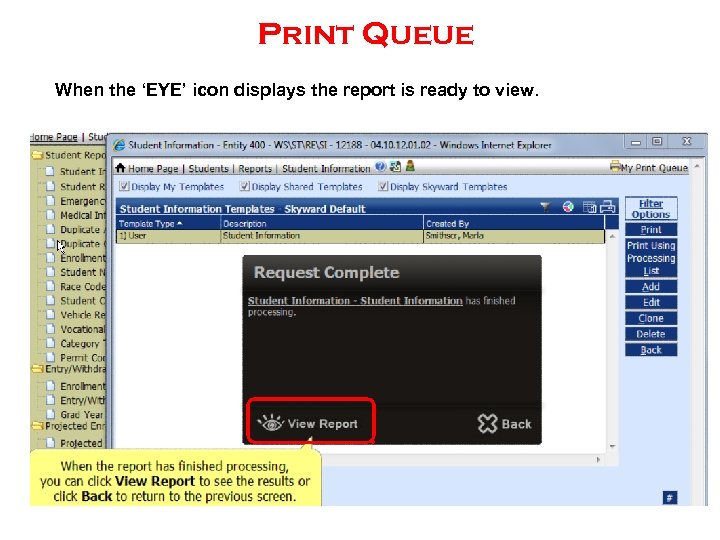 Print Queue When the ‘EYE’ icon displays the report is ready to view.
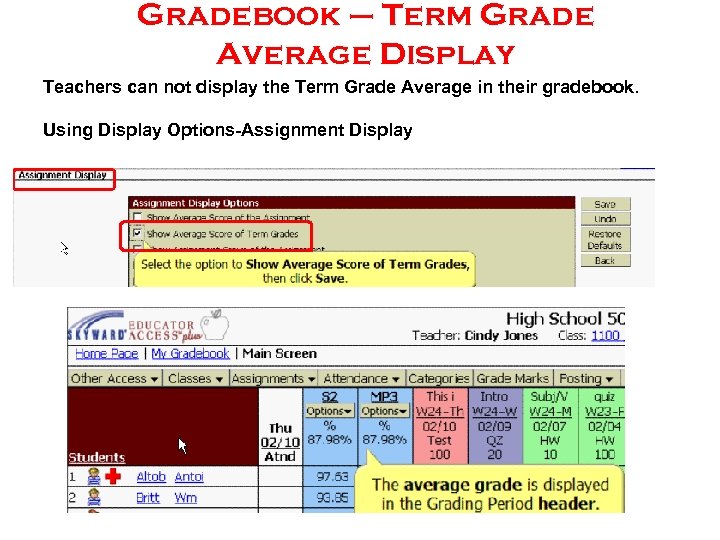 Gradebook – Term Grade Average Display Teachers can not display the Term Grade Average in their gradebook. Using Display Options-Assignment Display
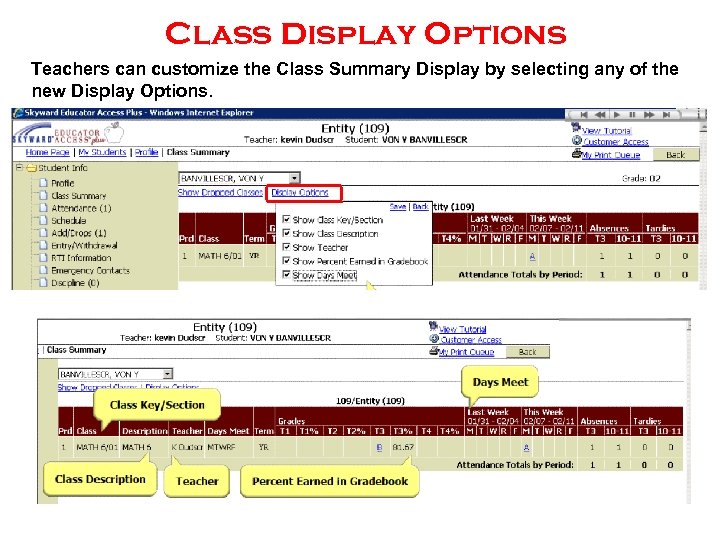 Class Display Options Teachers can customize the Class Summary Display by selecting any of the new Display Options.
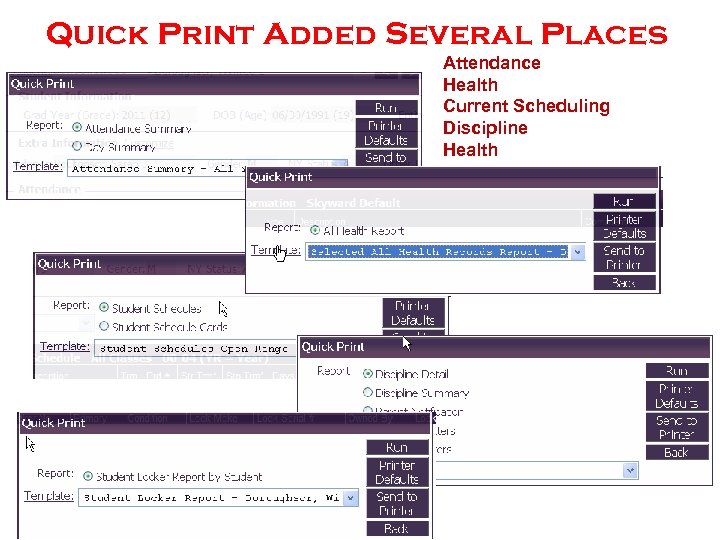 Quick Print Added Several Places Attendance Health Current Scheduling Discipline Health
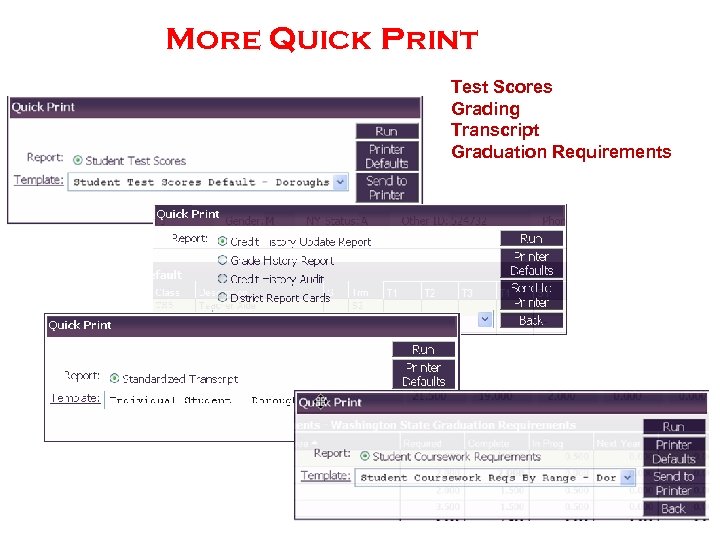 More Quick Print Test Scores Grading Transcript Graduation Requirements
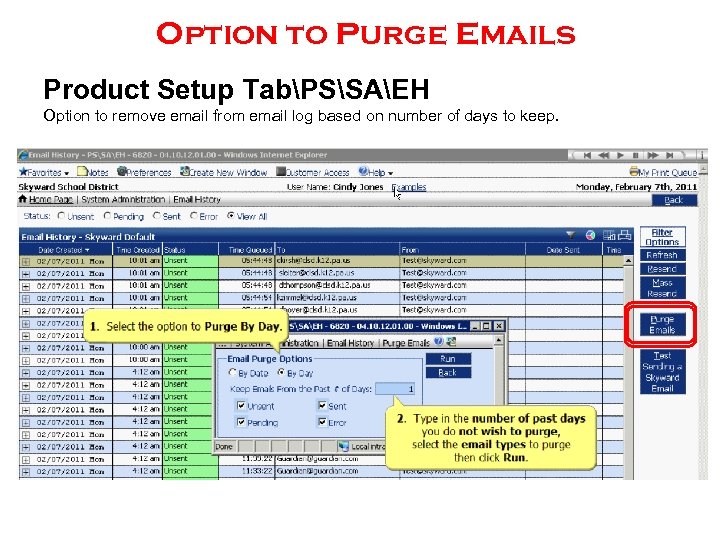 Option to Purge Emails Product Setup TabPSSAEH Option to remove email from email log based on number of days to keep.
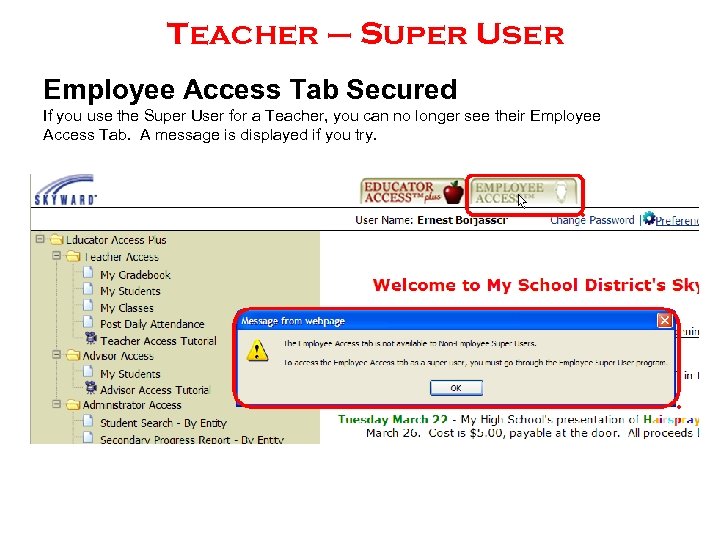 Teacher – Super User Employee Access Tab Secured If you use the Super User for a Teacher, you can no longer see their Employee Access Tab. A message is displayed if you try.
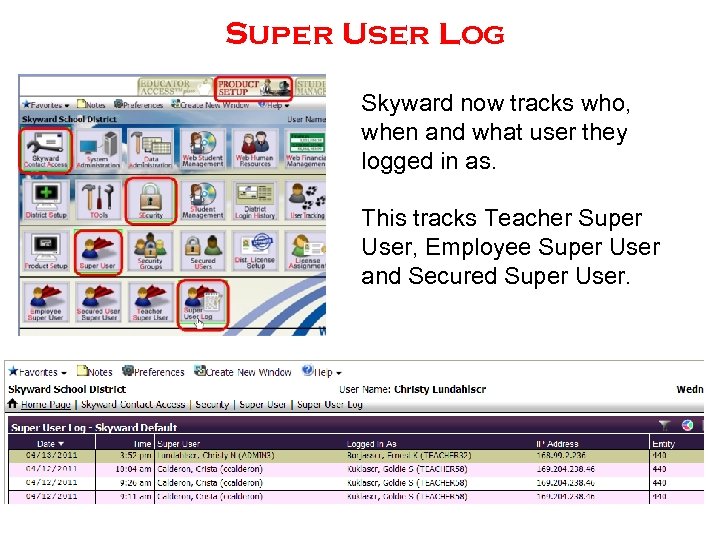 Super User Log Skyward now tracks who, when and what user they logged in as. This tracks Teacher Super User, Employee Super User and Secured Super User.
 What is a Scheduled Task? Scheduled Task is a way to automatically generate reports, run utilities, or procedures based on a user defined schedule. Any job in the print queue can be set to run on a specific schedule.
 How will scheduled task help me? What reports or utilities do you run regularly? – Daily üDaily Attendance Report Lunch Survey Report üUnrecorded Class Attendance Discipline Reports – Weekly üAttendance Letters Update, Attendance Letters üAthletic Grade Checking üMass Delete Grades By Grade Bucket (clear the ATH bucket) – Monthly üProgress Reports üMonthly Special Ed Case Load Report üMass Update Term Attendance Totals – Specific Day (of the Week, Month, or Year) üTerm and Semester Grading Reports üCount Day Reports
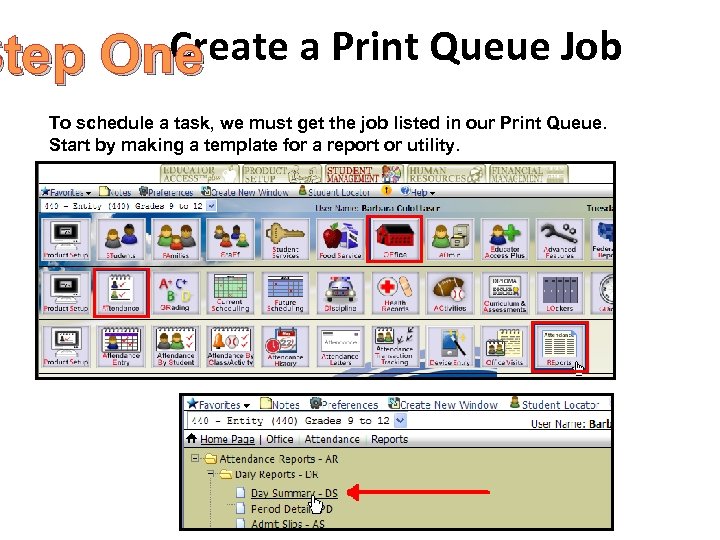 Create a Print Queue Job Step One To schedule a task, we must get the job listed in our Print Queue. Start by making a template for a report or utility.
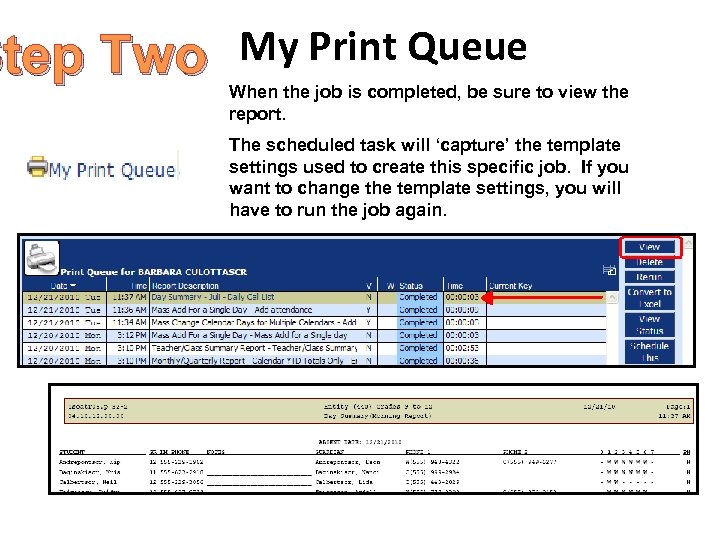 Step Two My Print Queue When the job is completed, be sure to view the report. The scheduled task will ‘capture’ the template settings used to create this specific job. If you want to change the template settings, you will have to run the job again.
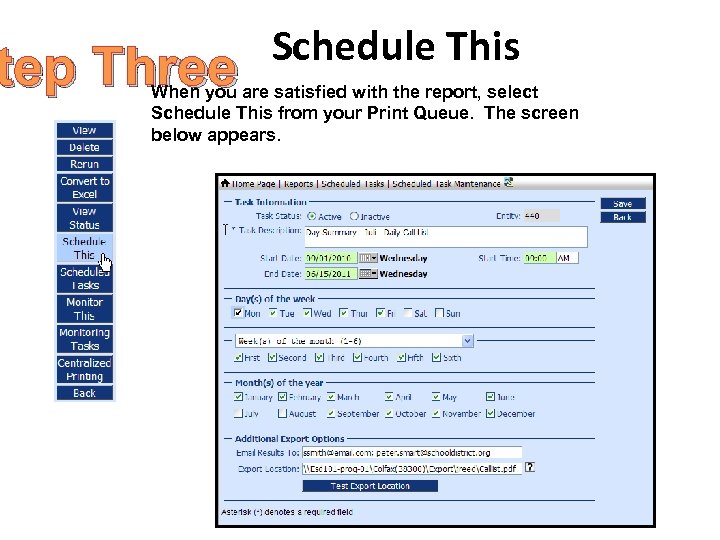 tep Three Schedule This When you are satisfied with the report, select Schedule This from your Print Queue. The screen below appears.
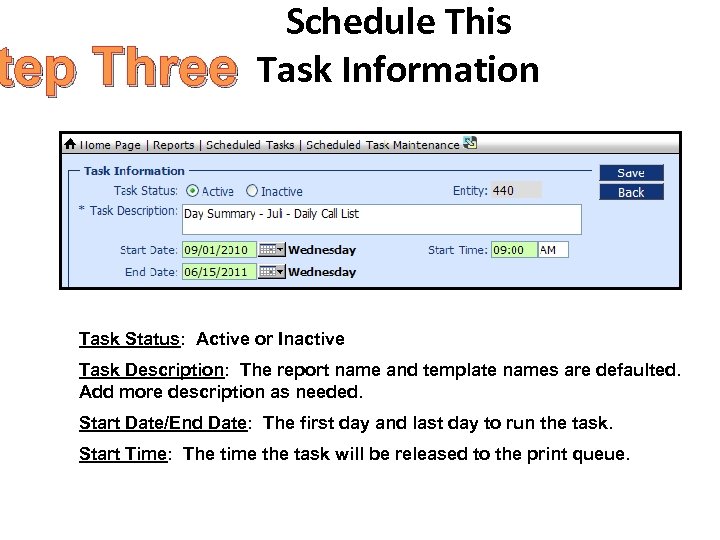 tep Three Schedule This Task Information Task Status: Active or Inactive Task Description: The report name and template names are defaulted. Add more description as needed. Start Date/End Date: The first day and last day to run the task. Start Time: The time the task will be released to the print queue.
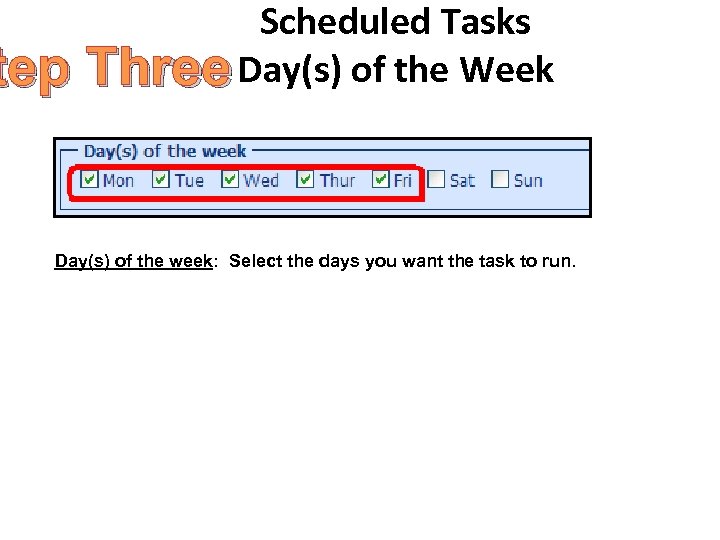 Scheduled Tasks tep Three Day(s) of the Week Day(s) of the week: Select the days you want the task to run.
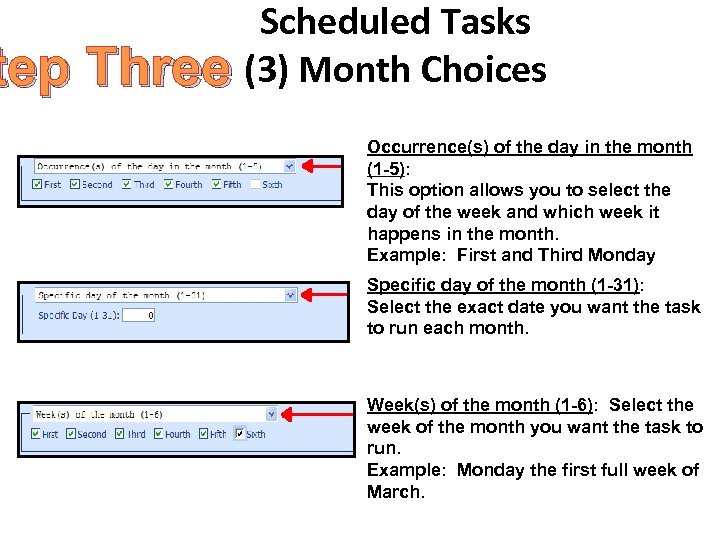 Scheduled Tasks tep Three (3) Month Choices Occurrence(s) of the day in the month (1 -5): This option allows you to select the day of the week and which week it happens in the month. Example: First and Third Monday Specific day of the month (1 -31): Select the exact date you want the task to run each month. Week(s) of the month (1 -6): Select the week of the month you want the task to run. Example: Monday the first full week of March.
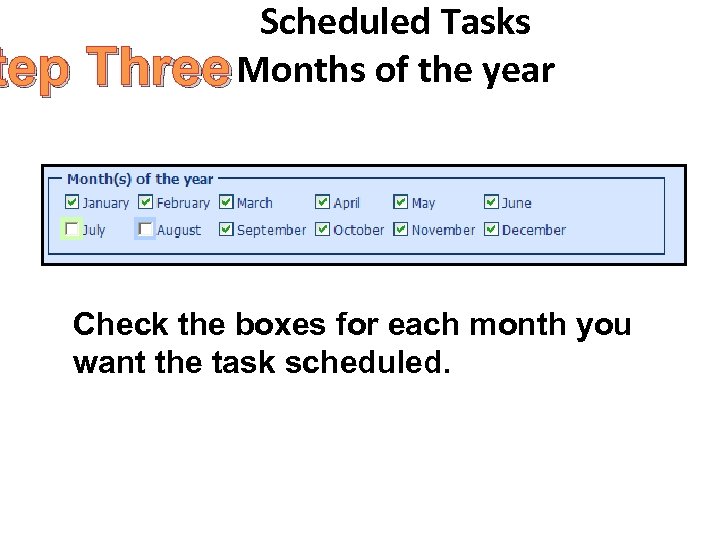 Scheduled Tasks tep Three Months of the year Check the boxes for each month you want the task scheduled.
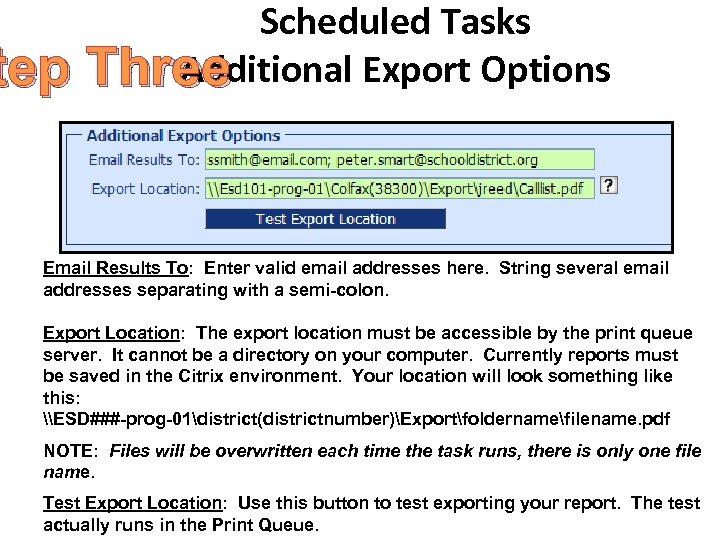 Scheduled Tasks Additional Export Options tep Three Email Results To: Enter valid email addresses here. String several email addresses separating with a semi-colon. Export Location: The export location must be accessible by the print queue server. It cannot be a directory on your computer. Currently reports must be saved in the Citrix environment. Your location will look something like this: \ESD###-prog-01district(districtnumber)Exportfoldernamefilename. pdf NOTE: Files will be overwritten each time the task runs, there is only one file name. Test Export Location: Use this button to test exporting your report. The test actually runs in the Print Queue.
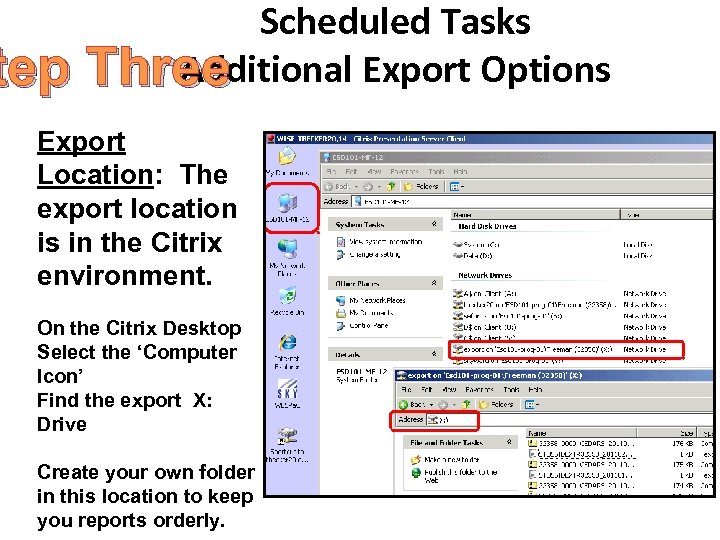 Scheduled Tasks Additional Export Options tep Three Export Location: The export location is in the Citrix environment. On the Citrix Desktop Select the ‘Computer Icon’ Find the export X: Drive Create your own folder in this location to keep you reports orderly.
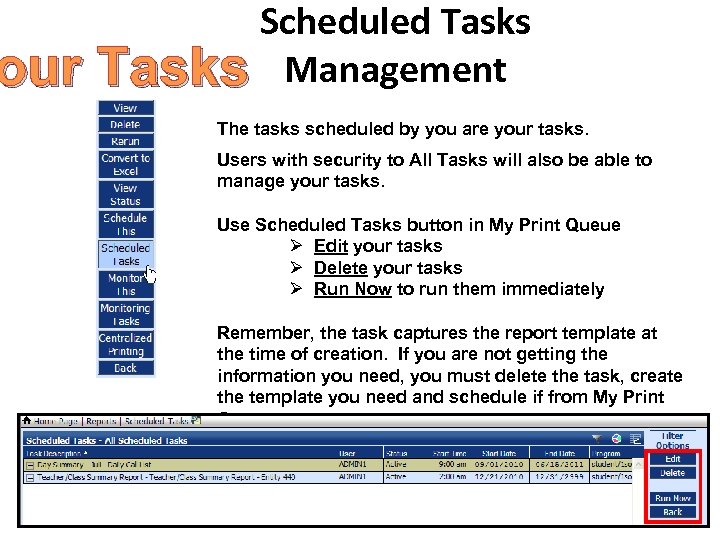 Scheduled Tasks our Tasks Management The tasks scheduled by you are your tasks. Users with security to All Tasks will also be able to manage your tasks. Use Scheduled Tasks button in My Print Queue Ø Edit your tasks Ø Delete your tasks Ø Run Now to run them immediately Remember, the task captures the report template at the time of creation. If you are not getting the information you need, you must delete the task, create the template you need and schedule if from My Print Queue.
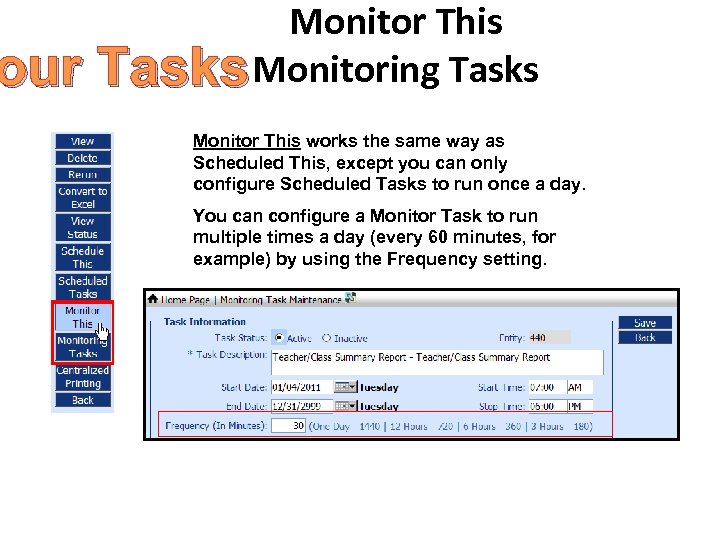 Monitor This our Tasks Monitoring Tasks Monitor This works the same way as Scheduled This, except you can only configure Scheduled Tasks to run once a day. You can configure a Monitor Task to run multiple times a day (every 60 minutes, for example) by using the Frequency setting.
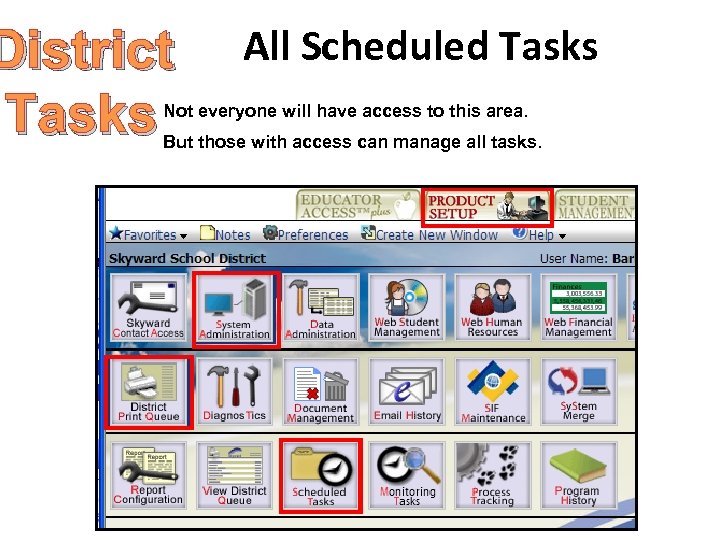 District All Scheduled Tasks Not everyone will have access to this area. But those with access can manage all tasks.
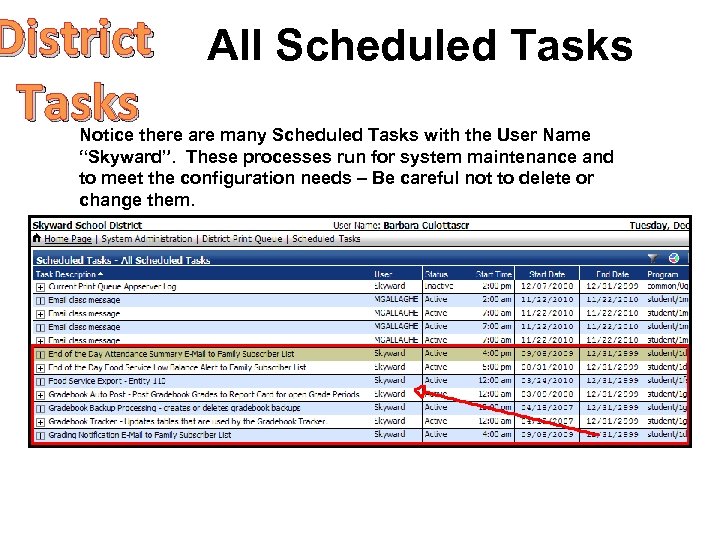 District All Scheduled Tasks Notice there are many Scheduled Tasks with the User Name “Skyward”. These processes run for system maintenance and to meet the configuration needs – Be careful not to delete or change them.
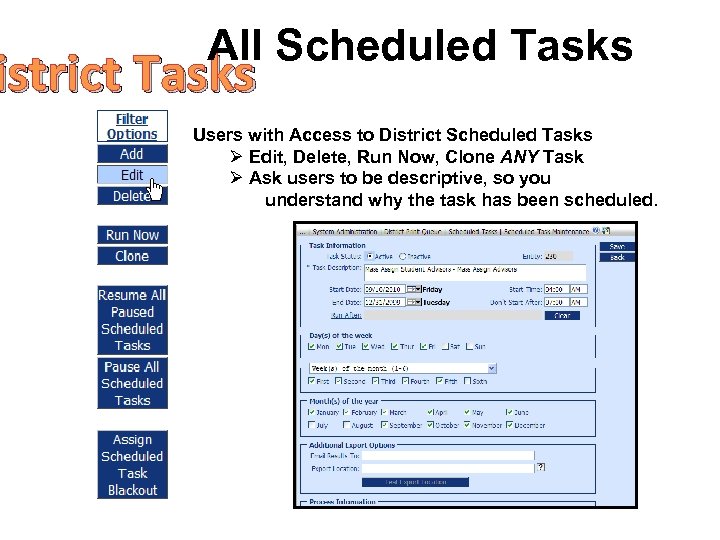 All Scheduled Tasks istrict Tasks Users with Access to District Scheduled Tasks Ø Edit, Delete, Run Now, Clone ANY Task Ø Ask users to be descriptive, so you understand why the task has been scheduled.
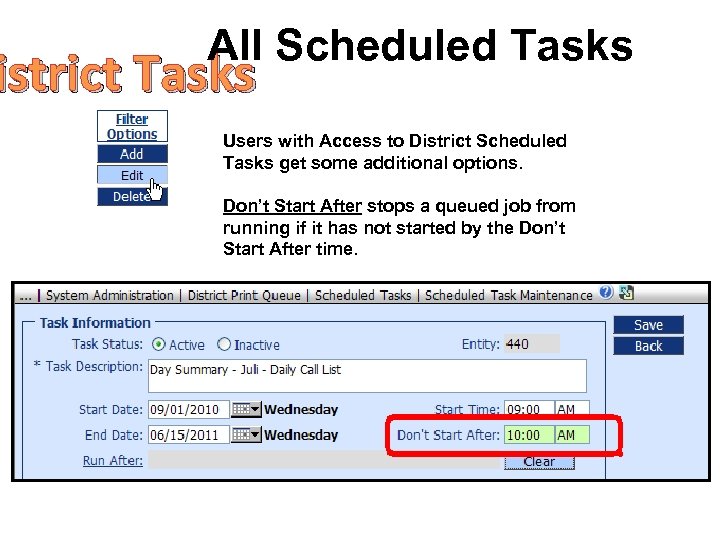 All Scheduled Tasks istrict Tasks Users with Access to District Scheduled Tasks get some additional options. Don’t Start After stops a queued job from running if it has not started by the Don’t Start After time.
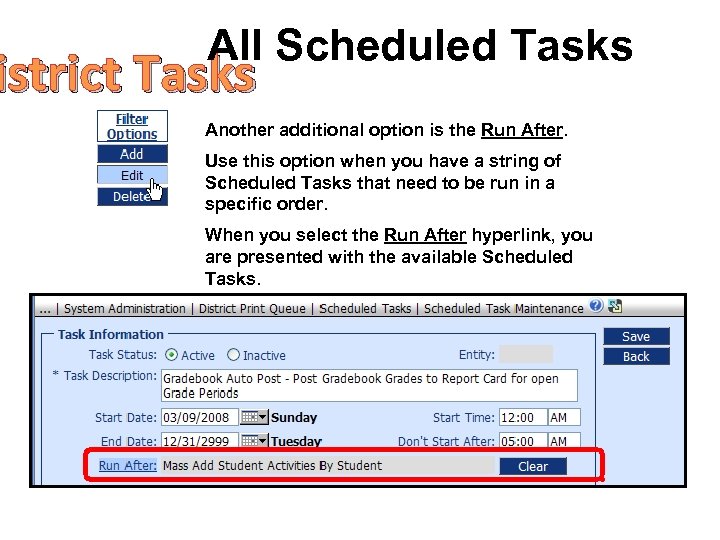 All Scheduled Tasks istrict Tasks Another additional option is the Run After. Use this option when you have a string of Scheduled Tasks that need to be run in a specific order. When you select the Run After hyperlink, you are presented with the available Scheduled Tasks. Clear removes the listed task.
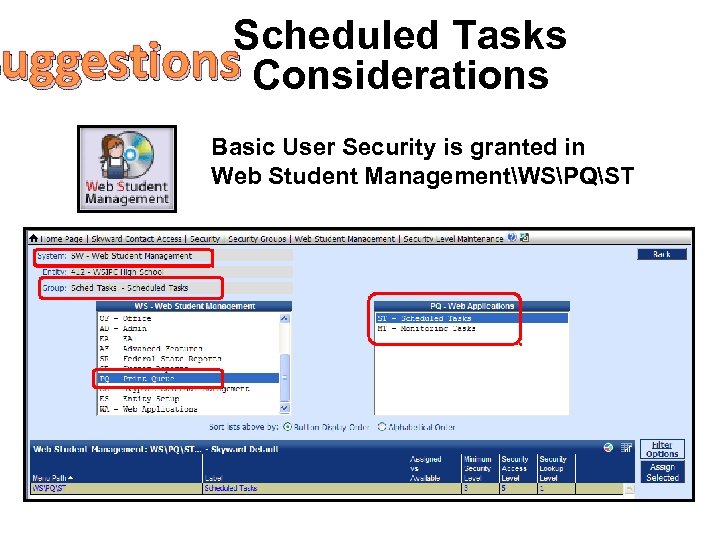 Scheduled Tasks Suggestions Considerations Basic User Security is granted in Web Student ManagementWSPQST
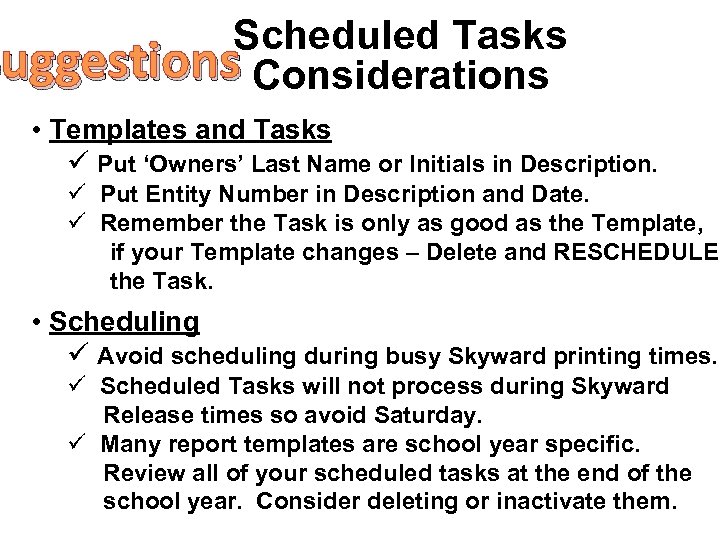 Scheduled Tasks Suggestions Considerations • Templates and Tasks ü Put ‘Owners’ Last Name or Initials in Description. ü Put Entity Number in Description and Date. ü Remember the Task is only as good as the Template, if your Template changes – Delete and RESCHEDULE the Task. • Scheduling ü Avoid scheduling during busy Skyward printing times. ü Scheduled Tasks will not process during Skyward Release times so avoid Saturday. ü Many report templates are school year specific. Review all of your scheduled tasks at the end of the school year. Consider deleting or inactivate them.
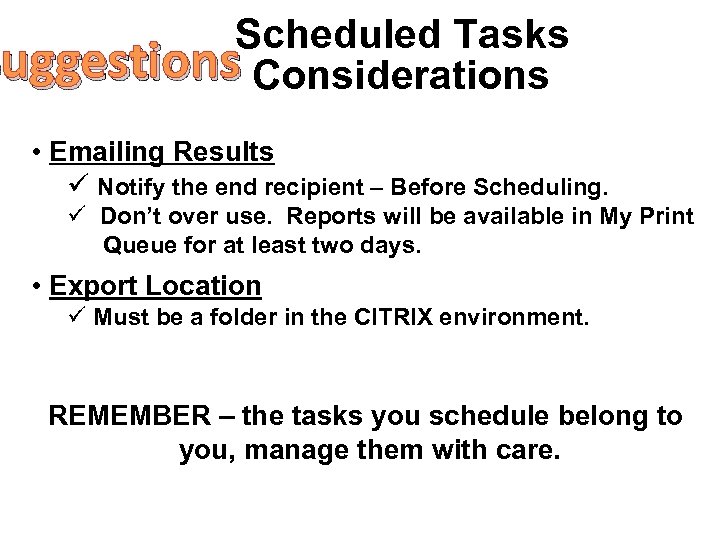 Scheduled Tasks Suggestions Considerations • Emailing Results ü Notify the end recipient – Before Scheduling. ü Don’t over use. Reports will be available in My Print Queue for at least two days. • Export Location ü Must be a folder in the CITRIX environment. REMEMBER – the tasks you schedule belong to you, manage them with care.

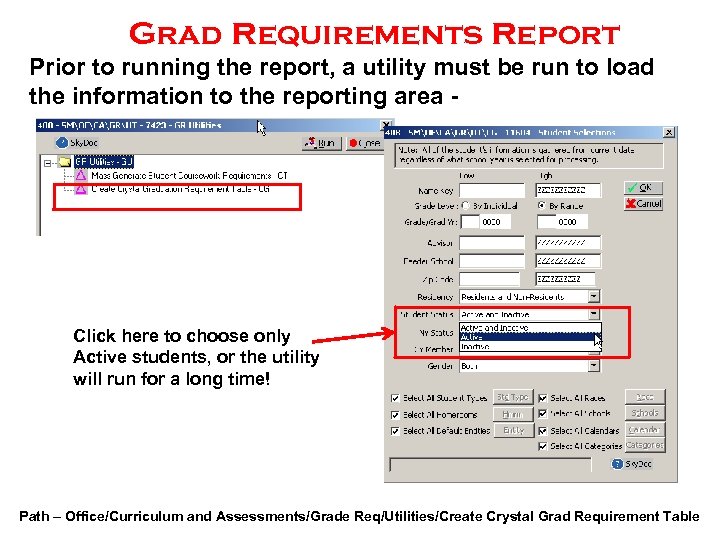 Grad Requirements Report Prior to running the report, a utility must be run to load the information to the reporting area - Click here to choose only Active students, or the utility will run for a long time! Path – Office/Curriculum and Assessments/Grade Req/Utilities/Create Crystal Grad Requirement Table
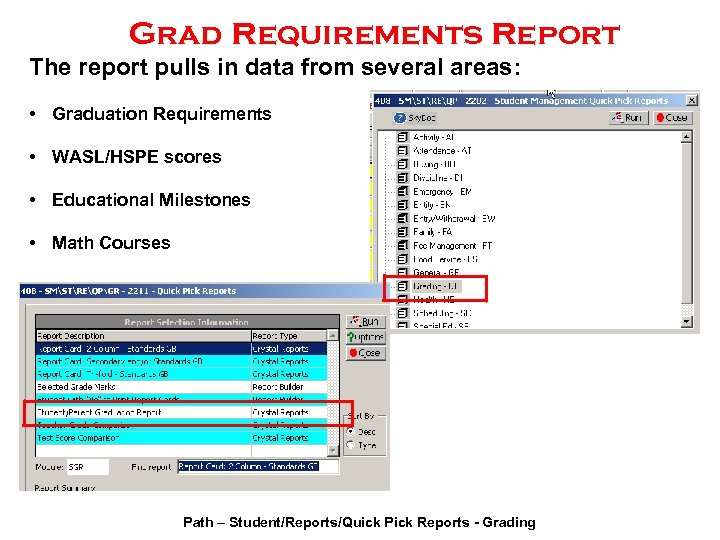 Grad Requirements Report The report pulls in data from several areas: • Graduation Requirements • WASL/HSPE scores • Educational Milestones • Math Courses Path – Student/Reports/Quick Pick Reports - Grading
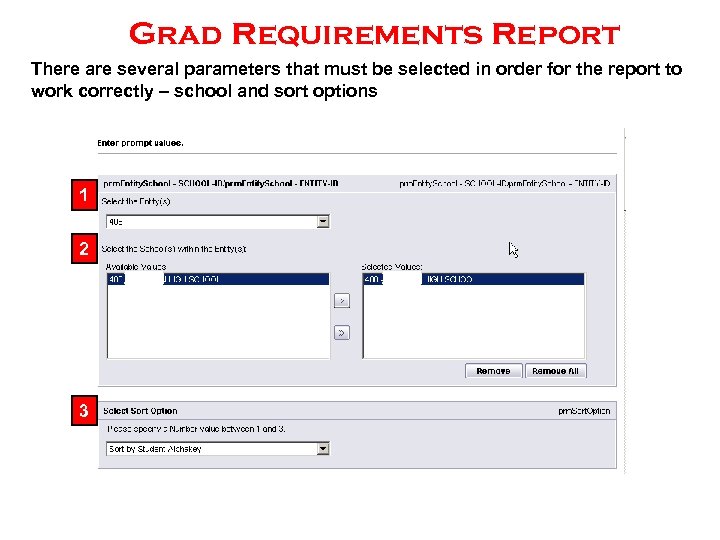 Grad Requirements Report There are several parameters that must be selected in order for the report to work correctly – school and sort options 1 2 3
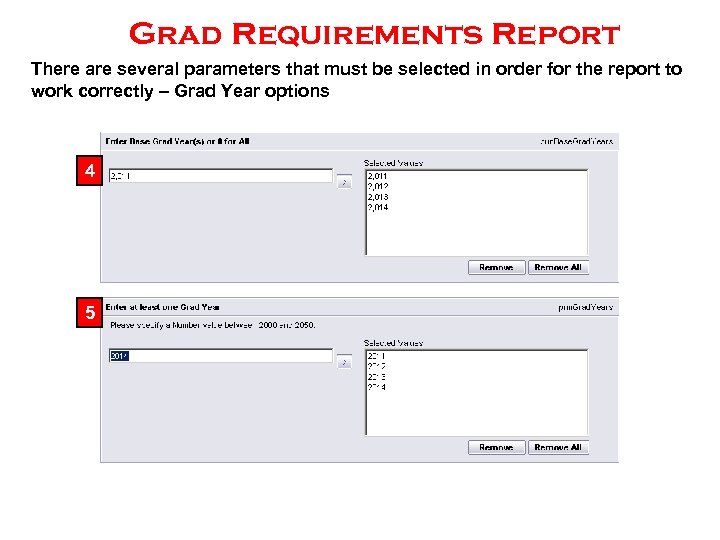 Grad Requirements Report There are several parameters that must be selected in order for the report to work correctly – Grad Year options 4 5
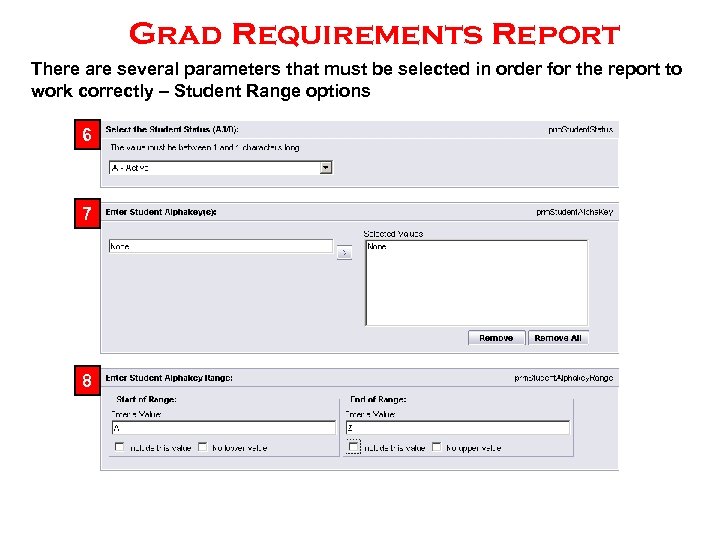 Grad Requirements Report There are several parameters that must be selected in order for the report to work correctly – Student Range options 6 7 8
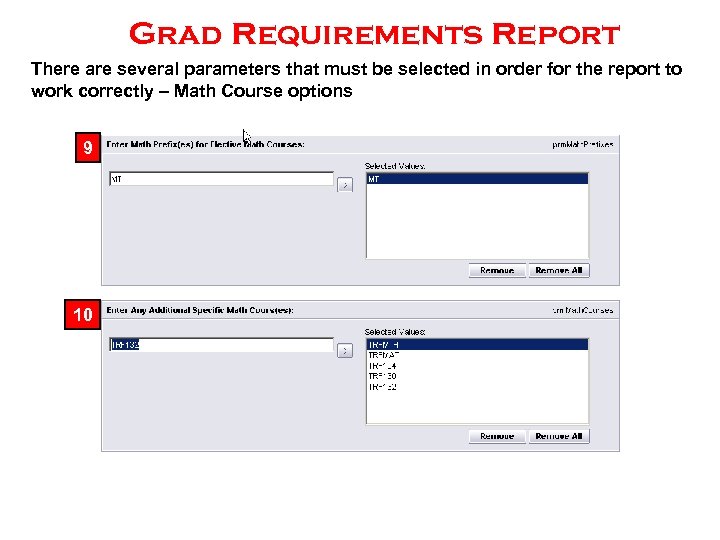 Grad Requirements Report There are several parameters that must be selected in order for the report to work correctly – Math Course options 9 10
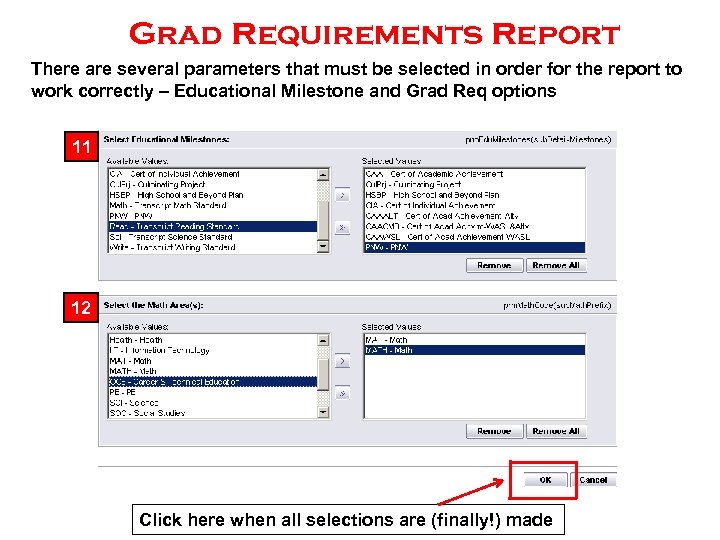 Grad Requirements Report There are several parameters that must be selected in order for the report to work correctly – Educational Milestone and Grad Req options 11 12 Click here when all selections are (finally!) made
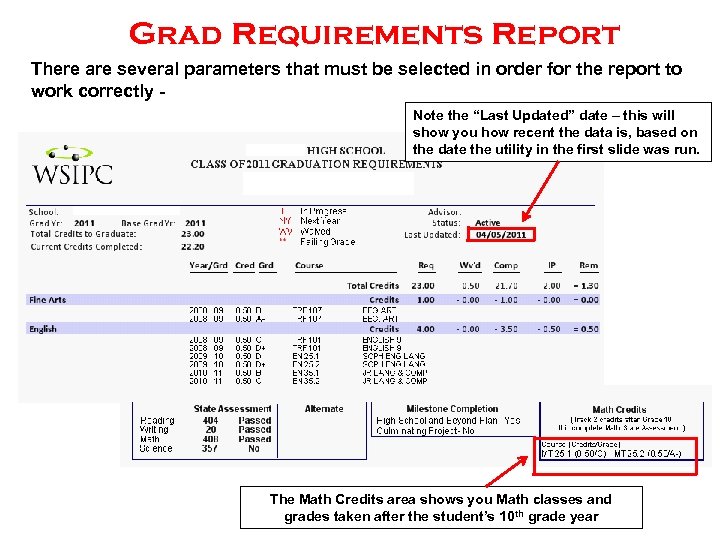 Grad Requirements Report There are several parameters that must be selected in order for the report to work correctly - Note the “Last Updated” date – this will show you how recent the data is, based on the date the utility in the first slide was run. The Math Credits area shows you Math classes and grades taken after the student’s 10 th grade year
 OPSI CEDARS Upgrades scheduled for Monday April 18 (email from 4/13/2011) OSPI has implemented may new validations for CEDARS data Be sure to check for errors Be sure to check for logical deletes Some of the new validations: State Course Code – Course Catalog and Student Grade History (2011) Content Area Code – Course Catalog and Student Grade History (2011) This validation is for the current school year – 2010 -2011 and beyond. Only Grade History records where the location id is not equal to 9999. (in Skyward 9999 is for transfer category courses)
 OPSI SIMON – Student Information Monthly OSPI Newsletter On April 5, 2011 OSPI emailed a new SIMON Includes many topics Major Request for and Uses of CEDARS Data This Month • List of where your data is being used and reported • Also, upcoming uses • Some of this data will be posted for districts to review prior to publishing/released
 OPSI Graduation Requirements Year vs. Expected Year of Graduation Requirements Year: Students in Washington are held to specific requirements in order to graduate with a diploma from Washington State. As these requirements can, and do, change for different graduating classes, as students enter grade 9 for the first time they are assigned a Graduation Requirements Year. For example, students entering 9 th grade in the 2011 -12 school year will be assigned a graduation requirements year of 2015 (four years). This gives students a clear picture of what their requirements are to graduate from high school. The Graduation Requirements Year is established the same for all students, and is not adjusted for any reason. If an error was made in reporting the graduation requirements year it is acceptable to correct the record. In Skyward this is the Grad Req Base Yr
 OPSI Graduation Requirements Year vs. Expected Year of Graduation. Students in Washington are assigned an Expected Year of Graduation which is initially four years from the time they first enter grade 9. There are to the Expected Year of Graduation for that is beyond the standard four years. Special Education students may be given up to 7 years to graduate if their Individualized Education Plan (IEP) determines the need for additional time. Special education students’ Expected Year of Graduation must have this done when they first enter grade 9 or by the time they are 16. Limited English Proficient students may be given up to 7 years to graduate. Migrant students may be given up to 5 years to graduate. Students enrolling in a new school district after 9 th grade can be given additional time to graduate based on the new district’s determination of grade level. The placement of such students should be based upon district policy and should be applied consistently with enrolling students. If an error was made in reporting the Expected Year of Graduation it is acceptable to correct the record. It is not appropriate to re-assign an Expected Year of Graduation for students actively enrolled in a school/district who have become credit deficient. In Skyward this is the WA Grad Yr
 OPSI Free and Reduced Lunch Counts Criteria The data is posted for districts to review. FRL data from CEDARS is used in a variety of ways that effect your district and schools (i. e. , AYP and National Board Certified Teacher Bonus). The specific rules, or criteria, which identify which students are to be included in the October 1 Free/Reduced report, are below: All students, in grades Pre. K-12 must be actively enrolled on or before Oct 1. All students, in grades Pre. K-12 must be reported as eligible for, or receiving, Free/Reduced Meals. All students in grades Pre. K-12, must be reported as Is. Primary=Yes. All Pre. K students must be reported as being enrolled in and receiving Special Education Services. See the 4/5/2011 SIMOM publication for more information.
 OSPI Please be sure to read the SIMON publication from OSPI for more details. If you don’t get the publication emailed to you, please email Robin Munson at robin. munson@k 12. wa. us

 Resources • Northeast Regional Data Center Go to http: //www. esd 101. net/nerdc Click on Student Records Resources at the right side of the screen to access Student Records information – Training Materials • This presentation and the recording of it will be posted upon completion of the VTC. – Calendar
 Feedback • VTC topics you’d like to see covered? • Training needs? • Email suggestions to stucoord@esd 101. net
 Thank You! • Please e-mail a list of VTC attendees at your site to: • stucoord@esd 101. net