


 Скачать презентацию Introducing Easy Invest reason for Non Here is
28ff6f5c6ede7215adc009c734b3b6b3.ppt
- Количество слайдов: 25
 Introducing Easy. Invest reason for Non Here is one more facility to -individual investors 1
 How Easy. Invest help you relax • PIN free and thus convenient and speedy – Overall process of investments is likely to be completed in 5 -10 minutes. • Better control of your account: You can view and download account statements any time. Also, view all the transactions (Purchase, Redemption & Switch) through your account. • Reduction in paperwork – You no longer need to fill out lengthy forms to transact. • Multiple options to transfer funds § Online transfer using its banking online facility, § Direct credit thru a transfer letter/cheque, § RTGS and NEFT transfer • 2 Now you can invest from anywhere in India – Easy. Invest can be used anywhere in India as long as you have access to the internet.
 How to avail Easy. Invest 3 Insert date here
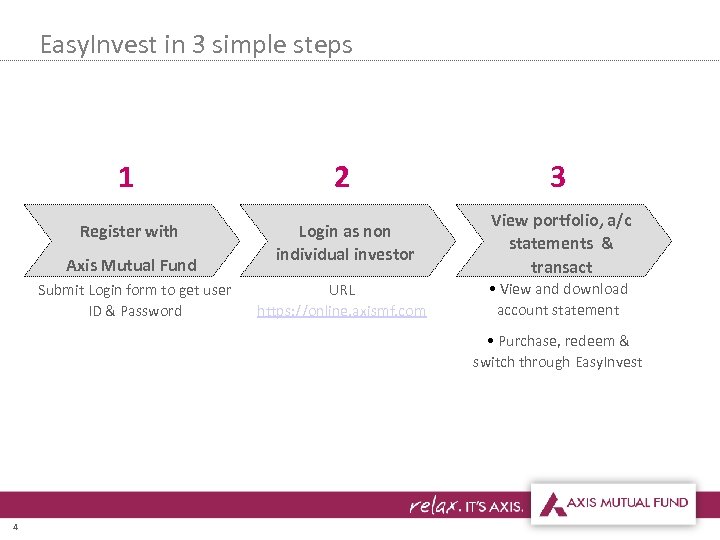 Easy. Invest in 3 simple steps 1 2 3 Register with Login as non individual investor View portfolio, a/c statements & transact URL https: //online. axismf. com • View and download account statement Axis Mutual Fund Submit Login form to get user ID & Password • Purchase, redeem & switch through Easy. Invest 4
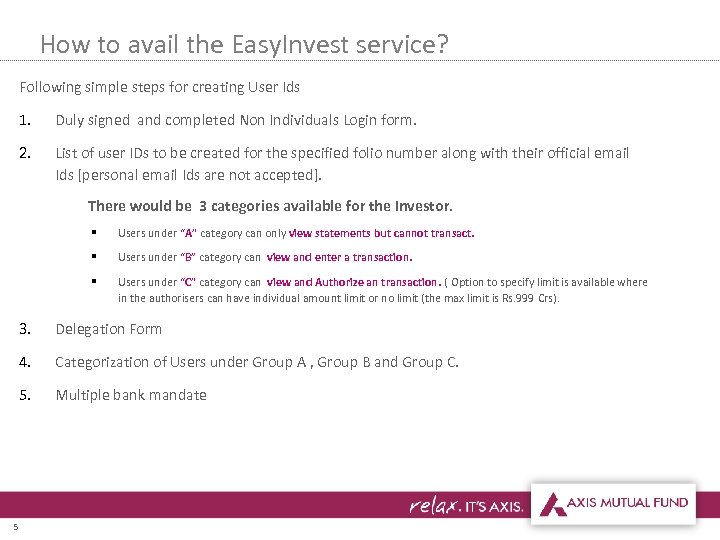 How to avail the Easy. Invest service? Following simple steps for creating User Ids 1. Duly signed and completed Non Individuals Login form. 2. List of user IDs to be created for the specified folio number along with their official email Ids [personal email Ids are not accepted]. There would be 3 categories available for the Investor. § Users under “A” category can only view statements but cannot transact. § Users under “B” category can view and enter a transaction. § Users under “C” category can view and Authorize an transaction. ( Option to specify limit is available where in the authorisers can have individual amount limit or no limit (the max limit is Rs. 999 Crs). 3. 4. Categorization of Users under Group A , Group B and Group C. 5 Delegation Form Multiple bank mandate
 Is Easy. Invest Safe ? Easy. Invest has SSL (Secured Sockets Layer) technology to ensure that the information transmitted between you and us across the internet is safe and secured. SSL is the most common and effective technology used in sending confidential information in a secured manner over the Internet. The technology works on using mathematical logic to scramble the data that is transferred your machine to the website where you feed the information. The site is digitally certified for security by Veri. Sign, an organisation that is considered pioneers in such technology 6
 Guide to Easy. Invest 7
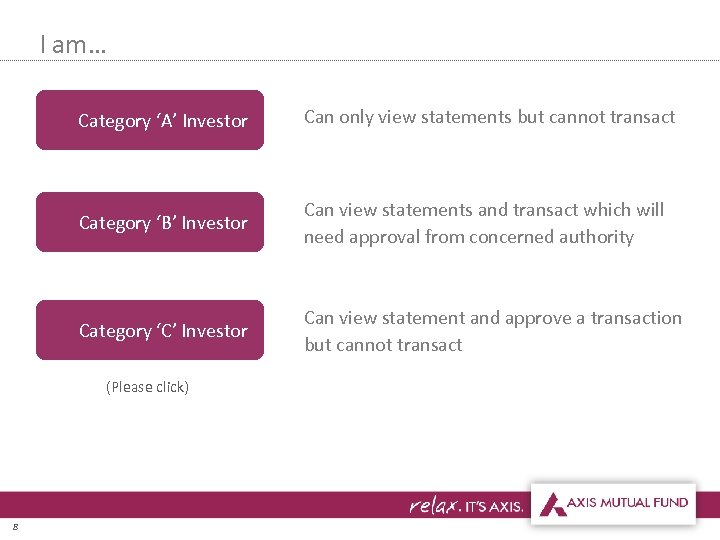 I am… Category ‘A’ Investor Can only view statements but cannot transact Category ‘B’ Investor Can view statements and transact which will need approval from concerned authority Category ‘C’ Investor Can view statement and approve a transaction but cannot transact (Please click) 8
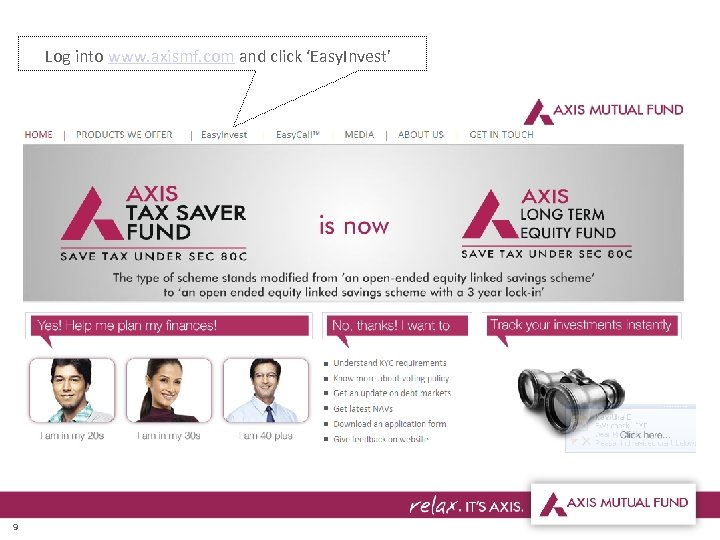 Log into www. axismf. com and click ‘Easy. Invest’ 9
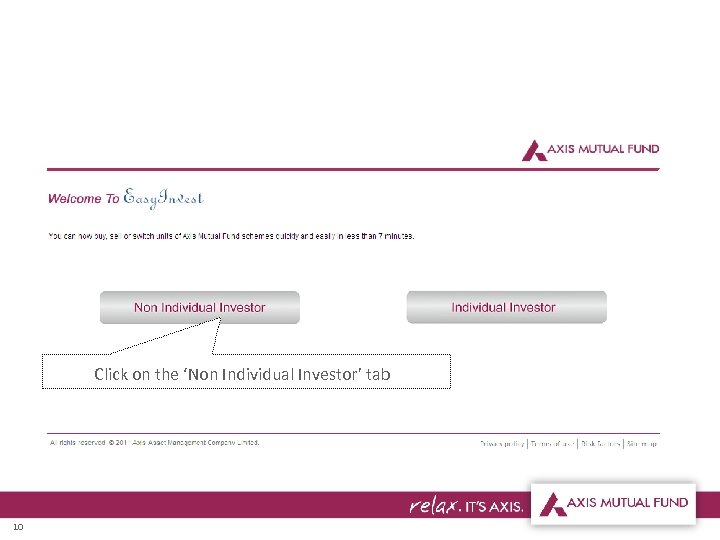 Click on the ‘Non Individual Investor’ tab 10
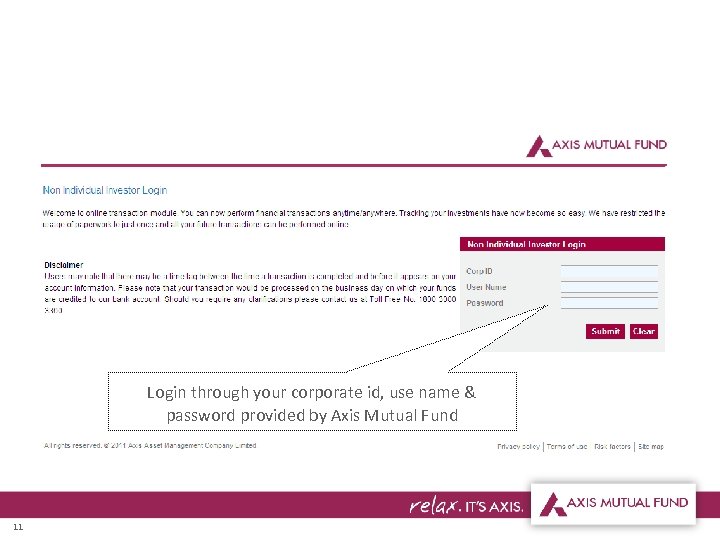 Login through your corporate id, use name & password provided by Axis Mutual Fund 11
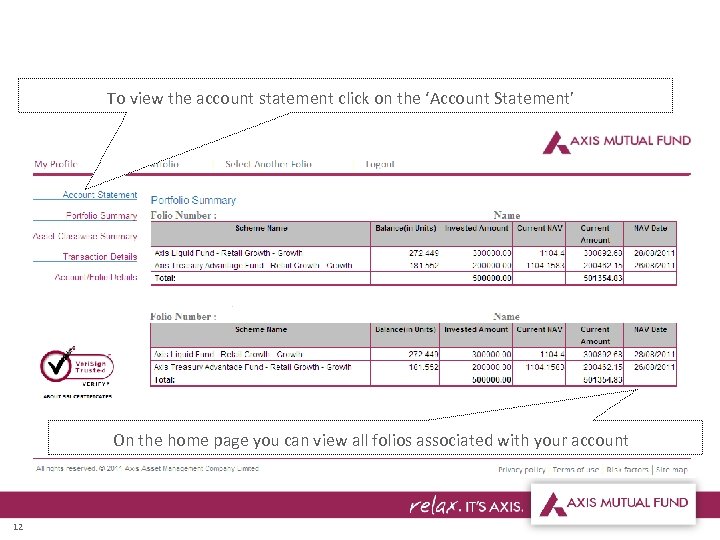 To view the account statement click on the ‘Account Statement’ On the home page you can view all folios associated with your account 12
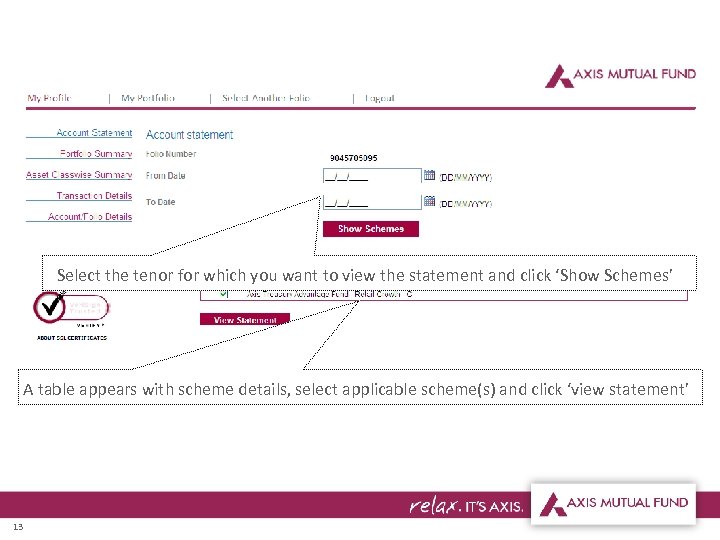 Select the tenor for which you want to view the statement and click ‘Show Schemes’ A table appears with scheme details, select applicable scheme(s) and click ‘view statement’ 13
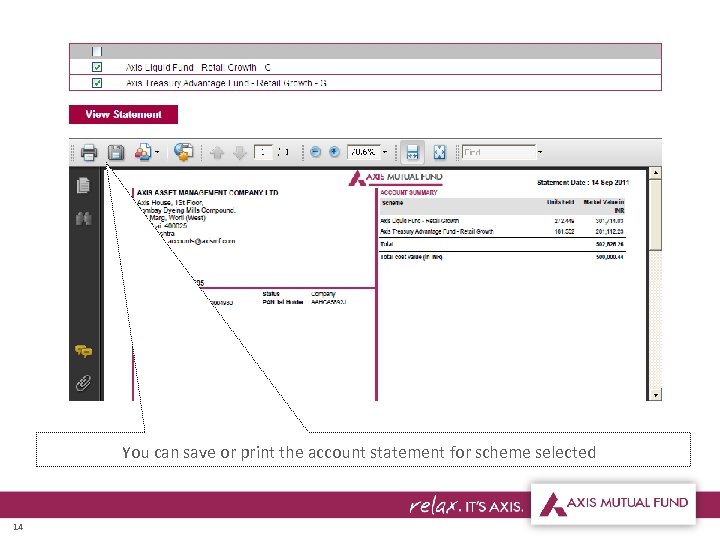 You can save or print the account statement for scheme selected 14
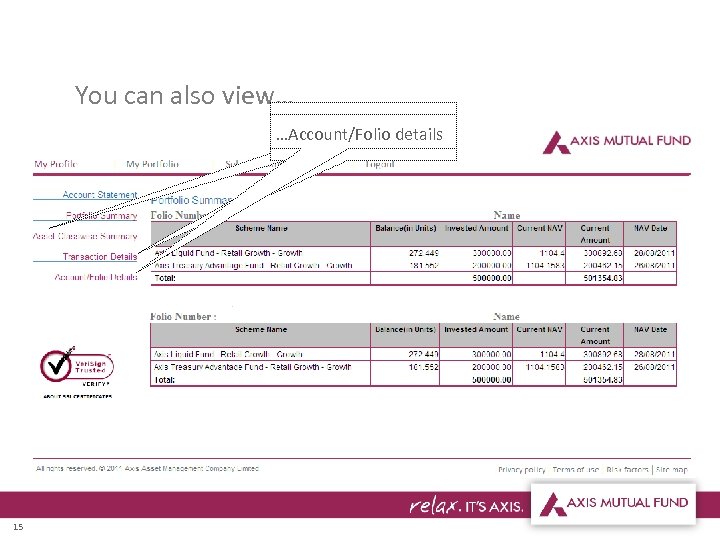 You can also view… …Transaction details …Asset class summary …Account/Folio details 15
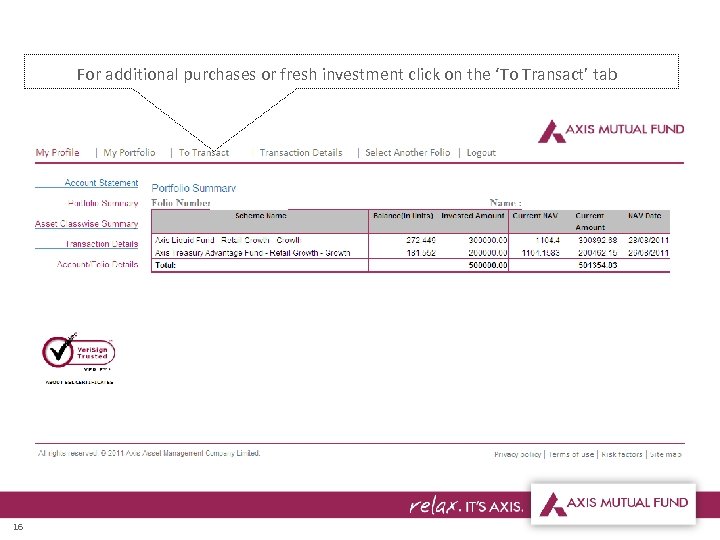 For additional purchases or fresh investment click on the ‘To Transact’ tab 16
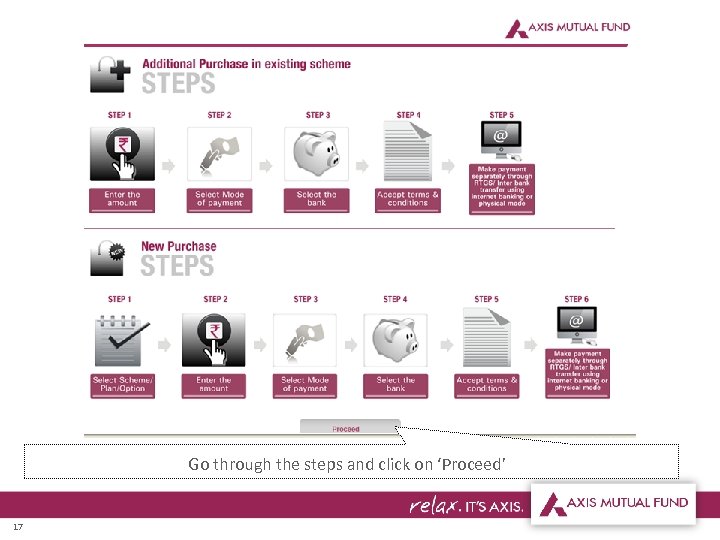 Go through the steps and click on ‘Proceed’ 17
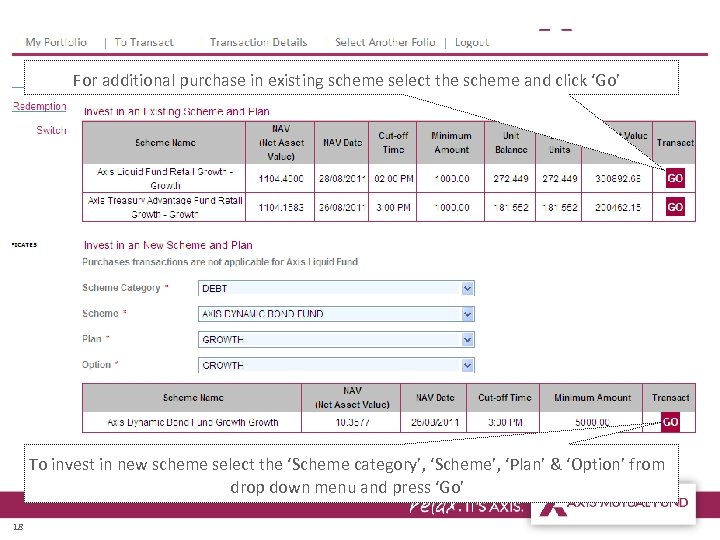 For additional purchase in existing scheme select the scheme and click ‘Go’ To invest in new scheme select the ‘Scheme category’, ‘Scheme’, ‘Plan’ & ‘Option’ from drop down menu and press ‘Go’ 18
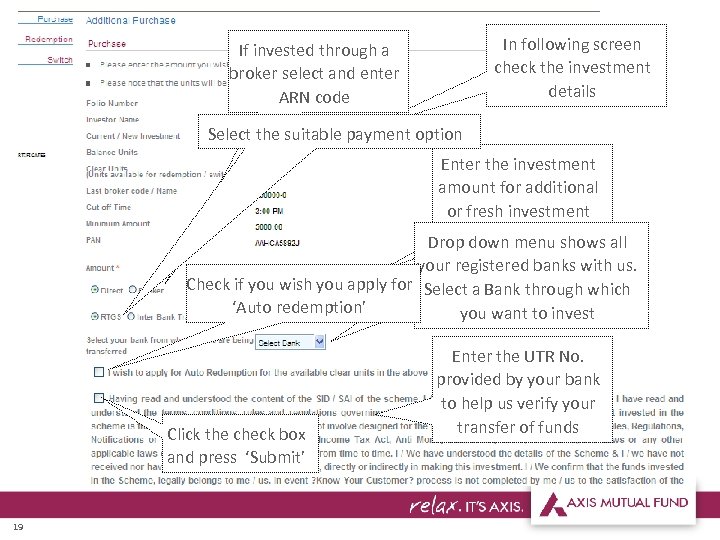 In following screen check the investment details If invested through a broker select and enter ARN code Select the suitable payment option Enter the investment amount for additional or fresh investment Drop down menu shows all your registered banks with us. Check if you wish you apply for Select a Bank through which ‘Auto redemption’ you want to invest Click the check box and press ‘Submit’ 19 Enter the UTR No. provided by your bank to help us verify your transfer of funds
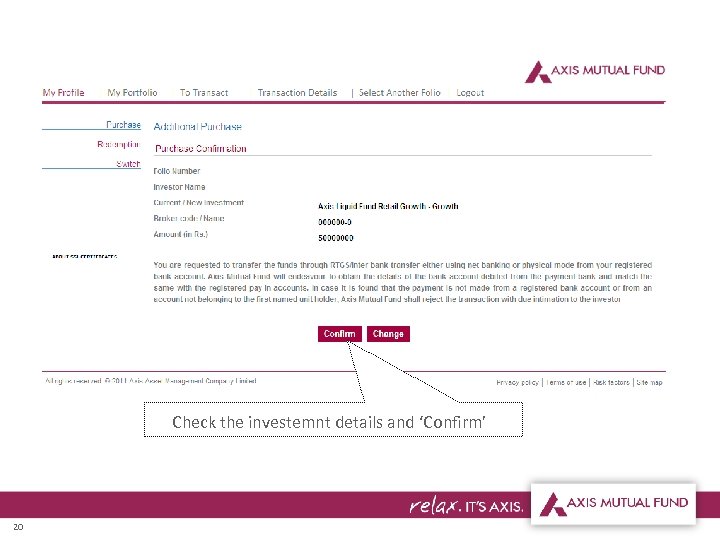 Check the investemnt details and ‘Confirm’ 20
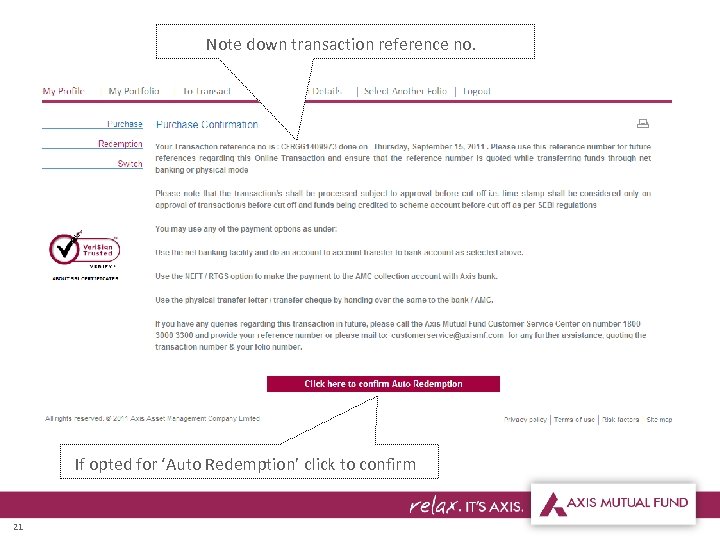 Note down transaction reference no. If opted for ‘Auto Redemption’ click to confirm 21
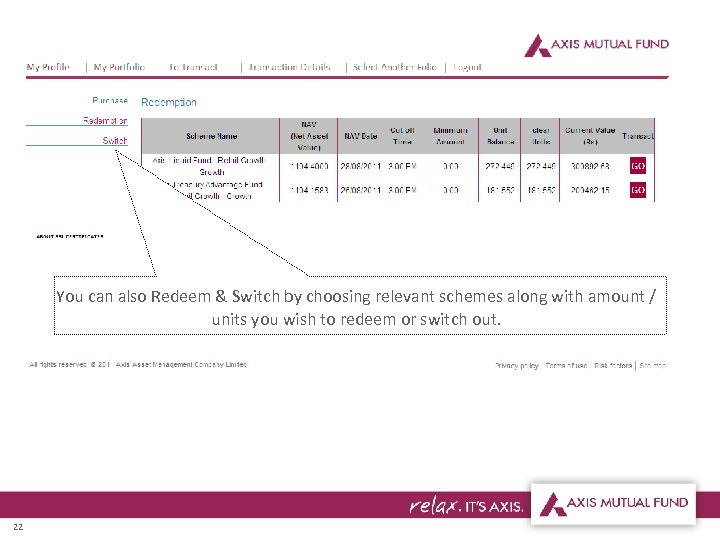 You can also Redeem & Switch by choosing relevant schemes along with amount / units you wish to redeem or switch out. 22
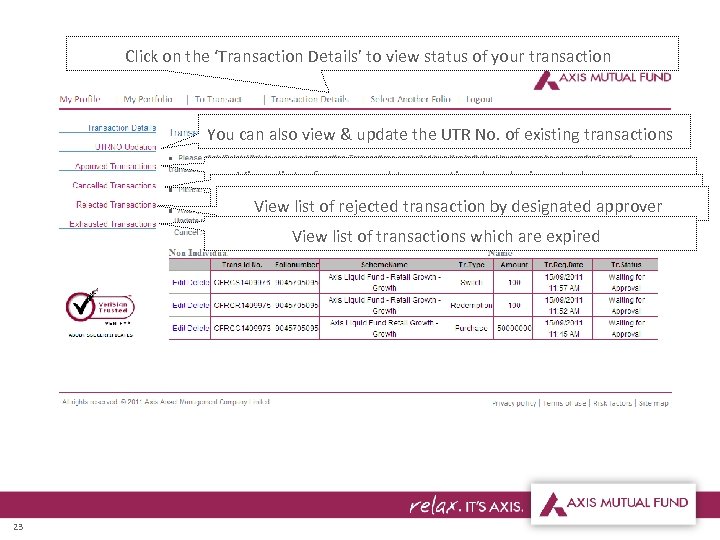 Click on the ‘Transaction Details’ to view status of your transaction You can also view & update the UTR No. of existing transactions View list of approved transaction by designated approver View list of cancelled transaction View list of rejected transaction by designated approver View list of transactions which are expired 23
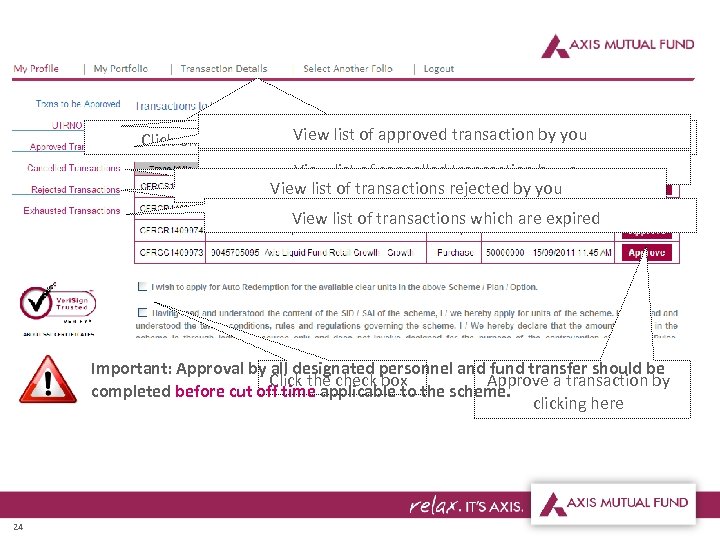 You can also view & update the UTR No. of existing transactions View list of approved transaction by you Click on the ‘Transaction Details’ to view and approve a transaction View list of cancelled transaction by you View list of transactions rejected by you View list of transactions which are expired Important: Approval by all designated personnel and fund transfer should be Click the check box Approve a transaction by completed before cut off time applicable to the scheme. clicking here 24
 25
25