


 Скачать презентацию Intro to Linux No animals were harmed in
0da11eefa8a85cbdcadcf245773ca5f5.ppt
- Количество слайдов: 71
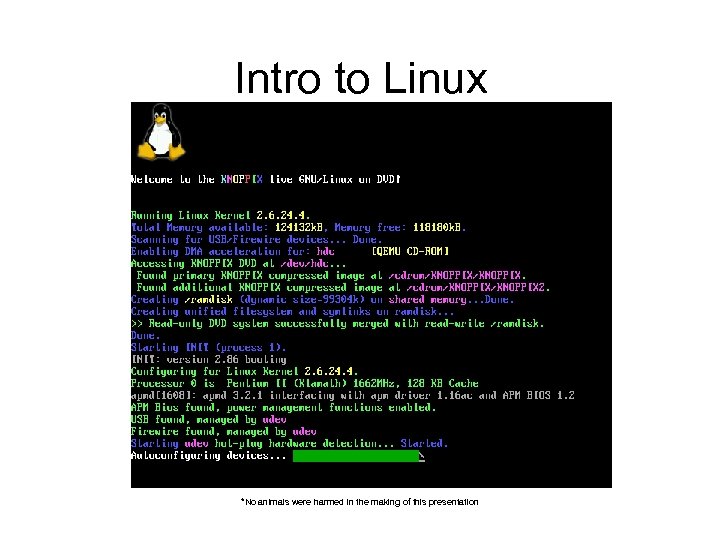 Intro to Linux *No animals were harmed in the making of this presentation
 A brief History of Computing • 1960: Notions of Operating Systems brewed • 1970: First Unix Grown – Not the first but one of the first – Born at AT&T • 1980: Desktop PC Proliferate – MS-DOS becomes popular • The Second OS wars begin – 1991: Linus dumps linux onto USENET
 Licenses (who owns the bits) • What does it mean to own software? – How much is a bit really worth? • When I sell you an operating system, what is the actual product? • What is the business model for selling software?
 GPLs vs BSD • Free isn’t really free. • GPL requires back attribution and redistribution of changes • BSD is Free for All (very few clauses). • There are others: Mozilla Public license, Creative Commons, Apache License, MIT License… • http: //en. wikipedia. org/wiki/Open_source_license has way more information than you care about.
 Free • As in freedom… • Just because it’s open, doesn’t mean it is “free” • Most of the cost starts right here with the explanation of how things work • Not having licenses that restrict distribution makes distribution easier.
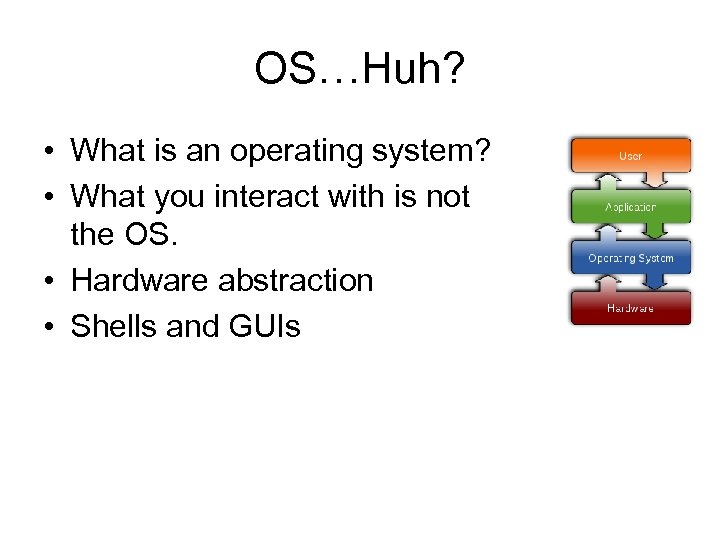 OS…Huh? • What is an operating system? • What you interact with is not the OS. • Hardware abstraction • Shells and GUIs
 Differences in OS’s • The kernel is the defining element of an OS, hence the name. • The shell is your interface to the machine – Not all shells are text (but that depends on what you mean by shell) • Distributions (The stuff that makes your linux different from every one else's) • Kernel makes it linux, distribution makes it “special”
 Non-Advocacy Q: What is the correct way to use chopsticks? A: Which ever way works. • Buyer beware, you get what you pay for. • The second best word after free is community. • Well known: Google returns an answer in the first page.
 Don’t be afraid to break it • It’s very rare that miss-configured software will break the hardware (unless you’re name is Kahn). • As long as your data is intact (and it’s your fault if your data is not backed up to a separate media) you can always reinstall. • Since most Linux software is configured by text files, copying the text files stores the settings.
 Fixing things • You can do many tricks with the live CD – Recover files from busted windows machines • And move them across the network – Recover files from panicked kernels • Ditto – – – Rewrite your master boot record Use it as a diskless operating system Chain load other partitions ? ? ? Profit?
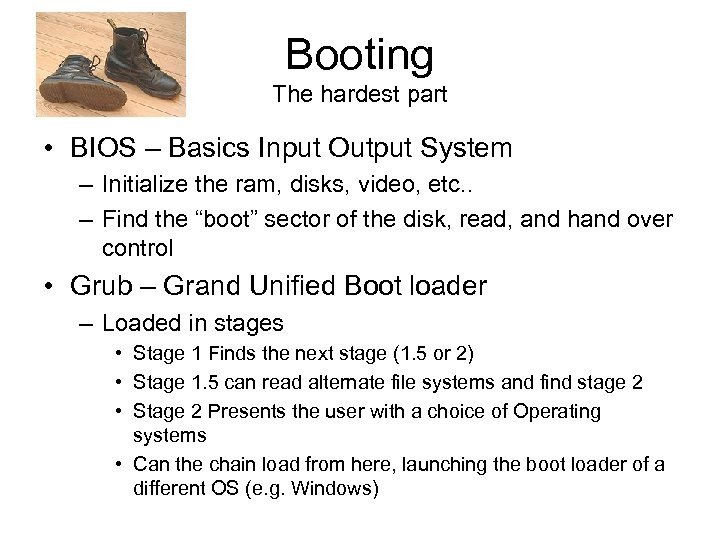 Booting The hardest part • BIOS – Basics Input Output System – Initialize the ram, disks, video, etc. . – Find the “boot” sector of the disk, read, and hand over control • Grub – Grand Unified Boot loader – Loaded in stages • Stage 1 Finds the next stage (1. 5 or 2) • Stage 1. 5 can read alternate file systems and find stage 2 • Stage 2 Presents the user with a choice of Operating systems • Can the chain load from here, launching the boot loader of a different OS (e. g. Windows)
 Booting -Grub • GRUB is configured by /boot/grub/menu. lst – In this file are directives that populate the stage 2 menu – Parameters for the kernel are specified here • And optional initrd files can also be specified • The initrd is a “file system” compressed into a file • It stores specialty drivers for things that the kernel doesn’t know about yet. • It solves the chicken and egg disk problem
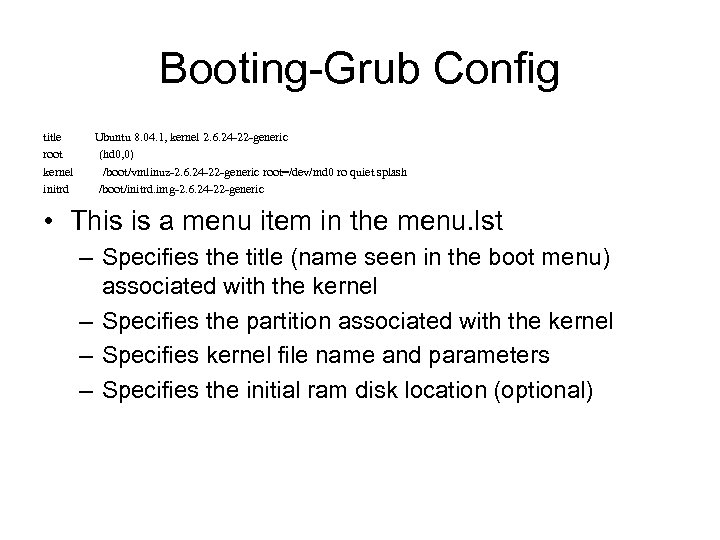 Booting-Grub Config title root kernel initrd Ubuntu 8. 04. 1, kernel 2. 6. 24 -22 -generic (hd 0, 0) /boot/vmlinuz-2. 6. 24 -22 -generic root=/dev/md 0 ro quiet splash /boot/initrd. img-2. 6. 24 -22 -generic • This is a menu item in the menu. lst – Specifies the title (name seen in the boot menu) associated with the kernel – Specifies the partition associated with the kernel – Specifies kernel file name and parameters – Specifies the initial ram disk location (optional)
 Booting - Kernel • Grub copies the kernel to memory and passes execution control to it • The Kernel continues the setup of the system state – Reads file system – Locates and Loads Modules (drivers) – Finally Starts init • Grub, and Init are configured by files – But the kernel is configured when you compile it
 Booting-Init • Init is the mother of all processes. • Init Spawns all the running daemons that do the stuff you want your machine to do • The init routine: – Read /etc/inittab; learn runlevel (deprecated but still meaningful, the answer is 2) – Goto /etc/init. d/rc 2 (deprecated but still meaningful) – Work through the S scripts to spawn all services • In /etc/init. d/rc 2 are files of the form S##scriptname – S stands for start – The number indicates order (larger numbers come later) – Pass control terminal or GUI – ? ? – Profit!
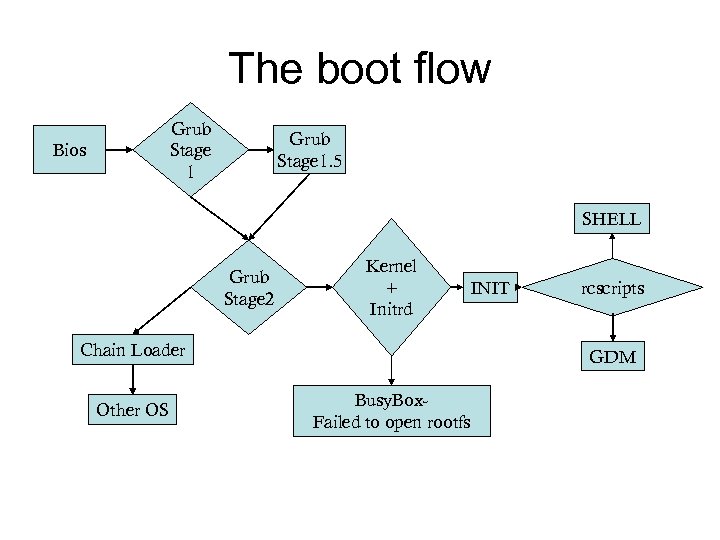 The boot flow Grub Stage 1 Bios Grub Stage 1. 5 SHELL Grub Stage 2 Kernel + Initrd Chain Loader Other OS INIT rcscripts GDM Busy. Box. Failed to open rootfs
 Grub 2 –Key differences • • • The latest and greatest Comes with all Ubuntus after 9. 10 Requires holding shift to get to the menu Menu. lst -> grub. cfg (not really) User settings go in /etc/grub. d/40_custom Partition numbering has changed. The first partition is now 1 rather than 0. • Automated alternative OF searches from update grub
 Configuring Grub 2 • /etc/grub. d contains config scripts that handled probing for Various OS flavors • Any in appended into 40_custom gets appended into the main config file (/boot/grub. cfg) • Menu Behavior is configured in /etc/default/grub • There is a graphical tool to configure some of the basics - Start. Up. Manager
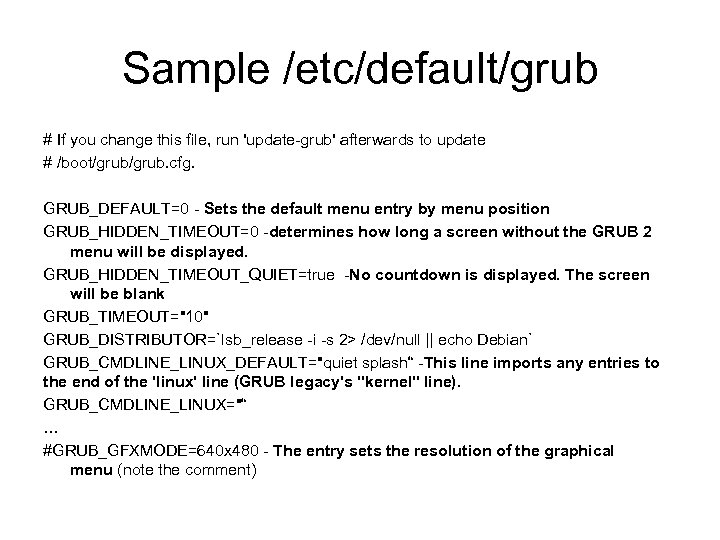 Sample /etc/default/grub # If you change this file, run 'update-grub' afterwards to update # /boot/grub. cfg. GRUB_DEFAULT=0 - Sets the default menu entry by menu position GRUB_HIDDEN_TIMEOUT=0 -determines how long a screen without the GRUB 2 menu will be displayed. GRUB_HIDDEN_TIMEOUT_QUIET=true -No countdown is displayed. The screen will be blank GRUB_TIMEOUT="10" GRUB_DISTRIBUTOR=`lsb_release -i -s 2> /dev/null || echo Debian` GRUB_CMDLINE_LINUX_DEFAULT="quiet splash“ -This line imports any entries to the end of the 'linux' line (GRUB legacy's "kernel" line). GRUB_CMDLINE_LINUX="“ … #GRUB_GFXMODE=640 x 480 - The entry sets the resolution of the graphical menu (note the comment)
 SSH – The Swiss army knife of networking • Secure Shell – Defacto Standard in remote shell connectivity • Capable of “tunneling” traffic • can move large files across networks (even across the internet) • Can actually be used to mount files systems remotely via SSHFS
 SSH-Keys • • Using keys is more secure because passwords are never transmitted Configured correctly (using the agent), you can move between machines seamlessly Tools for SSH KEYS: 1. ssh-keygen 2. ssh-copy-id
 Manual Key Installation • generate key with ssh-keygen • use scp to copy the id_rsa. pub key to the remote host • login to remote host with usual methods • add the contents of pub key file to the authorized_keys file in you. ssh directory - username@gw 1: ~/. ssh$ cat ~/id_rsa. pub >>. /authorized_keys • Logout and login again, you should not be prompted for a password.
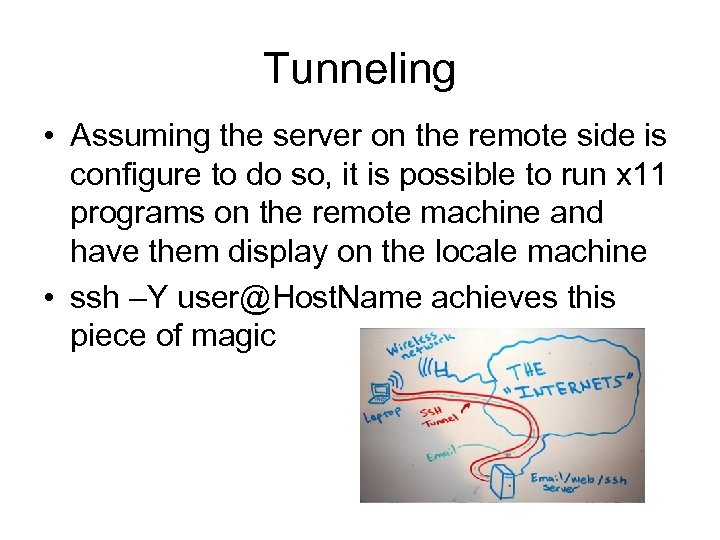 Tunneling • Assuming the server on the remote side is configure to do so, it is possible to run x 11 programs on the remote machine and have them display on the locale machine • ssh –Y user@Host. Name achieves this piece of magic
 X 11 Digression • X 11 is the graphical system for most Unicies, W came before it, but no one uses that now • X 11 is a “service”, there is an X 11 server that knows how to steer video, and X 11 clients that connect to it. • There is no rule that says the clients and servers have to live on the same machine • There is no rule that says there can be only one X 11 server
 X 11 Tunneling • On the remote machine a “virtual” X 11 server is set up, the remote shell display variable is set to point to it. – Typically a value of locahost: 10. 0 • The X 11 traffic for that server is encapsulated and shipped back to the local machine • That traffic is unpacked and given to the local x 11 server – Typically a value of localhost: 0. 0 • There is a non-trivial delay associated with the tunneling • It’s due to the encryption overhead • and network latency (much slower than the local loop back interface)
 Vi-Tips and tricks • • • The v is for Victory Press escape often (returns you to the command state) a appends, i inserts ^ puts you at the beginning of a line, $ put you at the end o begins a new line shift-y yanks lines, shift-p pastes them above, p paste below shift-j joins lines : q! quits with out saving : wq quits and saves
 Cute Shell Tricks • pipes, grep, more – command | grep Search. Word | more • will search for your word, and display contents 1 screen at a time • find –name foo –print – very versatile command that can do many manipulations • Redirectors – ps –ef >. /foo. txt • captures the output of commands
 File Systems • A file system is a specialpurpose database for the storage, organization, manipulation, and retrieval of data. • FHS – File System Hierarchy is a standard for how directories and files are laid out, It is a standard across most Linux distributions
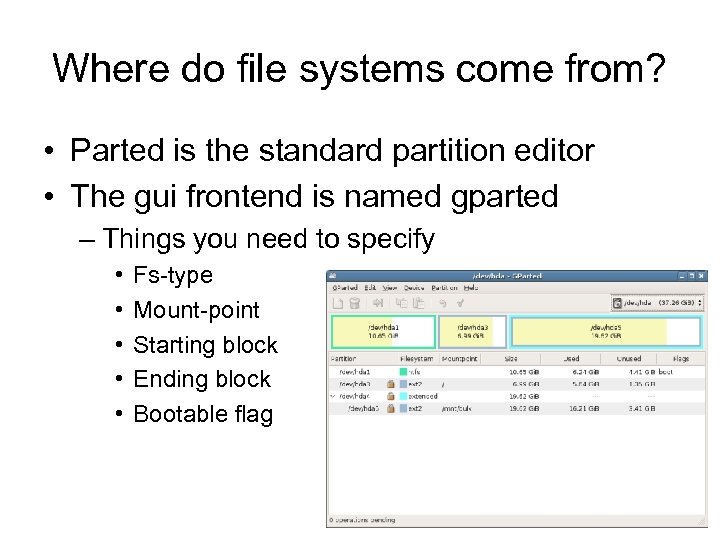 Where do file systems come from? • Parted is the standard partition editor • The gui frontend is named gparted – Things you need to specify • • • Fs-type Mount-point Starting block Ending block Bootable flag
 File System Hierrachy • Places worth noting in the file system hierarchy – /bin – home to all the executables – /boot – home to the kernel – /dev – where all the device files live • In Unix, every thing is a file – /etc – where all the config files live – /proc & /sys – virtual files systems that list info about the running system
 File System-Types • Fat 32 – Classical dumb file system – used by windows and Linux systems • (Readable and writeable by Windows, Linux, and Mac) • NTFS – Microsoft proprietary stuff • ext 2 - second extended file system – (Readable by stage 2) • ext 3 - third extended file system – a journaled file system • ext 4 - New and shiny – Also journaled • procfs and sysfs – see previous slide
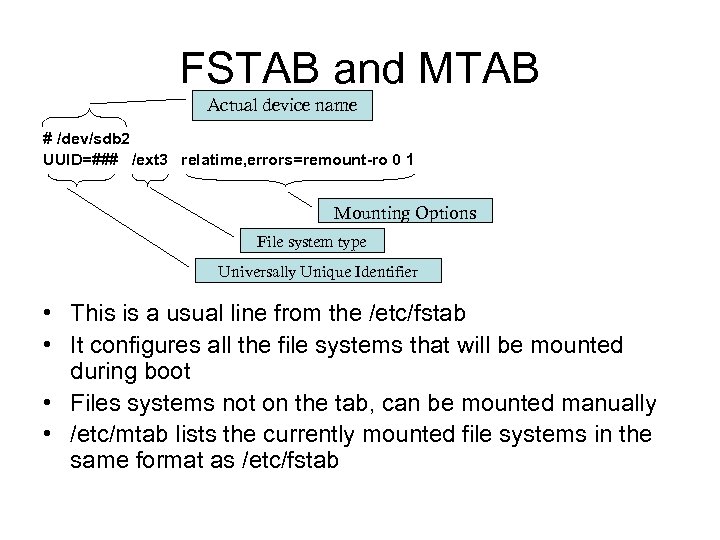 FSTAB and MTAB Actual device name # /dev/sdb 2 UUID=### /ext 3 relatime, errors=remount-ro 0 1 Mounting Options File system type Universally Unique Identifier • This is a usual line from the /etc/fstab • It configures all the file systems that will be mounted during boot • Files systems not on the tab, can be mounted manually • /etc/mtab lists the currently mounted file systems in the same format as /etc/fstab
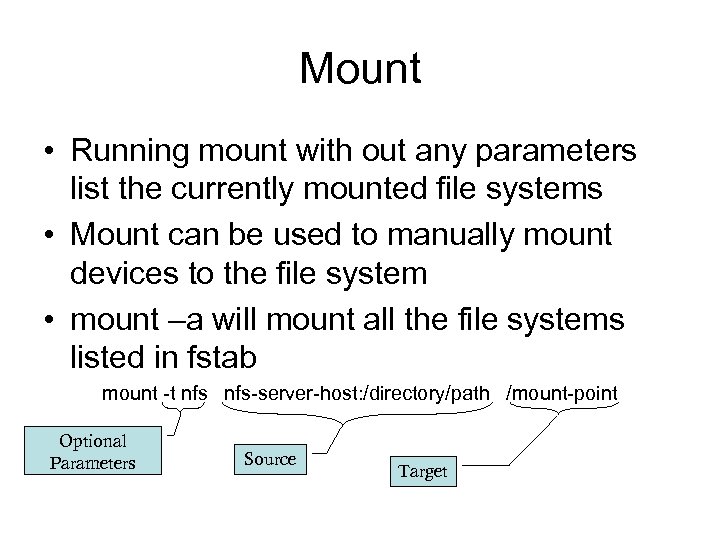 Mount • Running mount with out any parameters list the currently mounted file systems • Mount can be used to manually mount devices to the file system • mount –a will mount all the file systems listed in fstab mount -t nfs-server-host: /directory/path /mount-point Optional Parameters Source Target
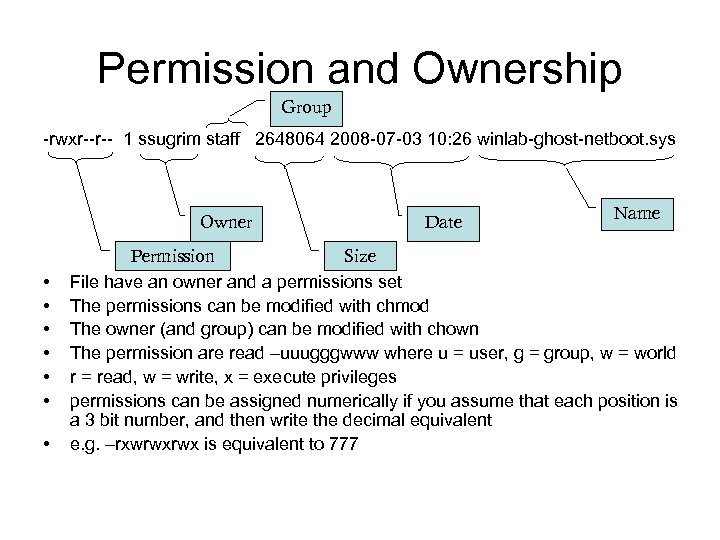 Permission and Ownership Group -rwxr--r-- 1 ssugrim staff 2648064 2008 -07 -03 10: 26 winlab-ghost-netboot. sys Owner • • Date Name Permission Size File have an owner and a permissions set The permissions can be modified with chmod The owner (and group) can be modified with chown The permission are read –uuugggwww where u = user, g = group, w = world r = read, w = write, x = execute privileges permissions can be assigned numerically if you assume that each position is a 3 bit number, and then write the decimal equivalent e. g. –rxwrwxrwx is equivalent to 777
 Packages • Many distributions have gone to packages for distributing software, the old tar. gz system wasn’t robust/useable enough • Debian (from which Ubuntu is based) uses the dpackage system • files ending in deb are Debian packages, in contrast to rpm, ebuild • Packages make your life simpler
 Package tools • There are two tool suites to manage packages (actually more, but two main ones) • apt-* is a set of tools for installing software from Ubuntu’s (Canonical’s) repositories – (really any ones repositories, assuming you configured it correctly • dpkg-* is the “manual” installation tool suite, it knows nothing about repositories
 Dependencies • Packages are arranged in hierarchies • Since there is much code reuse many packages depend on other packages being installed – This is one of the Big Wins / Major Hallmarks of the open model • both tools are aware of dependencies, but they differ in how they handle them
 Apt vs Dpkg • This biggest difference between apt and dpkg is how dependencies are handled • when apt is asked to install a package, it checks dependencies and asks if it’s ok to add all of the dependant packages as well • dpkg just complains that dependencies are not met, and then refuses to install – this can be overridden, a forced installation has many dangers
 Why would you use dpkg then? • dpkg can force installation • some times packages you need are not in the repository • dpkg operates independent of the package hierarchy • dpkg can forcibly remove things as well • dpkg –l is the only non gui way to see a list of installed packages
 Apt • apt-get update collects updated repository information – new or moved packages, upgrades to old packages – It’s the nervous twitch before Installing something • apt-get install Package. Name installs a package if not installed, and upgrades it if installed • apt-get remove Package. Name --– Different from apt-get purge (gets rid of pack and associated config files) • there also gui tools, synaptic, aptitude
 Other ways to get software • Alien – a package “converter” – It raises lots of issues with dependencies • Old fashion source distribution – Some times referred to as tgz, or tarball – Alien can “attempt” to convert tgz as well, but probably not with high success – If you’re doing a build from sources you will need a few additional packages that are not installed by default – • build-essentials • automake
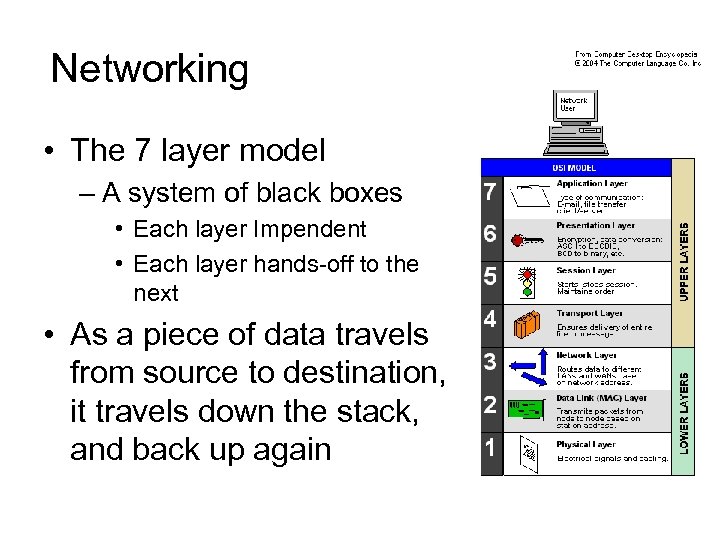 Networking • The 7 layer model – A system of black boxes • Each layer Impendent • Each layer hands-off to the next • As a piece of data travels from source to destination, it travels down the stack, and back up again
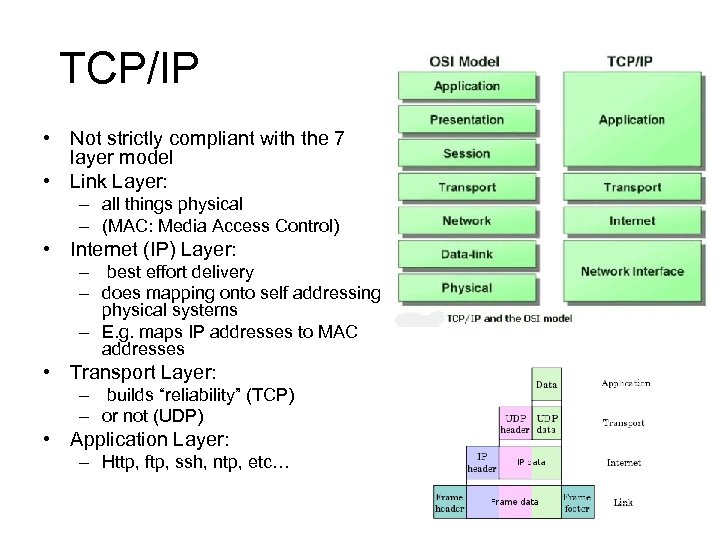 TCP/IP • Not strictly compliant with the 7 layer model • Link Layer: – all things physical – (MAC: Media Access Control) • Internet (IP) Layer: – best effort delivery – does mapping onto self addressing physical systems – E. g. maps IP addresses to MAC addresses • Transport Layer: – builds “reliability” (TCP) – or not (UDP) • Application Layer: – Http, ftp, ssh, ntp, etc…
 Necessary numbers Numbers you need to know to get your data out of your machine: • Your IP address : – self explanatory • Subnet Mask: – Needed for determining what is local • Gateway: – where to go for non-local hosts • DNS: – Turns names into ip addresses (optional, but not really) This is by no means a complete list, just a bare minimum.
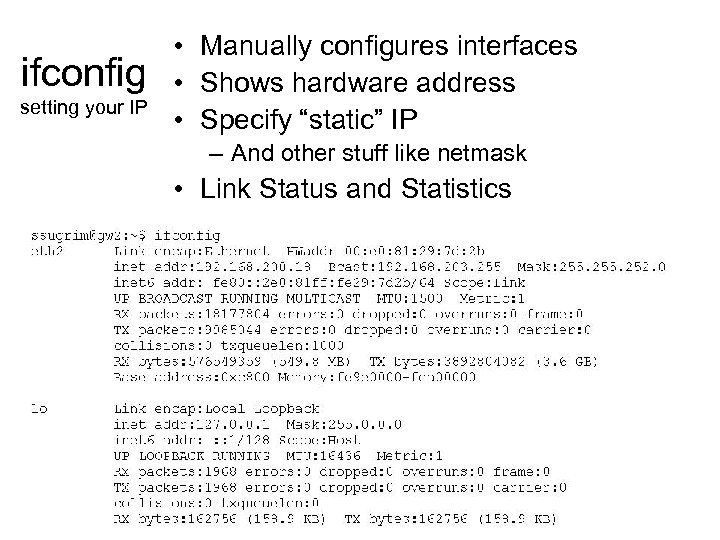 ifconfig setting your IP • Manually configures interfaces • Shows hardware address • Specify “static” IP – And other stuff like netmask • Link Status and Statistics
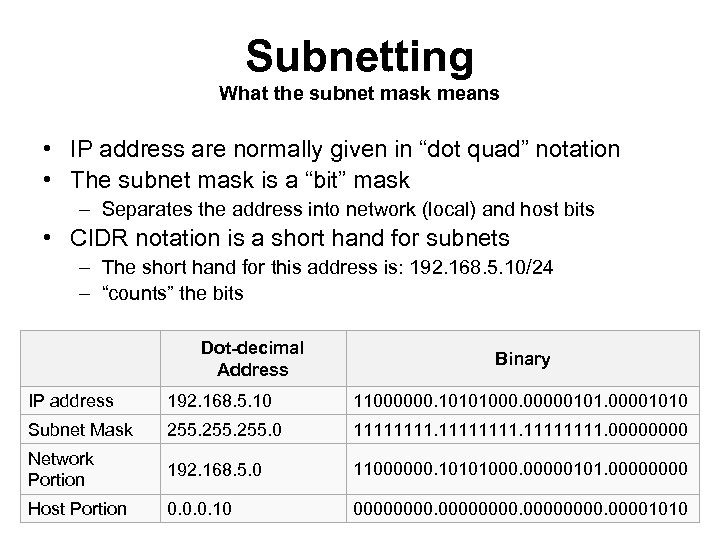 Subnetting What the subnet mask means • IP address are normally given in “dot quad” notation • The subnet mask is a “bit” mask – Separates the address into network (local) and host bits • CIDR notation is a short hand for subnets – The short hand for this address is: 192. 168. 5. 10/24 – “counts” the bits Dot-decimal Address Binary IP address 192. 168. 5. 10 11000000. 10101000. 000001010 Subnet Mask 255. 0 11111111. 0000 Network Portion 192. 168. 5. 0 11000000. 10101000. 00000101. 0000 Host Portion 0. 0. 0. 10 00000000. 00001010
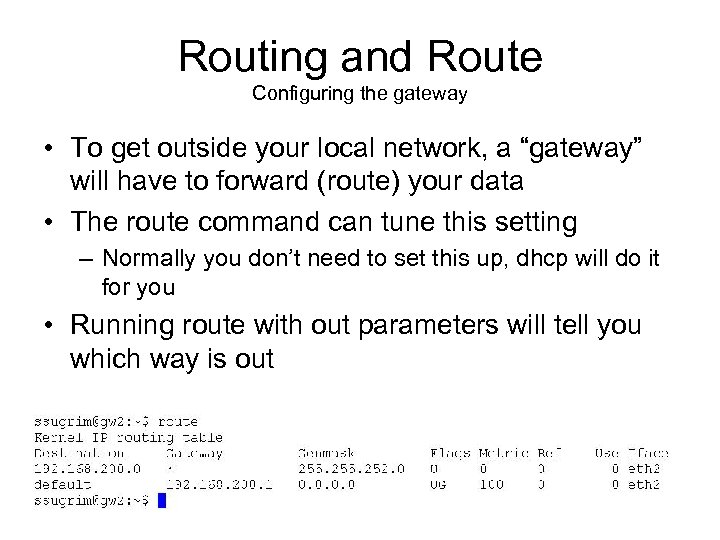 Routing and Route Configuring the gateway • To get outside your local network, a “gateway” will have to forward (route) your data • The route command can tune this setting – Normally you don’t need to set this up, dhcp will do it for you • Running route with out parameters will tell you which way is out
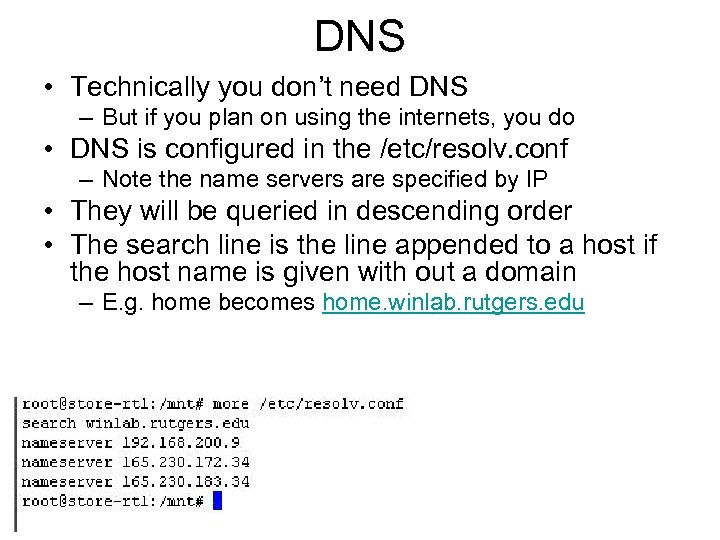 DNS • Technically you don’t need DNS – But if you plan on using the internets, you do • DNS is configured in the /etc/resolv. conf – Note the name servers are specified by IP • They will be queried in descending order • The search line is the line appended to a host if the host name is given with out a domain – E. g. home becomes home. winlab. rutgers. edu
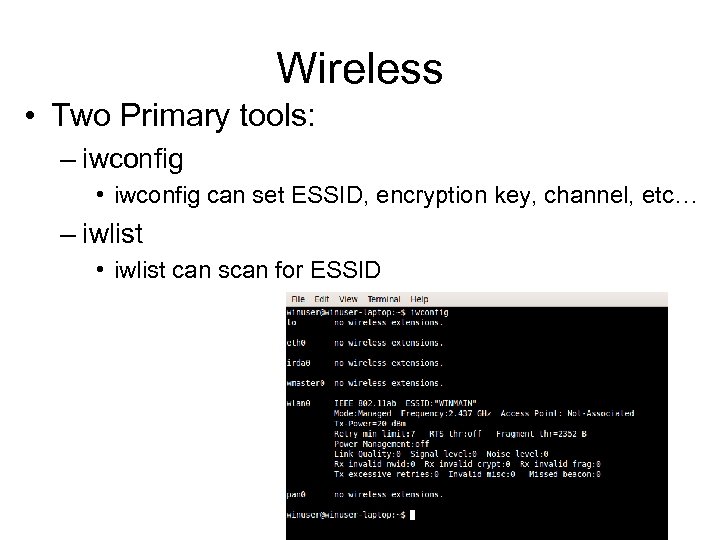 Wireless • Two Primary tools: – iwconfig • iwconfig can set ESSID, encryption key, channel, etc… – iwlist • iwlist can scan for ESSID
 DHCP and dhclient • Keeping track of machines is annoying – Large scale networks (offices, university) nearly impossible to configure manually • DHCP addresses the need of auto configuration (client, server model) – “Maps” MAC addresses to IP-addresses • dhclient will broadcast a request to the local network and retrieve the necessary config – IP broadcast (to 255)
 Tools you might need • MII-tool – checks for link status – Ethernet carrier • Ping – send out echo request – “proof” of connectivity (doesn’t mean you’re specific protocol will make it • host (formerly nslookup) – queries dns – does that name mean what you think it does? • tracert – Traces route to host – Almost always fails due to icmp echo request being denied (try with udp) • netstat – list connection – netstat –p (netstat –b on windows) tells you what process is associated with what port • nmap – scan’s open ports – Some what antisocial, admin don’t like having their ports probed
 Processes • Instance of program (Running) – each one has a process id (pid), even multiple instances of the same program – Init has PID 0 – Process are “scheduled” by the kernel (well the scheduler any way) • Each process is owned and has an associated privilege – Directly related to file privileges • the owner ship of the process dictates what files it can operate on • Kernel is not a process in the nominal sense – User space vs Kernel Space • PS is the tool that lists process – ps –ef will list all processes (regardless of owner) • Kill will terminate a process (usually if it’s gone rogue) – killing process requires privileges for that process • this can be acquired by owing the process, or being a “privileged” user – Killing essentially passes a “signal” to the process telling it to go away • -9 is the “rudest” of them – Other signals for process exist, not all are “lethal” • Pipes can be made between processes
 Types of Kernels • Monolithic – One big file • Microkernel – Very small “Hardware interface layer” – Rest of the work of the kernel happens in “userspace” • Modular – Middle ground – Microkernel stub, but with the ability to load “modules” into kernel space
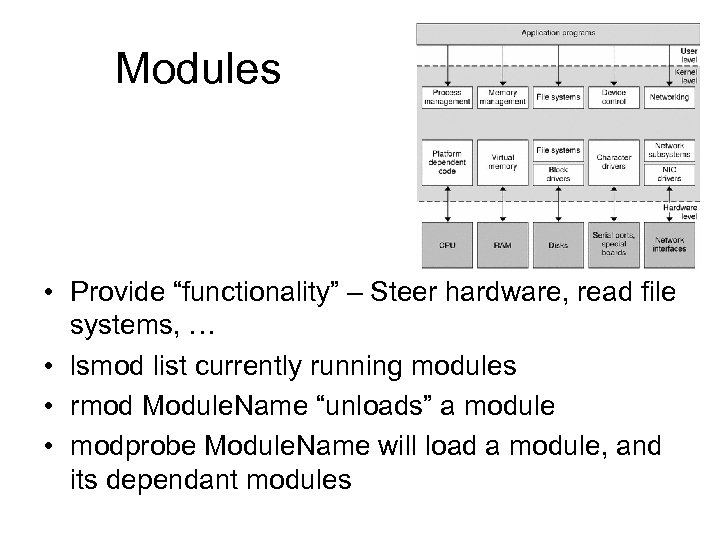 Modules • Provide “functionality” – Steer hardware, read file systems, … • lsmod list currently running modules • rmod Module. Name “unloads” a module • modprobe Module. Name will load a module, and its dependant modules
 Changing the kernel Why would you want to change your kernel? • Performance • Support of hardware • fix something you broke • security updates • bugs • ? ? • Profit?
 Changing the kernel* Ways to change the kernel in order of difficulty: 1. install a package from the Ubuntu repository 2. Building from a source package from the Ubuntu repository 3. Building from a source package from the kernel. org git (version control system) *There might be some other methods
 Apt-get kernel • By far the easiest method of updating the kernel • Depending on the version of Ubuntu you’re running different kernels will be available to you – LTS vs Non-LTS • apt-get install linux-generic will update your current kernel to the newest – This is a feature of apt, not the kernel • apt-get install Already. Installed. Package will upgrade said package • will modify grub to boot new kernel – Retains old kernel as a option in grub, incase something goes wrong
 Sources from the Ubuntu Repository • Apt-get install Linux-source will get the source of the current running kernel – uname –r tells you the name of the current running kernel – Ubuntu kernels are modified versions of the kernel. org kernels (the official Linux kernel) – Dependencies and tools required to build the kernel may not be “exactly” the same – There may be differences in opinions of where stuff should go, and what it should be named
 Sources form Kernel. org • The “official” Kernel made by Linus (& co) him self • Stable versions can be downloaded from kernel. org • Bleeding edge can literally be downloaded at the “end of the business day” – You’ll probably need git (the version control system used by kernel. org) for that • Will have to be uncompressed from a tarball – Something like: cd /usr/src sudo tar xjvf linux-source-2. 6. 24. tar. bz 2
 Patches • System of modifying source, requires patch file • increment version numbers by 1 (but that’s not a “solid” rule) • if you already have the kernel source tree, patches are much smaller • Small is a relative term (the full source for my test kernel was 8. 2 M) • Patches are rarely used any more because we’re no longer so bandwidth constrained • Was a much bigger deal when we were using dial-up
 Other things you will need. When building the kernel on my prototype (I used repository sources), I needed the following packages: • linux-source – The stuff • kernel-package – Tools for building the kernel • build-essential – Tools for building – Part of kernel package • fakeroot – needed to get around the suid (set user id) issue – there is no “root” user by default on Ubuntu • ccache – common routines cache, speed up compiling • qt 3 -dev-tools (huge dependencies) – Needed for X 11 config • libqt 3 -mt-dev (comes along for the ride with qt 3 -devtools)
 Making • Make (automake) is standard tool for building executables • make was made in 1977 • reads makefiles and builds executables according to their directives • used to build any software from source (not just the kernel) • sometimes accompanied by a configure script that will “configure” the makefiles
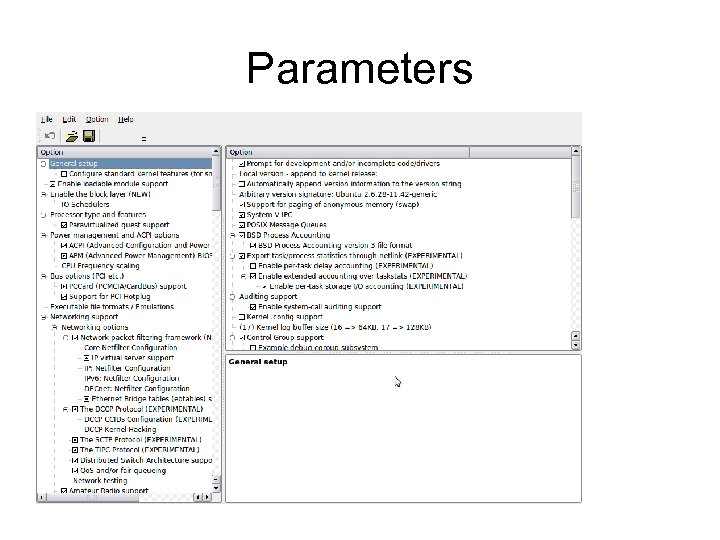
 Make config Once you have your source code, you need to set the “parameters” of how this new kernel will behave • make config – Never do this – will ask you 100’s of questions, get one wrong and you get to start over • make menuconfig – ncurses menu – better, but still not “fancy” • make xconfig – the new hotness • It’s assumed that you’re privileged enough to do this on your system and you’re in the right directory – it requires root privileges because of some of the “places” it will have to go, and “things” it will have to do – the usual home is /usr/src/Kernel. Name
 Parameters
 Parameters II Some of the parameters you’ll encounter: • General setup – Boot styles, message ques • Module support – You always need this • Bus Options – Needed for addon card support • Device Drivers – The magic sauce • Networking – Big and important • File Systems – What kinds the kernel can read
 make-kpkg • A HUGE improvement over the old way of doing things • Builds the kernel and the init-rd, and then packages them into a deb • install the deb with dpkg – Will copy vmlinuz, init-rd, system. map, and modules • will also update grub for you, and save your old kernel • Doing this manually involves many steps and is very prone to error • Modules can be built as debs too
 Useful Links • http: //rute. 2038 bug. com/rute. html. gz – Big ole book o stuff • http: //en. wikipedia. org/wiki/TCP/IP_model – Layered fanciness • http: //www. kernel. org/ – Identify your male parent • https: //help. ubuntu. com/community/Repositories/Ubuntu – Dude where’s my stuff (coming from) • http: //en. wikipedia. org/wiki/Comparison_of_file_systems – Bet you didn’t know there were that many • http: //fuse. sourceforge. net/sshfs. html – SSH hotness
 References: • The internets
 Linus • The man, the myth, the legend
 Installations… What went Wrong: • Part of the live boot scenario is autodection of hardware. • When the X 11 system gets configured, it probes the monitor to figure out what the resolution modes are • Because I used a via splitter, the “backtalk” that tells the X system what it can do was broken • The system couldn’t discover the modes to display in • So why did the splash screen work?