 Скачать презентацию Integrating Access with the Web and with Other
e16b207ac628ff816ed28a934a3d74fb.ppt
- Количество слайдов: 29




Integrating Access with the Web and with Other Programs
Exporting an Access Object to an HTML Document • In the Database window, right-click the object you want to export, and then click Export on the shortcut menu. • Enter the filename in the File name text box, and then select the location where you want to save the file. • Click the Save as type list arrow, and then click HTML Documents. • Click the Save formatted check box (if using a template), and then click the Export button. • Select the template (if necessary), and then click the OK button. 2
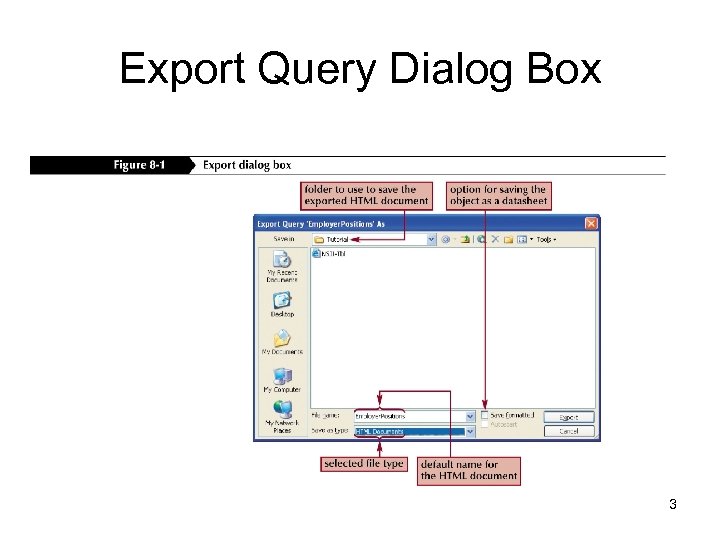
Export Query Dialog Box 3
Viewing an HTML Document in a Web Browser • If necessary, click View on the menu bar, point to Toolbars, and then click Web to display the Web toolbar. • Click the Go button on the Web toolbar, and then click Open Hyperlink. • Use the Browse button to select the file to open, and then click the Open button. • Click the OK button. 4
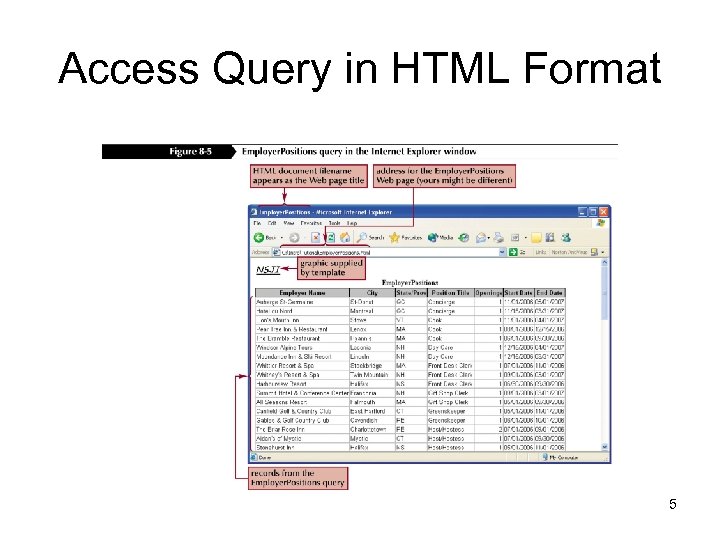
Access Query in HTML Format 5
Creating a Data Access Page for an Access Table • A data access page is a dynamic HTML document that you can open with a Web browser to view or update current data in an Access database. – Data access pages are stored outside the database as separate HTML documents. • You can create a data access page either in Design view or by using a wizard. • To invoke the Page Wizard, click Pages in the Objects bar of the database window, click New, click Page Wizard, and finally click the OK button. 6
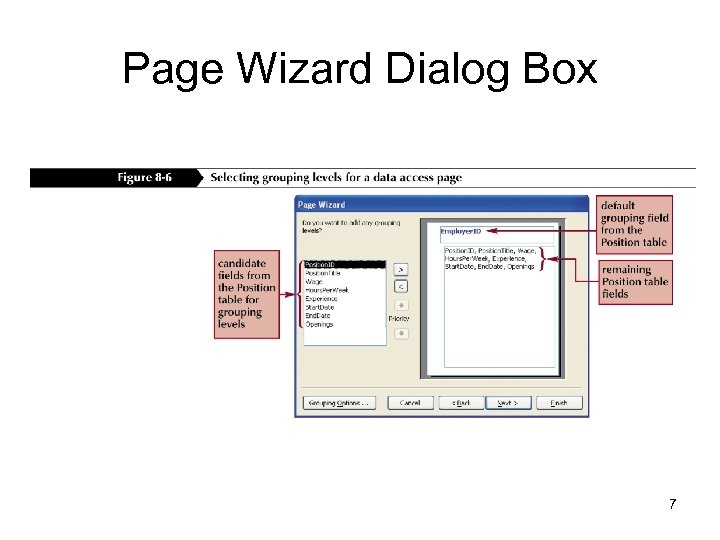
Page Wizard Dialog Box 7
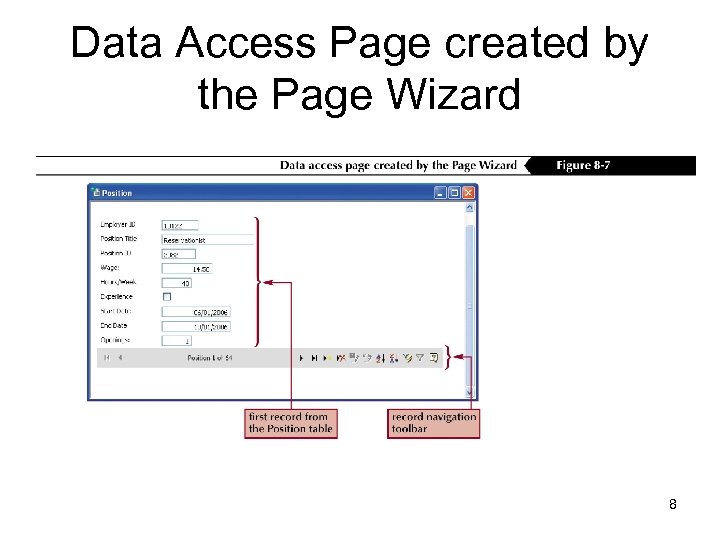
Data Access Page created by the Page Wizard 8
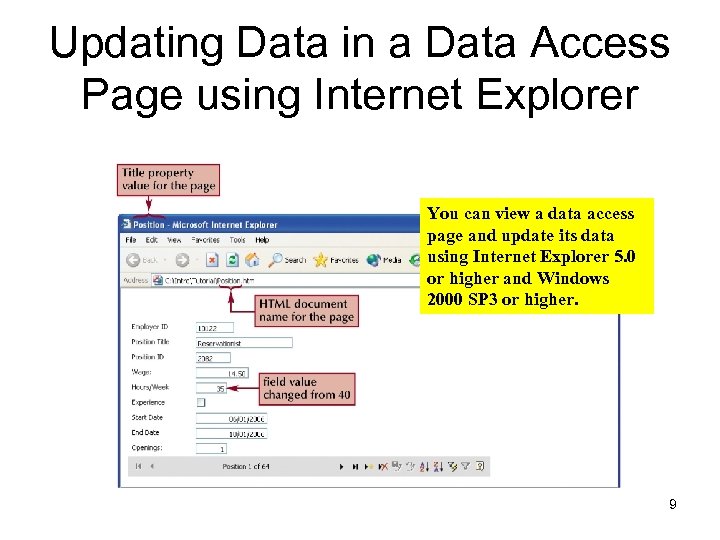
Updating Data in a Data Access Page using Internet Explorer You can view a data access page and update its data using Internet Explorer 5. 0 or higher and Windows 2000 SP 3 or higher. 9
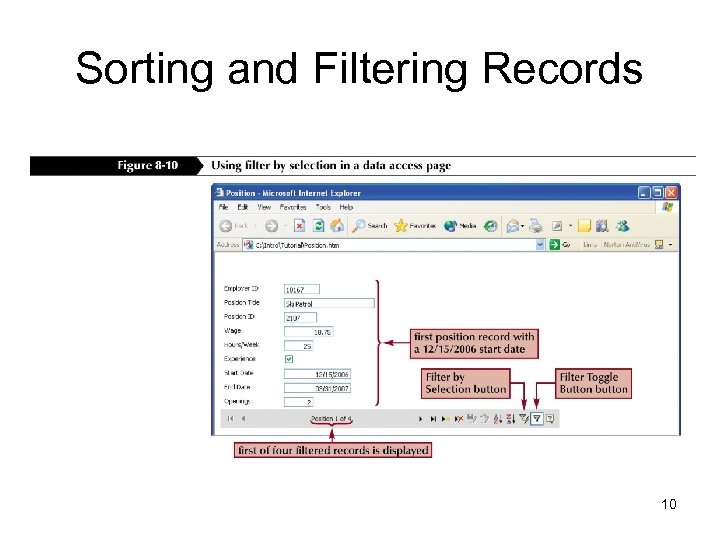
Sorting and Filtering Records 10
Creating a Custom Data Access Page • Click Pages in the Objects bar of the Database window. • Click the New button, click Design View, and then click the OK button. • Place the necessary controls in the Page window in Design view. • Click the Save button on the Page Design toolbar and enter an appropriate name. 11
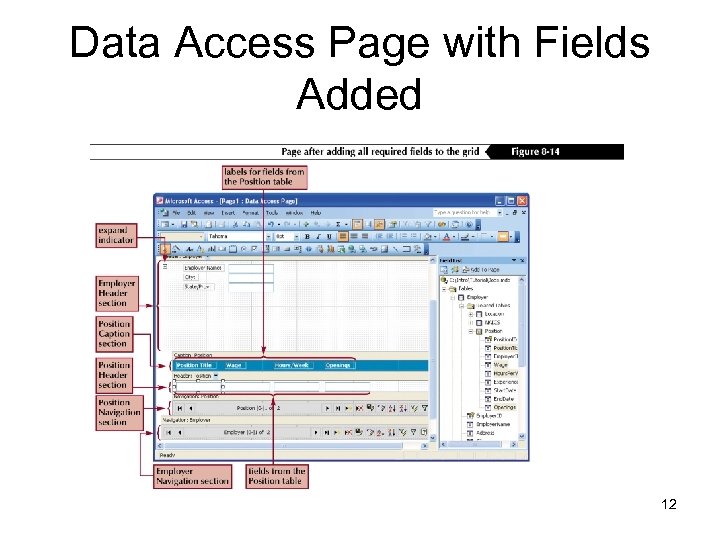
Data Access Page with Fields Added 12
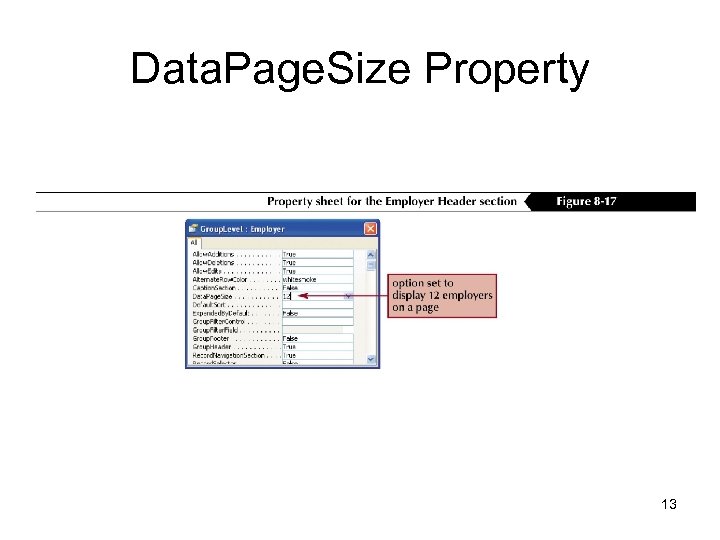
Data. Page. Size Property 13
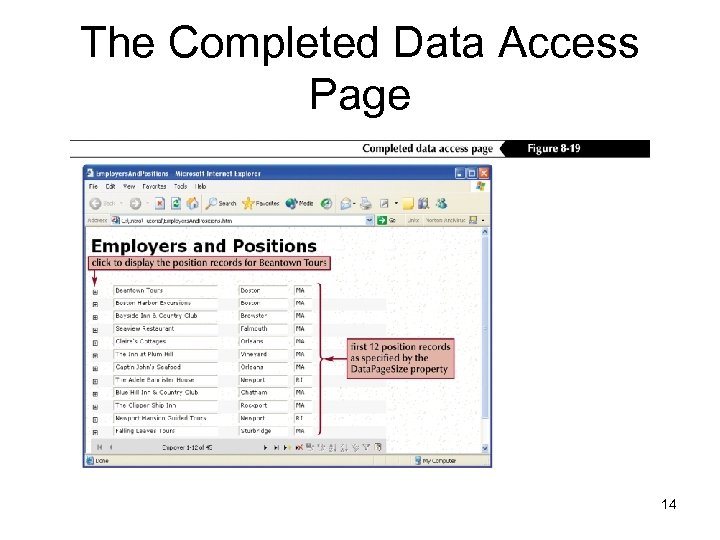
The Completed Data Access Page 14
Creating and Using a Pivot. Table in a Data Access Page • When used in a Data Access Page, a Pivot. Table (also called a Pivot. Table list) is an interactive table that lets you analyze data dynamically using a Web browser. • Create a Pivot. Table by clicking the Office Pivot. Table tool on the toolbox, followed by the location on the page where you want to position the upper-left corner of the Pivot. Table. • Use the fields from the field list to drag and drop the filter, row, column, and detail fields. Add calculated fields as needed. • Modify the size of the Pivot. Table and save the page. 15
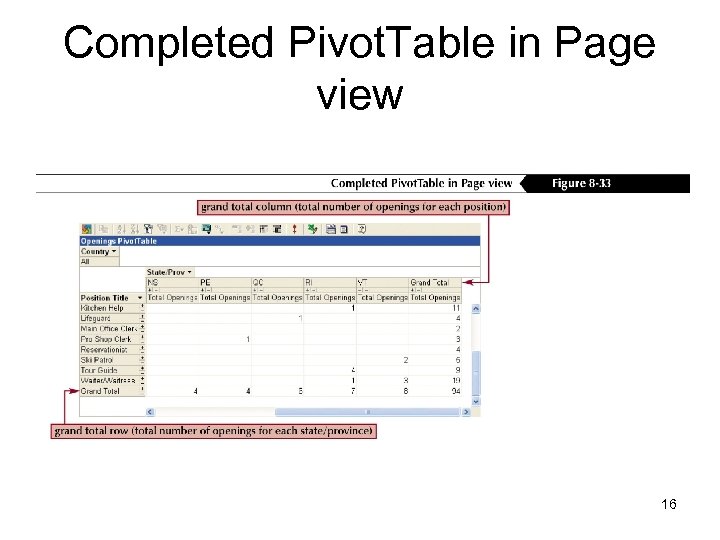
Completed Pivot. Table in Page view 16
Pivot. Charts • The Office Pivot. Chart Component assists you in adding a chart to a data access page, form, or datasheet. • Pivot. Chart components: – – – Pivot. Chart toolbar Plot area Data marker Data field Value axis label Gridline Category field Category access label Series field Legend Filter field 17
Adding a Pivot. Chart to a Data Access Page • Create a new data access page and click the Office Chart tool on the toolbox. – Click the location on the data access page where you want the upper-left corner of the chart to appear • Click the Pivot. Chart control and select the data source, data link connection, table or query, and char type. • Close the Commands and Options dialog box and add the appropriate fields from the field list. • Save the data access page. 18
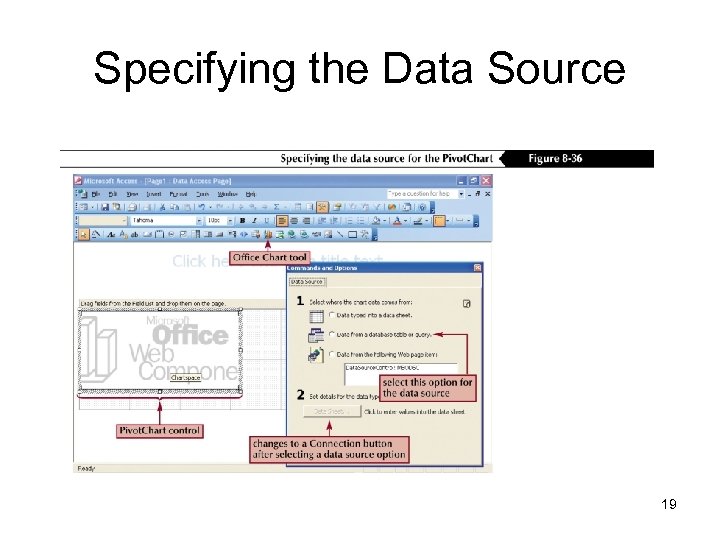
Specifying the Data Source 19
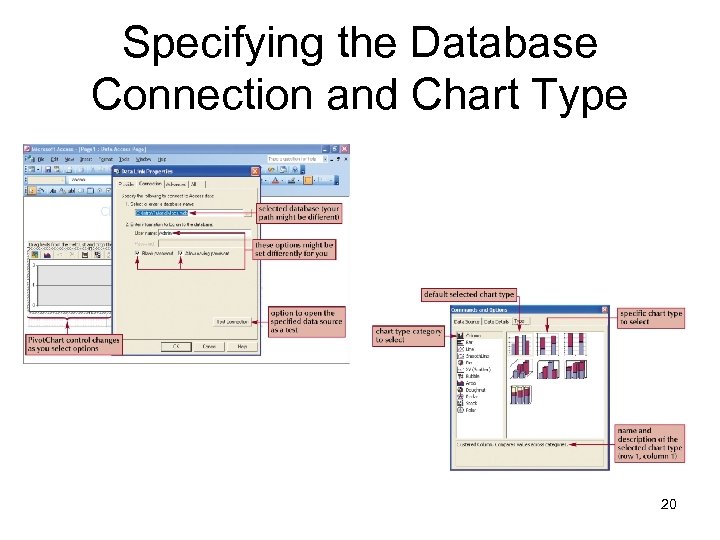
Specifying the Database Connection and Chart Type 20
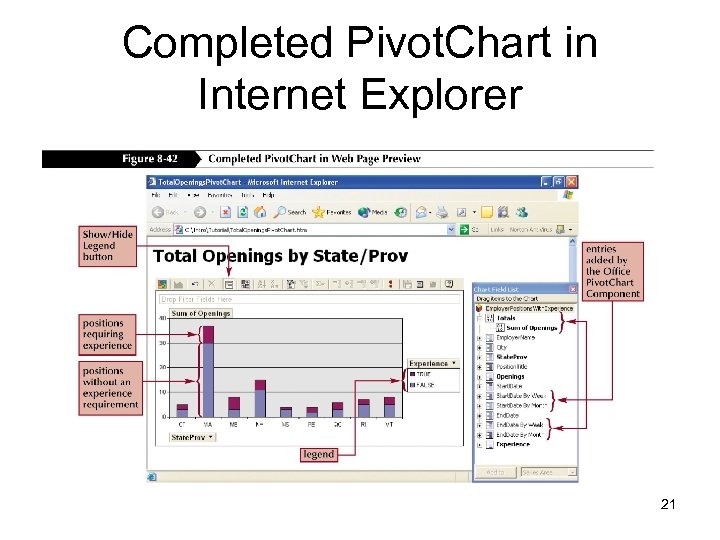
Completed Pivot. Chart in Internet Explorer 21
Using XML • XML (Extensible Markup Language) is a programming language that is similar in format to HTML, but is more customizable and suited to the exchange of data between different programs. • Access can import data from an XML file directly into a database table. • To import an XML file, click File on the menu bar, point to Get External Data, then click Import. • Select XML after clicking the Files of type list arrow • Use the Look in list box to select the XML documents to import, and click the Import button. 22
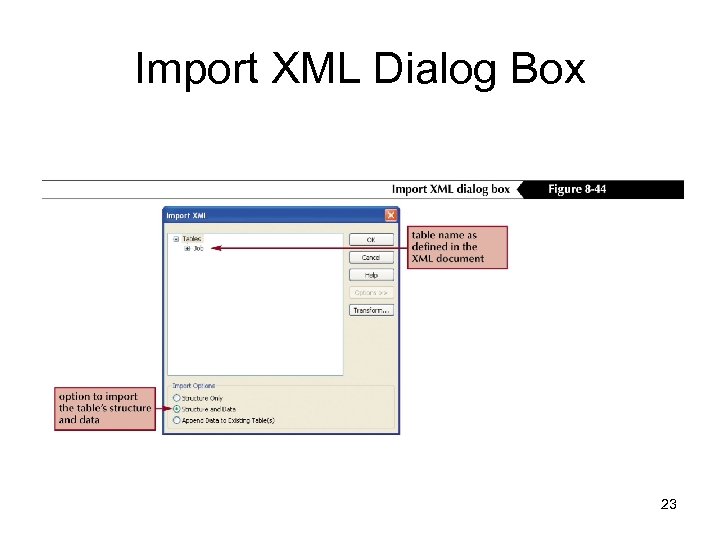
Import XML Dialog Box 23
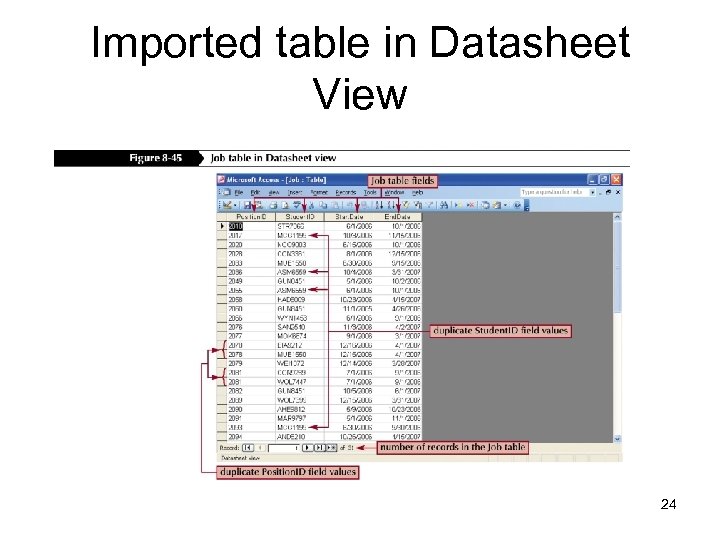
Imported table in Datasheet View 24
Exporting an Access Table as an XML File • In the Database window, right-click the object you want to export, and then click Export on the shortcut menu. • Enter the filename in the File name text box, and then select the location where you want to save the file. • Click the Save as type list arrow, click XML, and then click the Export button. • Click the Advanced button on the Export XML dialog box; set the data, schema, and presentation options; and then click the OK button. 25
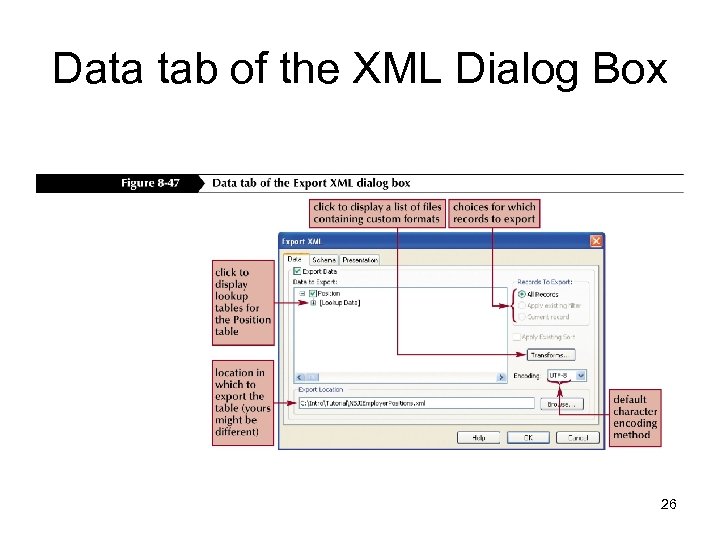
Data tab of the XML Dialog Box 26
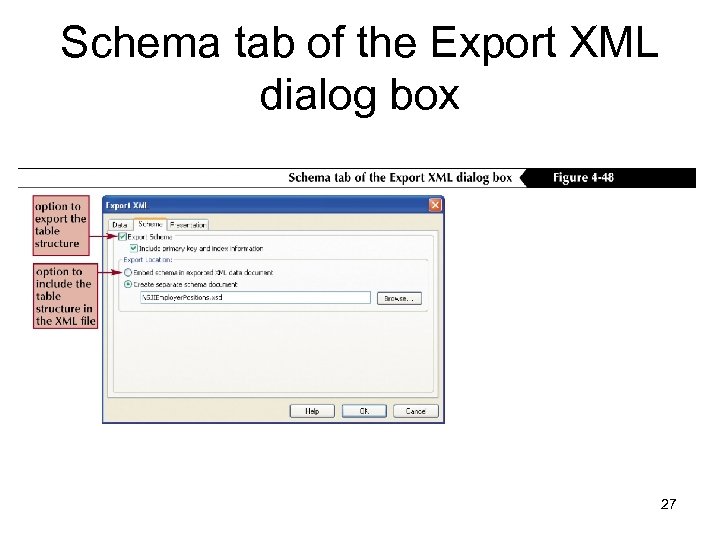
Schema tab of the Export XML dialog box 27
Exporting an Access Query as an Excel Worksheet • In the Database window, click the object you want to export and select it. • Click the Office. Links list arrow, and then click Analyze It with Microsoft Excel. 28
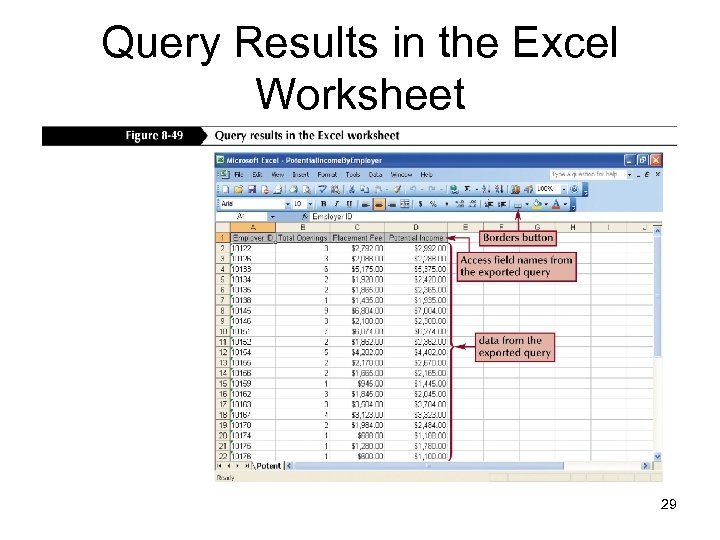
Query Results in the Excel Worksheet 29
Скачать презентацию Integrating Access with the Web and with Other
e16b207ac628ff816ed28a934a3d74fb.ppt