


 Скачать презентацию Installing New Software Dean Steichen Sept 2014
a0707c77638a6258f277ee11713f7425.ppt
- Количество слайдов: 20
 Installing New Software Dean Steichen Sept. 2014
 Things are different! • Win 8 – is designed for touch screens – uses tiles and icons to represent windows, programs and apps – most familiar landmarks are relocated or even renamed – can be confusing until you understand the basics and where to find your familiar landmarks
 Moving from XP to Win 8 • The familiar Graphical User Interface (GUI or UI) has changed! • The START button is gone! • Tiles have replaced many icons • The Desktop is just another tile • They hid the power button • They added a “Charms Bar” • Win 8. 1 UPDATE changed things again from Win 8 or Win 8. 1
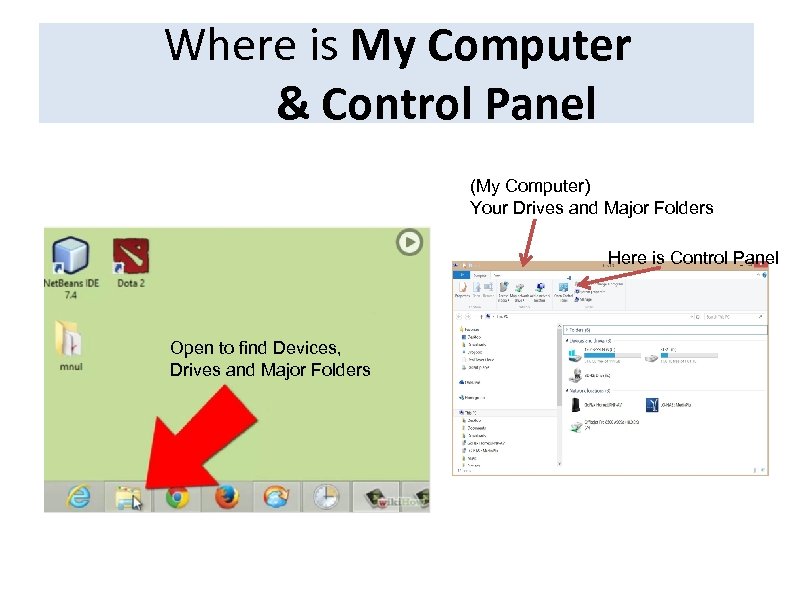 Where is My Computer & Control Panel (My Computer) Your Drives and Major Folders Here is Control Panel Open to find Devices, Drives and Major Folders
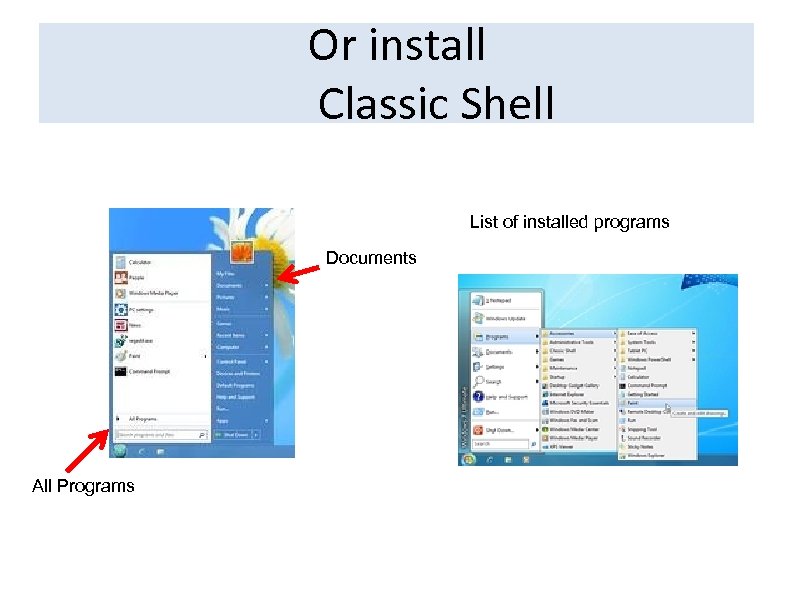 Or install Classic Shell List of installed programs Documents All Programs
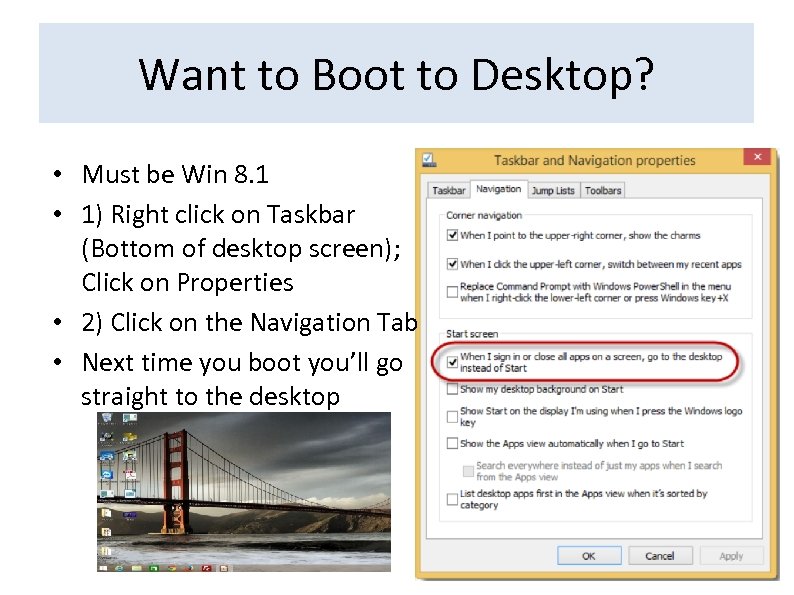 Want to Boot to Desktop? • Must be Win 8. 1 • 1) Right click on Taskbar (Bottom of desktop screen); Click on Properties • 2) Click on the Navigation Tab • Next time you boot you’ll go straight to the desktop
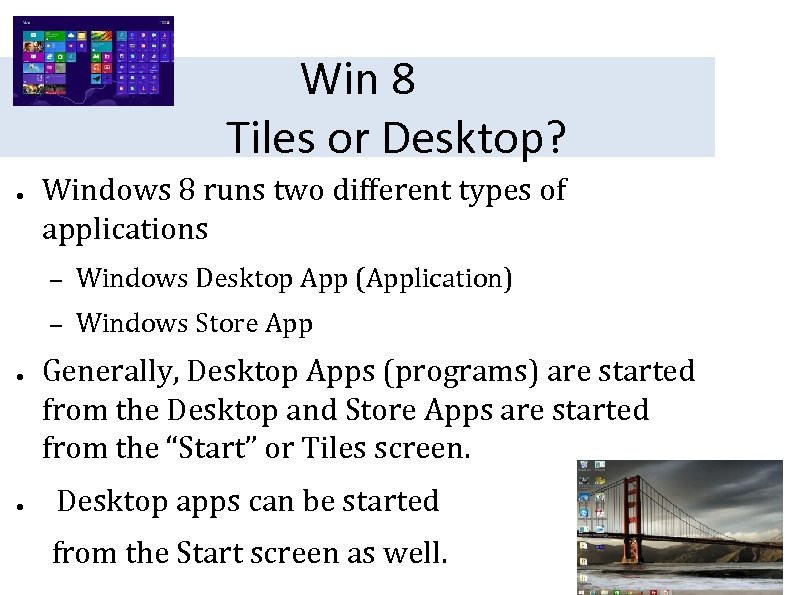 Win 8 Tiles or Desktop? ● Windows 8 runs two different types of applications – – ● ● Windows Desktop App (Application) Windows Store App Generally, Desktop Apps (programs) are started from the Desktop and Store Apps are started from the “Start” or Tiles screen. Desktop apps can be started from the Start screen as well.
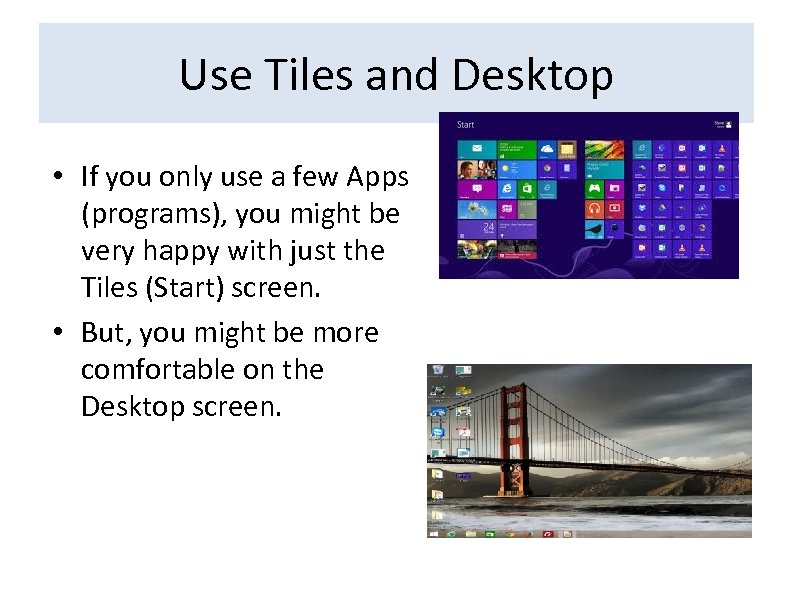 Use Tiles and Desktop • If you only use a few Apps (programs), you might be very happy with just the Tiles (Start) screen. • But, you might be more comfortable on the Desktop screen.
 Programs vs Apps What’s the Difference? ● ● Desktop Programs are what you have used in previous versions of Windows and run on the desktop Apps are new Windows 8 Applications designed for Win 8 – https: //www. youtube. com/watch? v=Bj 7 j. Ows. M 7 j. Y ● Apps must come from the Windows Store ● Apps can be pinned and snapped ● Apps are made using the new Windows User Interface (UI) – The way of the Future for MS…You probably don’t care or can tell the difference
 Programs/Apps Installation ● A setup tool (program) is used to install a traditional program on Win 8 like in XP – – ● Use a browser program to locate, download & run the “installer program” aka setup Or Install using external media (e. g. CD/DVD) Apps are installed from the Windows Store – Select the green icon with the shopping bag to enter the Windows Store, download & run the app you have chosen (many are free)
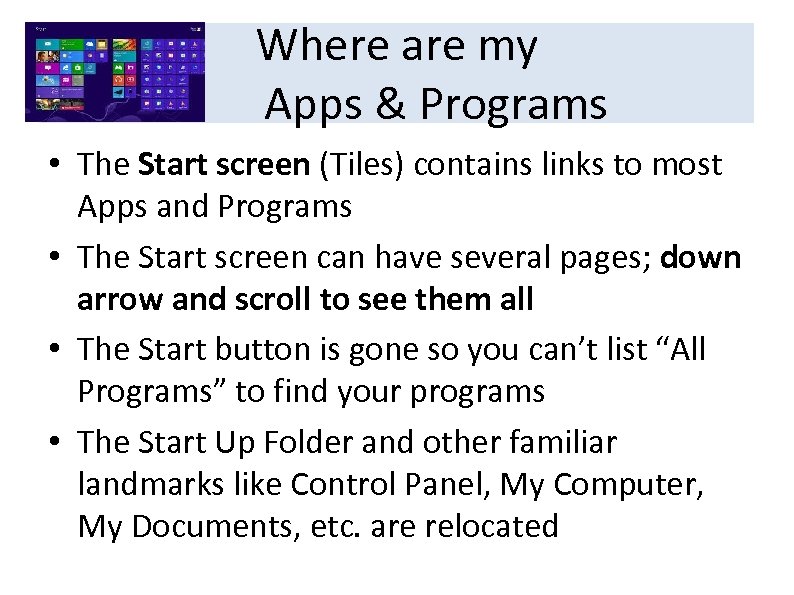 Where are my Apps & Programs • The Start screen (Tiles) contains links to most Apps and Programs • The Start screen can have several pages; down arrow and scroll to see them all • The Start button is gone so you can’t list “All Programs” to find your programs • The Start Up Folder and other familiar landmarks like Control Panel, My Computer, My Documents, etc. are relocated
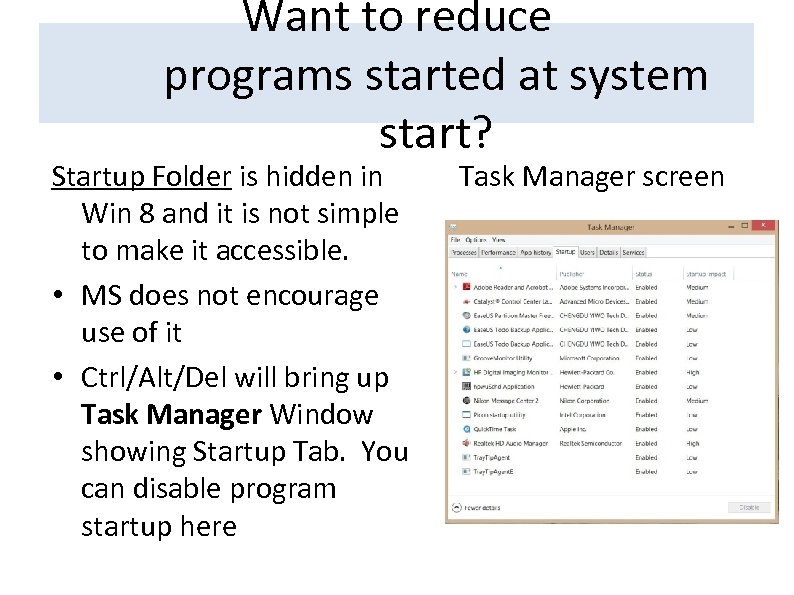 Want to reduce programs started at system start? Startup Folder is hidden in Win 8 and it is not simple to make it accessible. • MS does not encourage use of it • Ctrl/Alt/Del will bring up Task Manager Window showing Startup Tab. You can disable program startup here Task Manager screen
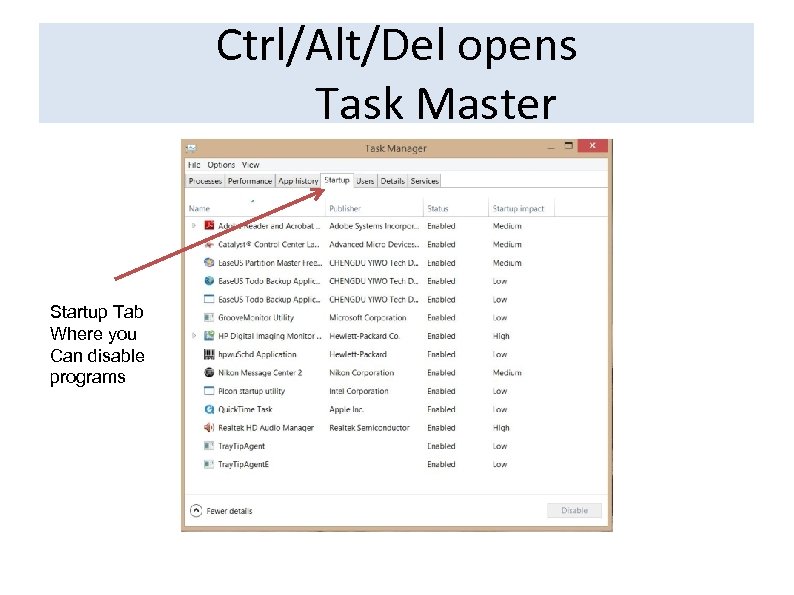 Ctrl/Alt/Del opens Task Master Startup Tab Where you Can disable programs
 Creating Icons • Usually an icon is created when you install a program or App. • If you right click on a file or folder, you can “send to” Desktop (create shortcut) which creates an icon. • Some programs will require you to right click on the App in the Start screen list of Apps, choose “open file location”, right click on the program and Send To Desktop (Create Shortcut).
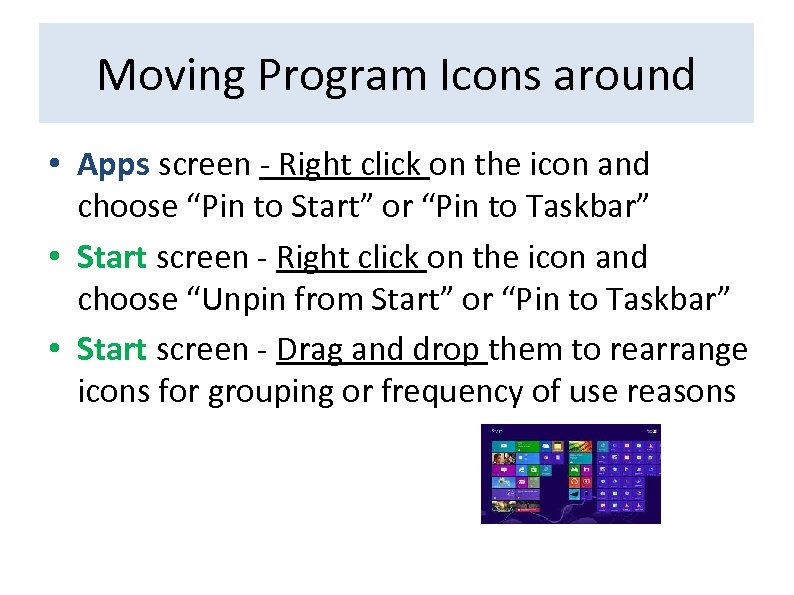 Moving Program Icons around • Apps screen - Right click on the icon and choose “Pin to Start” or “Pin to Taskbar” • Start screen - Right click on the icon and choose “Unpin from Start” or “Pin to Taskbar” • Start screen - Drag and drop them to rearrange icons for grouping or frequency of use reasons
 What about old XP Programs • They may be compatible with Win 8 and you can install them to the desktop. – You may have to un-register it on your XP machine so you can re-register it on your Win 8 machine (e. g. Photoshop Elements) • You may have to buy a new Win 8 compatible version. • There may be a Win 8 alternative program
 Common Win 8 Programs & Apps • • • Mail Internet Explorer (browser) Calendar One Drive (Cloud Storage) One. Note Photos Media players (pictures, movies, music, etc. ) Various feeds (weather, DOW, etc. ) Anti-Virus (Windows Defender)
 My Recommended Utility Programs (better & free) files & cleans – Ccleaner (removes unnecessary Registry) -- Disk Cleanup in Win 8 – Auslogics Disk Defrag (organizes disk for better performance) – Defragment in Win 8 – Start-Up Lite (removes unnecessary start-up programs) – Startup tab on Task Manager in Win 8 – Speccy (provides your system hardware info) – Very hard to find in Win 8 -- Classic Shell – Restores Win XP or Win 7 Start menu
 My Recommended Free Application Programs • Anti-Virus Security (Windows Defender) – AVG 2014 Free or Bit. Defender Free • Google Chrome Browser (Internet Explorer) • Libre Office Suite (Free Equivalent to MS Office Suite – Word, Excel, Power. Point, etc. ) – or WPS Office Suite (Free equivalent to Word, Excel and Powerpoint) • Burnaware (Free CD & DVD Burner program) • Adobe Reader (PDF Reader)
 Questions