 Скачать презентацию Information Technology for Minnesota Government IT Accessibility How
d9875d96e2e8d7c87b7169dc3c855cdf.ppt
- Количество слайдов: 48



Information Technology for Minnesota Government IT Accessibility: How does it impact you? Jay Wyant, CIAO Horizon Room 202 (Harbor Side) Age & Disabilities Odyssey, Duluth, MN, June, 2013
Objectives • Understand the basics of IT accessibility, including documents and websites • Articulate how lack of IT accessibility disproportionately affects older individuals and those with disabilities • Create a plan to identify IT barriers and strategies for overcoming them
§ Website/application developer § Content creator/writer § Manager/Project manager § Graphic designer § Social services § Administration § Other?
§ 2009 law § Advisory Committee & work groups § 2011 recommendations to legislature § State Accessibility Standard
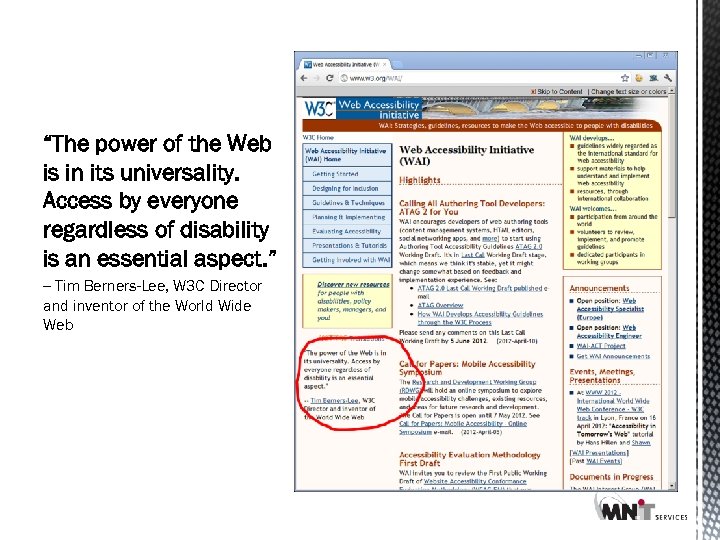
Accessibility quote by Tim Berners-Lee “The power of the Web is in its universality. Access by everyone regardless of disability is an essential aspect. ” -- Tim Berners-Lee, W 3 C Director and inventor of the World Wide Web
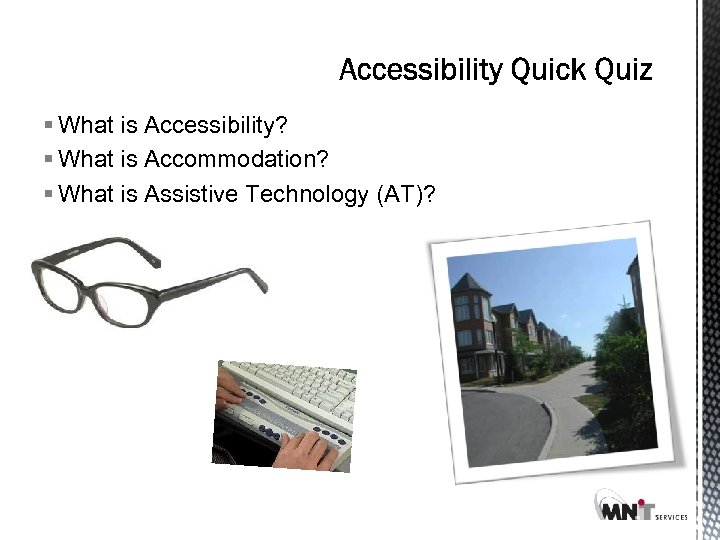
§ What is Accessibility? § What is Accommodation? § What is Assistive Technology (AT)?
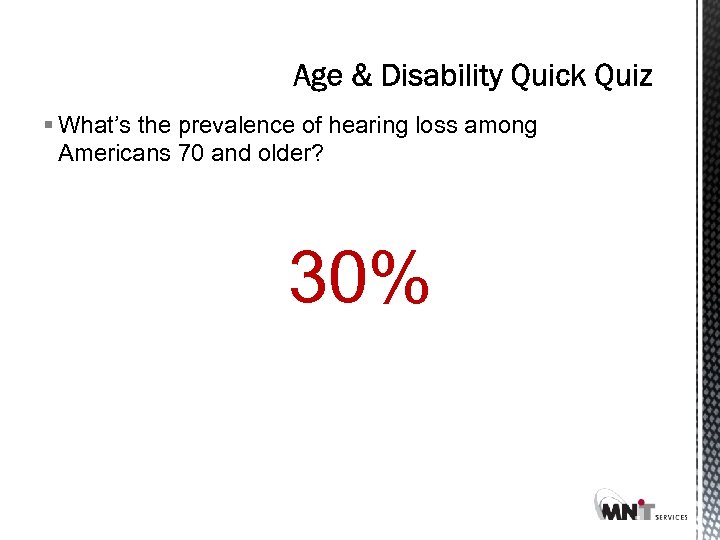
§ What’s the prevalence of hearing loss among Americans 70 and older? 30%
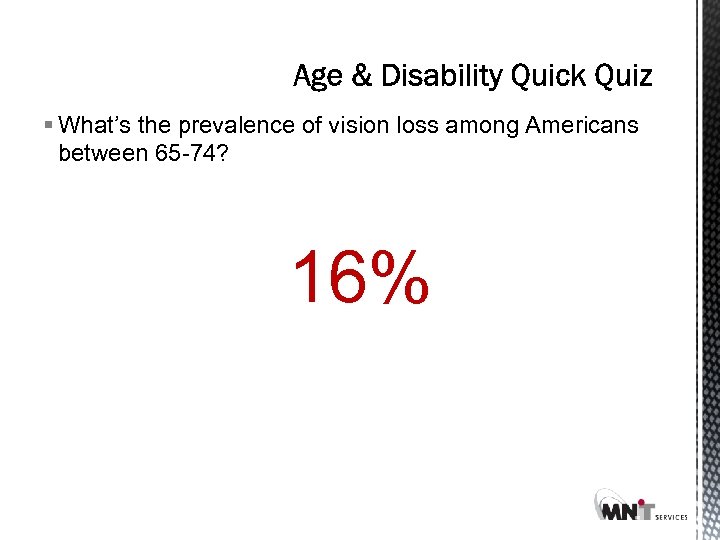
§ What’s the prevalence of vision loss among Americans between 65 -74? 16%
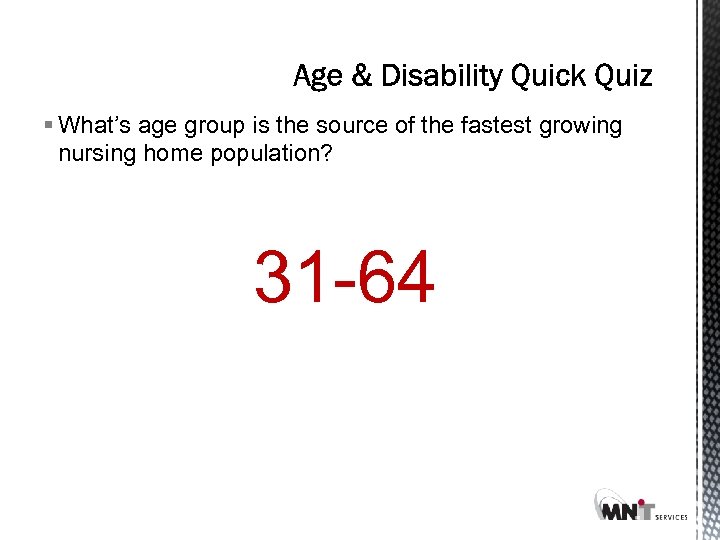
§ What’s age group is the source of the fastest growing nursing home population? 31 -64
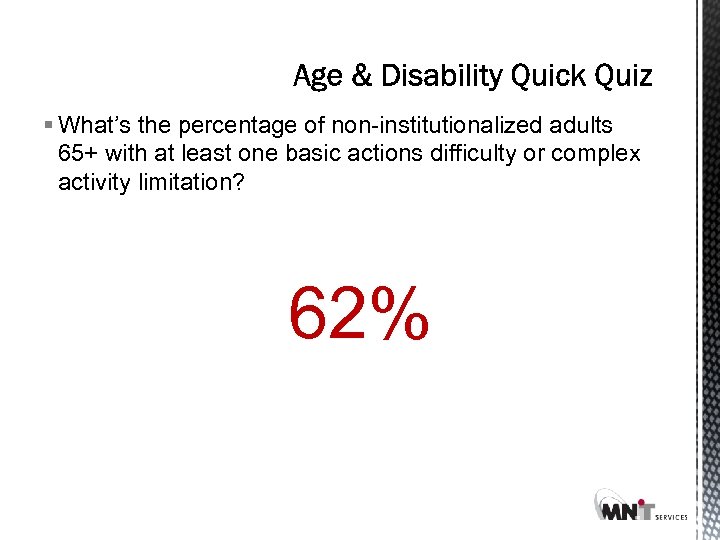
§ What’s the percentage of non-institutionalized adults 65+ with at least one basic actions difficulty or complex activity limitation? 62%
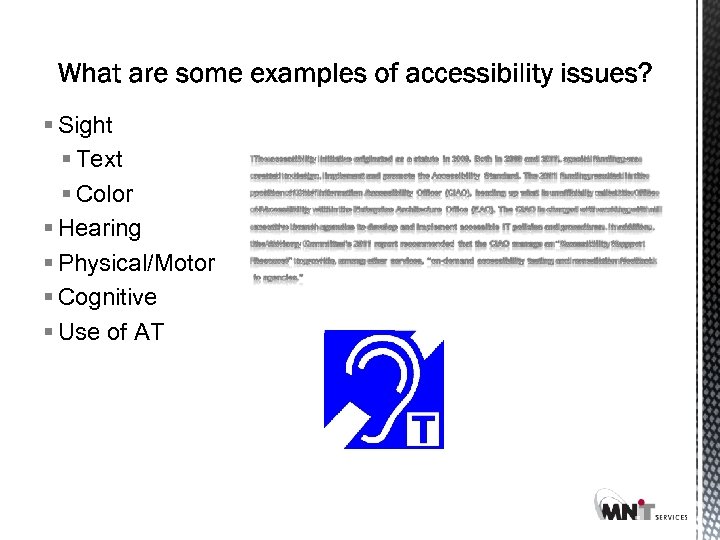
§ Sight § Text § Color § Hearing § Physical/Motor § Cognitive § Use of AT
§ Windows computer § Apple Macintosh § i. Pad tablet § Android tablet § i. Phone § Android phone § Windows phone § Basic cell phone (texting? ) § Other
• MN Statutes • MN 2009 law (chapter 131) • 2013 statutes 363 A. 42 (Public Records) & 363 A. 43 (Cont’ Ed) • State Standard • Section 508 • WCAG 2. 0 § Federal § ADA (Title II)
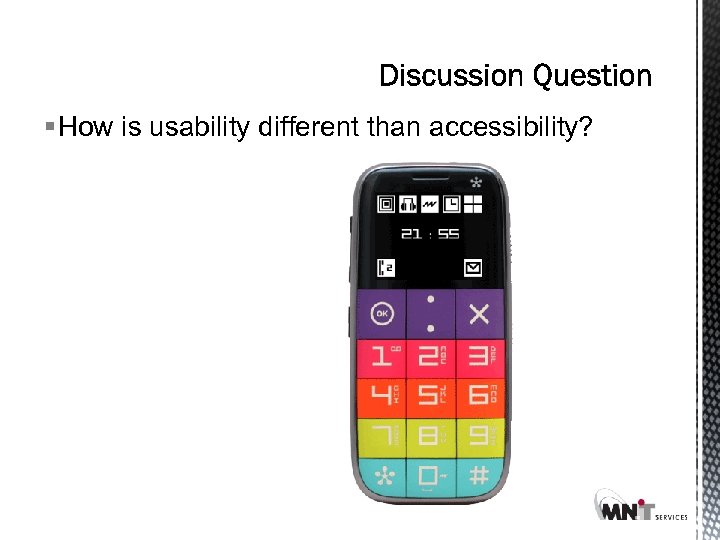
§ How is usability different than accessibility?
§ Screen readers not same as text-to-speech § Most popular readers: § Freedom Scientific’s JAWS § NVDA § Demo: http: //www. youtube. co m/watch? v=l 6 Jjn 8 DPW k. Y
§ Document Accessibility § Website Accessibility § Media Accessibility Advance to Summary
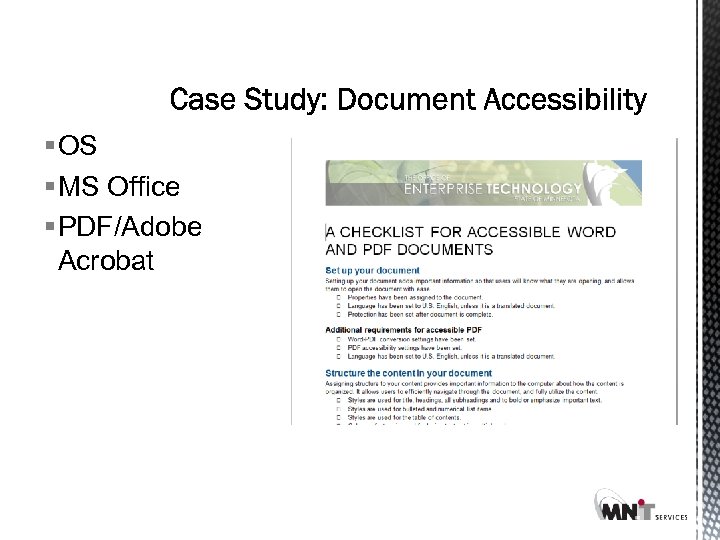
§ OS § MS Office § PDF/Adobe Acrobat
§ What are your processes? § Role of templates § Who determines what goes online? § Who determines final format?
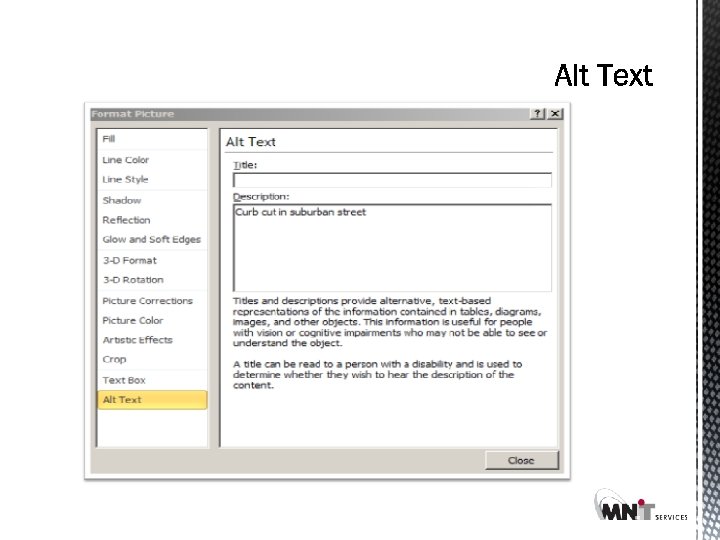
§ Use heading styles § Use Alt Text § Avoid text boxes and tables for layout § Give hyperlinks meaningful names § Don’t rely on color to convey meaning
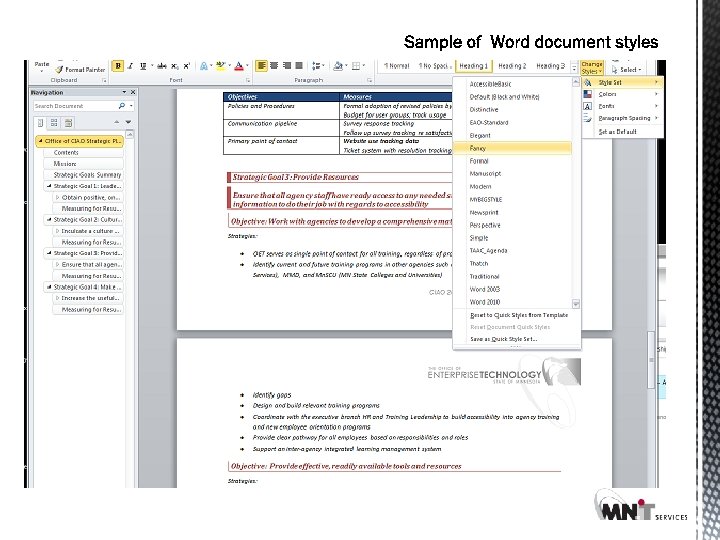
§ Text boxes are not accessible § Tables are for data organization only § Use columns feature instead of table to flow text
§ Click here for best practices on creating purposeful hyperlinks § Best practices on creating purposeful hyperlinks § Clearly demonstrate what the link will do, such as when going to a form (opens in new tab) § Indicate document type (PDF) (Word)
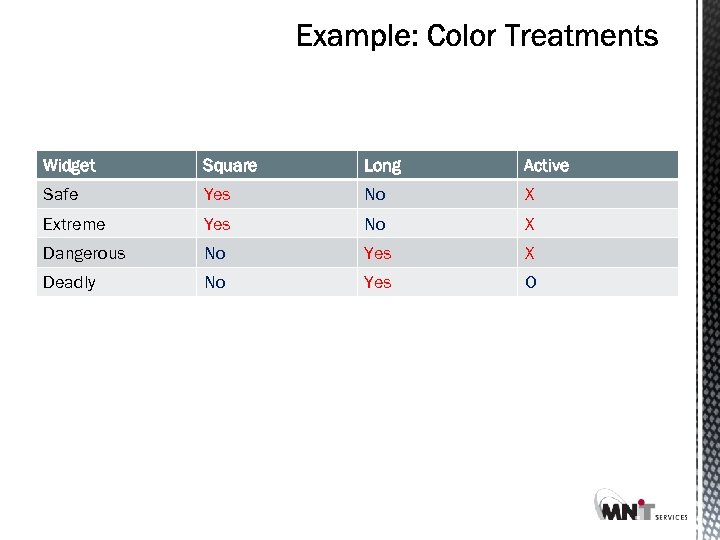
Widget Square Long Active Safe Yes No X Extreme Yes No X Dangerous No Yes X Deadly No Yes O
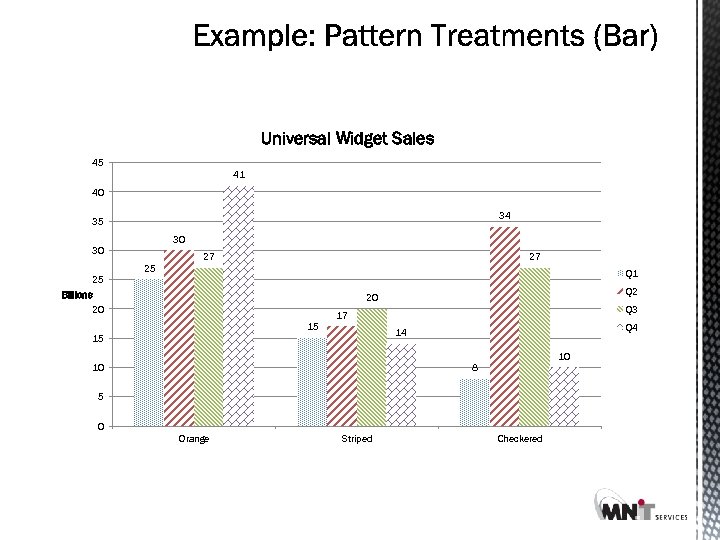
Universal Widget Sales 45 41 40 34 35 30 30 27 27 25 Q 1 25 Billions 20 Q 2 20 Q 3 17 15 Q 4 14 15 10 10 8 5 0 Orange Striped Checkered
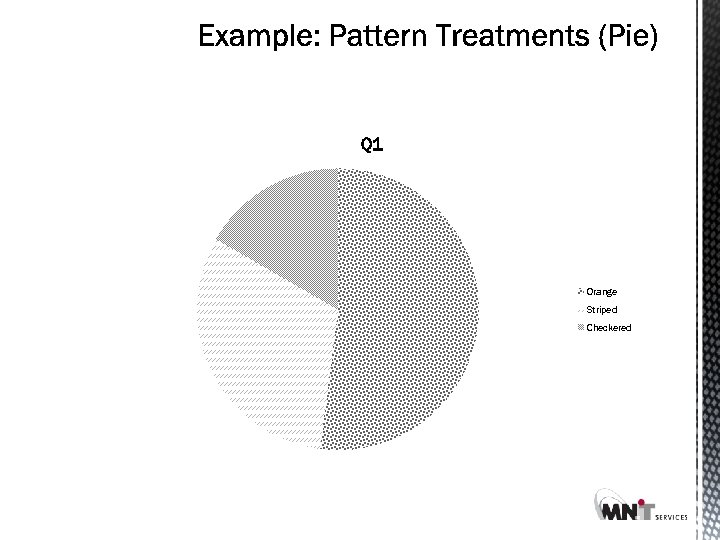
Q 1 Orange Striped Checkered
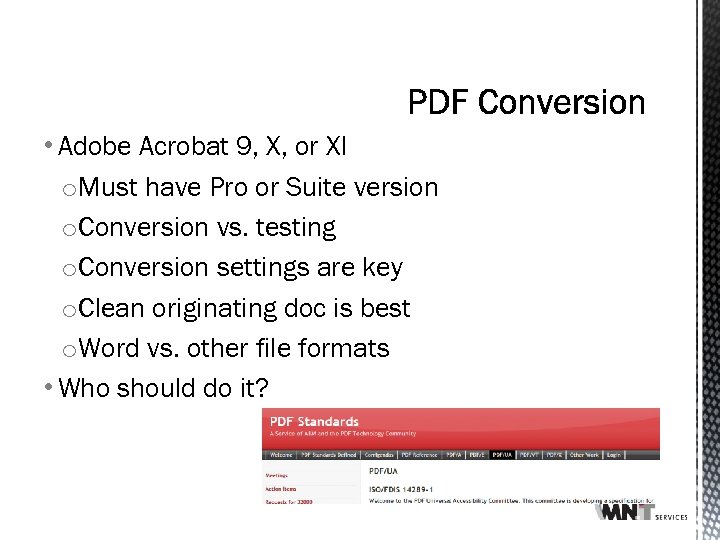
• Adobe Acrobat 9, X, or XI o. Must have Pro or Suite version o. Conversion vs. testing o. Conversion settings are key o. Clean originating doc is best o. Word vs. other file formats • Who should do it?
§ WAI-ARIA § Responsive design § Iterative testing during development § Testing tools and resources
• Document structure • Navigation • Mouse & keyboard issues • Images and nontext elements • Forms
§ Title tag to convey relationship of page to the site § Meaningful page titles § Heading tags § Tags that convey meaning (paragraph, lists, etc. )
§ Consistent navigation (predictable) § Skip to content § Navigating with anchor tags in long bodies of content § Breadcrumb navigation § Meaningful link text that conveys purpose
§ Test and ensure you can navigate with keyboard only § Do not rely upon mouse clicks § Be cognizant of tedious clicking issues (e. g. menus)
§ ALT tags for informative images (nondecorative) § Link to descriptions for longer text blocks § Decorative images presented with CSS (not in content) § Contrast ratio between background and text
§ Label tags for ALL input points § Correct tab sequence § Access keys for complex, long and laborious forms that are used frequently § Navigable and able to submit with keyboard
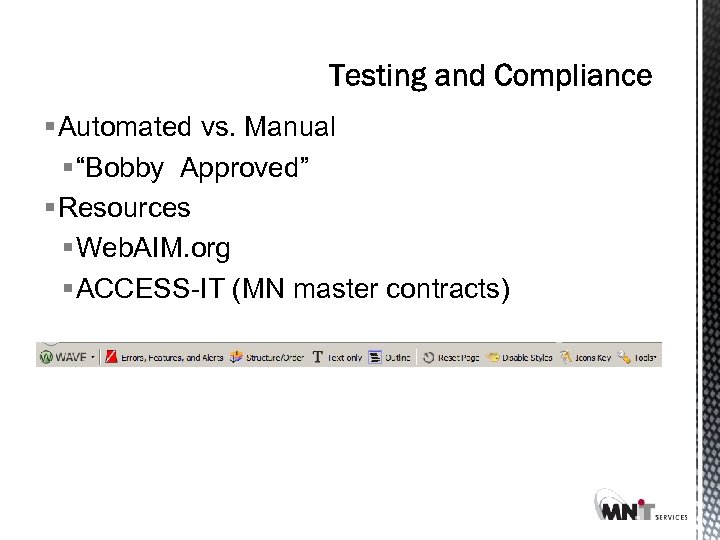
§ Automated vs. Manual § “Bobby Approved” § Resources § Web. AIM. org § ACCESS-IT (MN master contracts)
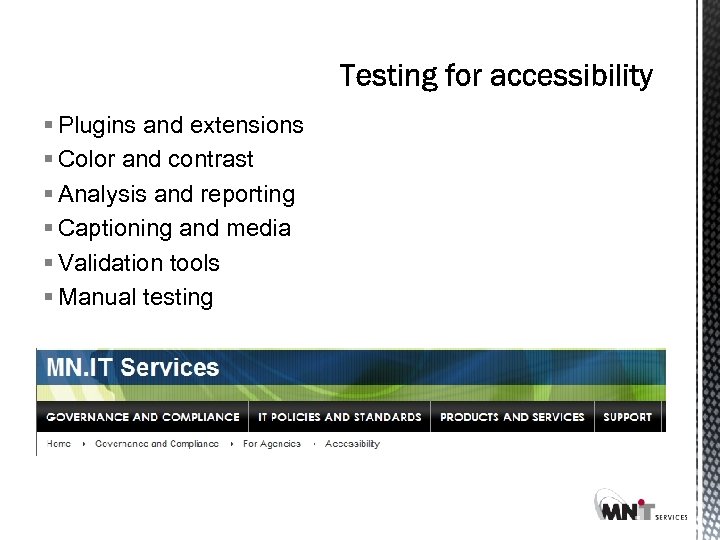
§ Plugins and extensions § Color and contrast § Analysis and reporting § Captioning and media § Validation tools § Manual testing
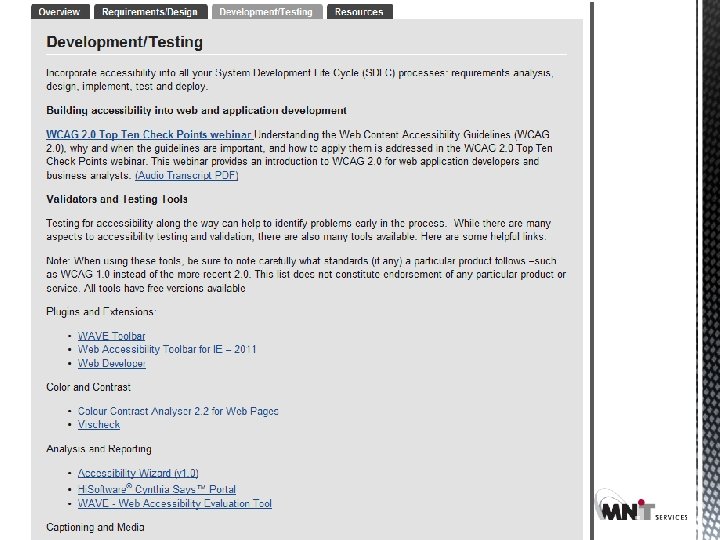
List of testing resources on MN. IT website
§ Back to case study list § Advance to summary
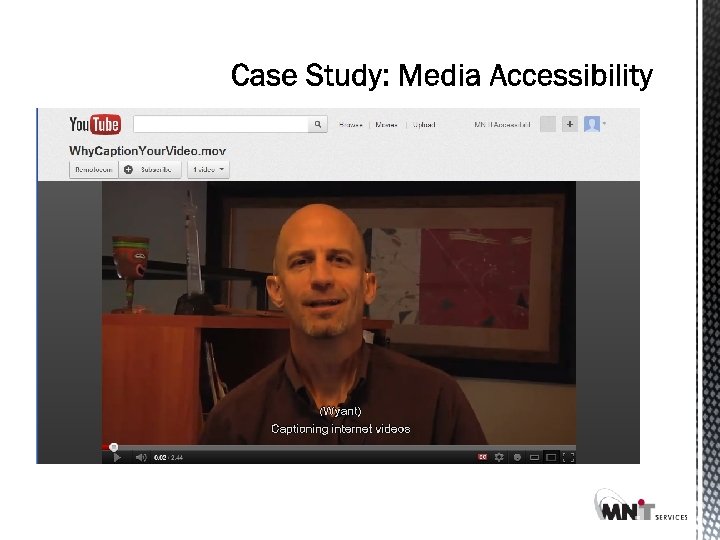
§ Video § Audio description (prerecorded) § Captioning (prerecorded and live) § Audio and video conferencing § Captioning § Speaker description § Accessible user interfaces and controls
§ Purpose § Why a video? § What’s the information? § Planning § Scripting: include descriptions of key visuals § Speaker instructions: describe visual’s message § How will you visually represent the audio? § Execution § Time frame for all processes § Budget
§ To You. Tube or Not? § In-house vs. hiring a pro § Access-IT Master Contract § Live vs. recorded captioning § Live: CART or captioning? § User interface § Caption toggle § Description toggle (or separate video) § Accessible controls § Back to case study list § Advance to summary
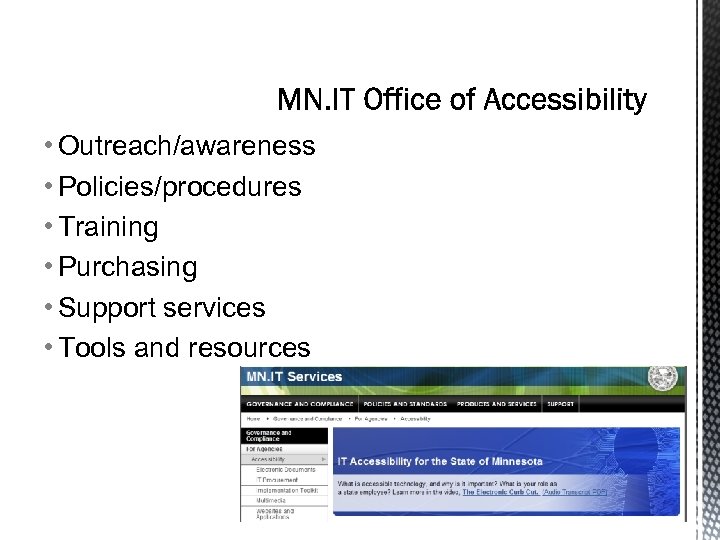
• Outreach/awareness • Policies/procedures • Training • Purchasing • Support services • Tools and resources
Accessibility is Infrastructure • Avoid add-ons • Culture shock • Reduce long-term costs
into processes • Design & Development • Websites & Applications • Content Creation o. Word, Power. Point and PDF Documents o. Video, Webcasts, Podcasts and Multimedia • Systems o. Processes o. Workflow
Questions?
Thank You! Jay Wyant jay. wyant@state. mn. us
Скачать презентацию Information Technology for Minnesota Government IT Accessibility How
d9875d96e2e8d7c87b7169dc3c855cdf.ppt