 Скачать презентацию Information Systems Services SAP Upgrade Familiarisation Session November
e71cc23568327103e1764ac6dc23b6d9.ppt
- Количество слайдов: 39



Information Systems Services SAP Upgrade Familiarisation Session November 2007
SAP Upgrade Familiarisation Session Objectives By the end of the session you will understand • The reasons and benefits of the SAP Landscape Upgrade • The installation procedure of the new SAP GUI • The Upgrade timetable and the effects on SAP Users • The generic differences in the new version of SAP • Specific differences for all functional areas
SAP Upgrade Familiarisation Session Agenda • Upgrade Process • Upgrade Timetable • Generic Differences between 4. 7 c and ERP 2005 • Purchasing • HR • Finance • MIS • Any Questions?
SAP Landscape Upgrade Project Scope • SAP Like-for-like upgrade from 4. 7 to ERP 2005 • MIS like-for-like upgrade to Netweaver 2004 s • SAP GUI upgrade to 7. 10
SAP Landscape Upgrade Benefits • No more upgrades until 2012 • Avoid additional costs when current version goes out of support. • Reduce support effort − Integrated platform for Records Management, MIS, CRM • Enhanced functionality for future projects: − Latest version of the SAP Portal for ESS/MSS - reduce SAP licensing costs and improve system usability. − Latest version of Plant Maintenance for Maximo project − Enhancements to MIS functionality.
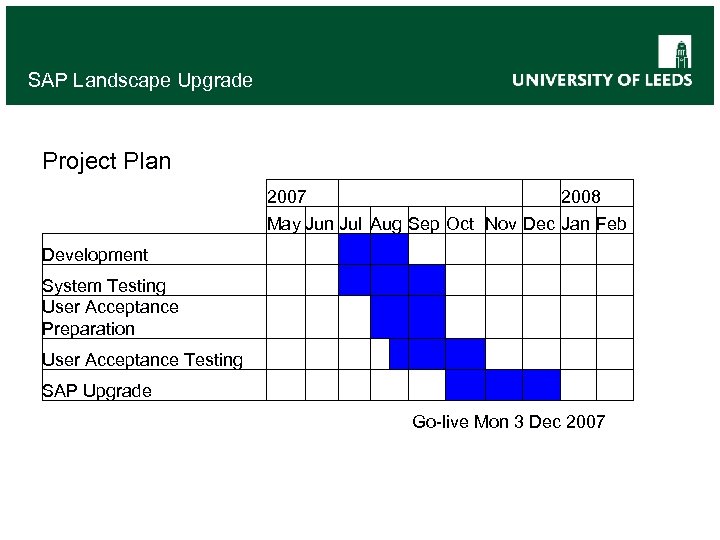
SAP Landscape Upgrade Project Plan 2007 2008 May Jun Jul Aug Sep Oct Nov Dec Jan Feb Development System Testing User Acceptance Preparation User Acceptance Testing SAP Upgrade Go-live Mon 3 Dec 2007
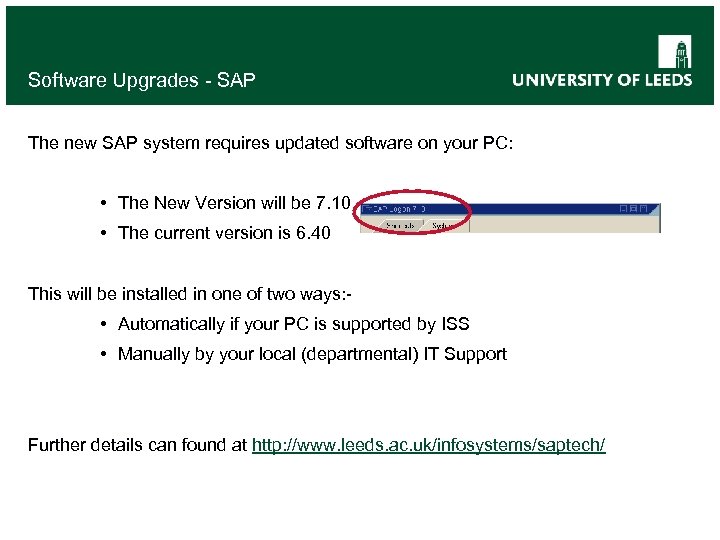
Software Upgrades - SAP The new SAP system requires updated software on your PC: • The New Version will be 7. 10 • The current version is 6. 40 This will be installed in one of two ways: - • Automatically if your PC is supported by ISS • Manually by your local (departmental) IT Support Further details can found at http: //www. leeds. ac. uk/infosystems/saptech/
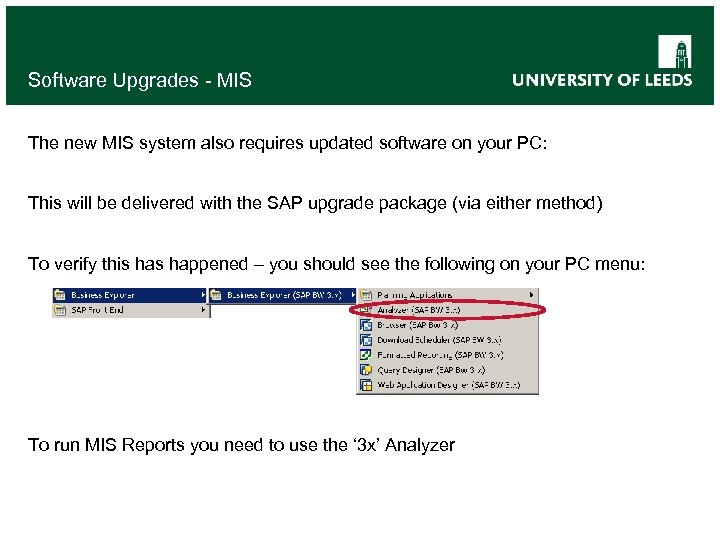
Software Upgrades - MIS The new MIS system also requires updated software on your PC: This will be delivered with the SAP upgrade package (via either method) To verify this happened – you should see the following on your PC menu: To run MIS Reports you need to use the ‘ 3 x’ Analyzer
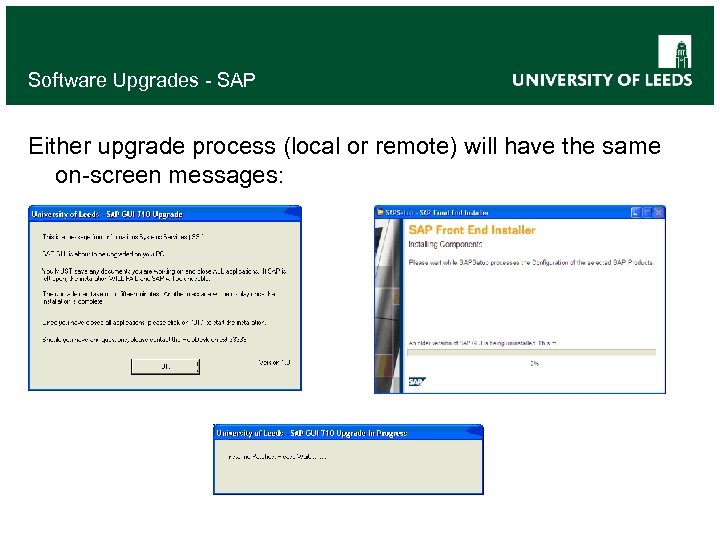
Software Upgrades - SAP Either upgrade process (local or remote) will have the same on-screen messages:
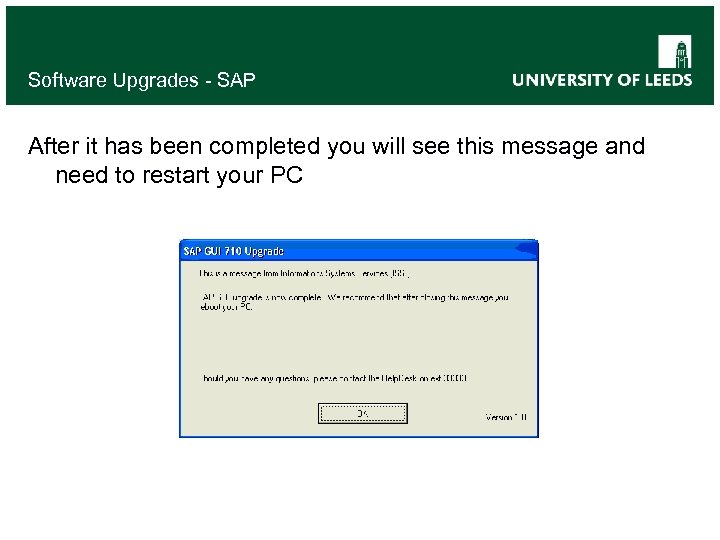
Software Upgrades - SAP After it has been completed you will see this message and need to restart your PC
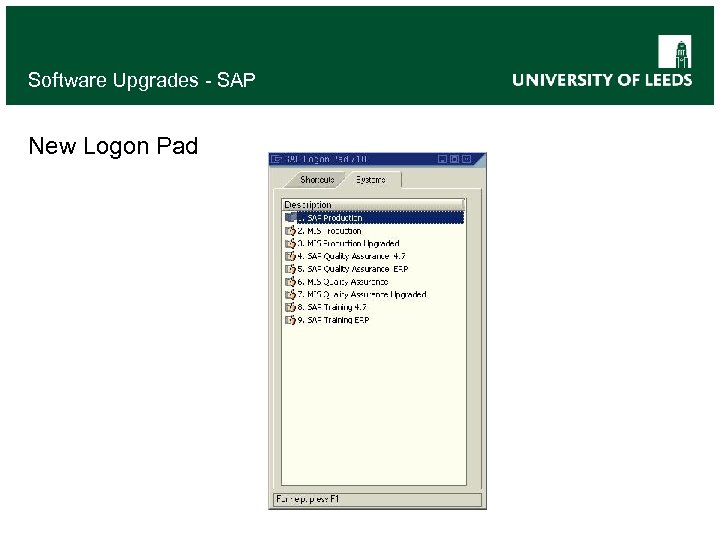
Software Upgrades - SAP New Logon Pad
Go Live - SAP Go live weekend: • System shutdown Wednesday 28 November 2007 at 5 pm • Upgrade and testing over weekend • GO/NO-GO decision taken • New system available Monday 3 December 2007
Go Live - MIS Go live weekend: No initial change to MIS functionality New MIS reports will become available as data is loaded from upgraded SAP System MIS Users should use the ‘ 3 x’ Analyzer at all times once it has been installed
SAP Familiarisation
SAP ERP 2005 When you first launch …. • Your current logon details (username and password) will be the same in the new system • Your Favorites will be transferred into the new system • Passwords are now case sensitive in the new system
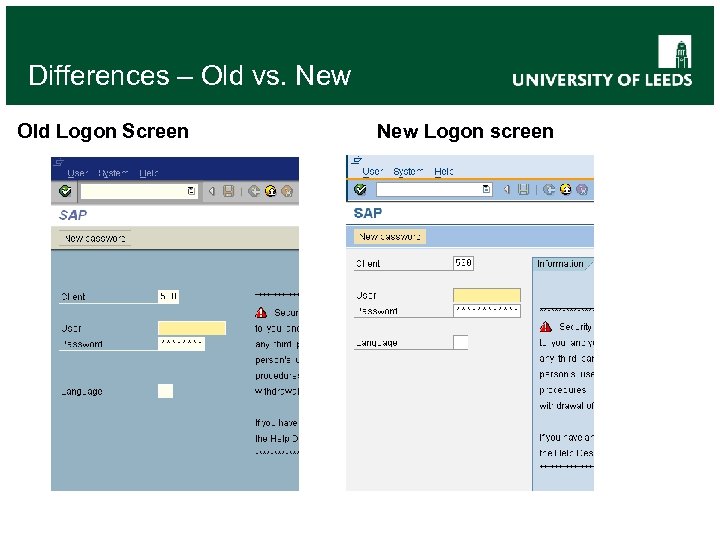
Differences – Old vs. New Old Logon Screen New Logon screen
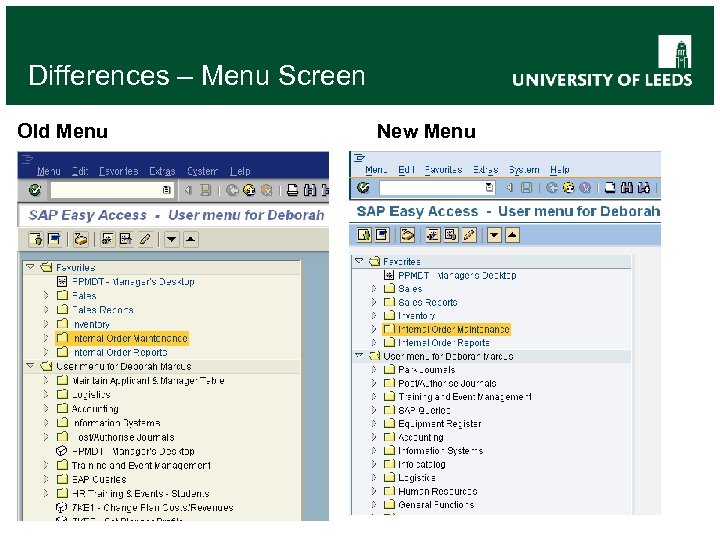
Differences – Menu Screen Old Menu New Menu
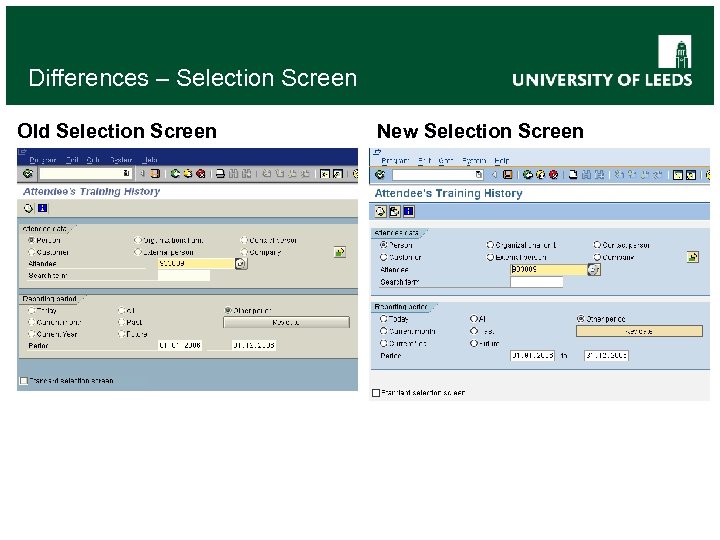
Differences – Selection Screen Old Selection Screen New Selection Screen
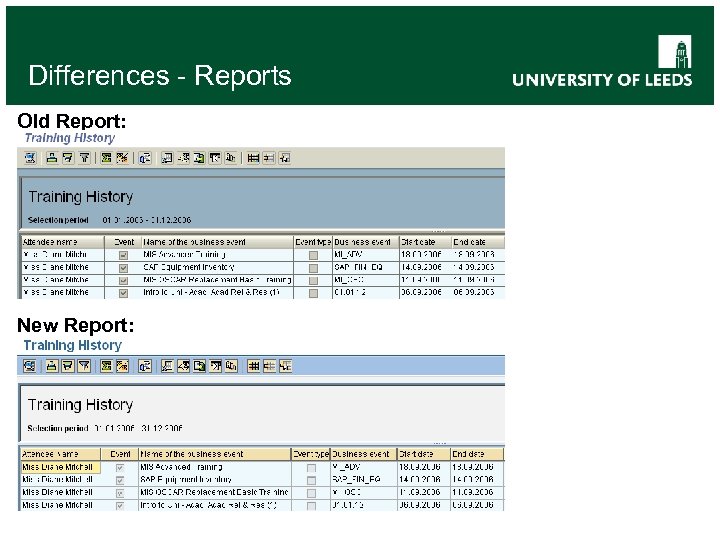
Differences - Reports Old Report: New Report:
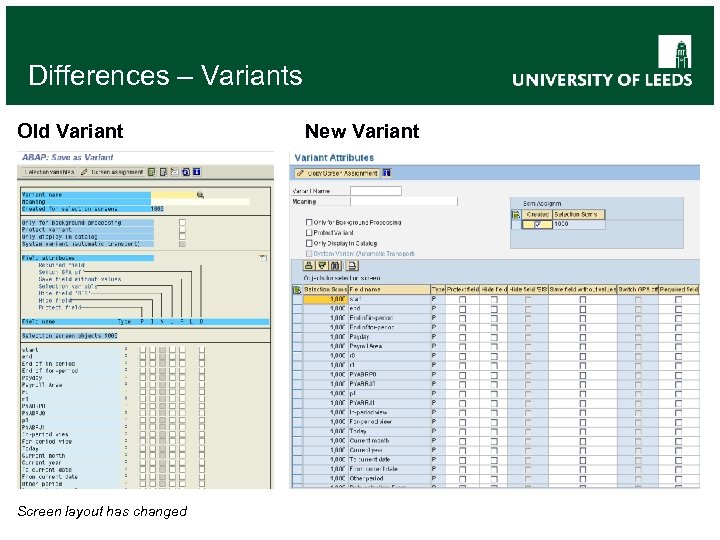
Differences – Variants Old Variant Screen layout has changed New Variant
SAP Familiarisation
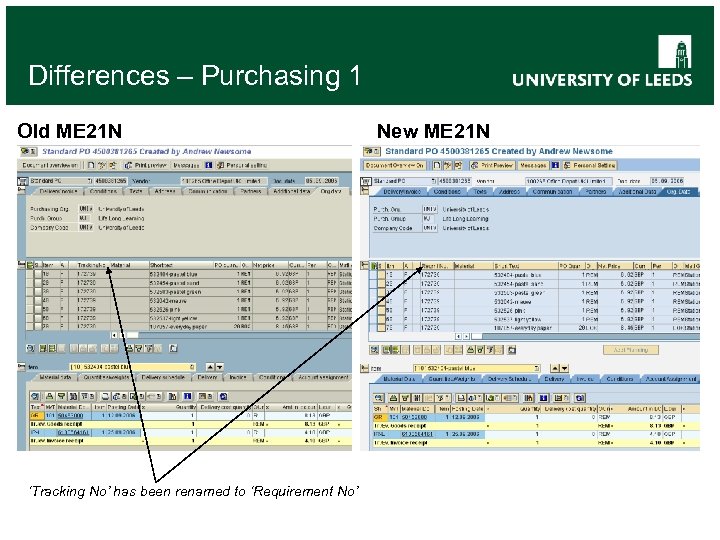
Differences – Purchasing 1 Old ME 21 N ‘Tracking No’ has been renamed to ‘Requirement No’ New ME 21 N
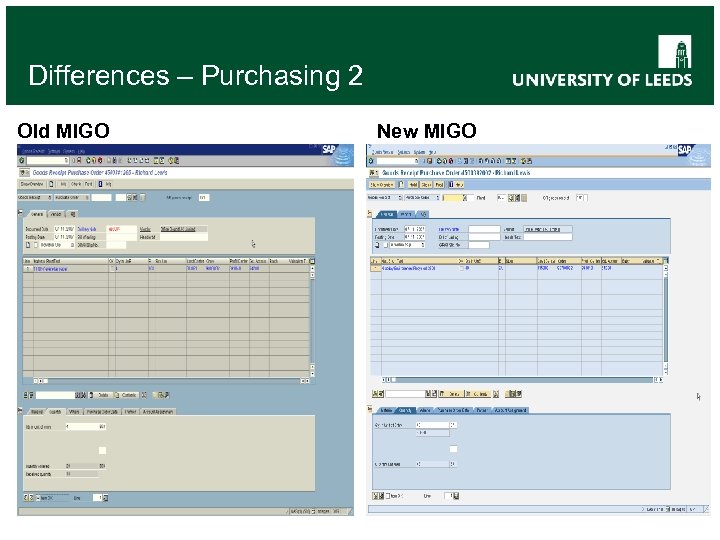
Differences – Purchasing 2 Old MIGO New MIGO
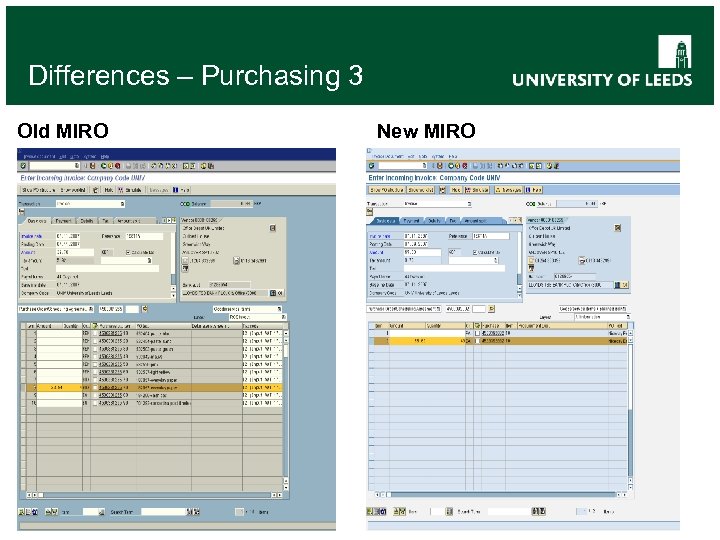
Differences – Purchasing 3 Old MIRO New MIRO
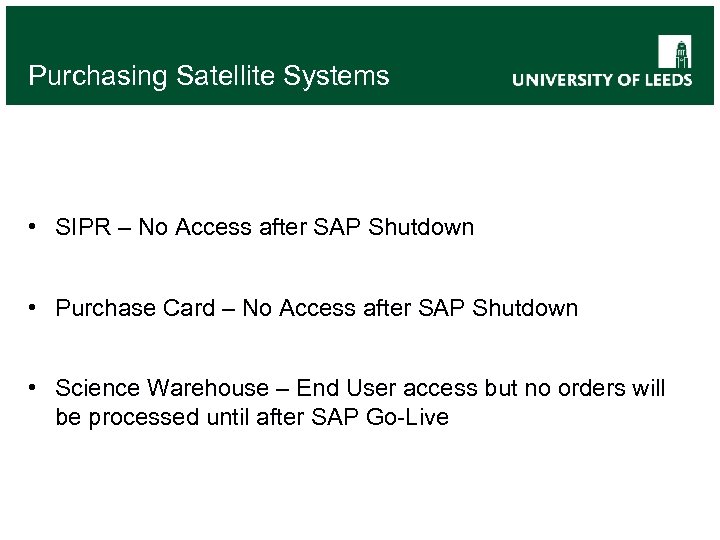
Purchasing Satellite Systems • SIPR – No Access after SAP Shutdown • Purchase Card – No Access after SAP Shutdown • Science Warehouse – End User access but no orders will be processed until after SAP Go-Live
SAP Familiarisation
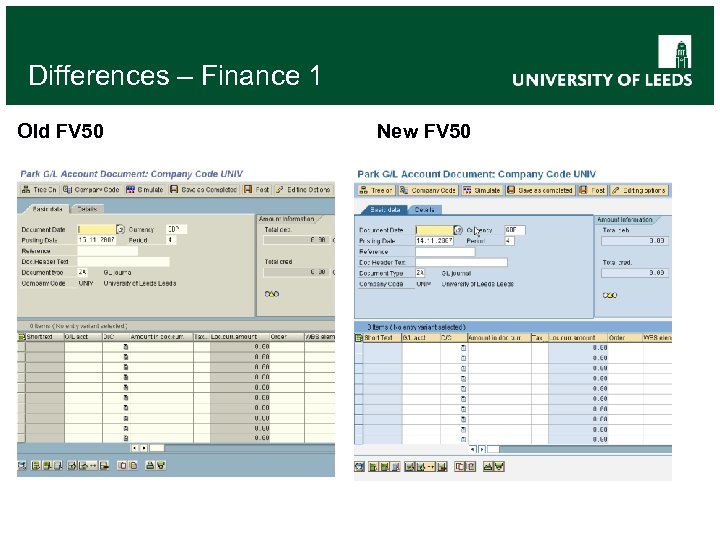
Differences – Finance 1 Old FV 50 New FV 50
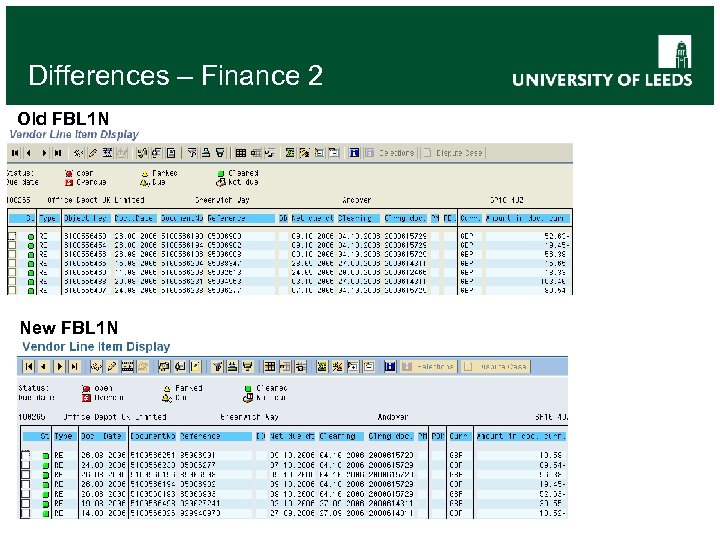
Differences – Finance 2 Old FBL 1 N New FBL 1 N
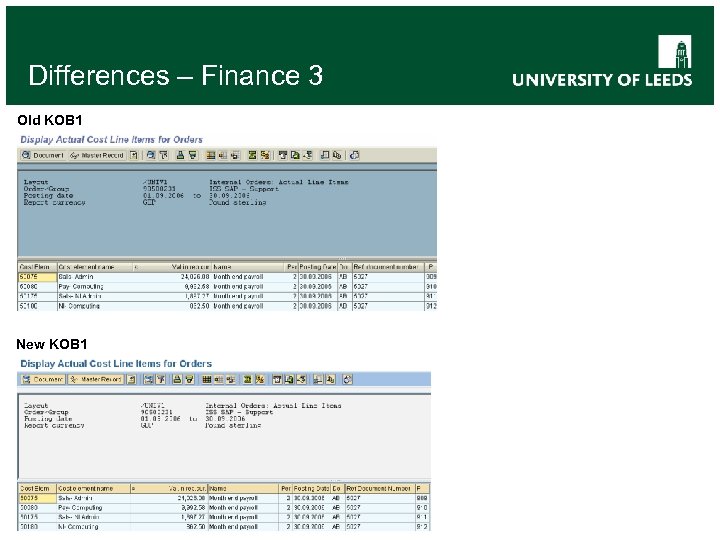
Differences – Finance 3 Old KOB 1 New KOB 1
SAP Familiarisation
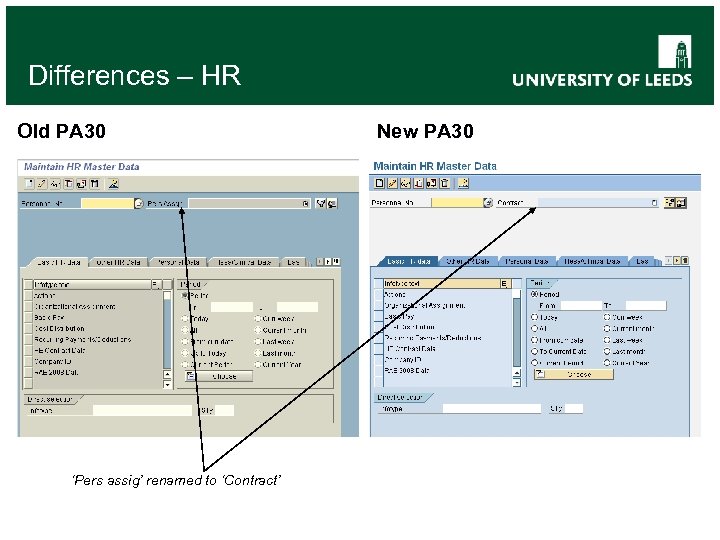
Differences – HR Old PA 30 ‘Pers assig’ renamed to ‘Contract’ New PA 30
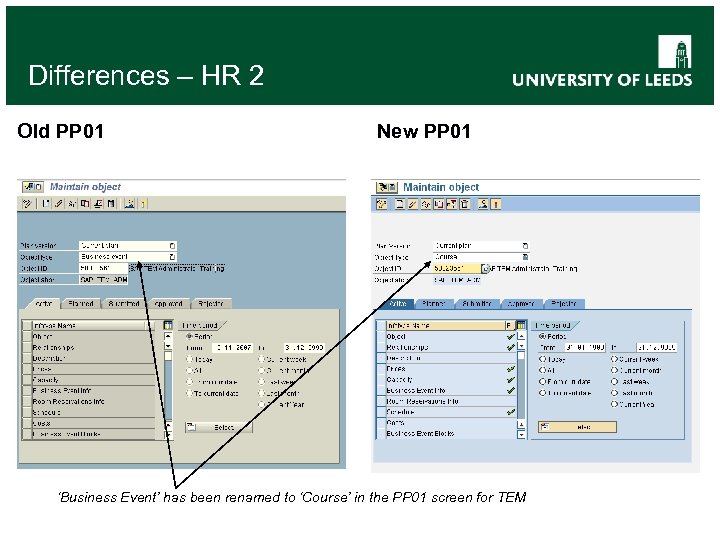
Differences – HR 2 Old PP 01 New PP 01 ‘Business Event’ has been renamed to ‘Course’ in the PP 01 screen for TEM
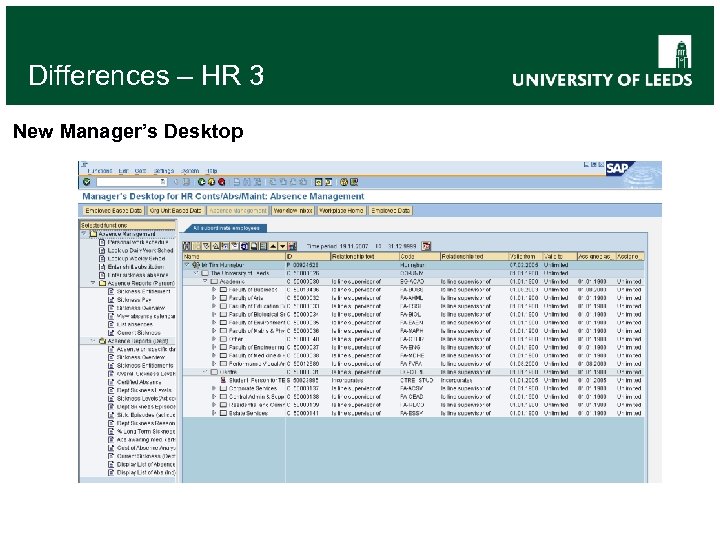
Differences – HR 3 New Manager’s Desktop
SAP Familiarisation Old Menu Screen New Menu Screen
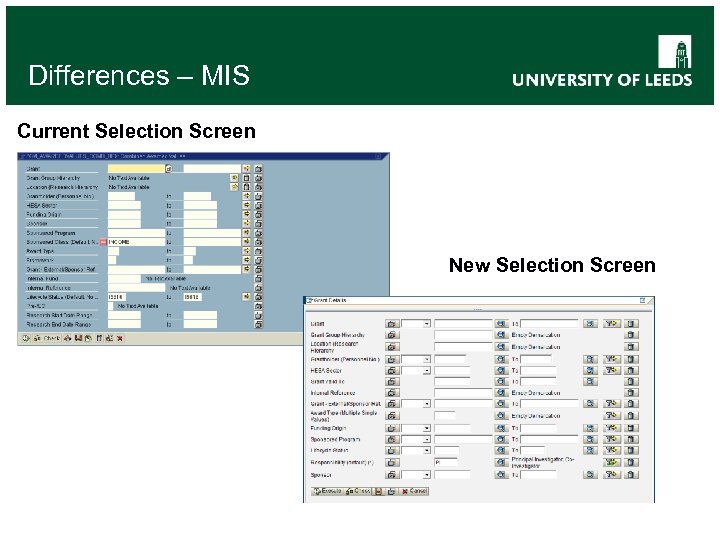
Differences – MIS Current Selection Screen New Selection Screen
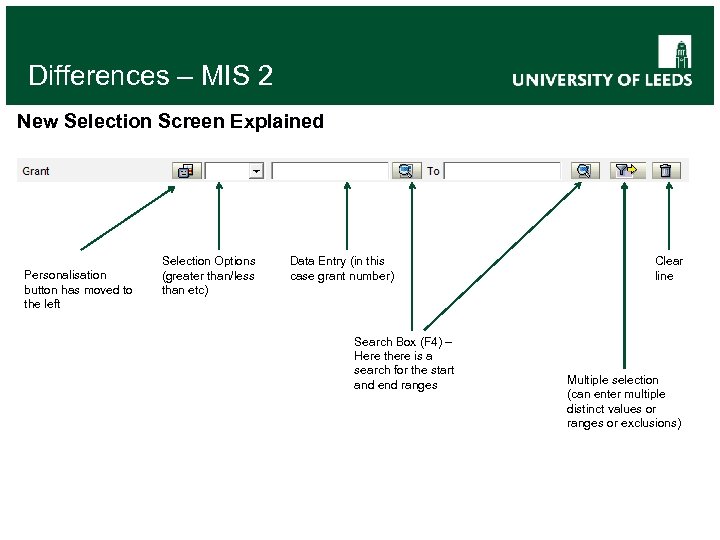
Differences – MIS 2 New Selection Screen Explained Personalisation button has moved to the left Selection Options (greater than/less than etc) Data Entry (in this case grant number) Search Box (F 4) – Here there is a search for the start and end ranges Clear line Multiple selection (can enter multiple distinct values or ranges or exclusions)
Differences – MIS 3 Due to the nature of MIS, initially (Go-Live day) there will be no change As data is loaded into the new system, the new reports will be released Users should log on as normal to access the current system. Once the new reports are available, an email will be sent out to inform users of this, along with guidance on how to access them. Please visit the MIS website for more information http: //www. leeds. ac. uk/infosystems/mis. html
SAP Familiarisation Any Questions?
SAP Familiarisation
Скачать презентацию Information Systems Services SAP Upgrade Familiarisation Session November
e71cc23568327103e1764ac6dc23b6d9.ppt