


 Скачать презентацию Information Systems Security Linux Introduction Supplemental Notes
ba682301c2e265979b312777f4a29fbc.ppt
- Количество слайдов: 36
 Information Systems Security Linux Introduction Supplemental Notes
 Command Line Interfaces Virtual Terminals ◦ ◦ CTL-ALT-F# Consoles 1 -6 are command line interfaces Console 7 is the graphical interface Each console is independent of the others Terminal Window (Konsole) ◦ Accessed as a shell window in the graphical interface. ◦ Provides an emulation of a virtual console. 2
 Linux Help Resources man pages ◦ online reference manuals ◦ example: man ◦ Uses less pager for navigation (man less) info pages ◦ more sophisticated navigation than man pages (info) Release notes ◦ /usr/share/doc/release-notes Howto files (Linux Documentation Project) ◦ /usr/share/doc/howto/en/html or txt Package help files ◦ /usr/share/doc/packages/package-name 3
 Ya. ST Management Utility Yet another Setup Utility Works with command line or graphical environment Allows management of ◦ ◦ ◦ Software packages User & Group Accounts Printer Configuration View Hardware Configuration X Windows configuration 4
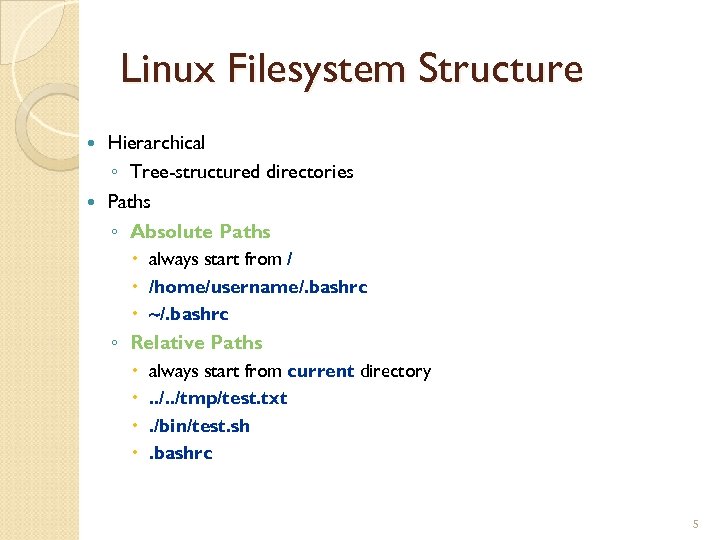 Linux Filesystem Structure Hierarchical ◦ Tree-structured directories Paths ◦ Absolute Paths always start from / /home/username/. bashrc ~/. bashrc ◦ Relative Paths always start from current directory . . /tmp/test. txt . /bin/test. sh . bashrc 5
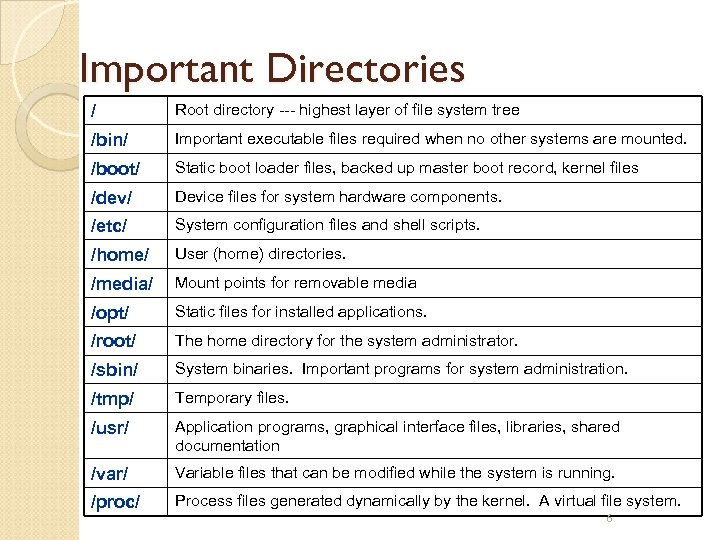 Important Directories / Root directory --- highest layer of file system tree /bin/ Important executable files required when no other systems are mounted. /boot/ Static boot loader files, backed up master boot record, kernel files /dev/ Device files for system hardware components. /etc/ System configuration files and shell scripts. /home/ User (home) directories. /media/ Mount points for removable media /opt/ Static files for installed applications. /root/ The home directory for the system administrator. /sbin/ System binaries. Important programs for system administration. /tmp/ Temporary files. /usr/ Application programs, graphical interface files, libraries, shared documentation /var/ Variable files that can be modified while the system is running. /proc/ Process files generated dynamically by the kernel. A virtual file system. 6
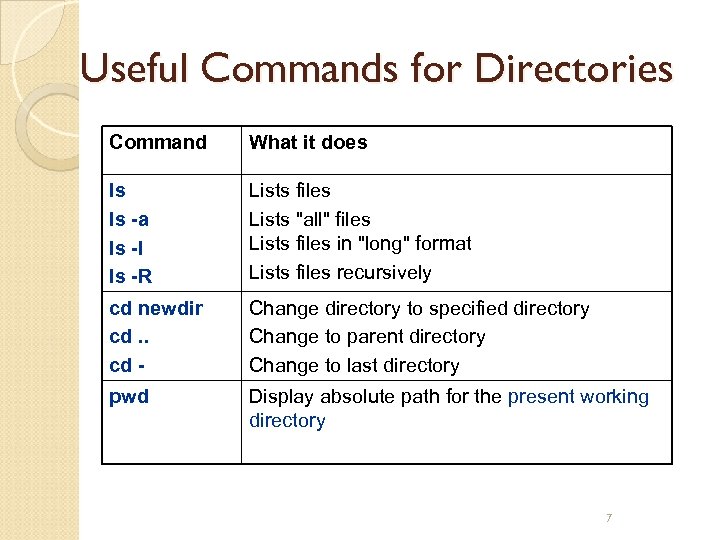 Useful Commands for Directories Command What it does ls ls -a ls -l ls -R Lists files Lists "all" files Lists files in "long" format Lists files recursively cd newdir cd. . cd - Change directory to specified directory Change to parent directory Change to last directory pwd Display absolute path for the present working directory 7
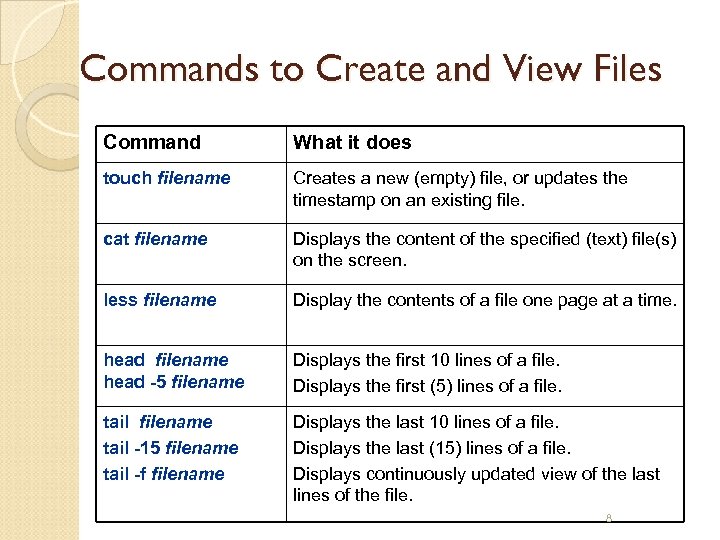 Commands to Create and View Files Command What it does touch filename Creates a new (empty) file, or updates the timestamp on an existing file. cat filename Displays the content of the specified (text) file(s) on the screen. less filename Display the contents of a file one page at a time. head filename head -5 filename Displays the first 10 lines of a file. Displays the first (5) lines of a file. tail filename tail -15 filename tail -f filename Displays the last 10 lines of a file. Displays the last (15) lines of a file. Displays continuously updated view of the last lines of the file. 8
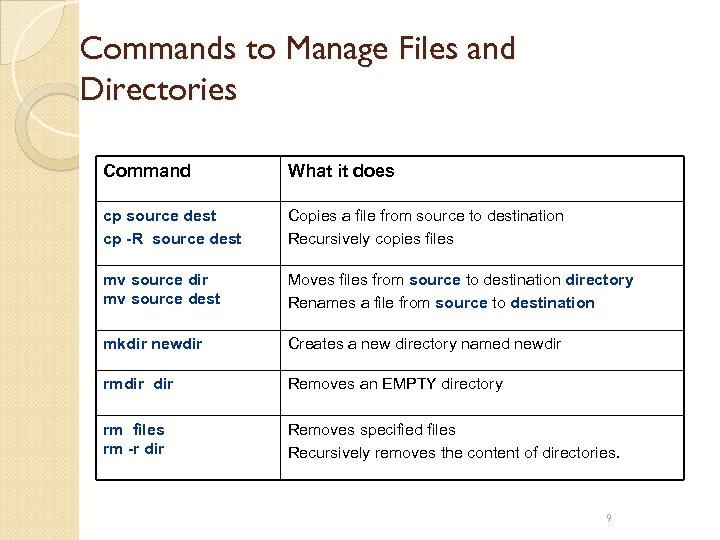 Commands to Manage Files and Directories Command What it does cp source dest cp -R source dest Copies a file from source to destination Recursively copies files mv source dir mv source dest Moves files from source to destination directory Renames a file from source to destination mkdir newdir Creates a new directory named newdir rmdir Removes an EMPTY directory rm files rm -r dir Removes specified files Recursively removes the content of directories. 9
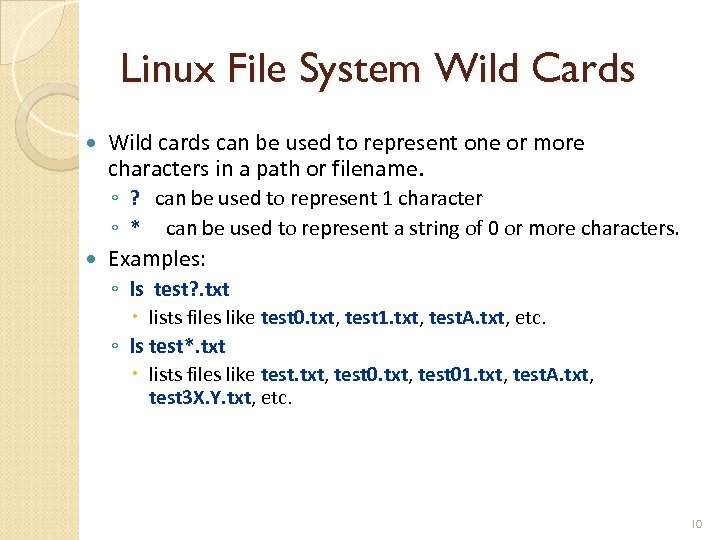 Linux File System Wild Cards Wild cards can be used to represent one or more characters in a path or filename. ◦ ? can be used to represent 1 character ◦ * can be used to represent a string of 0 or more characters. Examples: ◦ ls test? . txt lists files like test 0. txt, test 1. txt, test. A. txt, etc. ◦ ls test*. txt lists files like test. txt, test 01. txt, test. A. txt, test 3 X. Y. txt, etc. 10
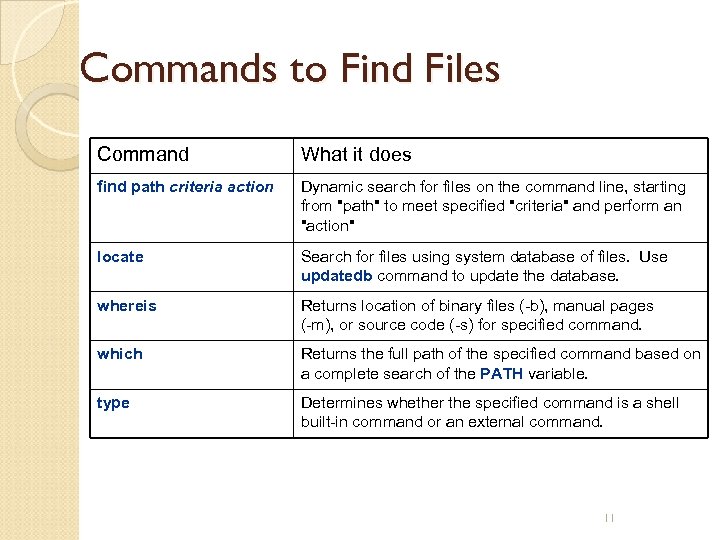 Commands to Find Files Command What it does find path criteria action Dynamic search for files on the command line, starting from "path" to meet specified "criteria" and perform an "action" locate Search for files using system database of files. Use updatedb command to update the database. whereis Returns location of binary files (-b), manual pages (-m), or source code (-s) for specified command. which Returns the full path of the specified command based on a complete search of the PATH variable. type Determines whether the specified command is a shell built-in command or an external command. 11
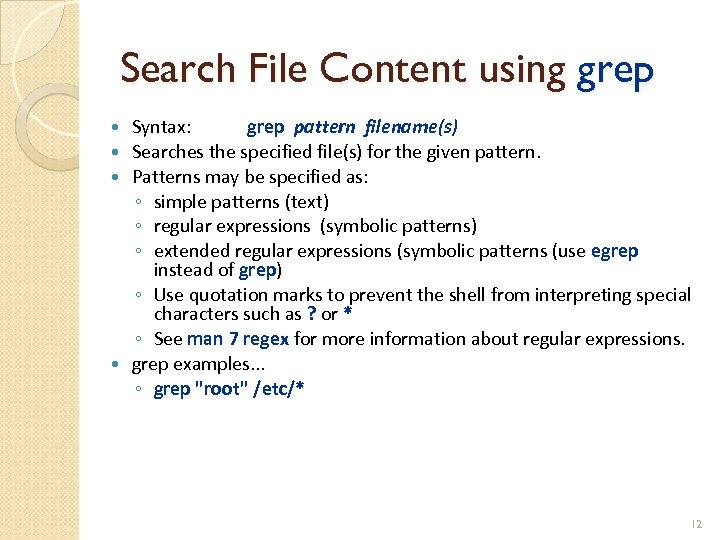 Search File Content using grep Syntax: grep pattern filename(s) Searches the specified file(s) for the given pattern. Patterns may be specified as: ◦ simple patterns (text) ◦ regular expressions (symbolic patterns) ◦ extended regular expressions (symbolic patterns (use egrep instead of grep) ◦ Use quotation marks to prevent the shell from interpreting special characters such as ? or * ◦ See man 7 regex for more information about regular expressions. grep examples. . . ◦ grep "root" /etc/* 12
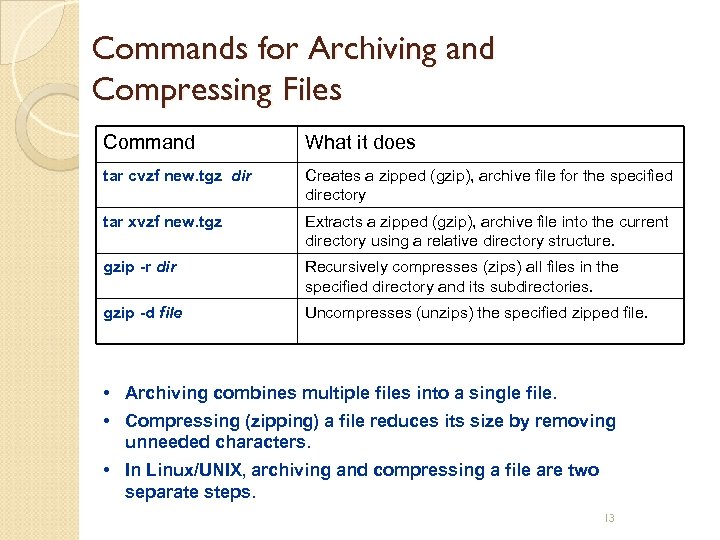 Commands for Archiving and Compressing Files Command What it does tar cvzf new. tgz dir Creates a zipped (gzip), archive file for the specified directory tar xvzf new. tgz Extracts a zipped (gzip), archive file into the current directory using a relative directory structure. gzip -r dir Recursively compresses (zips) all files in the specified directory and its subdirectories. gzip -d file Uncompresses (unzips) the specified zipped file. • Archiving combines multiple files into a single file. • Compressing (zipping) a file reduces its size by removing unneeded characters. • In Linux/UNIX, archiving and compressing a file are two separate steps. 13
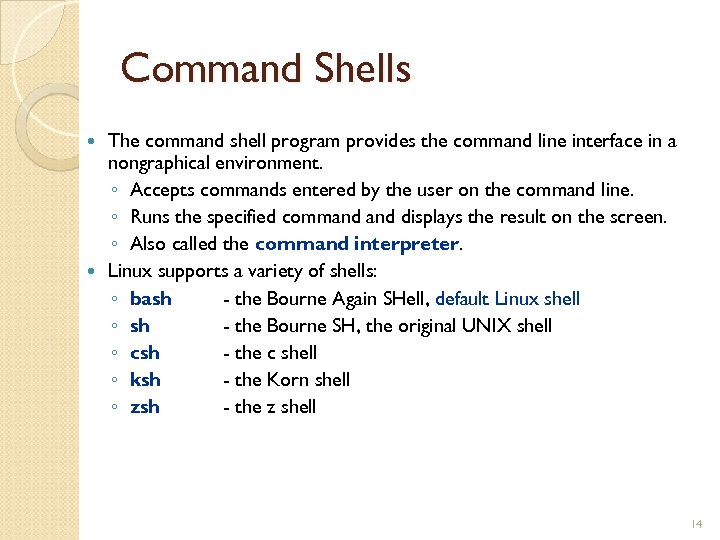 Command Shells The command shell program provides the command line interface in a nongraphical environment. ◦ Accepts commands entered by the user on the command line. ◦ Runs the specified command displays the result on the screen. ◦ Also called the command interpreter. Linux supports a variety of shells: ◦ bash - the Bourne Again SHell, default Linux shell ◦ sh - the Bourne SH, the original UNIX shell ◦ csh - the c shell ◦ ksh - the Korn shell ◦ zsh - the z shell 14
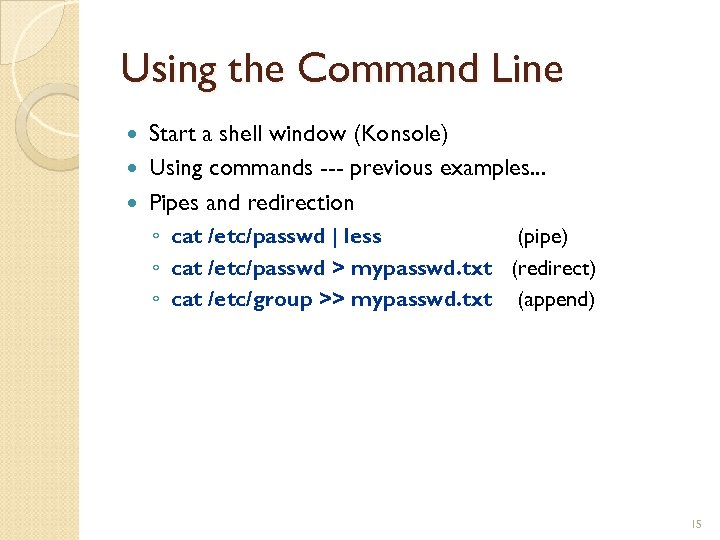 Using the Command Line Start a shell window (Konsole) Using commands --- previous examples. . . Pipes and redirection ◦ cat /etc/passwd | less (pipe) ◦ cat /etc/passwd > mypasswd. txt (redirect) ◦ cat /etc/group >> mypasswd. txt (append) 15
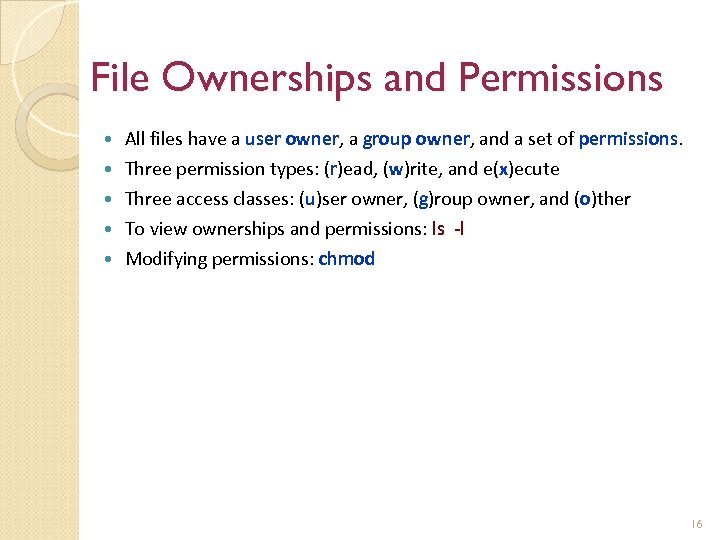 File Ownerships and Permissions All files have a user owner, a group owner, and a set of permissions. Three permission types: (r)ead, (w)rite, and e(x)ecute Three access classes: (u)ser owner, (g)roup owner, and (o)ther To view ownerships and permissions: ls -l Modifying permissions: chmod 16
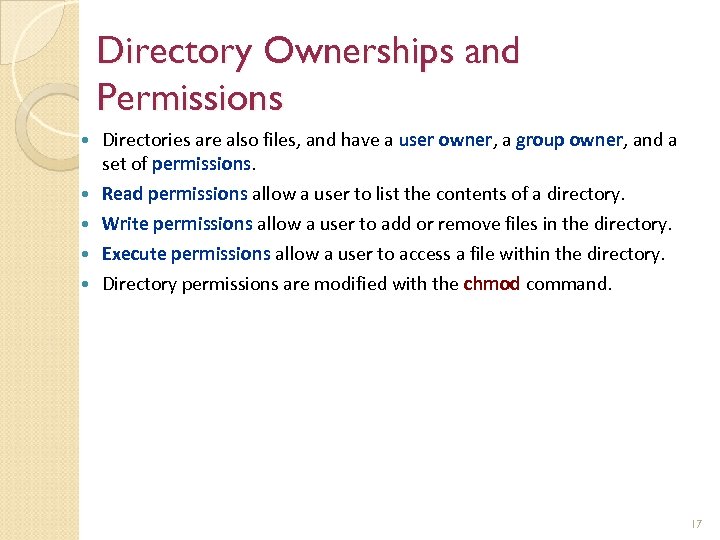 Directory Ownerships and Permissions Directories are also files, and have a user owner, a group owner, and a set of permissions. Read permissions allow a user to list the contents of a directory. Write permissions allow a user to add or remove files in the directory. Execute permissions allow a user to access a file within the directory. Directory permissions are modified with the chmod command. 17
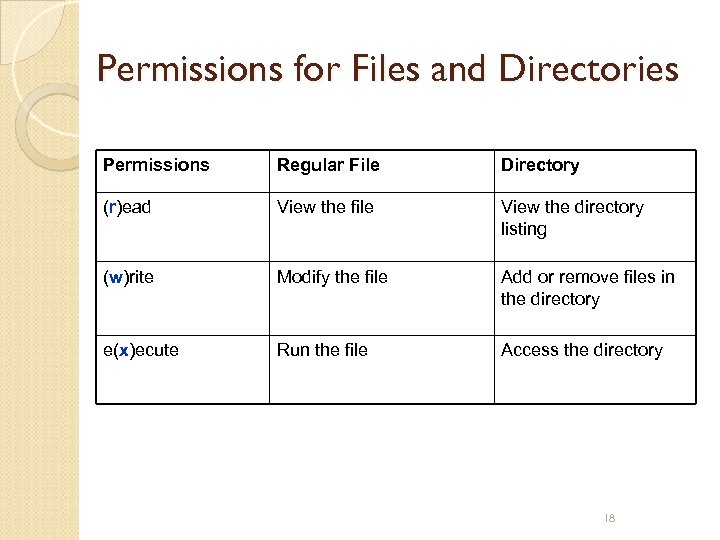 Permissions for Files and Directories Permissions Regular File Directory (r)ead View the file View the directory listing (w)rite Modify the file Add or remove files in the directory e(x)ecute Run the file Access the directory 18
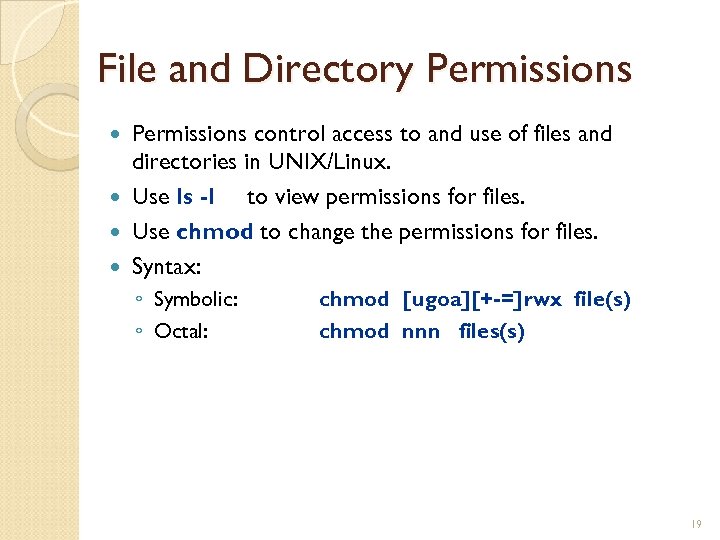 File and Directory Permissions control access to and use of files and directories in UNIX/Linux. Use ls -l to view permissions for files. Use chmod to change the permissions for files. Syntax: ◦ Symbolic: ◦ Octal: chmod [ugoa][+-=]rwx file(s) chmod nnn files(s) 19
![chmod Symbolic Notation chmod [ugoa] [+ - =] [rwx] file(s) ◦ ugoa --- to](https://present5.com/presentation/ba682301c2e265979b312777f4a29fbc/image-20.jpg "chmod Symbolic Notation chmod [ugoa] [+ - =] [rwx] file(s) ◦ ugoa --- to") chmod Symbolic Notation chmod [ugoa] [+ - =] [rwx] file(s) ◦ ugoa --- to whom does the change apply? u = user (owner), g = group, o = others, a = all ◦ + - = --- is the change relative or absolute? + => add the specified permission - => remove the specified permission = => set exactly the specified permissions ◦ rwx --- what permissions are being applied? r = permission to read the file or directory w = permission to write to the file or directory x = permission to execute (run) the file or access the directory. 20
chmod Symbolic Notation chmod [ugoa] [+ - =] [rwx] file(s) ◦ ugoa --- to whom does the change apply? u = user (owner), g = group, o = others, a = all ◦ + - = --- is the change relative or absolute? + => add the specified permission - => remove the specified permission = => set exactly the specified permissions ◦ rwx --- what permissions are being applied? r = permission to read the file or directory w = permission to write to the file or directory x = permission to execute (run) the file or access the directory. 20
![chmod examples [elvis@station elvis]$ ls -l foo -rw-rw-r-- 1 elvis 42 Jan 16 08:](https://present5.com/presentation/ba682301c2e265979b312777f4a29fbc/image-21.jpg "chmod examples [elvis@station elvis]$ ls -l foo -rw-rw-r-- 1 elvis 42 Jan 16 08:") chmod examples [elvis@station elvis]$ ls -l foo -rw-rw-r-- 1 elvis 42 Jan 16 08: 09 foo What is the effect of the following commands? chmod o-r foo chmod g-w foo chmod ug+x foo chmod o+w foo chmod go-rwx foo chmod a-w foo chmod uo-r foo chmod go=rx foo 21
chmod examples [elvis@station elvis]$ ls -l foo -rw-rw-r-- 1 elvis 42 Jan 16 08: 09 foo What is the effect of the following commands? chmod o-r foo chmod g-w foo chmod ug+x foo chmod o+w foo chmod go-rwx foo chmod a-w foo chmod uo-r foo chmod go=rx foo 21
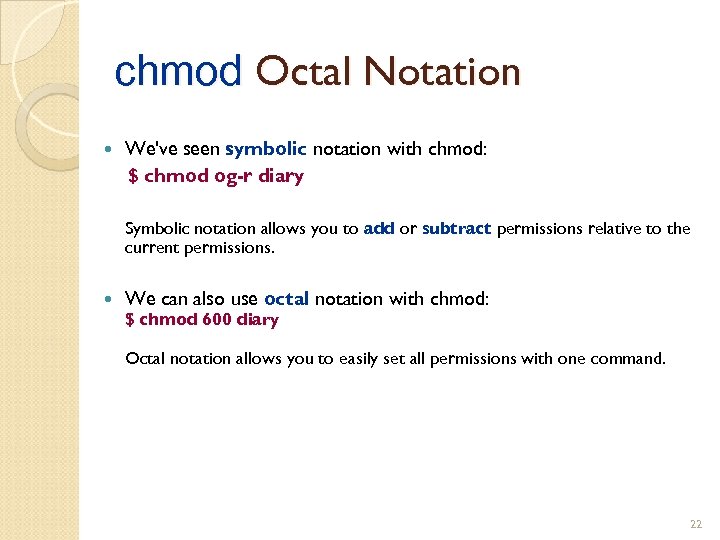 chmod Octal Notation We've seen symbolic notation with chmod: $ chmod og-r diary Symbolic notation allows you to add or subtract permissions relative to the current permissions. We can also use octal notation with chmod: $ chmod 600 diary Octal notation allows you to easily set all permissions with one command. 22
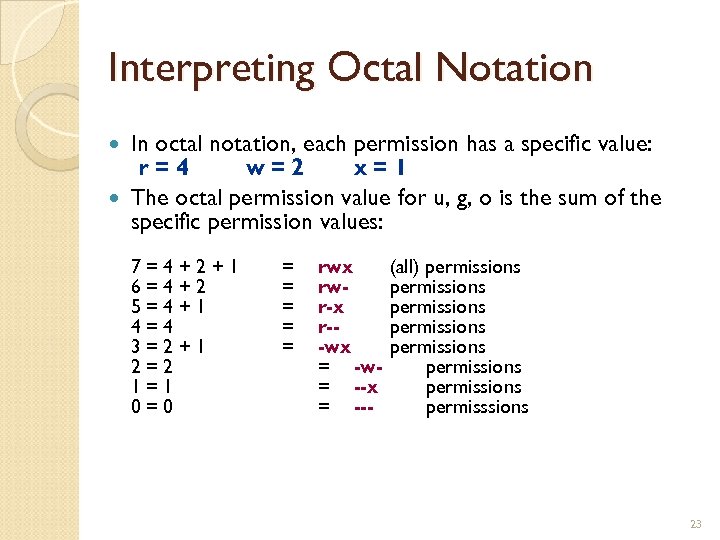 Interpreting Octal Notation In octal notation, each permission has a specific value: r=4 w=2 x=1 The octal permission value for u, g, o is the sum of the specific permission values: 7=4+2+1 6=4+2 5=4+1 4=4 3=2+1 2=2 1=1 0=0 = = = rwx rwr-x r--wx = -w= --x = --- (all) permissions permissions permisssions 23
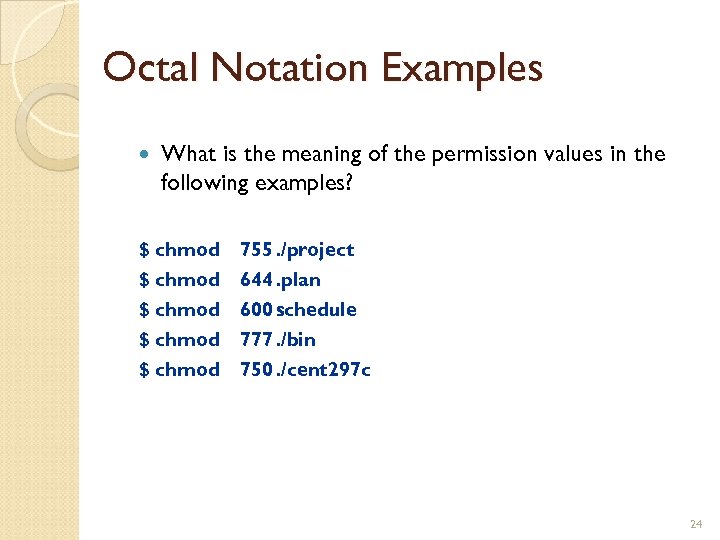 Octal Notation Examples What is the meaning of the permission values in the following examples? $ chmod $ chmod 755. /project 644. plan 600 schedule 777. /bin 750. /cent 297 c 24
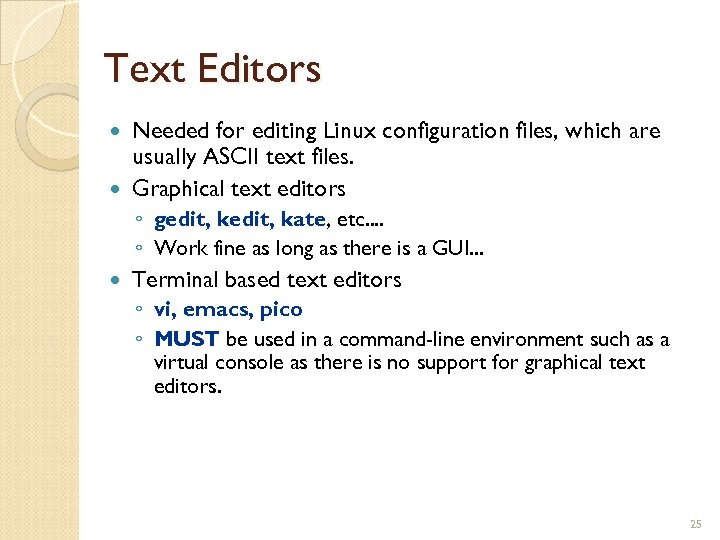 Text Editors Needed for editing Linux configuration files, which are usually ASCII text files. Graphical text editors ◦ gedit, kate, etc. . ◦ Work fine as long as there is a GUI. . . Terminal based text editors ◦ vi, emacs, pico ◦ MUST be used in a command-line environment such as a virtual console as there is no support for graphical text editors. 25
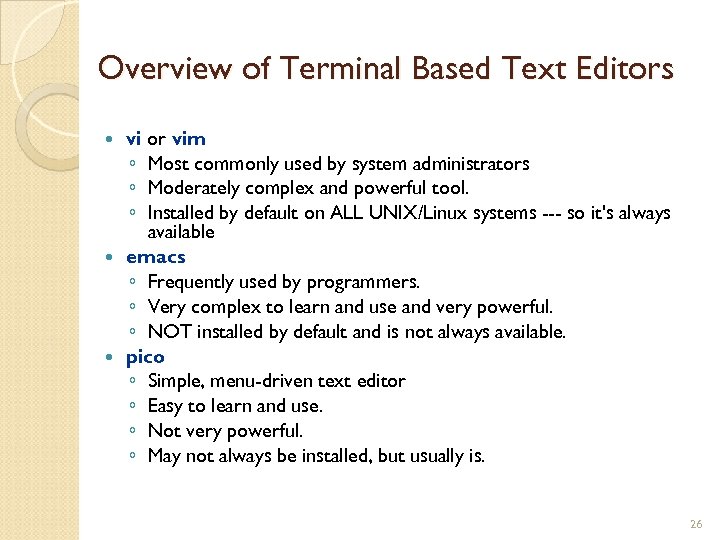 Overview of Terminal Based Text Editors vi or vim ◦ Most commonly used by system administrators ◦ Moderately complex and powerful tool. ◦ Installed by default on ALL UNIX/Linux systems --- so it's always available emacs ◦ Frequently used by programmers. ◦ Very complex to learn and use and very powerful. ◦ NOT installed by default and is not always available. pico ◦ Simple, menu-driven text editor ◦ Easy to learn and use. ◦ Not very powerful. ◦ May not always be installed, but usually is. 26
 vim intro vi visual editor commonly used Unix text editor vim vi improved updated version of vi that’s somewhat easier to use default version of vi provided with Linux 27
 vim basics vim filename creates and new file and opens it for editing vi modes command mode --- used for entering commands, saving files, and quitting vi insert mode --- used for entering text The following file includes a summary of vi commands 01_vi. pdf 28
 Shell Scripts A shell script in Unix is essentially the same thing as a batch file in DOS A file that contains a sequence of commands that the Unix operating system can interpret and run To create a Unix script Create the script file using vi or vim Save the file Set the permissions of the file to make it executable 29
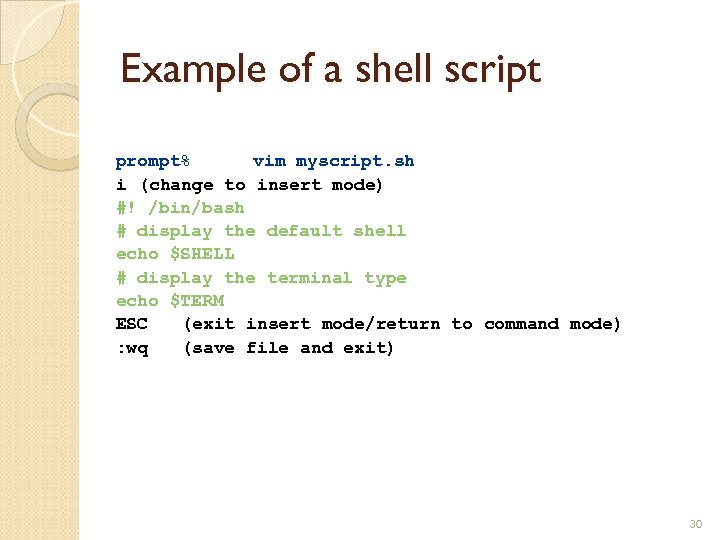 Example of a shell script prompt% vim myscript. sh i (change to insert mode) #! /bin/bash # display the default shell echo $SHELL # display the terminal type echo $TERM ESC (exit insert mode/return to command mode) : wq (save file and exit) 30
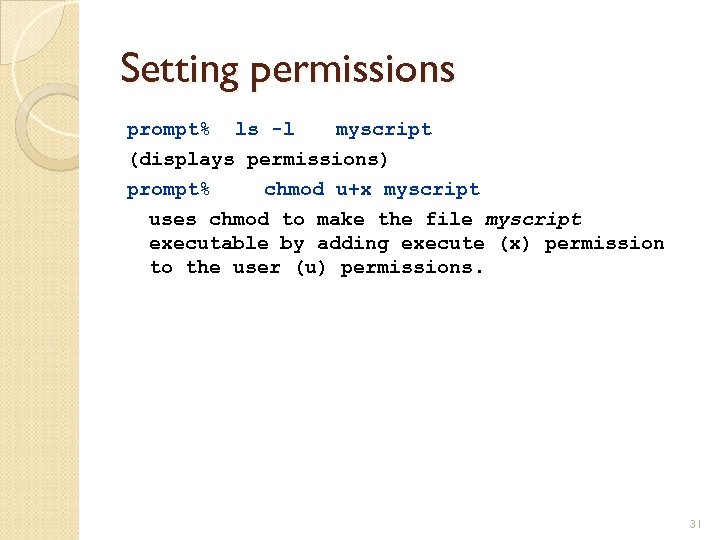 Setting permissions prompt% ls -l myscript (displays permissions) prompt% chmod u+x myscript uses chmod to make the file myscript executable by adding execute (x) permission to the user (u) permissions. 31
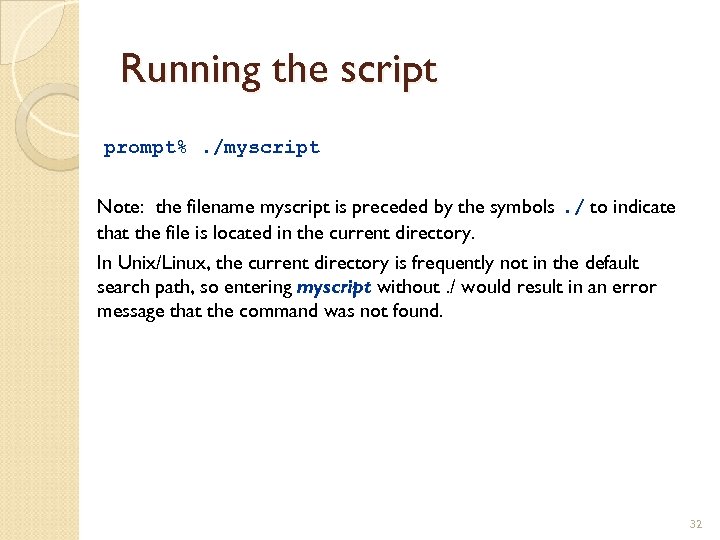 Running the script prompt%. /myscript Note: the filename myscript is preceded by the symbols. / to indicate that the file is located in the current directory. In Unix/Linux, the current directory is frequently not in the default search path, so entering myscript without. / would result in an error message that the command was not found. 32
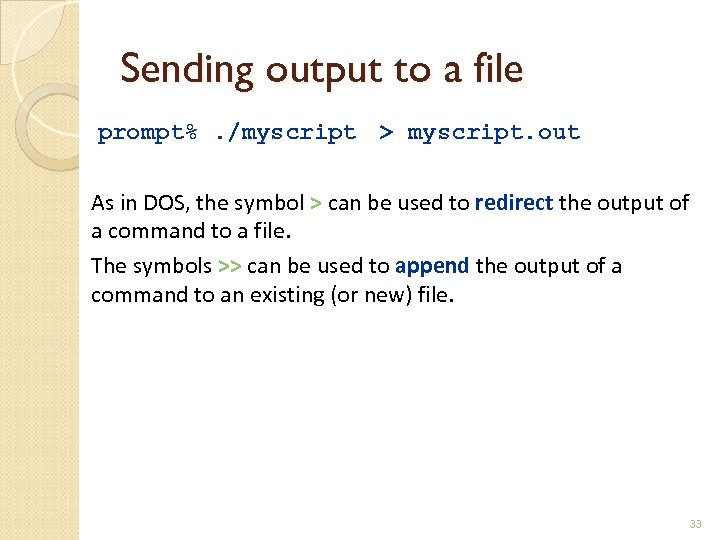 Sending output to a file prompt%. /myscript > myscript. out As in DOS, the symbol > can be used to redirect the output of a command to a file. The symbols >> can be used to append the output of a command to an existing (or new) file. 33
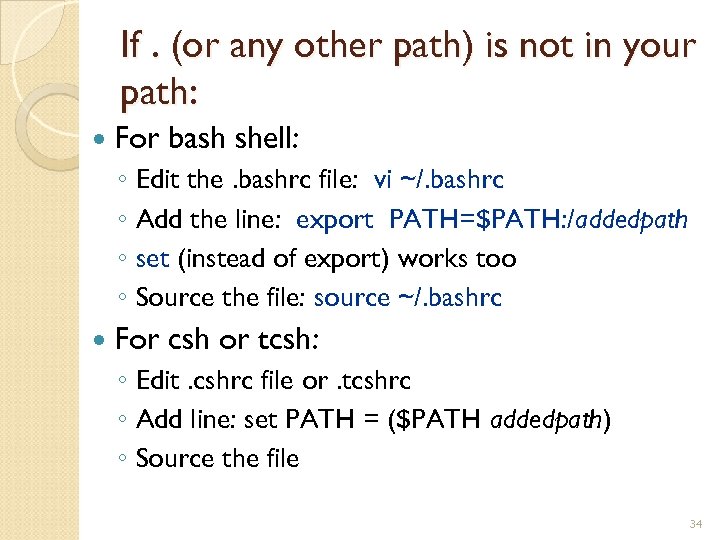 If. (or any other path) is not in your path: For bash shell: ◦ Edit the. bashrc file: vi ~/. bashrc ◦ Add the line: export PATH=$PATH: /addedpath ◦ set (instead of export) works too ◦ Source the file: source ~/. bashrc For csh or tcsh: ◦ Edit. cshrc file or. tcshrc ◦ Add line: set PATH = ($PATH addedpath) ◦ Source the file 34
 How will you know if it’s not in your path? You won’t be able to run the command Use “which” command to find out where the command is ◦ which ifconfig ◦ If it is not found, you got to find it and add it’s path to your PATH variable Run: $PATH to find out what your path is 35
 Networking commands and files http: //www. reallylinux. com/docs/admin. shtml Basic commands for sys admins (everything, not only networking) http: //www. yolinux. com/TUTORIALS/Linux. Tut orial. Networking. html#CONFIGFILES http: //www. yolinux. com/TUTORIALS/Linux. Tut orial. Networking. html Comprehensive sys admin tutorial 36