 Скачать презентацию Informal task analysis Better than none
e2fb0bdadcbd2fcda59df073504ed2aa.ppt
- Количество слайдов: 73



Informal task analysis • Better than none • Contact with user – Observe – Ask for explanation • Documenting everything
Assignment Use at least two usability methods to evaluate the prototype of your projects. , then write a usability report.
Getting to Know Users and Their Tasks • Find some real people who would be potential users • Get them to spend some time with you – Be friends with, beg, buy, whatever • Work with user to come up with concrete, detailed task examples – Example should say what the user wants to do but does not say how the user would do it. – Example should be specific – Example is itself a complete job
Example Task Example • Developing a traffic modeling tool for city planners • Work with users to come up with several example task like: “Chang the speed limit on Canyon Boulevard eastbound between Arapahoe and 9 th. Calculate projected traffic flows on Arapahoe west of 6 th assuming Canyon speeds between 25 and 55 in increments of 5 mph”
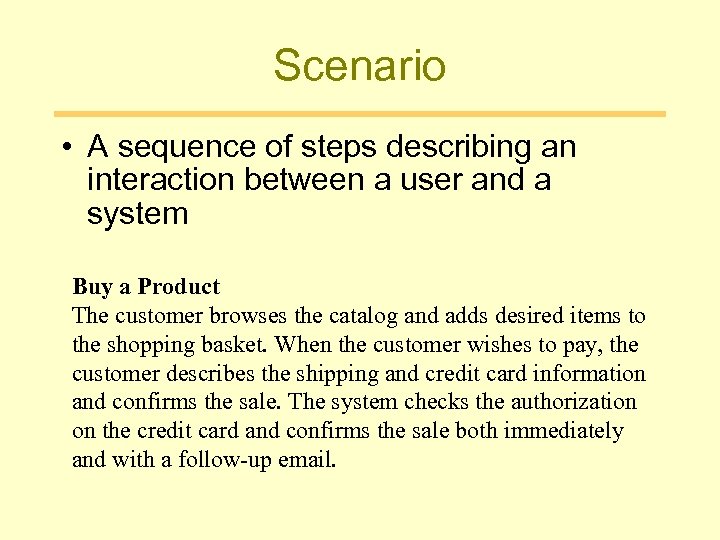
Scenario • A sequence of steps describing an interaction between a user and a system Buy a Product The customer browses the catalog and adds desired items to the shopping basket. When the customer wishes to pay, the customer describes the shipping and credit card information and confirms the sale. The system checks the authorization on the credit card and confirms the sale both immediately and with a follow-up email.
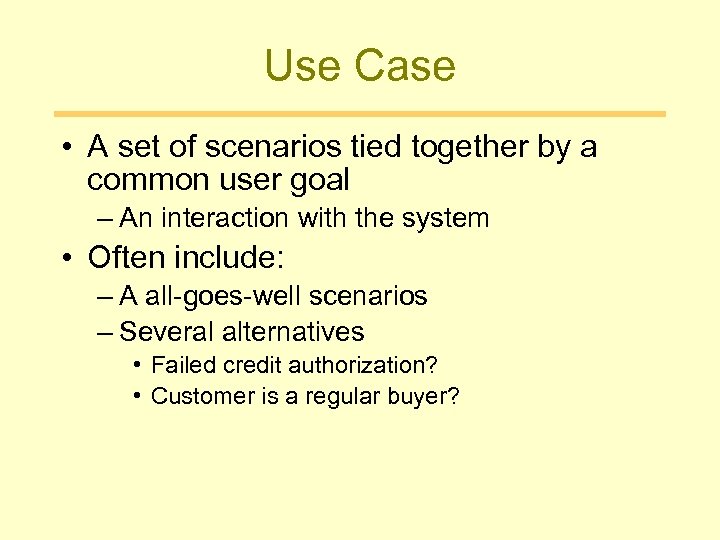
Use Case • A set of scenarios tied together by a common user goal – An interaction with the system • Often include: – A all-goes-well scenarios – Several alternatives • Failed credit authorization? • Customer is a regular buyer?
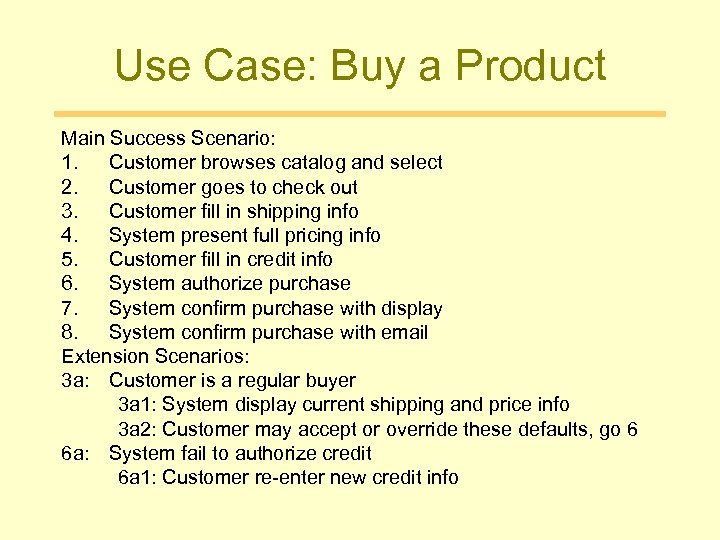
Use Case: Buy a Product Main Success Scenario: 1. Customer browses catalog and select 2. Customer goes to check out 3. Customer fill in shipping info 4. System present full pricing info 5. Customer fill in credit info 6. System authorize purchase 7. System confirm purchase with display 8. System confirm purchase with email Extension Scenarios: 3 a: Customer is a regular buyer 3 a 1: System display current shipping and price info 3 a 2: Customer may accept or override these defaults, go 6 6 a: System fail to authorize credit 6 a 1: Customer re-enter new credit info
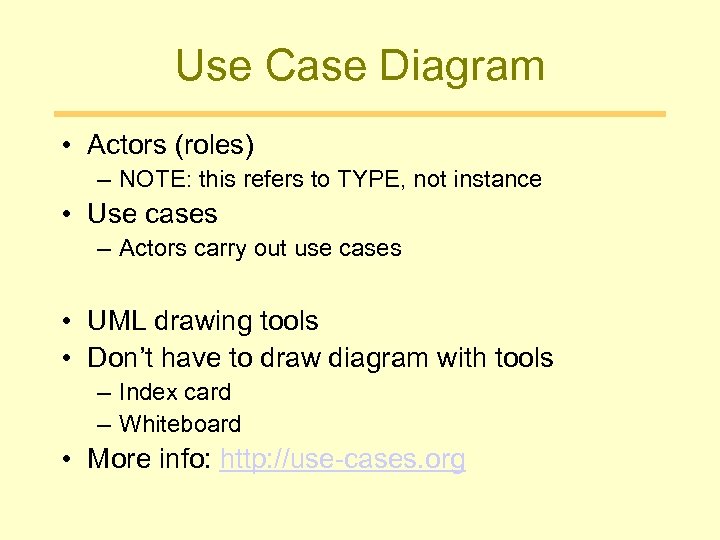
Use Case Diagram • Actors (roles) – NOTE: this refers to TYPE, not instance • Use cases – Actors carry out use cases • UML drawing tools • Don’t have to draw diagram with tools – Index card – Whiteboard • More info: http: //use-cases. org
More notes • Actors can be external systems • It’s easier to first think of a list of actors, then come up with use cases for each actor • Use cases are the meat • A use case often satisfies a particular goal of an actor <-> Whoever really cares about the use case is the actor • Think of events, each one often leads to a use case
Use Case Relationship • Include – sub use case, avoid repetition • Generalization – A variation on normal behavior – More casual • Extend – A variation on normal behavior – Extension points – More control on where you want extension
Level of Detail • For complex system, there can be thousands of scenarios • How to decide what level of detail is good enough? – Higher risk, more detail – Usually a dozen or so base use cases, depends on the project – Can be added in later iteration
Developing Use Cases • Use cases are external views of the system – Are not design • Focus on the TEXT – Describe each actor and use cases in details – Diagram only serves to • helps you see the overview, details are in the text • The point of diagram is to reduce the redundant text • Work with users!
Use Case Diagram • Actors (roles) – NOTE: this refers to TYPE, not instance • Use cases (tasks) – Actors carry out use cases
Use Case Relationship • Include – sub use case, avoid repetition • Generalization – A variation on normal behavior – More casual • Extend – A variation on normal behavior – Extension points – More control on where you want extension
Developing Use Cases • Use cases are external views of the system – Are not design • Focus on the TEXT – Describe each actor and use cases in details – Diagram only serves to • helps you see the overview, details are in the text • The point of diagram is to reduce the redundant text • Work with users!
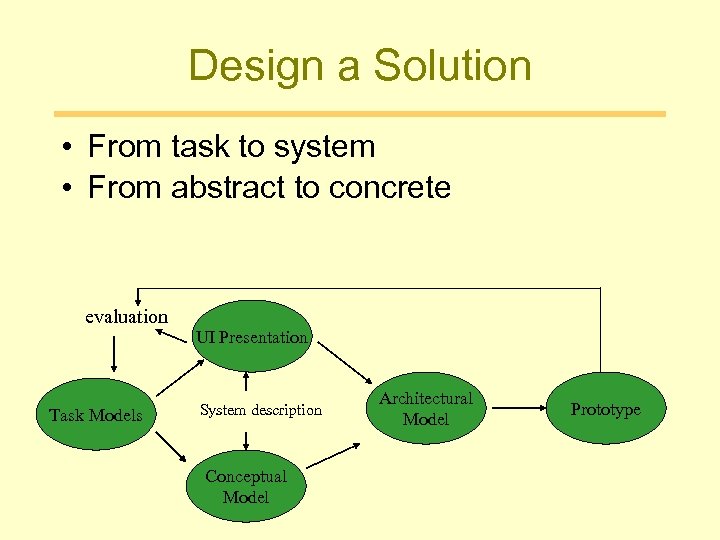
Design a Solution • From task to system • From abstract to concrete evaluation Task Models UI Presentation System description Conceptual Model Architectural Model Prototype
Design Artifacts • How do we express early design ideas? – No coding at this stage • Key notions – Make it fast!!! – Allow lots of flexibility for radically different designs – Make it cheap – Promote valuable feedback *** Facilitate iterative design and evaluation ***
Dilemma • You can’t evaluate design until it’s built – But… • After building, changes to the design are difficult • Simulate the design, in low-cost, easily changeable manner
Prototyping • A Prototype is a concrete but partial implementation of system design • A User Interface Prototype is a prototype built to explore usability issue
Prototyping Dimensions • 1. Representation – How is the design depicted or represented? – Can be just textual description or can be visuals and diagrams • 2. Scope – Is it just the interface (mock-up) or does it include some computational component?
Dimensions (conti. ) • 3. Executability – Can the prototype be “run”? – If coding, there will be periods when it can’t • 4. Maturation – What are the stages of the product as it comes along? • Revolutionary - Throw out old one • Evolutionary - Keep changing previous design
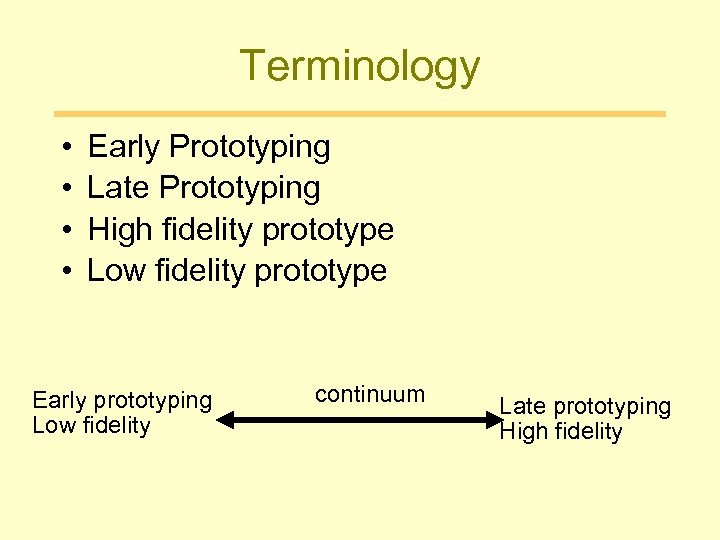
Terminology • • Early Prototyping Late Prototyping High fidelity prototype Low fidelity prototype Early prototyping Low fidelity continuum Late prototyping High fidelity
Terminology (2) • Horizontal prototype Very broad, does or shows much of the interface, but does this in a shallow manner • Vertical prototype Fewer features or aspects of the interface simulated, but done in great detail
Low Fidelity Prototyping • Uses a medium which is unlike the final medium, e. g. paper, cardboard • Is quick, cheap and easily changed • Examples: sketches of screens, task sequences, etc ‘Post-it’ notes storyboards ‘Wizard-of-Oz’
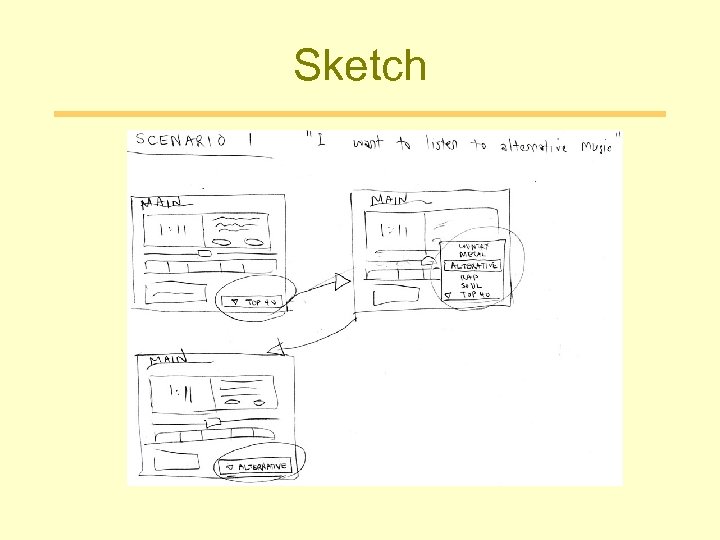
Sketch
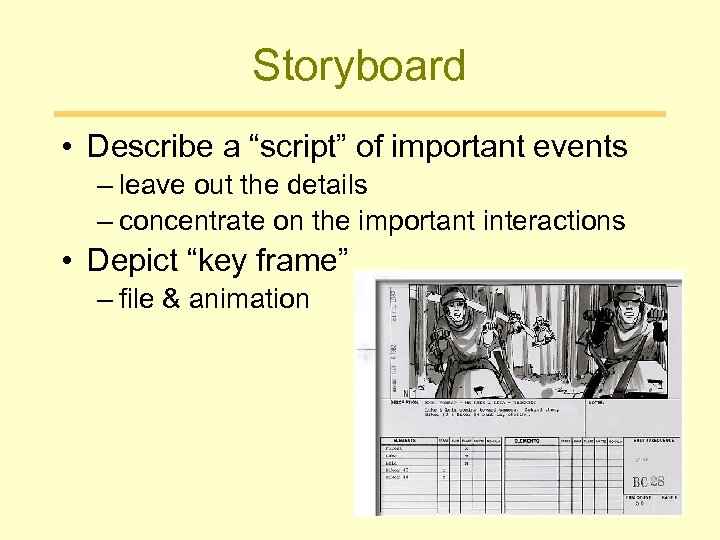
Storyboard • Describe a “script” of important events – leave out the details – concentrate on the important interactions • Depict “key frame” – file & animation
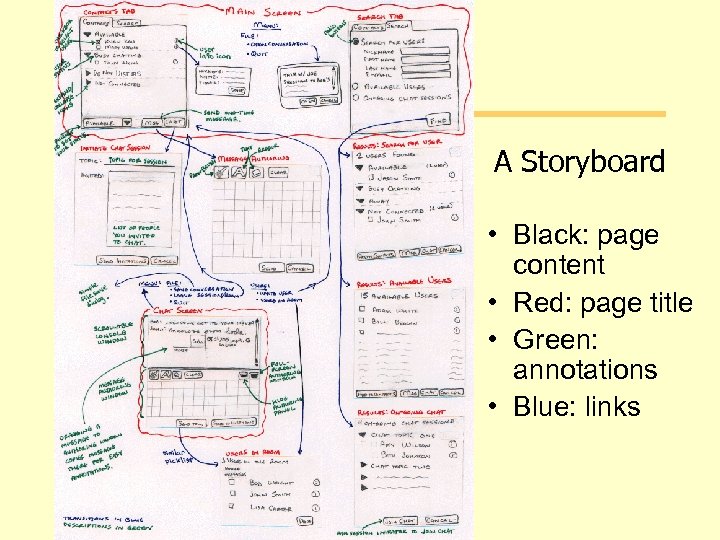
A Storyboard • Black: page content • Red: page title • Green: annotations • Blue: links
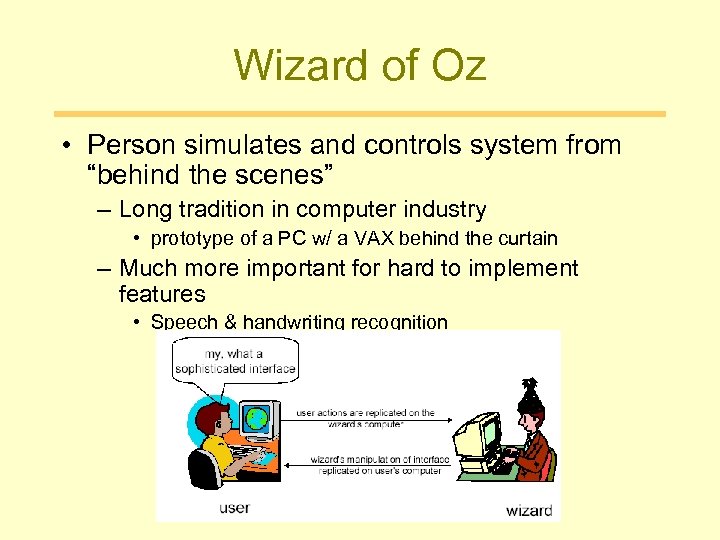
Wizard of Oz • Person simulates and controls system from “behind the scenes” – Long tradition in computer industry • prototype of a PC w/ a VAX behind the curtain – Much more important for hard to implement features • Speech & handwriting recognition
Wizard of Oz (2) • Can work for paper based prototypes too! • Tips – Rehearse your actions • For a complicated UI, make a flowchart which is hidden from the user • Make list of legal words for a speech interface – Stay “in role” • You are a computer, and have no common sense, or ability to understand spoken English.
Paper Sketches • Advantages – support brainstorming – do not require specification of details – designers feel comfortable sketching • Drawbacks – – do not evolve easily lack support for “design memory” force manual translation to electronic format do not allow end-user interaction Computerized tool support may be needed.
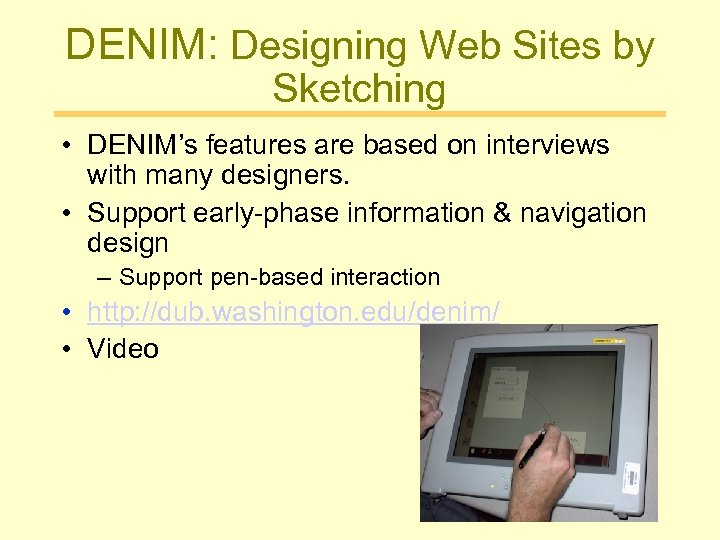
DENIM: Designing Web Sites by Sketching • DENIM’s features are based on interviews with many designers. • Support early-phase information & navigation design – Support pen-based interaction • http: //dub. washington. edu/denim/ • Video
Advantage of Low-fi Prototypes • Fast – prototype -> test -> iterate • Can simulate the interaction – sketches act as prototypes • designer “plays computer” • other design team members observe & record • Kindergarten implementation skills – allows non-programmers to participate in the design process • Good for Conceptual Design
High-fidelity Prototyping • Uses materials that you would expect to be in the final product. • Prototype looks more like the final system than a lowfidelity version. • Good for physical design • Look and feel • Component Layout • Interaction • Danger that users think they have a full system
Tools for High-fi prototyping • Web sites – HTML/XHTML + CSS, Web IDEs • drag-and-drop GUI toolkits for standard UI mockups – e. g. Visual designers in IDEs, Hypercard, Visual Basic • scripting languages & interface libraries for additional flexibility – e. g. tcl/tk, python • graphical languages for visualization and novel interface creation – Director, Flash • special purpose tools and environments – e. g. speech, haptics, Supercard/Revolution
Hi-fi Prototypes are not good for Conceptual Design • Perceptions of the tester/reviewer? – formal representation indicates “finished” nature • comments on color, fonts, and alignment • Time? – encourage precision • specifying details takes more time • Creativity? – lose track of the big picture
Map Task Types to UI • Selection tasks – Single value • Small range: dial, menu • Large range: slider – Multiple values • Small range: check boxes • Large range: list (ctrl + mouse scroll)? • Control tasks – Buttons, menus, hyperlinks, voices, gestures
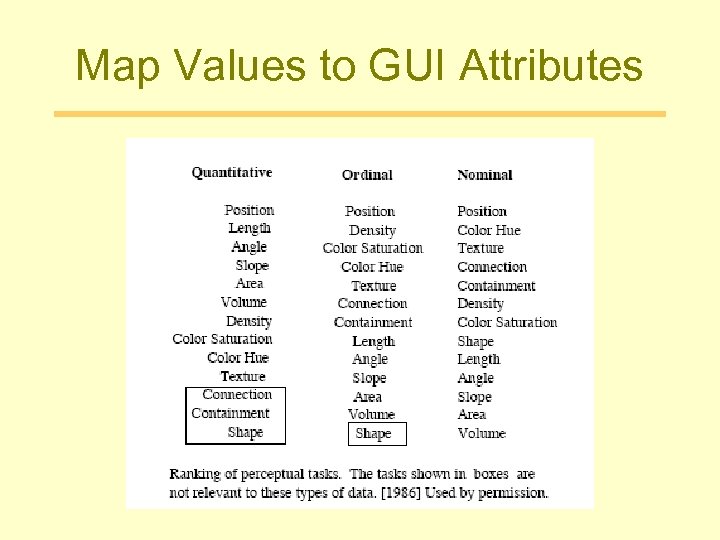
Map Values to GUI Attributes
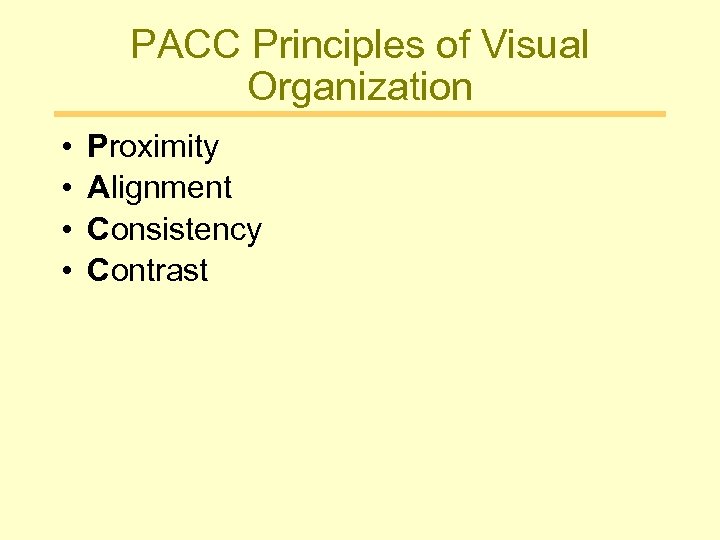
PACC Principles of Visual Organization • • Proximity Alignment Consistency Contrast
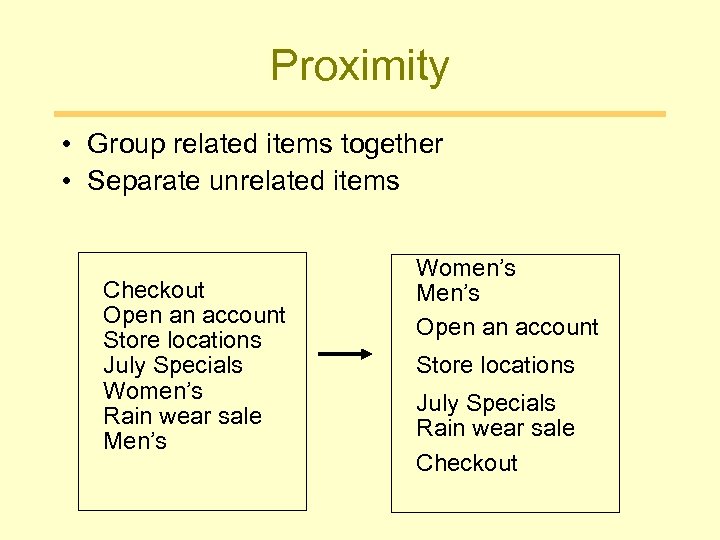
Proximity • Group related items together • Separate unrelated items Checkout Open an account Store locations July Specials Women’s Rain wear sale Men’s Women’s Men’s Open an account Store locations July Specials Rain wear sale Checkout
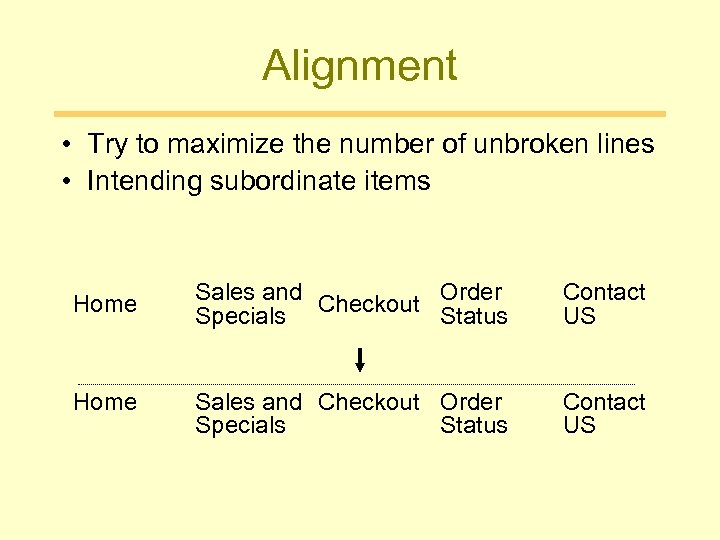
Alignment • Try to maximize the number of unbroken lines • Intending subordinate items Home Sales and Checkout Order Specials Status Contact US
Consistency • Put information in fixed, known locations • Put information in locations that likely match the user’s search order – top to bottom, left to right • Maintain basic layout throughout screens with similar function
Contrast • Make the information you want to draw user attention to really stand out – Color – Size – Shape • Don’t overuse it
Usability Evaluation • To Assess – Functionality – Usability • Ease of learning • Ease of use – Aesthetics • Need tools or methods – Common sense doesn’t suffice – Usability positions abound • Many HCI graduates find jobs doing usability evaluation
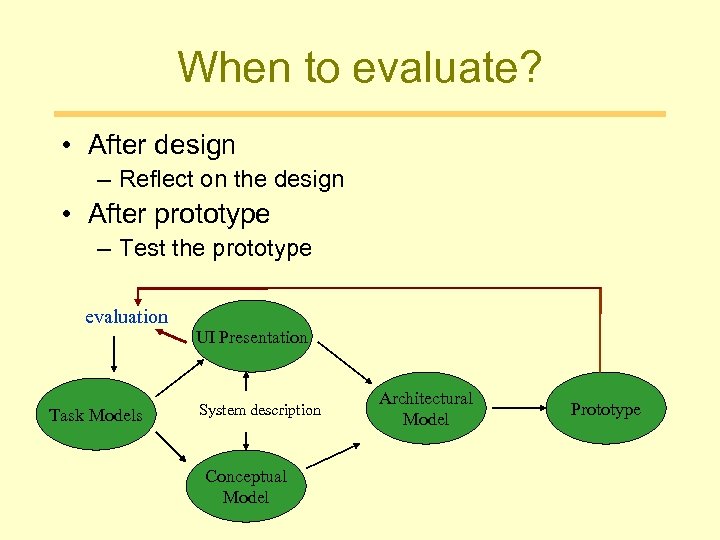
When to evaluate? • After design – Reflect on the design • After prototype – Test the prototype evaluation Task Models UI Presentation System description Conceptual Model Architectural Model Prototype
Reflect on the design • Without users • Methods – Checklists – Cognitive Walkthrough
Test the prototype with users • Open testing – Storefront, mall, post a trial website • Focus group – Demonstrate it and collect reactions – Questionnaire • Observe/Interview people in situ • Formal Usability test
Ethics of investigating humans • Above all, do no harm – What might harm someone • disclosed unhappiness with superiors • unpermitted attribution of opinions, ideas • facts considered private – Like salary, disabilities – Location • exposing things to children that their parents would not permit • disclosed details about someone’s method of working that would not be respected by others • Obtain informed consent
Informed Consent • You are REQUIRED to provide information to all your informants about your purposes • and who you are revealing information to – Assure your purposes are not malicious – Assure anonymity of information – They may ask for approval before you disclose your results • At the University, there is an Institutional Review Board (IRB) • If you are working and collecting data on people you have to get approval from IRB and get informed consent from your subjects.
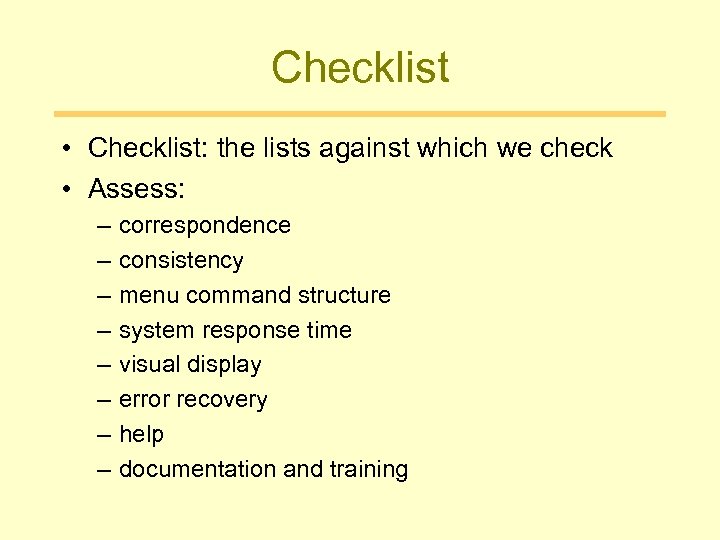
Checklist • Checklist: the lists against which we check • Assess: – – – – correspondence consistency menu command structure system response time visual display error recovery help documentation and training
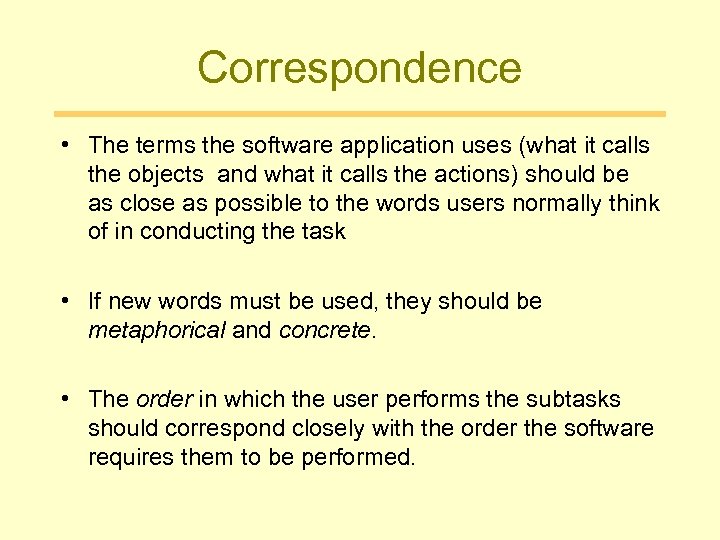
Correspondence • The terms the software application uses (what it calls the objects and what it calls the actions) should be as close as possible to the words users normally think of in conducting the task • If new words must be used, they should be metaphorical and concrete. • The order in which the user performs the subtasks should correspond closely with the order the software requires them to be performed.
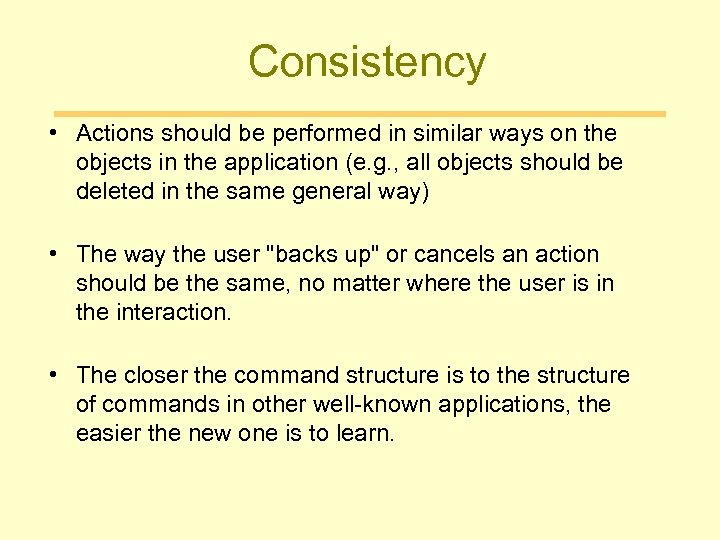
Consistency • Actions should be performed in similar ways on the objects in the application (e. g. , all objects should be deleted in the same general way) • The way the user "backs up" or cancels an action should be the same, no matter where the user is in the interaction. • The closer the command structure is to the structure of commands in other well-known applications, the easier the new one is to learn.
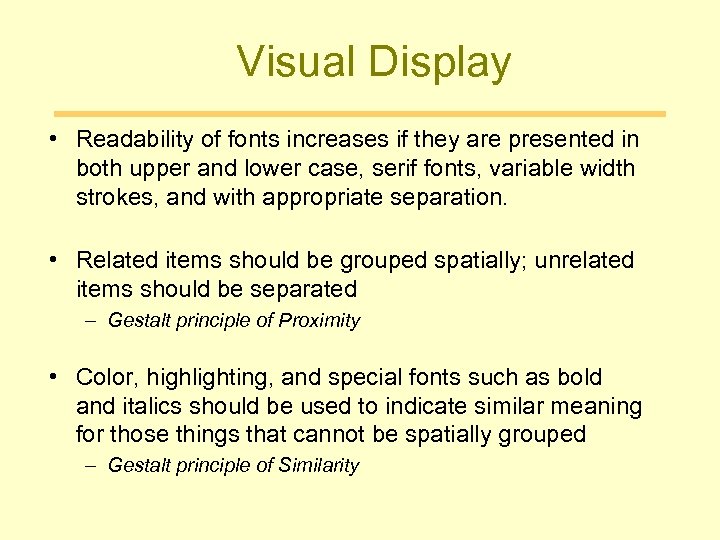
Visual Display • Readability of fonts increases if they are presented in both upper and lower case, serif fonts, variable width strokes, and with appropriate separation. • Related items should be grouped spatially; unrelated items should be separated – Gestalt principle of Proximity • Color, highlighting, and special fonts such as bold and italics should be used to indicate similar meaning for those things that cannot be spatially grouped – Gestalt principle of Similarity
Visual Display (cont. ) • Screen areas should be used consistently for similar functions – e. g. , error messages always displayed in the same, easy to see place • Display familiar items in familiar ways – e. g. , music is shown as musical notation, spatially related items are shown in a spatial display • Error messages should be presented in way that captures the user's attention – e. g. , flashing, reverse video, color, accompanied with a tone
Menu/Command Structure • For new or casual users, commands presented on menus are easier to learn and remember than commands that have to be typed in without a prompt. For experienced, dedicated users who know the command set well, commands entered with quick hand motions are preferred. • Commands should be formulated with a consistent grammar: The order most closely associated with commands in English is Verb-Object-Modifier ("putthat-there"). – [This is a very controversial point; many good, consistent systems have a grammar that is Object-Verb-Modifier; users find it easy to learn and easy to operate. ]
Menu/Command Structure (cont. ) • Frequently used commands should be easily accessible – e. g. , frequent menu selections should be near the top of the menu. • Related commands should be grouped on menus. • If there are more than one way to do something, instructions should be clear about when each method should be used for maximum efficiency.
System Response Time • Responses to keypresses or mouse movements should be within 100 msec of the act. • Normal computed responses (e. g. , responses to a request for a font change of the document) should take place within 2 sec, if they are part of an ongoing task. • The only times when system responses can be longer than 2 sec and not disrupt the user's cognition is when they occur at the end of a task, and the user is alerted that the time will be long. Showing how long that delay will be is helpful to the user to decide whether to engage in a secondary task during the time.
Error Recovery • Error messages should be clear statements of both the problem and how to recover from it. • All actions should have a natural reverse, accessed through an "undo" command. • Actions that have severe consequences should be prompted with "are you sure? " – e. g. , actions that delete an entire file should be prompted.
Help • Help messages should be accessible from any point in the dialog. • Help should help. It should be written specific to the context in which the help was requested. It should be written sensitive to the task the user was engaged in.
Documentation and Training • Training should be specific to the tasks the user is most likely to be engaged in. • Documentation explains both what the functions are in the system and how to use them in common tasks. • Documentation should be accessible through a good keyword index (in the user's vocabulary) and through tabs, headers, and a table of context that makes the grouping of functions obvious.
Cognitive Walkthrough • Determine the users’ tasks • Find the ideal path • At each step, ask…
Cognitive Walkthrough Question • Will the users try to achieve the right effect (goal)? – For example, their task is to print a document, but the first thing they have to do is select a printer. Will they know that they should select a printer? • Will the user notice that the correct action is available? – This relates to the visibility and understandability of actions in the interface.
Cognitive Walkthrough Question • Will the user associate the correct action with the effect to be achieved? – Users often use the "label-following" strategy, which leads them to select an action if the label for that action matches the task description. • If the correct action is performed, will the user see that progress is being made toward solution of the task? – This is to check the system feedback after the user executes the action.
Cognitive Walkthrough vs. Checklist • Both are “quick” methods – Without a user • Checklist – Overall impression • Cognitive Walkthrough – More detailed – Like running Model Human Processor in your head • Step by step instead of general impressions – Concentrating on the navigation
Formal Usability Testing • To give project managers some scores to test against – “Any number is better than none” • Assess performance – E. g. How many errors in critical tasks • Assess perception – Preferences of this over alternatives they know already
User Testing Components • • • Subjects The system The test environment Tasks The session Measures taken
Subjects • Who? –The target population • How many? –Diminishing returns • To discover errors – 5 -6 • To make comparisons – 20
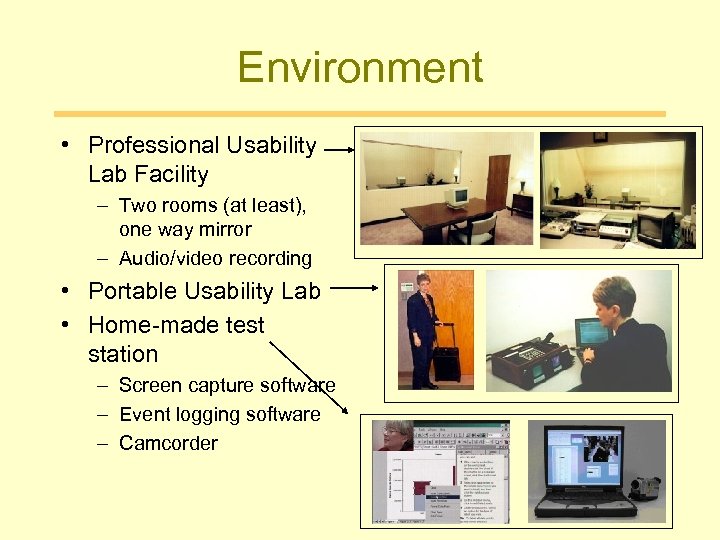
Environment • Professional Usability Lab Facility – Two rooms (at least), one way mirror – Audio/video recording • Portable Usability Lab • Home-made test station – Screen capture software – Event logging software – Camcorder
Tasks • Benchmark tasks – Test the core set of features – Useful for getting “scores” on performance and preferences • Critical incidents – If you are trying to find out exactly where the user fails and how to make it better – Find difficult situations
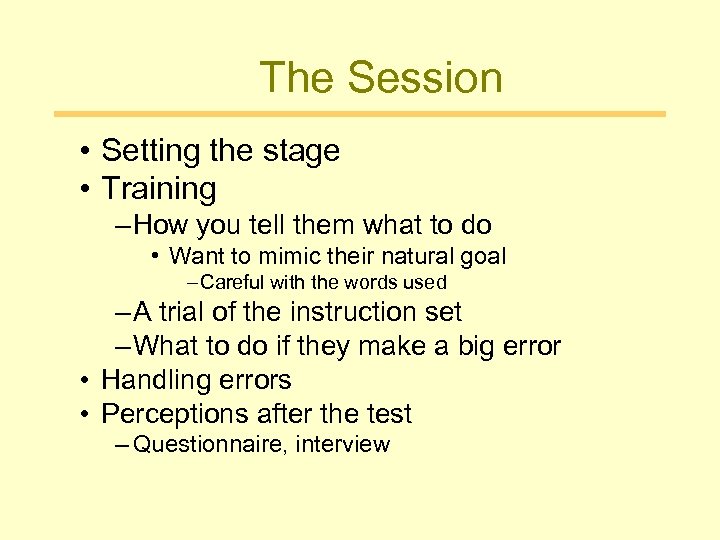
The Session • Setting the stage • Training – How you tell them what to do • Want to mimic their natural goal – Careful with the words used – A trial of the instruction set – What to do if they make a big error • Handling errors • Perceptions after the test – Questionnaire, interview
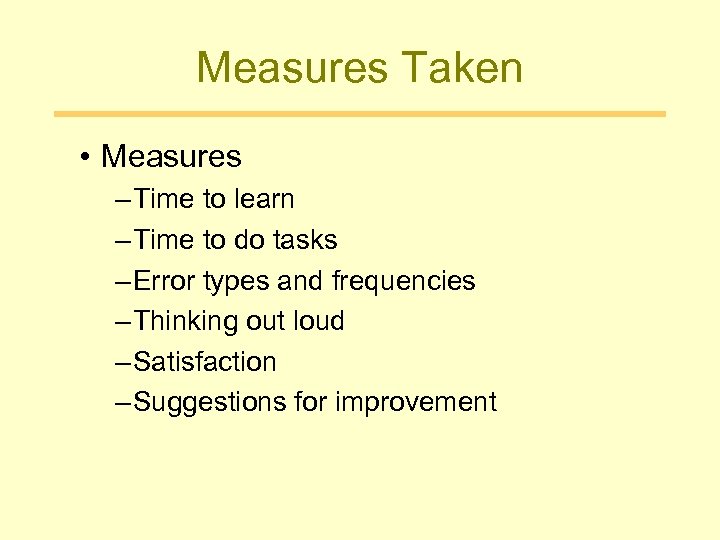
Measures Taken • Measures – Time to learn – Time to do tasks – Error types and frequencies – Thinking out loud – Satisfaction – Suggestions for improvement
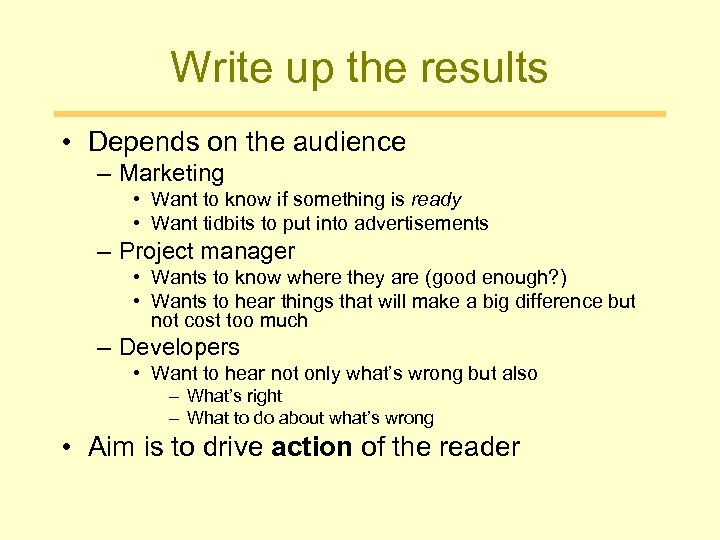
Write up the results • Depends on the audience – Marketing • Want to know if something is ready • Want tidbits to put into advertisements – Project manager • Wants to know where they are (good enough? ) • Wants to hear things that will make a big difference but not cost too much – Developers • Want to hear not only what’s wrong but also – What’s right – What to do about what’s wrong • Aim is to drive action of the reader
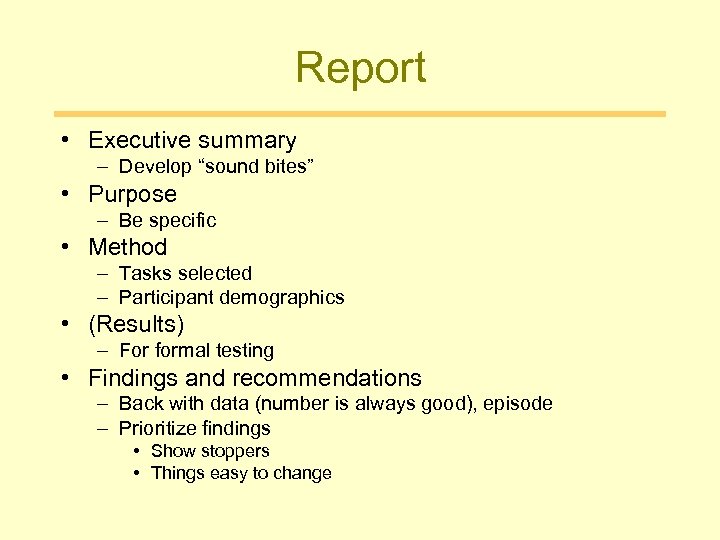
Report • Executive summary – Develop “sound bites” • Purpose – Be specific • Method – Tasks selected – Participant demographics • (Results) – For formal testing • Findings and recommendations – Back with data (number is always good), episode – Prioritize findings • Show stoppers • Things easy to change
Assignment Use at least two usability methods, evaluate the prototype of your projects, write a usability report.
Скачать презентацию Informal task analysis Better than none
e2fb0bdadcbd2fcda59df073504ed2aa.ppt